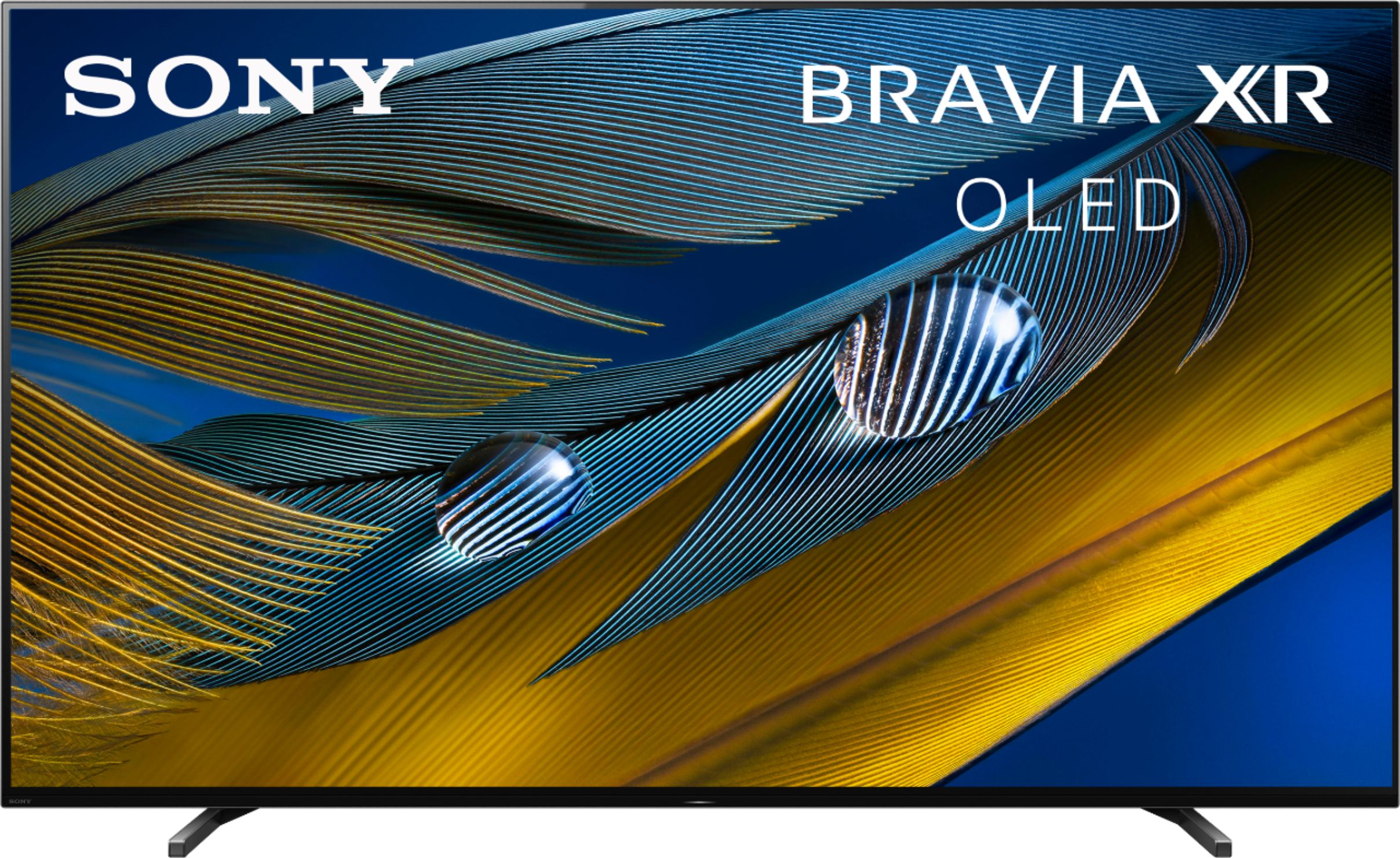
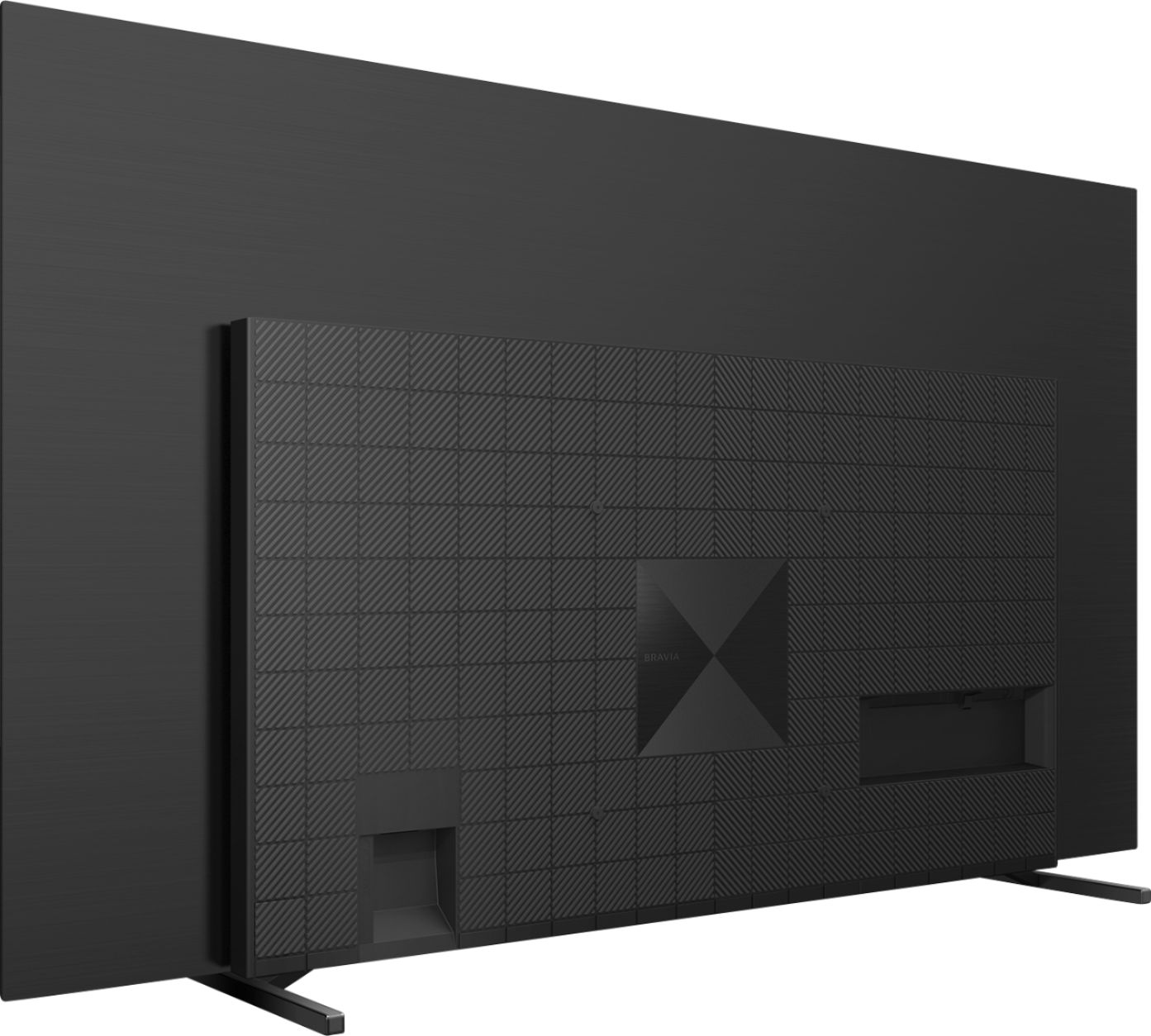
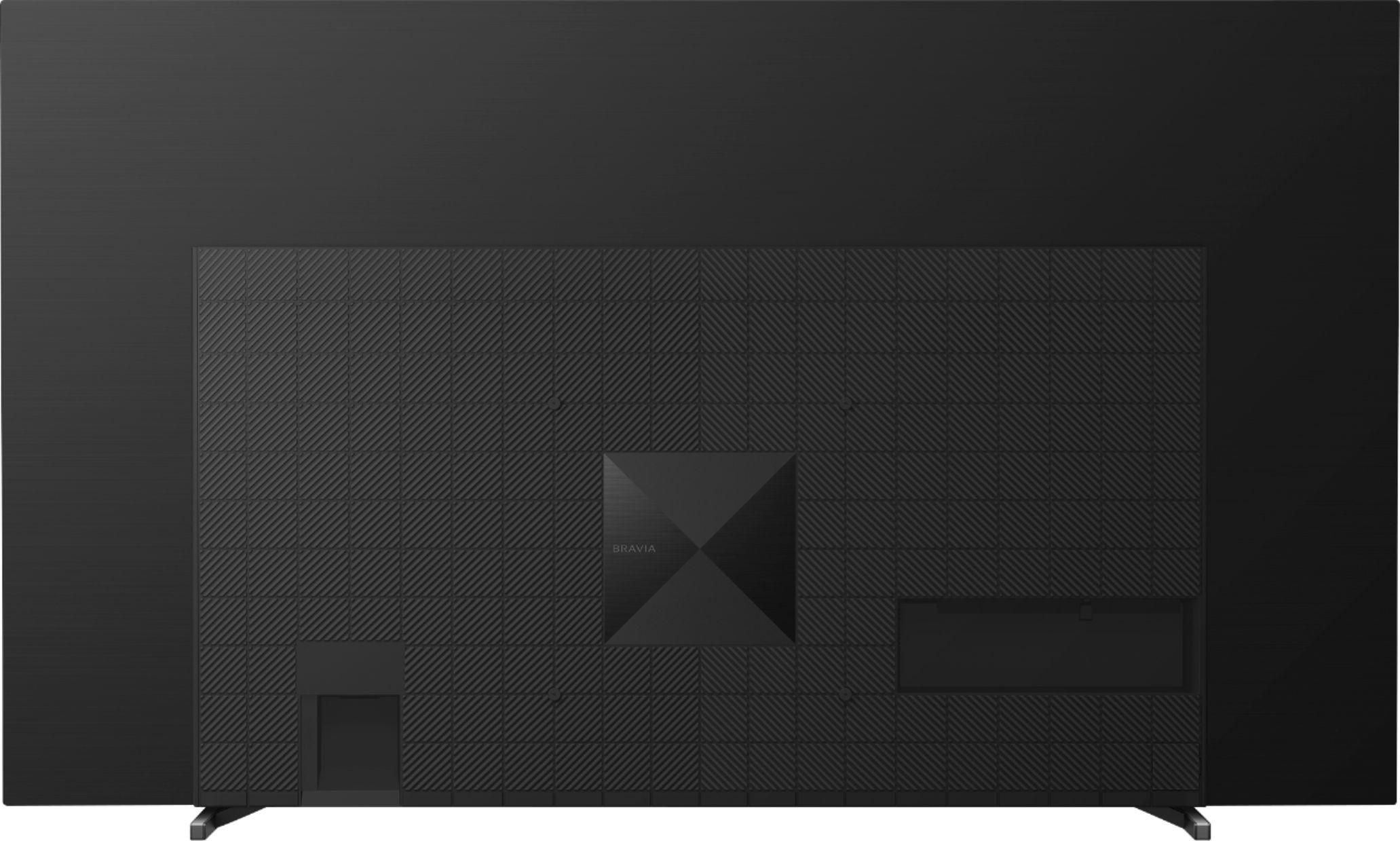
A:AnswerHi SaiyaJin, thanks for your inquiry. Yes, the A80J has ARC/eARC port. You can connect your soundbar to the eARC (HDMI 3) port and you can also connect your PS5 to HDMI 4. Both HDMI 3 and 4 ports support HDMI 2.1 features. I hope this helps. Erin
A:AnswerHi NewUser,
Thank you for choosing and purchasing our BRAVIA XR A80J.
The A80J can be used as a center channel only with acoustic center sync and a compatible Sony sound system like the A7000 or HT-A9.
May we contact you to help and get more information? If, please email the below information to [email protected].
Apologies if you disclosed some of this information in your review and to customer service, we just want to ensure that we have your accurate details at the time of communication.
Full Name:
Best Buy Username:
Telephone Number:
Sony TV Model Number:
Additional Information regarding your experience with the A80J
We are sorry for the inconvenience and hope to speak to you to resolve this matter.
We appreciate you and thanks again for shopping Sony!
Sincerely,
Erin
A:AnswerHi JC, thanks for your inquiry. The A80J has a panel refresh rate of 120Hz enhanced by XR Motion Clarity. The actual refresh rate is 120Hz regardless if the Motionflow is turned off. I hope this helps. Erin
A:AnswerHi JC,
Thank you for choosing and purchasing our BRAVIA XR X90J Full Array LED TV.
We are sorry to hear the picture looks pixelated when watching live sports or news cast. This is definitely not the viewing experience we want you to have. We'd love to help you troubleshoot your problem and turn this into a better experience.
Please try to adjust the Motionflow.
Open the Settings menu. These options vary depending on the model of your TV.
Using the Quick Settings button (For models released in 2019 or later):
On the supplied remote, press the Quick Settings gear icon button. Select the Settings gear icon.
Using the HOME menu button: On the supplied remote, press the HOME button. Select the Settings gear icon.
Adjust the Motionflow setting. This step will vary depending on your TV menu settings. Use the steps that best matches your menu::
Select Picture settings → Picture → Motion → Motionflow.
Select Display & Sound → Picture → Motion → Motionflow.
Select Display & Sound → Picture → Advanced settings → Motion → Motionflow.
Select Display → Picture → Advanced settings → Motion → Motionflow
Select Picture & Display → Picture adjustments → Advanced settings → Motion → Motionflow.
I hope this helps. Should you need further assistance, please email the below information to [email protected].
Apologies if you disclosed some of this information in your review and to customer service, we just want to ensure that we have your accurate details at the time of communication.
Full Name:
Best Buy Username:
Telephone Number:
Sony TV Model Number:
Additional Information regarding your experience with the X90J
We are sorry for the inconvenience and hope to speak to you to resolve this matter.
We appreciate you and thanks again for shopping Sony!
Sincerely,
Erin
A:AnswerYes you can download the Apple TV app and log in with your apple ID to view content from your Apple TV account such as items you’ve purchased that reside in your Apple TV library. For Apple TV + content you’d need to have the paid subscription though.
A:AnswerHi Lime13,
Thank you for choosing and purchasing our BRAVIA XR A80J.
We are sorry to hear that the TV turns on by itself. This is definitely not the experience we want you to have. We’d love to help you troubleshoot your problem by isolating your sources and understanding your connections.
Is there an HDMI device connected to your TV? If, the CEC control of these devices may be the issue of why the tv is waking up.
In the meantime, please try restarting or resetting the TV.
Power Reset or Restart Options
If the power cord is accessible, try a power reset. If not, then use either of the restart options.
Unplug the TV power cord from the wall outlet, wait two minutes, then plug the power cord back in.
Restart the TV with the supplied remote control:
-Press and hold the POWER button until Power off appears on the screen
-Press and hold the POWER button until a menu appears → select Restart
Restart the using the menu. On the remote:
Press (Quick Settings) → Settings → System → Restart → Restart
Press HOME → navigate to Settings → About → Restart → Restart
Press HOME → navigate to Settings → Device Preferences → About → Restart → Restart
Reference: https://www.sony.com/electronics/support/televisions-projectors-oled-tvs-android-/xr-55a80j/articles/00159487
Please ensure the TV's software is updated. For more information, refer to How do I perform Firmware/ Software Updates for my Android TV or Google TV? article. https://www.sony.com/electronics/support/televisions-projectors-oled-tvs-android-/xr-55a80j/articles/00119543
May we contact you to help and get more information? If so, please email the below information to [email protected].
Apologies if you disclosed some of this information in your review and to customer service, we just want to ensure that we have your accurate details at the time of communication.
Full Name:
Best Buy Username:
Telephone Number:
Sony TV Model Number:
Additional Information regarding your experience with the A80J
We are sorry for the inconvenience and hope to speak to you to resolve this matter.
We appreciate you and thanks again for shopping Sony!
Sincerely,
Erin
A:AnswerHi daytonsteve, thank you for your inquiry. Unfortunately analog connections do not control external devices volume. This is only a feature using HDMI with Bravia sync enabled. Connections between both the tv and external device with the tv remote volume will have this feature. Regards, Erin
A:AnswerHi Nick, thanks for your inquiry. Using the headphone output is not recommended for low frequency sources like for sub woofer. A receiver will have an LFE port and it's dedicated for low frequencies like a subwoofer. In addition, compatible audio products like our HT-A9 can be paired with our SW3 or SW5 subwoofer for the best experience. Also our HT-A5000 and HT-A9000. I hope this helps. Erin
A:AnswerHi AJain, thank you for inquiring about the A80J. We recommend using the optional SU-WL855 ultra-slim wall-mount bracket. This is designed to hang select Sony BRAVIA OLED and LED TVs flush to the wall, just like any other work of art. Pull out your TV and swivel it left to right to adjust the screen angle for optimal viewing. You can also use a Vesa compliant wall mount with VESA Hole pitch is 11.81 x 11.81 inches (300 x 300 mm). Please note that there is also a weight limit with any mount and the bracket that you'll be using needs to be able to support the TV weight. Our 55"A80J weighs 17.8 kg (39.3 lb). I hope this helps. Erin
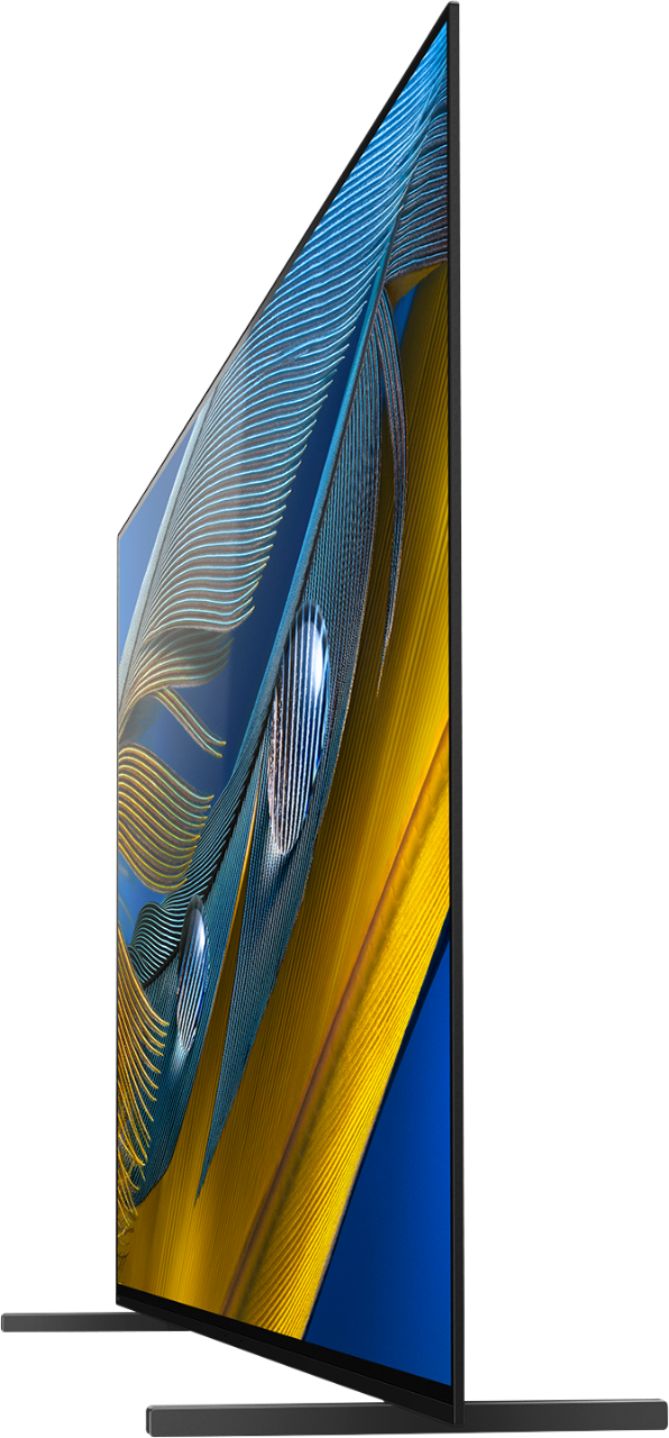
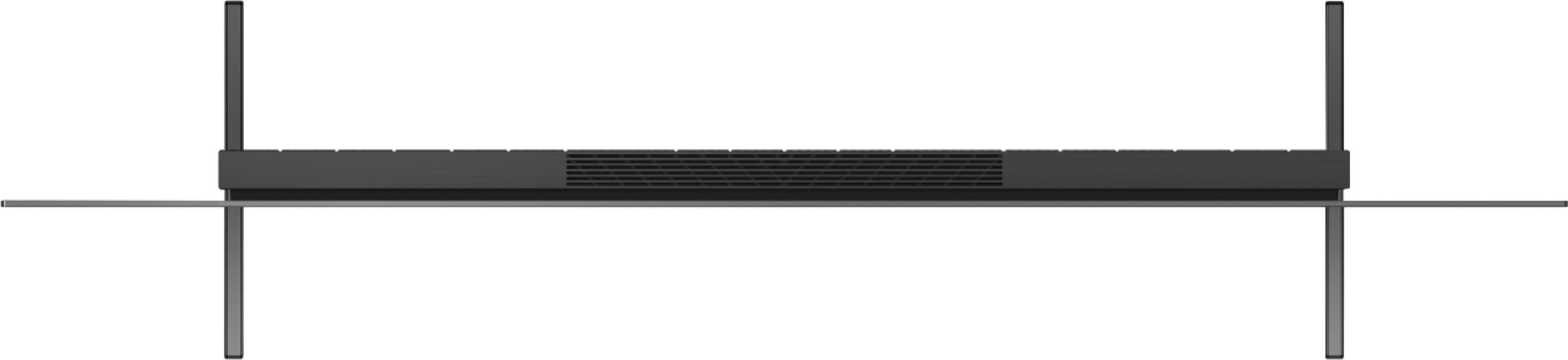
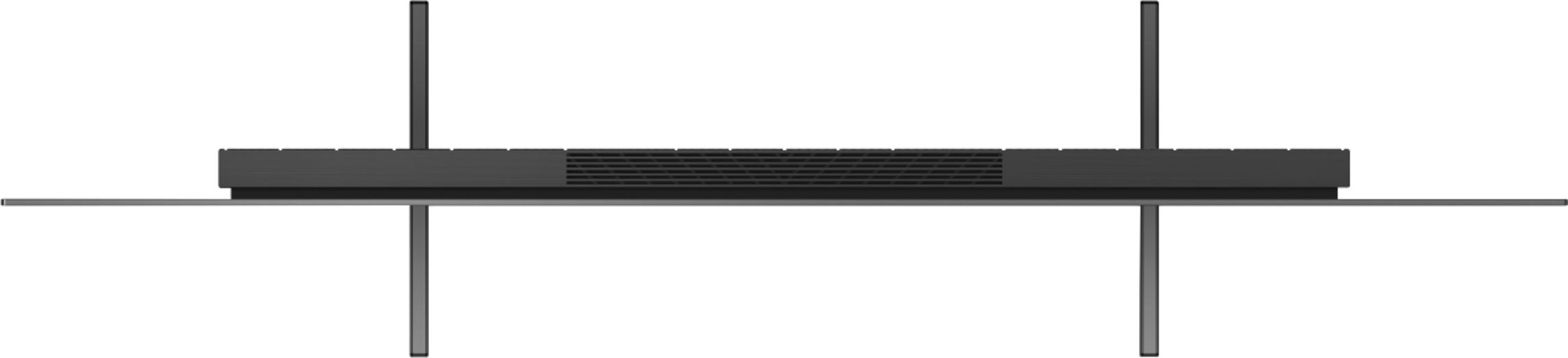
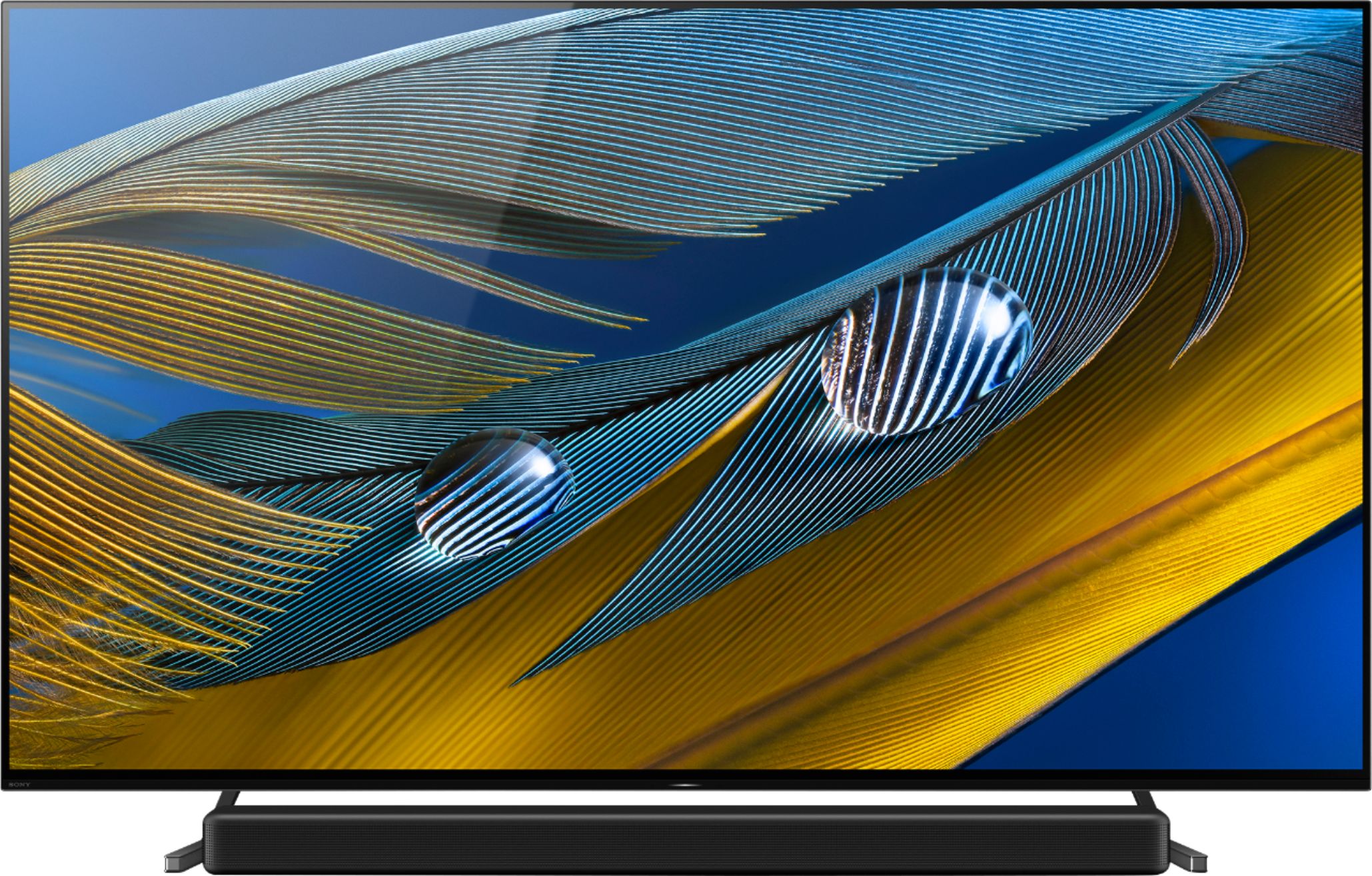
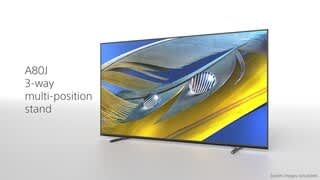
A:AnswerHi UCFJeff, thank you for inquiring about the TV. Our A80J has a 3-way stand position (Standard position/Narrow position/Soundbar position). Below is the measurement.
STAND WIDTH (STANDARD POSITION) 40.75 in (1,034 mm)
STAND WIDTH (NARROW POSITION) 27.25 in (692 mm)
STAND WIDTH (SOUNDBAR POSITION) 40.88 in (1,036 mm)
I hope this helps.
Regards,
Erin
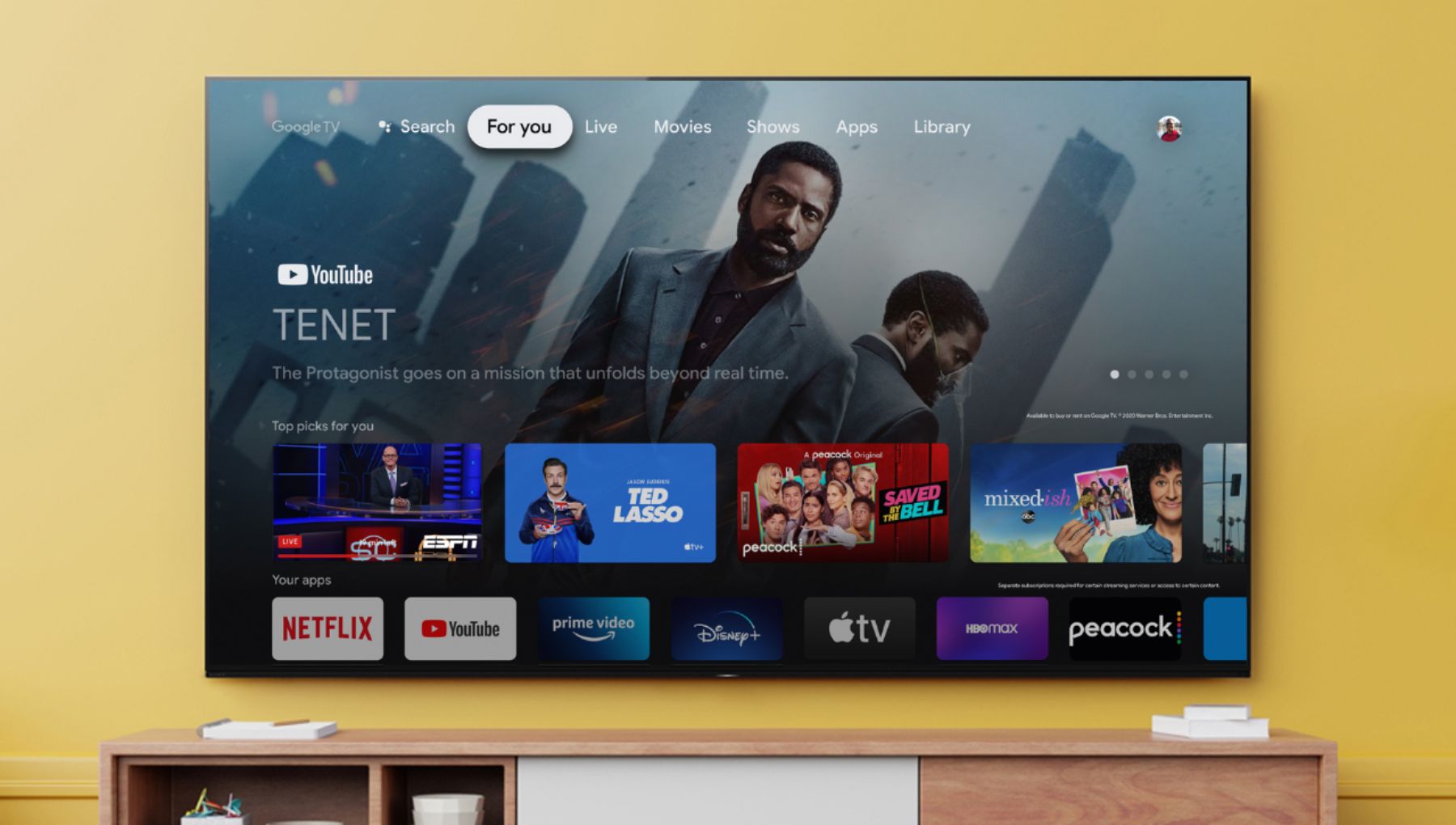
A:AnswerHi, thank you for inquiring about the BRAVIA XR A80J OLED TV. Our A80J already has pre-installed apps such as YouTube, Netflix, Prime Video, and many more. You can also download/install your desired apps using its built-in Google PlayStore. This will also allow you to browse 700,000+ movies and TV episodes from across your streaming services, all in one place and organized into topics and genres based on what interests you. On top of that, you can still use your Amazon Firestick with Sony TVs.
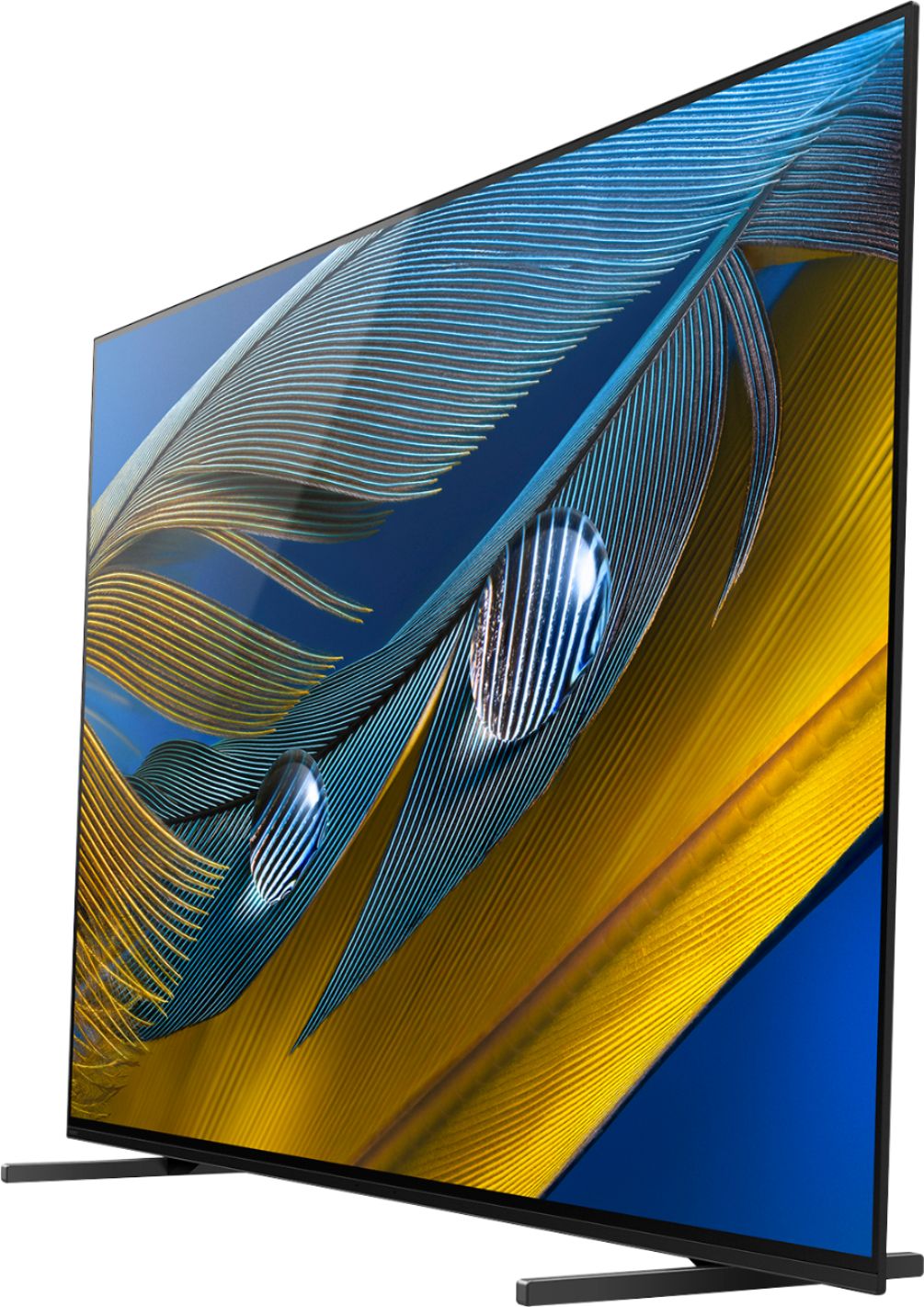
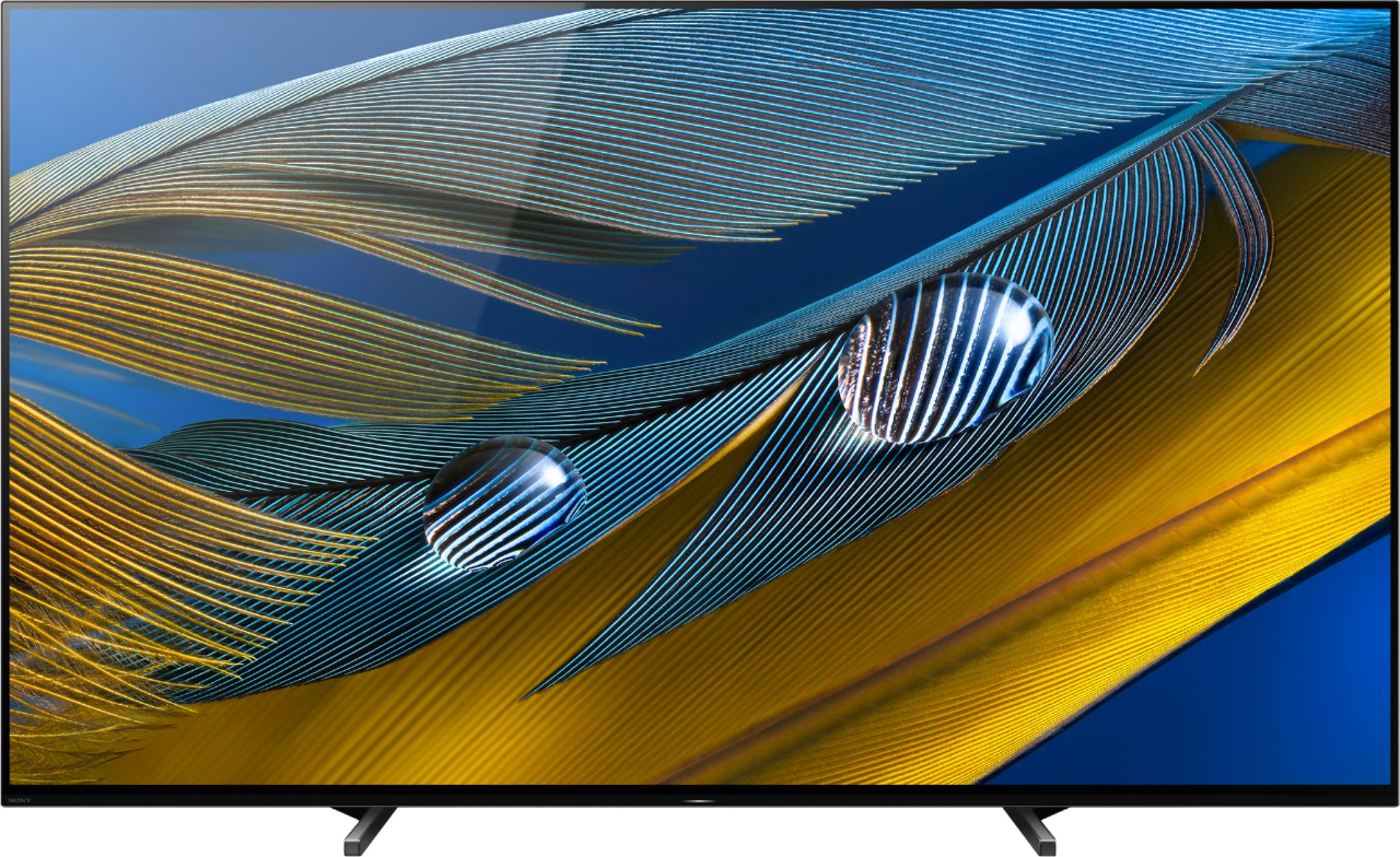
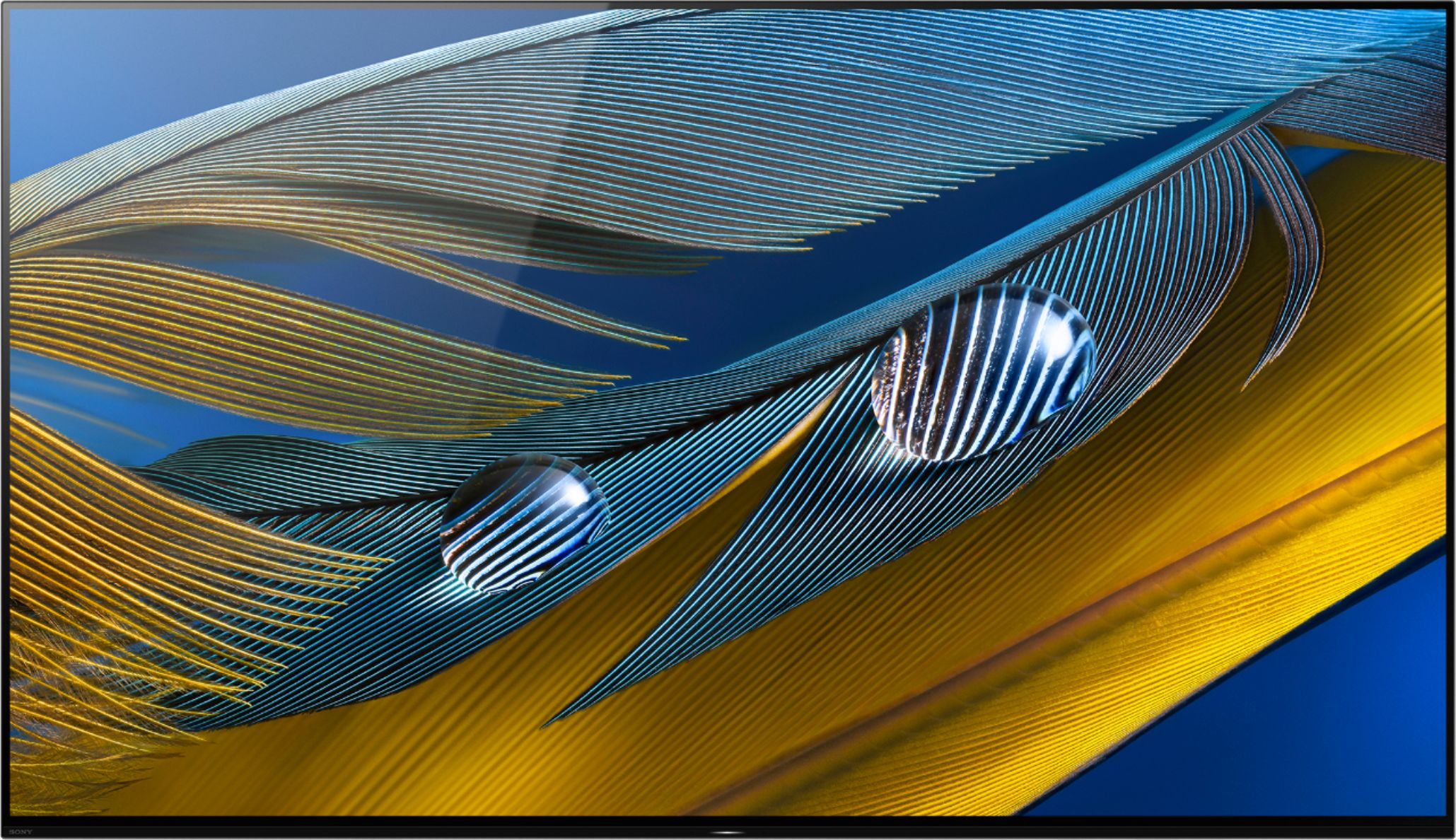
You'll definitely enjoy a premium OLED picture with contrast and color that feels deep, natural, and real. The revolutionary Cognitive Processor XR™ optimizes thousands of on-screen elements simultaneously for a lifelike picture. Feel the action with Acoustic Surface Audio+ and experience truly immersive sound that perfectly matches the picture on screen. Grab it now! Sincerely, Erin
A:AnswerHi, thank you for inquiring about the BRAVIA XR A80J. The reflection handling is superb, so glare shouldn't be an issue. With XR OLED Contrast, brightness is adjusted for higher peaks in glare and deeper blacks in shadow—no more details overwhelmed by shadow or lost in blown-out highlights. I hope this helps. Regards, Erin
A:AnswerI just bought mine a couple weeks ago. We had an older LED model. To me, it was a huge upgrade to this OLED model. I love watching everything on it now and my wife wants to watch too.
A:AnswerHi Ron, Thank you for purchasing the XR55A80J! Great News! You can check the link below for your reference on setting up the table-top stand of this TV.
https://www.youtube.com/watch?v=61xlbdUnIjs&t=28s
I hope this helps! Jay
A:AnswerHi TVshopper, Great news! Yes, the XR55A80J offers a 3-way stand position. Standard (wide), Inner (narrow), and Soundbar position that provides room for a soundbar. I hope this helps. Regards, Erin
A:AnswerNo you don’t have to setup an account to use some apps like YouTube, but you should set an account if you wanna use some apps like Netflix, during the setup just skip the account setup section
A:AnswerHi Nick, thanks for your interest in Sony TVs. You can get the most out of next-gen gaming with BRAVIA XR. With HDMI2.1 you can get a 120fps frame rate on compatible games, so you’ll have the advantage in shooting, sports and high-performance games with instant on-screen action. You’ll also enjoy ultra-smooth gaming with reduced input lag less than 8.5 ms with 4K/120fps and dedicated Game Mode. I hope this helps. Regards, Erin