A:AnswerYes but read the instructions for best noise cancelling experience. A slight touch will allow you to alter the level of what you can and cannot hear
A:AnswerThe noise cancelling is perfect for canceling out static noise especially well so you wont hear the plane at all, and the headset comes with an airline adapter.
A:AnswerI believe it would work, but you don't need it. If you pair it via bluetooth with your phone, you can talk to the person on the other end and they can hear you just fine. I have a ndroid phone and I was able to hear the person and respond to them, with the headphones on. It was actually pretty cool.
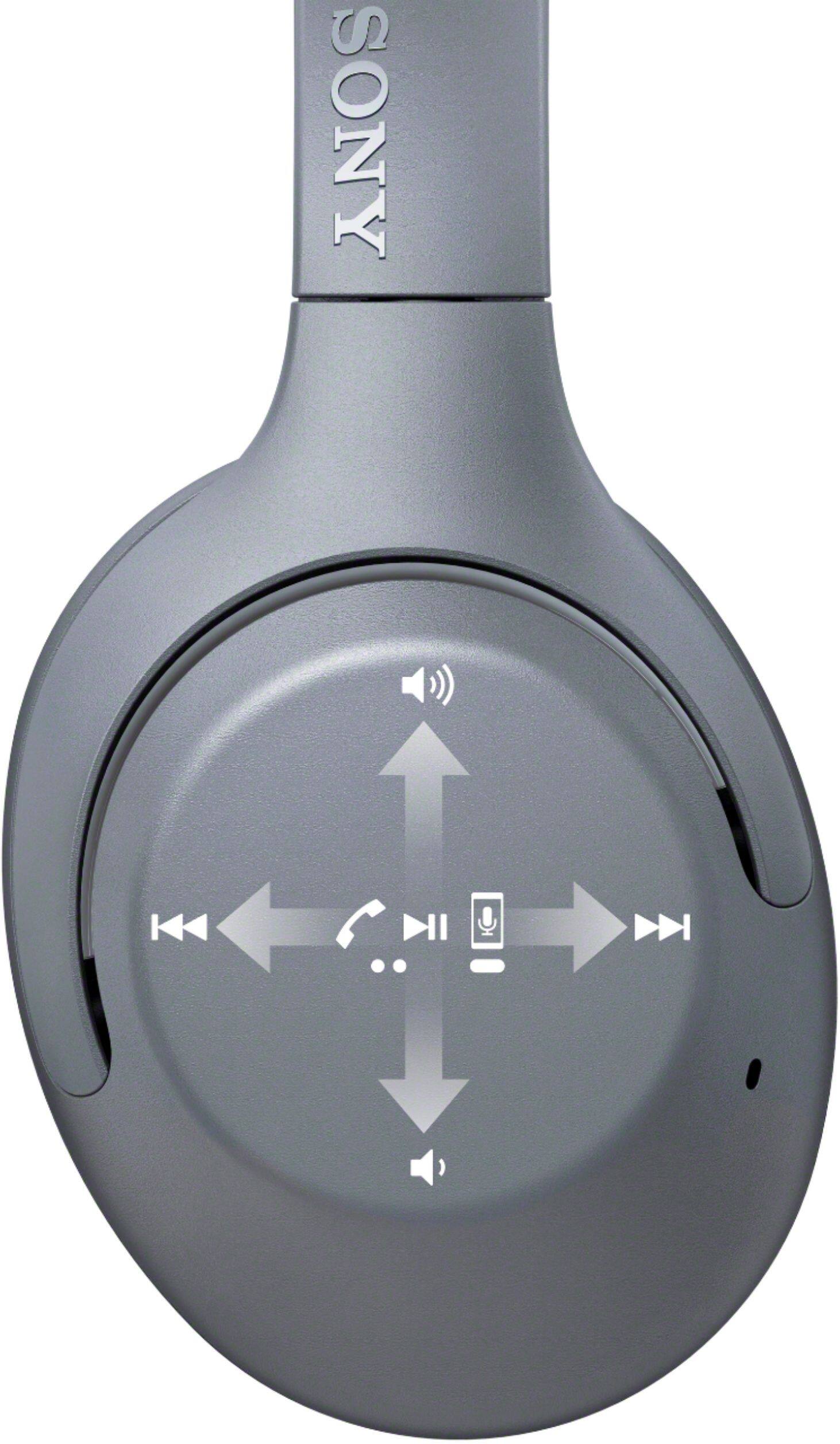
A:AnswerHi, Consumer! Your PC must support the device operating function (compatible protocol: AVRCP) to use the touch sensor control of the headphones. Note: The available functions may vary depending on the connected device. For more information, please refer to this link https://helpguide.sony.net/mdr/whxb900n/v1/en/contents/TP0002050039.html?search=touch%20control. Thank you! - Romeo
A:AnswerHi, Bryant97! Unfortunately, PlayStation doesn't support Bluetooth headphones. You may use the supplied headphone cable for a wired connection. We also recommend using dedicated gaming headphones for optimum performance. You may refer to this link for more information:
https://www.sony.com/electronics/support/wireless-headphones-bluetooth-headphones/wh-xb900n/articles/00073432
~Ralph
A:AnswerHi Jfl204,
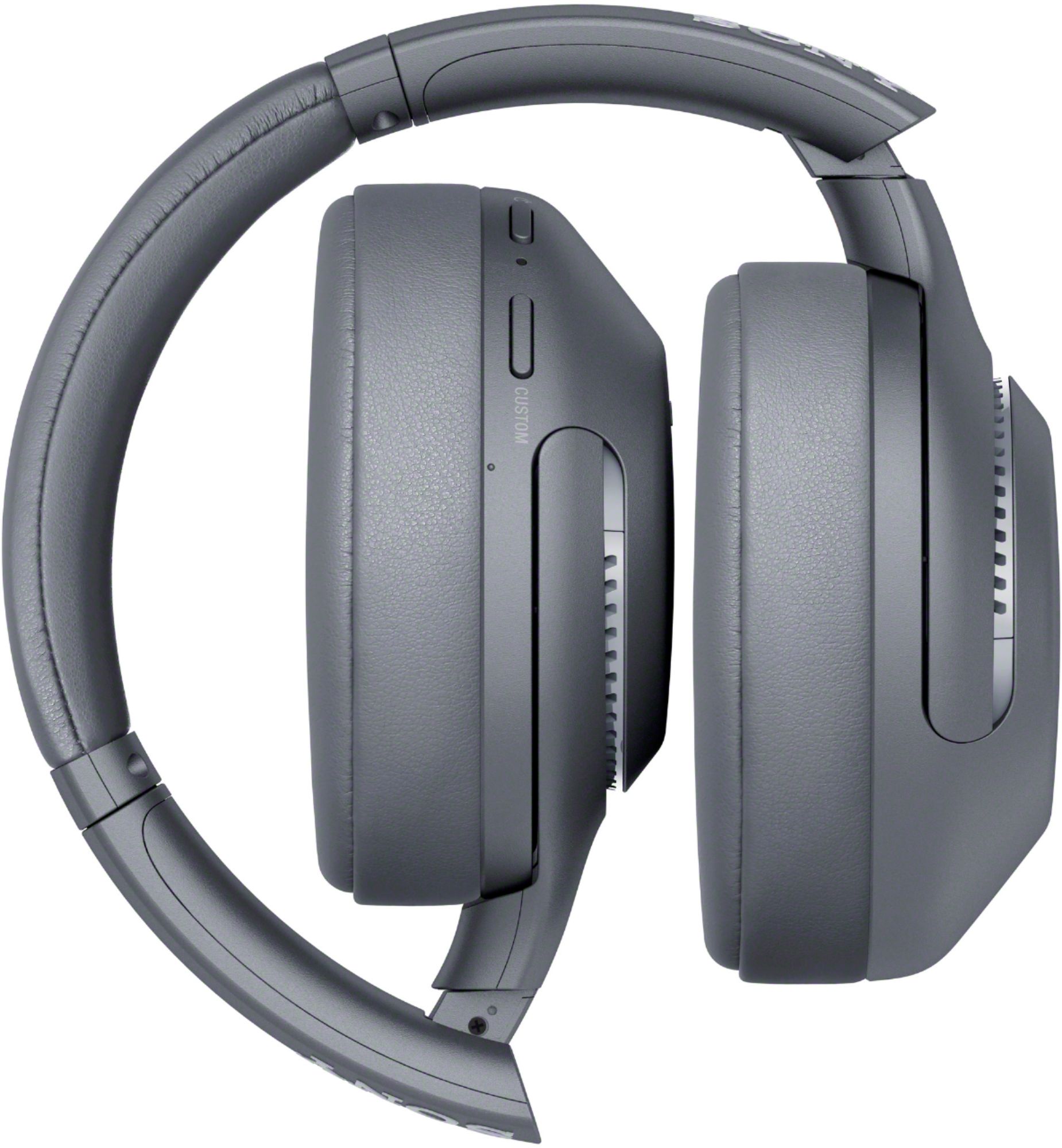
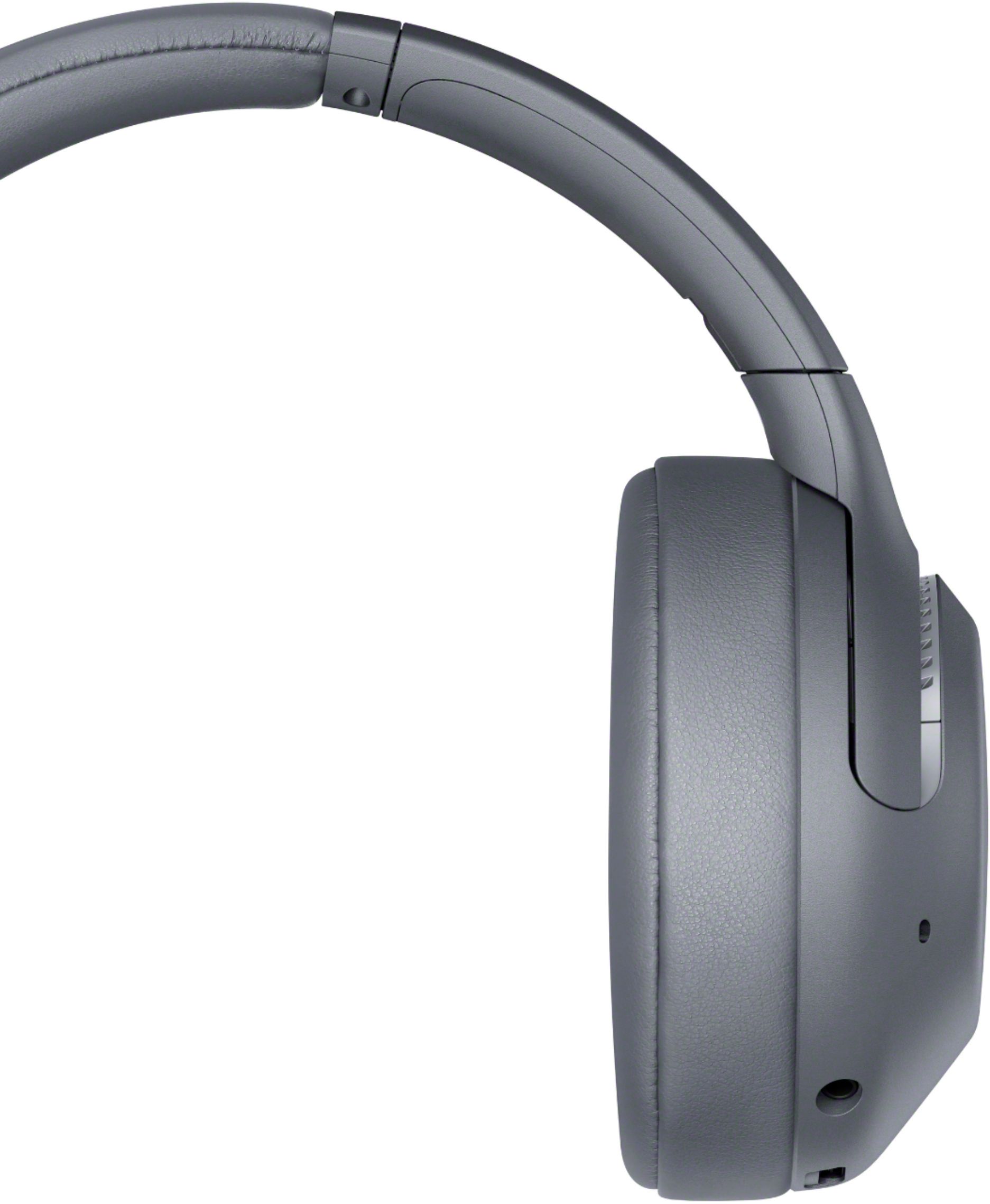
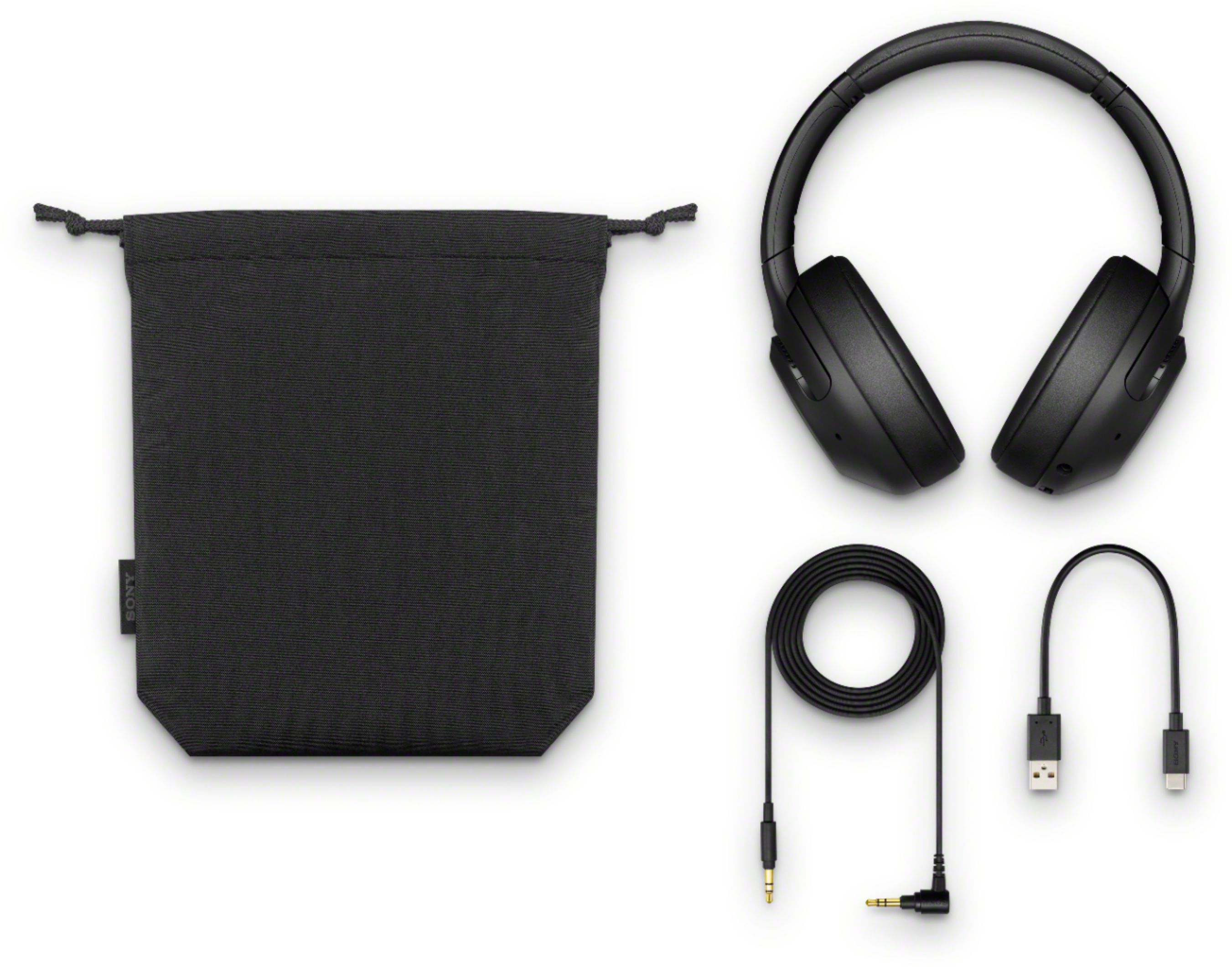
We apologize, this unit does not use a docking station for charging the wireless headset. This headset contains a built-in lithium-ion rechargeable battery. You can connect the headset to a computer or a commercially available USB AC adaptor with the supplied USB Type-C cable to charge the headset.
Thanks for considering Sony!
Regards,
Jess
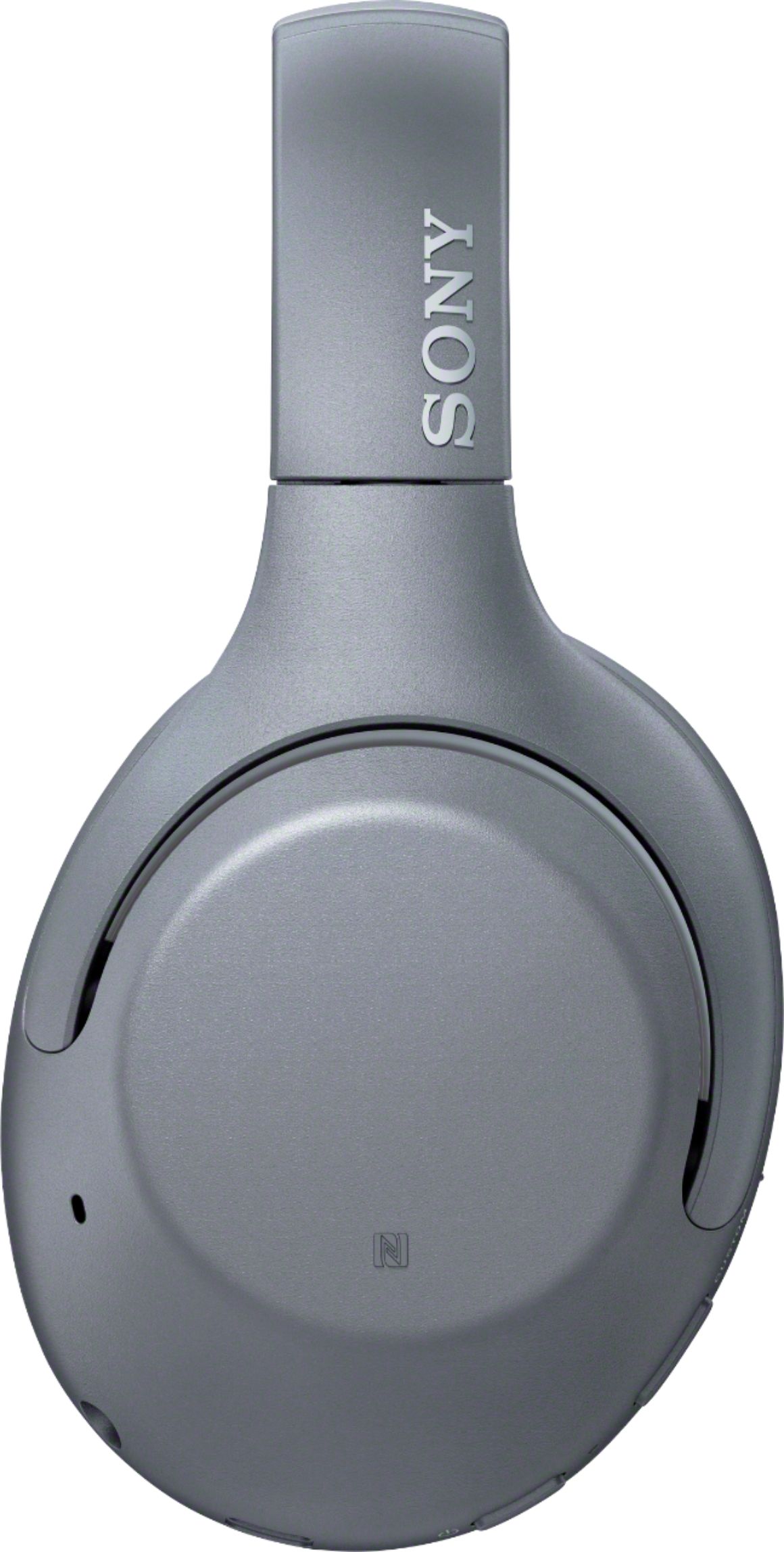
A:AnswerThe smart TV should have Bluetooth to connect with the headphones. Go to the settings on the TV and find the bluetooth settings for add device. Put the headphones on & press the power button & hold it down until you hear bluetooth pairing, then click on the TV remote button to connect with the headphones, you should hear bluetooth connected. Go to a TV program and check if can hear the sound, if not, then you to try a different menu button on the TV remote & find the bluetooth volume setting. Click on the link, use the volume up button on the remote & raise the volume level between 30 and 50 percent, then try a TV program for the volume level. The Sony WH-XB900N wireless headphones volume control is on the right side, swipe up to increase the volume, swipe down to decrease the volume. At least that's how mine works. (NOTE: it was simpler before a recent Android TV software update.)
Good luck and remember, if all else fails, read the manual for your devices!
A:AnswerHi Ro, Thanks for your inquiry. The ringtone volume is appropriate and loud enough. You can try to adjust the Ringer and Alerts volume on the phone and set it to high. When an incoming call arrives while you are listening to music, playback pauses and a ringtone will be heard from the headset. Once you hear a ring tone, double-tap the touch sensor control panel lightly (about 0.4-second interval) and receive the call. Hope this helps. -Jess
A:AnswerHi Nickm12690, thank you for inquiring about the WHXB900N. You can connect these headphones to your television so you can get the audio from your PlayStation. PlayStation headphones are best to be paired with PS4/5 consoles. ~Ralph