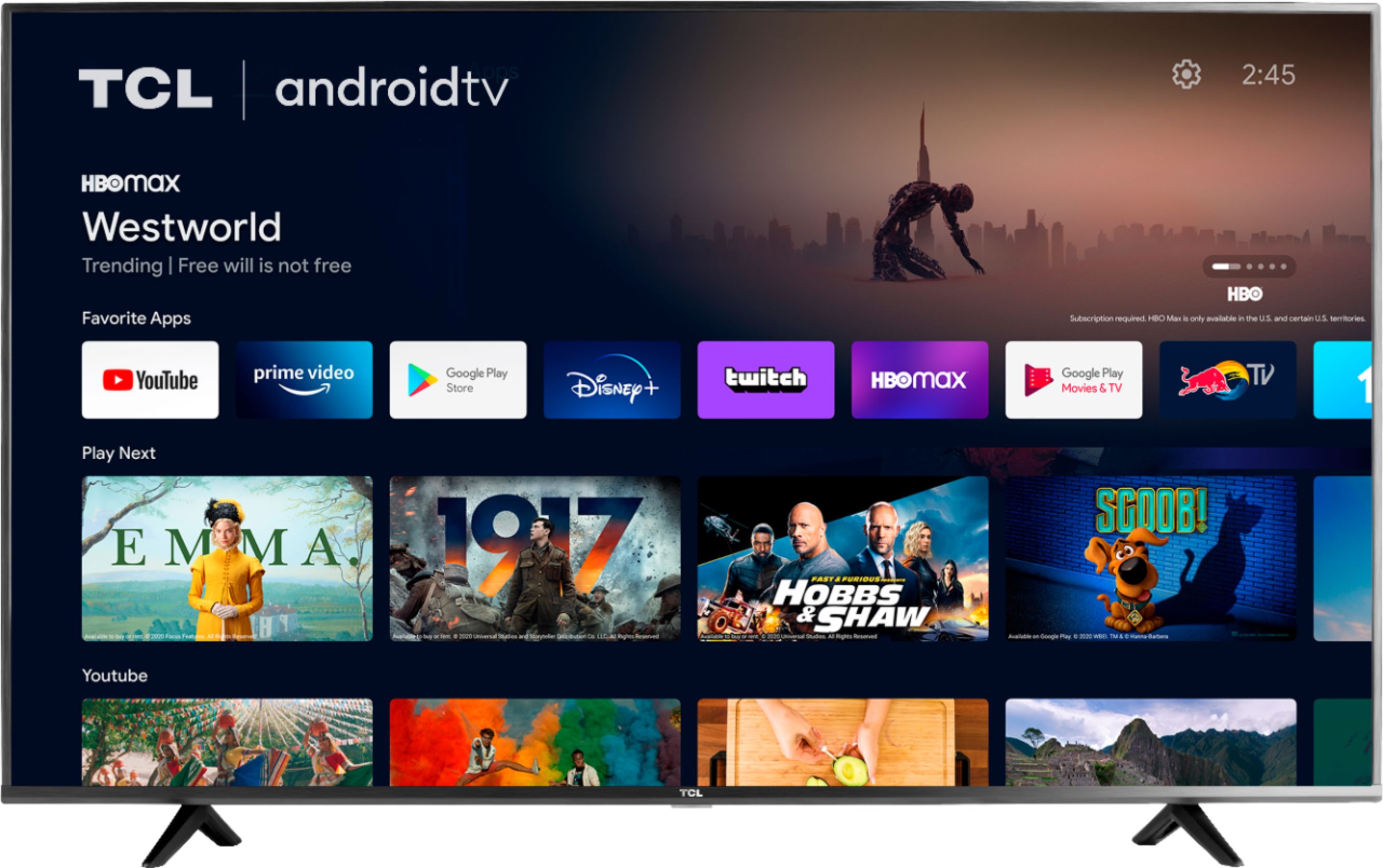
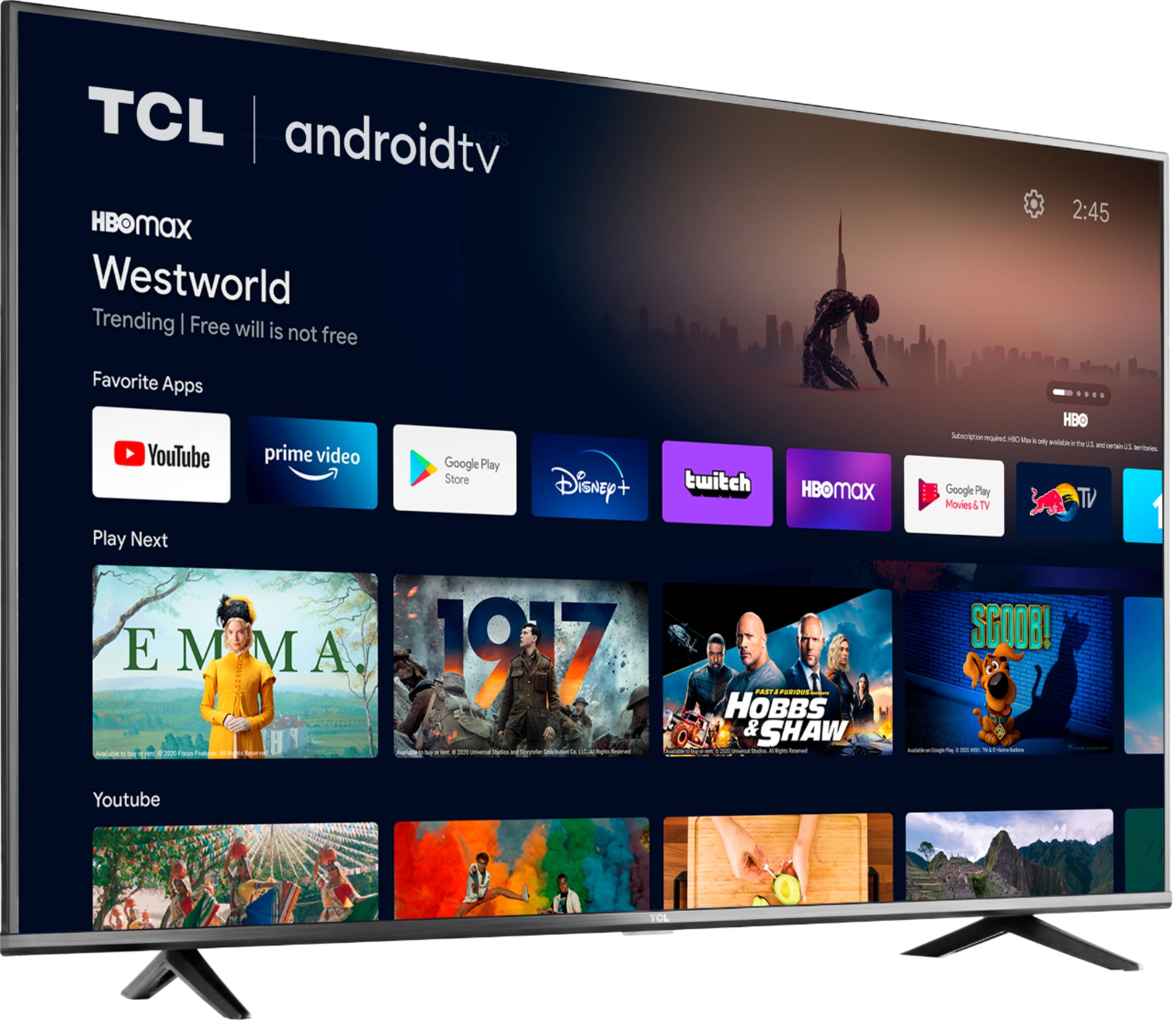
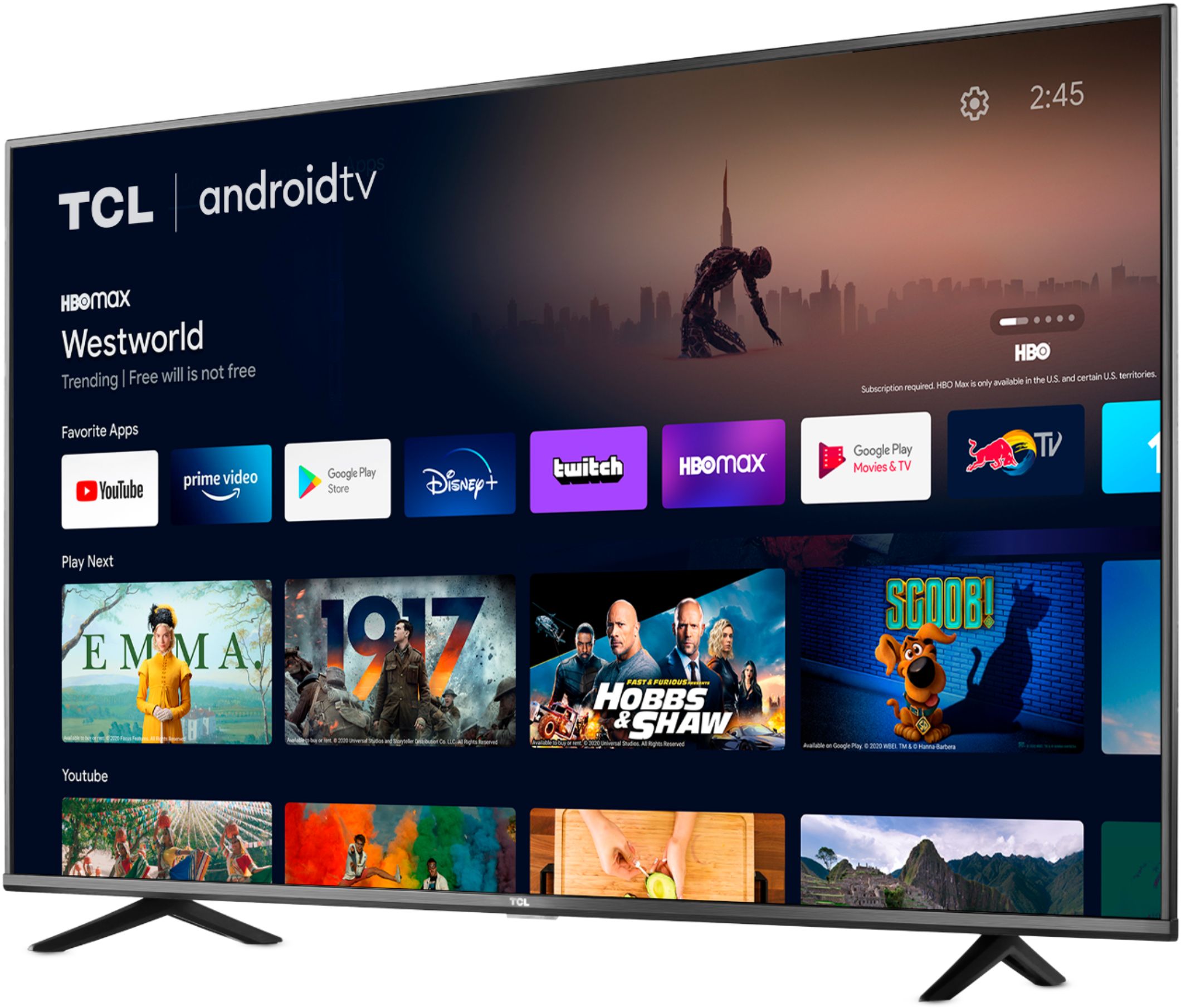
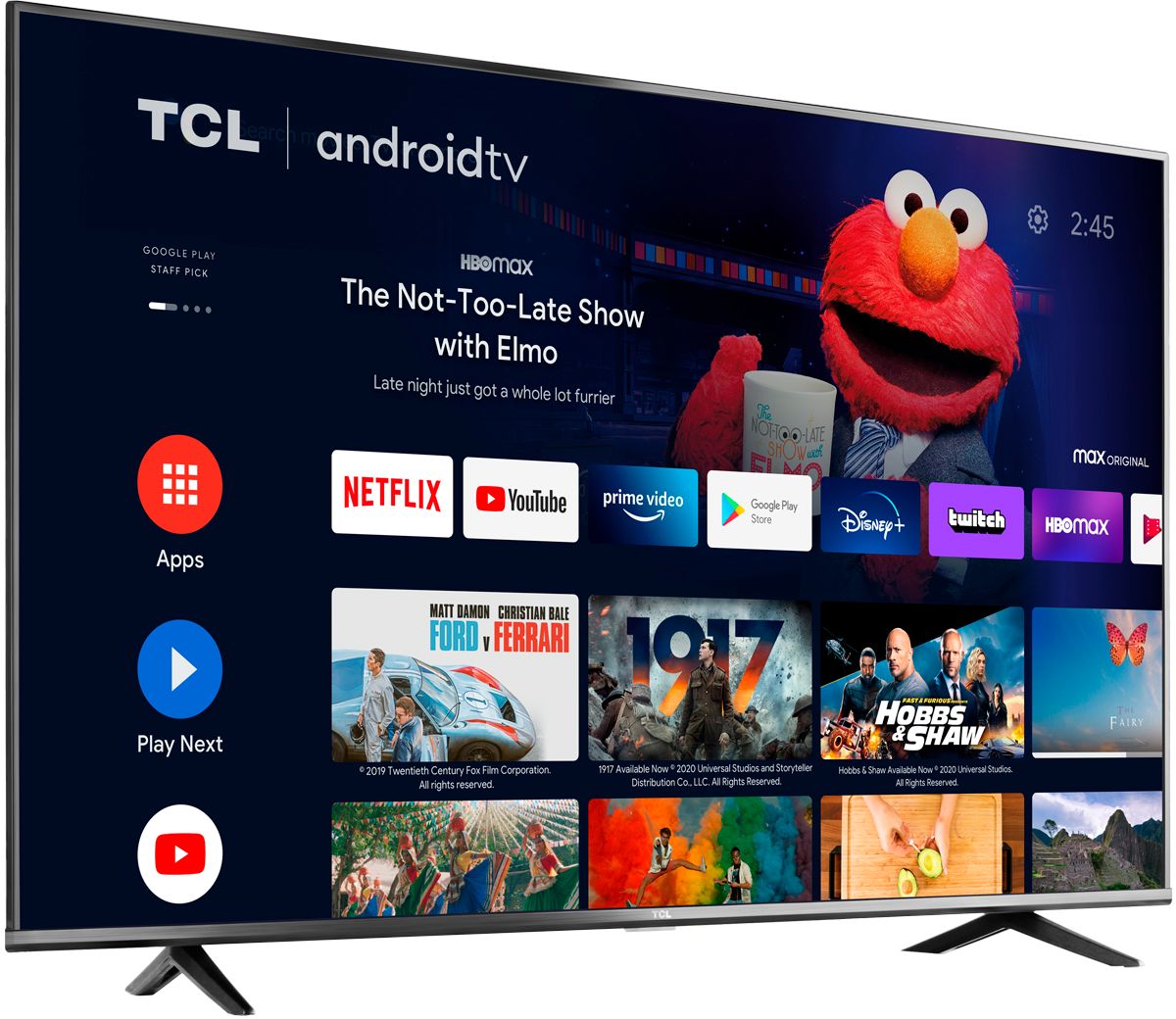
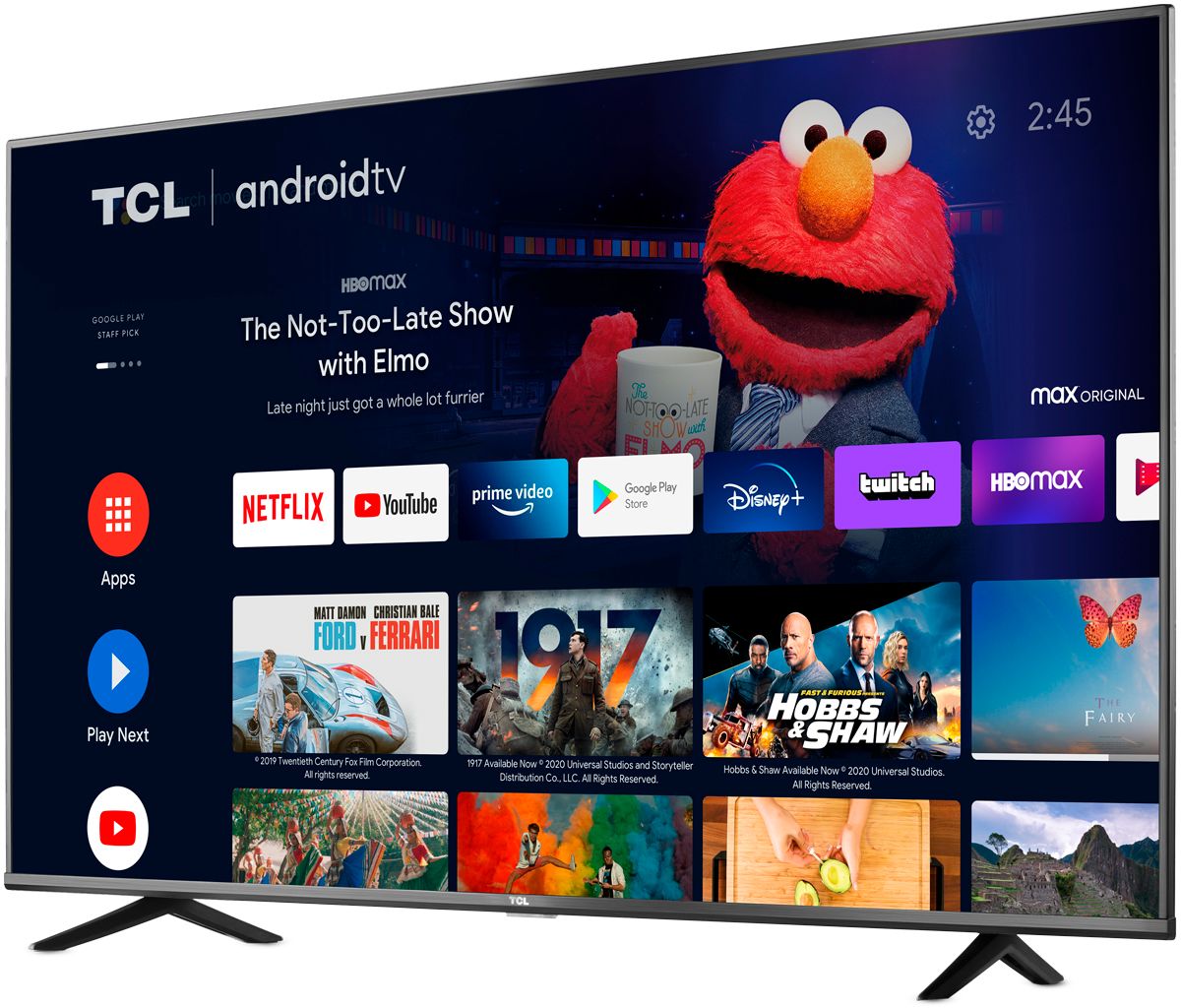
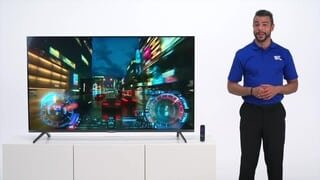
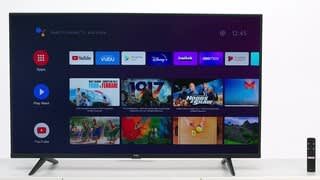
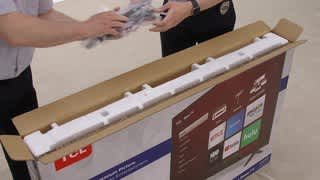
A:AnswerThis TCL Android TV features HDMI 2.0. This TV features an effective refresh rate of 120Hz CMI which delivers smooth clarity during fast-action scenes. Hope this helps! Thank you, TCL Customer Support
A:AnswerOur TCL Android TVs do indeed support Bluetooth and can be paired with compatible audio devices that also support and pair via Bluetooth. You can also visit https://support.tcl.com/androidtv-setup-configuration/connecting-bluetooth-devices-to-my-android-tv-642 for more information. Hope this helps! Thank you, TCL Customer Support
A:AnswerThis TCL Android TV is designed and engineered to be used within the US. As such, it supports 120V. Hope this helps! Thank you, TCL Customer Support
A:AnswerYou need to refresh your device by taking out the power cord for 5 min shutting down your television which enables the settings to go back to factory status. This should allow your YouTube and all other apps to play on your android tv once again.
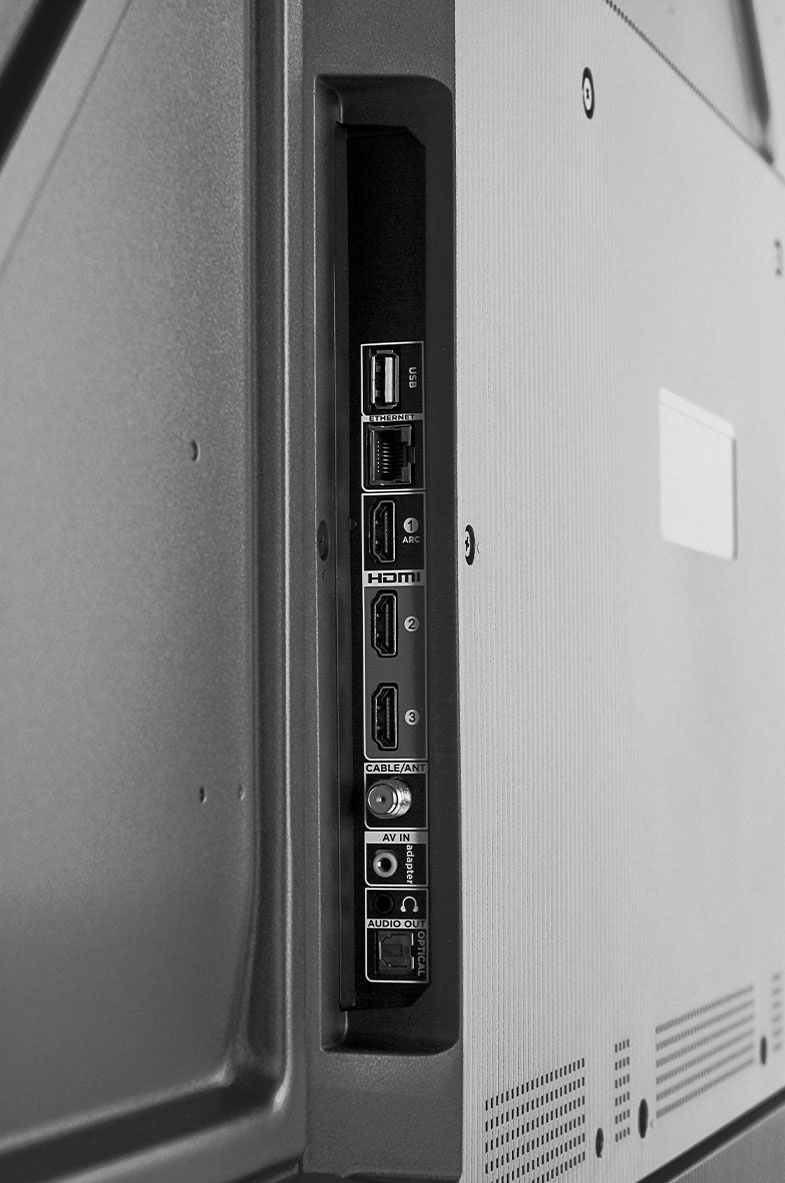
A:AnswerNo, HDMI 2.1 (4K @ 120Hz / 8K @60Hz) is not offered in this TV. The best this specific model (series 4 line) will do is HDMI 2.0 (4K @ 60Hz). Series 5 is the same.
You may want to look at the series 6 or 8 if you want HDMI 2.1.
A:AnswerCurrently, our TCL TVs do not feature a blue light filter. However, it does have the ability to change the color temperature to warn which makes the picture more "redish". Hope this helps! Thank you, TCL Customer Support
A:AnswerThis TCL Android TV does not feature HDMI 2.1. For advanced gaming features including the world's first THX Certified Game Mode, take a look at our Award Winning 6 Series! Hope this helps! Thank you, TCL Customer Support
A:AnswerHello,
Great question, you can add bluetooth devices simply by performing the following:
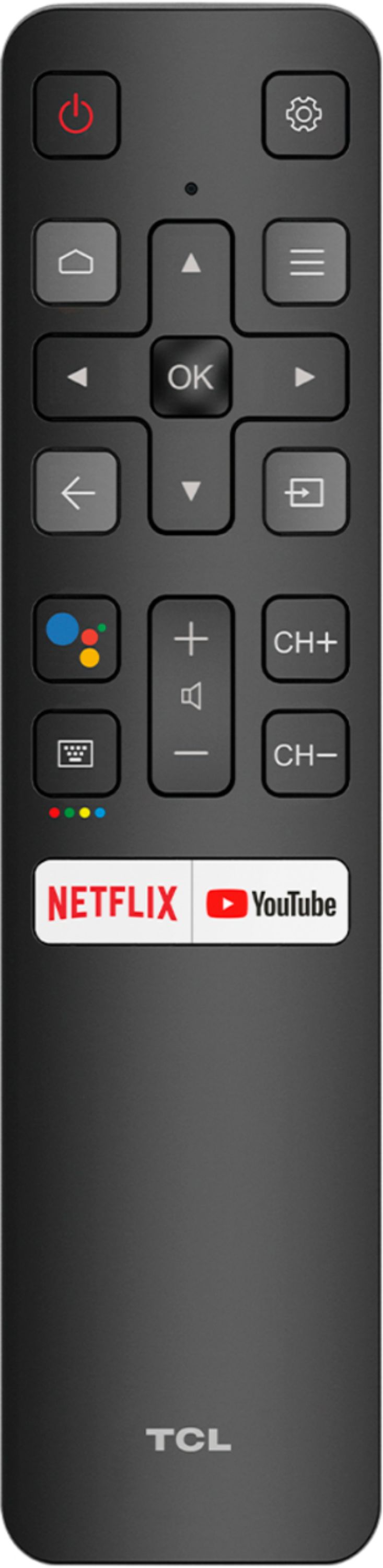
1.) Power on your TV and press the "TV Settings" button on your ATV remote (looks like a gear)
2.) From "TV Settings" navigate to: More Settings -> Remotes & Accessories -> Add Accessory
Note: if you are trying to find the TV's bluetooth on another device you would perform the following:
1.) Power on your TV and press the "TV Settings" button on your ATV remote (looks like a gear)
2.) From "TV Settings" navigate to: More Settings -> Remotes & Accessories -> Bluetooth Visibility
Hope this Helps.
Thank you,
TCL Customer Support
A:AnswerHello,
That is a good question, for inquiries concerning pricing and online shopping, you would want to contact Best Buy Customer Support as they would be best equipped to further assist you. Hope this helps!
Thank you,
TCL Customer Support
A:AnswerIn order for us to better assist, please reach out to us at tclsocial@tcl.com with your contact information and a description of what you need help with. Thank you, TCL Customer Support
A:AnswerThis is rather odd. In order for us to better assist, please reach out to us at tclsocial@tcl.com with your contact information and a description of what you need help with. Thank you, TCL Customer Support
A:AnswerTCL Android TVs have access to thousands of streaming channels, and over 500,000 movies and tv episodes to fulfill almost any streaming need. This TV also includes 3 HDMI ports to connect external devices, such as that of a Roku. Hope this helps! Thank you, TCL Customer Support
A:AnswerThe remote is not designed to control external devices. If your soundbar is connected via HDMI ARC and supports CEC, you may be able to control the volume with the TV remote. Hope this helps! Thank you, TCL Customer Support
A:AnswerTCL TV’s use a combination of advanced signal processing and backlight scanning to enhance the native refresh rate (60Hz) and present an effective refresh rate (what your eye sees) of 120Hz CMI. This is why you see different specs listed – but the result is a smooth, blur free image, perfect for fast moving sports or video games. Hope this helps! Thank you, TCL Customer Support
A:AnswerThis TCL Android TV is compatible with most speakers and can be connected via HDMI ARC, Optical, the 3.5mm headphone jack, or Bluetooth. Hope this helps! Thank you, TCL Customer Support