A:AnswerWe currently do not have any additional information concerning new software update releases other than what has been posted on our website and social media. Any updates will be available through our website www.tcl.com as well as our social media accounts. You can also sign up for our news letter to receive the most current information. Hope this helps! Thank you, TCL Customer Support
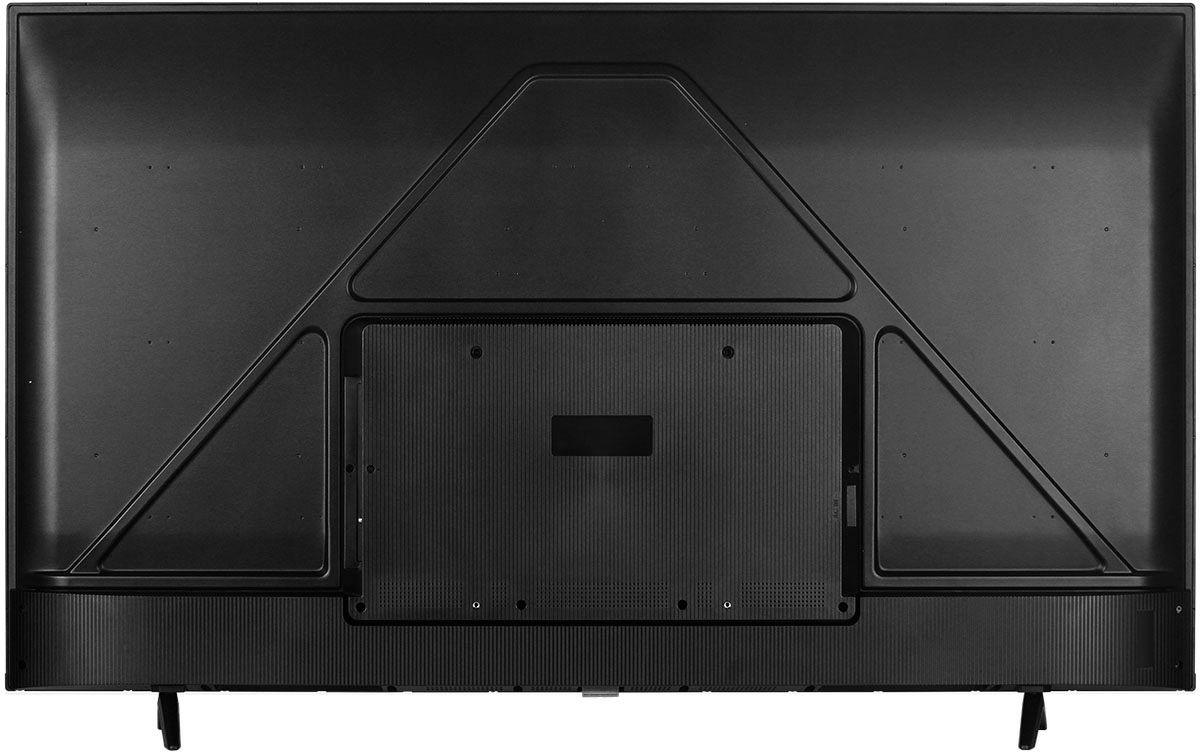
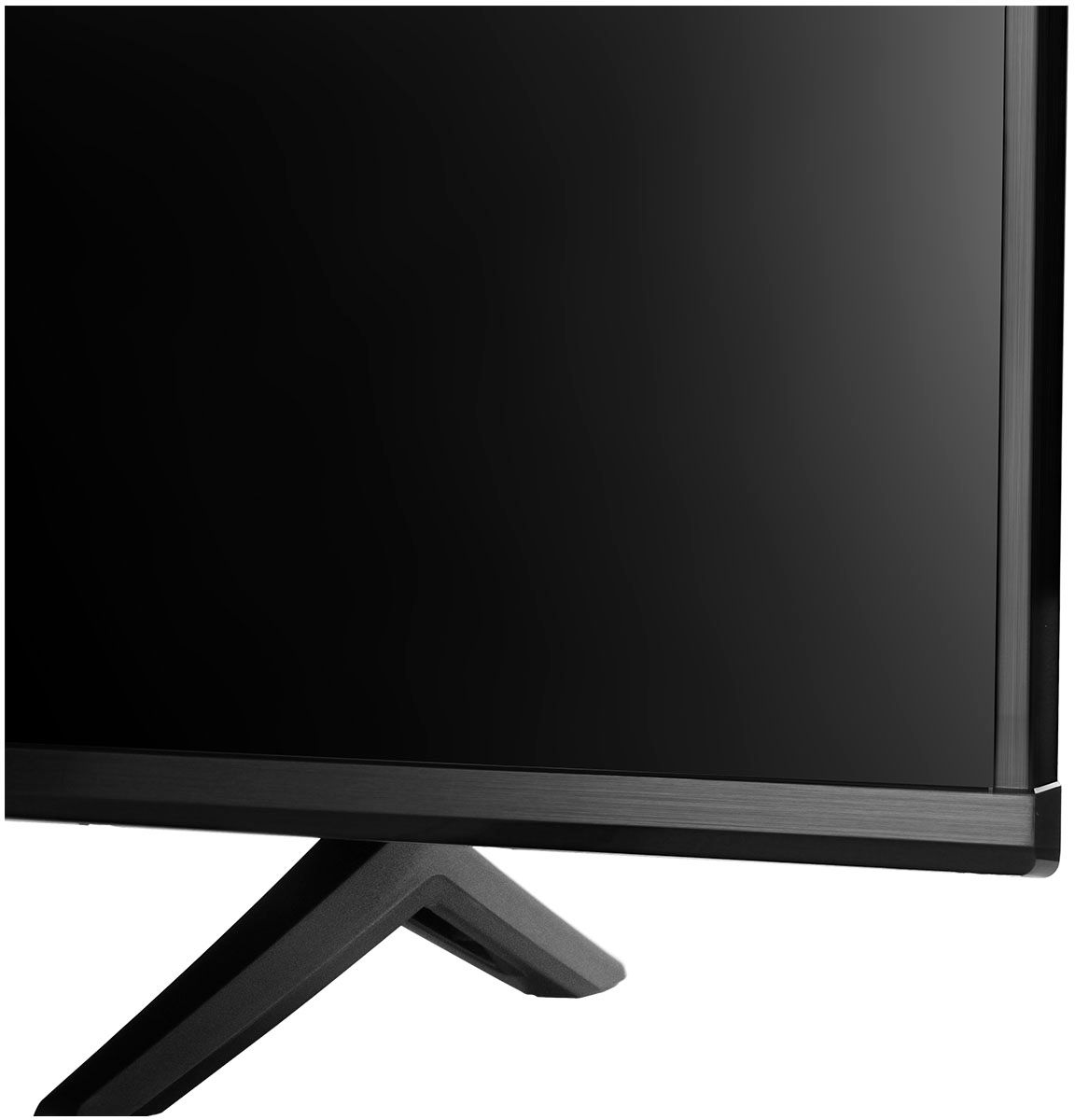
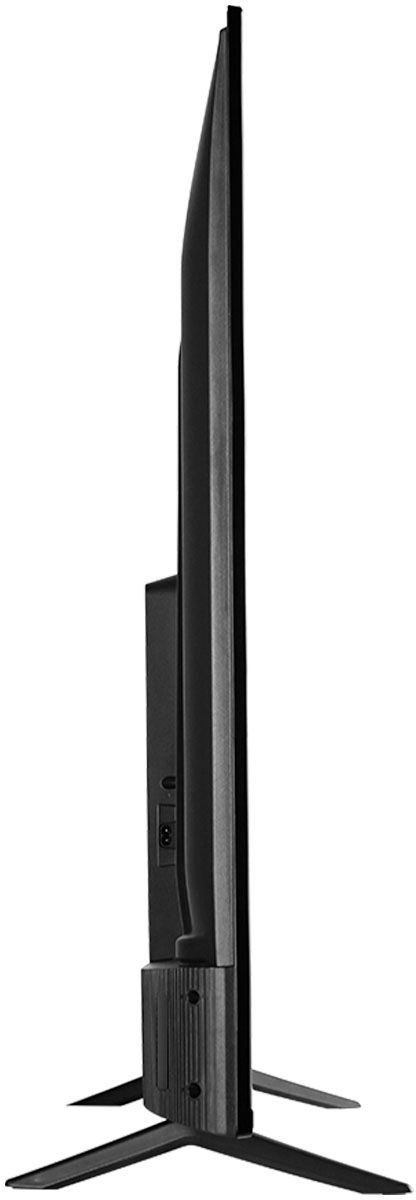
A:AnswerWith the feet attached, the dimensions of this TV are as follows: (W x H x D) 48.7" x 30.4" x 11.8". Hope this helps! Thank you, TCL Customer Support
A:AnswerIf you connect a USB Drive to your TV you can access Live TV Pause. You can visit https://support.tcl.com/androidtv-setup-configuration/setting-up-live-tv-pause-on-your-tcl-android-tv for more information about this. Hope this helps! Thank you, TCL Customer Support
A:AnswerWe currently do not have any additional information concerning new model releases other than what has been posted on our website and social media. Any updates will be available through our website www.tcl.com as well as our social media accounts. You can also sign up for our news letter to receive the most current information. Hope this helps! Thank you, TCL Customer Support
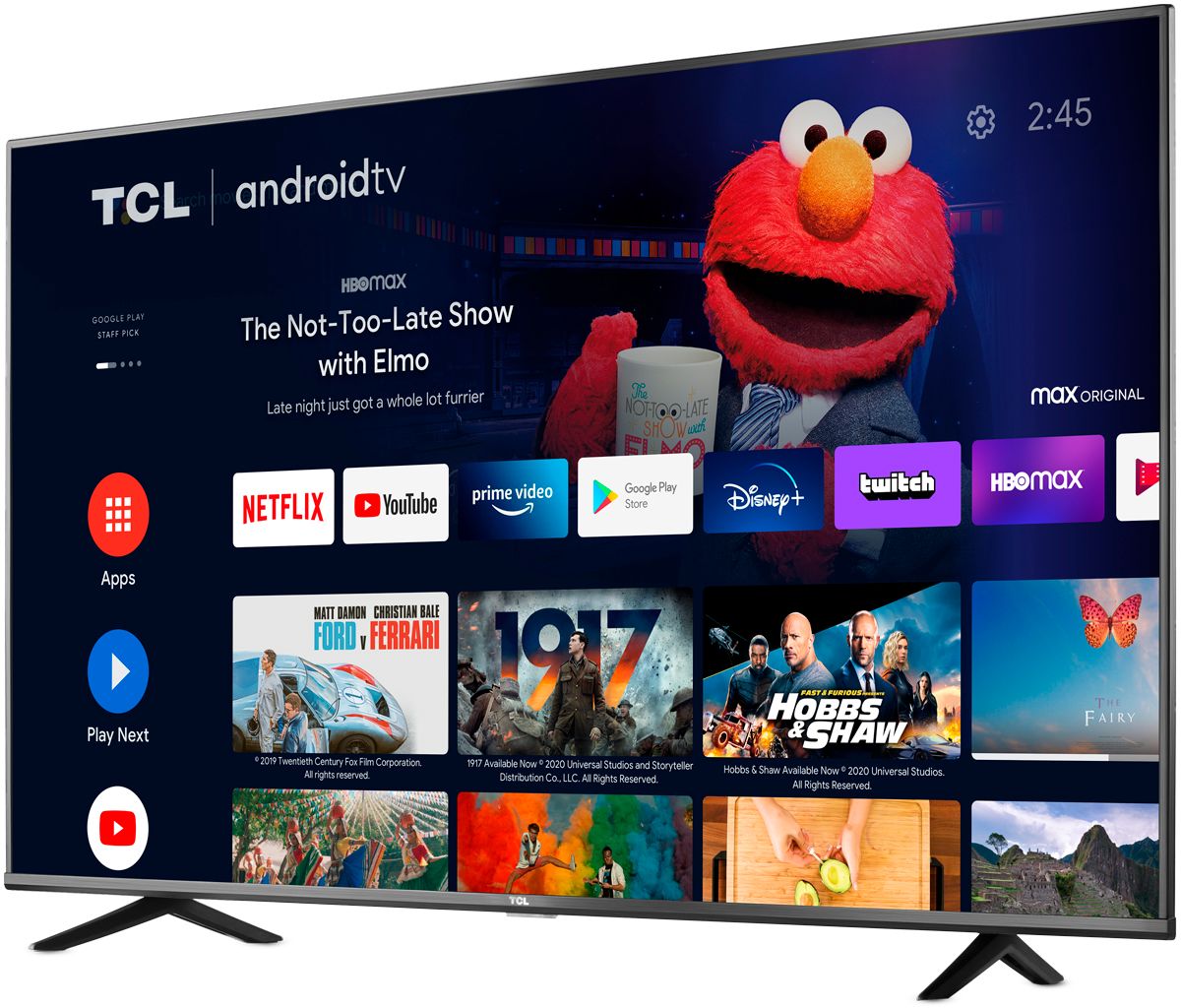
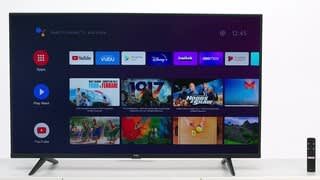
A:AnswerThe Hulu streaming app is indeed one of the many available streaming apps on this TCL Android TV. Hope this helps! Thank you, TCL Customer Support
A:AnswerThis TCL Android TV is designed and engineered to be used within the US. As such, it supports 120V. Hope this helps! Thank you, TCL Customer Support
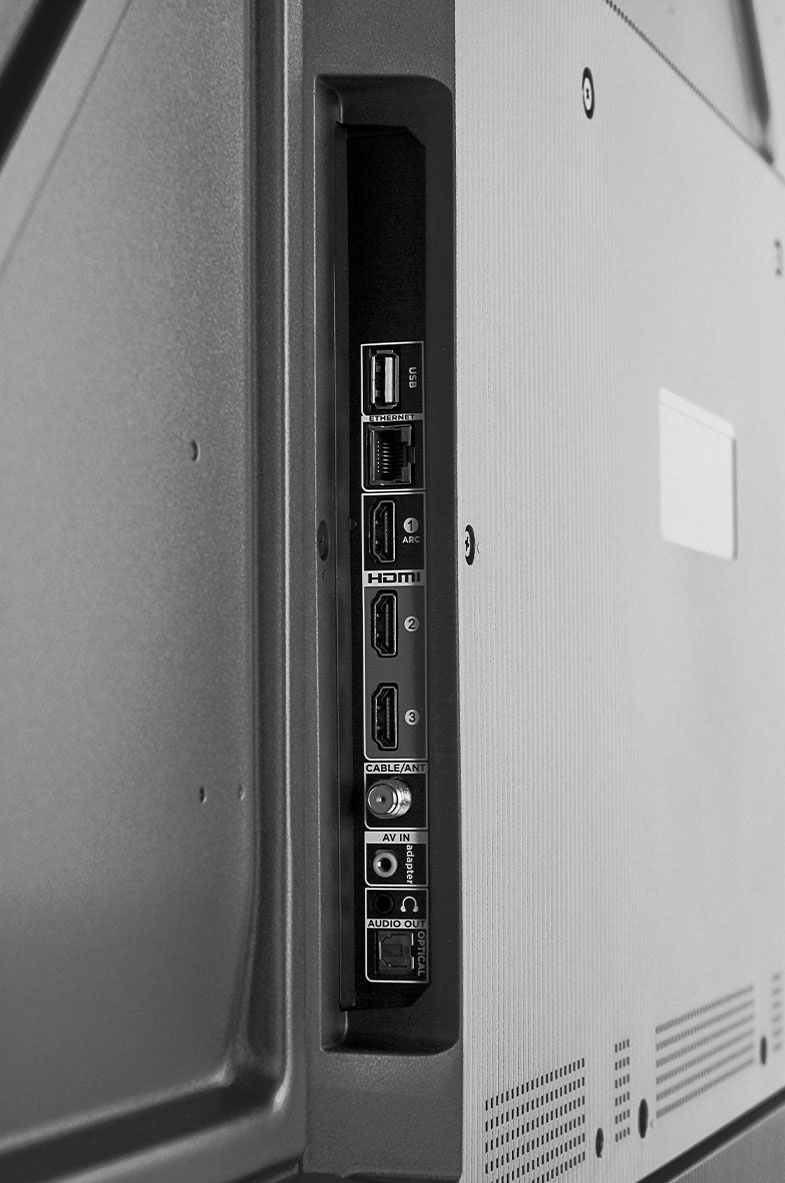
A:AnswerAlthough this TCL Android TV is designed with the primary role of television in mind, it does come with 3 HDMI ports. Any of these ports can be used to connect the TV to external devices, such as a PC. Hope this helps! Thank you, TCL Customer Support
A:AnswerThe YouTubeTV streaming app is indeed one of the many available streaming apps on this TCL Android TV. Hope this helps! Thank you, TCL Customer Support
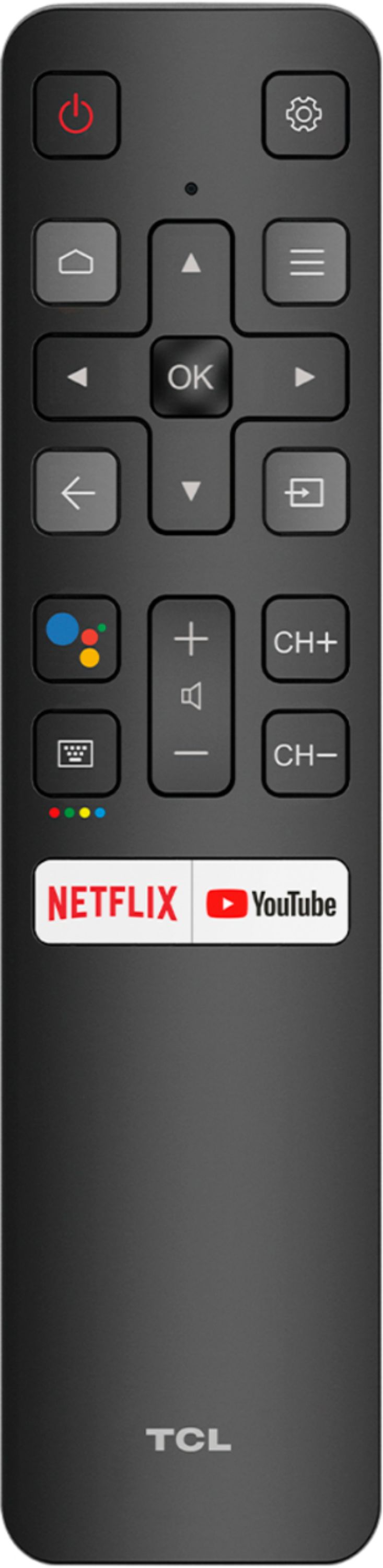
A:AnswerYou can either, plug in the USB drive and select "ok" when prompted to play content from a USB device or you press the input button on the ATV remote and select the Media player input. You then select the content you want to play (for ease, number the pictures in order you want them to play in). Press the menu button and select repeat all for sequence mode. Once all the timing has been selected and music (if applicable) press the back button on the ATV remote and navigate on the digital keypad to the slide show play button. Select "ok" on the ATV remote (if you selected music to play you need to navigate to the music play button and press "ok" on the ATV remote for that to play as well). Hope this helps! Thank you, TCL Customer Support
A:AnswerThis TV has a built-in Google Assistant. The remote even features a Google Assistant button for easy access to voice control. Hope this helps! Thank you, TCL Customer Support