A:AnswerI bought this pen today after it was recommended to me by a Best Buy employee. I had been gone from the store for about 10 minutes when I began having immediate problems with connecting the pen to my x2 Detachable. After a few different attempts I was able to get the pen connected via Bluetooth, but sadly the pen would not work as we would like. The only part that was working as described was the top of the pen, which would deploy a few of the different apps as promised. We went back to the store where MANY different Best Buy employees attempted to help us. After about an hour of standing around and trying to get the pen to work, employees told us that we must update our computer completely and install any of the drivers for Bluetooth that the computer prompted. We went home and still have had no luck whatsoever. After extensive research I have found that the pen has no compatibility to the actual laptop itself. I do not recommend this pen if you are planning on using it for this specific laptop. It will not work.
A:AnswerIt is not listed on Wacom's website as a supported ZenBook model. More than likely do to age of your device or your model did not come equipped with the proper hardware or software needed.
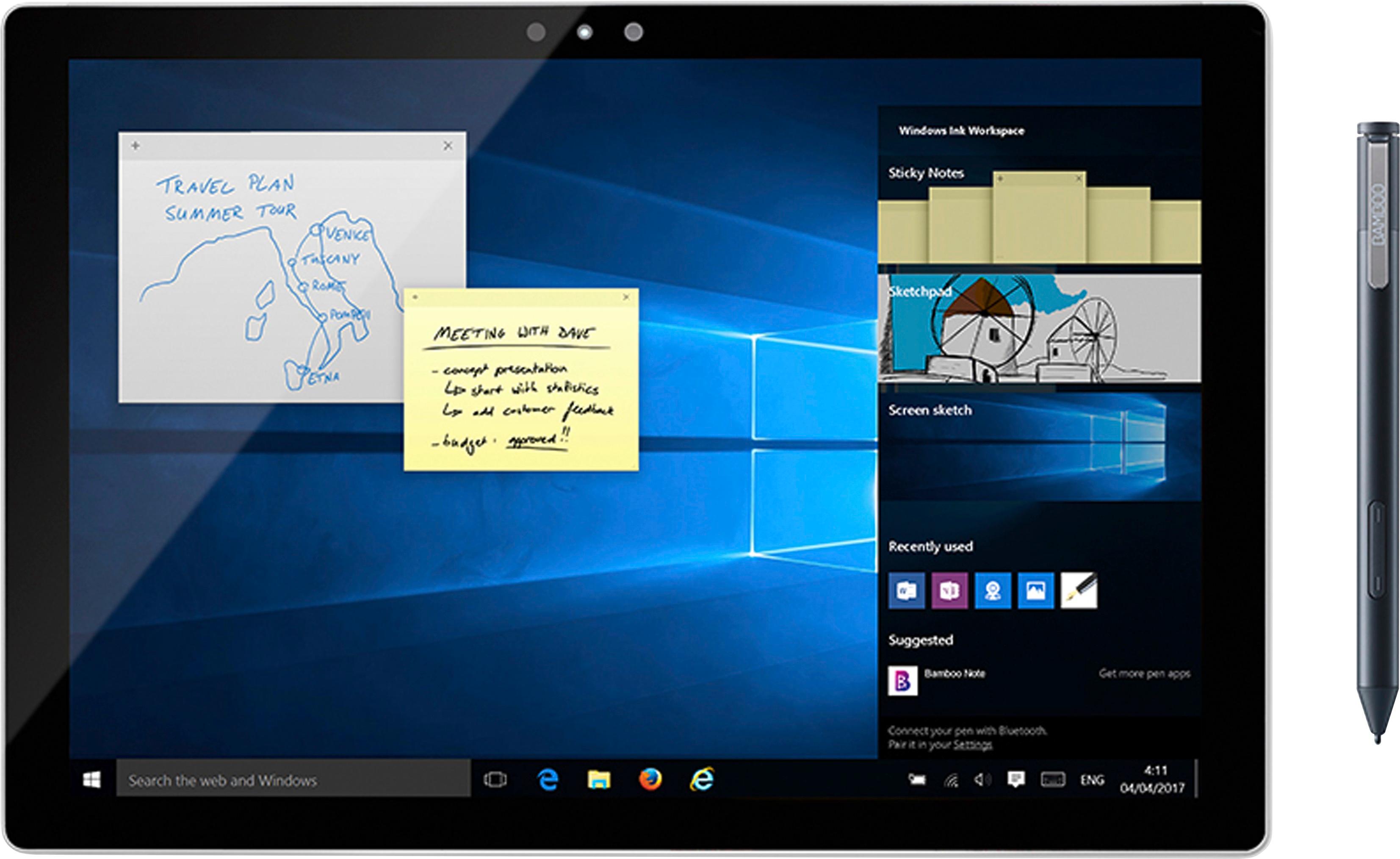
A:AnswerCheck the bottom, right corner of your screen and look for the "digital ink" icon. You have to click on that to be able to use the pen with certain apps.
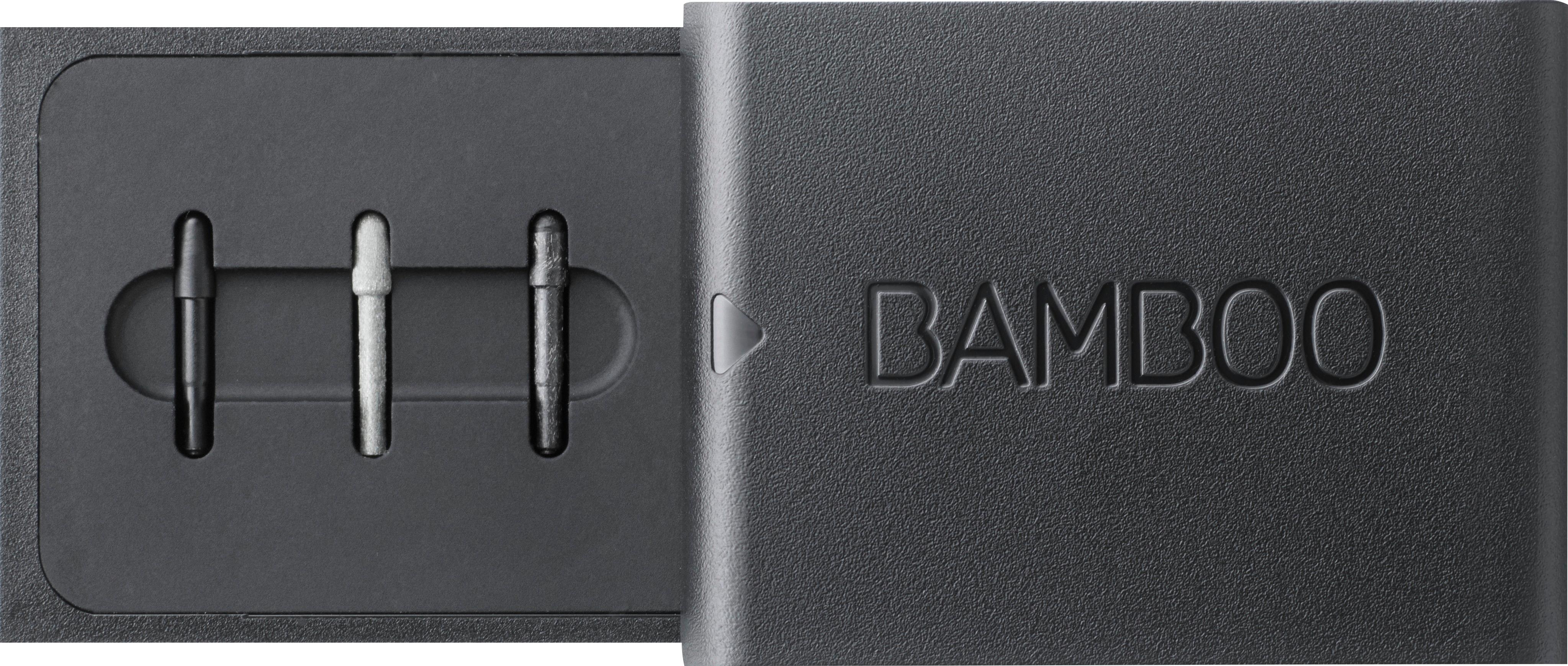
A:AnswerHello, I had the same concern but yes this pen will work with the Microsoft pen software and also comes with the tip on the pen and three addition in a small case that comes with it that holds a soft, regular and firm tips for the pen. I have the HP Envy X360 with the AMD Ryzen 7 Processor and Vega 10 Graphics. the pic I included is with the same tip and "pen" option just held at different positions.
A:AnswerYes it will work on the Surface Pro 2. I believe there is a secondary method in the Bamboo manual. I did use that and it worked. Had to use Bamboo and I think bluetooth to connect.
A:AnswerI have the same computer and Bamboo pen. Make sure the battery is in the pen correctly and the twist top of pen cap until the top and bottom dots are aligned. Press the pen cap top and it will automatically sync....I use the pen all the time. Make sure your driver is up to date for the pen in settings. Hope you get connected.