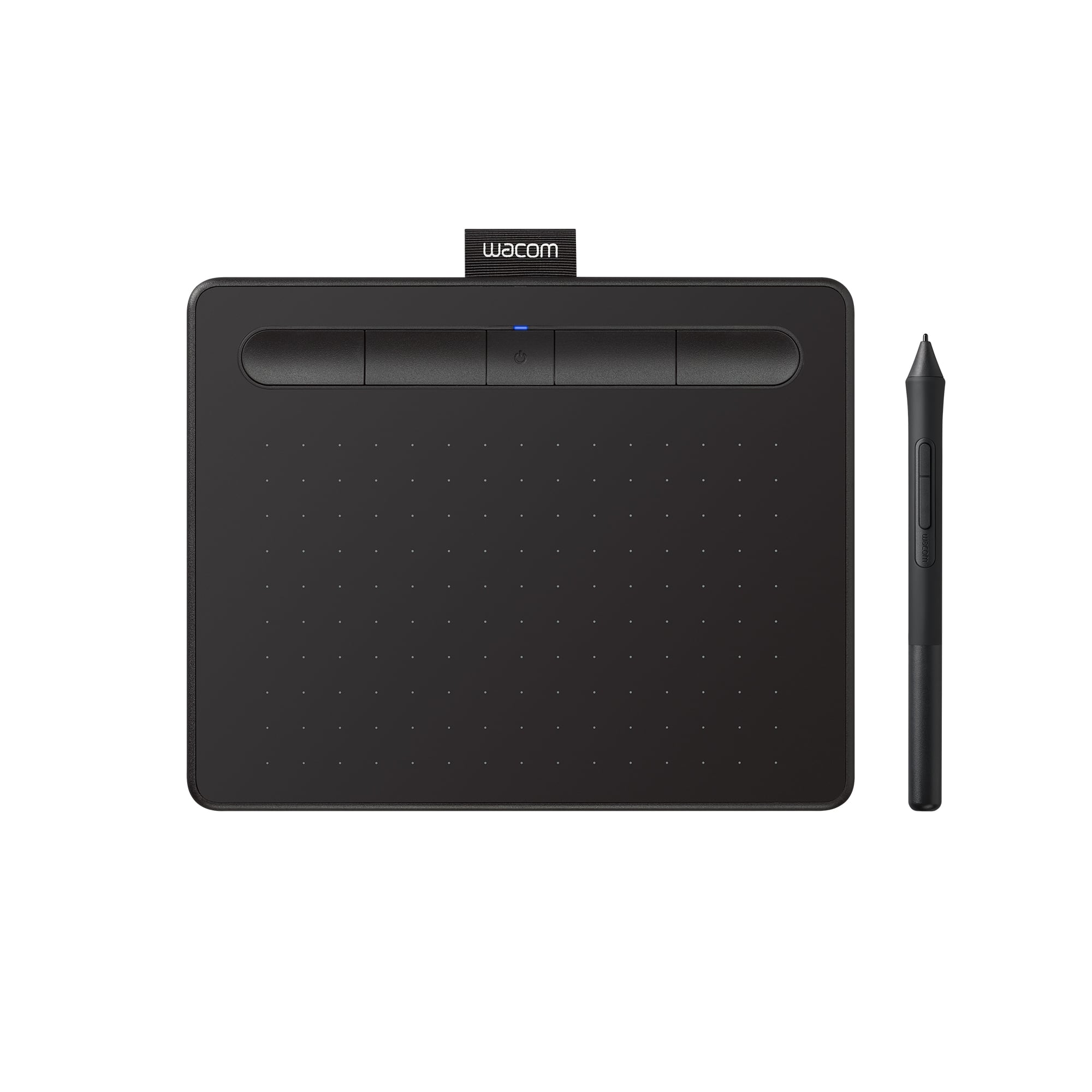
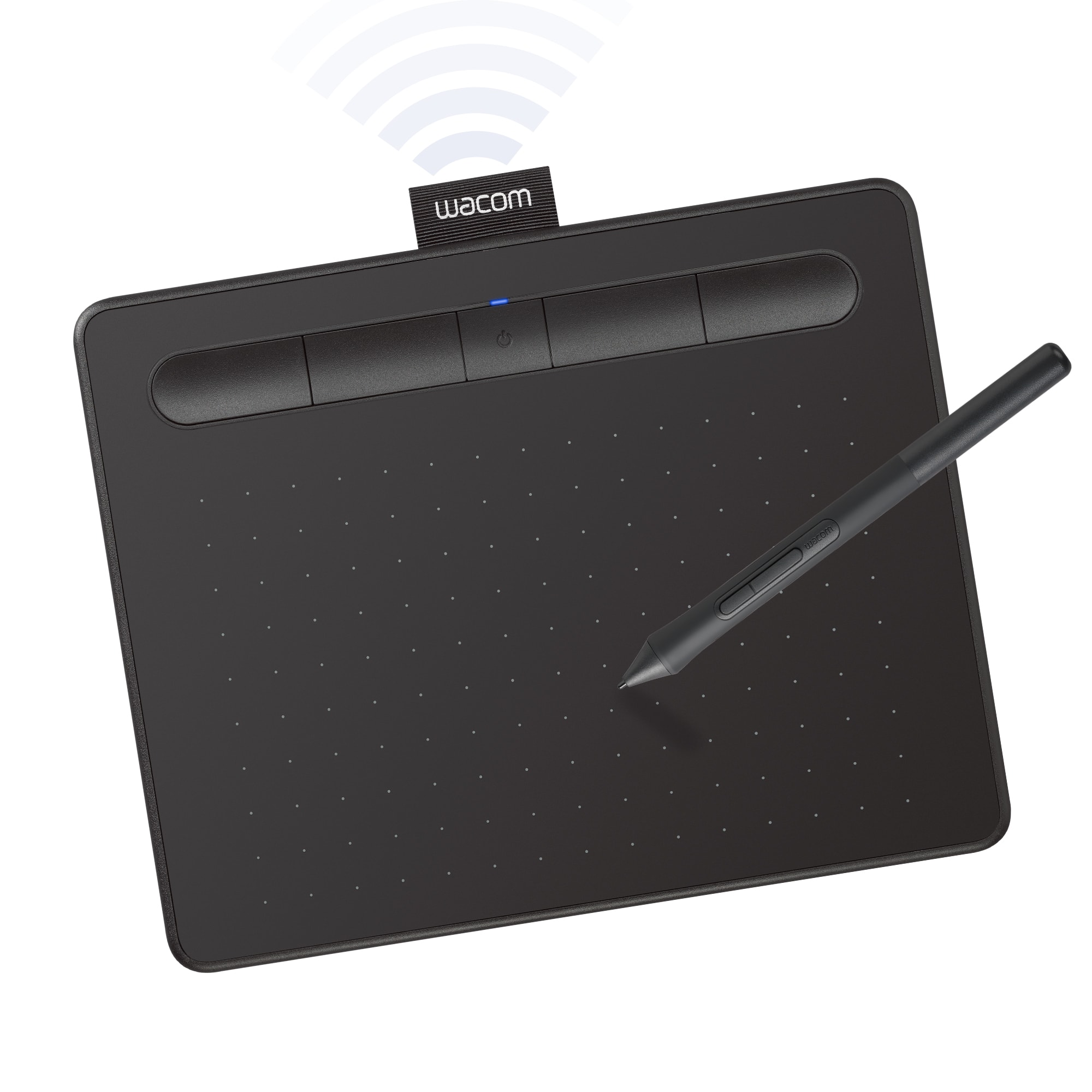
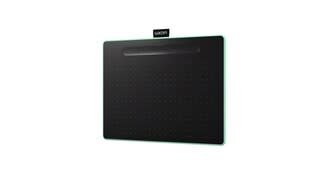
A:AnswerWhen installing the graphic pen/tablet onto your computer, it will take you through a step-by-step process and calibrate the pen.
(You hover the tip of the pen over the tablet and it acts as a cursor. It isn’t until the tip makes contact with the tablet that it will “paint” or “click” on something.)
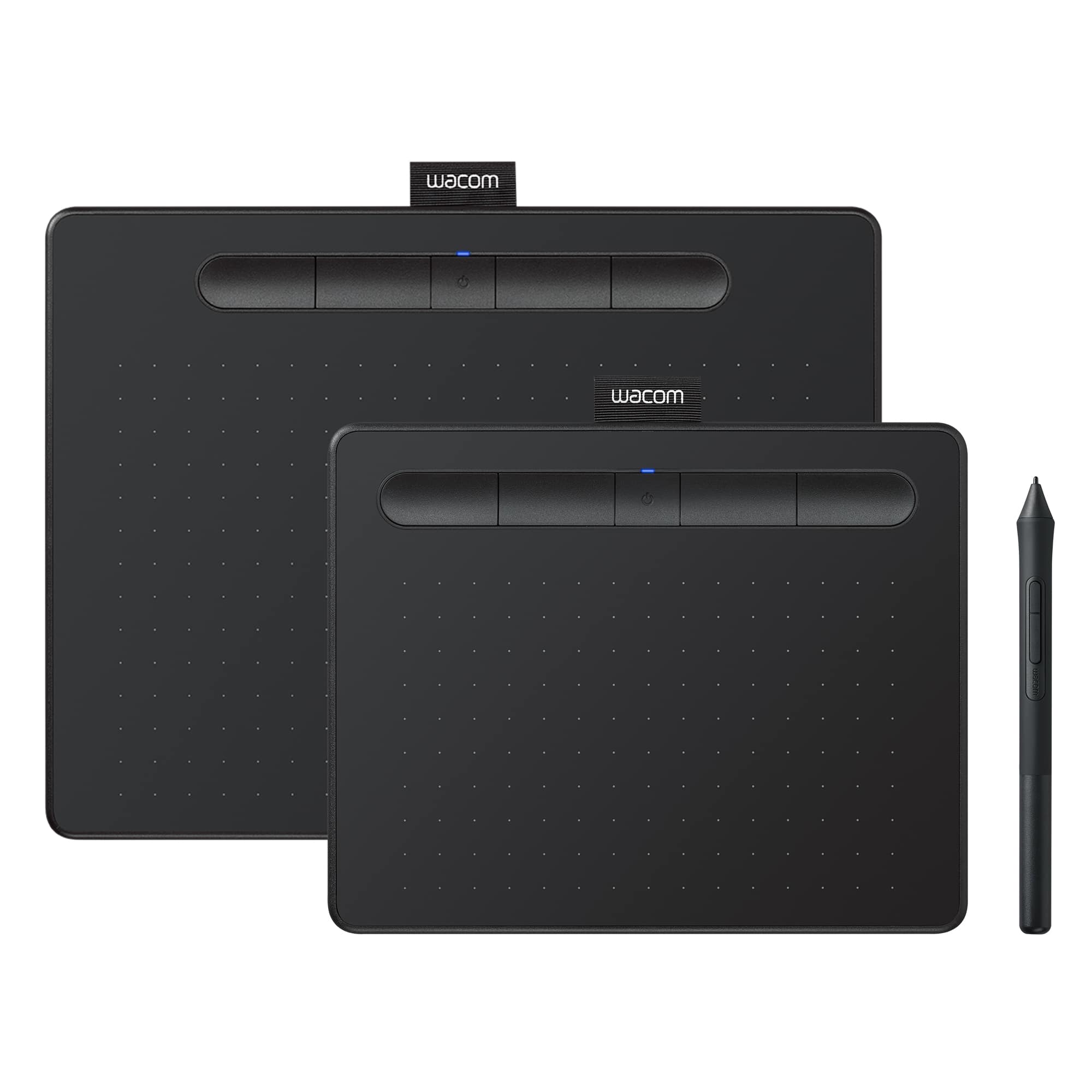
A:AnswerHi there, the current Intuos Small (with or without Bluetooth) has the next measures:
Overall Dimensions (W x H x D): 7.9 x 6.3 x 0.4" / 200.66 x 160.02 x 10.16 mm
Active Area: 6 x 3.7" / 152.40 x 93.98 mm
A:AnswerThank you for the question about the Wacom Intuos. Yes, the Wacom Intuos can collect signatures on software that is supported on the OS that supports it. That said, Wacom does have a line of Signature Devices that are set-up for collect signatures specifically. Hopefully that helps.
A:AnswerThank you for the question. Any software that can be used on a computer can be opened and drawn on with the Wacom Intuos tablet. There is no need for import/exporting of files as the Wacom Tablet is able to access the software you are using. Regards
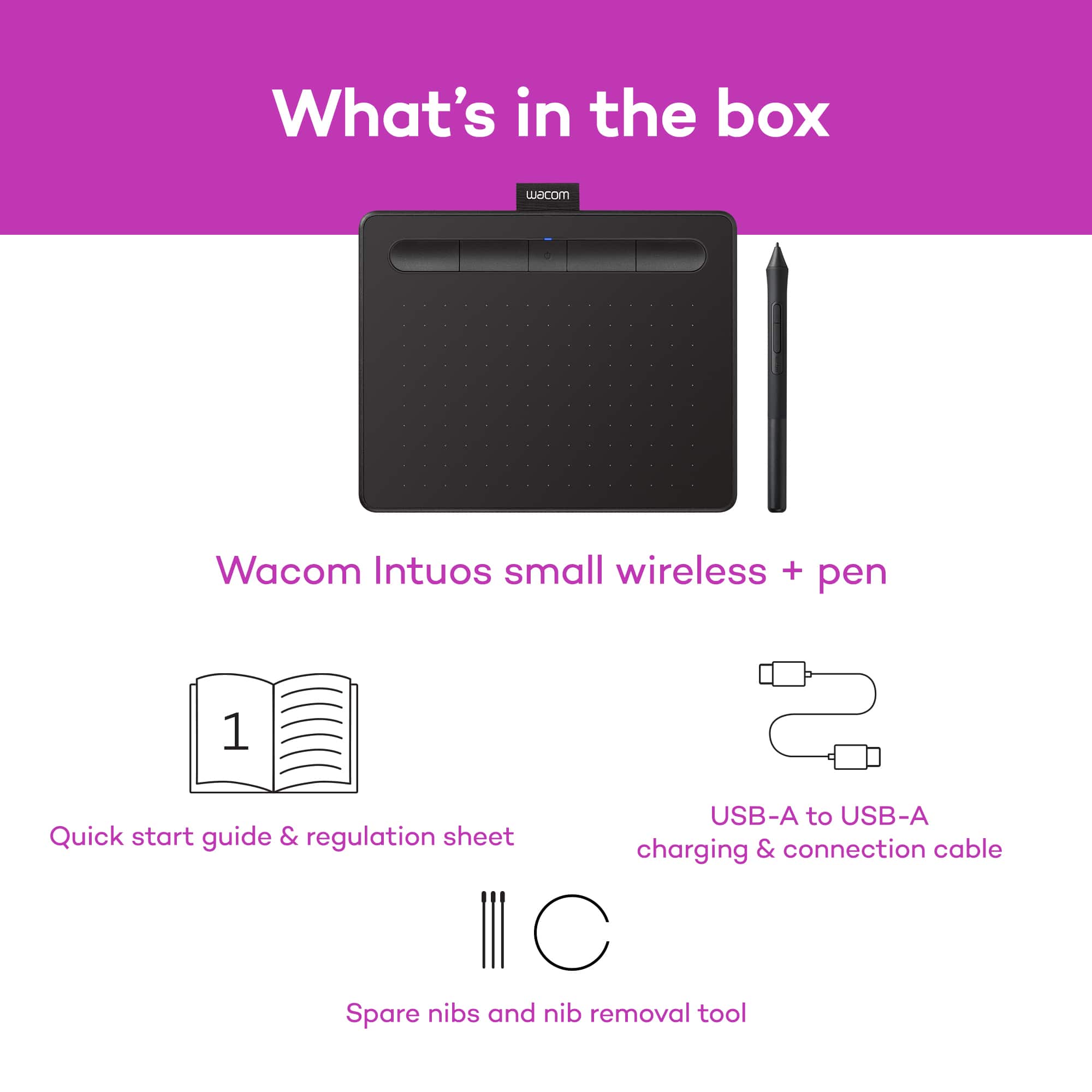
A:AnswerAll of the associated software can be downloaded. The driver is downloaded directly from Wacom's site and then the optional bundled software is made available online after registration is complete.
A:AnswerThe tablet itself should work fine with graphics, however, if you are trying to animate, what you need to analyze is the software you are using. I know many programs allow animation or onion skin mode, such as Firealpaca. Other free programs exist as well
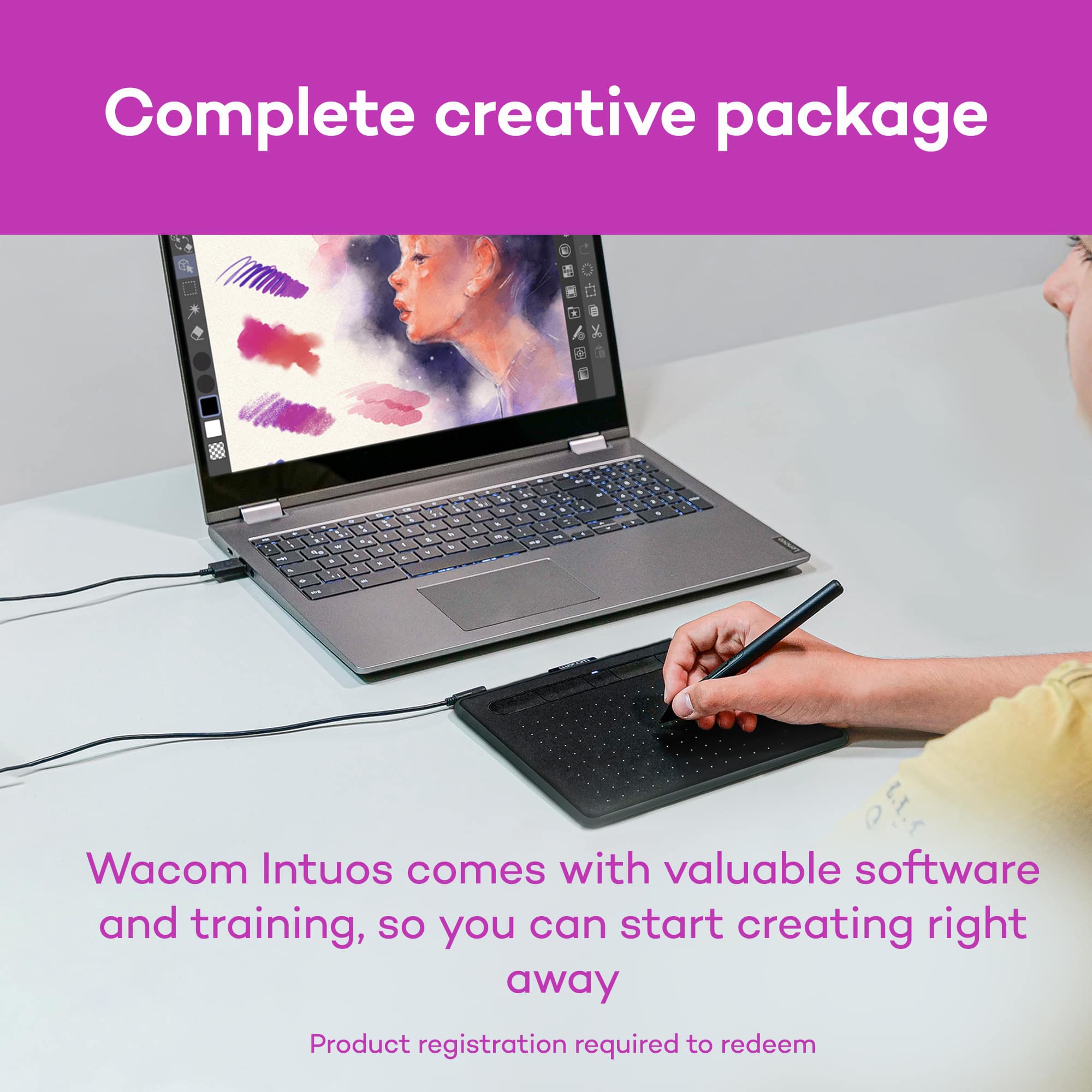
A:AnswerI called Wacom, they say it is compatible with all your installed Windows applications to the extent allowed by your applications. It can/does virtually replace your mouse.
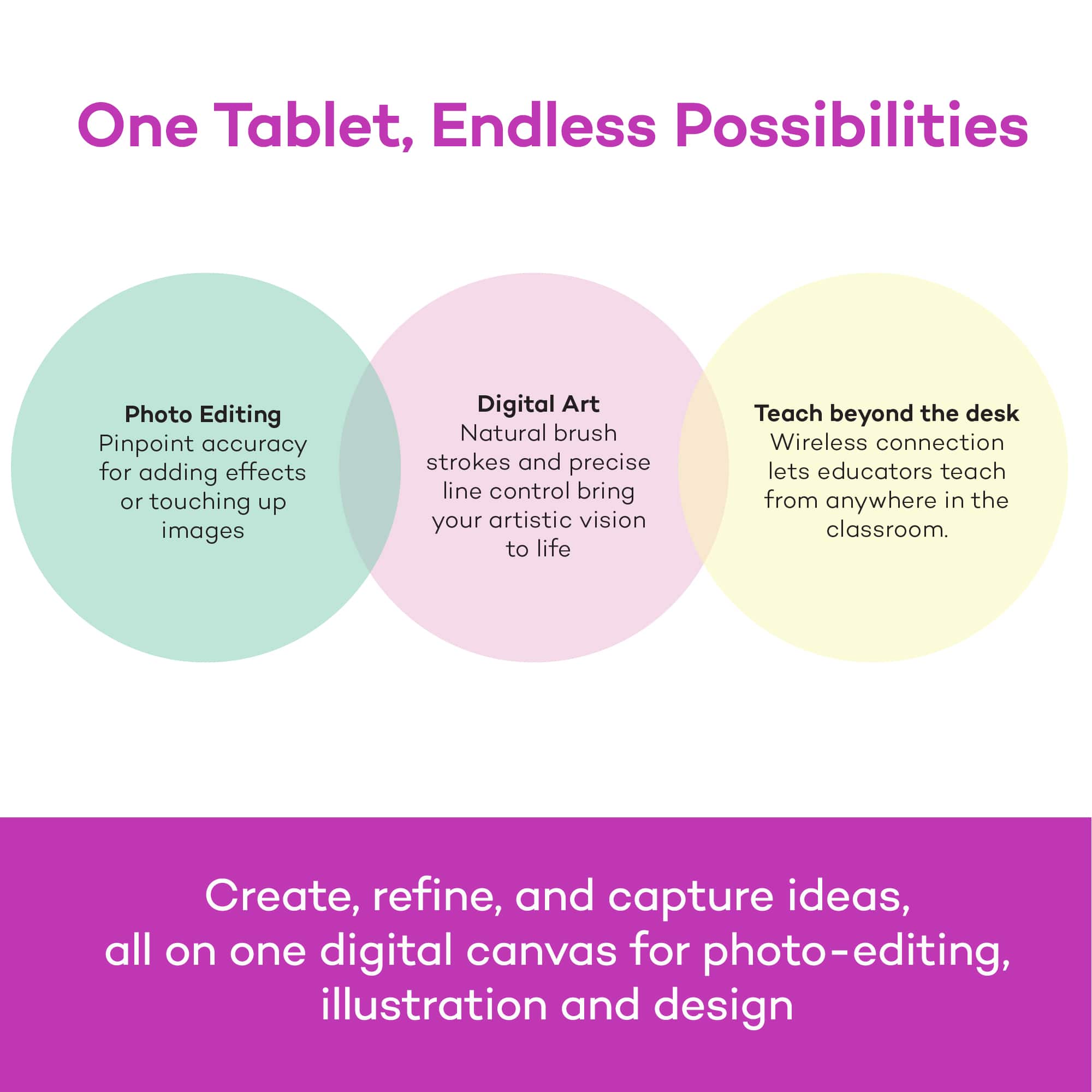
A:AnswerHello and thank you for the question. Yes, the Wacom Intuos tablet can help with your work as it does support the Adobe Creative Suite, Clip Studio Pro and many other graphic applications.
A:AnswerThank you for your question. Our Wacom Intuos is not compatible with iOS, it is compatible with Windows, Mac, Chromebook, and some Android devices. Hope that helps!
A:AnswerYes, the Wacom Intuos will work with essentially any application on your PC, Mac, or supporting Android OS device. If the application supports pen pressure, such as most creative applications, then you will be able to take advantage of this to control your brush size, opacity, or other variable.
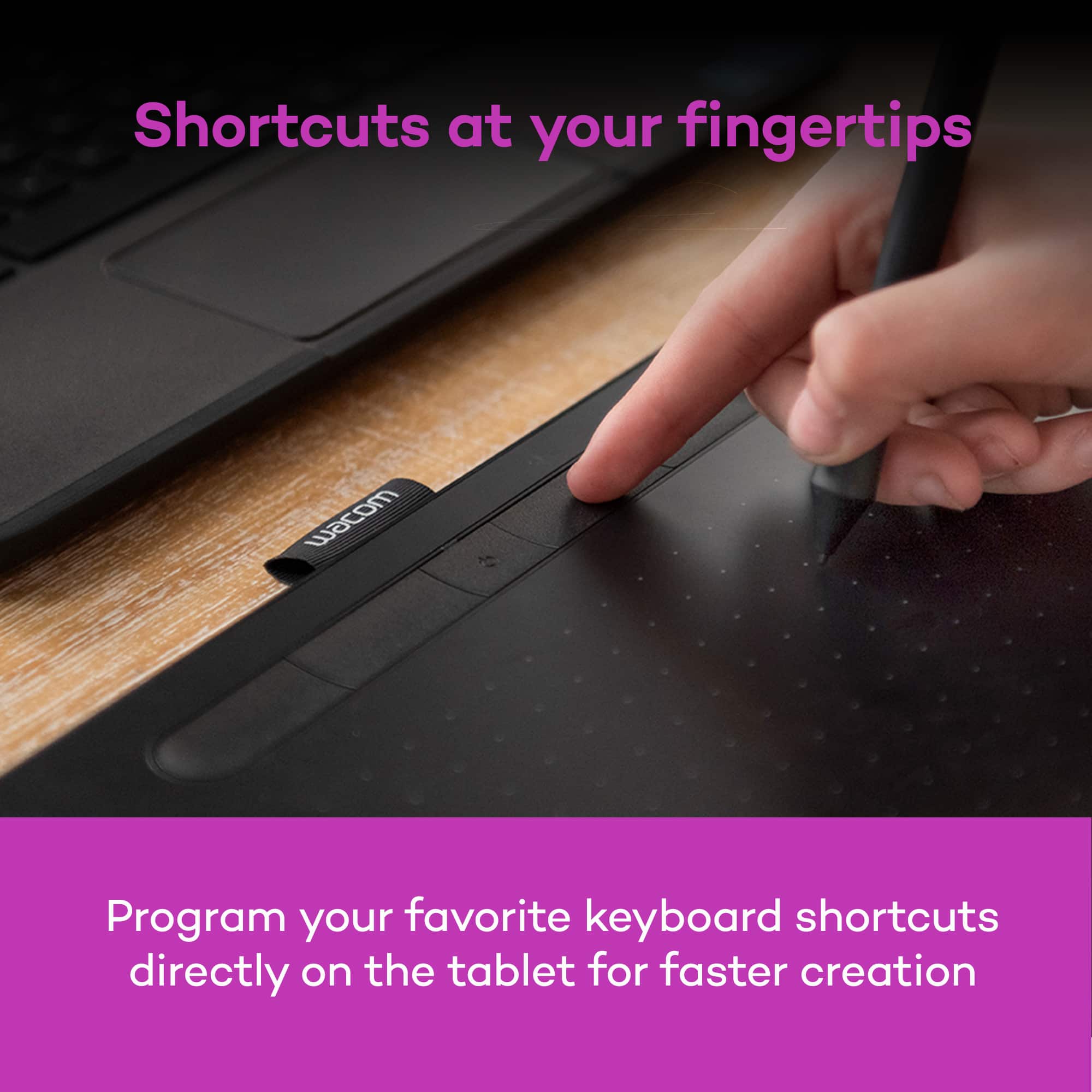
A:AnswerThe Wacom Intuos works great as a mouse replacement. When you hover the pen over the surface of the tablet it will control your cursor on-screen. Touching the pen to the surface performs a 'click'. This mimics the behavior of using a pen on paper, in that touching the pen to the paper begins writing. The buttons on the pen can be configured to perform other actions as well, including right-click, scroll, double-click, etc.