Customer Ratings & Reviews
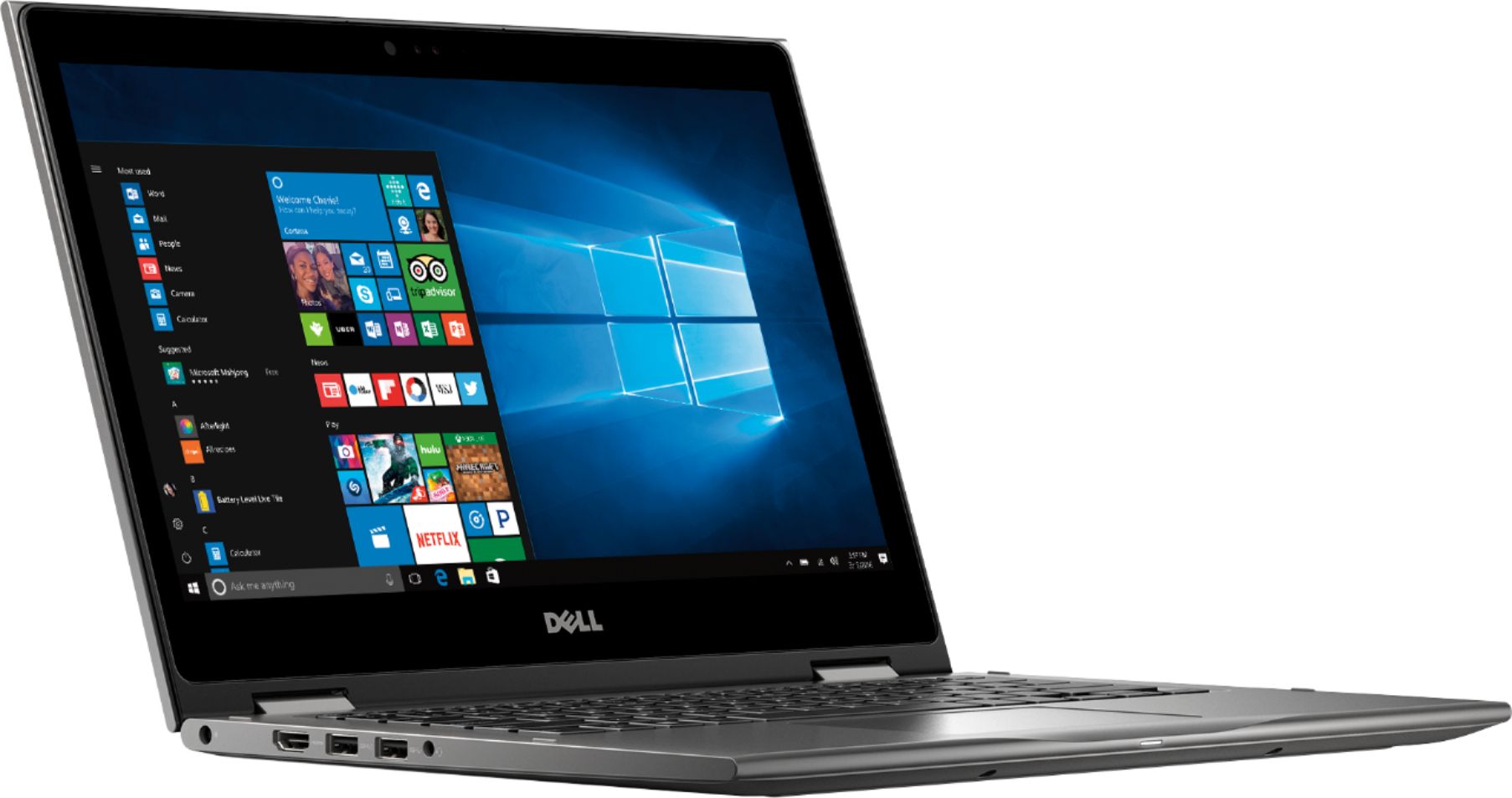
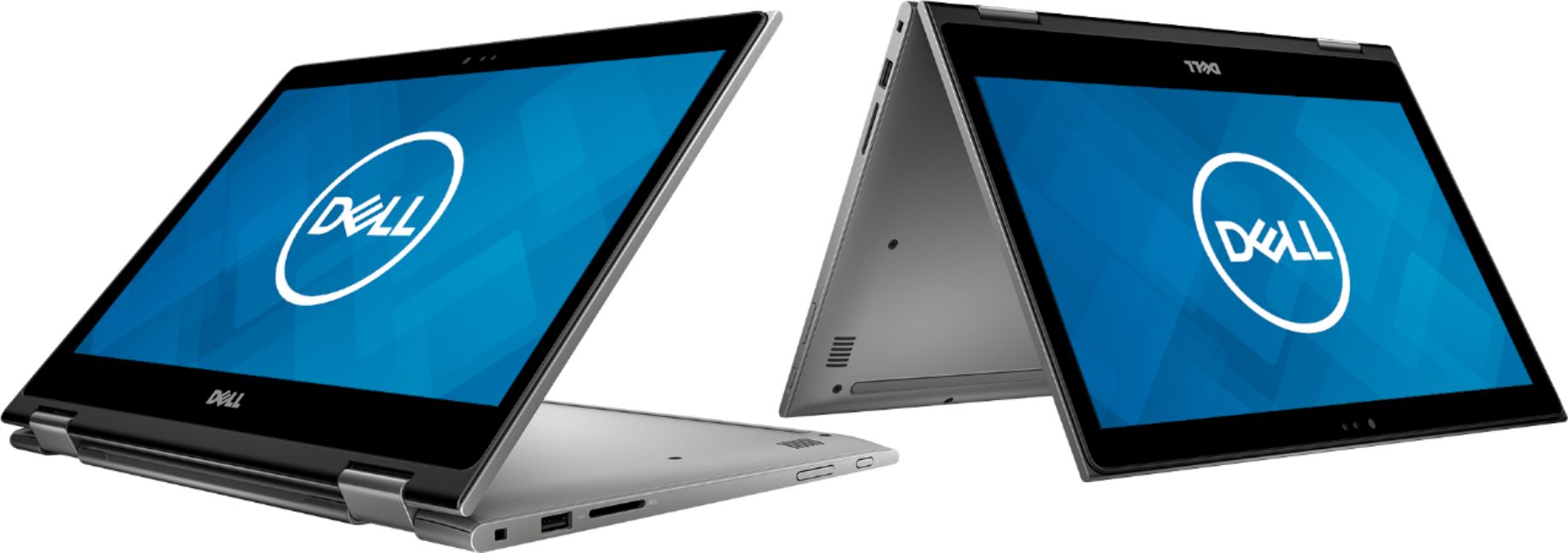
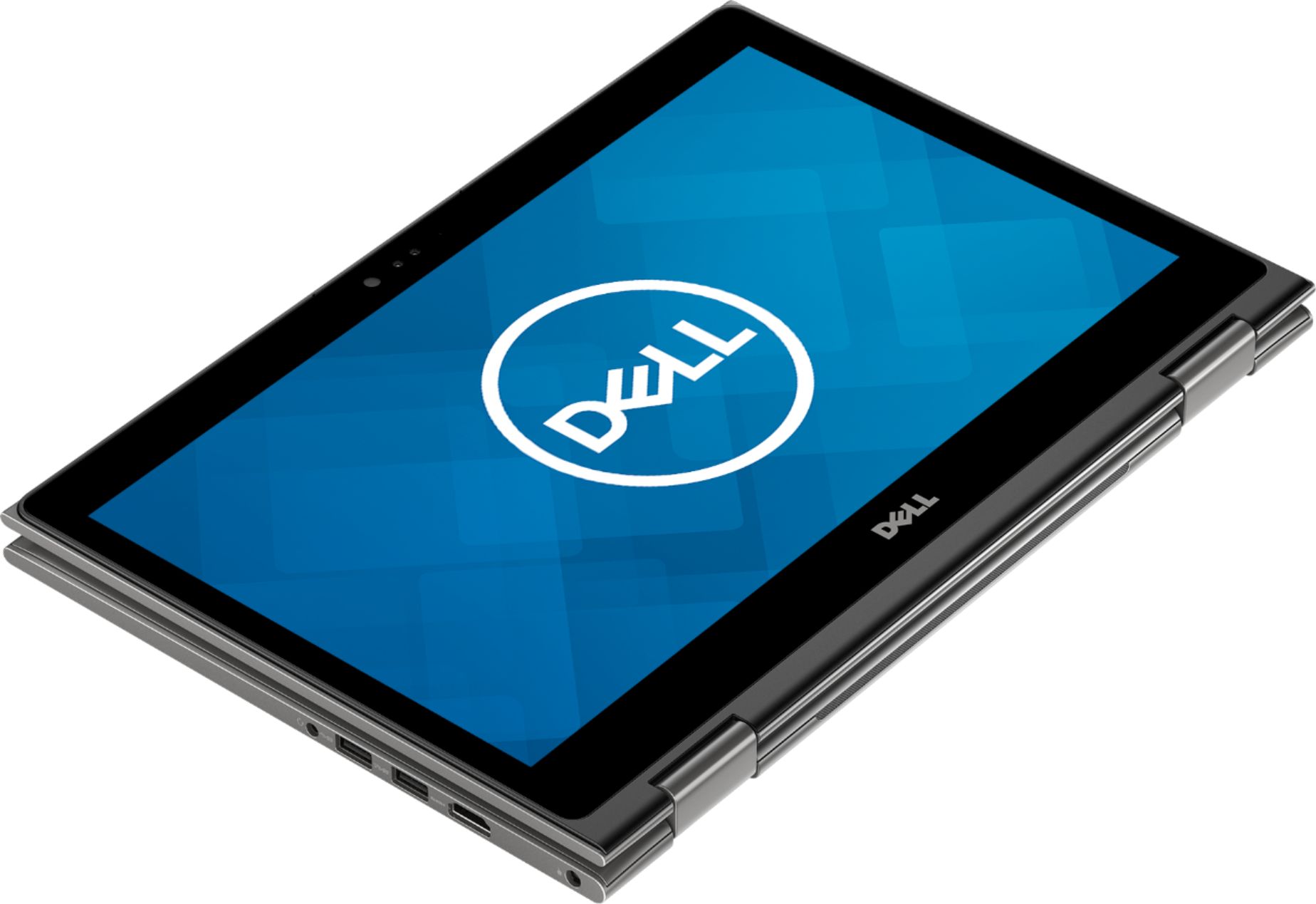
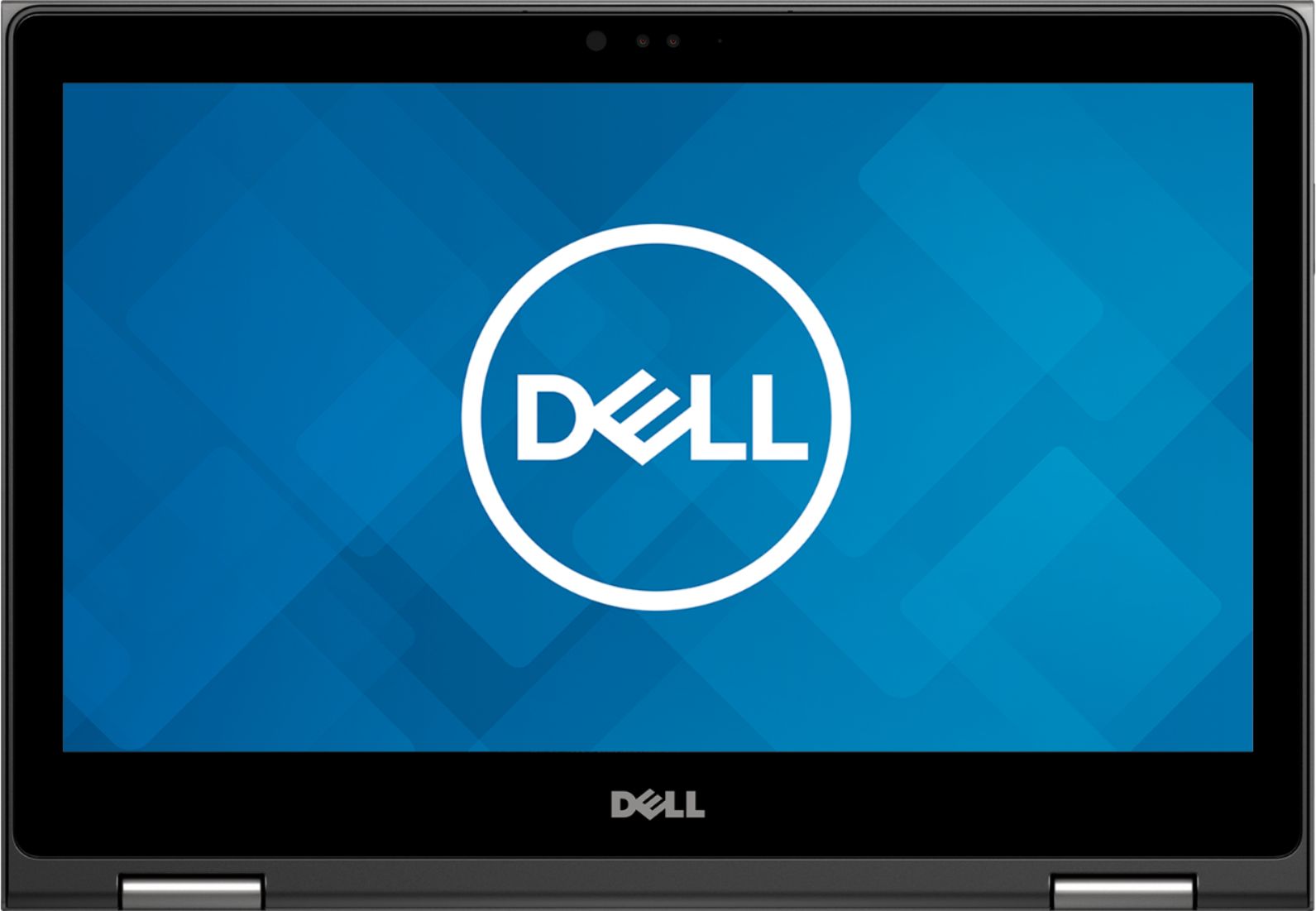
- Model:
- I7375-A446GRY-PUS
- SKU:
- 6212813
Rating by feature
- Value
Rating 4.3 out of 5 stars
- Quality
Rating 4.1 out of 5 stars
- Ease of Use
Rating 4.3 out of 5 stars
Customers are saying
Customers highly value the speed, portability, and price of the 2-in-1 13.3" Touch-Screen Laptop. They appreciate its fast performance, compact size, and reasonable cost. However, some users have concerns about its battery life, occasional freezing, and fan noise during gaming.
This summary was generated by AI based on customer reviews.
- Cons mentioned:Crashing, Freezing
Go for something else
Posted .This reviewer received promo considerations or sweepstakes entry for writing a review.I primarily bought this laptop for school work and a little light gaming. I saw on here that someone was able to play Civilization VI. So I've had the laptop for exactly a week. Throughout the week of having it, it froze a several times. Coming to the 7th day of owning it, I was watching a Youtube video and all of a sudden it crashed and went to the blue screen, citing that a video driver was not acting properly. I'm sorry but that just isn't good enough. I understand if you run into problems a year or two down the line but a week? That's just terrible.
No, I would not recommend this to a friendBrand response from YourDellTeam
Posted .Hello Bran,
We appreciate your review and we're sorry to hear that your computer's performance is not what you were hoping for. We'd recommend diagnosing the Blue Screen Error with the following steps:
1. At the desktop, click the Search the web and Windows box and type "problem reports".
2. Select View all problem reports to view a list of errors that have occurred on your computer and possible solutions for them, such as updating drivers, flashing your system BIOS, or checking for updates to the software.
3. Under the Source column, look for Windows and under Summary, look for Shut down unexpectedly.
4. Right-click the line item and select Check for a solution.
We'd also suggest checking to make sure that your software and drivers are up to date on Dell's Product Page - https://dell.to/2K9bcKB
You can read the full article here - http://dell.to/2u98Cct.
You may also want to make sure that all of your software and drivers are up to date. You can check for current drivers and software for your computer here: https://dell.to/2KvXWfQ.
We hope that these suggestions help your computer perform better for you.
Best,
Bryan
1-800-624-9896
- Pros mentioned:Fast
Very fast, awesome Laptop!
Posted .This reviewer received promo considerations or sweepstakes entry for writing a review.After owning many laptops, this is my favorite by far! It's extremely reliable and fast. I typically have 5-10 programs open at once and the Dell with Ryzen7 seems to handle all tasks fast and efficiently. I may buy one for my father as well.
I would recommend this to a friend - Pros mentioned:Performance
High Quality High Performance Laptop
Posted .This reviewer received promo considerations or sweepstakes entry for writing a review.Very reliable laptop, so far no issues at all. Performance is really great with AMD CPU + GPU, probably the best in this price range.
I would recommend this to a friend Great Laptop for Anyone
Posted .This reviewer received promo considerations or sweepstakes entry for writing a review.I'm pleased with the handling if this machine. It's so beautiful. The word fast finally applies to my praise. Love the design, the performance, the capability to multitask, and edit 4K video easily. AMD is rising to fame. I like their Ryzen's 7 more than any Core i#. Why? Because Ryzen works good and Core doesn't. It gets 5 stars in my book. And tablet mode rocks. Turn it inside out and press the button to enter tablet mode and you have a fun experience playing with your new tablet that I like better than iWish products.
I would recommend this to a friendIncredible value for the price
Posted .This reviewer received promo considerations or sweepstakes entry for writing a review.I have to admit that I didn't expect to find anything like this at this price point. I'm excited about the Ryzen chipsets because Intel had a monopoly in the market and drove prices up. But here you get the power of a i7 combined with graphics that are integrated in the chip. AMD has come a long way and thankfully we're finally seeing systems with these chips inside. The only thing I don't like about the design is that the power button is on the side. Aside from that, it's a great machine. The fans run but only when you allow the system to run to install the latest updates.
I would recommend this to a friend- Cons mentioned:Battery life
Disappointed
Posted .This reviewer received promo considerations or sweepstakes entry for writing a review.I have been buying Dell products for years and this laptop is a disappointment. Right off the bat, it kept freezing and locking up and only holding the power button and shutting down would fix it. Then I tested the battery just watching Netflix and leaving it there. It lasted about 3 hours. I am going to return it and get the Acer Aspire E15 which will last much longer and has similar specs. Afterall I don't need a 2 in 1 or a touch screen, just a laptop that works, is powerful, and lasts while I'm at school or work.
No, I would not recommend this to a friendBrand response from YourDellTeam
Posted .techguy90,
We're sorry to hear that your new Dell laptop is not living up to your expectations. We'd recommend diagnosing the freezes that you're experiencing with the following steps:
1. Run a Computer Diagnostic. To determine if your computer is experiencing a hardware problem, run the Dell Preboot System Assessment (PSA) Diagnostics. For information on how to run Diagnostics, and to determine the issue, refer to Dell Knowledge Base Article: http://dell.to/2iaiujA.
2. Check Safe Mode for Symptoms. To boot into safe mode, please follow the instructions below:
a) Start the computer.
b) Tap 'F8' on the keyboard immediately and every one second until the Dell logo screen disappears. From there you will see the Windows Advanced Options Menu on the screen. (If the Windows Advanced Options Menu does not appear, restart the system and try again.)
c) Select Safe mode with Networking and press Enter.
d) Log on as the administrator or as a user with administrative access.
e) Open applications and test the computer in safe mode. If the symptoms exist in safe mode, please continue the troubleshooting steps in this article. If the symptoms do not exist in safe mode, the issue is likely related to a driver or software and you may wish to complete steps 6 to see if you are able to resolve the lockups or freezing.
6. Check for Malware. Malware (Virus, Spyware, etc.) can definitely cause a Windows system to lock up or appear to hang. To check for malware on your system and to ensure that your computer is up to date on security software, visit Dell Knowledge Base Article: http://dell.to/2wWP1zI.
You can read the full article here - http://dell.to/2tW5m33.
If you are still experiencing battery issues we'd recommend the following tips:
Change the Power Plan:
1. On the notification area of the taskbar, right-click the Battery icon.
2. On the options list, click Power Options.
3. Select a power plan on the battery meter, such as Power Saver or Balanced. Windows 10 has a built in 'Battery Saver' mode that can be activated to extend your system's battery life. The Battery Saver mode will monitor and limit background activity and other features such as push notifications. You do have the option to enable or disable this mode within settings or within advanced Battery Saver settings, you can customize the mode to best suit your needs.
a) Click on the Action Center icon in the taskbar and select the tile for Battery Saver.
b) If running Cortana then type Battery Saver into the search box and select from the results.
Within the Battery Saver settings page, you will be able to turn on and off the feature and customize the feature to best meet your needs.
c) Turn Battery Saver On or Off.
d) Additional settings available via the Battery use and Battery saver settings links.
e) Battery use shows further info on apps and their power usage.
f) Battery Saver Settings screen allows you to customize further Battery Saver feature.
You can read the full article here - http://dell.to/2vfXWf4.
Best,
Bryan
1-800-624-9896
- Cons mentioned:Battery life
poor battery
Posted .This reviewer received promo considerations or sweepstakes entry for writing a review.The performance is good, but If you need a minimum time battery , forget it. Very bad
No, I would not recommend this to a friendBrand response from YourDellTeam
Posted .Zeca,
Thank you for your feedback. We're sorry that your computer's battery is not performing the way that you'd like it to. We'd recommend that you try some of the following tips to extend your battery life:
Change the Power Plan:
1. On the notification area of the taskbar, right-click the Battery icon.
2. On the options list, click Power Options.
3. Select a power plan on the battery meter, such as Power Saver or Balanced. Windows 10 has a built in 'Battery Saver' mode that can be activated to extend your system's battery life. The Battery Saver mode will monitor and limit background activity and other features such as push notifications. You do have the option to enable or disable this mode within settings or within advanced Battery Saver settings, you can customize the mode to best suit your needs.
a) Click on the Action Center icon in the taskbar and select the tile for Battery Saver.
b) If running Cortana then type Battery Saver into the search box and select from the results.
Within the Battery Saver settings page, you will be able to turn on and off the feature and customize the feature to best meet your needs.
c) Turn Battery Saver On or Off.
d) Additional settings available via the Battery use and Battery saver settings links.
e) Battery use shows further info on apps and their power usage.
f) Battery Saver Settings screen allows you to customize further Battery Saver feature.
You can read the full article here - http://dell.to/2vfXWf4.
We hope this helps extend your computer's battery life.
Best,
Bryan
1-800-624-9896
Good Laptop
Posted .This reviewer received promo considerations or sweepstakes entry for writing a review.Works great and boots up in 20seconds. Have not tried any gaming or anything outside of the basics, but so far so good.
I would recommend this to a friend- Pros mentioned:Fast
Great Value!
Posted .This reviewer received promo considerations or sweepstakes entry for writing a review.12gb of ram! Excellent Display quality! Fast NoteB
I would recommend this to a friend - Cons mentioned:Heats up
irratic
Posted .This reviewer received promo considerations or sweepstakes entry for writing a review.I'm 31 days in and it has shutdown randomly, had sound issues, and today it acted like the wireless was not installed. Of course, it was a software issue ( after diagnostics while on phone with Dell and 3 hrs wasted,) which isn't covered under the warranty. Best Buy won't take it back after 15 days. It mysteriously got back to connecting to the internet after a system restore and now I'm back to square one installing everything. Heats up quite a bit too.
No, I would not recommend this to a friendBrand response from YourDellTeam
Posted .Hello TB00000,
We're very sorry to hear that your computer is not performing the way you had hoped it would. If you'd like to diagnose crashes on your system we'd recommend the following:
1. At the desktop, click the Search the web and Windows box and type "problem reports".
2. Select View all problem reports to view a list of errors that have occurred on your computer and possible solutions for them, such as updating drivers, flashing your system BIOS, or checking for updates to the software.
3. Under the Source column, look for Windows and under Summary, look for Shut down unexpectedly.
4. Right-click the line item and select Check for a solution.
We'd also suggest checking to make sure that your software and drivers are up to date on Dell's Product Page -
You can read the full article here - http://dell.to/2u98Cct.
If you have connectivity issues again we'd recommend the following diagnostics:
1. Run the Network Troubleshooter.
a) Touch and hold or right-click the network icon (Available Networks or Network Icon, located in the lower right-hand corner).
b) Touch or click Troubleshoot problems and then follow the prompts.
You can read the full article here - http://dell.to/2sLtwRh.
Lastly, if your computer continues to overheat on you we'd recommend the following:
Tips for Proper Usage:
1. Dell does not recommend placing portable systems directly on your lap. Due to reductions in the thickness of modern portable systems, heat transfer can be an issue.
2. Using a portable system (Laptop) on a hard, flat, non-cloth surface will increase airflow and reduce heat from underneath and inside the system.
Using the portable system on a blanket, pillow, or other types of cloth will cover up the fan cause the computer to overheat and can cause permanent damage.
3. It is recommended to use the portable system in a Room temperature of 0°C to 35°C (32°F to 95°F) with a Humidity level no greater than 90%.
4. Use compressed air to clean the vents on a regular basis.
5. Using a cooling pad can decrease heat and increase performance.
6. If you want to know the temperature limitations for your system, go to the Dell Support Website, look up your system model then open the user guide under the manuals link.
You can read the full article here - http://dell.to/2uJ8AdG.
Best,
Bryan
1-800-624-9896
Less than a month after purchase, won't start up
Posted .This reviewer received promo considerations or sweepstakes entry for writing a review.Always loved my Dells, until now. Bought this one for my daughters 16th bday (her first computer) and 2 1/2 weeks after purchase, it randomly began not starting. Keyboard will light but screen stays black, every time. After it sits for a while, it might start and it might not. Its very random but a daily occurrence. She has all of her school work on it and its doing her no good. I updated the BIOS to no avail. Past the silly 14 day Best Buy warranty. Nice machine when it works but the reliance makes it an $850 paper weight.
No, I would not recommend this to a friendBrand response from YourDellTeam
Posted .lordestroyer,
We appreciate your feedback and we're sorry to hear about your daughter's computer issues. We'd recommend the following steps if you continue to have issues starting up the computer:
1. If the computer is displaying the Dell logo and does not move past that point, it has probably failed POST.
2. If the power indicator lights up and it is amber or orange, this is usually an indicator that it has failed POST.
3. If you see text on a black screen, the computer is currently performing the POST. If the computer stays in that condition and does not move past it, it has probably failed POST.
4. If the video screen displayed anything at all during the startup process but is now black, this probably indicates that the computer failed POST.
5. If the computer is beeping or if Caps/Num/Scroll Locks are flashing, note if there is a particular pattern in which it beeps or flashes.
6. If the computer is not beeping and caps/num/scroll locks are not flashing, unplug all connections and remove all media communication devices (e.g. external monitors); reconnect one at a time and check if the computer functions.
7. For a notebook, press and hold the Fn key and then press the power button. This starts the pre-boot testing and will launch ePSA. In case you have a Desktop at the Dell logo screen tap the F12 key to enter One Time Boot Menu and use the arrow keys to highlight Diagnostics and press enter.
You can read the full article here - http://dell.to/2uj1Sby.
We hope this helps the computer work better for her.
Best,
Bryan
1-800-624-9896
- Cons mentioned:Freezing
2nd one failed as well. Returning.
Posted .This reviewer received promo considerations or sweepstakes entry for writing a review.I got one a geek squad certified open box and a new one. Open box had a network driver issue and had to return. Then I got a new one yesterday thought it would be okay. This one got frozen first while setting up. Had to start again. Now it gets frozen every 5-10 minutes. Returning it today after tried to use it a few hours.
No, I would not recommend this to a friendBrand response from YourDellTeam
Posted .Mett,
Thanks for your review. We're sorry to hear about the trouble that you've had with your laptop so far. If you'd like to diagnose the freezes on your new computer here are the steps:
1. Run a Computer Diagnostic. To determine if your computer is experiencing a hardware problem, run the Dell Preboot System Assessment (PSA) Diagnostics. For information on how to run Diagnostics, and to determine the issue, refer to Dell Knowledge Base Article: http://dell.to/2iaiujA.
2. Check Safe Mode for Symptoms. To boot into safe mode, please follow the instructions below:
a) Start the computer.
b) Tap 'F8' on the keyboard immediately and every one second until the Dell logo screen disappears. From there you will see the Windows Advanced Options Menu on the screen. (If the Windows Advanced Options Menu does not appear, restart the system and try again.)
c) Select Safe mode with Networking and press Enter.
d) Log on as the administrator or as a user with administrative access.
e) Open applications and test the computer in safe mode. If the symptoms exist in safe mode, please continue the troubleshooting steps in this article. If the symptoms do not exist in safe mode, the issue is likely related to a driver or software and you may wish to complete step 3 to see if you are able to resolve the lockups or freezing.
3. Check for Malware. Malware (Virus, Spyware, etc.) can definitely cause a Windows system to lock up or appear to hang. To check for malware on your system and to ensure that your computer is up to date on security software, visit Dell Knowledge Base Article: http://dell.to/2wWP1zI.
You can read the full article here - http://dell.to/2tW5m33.
Best,
Bryan
1-800-624-9896
- Cons mentioned:Freezing
Likes to freeze / reboot
Posted .This reviewer received promo considerations or sweepstakes entry for writing a review.I have given this system all the patience I can, frequently checking for drivers and updates (which there have been several). Bought in April, 2018. Not once have I ever been able to use this laptop without it freezing or rebooting. It is currently on its way to the Dell repair depot, but seeing the many similar reviews sharing the problems I have experiences, I cannot at all recommend this product.
No, I would not recommend this to a friendBrand response from YourDellTeam
Posted .Oak935,
Thanks for your feedback. We're sorry that your computer is not working the way you had hoped it would but we're glad to see that you were able to send it to Dell for repairs. If you do experience problems when you get your computer back we'd recommend checking out our Product Support Page here: https://dell.to/2K9bcKB.
Best,
Bryan
1-800-624-9896
- Cons mentioned:Fan noise
this laptop runs way too hot
Posted .This reviewer received promo considerations or sweepstakes entry for writing a review.So i bought this laptop, the other day thinking it would be a good buy, but it wasn't. this laptop runs way too hot, and the fan is super loud and always on even when I'm not doing anything, i don't know if there is something wrong with mine, but I cant stand the fan noise. This laptop has been a real disappointment, as it shouldn't be louder than a laptop that is several years old.
No, I would not recommend this to a friendBrand response from YourDellTeam
Posted .jesus,
thanks for your feedback about your new laptop. We're sorry to hear how hot it is getting and how loud your fan is. Here are some tips that will hopefully help you:Tips for Proper Usage:
1. Dell does not recommend placing portable systems directly on your lap. Due to reductions in the thickness of modern portable systems, heat transfer can be an issue.
2. Using a portable system (Laptop) on a hard, flat, non-cloth surface will increase airflow and reduce heat from underneath and inside the system.
Using the portable system on a blanket, pillow, or other types of cloth will cover up the fan cause the computer to overheat and can cause permanent damage.
3. It is recommended to use the portable system in a Room temperature of 0°C to 35°C (32°F to 95°F) with a Humidity level no greater than 90%.
4. Use compressed air to clean the vents on a regular basis.
5. Using a cooling pad can decrease heat and increase performance.
6. If you want to know the temperature limitations for your system, go to the Dell Support Website, look up your system model then open the user guide under the manuals link.
You can read the full article here - http://dell.to/2uJ8AdG.
Here are some tips about the fan noise: Here are some tips to help with fan noise -
A: Cleaning the Vents
1. Check the vents on the computer to see if they are covered with dust and not allowing heat and air to pass through.
2. Turn off the system.
3. Remove all power sources: Unplug the AC adapter and remove the battery, or unplug the desktop power Cord.
4. Use a compressed air can to blow the dust out of the vents. Be sure to hold the can at an upright angle (near 90 degrees), and hold it 15-20 centimeters (6-8 inches) away from the vent.
B: Update the BIOS: An out-of-date BIOS can cause loud fan noises by having an outdated temperature table for the system. Refer to update BIOS and follow the instructions to update the BIOS on your computer.
You can read the full article here - http://dell.to/2ENlXfz.
We hope these tips help the overall performance of your new computer.
Best,
Bryan
1-800-624-9896
- Cons mentioned:Fan noise
Took 7 hours to download office 365
Posted .This reviewer received promo considerations or sweepstakes entry for writing a review.It has a very slow internet card. It took 7 hours to download office 365. I spent hours on the phone with my internet provider, Microsoft and Dell trying to figure out what the issue is. It came down to the internet card. The fan is really loud. Can't say anything positive at this point. I plan on returning it first thing in the morning.
No, I would not recommend this to a friendBrand response from YourDellTeam
Posted .John,
We're very sorry to hear about the issues that you've been having with your internet card. We'd recommend checking to make sure that there are not ways to make your connection work faster for you by following these steps:
1. Run the Network Troubleshooter.
a) Touch and hold or right-click the network icon (Available Networks or Network Icon, located in the lower right-hand corner).
b) Touch or click Troubleshoot problems and then follow the prompts.
You can read the full article here - http://dell.to/2sLtwRh.
If you'd like to cut down on the fan noise on your computer we'd recommend updating the BIOS on your computer: An out-of-date BIOS can cause loud fan noises by having an outdated temperature table for the system. Refer to update BIOS and follow the instructions to update the BIOS on your computer. You can also follow up with our Technical Support Team here - 1-800-624-9896.
You can read the full article here - http://dell.to/2ENlXfz.
We hope that these tips will help your computer perform the way that you want it to.
Best,
Bryan
1-800-624-9896
The laptop itself is ok
Posted .This reviewer received promo considerations or sweepstakes entry for writing a review.I really have no issue with the build quality of the laptop. all of my issues stem from Best Buy themselves. I bought an open box of the Ryzen 7 variant of the Inspiron and it was "certified" by the geek squad. The issue that I have is that I still, 24 hours after purchase, cannot use the laptop properly. When the computer was reset to factory no drivers were installed on the computer aside windows could install itself. So if I were to do something as trivial as watching a video on youtube there is a terrible stutter due to the graphics driver not being installed. So i took to AMD's website to download drivers for that and it constantly failed the installation. Per AMD's site, it was failing because there were no updates to windows installed. even after letting it update overnight it still wasn't to a point where I could install anything. What irritates me is that my ordeal with Best Buy has otherwise tainted what should have been a good experience. None of the features of this computer work a day after purchase, Windows Hello doesn't work, graphics issues. It is to the point where if I can't get this situated myself I will have to return it which is a shame.
No, I would not recommend this to a friendNEVER ABLE TO USE!!
Posted .This reviewer received promo considerations or sweepstakes entry for writing a review.Received my pc and it would NEVER connect to the internet for more than 10 mins. The wireless driver was not installed and even after i downloaded it and installed it the pc would not connect without resetting the pc every time I used it. Had the pc for like 3-4 days and returned it. im soooooo disappointed. I Really wanted to like this pc.
No, I would not recommend this to a friendBrand response from YourDellTeam
Posted .Kimmie1520,
We're very sorry to hear that your computer had trouble connecting to the internet for you. In the future you can always try to run the Network Troubleshooter on your computer to see what the root of the problem may be.
Best,
Bryan
1-800-624-9896
So far more problems then benefits
Posted .This reviewer received promo considerations or sweepstakes entry for writing a review.Bought due to the great sales price and specs, have gotten multiple blue screen of deaths in the 2 weeks I've had it that are apparently related to the video card driver. Updated it multiple times, and still facing the same issue
No, I would not recommend this to a friendBrand response from YourDellTeam
Posted .Theron,
Thanks for your feedback. We're sorry about the errors that you've been experiencing. We'd recommend that you diagnose the crashes with the following steps:
1. At the desktop, click the Search the web and Windows box and type "problem reports".
2. Select View all problem reports to view a list of errors that have occurred on your computer and possible solutions for them, such as updating drivers, flashing your system BIOS, or checking for updates to the software.
3. Under the Source column, look for Windows and under Summary, look for Shut down unexpectedly.
4. Right-click the line item and select Check for a solution.
We'd also suggest checking to make sure that your software and drivers are up to date on Dell's Product Page - https://dell.to/2K9bcKB.
You can read the full article here - http://dell.to/2u98Cct.
Best,
Bryan
1-800-624-9896
Ryzen 7 What?
Posted .This reviewer received promo considerations or sweepstakes entry for writing a review.So I bought this laptop on April 21, and took it back on April 22. Why, you might ask? Because it crashed on me three times out of the box. I don't know if the one I got was a fluke, but, I definitely won't get another one!!
No, I would not recommend this to a friendDo not buy!
Posted .This reviewer received promo considerations or sweepstakes entry for writing a review.Horrible quality! Has been to week squad six times and going back again today! I would give this a zero rating if possible. The week squad has been wonderful though
No, I would not recommend this to a friendBrand response from YourDellTeam
Posted .Student,
Thanks for your review. We're sorry to hear about the problems that you've had with your computer so far. Please feel free to reach out to Dell's Technical Support Team in the future as well: http://dell.to/2sH7Qlm.
If you have questions about your computer you can visit our Product Support Page here: https://dell.to/2K9bcKB.
Best,
Bryan
1-800-624-9896