Customer Ratings & Reviews


- Model:
- I3590-5988BLK-PUS
- SKU:
- 6350872
Rating by feature
- Battery Life
Rating 3.3 out of 5 stars
- Speed
Rating 4.3 out of 5 stars
- Display
Rating 3.9 out of 5 stars
Customers are saying
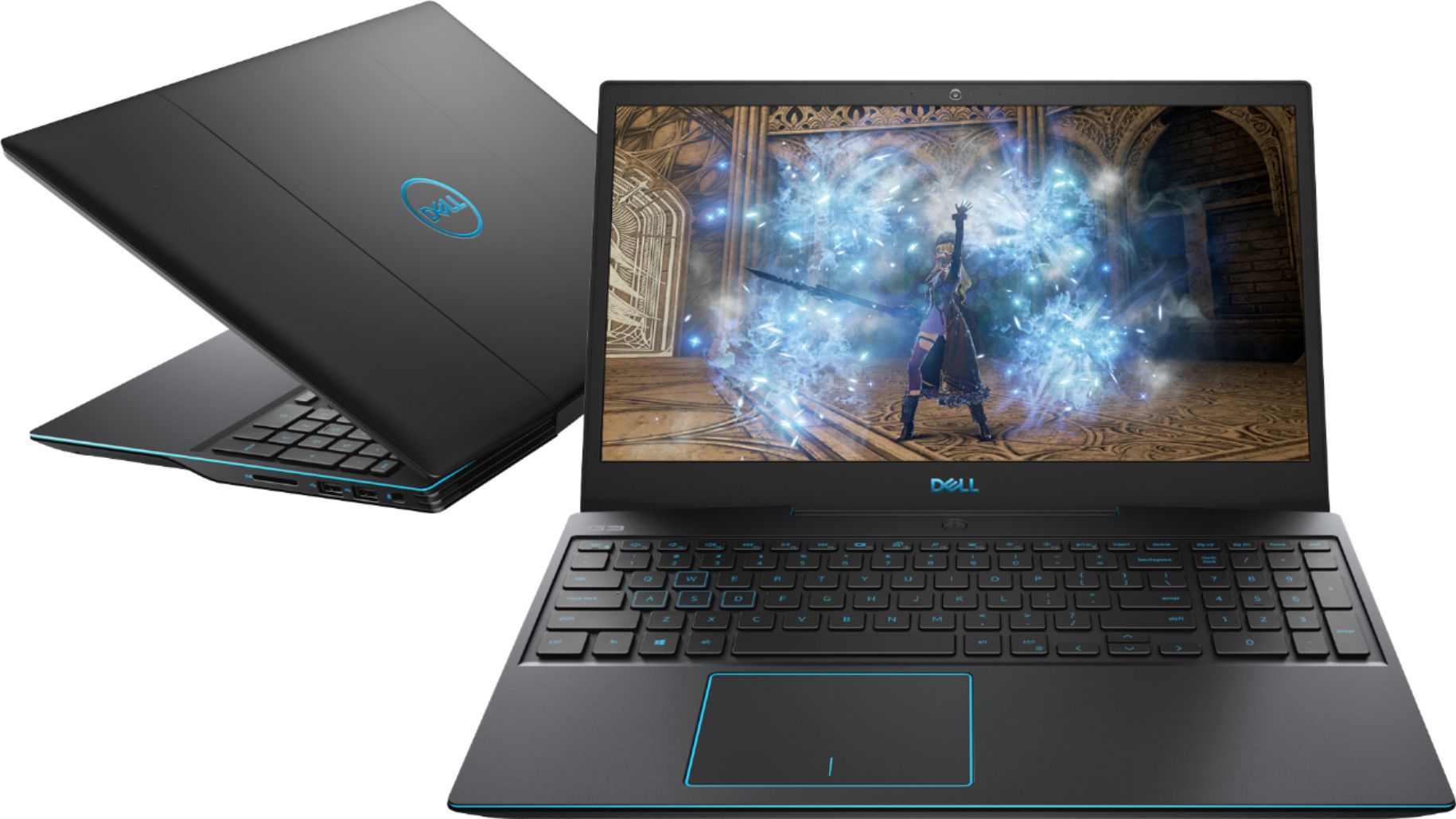
Customers enjoy the G3 15.6" Gaming Laptop's performance, graphics capabilities, and solid-state drive, frequently praising its speed and value for the price. Positive feedback also highlights its lightweight design and backlit keyboard. However, some users express concerns regarding battery life, cooling system effectiveness, and hinge durability.
This summary was generated by AI based on customer reviews.
Thermal issues
||Posted . Owned for 3 months when reviewed.This reviewer received promo considerations or sweepstakes entry for writing a review.Purchased as a open box. Specs at the time was good. Great for light gaming. Had thermal issues and returned same day. Maybe just my luck.
No, I would not recommend this to a friendBrand response from YourDellTeam
Posted .Eros13,
We're sorry to hear about the overheating concerns that you had with your new computer. There is a BIOS update as well as troubleshooting steps that are available for this computer on this site: https://dell.to/3jgQlm6.
We're sorry to hear that you decided to return your computer but we hope that you'll consider Dell again in the future.
Best,
Bryan
1-800-624-9896
Do not recommend
||Posted . Owned for 9 months when reviewed.This reviewer received promo considerations or sweepstakes entry for writing a review.I bought this because it was recommended to me as one of the best gaming laptops on the market. Within the year its hard drive died completely. It also had several hardware issues, such as the trackpad not responding after only 3 months, and the hinges cracking. While it was functional, it was a decent computer and I was able to do what I bought it for. I have never owned a PC that went downhill so quickly.
No, I would not recommend this to a friend- Cons mentioned:Cooling
worst laptop ever
||Posted . Owned for 9 months when reviewed.This reviewer received promo considerations or sweepstakes entry for writing a review.waste of money , dont buy LOL 60hz sucks and it overheats and literally cant run any game bye
No, I would not recommend this to a friendBrand response from YourDellTeam
Posted .Hello mina,
We are sorry to hear that your G3 did not quite meet expectations and apologize for the inconvenience. Your feedback is sincerely appreciated. If system thermals are of concern, you can prioritize cooling by opening the Alienware Command Center application that came pre-installed with your device and select the 'Cool' thermal profile.
Keep in mind that our G3 follows Intel performance design guidelines, which can lead CPU temperatures to reach 100°C to output top in-game performance. We fully warrant the product under these conditions. If you see CPU temperatures rising beyond 100°C on Alienware Command Center, please contact Dell support and they would be more than happy to assist.
Best Regards,
Anthony P.
Thermal throttles
||Posted . Owned for 1 week when reviewed.This reviewer received promo considerations or sweepstakes entry for writing a review.Nice machine. But it thermals a lot. It was in the heavy side I don’t know if it was this specific machine or this model but i liked the nitro 5better
No, I would not recommend this to a friendBrand response from YourDellTeam
Posted .Tizoc4u,
We're very sorry to hear about the thermal issues that you've been experiencing with your G Series laptop. Here are a few steps that you can try in order to update the BIOS on your computer and help control the operating temperature:
1. Update your computer BIOS to the latest version available
• Browse to the Dell Drivers & Downloads page:
• Ensure you have selected the correct Operating System
• Under Category, choose BIOS
• Locate the latest System BIOS
• Click Download and save the file to your PC
• Open File Explorer and browse to the location where you saved the downloaded file
• Double-click the BIOS setup file and follow the on-screen instructions to complete the installation process
2. Open Alienware Command Center
3. Click Thermal at the Active Default Theme and set it to Performance
4. Restart the computer
5. Once the computer boots into Windows open SupportAssist
6. Go to the Troubleshooting tab and click on I want to check a specific piece of hardware
7. Click CPU under CPU Devices
8. Select CPU Stress Test and click Run Test
9. Open the Alienware Command Center and go to the Fusion tab
• The CPU peak temperature should be less than or equal to (≤) 100 ℃
• When under high stress, the computer's average temperature can be expected to be less than (≤) 100 ℃.
If you have additional questions please reach out to Dell's Technical Support Team here: http://dell.to/2sH7Qlm.
Best,
Bryan
1-800-624-9896
- Cons mentioned:Cooling
very cheap laptop
||Posted . Owned for less than 1 week when reviewed.This reviewer received promo considerations or sweepstakes entry for writing a review.the laptop want stay on or key board and fan get to louddont buy this piece of junk.
No, I would not recommend this to a friendBrand response from YourDellTeam
Posted .richard,
Thanks for your review. We're sorry to hear about the fan noise on your computer. We'd suggest seeing if you can update the BIOS on your computer to help with the fan noise:
An out-of-date BIOS can cause loud fan noises by having an outdated temperature table for the system. Refer to update BIOS and follow the instructions to update the BIOS on your computer. You can also follow up with our Technical Support Team here - 1-800-624-9896.
You can read the full article here - http://dell.to/2ENlXfz.
Best,
Bryan
1-800-624-9896
- Pros mentioned:Graphics, Speed, Ssd

Amazing Computer
|Posted .This reviewer received promo considerations or sweepstakes entry for writing a review.This computer is super fast! I was up and running out of the box in under 20minutes. I installed World of Warcraft and it just runs so smooth on this laptop thanks to its CPU and GPU combo. Luckily with this awesome combo you can play most new releases in stunning graphic fidelity! When on the go it’s a workhorse in productivity doing presentations and documents. If you need a new laptop then this is the one for you!
I would recommend this to a friend - Cons mentioned:Battery life
Faulty battery
||Posted . Owned for 3 weeks when reviewed.This reviewer received promo considerations or sweepstakes entry for writing a review.Not a month old and computer had lots of issues including a useless faulty battery
No, I would not recommend this to a friendBrand response from YourDellTeam
Posted .Unhappy,
We're sorry to hear about the battery life of your computer not meeting your needs. Here are some tips to help extend the life of your computer's battery:
Change the Power Plan:
1. On the notification area of the taskbar, right-click the Battery icon.
2. On the options list, click Power Options.
3. Select a power plan on the battery meter, such as Power Saver or Balanced. Windows 10 has a built in 'Battery Saver' mode that can be activated to extend your system's battery life. The Battery Saver mode will monitor and limit background activity and other features such as push notifications. You do have the option to enable or disable this mode within settings or within advanced Battery Saver settings, you can customize the mode to best suit your needs.
a) Click on the Action Center icon in the taskbar and select the tile for Battery Saver.
b) If running Cortana then type Battery Saver into the search box and select from the results.
Within the Battery Saver settings page, you will be able to turn on and off the feature and customize the feature to best meet your needs.
c) Turn Battery Saver On or Off.
d) Additional settings available via the Battery use and Battery saver settings links.
e) Battery use shows further info on apps and their power usage.
f) Battery Saver Settings screen allows you to customize further Battery Saver feature.
You can read the full article here - http://dell.to/2vfXWf4.
Best,
Bryan
1-800-624-9896
Components
||Posted . Owned for 8 months when reviewed.This reviewer received promo considerations or sweepstakes entry for writing a review.For some reason it just starts to break apart by it self when opened and when closed after its shut down.
No, I would not recommend this to a friendBrand response from YourDellTeam
Posted .Kelvin,
We're sorry to hear that your computer is not fully meeting your needs. If you have any technical questions about your computer you can check our Product Support Page here: https://dell.to/2NSjl8n.
Best,
Bryan
1-800-624-9896
Poor Dell laptop quality
||Posted . Owned for 1 year when reviewed.This reviewer received promo considerations or sweepstakes entry for writing a review.I purchased this over a year ago but I have barely used it. The display has begun to fall apart. Did some research and it turns out it is something that has happened to basically all the owners of this laptop. I was very disappointed especially because I had been a Dell fan. I will not be buying a Dell again in the future.
No, I would not recommend this to a friend- Cons mentioned:Cooling
Poor lab top
||Posted . Owned for 1 week when reviewed.This reviewer received promo considerations or sweepstakes entry for writing a review.The product keeps over heating and not turning on when it does over heat.
No, I would not recommend this to a friendBrand response from YourDellTeam
Posted .Leonel,
Thanks for your feedback. We're sorry to hear about the issues that you've had with your computer so far. If you are still having trouble turning your computer on you can try these steps:
1. If the computer is displaying the Dell logo and does not move past that point, it has probably failed POST.
2. If the power indicator lights up and it is amber or orange, this is usually an indicator that it has failed POST.
3. If you see text on a black screen, the computer is currently performing the POST. If the computer stays in that condition and does not move past it, it has probably failed POST.
4. If the video screen displayed anything at all during the startup process but is now black, this probably indicates that the computer failed POST.
5. If the computer is beeping or if Caps/Num/Scroll Locks are flashing, note if there is a particular pattern in which it beeps or flashes.
6. If the computer is not beeping and caps/num/scroll locks are not flashing, unplug all connections and remove all media communication devices (e.g. external monitors); reconnect one at a time and check if the computer functions.
7. For a notebook, press and hold the Fn key and then press the power button. This starts the pre-boot testing and will launch ePSA. In case you have a Desktop at the Dell logo screen tap the F12 key to enter One Time Boot Menu and use the arrow keys to highlight Diagnostics and press enter.
You can read the full article here - http://dell.to/2uj1Sby.
If you'd like to see if your computer can operate at a lower temperature, please try the following:
1. Update your computer BIOS to the latest version available
• Browse to the Dell Drivers & Downloads page:
• Ensure you have selected the correct Operating System
• Under Category, choose BIOS
• Locate the latest System BIOS
• Click Download and save the file to your PC
• Open File Explorer and browse to the location where you saved the downloaded file
• Double-click the BIOS setup file and follow the on-screen instructions to complete the installation process
2. Open Alienware Command Center
3. Click Thermal at the Active Default Theme and set it to Performance
4. Restart the computer
5. Once the computer boots into Windows open SupportAssist
6. Go to the Troubleshooting tab and click on I want to check a specific piece of hardware
7. Click CPU under CPU Devices
8. Select CPU Stress Test and click Run Test
9. Open the Alienware Command Center and go to the Fusion tab
• The CPU peak temperature should be less than or equal to (≤) 100 ℃
• When under high stress, the computer's average temperature can be expected to be less than (≤) 100 ℃.
Best,
Bryan
1-800-624-9896
- Pros mentioned:GraphicsCons mentioned:Cooling
Solid Gaming Laptop
|Posted .This reviewer received promo considerations or sweepstakes entry for writing a review.The Dell G3 Gaming Laptop is a solid choice at a decent price. It has great graphics for gaming as long as you keep it plugged in. It can get choppy if the laptop is not plugged in. The speakers have great sound although can be drowned out by the noise of the cooling fan at times. The power of laptop has a drawback of begin very heavy. It weighs nearly 5 pounds and does get hot quickly. My son has really enjoyed playing Fortnite and GTA on this laptop and loves the graphics. I have liked using this laptop for other things other than gaming. The trackpad is so much easier to use than my other laptop. Streaming movies has been a breeze on it and installing windows programs was super easy.
I would recommend this to a friend Crashed on the fourth day
||Posted . Owned for 1 week when reviewed.This reviewer received promo considerations or sweepstakes entry for writing a review.It’s hard to review this product. It crashed four days after it was purchased. It is currently being repaired. Hopefully it is just one faulty part and will run great after we get it back. Who knows
No, I would not recommend this to a friendBrand response from YourDellTeam
Posted .DisappointedBob,
We're sorry to hear about the crash that your computer experienced. We hope that when you get back your computer that it will work the way it's supposed to. Please check out our Product Support Page if you have additional questions: https://dell.to/2SmMxSN.
Best,
Bryan
1-800-624-9896
Baddd
||Posted . Owned for 1.5 years when reviewed.This reviewer received promo considerations or sweepstakes entry for writing a review.Trashzzzz i bought g7 its lot better than this one is so bad... don’t recommend
No, I would not recommend this to a friendBrand response from YourDellTeam
Posted .Ayeaye,
Thanks for your review and we're sorry that your new computer is not performing as well as you hoped it would. There are a number of ways to help improve the performance of your computer if it is running slower than you expected it to. We'd recommend the following steps to help improve your computer's overall performance and speed:
1. Restart your computer regularly.
2. Run the automated tools provided in the SupportAssist Tool.
3. Run a complete hardware diagnostic test.
4. Scan your computer for malware.
5. Restore your Dell computer using Windows System Restore.
6. Reinstall Microsoft Windows.
You can read the full steps associated with each of these recommendations here: https://dell.to/3n29QjE.
Best,
Bryan
1-800-624-9896
defective design
||Posted . Owned for 5 months when reviewed.This reviewer received promo considerations or sweepstakes entry for writing a review.the hinge design on this computer looks really cool but it is very flawed. the hinges are too close together centered neer the middle. If you close the monitor with one hand as most people do it will put too much stress on the monitor. Our monitor starting coming apart shortly after purchase. Do not buy.
No, I would not recommend this to a friendBrand response from YourDellTeam
Posted .Hello Sven,
Thank you for finding the time to share your experience. We do sincerely apologize for the experience you have been having with your G3. Your feedback is incredibly valuable as we take future products into consideration. We look forward to informing our engineers so as to explore what may be causing these issues and to address it appropriately.
Until then, we strongly encourage you get in contact with Dell Support directly to explore coverage options under your warranty.
Best Regards,
Anthony P.
Stopped working after 2 weeks - junk
||Posted . Owned for 2 weeks when reviewed.This reviewer received promo considerations or sweepstakes entry for writing a review.Stopped working after two weeks. Totally failed during the COVID crisis. Very disappointing as I have been a long time Dell buyer for 30+ years. Replaced it with an ACER. Hope the new laptop is more reliable. Very sad about Dell quality. Maybe Micheal Dell should stop goofing around and pay more attention to his business.
No, I would not recommend this to a friendn/a
||Posted . Owned for 2 weeks when reviewed.This reviewer received promo considerations or sweepstakes entry for writing a review.this computer i snot working proper's for games play
No, I would not recommend this to a friendBrand response from YourDellTeam
Posted .ramane07,
Thanks for your review. We're sorry to hear that your computer is not working the way that you hoped it would. We'd recommend looking at our Product Support Page for instructions on how to better operate your system: https://dell.to/2NSjl8n.
Best,
Bryan
1-800-624-9896
No good, returned mine.
||Posted . Owned for 1 month when reviewed.This reviewer received promo considerations or sweepstakes entry for writing a review.No good, I barely got 30fps on Doom Eternal at 1080p and low setting. I hade updated drivers and double check everything. Very disappointed, with theses spec's it just just about max out 1080p.
No, I would not recommend this to a friend- Pros mentioned:Build quality
Great Computer
|Posted .This reviewer received promo considerations or sweepstakes entry for writing a review.Game performance is great in my opinion. It plays most games at medium-high settings (BF, Fortnite, PUBG, RL, etc) perfectly. Haven't had any games yet where it really suffers. The cooling is another highlight. This thing stays really cool under load according to my monitoring software. The fans do get pretty loud while gaming or under heavy load but ill take that over excessive heat any day. Speakers are okay. They're laptop speakers. The screen pretty good. No light bleed or dead pixels. I wish the colors were a bit deeper, but for the price I cant complain. the keyboard is good too. really like the blue backlighting. IO is decent could use one more usb port. Build quality is solid as well.
I would recommend this to a friend Deceptive inaccurate description
||Posted . Owned for 3 weeks when reviewed.This reviewer received promo considerations or sweepstakes entry for writing a review.Incorrectly lists this as a regular gtx 1660 ti. It’d not it’s a max q version and significantly slower
No, I would not recommend this to a friendBrand response from YourDellTeam
Posted .2slow2care,
Thanks for bringing this to our attention. Our team will look into this product listing and make any necessary changes.
Best,
Bryan
1-800-624-9896
Problems Out of the Box
||Posted . Owned for 2 months when reviewed.This reviewer received promo considerations or sweepstakes entry for writing a review.Any time the audio is unplugged or the bluetooth loses connection while in a game, the game freezes and I'm forced to reboot
No, I would not recommend this to a friendBrand response from YourDellTeam
Posted .addison,
Thanks for your review. We're sorry to hear about the freezes that you're experiencing on your computer. We'd recommend checking to make sure that the drivers and software on your computer are up to date: https://dell.to/2m3DPO3.
If you'd like to diagnose the freezes on your computer you can follow these steps:
1. Run a Computer Diagnostic. To determine if your computer is experiencing a hardware problem, run the Dell Preboot System Assessment (PSA) Diagnostics. For information on how to run Diagnostics, and to determine the issue, refer to Dell Knowledge Base Article: http://dell.to/2iaiujA.
2. Check Safe Mode for Symptoms. To boot into safe mode, please follow the instructions below:
a) Start the computer.
b) Tap 'F8' on the keyboard immediately and every one second until the Dell logo screen disappears. From there you will see the Windows Advanced Options Menu on the screen. (If the Windows Advanced Options Menu does not appear, restart the system and try again.)
c) Select Safe mode with Networking and press Enter.
d) Log on as the administrator or as a user with administrative access.
e) Open applications and test the computer in safe mode. If the symptoms exist in safe mode, please continue the troubleshooting steps in this article. If the symptoms do not exist in safe mode, the issue is likely related to a driver or software and you may wish to complete step 3 to see if you are able to resolve the lockups or freezing.
3. Check for Malware. Malware (Virus, Spyware, etc.) can definitely cause a Windows system to lock up or appear to hang. To check for malware on your system and to ensure that your computer is up to date on security software, visit Dell Knowledge Base Article: http://dell.to/2wWP1zI.
You can read the full article here - http://dell.to/2tW5m33.
Best,
Bryan
1-800-624-9896