Customer Ratings & Reviews

- Model:
- I3180-A361GRY-PUS
- SKU:
- 6188326
Rating by feature
- Value
Rating 3.9 out of 5 stars
- Quality
Rating 3.7 out of 5 stars
- Ease of Use
Rating 3.9 out of 5 stars
Customers are saying
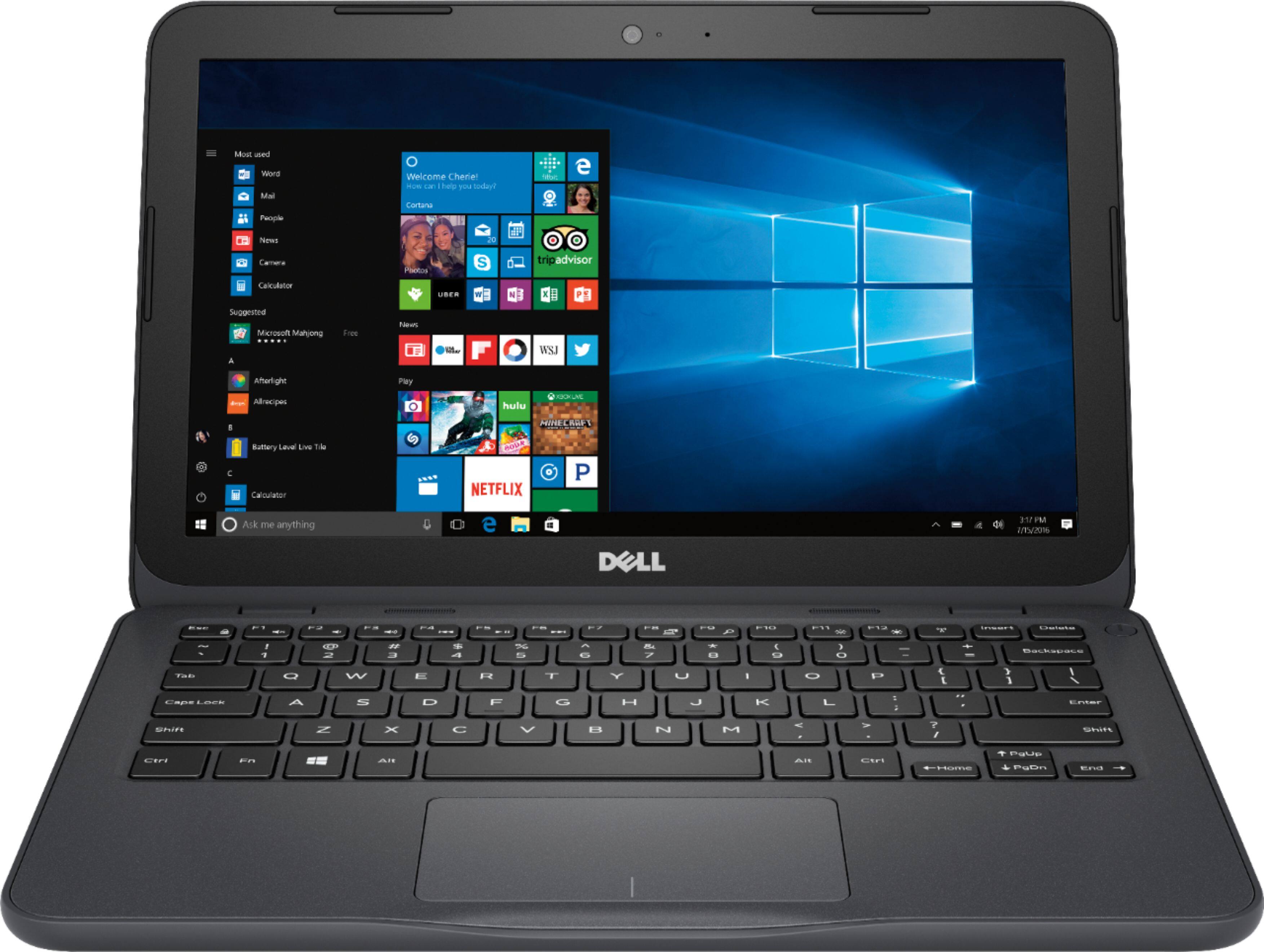
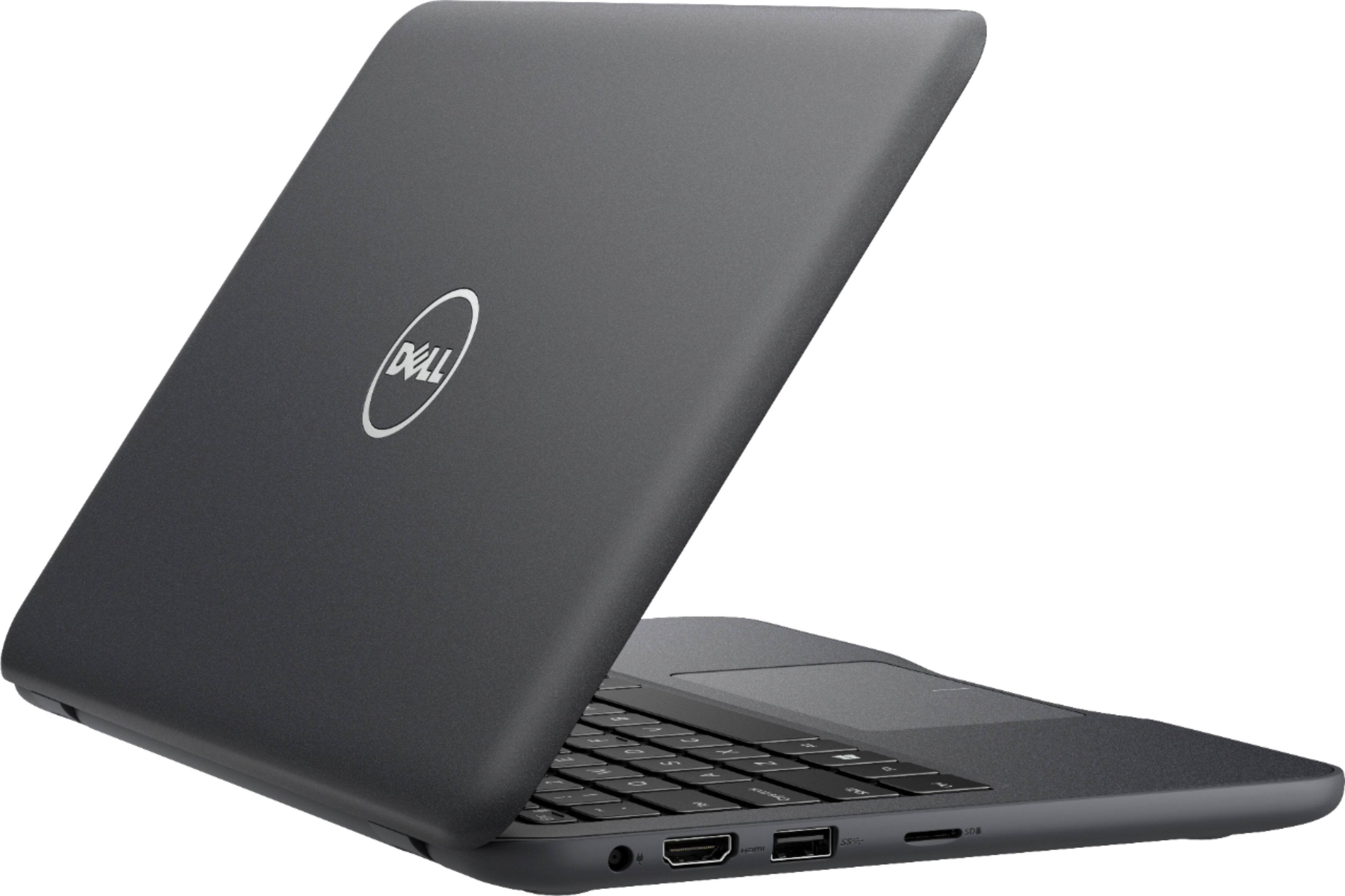
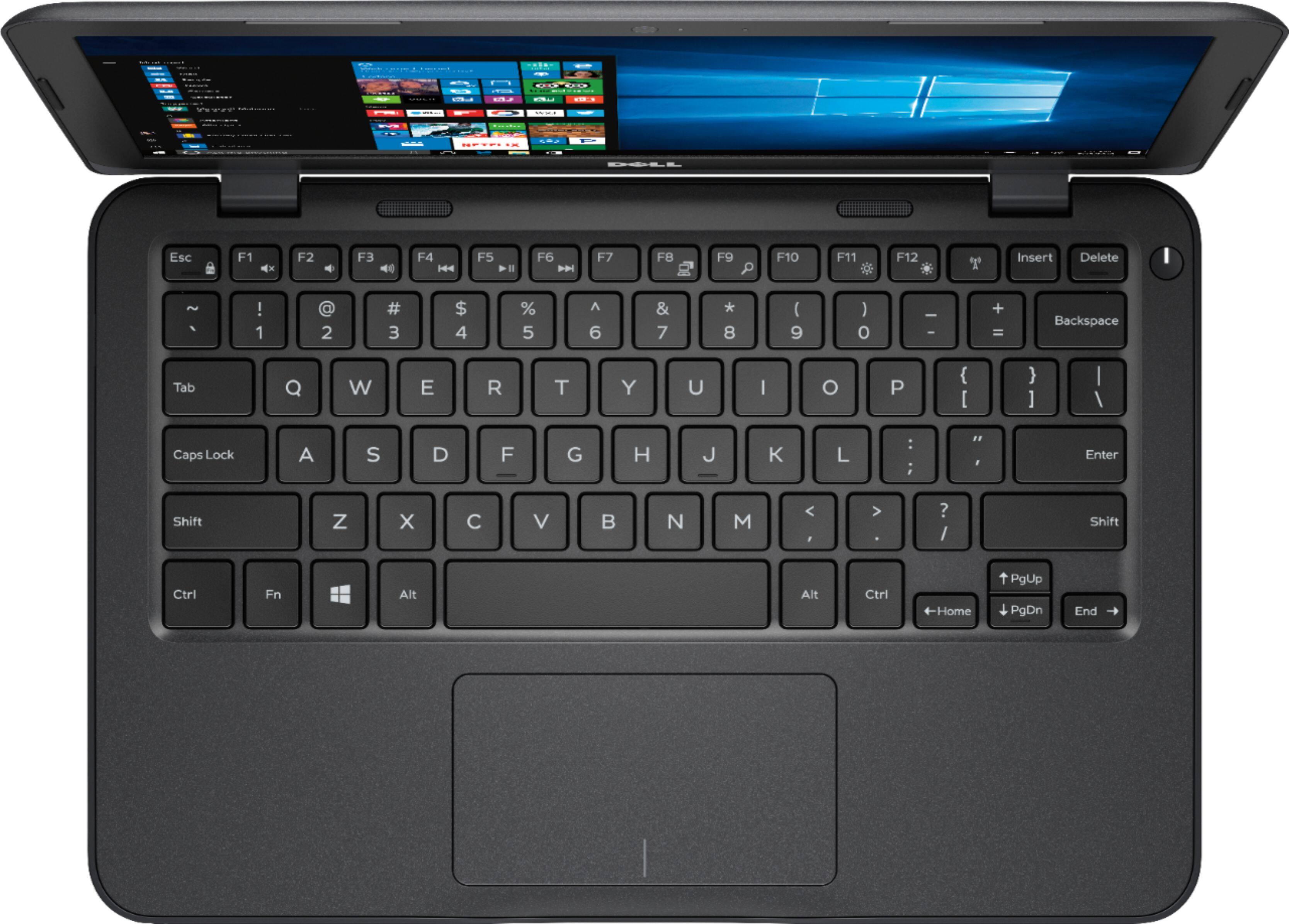
Customers praise the Inspiron 11.6" Laptop for its portability, compact size, and affordable price. Many users find it perfect for students and everyday tasks. However, some customers express concerns about its limited storage space, slow performance, and insufficient memory.
This summary was generated by AI based on customer reviews.
- Cons mentioned:Memory
Returned it
Posted .This reviewer received promo considerations or sweepstakes entry for writing a review.I would love to have kept it. The machine itself was fine, however the memory size really sucks. By the time windows 10 upgraded there was 2 gigs left. There wasn't enough memory to even do a factory reset. It would be a decent machine if you had 32 gigs of useable memory.
No, I would not recommend this to a friend - Pros mentioned:Price
Good portable computer !!!
Posted .This reviewer received promo considerations or sweepstakes entry for writing a review.Good .. Not slow, not so fast, not bad for $139.99 !!! I like the specs !!!
I would recommend this to a friend Loved it until yesterday...
Posted .This reviewer received promo considerations or sweepstakes entry for writing a review.First it refused to respond to the power button. Then, after it finally deigned to boot up, it downloaded Windows 10 updates and choked on them. Three hours at "0% updates processed, do not turn off your computer." When it got really hot, I did a hard shutdown. We'll see what happens this morning, but I am very much afraid I've learned yet again: You get what you pay for. No more Dell products for me, because this machine should not be sold as Windows 10. It cannot handle its own operating system.
No, I would not recommend this to a friendBrand response from YourDellTeam
Posted .NoOne,
Thanks for your review. We're sorry to hear that you've been having some issues with your new Dell computer. We'd recommend checking the Dell Support Assist App on your computer for help with downloading new software and drivers on your computer. We hope that these tips help your computer run the way that you'd like it to.
Best,
Bryan
1-800-624-9896
- Cons mentioned:Slow
Don't bother unless...
Posted .This reviewer received promo considerations or sweepstakes entry for writing a review.You want to make multiple trips to the store to exchange defective products or wait 3 hours for a security scan that never finishes, or if you want to only be able to use 1 tab at a time. This product was completely worthless. I replaced 2 defective units on the same day. The 3rd one finally seemed like it was going to work but I am just to old and impatient to wait 5 minutes to open a web site that needed constant buffering. All I need for a pc to do is allow some surfing, play a few games, and pay bills etc...fuggetaboutit! Don't be cheap like I was...spend $100.00 or so more you'll be much less aggravated.
No, I would not recommend this to a friendBrand response from YourDellTeam
Posted .bkbrochester - We're extremely sorry to hear about you having to make multiple trips to Best Buy in order to exchange your computer. We hope that this third computer works well for you. If you do have any questions that you need help with you can refer to our Product Support Page here - http://dell.to/2om4IeG. We hope this page helps you. - Bryan
Great laptop
Posted .This reviewer received promo considerations or sweepstakes entry for writing a review.It’s a good quality and less price .I would say Best Buy is honest store
I would recommend this to a friend- Cons mentioned:Build quality
This laptop is a waste
Posted .This reviewer received promo considerations or sweepstakes entry for writing a review.I bought three of these laptops for my 3 teenage brothers and sisters. Each laptops had screws coming out of them within the first two months. It took a day or so to update one of them. And they are literally falling apart. My siblings are homeschooled and the laptops rarely leave their bedrooms. I am very disappointed and I feel scammed. I will be posting on my social media and community pages.
No, I would not recommend this to a friendBrand response from YourDellTeam
Posted .Jasmine,
Thanks for your review and we're sorry to hear that your computers are not performing the way that you had hoped they would. We'd recommend reaching out to Dell's Technical Support Team for additional assistance: http://dell.to/2sH7Qlm.
Best,
Bryan
1-800-624-9896
Great laptop for students
Posted .This reviewer received promo considerations or sweepstakes entry for writing a review.The laptop is great, its great for students or for everyday use. Easy step by step set up. Has plety of storage. Definitely happy with it and happy that I chose Dell.
I would recommend this to a friend- Cons mentioned:Storage
Overloaded
Posted .This reviewer received promo considerations or sweepstakes entry for writing a review.By the time I went through the set up procedure there was not enough hard drive to finish the required updates for the Dell / Windows programs that were installed by the manufacturer. All I did was follow the set up procedures from Dell. There should at least be enough space for the stuff they installed. Poorly configured.
No, I would not recommend this to a friendBrand response from YourDellTeam
Posted .TheGMan,
We're sorry that you're running into some space issues on your new Dell computer. We'd recommend looking through the pre-installed programs to see if there are any programs that you do not plan to use. Here are the steps to remove programs that you do not plan to use so you can free up some space:
Uninstalling or removing software or applications that you do not use or do not need from your PC can help speed up your PC. Applications may include background processes, system services, context menu entries and other things that can slow down your PC.
Uninstall applications you no longer need using Programs and Features (previously called Add/Remove Programs). Unnecessary applications occupy space on your hard disk drive.
1. Press the Windows logo key + R on the keyboard.
2. In the Run dialog box, type appwiz.cpl and press the Enter key.
3. In the list, select a program and click Uninstall.
You can read the full article here - http://dell.to/2tSulGV.
We hope this helps your computer perform the way you'd like it to.
Best,
Bryan
1-800-624-9896
not worth the $129 plus tax
Posted .This reviewer received promo considerations or sweepstakes entry for writing a review.Video quality bad. With high speed internet (even when wired), the video freezes on CNN video, MSNBC video and Youtube video. Sound quality is much much worse. This was after many updates including some bios updates which seem never to complete as the bios update always came up even after the update.
No, I would not recommend this to a friendBrand response from YourDellTeam
Posted .DDDP,
We'd recommend the following steps to stop your computer from freezing:
1. Run a Computer Diagnostic. To determine if your computer is experiencing a hardware problem, run the Dell Preboot System Assessment (PSA) Diagnostics. For information on how to run Diagnostics, and to determine the issue, refer to Dell Knowledge Base Article: http://dell.to/2iaiujA.
2. Check Safe Mode for Symptoms. To boot into safe mode, please follow the instructions below:
a) Start the computer.
b) Tap 'F8' on the keyboard immediately and every one second until the Dell logo screen disappears. From there you will see the Windows Advanced Options Menu on the screen. (If the Windows Advanced Options Menu does not appear, restart the system and try again.)
c) Select Safe mode with Networking and press Enter.
d) Log on as the administrator or as a user with administrative access.
e) Open applications and test the computer in safe mode. If the symptoms exist in safe mode, please continue the troubleshooting steps in this article. If the symptoms do not exist in safe mode, the issue is likely related to a driver or software and you may wish to complete steps 6 to see if you are able to resolve the lockups or freezing.
6. Check for Malware. Malware (Virus, Spyware, etc.) can definitely cause a Windows system to lock up or appear to hang. To check for malware on your system and to ensure that your computer is up to date on security software, visit Dell Knowledge Base Article: http://dell.to/2wWP1zI.
You can read the full article here - http://dell.to/2tW5m33.
We're glad that you have been installing the updates that you have been prompted to. If you have additional questions about your computer you can check our Product Support Page here - http://dell.to/2om4IeG.
Best,
Bryan
1-800-624-9896
Nice laptop for school kids
Posted .This reviewer received promo considerations or sweepstakes entry for writing a review.I bought this for my nephew and its worth the price. amd and dell both rocks.
I would recommend this to a friend- Cons mentioned:Storage
Crap memory
Posted .This reviewer received promo considerations or sweepstakes entry for writing a review.It is a great laptop for the price. Except, the amount of memory it has is horrendous. I only have 3 word documents saved and it is telling me it's out of storage!
No, I would not recommend this to a friendBrand response from YourDellTeam
Posted .VetStudent14,
We're sorry to hear about the storage concerns on your computer. We'd recommend storing files in the cloud using Microsoft's OneDrive.
You can also look through your computer to see if there are any programs that came with your computer that you can remove with the following steps:
Uninstalling or removing software or applications that you do not use or do not need from your PC can help speed up your PC. Applications may include background processes, system services, context menu entries and other things that can slow down your PC.
Uninstall applications you no longer need using Programs and Features (previously called Add/Remove Programs). Unnecessary applications occupy space on your hard disk drive.
1. Press the Windows logo key + R on the keyboard.
2. In the Run dialog box, type appwiz.cpl and press the Enter key.
3. In the list, select a program and click Uninstall.
You can read the full article here - http://dell.to/2tSulGV.
Best,
Bryan
1-800-624-9896
Good Laptop
Posted .This reviewer received promo considerations or sweepstakes entry for writing a review.It's well worth it's pleasantly low price, I appreciate it.
I would recommend this to a friend- Cons mentioned:Memory
Only 32 gigs of memory!
Posted .This reviewer received promo considerations or sweepstakes entry for writing a review.You get what you pay for. It comes with only 32 gigs of memory. Can't even upgrade Windows, without having to add memory.
No, I would not recommend this to a friendBrand response from YourDellTeam
Posted .salm,
Thanks for your review. We're sorry to hear that the capacity of your new computer is not what you were hoping for. We'd suggest storing some of your files in the cloud with Microsoft's OneDrive. We'd also recommend looking through the list of installed programs and make sure that you plan to use all of them. Here is how you can remove programs that you do not plan to use: Uninstalling or removing software or applications that you do not use or do not need from your PC can help speed up your PC. Applications may include background processes, system services, context menu entries and other things that can slow down your PC.
Uninstall applications you no longer need using Programs and Features (previously called Add/Remove Programs). Unnecessary applications occupy space on your hard disk drive.
1. Press the Windows logo key + R on the keyboard.
2. In the Run dialog box, type appwiz.cpl and press the Enter key.
3. In the list, select a program and click Uninstall.
You can read the full article here - http://dell.to/2tSulGV.
We hope that this helps free up space on your computer.
Best,
Bryan
1-800-624-9896
do not buy!!!!!!!
Posted .This reviewer received promo considerations or sweepstakes entry for writing a review.Do not buy this outdated product. It won't even download the new Microsoft 10 update. You will have nothing but problems. I bought this laptop on 6/25/18 and it won't update the new windows 10 OS. I'am returning this piece of crap tomorrow. AGAIN DO NOT BUY THIS PRODUCT! YOU WILL REGRET IT IF YOU DO. If you do but this crap, you will need a thumb or flash drive >10gb to install windows; if it will install it.
No, I would not recommend this to a friendBrand response from YourDellTeam
Posted .Dear Valued Customer,
We're sorry that you're experiencing issues with your new Dell computer. We'd recommend looking through your laptop to make sure that there are no programs that you can uninstall in order to free up additional space. Here are some suggested programs to consider uninstalling: https://dell.to/2JruiaG.
We'd also suggest that you use Microsoft's OneDrive to store files in the cloud and save space on your computer.
Best,
Bryan
1-800-624-9896
Broken out of the box
Posted .This reviewer received promo considerations or sweepstakes entry for writing a review.Didn't even turn on. I've been charging it all night and when I press the power button... Crickets. Not happy driving another 20 miles round-trip tomorrow to return it and missed a day of productivity
No, I would not recommend this to a friendBrand response from YourDellTeam
Posted .Hello Matt,
We're sorry to hear about the troubles that your new computer gave you. We'd recommend the following tips in order to get your computer started:
1. If the computer is displaying the Dell logo and does not move past that point, it has probably failed POST.
2. If the power indicator lights up and it is amber or orange, this is usually an indicator that it has failed POST.
3. If you see text on a black screen, the computer is currently performing the POST. If the computer stays in that condition and does not move past it, it has probably failed POST.
4. If the video screen displayed anything at all during the startup process but is now black, this probably indicates that the computer failed POST.
5. If the computer is beeping or if Caps/Num/Scroll Locks are flashing, note if there is a particular pattern in which it beeps or flashes.
6. If the computer is not beeping and caps/num/scroll locks are not flashing, unplug all connections and remove all media communication devices (e.g. external monitors); reconnect one at a time and check if the computer functions.
7. For a notebook, press and hold the Fn key and then press the power button. This starts the pre-boot testing and will launch ePSA. In case you have a Desktop at the Dell logo screen tap the F12 key to enter One Time Boot Menu and use the arrow keys to highlight Diagnostics and press enter.
You can read the full article here - http://dell.to/2uj1Sby.
We hope that these steps help get your computer running again for you.
Best,
Bryan
1-800-624-9896