Customer Ratings & Reviews


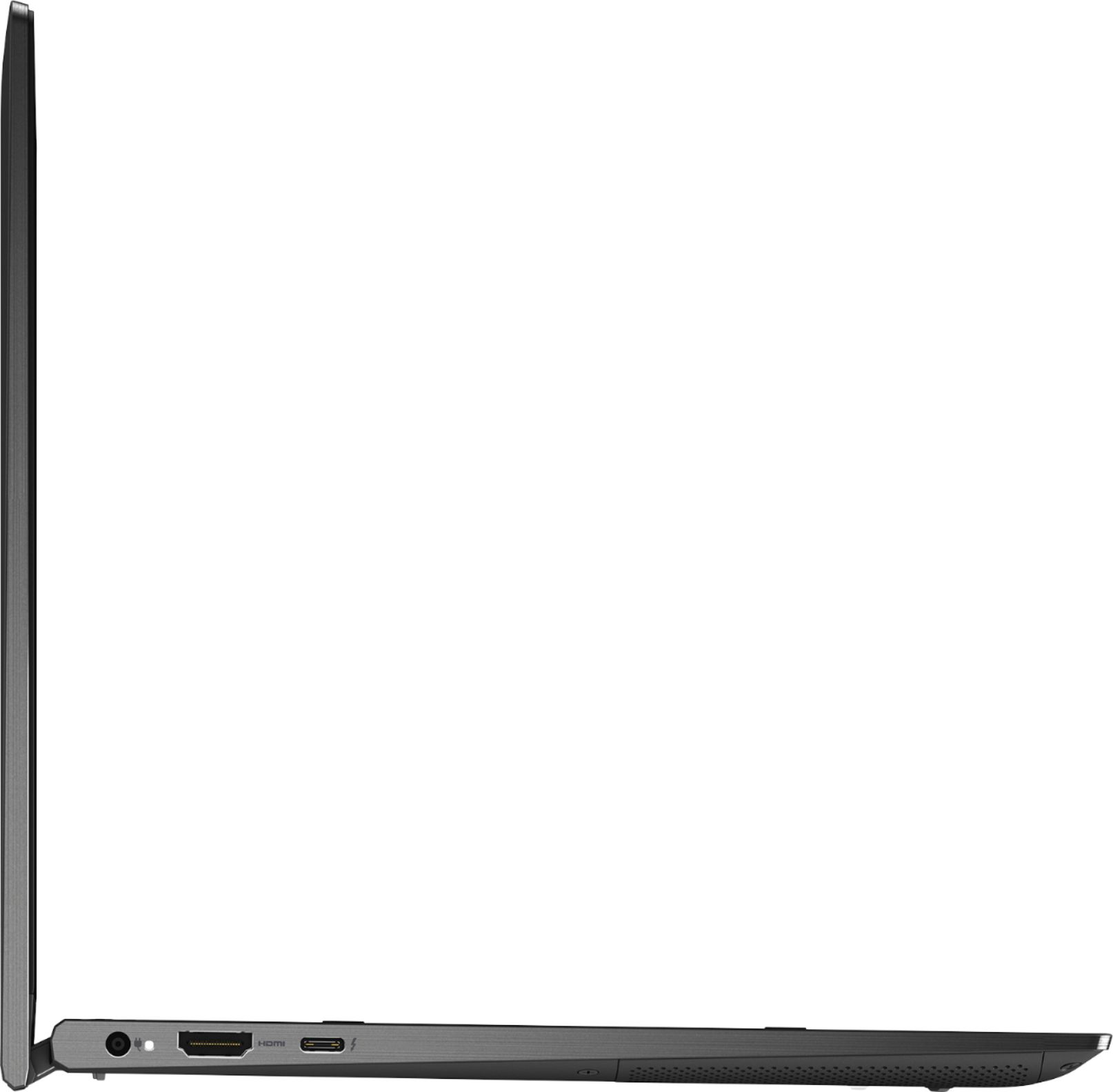
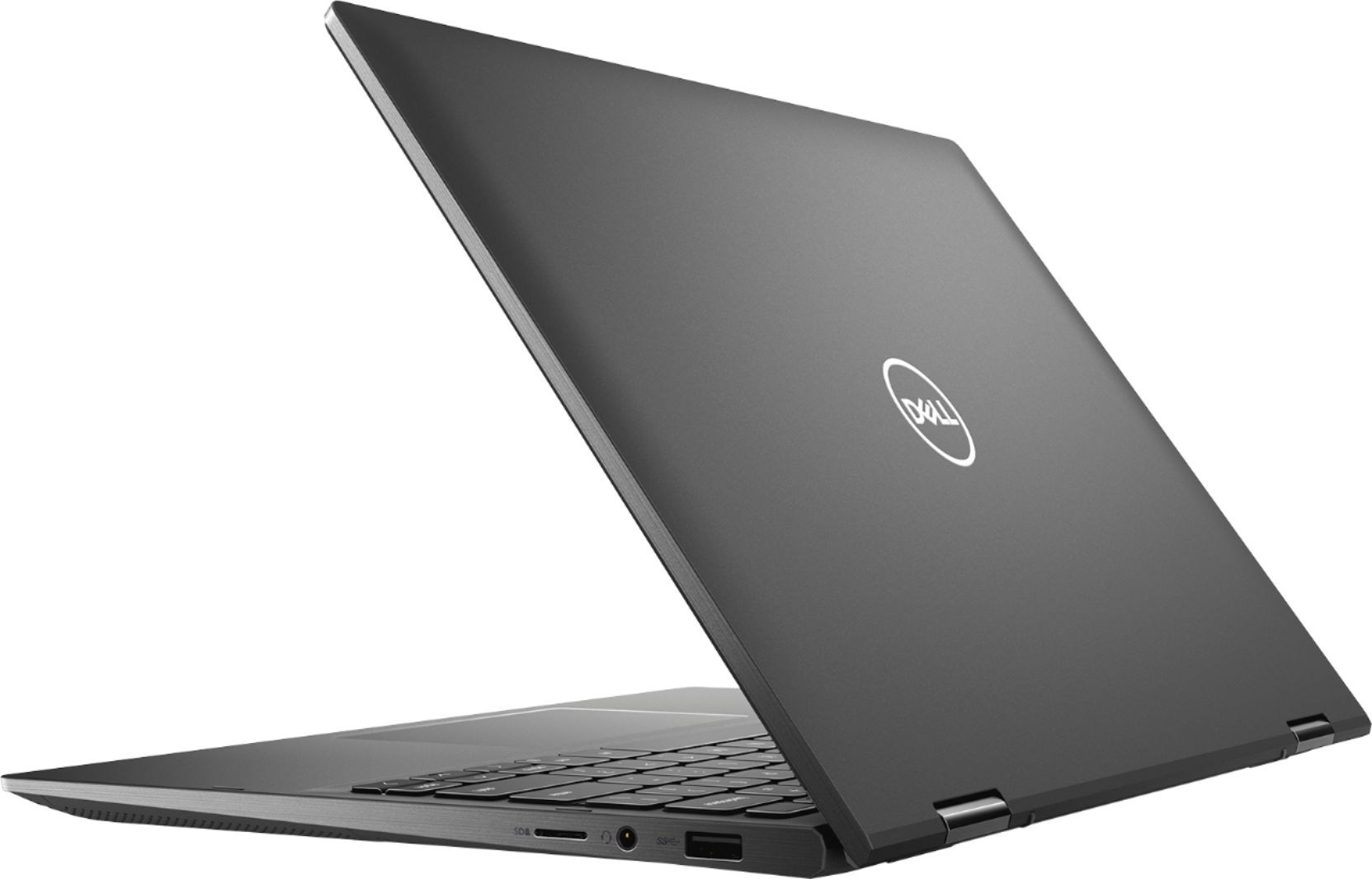
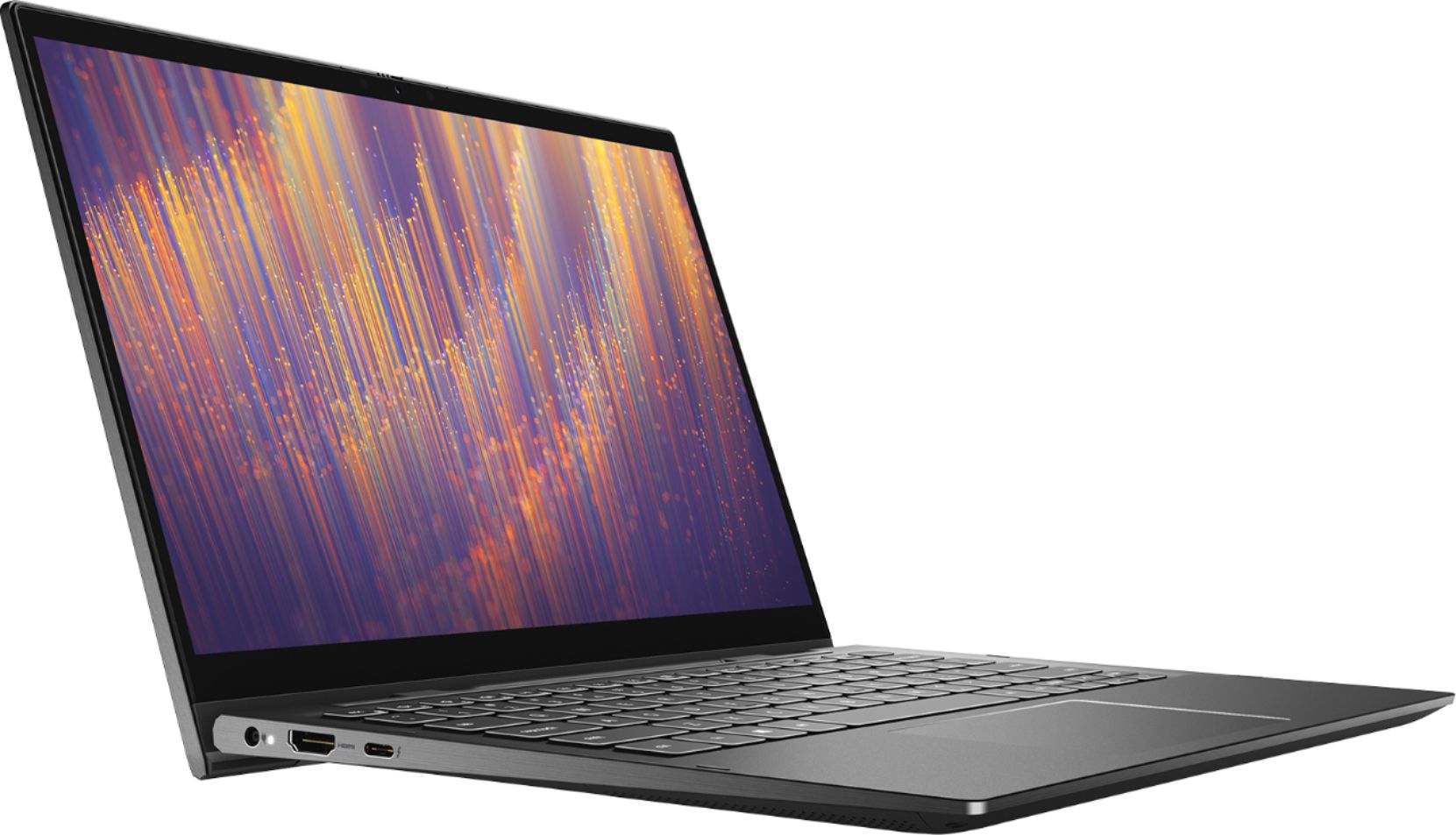
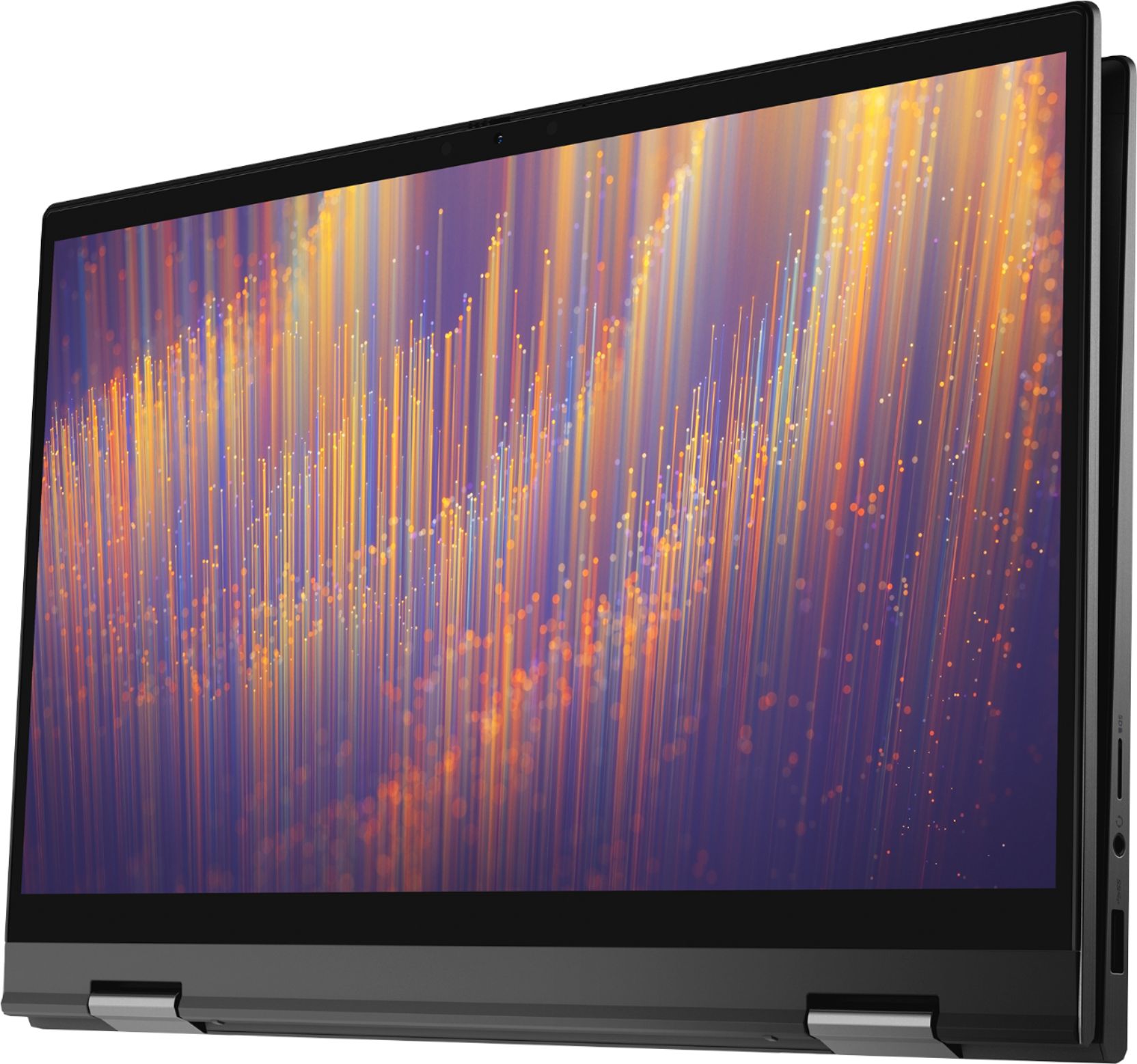
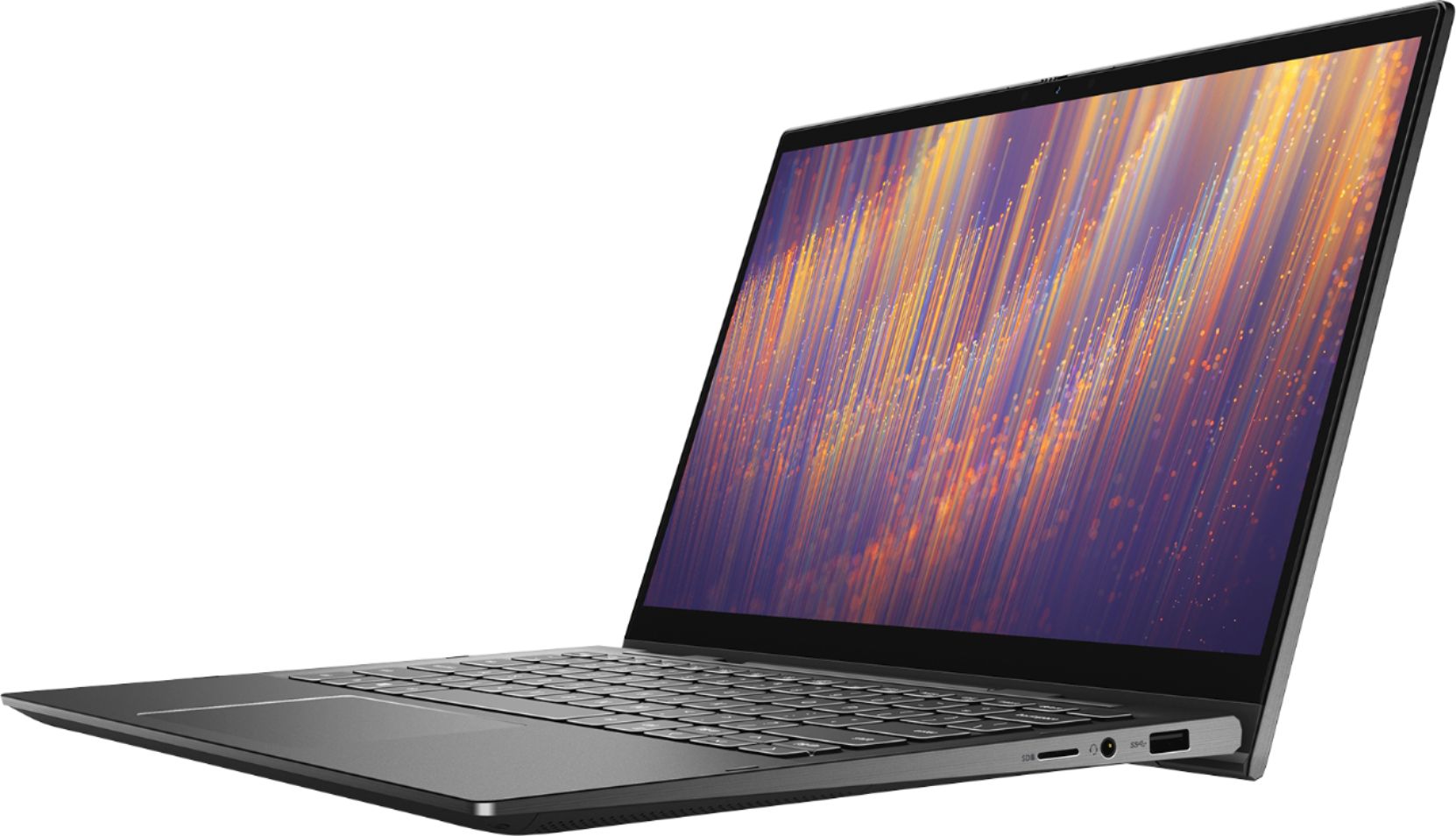
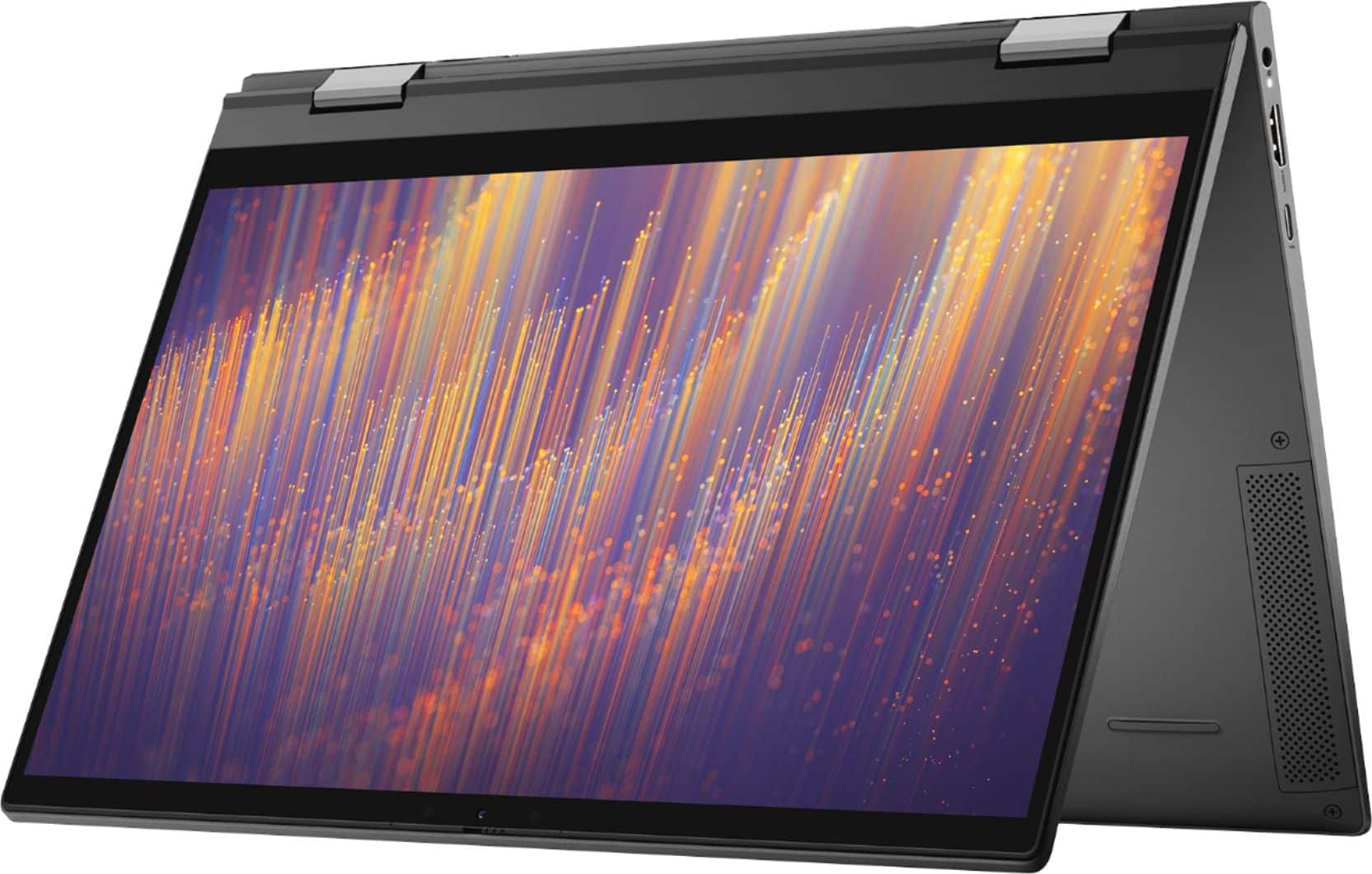
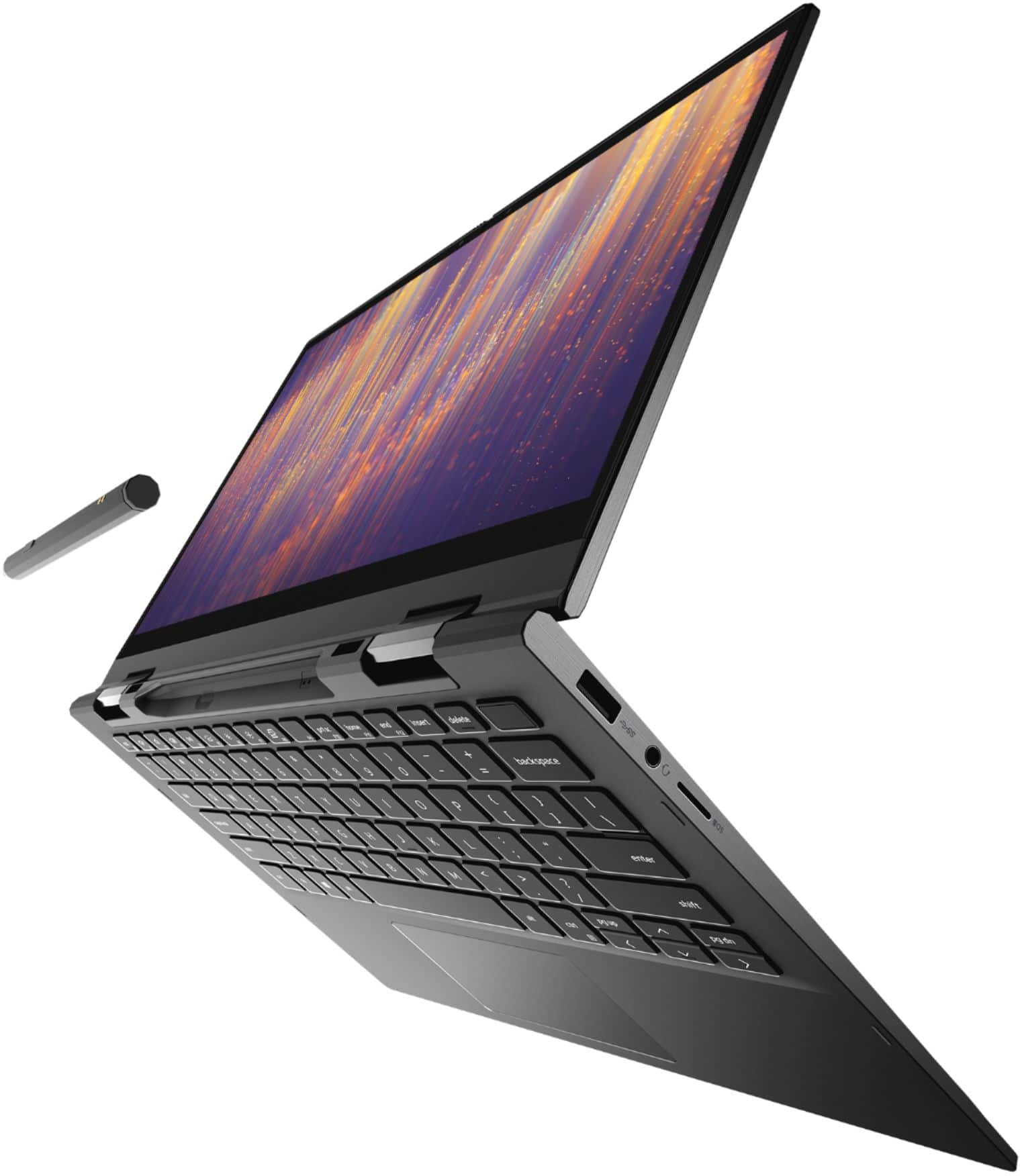



- Model:
- i7300-7319BLK-PUS
- SKU:
- 6409063
Rating by feature
- Battery Life
Rating 3.7 out of 5 stars
- Speed
Rating 4.0 out of 5 stars
- Display
Rating 4.3 out of 5 stars
Customers are saying
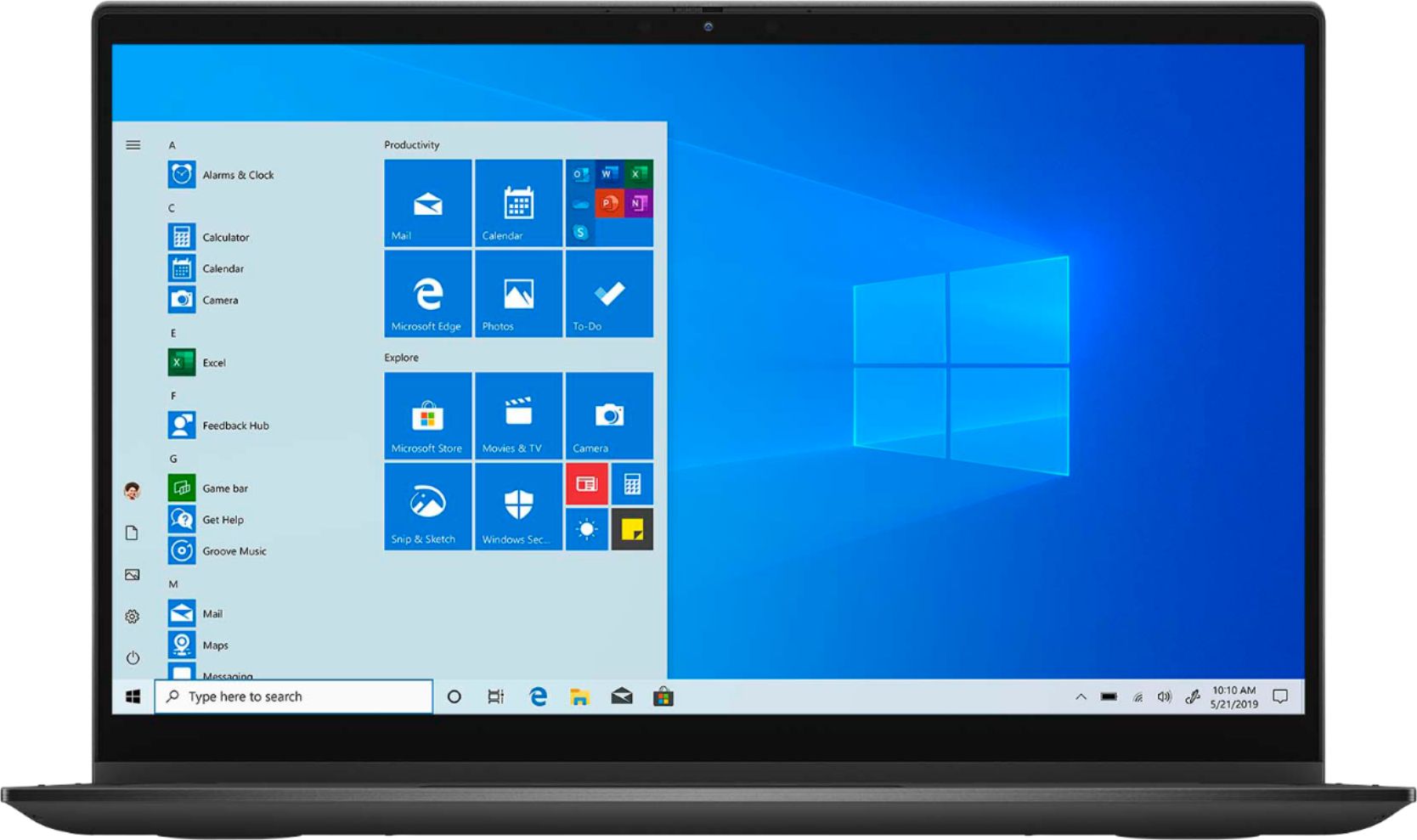
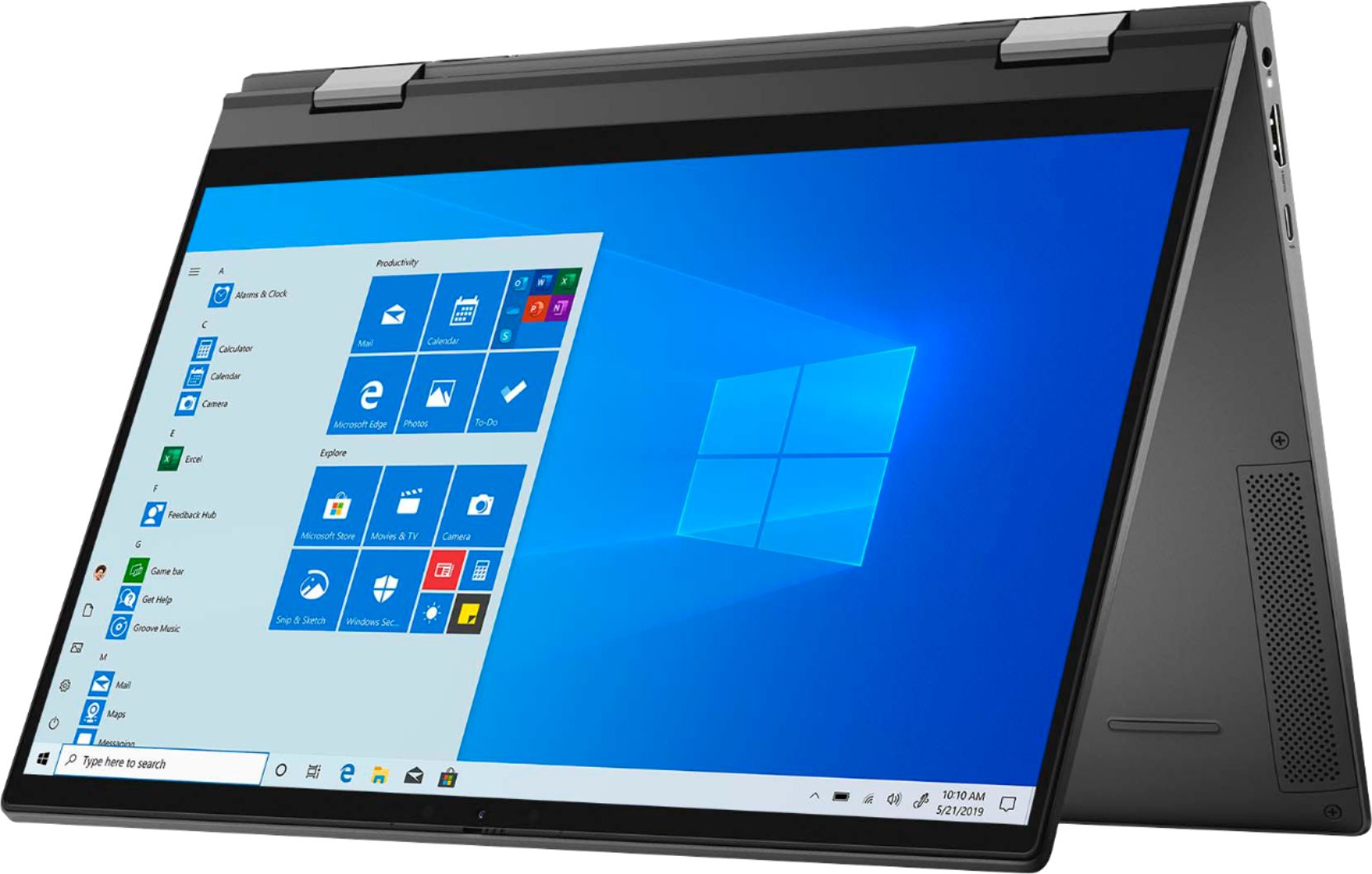
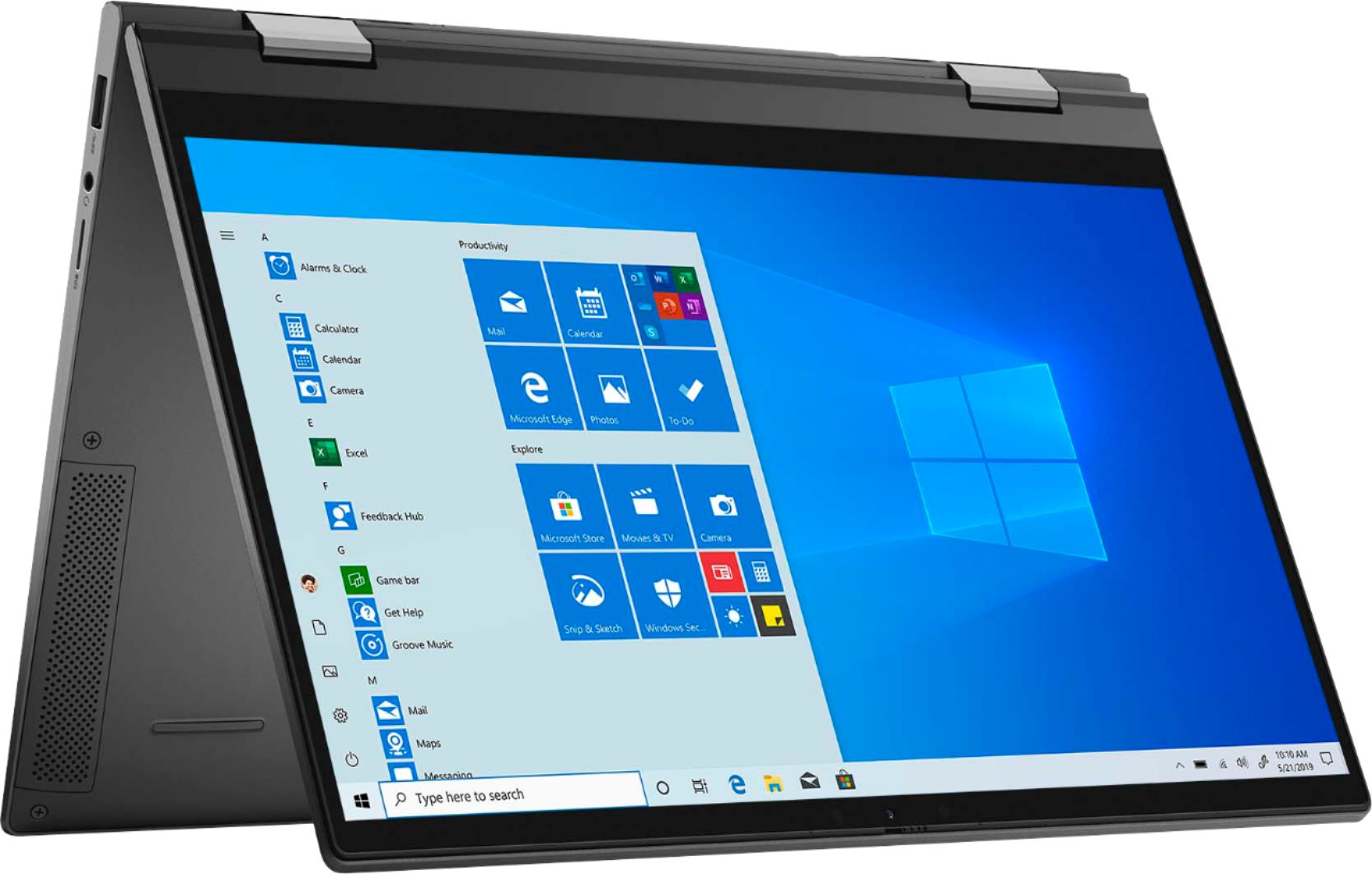
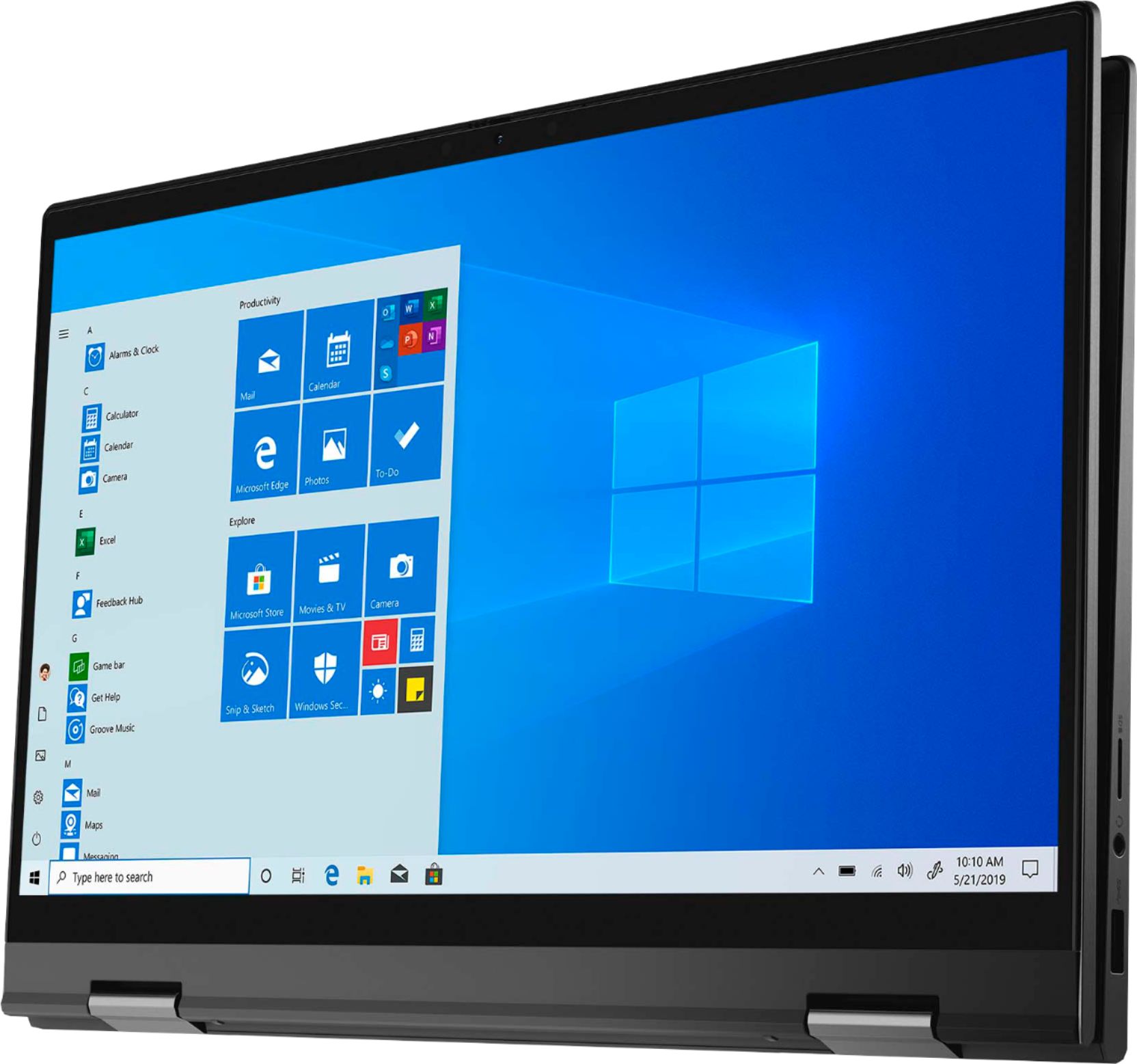
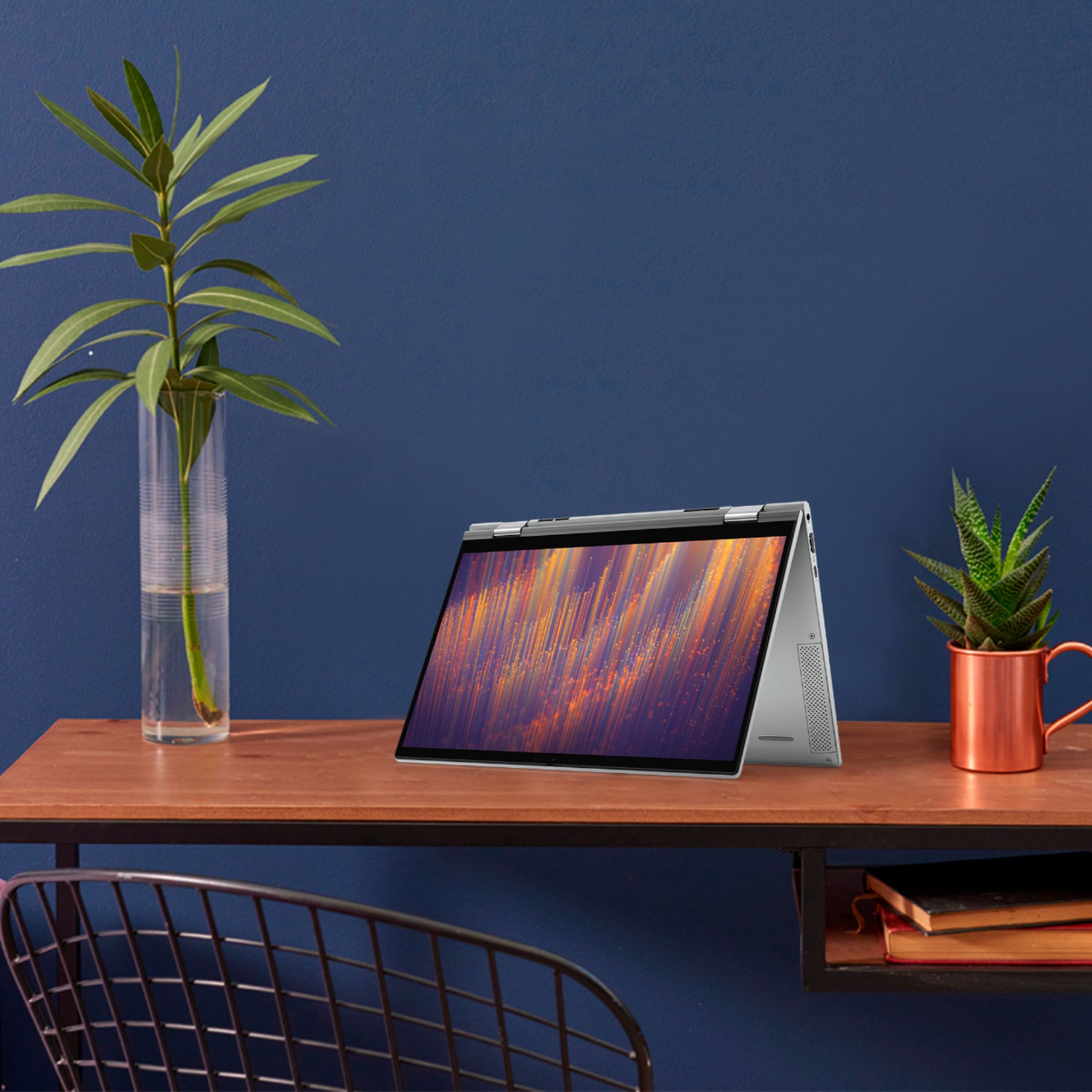
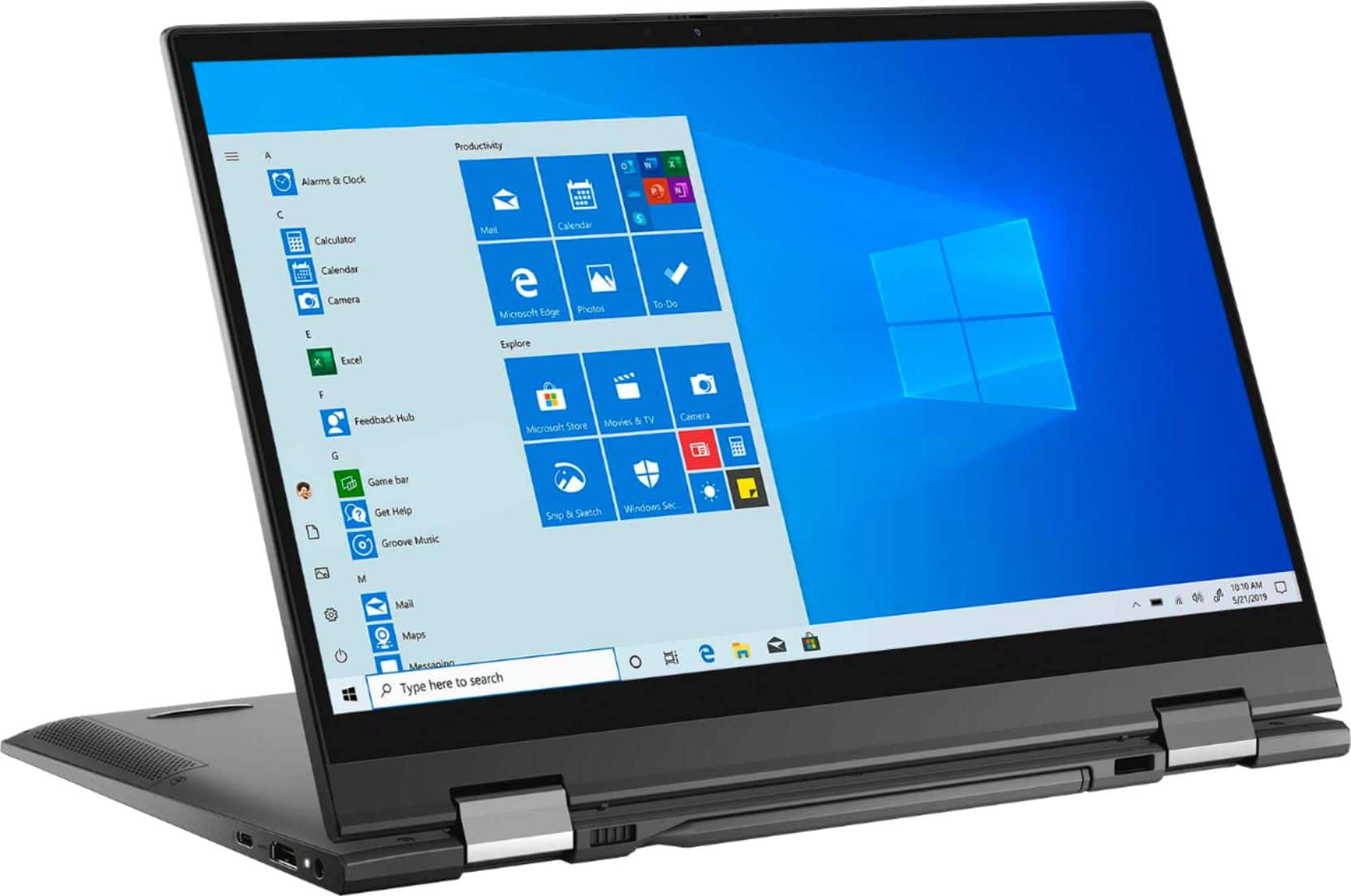
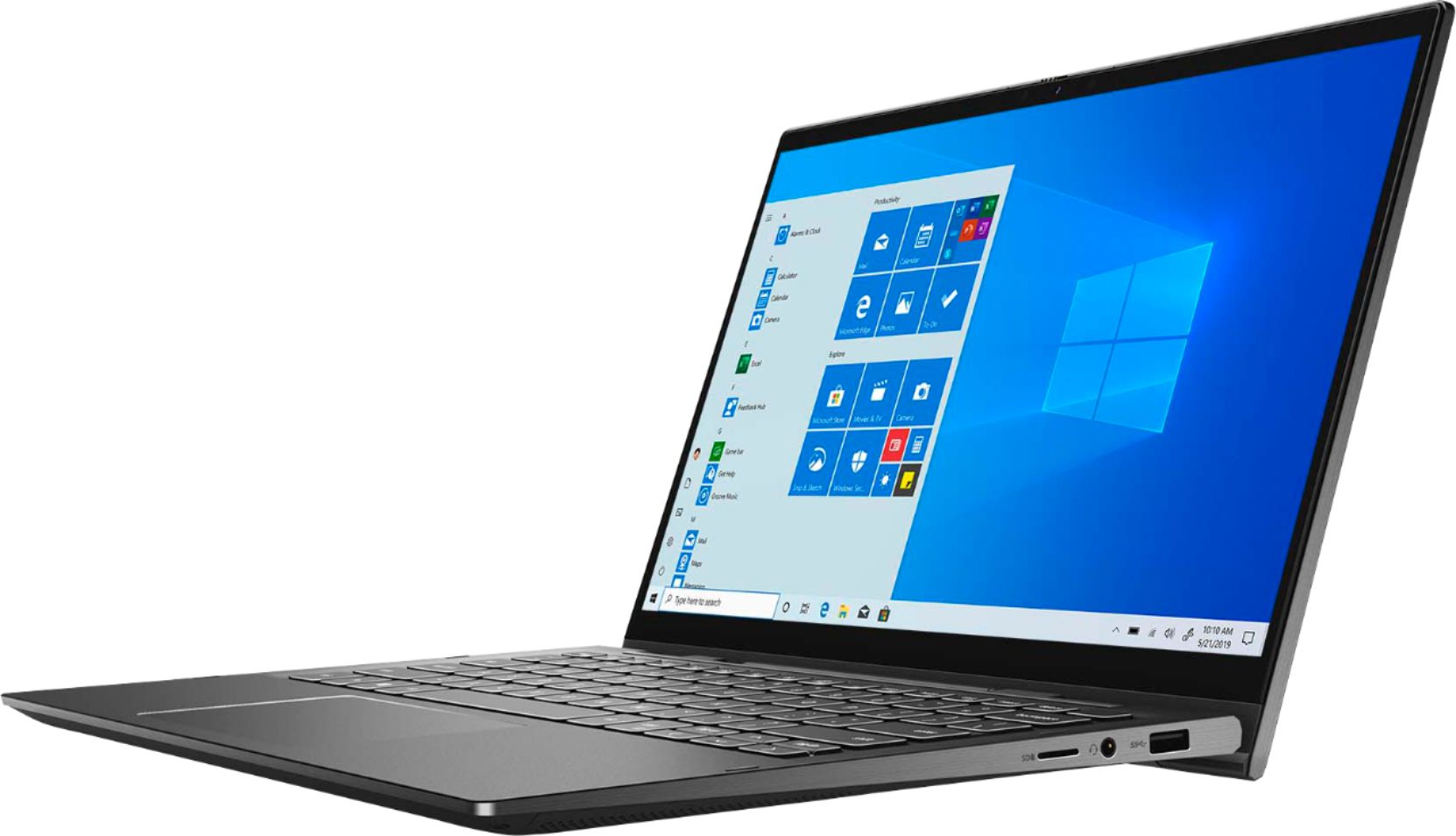
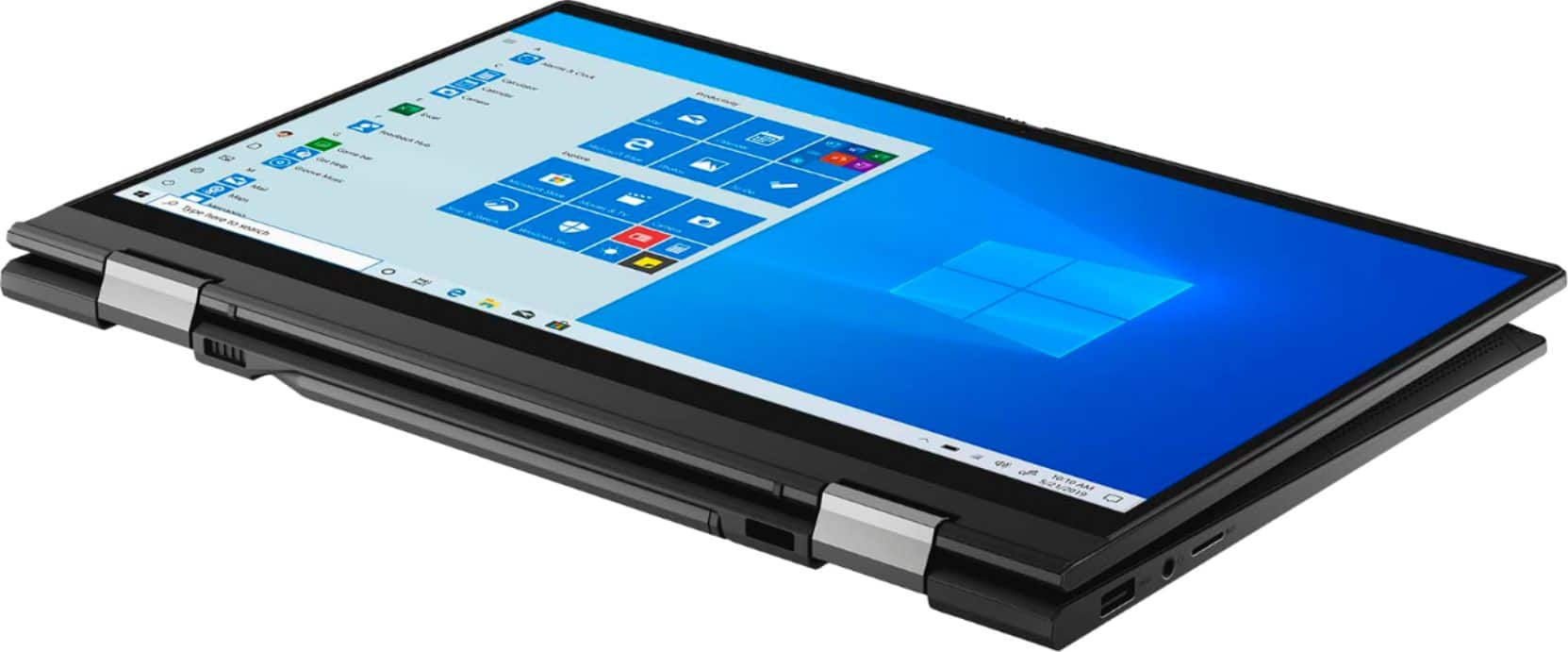
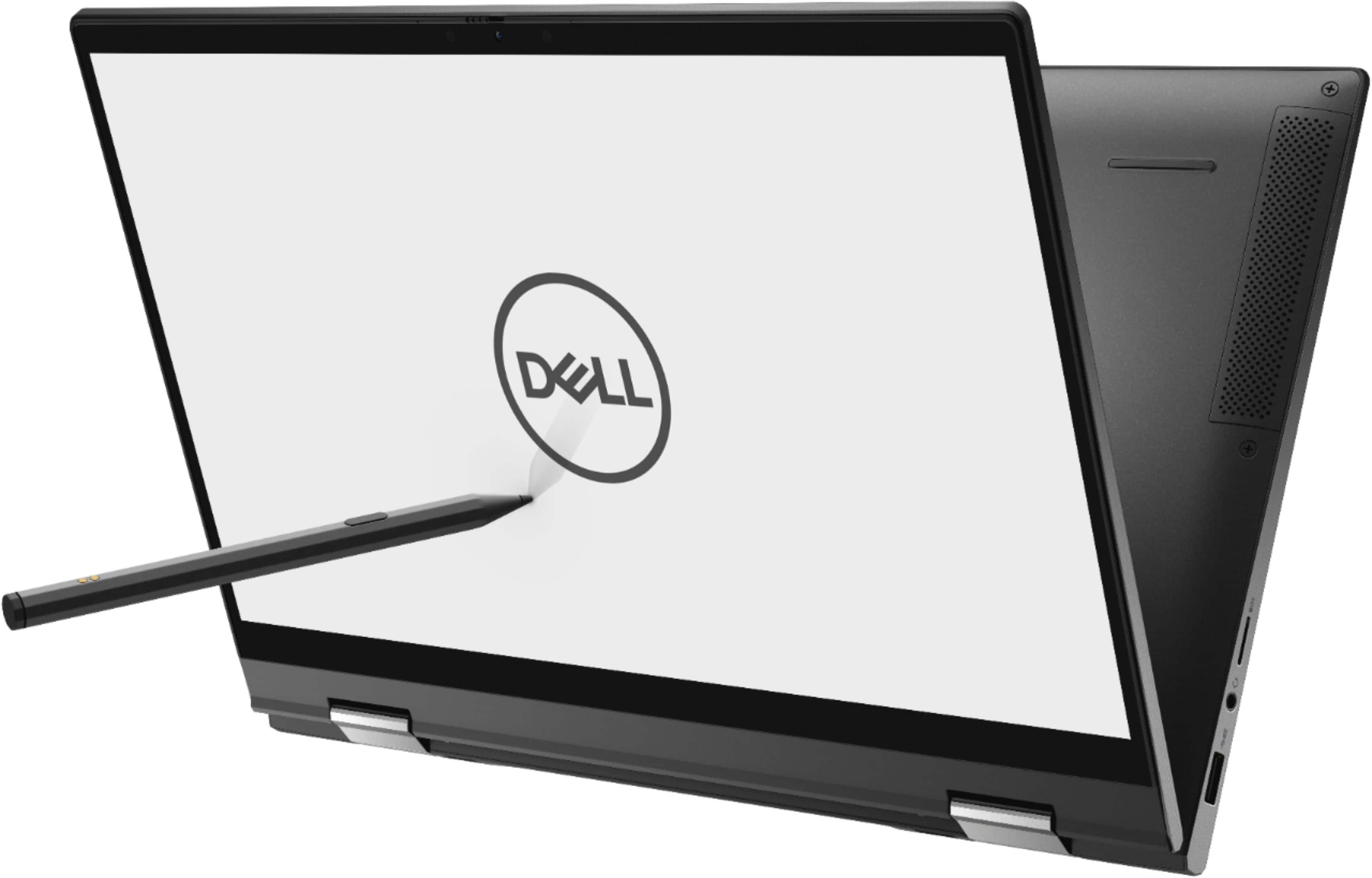
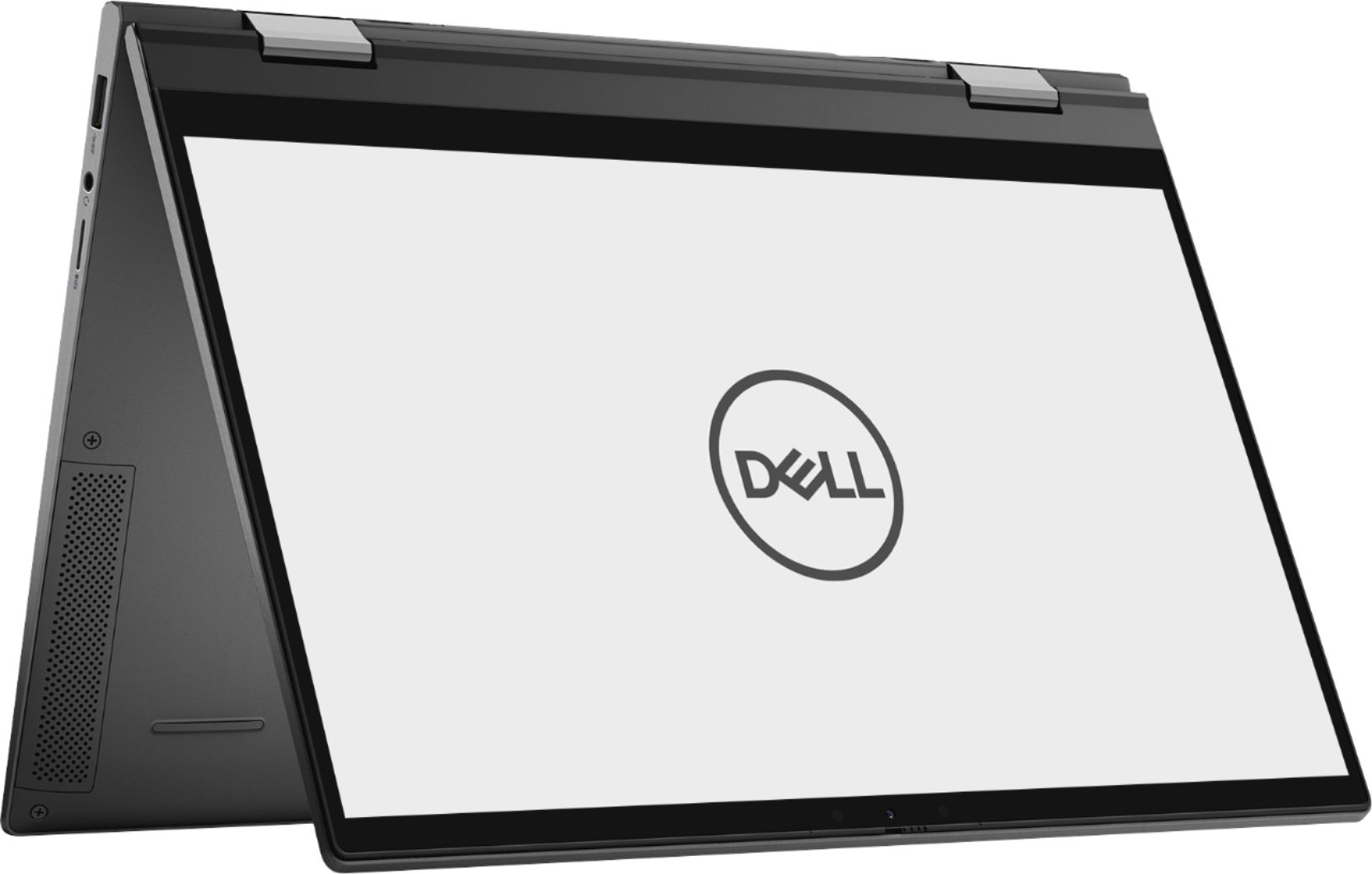
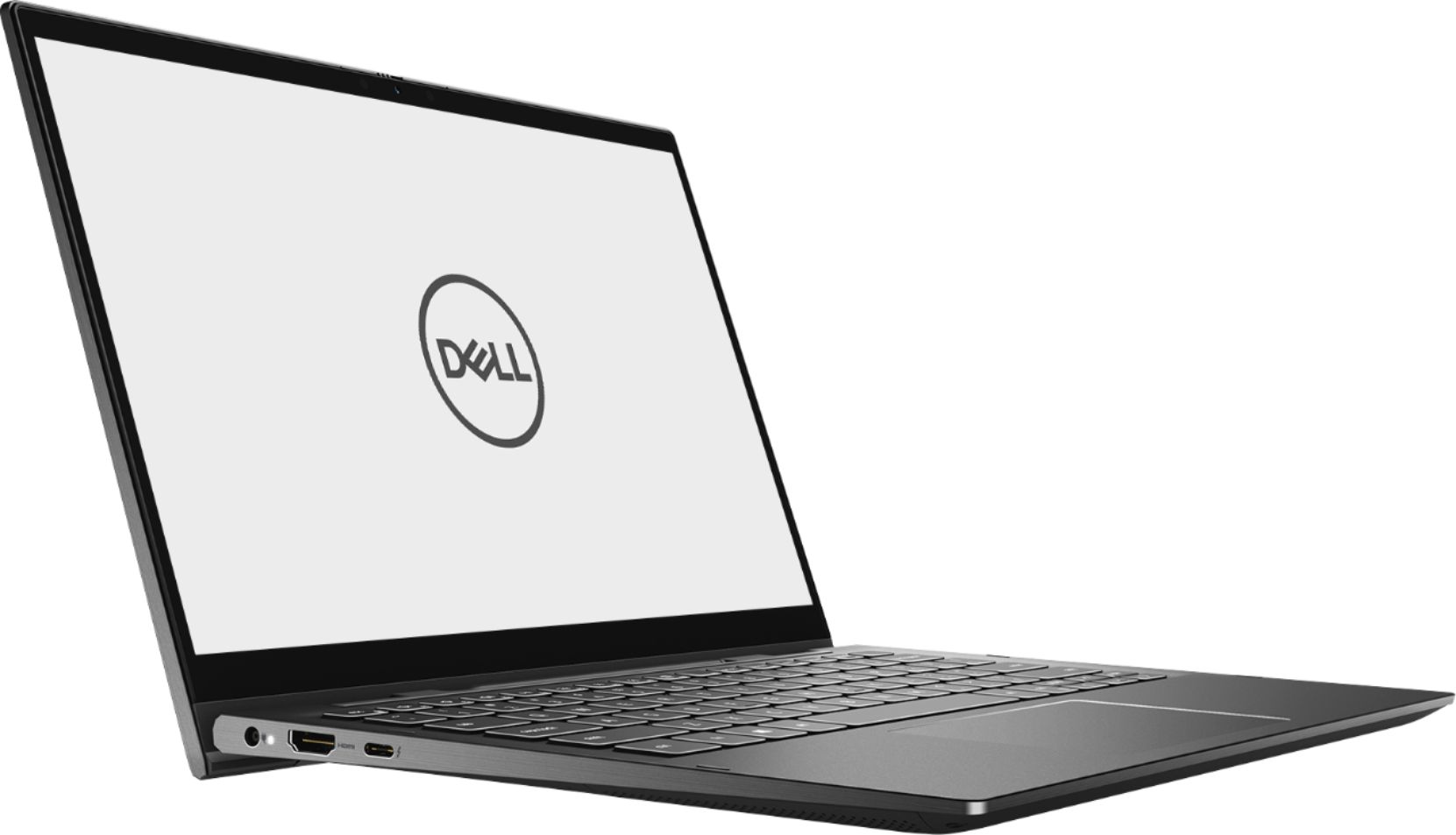
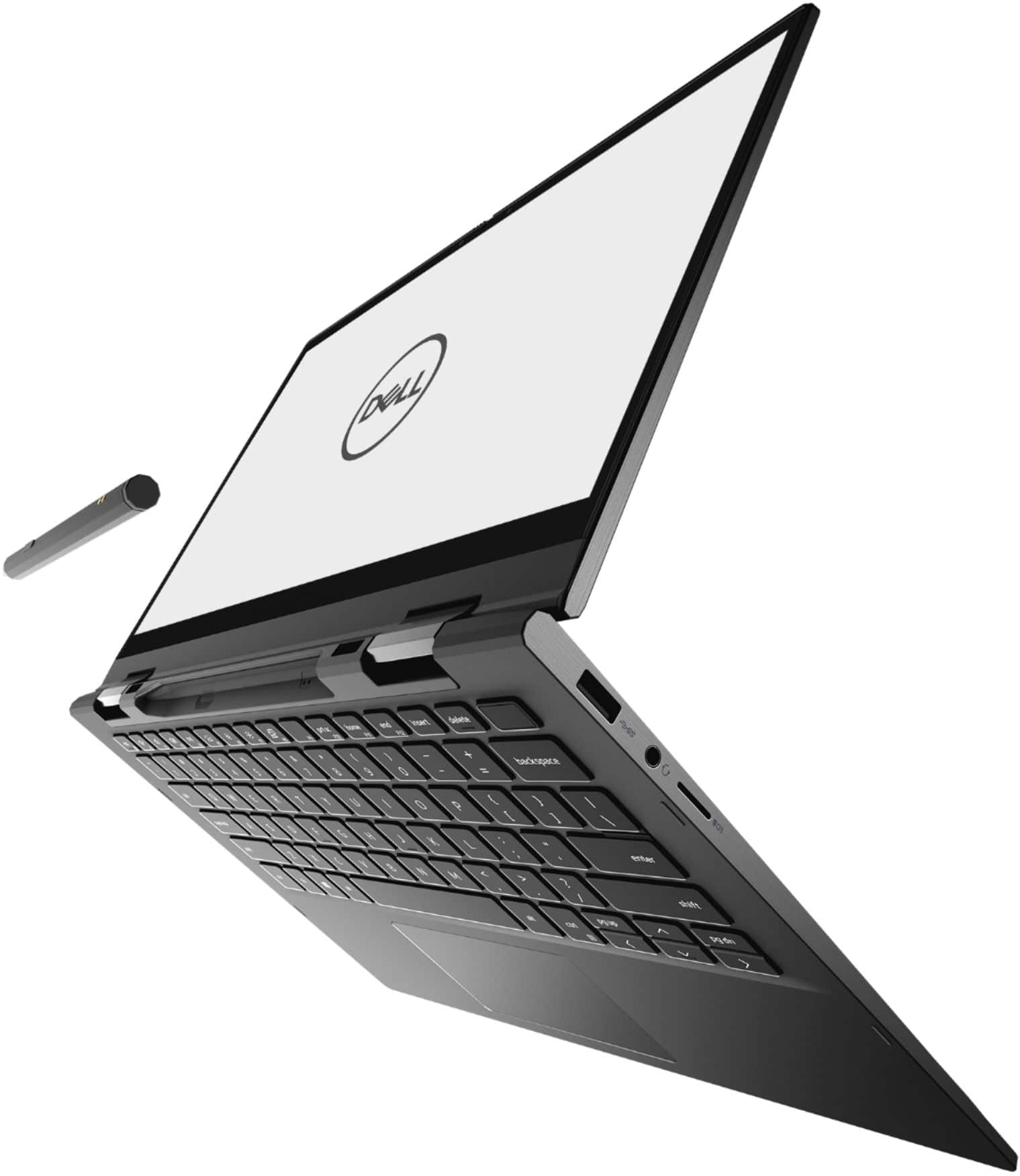
Customers enjoy the fast performance, touch screen, and affordable price of the Inspiron 13 7000 2-in-1 laptop. They appreciate its compact size, portability, and lightweight design, as well as the beautiful 4K display. However, some users have concerns about the battery life, overheating issues, and fan noise.
This summary was generated by AI based on customer reviews.
I wanted to like this product
Posted .This reviewer received promo considerations or sweepstakes entry for writing a review.It has all the features I want however from day one the screen would freeze and the computer would not turn off for hours. I will return it today.
No, I would not recommend this to a friendBrand response from YourDellTeam
Posted .Hi,
Thank you for your review. We apologize for the freeze up issues you have had with your computer. Here are some steps you may take to further troubleshoot this concern,
1. Run a Computer Diagnostic. To determine if your computer is experiencing a hardware problem, run the Dell Preboot System Assessment (PSA) Diagnostics. For information on how to run Diagnostics, and to determine the issue, refer to Dell Knowledge Base Article: http://dell.to/2iaiujA.
2. Check Safe Mode for Symptoms. To boot into safe mode, please follow the instructions below:
a) Start the computer.
b) Tap 'F8' on the keyboard immediately and every one second until the Dell logo screen disappears. From there you will see the Windows Advanced Options Menu on the screen. (If the Windows Advanced Options Menu does not appear, restart the system and try again.)
c) Select Safe mode with Networking and press Enter.
d) Log on as the administrator or as a user with administrative access.
e) Open applications and test the computer in safe mode. If the symptoms exist in safe mode, please continue the troubleshooting steps in this article. If the symptoms do not exist in safe mode, the issue is likely related to a driver or software and you may wish to complete step 3 to see if you are able to resolve the lockups or freezing.
3. Check for Malware. Malware (Virus, Spyware, etc.) can definitely cause a Windows system to lock up or appear to hang. To check for malware on your system and to ensure that your computer is up to date on security software, visit Dell Knowledge Base Article: http://dell.to/2wWP1zI.
You can read the full article here - http://dell.to/2tW5m33.
Best,
Meridith 1-800-624-9896