Customer Ratings & Reviews
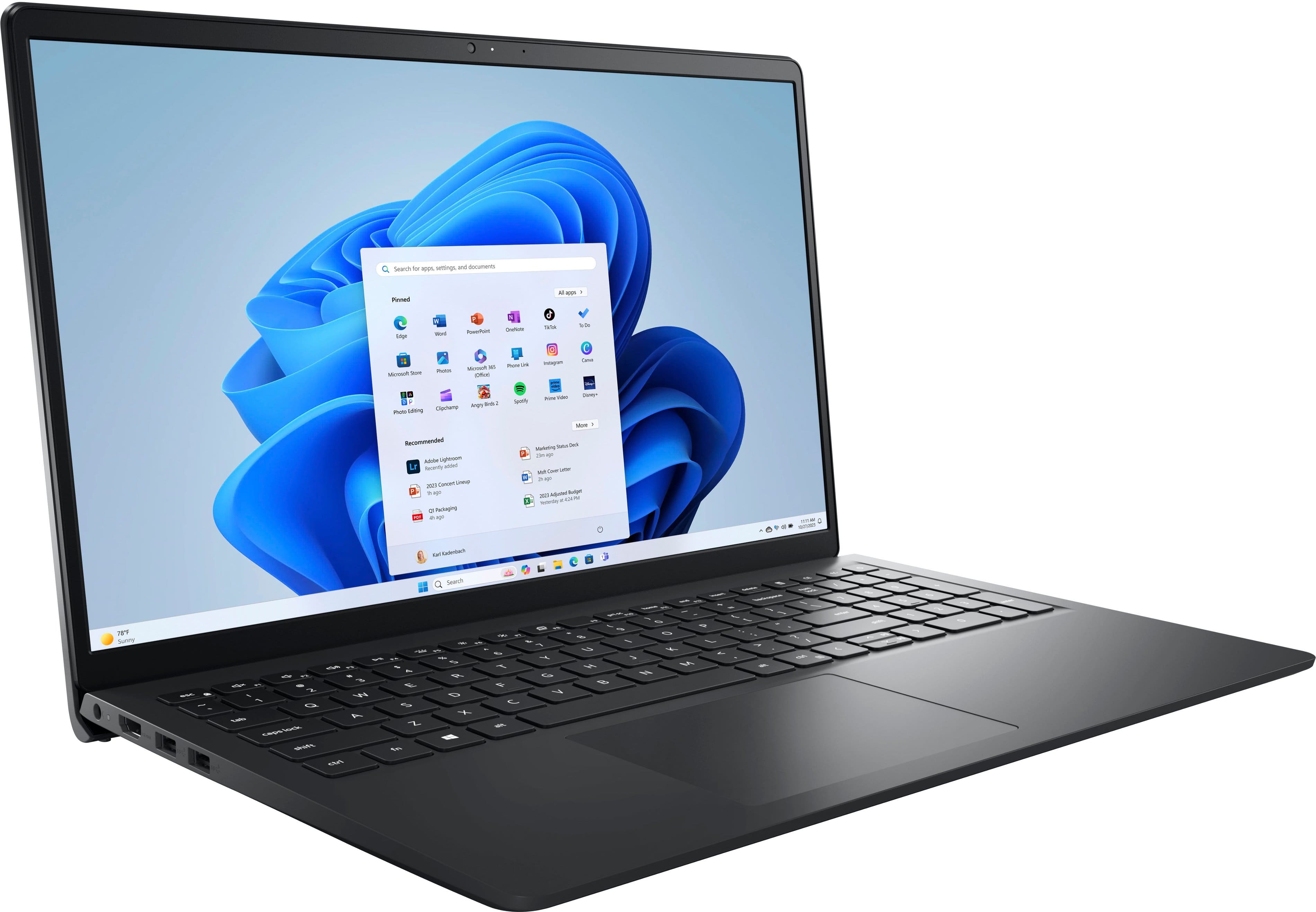
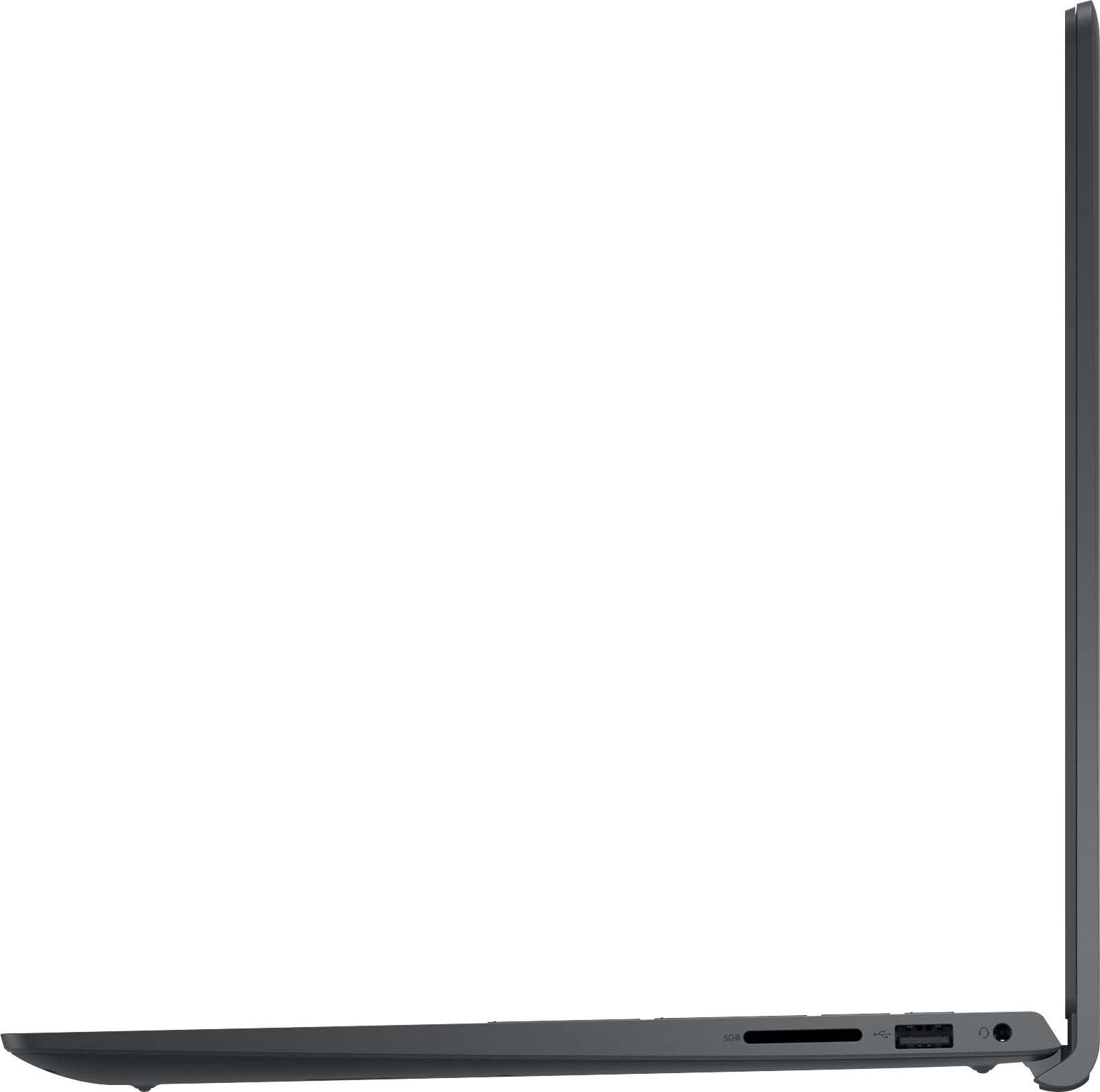
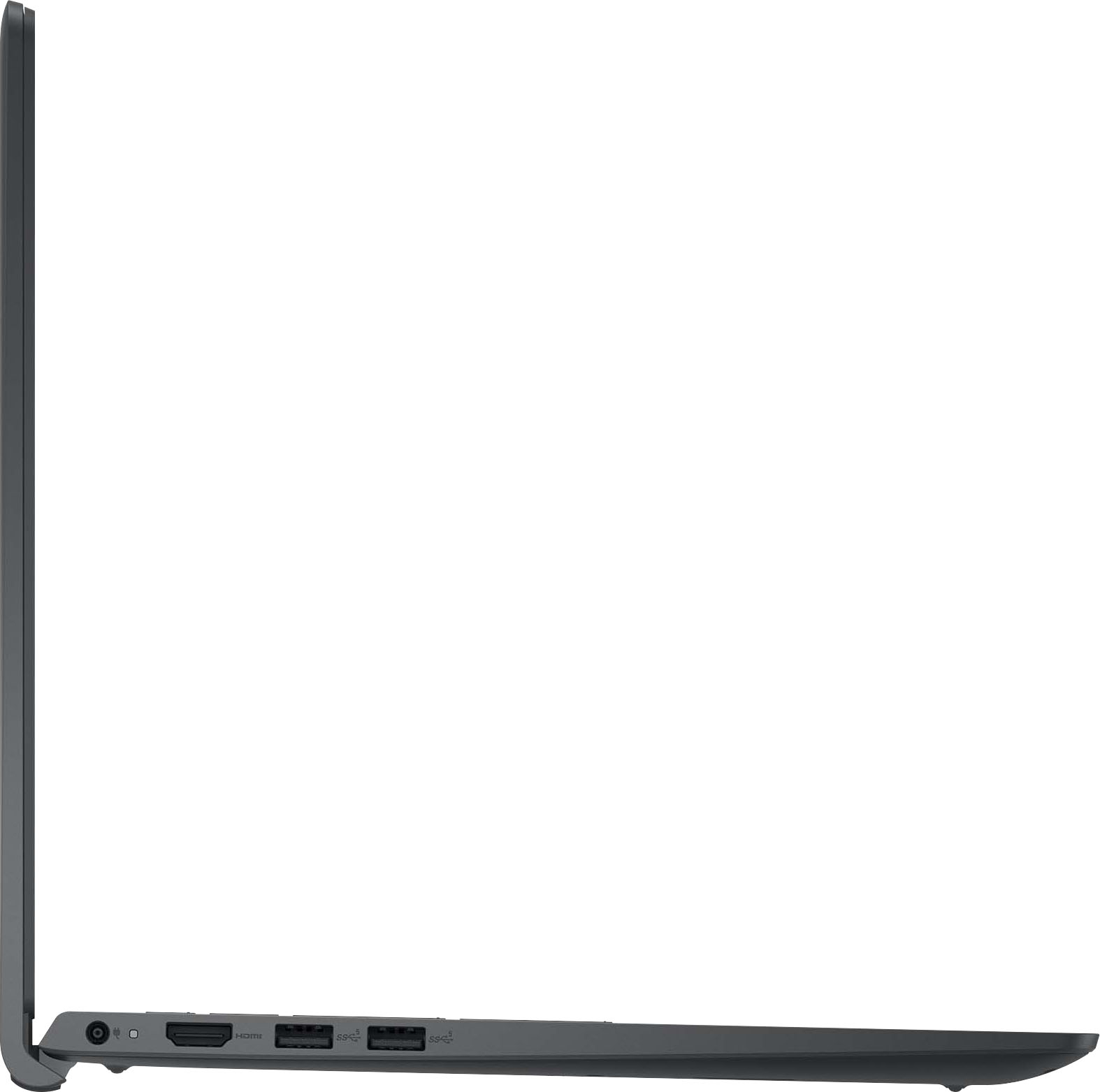
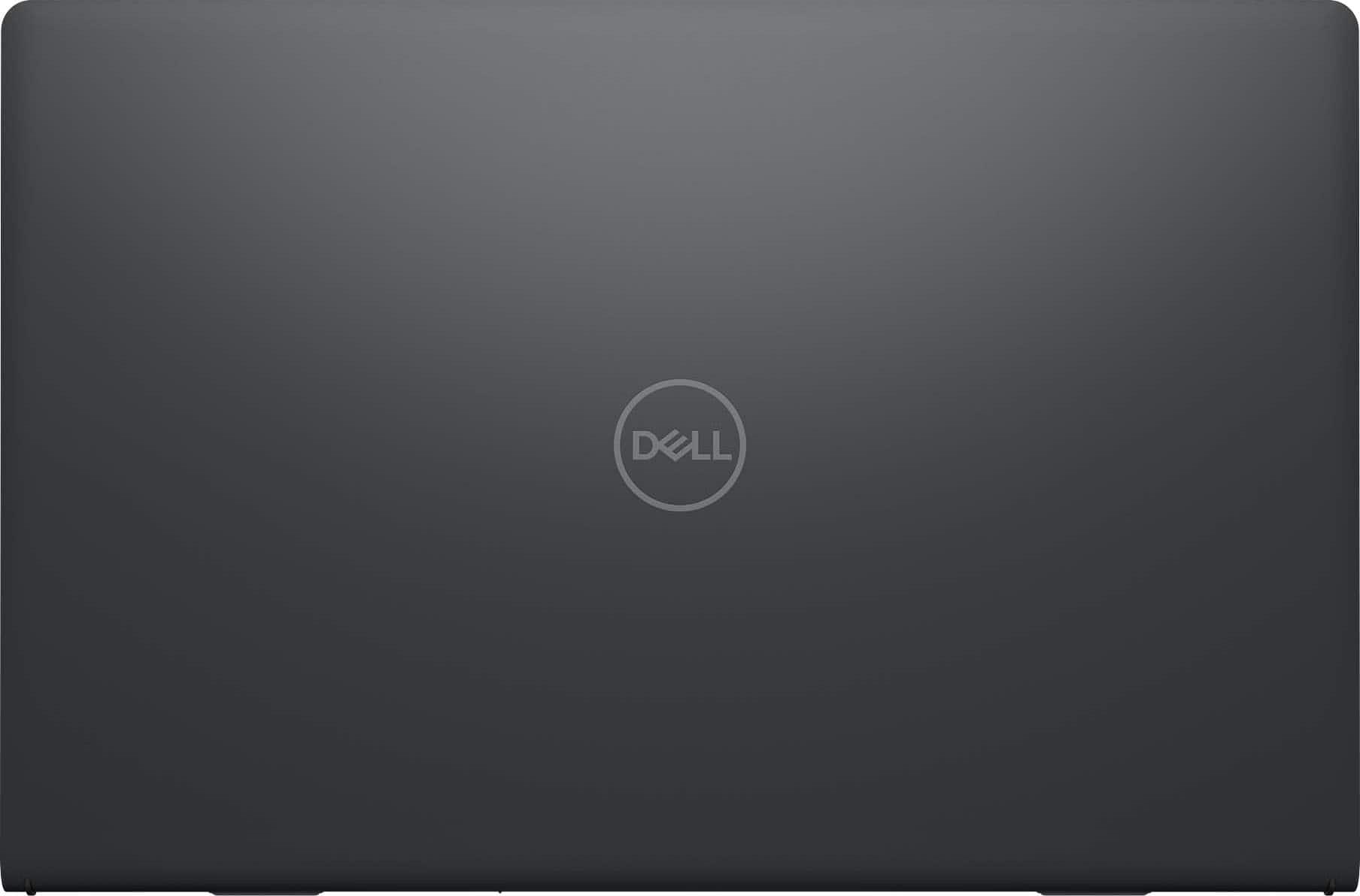


- Model:
- i3520-5810BLK-PUS
- SKU:
- 10460847
Rating by feature
- Battery Life
Rating 4.5 out of 5 stars
- Speed
Rating 4.6 out of 5 stars
- Display
Rating 4.6 out of 5 stars
Computer Review
Posted .This reviewer received promo considerations or sweepstakes entry for writing a review.Excellent computer for a person who doesn’t know much about them.
I would recommend this to a friendMr
Posted .This reviewer received promo considerations or sweepstakes entry for writing a review.Excellent service and nice staff friendly and helpful
I would recommend this to a friendnew computer
Posted .This reviewer received promo considerations or sweepstakes entry for writing a review.Still getting use to the location of the Power button.
I would recommend this to a friendPiece of junk
Posted .This reviewer received promo considerations or sweepstakes entry for writing a review.Dont buy! Bought this a year ago, noticed recently that the battery didn’t hold a charge for the time it stated. Called Dell was told it was out of warranty, based on when I bought it. Nope its based on when it’s delivered to the retailer. So they refused to fix it, but I could them too. That was a month ago, then the other day I opened it and heard a funny noise, turned it over to look and the right hand side of the frame where the screen goes is broken and coming apart from the screen. You would think for $600.00 it wouldn’t do that. I will never buy another Dell product
No, I would not recommend this to a friendBrand response from YourDellTeam
Posted .Hi gchermits,
Thank you for taking the time to leave a review. We apologize for the battery performance issues you are experiencing with your Inspiron 3520. It's important for us to hear about inconsistencies in our products for consideration of future development. Below I have provided steps with the full articles that can help you improve the battery performance of your laptop.
Here are the steps to help improve the battery performance of your laptop:
1. On the notification area of the taskbar, right-click the Battery icon.
2. On the options list, click Power Options.
3. Select a power plan on the battery meter, such as Power Saver or Balanced. Windows 10 has a built-in 'Battery Saver' mode that can be activated to extend your system's battery life. The Battery Saver mode will monitor and limit background activity and other features such as push notifications. You do have the option to enable or disable this mode within settings or within advanced Battery Saver settings, you can customize the mode to best suit your needs.
a) Click on the Action Center icon in the taskbar and select the tile for Battery Saver.
b) If running Cortana, type Battery Saver into the search box and select from the results.
Within the Battery Saver settings page, you will be able to turn on and off the feature and customize the feature to best meet your needs.
c) Turn the Battery Saver On or Off.
d) Additional settings are available via the Battery use and Battery saver settings links.
e) Battery use shows further info on apps and their power usage.
f) Battery Saver Settings screen allows you to customize further the Battery Saver feature.
How to Improve the Performance of a Dell Laptop Battery: http://dell.to/2vfXWf4
If you still experience any issues after you have finished troubleshooting your laptop using the steps above, please reach out to us at: https://bit.ly/DellSupportTeam
If you need further assistance, we recommend using the toll-free number or chat link below at your convenience to reach a member of our Dell Support Team.
Chat or call: https://bit.ly/DellSupportTeam
Phone number to Dell: 1-800-624-9896
Best,
Summer@Dell
Returned computer
Posted .This reviewer received promo considerations or sweepstakes entry for writing a review.Overall satisfied. There is a glich in one of the screens that flashes for a bit. But goes away in 30 seconds. If i was going to use it more than once a year. I would return it.
No, I would not recommend this to a friendBrand response from YourDellTeam
Posted .Dear Valued Customer,
We would like to thank you for taking the time to provide us with your feedback. We apologize for the issues you have come across with your Dell Inspiron 15 3520 Touch Laptop computer because its screen is not performing well. To help with the screen issues, we recommend making sure, that all drivers are current and up to date. I have provided a link to the Drivers and Downloads Page for your Inspiron laptop where you can check for any applicable updates.
Drivers and Downloads Page: https://dell.to/3tLUgxV
We also recommend following these troubleshooting tips:
1. Run the automated tools in SupportAssist to ensure that the drivers and BIOS are up to date and your computer is optimized
2. Verify display or video issue on an external monitor
3. Check for physical damage on the LCD screen
4. Run hardware diagnostics on the LCD screen
5. Verify the display or video issue in Windows Safe Mode
6. Download and install Microsoft Windows Updates
7. Change the video or display settings, and adjust the brightness
8. Touch screen troubleshooting
9. Run a Video Stress Test using Dell SupportAssist
10. Perform a Windows System Restore
11. Restore the computer to factory defaults
The whole article on this subject can be found here:
How to Troubleshoot Display or Video Issues on a Dell Laptop: https://dell.to/3pE7wm4
If the issue with your Inspiron is still not resolved after utilizing the troubleshooting options above, please contact the Dell Support Team at 1-800-624-9896 for further guidance.
Chat or call: https://bit.ly/DellSupportTeam
Phone number to Dell: 1-800-624-9896
Best,
Summer@Dell
- Cons mentioned:Hinge durability
hinge breaks, screen and keyboard separate
Posted .This reviewer received promo considerations or sweepstakes entry for writing a review.I like this computer, so when the hinge broke and the screen separated from the keyboard I thought it was a fluke and bought another -- even though google told me that many people had this problem. Guess what -- same thing happened. Then I stupidly bought a 3rd one. The same thing happened. Now I'm considering buying another one and leaving it open all the time!!!
No, I would not recommend this to a friendBrand response from YourDellTeam
Posted .Greetings MarthalM,
Thank you for taking the time to leave a review of your Inspiron 15 3520 touch laptop. We are sorry to hear that you are experiencing an issue with multiple broken hinges. That is not the type of feedback we like to hear from our customers, or the type of product Dell intends to deliver. We have noted the details of your statement and will escalate them to our quality team for improvements on current and future products.
If you continue to experience issues, please reach out to Dell Support directly by using the information provided below.
Chat or call: https://bit.ly/DellSupportTeam
Phone number to Dell: 1-800-624-9896
Best,
Summer@Dell
Dell has become a second rate company!!!!!
Posted .This reviewer received promo considerations or sweepstakes entry for writing a review.This laptop has a bezel and body made of cheap soft plastic that broke after 2 months of just opening and closing it. Since it is under warranty Dell said that they would fix it for free. They are now scheduling the Fifth service appointment (The first four the tech did not show up) Would you stay home from work for the fifth time to see if the tech shows up????? I bought a Lenova for $500 cheaper and it is a superior laptop
No, I would not recommend this to a friendBrand response from YourDellTeam
Posted .Greetings BrianE,
Thank you for taking the time to leave a review of your Inspiron 3520. We're very sorry to hear about the difficulty that you had with Dell. This is certainly not the experience we like to hear from our customers. Please take a moment to call or chat in order to speak with another representative at your earliest convenience: https://bit.ly/DellSupportTeam. We hope that the next representative you speak with is able to help resolve your concerns.
If you continue to experience issues, please reach out to Dell Support directly by using the information provided below.
Chat or call: https://bit.ly/DellSupportTeam
Phone number to Dell: 1-800-624-9896
Best,
Summer@Dell
Fair
Posted .This reviewer received promo considerations or sweepstakes entry for writing a review.Decent for low volume work. If I have too many pages open then it gets slow.
No, I would not recommend this to a friendBrand response from YourDellTeam
Posted .Dear KaitlynH,
Thank you for taking the time to leave us your review. We are sorry to hear that you are experiencing slow performance issues with your Inspiron 15 3520. It's important for us to hear about inconsistencies in our products for consideration of future development. Below I have provided steps with the full article that can help you with slow performance issues with your laptop.
Here are the steps to help you with slow performance issues:
1. Run the automated tools in SupportAssist to ensure that the drivers are up to date and your computer is optimized.
2. Restart the computer
3. Run a hardware diagnostic test
4. Scan your computer for malware
5. Restore the computer using Windows System Restore
6. Restore the computer to factory default settings
You can read the article that can help you with slow performance issues here: https://dell.to/3yqre8r
If you need further assistance, please reach out to Dell Support directly by using the information provided below.
Chat or call: https://bit.ly/DellSupportTeam
Phone number to Dell: 1-800-624-9896
Best,
Summer@Dell
defective!
Posted .This reviewer received promo considerations or sweepstakes entry for writing a review.battery defective...do not buy!.................................
No, I would not recommend this to a friendBrand response from YourDellTeam
Posted .Hi MarkM,
We value your feedback and want to thank you for taking the time to leave a review of your Inspiron 3520. We are sorry to hear that your battery is defective. That is not the type of feedback we like to hear from our customers, or the type of product Dell intends to deliver. We have noted the details of your statement and will use them to improve current and future products. Below I have provided a troubleshooting link to resolve your issue. After troubleshooting if you need further assistance we recommend using the toll-free number or chat link below.
Battery Troubleshooting Link: https://rb.gy/ftcjo8
If you continue to experience issues, please reach out to Dell Support directly by using the information provided below.
Chat or call: https://bit.ly/DellSupportTeam
Phone number to Dell: 1-800-624-9896
Best,
Summer@Dell