Customer Ratings & Reviews
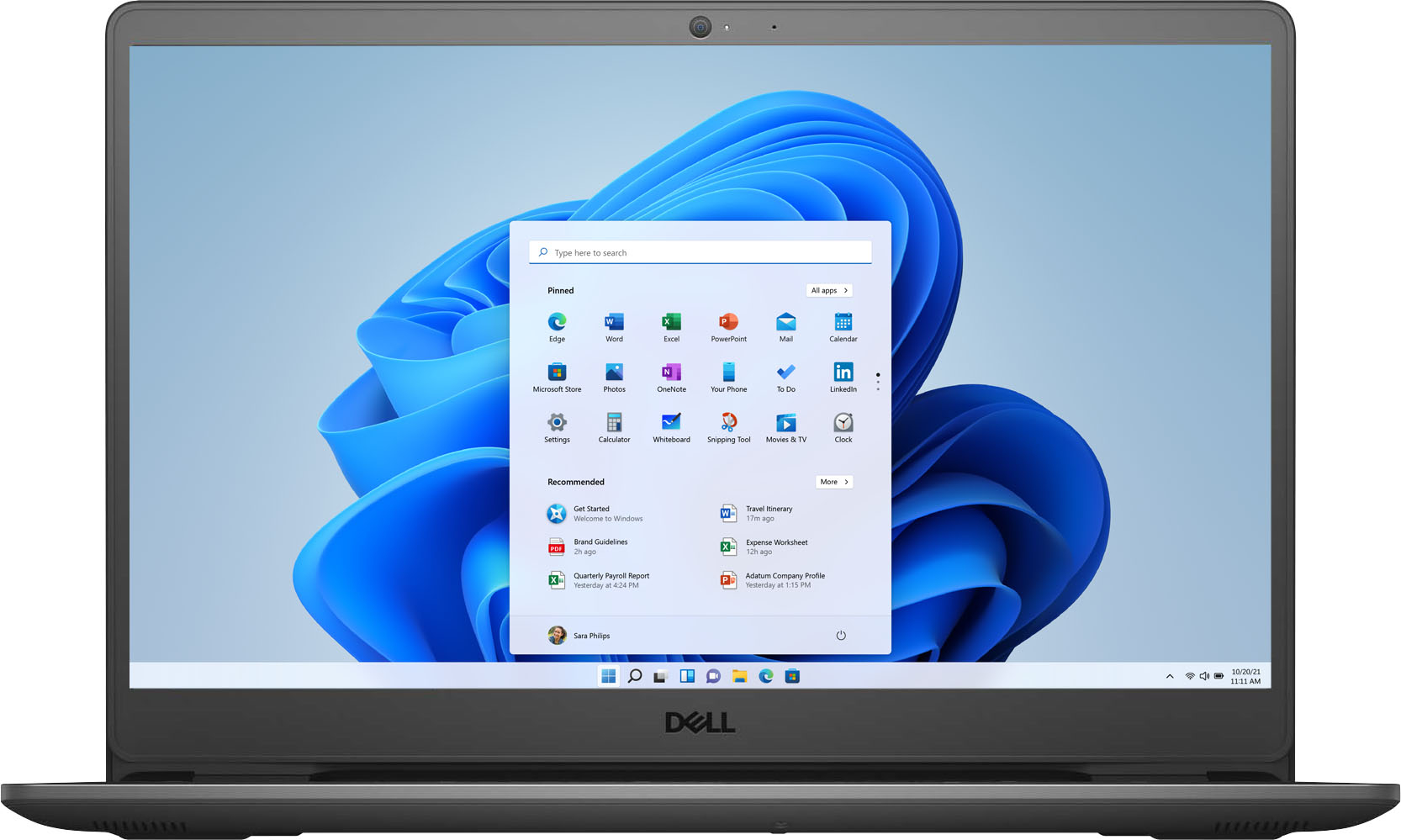
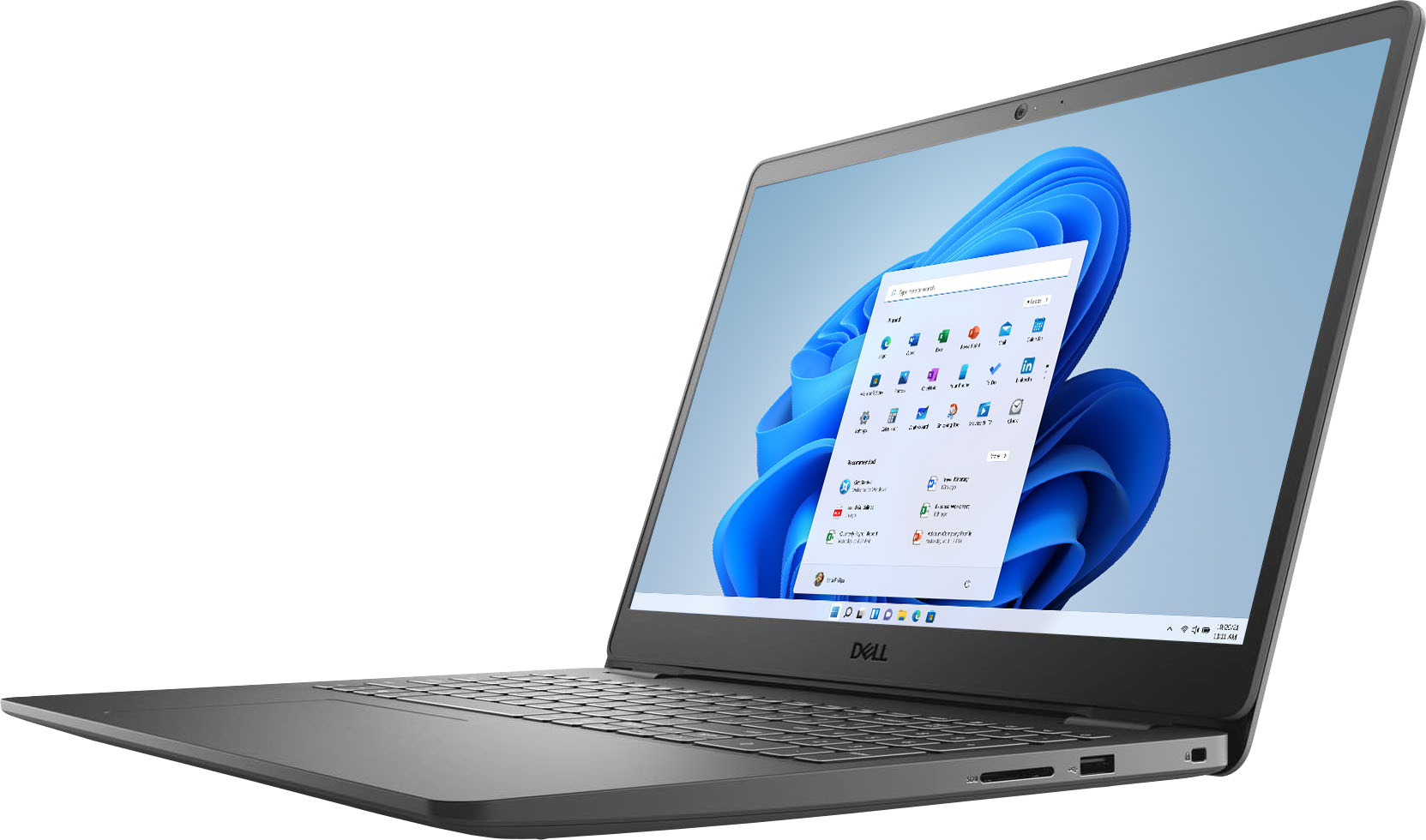
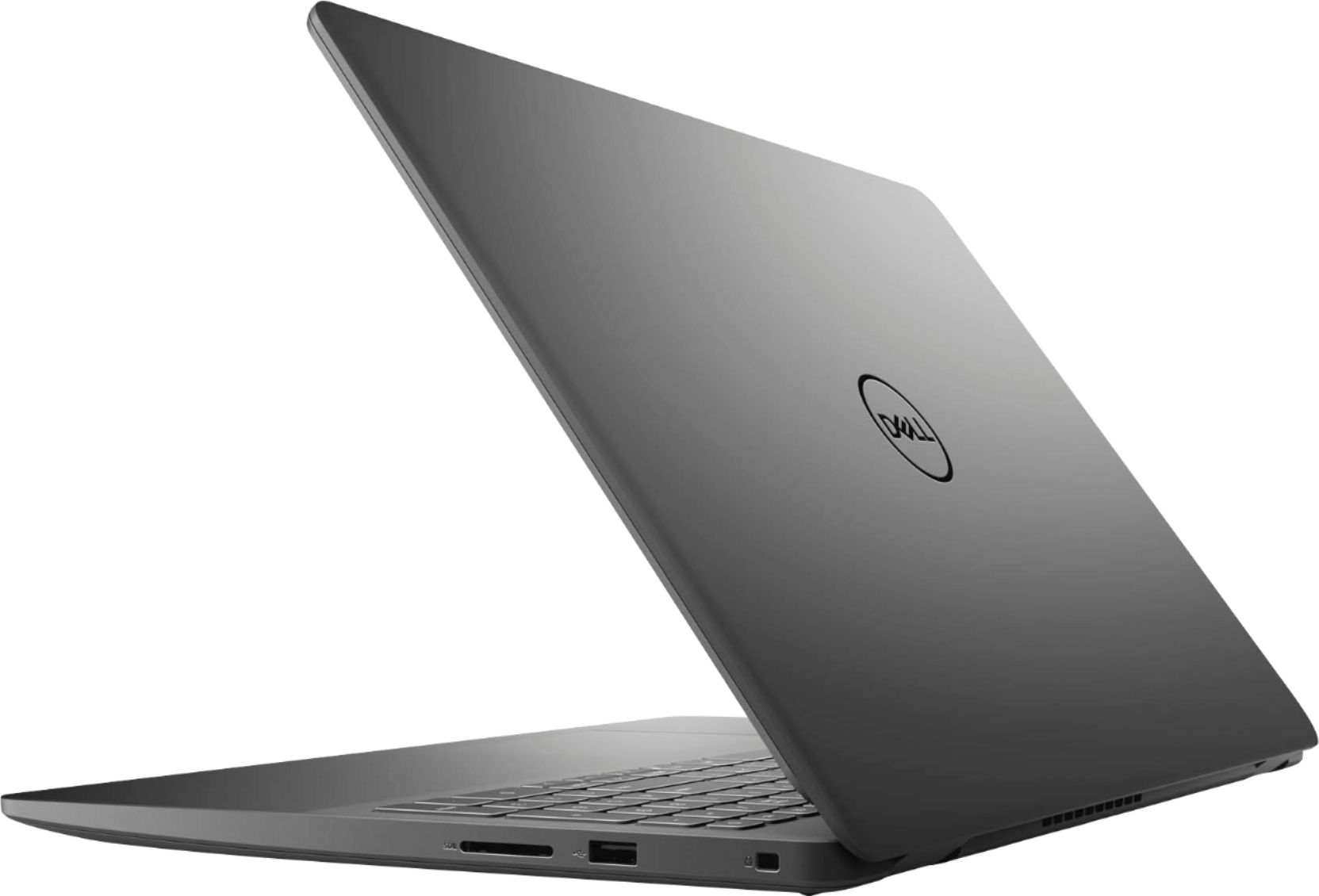
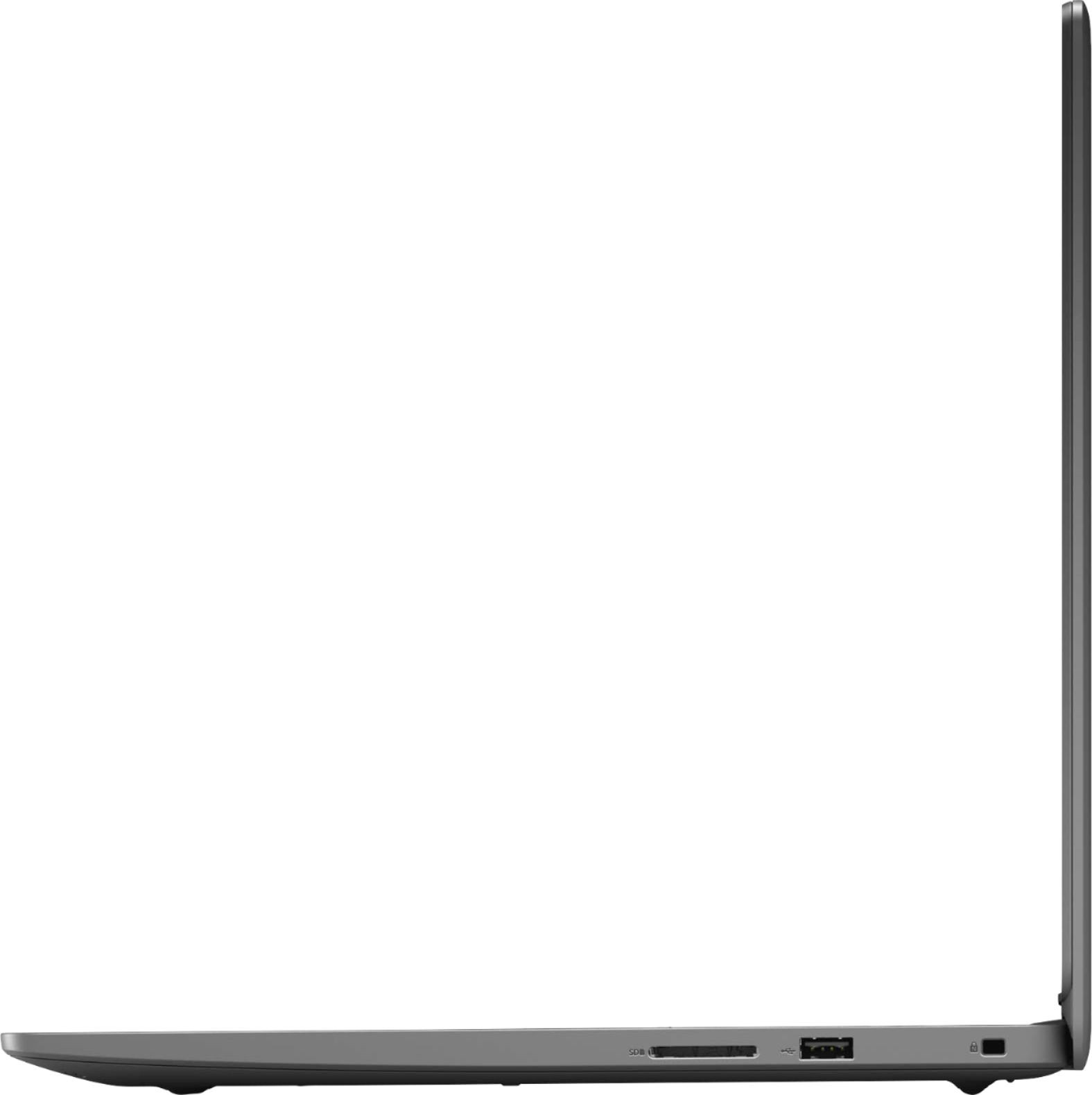




- Model:
- i3505-A330BLK-PUS
- SKU:
- 6438338
Rating by feature
- Battery Life
Rating 4.0 out of 5 stars
- Speed
Rating 4.2 out of 5 stars
- Display
Rating 4.3 out of 5 stars
Customers are saying
Customers are impressed with the Inspiron 15.6" laptop's touch screen responsiveness, storage capacity, user-friendly interface, and affordable price. They appreciate its gaming capabilities, fast processor, and lightweight design. However, some users have concerns about the short battery life and the inconveniences associated with Windows 10S mode.
This summary was generated by AI based on customer reviews.
No worth it
||Posted . Owned for 1 month when reviewed.This reviewer received promo considerations or sweepstakes entry for writing a review.Used it only for probably 8 hours within the first month. And the laptop shut off and would not turn back on.
No, I would not recommend this to a friendBrand response from YourDellTeam
Posted .Hello Read,
Thank you for your review. We are sorry to hear that your Inspiron stopped working rather abruptly. Below are some steps you can take that may resolve your issue.
1. If the computer is displaying the Dell logo and does not move past that point, it has probably failed POST.
2. If the power indicator lights up and it is amber or orange, this is usually an indicator that it has failed POST.
3. If you see text on a black screen, the computer is currently performing the POST. If the computer stays in that condition and does not move past it, it has probably failed POST.
4. If the video screen displayed anything at all during the startup process but is now black, this probably indicates that the computer failed POST.
5. If the computer is beeping or if Caps/Num/Scroll Locks are flashing, note if there is a particular pattern in which it beeps or flashes.
6. If the computer is not beeping and caps/num/scroll locks are not flashing, unplug all connections and remove all media communication devices (e.g. external monitors); reconnect one at a time and check if the computer functions.
7. For a notebook, press and hold the Fn key and then press the power button. This starts the pre-boot testing and will launch ePSA. In case you have a Desktop at the Dell logo screen tap the F12 key to enter One Time Boot Menu and use the arrow keys to highlight Diagnostics and press enter.
You can read the full article here - http://dell.to/2uj1Sby.
Best regards,
Anthony P.
First And Last Dell Purchase
||Posted . Owned for 6 months when reviewed.This reviewer received promo considerations or sweepstakes entry for writing a review.Despite the specification its a poor performing computer for a multi-tasker. Bare Basic minimum
No, I would not recommend this to a friendTrash
||Posted . Owned for 2 months when reviewed.This reviewer received promo considerations or sweepstakes entry for writing a review.The computer will not turn on. For almost $700 you would think it would last longer than 2 months!!!!!
No, I would not recommend this to a friendBrand response from YourDellTeam
Posted .Hello Marshall,
Thank you for your review. We apologize for the issues you have come across with your laptop. We have provided steps below that can assist with your startup issues.
1. At the desktop, click the Search the web and Windows box and type ""problem reports"".
2. Select View all problem reports to view a list of errors that have occurred on your computer and possible solutions for them, such as updating drivers, flashing your system BIOS, or checking for updates to the software.
3. Under the Source column, look for Windows and under Summary, look for Shut down unexpectedly.
4. Right-click the line item and select Check for a solution.
We'd also suggest checking to make sure that your software and drivers are up to date on Dell's Product Page - http://dell.to/3hmUpRy.
Best regards,
Wendy C.
For further assistance, you can contact Dell directly with the information below Chat or Call:
https://bit.ly/DellSupportTeam.
Phone number to Dell: 1-800-264-9896.
Not pleased
||Posted . Owned for less than 1 week when reviewed.This reviewer received promo considerations or sweepstakes entry for writing a review.Terrible! Turned it on for the second time and the entire screen is tripping out twitching
No, I would not recommend this to a friendBrand response from YourDellTeam
Posted .Hello Jnice,
Thank you for your feedback and review. We apologize for the issues you have come across with your monitor. We have provided steps that can be used to run a Self-Test on the monitor to help diagnose the issue.
1. Power off the Dell laptop.
2. Disconnect any external devices that are connected to the computer.
3. Connect the AC adapter (charger) to the computer.
4. Make sure that the LCD (screen) is clean (no dust particles on the surface of the screen).
5. Press and hold the D key and power on the computer to enter LCD built-in self-test (BIST) mode.
6. Continue to hold the D key, until you see color bars on the LCD (screen).
-The screen displays multiple color bars and change colors to black, white, red, green, and blue.
-Carefully inspect the screen for abnormalities.
If your monitor still remains black, this link can be used to help run further steps and provide more in-depth information: http://dell.to/2XeDTdr.
Best regards,
Wendy C.
For further assistance, you can contact Dell directly with the information below Chat or Call:
https://bit.ly/DellSupportTeam.
Phone number to Dell: 1-800-264-9896.
- Pros mentioned:Touch screen
Great personal use laptop
Posted .This reviewer received promo considerations or sweepstakes entry for writing a review.This has been an excellent laptop for my personal use. The touch screen is very responsive and it holds a charge well.
I would recommend this to a friend - Pros mentioned:Storage
Fantastic laptop for work and mid- range gaming.
Posted .This reviewer received promo considerations or sweepstakes entry for writing a review.I have had this laptop for just over 1 month and I absolutely love it. I use this for low to mid range gaming (Things like Minecraft/Portal ) and I get anywhere from 60 - 200 frames per second depending on the game. I downloads lots of stuff and I have had no storage issues. Programs boot up very fast on both the hard drive and the ssd, both of which I have used. One the physical side, this feels very sturdy, with a good keyboard and enough ports. The display is pretty good, although not perfect with color. Overall, this computer is perfect for mid range gaming, multitasking, video streaming, working, and much, much, more.
I would recommend this to a friend dell-inspiron
Posted .This reviewer received promo considerations or sweepstakes entry for writing a review.It is a great computer, been using for last few years
I would recommend this to a friendLove this computer! SUPER FAST
Posted .This reviewer received promo considerations or sweepstakes entry for writing a review.This thing is so amazing! I highly recommend this product! Still using this same computer years later!
I would recommend this to a friend2 laptops purchased and both won’t hold charge
Posted .This reviewer received promo considerations or sweepstakes entry for writing a review.Purchased 2 for our daughters for school. Within a few months, both stopped holding a charge, although connected to charger all night. At school their computers would shut down and became a huge hassle to complete work at school.
No, I would not recommend this to a friendBrand response from YourDellTeam
Posted .Hello Abach,
We are sorry to hear that the battery life of your Inspirons are not quite meeting expectations. Below are some tips to make the most out of your battery.
1. On the notification area of the taskbar, right-click the Battery icon.
2. On the options list, click Power Options.
3. Select a power plan on the battery meter, such as Power Saver or Balanced. Windows 10 has a built in 'Battery Saver' mode that can be activated to extend your system's battery life. The Battery Saver mode will monitor and limit background activity and other features such as push notifications. You do have the option to enable or disable this mode within settings or within advanced Battery Saver settings, you can customize the mode to best suit your needs.
a) Click on the Action Center icon in the taskbar and select the tile for Battery Saver.
b) If running Cortana then type Battery Saver into the search box and select from the results.
Within the Battery Saver settings page, you will be able to turn on and off the feature and customize the feature to best meet your needs.
c) Turn Battery Saver On or Off.
d) Additional settings available via the Battery use and Battery saver settings links.
e) Battery use shows further info on apps and their power usage.
f) Battery Saver Settings screen allows you to customize further Battery Saver feature.
We hope this helps!
Best Regards,
Anthony P.
Junk Terrible
Posted .This reviewer received promo considerations or sweepstakes entry for writing a review.Wish i could give zero star if I could, this garbage is terrible, waited 2 weeks to get this laptop and I was disappointed, the display resolution so garbage it hurts my eyes, i talk to the customer service for 2 hours testing the laptop and they couldn't do anything, I don't recommend this to anyone
No, I would not recommend this to a friendBrand response from YourDellTeam
Posted .Hello Laptop,
Thank you for your feedback and review. We apologize for the issues you have come across with your display resolution. We would love to help right away and have provided steps below that can help adjust your resolution through Windows 10.
Setting the resolution in Windows 10:
1. Close all open programs.
2. You can either right click Start, and then click Control Panel or click on start and type Control Panel and click the icon that appears.
3. In the Control Panel window, click System, and then click Display.
4. Select the monitor you want to change, if more than one is connected to your PC.
5. Click on the Resolution drop down box to see a list of recommended resolutions for that display.
6. Click on the one you want, to change the screen resolution, and then click Apply.
7. Click on keep changes if you want to keep the new settings. If not select revert.
- Note: If new settings do not work, Windows® will attempt to revert back to the original settings automatically.
8. Restart the computer to ensure that the changes stay in effect.
If you still come across issues with your display resolution, you can use this link for further steps and details: http://dell.to/3oitVT6.
Best regards,
Wendy C.
For further assistance, you can contact Dell directly with the information below Chat or Call:
https://bit.ly/DellSupportTeam.
Phone number to Dell: 1-800-264-9896.