Customer Ratings & Reviews

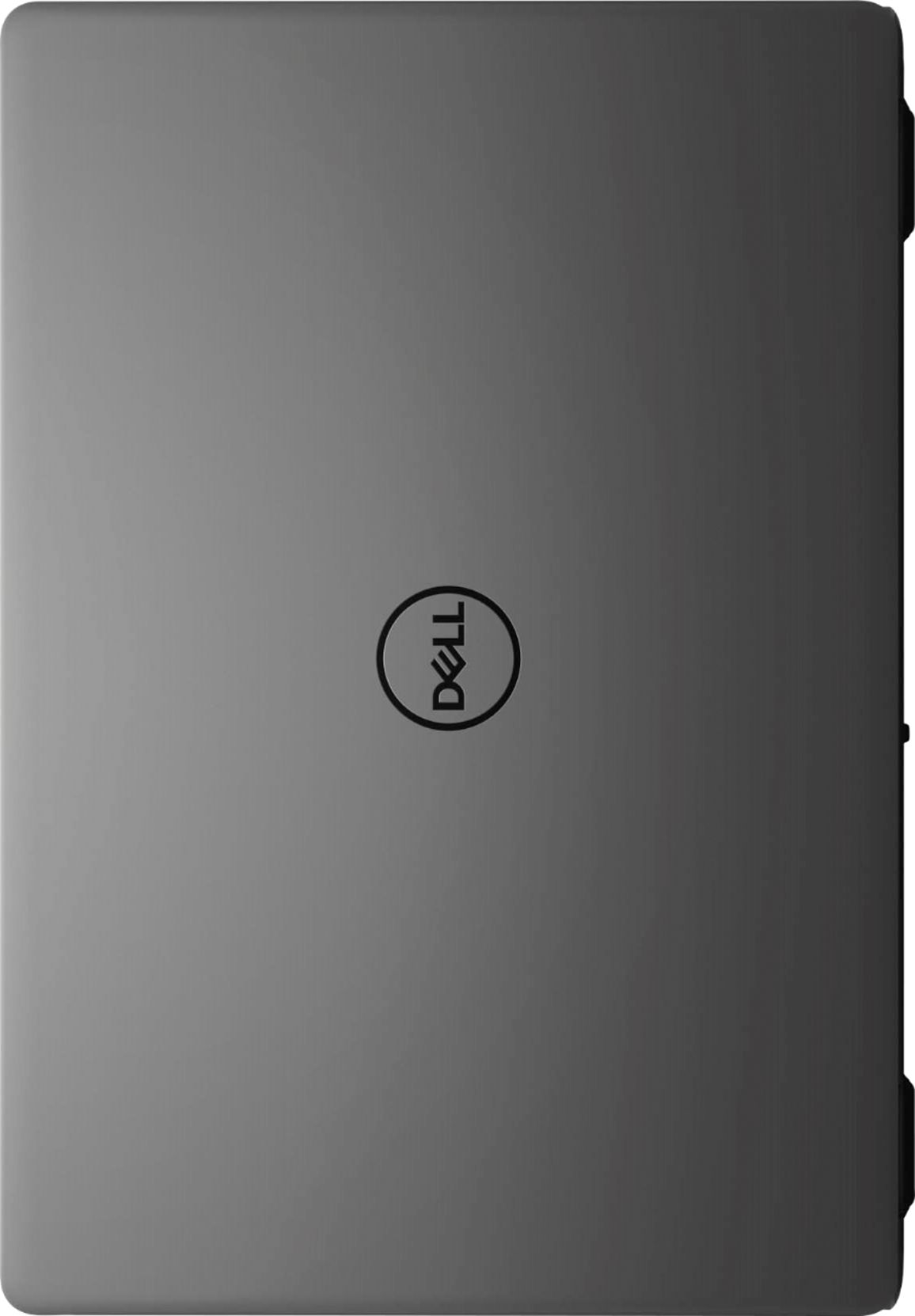
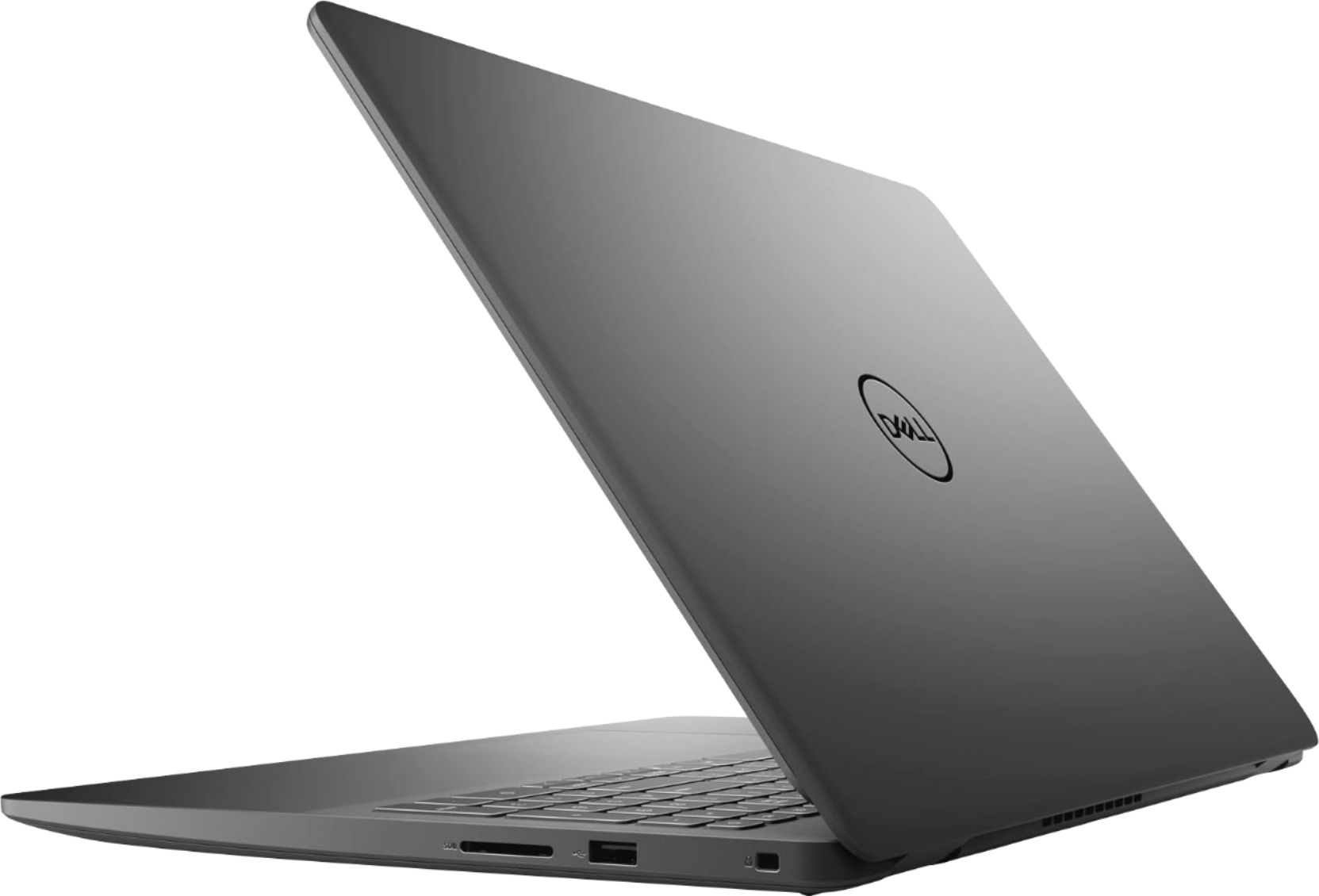
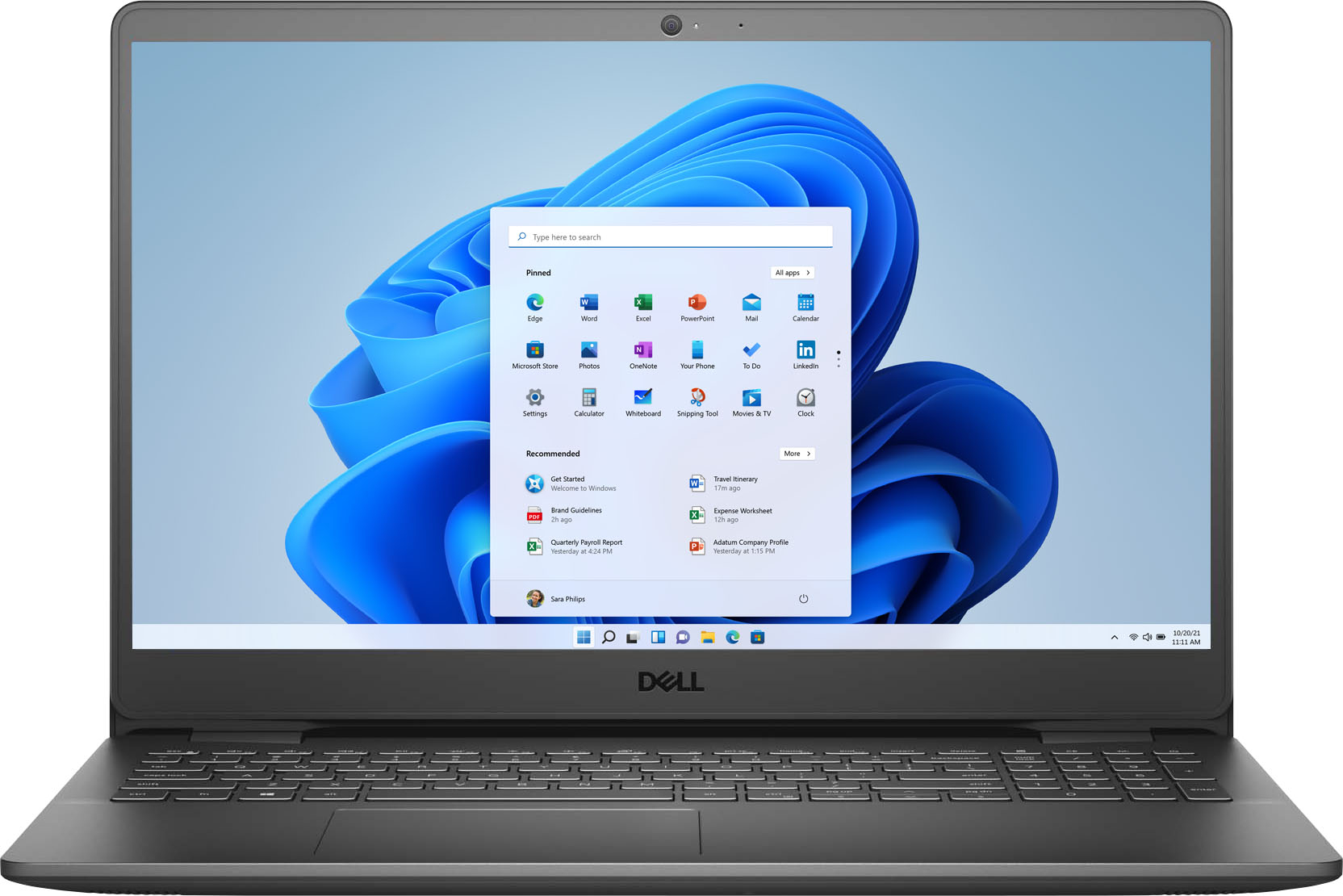


- Model:
- i3501-5580BLK-PUS
- SKU:
- 6447115
Rating by feature
- Battery Life
Rating 4.3 out of 5 stars
- Speed
Rating 4.5 out of 5 stars
- Display
Rating 4.5 out of 5 stars
Customers are saying
Customers express satisfaction with the Inspiron 15.6" laptop's touch screen, price, ease of use, RAM, performance, lightweight design, and storage. They particularly appreciate the laptop's affordability, sleek design, and powerful performance. However, some customers have concerns about the battery life and build quality.
This summary was generated by AI based on customer reviews.
Review
||Posted . Owned for 3 weeks when reviewed.This reviewer received promo considerations or sweepstakes entry for writing a review.Am not able to get connected to my printer so not using it much Also need to get it to sync with my smartphone
No, I would not recommend this to a friendBrand response from YourDellTeam
Posted .Hello Weber,
Thank you for your feedback and review. We apologize for the issues you have come across connecting your printer to your Inspiron. We would love to help as soon as possible so you can enjoy your laptop. Below are steps that can help with your issue.
1. Run the Network Troubleshooter.
a) Touch and hold or right-click the network icon (Available Networks or Network Icon, located in the lower right-hand corner).
b) Touch or click Troubleshoot problems and then follow the prompts.
This link can be used to help run further steps and provide more in-depth information to sync your smartphone: - http://dell.to/2sLtwRh. If the issue persists, feel free to contact Dell Support at your earliest convenience at 1-800-264-9896.
Best regards,
Wendy C.
https://bit.ly/DellSupportTeam.
Phone number to Dell: 1-800-264-9896.
Unhappy
||Posted . Owned for 3 weeks when reviewed.This reviewer received promo considerations or sweepstakes entry for writing a review.Have to keep restarting or shutting off and turn back on. Freezes up and will not let me type in search.
No, I would not recommend this to a friendBrand response from YourDellTeam
Posted .Hello,
Thank you for your review. We are sorry to hear about your laptop freezing and causing you to constantly power cycle it. We recommend you open and run the SupportAssist application. It is a set of tools that will clean junk files, install system updates and drivers, diagnose hardware and software, and optimize your system performance and network all with the press of a button. This will ensure you have the best experience your system offers to date.
1. Restart your computer regularly
2. Run the automated tools provided in the SupportAssist tool
3. Run a complete hardware diagnostic test
4. Scan your computer for malware
5. Restore your Dell computer using Windows System Restore
6. Reinstall Microsoft Windows
Here is the link to the full article to assist with your performance issue: https://dell.to/32wo0Ss. We invite you to review to contact Dell Support at 1-800-264-9896 if any other concerns arise after updating the BIOS.
Sincerely,
Wendy C.
https://bit.ly/DellSupportTeam.
Phone number to Dell: 1-800-264-9896.
Poor speakers.
||Posted . Owned for 3 months when reviewed.This reviewer received promo considerations or sweepstakes entry for writing a review.A basic laptop. My only complaint is that the speakers lack volume and clarity.
No, I would not recommend this to a friendBrand response from YourDellTeam
Posted .Hi Blue22,
We want to thank you for taking the time to leave us your review. We apologize for the issues you have come across with the speakers of your Inspiron 3501. Below I have provided the steps to run the Microsoft Sound Troubleshooter. I have also included the full article link that has more options if they are needed. We also suggest making sure the audio drivers are up to date on your PC. I have given you a link to the Drivers and Downloads page for your computer below so you can check for and do any applicable updates.
How to run the Windows Sound Troubleshooter in Microsoft Windows 10
1. Click Start, and then select Settings (gear icon).
2. Click Update & Security and select Troubleshoot.
3. Click Playing Audio and then click Run the troubleshooter.
4. Follow the on-screen instructions to complete the troubleshooting process.
How to troubleshoot audio issues or sound playback issues: R1427https://dell.to/2MuJfPT
Drivers and Downloads page: https://dell.to/33aHZG9
We would recommend following the steps provided to run the Microsoft Sound Troubleshooter and checking for audio driver updates, and if the issue is not resolved, please contact our support team here: https://bit.ly/DellSupportTeam.
Best,
Ashley@Dell
Should you need further assistance, you can contact Dell directly with the information below.
Chat or call: https://bit.ly/DellSupportTeam
Phone number to Dell 1-800-624-9896
Nice Laptop
||Posted . Owned for 3 weeks when reviewed.This reviewer received promo considerations or sweepstakes entry for writing a review.Nice laptop. worth the price, very reliable purchased for a student
I would recommend this to a friendBrand response from YourDellTeam
Posted .Hello,
Thank you for taking a the time to share your review. We are happy to know that you're enjoying your Inspiron and greatly appreciate your feedback. If you come across any questions, issues, or concerns, please contact our support team here: https://bit.ly/DellSupportTeam.
Best regards,
Wendy C.
https://bit.ly/DellSupportTeam.
Phone number to Dell: 1-800-264-9896.
Inspiron
||Posted . Owned for 3 weeks when reviewed.This reviewer received promo considerations or sweepstakes entry for writing a review.Flickering start menu is maddening. Tried every remedy, no luck.
No, I would not recommend this to a friendBrand response from YourDellTeam
Posted .Hello Marshall,
Thank you for your feedback and review. We are sorry to hear that you're experiencing flickering issues with your laptop. We have provided steps that can be used to run a Self-Test on the screen to help diagnose the issue.
1. Power off the Dell laptop.
2. Disconnect any external devices that are connected to the computer.
3. Connect the AC adapter (charger) to the computer.
4. Make sure that the LCD (screen) is clean (no dust particles on the surface of the screen).
5. Press and hold the D key and power on the computer to enter LCD built-in self-test (BIST) mode.
6. Continue to hold the D key, until you see color bars on the LCD (screen).
-The screen displays multiple color bars and change colors to black, white, red, green, and blue.
-Carefully inspect the screen for abnormalities.
If your screen still has issues, this link can be used to help run further steps and provide more in-depth information: http://dell.to/2XeDTdr.
Best regards,
Wendy C.
https://bit.ly/DellSupportTeam.
Phone number to Dell: 1-800-264-9896.
Broken display
||Posted .This reviewer received promo considerations or sweepstakes entry for writing a review.Great notebook. But broken display. Dell is not responding.
I would recommend this to a friendBrand response from YourDellTeam
Posted .Hello,
Thank you for your feedback and review. We apologize for the issues you have come across with the display on your laptop and we would love to assist you with any troubleshooting needs but would need a little more information. We would love to help right away. This article provides information on the policy and repair options when the LCD screen on a Dell laptop, Venue phone or tablet is cracked or broken: https://dell.to/37GXSqp.
If you come across any questions, issues, or concerns, please contact Dell Support at your earliest convenience at 1-800-264-9896.
Sincerely,
Wendy C.
https://bit.ly/DellSupportTeam.
Phone number to Dell: 1-800-264-9896.
- Cons mentioned:Battery life
cheap dell laptop with medium quality
||Posted . Owned for 2 months when reviewed.This reviewer received promo considerations or sweepstakes entry for writing a review.this laptop looks good. It's a dell brand. the display is in good condition but the main problem is the battery as it is not able to back up for more than 3 hours
No, I would not recommend this to a friend Dell is fine but basic support is not.
||Posted . Owned for 4 months when reviewed.This reviewer received promo considerations or sweepstakes entry for writing a review.The laptop was fine except for the bad motherboard. That will happen but Dell's basic support is completely useless. I didn't want to mail my laptop in but I could not pay to have a tech out unless I wanted to pay for parts too. I was out of town for a while and didn't mail my laptop right away. After I did, I was told my case number was closed and the only option was for Dell to mail my laptop back so I could put it in another box and mail it in again. They couldn't just re-open the case number. None of this is Best Buy's fault but this is the warrantee that came with it.
No, I would not recommend this to a friendBrand response from YourDellTeam
Posted .Hi MrGru,
We want to thank you for taking the time to leave us your valued feedback. We sincerely apologize for your experience. This is certainly not what we like to hear from our loyal customers. We hope once your system is repaired it will be working to your satisfaction and ours.
If you require further assistance, you can contact Dell directly with the information below.
Chat or call: https://bit.ly/DellSupportTeam
Phone number to Dell 1-800-624-9896
Best,
Ashley@Dell
Touch Screen Glitch
||Posted . Owned for less than 1 week when reviewed.This reviewer received promo considerations or sweepstakes entry for writing a review.Encountered some kind of ghost-touch glitching immediately after initial setup. Like someone is frantically poking the screen with their finger in a perfect line down center-left of screen. Computer is absolutely useless while this is going on and requires a manual powering off. I'm told the touch screen can be calibrated but looking into it I see too many stories of users with this problem calibrating only for the glitch to return hours later. I'll just return it in the coming days and get one without touch capability. And preferably not a Dell.
No, I would not recommend this to a friendBrand response from YourDellTeam
Posted .Hello Zachariah,
Thank you for taking a moment to share your response. We apologize for the issues you have come across with the screen on your laptop. We have provided steps that can be used to run a Self-Test on the screen to help diagnose the issue.
Here are the recommended steps to troubleshoot your issue:
1. Power off the Dell laptop.
2. Disconnect any external devices that are connected to the computer.
3. Connect the AC adapter (charger) to the computer.
4. Make sure that the LCD (screen) is clean (no dust particles on the surface of the screen).
5. Press and hold the D key and power on the computer to enter LCD built-in self-test (BIST) mode.
6. Continue to hold the D key, until you see color bars on the LCD (screen).
-The screen displays multiple color bars and change colors to black, white, red, green, and blue.
-Carefully inspect the screen for abnormalities.
If your screen still has issues, this link can be used to help run further steps and provide more in-depth information: http://dell.to/2XeDTdr.
We recommend following the steps above to resolve your issue. If the issue continues, please contact our support team here: https://bit.ly/DellSupportTeam.
Best,
Wendy C.
https://bit.ly/DellSupportTeam.
Phone number to Dell: 1-800-264-9896.
Multiple Issues! Do Not Buy
||Posted . Owned for 1 year when reviewed.This reviewer received promo considerations or sweepstakes entry for writing a review.Do not but this laptop. We’ve had several issues with the camera and called dell support to fix the issue. They asked the laptop to be sent to them and we sent it over. They claimed to have fixed the issue but when the laptop was returned, the mouse tracker was having several problem. Dell support claimed only hardware issues are covered under warranty. They said since this a software issue we would have to pay to fix it. This is the last time I buy a dell.
No, I would not recommend this to a friendDecent Option - Terrible battery
||Posted . Owned for 5 months when reviewed.This reviewer received promo considerations or sweepstakes entry for writing a review.Fast start up and easy use. Battery has already lost its ability to hold a charge and we have only had it for 5 months.
No, I would not recommend this to a friendBrand response from YourDellTeam
Posted .Hello DellUser,
We appreciate you taking the time to leave us your review. We sincerely apologize for the battery problems you have encountered with your Inspiron 3501. Below I have provided the steps to one method of checking the battery health status. I have also given you a link to the article where these steps can be found along with other options to check battery health.
Method 1
1. Turn on the computer and tap F2 key at the Dell logo screen.
2. On the left pane, under General, select Battery Information.
3. Verify the battery health information as illustrated
How to Check Battery Health Status: https://dell.to/3nEbRmb
After utilizing the troubleshooting options provided, if the issue persists, please reach out to our support team here at your earliest convenience: 1-800-624-9896.
Sincerely,
Ashley@Dell
Should you need further assistance, you can contact Dell directly with the information below.
Chat or call: https://bit.ly/DellSupportTeam
Phone number to Dell 1-800-624-9896
TRASH
||Posted . Owned for 1 year when reviewed.This reviewer received promo considerations or sweepstakes entry for writing a review.DO NOT WASTE YOUR MONEY on ANY DELL items! They are trash! I have owned this item for a year and you have to wiggle and jiggle the charging outlet for it to charge!!! I had this issue a couple of months into owning this horrible device but never had the opportunity to get it fixed and am now stuck with a faulty device!!!
No, I would not recommend this to a friendNo sound!
||Posted . Owned for 9 months when reviewed.This reviewer received promo considerations or sweepstakes entry for writing a review.The speakers quit working within month of purchasing. Other than that it has been good.
No, I would not recommend this to a friendBrand response from YourDellTeam
Posted .Hello Oxeye,
Thank you very much for your valued feedback. We are sorry to hear that you came across troubles with your Dell Inspiron 3501 because its speakers stopped working.
Below I provided a link to an article with troubleshooting tips that should help resolve your issue with the speaker.
How to Troubleshoot Audio or Sound Playback Issues https://dell.to/3r4Xf4D
We also recommend making sure that all drivers are current and updated.
Please refer to the Drivers and Downloads page for any current updates: https://dell.to/3semNMY
If you are still experiencing this issue after completing the troubleshooting steps, please do not hesitate to contact our support team here: https://dell.to/3cElVbW.
Best,
Katarina@Dell
Should you need further assistance, you can contact Dell directly with the information below.
Chat or call: https://bit.ly/DellSupportTeam
Phone number to Dell 1-800-624-9896
Would not recommend.
||Posted . Owned for 3 months when reviewed.This reviewer received promo considerations or sweepstakes entry for writing a review.My kids pooled all of there savings together to buy this laptop. It stopped working on the 30th day right outside the return window. I was finally able to get a refund. It was so bizarre. We were so disappointed.
No, I would not recommend this to a friendBrand response from YourDellTeam
Posted .Hi Jlane,
Thank you for your valued feedback. We sincerely apologize for the issues you have come across with your Inspiron 3501. We do appreciate your feedback and will use it to help improve our current and future products. If you come across any further questions, issues, or concerns, please use the information below to contact Dell Support at your earliest convenience.
You can contact Dell directly with the information below.
Chat or call: https://bit.ly/DellSupportTeam
Phone number to Dell 1-800-624-9896
Best,
Ashley@Dell
Broken computer from when I got it.
||Posted . Owned for 8 months when reviewed.This reviewer received promo considerations or sweepstakes entry for writing a review.Computer stopped working about 2 weeks after I got it Best Buy would not help me in getting a new one I tried to contact. I won’t even charge now.
No, I would not recommend this to a friendBrand response from YourDellTeam
Posted .Hello Sam,
We would like to thank you for taking the time to provide us with your feedback. We apologize for the troubles you have experienced with your Dell Inspiron 3501 laptop because it stopped working only after about 2 weeks.
I have provided a link to help resolve the booting issue. On that page, you can choose between, no power, no post, no boot, or no video. Once you choose you can find the options to help troubleshoot and resolve that issue. We would also suggest making sure all your drivers and downloads are up to date on your PC. I have also given you a link below to the Drivers and Downloads page for your computer.
Resolve Boot Up Issues: https://dell.to/3sdfce6
Drivers and Downloads Page: https://dell.to/3semNMY
After utilizing the troubleshooting options provided, if the problem is not resolved, please contact our support team for further guidance here: 1-800-624-9896.
Best,
Katarina@Dell
Should you need further assistance, you can contact Dell directly with the information below.
Chat or call: https://bit.ly/DellSupportTeam
Phone number to Dell: 1-800-624-9896
Bad purchase
||Posted . Owned for 1 year when reviewed.This reviewer received promo considerations or sweepstakes entry for writing a review.Very slow, lots of error messages, problems with the headphones jack, faulty battery. Buy something else!
No, I would not recommend this to a friendDidn’t like!
||Posted . Owned for 3 weeks when reviewed.This reviewer received promo considerations or sweepstakes entry for writing a review.This computer is very old school! Image is very old too!
No, I would not recommend this to a friendBrand response from YourDellTeam
Posted .Hello BErta,
Thank you for taking a moment to share your review on your Inspiron. We really value your feedback, and we are extremely sorry to the image quality has not met all of your expectations. We will forward this issue you stated to our product team to improve ourselves for the future. We would love to help right away and have provided steps below that can help adjust your resolution through Windows 10.
Setting the resolution in Windows 10:
1. Close all open programs.
2. You can either right click Start, and then click Control Panel or click on start and type Control Panel and click the icon that appears.
3. In the Control Panel window, click System, and then click Display.
4. Select the monitor you want to change, if more than one is connected to your PC.
5. Click on the Resolution drop down box to see a list of recommended resolutions for that display.
6. Click on the one you want, to change the screen resolution, and then click Apply.
7. Click on keep changes if you want to keep the new settings. If not select revert.
- Note: If new settings do not work, Windows® will attempt to revert back to the original settings automatically.
8. Restart the computer to ensure that the changes stay in effect.
9. If you still come across issues with your display resolution, you can use this link for further steps and details: http://dell.to/3oitVT6.
We recommend following the steps above to resolve your resolution issue. If you come across any questions, issues, or concerns, please contact our support team here: https://bit.ly/DellSupportTeam.
Best regards,
Wendy C.
https://bit.ly/DellSupportTeam.
Phone number to Dell: 1-800-264-9896.
Unhappy purchase
||Posted . Owned for 5 months when reviewed.This reviewer received promo considerations or sweepstakes entry for writing a review.I am not pleased with this purchase i would definitely not recommend this computer
No, I would not recommend this to a friendBrand response from YourDellTeam
Posted .Dear Tina,
Thank you for taking the time to leave us your review. We sincerely apologize for any issues you may be facing with your Inspiron 3501. This is certainly not what we like to hear from our valued customers. We would like the opportunity to help with the problems you may be facing. The best way for us to help would be to contact our support team at your earliest convenience.
You can contact Dell directly with the information below.
Chat or call: https://bit.ly/DellSupportTeam
Phone number to Dell 1-800-624-9896
Best,
Ashley@Dell
Suddenly stopped working
||Posted .This reviewer received promo considerations or sweepstakes entry for writing a review.This laptop suddenly stopped working. It lasted about a year.
No, I would not recommend this to a friendPoor quality product
||Posted . Owned for 9 months when reviewed.This reviewer received promo considerations or sweepstakes entry for writing a review.It has poor battery life, speed is poor would not recommend
No, I would not recommend this to a friendBrand response from YourDellTeam
Posted .Hello Natassia,
Thank you very much for your valued feedback. We are sorry to hear that you are not too happy with your Dell Inspiron 3501 laptop because its battery and performance are not as you have expected.
I have provided some steps you can take that should help with performance issue.
There are several ways to help improve the performance of your computer if it is running slower than you expected it to. We'd recommend the following steps to help improve your computer's overall performance and speed:
1. Restart your computer regularly.
2. Run the automated tools provided in the SupportAssist Tool.
3. Run a complete hardware diagnostic test.
4. Scan your computer for malware.
5. Restore your Dell computer using Windows System Restore.
6. Reinstall Microsoft Windows.
You can read the full steps associated with each of these recommendations here: https://dell.to/3n29QjE.
To help with battery life, we would recommend changing the power plan to help improve the performance of your battery. I have also provided the full article, which has more options if they are needed.
Change the Power Plan:
1. On the notification area of the taskbar, right-click the Battery icon.
2. On the options list, click Power Options.
3. Select a power plan on the battery meter, such as Power Saver or Balanced. Windows 10 has a built-in 'Battery Saver' mode that can be activated to extend your system's battery life. The Battery Saver mode will monitor and limit background activity and other features such as push notifications. You do have the option to enable or disable this mode within settings or within advanced Battery Saver settings, you can customize the mode to best suit your needs.
a) Click on the Action Center icon in the taskbar and select the tile for Battery Saver.
b) If running Cortana then type Battery Saver into the search box and select from the results.
Within the Battery Saver settings page, you will be able to turn on and off the feature and customize the feature to best meet your needs.
c) Turn Battery Saver On or Off.
d) Additional settings available via the Battery use and Battery saver settings links.
e) Battery use shows further info on apps and their power usage.
f) Battery Saver Settings screen allows you to customize further Battery Saver features.
You can read the full article here - http://dell.to/2vfXWf4
If the issues with your Inspiron are still not resolved after utilizing the troubleshooting options above, please contact the Dell Support Team at 1-800-624-9896 for further guidance.
Best,
Katarina@Dell
Should you need further assistance, you can contact Dell directly with the information below.
Chat or call: https://bit.ly/DellSupportTeam
Phone number to Dell: 1-800-624-9896