Customer Ratings & Reviews
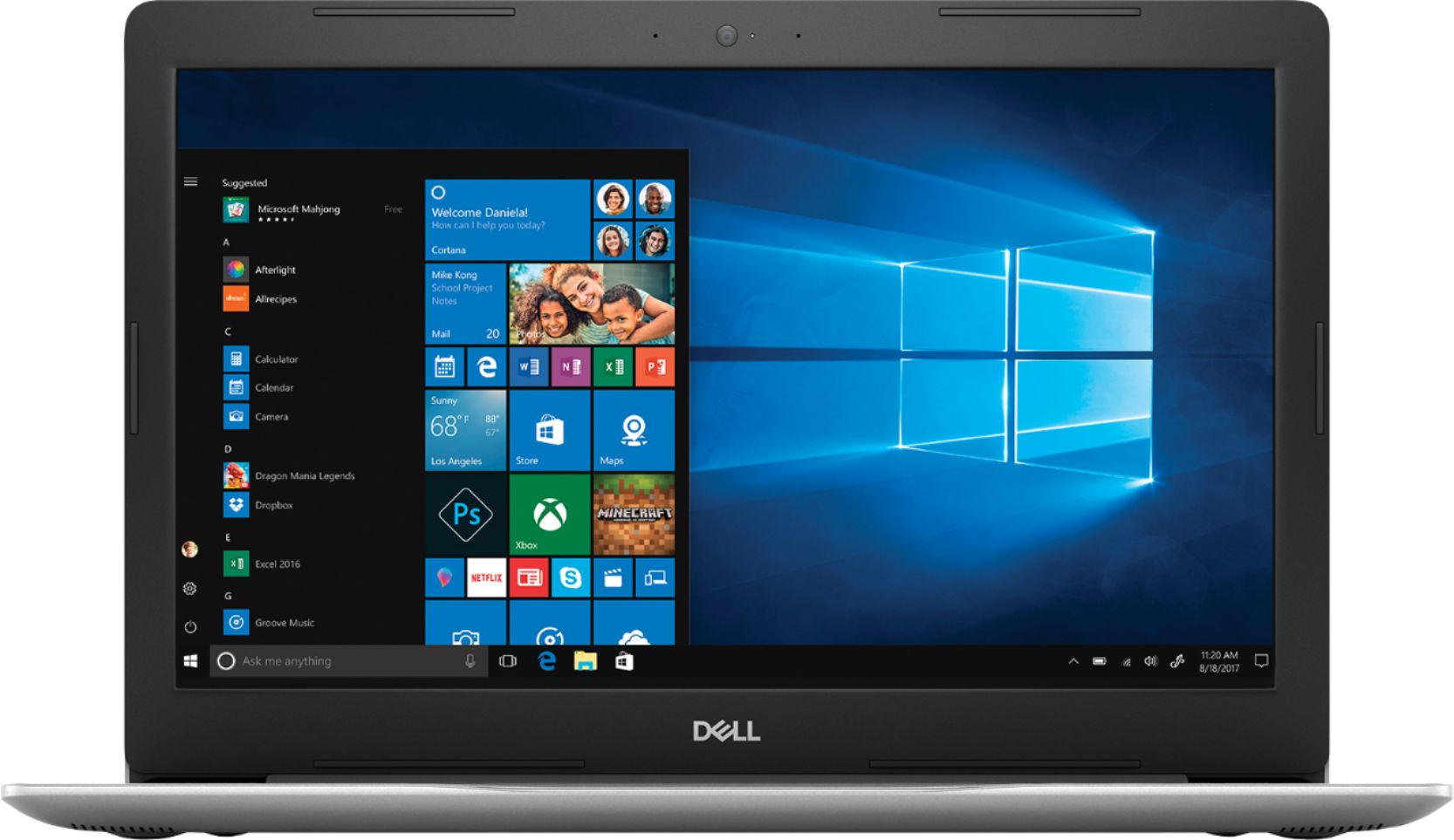

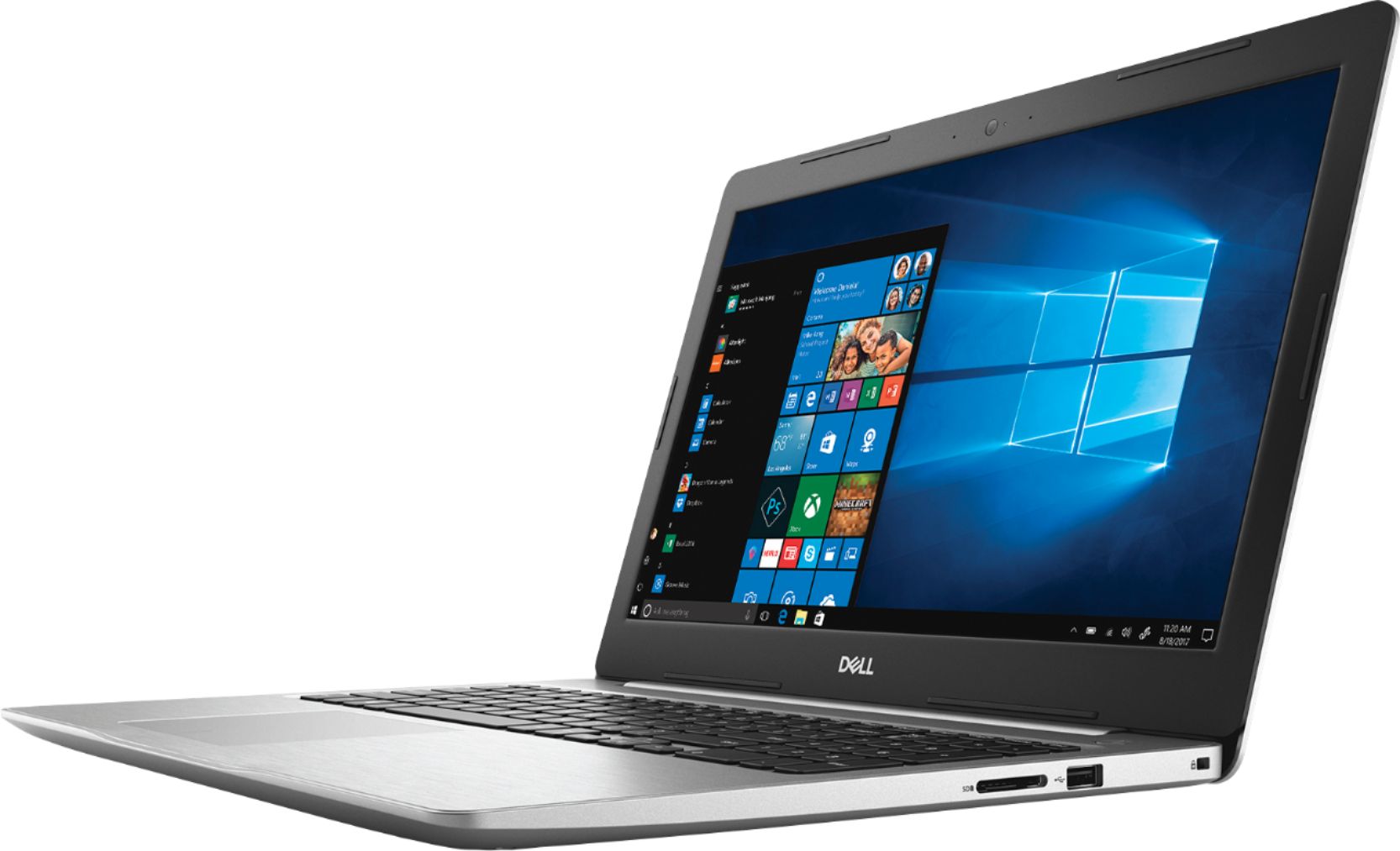
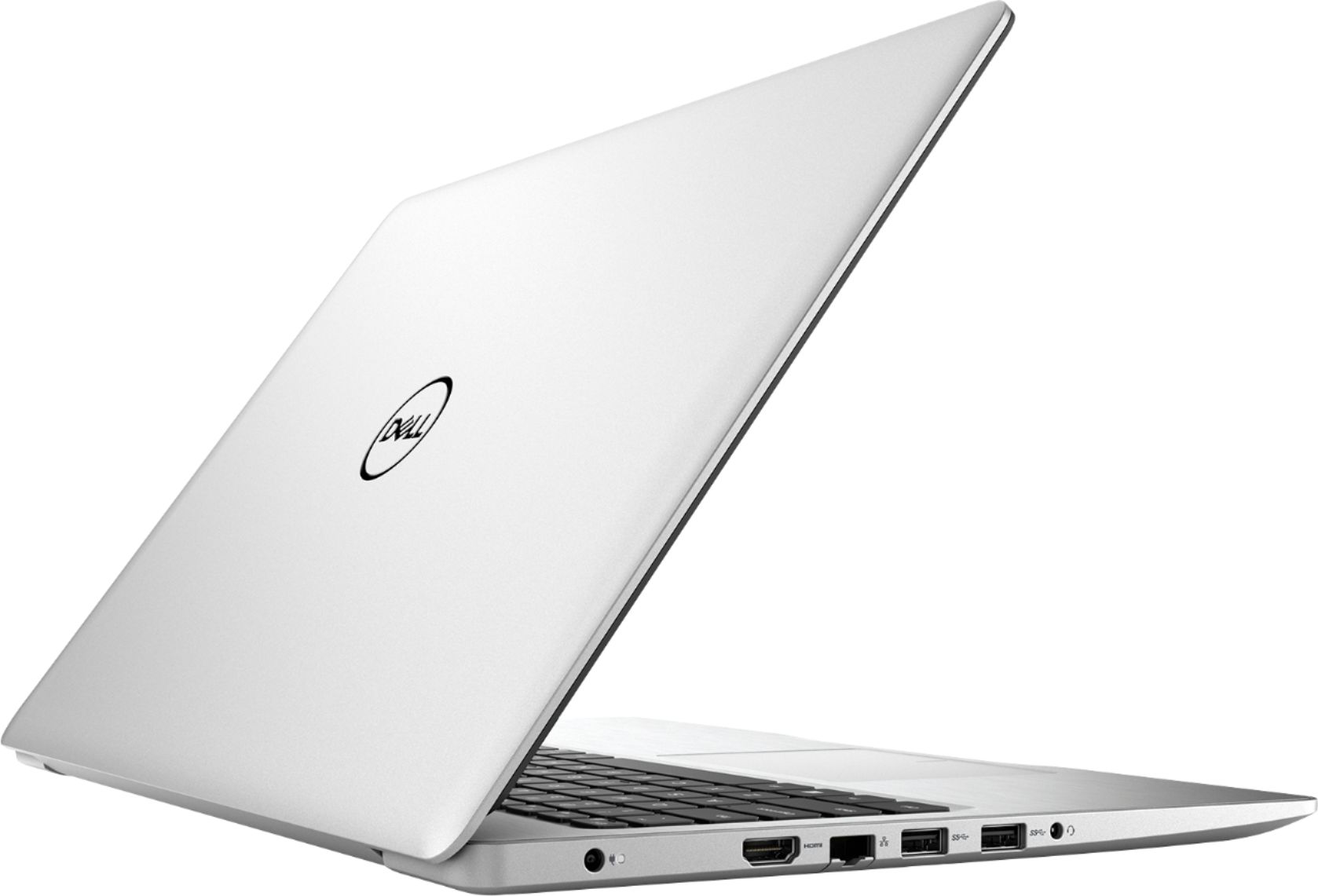

- Model:
- I5575-A214SLV-PUS
- SKU:
- 6239201
Rating by feature
- Value
Rating 4.1 out of 5 stars
- Quality
Rating 4.0 out of 5 stars
- Ease of Use
Rating 4.3 out of 5 stars
Customers are saying
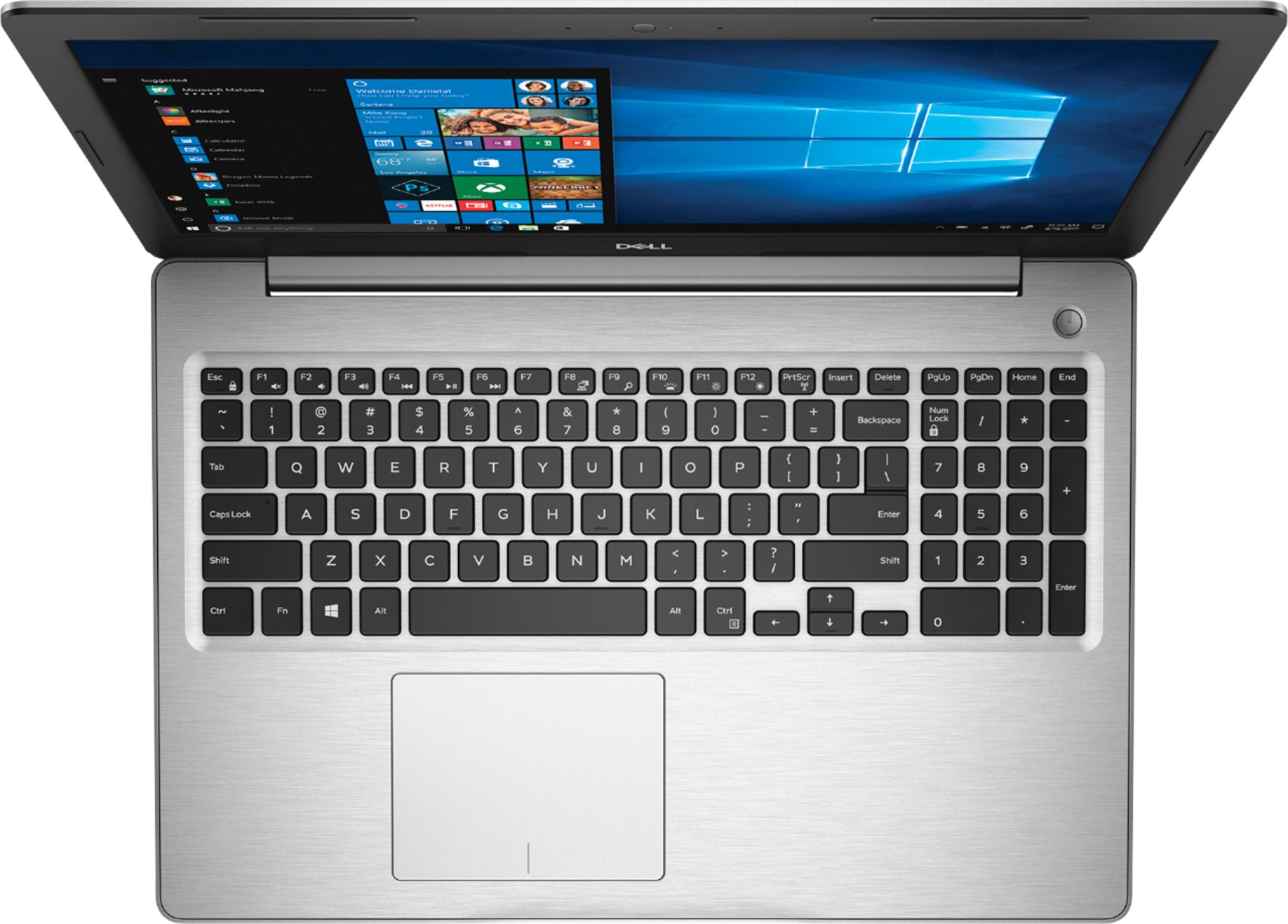
Customers often highlight the Inspiron 15.6" Touch-Screen Laptop's touch screen as a convenient feature. Many also appreciate its budget-friendly price point and solid performance. However, some users have concerns about its battery life and slow hard drive speed.
This summary was generated by AI based on customer reviews.
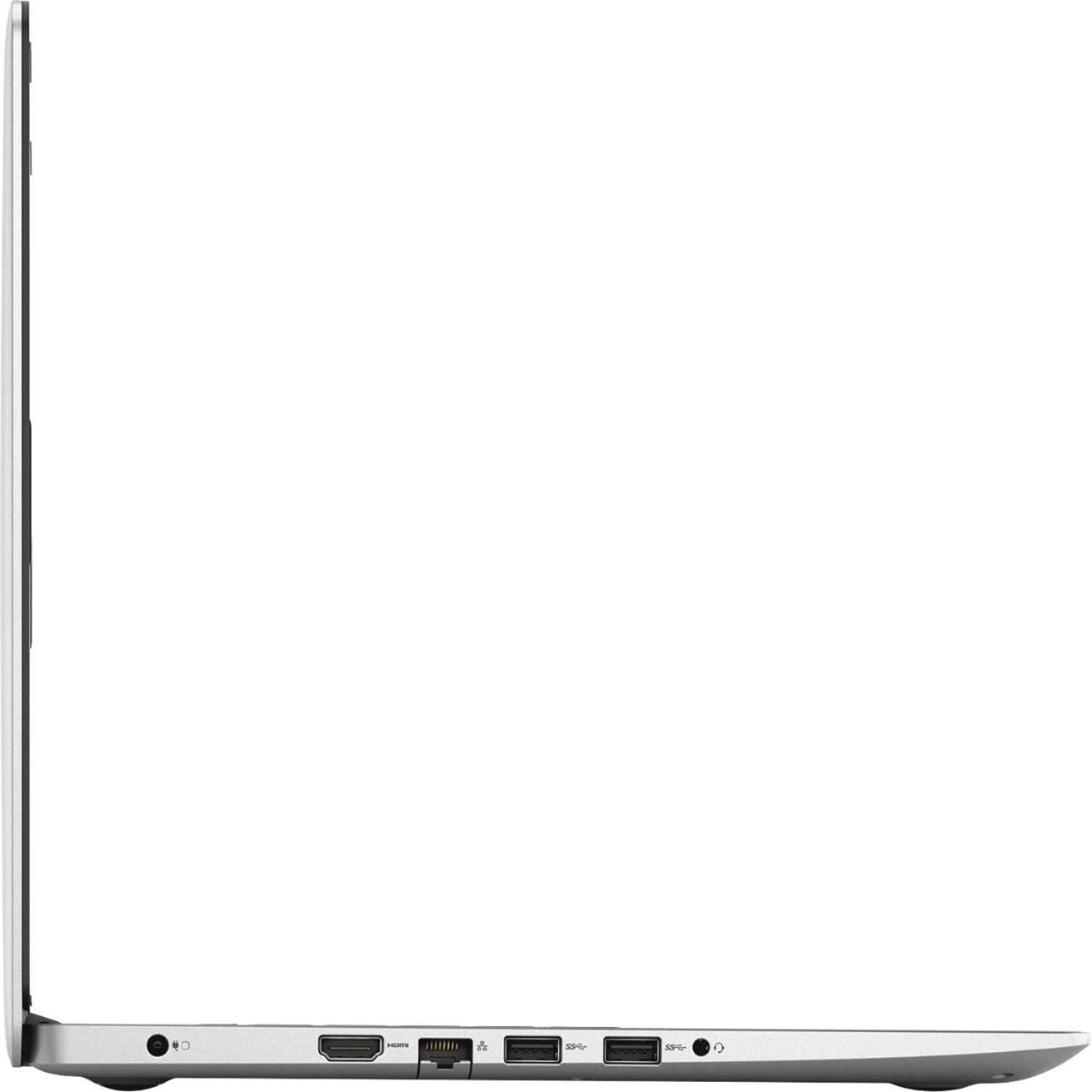
But no disc drive
||Posted .This reviewer received promo considerations or sweepstakes entry for writing a review.liking the new computer, but wishing that it had a drive for my cd's, dvd's, blu-ray, and other computer games.
I would recommend this to a friendGreat Student Laptop
||Posted .This reviewer received promo considerations or sweepstakes entry for writing a review.Bought this for my son for college, engineering. Had ACAD loaded on it and operated smoothly. Granted he was only 2D & 3D drawings wasn't running Revit or Civil3D but it's a great computer for all other Microsoft applications as well.
I would recommend this to a friendGood for school and general use.
||Posted .This reviewer received promo considerations or sweepstakes entry for writing a review.Good for school and general use so far. Haven't tried any games yet, but should be good for lite gaming.
I would recommend this to a friendOK
||Posted .This reviewer received promo considerations or sweepstakes entry for writing a review.I've only bought 4 laptops and had another with a previous company, and that company Dell laptop made me want another Dell. Truth be told, this is probably the worse laptop I've ever had. I had to return the 1st one within the first week, and this one had minor like problems (mostly the mousepad). Getting used to it and when it happens, I just do a forced shutdown.
No, I would not recommend this to a friendBrand response from YourDellTeam
Posted .Hi Tankee,
If you continue to experience problems with your laptop's mousepad we'd recommend the following steps to re-calibrate it:
Some Notebooks and Tablets with Keyboards have added gesture features to the touchpad hardware and drivers. A few of these features are two or three finger scrolling, pinch zoom, circle zoom, rotate and swiping. These new features may be the reason for the erratic cursor movement since most are turned on by default. You can disable or modify the way the features work in the touchpad driver properties. Here are some tips to modify these settings:
1. In the Search box, type main.cpl.
2. Touch or click main.cpl in the list of programs.
3. Touch or click the Dell Touchpad tab.
4. Touch or click on the picture of the touchpad.
5. Touch or click Gestures (depending on your computer there may not be a Gestures option).
6. Change the options as preferred.
7. Touch or click Save.
8. Touch or click the X in the upper-right corner to close the Dell Touchpad Utility.
9. Touch or click OK on the Mouse Properties window.
10. If the touchpad still does not work after following the preceding steps, refer to Dell Knowledge Base article - http://dell.to/2iaiujA.
You can read the full article here - http://dell.to/2tqmS02.
Best,
Bryan
1-800-624-9896
overpriced buy
||Posted . Owned for 1 year when reviewed.This reviewer received promo considerations or sweepstakes entry for writing a review.bought using my credit got for purchase on refrigerator earlier. but overpriced item...
No, I would not recommend this to a friendLap Top
||Posted .This reviewer received promo considerations or sweepstakes entry for writing a review.Bought this for a work computer; seems to work well, a little slow but easy to use and good so far
I would recommend this to a friendGreat Laptop!
||Posted . Owned for more than 2 years when reviewed.This reviewer received promo considerations or sweepstakes entry for writing a review.We bought this a couple of years ago for our high school student and it has performed flawlessly. I'm very impressed considering it has be bumped around and left in the car in the heat a time or two.
I would recommend this to a friendGreat as an intro laptop
||Posted .This reviewer received promo considerations or sweepstakes entry for writing a review.I bought this for my son. Easy to set up and use. Lightweight and great for a first or second laptop.
I would recommend this to a friendGreat computer and price!
||Posted .This reviewer received promo considerations or sweepstakes entry for writing a review.I bought this computer for my daughter for college. It has a lot of bells and whistles and is practical too! The price was great for everything you got. My daughter loves it!
I would recommend this to a friendJust the right size laptop for a person on the go
||Posted .This reviewer received promo considerations or sweepstakes entry for writing a review.My Dell laptop is easy to use and it's size and weight make it easy to carry with me wherever I go. I've always chosen Dell over all other models for their reliability and ease of operation. To me it is a very great value.
I would recommend this to a friendNice laptop, just a few issues
||Posted .This reviewer received promo considerations or sweepstakes entry for writing a review.When I first booted the laptop it was taking 3-4 minutes for windows to load. After a few updates and restarts it stopped loading so slow and now it boots into windows in 30-40 seconds. I think that an ssd would help alot.
I would recommend this to a friendGreat computer
||Posted .This reviewer received promo considerations or sweepstakes entry for writing a review.The best computer, very helpful at home and all I need to to do, convenient where ever I go
I would recommend this to a friendGreat Computer for home
||Posted .This reviewer received promo considerations or sweepstakes entry for writing a review.I like this computer for working at home. Good for downloading pictures, paying bills, and writing my resume. I have not used it for anything else yet but I am sure it will benefit in anything that I am working on.
I would recommend this to a friendNice
||Posted .This reviewer received promo considerations or sweepstakes entry for writing a review.Great laptop for the price. Bought it for the lighted key board and the larger hard drive.
I would recommend this to a friendOverall a good product
||Posted .This reviewer received promo considerations or sweepstakes entry for writing a review.It does what is was produced to do. At a fair price - you can't go wrong with the product.
I would recommend this to a friendNot a Wow Factor
||Posted .This reviewer received promo considerations or sweepstakes entry for writing a review.Looks nice, but we returned it. Not a good choice. It looks flashy and all but lacks features and has no fingerprint reader. Runs really slow to be 8GB Ram and 1TB of storage. Do not recommend. It’s great for just a basic computer to surf web, but anything else does not meet our needs. It was a really good price though for the basics.
No, I would not recommend this to a friendNice Computer
||Posted .This reviewer received promo considerations or sweepstakes entry for writing a review.I like my new computer but, I somehow neglected to notice that it had no disc player!
I would recommend this to a friendComputer
||Posted .This reviewer received promo considerations or sweepstakes entry for writing a review.It's okay. Nothing great but nothing bad. I've been getting the blue screen recently.
No, I would not recommend this to a friend- Cons mentioned:Battery life
it's ok
||Posted .This reviewer received promo considerations or sweepstakes entry for writing a review.battery seems to get hot. battery lasts maybe 2 hrs
No, I would not recommend this to a friendBrand response from YourDellTeam
Posted .Buster,
Thanks for your review. We're sorry to hear that your computer's battery is getting hot. We'd recommend the following tips to keep your computer operating cooler:
Tips for Proper Usage:
1. Dell does not recommend placing portable systems directly on your lap. Due to reductions in the thickness of modern portable systems, heat transfer can be an issue.
2. Using a portable system (Laptop) on a hard, flat, non-cloth surface will increase airflow and reduce heat from underneath and inside the system.
Using the portable system on a blanket, pillow, or other types of cloth will cover up the fan cause the computer to overheat and can cause permanent damage.
3. It is recommended to use the portable system in a Room temperature of 0°C to 35°C (32°F to 95°F) with a Humidity level no greater than 90%.
4. Use compressed air to clean the vents on a regular basis.
5. Using a cooling pad can decrease heat and increase performance.
6. If you want to know the temperature limitations for your system, go to the Dell Support Website, look up your system model then open the user guide under the manuals link.
You can read the full article here - http://dell.to/2uJ8AdG.
If you'd like to help extend the power of your battery you can try these tips:
Change the Power Plan:
1. On the notification area of the taskbar, right-click the Battery icon.
2. On the options list, click Power Options.
3. Select a power plan on the battery meter, such as Power Saver or Balanced. Windows 10 has a built in 'Battery Saver' mode that can be activated to extend your system's battery life. The Battery Saver mode will monitor and limit background activity and other features such as push notifications. You do have the option to enable or disable this mode within settings or within advanced Battery Saver settings, you can customize the mode to best suit your needs.
a) Click on the Action Center icon in the taskbar and select the tile for Battery Saver.
b) If running Cortana then type Battery Saver into the search box and select from the results.
Within the Battery Saver settings page, you will be able to turn on and off the feature and customize the feature to best meet your needs.
c) Turn Battery Saver On or Off.
d) Additional settings available via the Battery use and Battery saver settings links.
e) Battery use shows further info on apps and their power usage.
f) Battery Saver Settings screen allows you to customize further Battery Saver feature.
You can read the full article here - http://dell.to/2vfXWf4.
Best,
Bryan
1-800-624-9896
Good for price
||Posted .This reviewer received promo considerations or sweepstakes entry for writing a review.Nice laptop for the price. Use it for work, easy to take with me back and forth.
I would recommend this to a friend