Customer Ratings & Reviews
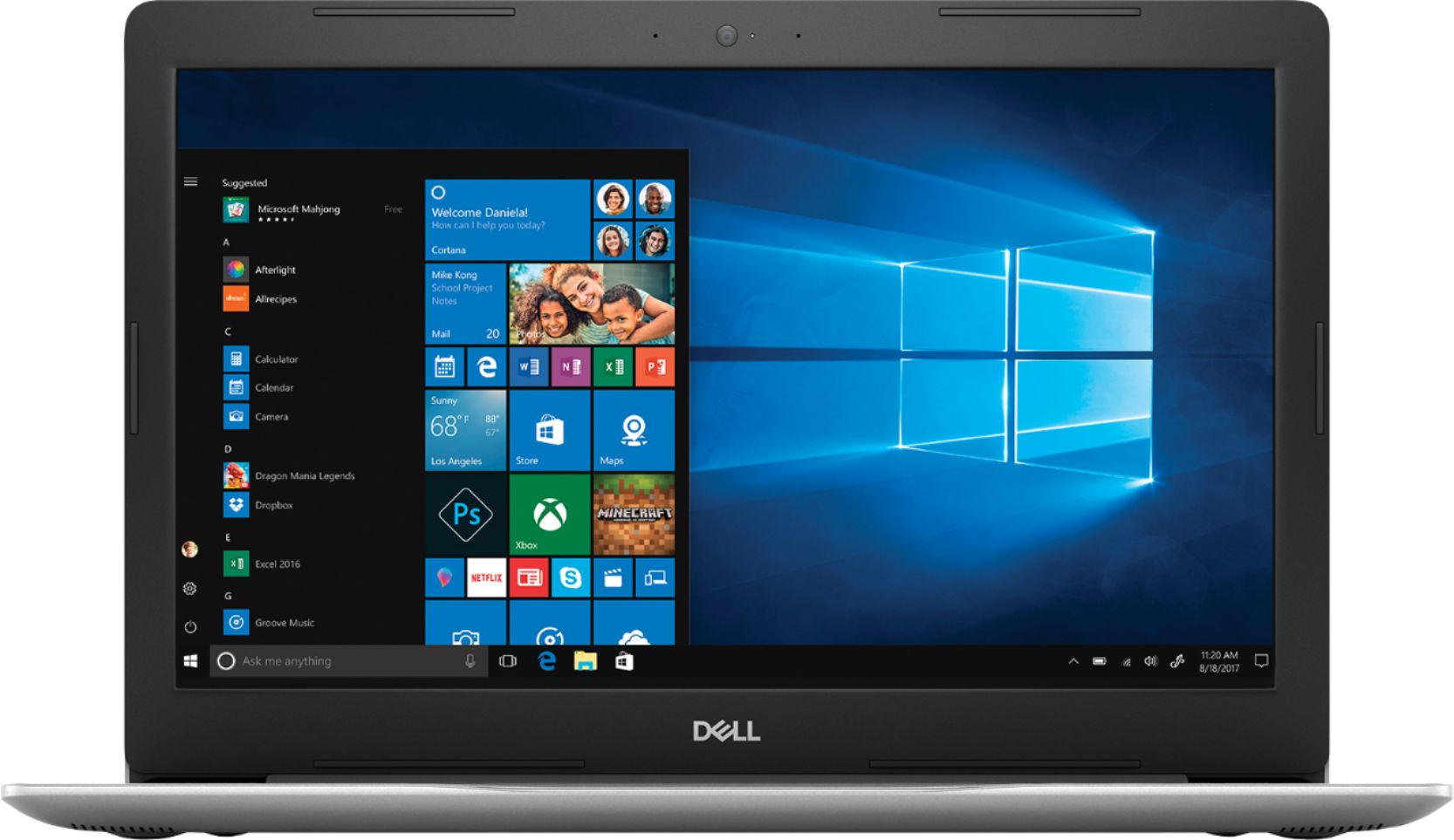

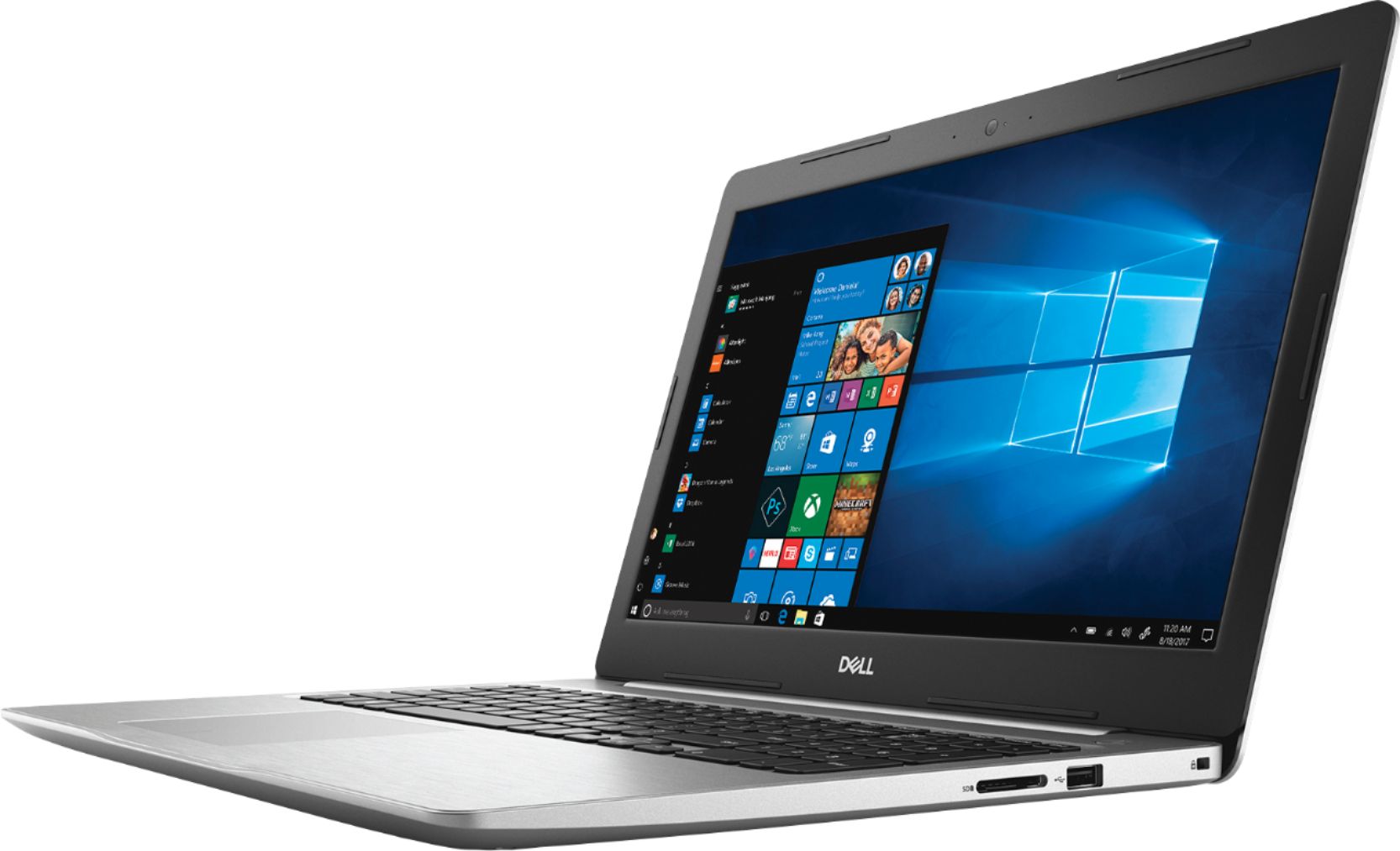
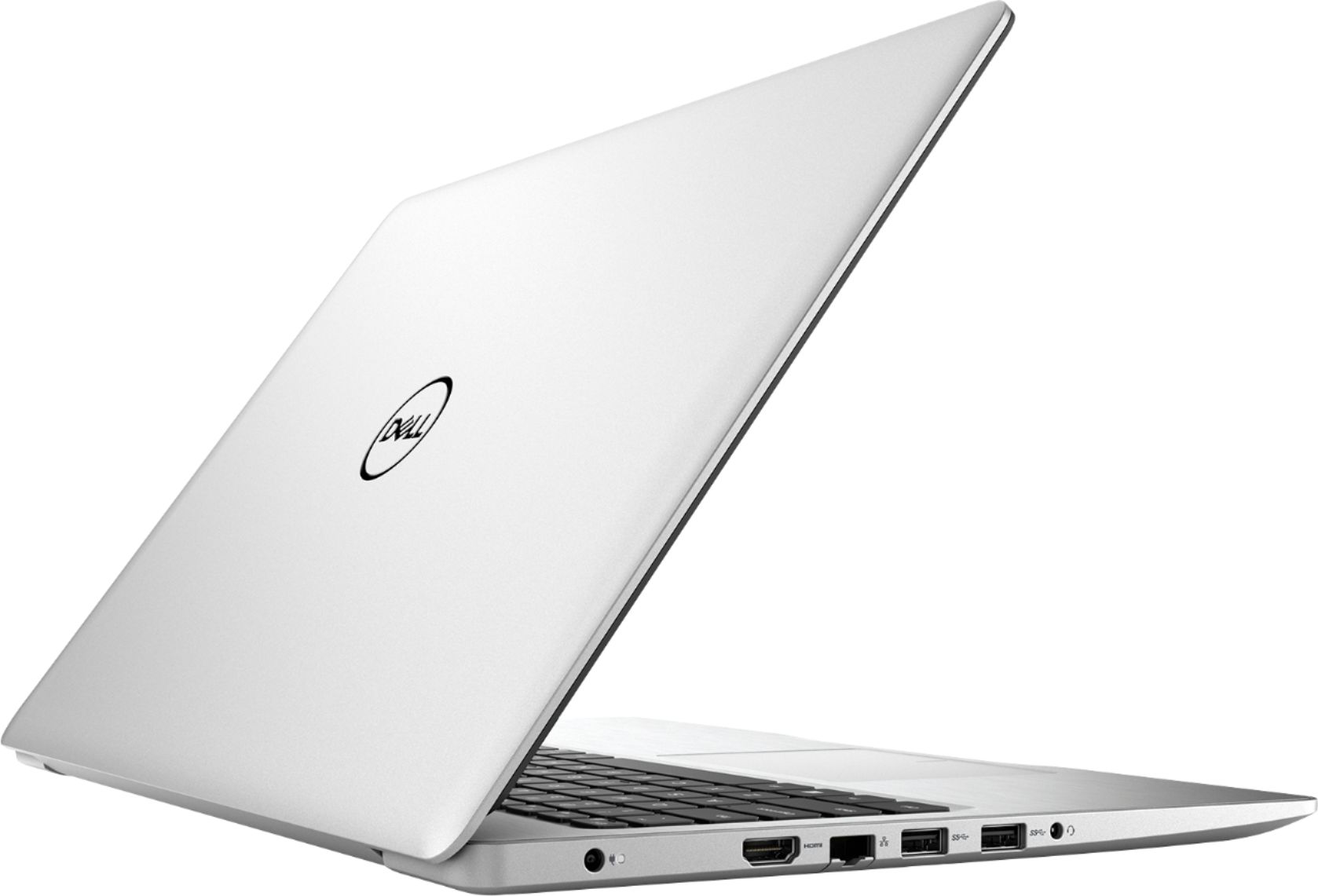
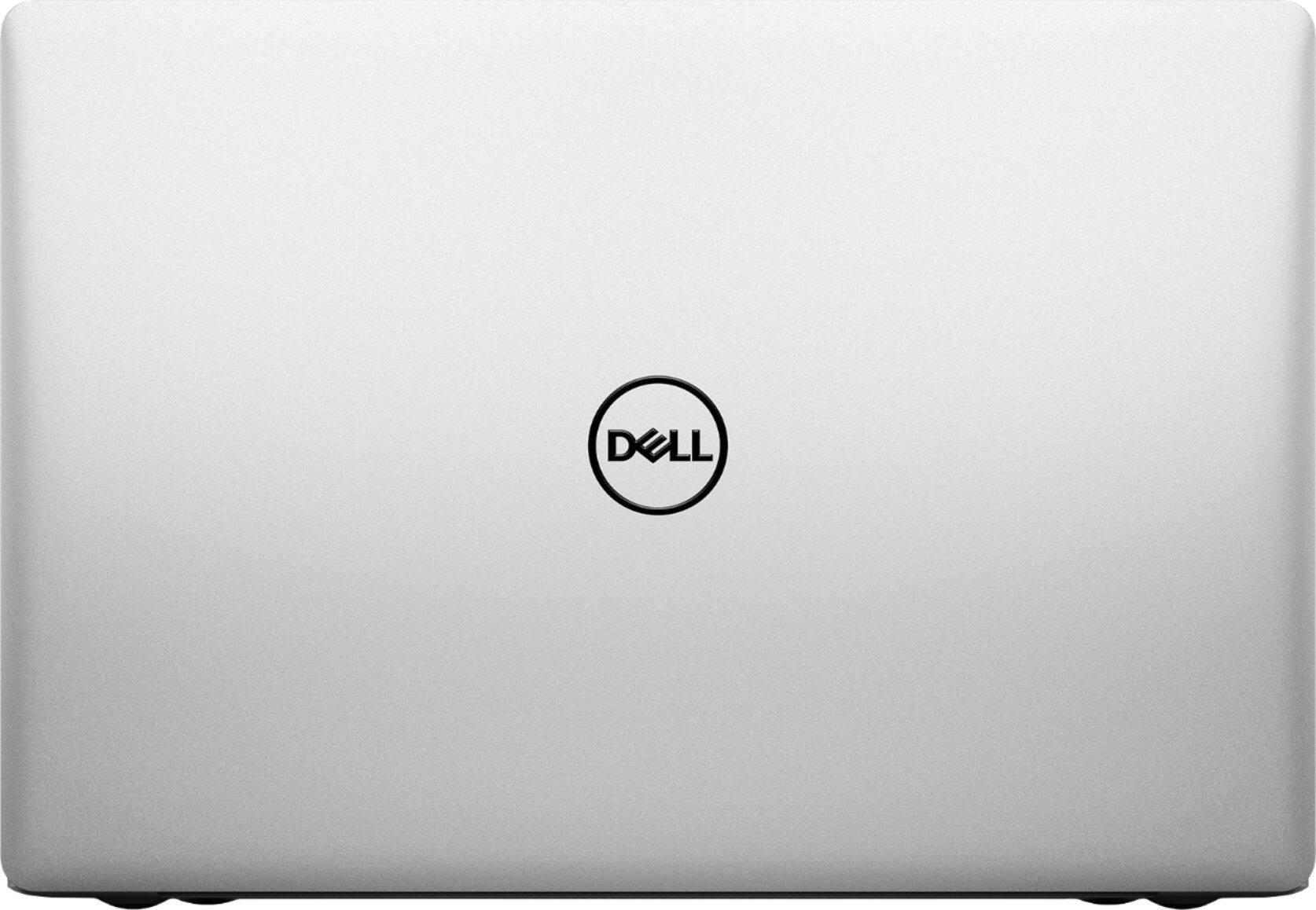

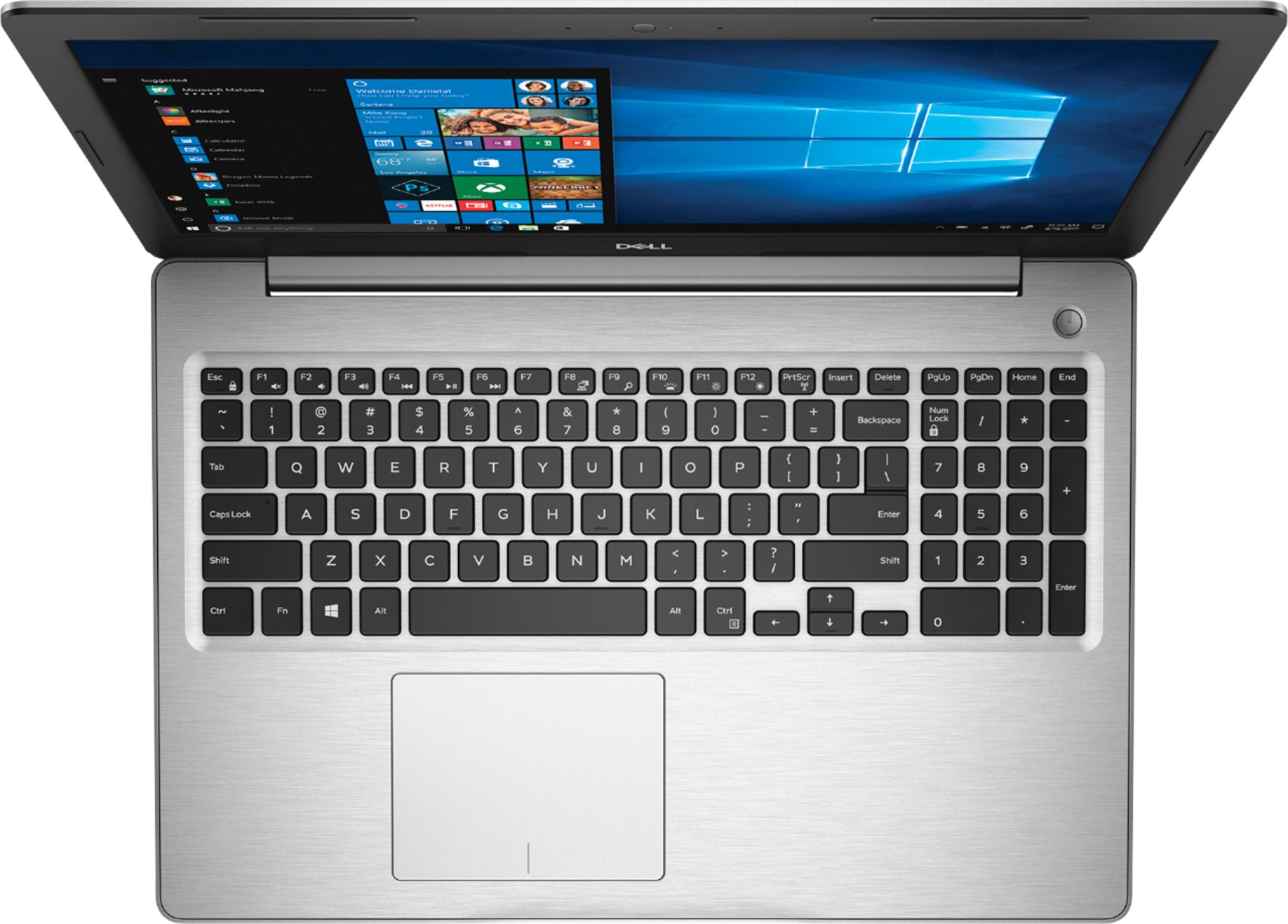
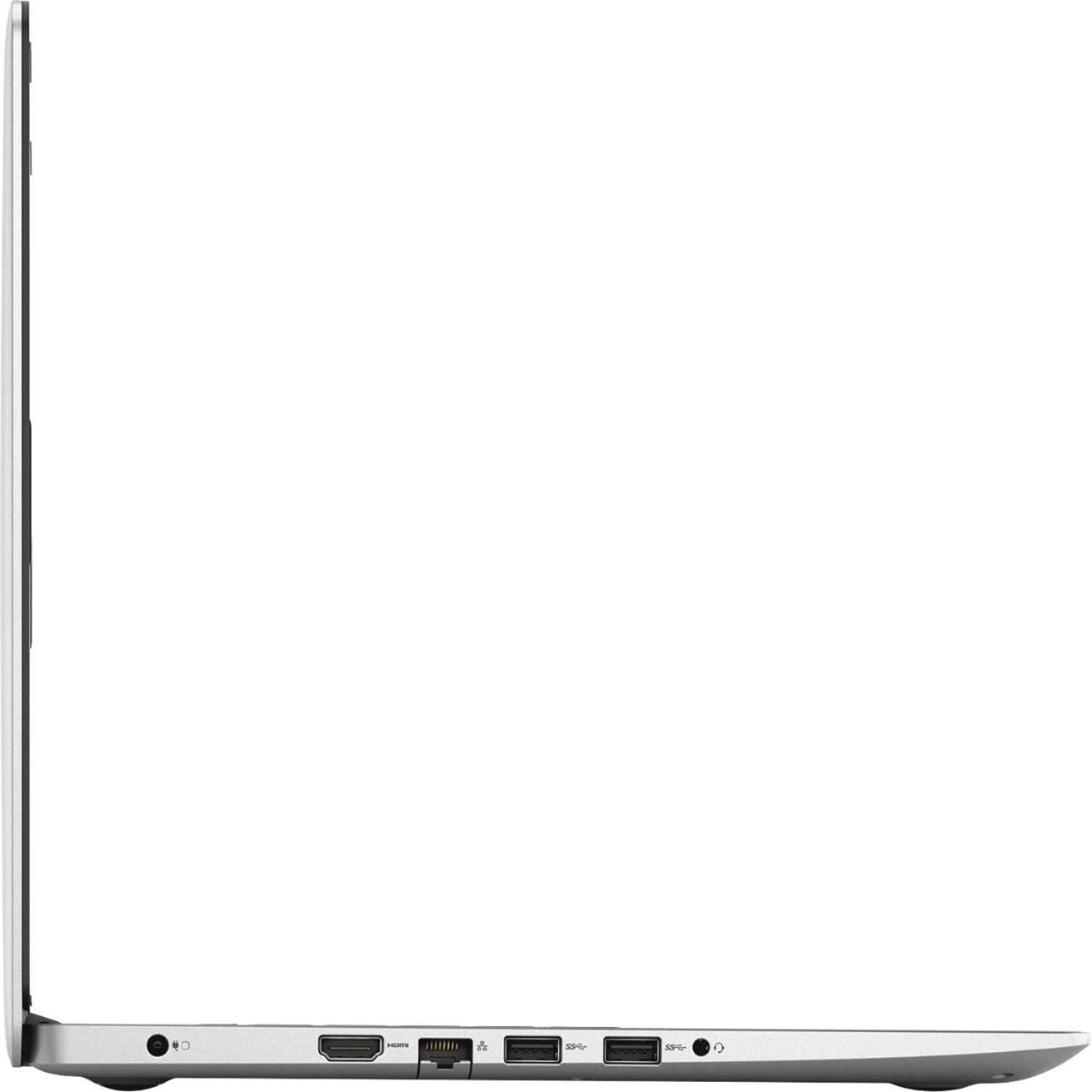
- Model:
- I5575-A214SLV-PUS
- SKU:
- 6239201
Rating by feature
- Value
Rating 4.1 out of 5 stars
- Quality
Rating 4.0 out of 5 stars
- Ease of Use
Rating 4.3 out of 5 stars
Customers are saying
Customers often highlight the Inspiron 15.6" Touch-Screen Laptop's touch screen as a convenient feature. Many also appreciate its budget-friendly price point and solid performance. However, some users have concerns about its battery life and slow hard drive speed.
This summary was generated by AI based on customer reviews.
Just another laptop
||Posted .This reviewer received promo considerations or sweepstakes entry for writing a review.Got this for my 5th grade son... not great but keeps him busy and it’s still working
I would recommend this to a friendBrand response from YourDellTeam
Posted .Thoy,
Thanks for your review. We're glad that this computer is working the way you had hoped it would. We'd recommend checking out the Product Support Page if you have any questions: https://dell.to/2nI2iGf.
Best,
Bryan
1-800-624-9896
Don't bother
||Posted .This reviewer received promo considerations or sweepstakes entry for writing a review.2nd Dell I have purchased in 5.months from Best Buy. 1st one screen cracked, no display. This one screen is cracked after 1 week. Minimal travel, just design quality issue. Plus Windows 10 shuts down and restarts frequently. Losing unsaved work. Very frustrated. Only reason I am keeping it is because I upgraded with SSD.
No, I would not recommend this to a friendBrand response from YourDellTeam
Posted .We understand the frustrating especially losing important work and would like to offer assistance.
Please update your BIOS with steps provided below:
1. Click Start. In the Run or Search box, type cmd, then Click on "cmd.exe" in search results.
2. If the User Access Control window appears select Yes
3. In the Command Prompt window, at the C:\ prompt, type system info and press Enter, you will find the BIOS version in the results continue with steps here > http://dell.to/2BEvpyE.
For additional support please call us at 1 (800) 624-9897 and thanks for taking the time to provide a review of your experience.
Best,
Chris
Laptop issues
||Posted .This reviewer received promo considerations or sweepstakes entry for writing a review.We bought two laptops and one of them quit working in less than a week.
No, I would not recommend this to a friendBrand response from YourDellTeam
Posted .RML123,
We're sorry to hear that one of your computer stopped working shortly after you purchased it. If it's still within two weeks of your purchase we'd recommend that you reach out directly to Best Buy to find out what your options are: http://bit.ly/2v2IVhI.
If it has been over two weeks you can reach out to Dell's Technical Support Team here: http://dell.to/2sH7Qlm.
Best,
Bryan
1-800-624-9896
Do not buy
||Posted .This reviewer received promo considerations or sweepstakes entry for writing a review.First of all this computer is slow to start up. Its advertised 100 mbps speeds hard wired. The maximum I get is 38 mbps. I have an older computer which gives me the advertised speed from my provider. I traveled when I made the purchase just to return to realize the computer can not be returned. I have regrets buying this computer. Just wish I could trade it to buy a different one
No, I would not recommend this to a friendBrand response from YourDellTeam
Posted .Hi Manny,
Thanks for your feedback. We'd recommend limiting the number of programs that launch at startup if you'd like your computer to startup faster:
1. Close all open windows.
2. Press CTRL + Shift + ESC key together on the keyboard.
3. In the Task Manager window, click Startup tab.
4. Select the program or application that you want to disable from loading during startup.
5. Right-click and select Disable.
6. Repeat Step 4 & 5 for all the programs or applications that you want to disable from loading during startup.
7. Restart your PC.
You can read the full article here - http://dell.to/2tSulGV.
If you'd like to troubleshoot the connectivity issues that you're facing you can follow these steps:
1. Run the Network Troubleshooter.
a) Touch and hold or right-click the network icon (Available Networks or Network Icon, located in the lower right-hand corner).
b) Touch or click Troubleshoot problems and then follow the prompts.
You can read the full article here - http://dell.to/2sLtwRh.
We hope that these tips help with the issues that you're having.
Best,
Bryan
1-800-624-9896
Not happy with this purchase.
||Posted .This reviewer received promo considerations or sweepstakes entry for writing a review.This laptop suddenly and often shows a black screen and then shuts down and an error message will appear. Very harsh noise comes from the laptop every now and then and then it freezes. It runs very slowly. The speakers are not loud enough. The only good quality is the screen resolution.
No, I would not recommend this to a friendBrand response from YourDellTeam
Posted .Chelsea,
We're very sorry to hear about the issues that you've been having with your new Dell computer. We'd recommend diagnosing the crashes that you are experiencing with these steps:
1. At the desktop, click the Search the web and Windows box and type "problem reports".
2. Select View all problem reports to view a list of errors that have occurred on your computer and possible solutions for them, such as updating drivers, flashing your system BIOS, or checking for updates to the software.
3. Under the Source column, look for Windows and under Summary, look for Shut down unexpectedly.
4. Right-click the line item and select Check for a solution.
We'd also suggest checking to make sure that your software and drivers are up to date on Dell's Product Page - https://dell.to/2P2lKts.
You can read the full article here - http://dell.to/2u98Cct.
If your computer continues to make loud noises you can try to update the BIOS on your computer:
An out-of-date BIOS can cause loud fan noises by having an outdated temperature table for the system. Refer to update BIOS and follow the instructions to update the BIOS on your computer. You can also follow up with our Technical Support Team here - 1-800-624-9896.
You can read the full article here - http://dell.to/2ENlXfz.
Best,
Bryan
1-800-624-9896
decent lap top
||Posted . Owned for 1 year when reviewed.This reviewer received promo considerations or sweepstakes entry for writing a review.bought to replace other lap top... good replacement
I would recommend this to a friend- Cons mentioned:Overheating
Never again
||Posted .This reviewer received promo considerations or sweepstakes entry for writing a review.Didnt have it for long. Had to get it replaced before one month because it was burning hot. It was a hazard. Also the charging port was not recognizing the factory charger. Advice: Do not purchase a Ryzen processor computer.
No, I would not recommend this to a friend Unhappy
||Posted .This reviewer received promo considerations or sweepstakes entry for writing a review.This computer crashes a lot. The Bluetooth doesn't work most of the time with my Bluetooth speakers. The first time I've bought a Dell and probably will be the last time. My computer's in the past have been HP computers and I haven't had any problems like this with them.
No, I would not recommend this to a friendBrand response from YourDellTeam
Posted .Citydude72,
Thanks for your review. We're sorry to hear that your computer has been crashing on you. We'd recommend diagnosing your crashes here:
1. At the desktop, click the Search the web and Windows box and type "problem reports".
2. Select View all problem reports to view a list of errors that have occurred on your computer and possible solutions for them, such as updating drivers, flashing your system BIOS, or checking for updates to the software.
3. Under the Source column, look for Windows and under Summary, look for Shut down unexpectedly.
4. Right-click the line item and select Check for a solution.
We'd also suggest checking to make sure that your software and drivers are up to date on Dell's Product Page - https://dell.to/2P2lKts.
You can read the full article here - http://dell.to/2u98Cct.
We hope that these tips help your computer perform better for you.
Best,
Bryan
1-800-624-9896
Returned for Refund
||Posted .This reviewer received promo considerations or sweepstakes entry for writing a review.Disappointing Screen Size & Resolution plus no CD Drive
No, I would not recommend this to a friendOk for a Dell
||Posted .This reviewer received promo considerations or sweepstakes entry for writing a review.I have never owned a Dell, just used them at work.
I would recommend this to a friendGood laptop
||Posted .This reviewer received promo considerations or sweepstakes entry for writing a review.It was a good salesman, good laptop, good costumer
I would recommend this to a friendBrand response from YourDellTeam
Posted .Abc123,
Thanks for your review. We are glad to hear that you're satisfied with your computer. If you'd like to research more about your computer you can always check out our Product Support Page here: https://dell.to/2nI2iGf.
Best,
Bryan
1-800-624-9896
Really slow
||Posted .This reviewer received promo considerations or sweepstakes entry for writing a review.This laptop is great if you don't utilize programs or any additional software other than what is already pre-installed. It was way too slow for the things my brother needed to run.
No, I would not recommend this to a friendBrand response from YourDellTeam
Posted .Mercedes,
Thanks so much for your review and we're sorry that your new laptop is not living up to what you and your brother needed it to do. We'd recommend checking to make sure that all of the pre-installed programs are ones that you plan to use. If there are any programs that you'd like to remove you can follow these steps:
Uninstalling or removing software or applications that you do not use or do not need from your PC can help speed up your PC. Applications may include background processes, system services, context menu entries and other things that can slow down your PC.
Uninstall applications you no longer need using Programs and Features (previously called Add/Remove Programs). Unnecessary applications occupy space on your hard disk drive.
1. Press the Windows logo key + R on the keyboard.
2. In the Run dialog box, type appwiz.cpl and press the Enter key.
3. In the list, select a program and click Uninstall.
You can read the full article here - http://dell.to/2tSulGV.
We hope that this will help your computer run faster for you.
Best,
Bryan
1-800-624-9896
Hate it
||Posted .This reviewer received promo considerations or sweepstakes entry for writing a review.Hate this laptop. Didn’t like the way the mouse feature was set up, I couldn’t get the mouse to stay where I needed it to without it clicking on something it self
No, I would not recommend this to a friendBrand response from YourDellTeam
Posted .Hi Boosie,
We're sorry that your touchpad is not working the way you had hoped. Here are some tips to re-calibrate your touchpad:
Some Notebooks and Tablets with Keyboards have added gesture features to the touchpad hardware and drivers. A few of these features are two or three finger scrolling, pinch zoom, circle zoom, rotate and swiping. These new features may be the reason for the erratic cursor movement since most are turned on by default. You can disable or modify the way the features work in the touchpad driver properties. Here are some tips to modify these settings:
1. In the Search box, type main.cpl.
2. Touch or click main.cpl in the list of programs.
3. Touch or click the Dell Touchpad tab.
4. Touch or click on the picture of the touchpad.
5. Touch or click Gestures (depending on your computer there may not be a Gestures option).
6. Change the options as preferred.
7. Touch or click Save.
8. Touch or click the X in the upper-right corner to close the Dell Touchpad Utility.
9. Touch or click OK on the Mouse Properties window.
10. If the touchpad still does not work after following the preceding steps, refer to Dell Knowledge Base article - http://dell.to/2iaiujA.
You can read the full article here - http://dell.to/2tqmS02.
Best,
Bryan
1-800-624-9896
Blue screen happened every day
||Posted .This reviewer received promo considerations or sweepstakes entry for writing a review.Purchased this labtop in Oct 2018, it was a good computer for a week then I got blue screen stated “video scheduler internal error” pretty much every day
No, I would not recommend this to a friendBrand response from YourDellTeam
Posted .Jetpack,
Thanks for your review. We're sorry to hear about the Blue Screen Errors that you've been experiencing. We'd recommend diagnosing the errors with these tips:
1. At the desktop, click the Search the web and Windows box and type "problem reports".
2. Select View all problem reports to view a list of errors that have occurred on your computer and possible solutions for them, such as updating drivers, flashing your system BIOS, or checking for updates to the software.
3. Under the Source column, look for Windows and under Summary, look for Shut down unexpectedly.
4. Right-click the line item and select Check for a solution.
We'd also suggest checking to make sure that your software and drivers are up to date on Dell's Product Page - https://dell.to/2P2lKts.
You can read the full article here - http://dell.to/2u98Cct.
Best,
Bryan
1-800-624-9896
Wrong description (Beware)
||Posted .This reviewer received promo considerations or sweepstakes entry for writing a review.The description says it has a built-in finger print reader so I bought it and never found a fingerprint reader in it. Dell verified with service tag that this variant does not have a fingerprint reader. Returned the next day. Very disappointing. This also heats up a lot. Never really installed anything but I updated windows and bios and with in that tasks it heated up to an insane amount. They were not ready to give a discount even though the description was wrong.
No, I would not recommend this to a friendBrand response from YourDellTeam
Posted .Hello Seni,
We appreciate your review and we're very sorry that your computer was not sold to you as it was described. We will let our product team know about this so they can look into any changes that need to be made.
Best,
Bryan
1-800-624-9896
Not for complex tasks
||Posted .This reviewer received promo considerations or sweepstakes entry for writing a review.A good beginner laptop but once you have anything complex or hefty multitasking it begins to slow down and stick. Keep it simple with this one.
I would recommend this to a friendCheap laptop
||Posted .This reviewer received promo considerations or sweepstakes entry for writing a review.Slow performance, constantly freezes and gets blue screens. I do not recommend this product.
No, I would not recommend this to a friendOne of the worst laptop I have purchased
||Posted . Owned for 1.5 years when reviewed.This reviewer received promo considerations or sweepstakes entry for writing a review.I am really disappointed by this laptop,this really worst type of laptop I had. It gets hanged many time processor is worst headphones Jack was not working for which I had send this laptop to geeeksquad. I really regret wasting so much behind such model. I won't be buying Dell laptops anymore. I would prefer to not buy this model anymore.
No, I would not recommend this to a friendOpen box with no power adapter
||Posted . Owned for 7 months when reviewed.This reviewer received promo considerations or sweepstakes entry for writing a review.Bought open box,no power adapter,eventually had to return due to problems with same
No, I would not recommend this to a friendSlow
||Posted .This reviewer received promo considerations or sweepstakes entry for writing a review.Mouse pointer moves all over the screen by itself Need to restart every time this happens
No, I would not recommend this to a friendBrand response from YourDellTeam
Posted .Paul,
We'd recommend trying to re-calibrate your touchpad with the following steps:
Some Notebooks and Tablets with Keyboards have added gesture features to the touchpad hardware and drivers. A few of these features are two or three finger scrolling, pinch zoom, circle zoom, rotate and swiping. These new features may be the reason for the erratic cursor movement since most are turned on by default. You can disable or modify the way the features work in the touchpad driver properties. Here are some tips to modify these settings:
1. In the Search box, type main.cpl.
2. Touch or click main.cpl in the list of programs.
3. Touch or click the Dell Touchpad tab.
4. Touch or click on the picture of the touchpad.
5. Touch or click Gestures (depending on your computer there may not be a Gestures option).
6. Change the options as preferred.
7. Touch or click Save.
8. Touch or click the X in the upper-right corner to close the Dell Touchpad Utility.
9. Touch or click OK on the Mouse Properties window.
10. If the touchpad still does not work after following the preceding steps, refer to Dell Knowledge Base article - http://dell.to/2iaiujA.
You can read the full article here - http://dell.to/2tqmS02.
We hope this helps your touchpad respond better to your actions.
Best,
Bryan
1-800-624-9896