Customer Ratings & Reviews
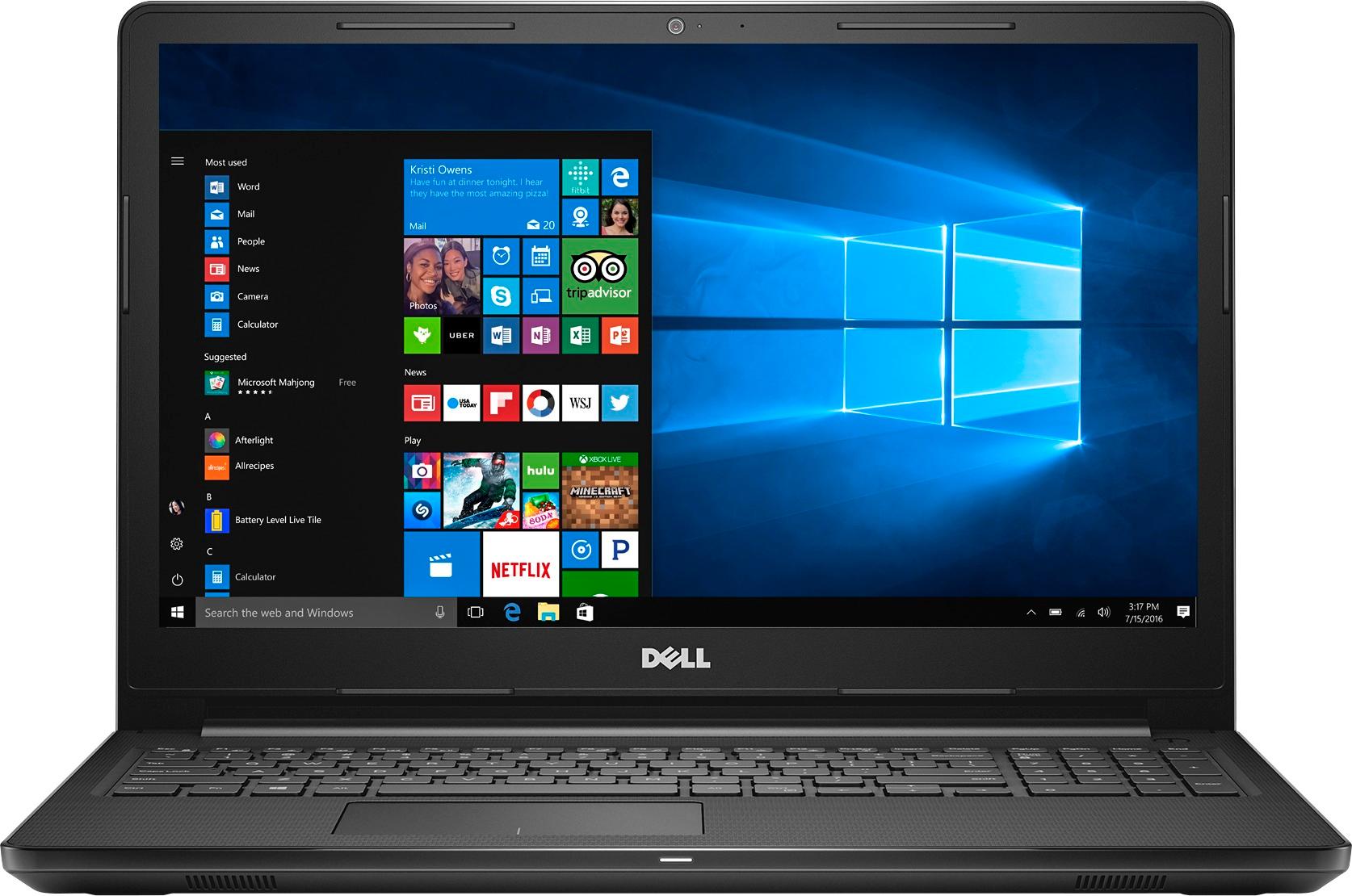
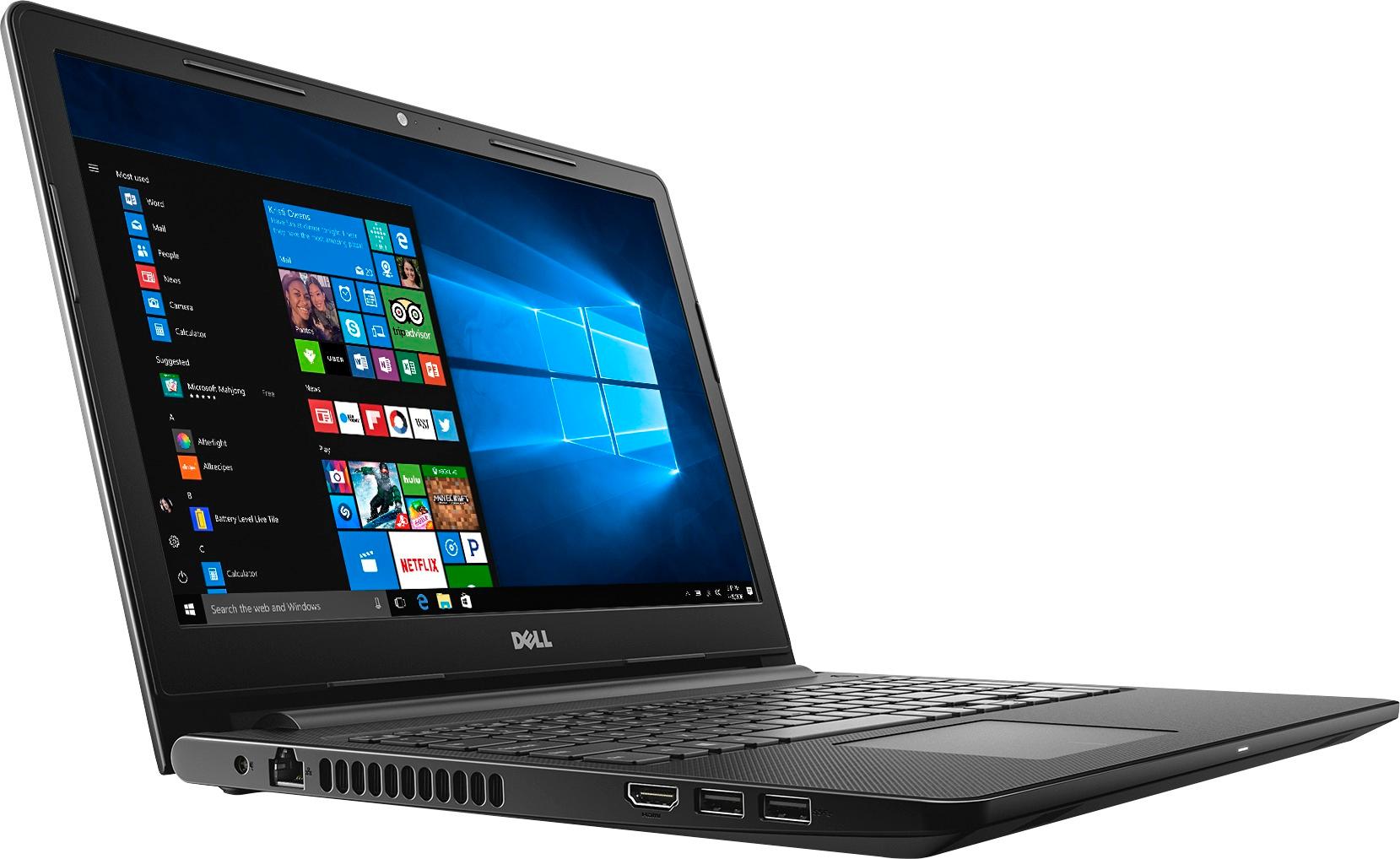
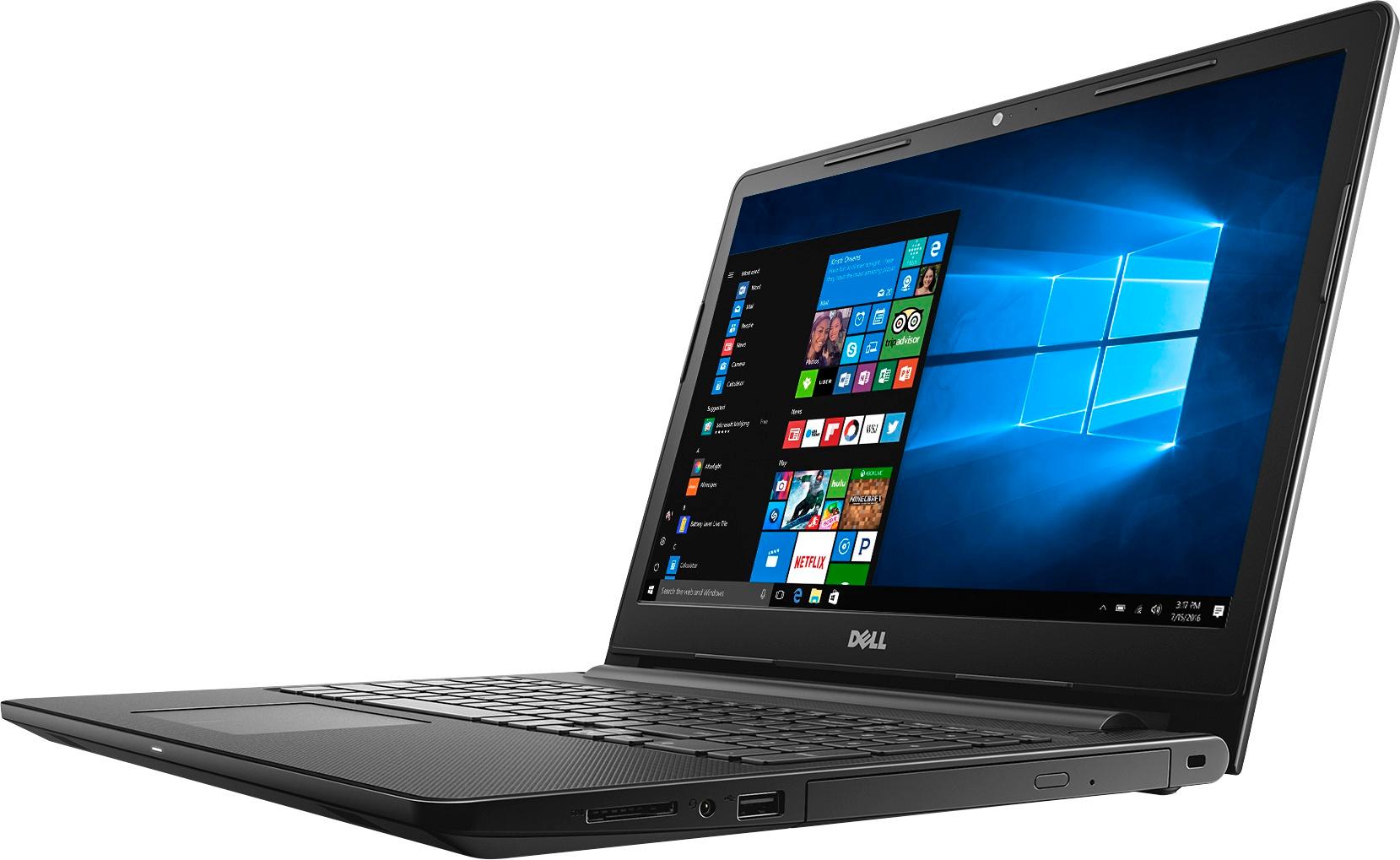
- Model:
- I3567-3636BLK-PUS
- SKU:
- 5835852
Rating by feature
- Value
Rating 3.8 out of 5 stars
- Quality
Rating 3.8 out of 5 stars
- Ease of Use
Rating 4.1 out of 5 stars
Customers are saying
Customers highly value the Inspiron 15.6" Touch-Screen Laptop for its touch screen, affordable price, and user-friendly interface. Many customers appreciate the laptop's storage capacity, performance, and memory, while some find it portable and easy to set up. However, a few customers have concerns about its weight, battery life, and Windows 10 operating system.
This summary was generated by AI based on customer reviews.
best laptop
||Posted .This reviewer received promo considerations or sweepstakes entry for writing a review.for me this is the best laptop and i will recommend
I would recommend this to a friendGreat for college freshman
||Posted .This reviewer received promo considerations or sweepstakes entry for writing a review.Graduation gift for grand dtr. She loves it! Great.
I would recommend this to a friendGood price for intended use.
||Posted .This reviewer received promo considerations or sweepstakes entry for writing a review.It was the right size and what we needed! Thank u.
I would recommend this to a friendLove it
||Posted .This reviewer received promo considerations or sweepstakes entry for writing a review.I needed this for my daughter and she loves it !!!
I would recommend this to a friendgood
||Posted .This reviewer received promo considerations or sweepstakes entry for writing a review.good product powerful enough to handle school work
I would recommend this to a friendThe laptop is great. Functionality is very good.
||Posted .This reviewer received promo considerations or sweepstakes entry for writing a review.What am I reviewing? The product I bough or staff?
I would recommend this to a friendgreat computer
||Posted .This reviewer received promo considerations or sweepstakes entry for writing a review.This computer is great for college bound kiddos!!!
I would recommend this to a friendVery slow computer
||Posted .This reviewer received promo considerations or sweepstakes entry for writing a review.This computer is so slow it will not load some of the apps I use. I even had the geek squad try it and they had the same problems that I did.
No, I would not recommend this to a friendBrand response from YourDellTeam
Posted .Dear Chief1659, We're so sorry to hear that you are experiencing slowness with your new Dell laptop. We assure you that this should not be the way that it runs. Here are some tips to help you troubleshoot the slowness that you're having:
Delete temporary files and directories
1. Click Start, then in the search bar type "disk". Disk Cleanup should appear on the menu above the search box.
2. Run disk cleanup and eliminate unneeded temporary files (Search results, Internet Cache and other windows temp files you may no longer need)
3. Select files you want to delete then click OK to start the cleanup process. Uninstall applications you no longer use 1. Open the Programs and Features application in Control Panel. 2. Scan the list of applications installed for ones that you no longer use. 3. Highlight any application you no longer use and then click the uninstall button at the top of the list. Follow the prompts to uninstall.
4. Repeat for each application you want to uninstall.
5. Move large files and/or seldom used files to backup media (Photos, Music you seldom listen to, application downloads after the application has been installed etc.).
6. Empty the Recycle Bin.
You can read the full article here - http://dell.to/2tSulGV. - Bryan
- Cons mentioned:Customer service
Worst PC ever
||Posted .This reviewer received promo considerations or sweepstakes entry for writing a review.When I got this PC I didn’t open it or use it right away. When I finally did it had a major virus in it when I turned it on. Took it back to Best Buy said they would not return it but would fix it. I only use PC 1or 2 times a month. Had it now less than 1 year been fixed at least 8 times! Won’t buy from Best Buy again!!!!!! Or a Dell product!!!!!
No, I would not recommend this to a friendBrand response from YourDellTeam
Posted .Hello Rovi,
Thanks for your review. We're sorry to hear that your computer is not working the way you had hoped it would. If you have additional concerns about your computer you can check our Product Support Page here - http://dell.to/2uBnCA3.
We'd also encourage you to reach out to our Technical Support Team here - http://dell.to/2sH7Qlm.
Best,
Bryan
1-800-624-9896
Slow and it freezes
||Posted .This reviewer received promo considerations or sweepstakes entry for writing a review.After A DAY of using it, it started to freeze out of nowhere and it's REAAAALLY slow. I’m contacting customer service to exchange it
No, I would not recommend this to a friendlocked up
||Posted .This reviewer received promo considerations or sweepstakes entry for writing a review.Froze up after 3rd usage returned it back to best buy for a hp and it works great. Thank you best buy for the great customer service
No, I would not recommend this to a friendReal bad laptop
||Posted .This reviewer received promo considerations or sweepstakes entry for writing a review.Run very sllow and hangs for no reason. Even simple browsing can cause the CPU to spike up.
No, I would not recommend this to a friendBrand response from YourDellTeam
Posted .Pavi - We're sorry to see that your laptop is not performing as fast as you'd like it to. We'd recommend the following steps to help your computer perform faster: Delete temporary files and directories
1. Click Start, then in the search bar type "disk". Disk Cleanup should appear on the menu above the search box.
2. Run disk cleanup and eliminate unneeded temporary files (Search results, Internet Cache and other windows temp files you may no longer need)
3. Select files you want to delete then click OK to start the cleanup process. Uninstall applications you no longer use 1. Open the Programs and Features application in Control Panel. 2. Scan the list of applications installed for ones that you no longer use. 3. Highlight any application you no longer use and then click the uninstall button at the top of the list. Follow the prompts to uninstall.
4. Repeat for each application you want to uninstall.
5. Move large files and/or seldom used files to backup media (Photos, Music you seldom listen to, application downloads after the application has been installed etc.).
6. Empty the Recycle Bin.
You can view the full article here - http://dell.to/2tSulGV.
We hope these tips help your computer perform as fast as you had hoped. - Bryan
Dell
||Posted .This reviewer received promo considerations or sweepstakes entry for writing a review.Hard drive crashed after 3 years . Forced me to purchase another and price had doubled .
No, I would not recommend this to a friendnice
||Posted .This reviewer received promo considerations or sweepstakes entry for writing a review.the lap top has the basic systems that I need and the price was withiin reach of my budget my luck with Dell has been good so far
I would recommend this to a friendBrand response from YourDellTeam
Posted .- Apple, Thanks so much for your review and for your recent Dell laptop purchase. We're glad to see that it's meeting your needs so well. We wish you continued success and if you ever need to troubleshoot anything you can visit the product support page here - http://dell.to/2uBnCA3. - Bryan
Not a fan
||Posted .This reviewer received promo considerations or sweepstakes entry for writing a review.I bought this laptop for my mom, who just have to do little net surfing and watch pictures & movies. But It's pretty slow.
No, I would not recommend this to a friendBrand response from YourDellTeam
Posted .Hi Nishi,
Thanks for your review. We're sorry to hear that it's running slower than you had hoped it would. We'd recommend running the Windows Performance Troubleshooter to see if there are any ways to speed up your computer:
1. Close all open windows.
2. Press the Windows logo key + X key on the keyboard.
3. Click Control Panel.
4. Click System and Security.
5. Under Security and Maintenance, select Troubleshoot common problems.
6. Under System and Security, click Run maintenance tasks.
7. Follow the on-screen instructions and prompts to complete the process.
8. Restart the PC.
You can read the full article here - http://dell.to/2tSulGV.
Best,
Bryan
1-800-624-9896
Ok
||Posted .This reviewer received promo considerations or sweepstakes entry for writing a review.Cheap so you get what you pay for. Takes forever to install and confess with the worst operation system ever invented windows 10
I would recommend this to a friendBrand response from YourDellTeam
Posted .Kevinl, We're sorry to hear that you're experiencing some slowness on your new laptop. We'd recommend that you follow some of these steps to help speed up your device: Delete temporary files and directories 1. Click Start, then in the search bar type "disk". Disk Cleanup should appear on the menu above the search box. 2. Run disk cleanup and eliminate unneeded temporary files (Search results, Internet Cache and other windows temp files you may no longer need) 3. Select files you want to delete then click OK to start the cleanup process. Uninstall applications you no longer use 1. Open the Programs and Features application in Control Panel. 2. Scan the list of applications installed for ones that you no longer use. 3. Highlight any application you no longer use and then click the uninstall button at the top of the list. Follow the prompts to uninstall. 4. Repeat for each application you want to uninstall. 5. Move large files and/or seldom used files to backup media (Photos, Music you seldom listen to, application downloads after the application has been installed etc.). 6. Empty the Recycle Bin. For additional suggestions to decrease slowness on your device please read the following Dell Support article - http://dell.to/2tSulGV.
Decent Laptop
||Posted .This reviewer received promo considerations or sweepstakes entry for writing a review.Given the cost differential between this unit and the metal body one, I would choose this one for the average laptop user.
I would recommend this to a friendBrand response from YourDellTeam
Posted .@Brian, We're glad to hear that you're happy with your recent Dell Touch-Screen laptop purchase. If you ever have anything that you'd like to troubleshoot on your device please take a moment to view the product support page here - http://dell.to/2uBnCA3. Thanks again and enjoy!
Good basic computer.
||Posted .This reviewer received promo considerations or sweepstakes entry for writing a review.Computer is for parents. Will work well for them. I am used to an i7, so this one seems slow. It is a good entry level.
I would recommend this to a friendBrand response from YourDellTeam
Posted .Hey cw4wi, Thanks for your recent laptop purchase for your parents and for your review. We're sorry to hear that the laptop is running slower than you are used to. Here are a few tips that should help speed up the device:
Delete temporary files and directories
1. Click Start, then in the search bar type "disk". Disk Cleanup should appear on the menu above the search box.
2. Run disk cleanup and eliminate unneeded temporary files (Search results, Internet Cache and other windows temp files you may no longer need)
3. Select files you want to delete then click OK to start the cleanup process. Uninstall applications you no longer use 1. Open the Programs and Features application in Control Panel. 2. Scan the list of applications installed for ones that you no longer use. 3. Highlight any application you no longer use and then click the uninstall button at the top of the list. Follow the prompts to uninstall.
4. Repeat for each application you want to uninstall.
5. Move large files and/or seldom used files to backup media (Photos, Music you seldom listen to, application downloads after the application has been installed etc.).
6. Empty the Recycle Bin.
You can read the full article here - http://dell.to/2tSulGV.
We hope these tips help to speed up your parents' computer. - Bryan
Great Laptop For The Money
Posted .This reviewer received promo considerations or sweepstakes entry for writing a review.I've owned this laptop for 11 days now and I feel safe writing a review after a good amount of usage. First, setup was a breeze, took an hour or so including updates. I use my laptop for internet surfing, a little work from home, occasional TV or internet video watching in the garage. I addition to that my laptop doubles as a diagnostic tool to work on motorcycles. After the setup I installed nothing and uninstalled nothing, I had a blissful 24 hours with my new Dell...and then it happened...fall creators update 1709. After a very long update/install all was OK for about five minutes then I got the dreaded blue screen of death and the laptop shutdown. It restarted fine and worked intermittently with the BSOD every 10 to fifteen minutes. Some research led me to update some drivers until the only problem I was having was during startup. I went through the Device Manager and checked all the drivers and found the BIOS driver had an update available, I reluctantly did the update and have not had an issue since. A day after the last update and no issues I decided to personalize the laptop, I installed Norton Anti Virus as it is provided for free from my internet provider, the MacAfee uninstalled fine. I made Internet Explorer my default browser because of work requirements and I installed and tested my motorcycle scan tool. The laptop has performed as expected ever since. I guess the short version is that this laptop is a great buy for the money but beware of the fall creators update 1709, evidently it's riddled with bugs.
I would recommend this to a friend- Cons mentioned:Customer service
Quit working two weeks after I bought it
||Posted .This reviewer received promo considerations or sweepstakes entry for writing a review.Computer turned on then froze up. Best Buy would not even talk to me because the computer had a 15 day warranty. Please be careful and consider the warranty. Trying to work with Dell to help. Very disappointed with Best Buy. Have bought a TV, 2 computers and a sound system, but cannot help with a return issue.
No, I would not recommend this to a friendBrand response from YourDellTeam
Posted .Henry, Thanks for your recent Dell laptop purchase. We're sorry to hear about the issues that you had with your computer freezing up. Here are a few steps we recommend for freezes and lock-ups:
1. Run a Computer Diagnostic. To determine if your computer is experiencing a hardware problem, run the Dell Preboot System Assessment (PSA) Diagnostics. For information on how to run Diagnostics, and to determine the issue, refer to Dell Knowledge Base Article: http://dell.to/2iaiujA.
2. Check Safe Mode for Symptoms. To boot into safe mode, please follow the instructions below: 1) Start the computer. 2) Tap 'F8' on the keyboard immediately and every one second until the Dell logo screen disappears. From there you will see the Windows Advanced Options Menu on the screen. (If the Windows Advanced Options Menu does not appear, restart the system and try again.) 3) Select Safe mode with Networking and press Enter. 4) Log on as the administrator or as a user with administrative access. 5) Open applications and test the computer in safe mode. If the symptoms exist in safe mode, please continue the troubleshooting steps in this article. If the symptoms do not exist in safe mode, the issue is likely related to a driver or software and you may wish to complete steps 6 and 7 to see if you are able to resolve the lock ups or freezing.
3. Check for Malware. Malware (Virus, Spyware, etc.) can definitely cause a Windows system to lock up or appear to hang. To check for malware on your system and to ensure that your computer is up to date on security software, visit Dell Knowledge Base Article: http://dell.to/2wWP1zI.
Here's the full troubleshooting article - http://dell.to/2tW5m33.
We hope this helps you but if you still need to view Dell's One Year Limited Warranty terms you can view them here - http://dell.to/2tNsVOs. - Bryan