Customer Ratings & Reviews
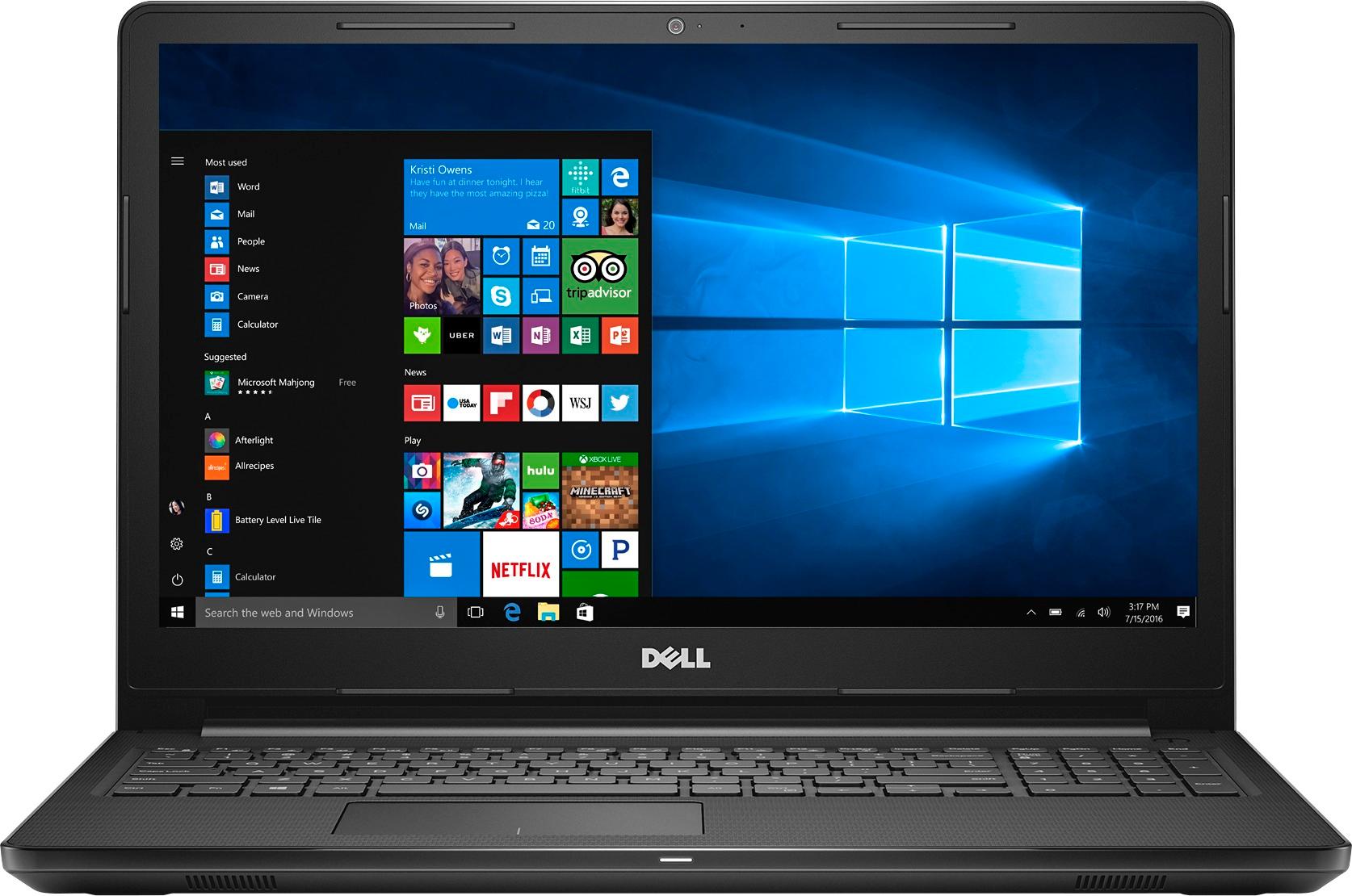
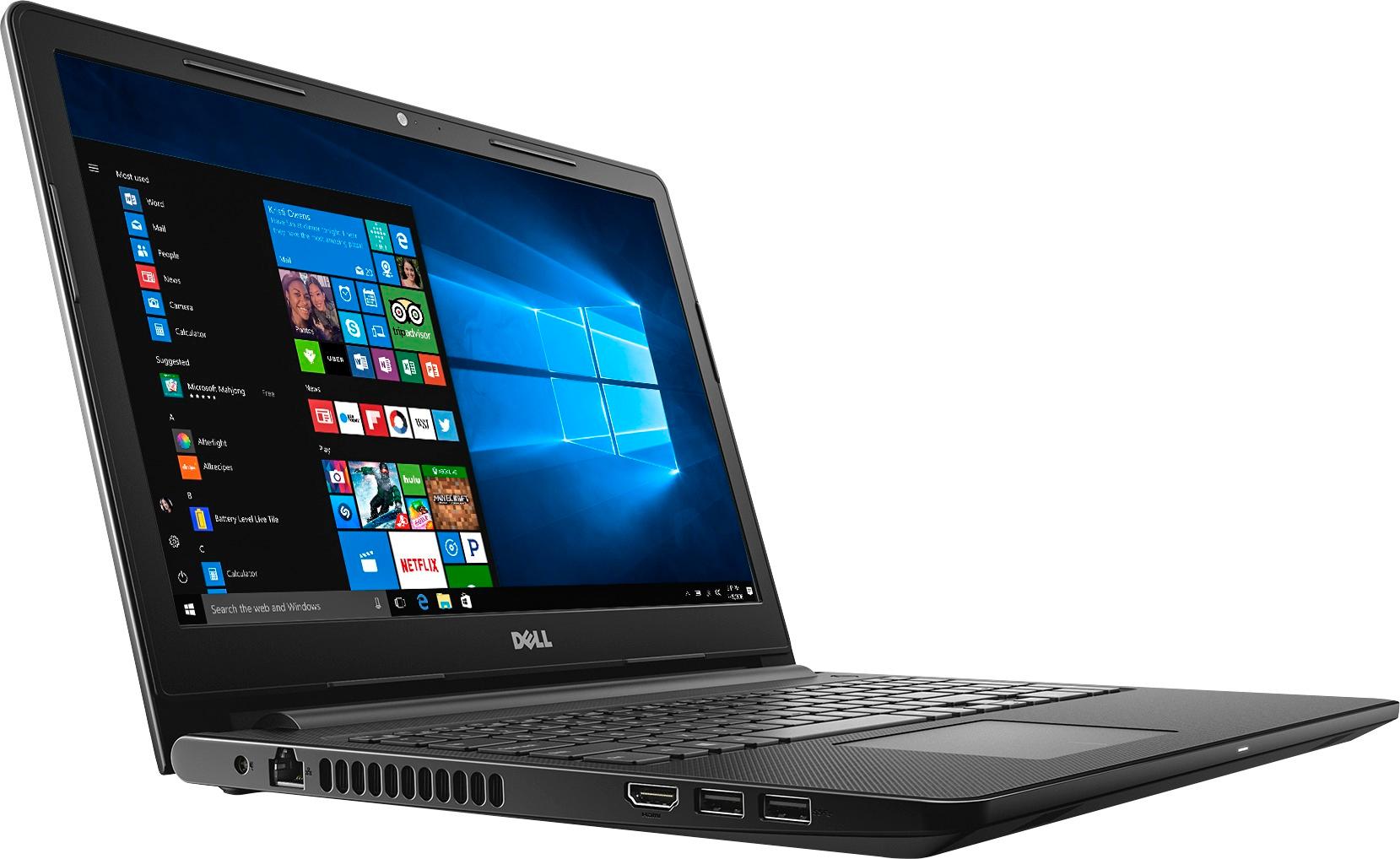
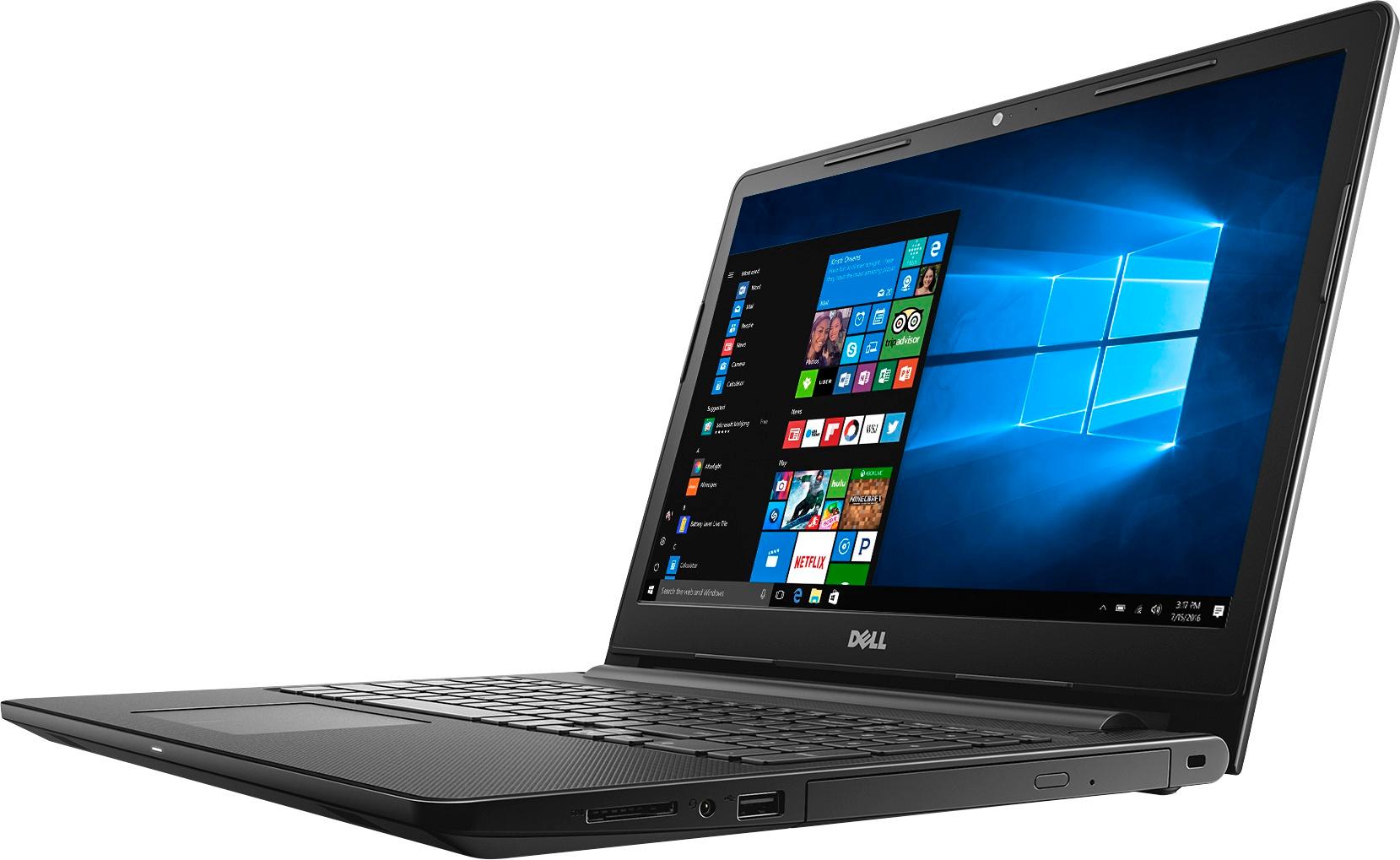
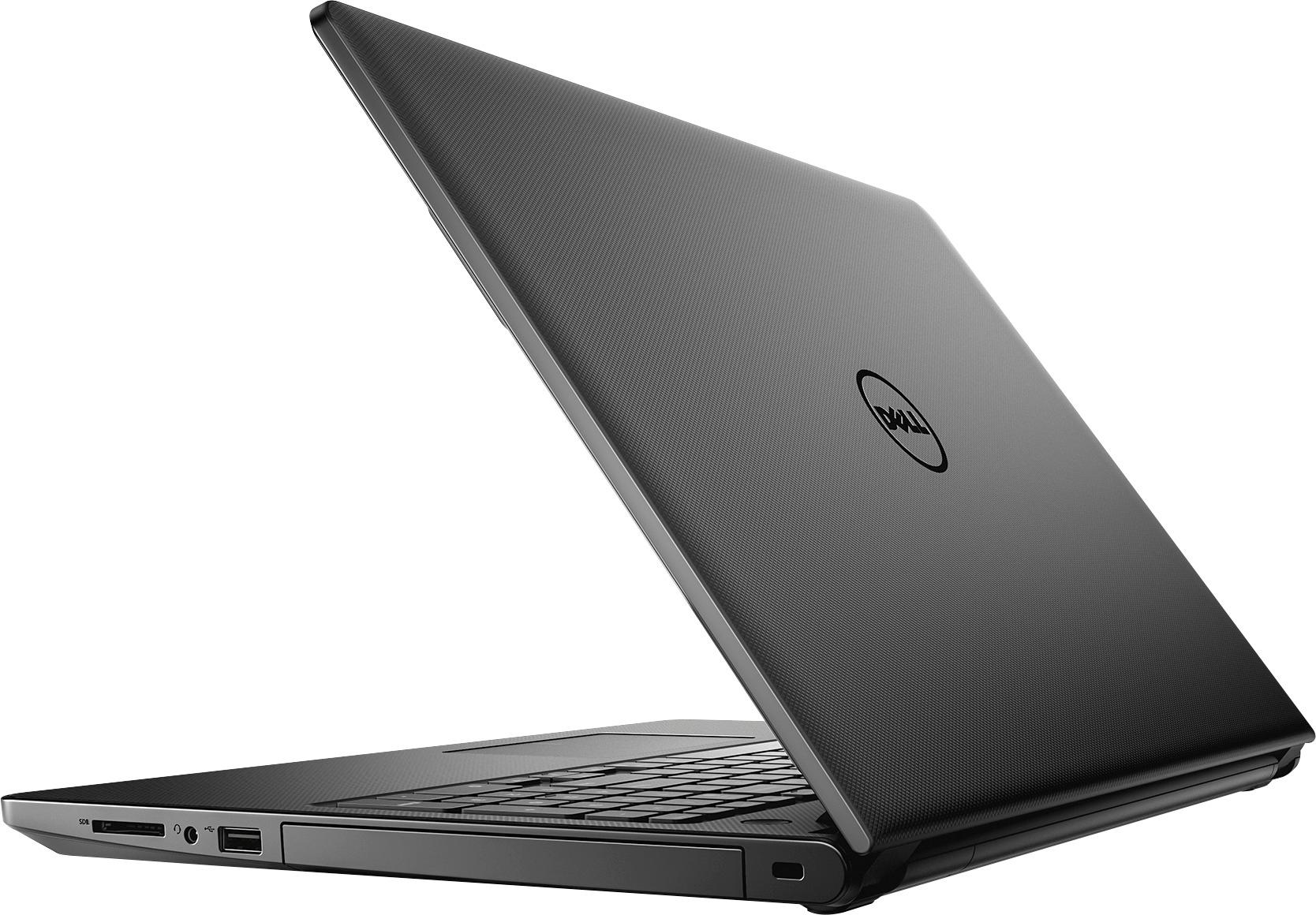
- Model:
- I3567-3636BLK-PUS
- SKU:
- 5835852
Rating by feature
- Value
Rating 3.8 out of 5 stars
- Quality
Rating 3.8 out of 5 stars
- Ease of Use
Rating 4.1 out of 5 stars
Customers are saying
Customers highly value the Inspiron 15.6" Touch-Screen Laptop for its touch screen, affordable price, and user-friendly interface. Many customers appreciate the laptop's storage capacity, performance, and memory, while some find it portable and easy to set up. However, a few customers have concerns about its weight, battery life, and Windows 10 operating system.
This summary was generated by AI based on customer reviews.
- Cons mentioned:Weight
Very bad Experience
Posted .This reviewer received promo considerations or sweepstakes entry for writing a review.Screen resolution is not up to mark. Very heavy. Start up is very slow. Dont buy . I have returned on 5th day. It did not work well for me.
No, I would not recommend this to a friend VERY Dissatisfied
Posted .This reviewer received promo considerations or sweepstakes entry for writing a review.Having heard that Dell computers are good ones, I purchased this for our church office. We have had issues with it almost since we purchased it. The main problem is that it would just turn off on its own right in the middle of creating a document and I'd lose it. We took it to Geek Squad and no problem could ever be found.
No, I would not recommend this to a friendextremely slow, disk is always on 100
Posted .This reviewer received promo considerations or sweepstakes entry for writing a review.This laptop is extremely slow, disk usage is always at 100, can't find out reason. The time waiting for an app to open is 30s+! Is there anything wrong with disk? I can't believe this will happen to a new laptop that is packed with 7th generation i3 processor and 8gb ram. The performance is worsier than my 3 years old laptop! I am considering to upgrade the hard drive to a ssd. Very disappointed with Dell and their products!
No, I would not recommend this to a friendBrand response from YourDellTeam
Posted .Hi Shay, Thanks for your recent Dell laptop purchase. We're sorry to hear that it's running slower than you had hoped it would. We do have a few steps you can try:
Delete temporary files and directories
1. Click Start, then in the search bar type "disk". Disk Cleanup should appear on the menu above the search box.
2. Run disk cleanup and eliminate unneeded temporary files (Search results, Internet Cache and other windows temp files you may no longer need)
3. Select files you want to delete then click OK to start the cleanup process. Uninstall applications you no longer use 1. Open the Programs and Features application in Control Panel. 2. Scan the list of applications installed for ones that you no longer use. 3. Highlight any application you no longer use and then click the uninstall button at the top of the list. Follow the prompts to uninstall.
4. Repeat for each application you want to uninstall.
5. Move large files and/or seldom used files to backup media (Photos, Music you seldom listen to, application downloads after the application has been installed etc.).
6. Empty the Recycle Bin.
You can read the full article here - http://dell.to/2tSulGV.
We hope these tips help improve the speed of your new device. - Bryan
Hard failure in 2 months
Posted .This reviewer received promo considerations or sweepstakes entry for writing a review.Lovely laptop until I got the dreaded hard drive failure is imminent, read, write errors. Did the quick and full tests and got the same thing. Back up your files and send in your laptop. of course it is past the 30 day exchange allowed for so off to the DELL Mothership it goes instead. all this after just over 2 months of owning it. not happy.
No, I would not recommend this to a friendBrand response from YourDellTeam
Posted .@akfisher, Thanks for your review of your new Dell laptop. It's unfortunate to hear that it's not performing the way you had hoped after having it for two months. There is a Dell support article related to your Hard Drive that you can read here - http://dell.to/2felIlg, If you need to contact Dell support about sending your computer in for repairs, you can reach them here - http://dell.to/2sH7Qlm. - Bryan
Worst laptop I've ever used!!!!!!
Posted .This reviewer received promo considerations or sweepstakes entry for writing a review.I have never used a computer that is so slow in my life!!!!! All this computer does is freeze and "update" for hours every time I turn it back on!!! It freezes constantly even when I type a sentence. Waste of my money and time!! Don't waste money on this piece of junk!
No, I would not recommend this to a friendBrand response from YourDellTeam
Posted .Marissa, We know it can be frustrating when a new computer does not work the way that we intend it to. Hopefully these tips will help your computer speed up and stop freezing on you. For help with the slowness on your computer we'd recommend the following:
Delete temporary files and directories
1. Click Start, then in the search bar type "disk". Disk Cleanup should appear on the menu above the search box.
2. Run disk cleanup and eliminate unneeded temporary files (Search results, Internet Cache and other windows temp files you may no longer need)
3. Select files you want to delete then click OK to start the cleanup process. Uninstall applications you no longer use 1. Open the Programs and Features application in Control Panel. 2. Scan the list of applications installed for ones that you no longer use. 3. Highlight any application you no longer use and then click the uninstall button at the top of the list. Follow the prompts to uninstall.
4. Repeat for each application you want to uninstall.
5. Move large files and/or seldom used files to backup media (Photos, Music you seldom listen to, application downloads after the application has been installed etc.).
6. Empty the Recycle Bin.
Read the full article here - http://dell.to/2tSulGV.
In relation to the freezing on your computer please follow these steps:
1. Run a Computer Diagnostic. To determine if your computer is experiencing a hardware problem, run the Dell Preboot System Assessment (PSA) Diagnostics. For information on how to run Diagnostics, and to determine the issue, refer to Dell Knowledge Base Article: http://dell.to/2iaiujA.
2. Check Safe Mode for Symptoms. To boot into safe mode, please follow the instructions below: 1) Start the computer. 2) Tap 'F8' on the keyboard immediately and every one second until the Dell logo screen disappears. From there you will see the Windows Advanced Options Menu on the screen. (If the Windows Advanced Options Menu does not appear, restart the system and try again.) 3) Select Safe mode with Networking and press Enter. 4) Log on as the administrator or as a user with administrative access. 5) Open applications and test the computer in safe mode. If the symptoms exist in safe mode, please continue the troubleshooting steps in this article. If the symptoms do not exist in safe mode, the issue is likely related to a driver or software and you may wish to complete steps 6 and 7 to see if you are able to resolve the lock ups or freezing.
3. Check for Malware. Malware (Virus, Spyware, etc.) can definitely cause a Windows system to lock up or appear to hang. To check for malware on your system and to ensure that your computer is up to date on security software, visit Dell Knowledge Base Article: http://dell.to/2wWP1zI.
Here's the link to the full article - http://dell.to/2tW5m33.
We hope this helps and best of luck to you! - Bryan
Not touchscreen?
Posted .This reviewer received promo considerations or sweepstakes entry for writing a review.I bought my computer about 2 weeks ago from Best Buy, while it was on sale, but my computer is definitely not touch screen like it says it is. It hasn't worked from day one, and it was one feature I was most excited about.
No, I would not recommend this to a friendBrand response from YourDellTeam
Posted .LilliD - Thanks for your recent laptop purchase. This model should be a touchscreen as you mentioned. We have a few steps to help calibrate your screen or you can take it into Geek Squad at Best Buy to look at it for you.
1. Restart the Computer and the Monitor
2. Recalibrate the touch-screen. Steps to calibrate touch-screen:
3. Go to Control Panel and select Tablet PC Settings.
4. Under Display tab, select Calibrate....
5. Choose Pen or Touch input.
6. Perform the point calibration that appear on the screen to correct the linearity problems.
7. Save the calibrated data.
Here's a link to the full support article - http://dell.to/2uLztub.
We hope these tips help you and if Dell Support can help you at all you can reach them here - http://dell.to/2sH7Qlm.