Customer Ratings & Reviews
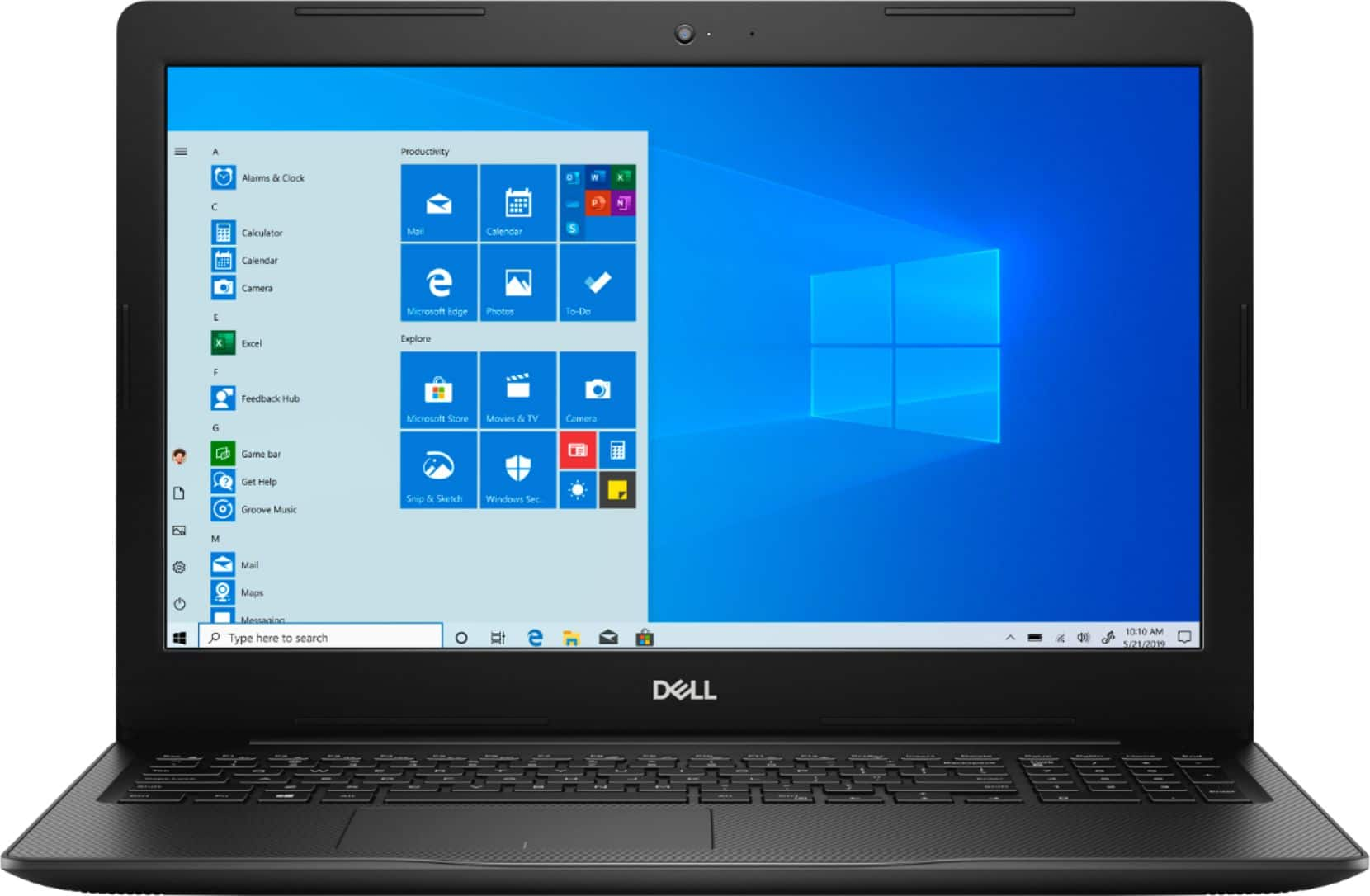
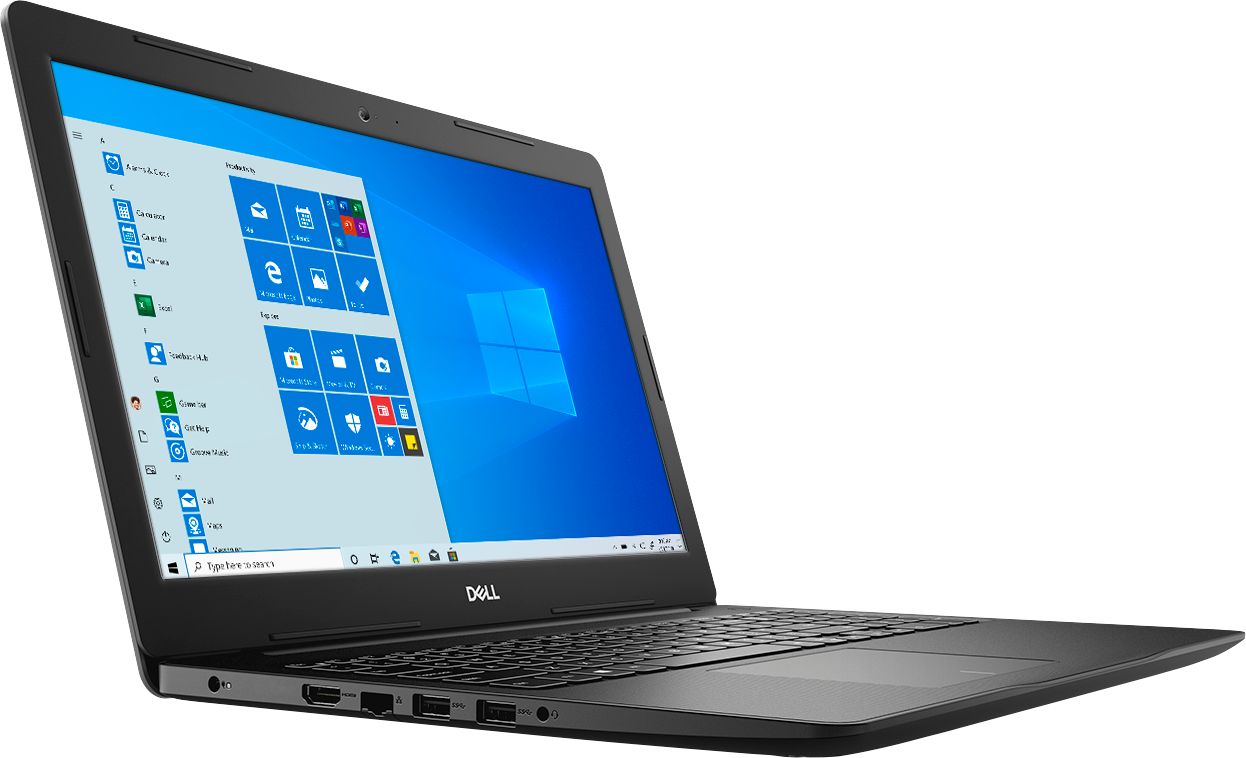
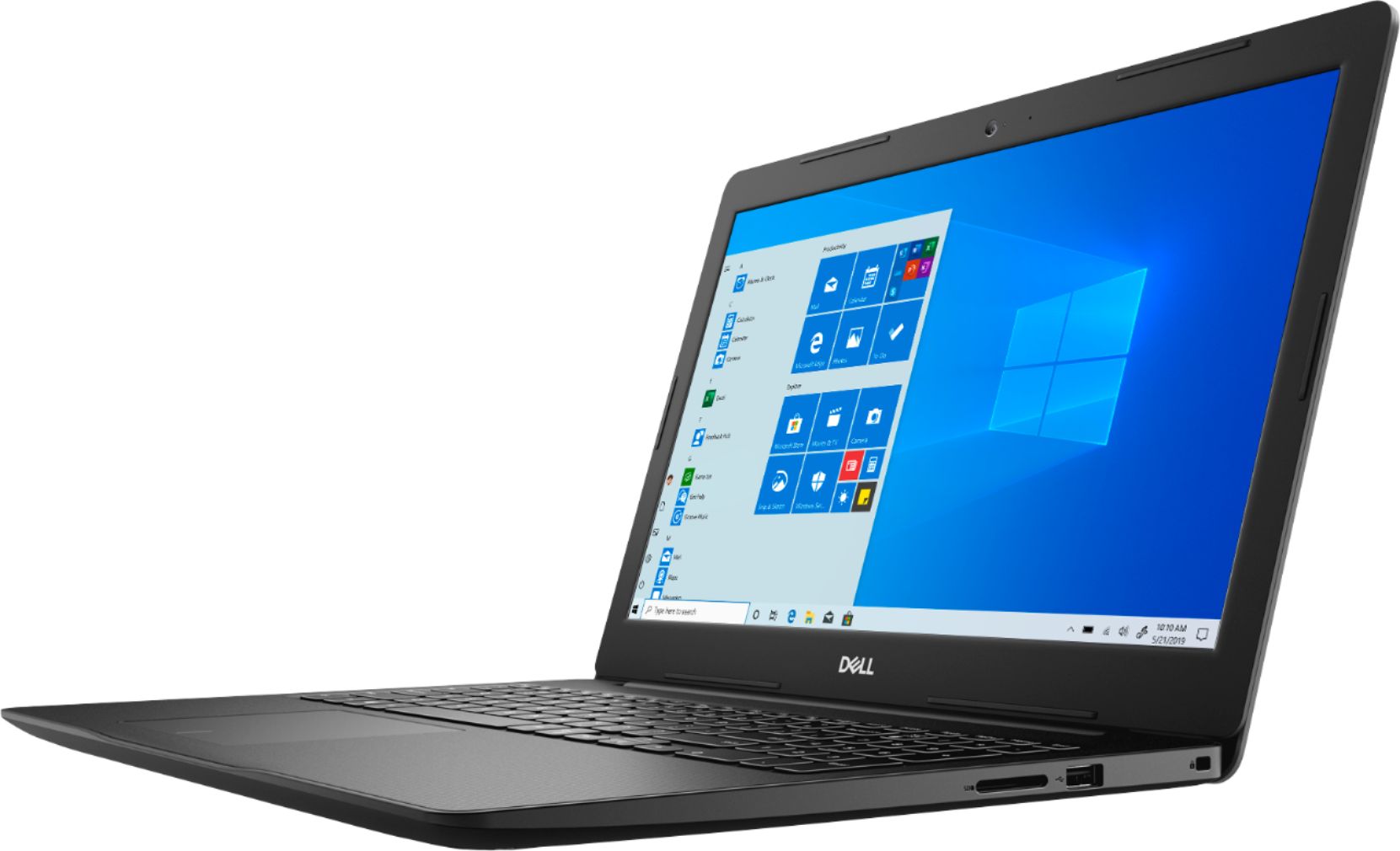
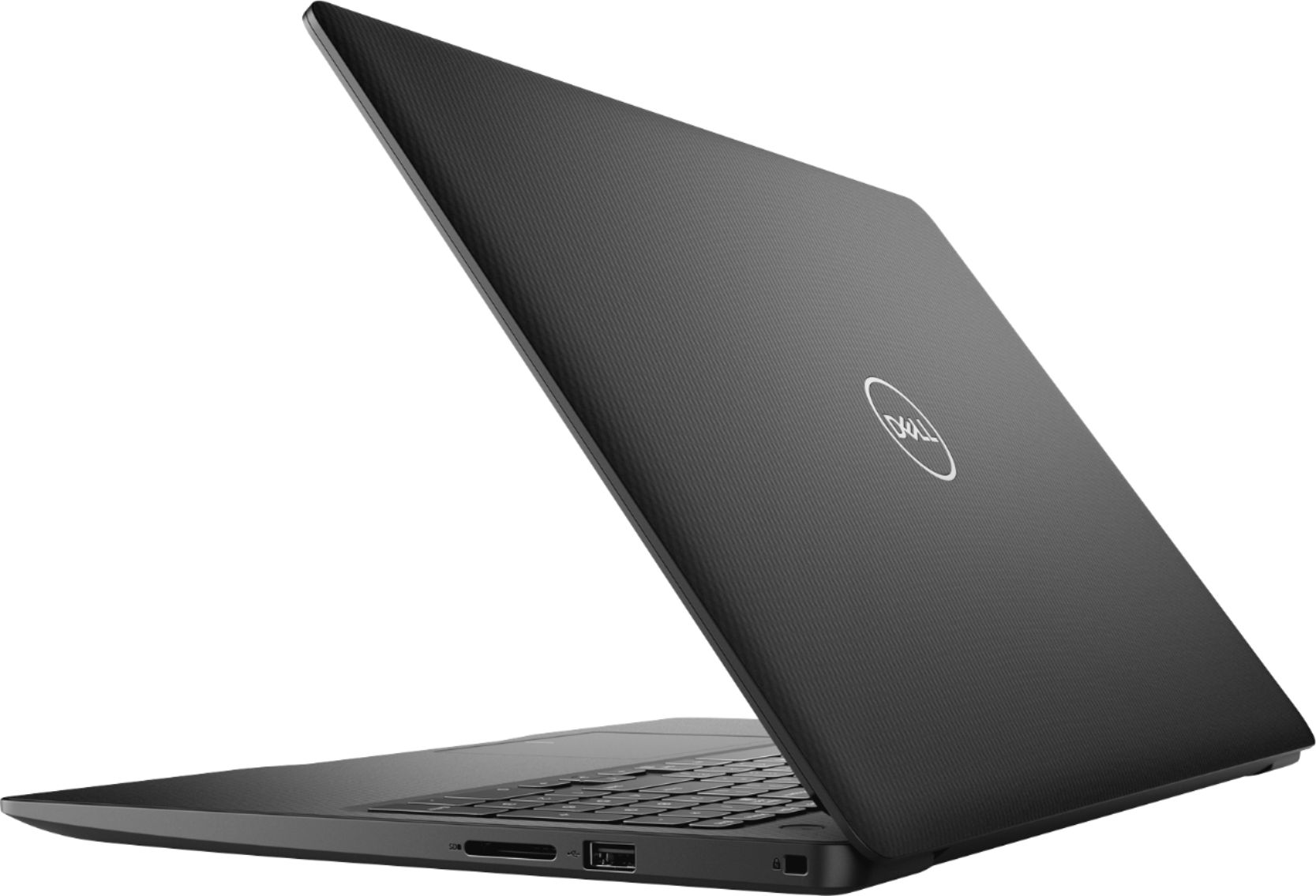
- Model:
- I3593-3992BLK-PUS
- SKU:
- 6403450
Rating by feature
- Battery Life
Rating 4.3 out of 5 stars
- Speed
Rating 4.5 out of 5 stars
- Display
Rating 4.6 out of 5 stars
Customers are saying
Customers commend the Inspiron 15.6" Touch-Screen Laptop for its reasonable price, user-friendly interface, and ample storage. Many users appreciate the convenience of the touchscreen feature, while others find the laptop lightweight and easy to carry. However, some customers have concerns about the short battery life and the limitations of Windows 10 S mode.
This summary was generated by AI based on customer reviews.
The laptop is fine....
||Posted . Owned for 3 weeks when reviewed.This reviewer received promo considerations or sweepstakes entry for writing a review.The laptop is fine....I found it for a lot less but could not get anyone to address the price. I could have purchased a better unit with a better processor for the same price...
No, I would not recommend this to a friendBrand response from YourDellTeam
Posted .Mike,
We're sorry to hear about your purchase experience with your new laptop. If you'd like to follow-up with Best Buy about their price match guarantee you can find the details here: http://bit.ly/3ale7cM.
Best,
Bryan
1-800-624-9896
Its good but bad sound
||Posted . Owned for less than 1 week when reviewed.This reviewer received promo considerations or sweepstakes entry for writing a review.Whenever listening to music, watching videos or doing anything that involves sound there will be a super annoying high pitched noise at the end of almost every sound being played
I would recommend this to a friendBrand response from YourDellTeam
Posted .Solxr,
Thanks for your review. We're sorry to hear about the extra noise that you're experiencing with your computer. Please visit your computer's driver and software page to see if there are any audio driver updates for your computer: https://dell.to/34QvdLl.
Best,
Bryan
1-800-624-9896
- Cons mentioned:Battery life
You get what you pay for.
||Posted . Owned for 1 month when reviewed.This reviewer received promo considerations or sweepstakes entry for writing a review.Not many options available during pandemic. bought this during quarantine. Dies quickly.cant make it through movie before it dies.
No, I would not recommend this to a friendBrand response from YourDellTeam
Posted .Bored,
We're sorry to hear that your computer's battery is not lasting as long as you hoped it would. We'd recommend the following tips to help your battery last longer:
Change the Power Plan:
1. On the notification area of the taskbar, right-click the Battery icon.
2. On the options list, click Power Options.
3. Select a power plan on the battery meter, such as Power Saver or Balanced. Windows 10 has a built in 'Battery Saver' mode that can be activated to extend your system's battery life. The Battery Saver mode will monitor and limit background activity and other features such as push notifications. You do have the option to enable or disable this mode within settings or within advanced Battery Saver settings, you can customize the mode to best suit your needs.
a) Click on the Action Center icon in the taskbar and select the tile for Battery Saver.
b) If running Cortana then type Battery Saver into the search box and select from the results.
Within the Battery Saver settings page, you will be able to turn on and off the feature and customize the feature to best meet your needs.
c) Turn Battery Saver On or Off.
d) Additional settings available via the Battery use and Battery saver settings links.
e) Battery use shows further info on apps and their power usage.
f) Battery Saver Settings screen allows you to customize further Battery Saver feature.
You can read the full article here - http://dell.to/2vfXWf4.
Best,
Bryan
1-800-624-9896
Too heavy
||Posted . Owned for 2 weeks when reviewed.This reviewer received promo considerations or sweepstakes entry for writing a review.This computer was actually too heavy for what I was looking for. Read the details and knew what it would be, but in person, it was just to heavy. Returned item.
No, I would not recommend this to a friendBrand response from YourDellTeam
Posted .cutered,
We're sorry to hear that your computer was heavier than you hoped it would be. Perhaps there is a 13 or a 14 inch Dell laptop that would better fit your needs: https://bit.ly/2Xbdz4r.
Best,
Bryan
1-800-624-9896
Not a good time for a review.
||Posted .This reviewer received promo considerations or sweepstakes entry for writing a review.Took 16 days to receive. Box horribly battered around. Still Unable to get it to download pictures from any source (not my first computer) support is ridiculous. Store cancelled my first appt. With salesperson I assume because I didn't state in my request for the appt. that I also wanted to purchase a scanner I just had questions. Made appt with geek squad only to find out it wasn't for a consultation like I wanted it was just to drop off my laptop. No thanks. Sure wish I could get it to work correctly. I'm sure it's me doing something wrong. Usually good service from local store.. Bad timing. Sure looks good sitting there.
I would recommend this to a friendBrand response from YourDellTeam
Posted .Donothaveone,
Thanks for your feedback. We're sorry to hear about the support issues that you've been having. Please feel free to reach out to Dell's Technical Support Team here: http://dell.to/2sH7Qlm. We hope that your computer will work the way that you want it to soon.
Best,
Bryan
1-800-624-9896
Not sure yet;
||Posted . Owned for 1 week when reviewed.This reviewer received promo considerations or sweepstakes entry for writing a review.Was disappointed that no MS Word loaded as I specifically told representative that word processing was an important part of my computer use.
No, I would not recommend this to a friendBrand response from YourDellTeam
Posted .Grandpa,
Thanks for your review. You should be able to find Microsoft Word within your 30-day trial of Microsoft Office. If you have any questions with your trial please feel free to reach out to Best Buy's Support Team: http://bit.ly/2v2IVhI.
Best,
Bryan
1-800-624-9896
Have not been able to get computer set up properly
||Posted . Owned for 3 weeks when reviewed.This reviewer received promo considerations or sweepstakes entry for writing a review.Not a product problem, just haven't had time with my helper to get the computer set up and my files transferred from my old computer.
I would recommend this to a friendBrand response from YourDellTeam
Posted .Newdelli,
Thanks for your review and we're sorry to hear about the in-store issue that you've had with support.
You can view our Product Support Page for this system if you have any technical questions: https://dell.to/2MqIRPg.
If you have any additional questions you can follow up with Dell's Technical Support Team here: http://dell.to/2sH7Qlm.
Best,
Bryan
1-800-624-9896
It’s ok
||Posted . Owned for 2 months when reviewed.This reviewer received promo considerations or sweepstakes entry for writing a review.I thought the picture would be a lot clearer and crisper but that comes with more money. Still a nice and handy laptop.
I would recommend this to a friendBrand response from YourDellTeam
Posted .SpazeDevize,
Thanks for your review and we're sorry that your laptop's screen is not as clear as you hoped it would be. Here's a link that should help troubleshoot some of your display issues: https://dell.to/2CLF6yC.
Best,
Bryan
1-800-624-9896
Its okay
||Posted . Owned for 3 weeks when reviewed.This reviewer received promo considerations or sweepstakes entry for writing a review.Its okay pretty well sums up this machine. I am not a great fan of Dell and this device does nothing to improve my opinion
No, I would not recommend this to a friendBrand response from YourDellTeam
Posted .Rusty,
Thanks for your review and we're happy that your new laptop is working well for you. If you have questions about your computer you can check our Product Support Page here: https://dell.to/2MqIRPg.
Best,
Bryan
1-800-624-9896
- Cons mentioned:Battery life
Ok
||Posted . Owned for 3 weeks when reviewed.This reviewer received promo considerations or sweepstakes entry for writing a review.It's okay but being that is our first computer it looses charge when we put it away.
I would recommend this to a friendBrand response from YourDellTeam
Posted .Chocolate29,
Thanks for your review. We're sorry if your computer is losing charge unexpectedly. We'd recommend either leaving your laptop plugged in to hold its charge or to completely shut down your computer after you are finished using it in order to preserve the battery charge that you had before you shut your computer down. Here are some additional tips to extend your computer's battery life while you're using it:
Change the Power Plan:
1. On the notification area of the taskbar, right-click the Battery icon.
2. On the options list, click Power Options.
3. Select a power plan on the battery meter, such as Power Saver or Balanced. Windows 10 has a built in 'Battery Saver' mode that can be activated to extend your system's battery life. The Battery Saver mode will monitor and limit background activity and other features such as push notifications. You do have the option to enable or disable this mode within settings or within advanced Battery Saver settings, you can customize the mode to best suit your needs.
a) Click on the Action Center icon in the taskbar and select the tile for Battery Saver.
b) If running Cortana then type Battery Saver into the search box and select from the results.
Within the Battery Saver settings page, you will be able to turn on and off the feature and customize the feature to best meet your needs.
c) Turn Battery Saver On or Off.
d) Additional settings available via the Battery use and Battery saver settings links.
e) Battery use shows further info on apps and their power usage.
f) Battery Saver Settings screen allows you to customize further Battery Saver feature.
You can read the full article here - http://dell.to/2vfXWf4.
Best,
Bryan
1-800-624-9896
disappointing laptop
||Posted . Owned for 1 month when reviewed.This reviewer received promo considerations or sweepstakes entry for writing a review.Very unpredictable controls - either supersensitive, or very slow to react. I would not recommend this model to anyone!
No, I would not recommend this to a friendBrand response from YourDellTeam
Posted .Hello,
We appreciate your review. I am sorry to hear that your laptop has not been performing as well as you anticipated. I can imagine how frustrating this can be. Some Notebooks and Tablets with Keyboards have added gesture features to the touchpad hardware and drivers. A few of these features are two or three finger scrolling, pinch zoom, circle zoom, rotate and swiping. These new features may be the reason for the erratic cursor movement since most are turned on by default.
You can disable or modify the way the features work in the touchpad driver properties. Here are some tips to modify these settings:
1. In the Search box, type main.cpl.
2. Touch or click main.cpl in the list of programs.
3. Touch or click the Dell Touchpad tab.
4. Touch or click on the picture of the touchpad.
5. Touch or click Gestures (depending on your computer there may not be a Gestures option).
6. Change the options as preferred.
7. Touch or click Save.
8. Touch or click the X in the upper-right corner to close the Dell Touchpad Utility.
9. Touch or click OK on the Mouse Properties window.
10. If the touchpad still does not work after following the preceding steps, refer to Dell Knowledge Base article - http://dell.to/2iaiujA.
You can read the full article here - http://dell.to/2tqmS02.
Below are the steps required to calibrate your Touchscreen:
1. Restart the Computer and the Monitor
2. Go to Control Panel and select Tablet PC Settings.
3. Under Display tab, select Calibrate.
4. Choose Pen or Touch input.
5. Perform the point calibration that appears on the screen to correct the linearity problems.
6. Save the calibrated data.
You can read the full article here - http://dell.to/2uLztub.
I hope this helps.
Best,
Meridith 1-800-624-9896
Decent laptop
||Posted . Owned for 1 week when reviewed.This reviewer received promo considerations or sweepstakes entry for writing a review.It’s an ok laptop....I was having a lot of problems with the computer freezing at first....but overall it’s an ok laptop
I would recommend this to a friendBrand response from YourDellTeam
Posted .PatriceH,
Thanks for your review and we're sorry to hear about the issues that you had with your computer freezing. Here are some tips to help troubleshoot this in the future:
1. Run a Computer Diagnostic. To determine if your computer is experiencing a hardware problem, run the Dell Preboot System Assessment (PSA) Diagnostics. For information on how to run Diagnostics, and to determine the issue, refer to Dell Knowledge Base Article: http://dell.to/2iaiujA.
2. Check Safe Mode for Symptoms. To boot into safe mode, please follow the instructions below:
a) Start the computer.
b) Tap 'F8' on the keyboard immediately and every one second until the Dell logo screen disappears. From there you will see the Windows Advanced Options Menu on the screen. (If the Windows Advanced Options Menu does not appear, restart the system and try again.)
c) Select Safe mode with Networking and press Enter.
d) Log on as the administrator or as a user with administrative access.
e) Open applications and test the computer in safe mode. If the symptoms exist in safe mode, please continue the troubleshooting steps in this article. If the symptoms do not exist in safe mode, the issue is likely related to a driver or software and you may wish to complete step 3 to see if you are able to resolve the lockups or freezing.
3. Check for Malware. Malware (Virus, Spyware, etc.) can definitely cause a Windows system to lock up or appear to hang. To check for malware on your system and to ensure that your computer is up to date on security software, visit Dell Knowledge Base Article: http://dell.to/2wWP1zI.
You can read the full article here - http://dell.to/2tW5m33.
Best,
Bryan
1-800-624-9896
Gotta Keep it Charged
||Posted . Owned for 6 months when reviewed.This reviewer received promo considerations or sweepstakes entry for writing a review.I like everything about the computer except the fact that I have to keep my cord in for my computer to stay on. I only had this commuter for 3 months when this issue started and Im having plug/port issues. I cannot even have it on my lap because one slight movement and my computer will turn off. =(
No, I would not recommend this to a friendBrand response from YourDellTeam
Posted .Hello,
Thank you for your input and feedback. We apologize for the issues you have come across with your product and have noted the details of your statement to help improve our products now and in the future. We would love to help you as soon as possible. Please, use the information below to contact Dell Support at your earliest convenience.
For additional support, please call Dell directly at 1-800-624-9896
Best,
Lexy@Dell
Chat or Call:
https://bit.ly/DellSupportTeam
Computer Camera quality is poor
||Posted . Owned for 1 month when reviewed.This reviewer received promo considerations or sweepstakes entry for writing a review.The computer is ok however the webcam or camera system is crap, video qualities is super poor. Hence I had to return.
I would recommend this to a friendBrand response from YourDellTeam
Posted .Hi,
Thank you for your feedback. I am sorry to hear you were disappointed in the quality of the camera. Here is a link to the product page which provides updated drivers available to download.
https://dell.to/34QvdLl
This will improve the system performance and hopefully improve the camera quality as well.
Best,
Meridith 1-800-624-9896
- Cons mentioned:Battery life
Dead Battery
||Posted . Owned for 10 months when reviewed.This reviewer received promo considerations or sweepstakes entry for writing a review.Battery died exactly 3 days after the 1 year warrantee ran out.
No, I would not recommend this to a friend - Cons mentioned:Battery life
Horrible Battery Life
||Posted . Owned for 6 months when reviewed.This reviewer received promo considerations or sweepstakes entry for writing a review.The Absolute Worst battery life. Dies within an hour. Always needing a charge or to just be plugged in, and I HARDLY need the thing. So I'm NOT over using it. I am THANKFUL I didn't need it for work. Because it's a disgrace of a machine.
No, I would not recommend this to a friendBrand response from YourDellTeam
Posted .Mommamika,
Thanks for your review and we're sorry to hear that your computer's battery life is not meeting your expectations. We'd recommend the following tips to help extend the life of your computer's battery:
Change the Power Plan:
1. On the notification area of the taskbar, right-click the Battery icon.
2. On the options list, click Power Options.
3. Select a power plan on the battery meter, such as Power Saver or Balanced. Windows 10 has a built in 'Battery Saver' mode that can be activated to extend your system's battery life. The Battery Saver mode will monitor and limit background activity and other features such as push notifications. You do have the option to enable or disable this mode within settings or within advanced Battery Saver settings, you can customize the mode to best suit your needs.
a) Click on the Action Center icon in the taskbar and select the tile for Battery Saver.
b) If running Cortana then type Battery Saver into the search box and select from the results.
Within the Battery Saver settings page, you will be able to turn on and off the feature and customize the feature to best meet your needs.
c) Turn Battery Saver On or Off.
d) Additional settings available via the Battery use and Battery saver settings links.
e) Battery use shows further info on apps and their power usage.
f) Battery Saver Settings screen allows you to customize further Battery Saver feature.
You can read the full article here - http://dell.to/2vfXWf4.
Best,
Bryan
1-800-624-9896
- Cons mentioned:Customer service
Waste of money
||Posted . Owned for 1 month when reviewed.This reviewer received promo considerations or sweepstakes entry for writing a review.bought this for our daughter to use for her art. It glitches constantly when it is being used for basic word, drawing or video watching. She has tried to reach out to Best Buy for help and gets the run around. We are out the money and she is still in need of 1 that works for school. Thanks for nothing Best Buy.
No, I would not recommend this to a friendBrand response from YourDellTeam
Posted .Valued Customer,
Thanks for your review. We're sorry to hear that your daughter's computer is not working the way that it should. We'd recommend running the Windows Performance Troubleshooter to see if there are ways for your computer to run better for you:
1. Close all open windows.
2. Press the Windows logo key + X key on the keyboard.
3. Click Control Panel.
4. Click System and Security.
5. Under Security and Maintenance, select Troubleshoot common problems.
6. Under System and Security, click Run maintenance tasks.
7. Follow the on-screen instructions and prompts to complete the process.
8. Restart the PC.
You can read the full article here - http://dell.to/2tSulGV.
If you'd like to reach out to Dell's Technical Support Team for additional assistance you can reach them here: http://dell.to/2sH7Qlm.
Best,
Bryan
1-800-624-9896
Touchscreen
||Posted . Owned for 1 month when reviewed.This reviewer received promo considerations or sweepstakes entry for writing a review.Great laptop but I had to Disable my touchscreen because it kept clicking the same area when I wasn’t touching it
I would recommend this to a friendBrand response from YourDellTeam
Posted .Sierra,
Thanks for your review. If you'd like to use your touchscreen again in the future we'd suggest trying to re-calibrate it with the following steps:
1. Restart the Computer and the Monitor
2. Go to Control Panel and select Tablet PC Settings.
3. Under Display tab, select Calibrate.
4. Choose Pen or Touch input.
5. Perform the point calibration that appears on the screen to correct the linearity problems.
6. Save the calibrated data.
You can read the full article here - http://dell.to/2uLztub.
Best,
Bryan
1-800-624-9896
jury is still out
||Posted . Owned for 1 month when reviewed.This reviewer received promo considerations or sweepstakes entry for writing a review.still not sure about the quality. i'm not sure the cooling fan is working correctly. fan can be extremely loud.
No, I would not recommend this to a friendBrand response from YourDellTeam
Posted .bond,
Thanks for your review. We're sorry that your computer's fan is louder than you hoped it would be. We'd recommend updating the BIOS on your computer to see if this helps with the fan noise: An out-of-date BIOS can cause loud fan noises by having an outdated temperature table for the system. Refer to update BIOS and follow the instructions to update the BIOS on your computer. You can also follow up with our Technical Support Team here - 1-800-624-9896.
You can read the full article here - http://dell.to/2ENlXfz.
Best,
Bryan
1-800-624-9896
Service at 15 days. Not very bright.
||Posted . Owned for 7 months when reviewed.This reviewer received promo considerations or sweepstakes entry for writing a review.Needed factory service after just 2 wks because the built in microphone was not working. I spent hours with the techs online to try to fix it and then had to send it back anyway. That meant cleaning the whole thing out back to factory settings and having to back it all up, then putting it all back when it came back since, obviously you don't send a pc anywhere with your personal information on it. Since getting it back that function has failed a couple times but I found a fix online that I should not have to do, but I do to avoid sending it back. Additionally and perhaps more importantly, this screen is never bright enough. Watching videos is not worth it on this pc. If the angle is Just-right then it can be watched. I cannot and do not recommend this laptop. I had a bad Dell experience yrs ago and should not have tried them again. I can't wait for this thing to get old so I can justify buying another laptop but never Dell again.
No, I would not recommend this to a friendBrand response from YourDellTeam
Posted .GraceNH,
We're sorry that your monitor is not as bright as you hoped it would be. Brightness issues can be both hardware failures or simply settings that need to be adjusted, below are a few steps to help determine the point of failure.
1. Try the key press for increasing and decreasing the LCD brightness. (on most systems < Fn > key and the Up / Down Arrows)
2. Check if the issue is the same on both Battery and AC power
3. If only seen on Battery - check the settings in the BIOS for LCD brightness (separate settings for brightness on battery and AC)
4. Run the PSA diagnostics and see if the issue is the same
5. Run the LCD BIST test to see if the issue is the same on the LCD panel test.
If you have any additional questions related to your screen you can check this page: https://dell.to/2Pt29rX.
Best,
Bryan@Dell
If you require further assistance, you can contact Dell directly with the information below
Chat or Call:
https://bit.ly/DellSupportTeam
Phone number to Dell: 1-800-624-9896