Customer Ratings & Reviews
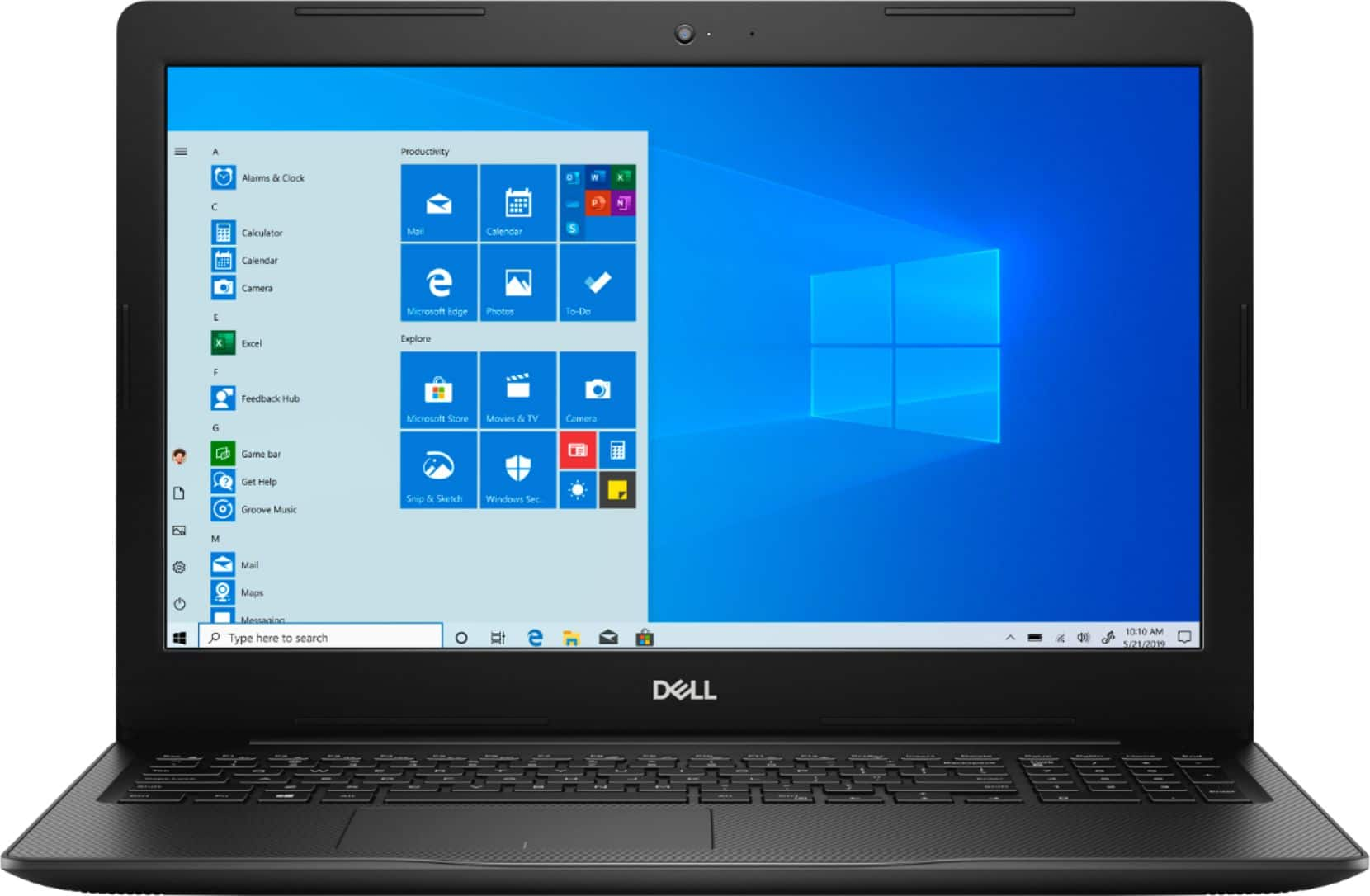
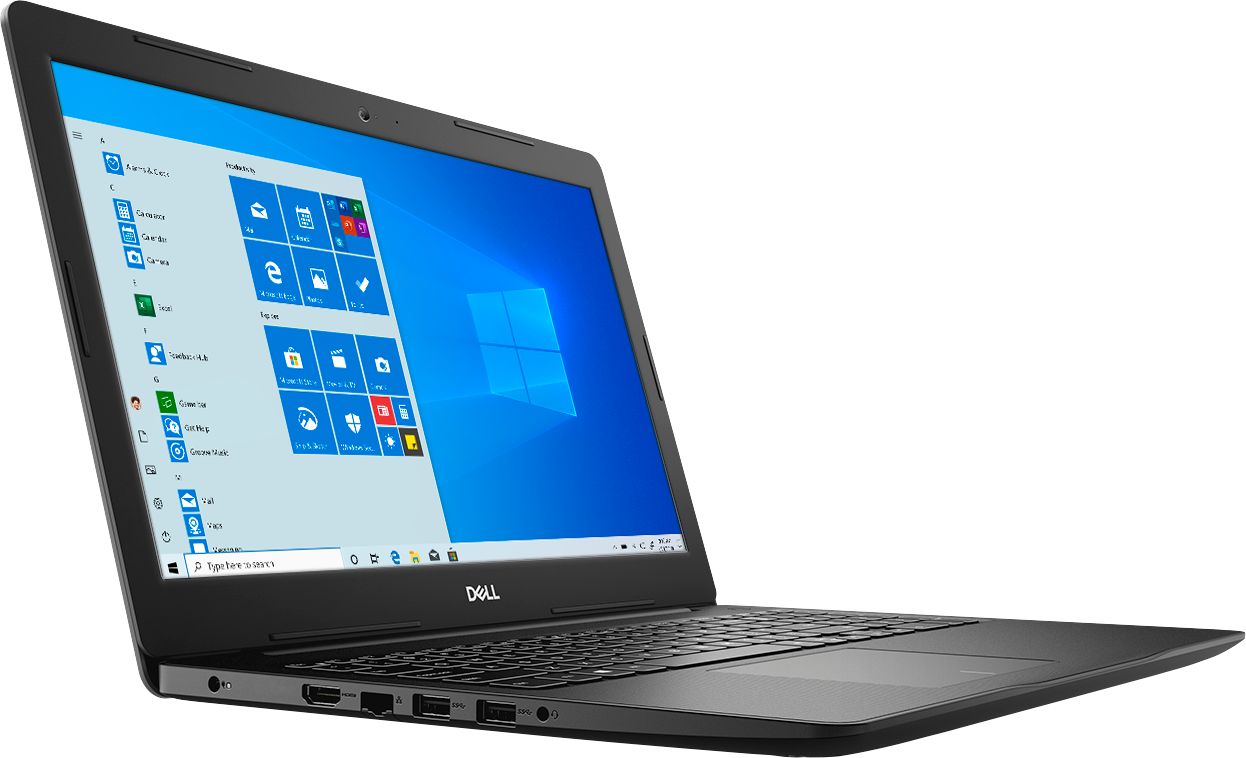
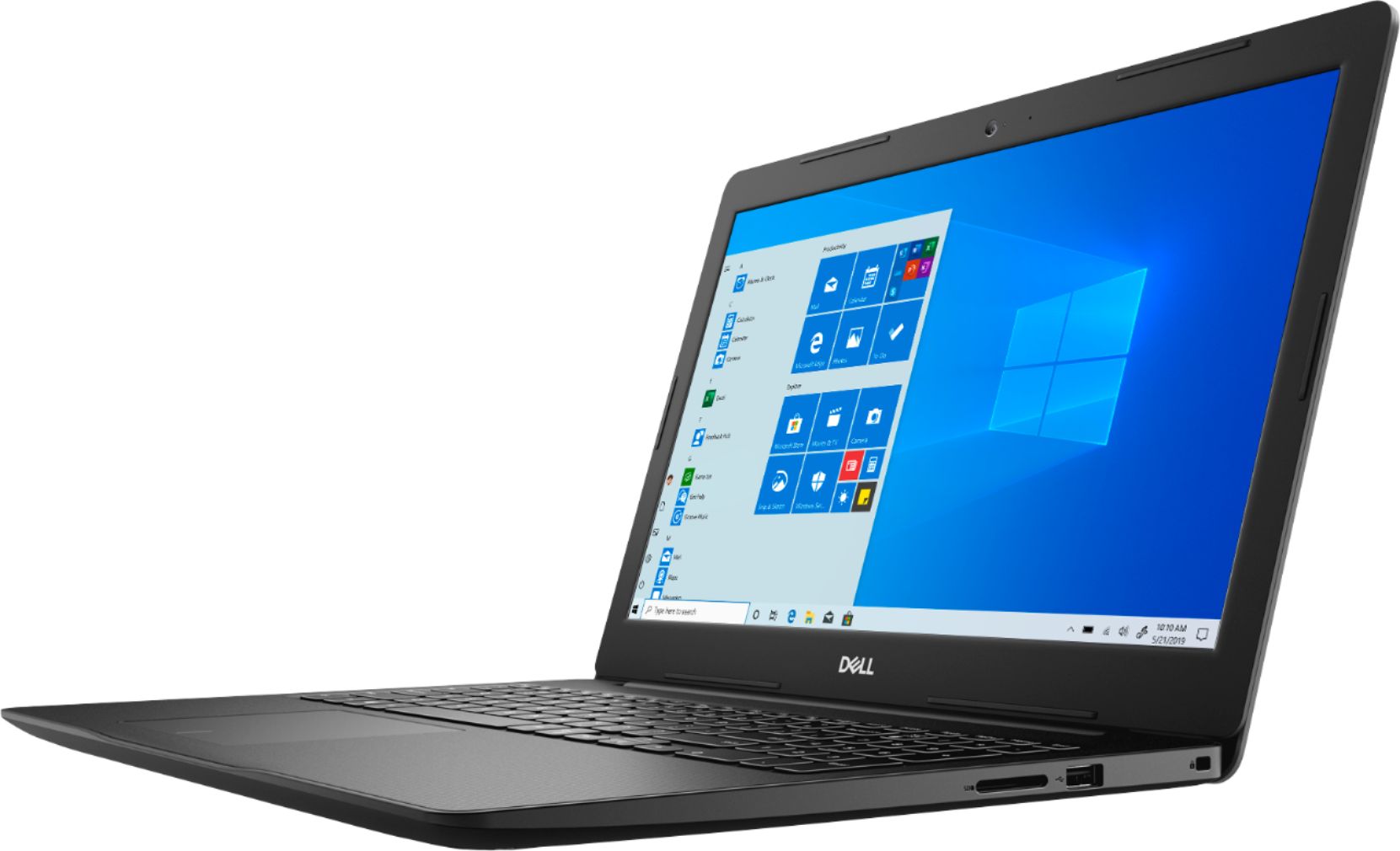
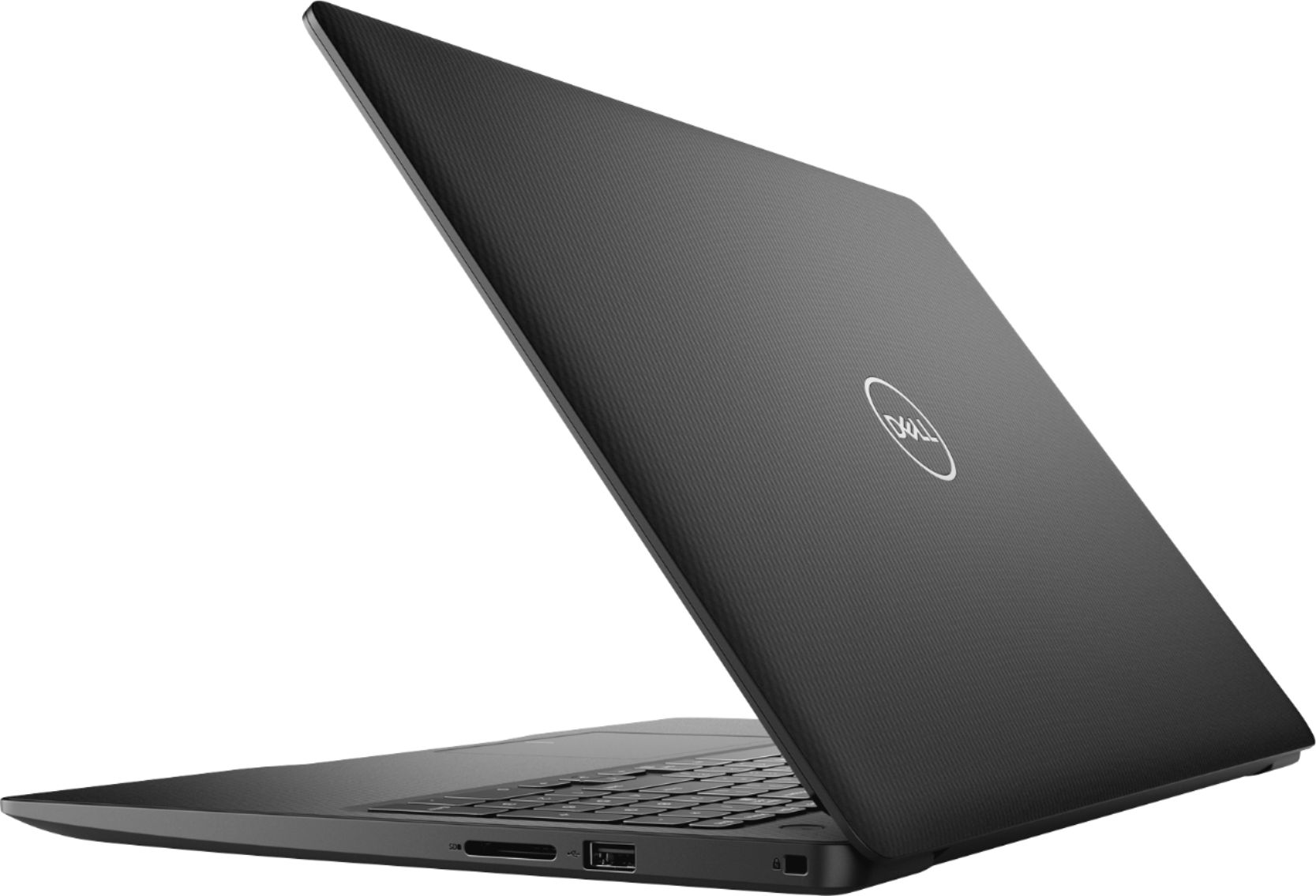
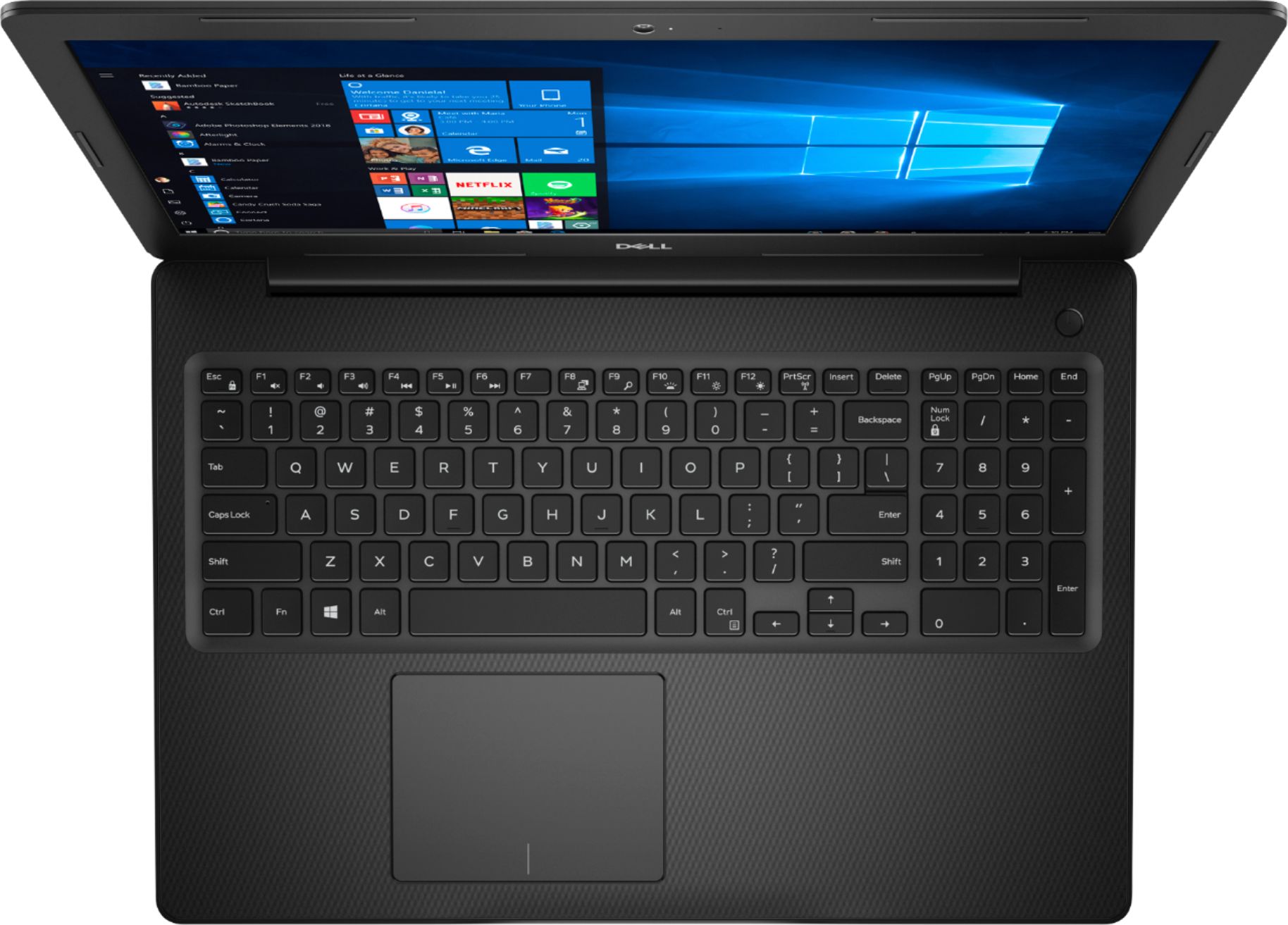
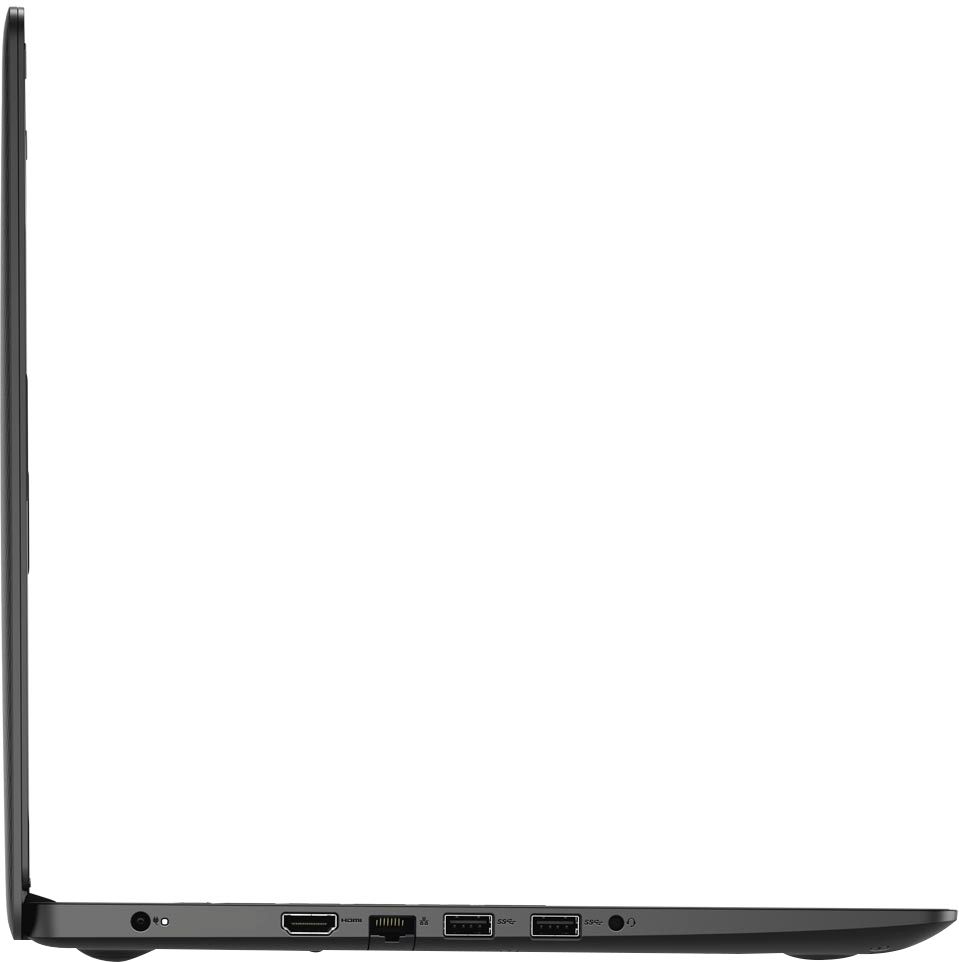
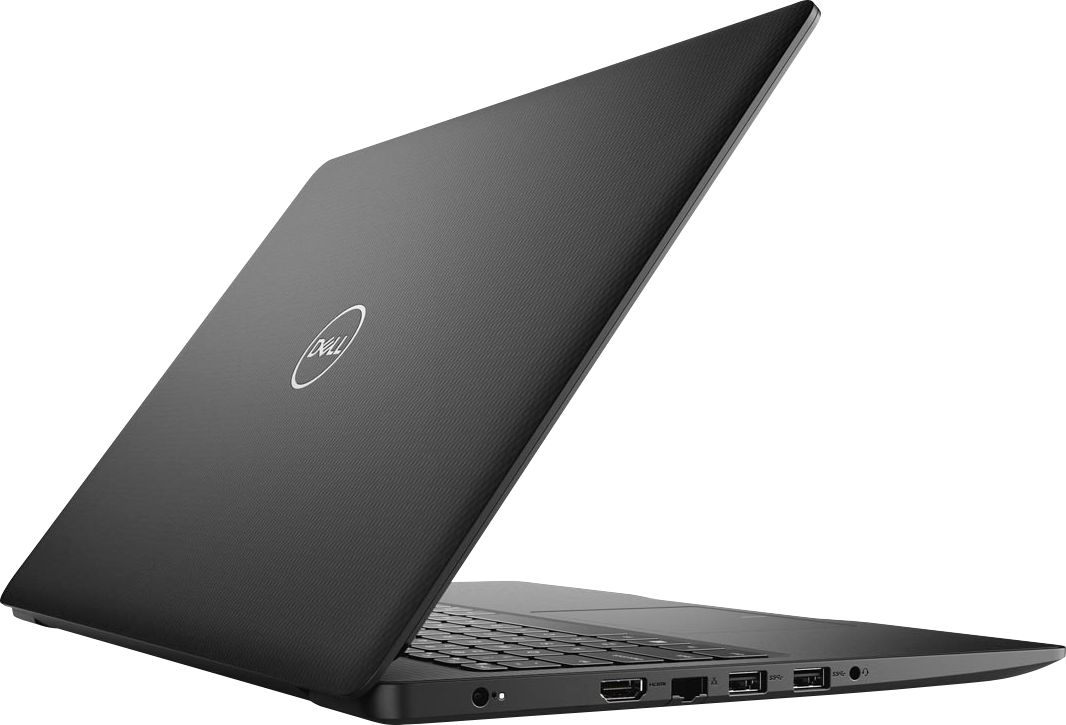
- Model:
- I3593-3992BLK-PUS
- SKU:
- 6403450
Rating by feature
- Battery Life
Rating 4.3 out of 5 stars
- Speed
Rating 4.5 out of 5 stars
- Display
Rating 4.6 out of 5 stars
Customers are saying
Customers commend the Inspiron 15.6" Touch-Screen Laptop for its reasonable price, user-friendly interface, and ample storage. Many users appreciate the convenience of the touchscreen feature, while others find the laptop lightweight and easy to carry. However, some customers have concerns about the short battery life and the limitations of Windows 10 S mode.
This summary was generated by AI based on customer reviews.
Dell inspiron
||Posted . Owned for 7 months when reviewed.This reviewer received promo considerations or sweepstakes entry for writing a review.Worst ever computer in my life. Charging Port never worked properly. I bought 3 times new charger and last time replaced the charger port but still it does not work. Never recommend Dell brand, always something bad. I had dell laptop for work but in my experience they have cheap quality
No, I would not recommend this to a friendBrand response from YourDellTeam
Posted .Dellinspiron,
We're sorry that your charger port was not working properly. We'd recommend checking the battery compatibility page in order to ensure that you have the right adapter for your computer: https://dell.to/2zrcr3l.
Best,
Bryan@Dell
If you require further assistance, you can contact Dell directly with the information below
Chat or Call:
https://bit.ly/DellSupportTeam
Phone number to Dell: 1-800-624-9896
Charging port has gone bad in only 3 months of use
||Posted . Owned for 2 months when reviewed.This reviewer received promo considerations or sweepstakes entry for writing a review.Charging port has gone bad in only 3 months of use, purchased brand new.
No, I would not recommend this to a friendBrand response from YourDellTeam
Posted .christils1,
We're sorry to hear about the charging port on your new computer. We'd recommend checking Dell's One Year Limited Warranty to see if your computer qualifies: http://dell.to/2tNsVOs.
Best,
Bryan
1-800-624-9896
very bad quality
||Posted . Owned for 5 months when reviewed.This reviewer received promo considerations or sweepstakes entry for writing a review.It was hard to use. Very slow and it did not connect to the internet.
I would recommend this to a friendBrand response from YourDellTeam
Posted .User,
We're sorry to hear about the connectivity and performance issues that you're having with your computer. We'd recommend running the Windows Performance Troubleshooter to see if there are ways for your computer to perform faster:
1. Close all open windows.
2. Press the Windows logo key + X key on the keyboard.
3. Click Control Panel.
4. Click System and Security.
5. Under Security and Maintenance, select Troubleshoot common problems.
6. Under System and Security, click Run maintenance tasks.
7. Follow the on-screen instructions and prompts to complete the process.
8. Restart the PC.
You can read the full article here - http://dell.to/2tSulGV.
If you'd like to see if you can resolve your connectivity issues you can try these steps:
1. Download and install the latest Wireless Card driver. (https://dell.to/2th3Tpe) After updating the driver, re-establish the connection with the Wireless Access Point and check the wireless performance.
2. If the issue persists, proceed to step 3.
3. Power-cycle the local network. Shut down the Dell system, the Wireless Access Point/Router and the Modem. Wait a minimum of 60 seconds before powering up the components in the following order:
4. Power ON the Modem, and wait for it to boot fully.
5. Power ON the Wireless Access Point/Router, and wait for it to boot fully.
6. Power ON the Dell system.
7. Open Network and Sharing Center
8. In the left side navigation pane, click on Change Adapter Settings
9. Right click on the wireless connection icon and select Properties followed by the Configure button
10. Under Wireless Options, select the Wireless N mode
11. For Windows 8 or later systems click the Advanced tab and look for 802.11n Mode on the right you will be given the option to Enable or Disable. If the mode is not visible you may need to update your drivers and firmware.
12. From the drop-down menu, choose Disable followed by Ok
13. This should restore the wireless download and upload speed. Internet speed can be tested at http://speedtest.net.
Best,
Bryan
1-800-624-9896
Won’t stay charged
||Posted .This reviewer received promo considerations or sweepstakes entry for writing a review.Computer will not stay charged. I have tried several things as instructed and it will not hold a charge. It can be fully charged today and by morning it is dead. That’s without using it. I have not been able to return it due to covid situation. I am planning on bringing it back to store this week.
No, I would not recommend this to a friendBrand response from YourDellTeam
Posted .Tonya,
We're sorry that your computer is not holding a charge. Here are some tips that we'd recommend that you try to see if any of them work:
Change the Power Plan:
1. On the notification area of the taskbar, right-click the Battery icon.
2. On the options list, click Power Options.
3. Select a power plan on the battery meter, such as Power Saver or Balanced. Windows 10 has a built in 'Battery Saver' mode that can be activated to extend your system's battery life. The Battery Saver mode will monitor and limit background activity and other features such as push notifications. You do have the option to enable or disable this mode within settings or within advanced Battery Saver settings, you can customize the mode to best suit your needs.
a) Click on the Action Center icon in the taskbar and select the tile for Battery Saver.
b) If running Cortana then type Battery Saver into the search box and select from the results.
Within the Battery Saver settings page, you will be able to turn on and off the feature and customize the feature to best meet your needs.
c) Turn Battery Saver On or Off.
d) Additional settings available via the Battery use and Battery saver settings links.
e) Battery use shows further info on apps and their power usage.
f) Battery Saver Settings screen allows you to customize further Battery Saver feature.
You can read the full article here - http://dell.to/2vfXWf4.
Best,
Bryan
1-800-624-9896
Windows 10 sucks a big one
||Posted . Owned for 1 month when reviewed.This reviewer received promo considerations or sweepstakes entry for writing a review.Had to download an app just to remove windows edge..it is worthless.
No, I would not recommend this to a friendBrand response from YourDellTeam
Posted .Dacia,
Thanks for your review and we hope that you're enjoying your new computer. If you have any technical questions about your computer you can check our Product Support Page here: https://dell.to/2MqIRPg.
If you need help removing 'S' Mode from Windows 10 you can follow these steps: 'Windows 10 in S mode is designed for security and performance, exclusively running apps from the Microsoft Store. If you want to install an app that isn't available in the Microsoft Store, you'll need to switch out of S mode. Switching out of S mode is one-way. If you make the switch, you won't be able to go back to Windows 10 in S mode. There's no charge to switch out of S mode.
1. On your PC running Windows 10 in S mode, open Settings > Update & Security > Activation.
2. In the Switch to Windows 10 Home or Switch to Windows 10 Pro section, select Go to the Store. (If you also see an "Upgrade your edition of Windows" section, be careful not to click the "Go to the Store" link that appears there.)
3. On the Switch out of S mode (or similar) page that appears in the Microsoft Store, select the Get button. After you see a confirmation message on the page, you'll be able to install apps from outside of the Microsoft Store.
Best,
Bryan
1-800-624-9896
Too heavy!
||Posted . Owned for 1 month when reviewed.This reviewer received promo considerations or sweepstakes entry for writing a review.Wasn't told at the time of purchase, that it would not fold back.
No, I would not recommend this to a friendBrand response from YourDellTeam
Posted .Lynn1,
Thanks for your review and we're sorry that your computer seems to be heavier than you hoped it would be. It also sounds like the fold back style of computer that you are looking for is called a 2-in-1 if you'd like to see the available Dell models that Best Buy has in stock.
If you have any technical questions about your computer you can always check our Product Support Page here: https://dell.to/2MqIRPg.
Best,
Bryan
1-800-624-9896
could not delete microft S Mode
||Posted .This reviewer received promo considerations or sweepstakes entry for writing a review.nice laptop....but could not get out of microsoft S Mode....geek squad could not either and said return it microsoft is gumming up the works with their proprietary nonsense
No, I would not recommend this to a friendBrand response from YourDellTeam
Posted .Hello,
Thank you for your review. I am sorry to hear of the troubles you have had removing S mode from this device. I can understand how frustrating this could be.
Windows 10 in S mode is designed for security and performance, exclusively running apps from the Microsoft Store. If you want to install an app that isn't available in the Microsoft Store, you'll need to switch out of S mode. Switching out of S mode is one-way. If you make the switch, you won't be able to go back to Windows 10 in S mode. There's no charge to switch out of S mode.
1. On your PC running Windows 10 in S mode, open Settings > Update & Security > Activation.
2. In the Switch to Windows 10 Home or Switch to Windows 10 Pro section, select Go to the Store. (If you also see an "Upgrade your edition of Windows" section, be careful not to click the "Go to the Store" link that appears there.)
3. On the Switch out of S mode (or similar) page that appears in the Microsoft Store, select the Get button. After you see a confirmation message on the page, you'll be able to install apps from outside of the Microsoft Store.
Best,
Meridith 1-800-624-9896
crappy from the start
||Posted . Owned for 3 weeks when reviewed.This reviewer received promo considerations or sweepstakes entry for writing a review.slow, freezes frequently , issues with the touch pad
No, I would not recommend this to a friendBrand response from YourDellTeam
Posted .windsor68,
Thanks for your review. We're sorry that your computer has been performing slower than you hoped it would. We'd recommend running the Windows Performance Troubleshooter to see if there are ways to speed up your computer:
1. Close all open windows.
2. Press the Windows logo key + X key on the keyboard.
3. Click Control Panel.
4. Click System and Security.
5. Under Security and Maintenance, select Troubleshoot common problems.
6. Under System and Security, click Run maintenance tasks.
7. Follow the on-screen instructions and prompts to complete the process.
8. Restart the PC.
You can read the full article here - http://dell.to/2tSulGV.
If you'd like to try to resolve the freezing on your computer you can follow these steps:
1. Run a Computer Diagnostic. To determine if your computer is experiencing a hardware problem, run the Dell Preboot System Assessment (PSA) Diagnostics. For information on how to run Diagnostics, and to determine the issue, refer to Dell Knowledge Base Article: http://dell.to/2iaiujA.
2. Check Safe Mode for Symptoms. To boot into safe mode, please follow the instructions below:
a) Start the computer.
b) Tap 'F8' on the keyboard immediately and every one second until the Dell logo screen disappears. From there you will see the Windows Advanced Options Menu on the screen. (If the Windows Advanced Options Menu does not appear, restart the system and try again.)
c) Select Safe mode with Networking and press Enter.
d) Log on as the administrator or as a user with administrative access.
e) Open applications and test the computer in safe mode. If the symptoms exist in safe mode, please continue the troubleshooting steps in this article. If the symptoms do not exist in safe mode, the issue is likely related to a driver or software and you may wish to complete step 3 to see if you are able to resolve the lockups or freezing.
3. Check for Malware. Malware (Virus, Spyware, etc.) can definitely cause a Windows system to lock up or appear to hang. To check for malware on your system and to ensure that your computer is up to date on security software, visit Dell Knowledge Base Article: http://dell.to/2wWP1zI.
You can read the full article here - http://dell.to/2tW5m33.
Lastly, if you'd like to re-calibrate your touchpad you can follow these steps:
Some Notebooks and Tablets with Keyboards have added gesture features to the touchpad hardware and drivers. A few of these features are two or three finger scrolling, pinch zoom, circle zoom, rotate and swiping. These new features may be the reason for the erratic cursor movement since most are turned on by default. You can disable or modify the way the features work in the touchpad driver properties. Here are some tips to modify these settings:
1. In the Search box, type main.cpl.
2. Touch or click main.cpl in the list of programs.
3. Touch or click the Dell Touchpad tab.
4. Touch or click on the picture of the touchpad.
5. Touch or click Gestures (depending on your computer there may not be a Gestures option).
6. Change the options as preferred.
7. Touch or click Save.
8. Touch or click the X in the upper-right corner to close the Dell Touchpad Utility.
9. Touch or click OK on the Mouse Properties window.
10. If the touchpad still does not work after following the preceding steps, refer to Dell Knowledge Base article - http://dell.to/2iaiujA.
You can read the full article here - http://dell.to/2tqmS02.
Best,
Bryan
1-800-624-9896
Very disappointed in this computer
||Posted . Owned for less than 1 week when reviewed.This reviewer received promo considerations or sweepstakes entry for writing a review.Download speeds were horrible. Took hours to download and setup several programs. I gave up and decided to return the computer. I thought Dell made a quality computer based on my prior experience with their products. Not so apparently based on this purchase.
No, I would not recommend this to a friendBrand response from YourDellTeam
Posted .Disappointed,
We're sorry that your computer did not run at the speed that you hoped it would. If you experience this issue in the future we'd recommend running the Windows Performance Troubleshooter to see if there are ways to improve your computer's performance:
1. Close all open windows.
2. Press the Windows logo key + X key on the keyboard.
3. Click Control Panel.
4. Click System and Security.
5. Under Security and Maintenance, select Troubleshoot common problems.
6. Under System and Security, click Run maintenance tasks.
7. Follow the on-screen instructions and prompts to complete the process.
8. Restart the PC.
You can read the full article here - http://dell.to/2tSulGV.
We'd also recommend running the Dell SupportAssist App to see if there are drivers and software that need to be updated.
We're sorry to hear that you returned your computer but we hope that you'll consider Dell again in the future.
Best,
Bryan
1-800-624-9896
Cannot activate Microsoft Office 365
||Posted . Owned for 3 weeks when reviewed.This reviewer received promo considerations or sweepstakes entry for writing a review.Worked two full days with Best Buy geek squad and one day with Microsoft techs with zero success. Microsoft said it was a Best Buy issue and Best Buy said it was a Microsoft issue. All I know is I'm in the middle with a new laptop that's of no value to me!
No, I would not recommend this to a friendBrand response from YourDellTeam
Posted .Dan246,
We're sorry to hear about the issues that you're having with your new Dell laptop. While activating Microsoft Office 365 does seem to be more related to Microsoft, please reach out to Dell's Technical Support Team when you have a chance: http://dell.to/2sH7Qlm.
Best,
Bryan
1-800-624-9896
Not a good Buy!!
||Posted . Owned for 4 months when reviewed.This reviewer received promo considerations or sweepstakes entry for writing a review.Horrible purchase . I have had it for 4 months the 2 keyboard keys have fell off. The headset plug has went out . PLEASE DO NOT BUY. This has been my worse investment in a laptop by far .
No, I would not recommend this to a friendBrand response from YourDellTeam
Posted .Godschild,
Thanks for your review and we're sorry to hear about the issues that you've had with your new laptop so far. Dell's products do come with a One Year Limited Warranty that you can read more about here: http://dell.to/2tNsVOs.
Please follow up with Dell Support if you'd like to see if your product qualifies: http://dell.to/2sH7Qlm.
Best,
Bryan
1-800-624-9896
Too many problems
||Posted .This reviewer received promo considerations or sweepstakes entry for writing a review.I have had this laptop for little over a month and have had trouble connecting to wifi twice now. I updated and shut down the laptop and when I powered it up the next day, the wifi was broken. This laptop brings too many problems, get an HP.
No, I would not recommend this to a friendBrand response from YourDellTeam
Posted .Hoosier,
We're sorry to hear about the connectivity issues that you're facing. We'd recommend the following tips to help your WiFi perform better for you:
1. Download and install the latest Wireless Card driver. (https://dell.to/2th3Tpe) After updating the driver, re-establish the connection with the Wireless Access Point and check the wireless performance.
2. If the issue persists, proceed to step 3.
3. Power-cycle the local network. Shut down the Dell system, the Wireless Access Point/Router and the Modem. Wait a minimum of 60 seconds before powering up the components in the following order:
4. Power ON the Modem, and wait for it to boot fully.
5. Power ON the Wireless Access Point/Router, and wait for it to boot fully.
6. Power ON the Dell system.
7. Open Network and Sharing Center
8. In the left side navigation pane, click on Change Adapter Settings
9. Right click on the wireless connection icon and select Properties followed by the Configure button
10. Under Wireless Options, select the Wireless N mode
11. For Windows 8 or later systems click the Advanced tab and look for 802.11n Mode on the right you will be given the option to Enable or Disable. If the mode is not visible you may need to update your drivers and firmware.
12. From the drop-down menu, choose Disable followed by Ok
13. This should restore the wireless download and upload speed. Internet speed can be tested at http://speedtest.net.
Best,
Bryan
1-800-624-9896
Annoyed
||Posted . Owned for 3 weeks when reviewed.This reviewer received promo considerations or sweepstakes entry for writing a review.I set mine up it was working then disconnected from my internet and I tried to call dell for help and could not get anybody to answer lines too busy.there is nothing wrong with my internet .i wish o didn’t buy it .such a waste
No, I would not recommend this to a friendBrand response from YourDellTeam
Posted .Annoyed22,
We're sorry to hear about your internet connection. Here are some steps to help with your computer's WiFi:
1. Download and install the latest Wireless Card driver. (https://dell.to/2th3Tpe) After updating the driver, re-establish the connection with the Wireless Access Point and check the wireless performance.
2. If the issue persists, proceed to step 3.
3. Power-cycle the local network. Shut down the Dell system, the Wireless Access Point/Router and the Modem. Wait a minimum of 60 seconds before powering up the components in the following order:
4. Power ON the Modem, and wait for it to boot fully.
5. Power ON the Wireless Access Point/Router, and wait for it to boot fully.
6. Power ON the Dell system.
7. Open Network and Sharing Center
8. In the left side navigation pane, click on Change Adapter Settings
9. Right click on the wireless connection icon and select Properties followed by the Configure button
10. Under Wireless Options, select the Wireless N mode
11. For Windows 8 or later systems click the Advanced tab and look for 802.11n Mode on the right you will be given the option to Enable or Disable. If the mode is not visible you may need to update your drivers and firmware.
12. From the drop-down menu, choose Disable followed by Ok
13. This should restore the wireless download and upload speed. Internet speed can be tested at http://speedtest.net.
Best,
Bryan
1-800-624-9896
Have had this computer less than a month TROUBLE
||Posted .This reviewer received promo considerations or sweepstakes entry for writing a review.Have acomputer for less than a month and it Won't power up. Best buy says if it is the charger they are 59 to 69 dollars. Isn't that wonderful a new computer. Not pleased.
No, I would not recommend this to a friendBrand response from YourDellTeam
Posted .Hello,
Thank you for your feedback. I am sorry to hear about the issues you have had not being able to power on your computer. I can understand how upsetting this can be. If you power cord is not working properly here are some steps that could repair the issue,
We'd recommend checking the following causes of possible AC Adapter Error Messages:
1. Are you using a 3rd party or is a non-Dell branded AC adapter is connected to the PC or docking station?
2. Are you using an AC adapter with a lower wattage?
3. Is the AC adapter is not fully connected to the PC?
4. Check to see if the wall power cord is not fully connected to the AC adapter.
5. The AC adapter or PC's AC adapter port could be damaged.
6. The AC adapter is not recognized in BIOS (System Setup).
You can read the full article here: http://dell.to/2xQTan2.
Also here are some steps you may take to determine if it is not the charger,
1. If the computer is displaying the Dell logo and does not move past that point, it has probably failed POST.
2. If the power indicator lights up and it is amber or orange, this is usually an indicator that it has failed POST.
3. If you see text on a black screen, the computer is currently performing the POST. If the computer stays in that condition and does not move past it, it has probably failed POST.
4. If the video screen displayed anything at all during the startup process but is now black, this probably indicates that the computer failed POST.
5. If the computer is beeping or if Caps/Num/Scroll Locks are flashing, note if there is a particular pattern in which it beeps or flashes.
6. If the computer is not beeping and caps/num/scroll locks are not flashing, unplug all connections and remove all media communication devices (e.g. external monitors); reconnect one at a time and check if the computer functions.
7. For a notebook, press and hold the Fn key and then press the power button. This starts the pre-boot testing and will launch ePSA. In case you have a Desktop at the Dell logo screen tap the F12 key to enter One Time Boot Menu and use the arrow keys to highlight Diagnostics and press enter.
You can read the full article here - http://dell.to/2uj1Sby.
Best,
Meridith 1-800-624-9896
Stop working
||Posted . Owned for 1 month when reviewed.This reviewer received promo considerations or sweepstakes entry for writing a review.Stop working by the 15th day. Tried to return it on the 16th day but they would not take it back. I have never written a review before but this hurt so badly because I bought it for my kid to go back to school remotely.
No, I would not recommend this to a friendBrand response from YourDellTeam
Posted .Hello,
Thank you for your review. I am sorry to hear that your computer has stopped functioning properly. Here are some steps you may take to troubleshoot the concern,
1. If the computer is displaying the Dell logo and does not move past that point, it has probably failed POST.
2. If the power indicator lights up and it is amber or orange, this is usually an indicator that it has failed POST.
3. If you see text on a black screen, the computer is currently performing the POST. If the computer stays in that condition and does not move past it, it has probably failed POST.
4. If the video screen displayed anything at all during the startup process but is now black, this probably indicates that the computer failed POST.
5. If the computer is beeping or if Caps/Num/Scroll Locks are flashing, note if there is a particular pattern in which it beeps or flashes.
6. If the computer is not beeping and caps/num/scroll locks are not flashing, unplug all connections and remove all media communication devices (e.g. external monitors); reconnect one at a time and check if the computer functions.
7. For a notebook, press and hold the Fn key and then press the power button. This starts the pre-boot testing and will launch ePSA. In case you have a Desktop at the Dell logo screen tap the F12 key to enter One Time Boot Menu and use the arrow keys to highlight Diagnostics and press enter.
You can read the full article here - http://dell.to/2uj1Sby.
If you need further assistance, please feel free to contact Dell Support directly.
http://dell.to/2sH7Qlm
Best,
Meridith 1-800-624-9896
No rating. Red Review below
||Posted . Owned for 1 week when reviewed.This reviewer received promo considerations or sweepstakes entry for writing a review.Unfortunately because I ws on hold from morning till evening, unable to get Geek squad assistance setting up my new computer I am left with a computer with a blank screen No internet no Cortna NOTHING so I can't rate it
No, I would not recommend this to a friendBrand response from YourDellTeam
Posted .Sunshine,
We're sorry to hear that you were not able to get the assistance that you were looking for from Geek Squad. We'd recommend reaching out to Dell's Technical Support Team for help if you still need it: http://dell.to/2sH7Qlm.
You can also run Dell's SupportAssist app to help with setting up your computer so that you can ensure that you have all of the latest drivers and software installed.
Lastly, here's a link to the set-up manual for your new computer: https://dell.to/3bKtXO7.
We hope that these links help you set-up your computer the way that you'd like it to be.
Best,
Bryan
1-800-624-9896
Do not purchase this Laptop
||Posted . Owned for 7 months when reviewed.This reviewer received promo considerations or sweepstakes entry for writing a review.Computer quit working 4 months after I purchased it. Screen went black and wouldn't turn back on. I purchased this computer for school and it was so slow, it would time out on testing and assignments.
No, I would not recommend this to a friendBrand response from YourDellTeam
Posted .Hello Kallie,
Thank you for your review and input. We apologize for the issues you have come across when trying to turn on your laptop and have provided steps below that may help with fixing your black screen. The details include how to perform a hard reset along with expelling and lingering power.
1. Disconnect all external devices or peripherals (such as a printer, Bluetooth, or USB devices).
2. Power off your laptop by pressing the Power button for about 10 to 20 seconds.
3. Disconnect the AC adapter and remove the battery intact.
4. Drain the remaining battery by holding onto the power button for approximately 60 seconds.
5. Place the battery back in and plug in the charger.
6. Press the Power button to turn on your laptop.
If you still run into issues with powering your PC on or off, this link will provide further details and troubleshooting steps: https://dell.to/39XZFcC
For additional support, please call Dell directly at 1-800-624-9896
Best,
Lexy@Dell
Chat or Call:
https://bit.ly/DellSupportTeam
Definitely not what I needed
||Posted . Owned for 1 month when reviewed.This reviewer received promo considerations or sweepstakes entry for writing a review.I work from home and my office was not able to properly connect our system with this laptop. They suggested a different brand which worked like a charm. Apparently some internal blocks im the Dell. Now I know!
No, I would not recommend this to a friendHard drive crash and burn
||Posted . Owned for 3 months when reviewed.This reviewer received promo considerations or sweepstakes entry for writing a review.Not even 4 months old and the hard drive did a crash and burn "No bootable device found". Took to Best Buy Geek Squad and offered to retrieve everything from the hard drive... for $1500.00?! Yeah, no thanks!
No, I would not recommend this to a friendBrand response from YourDellTeam
Posted .Itmanager,
We're sorry to hear about your experience with your computer. Please review Dell's One Year Limited Warranty Policy to see if your computer qualifies: http://dell.to/2tNsVOs.
If you need additional assistance please reach out to Dell's Technical Support Team here: http://dell.to/2sH7Qlm.
Best,
Bryan
1-800-624-9896
Charger issue
||Posted . Owned for 3 months when reviewed.This reviewer received promo considerations or sweepstakes entry for writing a review.I got this laptop for my son to use during virtual learning back in April. The charger stopped working by June. Best buy and Dell wan to charge me $180+ to get it fixed. Just go with another brand.
No, I would not recommend this to a friendBrand response from YourDellTeam
Posted .EC26,
Thanks for your review and we're sorry to hear that the charger stopped working the way that it's supposed to on the laptop. If you need to read the terms of Dell's One Year Limited Warranty for our products you can find it here: http://dell.to/2tNsVOs.
Please feel free to reach out to Dell's Support Team for additional assistance: http://dell.to/2sH7Qlm.
Best,
Bryan
1-800-624-9896