Customer Ratings & Reviews



- Model:
- I7373-5558GRY-PUS
- SKU:
- 6083539
Rating by feature
- Value
Rating 4.2 out of 5 stars
- Quality
Rating 4.3 out of 5 stars
- Ease of Use
Rating 4.5 out of 5 stars
Customers are saying
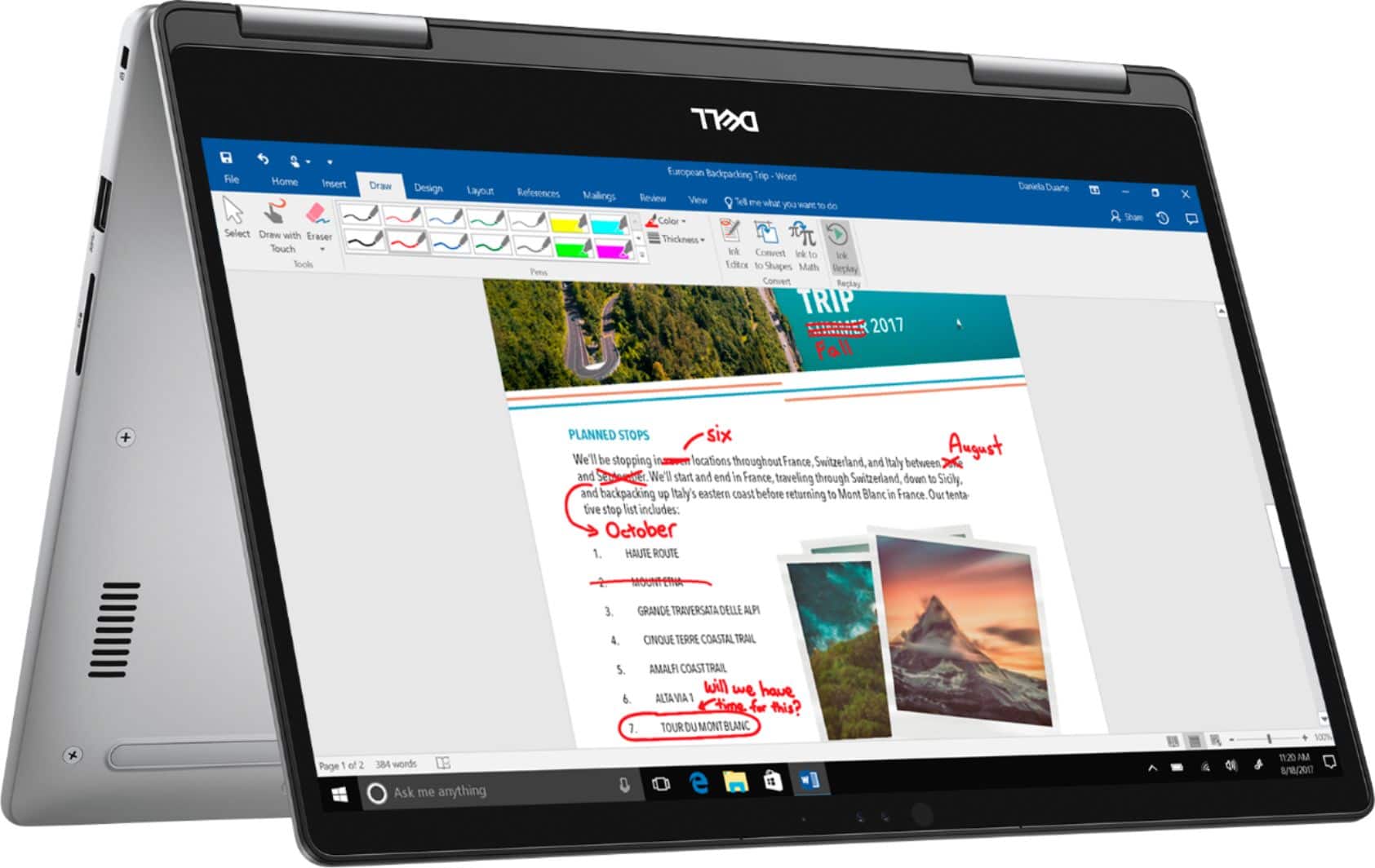
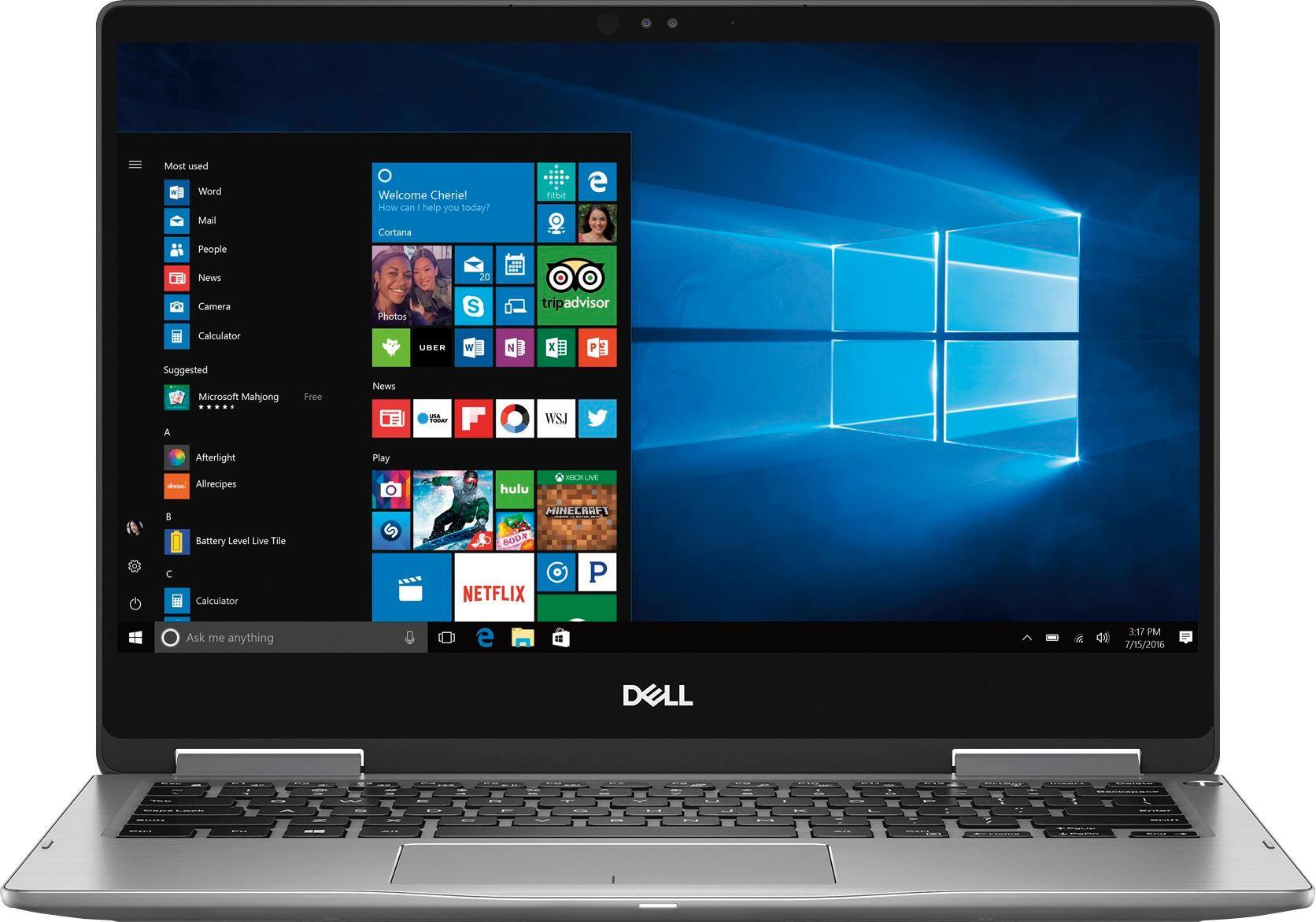
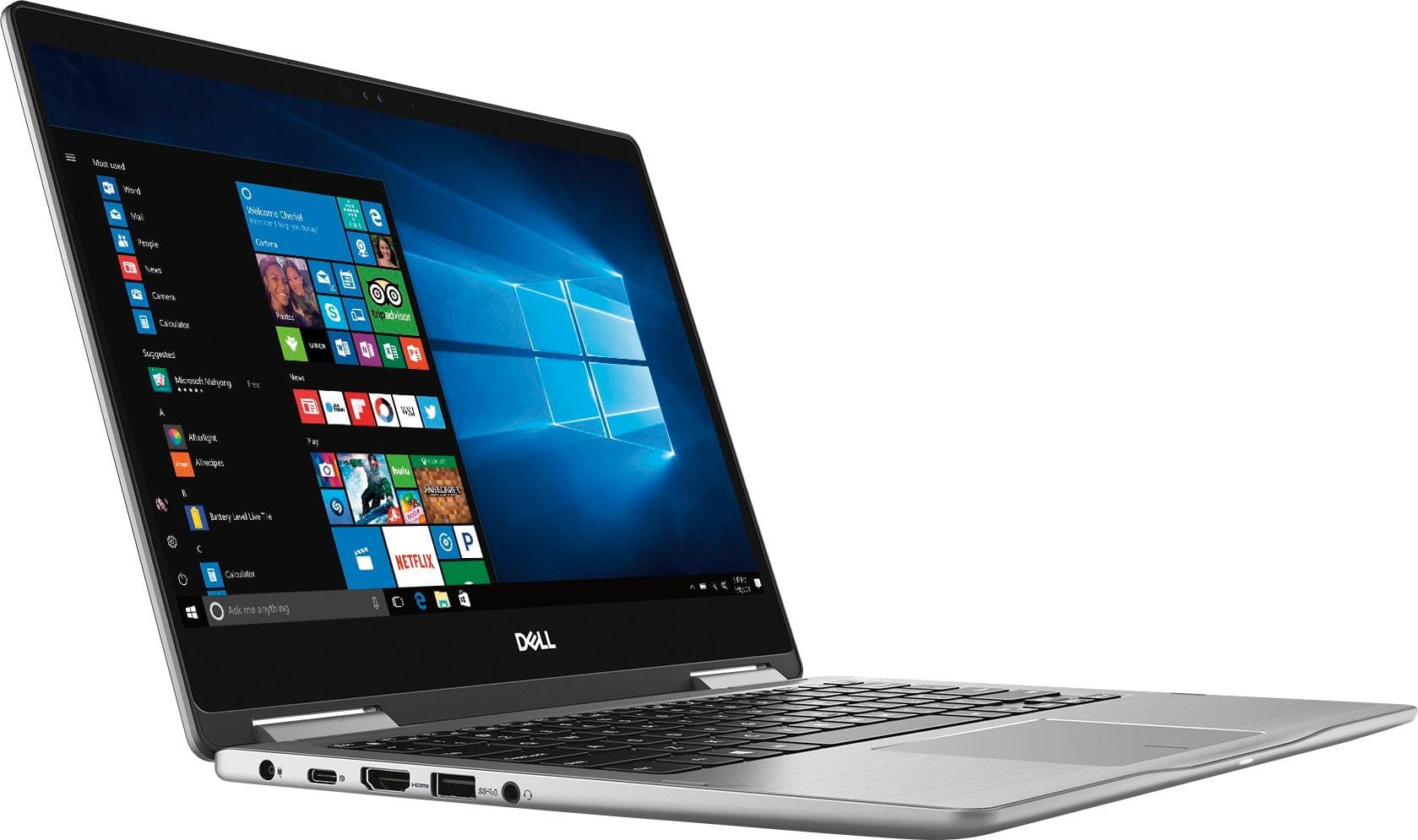
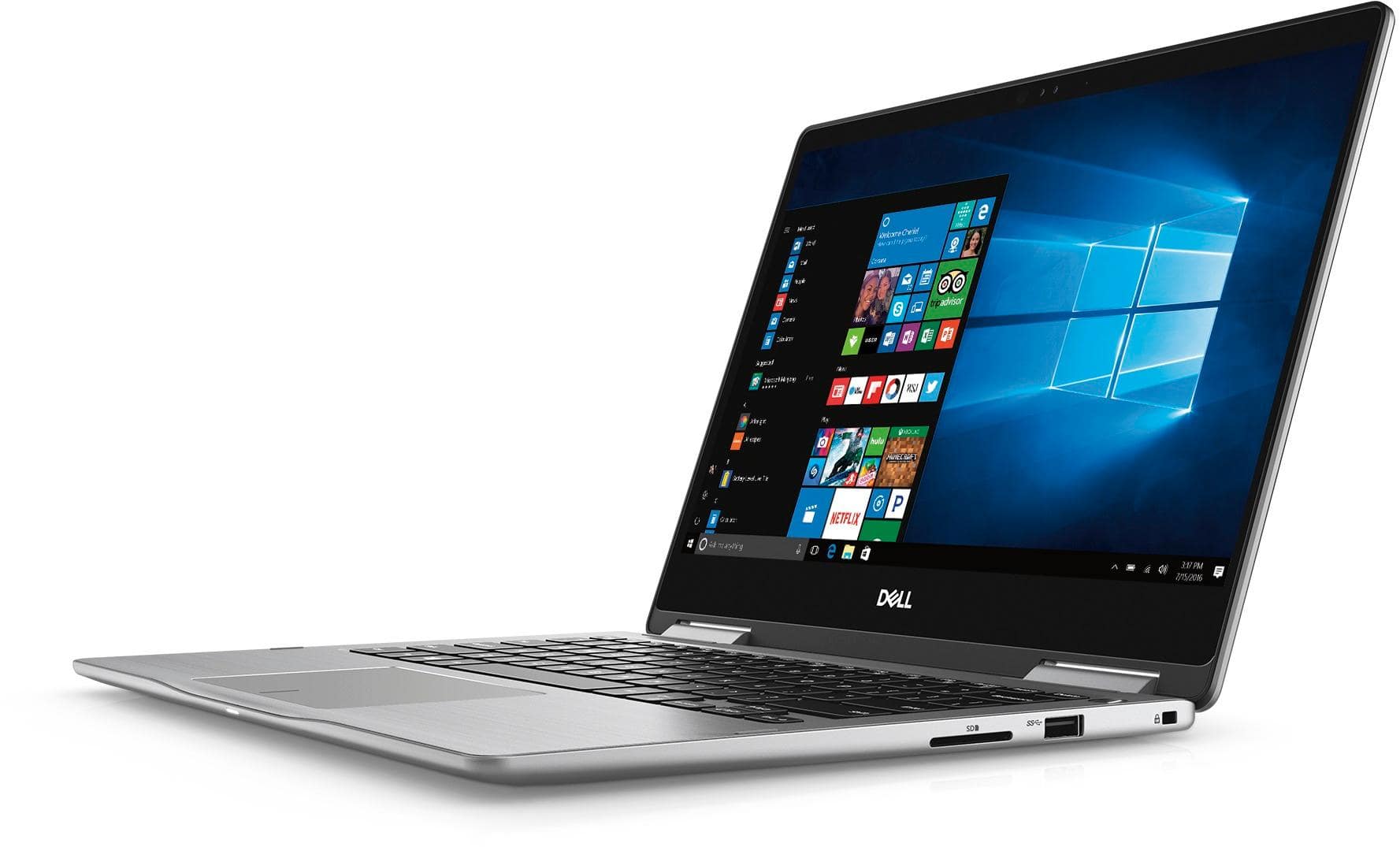
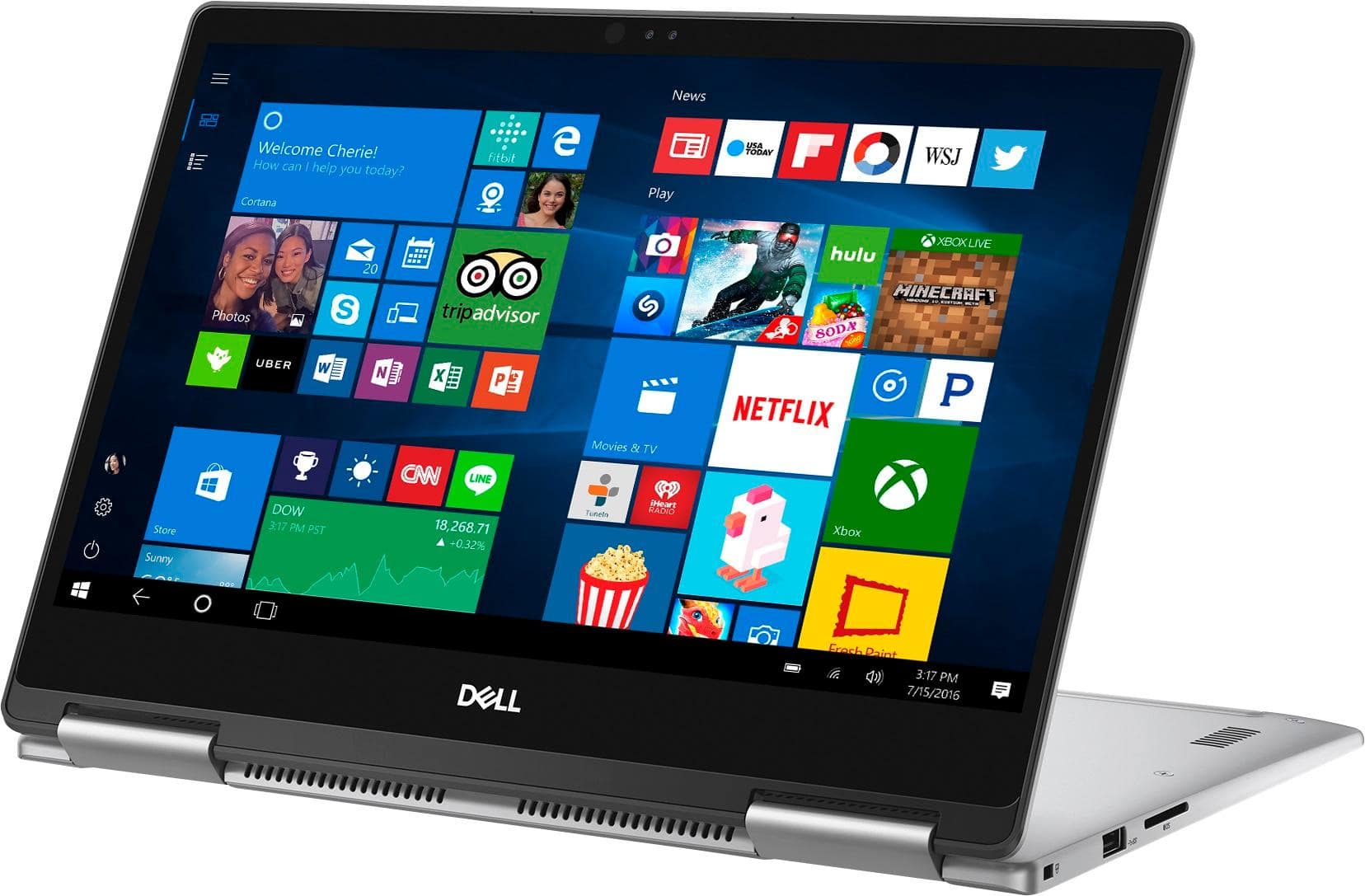
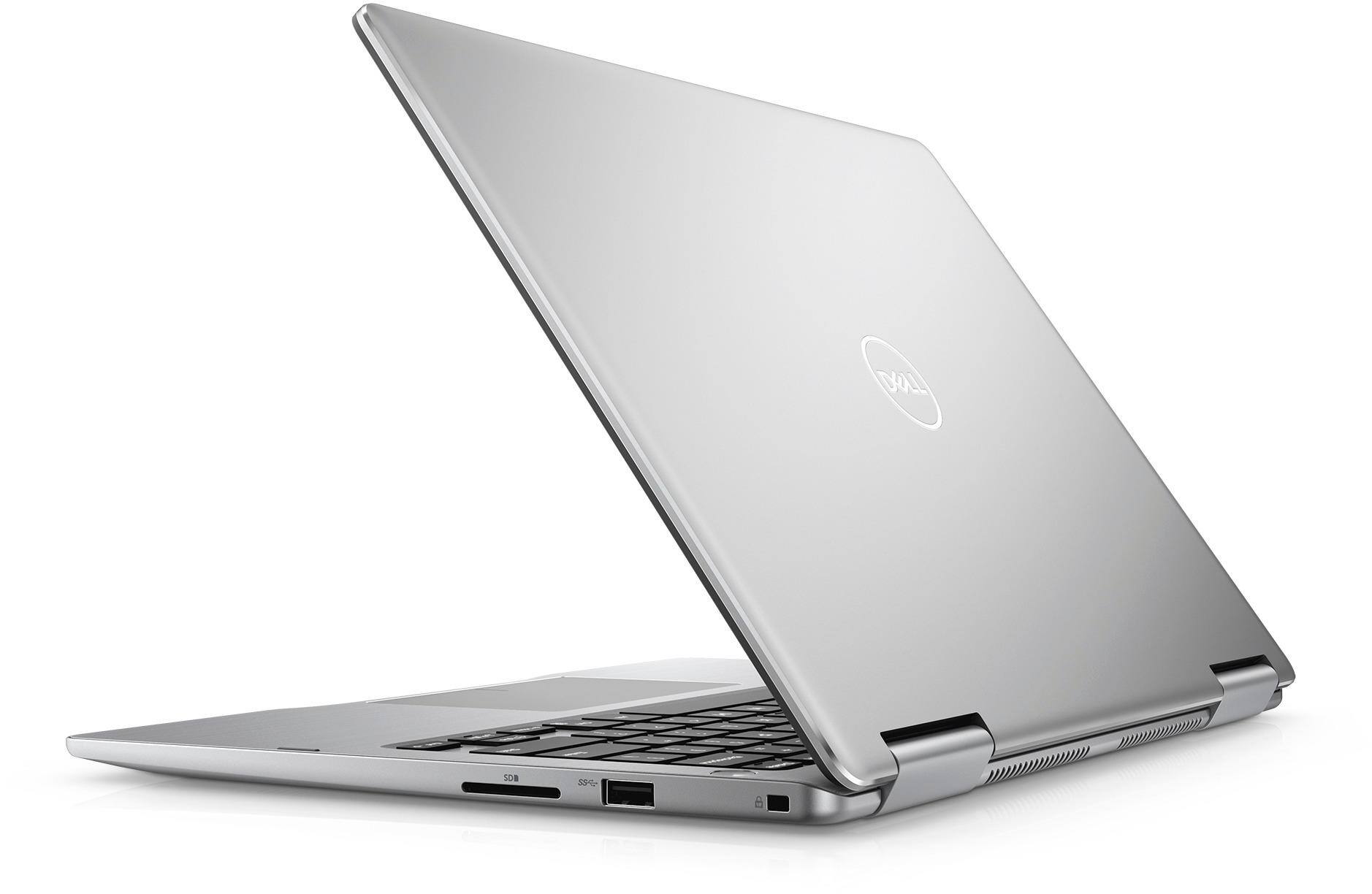
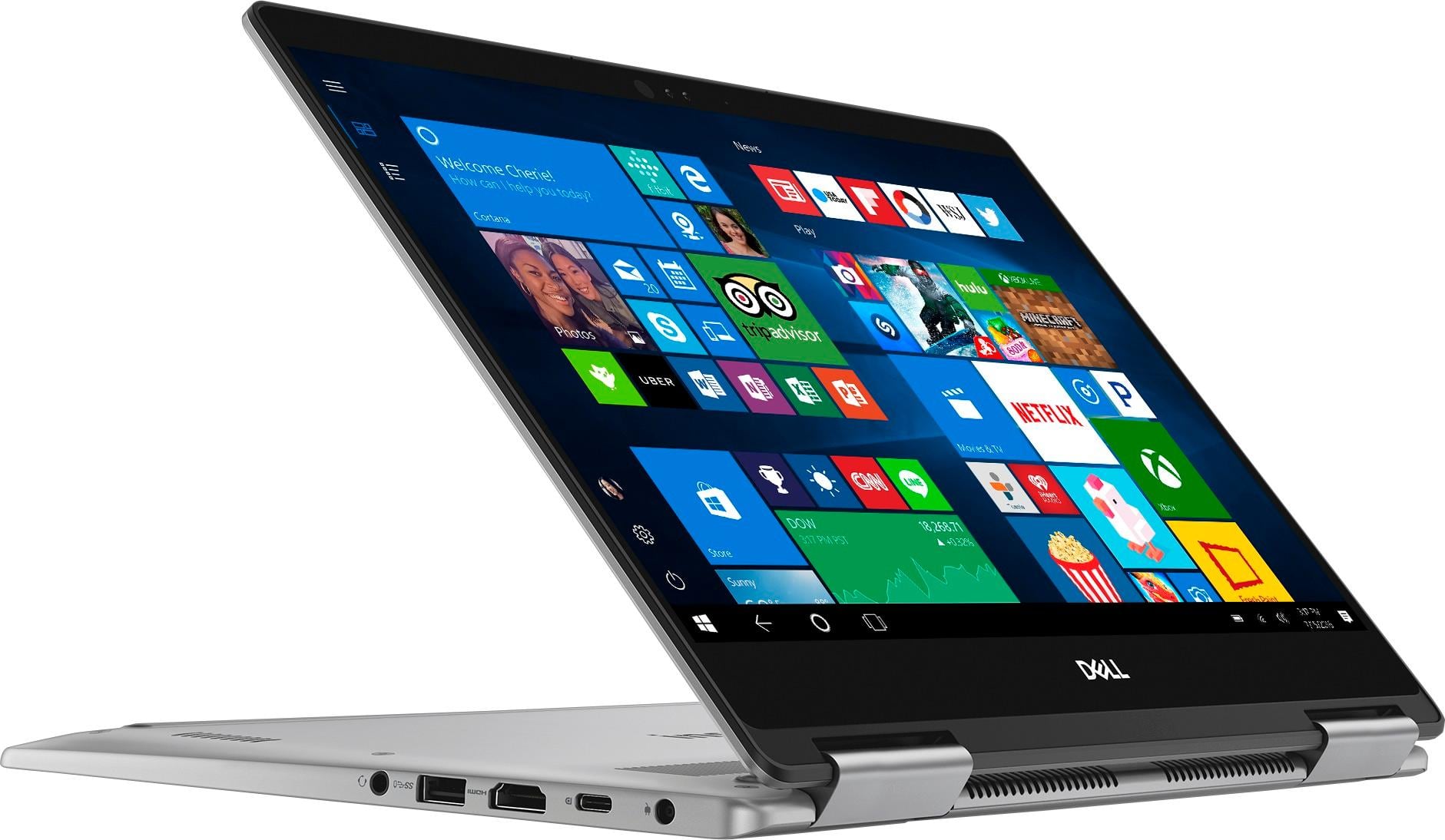
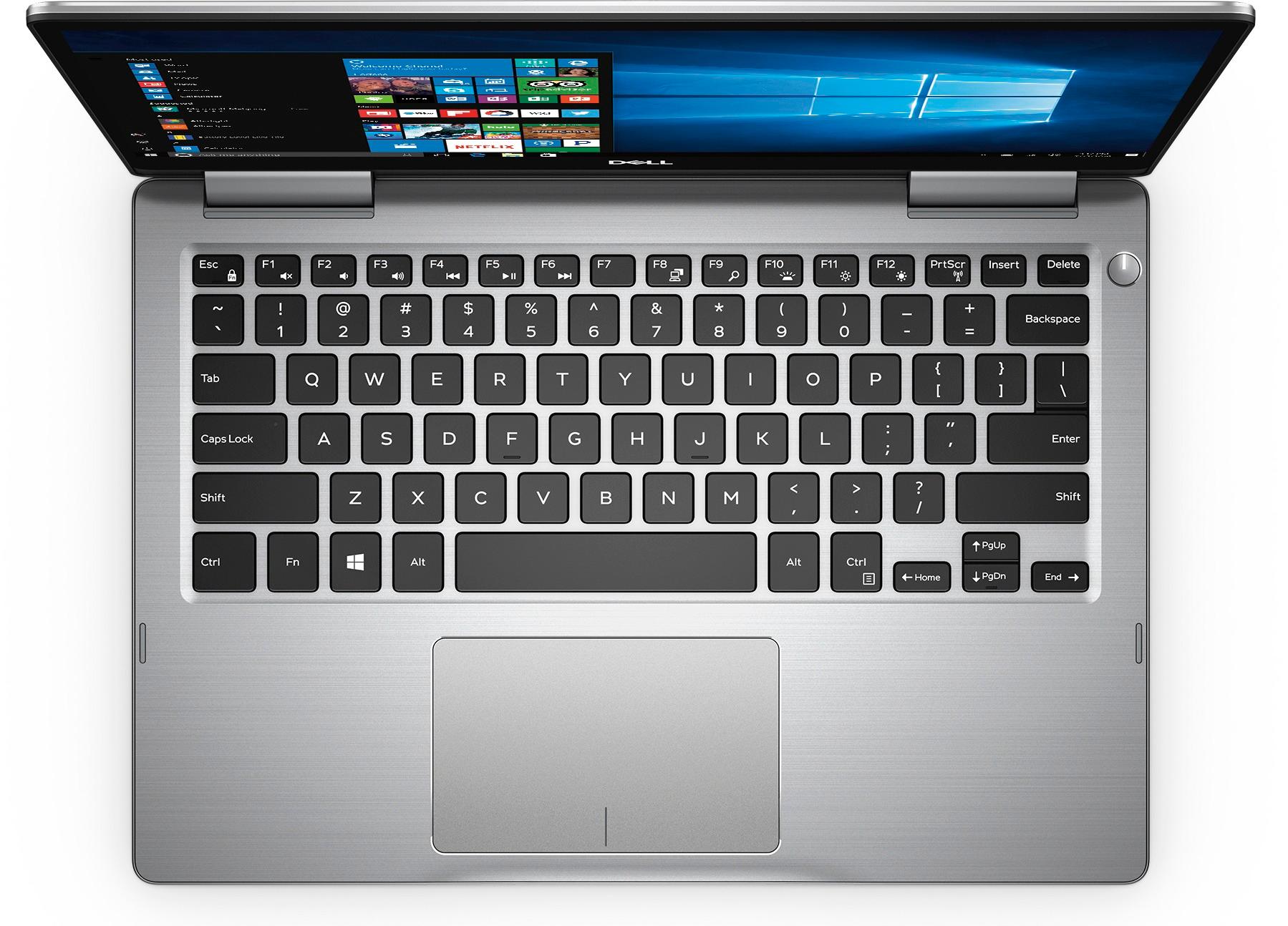
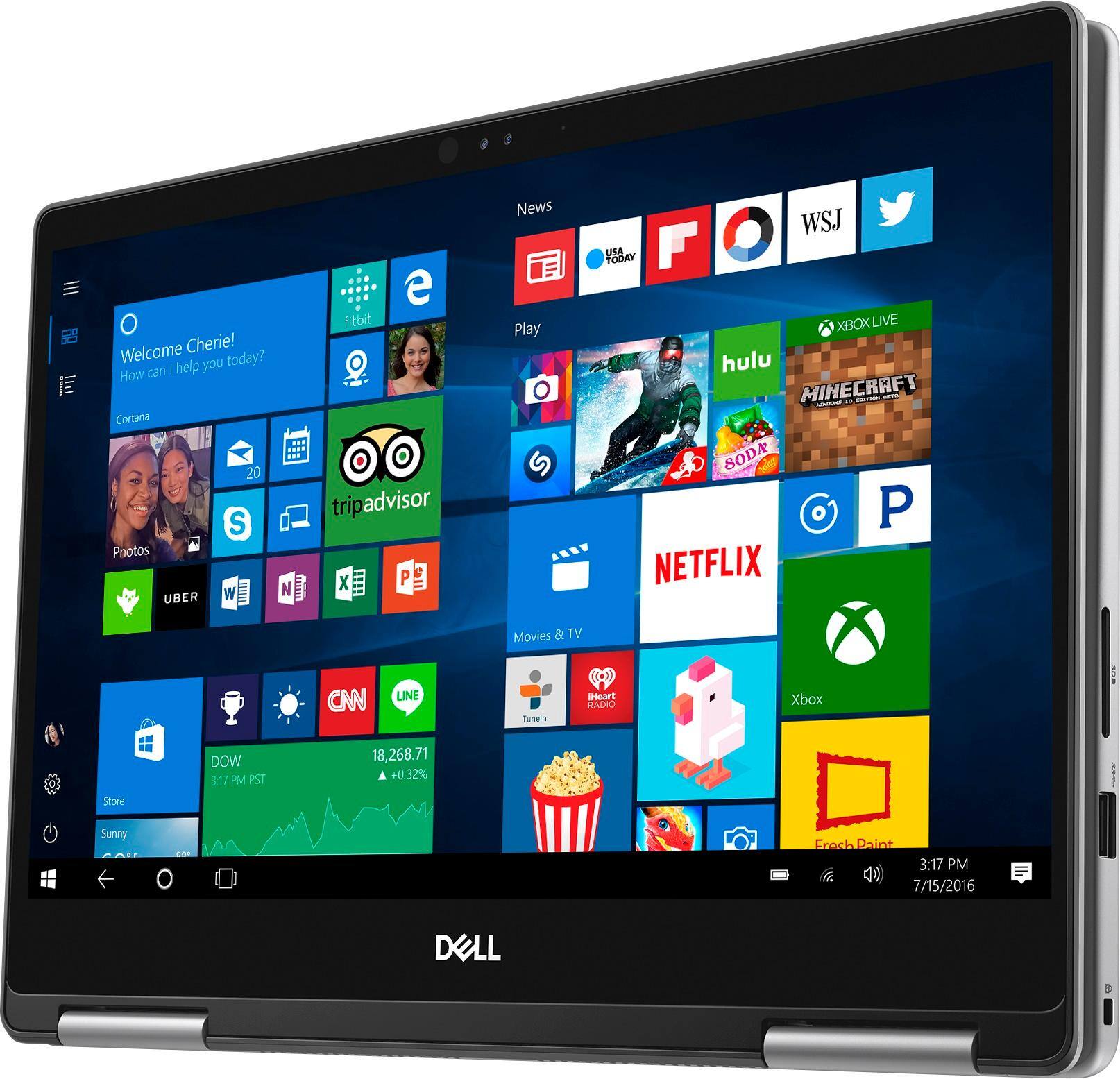
Customers express satisfaction with the Inspiron 2-in-1 13.3" Touch-Screen Laptop for its lightweight design, fast performance, and affordable price. Many users appreciate the convenience of the touchscreen and the overall size of the laptop. However, some customers have concerns about the battery life, heating issues, speaker quality, and fan noise.
This summary was generated by AI based on customer reviews.
Great machine for price.
||Posted .This reviewer received promo considerations or sweepstakes entry for writing a review.Good hard drive capacity with great response time.
I would recommend this to a friendGood purchases
||Posted .This reviewer received promo considerations or sweepstakes entry for writing a review.Worth the price always carry it in all my travels.
I would recommend this to a friendGreat purchase
||Posted .This reviewer received promo considerations or sweepstakes entry for writing a review.I bought it for my kid and it's been so useful . ☆
I would recommend this to a friendLightweight, portable, versatile
||Posted .This reviewer received promo considerations or sweepstakes entry for writing a review.Laptop is my new travel companion. size, weight OK
I would recommend this to a friendGreat Laptop
||Posted .This reviewer received promo considerations or sweepstakes entry for writing a review.this is a great laptop , you wont be disappointed.
I would recommend this to a friendGood value
||Posted .This reviewer received promo considerations or sweepstakes entry for writing a review.Nice versatile laptop. My only complaint is that it throws a lot of heat. Much more than any laptop I’ve used. Hopefully that’s not a sign of future problems.
I would recommend this to a friendBrand response from YourDellTeam
Posted .SGLMassachusetts,
We're sorry to hear that your computer is overheating on you. We'd recommend that you try the following tip: Tips for Proper Usage:
1. Dell does not recommend placing portable systems directly on your lap. Due to reductions in the thickness of modern portable systems, heat transfer can be an issue.
2. Using a portable system (Laptop) on a hard, flat, non-cloth surface will increase airflow and reduce heat from underneath and inside the system.
Using the portable system on a blanket, pillow, or other types of cloth will cover up the fan cause the computer to overheat and can cause permanent damage.
3. It is recommended to use the portable system in a Room temperature of 0°C to 35°C (32°F to 95°F) with a Humidity level no greater than 90%.
4. Use compressed air to clean the vents on a regular basis.
5. Using a cooling pad can decrease heat and increase performance.
6. If you want to know the temperature limitations for your system, go to the Dell Support Website, look up your system model then open the user guide under the manuals link.
You can read the full article here - http://dell.to/2uJ8AdG.
We hope this will help your computer cool down while you're using it.
Best,
Bryan
1-800-624-9896
- Cons mentioned:Battery life
Battery has very short lifespan
||Posted . Owned for 1 year when reviewed.This reviewer received promo considerations or sweepstakes entry for writing a review.Have had for a couple years and the battery is done for. Did research and other people have had the same problem. Wouldn't recommend.
No, I would not recommend this to a friend - Pros mentioned:Fast, Price, Touch screen
Fantastic Value!
Posted .This reviewer received promo considerations or sweepstakes entry for writing a review.I purchased this product 3 months ago, and I have been very happy with my purchase and impressed with the product! This laptop is perfect for students like myself, especially those that use their laptops mainly for basic functions such as Microsoft Office products. Besides myself, I know of several other students who are that use this laptop and really like it. The laptops that I have owned previously were very bulky, did not last as long as they should have based on the price, and they were difficult to use and ran very slow. When I was shopping for a new laptop after my last one crashed, some of the factors that were most important for me included cost, ease of use, battery life, light weight, and speed. This product caught my eye because it met all the criteria that I was needing in a laptop and even more! The Dell Inspiron 13 7000 Series has met all my expectations and fulfills all my needs in a laptop. It is very user friendly, and it took me only a brief time to become familiar with how to use it. The battery life is fantastic! If I start the day with it fully charged I can use it all day without having to charge it which is great since I move from building to building multiple times in a day at college. It is also very light weight which allows me to carry it in my backpack all day without the extra weight hurting my back. Lastly, it operates at a very quick speed without using up a lot of battery life even when I have multiple programs open. The only thing that I would change about this product is that the mouse touchpad is sometimes too sensitive. This laptop also has a touch screen and versatility being a 2-in-1. These weren’t specific criteria that I was looking for, but they have been some of my favorite features and have drastically improved my experience with this product. For providing all these features, I was pleasantly surprised at the low price for this laptop as I think it is an excellent value, especially for college students like myself that are always looking to get the most bang for our buck! Overall, I am extremely satisfied with this product, and would highly recommend it to everyone!
I would recommend this to a friend Nice and Compact
||Posted . Owned for 1 year when reviewed.This reviewer received promo considerations or sweepstakes entry for writing a review.Nice computer. For some reason it likes to over heat when on it too long. My screen also cracked pretty easy. :/ still a decent comeputer though! Better than my dinosaur old one.
I would recommend this to a friend- Cons mentioned:Battery life
Hasn’t lasted
||Posted . Owned for more than 2 years when reviewed.This reviewer received promo considerations or sweepstakes entry for writing a review.Worst computer I’ve ever bought. Either I got a lemon or it’s just a bad product. It’s the most money I’ve ever spent on a a laptop and I have had nothing but issues with it. It overheats so the fam constantly runs, it depends on the day weather or not it wants to turn on (half the time I get a black screen but hear the rest of the computer running), and the battery doesn’t last at all.
No, I would not recommend this to a friend Easy to use
||Posted .This reviewer received promo considerations or sweepstakes entry for writing a review.Need to adjust with screen minimizing and maximizing when using the pad on the labtop. Seems to heat up fairly quickly bad well.
I would recommend this to a friendBrand response from YourDellTeam
Posted .- Ortajf76, Thanks for your review. We're sorry to hear that the touchpad on your new computer is not working as well as you'd like it to. Here are some tips for you: Some Notebooks and Tablets with Keyboards have added gesture features to the touchpad hardware and drivers. A few of these features are two or three finger scrolling, pinch zoom, circle zoom, rotate and swiping. These new features may be the reason for the erratic cursor movement since most are turned on by default. You can disable or modify the way the features work in the touchpad driver properties. Here are some tips to modify these settings:
1. In the Search box, type main.cpl.
2. Touch or click main.cpl in the list of programs.
3. Touch or click the Dell Touchpad tab.
4. Touch or click on the picture of the touchpad.
5. Touch or click Gestures (depending on your computer there may not be a Gestures option).
6. Change the options as preferred.
7. Touch or click Save.
8. Touch or click the X in the upper-right corner to close the Dell Touchpad Utility.
9. Touch or click OK on the Mouse Properties window.
10. If the touchpad still does not work after following the preceding steps, refer to Dell Knowledge Base article - http://dell.to/2iaiujA.
You can read the full article here - http://dell.to/2tqmS02. - Bryan
Nice and in budget
||Posted .This reviewer received promo considerations or sweepstakes entry for writing a review.I liked the laptop but the only problem is that it started to hang after 7 months. So i am not that sure about the product and its quality.
I would recommend this to a friendBrand response from YourDellTeam
Posted .Ritzii,
If you're experiencing system freezes or lock ups you can always try these steps to try to help diagnose the issue:
1. Run a Computer Diagnostic. To determine if your computer is experiencing a hardware problem, run the Dell Preboot System Assessment (PSA) Diagnostics. For information on how to run Diagnostics, and to determine the issue, refer to Dell Knowledge Base Article: http://dell.to/2iaiujA.
2. Check Safe Mode for Symptoms. To boot into safe mode, please follow the instructions below:
a) Start the computer.
b) Tap 'F8' on the keyboard immediately and every one second until the Dell logo screen disappears. From there you will see the Windows Advanced Options Menu on the screen. (If the Windows Advanced Options Menu does not appear, restart the system and try again.)
c) Select Safe mode with Networking and press Enter.
d) Log on as the administrator or as a user with administrative access.
e) Open applications and test the computer in safe mode. If the symptoms exist in safe mode, please continue the troubleshooting steps in this article. If the symptoms do not exist in safe mode, the issue is likely related to a driver or software and you may wish to complete step 3 to see if you are able to resolve the lockups or freezing.
3. Check for Malware. Malware (Virus, Spyware, etc.) can definitely cause a Windows system to lock up or appear to hang. To check for malware on your system and to ensure that your computer is up to date on security software, visit Dell Knowledge Base Article: http://dell.to/2wWP1zI.
You can read the full article here - http://dell.to/2tW5m33.
Best,
Bryan
1-800-624-9896
Decent computer
||Posted .This reviewer received promo considerations or sweepstakes entry for writing a review.Decent computer but I returned for a different computer because I felt like the Dell was getting very hot.
No, I would not recommend this to a friendtoo small to use as a computer
||Posted . Owned for 1.5 years when reviewed.This reviewer received promo considerations or sweepstakes entry for writing a review.I ended up taking it back because was not as useful as a my 15 inch Dell laptop, too small for everyday use?
No, I would not recommend this to a friendNice graphics
||Posted . Owned for more than 2 years when reviewed.This reviewer received promo considerations or sweepstakes entry for writing a review.I'm not a PC fan, but this does have nice quality graphics ... only problem is that I prefer Apple.
I would recommend this to a friendOk but too sensitive to touch.
||Posted .This reviewer received promo considerations or sweepstakes entry for writing a review.Ok but too sensitive to touch. Barely touch it and page changes. Also the edges are rough. I prefer smooth edges.
No, I would not recommend this to a friendBrand response from YourDellTeam
Posted .Brela,
Thanks for your review and we're sorry to hear about how sensitive your screen is acting. We'd recommend that you take these steps to re-calibrate your monitor: If you are having issues with your Touchscreen, this may include being unable to access items to the edge of the screen, for example, your screen may require re-calibration.
Below are the steps required to calibrate your Touchscreen.
1. Restart the Computer and the Monitor
2. Recalibrate the touch-screen. Steps to calibrate touch-screen:
3. Go to Control Panel and select Tablet PC Settings.
4. Under Display tab, select Calibrate.
5. Choose Pen or Touch input.
6. Perform the point calibration that appears on the screen to correct the linearity problems.
7. Save the calibrated data.
You can read the full article here - http://dell.to/2uLztub.
We hope these steps help your screen respond to your gestures smoother.
Best,
Bryan
1-800-624-9896
- Cons mentioned:Battery life
Poor battery life
||Posted . Owned for 1 year when reviewed.This reviewer received promo considerations or sweepstakes entry for writing a review.Overall nice computer, but battery lasts only a an hour.
No, I would not recommend this to a friend Great computet
||Posted .This reviewer received promo considerations or sweepstakes entry for writing a review.So far I like be the versatility....taking some time to transition from Apple to this computer but I like it!
I would recommend this to a friendBrand response from YourDellTeam
Posted .Hi debiwan - Thanks for your review. Dell has a website devoted to people transitioning to Windows 10 that may help you - http://dell.to/2wMZqyx. We hope that you'll continue to enjoy your new computer. - Bryan
Had difficulty
||Posted .This reviewer received promo considerations or sweepstakes entry for writing a review.There was difficulty in starting and loading windows .would like to get a different device if possible
No, I would not recommend this to a friendBrand response from YourDellTeam
Posted .Jyoti, Thanks for your review. If you'd like some assistance setting up your new computer we'd recommend Dell's Support Assist App.
If you have questions about using Windows 10 you can check out Dell's Support page for Windows 10 here - http://dell.to/2wMZqyx. - Bryan
I bought and they didn't have it
||Posted . Owned for more than 2 years when reviewed.This reviewer received promo considerations or sweepstakes entry for writing a review.I bought and they didn't have it. I had to replace it with a different one
I would recommend this to a friend