Customer Ratings & Reviews
- Model:
- I7386-5038SLV-PUS
- SKU:
- 6295914
Rating by feature
- Battery Life
Rating 3.3 out of 5 stars
- Speed
Rating 4.2 out of 5 stars
- Display
Rating 4.3 out of 5 stars
Customers are saying
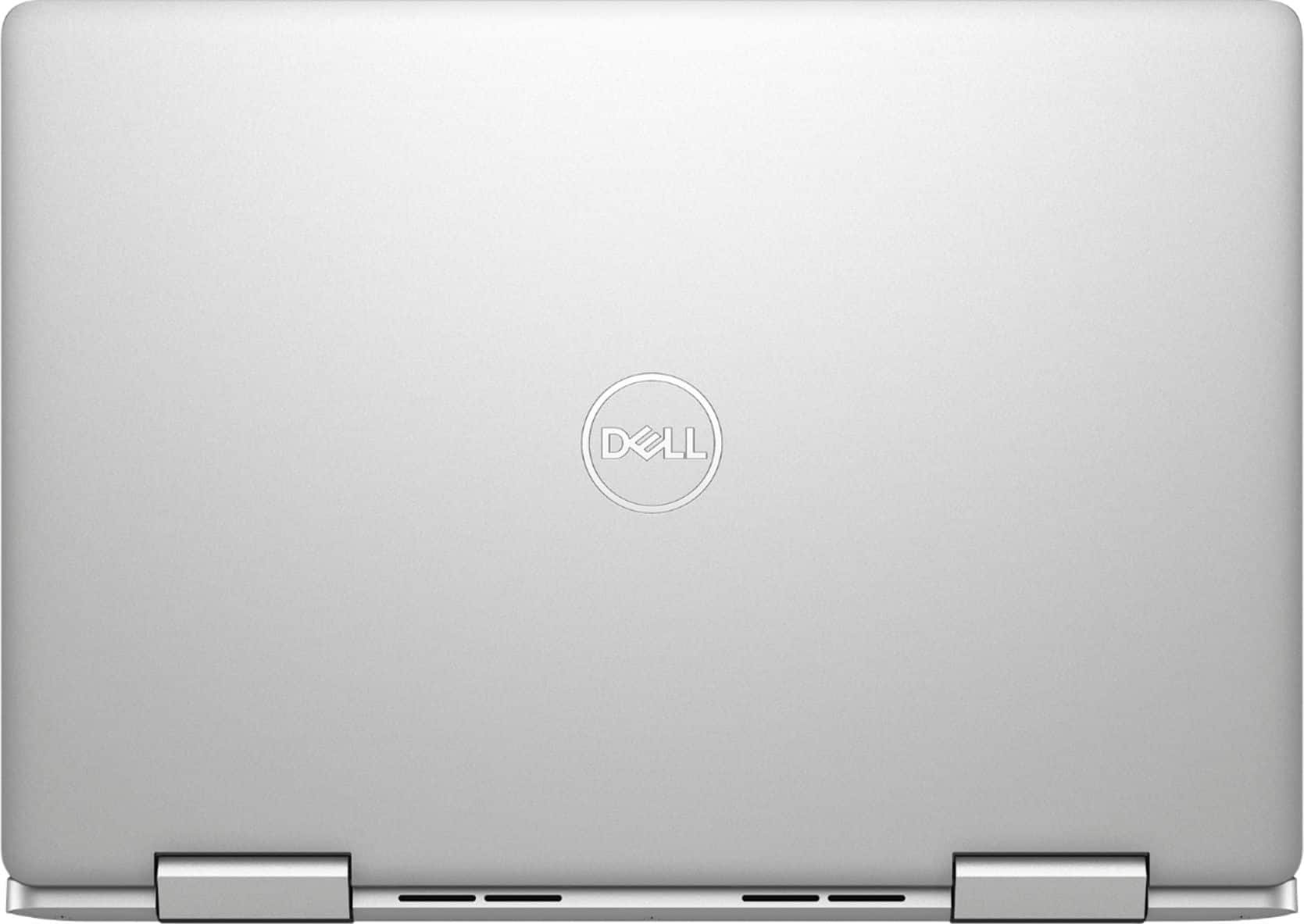
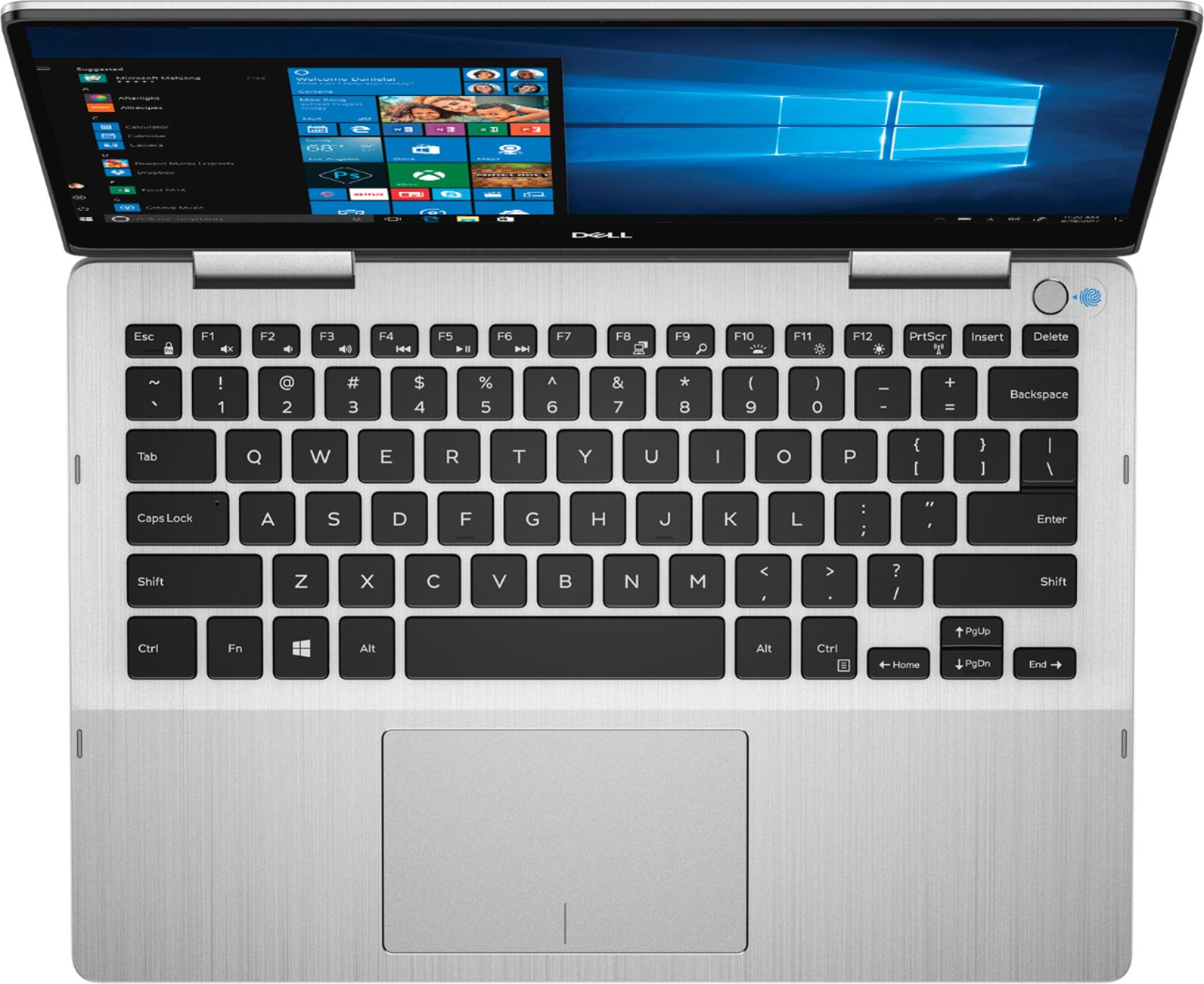
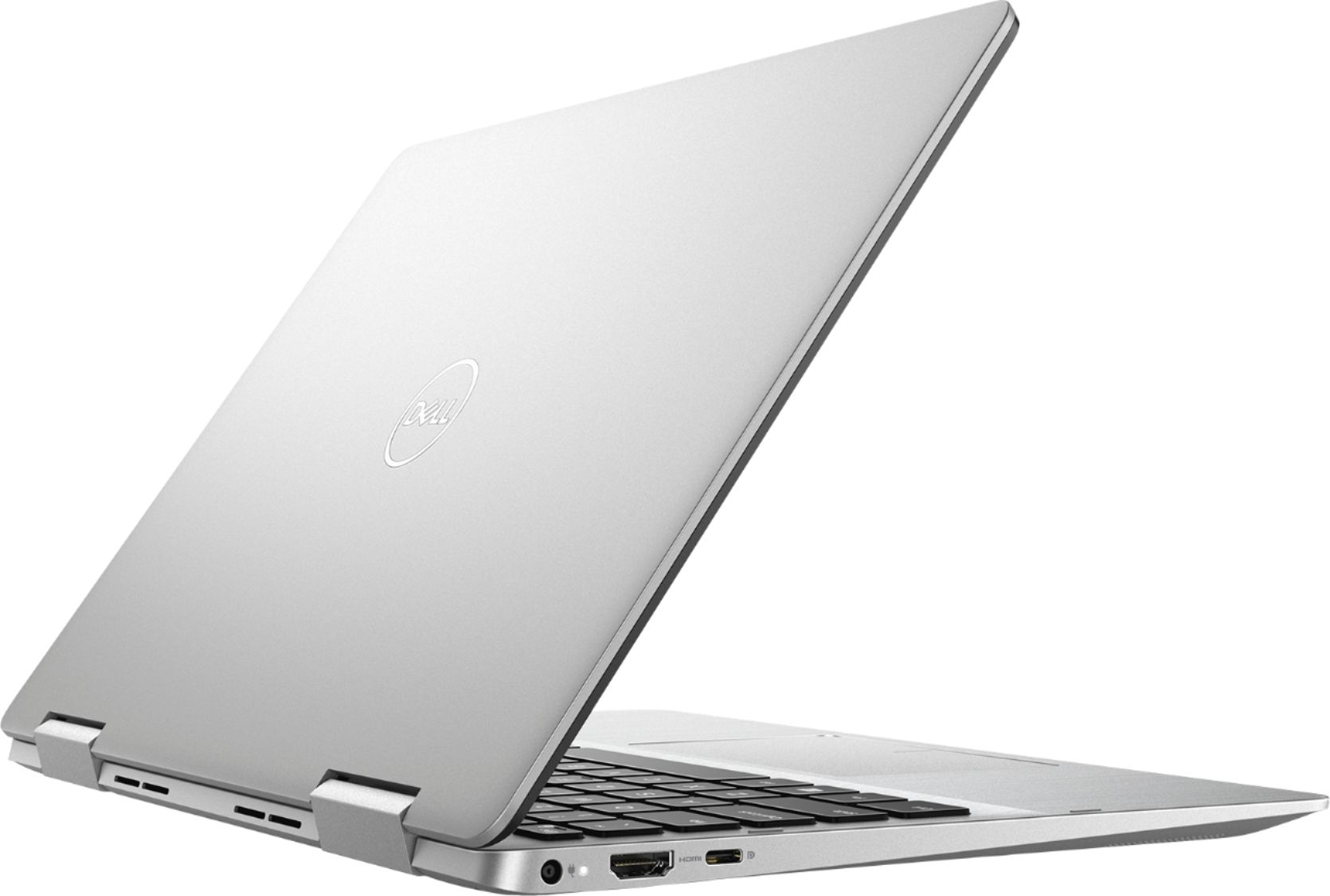
Customers have good things to say about the Inspiron 2-in-1 13.3" Touch-Screen Laptop. They appreciate its lightweight design, responsive touch screen, and affordable price. Many users also find it easy to use and are impressed with its overall performance. However, some customers have concerns about the battery life, fan noise, weight, fingerprint scanner, and overheating issues.
This summary was generated by AI based on customer reviews.
Overall a good laptop.
Posted .This reviewer received promo considerations or sweepstakes entry for writing a review.I was pleasantly surprised as there is a place in it to install a second SSD disk. In the description of this laptop is not written that you can insert a second SSD disk but in reality it can be inserted.
I would recommend this to a friendExtreme Disappointment
Posted .This reviewer received promo considerations or sweepstakes entry for writing a review.Wow...what an experience! The laptop was perfect for two months and then, nothing. Brought it to BB and they sent it to the Geek Squad for a week. When I got it back, it booted but parts of the Dell system and windows 10 system were missing. So back to BB where the on sight tech said I shouldn't have received it back in that condition. He supposedly removed a virus, I was up and running, but with several "glitches". My wife called Dell tech support; nice guy but couldn't get the job done after 2 hours. He stated that they hate when Geek Squad works on their products. My wife cleaned it up with the aid of the Dell web site, but it's still not like it originally was. (My wife gets 5 stars!) I've talked with a local computer tech...he claims there's something different about Dell sold through BB...he would never buy a Dell through BB. Also, notice on the "problem" reviews how Dell addresses their product issues and their lack of concern for customers. They don't offer much support and leave you on your own...assume you're some kind of tech savvy individual who can program computers and repair software glitches. I should have replaced my $200 Woot laptop (worked great for 3 years) with another. Once again, thank God in heaven for my wife...she has saved my sanity again!!!
No, I would not recommend this to a friendBrand response from YourDellTeam
Posted .Hello pmike,
Thanks so much for your feedback. We're very sorry to hear about the experience that you had trying to get your computer set up. We're glad that it sounds like your computer is up and running now. If you do need additional support from Dell's Technical Support Team you can contact them here: http://dell.to/2sH7Qlm.
If you have additional questions about your computer you can check out our Product Support Page here: https://dell.to/2RzXsrQ.
We wish you all the best with your computer in the future.
Best,
Bryan
1-800-624-9896
Decent for the price
Posted .This reviewer received promo considerations or sweepstakes entry for writing a review.If you can get it on sale, this is a good deal. I discovered that there was a driver issue with the wireless network card. A lot of issues were resolved after updating the driver off of the Dell website. You would think that everything would work right out of the box. For this reason, I am giving it 3 stars instead of 5.
No, I would not recommend this to a friendBrand response from YourDellTeam
Posted .gfxdesigner24,
We're glad that you were able to resolve your issue with a driver update. If you need to check for additional updates for your computer you can always check our Driver and Software page for your system here: https://dell.to/2SNPOPn.
Best,
Bryan
1-800-624-9896
Great laptop
Posted .This reviewer received promo considerations or sweepstakes entry for writing a review.Great laptop. Closest I’m getting to a MacBook. Nice and slip. Fast. Long lasting battery
I would recommend this to a friendNot worth it... bad battery backup
Posted .This reviewer received promo considerations or sweepstakes entry for writing a review.Good laptop with convenience to work like a tablet. Very bad battery backup.
No, I would not recommend this to a friendDO NOT BUY THIS COMPUTER!!!
Posted .This reviewer received promo considerations or sweepstakes entry for writing a review.I purchased this computer for my son and it has NEVER been able to connect to a Network (WIFI) ever!!! I paid over $1000 for this laptop and it is useless! I contacted Dell and had it sent to them to fix not once - but twice... and still I cannot connect to any Network. There is clearly a problem with the laptop and now Dell is telling me I didn't contact them enough - even though I spent 20+ hours trying to fix the issue. So now I am being told they won't do anything to resolve this for me because I waited too long. I have never had an issue like this in my life and I will never buy Dell again. Also Dell Customer Service is horrible and they never resolve anything. Do yourself a favor and do NOT buy Dell products.
No, I would not recommend this to a friendBrand response from YourDellTeam
Posted .Florida813,
Thanks for your review. We're sorry to hear about the trouble that you've had with your computer so far. If you're still having trouble connecting to WIFI we'd recommend trying the following:
1. Download and install the latest Wireless Card driver. (https://dell.to/2th3Tpe) After updating the driver, re-establish the connection with the Wireless Access Point and check the wireless performance.
2. If the issue persists, proceed to step 3.
3. Power-cycle the local network. Shut down the Dell system, the Wireless Access Point/Router and the Modem. Wait a minimum of 60 seconds before powering up the components in the following order:
4. Power ON the Modem, and wait for it to boot fully.
5. Power ON the Wireless Access Point/Router, and wait for it to boot fully.
6. Power ON the Dell system.
7. Open Network and Sharing Center
8. In the left side navigation pane, click on Change Adapter Settings
9. Right click on the wireless connection icon and select Properties followed by the Configure button
10. Under Wireless Options, select the Wireless N mode
11. For Windows 8 or later systems click the Advanced tab and look for 802.11n Mode on the right you will be given the option to Enable or Disable. If the mode is not visible you may need to update your drivers and firmware.
12. From the drop-down menu, choose Disable followed by Ok
13. This should restore the wireless download and upload speed. Internet speed can be tested at http://speedtest.net.
We hope that this helps connect your computer the way that it's supposed to be.
Best,
Bryan
1-800-624-9896
unreliable
Posted .This reviewer received promo considerations or sweepstakes entry for writing a review.The laptop wouldn't turn back on when I wanted to use it after not using it for a few months, plugged it in and nothing. I got it diagnosed and was told the motherboard had a short and is no good. I've owned this laptop for less than 3 years, was lightly used for homework and classwork, only consumed 1/3 of memory, never dropped it, and it's already bricked. Very disappointing.
No, I would not recommend this to a friendBrand response from YourDellTeam
Posted .sjohn,
We're sorry to hear that your computer is not working the way that it should. If you'd like to try to turn your computer on, please follow these steps:
1. If the computer is displaying the Dell logo and does not move past that point, it has probably failed POST.
2. If the power indicator lights up and it is amber or orange, this is usually an indicator that it has failed POST.
3. If you see text on a black screen, the computer is currently performing the POST. If the computer stays in that condition and does not move past it, it has probably failed POST.
4. If the video screen displayed anything at all during the startup process but is now black, this probably indicates that the computer failed POST.
5. If the computer is beeping or if Caps/Num/Scroll Locks are flashing, note if there is a particular pattern in which it beeps or flashes.
6. If the computer is not beeping and caps/num/scroll locks are not flashing, unplug all connections and remove all media communication devices (e.g. external monitors); reconnect one at a time and check if the computer functions.
7. For a notebook, press and hold the Fn key and then press the power button. This starts the pre-boot testing and will launch ePSA. In case you have a Desktop at the Dell logo screen tap the F12 key to enter One Time Boot Menu and use the arrow keys to highlight Diagnostics and press enter.
You can read the full article here - http://dell.to/2uj1Sby.
Best,
Bryan
1-800-624-9896
Hard drive issues
Posted .This reviewer received promo considerations or sweepstakes entry for writing a review.Bought this computer for my son for college, he's had it just over a year and the hard drive is gone and needs to be replaced. Of course it's out of warranty now so we have to pay for a new hard drive. So much for a solid slate hard drive, first computer I bought with this and only computer to have the hard drive crash! Never again!
No, I would not recommend this to a friendBrand response from YourDellTeam
Posted .sm531,
Thanks for your review. We're very sorry to hear that the hard drive on your computer needs to be replaced. We'd recommend checking out our Product Support Page if you have additional concerns once your hard drive is replaced: https://dell.to/2RzXsrQ.
Best,
Bryan
1-800-624-9896
Activate Windows Stuck in Lower Right Corner
Posted .This reviewer received promo considerations or sweepstakes entry for writing a review.The laptop came with Windows 10, yet my laptop has "Activate Windows" stuck in the lower right hand corner. When I try to activate windows, there is no option to do that because the Windows license is supposedly already embedded in the motherboard.
No, I would not recommend this to a friendBrand response from YourDellTeam
Posted .Benj,
Thank you for your review and we're sorry to hear about the trouble with the activate windows notification on your computer. You can reach out to Microsoft directly to see what their Technical Support Team suggests as a way to resolve this issue: http://bit.ly/2KBOM4c.
Best,
Bryan
1-800-624-9896
Screen separation - hinge Inspiron 13 7000 Serie2
Posted .This reviewer received promo considerations or sweepstakes entry for writing a review.I bought a Dell Inspiron 13 (7000 Series 2-in-1) from Cary, NC near the beginning of 2017. While this is a 2-in-1, its use has been almost exclusively as a laptop with great care all through. The screen has started to separate near the right hinge. The left hinge seems to be holding on but the right hinge has got some play. Would appreciate any suggestions?
No, I would not recommend this to a friendBrand response from YourDellTeam
Posted .Ravis2017,
We're very sorry to hear about the loose hinge on your 2-In-1. We'd recommend checking out our Product Support Page if you have questions about how your computer can work better for you: https://dell.to/2RzXsrQ.
Best,
Bryan
1-800-624-9896
Very disappointing
Posted .This reviewer received promo considerations or sweepstakes entry for writing a review.I have purchased this laptop 15 months ago. A few days ago it stooped working. Doesn't even turn on! Went to BestBuy and have been told by the rep my warranty was good only for 12 months, there is nothing they can do about. This laptop has been used for school only! Has not even a scratch. No computer should die on you after 15 months of a very gentle use! Be aware, and do not buy. Horrible customer service!
No, I would not recommend this to a friendBrand response from YourDellTeam
Posted .KateG,
Thanks for your review. We're sorry to hear that your computer is not starting the way that it should. We'd recommend that you try these steps to try to get your computer to start up again:
1. If the computer is displaying the Dell logo and does not move past that point, it has probably failed POST.
2. If the power indicator lights up and it is amber or orange, this is usually an indicator that it has failed POST.
3. If you see text on a black screen, the computer is currently performing the POST. If the computer stays in that condition and does not move past it, it has probably failed POST.
4. If the video screen displayed anything at all during the startup process but is now black, this probably indicates that the computer failed POST.
5. If the computer is beeping or if Caps/Num/Scroll Locks are flashing, note if there is a particular pattern in which it beeps or flashes.
6. If the computer is not beeping and caps/num/scroll locks are not flashing, unplug all connections and remove all media communication devices (e.g. external monitors); reconnect one at a time and check if the computer functions.
7. For a notebook, press and hold the Fn key and then press the power button. This starts the pre-boot testing and will launch ePSA. In case you have a Desktop at the Dell logo screen tap the F12 key to enter One Time Boot Menu and use the arrow keys to highlight Diagnostics and press enter.
You can read the full article here - http://dell.to/2uj1Sby.
Best,
Bryan
1-800-624-9896
- Cons mentioned:Battery life
1 hour battery life for real!
Posted .This reviewer received promo considerations or sweepstakes entry for writing a review.someone said 5 to 6 hour battery life? that is a lie! 1 hour battery life for real!
No, I would not recommend this to a friendBrand response from YourDellTeam
Posted .dilrod,
We're sorry to hear that your computer's battery is not lasting as long as you hoped that it would. We'd recommend the following tips to help conserve your battery life:
Change the Power Plan:
1. On the notification area of the taskbar, right-click the Battery icon.
2. On the options list, click Power Options.
3. Select a power plan on the battery meter, such as Power Saver or Balanced. Windows 10 has a built in 'Battery Saver' mode that can be activated to extend your system's battery life. The Battery Saver mode will monitor and limit background activity and other features such as push notifications. You do have the option to enable or disable this mode within settings or within advanced Battery Saver settings, you can customize the mode to best suit your needs.
a) Click on the Action Center icon in the taskbar and select the tile for Battery Saver.
b) If running Cortana then type Battery Saver into the search box and select from the results.
Within the Battery Saver settings page, you will be able to turn on and off the feature and customize the feature to best meet your needs.
c) Turn Battery Saver On or Off.
d) Additional settings available via the Battery use and Battery saver settings links.
e) Battery use shows further info on apps and their power usage.
f) Battery Saver Settings screen allows you to customize further Battery Saver feature.
You can read the full article here - http://dell.to/2vfXWf4.
Best,
Bryan
1-800-624-9896
AWFUL after 2 years
Posted .This reviewer received promo considerations or sweepstakes entry for writing a review.worst laptop I've ever used is constantly glitching and have not had for very long. definietly not worth the money
No, I would not recommend this to a friendBattery Life
Posted .This reviewer received promo considerations or sweepstakes entry for writing a review.Worst battery life .. dont even last 15 mins .. I don’t recommend this model
No, I would not recommend this to a friend