Customer Ratings & Reviews





- Model:
- i7420-7976SLV-PUS
- SKU:
- 6504381
Rating by feature
- Battery Life
Rating 4.5 out of 5 stars
- Speed
Rating 4.7 out of 5 stars
- Display
Rating 4.7 out of 5 stars
Customers are saying
Customers often highlight the Inspiron 2-in-1's impressive performance, responsive touchscreen, and ease of use. Its lightweight design and good battery life are also frequently praised, making it a portable and convenient option. While some users noted the fan can be noisy at times and the speakers could be improved, the overall experience is largely positive. Many appreciate the value for the price.
This summary was generated by AI based on customer reviews.
Saif laptop
||Posted . Owned for 3 weeks when reviewed.This reviewer received promo considerations or sweepstakes entry for writing a review.Good product my son loved to do his homework in it.
I would recommend this to a friendWelldone
||Posted . Owned for 1 month when reviewed.This reviewer received promo considerations or sweepstakes entry for writing a review.So far so great. Will know more by summer's end. Thanks
I would recommend this to a friendVery good Laptop
||Posted . Owned for 2 weeks when reviewed.This reviewer received promo considerations or sweepstakes entry for writing a review.Good performance, good screen resolution and lot of ports
I would recommend this to a friendLaptop
||Posted . Owned for 1 month when reviewed.This reviewer received promo considerations or sweepstakes entry for writing a review.Great product! I would buy this product again ....
I would recommend this to a friendPortable excellent laptop
||Posted .This reviewer received promo considerations or sweepstakes entry for writing a review.Verygood for a student fast with crystal clear display
I would recommend this to a friendAerodynamic and aesthetic
||Posted .This reviewer received promo considerations or sweepstakes entry for writing a review.Helpful and the best option for my engineering career!
I would recommend this to a friendExcellent Laptop
||Posted . Owned for 3 weeks when reviewed.This reviewer received promo considerations or sweepstakes entry for writing a review.Great laptop for anyone who needs to have a good laptop
I would recommend this to a friendIt’s not even worth 200$
||Posted . Owned for 11 months when reviewed.This reviewer received promo considerations or sweepstakes entry for writing a review.I have purchased over 10 laptops of same model , it’s completely waste of money every single laptop having the same problem , customer service they don’t even care.
No, I would not recommend this to a friendNA
||Posted . Owned for 3 weeks when reviewed.This reviewer received promo considerations or sweepstakes entry for writing a review.I liked that computer and recommended to friends too
I would recommend this to a friendDell Inspiron 14 no sound
||Posted . Owned for 5 months when reviewed.This reviewer received promo considerations or sweepstakes entry for writing a review.4 months old, laptop has no sound through speakers, blue tooth, or headphone jacks. I mostly use this laptop to watch my favorite shows when travelling. First Dell I've ever owned, might be my last.
No, I would not recommend this to a friendBrand response from YourDellTeam
Posted .Dear KarlK,
Thank you for taking the time to leave a review of your Inspiron 7420. We are sorry to hear that you are experiencing an issue with your audio. That is not the type of product Dell intends to deliver or the type of feedback we like to hear from our customers. We have noted the details of your statement and will use them for developments in future and current products. Below I have provided troubleshooting steps to help resolve your issue.
Here are the steps to help resolve your audio issue:
1. Check the audio ports for damage, and clean the ports.
2. Restart your Dell computer.
3. Check the connection. (external speakers, headphones, or earphones)
4. Check volume settings and set the default playback device.
5. Run the Microsoft Sound Troubleshooter.
6. Reinstall or update the chipset, audio, and BIOS drivers.
7. Run a hardware diagnostic test.
8. Download and install Microsoft Windows updates.
9. Perform Windows System Restore.
10. Restore the computer to factory default settings.
You can read the full article on solving audio issues here: https://dell.to/3sDPguh
If you continue to experience issues, please reach out to Dell Support directly by using the information provided below.
Chat or call: https://bit.ly/DellSupportTeam
Phone number to Dell: 1-800-624-9896
Best,
Summer@Dell
fast work
||Posted . Owned for 1 month when reviewed.This reviewer received promo considerations or sweepstakes entry for writing a review.It's just what I'm like very well.the and..... stop
I would recommend this to a friendPromises not met
||Posted . Owned for 1 month when reviewed.This reviewer received promo considerations or sweepstakes entry for writing a review.Geek squad never got old computer data, files transferred after 3 store visits. Geek squad on line was equally bad. Left problems half solved and never followed up.
No, I would not recommend this to a friendBrand response from YourDellTeam
Posted .Hey DaveK,
Thank you for taking the time to leave a review of your Inspiron 2-in-1. We are sorry to hear that you were not able to get your old files transferred to your new device. That is not the type of feedback we like to hear from our customers. We have noted the details of your statement and will use them to improve current and future products. We would love to help you. Below I have provided the toll-free number and chat link to reach a member of our Dell Support team.
Should you need further assistance; we recommend that you contact Dell directly with the information below.
Chat or call: https://bit.ly/DellSupportTeam
Phone number to Dell: 1-800-624-9896.
Best,
Summer@Dell
Poor Quality Rich Price
||Posted . Owned for 1 month when reviewed.This reviewer received promo considerations or sweepstakes entry for writing a review.Unresolvable screen flickering. Processor speed is slow while the screen is operable, but more often it’s not usable due to the constant screen flickering. Updated drivers, graphics card, etc.
No, I would not recommend this to a friendBrand response from YourDellTeam
Posted .Hi GRJ85,
Thank you for taking the time to leave a review and provide feedback on your Inspiron 7420. We are sorry to hear that you are experiencing an issue with your screen flickering. That is not the type of product Dell intends to deliver. We have noted the details of your statement and will escalate them to our quality team for improvements in current and future products. Below I have provided a troubleshooting link to help resolve your issue.
Screen Troubleshooting Link: https://dell.to/3ewPsov
We recommend that you contact Dell directly with the information below if you need further assistance.
Chat or call: https://bit.ly/DellSupportTeam
Phone number to Dell: 1-800-624-9896.
Best Regards,
Summer@Dell
ok
||Posted . Owned for 2 weeks when reviewed.This reviewer received promo considerations or sweepstakes entry for writing a review.I prefer HP. When hands are on the keyboard, sometimes the words get highlighted without me hovering over them and some of the content goes away.
No, I would not recommend this to a friendBrand response from YourDellTeam
Posted .Hi LisaB,
Thank you very much for your valued feedback. We are sorry to hear about the keyboard issues you are experiencing with your Dell Inspiron 7420 2-in-1 laptop. We will share your comments about these issues with our quality team, so future improvements can be made.
We recommend making sure drivers for this product are updated. I have provided a link to the drivers and downloads page where you can check for any applicable updates.
Drivers and Downloads Page: https://dell.to/3QJLpaJ
If the issue with your computer is still not resolved after utilizing the troubleshooting options above, please contact the Dell Support Team at 1-800-624-9896 for further guidance.
Best,
Katarina@Dell
Should you need further assistance, you can contact Dell directly with the information below.
Chat or call: https://bit.ly/DellSupportTeam
Phone number to Dell: 1-800-624-9896
- Cons mentioned:Speakers
Very Disappointing
||Posted . Owned for 3 weeks when reviewed.This reviewer received promo considerations or sweepstakes entry for writing a review.This is our second Dell, since the first one was defective (speakers dont work when on zoom) We exchanged it for a more expensive and mouse pad doesnt work and same issue a speakers. Extremely disappointing.
No, I would not recommend this to a friendBrand response from YourDellTeam
Posted .Dear Valued Customer,
We would like to thank you for taking the time to provide us with your feedback. We apologize for the issues you have come across with your Dell Inspiron 7420 2-in-1 computer because its touchpad and speakers are not working. We understand how frustrating this could be. This is certainly not the experience that we like to hear from our customers. We appreciate your feedback and will use it to help improve our current and future products.
Below I have provided the steps to run the Microsoft Sound Troubleshooter. I have also included the full article link that has more options if they are needed. We also suggest making sure the audio drivers are up to date on your PC. I have given you a link to the Drivers and Downloads page for your computer below so you can check for and do any applicable updates.
How to run the Windows Sound Troubleshooter in Microsoft Windows 10
1. Click Start, and then select Settings (gear icon).
2. Click Update & Security and select Troubleshoot.
3. Click Playing Audio and then click Run the troubleshooter.
4. Follow the on-screen instructions to complete the troubleshooting process.
How to Troubleshoot Audio Issues or Sound Playback Issues: https://dell.to/3u4pzmX
Drivers and Downloads Page: https://dell.to/3QJLpaJ
To help with non-working touchpad, please take a moment to contact the Dell Support Team at 1-800-624-9896 for further guidance.
Best,
Katarina@Dell
Should you need further assistance, you can contact Dell directly with the information below.
Chat or call: https://bit.ly/DellSupportTeam
Phone number to Dell: 1-800-624-9896
Dells just stink.
||Posted . Owned for 3 weeks when reviewed.This reviewer received promo considerations or sweepstakes entry for writing a review.I don't know why I ever trusted Dell to make a functional computer. This is a complete piece of expensive, not working crap. I don't know how many times I've had to "set up" or "finish setting up" my Microsoft account. I've been locked out after following the directions exactly. Laptop freezes all the time. Touch screen only half works. Now the speakers don't work. Keeps trying to force me to use Bing. Bing sucks. I've only had this laptop 3weeks. Total trash. Should have gotten a Lenovo.
No, I would not recommend this to a friendBrand response from YourDellTeam
Posted .Hello AnnaK,
We appreciate your feedback and review. We are sorry to hear about the issues you are experiencing with your Dell Inspiron 7420 2-in-1 computer. This is certainly not the experience that we like to hear from our customers.
We recommend making sure your BIOS is up to date on your PC. I have provided a link to the Drivers and Downloads page for your computer so you can check for and do applicable updates.
Drivers and Downloads Page: https://dell.to/3QJLpaJ
Below I have included a list of solutions for the freezing issue, along with a link to the full article, should you need further information.
Resolutions
1. Run a Computer Diagnostic. To determine if your computer is experiencing a hardware problem, run the Dell Pre-boot System Assessment (PSA) Diagnostics. For information on how to run Diagnostics, and to determine the issue, refer to Dell Knowledge Base Article: http://dell.to/2iaiujA
2. Check Safe Mode for Symptoms. To boot into safe mode, please follow the instructions below:
a) Start the computer.
b) Tap 'F8' on the keyboard immediately and every second until the Dell logo screen disappears. From there you will see the Windows Advanced Options Menu on the screen. (If the Windows Advanced Options Menu does not appear, restart the system and try again.)
c) Select Safe mode with Networking and press Enter.
d) Log on as the administrator or as a user with administrative access.
e) Open applications and test the computer in safe mode. If the symptoms exist in safe mode, please continue the troubleshooting steps in this article. If the symptoms do not exist in safe mode, the issue is likely related to a driver or software and you may wish to complete step 3 to see if you are able to resolve the lockups or freezing.
3. Check for Malware. Malware (Virus, Spyware, etc.) can definitely cause a Windows system to lock up or appear to hang. To check for malware on your system and to ensure that your computer is up to date on security software, visit Dell Knowledge Base Article: http://dell.to/2wWP1zI
You can read the full article here - https://dell.to/3rTldMZ
To help resolve the issue with audio, I have provided the steps to run the Microsoft Sound Troubleshooter. I have also included the full article link that has more options if they are needed. We also suggest making sure the audio drivers are up to date on your PC (please see the link to the drivers page above).
How to run the Windows Sound Troubleshooter in Microsoft Windows 10
1. Click Start, and then select Settings (gear icon).
2. Click Update & Security and select Troubleshoot.
3. Click Playing Audio and then click Run the troubleshooter.
4. Follow the on-screen instructions to complete the troubleshooting process.
How to Troubleshoot Audio Issues or Sound Playback Issues: https://dell.to/3u4pzmX
To help with touchscreen issues, please follow the steps below. I have also included a link to the full article if a more detailed description of these steps is needed.
1. Confirm the computer or monitor has a touch screen
2. Restart the computer
3. Clean the display or LCD screen
4. Enable the touch screen in Device Manager
5. Calibrate the touch screen in Windows
6. Download and install Microsoft Windows updates
7. Run the touch screen diagnostic test using Dell SupportAssist
8. Adjust the power management settings of the touchscreen
9. Update the BIOS, video card (GPU), monitor driver, and touch screen firmware
10. Perform a Windows System Restore
11. Restore the computer to factory defaults
How to Troubleshoot Touch Screen or Touch Panel Issues: https://dell.to/3GFRlv8
After utilizing the troubleshooting options provided, if the issues with your Inspiron are not resolved, please contact our support team for further guidance here: 1-800-624-9896.
Best,
Katarina@Dell
Should you need further assistance, you can contact Dell directly with the information below.
Chat or call: https://bit.ly/DellSupportTeam
Phone number to Dell: 1-800-624-9896
Worst laptop brand of all time.
||Posted . Owned for 3 months when reviewed.This reviewer received promo considerations or sweepstakes entry for writing a review.The worst PC of all time. hardware is completely unstable and crashes all of the time. Not do to load or anything other than GPU and Ram errors.
No, I would not recommend this to a friendBrand response from YourDellTeam
Posted .Dear BryanS,
We appreciate you taking the time to leave us your review. We sincerely apologize for the crashing issues that you are experiencing with your Inspiron 7420. It's important for us to hear about inconsistencies in our products for consideration of future development. Below I have provided troubleshooting instructions with the full article that can help resolve this issue.
Here are the steps to help resolve your crashing issue:
1. At the desktop, click the Search the web and Windows box and type "problem reports".
2. Select View all problem reports viewing a list of errors that have occurred on your computer and possible solutions for them, such as updating drivers, flashing your system BIOS, or checking for updates to the software.
3. Under the Source column, look for Windows and under Summary, look for Shut down unexpectedly.
4. Right-click the line item and select Check for a solution.
We'd also suggest checking to make sure that your software and drivers are up to date on Dell's Product Page here: https://dell.to/3khR75H
You can read the full article on solving PC crashing issues here: http://dell.to/2u98Cct
If you still experience any issues after you have finished troubleshooting your device using the steps above, please reach out to us at: https://bit.ly/DellSupportTeam.
We recommend that you contact Dell directly with the information below if you need further assistance.
Chat or call: https://bit.ly/DellSupportTeam
Phone number to Dell: 1-800-624-9896.
Best,
Summer@Dell
Good deal,bad service.
||Posted . Owned for 1 month when reviewed.This reviewer received promo considerations or sweepstakes entry for writing a review.Good laptop but the employee had a bad attitude,next time hope for better service.
I would recommend this to a friend- Pros mentioned:SpeedCons mentioned:Speakers

Understated, capable, beautiful display
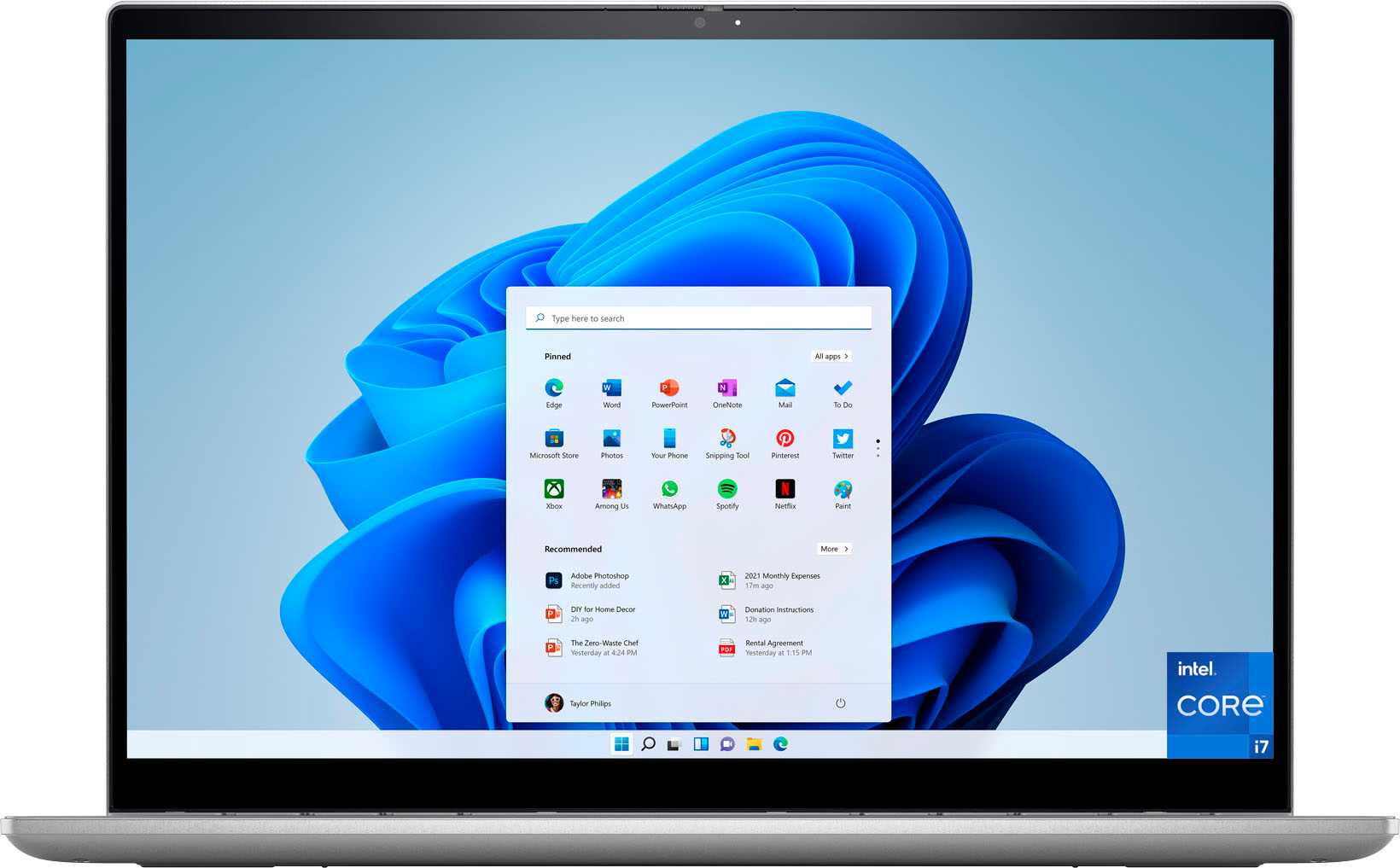
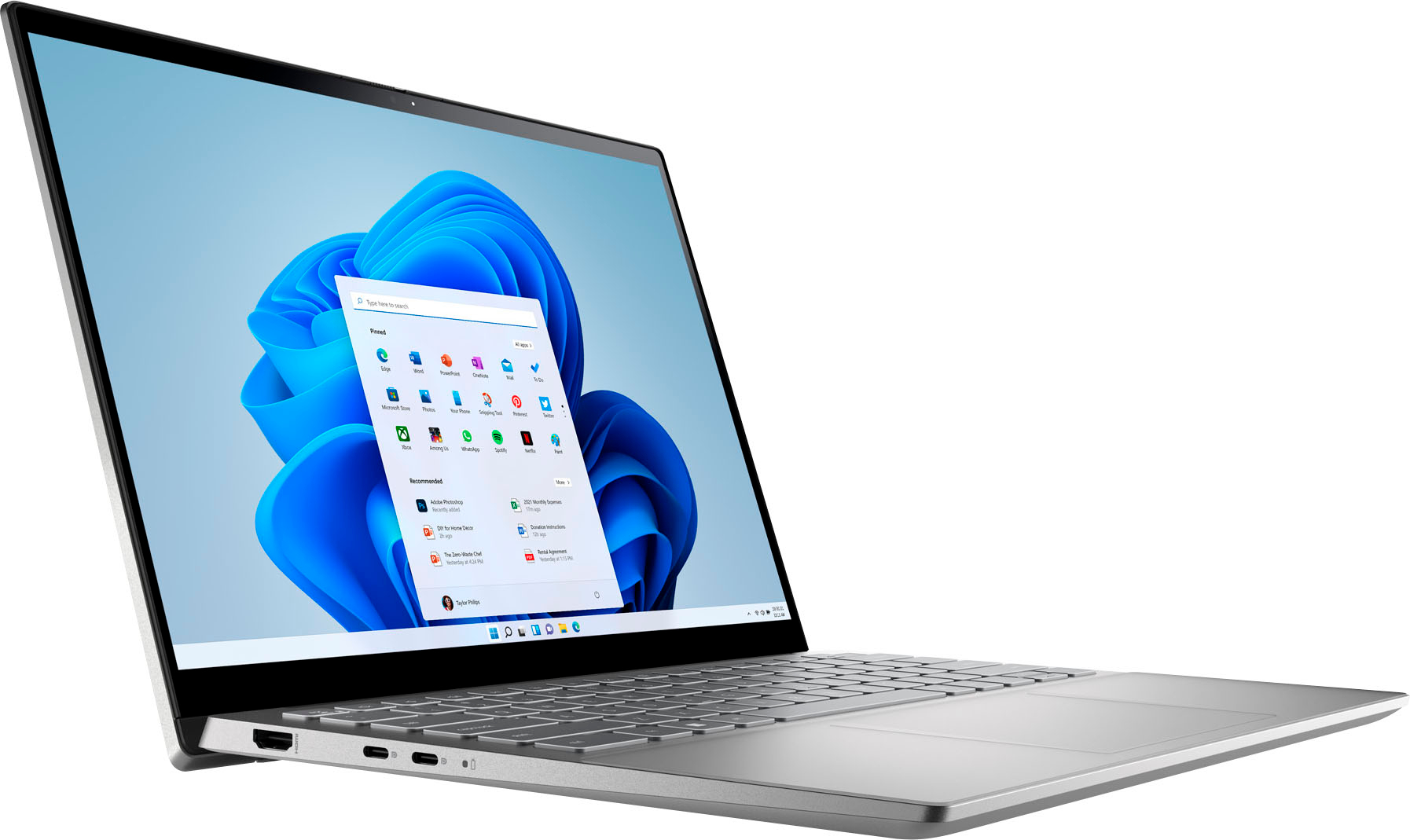
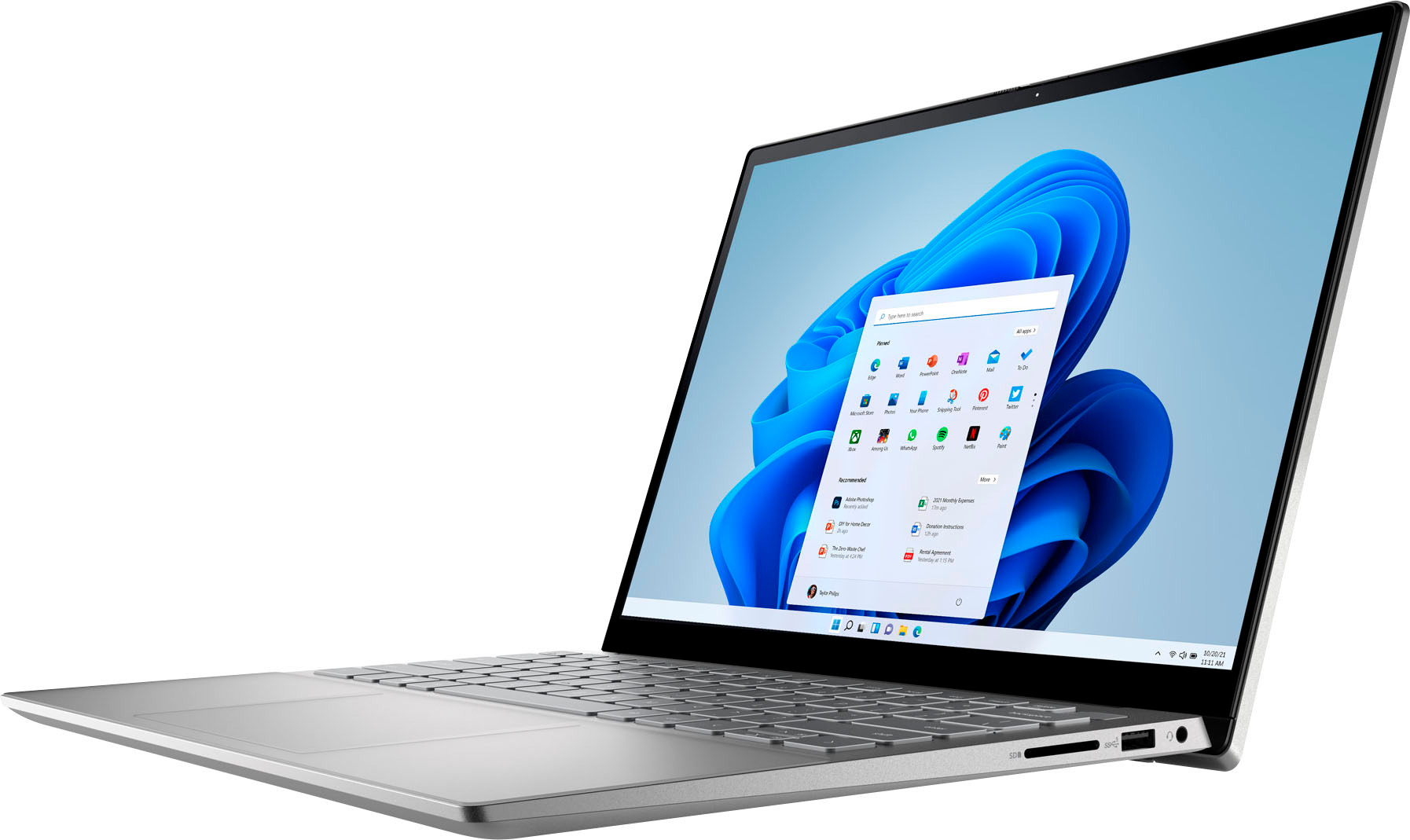
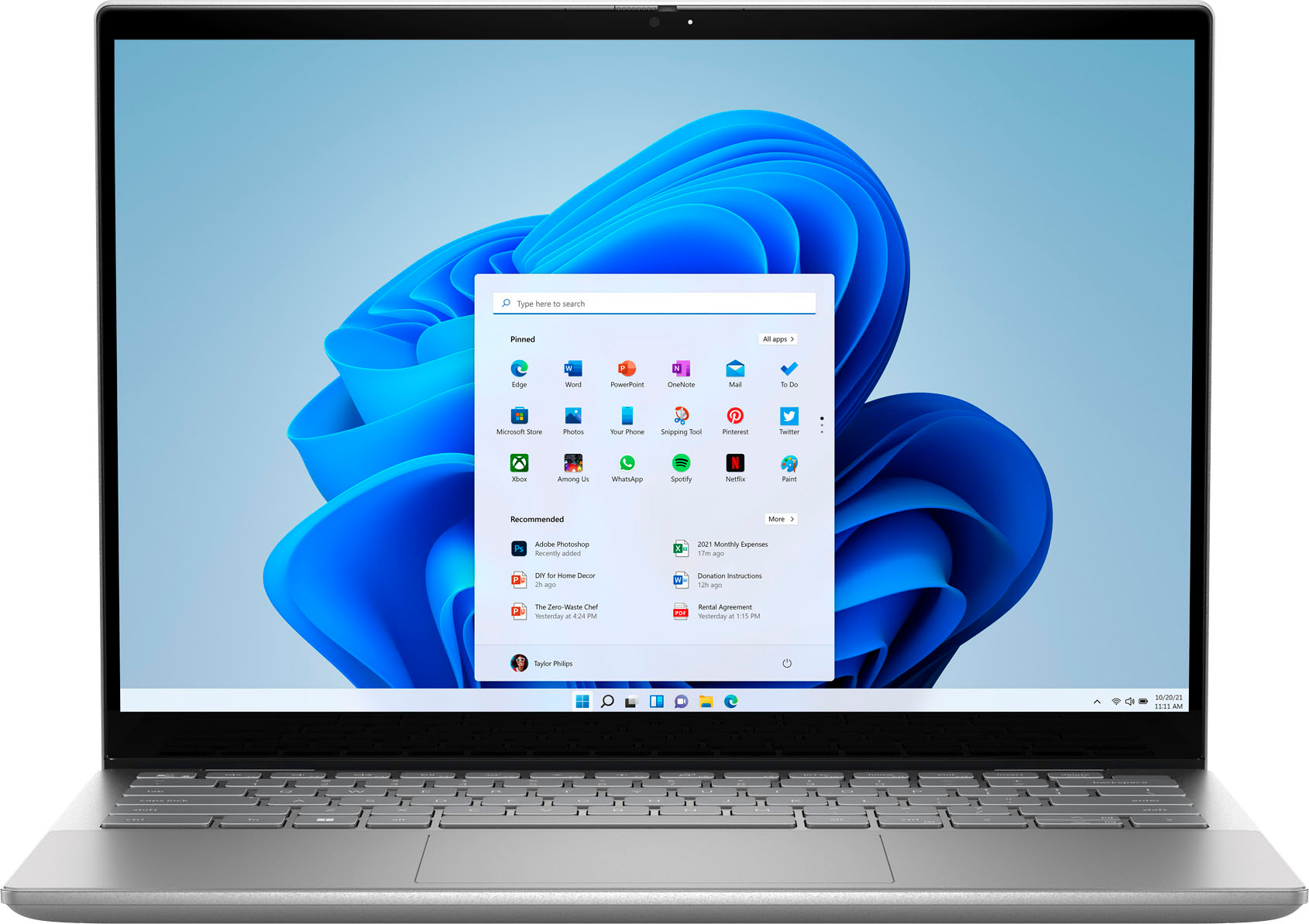
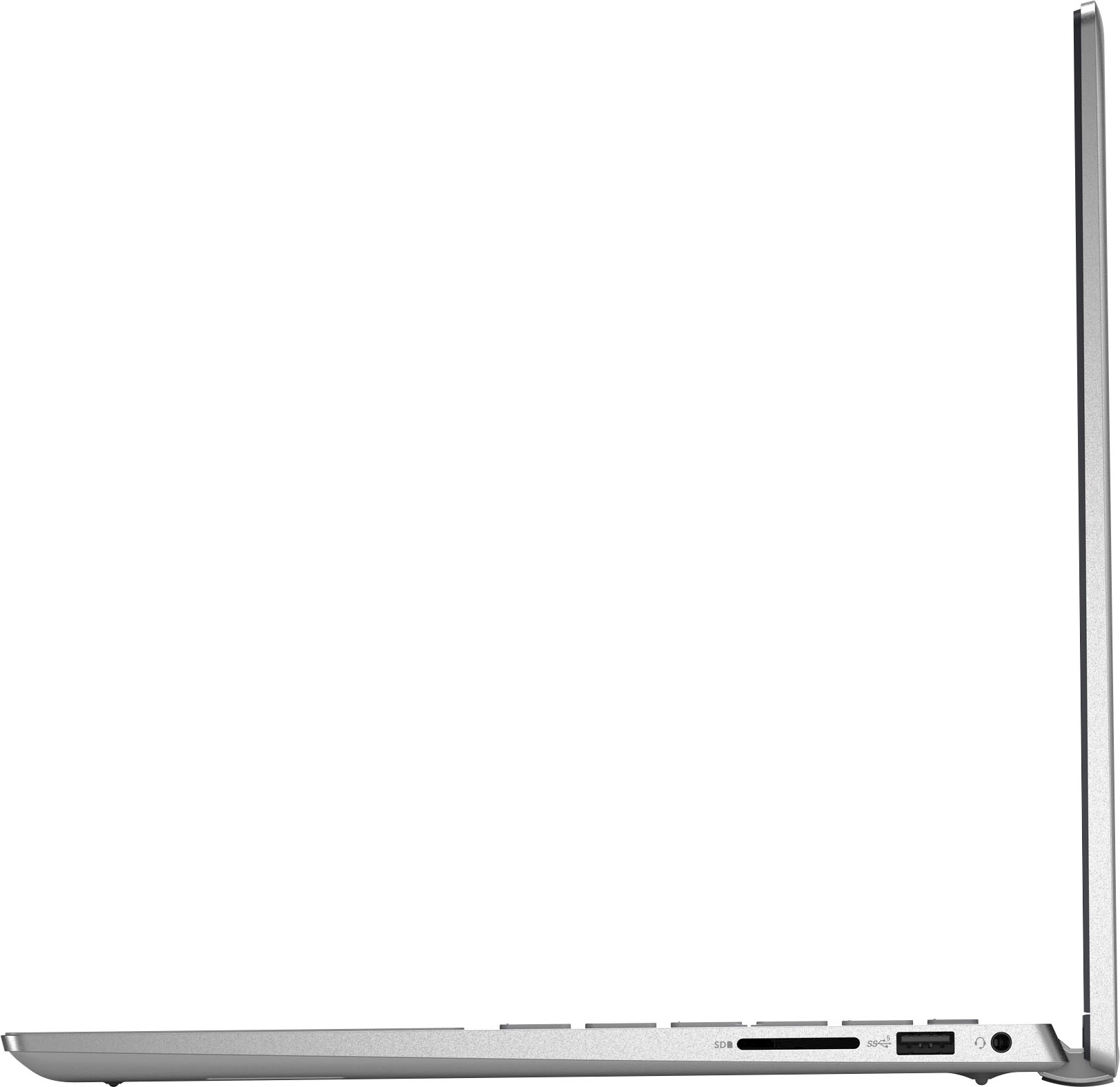
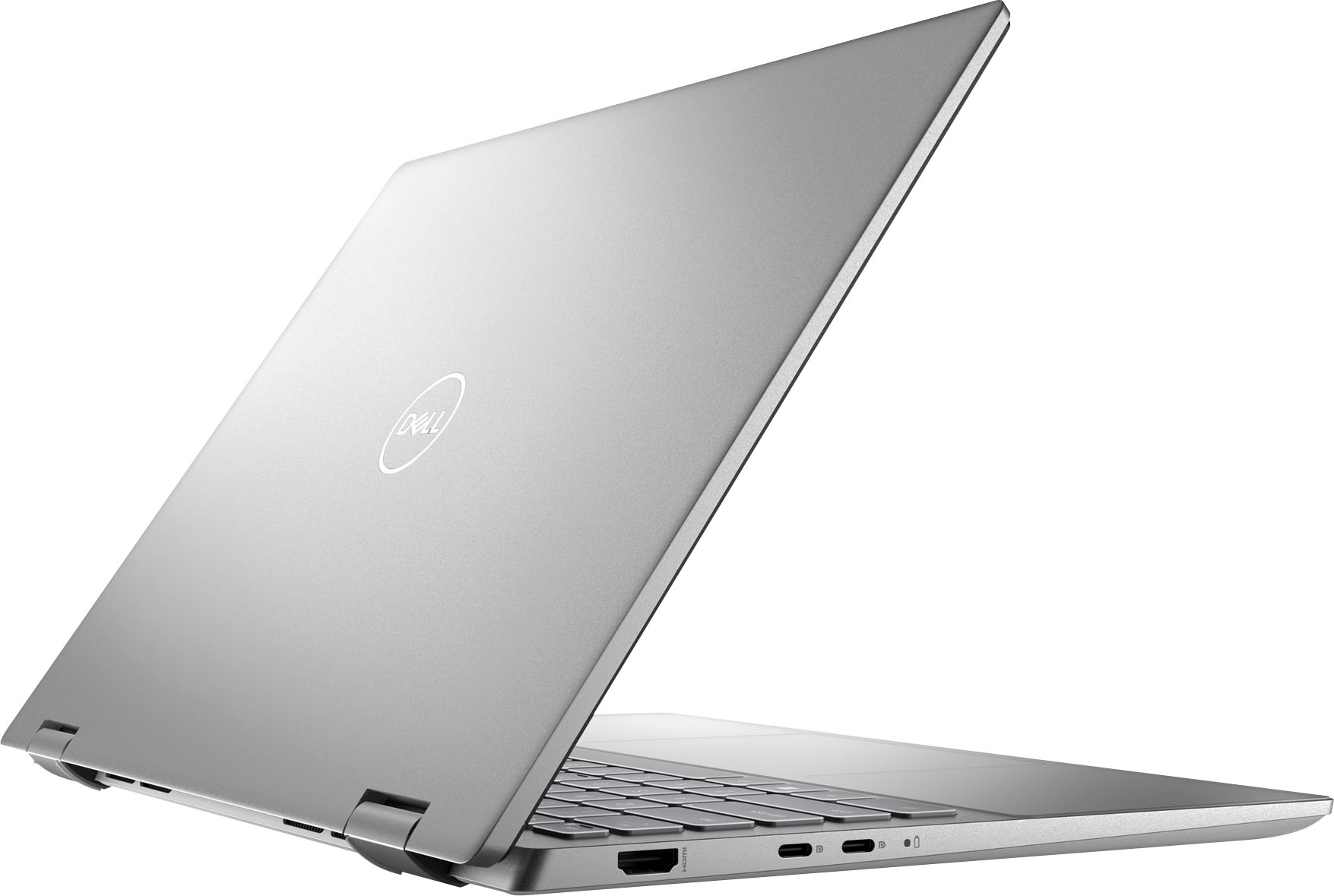
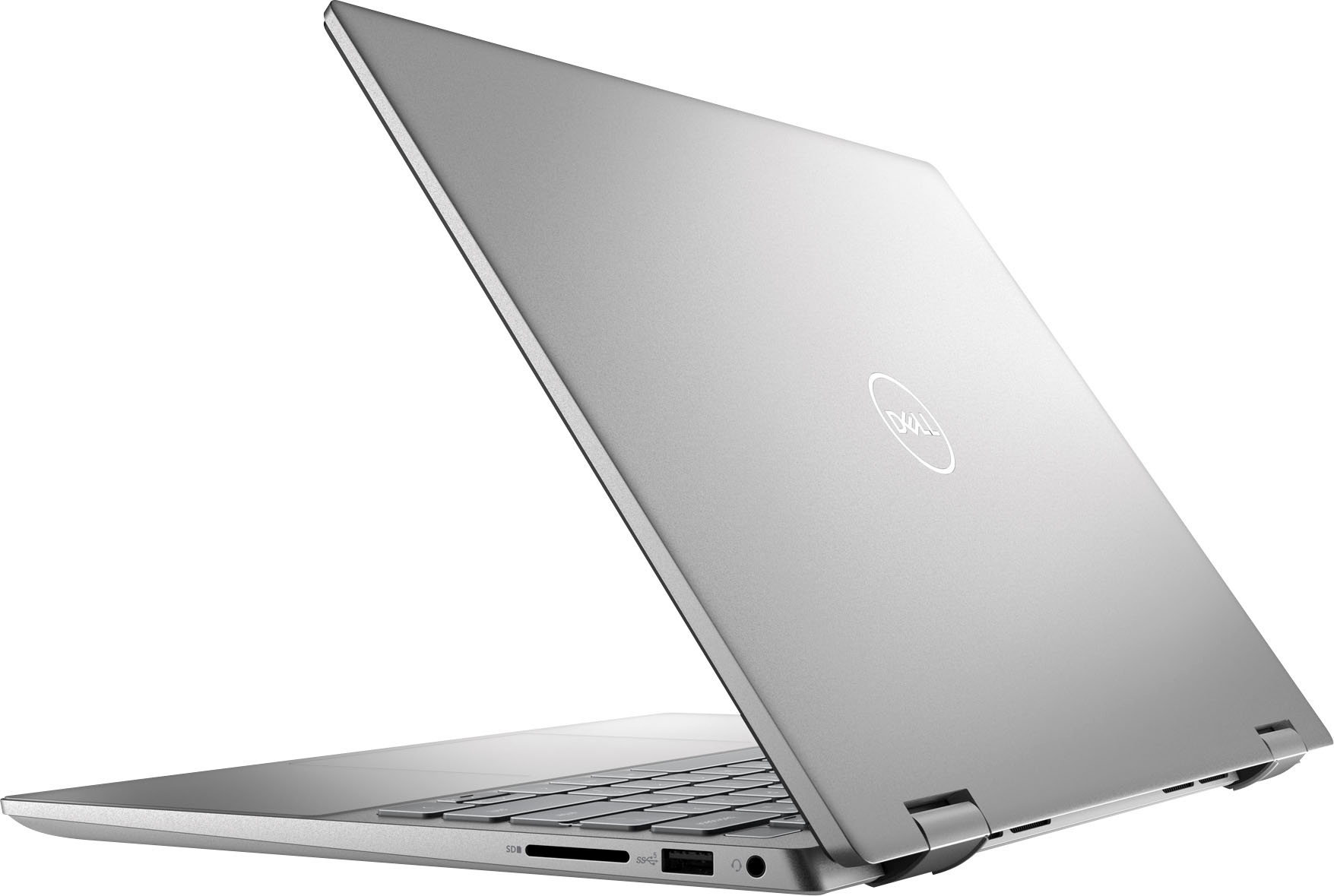
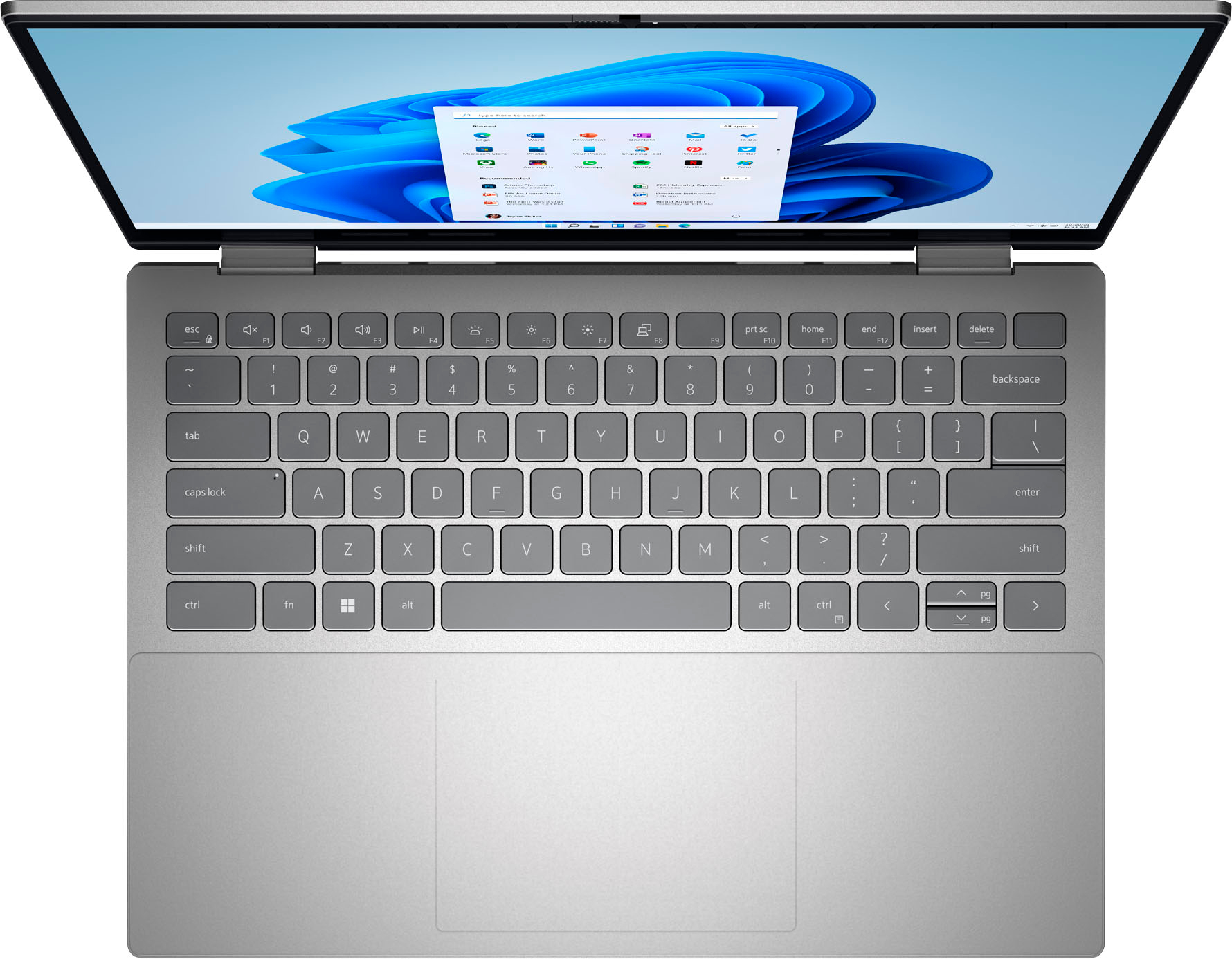
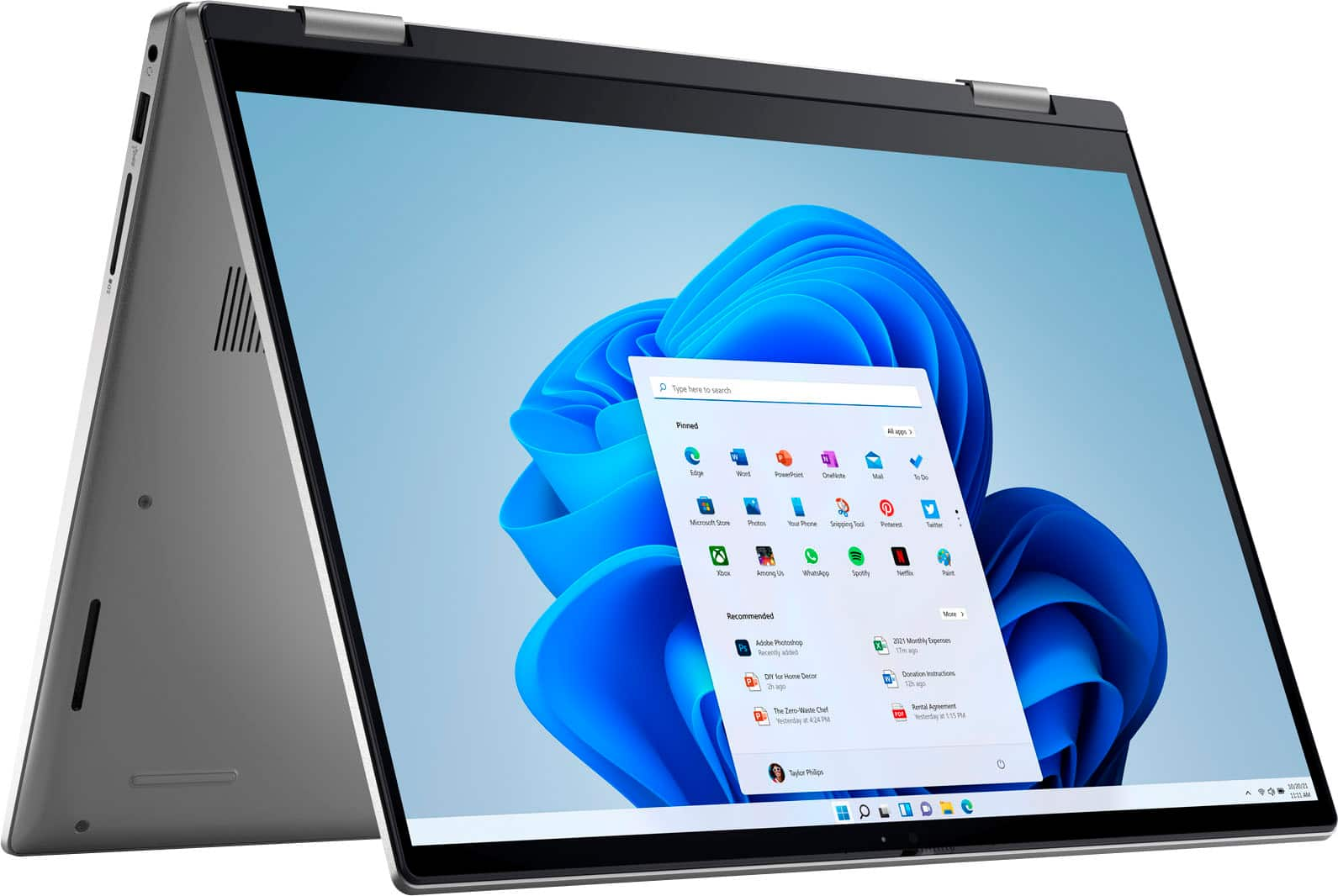
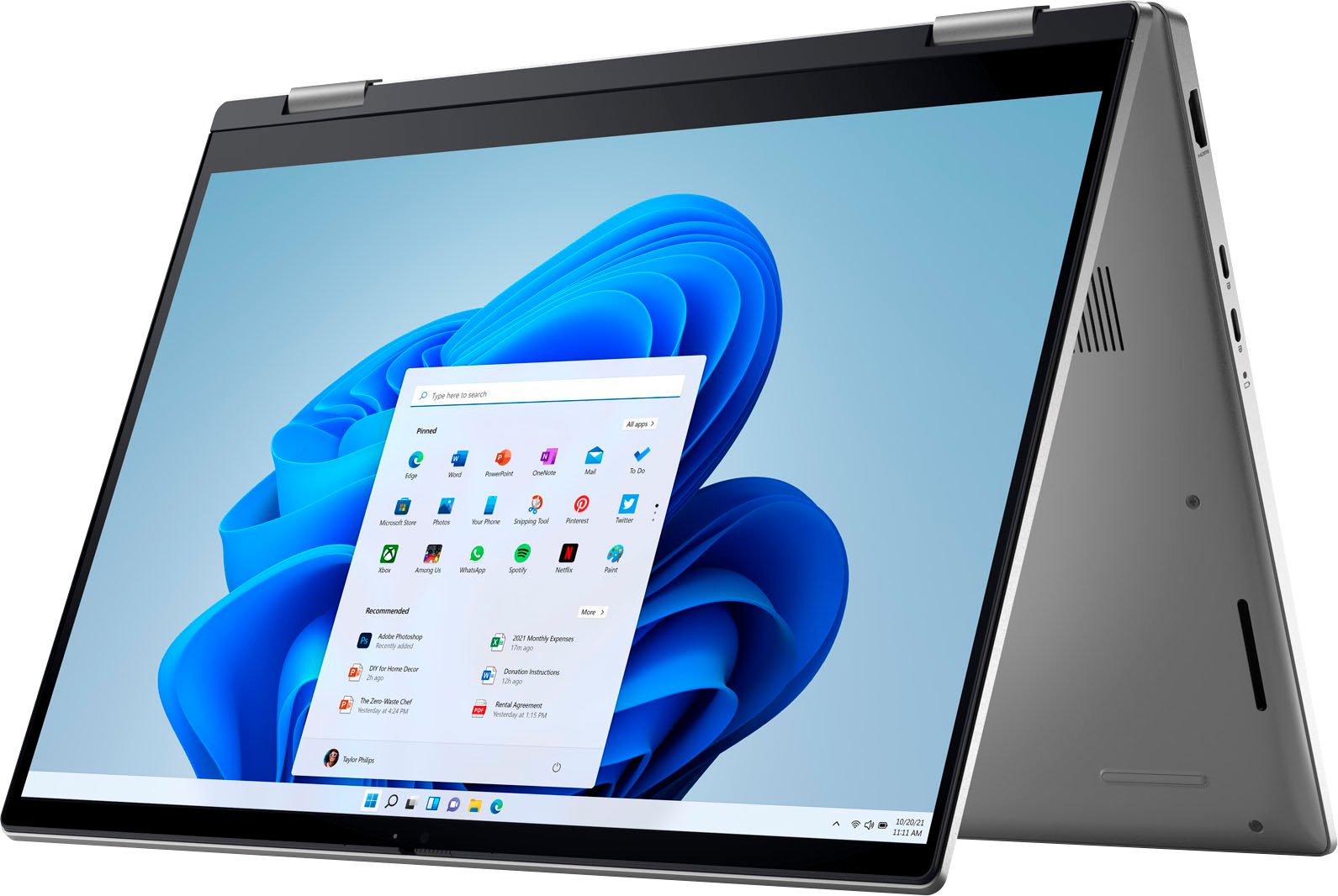
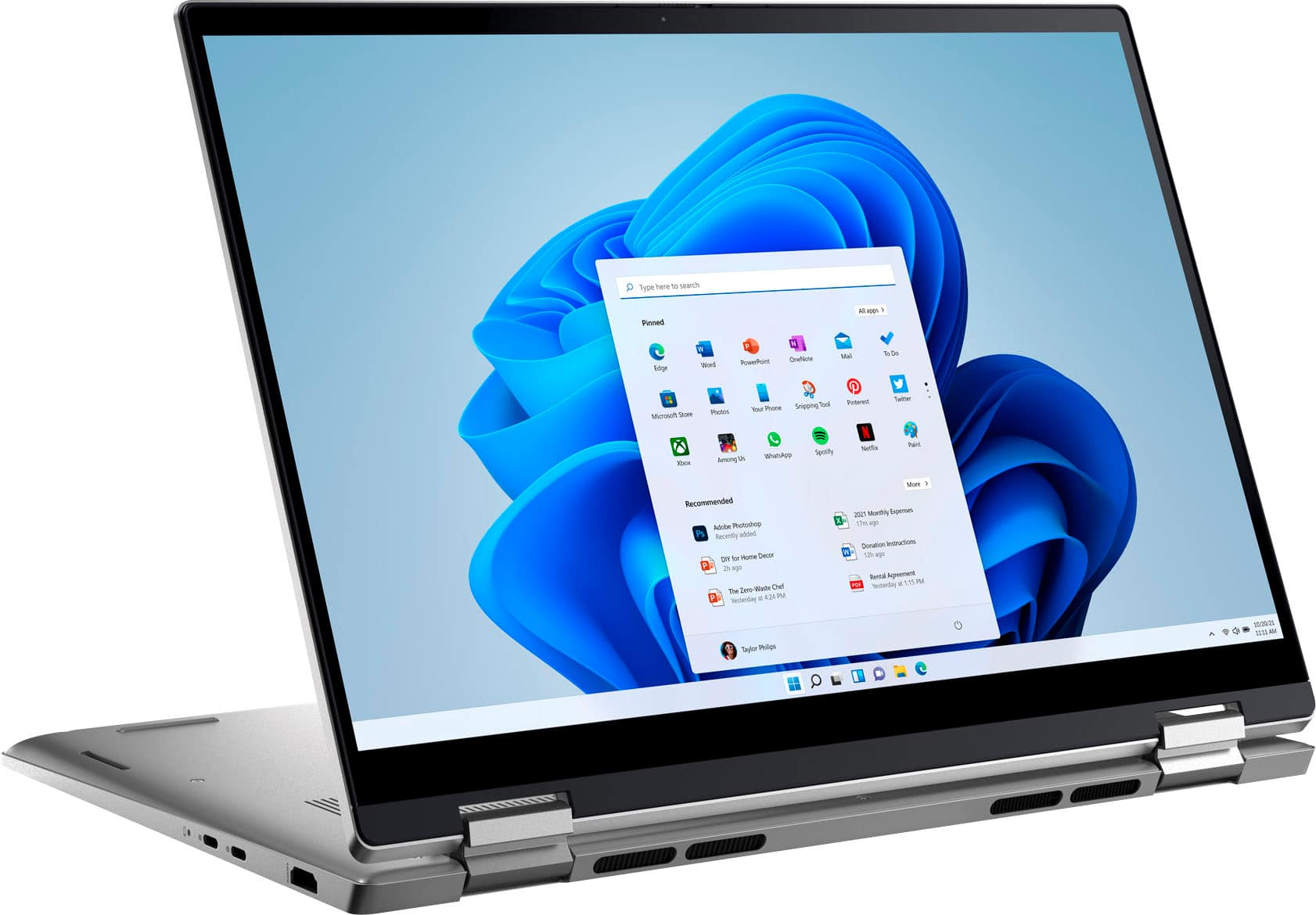
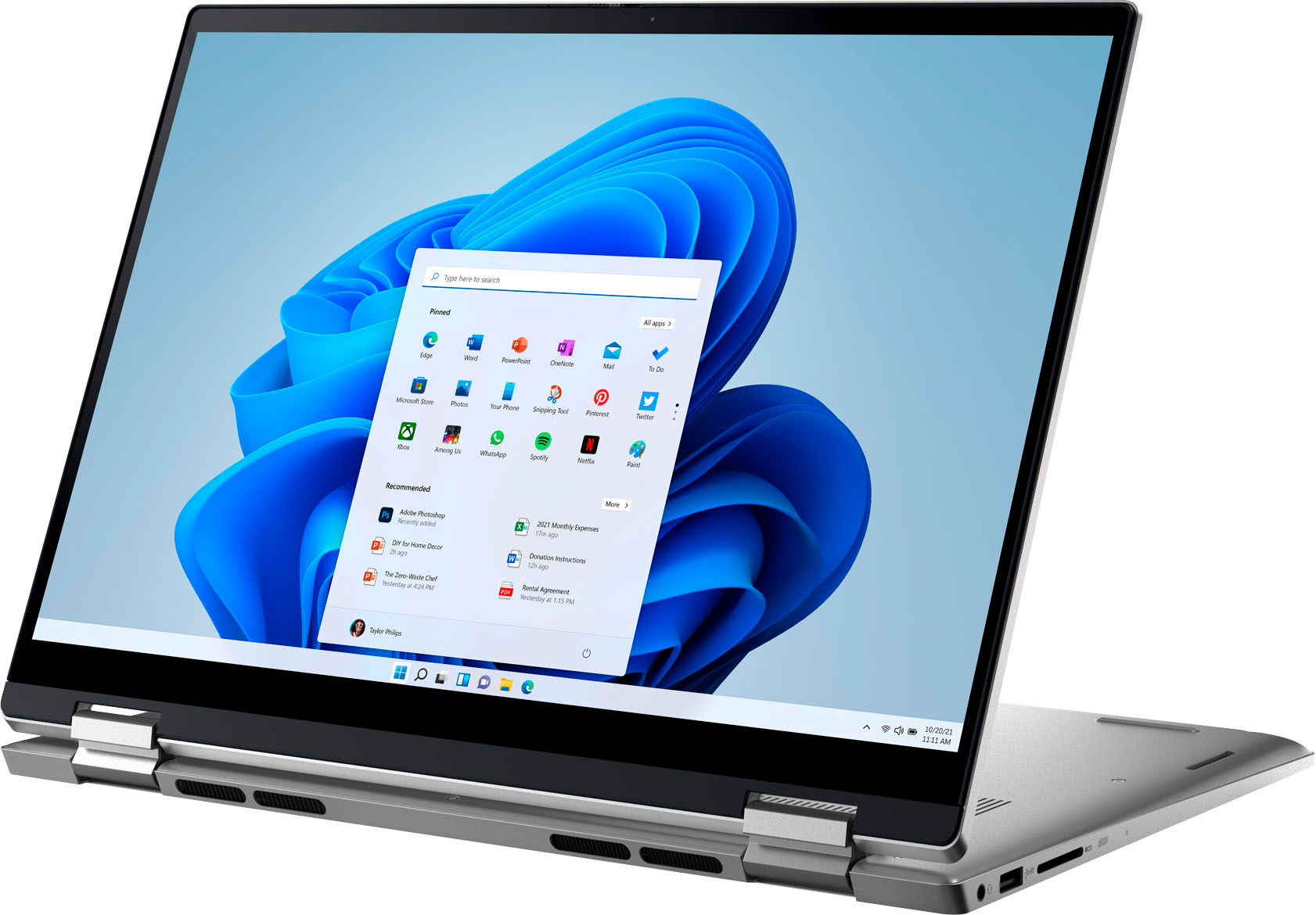
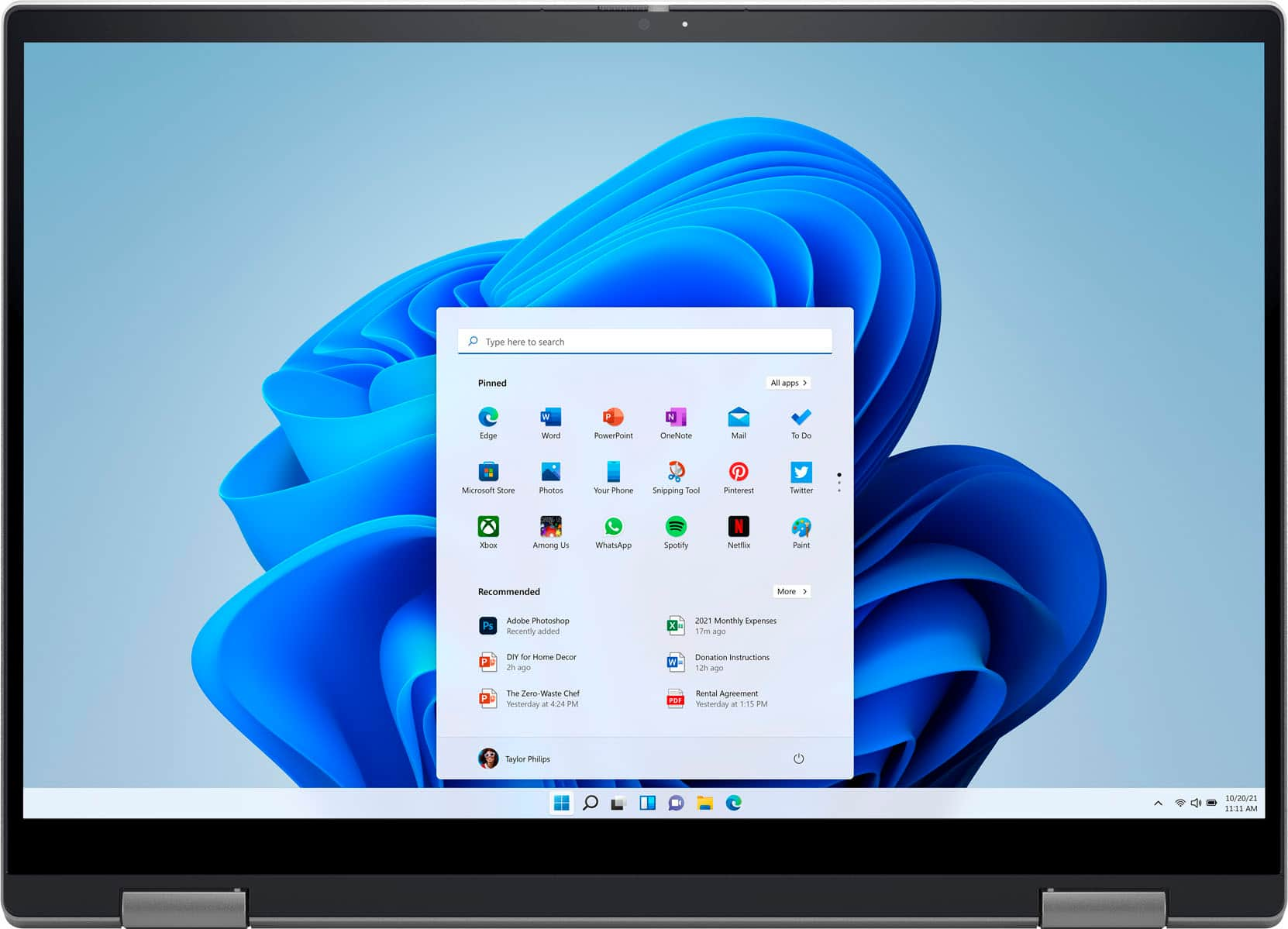
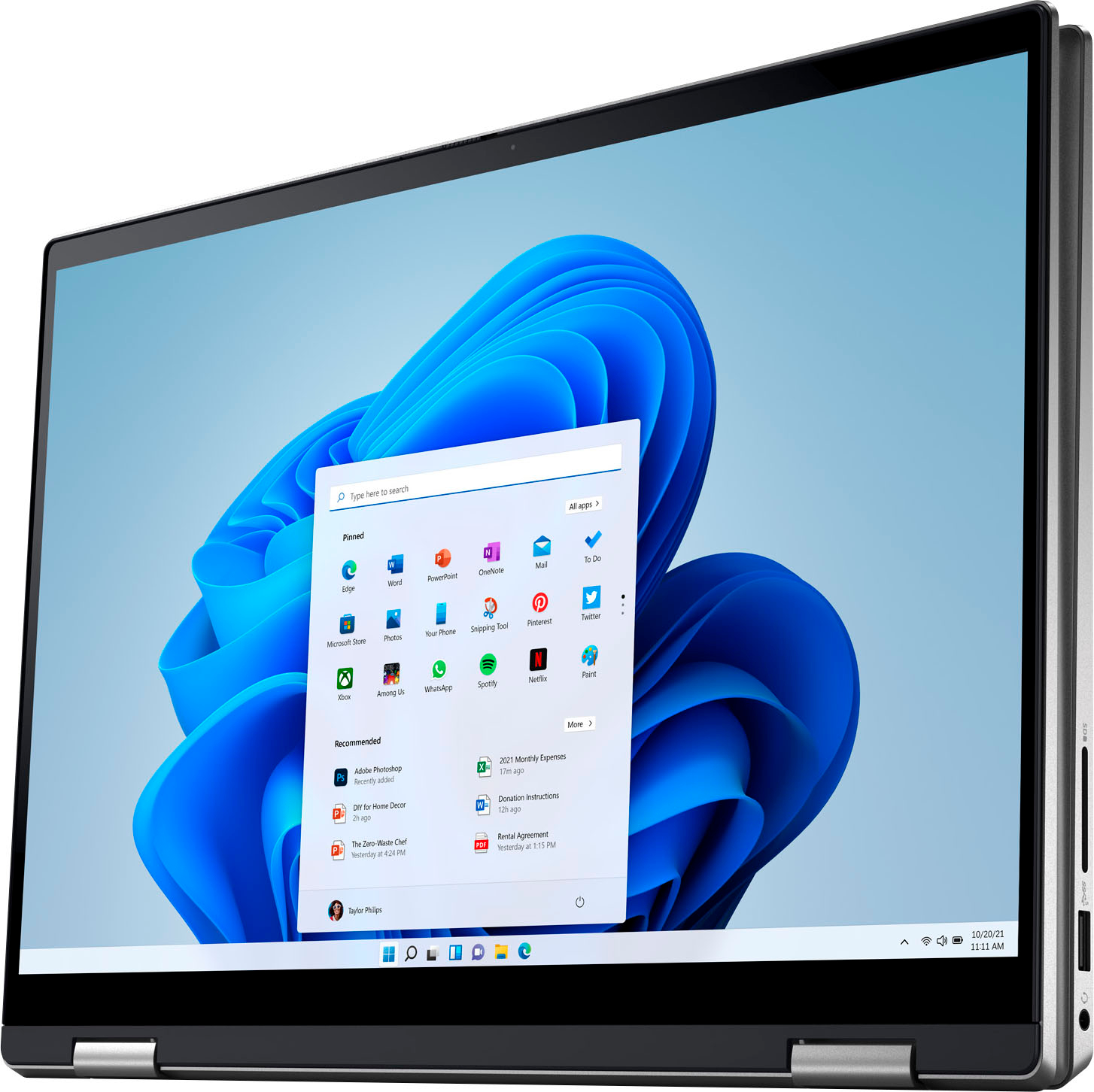
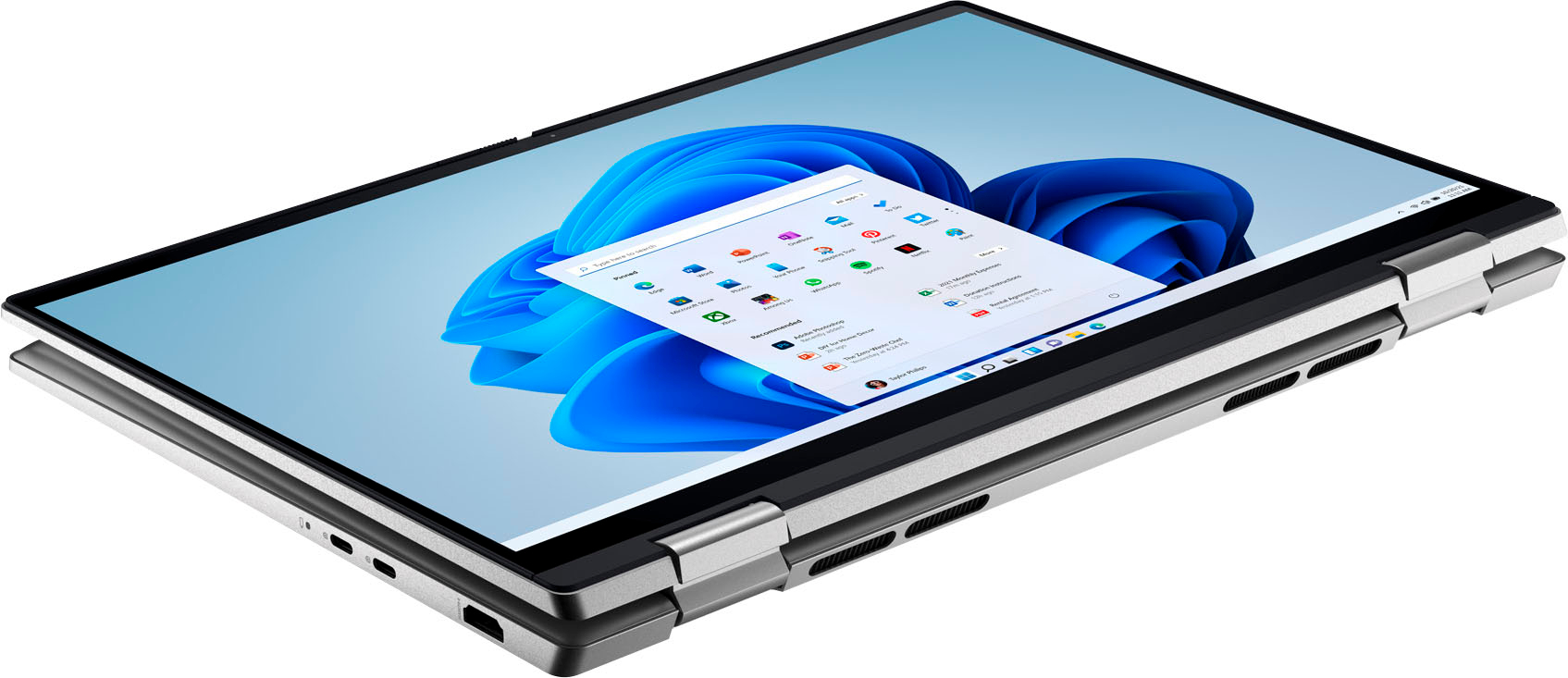
|Posted .This reviewer received promo considerations or sweepstakes entry for writing a review.At first glance, this laptop seems like a another boring gray snoozefest. Other than the logo, there's no real styling or accoutrements to speak of along the body. Besides the fingerprint scanner built in to the power button, there's no fancy extra buttons, knobs, mini-displays, or anything other than the plainly laid out chiclet keys and the large trackpad. Examining the various ports reveals an hdmi and two usb tpe c ports, doubling as the charging port. The other side has, a full sized SD card slot, a USB type A port, and a headphone jack, all of which are a welcome sight these days. On the back, along with the fan exhaust ports, are the hinges that allow you to flip the screen all the way around to convert it into a tablet. Turning on the machine, and actually using the computer, the true quality of the unit reveals itself. The display is bright and crisp. Details pop out in stunning clarity. I put on a stream of Speed Runner just to revel in the beauty of the IPS panel being put through its paces. The keyboard is nicely spaced out, and the touchpad has a good feel and responsiveness to it. Reaching down to use it while typing doesn't require a stretch of the thumb with how I have to situate my hands to allow my fingers to rest on the home row keys. This is of increasing importance to me these days, as hand cramps from bad ergonomics are no fun. I also noticed that after using the keyboard, there were no messy handprints or palm prints at all, something that I didn't even realize would occur with my other matte black laptop. The beefy i7 running this machine handles your basic office applications fine. The Intel Iris graphics won't be doing justice to any heavy duty AAA 3D games, but I threw 3D Mark on there just for kicks. The overall score was 1499, beating out posted averages for an office laptop at 971, but coming nowhere near a proper gaming laptop with an average score of 5730. It also estimated getting a FPS in the high 20s of the usual shooter games, which I wasn't interested in testing out but was surprised at nonetheless. I'm sure that lighter gaming is adequately served. I did note that just navigating and running various programs felt quite zippy and responsive. If I was the type of professional that needed a capable laptop, I'd be happy being assigned this. Not having to carry a dongle to read memory cards would be a boon to photographers, along with the ability to run photo software without compromise. The only thing I was underwhelmed by was the built in speakers. Even on full blast, they really weren't very loud. The weight of the laptop keeps me from wanting to use it in tablet configuration for any extended periods of time, but it is nice to be able to fold it up like that and hand it over to someone during a meeting. The gorgeous display would really show off any photo proofs or architectural renderings. But for extended media consumption or reading, despite how good comics look on it, I'd much rather use my lighter 8" tablet.
I would recommend this to a friend Ok Resolution
||Posted . Owned for less than 1 week when reviewed.This reviewer received promo considerations or sweepstakes entry for writing a review.First thing i noticed is the display resolution is OK, not great.
No, I would not recommend this to a friendBrand response from YourDellTeam
Posted .Hi Lovecooking,
We appreciate you taking the time to leave us your review. We are sorry to hear that you are not 100% satisfied with your Dell Inspiron 7420 2-in-1 laptop because its screen resolution is not good.
To help with the screen issues, we recommend making sure, that all drivers are current and up to date. I have provided a link to the Drivers and Downloads Page for your Inspiron laptop where you can check for any applicable updates.
Drivers and Downloads Page: https://dell.to/3QJLpaJ
We also recommend following these troubleshooting tips:
1. Run the automated tools in SupportAssist to ensure that the drivers and BIOS are up to date and your computer is optimized
2. Verify display or video issue on an external monitor
3. Check for physical damage on the LCD screen
4. Run hardware diagnostics on the LCD screen
5. Verify the display or video issue in Windows Safe Mode
6. Download and install Microsoft Windows Updates
7. Change the video or display settings, and adjust the brightness
8. Touch screen troubleshooting
9. Run a Video Stress Test using Dell SupportAssist
10. Perform a Windows System Restore
11. Restore the computer to factory defaults
The whole article on this subject can be found here:
How to Troubleshoot Display or Video Issues on a Dell Laptop: https://dell.to/3pE7wm4
If the issue with your Inspiron is still not resolved after utilizing the troubleshooting options above, please contact the Dell Support Team at 1-800-624-9896 for further guidance.
Best,
Katarina@Dell
Should you need further assistance, you can contact Dell directly with the information below.
Chat or call: https://bit.ly/DellSupportTeam
Phone number to Dell 1-800-624-9896