Customer Ratings & Reviews
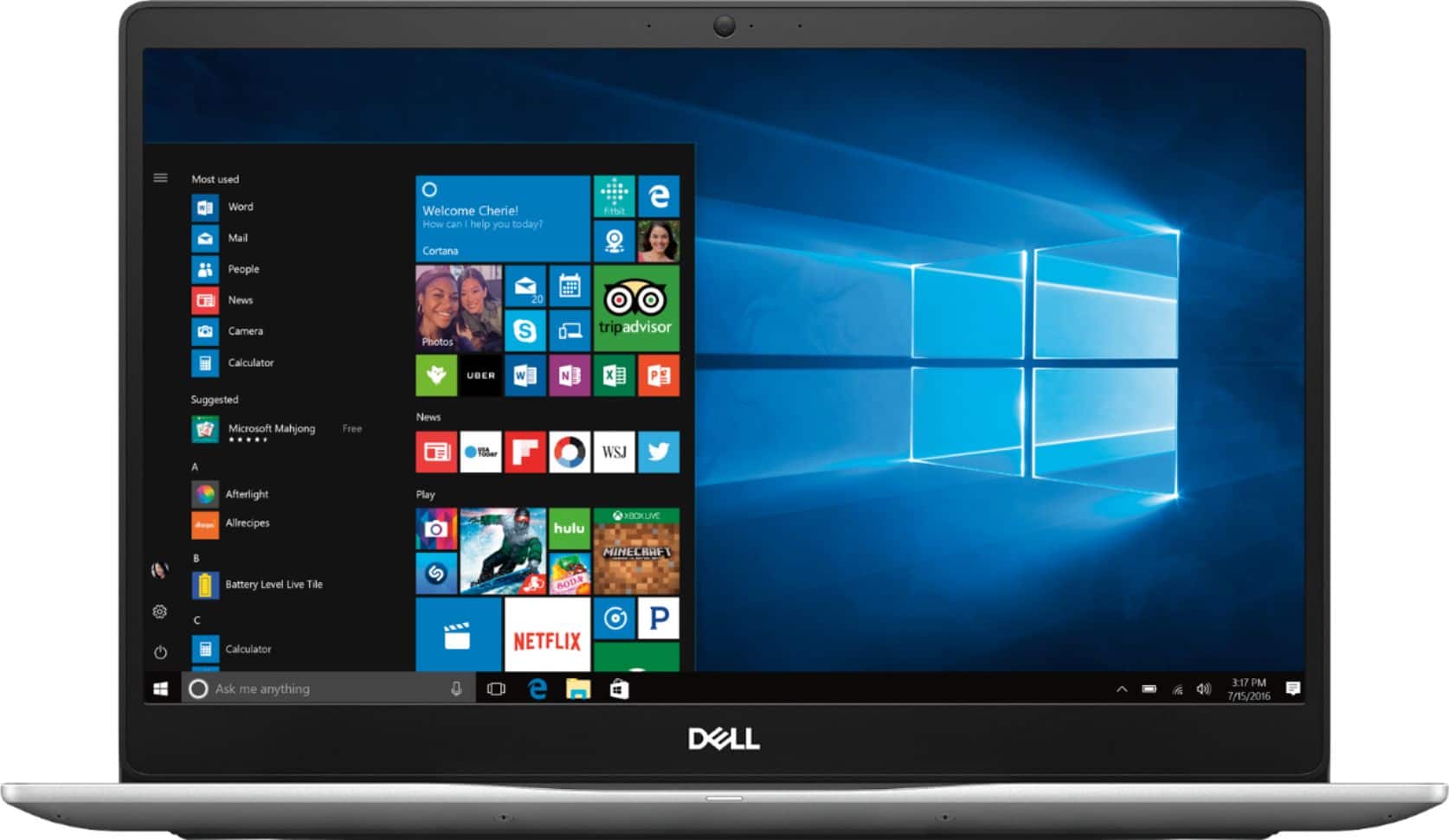
- Model:
- I7573-5132GRY-PUS
- SKU:
- 6208234
Rating by feature
- Value
Rating 4.3 out of 5 stars
- Quality
Rating 4.5 out of 5 stars
- Ease of Use
Rating 4.6 out of 5 stars
Customers are saying
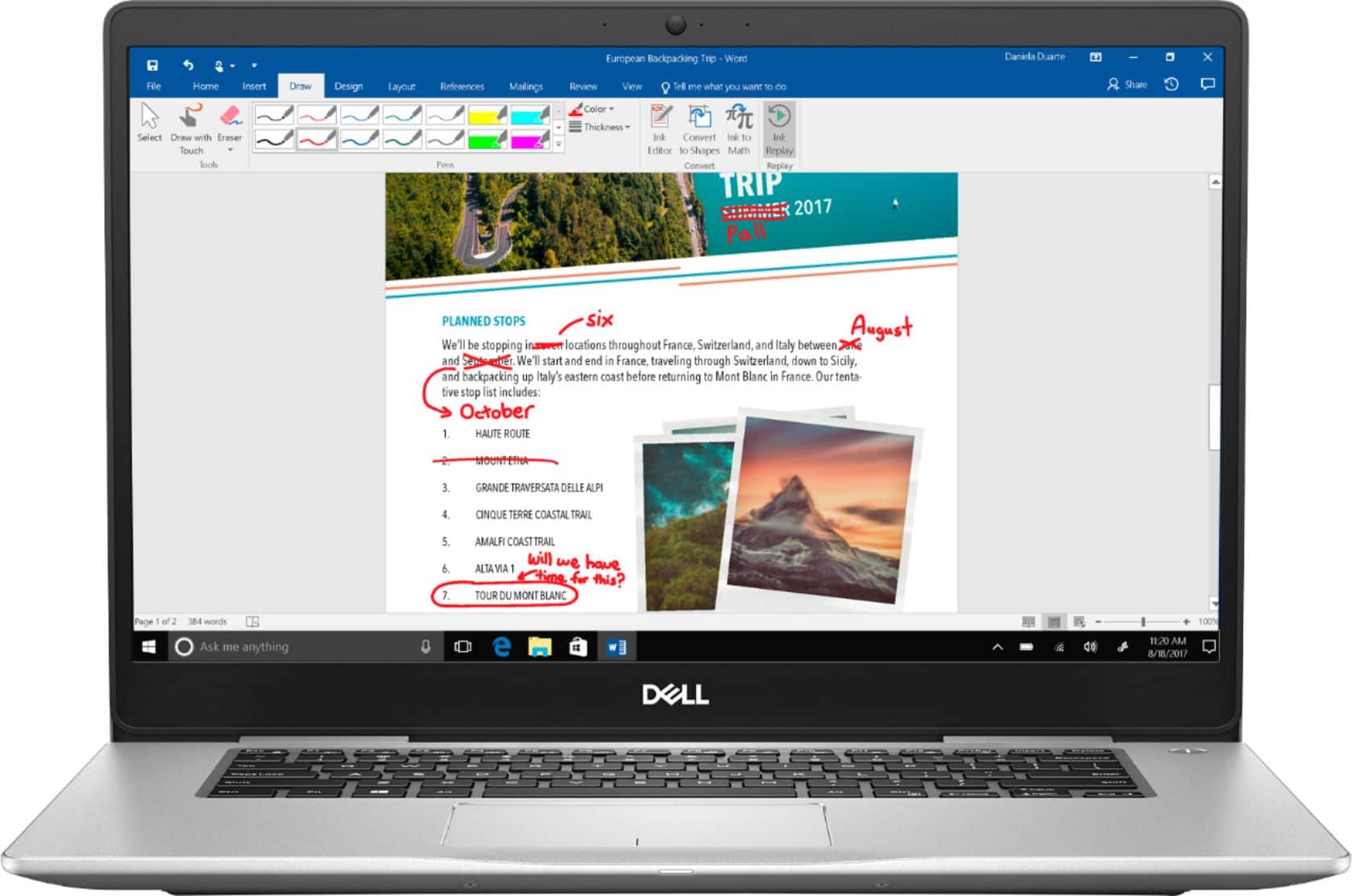
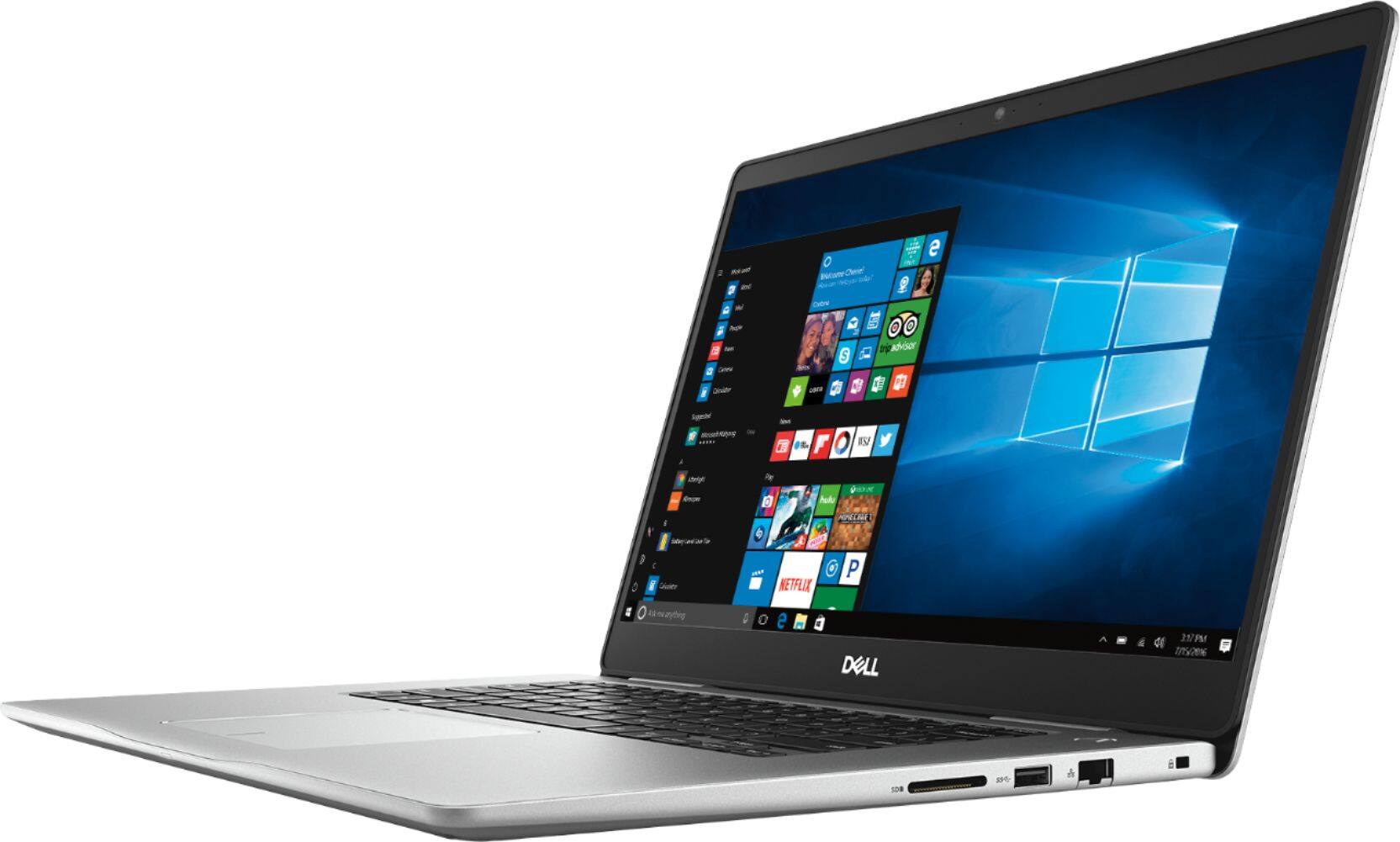
Customers love the Inspiron 2-in-1 laptop for its fast performance, responsive touchscreen, and affordable price. Many reviewers mentioned how lightweight it is, making it easy to carry around. The solid-state drive is another popular feature, as it provides quick and reliable storage. However, some customers have expressed concerns about the battery life and weight of the laptop.
This summary was generated by AI based on customer reviews.
Disappointed
||Posted .This reviewer received promo considerations or sweepstakes entry for writing a review.Just a month after my purchase at the best buy. The computer was working well at the beginning but now suddenly no longer let me log in or move to anything, I take it to the store best Buy but I can not make a return or change for another one and I didn't qualified because it passed the 14 days of return. For budget reasons I pay in cash and I could not buy insurance. Very disappointed in my purchase
No, I would not recommend this to a friendBrand response from YourDellTeam
Posted .Hi BCMC,
We're sorry that your computer is not working the way you had hoped it would. We'd recommend contacting Dell's Technical Support Team to see how your computer can work better for you: http://dell.to/2sH7Qlm.
You can also check out our Product Support Page here: http://dell.to/2F1mrhh.
Best,
Bryan
1-800-624-9896
Did not last a year
||Posted . Owned for 1.5 years when reviewed.This reviewer received promo considerations or sweepstakes entry for writing a review.I bought this for my daughter for Christmas and it would not connect to the internet (wifi), an apparent issue with Dell products, and it wont connect directly to the modem either, I paid someone to look at it and they said the wifi card is bad. Go figure! I will never buy another Dell product again, we have 2 Dell laptops and they both suck.
No, I would not recommend this to a friendClunky
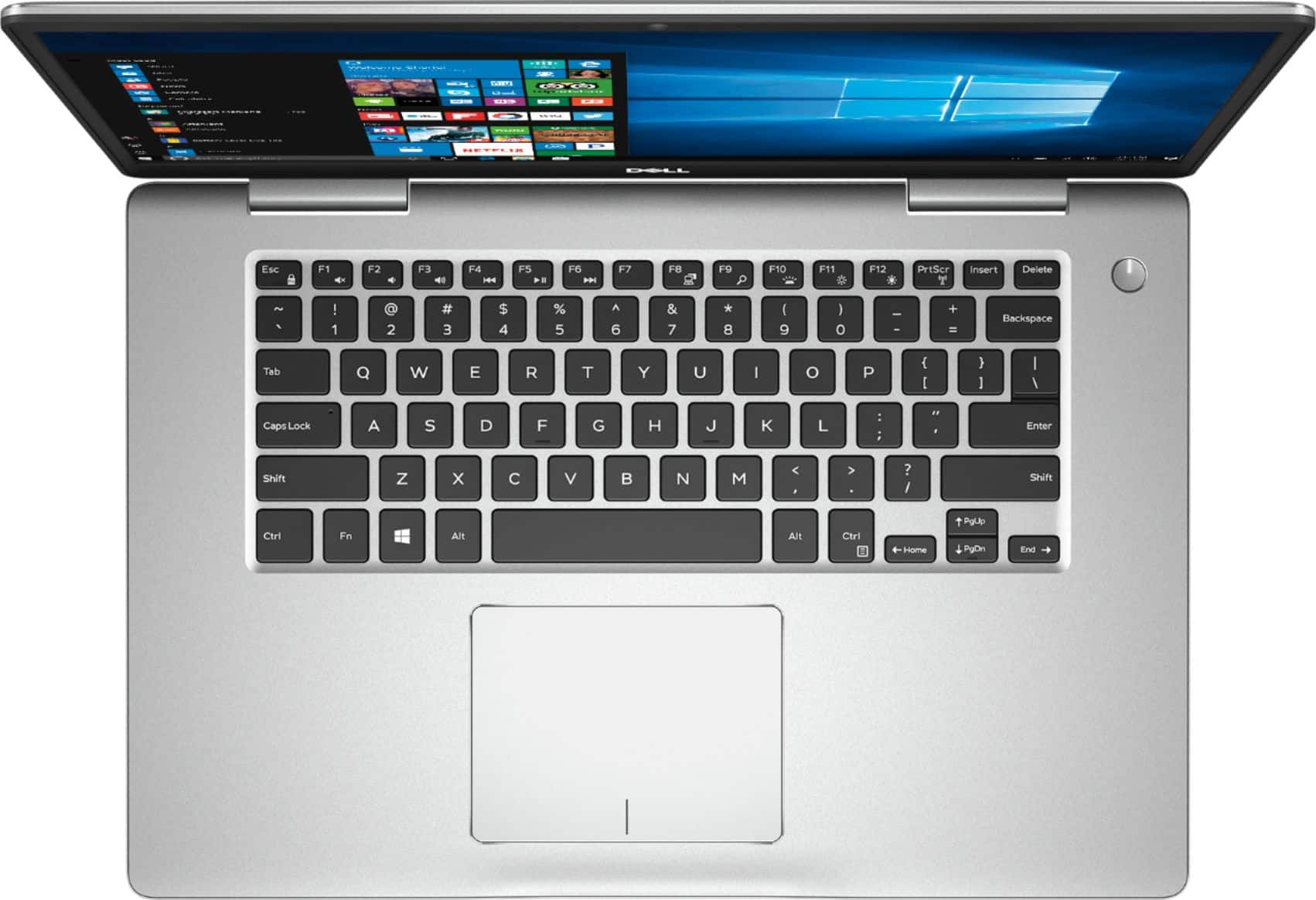
||Posted .This reviewer received promo considerations or sweepstakes entry for writing a review.Not impressed, wish I had made other choice. Keyboard has a bad feel, touch pad I don't like the way it works. To easy to loose you place.
No, I would not recommend this to a friendBrand response from YourDellTeam
Posted .Gary,
We're sorry that you're not happy with how the keyboard on your 2-in-1 is laid out. If you'd like to try to re-calibrate your touchpad you can follow these steps:
Some Notebooks and Tablets with Keyboards have added gesture features to the touchpad hardware and drivers. A few of these features are two or three finger scrolling, pinch zoom, circle zoom, rotate and swiping. These new features may be the reason for the erratic cursor movement since most are turned on by default. You can disable or modify the way the features work in the touchpad driver properties.
Here are some tips to modify these settings:
1. In the Search box, type main.cpl.
2. Touch or click main.cpl in the list of programs.
3. Touch or click the Dell Touchpad tab.
4. Touch or click on the picture of the touchpad.
5. Touch or click Gestures (depending on your computer there may not be a Gestures option).
6. Change the options as preferred.
7. Touch or click Save.
8. Touch or click the X in the upper-right corner to close the Dell Touchpad Utility.
9. Touch or click OK on the Mouse Properties window.
10. If the touchpad still does not work after following the preceding steps, refer to Dell Knowledge Base article - http://dell.to/2iaiujA.
You can read the full article here - http://dell.to/2tqmS02.
Best,
Bryan
1-800-624-9896
Great laptop
||Posted .This reviewer received promo considerations or sweepstakes entry for writing a review.I needed a new laptop in a hurry. Great decision. Recommend
I would recommend this to a friendBrand response from YourDellTeam
Posted .BG1216,
We're so glad to hear that you are satisfied with your Dell laptop purchase. If you have any questions about your computer you can check our Product Support Page here: http://dell.to/2F1mrhh.
Best,
Bryan
1-800-624-9896
Open box purchase, . . . cleared by the Geek Squad
||Posted .This reviewer received promo considerations or sweepstakes entry for writing a review.The computer "works", but consistently has a spinning sound that the diagnostics will label as "the processor fan failed to respond correctly". Have not been able to resolve the problem online and will probably be making a return.
No, I would not recommend this to a friendBrand response from YourDellTeam
Posted .jakesully,
Thanks for your review. We're sorry to hear about the fan noise that your computer has been experiencing. We'd recommend updating the BIOS on your computer to see if this helps with the noise:
Update the BIOS: An out-of-date BIOS can cause loud fan noises by having an outdated temperature table for the system. Refer to update BIOS and follow the instructions to update the BIOS on your computer. You can also follow up with our Technical Support Team here - 1-800-624-9896.
You can read the full article here - http://dell.to/2ENlXfz.
We hope that your computer works the way you'd like it to soon.
Best,
Bryan
1-800-624-9896
- Pros mentioned:Touch screenCons mentioned:Weight
Converted From Apple For This
Posted .This reviewer received promo considerations or sweepstakes entry for writing a review.I'm a die-hard Apple fan, and I've owned equal numbers of Windows and iOS devices, so I can see the pros/cons in both. Not many Windows laptops have lived up to my high expectations, but this one has definitely surpassed the pretty high bar I set. It's not quite as fast as my MacBook Pro, but it makes up for that fact with its touchscreen and doubling-as-a-tablet capabilities. It's a little heavy but thats bc of the touchscreen so I'm totally fine with that. I've only had it 2 days but I'm already in love. Still not ready to give up my MacBook tho - but I'm already resigned to having 2 laptops in my backpack so eh. Also its pretty:)
I would recommend this to a friend - Pros mentioned:Fast, Touch screen
Speedy and Quiet
Posted .This reviewer received promo considerations or sweepstakes entry for writing a review.We've only had it for about a month but we are extremely pleased with our purchase. It's fast! It boots up very quickly. It handles all tasks very quickly. Love the touch screen! It's very quiet. No complaints.
I would recommend this to a friend Great Machine - Easy to install Linux
Posted .This reviewer received promo considerations or sweepstakes entry for writing a review.A great machine for the money. Easy to install Ubuntu on. I use this as my portable machine. I have an Alienware R17 for my home workstation. This machine is almost as responsive as the Alienware R17. Everything worked with Ubuntu 18 out of the box. Start with a minimum install including third party.
I would recommend this to a friendLaptop
Posted .This reviewer received promo considerations or sweepstakes entry for writing a review.I purchased this laptop 5 years ago and it’s still working good
I would recommend this to a friendGreat Laptop
Posted .This reviewer received promo considerations or sweepstakes entry for writing a review.I think this laptop is very fast with colorful display, nicely lit keyboard, with good battery life. This i5 quad four processor doe's what its suppose to do. I can't complain. My only draw back that I had was; my first computer of this model had to do the big Microsoft update, just like the second one I had to exchange it for, but first computer kept failing for some reason and could not do the update, so I took it back for another one. It must have been a bad computer from factory. Otherwise, Great Dell laptop.
I would recommend this to a friend- Cons mentioned:Battery life
Love It
Posted .This reviewer received promo considerations or sweepstakes entry for writing a review.after four years I'm writing my review my laptop is still in amazing condition and the recent updates makes it feel brand new. and on the third year the battery started failing i need to replace that but thats minor easy fix.
I would recommend this to a friend Fast & Reliable
Posted .This reviewer received promo considerations or sweepstakes entry for writing a review.Start Up time is extremely fast. you can see considerable difference for using a SSD
I would recommend this to a friendGreat Laptop
Posted .This reviewer received promo considerations or sweepstakes entry for writing a review.My favorite laptop so far. Geek squad has the best tech support
I would recommend this to a friendWhose the culprit-Hardware or Software
Posted .This reviewer received promo considerations or sweepstakes entry for writing a review.I am writing this after owning this device since 10/28/18, running MS 10. I have had and used many computers in my 60+ years. This is the first that appears to have gone dead on me. Had two profiles set from 10/28. 12/01 turned on machine and indicated an update was being performed. After update, could not access one of my profiles. 12/02, turned on and could not access either profile stating "resources" are low. Now the screen is black. Waiting to get through to MS Support. If not resolved on to Geek Squad, then Dell. The saga continues.
No, I would not recommend this to a friendBrand response from YourDellTeam
Posted .Janz,
We appreciate your feedback. We're sorry to hear that your computer is not starting up the way that it should. We'd recommend the following steps to get your computer to boot up for you:
1. If the computer is displaying the Dell logo and does not move past that point, it has probably failed POST.
2. If the power indicator lights up and it is amber or orange, this is usually an indicator that it has failed POST.
3. If you see text on a black screen, the computer is currently performing the POST. If the computer stays in that condition and does not move past it, it has probably failed POST.
4. If the video screen displayed anything at all during the startup process but is now black, this probably indicates that the computer failed POST.
5. If the computer is beeping or if Caps/Num/Scroll Locks are flashing, note if there is a particular pattern in which it beeps or flashes.
6. If the computer is not beeping and caps/num/scroll locks are not flashing, unplug all connections and remove all media communication devices (e.g. external monitors); reconnect one at a time and check if the computer functions.
7. For a notebook, press and hold the Fn key and then press the power button. This starts the pre-boot testing and will launch ePSA. In case you have a Desktop at the Dell logo screen tap the F12 key to enter One Time Boot Menu and use the arrow keys to highlight Diagnostics and press enter.
You can read the full article here - http://dell.to/2uj1Sby.
Best,
Bryan
1-800-624-9896
- Cons mentioned:Operating system
Do not buy this
Posted .This reviewer received promo considerations or sweepstakes entry for writing a review.Terribly slow, takes a long time to start up. Unreliable operating system.
No, I would not recommend this to a friendBrand response from YourDellTeam
Posted .Hector,
Thanks for your review. We're sorry that your new computer is operating slower than you hoped it would. We'd recommend running the Windows Performance Troubleshooter to see if it can run faster for you:
1. Close all open windows.
2. Press the Windows logo key + X key on the keyboard.
3. Click Control Panel.
4. Click System and Security.
5. Under Security and Maintenance, select Troubleshoot common problems.
6. Under System and Security, click Run maintenance tasks.
7. Follow the on-screen instructions and prompts to complete the process.
8. Restart the PC.
You can read the full article here - http://dell.to/2tSulGV.
If your computer is starting up too slowly we'd recommend limiting the number of programs that launch at startup:
1. Close all open windows.
2. Press CTRL + Shift + ESC key together on the keyboard.
3. In the Task Manager window, click Startup tab.
4. Select the program or application that you want to disable from loading during startup.
5. Right-click and select Disable.
6. Repeat Step 4 & 5 for all the programs or applications that you want to disable from loading during startup.
7. Restart your PC.
You can read the full article here - http://dell.to/2tSulGV.
Lastly, if you have questions about your operating system you can view Dell's Windows 10 help site here: http://dell.to/2wMZqyx.
Best,
Bryan
1-800-624-9896