Customer Ratings & Reviews
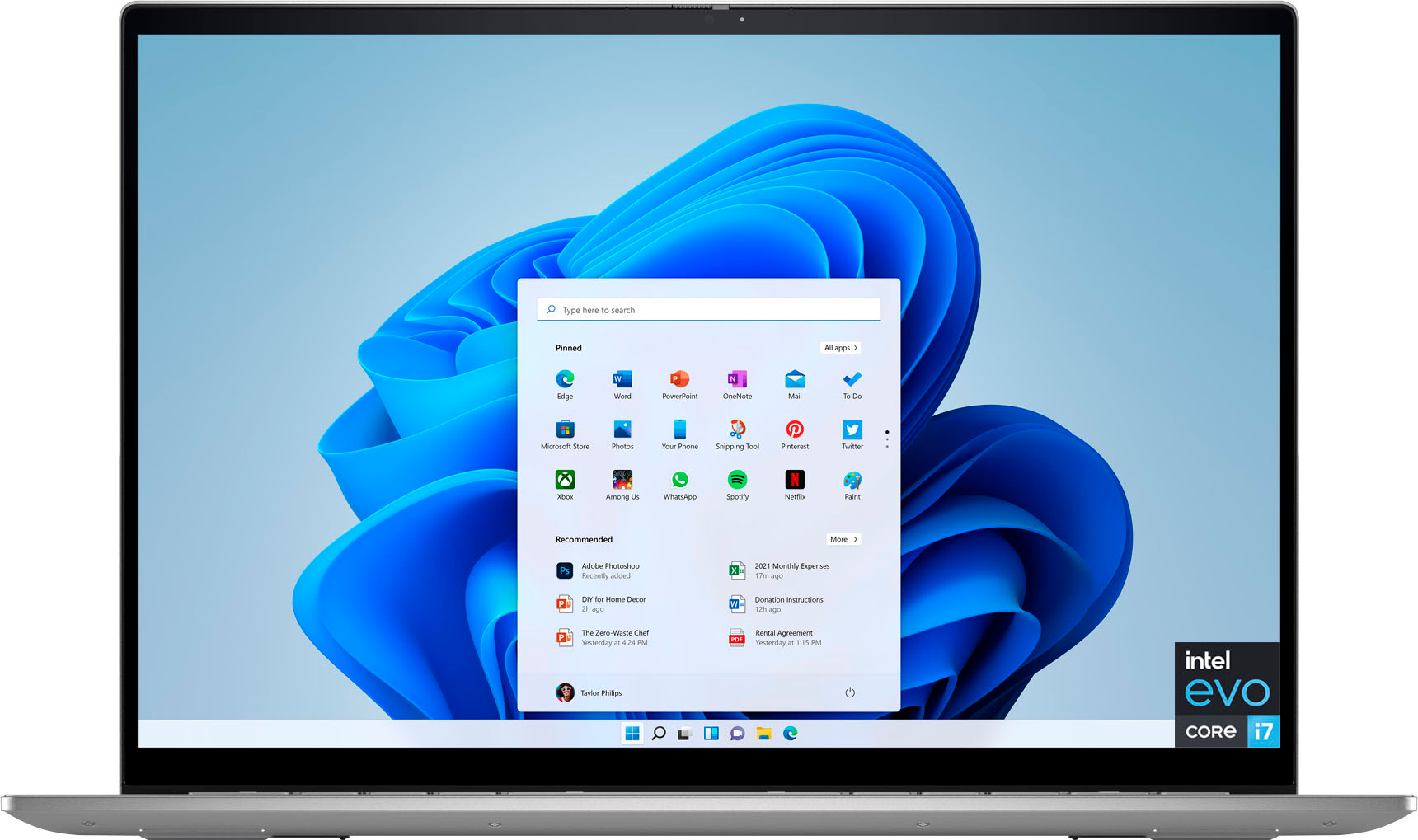
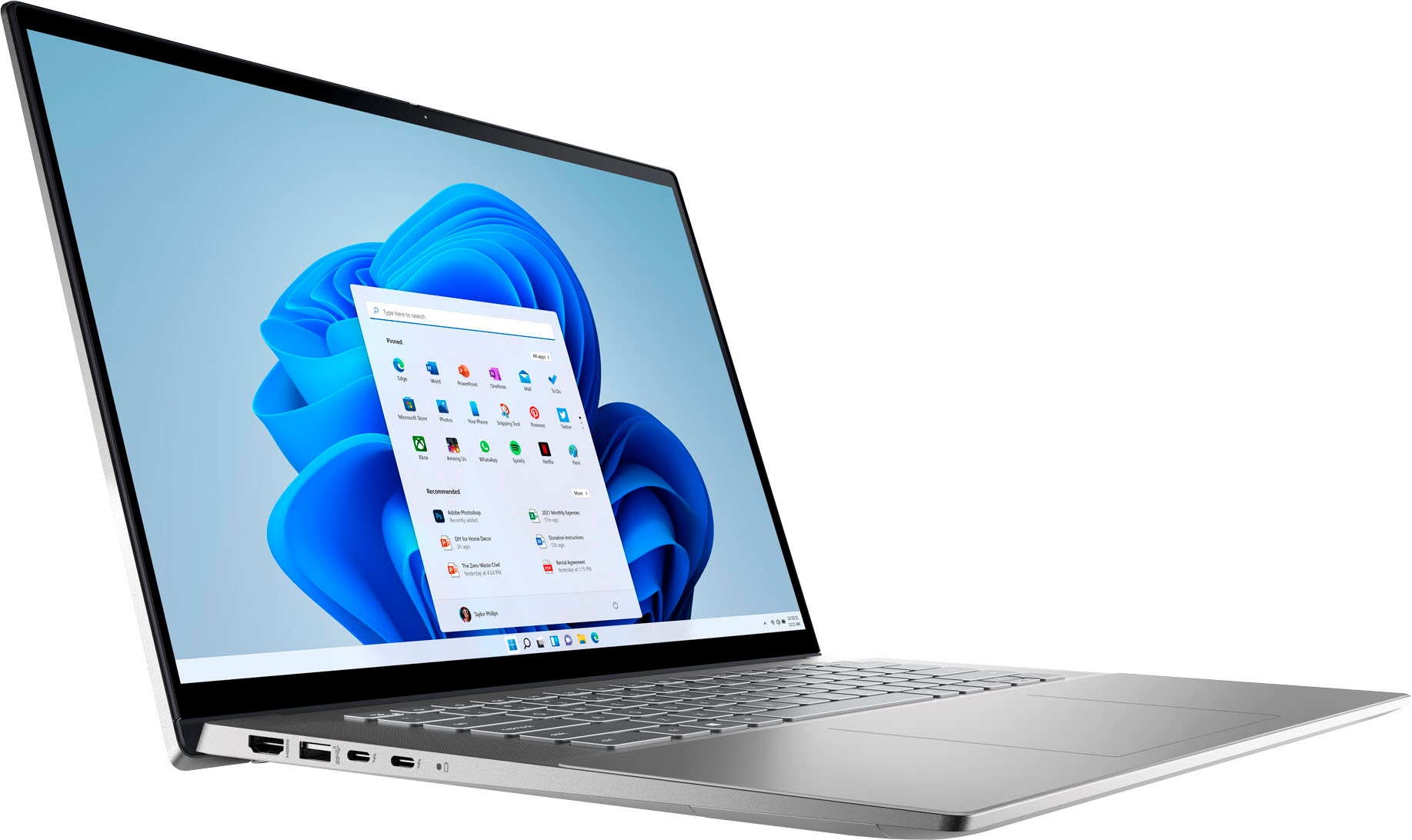
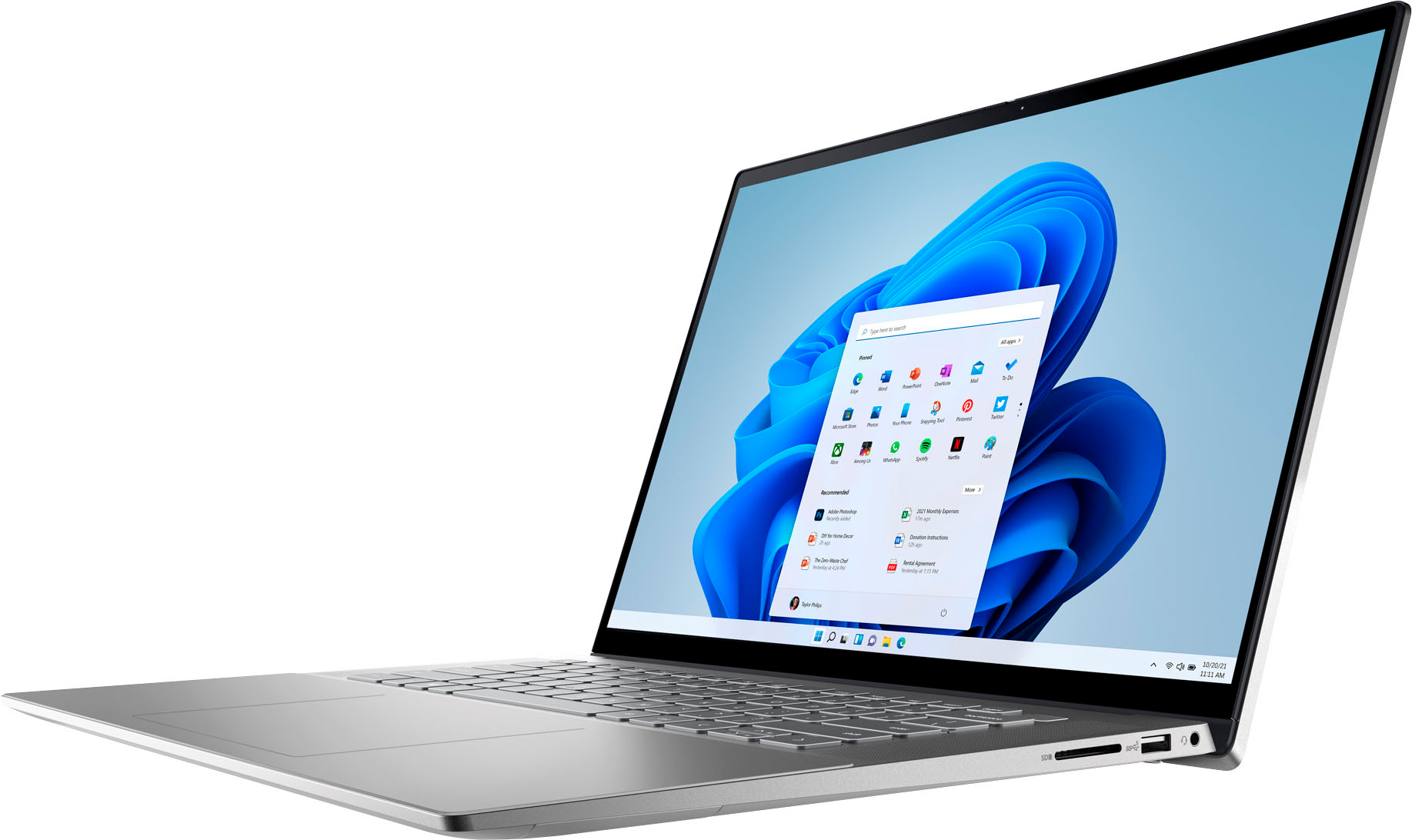
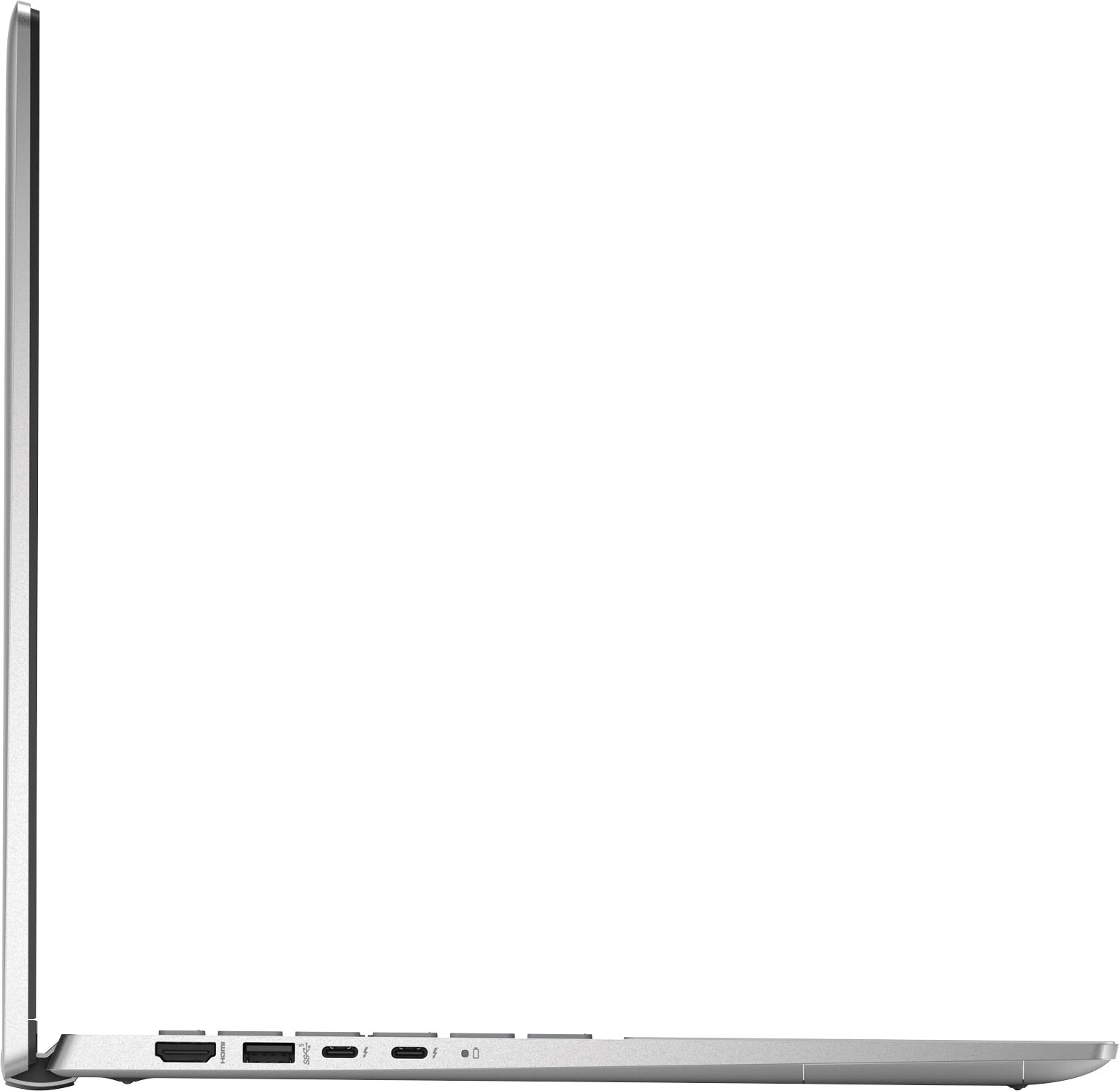









- Model:
- i7620-7631SLV-PUS
- SKU:
- 6504380
Rating by feature
- Battery Life
Rating 4.6 out of 5 stars
- Speed
Rating 4.7 out of 5 stars
- Display
Rating 4.7 out of 5 stars
Customers are saying
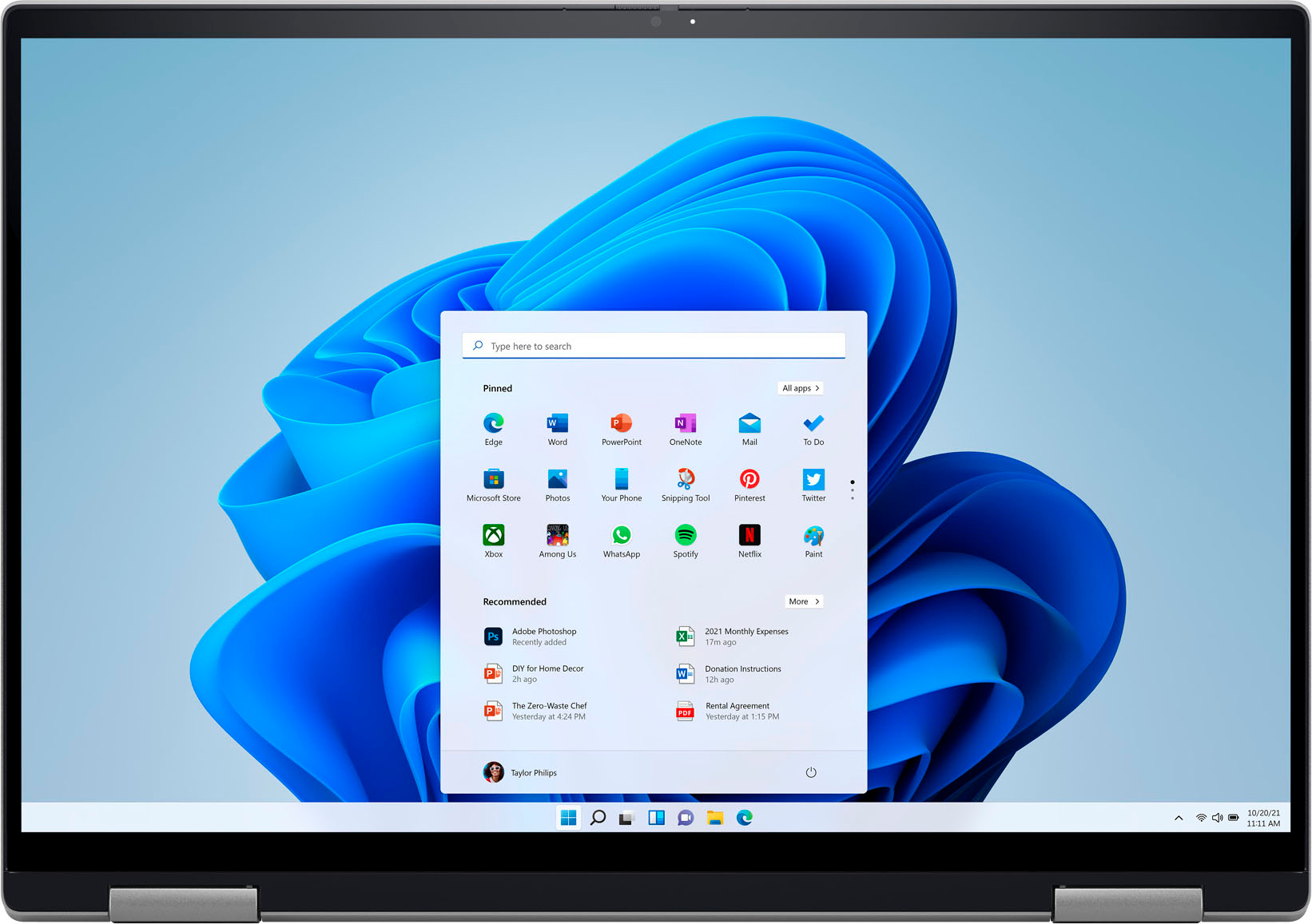
Customers have good things to say about the screen size, ease of use, performance, battery life, weight, and price of the Inspiron 2-in-1 laptop. Many appreciate its lightweight design and powerful performance for everyday tasks. However, some users experienced issues with the touchpad and reported occasional excessive fan noise. A few also mentioned problems with the speakers.
This summary was generated by AI based on customer reviews.
Touch and Wifi connection not working
||Posted . Owned for 1 week when reviewed.This reviewer received promo considerations or sweepstakes entry for writing a review.Touch and Wifi connection not working. Tried rebooting the system ,still not working. Otherwise laptop hardware quality was good.Box contained everything and was properly packed and shipped
I would recommend this to a friendBrand response from YourDellTeam
Posted .Hey Karan,
Thank you for taking the time to leave us a review of your Inspiron 7620. We value your feedback. We are sorry to hear that you are experiencing an issue with connecting to a wireless network. That is not the type of feedback we like to hear from our customers. Below I have provided troubleshooting steps to help resolve your issue.
Here are the steps to help resolve your wifi connection issue:
1. Download and install the latest Wireless Card driver. After updating the driver, re-establish the connection with the Wireless Access Point and check the wireless performance.
2. If the issue persists, proceed to step 3.
3. Power-cycle the local network. Shut down the Dell system, the Wireless Access Point/Router, and the Modem. Wait a minimum of 60 seconds before powering up the components in the following order:
4. Power ON the Modem, and wait for it to boot fully.
5. Power ON the Wireless Access Point/Router, and wait for it to boot fully.
6. Power ON the Dell system.
7. Open Network and Sharing Center
8. In the left-side navigation pane, click on Change Adapter Settings
9. Right-click on the wireless connection icon and select Properties followed by the Configure button
10. Under Wireless Options, select the Wireless N mode.
11. For Windows 8 or later systems click the Advanced tab and look for 802.11n Mode on the right you will be given the option to Enable or Disable. If the mode is not visible you may need to update your drivers and firmware.
12. From the drop-down menu, choose Disable followed by Ok
13. This should restore the wireless download and upload speed.
14. Internet speed can be tested at http://speedtest.net.
Wireless Networking Usage and Troubleshooting Guide: https://dell.to/2RefLVN
Should you need further assistance; we recommend that you contact Dell directly with the information below.
Chat or call: https://bit.ly/DellSupportTeam
Phone number to Dell: 1-800-624-9896.
Sincerely,
Summer@Dell

Do not buy
|Posted . Owned for 7 months when reviewed.This reviewer received promo considerations or sweepstakes entry for writing a review.[Employee of bestbuy] Less than a year and my cursor glitches up. Apparently others had this problem as well. Do not buy
No, I would not recommend this to a friendBrand response from YourDellTeam
Posted .Hello Buyer,
We value your feedback and want to thank you for taking the time to leave a review of your Inspiron 2-in-1 touch laptop. We are sorry to hear that you are experiencing an issue with your cursor. That is not the type of feedback we like to hear from our customers, or the type of product Dell intends to deliver. We have noted the details of your statement and will use them to improve current and future products. We would love to help you at your convenience we recommend using the toll-free number or chat link provided below to reach a member of our Dell Support Team.
If you need further assistance, we recommend using the toll-free number or chat link below to reach a member of our Dell Support Team.
Chat or call: https://bit.ly/DellSupportTeam
Phone number to Dell: 1-800-624-9896
Best,
Summer@Dell
Worst laptop ever
||Posted . Owned for 1 month when reviewed.This reviewer received promo considerations or sweepstakes entry for writing a review.There is Wi-Fi issue since I brought it, they sent technician who did not fix it. They fix it on dell center which work for 4 days , same problem again
No, I would not recommend this to a friendBrand response from YourDellTeam
Posted .Dear Vishal,
We appreciate you for taking the time to leave us your review. We apologize for the Wi-Fi connection issues you are experiencing with your Inspiron 7620. Your feedback about discrepancies in our products helps us improve with future developments. Below I have provided troubleshooting instructions with the full article that can help resolve this issue.
Here are the steps to help resolve your wifi connection issue:
1. Download and install the latest Wireless Card driver. After updating the driver, re-establish the connection with the Wireless Access Point and check the wireless performance.
2. If the issue persists, proceed to step 3.
3. Power-cycle the local network. Shut down the Dell system, the Wireless Access Point/Router, and the Modem. Wait a minimum of 60 seconds before powering up the components in the following order:
4. Power ON the Modem, and wait for it to boot fully.
5. Power ON the Wireless Access Point/Router, and wait for it to boot fully.
6. Power ON the Dell system.
7. Open Network and Sharing Center
8. In the left-side navigation pane, click on Change Adapter Settings
9. Right-click on the wireless connection icon and select Properties followed by the Configure button
10. Under Wireless Options, select the Wireless N mode.
11. For Windows 8 or later systems click the Advanced tab and look for 802.11n Mode on the right you will be given the option to Enable or Disable. If the mode is not visible you may need to update your drivers and firmware.
12. From the drop-down menu, choose Disable followed by Ok
13. This should restore the wireless download and upload speed. Internet speed can be tested at http://speedtest.net.
Wireless Networking Usage and Troubleshooting Guide: https://dell.to/2RefLVN
If you continue to experience issues, please reach out to Dell Support directly by using the information provided below.
Chat or call: https://bit.ly/DellSupportTeam
Phone number to Dell: 1-800-624-9896
Best,
Summer@Dell
Wouldn’t recommend
||Posted . Owned for 1 year when reviewed.This reviewer received promo considerations or sweepstakes entry for writing a review.One year out and it’s crashed; just out of warranty. Wouldn’t recommend
No, I would not recommend this to a friend- Cons mentioned:Touchpad
Trackpad problem - Factory problem
||Posted . Owned for 3 months when reviewed.This reviewer received promo considerations or sweepstakes entry for writing a review.I have new Inspiron 16 plus for several weeks and it has touchpad problem randomly. Touchpad has random taps and swipes, inaccurate finger tracking. I will contact with Dell but wondering is there anyone has that problem or any simple solution for it
No, I would not recommend this to a friendBrand response from YourDellTeam
Posted .Hello TrackpadProblem,
Thank you for taking the time to leave us your review. We're sorry to hear that you are having issues with the touchpad on your Dell Inspiron Laptop. This is certainly not the experience we like to hear from our customers. Below, I have included a link to an article with troubleshooting steps that should help in resolving your touchpad issues.
Touchpad Usage and Troubleshooting Guide: https://dell.to/3tXxiof
Please take a moment to call or chat with a Dell Support Representative at your earliest convenience if you continue to have this issue: https://bit.ly/DellSupportTeam.
Best,
Danielle@Dell
- Cons mentioned:Fan noise
fan sound
||Posted .This reviewer received promo considerations or sweepstakes entry for writing a review.We had to return it because the fan would turn on and sound like a aircraft carrier. Its too bad.
No, I would not recommend this to a friendBrand response from YourDellTeam
Posted .Dear PT12345,
We would like to thank you for taking the time to provide us with your feedback. We are sorry to hear that you were not too happy with your Dell Inspiron 7620 2-in-1 computer because of the loud fan issues you experienced with it and that you have ultimately decided to return this product. This is certainly not what we like to hear from our loyal customers. We will share your review with our quality team so improvements can be made now and in the future. In the future, we would love the opportunity to help troubleshoot any problems you may be facing.
If you come across any questions or have concerns about Dell products, please don’t hesitate to contact Dell Support Team at the information provided below.
Best,
Katarina@Dell
Should you need further assistance, you can contact Dell directly with the information below.
Chat or call: https://bit.ly/DellSupportTeam
Phone number to Dell: 1-800-624-9896
- Pros mentioned:Battery life
Solid laptop
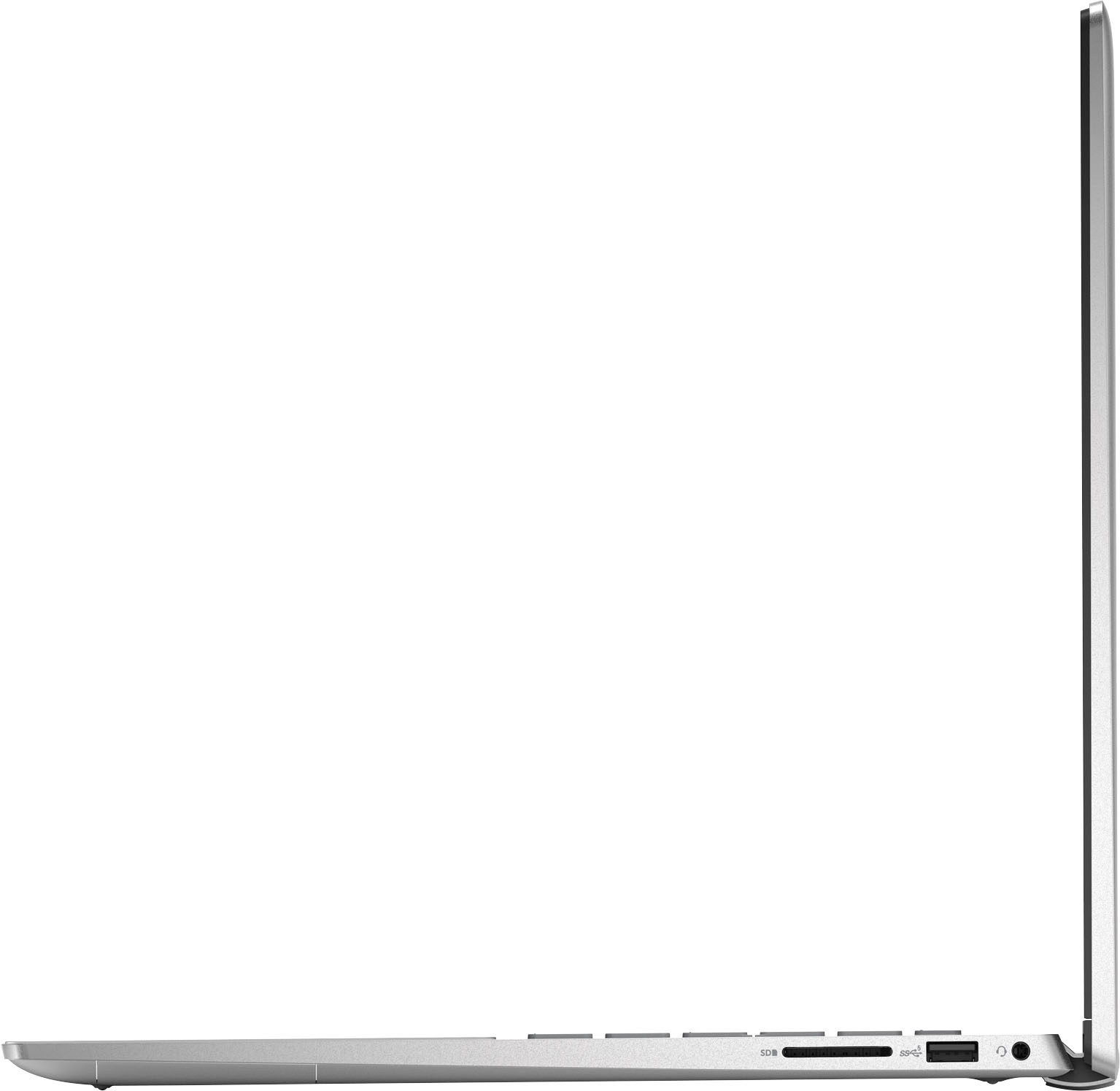
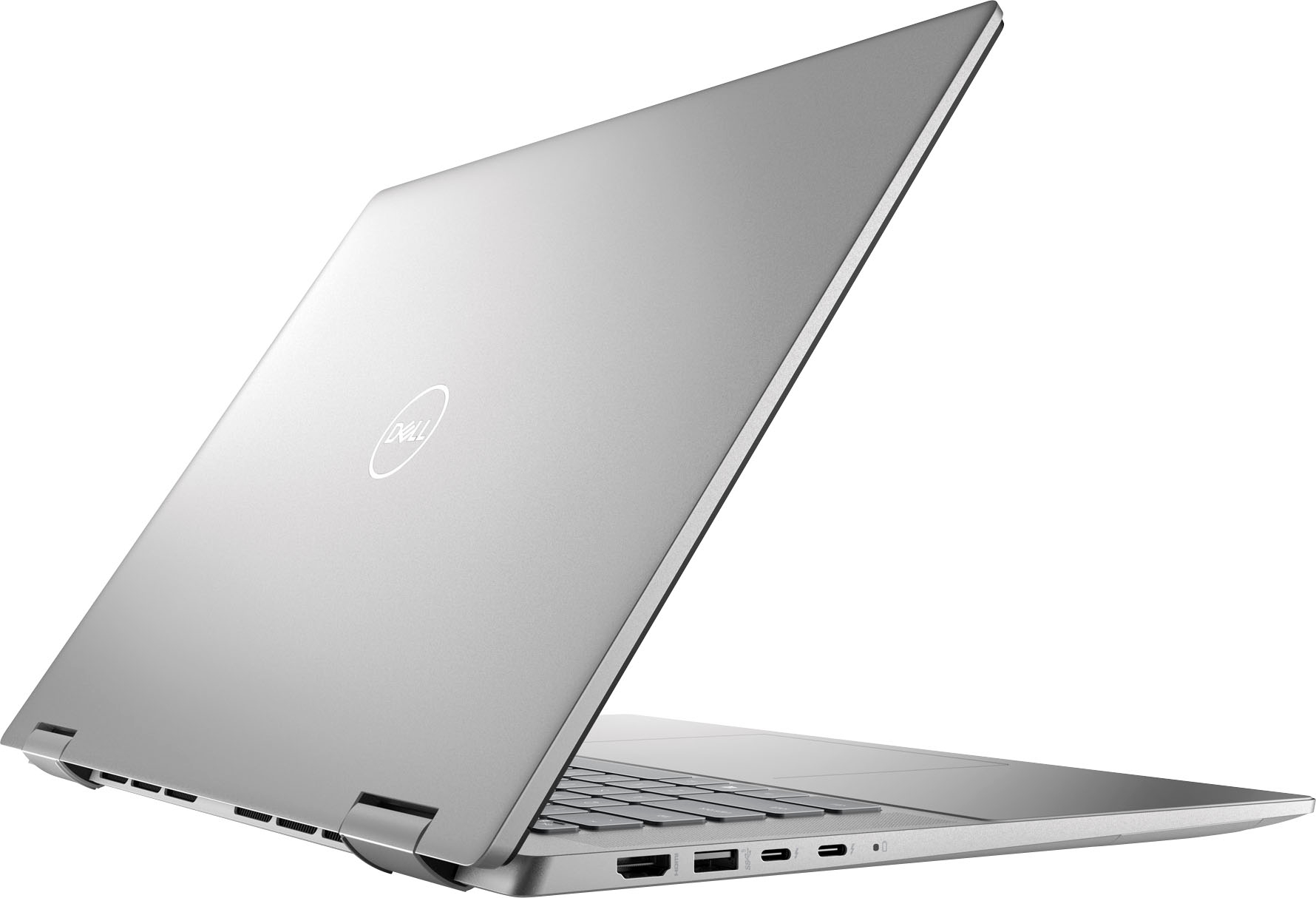
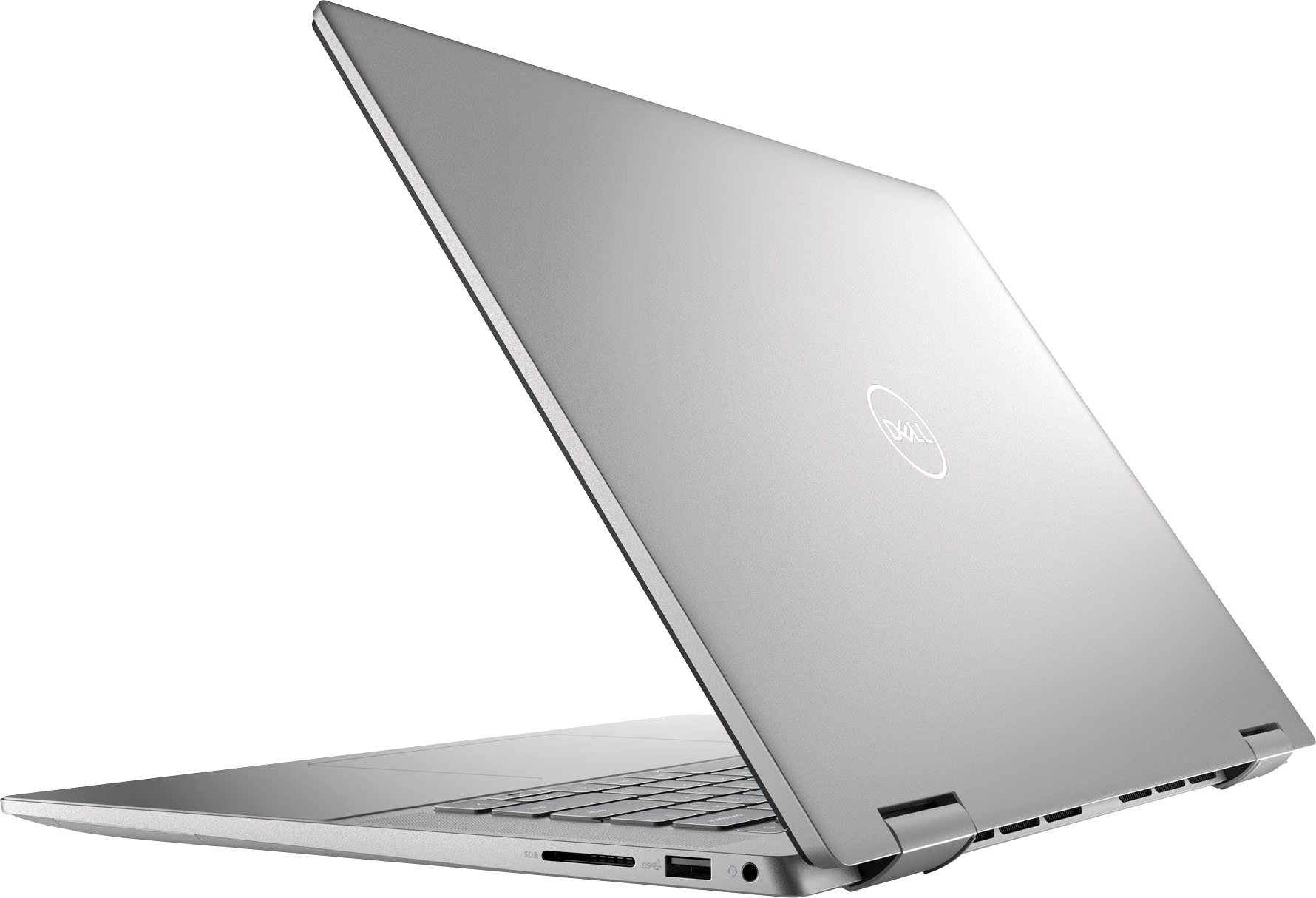
Posted .This reviewer received promo considerations or sweepstakes entry for writing a review.This is a solid laptop, but let me put it in context… for me it is a dedicated work laptop for travel and working from home. I have a very powerful desktop that I work on at the office - 128GB RAM i9 type computer. The reason I say this is because if I didn’t have that computer, this would not be sufficient as a standalone computer. But it is great for travel and working from home. Runs fairly quite. Fan cones on from time to time, but not overly noticeable. It will run more if you are actively charging it while using multiple applications. If it is fully charged and just plugged in while working the fan runs considerably less. It’s barely when using it unplugged and that is with even using mobile monitor extension Through the thunderbolt port. I had a different laptop from a different brand recently for another job and they fan ran nonstop. It was super annoying….. so compares to that, this one is super quite. Battery life is decent. Gets about 6 hours with office suite programs and web based applications running simultaneous… can squeeze out more with battery saver mode. Even get about 4 hours with a mobile 16”monitor plugged in… only about 2.5 hrs with 2 of them via thunderbolt.but that is really draining on The battery.. so expected. The ports are great. It was essential to have 2 thunderbolt ports so I can use docking stations and have maximum versatility. Still has an hdmi and a USB 3.2 as well. So generally no dongles will be needed for 95% of stuff. The only downside is that the touchscreen mode gets locked on and it locks out the keyboard. Can be annoying, but doesn’t happen much…usually only when using the trackpad. Never when using a mouse with usb adaptor. Just open and close the screen. Highly recommend as a travel laptop or for a college student. Will handle any business applications and multitasking with ease…. Once you get into the multimedia applications …. This may not be enough …. If I was looking to use this as my one and only computer and didn’t have a power computer at work… i would recommend going with a 32GB RAM…but that is because I sometimes need to run many allocations simultaneously….this isn’t the case for the average user. At $849, it’s a great deal for a computer this equipped….. oh yeah…. And despite prior reviews, I have not noticed any issues with lack of brightness on the screen.
I would recommend this to a friend Keeps on crashing
||Posted . Owned for 4 months when reviewed.This reviewer received promo considerations or sweepstakes entry for writing a review.Bought an open box -Excellent but it was keep on crashing and displaying blue screen. Returned it after using it for 2 days .
No, I would not recommend this to a friendLaptop virus
||Posted . Owned for 2 weeks when reviewed.This reviewer received promo considerations or sweepstakes entry for writing a review.Suddenly my computer is powering off I’m not sure what’s wrong the laptop I haven’t owned for a month yet
No, I would not recommend this to a friendBrand response from YourDellTeam
Posted .Hi Valued Customer,
Thank you very much for your feedback. We are sorry to hear that you came across some trouble with your Dell Inspiron 7620 2-in1 laptop because it is randomly restarting.
This is certainly not the experience that we like to hear from our customers. We will share your feedback with our quality team so that improvements can be made to our current and future products and services. Below I have provided troubleshooting steps with the full article that can help resolve the issue.
Here's the steps to help resolve your restart issue:
1. Search for Windows Error Codes.
2. Run a Computer Diagnostic.
3. Run Routine System Maintenance.
4. Update Drivers and BIOS.
5. Check Air Vents.
6. Check Safe Mode Symptoms.
7. Update Windows.
8. Uninstall, Reinstall and Update Software.
9. Look for Multiple Anti-Virus Programs.
10. Check for Malware.
11. Use System Restore.
12. Factory Install or Reinstall Microsoft Windows.
Computer restarts or shuts down intermittently, locks up, stops responding or an error occurs: https://dell.to/33Y2KFn
We also recommend that all drivers are current and updated. Please see the link below for the drivers and downloads page for your Inspiron, where you can check for any applicable updates.
Drivers and Downloads page: https://dell.to/3m0jfty
If you continue to experience issues, please reach out to Dell Support directly by using the information provided below.
Best,
Katarina@Dell
Should you need further assistance, you can contact Dell directly with the information below.
Chat or call: https://bit.ly/DellSupportTeam
Phone number to Dell: 1-800-624-9896
lemon
||Posted . Owned for 1 year when reviewed.This reviewer received promo considerations or sweepstakes entry for writing a review.motherboard died a year after buying it..wouldn't bother.
No, I would not recommend this to a friendBrand response from YourDellTeam
Posted .Dear MichelleD,
We value your feedback and would like to thank you for taking the time to leave a review of your Inspiron 7620. We are sorry to hear that your motherboard died after a year of use. That is not the type of feedback we like to hear from our customers, or the type of product Dell intends to deliver. We have noted the details of your statement and will use them to improve current and future products.
If you continue to experience issues, please reach out to Dell Support directly by using the information provided below.
Chat or call: https://bit.ly/DellSupportTeam
Phone number to Dell: 1-800-624-9896
Best,
Summer@Dell
Dell 2in1
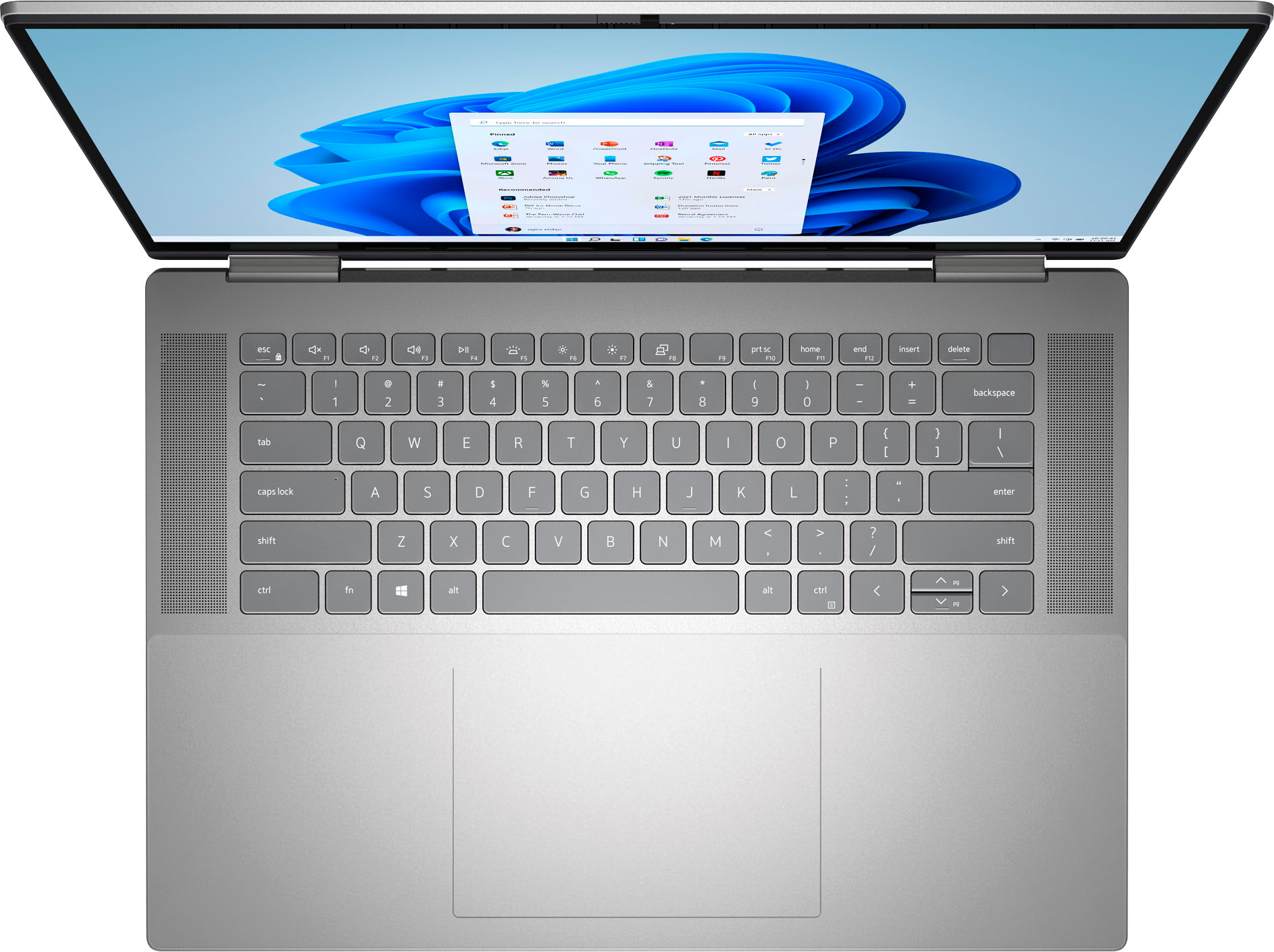
||Posted . Owned for 3 weeks when reviewed.This reviewer received promo considerations or sweepstakes entry for writing a review.Rushed the purchase and ended up without the numerical 10 key pad. Not what I needed.
No, I would not recommend this to a friendBrand response from YourDellTeam
Posted .Hey DebraB,
We appreciate you taking the time to leave a review of your Inspiron 7620. We are sorry to hear that you were not aware that your device did not come with the numerical keypad. That is not the type of feedback we like to hear from our customers. We have noted the details of your statement and will use them to improve current and future products.
Should you need further assistance; we recommend that you contact Dell directly with the information below.
Chat or call: https://bit.ly/DellSupportTeam
Phone number to Dell: 1-800-624-9896.
Regards,
Summer@Dell
Laptop sound stops working after one day!
||Posted . Owned for less than 1 week when reviewed.This reviewer received promo considerations or sweepstakes entry for writing a review.I received the laptop yesterday in the afternoon and it was working fine, however this morning I woke up and turned on my laptop to find the opposite is true. For some reason the sound was not working on it. I didn’t have anything connect via Bluetooth or any of the parts and the laptops speakers were on and not muted I used multiple platforms and no sound. I troubleshooted it and found out that it doesn’t work and they don’t know why (super helpful lol). I used the laptop the previous night watching videos and it was working fine. If this is a problem already that stuff just decides not to work then I would bet more problems will arise.
No, I would not recommend this to a friendBrand response from YourDellTeam
Posted .Hi Matt,
Thank you very much for your valued feedback. We are sorry to hear about the problems you have come across with your new Dell Inspiron 7620 2-in-1 laptop because its audio is not working.
Below I have provided the steps to run the Microsoft Sound Troubleshooter. I have also included the full article link that has more options if they are needed. We also suggest making sure the audio drivers are up to date on your PC. I have given you a link to the Drivers and Downloads page for your computer below so you can check for and do any applicable updates.
How to run the Windows Sound Troubleshooter in Microsoft Windows 10
1. Click Start, and then select Settings (gear icon).
2. Click Update & Security and select Troubleshoot.
3. Click Playing Audio and then click Run the troubleshooter.
4. Follow the on-screen instructions to complete the troubleshooting process.
How to Troubleshoot Audio Issues or Sound Playback Issues: https://dell.to/3u4pzmX
Drivers and Downloads page: https://dell.to/3m0jfty
If the issues with your Inspiron are still not resolved after utilizing the troubleshooting options above, please contact the Dell Support Team at 1-800-624-9896 for further guidance.
Best,
Katarina@Dell
Should you need further assistance, you can contact Dell directly with the information below.
Chat or call: https://bit.ly/DellSupportTeam
Phone number to Dell: 1-800-624-9896
Something is wrong with this computer!
||Posted . Owned for 3 weeks when reviewed.This reviewer received promo considerations or sweepstakes entry for writing a review.I think this computer has some issues. I have been frustrating with it because I was working on it and suddenly restated I turn off everything. Maybe is a bug , but definitely I will return it.
No, I would not recommend this to a friendBrand response from YourDellTeam
Posted .Hello GermanZ,
We want to thank you for taking the time to leave us a review of your Inspiron 2-in-1 laptop. We are sorry to hear that you are experiencing an issue with your device and have made the decision to return it. We would love the opportunity to help you resolve the issue at your convenience. Below I have provided the toll-free number and chat link to reach a member of our Support Team.
Should you need further assistance; we recommend that you contact Dell directly with the information below.
Chat or call: https://bit.ly/DellSupportTeam
Phone number to Dell: 1-800-624-9896.
Regards,
Summer@Dell
Does not live up to expectations
||Posted . Owned for 2 months when reviewed.This reviewer received promo considerations or sweepstakes entry for writing a review.WIsh I had returned this machine. Finger scanner works about 10% of the time. Sometimes just stops responding until I reboot the machine...should have stuck with what works good like my last machine.
No, I would not recommend this to a friendBrand response from YourDellTeam
Posted .Hi KyleS,
We appreciate you taking the time to leave us your review. We are sorry to hear that you have come across some issues with your fingerprint reader on your Dell Inspiron 7620 2-in-1 computer.
I have provided a link to the Window Hello article for your reference below:
Windows Hello: https://dell.to/3smxei6
If the issue with your computer is still not resolved after utilizing the troubleshooting options above, please contact the Dell Support Team at 1-800-624-9896 for further guidance.
Best,
Katarina@Dell
Should you need further assistance, you can contact Dell directly with the information below.
Chat or call: https://bit.ly/DellSupportTeam
Phone number to Dell: 1-800-624-9896
Bad dell reputation.
||Posted . Owned for 2 weeks when reviewed.This reviewer received promo considerations or sweepstakes entry for writing a review.Nad glider pointer pad. Unbelievable slow, pc has 16 gb memory. Best buy and dell product is not good. Alway have bad experience with bb and dell. I am dealing with dell for over 39 years.
No, I would not recommend this to a friendBrand response from YourDellTeam
Posted .Hey There RayZone,
We value your feedback and want to thank you for taking the time to leave us a review. We are sorry that you are experiencing slow performance issues. There are a number of ways to help improve the performance of your Inspiron 2-in-1 touch laptop. We'd recommend the following steps to help improve your computer's overall performance and speed:
1. Restart your computer regularly.
2. Run the automated tools provided in the SupportAssist Tool.
3. Run a complete hardware diagnostic test.
4. Scan your computer for malware.
5. Restore your Dell computer using Windows System Restore.
6. Reinstall Microsoft Windows.
You can read the full steps associated with each of these recommendations here: https://dell.to/3n29QjE.
After following the steps provided if you need further assistance we recommend reaching out to a member of our support team with the contact information provided below.
Should you need further assistance; we recommend that you contact Dell directly with the information below.
Chat or call: https://bit.ly/DellSupportTeam
Phone number to Dell: 1-800-624-9896.
Best Regards,
Summer@Dell
- Cons mentioned:Touchpad
Not Happy
||Posted . Owned for less than 1 week when reviewed.This reviewer received promo considerations or sweepstakes entry for writing a review.Opened today, the mouse glitches out and shakes on its own. Also seems to be having a hard time operating with 10 tabs open...
No, I would not recommend this to a friendBrand response from YourDellTeam
Posted .Hey Daniel,
Thank you for taking the time to leave a review of your Inspiron 2-in-1 Touch Laptop. We are sorry to hear that you are experiencing an issue with your mouse. That is not the type of feedback we like to hear from our customers. Below I have provided a troubleshooting link to help resolve your issue.
Touchpad Usage and Troubleshooting Guide: https://dell.to/3tXxiof
Should you need further assistance; we recommend that you contact Dell directly with the information below.
Chat or call: https://bit.ly/DellSupportTeam
Phone number to Dell: 1-800-624-9896.
Best Regards,
Summer@Dell
- Cons mentioned:Touchpad
do not buy
||Posted . Owned for 3 months when reviewed.This reviewer received promo considerations or sweepstakes entry for writing a review.mouse pad is worthless. stay away!!!!! do not buy!!!
No, I would not recommend this to a friendBrand response from YourDellTeam
Posted .Hello There BadBrad,
Thank you for taking the time to leave us your review. We're sorry to hear that you experienced issues with your Dell Inspiron Laptop. This is certainly not the experience we like to hear from our customers. Below I have provided steps and an article that can help resolve your touchpad issue:
1. Ensure the touchpad and your finger do not have any dirt, grease, liquids, or food on them (the touchpad has to make good contact with your finger to work correctly).
2. Ensure that the touchpad is turned on.
3. Save any data, close any open programs and restart the computer by using a wired USB mouse (if available) or Bluetooth mouse if it is already installed, if not, press hold the power button for at least 15 seconds to turn the computer off.
4. Unplug everything except the power cable.
5. Turn the computer back on and retest the touchpad.
6. When the cursor does work correctly, attach one device at a time, and test the cursor movement to see which one may have caused the issue.
7. Ensure that the BIOS and Chipset drivers are updated to the latest version.
8. There is a new BIOS which was released on 8/22
Touchpad Usage and Troubleshooting Guide: https://dell.to/3zwM1rp
If you are still experiencing issues, please take a moment to call or chat with a Dell Support Representative at your earliest convenience so that they can help you with your concerns: https://bit.ly/DellSupportTeam.
Best,
Danielle@Dell
- Cons mentioned:Touchpad
not usable
||Posted . Owned for 3 months when reviewed.This reviewer received promo considerations or sweepstakes entry for writing a review.The mouse pad is awful, it makes the laptop unusable. Very slow!
No, I would not recommend this to a friendBrand response from YourDellTeam
Posted .Hello There NNNN,
Thank you for taking the time to leave a review of your Inspiron 2-in-1 laptop. We are sorry that you are experiencing an issue with your touchpad. I have provided steps below to help resolve your issue. Some Notebooks and Tablets with Keyboards have added gesture features to the touchpad hardware and drivers. A few of these features are two or three finger scrolling, pinch zoom, circle zoom, rotate and swiping. These new features may be the reason for the erratic cursor movement since most are turned on by default. You can disable or modify the way the features work in the touchpad driver properties. Here are some tips to modify these settings:
1. In the Search box, type main.cpl.
2. Touch or click main.cpl in the list of programs.
3. Touch or click the Dell Touchpad tab.
4. Touch or click on the picture of the touchpad.
5. Touch or click Gestures (depending on your computer there may not be a Gestures option).
6. Change the options as preferred.
7. Touch or click Save.
8. Touch or click the X in the upper-right corner to close the Dell Touchpad Utility.
9. Touch or click OK on the Mouse Properties window.
10. If the touchpad still does not work after following the preceding steps, refer to Dell Knowledge Base article - http://dell.to/2iaiujA.
You can read the full article here - http://dell.to/2tqmS02.
If you need further assistance we recommend reaching out to a member of our support team with the toll-free number or chat link below.
Should you need further assistance; we recommend that you contact Dell directly with the information below.
Chat or call: https://bit.ly/DellSupportTeam
Phone number to Dell: 1-800-624-9896.
Best Regards,
Summer@Dell
Nothing but a hassle
||Posted . Owned for 3 weeks when reviewed.This reviewer received promo considerations or sweepstakes entry for writing a review.I've had this computer for less than a month and so far, the microphone has gone out on me 5 times during a zoom meeting that I was running. Then today the camera went completely black on me. The computer also keeps saying that something went wrong, and the computer needs to rebut.
No, I would not recommend this to a friendBrand response from YourDellTeam
Posted .Hey There AnaH,
We thank you for taking the time to leave a review of your Inspiron 7620. We are sorry to hear that you are experiencing an issue with your webcam not working. That is not the type of feedback we like to hear from our customers. Below I have provided troubleshooting steps to help resolve your issue.
To reinstall the webcam drivers, perform the following steps.
1. Close any applications that are using the webcam (this may include web pages). Save and close any applications that you are working on as the computer will need to restart.
2. Press and hold the Windows key, and then press the q key.
3. In the search box type device manager.
4. Select Device Manager (Control panel) in the list of results.
5. Touch or click the plus (+) sign to the left of Cameras or Imaging Devices.
- Note: When there is no listing for Cameras or Imaging Devices, "Contact Technical Support."
6. Touch and hold or right-click Integrated Webcam or USB camera.
7. Touch or click Uninstall.
8. Confirm the uninstall process by clicking OK.
9. Once uninstalled, restart the computer.
- Note: Windows 10 will automatically detect and install the Webcam drivers.
10. When the Webcam does still does not function, the webcam software should also be uninstalled and reinstalled after the drivers are installed. Contact the Webcam software provider for assistance.
If you still come across issues with your webcam, this link can be used for further solutions and details: http://dell.to/3m00ioA
Should you need further assistance; we recommend that you contact Dell directly with the information below.
Chat or call: https://bit.ly/DellSupportTeam
Phone number to Dell: 1-800-624-9896.
Best,
Summer@Dell
- Cons mentioned:Speakers
Computer speakers
||Posted . Owned for 3 weeks when reviewed.This reviewer received promo considerations or sweepstakes entry for writing a review.I had this computer for 2 1/2 weeks and the speakers do not work anymore
No, I would not recommend this to a friendBrand response from YourDellTeam
Posted .Hi Valued Customer,
We would like to thank you for taking the time to provide us with your feedback. We apologize for the audio issues you have come across with your Dell Inspiron 7620 2-in1 laptop.
Below I have provided the steps to run the Microsoft Sound Troubleshooter. I have also included the full article link that has more options if they are needed. We also suggest making sure the audio drivers are up to date on your PC. I have given you a link to the Drivers and Downloads page for your computer below so you can check for and do any applicable updates.
How to run the Windows Sound Troubleshooter in Microsoft Windows 10
1. Click Start, and then select Settings (gear icon).
2. Click Update & Security and select Troubleshoot.
3. Click Playing Audio and then click Run the troubleshooter.
4. Follow the on-screen instructions to complete the troubleshooting process.
How to Troubleshoot Audio Issues or Sound Playback Issues: https://dell.to/3u4pzmX
Drivers and Downloads page: https://dell.to/3m0jfty
If the issues with your Inspiron are still not resolved after utilizing the troubleshooting options above, please contact the Dell Support Team at 1-800-624-9896 for further guidance.
Best,
Katarina@Dell
Should you need further assistance, you can contact Dell directly with the information below.
Chat or call: https://bit.ly/DellSupportTeam
Phone number to Dell: 1-800-624-9896