Customer Ratings & Reviews



- Model:
- i3511-5174BLK-PUS
- SKU:
- 11411148
Rating by feature
- Battery Life
Rating 4.3 out of 5 stars
- Speed
Rating 4.5 out of 5 stars
- Display
Rating 4.6 out of 5 stars
to a friend
defective laptops
||Posted . Owned for less than 1 week when reviewed.This reviewer received promo considerations or sweepstakes entry for writing a review.Bought 2 of these laptops and not happy ,they are loud and every time you go play a game you get kicked out and brought back to your home page ,talked to 2 different techs and tried different options and still problem not resolved ,they will be returned and exchanged for hp which i own and happy with ,just frustrated spending alot of time on phone with techs and nothing
No, I would not recommend this to a friendBrand response from YourDellTeam
Posted .Dear GinaB,
We appreciate you taking the time to leave a review of your Inspiron 3511. We are sorry to hear that you have been experiencing an issue with your device’s fan noise. That is not the type of feedback we like to hear from our customers, or the type of product Dell intends to deliver. Before making the decision to return your device, I have provided troubleshooting steps below to help resolve your issue.
Below are steps to run a pre-boot diagnostic test that can help.
1. Restart your Dell PC.
2. When the Dell logo appears, press F12 key to enter One-time Boot Menu.
3. Use the arrow keys to select Diagnostics and press Enter key on the keyboard.
4. Follow the on-screen prompts and respond appropriately to complete the diagnostics.
5. If the test fails, ensure to write down the error code and validation code.
If your issue with fan noise continues this article can be used to further assist: http://dell.to/38XbfCV
Should you need further assistance; we recommend that you contact Dell directly with the information below.
Chat or call: https://bit.ly/DellSupportTeam
Phone number to Dell: 1-800-624-9896.
Sincerely,
Summer@Dell
Great for college!
||Posted . Owned for 1 month when reviewed.This reviewer received promo considerations or sweepstakes entry for writing a review.We purchased this computer for my daughter for college and she is loving it. She had a Macbook all through high school but she wanted something different for college.
I would recommend this to a friendBattery is junk
||Posted .This reviewer received promo considerations or sweepstakes entry for writing a review.Battery is not so good on keep a good charge. Why does the battery not last longer?
No, I would not recommend this to a friendBrand response from YourDellTeam
Posted .Hello Valued Customer,
Thank you very much for your feedback. We are sorry to hear that you are not 100% satisfied with your Dell Inspiron 3511 laptop because the battery performance is not as you expected.
To help with a battery performance issue, we recommend changing the Power Plan:
1. On the notification area of the taskbar, right-click the Battery icon.
2. On the options list, click Power Options.
3. Select a power plan on the battery meter, such as Power Saver or Balanced. Windows 10 has a built-in 'Battery Saver' mode that can be activated to extend your system's battery life. The Battery Saver mode will monitor and limit background activity and other features such as push notifications. You do have the option to enable or disable this mode within settings or within advanced Battery Saver settings, you can customize the mode to best suit your needs.
a) Click on the Action Center icon in the taskbar and select the tile for Battery Saver.
b) If running Cortana then type Battery Saver into the search box and select from the results.
Within the Battery Saver settings page, you will be able to turn on and off the feature and customize the feature to best meet your needs.
c) Turn the Battery Saver On or Off.
d) Additional settings are available via the Battery use and Battery saver settings links.
e) Battery use shows further info on apps and their power usage.
f) Battery Saver Settings screen allows you to customize further Battery Saver features.
You can read the full article here - http://dell.to/2vfXWf4
If the problem with your battery is not resolved after applying the troubleshooting tips above, please reach out to our support team here for further guidance: 1-800-624-9896.
Best,
Katarina@Dell
Should you need further assistance, you can contact Dell directly with the information below.
Chat or call: https://bit.ly/DellSupportTeam
Phone number to Dell: 1-800-624-9896
Very good laptop for students
||Posted . Owned for 2 months when reviewed.This reviewer received promo considerations or sweepstakes entry for writing a review.It’s the season of gratitude, and the thing that we are most thankful for is you. Thank you for being the best teachers and staff we could have wished for.
I would recommend this to a friendProfessional
||Posted . Owned for 3 weeks when reviewed.This reviewer received promo considerations or sweepstakes entry for writing a review.Very knowledgeable salesperson who went out of his way to ensure I purchased the computer and printer that was right for my use.
I would recommend this to a friendPC missing drivers
||Posted . Owned for 1 month when reviewed.This reviewer received promo considerations or sweepstakes entry for writing a review.Disappointed that this pc has been a pain from the very beginning. As i was starting the setup configuration, the mouse disappeared. After multiple google searches, i had to download a driver and reboot. Same thing happened when i plugged in my scanner, had to download another driver. With my prior Dell PC everything worked seamlessly.
No, I would not recommend this to a friendBrand response from YourDellTeam
Posted .Hi Valued Customer,
We would like to thank you for taking the time to provide us with your feedback. We are sorry to hear that you are not too happy with your new Dell Inspiron 3511 computer because its drivers are not uploaded and the setup was not very smooth.
Please make sure you have downloaded the latest system update and that software you are using meets all system requirements. I have provided a link to the drivers and downloads page where you can check for any applicable updates if needed in the future.
Drivers and Downloads page: https://dell.to/3hLXbku
If you come across any questions or have concerns about this product, please don’t hesitate to contact Dell Support Team at the information provided below.
Best,
Katarina@Dell
Should you need further assistance, you can contact Dell directly with the information below.
Chat or call: https://bit.ly/DellSupportTeam
Phone number to Dell 1-800-624-9896
Ms
||Posted . Owned for 3 weeks when reviewed.This reviewer received promo considerations or sweepstakes entry for writing a review.Great service. The employee was very interested that he had all of my questions answered. Very open to spending as much time with me as I needed. Love my computer
I would recommend this to a friendLaptop
||Posted . Owned for 1 month when reviewed.This reviewer received promo considerations or sweepstakes entry for writing a review.Great lap top. Price was better from Best Buy because it came with touchscreen and dell.com cost was higher for touchscreen.
I would recommend this to a friendLaptop
||Posted . Owned for 1 month when reviewed.This reviewer received promo considerations or sweepstakes entry for writing a review.Computer was purchased for basic work functions, word processing, spreadsheets, emails and virtual meetings. It serves that purpose well with good battery life.
I would recommend this to a friendDell
||Posted . Owned for 3 weeks when reviewed.This reviewer received promo considerations or sweepstakes entry for writing a review.Dell laptop for personal use. Nice price and solid. We do not do anything major on this. Just needed one for when we travel to stay hooked with our grandchildren.
I would recommend this to a friendDell laptop owner
||Posted . Owned for 3 weeks when reviewed.This reviewer received promo considerations or sweepstakes entry for writing a review.My Dell Inspiron 15 inch laptop has more than met my expectations. It is easy to work and came with a great deal of memory. I anticipate using it for many years.
I would recommend this to a friendMrs.
||Posted . Owned for 3 weeks when reviewed.This reviewer received promo considerations or sweepstakes entry for writing a review.The Dell laptop is convenient, fast, efficient and works well. It is what I expected. I wish I had purchased a larger screen.
I would recommend this to a friendWould recommend
||Posted . Owned for 3 weeks when reviewed.This reviewer received promo considerations or sweepstakes entry for writing a review.Product was exactly as expected. Purchsed it for a family memeber and it only took an hour or so to get it set up for them to use. It's perfect for their needs.
I would recommend this to a friendI do not recommend
||Posted . Owned for 3 weeks when reviewed.This reviewer received promo considerations or sweepstakes entry for writing a review.Battery life is terrible, lucky to get 2 days with minimal use
No, I would not recommend this to a friendBrand response from YourDellTeam
Posted .Dear FariaS,
Thank you for taking the time to leave a review. We apologize for the battery performance issues you are experiencing with your Inspiron 3511. It's important for us to hear about inconsistencies in our products for consideration of future development. Below I have provided steps with the full articles that can help you improve the battery performance of your laptop.
Here are the steps to help improve the battery performance of your laptop:
1. On the notification area of the taskbar, right-click the Battery icon.
2. On the options list, click Power Options.
3. Select a power plan on the battery meter, such as Power Saver or Balanced. Windows 10 has a built-in 'Battery Saver' mode that can be activated to extend your system's battery life. The Battery Saver mode will monitor and limit background activity and other features such as push notifications. You do have the option to enable or disable this mode within settings or within advanced Battery Saver settings, you can customize the mode to best suit your needs.
a) Click on the Action Center icon in the taskbar and select the tile for Battery Saver.
b) If running Cortana, type Battery Saver into the search box and select from the results.
Within the Battery Saver settings page, you will be able to turn on and off the feature and customize the feature to best meet your needs.
c) Turn the Battery Saver On or Off.
d) Additional settings are available via the Battery use and Battery saver settings links.
e) Battery use shows further info on apps and their power usage.
f) Battery Saver Settings screen allows you to customize further the Battery Saver feature.
How to Improve the Performance of a Dell Laptop Battery: http://dell.to/2vfXWf4
Should you need further assistance; we recommend that you contact Dell directly with the information below.
Chat or call: https://bit.ly/DellSupportTeam
Phone number to Dell: 1-800-624-9896.
Best Regards,
Summer@Dell
Dell Laptop
||Posted . Owned for 3 weeks when reviewed.This reviewer received promo considerations or sweepstakes entry for writing a review.Very nice laptop. Only issue is that it's in S Mode so you cant download anything that's not in Microsoft store
I would recommend this to a friendBest Laptop for College!
||Posted . Owned for 1 month when reviewed.This reviewer received promo considerations or sweepstakes entry for writing a review.I bought this laptop in-store and was given immediate attention. The employees were very helpful and insightful and guided me through the entire process!
I would recommend this to a friendMy main store
||Posted . Owned for 1 month when reviewed.This reviewer received promo considerations or sweepstakes entry for writing a review.I like what I purchase from best buy stores especially the electric devices and the external storage devices
I would recommend this to a friendGood Laptop
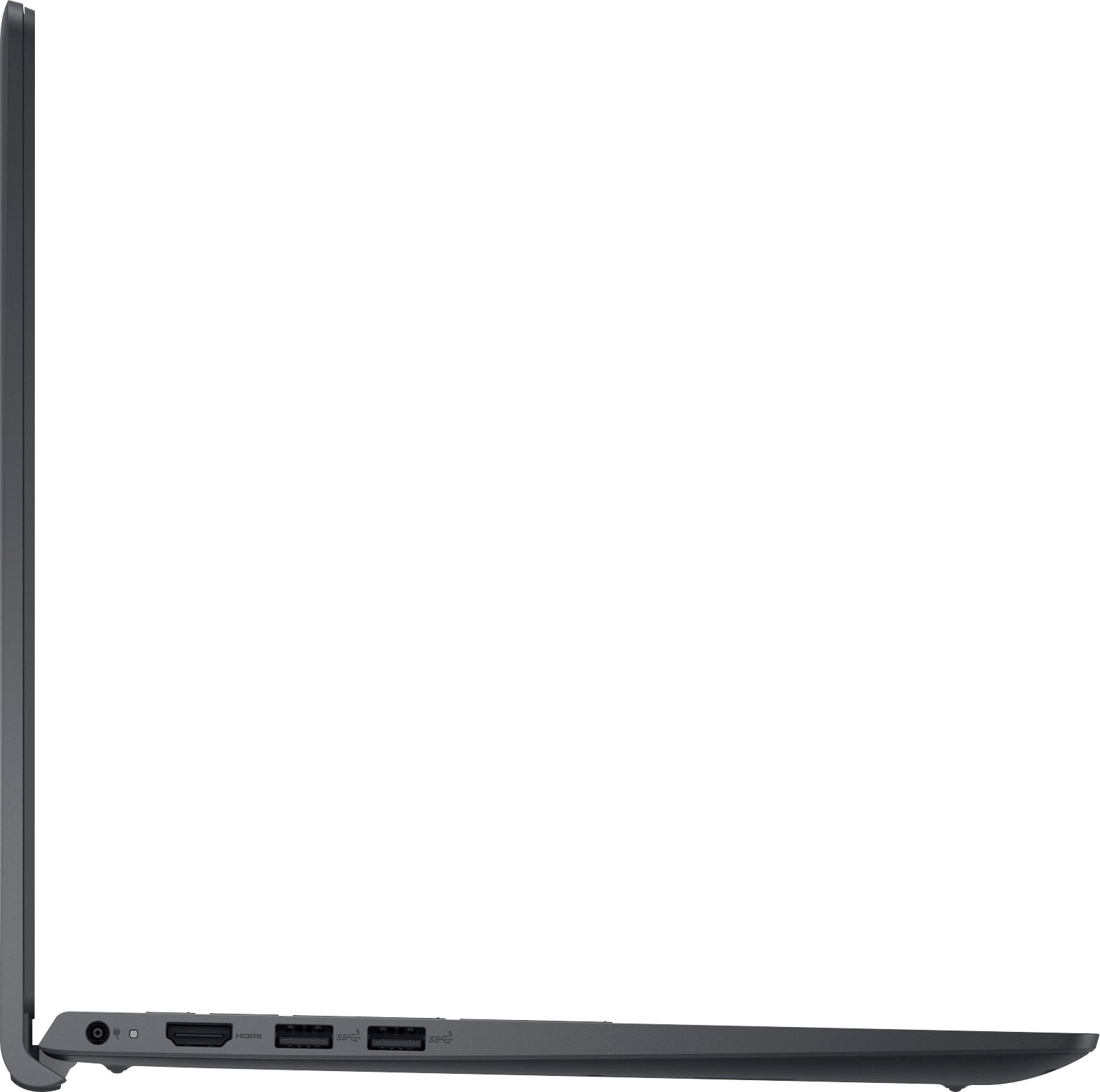
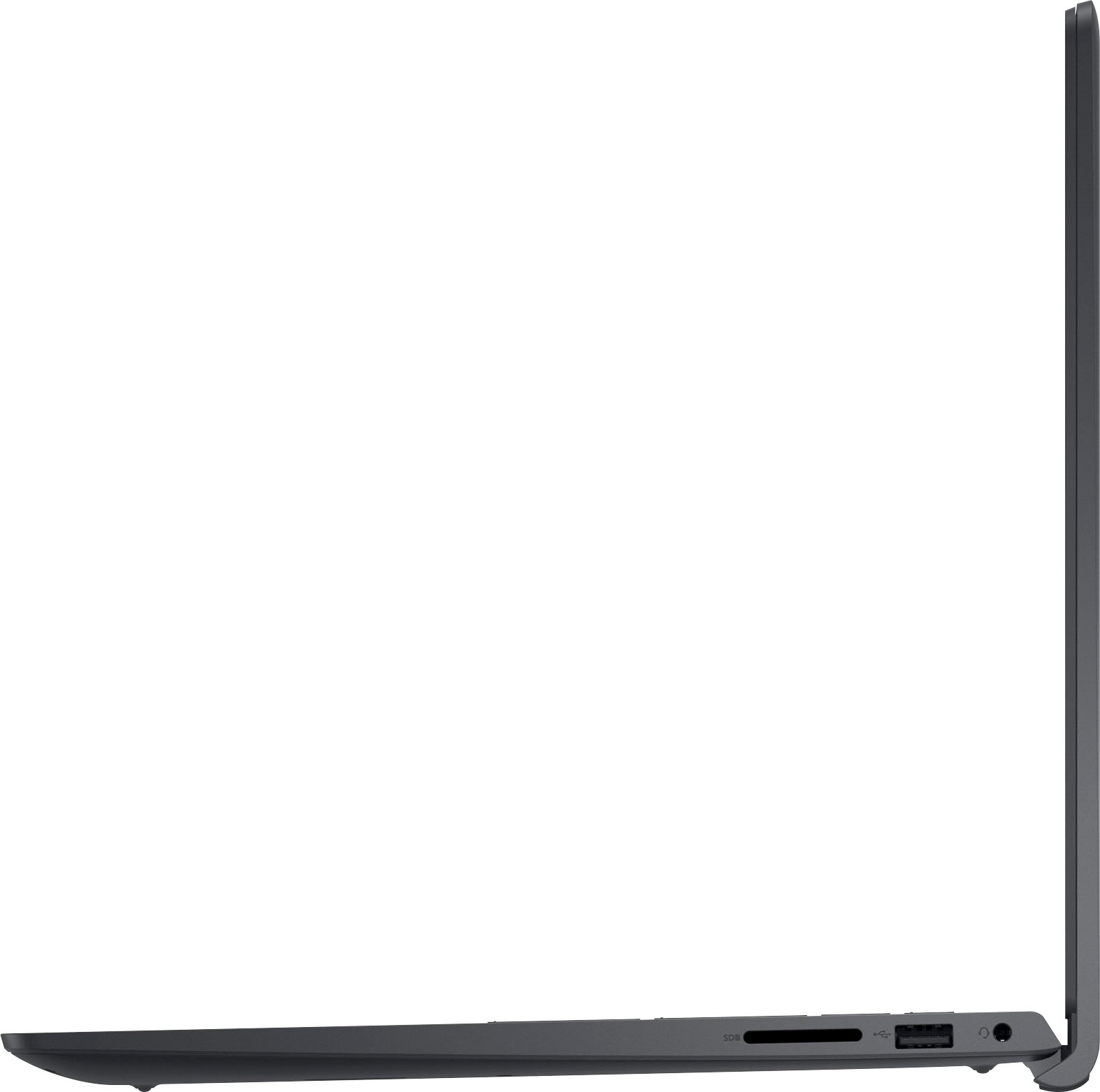
||Posted .This reviewer received promo considerations or sweepstakes entry for writing a review.It's a good laptop, but it's just out of date. No USB-c port is a no for me. Overall though, good laptop
No, I would not recommend this to a friendPerformance and Value
||Posted . Owned for 3 weeks when reviewed.This reviewer received promo considerations or sweepstakes entry for writing a review.Good laptop, especially for the price. The SSD makes all the difference in the world and is the best upgrade anyone can make when specing out a new computer.
I would recommend this to a friendNew Laptop.
||Posted . Owned for 3 weeks when reviewed.This reviewer received promo considerations or sweepstakes entry for writing a review.Enjoying the product. Does what I want. It's the best laptop I've ever had. It's fast to boot up and to shut down. Keyboard is great, and I'm very happy.
I would recommend this to a friend