Customer Ratings & Reviews
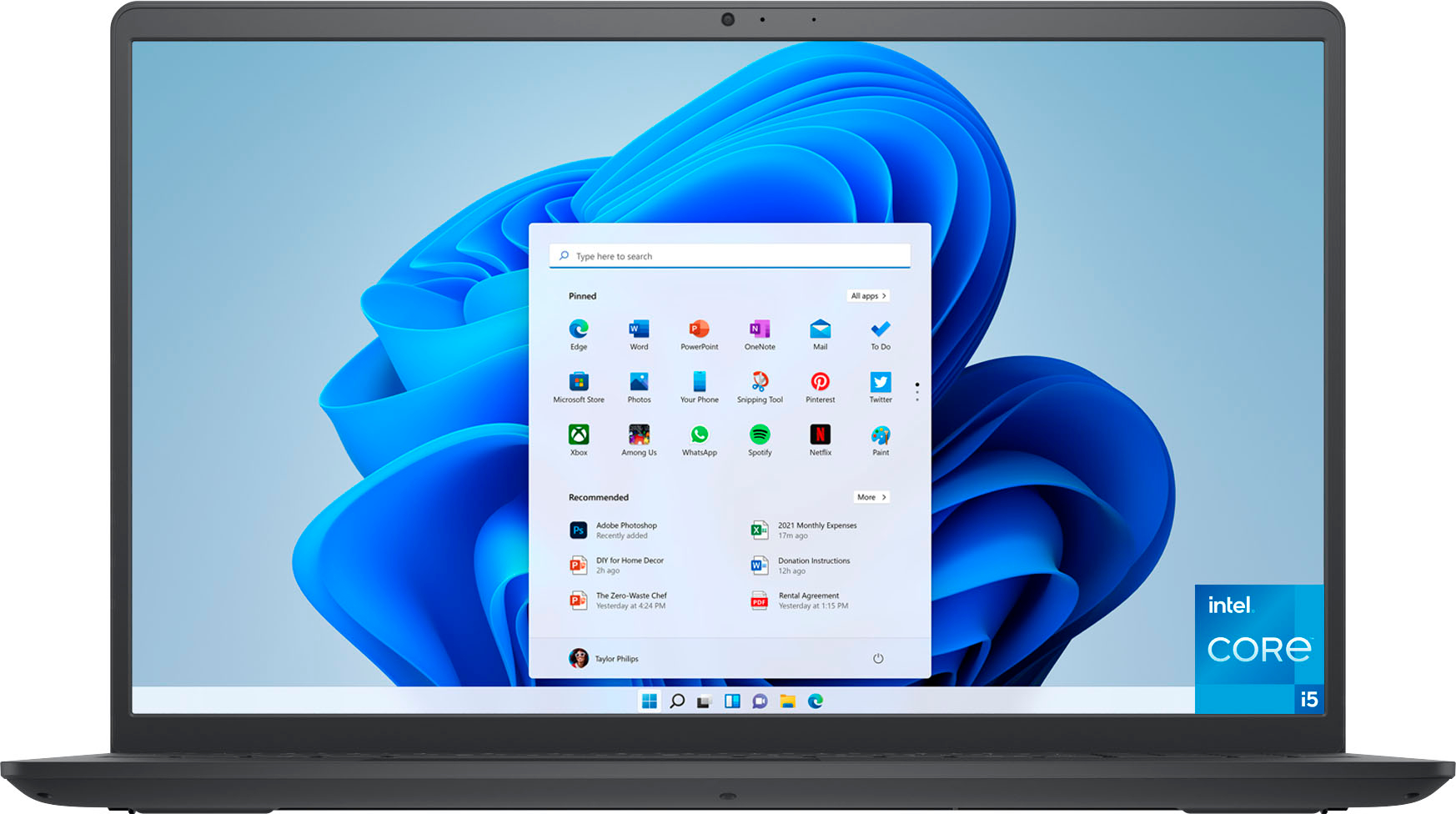
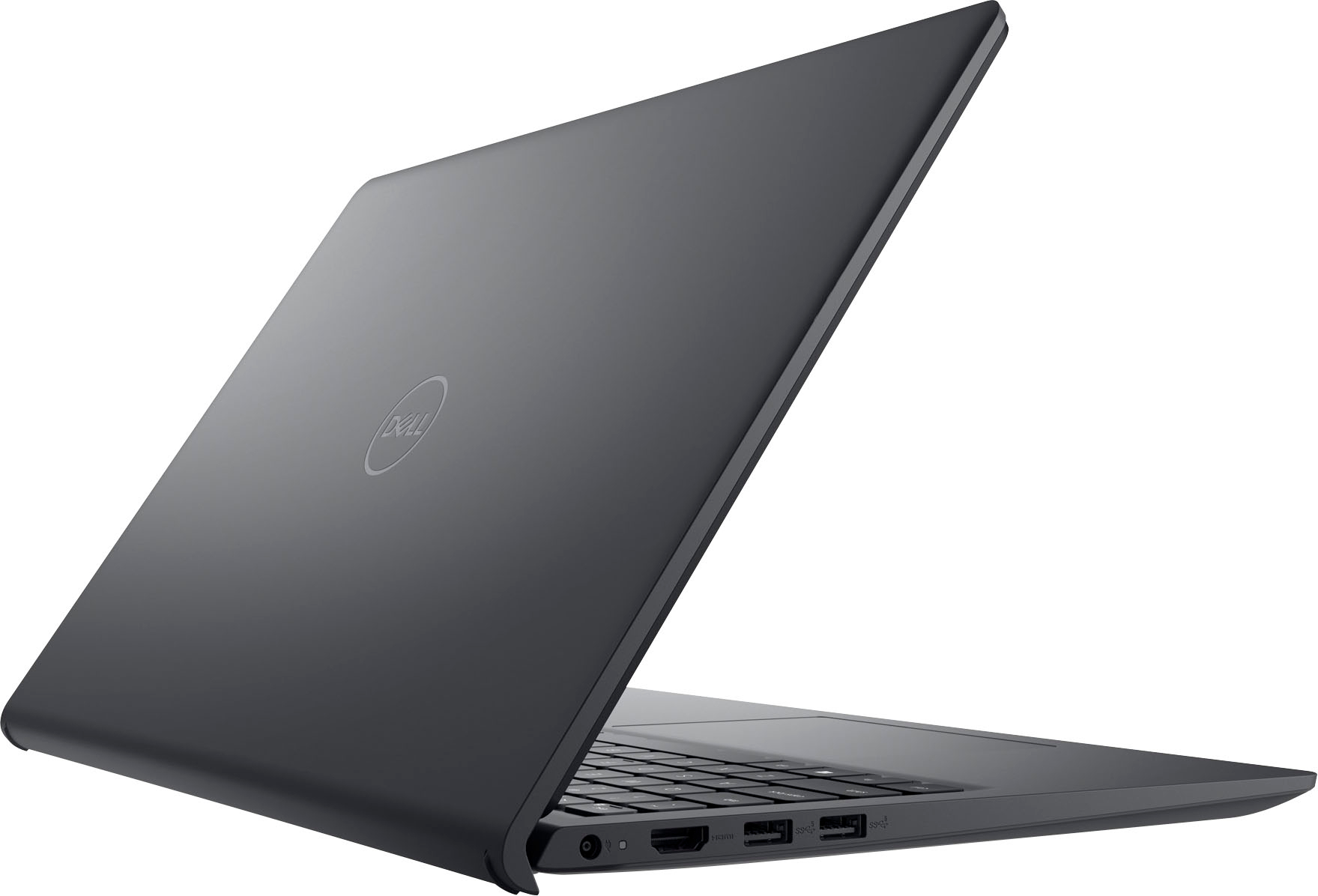
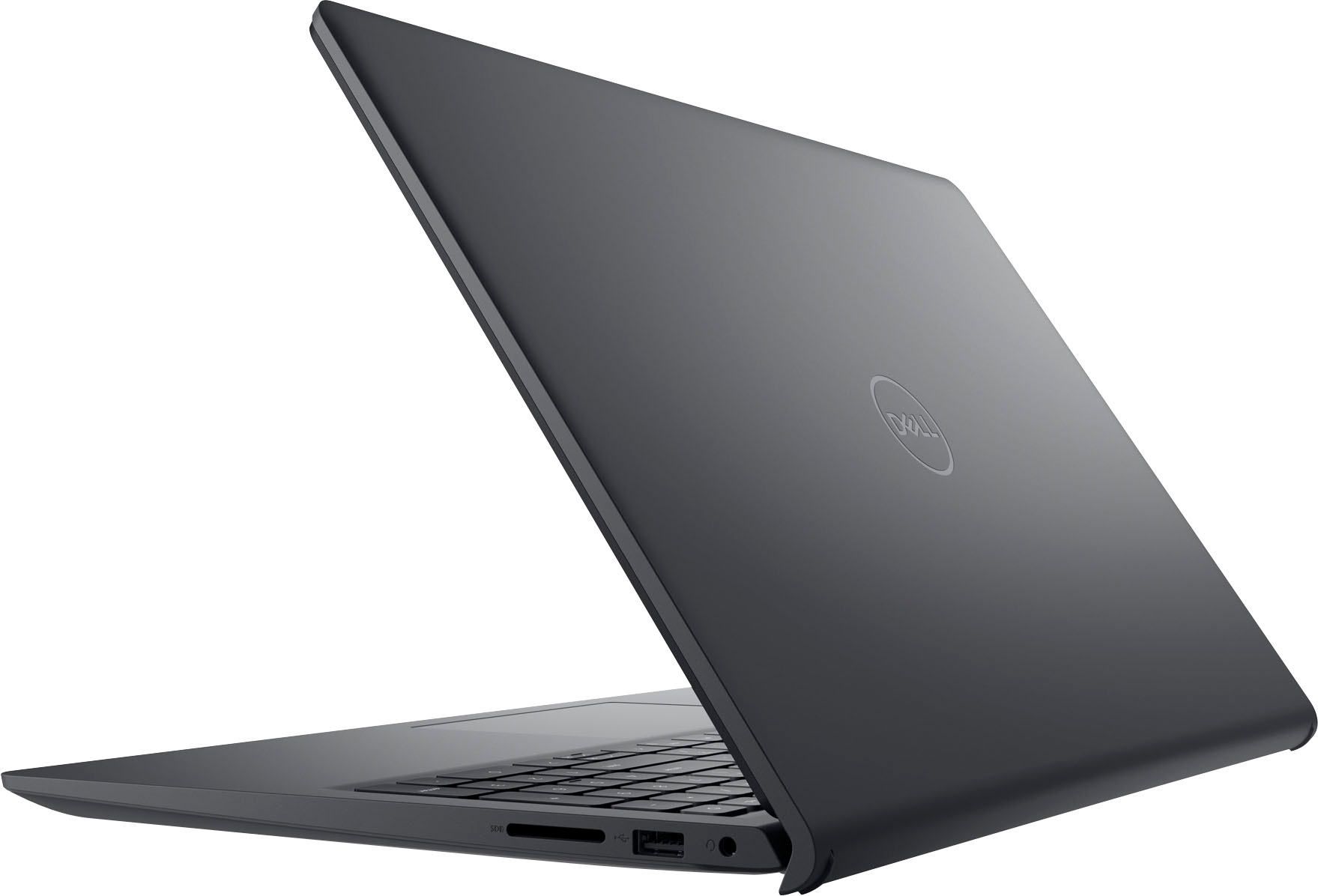
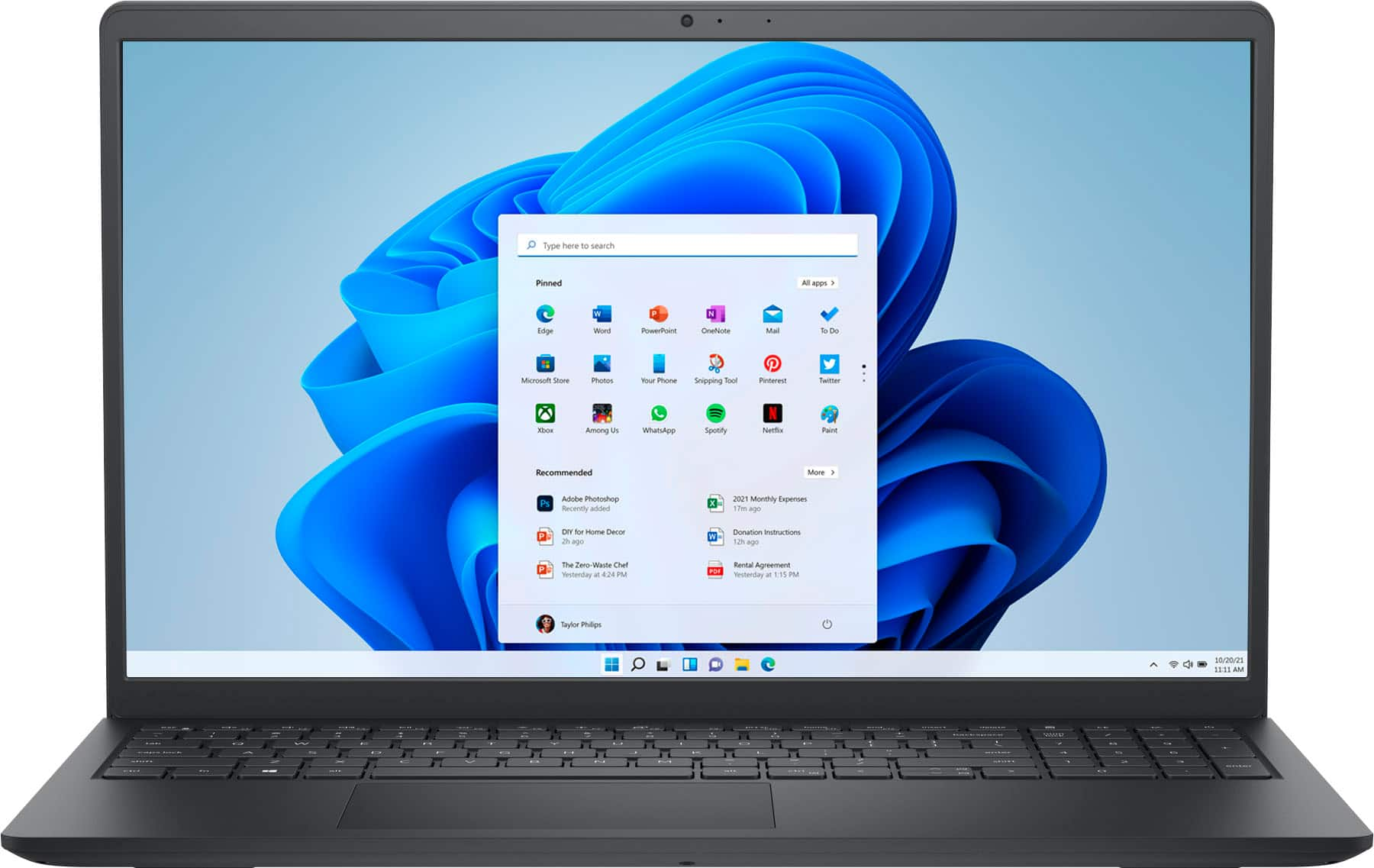



- Model:
- i3511-5174BLK-PUS
- SKU:
- 6500646
Rating by feature
- Battery Life
Rating 4.3 out of 5 stars
- Speed
Rating 4.5 out of 5 stars
- Display
Rating 4.6 out of 5 stars
Customers are saying
Customers commend the Inspiron 3511 for its touchscreen, ease of use, and affordability, frequently praising its performance and lightweight design. However, some users reported concerns regarding battery life and occasional overheating. A few also mentioned issues with fan noise and storage capacity.
This summary was generated by AI based on customer reviews.
- Cons mentioned:Battery life, Fan noise, Heat
Few problems over time
||Posted . Owned for more than 2 years when reviewed.This reviewer received promo considerations or sweepstakes entry for writing a review.This was made in 2021, I purchased in May 2022. I only used it for school work and to check my emails. The laptop would heat up relatively quickly making the bottom super hot and the fan would be super loud! This was frustrating. Then I also had problems where it would just randomly restart, the mouse on screen would disappear (not like i went off screen but legit was no longer there). LUCKILY it was touch screen so i could mess with settings to get the mouse to appear again. Also, it was TERRIBLE at holding a charge. I feel like i had it always on the charger. These problems happened multiple times… then 2024 comes around and my laptop decided to never turn on again. Not a faulty charger, battery or screen problems but the charging port… Way past return window & too many problems.
No, I would not recommend this to a friend - Cons mentioned:Fan noise, Heat
You get what you pay for mostly.
||Posted . Owned for 1 month when reviewed.This reviewer received promo considerations or sweepstakes entry for writing a review.The computer is good, but it gets hot very easily and the fans often kick it into overdrive. Just keep in mind you may need to buy a fan mat or something else so it doesn't overheat. I'm using it solely for school and some very occasional gaming, so it does what you'd expect for a computer of this price.
I would recommend this to a friend - Pros mentioned:SpeedCons mentioned:Heat
Dell Laptop Computer
||Posted . Owned for 3 weeks when reviewed.This reviewer received promo considerations or sweepstakes entry for writing a review.I love this laptop. It is light and easy to use. It is fast and has everything I need. The only downfall to this laptop is that it gets hot very fast. I have to use a cooling fan under my computer.
I would recommend this to a friend - Cons mentioned:Battery life, Heat
Heavy Laptop
||Posted . Owned for 1 month when reviewed.This reviewer received promo considerations or sweepstakes entry for writing a review.Laptop is very heavy. Battery does not last as long as I thought it would. Underside gets quite warm. Ordered online, probably should have gone in store to review. I wanted a very basic Laptop as it is primarily used for email and YouTube. Did not expect the downside as previously listed. I'm disappointed.
No, I would not recommend this to a friendBrand response from YourDellTeam
Posted .Hello CindyS,
Thank you for taking the time to leave a review of your Inspiron 3511. We are sorry to hear that you are experiencing an issue with the performance of your battery and your device heating up. That is not the type of feedback we like to hear from our customers. Below I have provided troubleshooting steps to help with your batteries performance and a link for overheating.
Here are the steps to help improve the battery performance of your laptop:
1. On the notification area of the taskbar, right-click the Battery icon.
2. On the options list, click Power Options.
3. Select a power plan on the battery meter, such as Power Saver or Balanced. Windows 10 has a built-in 'Battery Saver' mode that can be activated to extend your system's battery life. The Battery Saver mode will monitor and limit background activity and other features such as push notifications. You do have the option to enable or disable this mode within settings or within advanced Battery Saver settings, you can customize the mode to best suit your needs.
a) Click on the Action Center icon in the taskbar and select the tile for Battery Saver.
b) If running Cortana, type Battery Saver into the search box and select from the results.
Within the Battery Saver settings page, you will be able to turn on and off the feature and customize the feature to best meet your needs.
c) Turn the Battery Saver On or Off.
d) Additional settings are available via the Battery use and Battery saver settings links.
e) Battery use shows further info on apps and their power usage.
f) Battery Saver Settings screen allows you to customize further the Battery Saver feature.
How to Improve the Performance of a Dell Laptop Battery: http://dell.to/2vfXWf4
How to Troubleshoot Overheating, Shutdown, or Thermal Issue on a Dell Computer: https://dell.to/3oAEYsV
Should you need further assistance; we recommend that you contact Dell directly with the information below.
Chat or call: https://bit.ly/DellSupportTeam
Phone number to Dell: 1-800-624-9896.
Regards,
Summer@Dell
- Cons mentioned:Heat
Good laptop, but not my favorite
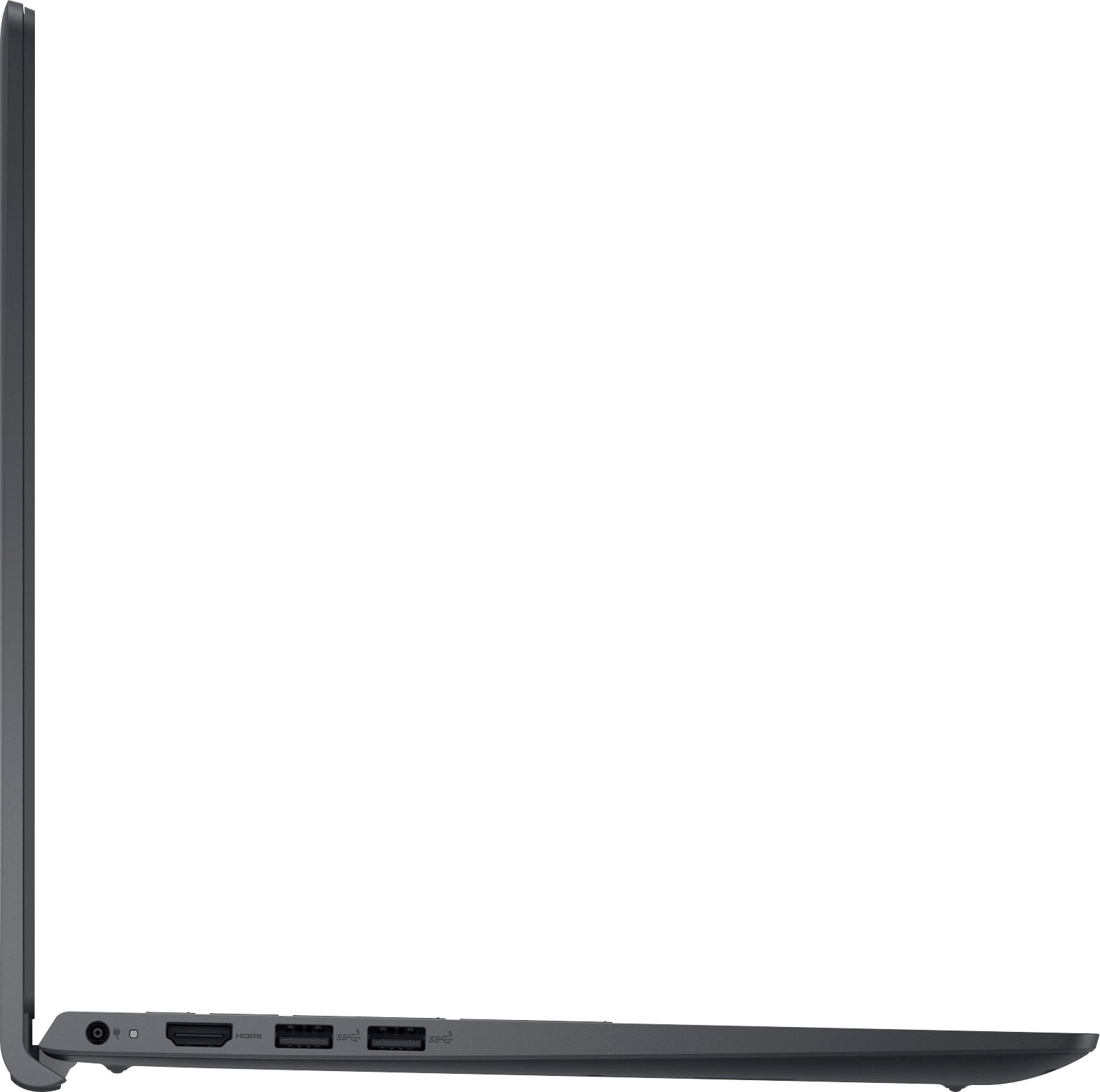
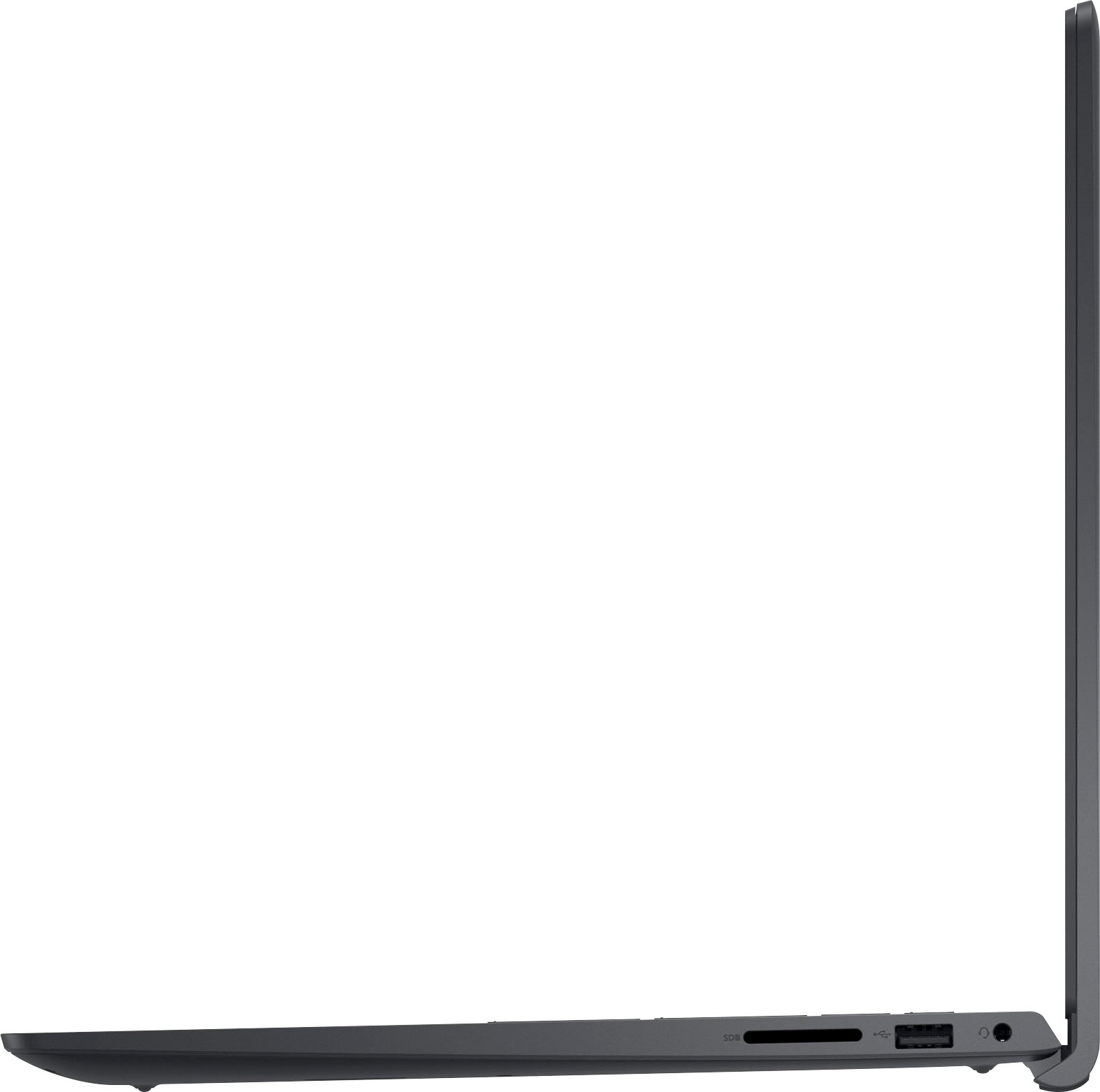
||Posted . Owned for 1.5 years when reviewed.This reviewer received promo considerations or sweepstakes entry for writing a review.This particular model has a numeric keypad, which means the rest of the keyboard is condensed, and it was difficult for me to adjust to for several months. Also seems to get hot pretty quickly. It has three USB ports, which is great.
No, I would not recommend this to a friend - Cons mentioned:Battery life, Fan noise, Heat
It’s ok
||Posted . Owned for 3 weeks when reviewed.This reviewer received promo considerations or sweepstakes entry for writing a review.I like it but than again I’m just using it for basic school work .. I gave it 3 stars because it gets hot really fast, fan can get loud & the battery dies very fast ..
I would recommend this to a friendBrand response from YourDellTeam
Posted .Hello Cece,
Thank you for taking the time to leave us your review. We're sorry to hear about the difficulty that you had with your Dell Inspiron 3511 Laptop. This is certainly not the experience we like to hear from our customers. To help you with the overheating and battery issues that you are having, I have provided an article and troubleshooting steps below:
1. Inspect and clean the air vents and fans.
2. Restart the computer.
3. Update the BIOS and Chipset driver.
4. Download and install Microsoft Windows updates.
5. Run a hardware diagnostic test.
6. Use Dell Power Manager to manage thermal performance.
7. Improve efficiency to reduce heat.
8. Perform a Windows System Restore.
9. Restore the computer to factory settings.
How to Troubleshoot Overheating, Shutdown, or Thermal Issues on a Dell Computer: https://dell.to/3oAEYsV
Drivers and Downloads page: https://dell.to/3hLXbku
For your reference, I have provided a link to an article, which includes the methods of how to check battery health.
How to Check Battery Health Status on Dell Laptops: https://dell.to/3Rk5Ni8
Best,
Danielle@Dell
Should you need further assistance, you can contact Dell directly with the information below.
Chat or call: https://bit.ly/DellSupportTeam
Phone number to Dell: 1-800-624-9896
- Pros mentioned:Touch screenCons mentioned:Heat
Happy with my purchase!
||Posted . Owned for 1 month when reviewed.This reviewer received promo considerations or sweepstakes entry for writing a review.Staff was very informative and helpful in deciding my choice of laptops. Happy with my Dell 3511 Laptop, runs a little hot during certain applications but bought a laptop fan which keeps the laptop cool, no problems. General use of this laptop - not for business or work. Happy with my purchase.
I would recommend this to a friend - Pros mentioned:SpeedCons mentioned:Heat
Great
||Posted . Owned for 3 weeks when reviewed.This reviewer received promo considerations or sweepstakes entry for writing a review.Super fast, smart, and doesn’t get hot easily at ALL like the dell i previously had
I would recommend this to a friend - Cons mentioned:Battery life, Heat
Umm Battery life is bad for work/school
||Posted . Owned for 1 week when reviewed.This reviewer received promo considerations or sweepstakes entry for writing a review.First thing I noticed when updating the software it started to automatically heat up for a few minutes 1-2 min. I fully charged it and tested the pc functions and battery life. Oh boyy battery life only lasted up to 3 hrs I only watched 1 Youtube video 18 min related to work stuff, and 2 tabs with only info. The offer at the time was $449 but its a shame that battery life is horrible.
No, I would not recommend this to a friendBrand response from YourDellTeam
Posted .Dear Yessi,
Thank you very much for your valued feedback. We are sorry to hear that you are not 100% satisfied with your Dell Inspiron 3511 laptop because the battery performance is not as you expected.
To help with a battery performance issue, we recommend changing the Power Plan:
1. On the notification area of the taskbar, right-click the Battery icon.
2. On the options list, click Power Options.
3. Select a power plan on the battery meter, such as Power Saver or Balanced. Windows 10 has a built-in 'Battery Saver' mode that can be activated to extend your system's battery life. The Battery Saver mode will monitor and limit background activity and other features such as push notifications. You do have the option to enable or disable this mode within settings or within advanced Battery Saver settings, you can customize the mode to best suit your needs.
a) Click on the Action Center icon in the taskbar and select the tile for Battery Saver.
b) If running Cortana then type Battery Saver into the search box and select from the results.
Within the Battery Saver settings page, you will be able to turn on and off the feature and customize the feature to best meet your needs.
c) Turn the Battery Saver On or Off.
d) Additional settings are available via the Battery use and Battery saver settings links.
e) Battery use shows further info on apps and their power usage.
f) Battery Saver Settings screen allows you to customize further Battery Saver features.
You can read the full article here - http://dell.to/2vfXWf4
If the problems with your Inspiron are not resolved after applying the troubleshooting tips above, please reach out to our support team here for further guidance: 1-800-624-9896.
Best,
Katarina@Dell
Should you need further assistance, you can contact Dell directly with the information below.
Chat or call: https://bit.ly/DellSupportTeam
Phone number to Dell: 1-800-624-9896
- Cons mentioned:Heat
Cheap
||Posted . Owned for 1.5 years when reviewed.This reviewer received promo considerations or sweepstakes entry for writing a review.The hinge broke after a little more than a year of ownership and light use. The screen peels away from laptop if I try to close it now. Also runs much hotter than any other laptop I’ve owned. Terrible quality even for a budget laptop. First and last Dell.
No, I would not recommend this to a friend - Cons mentioned:Heat
Intell Core i5
||Posted . Owned for 1 month when reviewed.This reviewer received promo considerations or sweepstakes entry for writing a review.The computer tends to get hot after a couple of hours. Other than that, it works great.
I would recommend this to a friend - Cons mentioned:Fan noise, Heat
Very loud fan and heat up quickly
||Posted . Owned for 3 weeks when reviewed.This reviewer received promo considerations or sweepstakes entry for writing a review.I just missed the return period by a week. I bought it and didn’t turn on until last week so my kids can play Minecraft. Fan is so loud. It kicks in after 30 minutes of usage. I thought it was not normal until I read the reviews and realized it’s a common issue with this laptop. It’s also very slow! Key board and the entire laptop just feels so cheap. The laptop just heat up so quickly
No, I would not recommend this to a friendBrand response from YourDellTeam
Posted .Hi Pumpkinspice,
We appreciate you taking the time to leave us your review. We apologize for the overheating and performance issues you are experiencing with your Dell Inspiron 15 3511 laptop.
To help with the overheating issue, we would recommend making sure the BIOS is up to date on your PC. I have provided a link to the Drivers and Downloads page so you can check for and do any applicable updates. I have also included a link to the full article if more information is needed.
Dell has released an Intel Power Management Utility to help with the overheating that you may be experiencing on your computer. For this package to take effect, the system power plan must be set to Balanced under the Additional Power Settings. Also, the Power Mode option that is displayed when you click the battery icon, should be set to Better Performance. This package only takes effect on AC power and not on battery power. The Intel Power Management Utility can be found here - http://dell.to/3tStRgX.
Drivers and Downloads page: https://dell.to/3hLXbku
How to Troubleshoot Overheating, Shutdown, or Thermal Issues on Dell Computer: https://dell.to/3S1dP01
To help the fan function properly, I have included a link to help troubleshoot and resolve fan issues on Dell PC's.
Troubleshoot fan issues: https://dell.to/2OobIrg
There are several ways to help improve the performance of your computer if it is running slower than you expected it to. We'd recommend the following steps to help improve your computer's overall performance and speed:
1. Restart your computer regularly.
2. Run the automated tools provided in the SupportAssist Tool.
3. Run a complete hardware diagnostic test.
4. Scan your computer for malware.
5. Restore your Dell computer using Windows System Restore.
6. Reinstall Microsoft Windows.
7. Ensure Windows Update and BIOS is up-to-date.
8. Run Windows Task Manager to check if any device usage is over 90%. If yes, try to End Task to some processes which use higher resources.
You can read the full steps associated with each of these recommendations here: https://dell.to/3n29QjE.
If the issues with your laptop are still not resolved after utilizing the troubleshooting options above, please contact the Dell Support Team at 1-800-624-9896 for further guidance.
Best,
Katarina@Dell
Should you need further assistance, you can contact Dell directly with the information below.
Chat or call: https://bit.ly/DellSupportTeam
Phone number to Dell: 1-800-624-9896
- Cons mentioned:Heat
I don't recommend it
||Posted . Owned for 1 week when reviewed.This reviewer received promo considerations or sweepstakes entry for writing a review.Bought as a gift for my wife and returned a day after. It was getting really hot instantly and the quality of its case was very poor
No, I would not recommend this to a friendBrand response from YourDellTeam
Posted .Dear Marek,
We would like to thank you for taking the time to provide us with your feedback. We are sorry to hear that you were not too happy with your Dell Inspiron 3511 computer because of the overheating and design issues and that you have ultimately decided to return this product. This is certainly not what we like to hear from our loyal customers. We will share your review with our quality team so improvements can be made now and in the future. In the future, we would love the opportunity to help troubleshoot any problems you may be facing.
If you come across any questions or have concerns about Dell products, please don’t hesitate to contact Dell Support Team at the information provided below.
Best,
Katarina@Dell
Should you need further assistance, you can contact Dell directly with the information below.
Chat or call: https://bit.ly/DellSupportTeam
Phone number to Dell: 1-800-624-9896
- Cons mentioned:Heat
Don't buy it
||Posted . Owned for 1 month when reviewed.This reviewer received promo considerations or sweepstakes entry for writing a review.I just bought it 2 months ago. This laptop is too slow and just got hot all of a sudden then freeze. I made a big mistake to buy this product. Don't recommend to buy. I can't return or exchange it at all.
No, I would not recommend this to a friendBrand response from YourDellTeam
Posted .Hello Valued Customer,
We appreciate you taking the time to leave us your review. We apologize for the issues you have come across with your Dell Inspiron 3511 computer because it is running slow, it is overheating and suddenly freezes. We understand how frustrating this could be.
Below I have provided the steps to run the Windows Performance Troubleshooter to help resolve the performance problem. I have also included the full article link, which has more options if they are needed.
To help with the overheating issue, we recommend making sure your BIOS is up to date. I have provided a link to the Drivers and Downloads page for your PC so you can check for and do applicable updates. Dell has also released an Intel Power Management Utility to help with the overheating that you may be experiencing on your computer. For this package to take effect, the system power plan must be set to Balanced under the Additional Power Settings. Also, the Power Mode option that is displayed when you click the battery icon, should be set to Better Performance. This package only takes effect on AC power and not on battery power. The Intel Power Management Utility can be found here - http://dell.to/3tStRgX
Windows performance Troubleshooter:
1. Close all open windows.
2. Press the Windows logo key + X key on the keyboard.
3. Click Control Panel.
4. Click System and Security.
5. Under Security and Maintenance, select Troubleshoot common problems.
6. Under System and Security, click Run maintenance tasks.
7. Follow the on-screen instructions and prompts to complete the process.
8. Restart the PC.
You can read the full article here - http://dell.to/2tSulGV
Drivers and Downloads page: https://dell.to/3hLXbku
To help with sudden freezing issues, please apply these troubleshooting steps:
1. Run a Computer Diagnostic. To determine if your computer is experiencing a hardware problem, run the Dell Pre-boot System Assessment (PSA) Diagnostics. For information on how to run Diagnostics, and to determine the issue, refer to Dell Knowledge Base Article: http://dell.to/2iaiujA
2. Check Safe Mode for Symptoms. To boot into safe mode, please follow the instructions below:
a) Start the computer.
b) Tap 'F8' on the keyboard immediately and every one second until the Dell logo screen disappears. From there you will see the Windows Advanced Options Menu on the screen. (If the Windows Advanced Options Menu does not appear, restart the system and try again.)
c) Select Safe mode with Networking and press Enter.
d) Log on as the administrator or as a user with administrative access.
e) Open applications and test the computer in safe mode. If the symptoms exist in safe mode, please continue the troubleshooting steps in this article. If the symptoms do not exist in safe mode, the issue is likely related to a driver or software and you may wish to complete step 3 to see if you are able to resolve the lockups or freezing.
3. Check for Malware. Malware (Virus, Spyware, etc.) can definitely cause a Windows system to lock up or appear to hang. To check for malware on your system and to ensure that your computer is up to date on security software, visit Dell Knowledge Base Article: http://dell.to/2wWP1zI
You can read the full article here - https://dell.to/3rTldMZ
After utilizing the troubleshooting options provided above, if the issues are not resolved, please reach out to our support team for further guidance here: 1-800-624-9896.
Best,
Katarina@Dell
Should you need further assistance, you can contact Dell directly with the information below.
Chat or call: https://bit.ly/DellSupportTeam
Phone number to Dell 1-800-624-9896
- Cons mentioned:Heat
Dissatisfied customer
||Posted .This reviewer received promo considerations or sweepstakes entry for writing a review.it is the worst product. /The system heats up after 5 minutes of being on. NOT recommended
No, I would not recommend this to a friendBrand response from YourDellTeam
Posted .Hello Valued Customer,
Thank you very much for your valued feedback. We are sorry to hear about the issues you came across with your Inspiron 3511 laptop because it is overheating.
To help with this issue, we would recommend making sure the BIOS is up to date on your PC. I have provided a link to the Drivers and Downloads page so you can check for and do any applicable updates. Dell has also released an Intel Power Management Utility to help with the overheating that you may be experiencing on your computer. For this package to take effect, the system power plan must be set to Balanced under the Additional Power Settings. Also, the Power Mode option that is displayed when you click the battery icon, should be set to Better Performance. This package only takes effect on AC power and not on battery power. The Intel Power Management Utility can be found here - http://dell.to/3tStRgX.
Drivers and Downloads page: https://dell.to/3hLXbku
If the issue with your Inspiron is still not resolved after utilizing the troubleshooting options above, please contact the Dell Support Team at 1-800-624-9896 for further guidance.
Best,
Katarina@Dell
Should you need further assistance, you can contact Dell directly with the information below.
Chat or call: https://bit.ly/DellSupportTeam
Phone number to Dell 1-800-624-9896
- Pros mentioned:Performance, Touch screenCons mentioned:Heat
Overall pretty good
Posted .This reviewer received promo considerations or sweepstakes entry for writing a review.Just got this laptop and i got to say the performance is great and i like the screen size as well as the touch screen features which makes it 10 times easier. This device charges pretty quick to and does not over heat easily
I would recommend this to a friend