Customer Ratings & Reviews



- Model:
- i3511-5174BLK-PUS
- SKU:
- 6500646
Rating by feature
- Battery Life
Rating 4.3 out of 5 stars
- Speed
Rating 4.5 out of 5 stars
- Display
Rating 4.6 out of 5 stars
Customers are saying
Customers commend the Inspiron 3511 for its touchscreen, ease of use, and affordability, frequently praising its performance and lightweight design. However, some users reported concerns regarding battery life and occasional overheating. A few also mentioned issues with fan noise and storage capacity.
This summary was generated by AI based on customer reviews.
- Cons mentioned:Battery life
Bad
||Posted .This reviewer received promo considerations or sweepstakes entry for writing a review.Don’t buy battery life is absolutely terrible and it’s very slow for its price
No, I would not recommend this to a friendBrand response from YourDellTeam
Posted .Hi JeffreyE,
We would like to thank you for taking the time to provide us with your feedback. We are sorry to hear that you are experiencing issues with your Inspiron 3511 computer because its performance and battery life is not as good as you expected.
There are several ways to help improve the performance of your computer if it is running slower than you expected it to. We'd recommend the following steps to help improve your computer's overall performance and speed:
1. Restart your computer regularly.
2. Run the automated tools provided in the SupportAssist Tool.
3. Run a complete hardware diagnostic test.
4. Scan your computer for malware.
5. Restore your Dell computer using Windows System Restore.
6. Reinstall Microsoft Windows.
7. Ensure Windows Update and BIOS is up-to-date.
8. Run Windows Task Manager to check if any device usage over 90%. If yes, try to End Task to some processes which use higher resource.
You can read the full steps associated with each of these recommendations here: https://dell.to/3n29QjE.
Drivers and Downloads page: https://dell.to/3hLXbku
To help with a battery performance issue, we recommend changing the Power Plan:
1. On the notification area of the taskbar, right-click the Battery icon.
2. On the options list, click Power Options.
3. Select a power plan on the battery meter, such as Power Saver or Balanced. Windows 10 has a built-in 'Battery Saver' mode that can be activated to extend your system's battery life. The Battery Saver mode will monitor and limit background activity and other features such as push notifications. You do have the option to enable or disable this mode within settings or within advanced Battery Saver settings, you can customize the mode to best suit your needs.
a) Click on the Action Center icon in the taskbar and select the tile for Battery Saver.
b) If running Cortana then type Battery Saver into the search box and select from the results.
Within the Battery Saver settings page, you will be able to turn on and off the feature and customize the feature to best meet your needs.
c) Turn the Battery Saver On or Off.
d) Additional settings are available via the Battery use and Battery saver settings links.
e) Battery use shows further info on apps and their power usage.
f) Battery Saver Settings screen allows you to customize further Battery Saver features.
You can read the full article here - http://dell.to/2vfXWf4
If the issues with your Inspiron are still not resolved after utilizing the troubleshooting options above, please contact the Dell Support Team at 1-800-624-9896 for further guidance.
Best,
Katarina@Dell
Should you need further assistance, you can contact Dell directly with the information below.
Chat or call: https://bit.ly/DellSupportTeam
Phone number to Dell: 1-800-624-9896
- Pros mentioned:Touch screen
Laptop
||Posted . Owned for 3 weeks when reviewed.This reviewer received promo considerations or sweepstakes entry for writing a review.I am very satisfied with my laptop.....have to get use to the touch screen but it is absolutely efficient
I would recommend this to a friendBrand response from YourDellTeam
Posted .Hi Blackchina,
We appreciate you taking the time to leave us your review. We appreciate your kind words and are happy to know you're enjoying your Dell Inspiron 3511 laptop and that this computer is meeting your expectations.
If you come across any questions, issues, or concerns, please don’t hesitate to contact Dell at your earliest convenience at the information provided below.
Best,
Katarina@Dell
Should you need further assistance, you can contact Dell directly with the information below.
Chat or call: https://bit.ly/DellSupportTeam
Phone number to Dell: 1-800-624-9896
Price Better Than Performance
||Posted . Owned for 3 weeks when reviewed.This reviewer received promo considerations or sweepstakes entry for writing a review.Very good price but the mouse pad occasionally will stop working which forces me to restart the computer to fix the issue.
No, I would not recommend this to a friendBrand response from YourDellTeam
Posted .Hi Valued Customer,
Thank you very much for your valued feedback. We are sorry to hear about the issues you came across with your Inspiron 3511 laptop because its touchpad is performing as it should.
Some Notebooks and Tablets with Keyboards have added gesture features to the touchpad hardware and drivers. A few of these features are two or three-finger scrolling, pinch zoom, circle zoom, rotation, and swiping. These new features may be the reason for the erratic cursor movement since most are turned on by default. You can disable or modify the way the features work in the touchpad driver properties. Here are some tips to modify these settings:
1. In the Search box, type main.cpl.
2. Touch or click main.cpl in the list of programs.
3. Touch or click the Dell Touchpad tab.
4. Touch or click on the picture of the touchpad.
5. Touch or click Gestures (depending on your computer there may not be a Gestures option).
6. Change the options as preferred.
7. Touch or click Save.
8. Touch or click the X in the upper-right corner to close the Dell Touchpad Utility.
9. Touch or click OK on the Mouse Properties window.
10. If the touchpad still does not work after following the preceding steps, refer to Dell Knowledge Base article - http://dell.to/2iaiujA.
You can read the full article here - http://dell.to/2tqmS02.
If the issue with your computer is still not resolved after utilizing the troubleshooting options above, please contact the Dell Support Team at 1-800-624-9896 for further guidance.
Best,
Katarina@Dell
Should you need further assistance, you can contact Dell directly with the information below.
Chat or call: https://bit.ly/DellSupportTeam
Phone number to Dell: 1-800-624-9896
Not a great laptop
||Posted . Owned for 3 weeks when reviewed.This reviewer received promo considerations or sweepstakes entry for writing a review.I am not liking this laptop. The cursor is all over the place without me touching it. I hope its not to late to return
No, I would not recommend this to a friendBrand response from YourDellTeam
Posted .Hello Valued Customer,
We appreciate you taking the time to leave us your review. We are sorry to hear about the experience you have with your Dell Inspiron 3511 laptop because its cursor is moving erratically without you touching it. This is certainly not the experience that we like to hear from our customers. We appreciate your feedback and will use it to help improve our current and future products.
We recommend making sure that all drivers are updated. I have provided a link to the Drivers and Downloads page below, where you can check for any applicable updates.
Drivers and Downloads page: https://dell.to/3hLXbku
If the issue with your computer is still not resolved after utilizing the troubleshooting option above, please contact the Dell Support Team at 1-800-624-9896 for further guidance.
Best,
Katarina@Dell
Should you need further assistance, you can contact Dell directly with the information below.
Chat or call: https://bit.ly/DellSupportTeam
Phone number to Dell: 1-800-624-9896
Worst product.
||Posted . Owned for 3 weeks when reviewed.This reviewer received promo considerations or sweepstakes entry for writing a review.Worst product in many years of having a laptop. All surfaces of the smudges easily even with clean hands and fingers. For the price, I live with that but the worst nightmare, it totally died less than a month of very slightly using it. So disappointing.
No, I would not recommend this to a friendBrand response from YourDellTeam
Posted .Hello Wangwang,
We appreciate you taking the time to leave us your review. We are sorry to hear that you are not happy with your Dell Inspiron 3511 computer because of its texture finish and also because it stopped working completely. This is certainly not the experience that we like to hear from our customers. We appreciate your feedback and will use it to help improve our current and future products.
I have provided a link to help resolve the booting issue. On that page, you can choose between, no power, no post, no boot, or no video. Once you choose you can find the options to help troubleshoot and resolve that issue. We would also suggest making sure all your drivers and downloads are up to date on your PC. I have also given you a link below to the Drivers and Downloads page for your computer.
Resolve Boot Up Issues: https://dell.to/3sdfce6
Drivers and Downloads page: https://dell.to/3hLXbku
After utilizing the troubleshooting options provided, if the problems are not resolved, please contact our support team here: 1-800-624-9896.
Best,
Katarina@Dell
Should you need further assistance, you can contact Dell directly with the information below.
Chat or call: https://bit.ly/DellSupportTeam
Phone number to Dell: 1-800-624-9896
Very Slow
||Posted . Owned for 3 weeks when reviewed.This reviewer received promo considerations or sweepstakes entry for writing a review.A lot of features for the money but so slow out of the box. I had to reload windows 11 to solve the speed issue.
No, I would not recommend this to a friendBrand response from YourDellTeam
Posted .Hello TedU,
Thank you very much for your valuable feedback. We are sorry to hear that you came across some troubles with your Dell Inspiron 3511 computer because it was performing very slowly.
It sounds like you did end up getting the issue resolved, but if you do need technical support in the future, please don’t hesitate to contact Dell Support Team at the information provided below.
Best,
Katarina@Dell
Should you need further assistance, you can contact Dell directly with the information below.
Chat or call: https://bit.ly/DellSupportTeam
Phone number to Dell 1-800-624-9896
Frustrating
||Posted . Owned for 3 weeks when reviewed.This reviewer received promo considerations or sweepstakes entry for writing a review.The computer often begins a restart on its own. It restarts quickly, but the interruptions are frustrating.
No, I would not recommend this to a friendDon’t Buy
||Posted . Owned for 1 month when reviewed.This reviewer received promo considerations or sweepstakes entry for writing a review.Poor quality laptop. Less than 1 month of owning and the mouse pad stopped working. Also the numbers won’t work. Would have returned but it was passed the 15 day return policy.
No, I would not recommend this to a friendBrand response from YourDellTeam
Posted .Hello Cubzfan,
We would like to thank you for taking the time to provide us with your feedback. We apologize for the issues you have encountered with your Dell Inspiron 3511 laptop because its touchpad stopped working and the numbers on the keyboard are not working.
We recommend making sure all BIOS are updated. I have provided a link to the Drivers and Downloads page below, where you can check for any applicable updates:
Drivers and Downloads page: https://dell.to/3hLXbku
If the problems with your Inspiron laptop are still not resolved, please contact our support team here: https://bit.ly/DellSupportTeam for further guidance.
Best,
Katarina@Dell
Should you need further assistance, you can contact Dell directly with the information below.
Chat or call: https://bit.ly/DellSupportTeam
Phone number to Dell 1-800-624-9896
Total Junk
||Posted . Owned for 3 months when reviewed.This reviewer received promo considerations or sweepstakes entry for writing a review.Pile of crap computer. Never buy a dell from Best Buy. The casing of monitor just starts falling off after 3-4 months of non-abusive use by careful adult.
No, I would not recommend this to a friendBrand response from YourDellTeam
Posted .Hello Kgillett,
We would like to thank you for taking the time to provide us with your feedback. We are sorry to hear that you are not too happy with your Dell Inspiron 3511 because its casing is breaking. This is certainly not the experience that we like to hear from our customers. We appreciate your feedback and will use it to help improve our current and future products.
Please take a moment to contact Dell Support Team at the information provided below at your earliest convenience so we can help you to resolve this issue to your satisfaction.
Best,
Katarina@Dell
Should you need further assistance, you can contact Dell directly with the information below.
Chat or call: https://bit.ly/DellSupportTeam
Phone number to Dell: 1-800-624-9896
Didn’t work out of the box
||Posted . Owned for 3 weeks when reviewed.This reviewer received promo considerations or sweepstakes entry for writing a review.Had to take it back to Best Buy right out of the box, the network adapter wasn’t working to connect to Wi-Fi and laptop was running hot, not cooling on bottom, technician had to update the adapter/reload it, had I not had totaltech I would have been completely stuck
No, I would not recommend this to a friendBrand response from YourDellTeam
Posted .Hi Valued Customer,
We would like to thank you for taking the time to provide us with your feedback. We apologize for the issues you have come across with your Dell Inspiron 3511 laptop because its network adapter was not working and it was overheating. This is certainly not the experience that we like to hear from our customers. We appreciate your feedback and will use it to help improve our current and future products.
It sounds like you did end up getting the issue resolved, but if you do need technical support in the future, please use this support page link: https://dell.to/3swyZqB or call the Dell Support Team at 1-800-624-9896.
Best,
Katarina@Dell
Should you need further assistance, you can contact Dell directly with the information below.
Chat or call: https://bit.ly/DellSupportTeam
Phone number to Dell: 1-800-624-9896
DON't BUY IT
||Posted . Owned for 1 month when reviewed.This reviewer received promo considerations or sweepstakes entry for writing a review.I received this item on May 11th and it's not working as of July 5th. so disappointing. such a trash item and best buy only offers 15 days to return the item. will never buy this similar item
No, I would not recommend this to a friendBrand response from YourDellTeam
Posted .Hello Valued Customer,
We would like to thank you for taking the time to provide us with your feedback. We are sorry to hear that you have come across some trouble with your Dell Inspiron 3511 laptop because it stopped working. This is certainly not what we like to hear from our valued customers.
Below I have provided a link to help resolve the booting issue issue. On that page, you can choose between, no power, no post, no boot, or no video. Once you choose which issue you are having you can find the options to help troubleshoot and resolve that problem. We would also suggest making sure all your drivers and downloads are up to date on your PC. I have also given you a link below to the Drivers and Downloads page for your computer.
Resolve boot-up issues: https://dell.to/3sdfce6
Drivers and Downloads page: https://dell.to/3hLXbku
After utilizing the troubleshooting options provided, if the problem is not resolved, please reach out to our support team at the information provided below for further guidance.
Best,
Katarina@Dell
Should you need further assistance, you can contact Dell directly with the information below.
Chat or call: https://bit.ly/DellSupportTeam
Phone number to Dell 1-800-624-9896
Bad battery life.
||Posted . Owned for 1 month when reviewed.This reviewer received promo considerations or sweepstakes entry for writing a review.Dry bad battery life little more than 2 hours.. I will never recommend this laptop to anyone.
No, I would not recommend this to a friendBrand response from YourDellTeam
Posted .Hi Anwar,
Thank you very much for your valuable feedback. We are sorry to hear that you are not too happy with your Dell Inspiron 3511 laptop because the battery performance is not as you expected.
To help with a battery performance issue, we recommend changing the Power Plan:
1. On the notification area of the taskbar, right-click the Battery icon.
2. On the options list, click Power Options.
3. Select a power plan on the battery meter, such as Power Saver or Balanced. Windows 10 has a built-in 'Battery Saver' mode that can be activated to extend your system's battery life. The Battery Saver mode will monitor and limit background activity and other features such as push notifications. You do have the option to enable or disable this mode within settings or within advanced Battery Saver settings, you can customize the mode to best suit your needs.
a) Click on the Action Center icon in the taskbar and select the tile for Battery Saver.
b) If running Cortana then type Battery Saver into the search box and select from the results.
Within the Battery Saver settings page, you will be able to turn on and off the feature and customize the feature to best meet your needs.
c) Turn the Battery Saver On or Off.
d) Additional settings are available via the Battery use and Battery saver settings links.
e) Battery use shows further info on apps and their power usage.
f) Battery Saver Settings screen allows you to customize further Battery Saver features.
You can read the full article here - http://dell.to/2vfXWf4
If the problem with your battery is not resolved after applying the troubleshooting tips above, please reach out to our support team here for further guidance: 1-800-624-9896.
Best,
Katarina@Dell
Should you need further assistance, you can contact Dell directly with the information below.
Chat or call: https://bit.ly/DellSupportTeam
Phone number to Dell: 1-800-624-9896
sound problems
||Posted . Owned for 1 week when reviewed.This reviewer received promo considerations or sweepstakes entry for writing a review.multiple problems with sound even after bringing to the store and hours spent with remote geeks
No, I would not recommend this to a friendBrand response from YourDellTeam
Posted .Hi Valued Customer,
We would like to thank you for taking the time to provide us with your feedback. We apologize for the sound issues you have come across with your Dell Inspiron 3511 laptop and that support team member was not able to resolve this issue for you.
Below I have provided the steps to run the Microsoft Sound Troubleshooter. I have also included the full article link that has more options if they are needed. We also suggest making sure the audio drivers are up to date on your PC. I have given you a link to the Drivers and Downloads page for your computer below so you can check for and do any applicable updates.
How to run the Windows Sound Troubleshooter in Microsoft Windows 10
1. Click Start, and then select Settings (gear icon).
2. Click Update & Security and select Troubleshoot.
3. Click Playing Audio and then click Run the troubleshooter.
4. Follow the on-screen instructions to complete the troubleshooting process.
How to Troubleshoot Audio Issues or Sound Playback Issues: https://dell.to/3u4pzmX
Drivers and Downloads page: https://dell.to/3hLXbku
If the issues with your Inspiron are still not resolved after utilizing the troubleshooting options above, please contact the Dell Support Team at 1-800-624-9896 for further guidance. We hope that the next representative you speak with can help you to resolve this issue to your satisfaction.
Best,
Katarina@Dell
Should you need further assistance, you can contact Dell directly with the information below.
Chat or call: https://bit.ly/DellSupportTeam
Phone number to Dell 1-800-624-9896
Can't dock
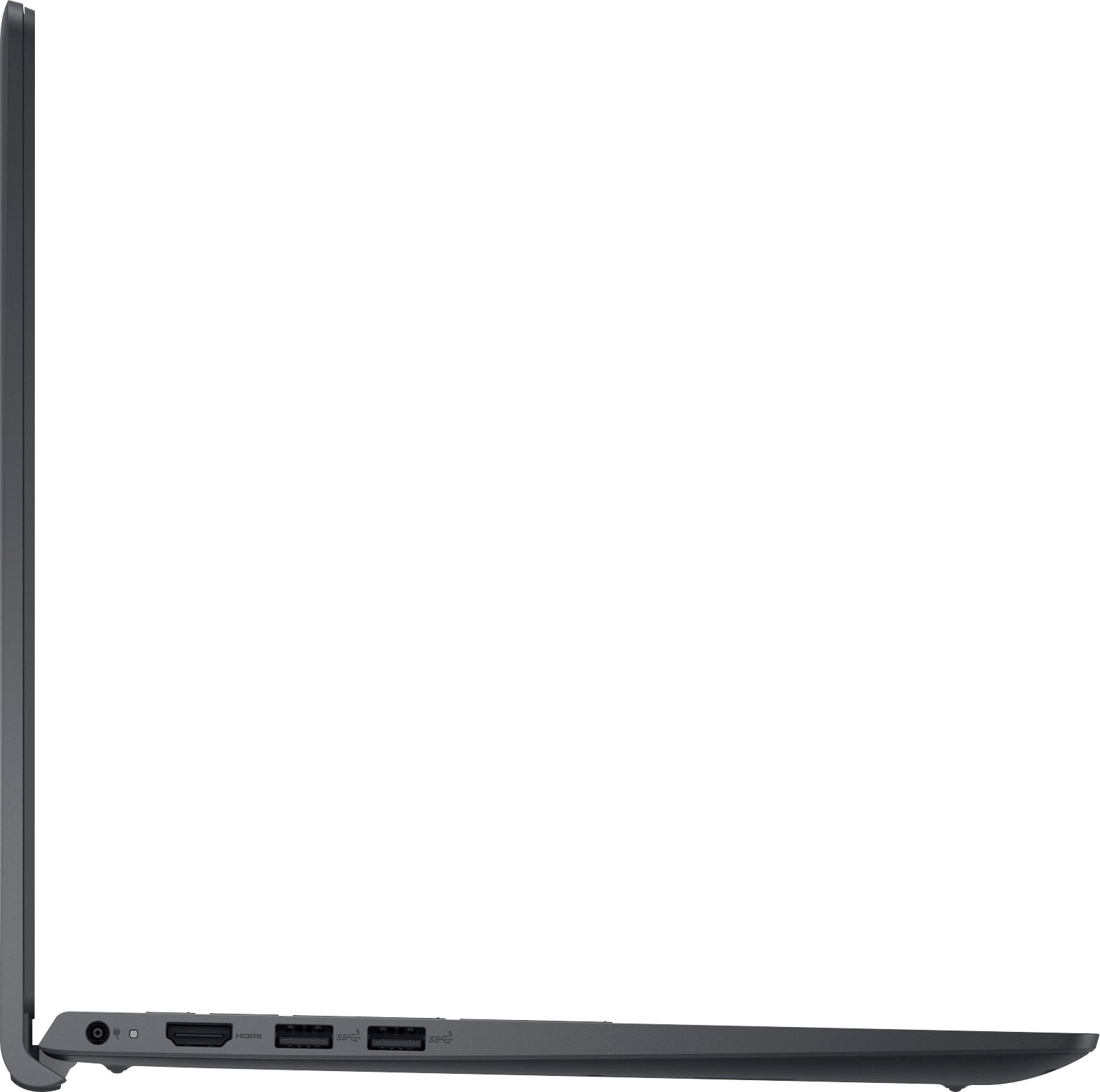
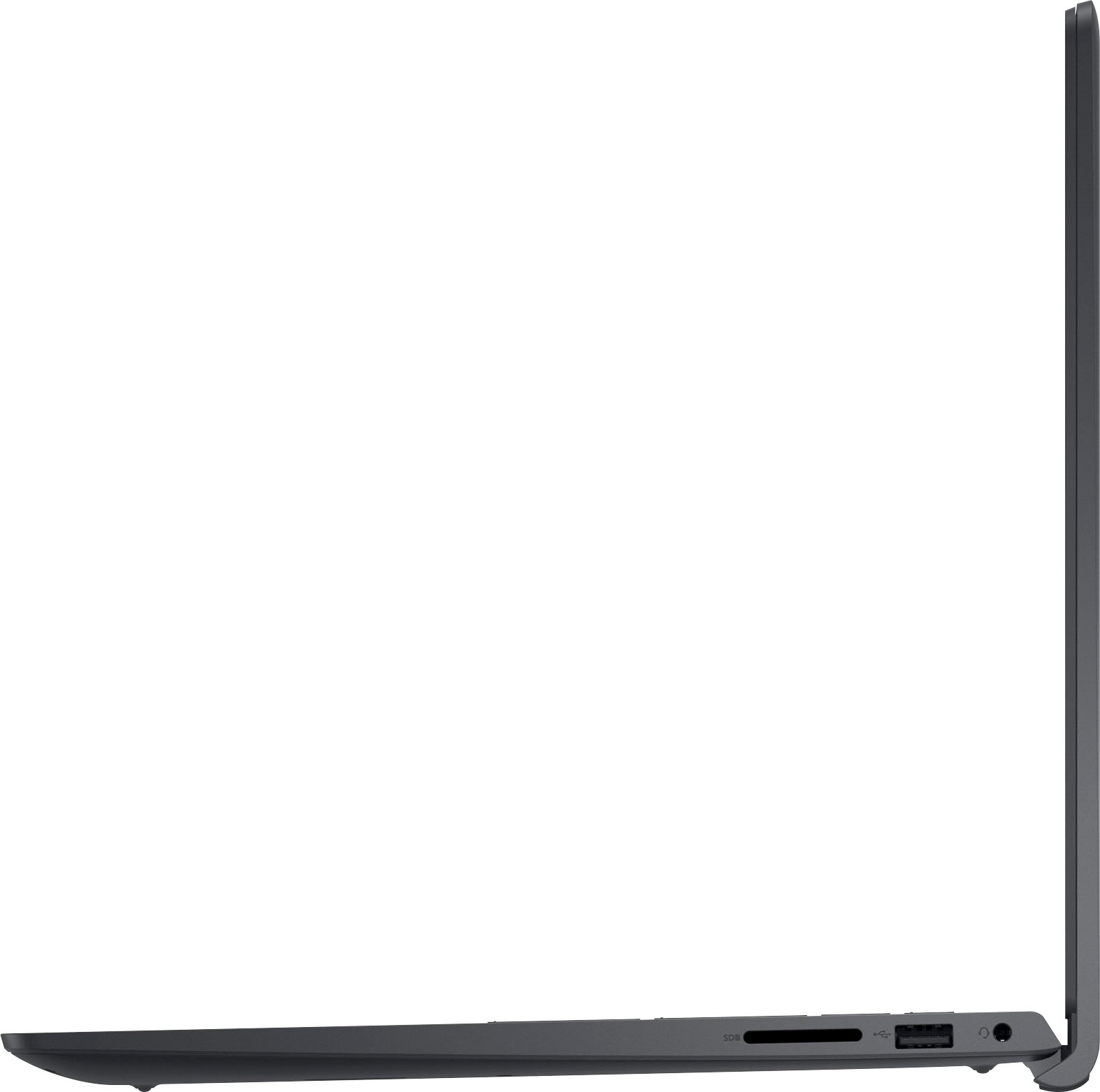
||Posted . Owned for 3 weeks when reviewed.This reviewer received promo considerations or sweepstakes entry for writing a review.No Thunderbolt port. Did not expect that on a laptop this relatively new.
No, I would not recommend this to a friendBrand response from YourDellTeam
Posted .Hi AndrewA,
We value your feedback and want to thank you for taking the time to leave us a review of your Inspiron 3511 laptop. We are sorry to hear that you were not aware that your device did not have a thunderbolt port. That is not the type of feedback we like to hear from our customers, or the type of product Dell intends to deliver. We have noted the details of your statement and will use them to improve current and future products. If you need further assistance, I have provided the toll-free number and chat link below for your convenience.
Should you need further assistance; we recommend that you contact Dell directly with the information below.
Chat or call: https://bit.ly/DellSupportTeam
Phone number to Dell: 1-800-624-9896.
Regards,
Summer@Dell
- Cons mentioned:Battery life
Ight
||Posted . Owned for 3 weeks when reviewed.This reviewer received promo considerations or sweepstakes entry for writing a review.Touchpad sometimes not working the battery is very bad
No, I would not recommend this to a friendBrand response from YourDellTeam
Posted .Hi Imad,
We would like to thank you for taking the time to provide us with your feedback. We are sorry to hear that you are not too happy with your Dell Inspiron 3511 because its touchpad is not working as it should and its battery life is not as you expected.
Some Notebooks and Tablets with Keyboards have added gesture features to the touchpad hardware and drivers. A few of these features are two or three-finger scrolling, pinch zoom, circle zoom, rotation, and swiping. These new features may be the reason for the erratic cursor movement since most are turned on by default. You can disable or modify the way the features work in the touchpad driver properties. Here are some tips to modify these settings:
1. In the Search box, type main.cpl.
2. Touch or click main.cpl in the list of programs.
3. Touch or click the Dell Touchpad tab.
4. Touch or click on the picture of the touchpad.
5. Touch or click Gestures (depending on your computer there may not be a Gestures option).
6. Change the options as preferred.
7. Touch or click Save.
8. Touch or click the X in the upper-right corner to close the Dell Touchpad Utility.
9. Touch or click OK on the Mouse Properties window.
10. If the touchpad still does not work after following the preceding steps, refer to the Dell Knowledge Base article - http://dell.to/2iaiujA.
You can read the full article here - http://dell.to/2tqmS02.
To help your battery perform better, we recommend changing the Power Plan:
1. On the taskbar’s notification area, right-click the Battery icon.
2. On the options list, click Power Options.
3. Select a power plan on the battery meter, such as Power Saver or Balanced. Windows 10 has a built-in 'Battery Saver' mode that can be activated to extend your system's battery life. The Battery Saver mode will monitor and limit background activity and other features such as push notifications. You do have the option to enable or disable this mode within settings or within advanced Battery Saver settings, you can customize the mode to best suit your needs.
a) Click on the Action Center icon in the taskbar and select the tile for Battery Saver.
b) If running Cortana, type Battery Saver into the search box and select from the results.
Within the Battery Saver settings page, you will be able to turn on and off the feature and customize the feature to best meet your needs.
c) Turn Battery Saver On or Off.
d) Additional settings available via the Battery use and Battery saver settings links.
e) Battery use shows further info on apps and their power usage.
f) Battery Saver Settings screen allows you to customize further Battery Saver features.
You can read the full article here - http://dell.to/2vfXWf4
If the issue with your computer is still not resolved after utilizing the troubleshooting options above, please contact the Dell Support Team at 1-800-624-9896 for further guidance.
Best,
Katarina@Dell
Should you need further assistance, you can contact Dell directly with the information below.
Chat or call: https://bit.ly/DellSupportTeam
Phone number to Dell: 1-800-624-9896
not bad
||Posted .This reviewer received promo considerations or sweepstakes entry for writing a review.I would like it to be more solid made than all plastic.......................
I would recommend this to a friendBrand response from YourDellTeam
Posted .Hi Fred,
We value your feedback and want to thank you for taking the time to leave us a review. We are sorry to hear that you are not 100% satisfied with your Dell Inspiron 3511 laptop because it doesn’t feel solid enough and is made out of plastic.
We will share your comments about this design with our quality team so improvements can be made now and in the future.
If you come across any questions or have concerns about Dell products, please don’t hesitate to contact Dell Support Team at the information provided below.
Best,
Katarina@Dell
Should you need further assistance, you can contact Dell directly with the information below.
Chat or call: https://bit.ly/DellSupportTeam
Phone number to Dell: 1-800-624-9896
Please don’t buy this Laptop
||Posted . Owned for 1 month when reviewed.This reviewer received promo considerations or sweepstakes entry for writing a review.I brought this a month ago, Since the day I brought I see blue screen popping up.
No, I would not recommend this to a friendBrand response from YourDellTeam
Posted .Dear CoderTch,
Thank you very much for your valuable feedback. We are sorry to hear that you are experiencing blue screen error issues with your new Inspiron 3511. We understand how frustrating this can be.
Below I have provided steps to help troubleshoot and resolve the blue screen error issue and the full article link.
1. At the desktop, click the Search the web and Windows box and type ""problem reports"".
2. Select View all problem reports to view a list of errors that have occurred on your computer and possible solutions for them, such as updating drivers, flashing your system BIOS, or checking for updates to the software.
3. Under the Source column, look for Windows and under Summary, look for Shut down unexpectedly.
4. Right-click the line item and select Check for a solution.
We'd also suggest checking to make sure that your software and drivers are up to date. I have provided a link to the Drivers and Downloads Page below:
Drivers and Downloads page: https://dell.to/3hLXbku
You can refer to the full article here:
How to Troubleshoot Blue Screen or STOP Error Code on a Dell Computer: https://dell.to/3gwFbd8
If the blue screen error issue with your computer is still not resolved after utilizing the troubleshooting options above, please contact the Dell Support Team at 1-800-624-9896 for further guidance.
Best,
Katarina@Dell
Should you need further assistance, you can contact Dell directly with the information below.
Chat or call: https://bit.ly/DellSupportTeam
Phone number to Dell 1-800-624-9896
Dell Laptop
||Posted . Owned for 1 month when reviewed.This reviewer received promo considerations or sweepstakes entry for writing a review.This computer is bad has never worked right an best buy is a joke they would not help referring me to dell an then they told me the mother board is bad still tying to get the laptop replace
No, I would not recommend this to a friendBrand response from YourDellTeam
Posted .Dear JESS,
We appreciate you taking the time to leave us your review. We apologize for the issues you have come across with your Dell Inspiron 3511 computer and for the bad experience with customer service. This is certainly not the experience that we like to hear from our customers. We appreciate your feedback and will use it to help improve our current and future products.
Please take a moment to contact Dell Support Team at the information provided below at your earliest convenience. We hope that the next representative you speak with can help you to resolve this issue to your satisfaction.
Best,
Katarina@Dell
Should you need further assistance, you can contact Dell directly with the information below.
Chat or call: https://bit.ly/DellSupportTeam
Phone number to Dell: 1-800-624-9896
Performance is not good
||Posted .This reviewer received promo considerations or sweepstakes entry for writing a review.Performance is not that good. It hangs on screen for a while.
No, I would not recommend this to a friendBrand response from YourDellTeam
Posted .Hey There Sunny,
Thank you for taking the time to leave a review of your Inspiron 3511. We are sorry to hear that you are experiencing an issue with the performance of your device. That is not the type of feedback we like to hear from our customers. Below, I have provided troubleshooting steps to help resolve your issue.
Here are the steps to help you with slow performance issues:
1. Run the automated tools in SupportAssist to ensure that the drivers are up to date and your computer is optimized.
2. Restart the computer
3. Run a hardware diagnostic test
4. Scan your computer for malware
5. Restore the computer using Windows System Restore
6. Restore the computer to factory default settings
You can read the article that can help you with slow performance issues here: https://dell.to/3yqre8r
Should you need further assistance; we recommend that you contact Dell directly with the information below.
Chat or call: https://bit.ly/DellSupportTeam
Phone number to Dell: 1-800-624-9896.
Best,
Summer@Dell
Getting real hot
||Posted . Owned for 2 months when reviewed.This reviewer received promo considerations or sweepstakes entry for writing a review.Bought this computer in June. It started overheating in August.
No, I would not recommend this to a friendBrand response from YourDellTeam
Posted .Dear Renee,
We would like to thank you for taking the time to provide us with your feedback. We apologize for the overheating issue you are experiencing with your Dell Inspiron 3511 computer.
To help with this issue, we would recommend making sure the BIOS is up to date on your PC. I have provided a link to the Drivers and Downloads page so you can check for and do any applicable updates. Dell has also released an Intel Power Management Utility to help with the overheating that you may be experiencing on your computer. For this package to take effect, the system power plan must be set to Balanced under the Additional Power Settings. Also, the Power Mode option that is displayed when you click the battery icon, should be set to Better Performance. This package only takes effect on AC power and not on battery power. The Intel Power Management Utility can be found here - http://dell.to/3tStRgX.
Please see the steps that should help resolve the overheating issue and a link to the full article below:
1. Inspect and clean the air vents and fans.
2. Restart the computer.
3. Update the BIOS and Chipset driver.
4. Download and install Microsoft Windows updates.
5. Run a hardware diagnostic test.
6. Use Dell Power Manager to manage thermal performance.
7. Improve efficiency to reduce heat.
8. Perform a Windows System Restore.
9. Restore the computer to factory settings.
How to Troubleshoot Overheating, Shutdown, or Thermal Issues on a Dell Computer: https://dell.to/3oAEYsV
Drivers and Downloads page: https://dell.to/3hLXbku
If the overheating issue with your laptop is still not resolved after utilizing the troubleshooting options above, please contact the Dell Support Team at 1-800-624-9896 for further guidance.
Best,
Katarina@Dell
Should you need further assistance, you can contact Dell directly with the information below.
Chat or call: https://bit.ly/DellSupportTeam
Phone number to Dell: 1-800-624-9896