Customer Ratings & Reviews



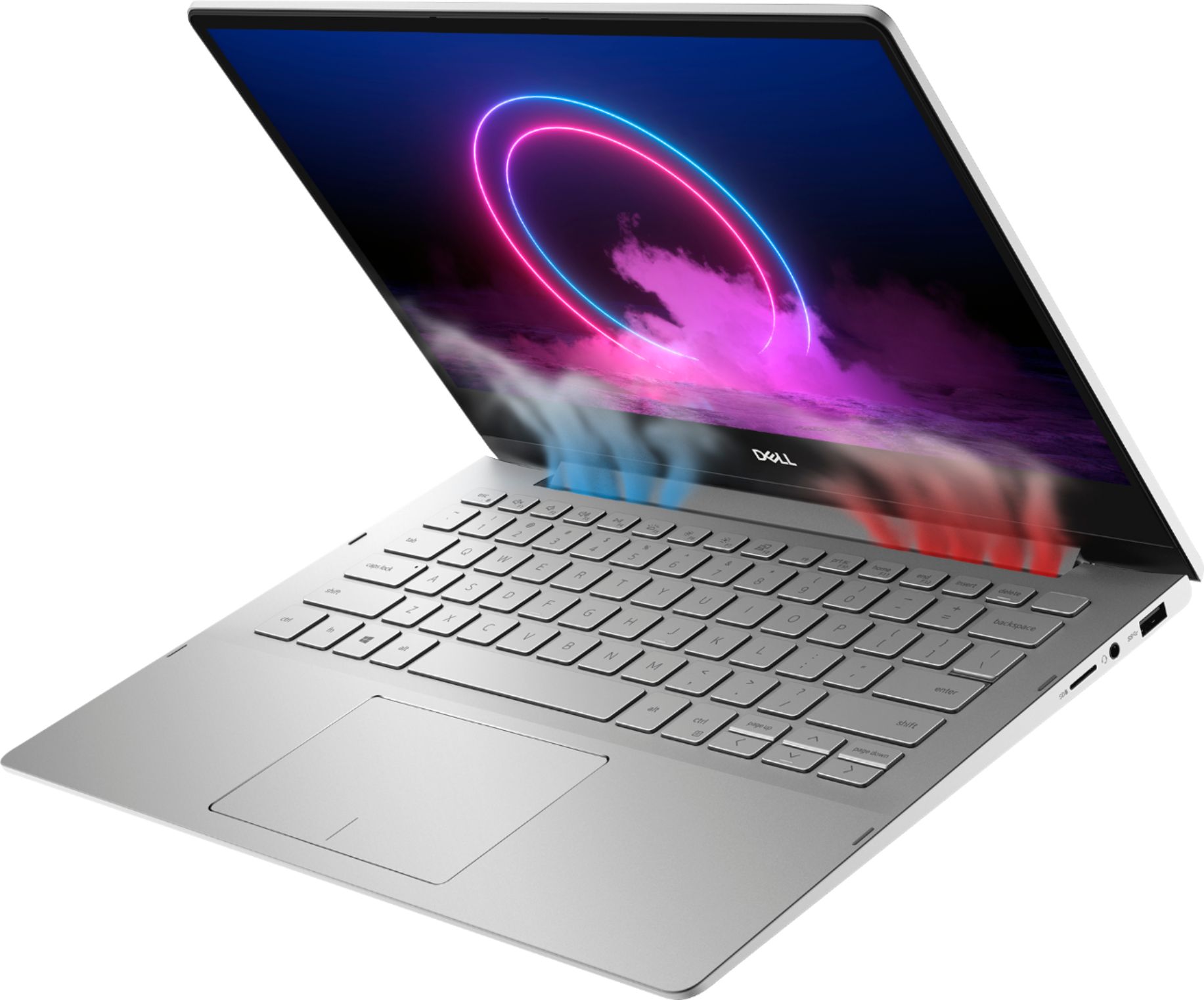
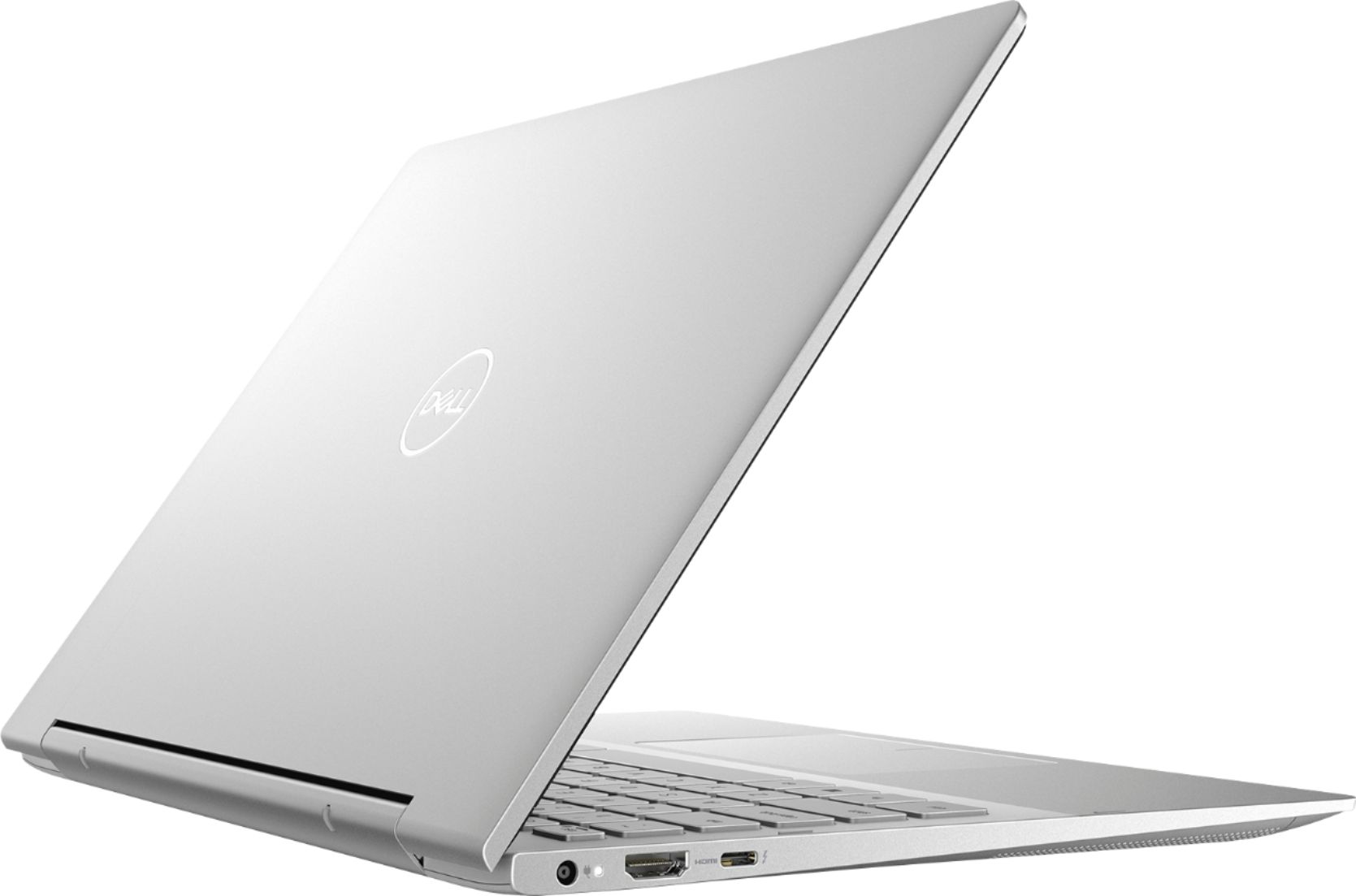
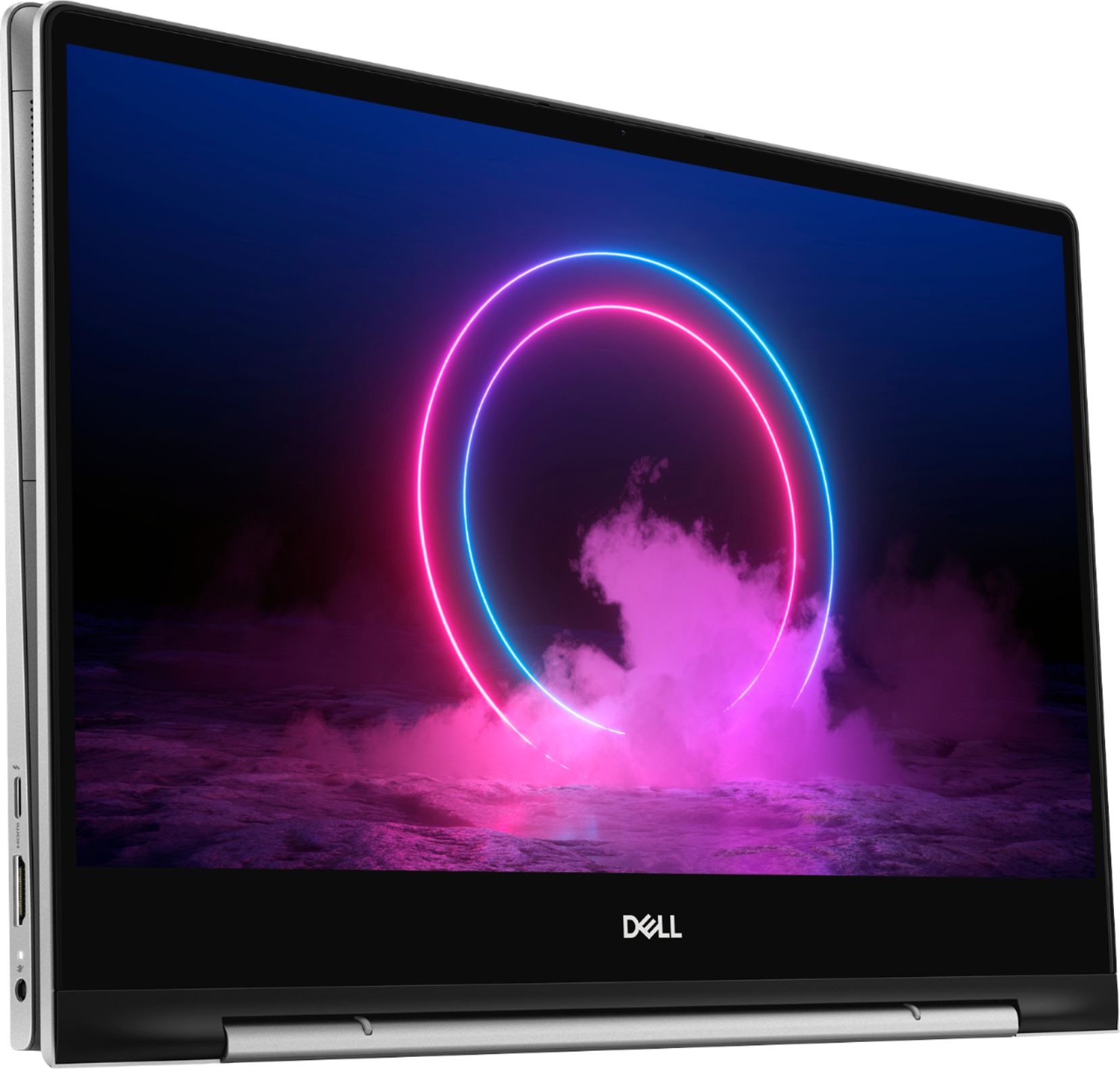
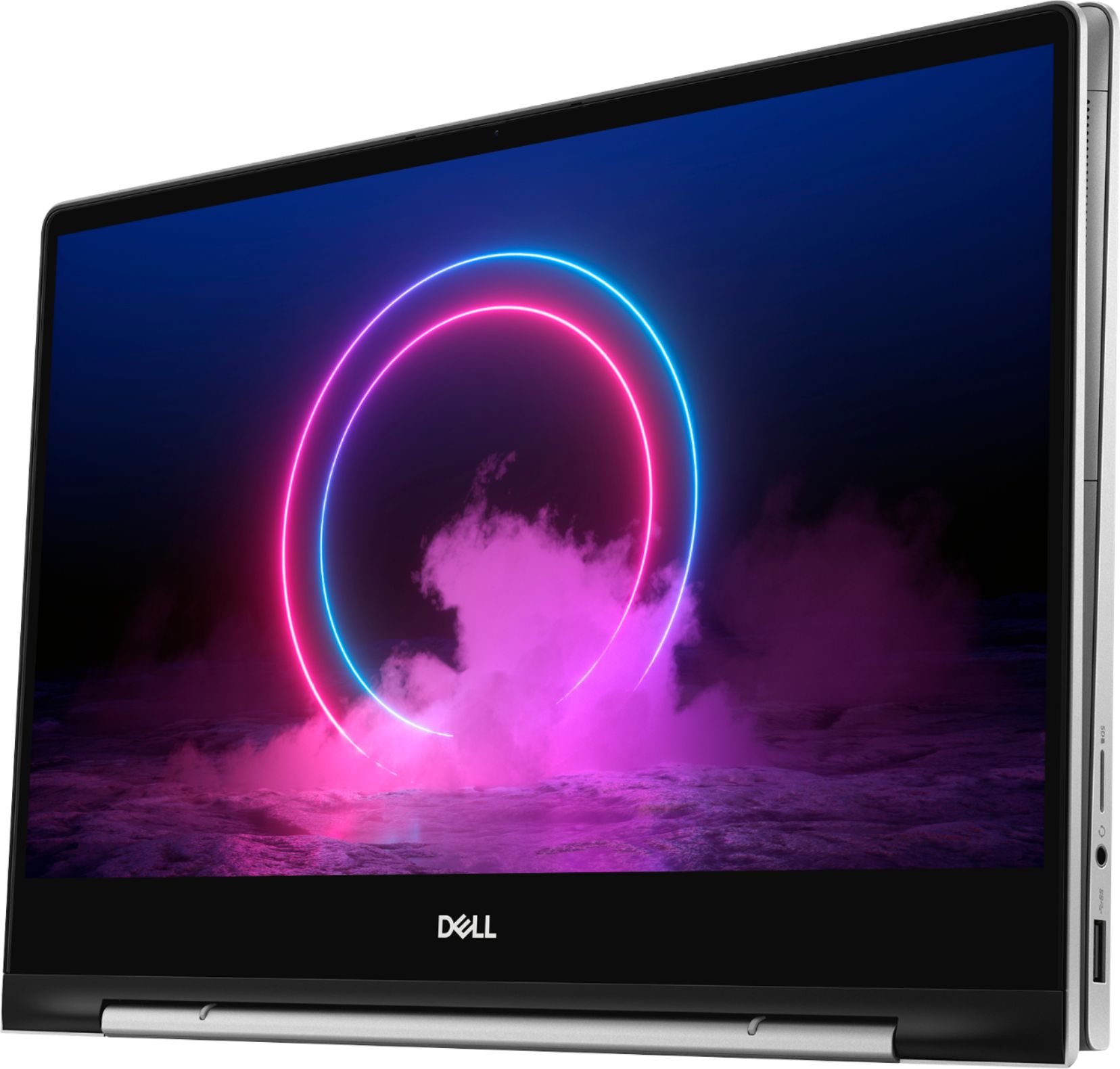


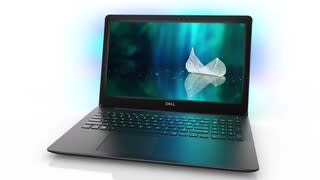
- Model:
- I7391-5537SLV-PUS
- SKU:
- 6373036
Rating by feature
- Battery Life
Rating 4.0 out of 5 stars
- Speed
Rating 4.4 out of 5 stars
- Display
Rating 4.4 out of 5 stars
Customers are saying
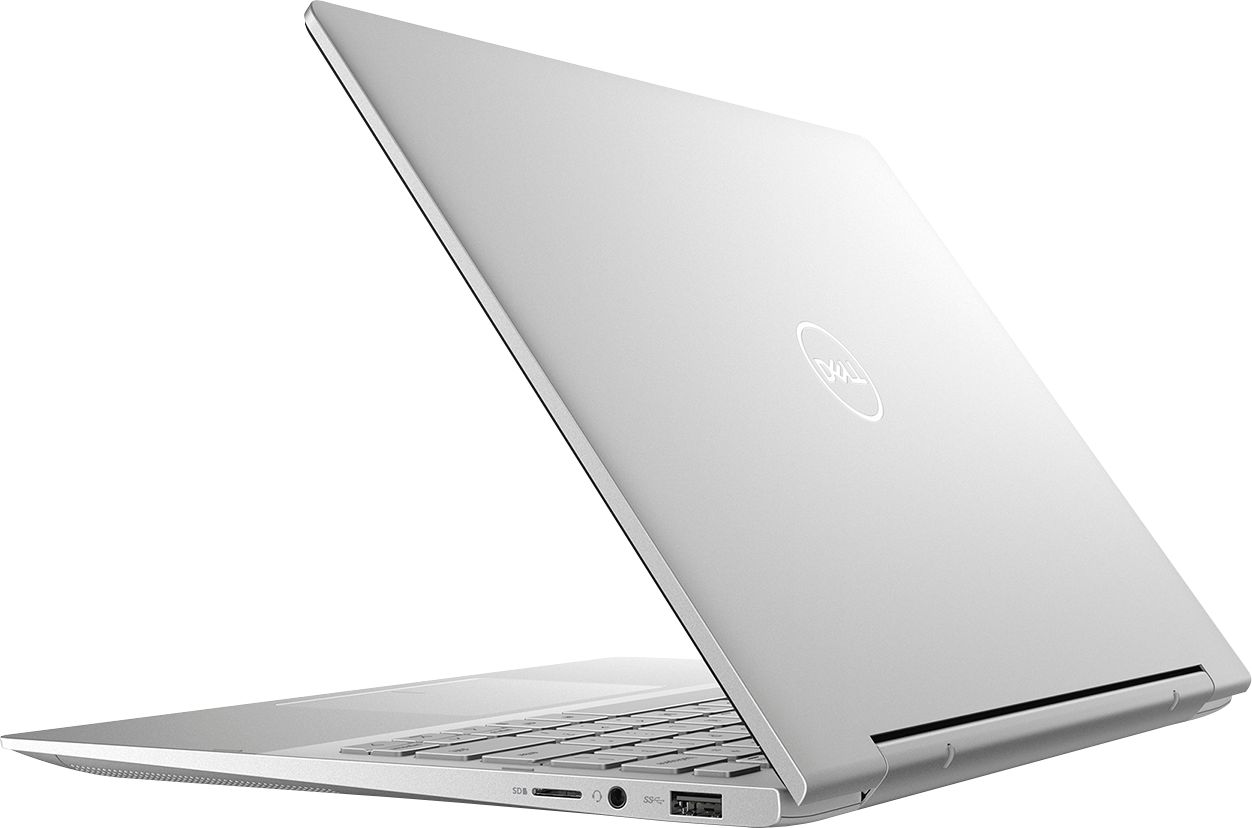
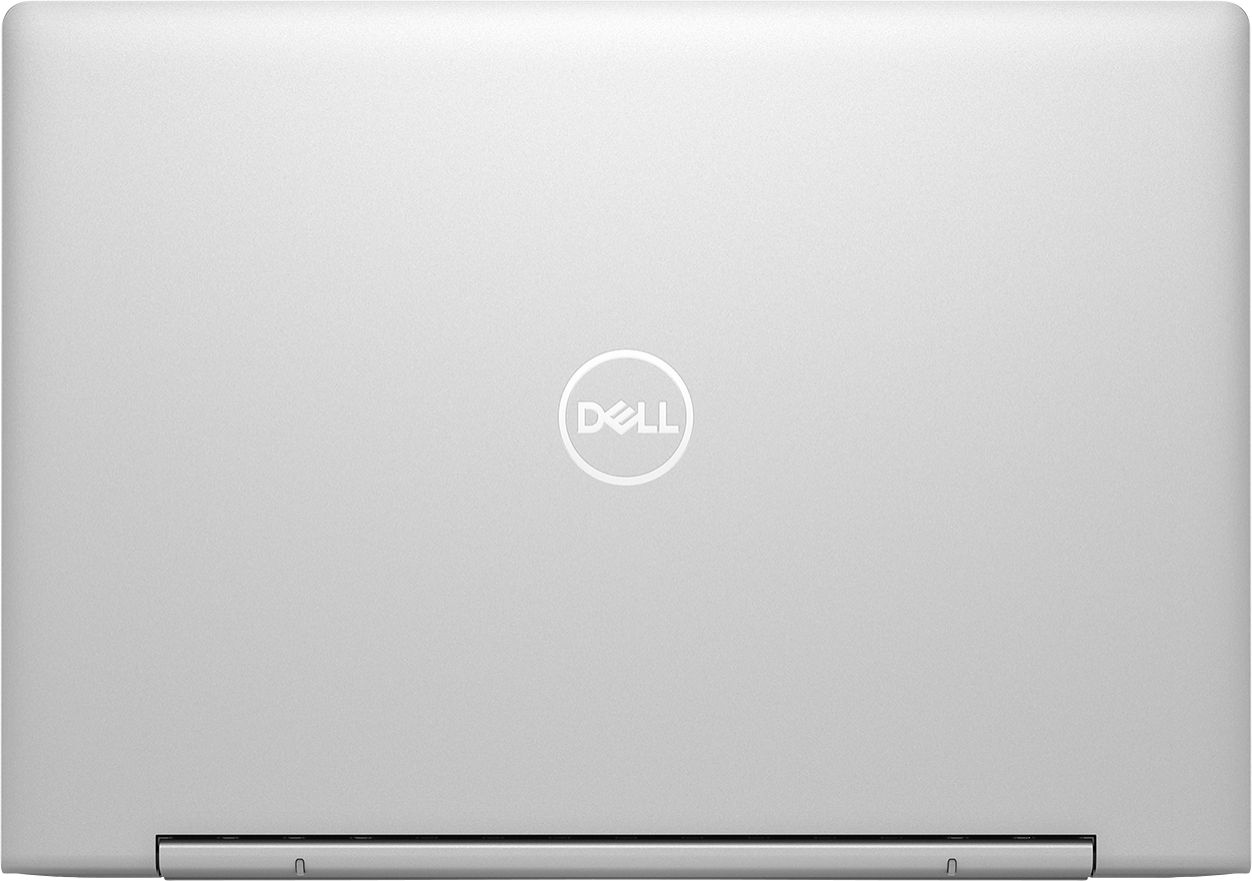
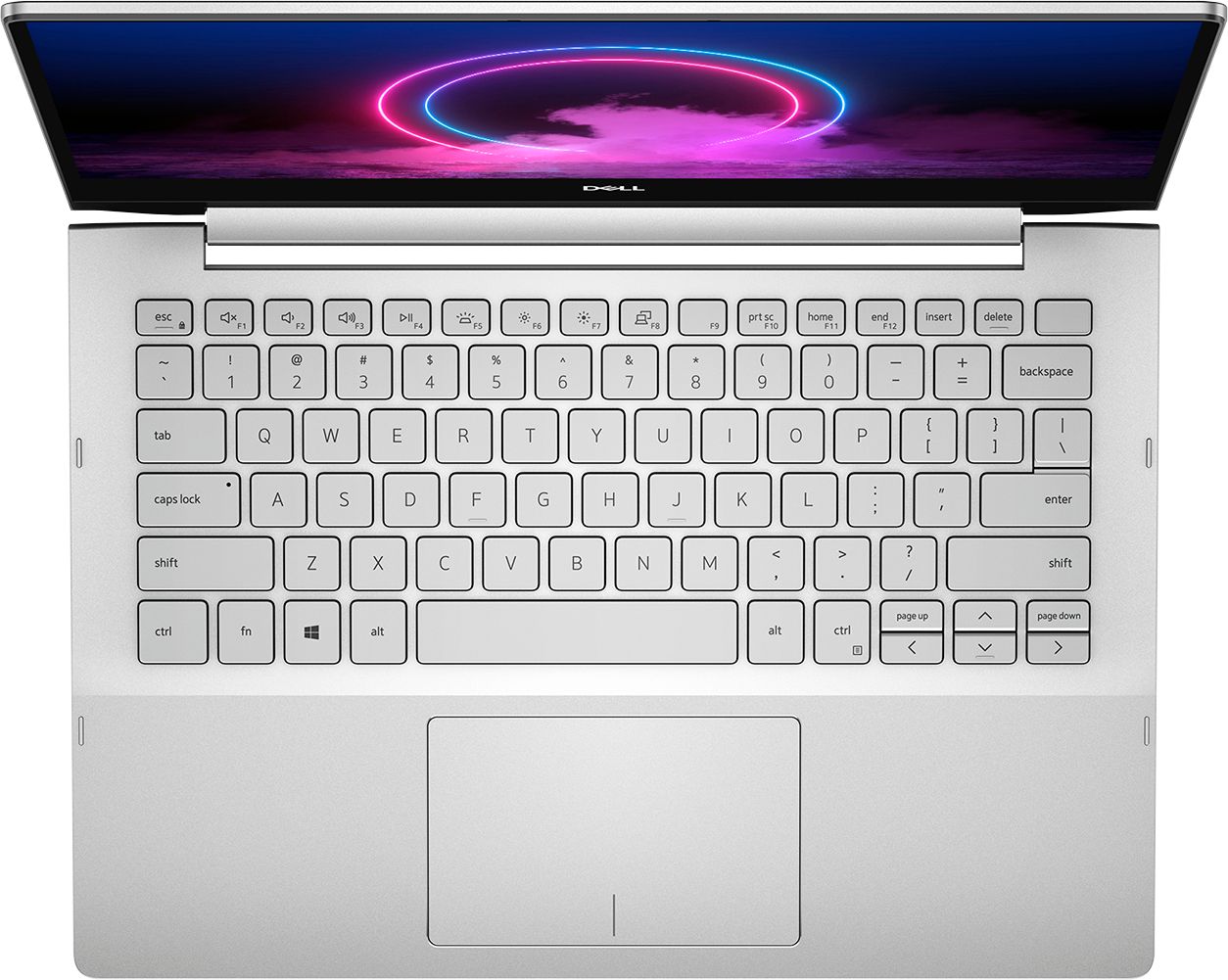
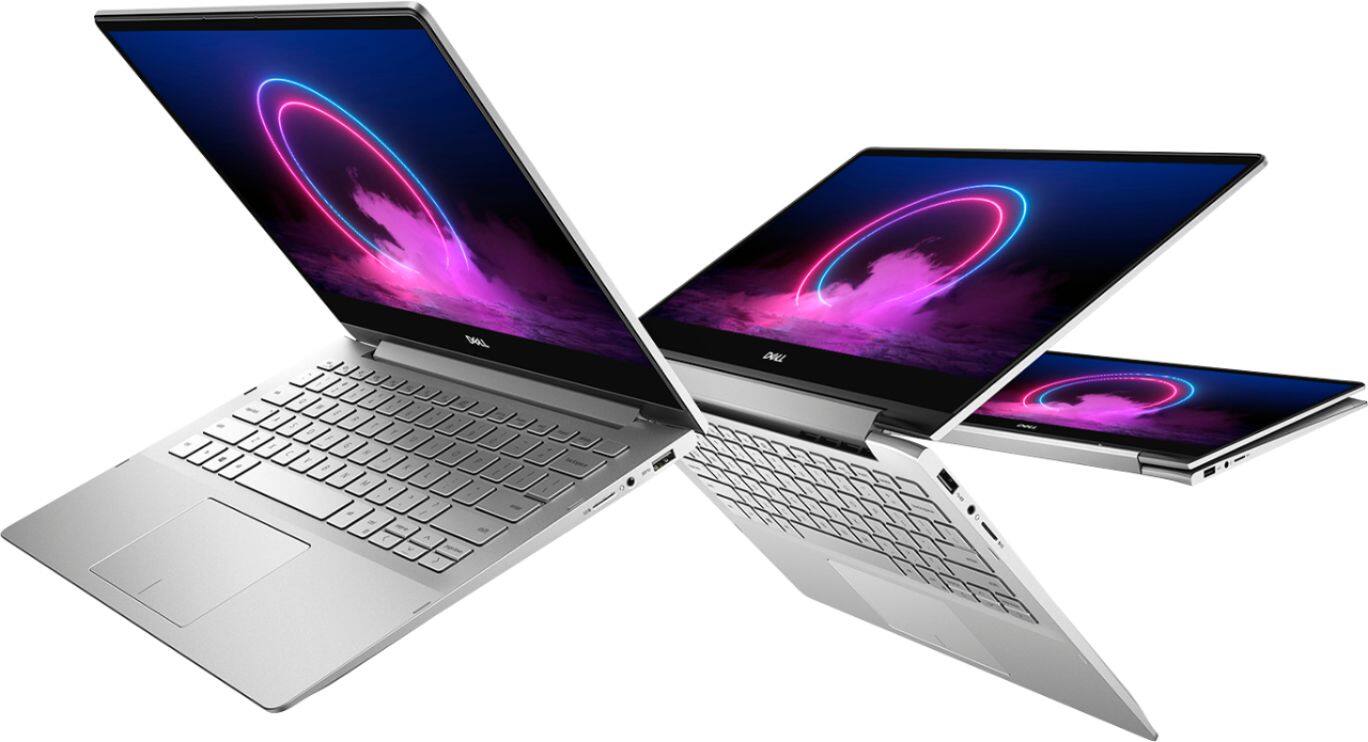
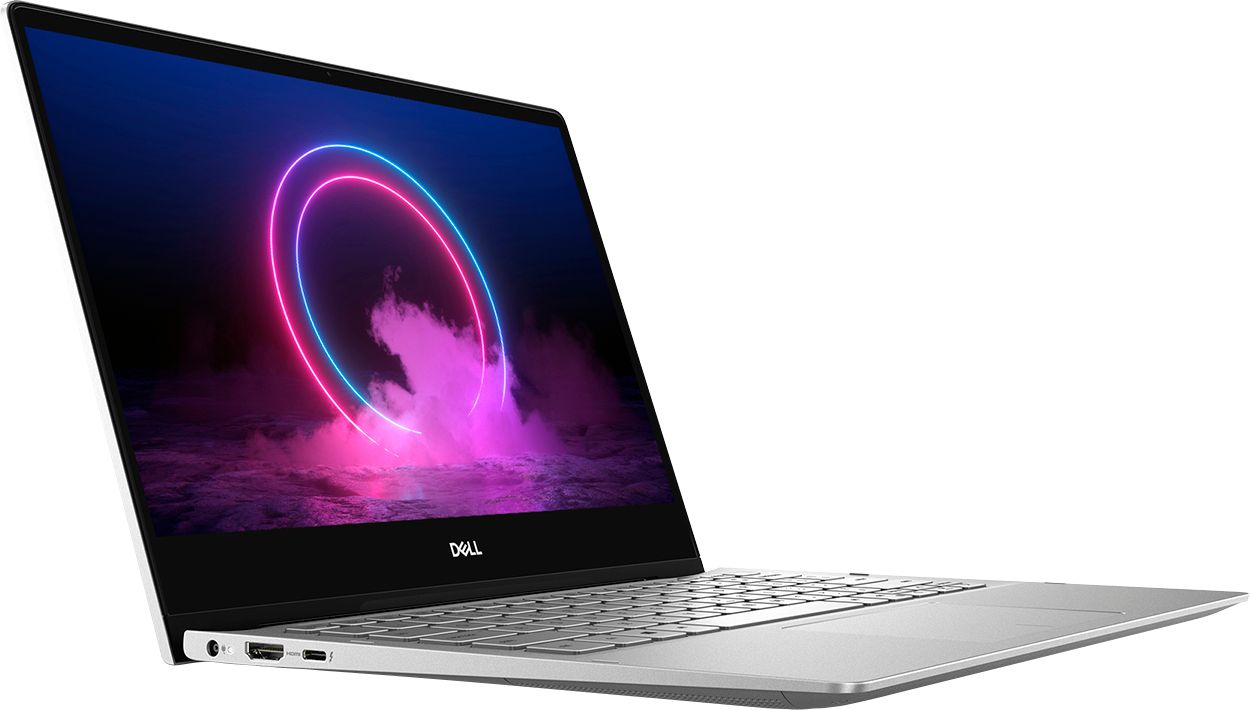
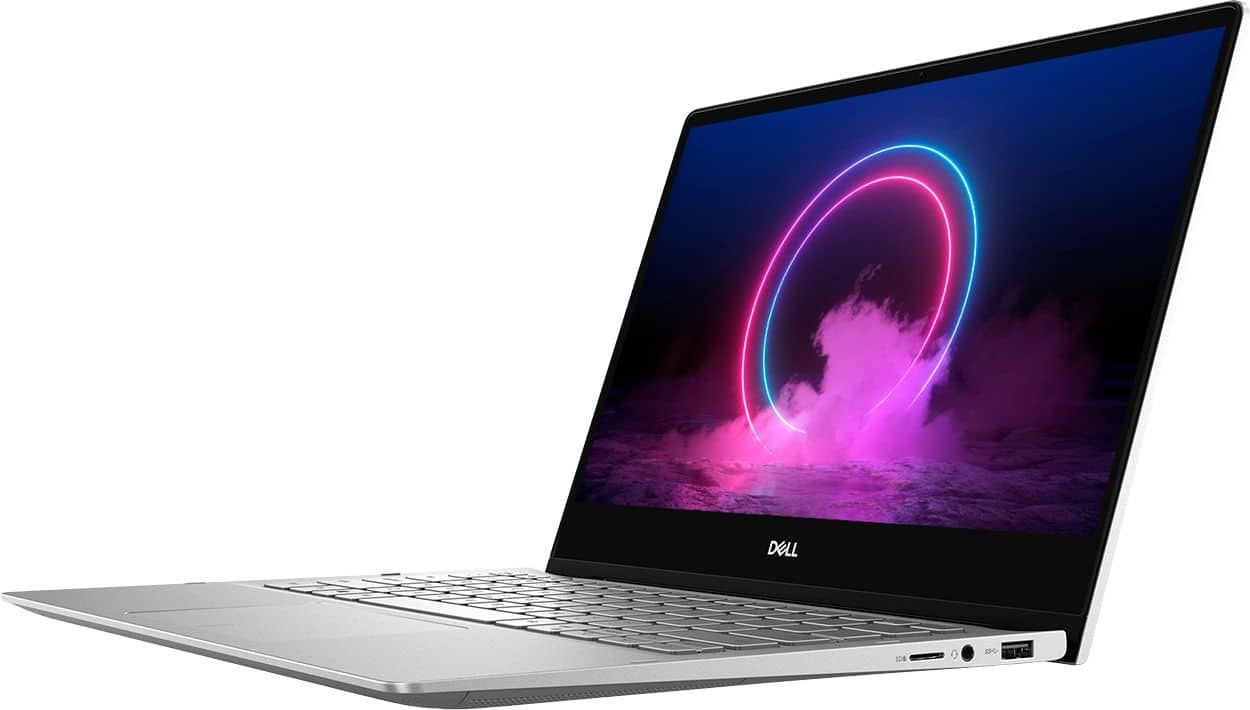
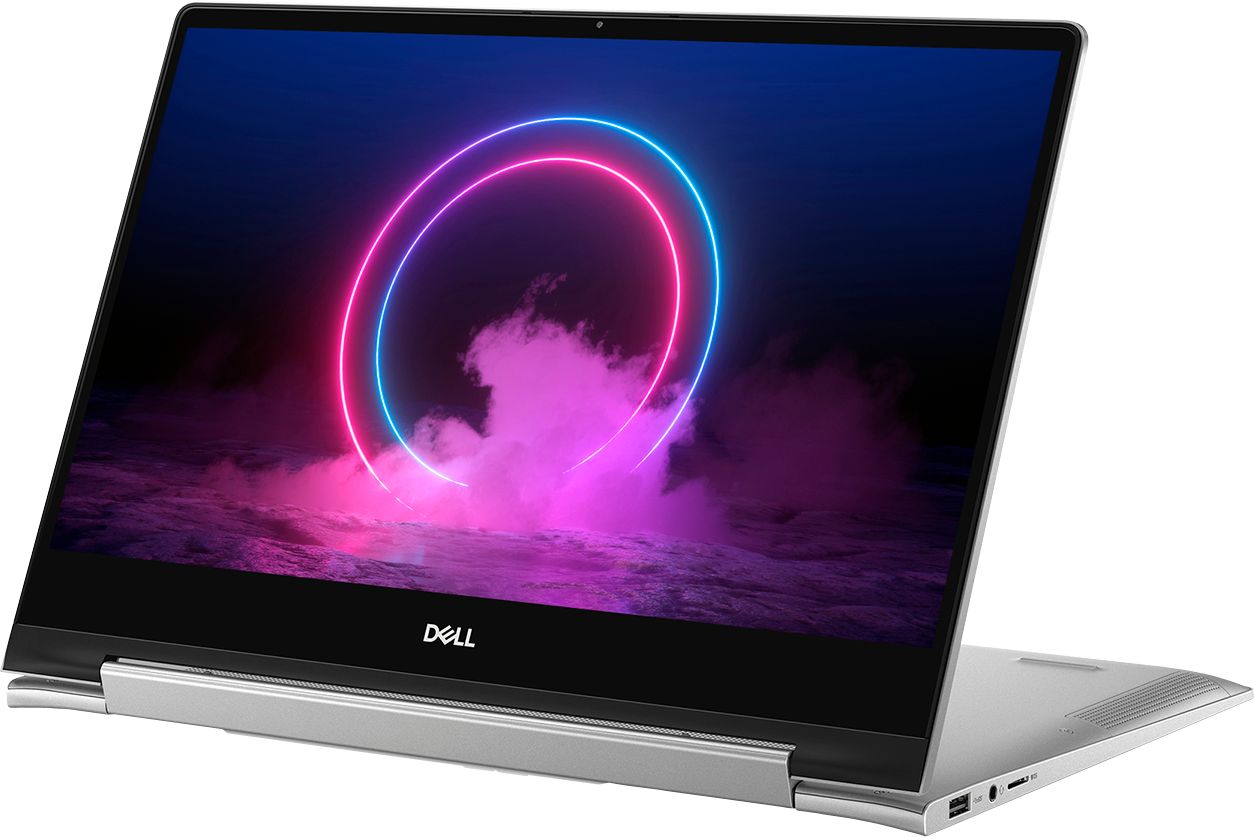
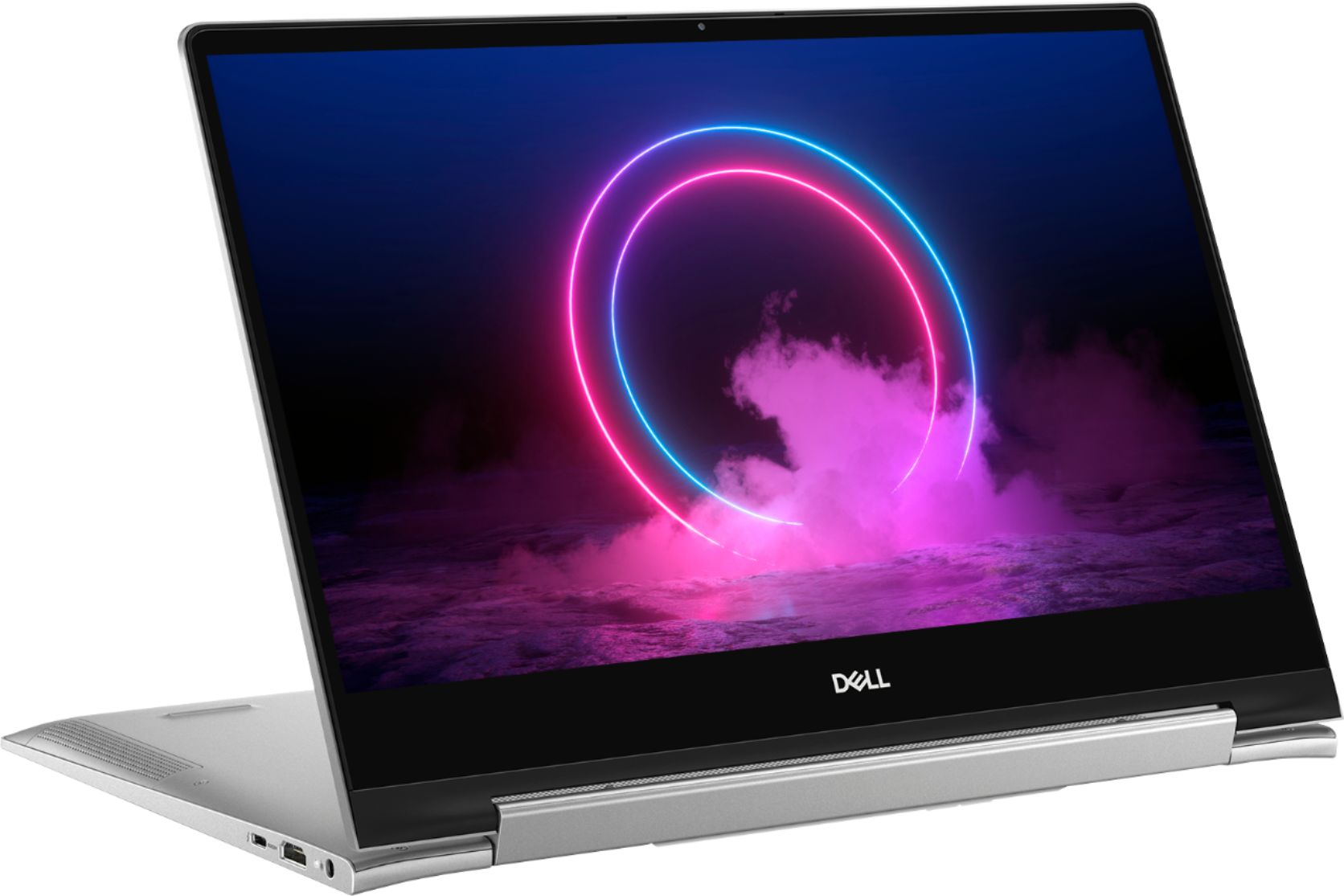
Customers find value in the Inspiron 7000's ease of use, light weight, touchscreen functionality, and size. Many appreciate its performance and consider it a good value for the price, noting the sleek design. However, some customers reported issues with heat generation, battery life, and fan noise, while others wished for more USB ports and expressed concerns about hinge durability.
This summary was generated by AI based on customer reviews.
- Cons mentioned:Battery life
Didn't start !!!
||Posted . Owned for 3 weeks when reviewed.This reviewer received promo considerations or sweepstakes entry for writing a review.Could not get the computer to start at all. It was brand new, right out of the box. Took it right back to the store ...Battery completely gone. Had to return it for another one which they did right away!
No, I would not recommend this to a friendBrand response from YourDellTeam
Posted .iselluproperty,
We're sorry to hear about the battery issue that you had when you tried to start your computer. We're glad that Best Buy was able to provide you with a new computer. If you have any questions about your new computer you can check our Product Support Page here: https://dell.to/2Qk5Uh7.
Best,
Bryan
1-800-624-9896
Not for me
||Posted . Owned for 1 week when reviewed.This reviewer received promo considerations or sweepstakes entry for writing a review.This seems like a decent laptop, but I wasn’t impressed. One complaint is the finger print reader could be a lot better. Another complaint is not having a power button on the side of the laptop. It’s hard to wake it up when it’s in tablet mode, since the button is on the bottom in tablet mode. I returned this for something different, but it’s a good deal for around $850.
No, I would not recommend this to a friend- Cons mentioned:Hinge
not a good laptop for regular use work or school
||Posted . Owned for 4 months when reviewed.This reviewer received promo considerations or sweepstakes entry for writing a review.this laptop has had some minor issues like disappearing cursor weeks after purchase. now a couple months later one of the hinges has broke and the lower corner of the laptop case has split. i would not recommend for anyone as this wouldnt last for regular use school or work.
No, I would not recommend this to a friendBrand response from YourDellTeam
Posted .12345,
Thanks for your review and we're sorry to hear about the hinges on your new laptop. We'd recommend that you re-calibrate your touchpad for help with the cursor issues that you're having:
Some Notebooks and Tablets with Keyboards have added gesture features to the touchpad hardware and drivers. A few of these features are two or three finger scrolling, pinch zoom, circle zoom, rotate and swiping. These new features may be the reason for the erratic cursor movement since most are turned on by default. You can disable or modify the way the features work in the touchpad driver properties. Here are some tips to modify these settings:
1. In the Search box, type main.cpl.
2. Touch or click main.cpl in the list of programs.
3. Touch or click the Dell Touchpad tab.
4. Touch or click on the picture of the touchpad.
5. Touch or click Gestures (depending on your computer there may not be a Gestures option).
6. Change the options as preferred.
7. Touch or click Save.
8. Touch or click the X in the upper-right corner to close the Dell Touchpad Utility.
9. Touch or click OK on the Mouse Properties window.
10. If the touchpad still does not work after following the preceding steps, refer to Dell Knowledge Base article - http://dell.to/2iaiujA.
You can read the full article here - http://dell.to/2tqmS02.
Best,
Bryan
1-800-624-9896
Mixed feelings....
||Posted . Owned for 1 month when reviewed.This reviewer received promo considerations or sweepstakes entry for writing a review.I like the size, but getting the computer set up did not go smoothly and seems to be an ongoing issue.
No, I would not recommend this to a friendBrand response from YourDellTeam
Posted .kiki,
We're sorry to hear that setting up your computer was not as easy as you hoped it would be. We'd recommend using the Dell SupportAssist app to help with the setup of your computer.
Best,
Bryan
1-800-624-9896
Computer response time is slow; otherwise pleased.
||Posted . Owned for 1 month when reviewed.This reviewer received promo considerations or sweepstakes entry for writing a review.Computer response time is slow; otherwise pleased.
I would recommend this to a friendBrand response from YourDellTeam
Posted .MommaC,
Thanks for your feedback. We'd recommend that you run the Windows Performance Troubleshooter to see if there is a way to speed up your computer's performance:
1. Close all open windows.
2. Press the Windows logo key + X key on the keyboard.
3. Click Control Panel.
4. Click System and Security.
5. Under Security and Maintenance, select Troubleshoot common problems.
6. Under System and Security, click Run maintenance tasks.
7. Follow the on-screen instructions and prompts to complete the process.
8. Restart the PC.
You can read the full article here - http://dell.to/2tSulGV.
Best,
Bryan
1-800-624-9896
Poor battery
||Posted .This reviewer received promo considerations or sweepstakes entry for writing a review.Substantial battery life. Cant process too much at once.
No, I would not recommend this to a friendNo USB-C
||Posted . Owned for 4 months when reviewed.This reviewer received promo considerations or sweepstakes entry for writing a review.No USB-C charging?! They gotta use proprietary in this one.
No, I would not recommend this to a friend- Cons mentioned:Fan noise
brand new laptop facing Fan noise issue
||Posted . Owned for 2 weeks when reviewed.This reviewer received promo considerations or sweepstakes entry for writing a review.This is a brand new laptop for me, but I am facing Fan noise issue. Fan sound issue just after starting it for a few minutes after opening browser.It become even more loud sometime.
No, I would not recommend this to a friendBrand response from YourDellTeam
Posted .Hahamm,
Thanks for your review. We're sorry to hear about the fan noise that you're experiencing with your new computer. We'd recommend updating the BIOS on your computer to help with the fan noise:
An out-of-date BIOS can cause loud fan noises by having an outdated temperature table for the system. Refer to update BIOS and follow the instructions to update the BIOS on your computer. You can also follow up with our Technical Support Team here - 1-800-624-9896.
You can read the full article here - http://dell.to/2ENlXfz.
Best,
Bryan
1-800-624-9896
Does not look good and feel good
||Posted . Owned for 2 months when reviewed.This reviewer received promo considerations or sweepstakes entry for writing a review.The laptop goes to bios mode everytime I start the laptop when the battery is low. The keys are really bad, for some reason the keys are stuck and they are not going normal even when I cleaned them multiple times. The power button option is not great too. I regret buying this laptop, bought it in a haste.
No, I would not recommend this to a friendBrand response from YourDellTeam
Posted .Kirti,
Thanks for your review. We're sorry to hear about the issues that you've had with your laptop so far. Here are some tips to help extend the life of your computer's battery:
Change the Power Plan:
1. On the notification area of the taskbar, right-click the Battery icon.
2. On the options list, click Power Options.
3. Select a power plan on the battery meter, such as Power Saver or Balanced. Windows 10 has a built in 'Battery Saver' mode that can be activated to extend your system's battery life. The Battery Saver mode will monitor and limit background activity and other features such as push notifications. You do have the option to enable or disable this mode within settings or within advanced Battery Saver settings, you can customize the mode to best suit your needs.
a) Click on the Action Center icon in the taskbar and select the tile for Battery Saver.
b) If running Cortana then type Battery Saver into the search box and select from the results.
Within the Battery Saver settings page, you will be able to turn on and off the feature and customize the feature to best meet your needs.
c) Turn Battery Saver On or Off.
d) Additional settings available via the Battery use and Battery saver settings links.
e) Battery use shows further info on apps and their power usage.
f) Battery Saver Settings screen allows you to customize further Battery Saver feature.
You can read the full article here - http://dell.to/2vfXWf4.
If you have questions about your computer you can always check our Product Support Page here: https://dell.to/2Qk5Uh7.
Best,
Bryan
1-800-624-9896
Not satisfied
||Posted . Owned for 6 months when reviewed.This reviewer received promo considerations or sweepstakes entry for writing a review.Not satisfied with the product looked like it was used before
No, I would not recommend this to a friendBrand response from YourDellTeam
Posted .Sam01,
Thanks for your review and we're sorry to hear about the condition that you received your new computer in. Please reach out to Best Buy directly if you are interested in a return or an exchange: http://bit.ly/2v2IVhI.
Best,
Bryan
1-800-624-9896
Good 2n1, WORST WIFI EVER
||Posted .This reviewer received promo considerations or sweepstakes entry for writing a review.The PC 2n1 is great. The only issue i have is that the WIFI goes autimatic to AirplaneMOde and it wont back until the PC desire to. Im currently working the case via Dell to see what's wrong (for me the WIFI Card) and based on google search, it seem im not the only one with the same issue.
I would recommend this to a friendBrand response from YourDellTeam
Posted .alextm21,
Thanks for your review, we're sorry that the WIFI connectivity on your new laptop is not what you hoped it would be. We'd recommend making sure that your driver is up to date. Please follow these steps to help resolve your connectivity issue:
1. Download and install the latest Wireless Card driver. (https://dell.to/2th3Tpe) After updating the driver, re-establish the connection with the Wireless Access Point and check the wireless performance.
2. If the issue persists, proceed to step 3.
3. Power-cycle the local network. Shut down the Dell system, the Wireless Access Point/Router and the Modem. Wait a minimum of 60 seconds before powering up the components in the following order:
4. Power ON the Modem, and wait for it to boot fully.
5. Power ON the Wireless Access Point/Router, and wait for it to boot fully.
6. Power ON the Dell system.
7. Open Network and Sharing Center
8. In the left side navigation pane, click on Change Adapter Settings
9. Right click on the wireless connection icon and select Properties followed by the Configure button
10. Under Wireless Options, select the Wireless N mode
11. For Windows 8 or later systems click the Advanced tab and look for 802.11n Mode on the right you will be given the option to Enable or Disable. If the mode is not visible you may need to update your drivers and firmware.
12. From the drop-down menu, choose Disable followed by Ok
13. This should restore the wireless download and upload speed. Internet speed can be tested at http://speedtest.net.
Best,
Bryan
1-800-624-9896
N/A
||Posted .This reviewer received promo considerations or sweepstakes entry for writing a review.Not recommended laptop facing lot of issues.......
No, I would not recommend this to a friendNice Computer.
||Posted . Owned for 3 weeks when reviewed.This reviewer received promo considerations or sweepstakes entry for writing a review.Nice Computer. Screen is a little small. Serves its purpose.
I would recommend this to a friendBrand response from YourDellTeam
Posted .ComputerReview,
Thanks for your review. We're glad to hear that your computer is working well for you. If you have any technical questions about your computer you can check our Product Support Page here: https://dell.to/2Qk5Uh7.
Best,
Bryan
1-800-624-9896
Nice Laptop, but not for me.
||Posted . Owned for 3 weeks when reviewed.This reviewer received promo considerations or sweepstakes entry for writing a review.Never could get it to work with a two monitor tower.
No, I would not recommend this to a friendBrand response from YourDellTeam
Posted .Brad,
Thanks for your review and we're sorry that your laptop is not performing the way you hoped it would. If you have any technical questions you can check our Product Support Page here: https://dell.to/2Qk5Uh7.
Best,
Bryan
1-800-624-9896
DO NOT BUY!!! Webcam failure is common.
||Posted . Owned for 2 months when reviewed.This reviewer received promo considerations or sweepstakes entry for writing a review.I purchased two of these laptops in late July 2020 for my kids to do virtual school. As of today (October 16, 2020), the webcams on both of them have failed. Even though the webcam on one of them failed more than a month ago, we are still waiting on a replacement from Dell. We have spent hours on the phone with tech support to get a replacement for something that is under warranty. And, now we have to start the process again for the second defective camera. I am not sure what exactly the problem is, whether it's with the Inspiron 7000 or with Dell laptops generally, but the entire process will really make me consider another brand next time I am in the market for a new laptop.
No, I would not recommend this to a friendBrand response from YourDellTeam
Posted .ComputerlessTom,
We're sorry to hear about the issues that you're having with your new computers. We are glad that you were able to get the help that you need from Dell's Technical Support Team and the warranty.
If you have additional questions about your computer you can check our Product Support Page here: https://dell.to/2Qk5Uh7.
Best,
Bryan
1-800-624-9896
- Cons mentioned:Heat
Camera stopped working, it lasted five months only
||Posted . Owned for 8 months when reviewed.This reviewer received promo considerations or sweepstakes entry for writing a review.Not a good computer. The camera stopped working at the fifth month. It gets really hot. I will not recommend this laptop to anyone. I will never purchase a dell computer again.
No, I would not recommend this to a friendBrand response from YourDellTeam
Posted .Tita,
Thanks for your review and we're sorry to hear that your camera stopped working on your device. We'd recommend checking to see if there are any updated drivers or software available for your computer: https://dell.to/2PPb4BI.
Here are some tips to help your computer operate at a cooler temperature:
Tips for Proper Usage:
1. Dell does not recommend placing portable systems directly on your lap. Due to reductions in the thickness of modern portable systems, heat transfer can be an issue.
2. Using a portable system (Laptop) on a hard, flat, non-cloth surface will increase airflow and reduce heat from underneath and inside the system.
Using the portable system on a blanket, pillow, or other types of cloth will cover up the fan cause the computer to overheat and can cause permanent damage.
3. It is recommended to use the portable system in a Room temperature of 0°C to 35°C (32°F to 95°F) with a Humidity level no greater than 90%.
4. Use compressed air to clean the vents on a regular basis.
5. Using a cooling pad can decrease heat and increase performance.
6. If you want to know the temperature limitations for your system, go to the Dell Support Website, look up your system model then open the user guide under the manuals link.
You can read the full article here - http://dell.to/2uJ8AdG.
Best,
Bryan
1-800-624-9896
No More Dell Products
||Posted . Owned for 1.5 years when reviewed.This reviewer received promo considerations or sweepstakes entry for writing a review.This Dell is a LEMON. After purchase I called support several times because I would get errors when it went to sleep that it did not shut down correctly, either the touch pad or touch screen doesn't work when it is rebooted so sometimes I will have to reboot several times to get everything to function. I bought Dell protection for several months however I have decided to cancel that subscription and buy an HP. I have always purchased Dell products but this one has ended that relationship.
No, I would not recommend this to a friendDisappointed with the performance
||Posted . Owned for less than 1 week when reviewed.This reviewer received promo considerations or sweepstakes entry for writing a review.Laptop hanged couple of times when I was only using it for browsing using chrome and had couple of office documents open. Had to restart every time. Fingerprint also did not work properly and had to enter PIN most of the time.
No, I would not recommend this to a friendBrand response from YourDellTeam
Posted .Himanshu,
Thanks for your feedback. If your computer continues to freeze we'd recommend the following steps:
1. Run a Computer Diagnostic. To determine if your computer is experiencing a hardware problem, run the Dell Preboot System Assessment (PSA) Diagnostics. For information on how to run Diagnostics, and to determine the issue, refer to Dell Knowledge Base Article: http://dell.to/2iaiujA.
2. Check Safe Mode for Symptoms. To boot into safe mode, please follow the instructions below:
a) Start the computer.
b) Tap 'F8' on the keyboard immediately and every one second until the Dell logo screen disappears. From there you will see the Windows Advanced Options Menu on the screen. (If the Windows Advanced Options Menu does not appear, restart the system and try again.)
c) Select Safe mode with Networking and press Enter.
d) Log on as the administrator or as a user with administrative access.
e) Open applications and test the computer in safe mode. If the symptoms exist in safe mode, please continue the troubleshooting steps in this article. If the symptoms do not exist in safe mode, the issue is likely related to a driver or software and you may wish to complete step 3 to see if you are able to resolve the lockups or freezing.
3. Check for Malware. Malware (Virus, Spyware, etc.) can definitely cause a Windows system to lock up or appear to hang. To check for malware on your system and to ensure that your computer is up to date on security software, visit Dell Knowledge Base Article: http://dell.to/2wWP1zI.
You can read the full article here - http://dell.to/2tW5m33.
We hope that these steps will help your computer perform the way that you hoped it would.
Best,
Bryan
1-800-624-9896
Quality is not what it was in the past
||Posted . Owned for 1.5 years when reviewed.This reviewer received promo considerations or sweepstakes entry for writing a review.Expensive for what you get. I had to send this in for service after 3 months.so many issues. After going through complains finally received a replacement.
No, I would not recommend this to a friend- Cons mentioned:Heat
I has to return it
||Posted . Owned for 4 months when reviewed.This reviewer received promo considerations or sweepstakes entry for writing a review.This computer is super cute and not heavy but gets very hot in very short time of use.... I return it
No, I would not recommend this to a friend