Customer Ratings & Reviews
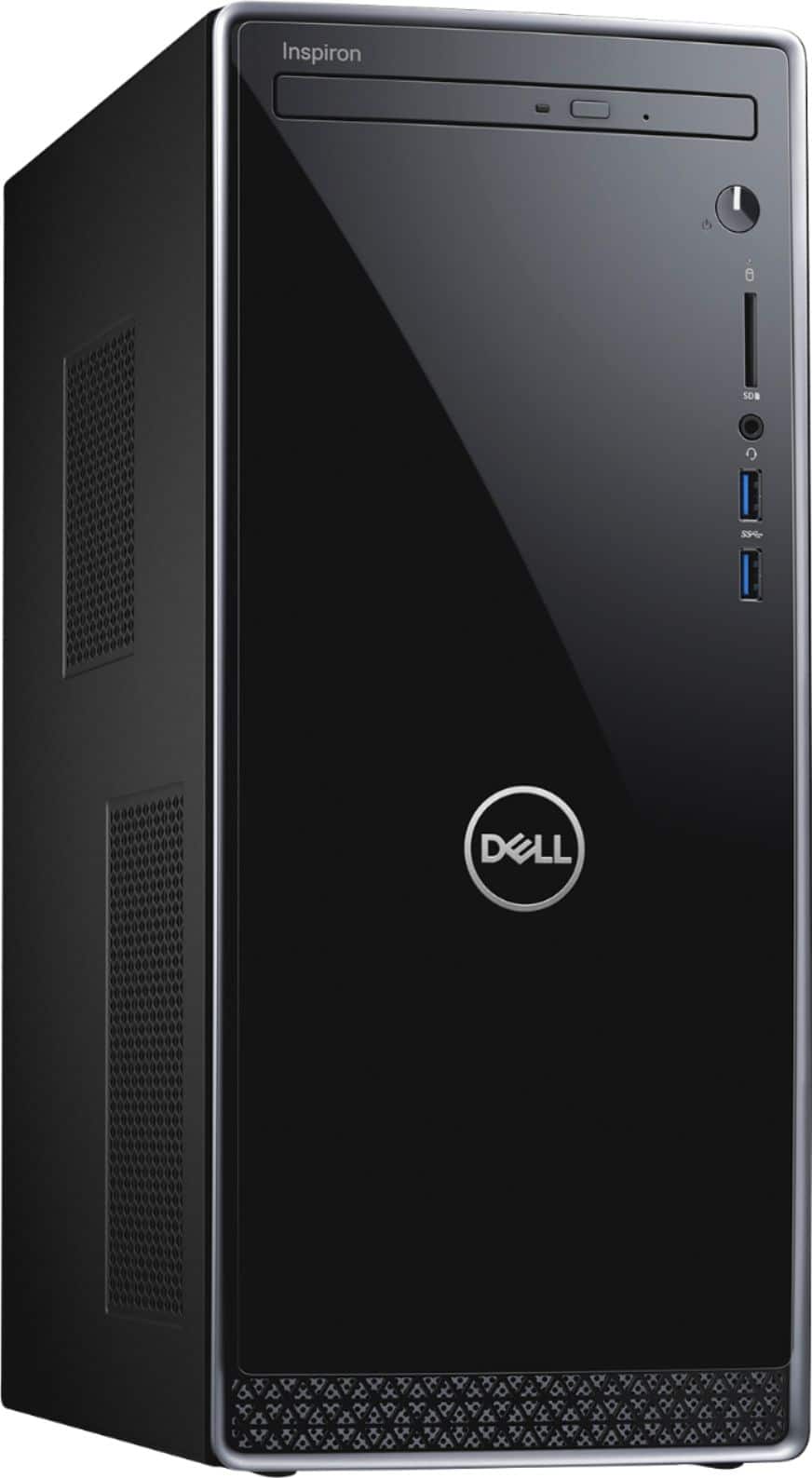
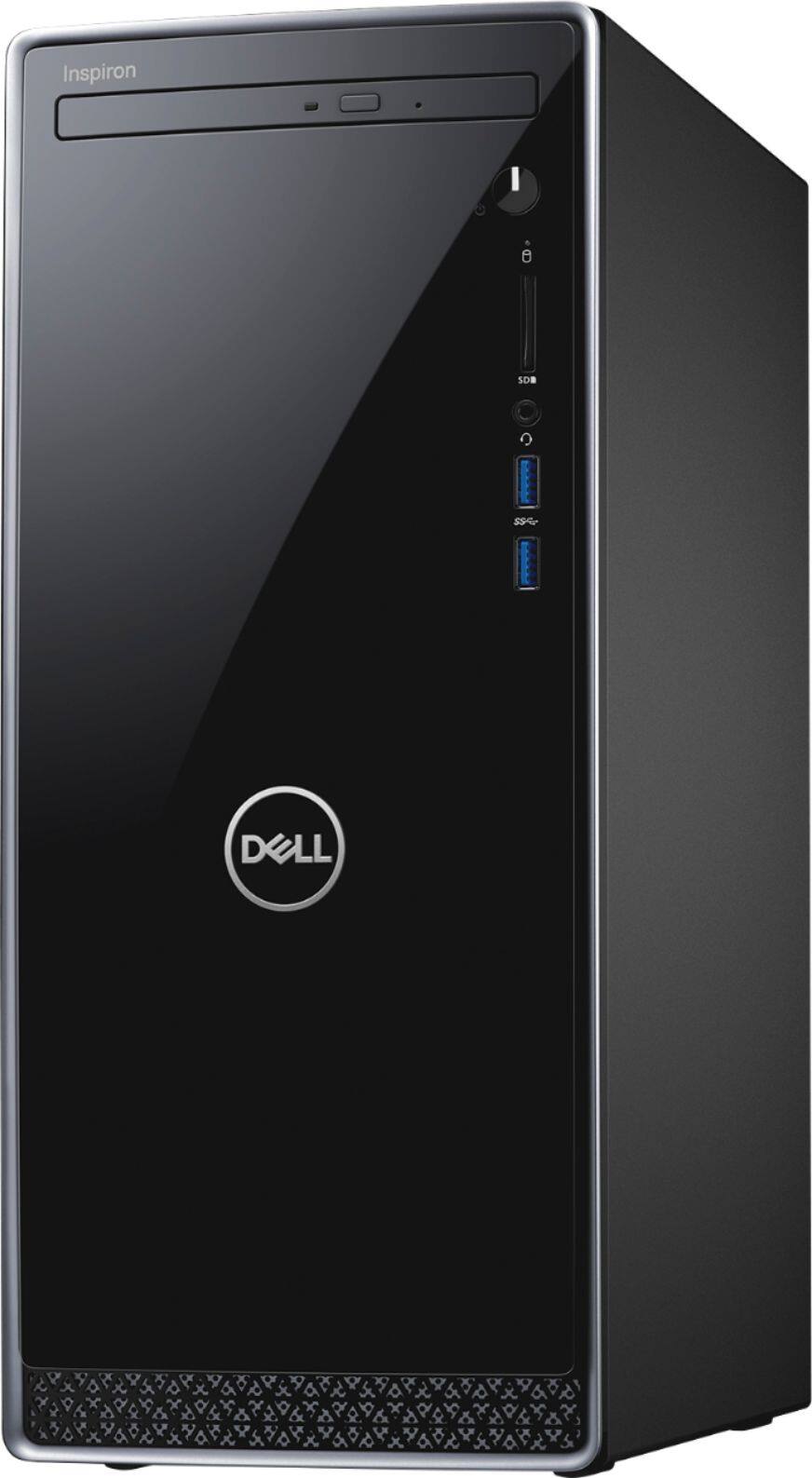
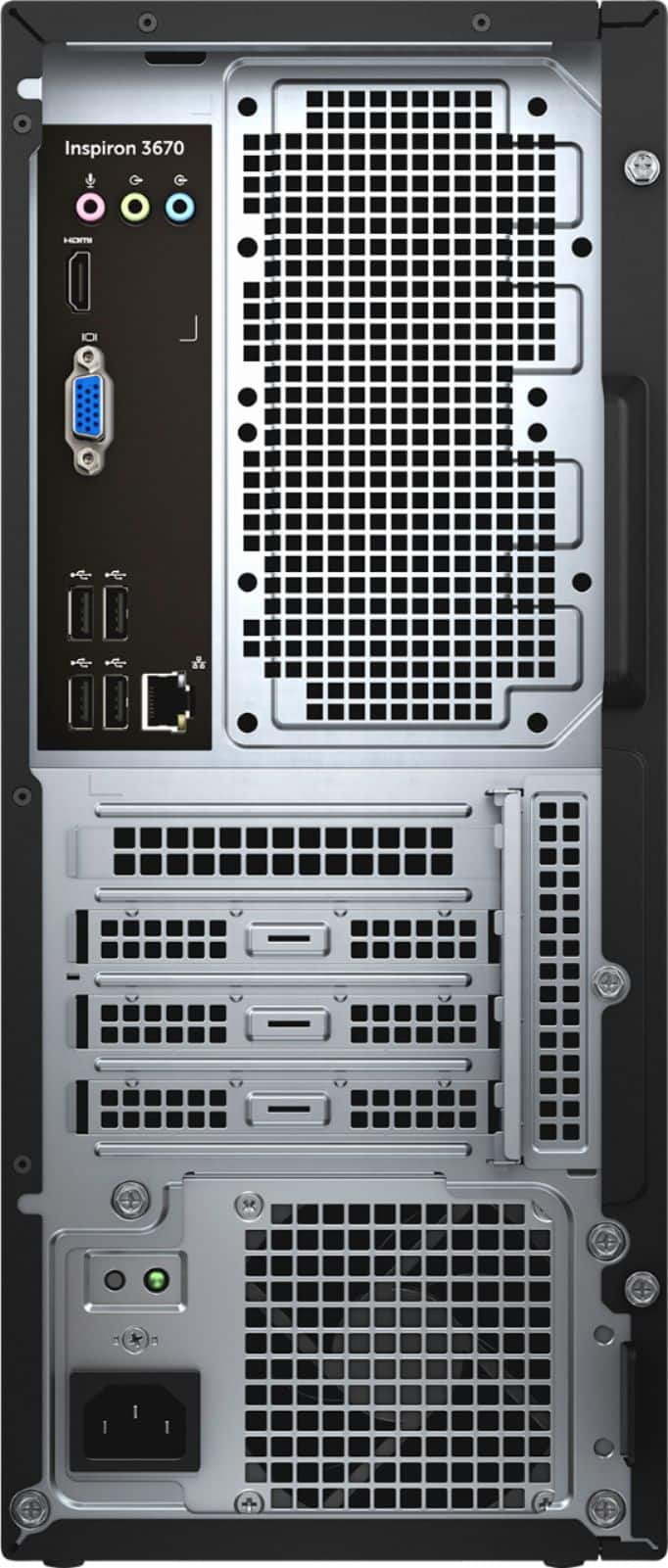
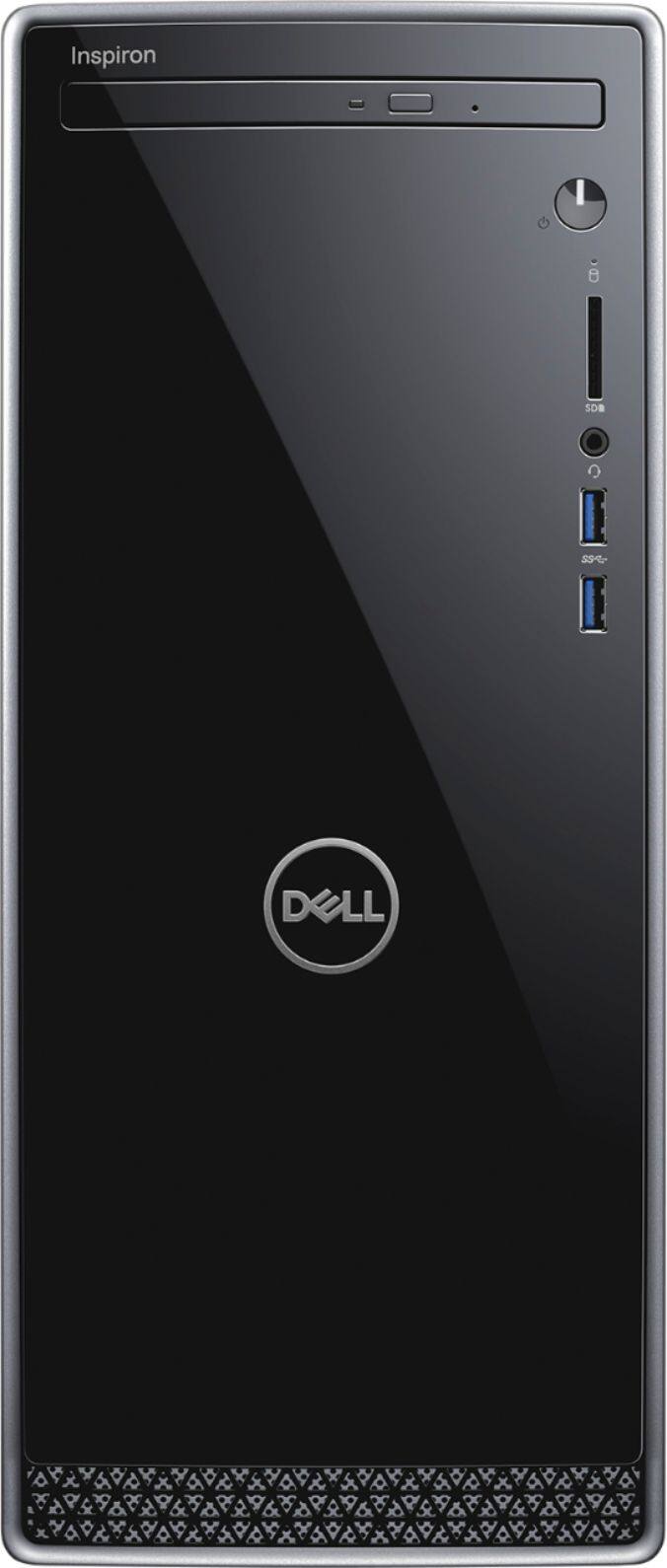

- Model:
- I3670-5790BLK-PUS
- SKU:
- 6334301
Rating by feature
- Value
Rating 4.5 out of 5 stars
- Quality
Rating 4.6 out of 5 stars
- Ease of Use
Rating 4.6 out of 5 stars
Customers are saying
Customers appreciate the Inspiron Desktop's performance, ease of use, and fast boot times thanks to its SSD. Many also praise its affordability and quiet operation. While some users expressed minor concerns about the CD drive's durability and the pre-installed operating system, the overall feedback is overwhelmingly positive. The compact size is also a frequently cited advantage.
This summary was generated by AI based on customer reviews.
Just bad.
||Posted . Owned for 6 months when reviewed.This reviewer received promo considerations or sweepstakes entry for writing a review.Had to return it. Monitor kept freezing and a bunch of other problems with it. No good.
No, I would not recommend this to a friendNO
||Posted . Owned for 3 weeks when reviewed.This reviewer received promo considerations or sweepstakes entry for writing a review.I was disappointed when the computer was set up. The person needs to explain all the new features of the new computer.
I would recommend this to a friendBrand response from YourDellTeam
Posted .tommy,
Thanks for your review. We're sorry that the setup of your computer did not go smoother for you. We'd recommend checking out our Product Support Page for additional documents that will help with your computer setup: https://dell.to/2IBgX2K.
Best,
Bryan
1-800-624-9896
I like the Dell products and have 3 of these will
||Posted . Owned for 1 month when reviewed.This reviewer received promo considerations or sweepstakes entry for writing a review.Good product and service from store. For cost of items should be more supported by it and larger capabilities.
I would recommend this to a friendBrand response from YourDellTeam
Posted .Doug,
We're happy to hear that you're satisfied with your new Dell desktop. If you have any questions about it you can check our Product Support Page here: https://dell.to/2mpf8IW.
You can also always reach out to Dell's Technical Support Team here: http://dell.to/2sH7Qlm.
Best,
Bryan
1-800-624-9896
- Cons mentioned:Hard drive
NO
||Posted . Owned for 3 weeks when reviewed.This reviewer received promo considerations or sweepstakes entry for writing a review.THIS ONE DIDNT WORK I GOT IT AND THE DRIVE WAS OUT ALSO BESIDE THE CD PLAYER NOT WORKING THE SPEAKERS WAS ALSO NOT WORKING . I HAD TO TAKE THIS BACK TO THE STORE 3X SO I WINDED UP GETTING THE I7 IT COST ME 250 MORE BUT IT WORKED .. NOT SURE IF THIS WAS THE ONE DEVICE OR NT BUT I CAN SAY WAS HORRIBLE EXPERIENCE
No, I would not recommend this to a friend so far ok
||Posted . Owned for 2 weeks when reviewed.This reviewer received promo considerations or sweepstakes entry for writing a review.This is the second one I've owned. The first one malfunctioned after one week. So time will tell.
I would recommend this to a friendBrand response from YourDellTeam
Posted .ynot,
Thanks for your review and we're sorry to hear about the issues you've had. We'd recommend checking out our Product Support Page for help with your computer: https://dell.to/2mpf8IW.
You can also reach out to Dell's Technical Support Team: http://dell.to/2sH7Qlm.
Best,
Bryan
1-800-624-9896
Having problems with beeping.
||Posted . Owned for 1 month when reviewed.This reviewer received promo considerations or sweepstakes entry for writing a review.The system beeps numerous times during the day. I am working with Dell to resolve this.
No, I would not recommend this to a friendBrand response from YourDellTeam
Posted .Jimbo,
We're happy that you were able to get in touch with Dell Support to help with your beeping issue. If you have technical questions about your desktop you can always check our Product Support Page here: https://dell.to/2mpf8IW.
Best,
Bryan
1-800-624-9896
Good computer.
||Posted . Owned for 3 weeks when reviewed.This reviewer received promo considerations or sweepstakes entry for writing a review.There was nothing in stock that we wanted on the day it was needed.
I would recommend this to a friendBrand response from YourDellTeam
Posted .AllInspectLLC,
Thanks for your review. We're sorry to hear about the stock issues that you experienced when you were looking for a new computer but we hope that you're happy with this desktop. If you have any questions you can check our Product Support Page here: https://dell.to/2mpf8IW.
Best,
Bryan
1-800-624-9896
Got a lemon and returned for replacement
||Posted . Owned for 2 weeks when reviewed.This reviewer received promo considerations or sweepstakes entry for writing a review.Purchased brand new and Solid State Drive failed and blue-screened with stop code when attempting to use MS Outlook. Had to return and replace the unit with another, costing me a set up fee and reloading all software a second time. So far, the replacement CPU has not shown problem.
I would recommend this to a friendBrand response from YourDellTeam
Posted .Dock,
We're sorry to hear about the issues that you had with your first computer purchase. If you have Blue Screen Errors in the future you can diagnose them with these steps:
1. At the desktop, click the Search the web and Windows box and type "problem reports".
2. Select View all problem reports to view a list of errors that have occurred on your computer and possible solutions for them, such as updating drivers, flashing your system BIOS, or checking for updates to the software.
3. Under the Source column, look for Windows and under Summary, look for Shut down unexpectedly.
4. Right-click the line item and select Check for a solution.
We'd also suggest checking to make sure that your software and drivers are up to date on Dell's Product Page - https://dell.to/2LBc0Up.
You can read the full article here - http://dell.to/2u98Cct.
Best,
Bryan
1-800-624-9896
portable
||Posted . Owned for 1 year when reviewed.This reviewer received promo considerations or sweepstakes entry for writing a review.the power cord did not work after awhile. had to replace it.
No, I would not recommend this to a friendBrand response from YourDellTeam
Posted .tommy,
Thanks for your review. We're sorry to hear about the power cord on your desktop but we're glad that you found one that works. If you have any questions about your computer you can check our Product Support Page here: https://dell.to/2mpf8IW.
Best,
Bryan
1-800-624-9896
Bad Product and Service
||Posted . Owned for 1 month when reviewed.This reviewer received promo considerations or sweepstakes entry for writing a review.Bought the computer on Jul 27, 2020. After one week of using it, the computer would not boot up. Being patient, Instead of returning the product before Best Buy return policy expires, I contacted the Dell Technician. We tried for more than 2 hours to fix the problem. Dell tells me that they were going to call me back with a resolution. Waited a couple of days to tell me that I needed to send the computer to a repair center via FEDEX. It took a WHOLE month to conduct the repairs. I've just got the computer back with the same problem and now I am unable to return it and get my money back!!! This is plain robbery. Dell wants the computer back to try to fix it again and will not replace it with another one. DO NOT BUY DELL Products ever again.
No, I would not recommend this to a friendBrand response from YourDellTeam
Posted .Nelson,
We're sorry to hear about the issues that you've had with your computer so far. Here's a link to Dell's One Year Limited Warranty policy on our products: http://dell.to/2tNsVOs.
We hope that your computer works the way that it should soon. Please reach out to Dell's Technical Support Team with any additional questions: http://dell.to/2sH7Qlm.
Best,
Bryan
1-800-624-9896
Lots of problems with installing
||Posted . Owned for 1 month when reviewed.This reviewer received promo considerations or sweepstakes entry for writing a review.Did not get 5 G Installer returning Wednesday morning
No, I would not recommend this to a friendBrand response from YourDellTeam
Posted .Janice,
We're sorry that your desktop did not get the internet speed that you were hoping it would. Perhaps you could try this solution:
1. Download and install the latest Wireless Card driver. (https://dell.to/2th3Tpe) After updating the driver, re-establish the connection with the Wireless Access Point and check the wireless performance.
2. If the issue persists, proceed to step 3.
3. Power-cycle the local network. Shut down the Dell system, the Wireless Access Point/Router and the Modem. Wait a minimum of 60 seconds before powering up the components in the following order:
4. Power ON the Modem, and wait for it to boot fully.
5. Power ON the Wireless Access Point/Router, and wait for it to boot fully.
6. Power ON the Dell system.
7. Open Network and Sharing Center
8. In the left side navigation pane, click on Change Adapter Settings
9. Right click on the wireless connection icon and select Properties followed by the Configure button
10. Under Wireless Options, select the Wireless N mode
11. For Windows 8 or later systems click the Advanced tab and look for 802.11n Mode on the right you will be given the option to Enable or Disable. If the mode is not visible you may need to update your drivers and firmware.
12. From the drop-down menu, choose Disable followed by Ok
13. This should restore the wireless download and upload speed. Internet speed can be tested at http://speedtest.net.
If you need additional help please don't hesitate to reach out to Dell's Technical Support Team: http://dell.to/2sH7Qlm.
Best,
Bryan
1-800-624-9896
Good basic PC
||Posted . Owned for 3 weeks when reviewed.This reviewer received promo considerations or sweepstakes entry for writing a review.Good basic PC could have more memory and a little bit faster
I would recommend this to a friendBrand response from YourDellTeam
Posted .Hey John, we can understand you aren't completely sold with the Inspiron from the sluggish speeds you've been facing. We'd like to assist.
Please download the BIOS update:
1. Restart the system and press F12 when the Dell Splash logo appears to display the One Time Boot Menu.
2. Using arrow keys, select USB Storage Device and press Return
3. The system will boot to a Diag C:\> prompt
4. Run the file by typing the full filename e.g. O9010A12.exe and hit Return
5. The BIOS Update Utility will load, follow the instructions on the screen.
We welcome you - at your convenience - to call our tech support at 1 (800) 999-3355 and thanks for the review.
Chris
- Pros mentioned:Performance
Lousy service from Geek Squad!
||Posted . Owned for 3 weeks when reviewed.This reviewer received promo considerations or sweepstakes entry for writing a review.The computer's great! The Geek Squad was told to remove my photograph files from my old computer to the new one and they did not. Paid them $100 dollars for that. A waste of my money.
No, I would not recommend this to a friend Keep looking!
||Posted . Owned for 1 month when reviewed.This reviewer received promo considerations or sweepstakes entry for writing a review.This computer was advertised as being very efficient and FAST. It is much slower than my old computer which died! Also, one of the ports demolished one of my USB cords. Look for s different computer!
No, I would not recommend this to a friendBrand response from YourDellTeam
Posted .Hello Pandy,
We're sorry that your new desktop is not performing the way that you hoped it would. We'd recommend checking out our Product Support Page here: https://dell.to/2mpf8IW.
Best,
Bryan
1-800-624-9896
Power cord doesn’t fit and Best Buy won’t replace.
||Posted . Owned for 2 weeks when reviewed.This reviewer received promo considerations or sweepstakes entry for writing a review.Best Buy dropped the ball so many times. They are a complete joke. Bought 3 times. Power cord never fit. Best Buy claimed it could not replace the cord. Buy anywhere else.
No, I would not recommend this to a friendBrand response from YourDellTeam
Posted .Dear Valued Customer,
We're sorry to hear about your power cord experience for your new Dell desktop. Have you tried to follow up with Dell Support about the issue? Here are the terms of Dell's One Year Limited Warranty on our products: http://dell.to/2tNsVOs.
You can reach out to Dell's Support Team here: http://dell.to/2sH7Qlm.
Best,
Bryan
1-800-624-9896
Unsatisfactory
||Posted .This reviewer received promo considerations or sweepstakes entry for writing a review.I order ONE package of a working PC. Then received text “Order Ready”. I get to BB and I am given one PIECE of order??? Really, I get legs...then ...arms ...and then body to use it with??? No!!! it was everything or nothing!!! I did not order 3 things separately....it was ONe package deal!!!! How disappointing. I went to Amazon and I got better deal in two days!!!! I can’t teach with just the CPU!!!! Thanks, but no thanks!!!!
No, I would not recommend this to a friendsimple setup but memory freezes at times
||Posted . Owned for 1 month when reviewed.This reviewer received promo considerations or sweepstakes entry for writing a review.nice simple setup but memory freezes at times even on simple programs like outlook word and excel.
No, I would not recommend this to a friendBrand response from YourDellTeam
Posted .Dellbuyer,
Thanks for your review. We're happy to hear that your computer is working well for you. If you'd like to troubleshoot your computer when it freezes you can follow these steps:
1. Turn off your Chromebook, then turn it back on.
2. Close all your apps and browser windows.
3. If a specific tab in your browser causes your Chromebook to crash or freeze, hard refresh the page: Ctrl + Shift + r.
4. If you've installed any new apps or extensions recently, uninstall them.
5. Reset your Chromebook.
6. Recover your Chromebook.
You can read the full article here: http://bit.ly/2XkwjwG.
Best,
Bryan
1-800-624-9896
Ik keep freezing
||Posted . Owned for 1 month when reviewed.This reviewer received promo considerations or sweepstakes entry for writing a review.I am returning it today. This not the good one, I am returning it today.
No, I would not recommend this to a friendBrand response from YourDellTeam
Posted .Hello Ismail,
We're sorry to hear that your computer keeps freezing on you. In the future we'd recommend trying the following tips:
1. Run a Computer Diagnostic. To determine if your computer is experiencing a hardware problem, run the Dell Preboot System Assessment (PSA) Diagnostics. For information on how to run Diagnostics, and to determine the issue, refer to Dell Knowledge Base Article: http://dell.to/2iaiujA.
2. Check Safe Mode for Symptoms. To boot into safe mode, please follow the instructions below:
a) Start the computer.
b) Tap 'F8' on the keyboard immediately and every one second until the Dell logo screen disappears. From there you will see the Windows Advanced Options Menu on the screen. (If the Windows Advanced Options Menu does not appear, restart the system and try again.)
c) Select Safe mode with Networking and press Enter.
d) Log on as the administrator or as a user with administrative access.
e) Open applications and test the computer in safe mode. If the symptoms exist in safe mode, please continue the troubleshooting steps in this article. If the symptoms do not exist in safe mode, the issue is likely related to a driver or software and you may wish to complete step 3 to see if you are able to resolve the lockups or freezing.
3. Check for Malware. Malware (Virus, Spyware, etc.) can definitely cause a Windows system to lock up or appear to hang. To check for malware on your system and to ensure that your computer is up to date on security software, visit Dell Knowledge Base Article: http://dell.to/2wWP1zI.
You can read the full article here - http://dell.to/2tW5m33.
Best,
Bryan
1-800-624-9896
Never worked. Returned
||Posted . Owned for 3 weeks when reviewed.This reviewer received promo considerations or sweepstakes entry for writing a review.The Dell did not work. I chated with the Geek Squad. They could not help. Said the problem was physical. Returned the Dell. Bought another brand.
No, I would not recommend this to a friendSeems OK so far
||Posted .This reviewer received promo considerations or sweepstakes entry for writing a review.Most of what I am dealing with is that it is not the same as my 7year old machine. Seems OK. Low receptivity to WiFi. Needs a boost that my Mac did not.
I would recommend this to a friendBrand response from YourDellTeam
Posted .Justthisguy,
Thanks for your review. We're happy that your new computer is working well for the most part. We'd recommend the following steps to help with your computer's connectivity:
1. Download and install the latest Wireless Card driver. (https://dell.to/2th3Tpe) After updating the driver, re-establish the connection with the Wireless Access Point and check the wireless performance.
2. If the issue persists, proceed to step 3.
3. Power-cycle the local network. Shut down the Dell system, the Wireless Access Point/Router and the Modem. Wait a minimum of 60 seconds before powering up the components in the following order:
4. Power ON the Modem, and wait for it to boot fully.
5. Power ON the Wireless Access Point/Router, and wait for it to boot fully.
6. Power ON the Dell system.
7. Open Network and Sharing Center
8. In the left side navigation pane, click on Change Adapter Settings
9. Right click on the wireless connection icon and select Properties followed by the Configure button
10. Under Wireless Options, select the Wireless N mode
11. For Windows 8 or later systems click the Advanced tab and look for 802.11n Mode on the right you will be given the option to Enable or Disable. If the mode is not visible you may need to update your drivers and firmware.
12. From the drop-down menu, choose Disable followed by Ok
13. This should restore the wireless download and upload speed. Internet speed can be tested at http://speedtest.net.
If you have any technical questions about your computer you can check our Product Support Page here: https://dell.to/2mpf8IW.
Best,
Bryan
1-800-624-9896