Customer Ratings & Reviews



- Model:
- XPS9320-7688BLK-PUS
- SKU:
- 6540608
Rating by feature
- Battery Life
Rating 4.2 out of 5 stars
- Speed
Rating 4.7 out of 5 stars
- Display
Rating 4.8 out of 5 stars
Customers are saying
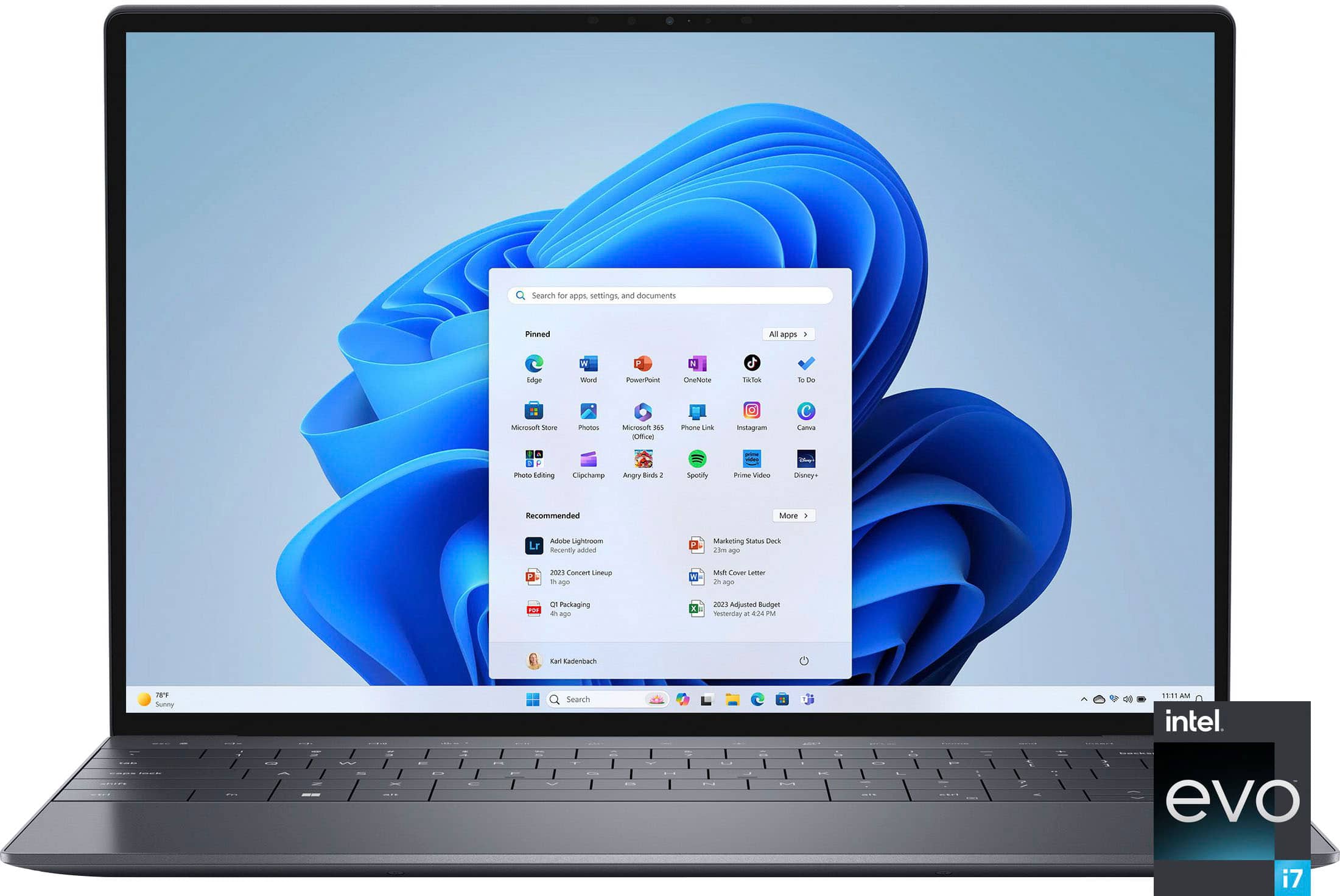
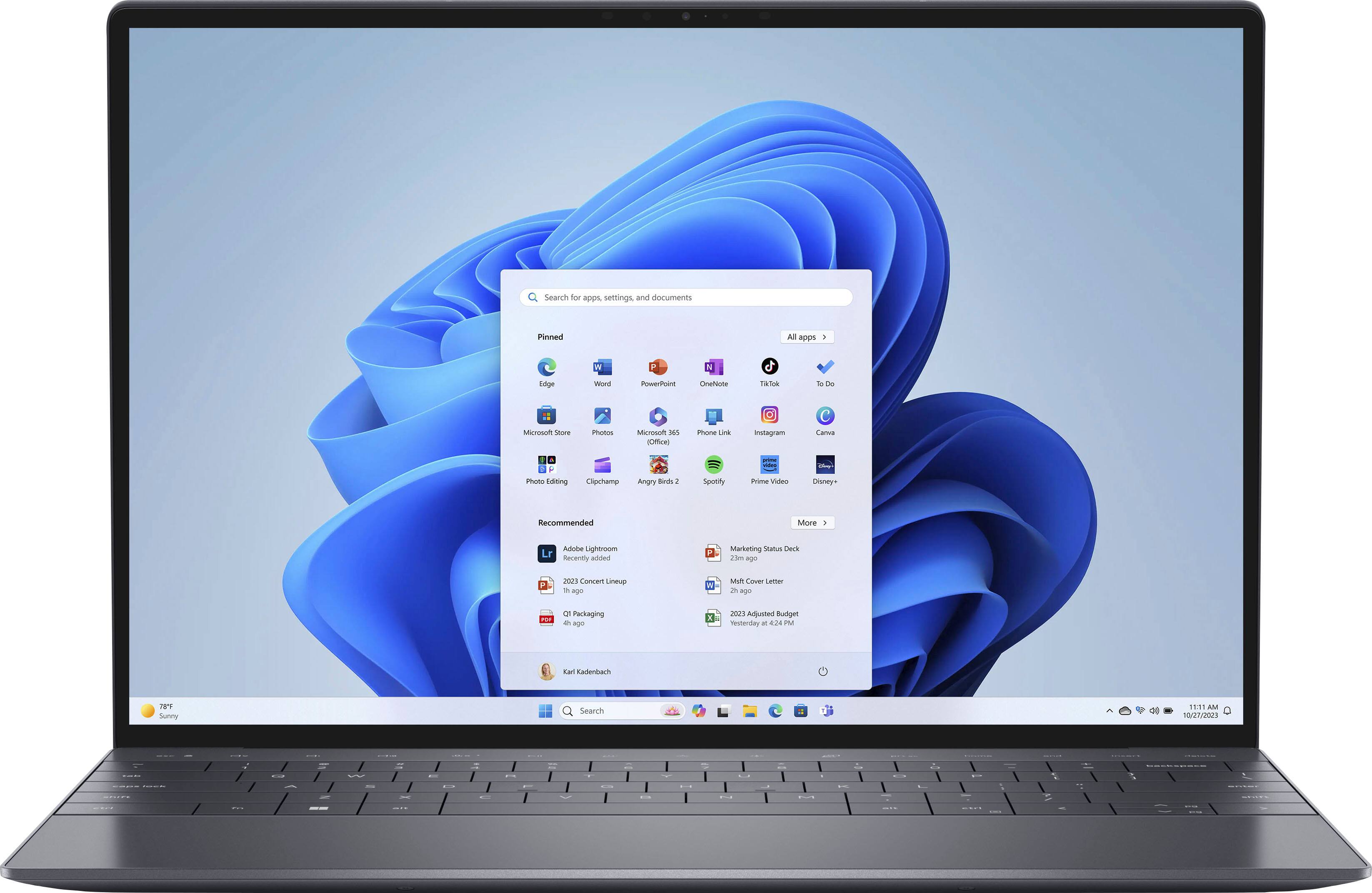
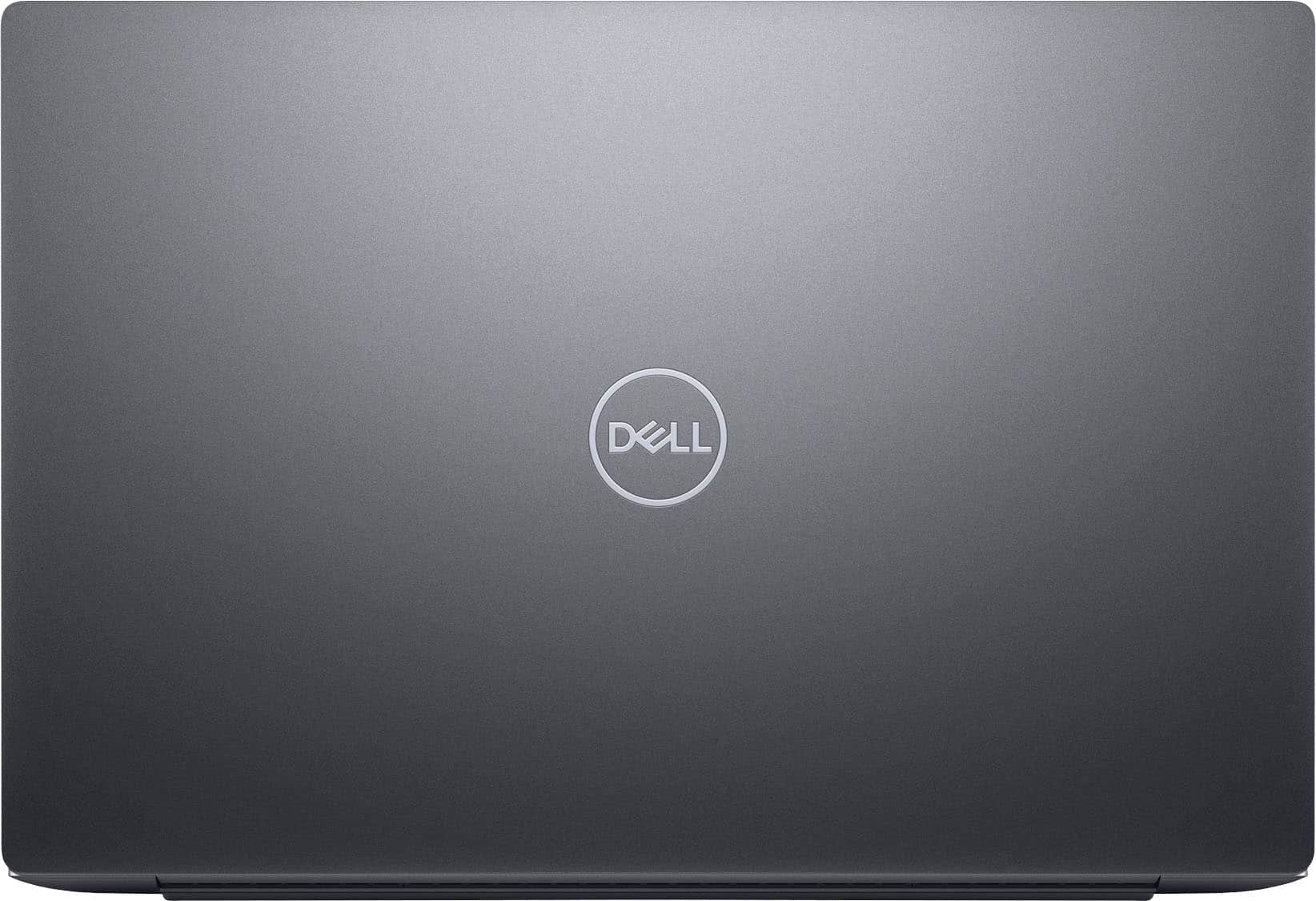
Customers appreciate the XPS 13 Plus's stunning screen quality, lightweight design, and impressive performance. Many found the compact size and ample RAM to be significant advantages. However, some users expressed concerns regarding the battery life and heat generation, while others wished for a greater selection of ports. The innovative trackpad also received positive feedback.
This summary was generated by AI based on customer reviews.
What a device
||Posted . Owned for less than 1 week when reviewed.This reviewer received promo considerations or sweepstakes entry for writing a review.Great machine and very elegant. Battery life is second to none
I would recommend this to a friendLaptop
||Posted . Owned for 1 month when reviewed.This reviewer received promo considerations or sweepstakes entry for writing a review.This was a replacement pc, went from a desk top to a laptop
I would recommend this to a friend- Cons mentioned:Battery life
Worst product
||Posted . Owned for 2 weeks when reviewed.This reviewer received promo considerations or sweepstakes entry for writing a review.I bought this laptop 45 days ago and encountered several issues, such as screen damage, rapid battery drain, and a slow refresh rate. Despite spending a lot of money, I was very disappointed and ended up purchasing a different laptop. The laptop was very expensive and it's damaged, so don't waste your money on this laptop. I would not recommend this product.
No, I would not recommend this to a friendBrand response from YourDellTeam
Posted .Hello JayachandraN,
We value your feedback and want to thank you for taking the time to leave a review of your Dell XPS 13 Plus 13.4 OLED Touch Laptop. We are sorry to hear that you are experiencing issues with your system. That is not the type of feedback we like to hear from our customers, or the type of product Dell intends to deliver. We can assure you that Dell takes pride in manufacturing quality products. Feedback like yours helps us improve our current and future products.
We would love the opportunity to help you but will need a little more information. Please take a moment to call or chat to speak with Dell at your earliest convenience using the information provided below so that we can help you resolve the issue to your satisfaction.
Chat or call: https://bit.ly/DellSupportTeam
Phone number to Dell 1-800-624-9896
We look forward to making this right for you!
Best,
Minhaj@Dell
- Pros mentioned:Size, WeightCons mentioned:Battery life, Ports

The newest XPS with power to spare, not battery.
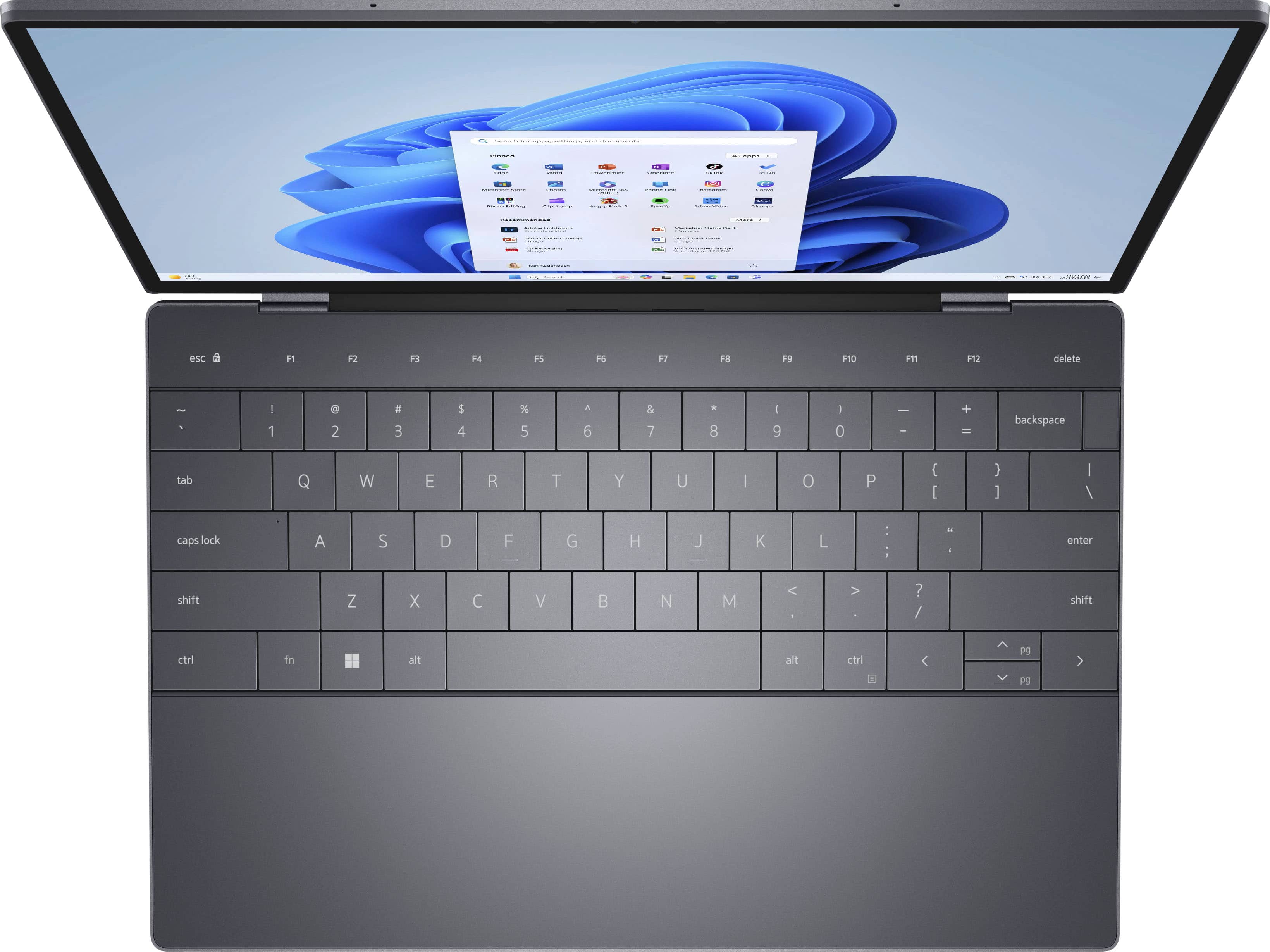
|Posted .This reviewer received promo considerations or sweepstakes entry for writing a review.There's nothing like a small, powerful PC that you can take anywhere and do pretty much anything with. I typically choose touchscreen models because they allow me greater freedom to do things my way. I've had Dell notebooks and desktops in the past, and though they worked well, weren't that versatile. I'd switched to Spectre and Asus models because, in addition to the premium feel, they had the "do everything" vibe. Coming from a notebook with multiple ports and a microSD slot, this XPS 13 Plus is quite spartan with only 2 usb-C Thunderbolt ports. Granted, they're fast so transfers happen quickly, but you have to pick and choose what you want to do, Unless you get a multiport adapter which I find irritating since I usually use it in my lap and any adapters just hang. I can live with this considering all the utility this unit provides. The only other thing that's always been an issue with these densely packed, high power notebooks is the heat generated from the closed quarters of the processor cores. Which incidentally also drastically affects battery life. Not doing anything processor intensive writing this, I've gone from 87% at the start of this review to 73% now, 14% loss in a half hour at most is a bit unsettling. Watch a 4k movie with sound and the watch how fast it depletes! You're probably asking why I gave it 4 stars if I appear to be trashing it, because it actually is a great, highly portable notebook that rivals the size of even some popular tablets with keyboards, but does so much more. The screen is as close to 4K (3.5K) as you'd want a 13 inch screen to be. The fact that it's OLED means it not only drains less power, but gives you truer blacks and better contrast than even the best LCDs can offer. I would've preferred a separate graphics processor with it's own dedicated memory, but the embedded Iris XE does a fairly good job, even if it does share the 32Gb with the Intel Evo i7 main core. The keys have a wider layout and deeper travel than I expected from something this small. The speakers are loud, immersive, and clear, producing sound into the low khz range (not expecting any bass). I almost didn't think this unit had a mouse pad, but it's there where you'd expect it, it's just seamless (some backlighting would've been a nice touch though). The function key area at the top is a flat, backlit area with secondary controls as primary (until you press fn) that require some getting used to. The touchscreen scrolls and zooms smoothly without lag. I love the graphite exterior and how thin and premium it feels; almost a pound lighter than my previous 13" unit. Takes a little longer than I expected to boot up at about 20 seconds, though from standby is only 3 seconds. I'd wait a couple of months before purchasing though for obvious reasons.
I would recommend this to a friend President
||Posted . Owned for less than 1 week when reviewed.This reviewer received promo considerations or sweepstakes entry for writing a review.Great machine, great value, Great service at Best But
I would recommend this to a friendWOW !!!
||Posted . Owned for 3 weeks when reviewed.This reviewer received promo considerations or sweepstakes entry for writing a review.The computer is awesome, the functionality is superb.
I would recommend this to a friendSleek business laptop
||Posted . Owned for 1 week when reviewed.This reviewer received promo considerations or sweepstakes entry for writing a review.Sleek business laptop. highly recommended this laptop
I would recommend this to a friendOver heating
||Posted . Owned for 1 month when reviewed.This reviewer received promo considerations or sweepstakes entry for writing a review.The Dell XPS 13, while sleek and compact, deserves just 2 stars due to its persistent overheating issues. Under load, the laptop becomes uncomfortably hot, affecting performance and user experience. Despite its other merits, the heat problem makes it hard to recommend this model for those seeking a reliable and cool-running laptop.
No, I would not recommend this to a friendBrand response from YourDellTeam
Posted .Hey QuanN,
We appreciate you taking the time to leave us your review. We are sorry to hear that you are encountering overheating issues with your Dell XPS 13 plus. Feedback like yours helps us improve our future products and services. Below I have provided troubleshooting instructions with the full article that can help resolve this issue.
Here are the steps to help resolve your overheating issue:
1. Inspect and clean the air vents and fans.
2. Restart the computer.
3. Update the BIOS and Chipset driver.
4. Download and install Microsoft Windows updates.
5. Run a hardware diagnostic test.
6. Use Dell Power Manager to manage thermal performance.
7. Improve efficiency to reduce heat.
8. Perform a Windows System Restore.
9. Restore the computer to factory settings.
How to Troubleshoot Overheating, Shutdown, or Thermal Issue on a Dell Computer: https://dell.to/3oAEYsV
If you continue to experience issues, please reach out to Dell Support directly by using the information provided below.
If you need further assistance, we recommend using the toll-free number or chat link below at your convenience to reach a member of our Dell Support Team.
Chat or call: https://bit.ly/DellSupportTeam
Phone number to Dell: 1-800-624-9896
Best,
Summer@Dell
Speaker not working
||Posted . Owned for 7 months when reviewed.This reviewer received promo considerations or sweepstakes entry for writing a review.Hard speaker issue after 6 month use. Laptop is smothe in use
No, I would not recommend this to a friendBrand response from YourDellTeam
Posted .Dear RahulS,
We value your feedback and want to thank you for taking the time to leave a review. We sincerely apologize for the audio issue you have encountered with your Dell XPS 13 Plus 13.4 OLED Touch Laptop. This is not the type of feedback we like to hear from our customers, or the type of product Dell intends to deliver.
We have noted the details of your statement and your feedback will be shared with our quality team for consideration in future improvements. We always strive to get better and reviews like yours are helping develop products our customers love.
Below I have provided steps with the full article that can help you resolve the audio issues of your laptop.
1. Check the audio ports for damage, and clean the ports
2. Restart your Dell computer
3. Check the connection (external speakers, headphones, or earphones)
4. Check volume settings and set the default playback device for low or no sound
5. Run the Microsoft Sound Troubleshooter
6. Reinstall or Update the chipset, audio, and BIOS drivers
7. Run a hardware diagnostic test
8. Download and install Microsoft Windows updates
9. Perform Windows System Restore
10. Restore the computer to factory default settings
How to Troubleshoot No Sound on Computer or Audio Playback Issues: https://url.dell.com/096932
If you continue to experience any issues or need further assistance with recommendations, please take a moment to call or chat to speak with a representative at your earliest convenience using the information provided below so that we can help you to your satisfaction.
Chat or call: https://bit.ly/DellSupportTeam
Phone number to Dell: 1-800-624-9896
Best,
Minhaj@Dell
poor trackpad
||Posted . Owned for 7 months when reviewed.This reviewer received promo considerations or sweepstakes entry for writing a review.terrible trackpad, everything else works well. Keyboard is good.
No, I would not recommend this to a friendBrand response from YourDellTeam
Posted .Hi PranayJ,
Thank you for taking the time to leave us your review. We are sorry to hear that you are having touchpad sensitivity issues in regard to your Dell XPS 13 plus . This is certainly not the experience that we like to hear from our customers. We will share your concern with our quality team so that improvements can be made to our current and future products and services. Below I have provided troubleshooting instructions with the full article that may be able to resolve the issue.
Here are the steps to help resolve your touchpad issue:
1. Ensure the touchpad and your finger do not have any dirt, grease, liquids, or food on them (the touchpad has to make good contact with your finger to work correctly).
2. Ensure that the touchpad is turned on.
3. Save any data, close any open programs and restart the computer by using a wired USB mouse (if available) or Bluetooth mouse if it is already installed, if not, press hold the power button for at least 15 seconds to turn the computer off.
4. Unplug everything except the power cable.
5. Turn the computer back on and retest the touchpad.
6. When the cursor does work correctly, attach one device at a time, and test the cursor movement to see which one may have caused the issue.
7. Ensure that the BIOS and Chipset drivers are updated to the latest version.
Touchpad Usage and Troubleshooting Guide: https://dell.to/3zwM1rp
If you continue to experience touchpad issues, please reach out to Dell Support directly by using the information provided below.
Chat or call: https://bit.ly/DellSupportTeam
Phone number to Dell: 1-800-624-9896
Best,
Summer@Dell
Product good but shipping delayed by Best Buy whic
||Posted . Owned for 3 weeks when reviewed.This reviewer received promo considerations or sweepstakes entry for writing a review.Product good but shipping delayed by Best Buy which impacted at great extent.
I would recommend this to a friendDell
||Posted . Owned for 1 month when reviewed.This reviewer received promo considerations or sweepstakes entry for writing a review.Good laptop, getting to many glitches and freezes a lot.
No, I would not recommend this to a friendBrand response from YourDellTeam
Posted .Greetings tito01,
Thank you for taking the time to leave a review and for your feedback. We are sorry to hear that you are experiencing freezing issues with your Dell XPS 13 plus. It's important for us to hear about inconsistencies in our products for consideration of future development. Below I have provided troubleshooting instructions with the full article that can help resolve this issue.
Here are the steps to help resolve your freezing issue:
1. Search for Windows Error Codes.
2. Run a Computer Diagnostic.
3. Run Routine System Maintenance.
4. Update Drivers and BIOS.
5. Check Air Vents.
6. Check Safe Mode Symptoms.
7. Update Windows.
8. Uninstall, Reinstall and Update Software.
9. Look for Multiple Anti-Virus Programs.
10. Check for Malware.
11. Use System Restore.
12. Factory Install or Reinstall Microsoft Windows.
You can read the full article on solving freezing issues here: https://dell.to/33Y2KFn
I have also added a video link for additional troubleshooting: https://bit.ly/3qzpXZg
If you still experience any issues after you have finished troubleshooting your laptop using the steps above, please reach out to us at: https://bit.ly/DellSupportTeam
We look forward to making this right for you!
If you continue to experience issues, please reach out to Dell Support directly by using the information provided below.
Chat or call: https://bit.ly/DellSupportTeam
Phone number to Dell: 1-800-624-9896
Best,
Summer@Dell
- Cons mentioned:Heat
Very frustrating device
||Posted . Owned for 5 months when reviewed.This reviewer received promo considerations or sweepstakes entry for writing a review.In less than 5 months my XPS has had tons of issues. It freezes and shuts down every other week now. Gets super hot, loses Bluetooth connection 3-4 times a day. Etc.
No, I would not recommend this to a friendBrand response from YourDellTeam
Posted .Hello ChristopherG,
Thank you for taking the time to leave a review and for your feedback. We are sorry to hear that you are experiencing freezing and heating issues with your Dell XPS 13 Plus OLED Touch Laptop. We can assure you that Dell takes pride in manufacturing quality products. This is certainly not the experience we like to hear from our valued customers. It's important for us to hear about inconsistencies in our products for consideration of future development. Below I have provided troubleshooting instructions with the full article that can help resolve these issues.
1. Run a Computer Diagnostic. To determine if your computer is experiencing a hardware problem, run the Dell Preboot System Assessment (PSA) Diagnostics. For information on how to run Diagnostics, and to determine the issue, refer to Dell Knowledge Base Article: http://dell.to/2iaiujA.
2. Check Safe Mode for Symptoms. To boot into safe mode, please follow the instructions below:
a) Start the computer.
b) Tap 'F8' on the keyboard immediately and every one second until the Dell logo screen disappears. From there you will see the Windows Advanced Options Menu on the screen. (If the Windows Advanced Options Menu does not appear, restart the system and try again.)
c) Select Safe mode with Networking and press Enter.
d) Log on as the administrator or as a user with administrative access.
e) Open applications and test the computer in safe mode. If the symptoms exist in safe mode, please continue the troubleshooting steps in this article. If the symptoms do not exist in safe mode, the issue is likely related to a driver or software and you may wish to complete step 3 to see if you are able to resolve the lockups or freezing.
3. Check for Malware. Malware (Virus, Spyware, etc.) can definitely cause a Windows system to lock up or appear to hang. To check for malware on your system and to ensure that your computer is up to date on security software, visit Dell Knowledge Base Article: http://dell.to/2wWP1zI.
You can read the full article on solving freezing issues here: http://dell.to/2tW5m33
I have also added links for additional troubleshooting, How to use Dell Power Manager: https://bit.ly/48MAxRY
How to Troubleshoot Overheating, Shutdown, or Thermal Issue on a Dell Computer: https://dell.to/3oAEYsV
If you are still experiencing issues or have any concerns or questions, Please do not hesitate to get in touch with Dell using the information provided below so that we can help you resolve the issue to your satisfaction.
We look forward to making this right for you!
Chat or call: https://bit.ly/DellSupportTeam
Phone number to Dell 1-800-624-9896
Best,
Minhaj@Dell
- Cons mentioned:Heat
Xps
||Posted . Owned for 2 weeks when reviewed.This reviewer received promo considerations or sweepstakes entry for writing a review.I will be returning and getting something different, very cool with how it does it’s job, but heats up too much and freezes too much
No, I would not recommend this to a friendBrand response from YourDellTeam
Posted .Hello CesarO,
We appreciate you taking the time to leave us your review. We are sorry to hear that you are encountering overheating issues with your Dell XPS 13 plus. Feedback like yours helps us improve our future products and services. Below I have provided troubleshooting instructions with the full article that can help resolve this issue.
Here are the steps to help resolve your overheating issue:
1. Inspect and clean the air vents and fans.
2. Restart the computer.
3. Update the BIOS and Chipset driver.
4. Download and install Microsoft Windows updates.
5. Run a hardware diagnostic test.
6. Use Dell Power Manager to manage thermal performance.
7. Improve efficiency to reduce heat.
8. Perform a Windows System Restore.
9. Restore the computer to factory settings.
How to Troubleshoot Overheating, Shutdown, or Thermal Issue on a Dell Computer: https://dell.to/3oAEYsV
If you continue to experience issues, please reach out to Dell Support directly by using the information provided below.
Chat or call: https://bit.ly/DellSupportTeam
Phone number to Dell: 1-800-624-9896
Best,
Summer@Dell
- Cons mentioned:Battery life
Too expensive for a product that doesn’t work
||Posted . Owned for 2 weeks when reviewed.This reviewer received promo considerations or sweepstakes entry for writing a review.Battery don’t even last a reasonable time, very hard to connect to wifi. Definitely not a good product for such a high price
No, I would not recommend this to a friendBrand response from YourDellTeam
Posted .Dear Karla,
Thank you for taking the time to leave a review. We apologize for the battery performance issues you are experiencing with your Dell XPS 13 plus. It's important for us to hear about inconsistencies in our products for consideration of future development. Below I have provided steps with the full articles that can help you improve the battery performance of your laptop.
Here are the steps to help improve the battery performance of your laptop:
1. On the notification area of the taskbar, right-click the Battery icon.
2. On the options list, click Power Options.
3. Select a power plan on the battery meter, such as Power Saver or Balanced. Windows 10 has a built-in 'Battery Saver' mode that can be activated to extend your system's battery life. The Battery Saver mode will monitor and limit background activity and other features such as push notifications. You do have the option to enable or disable this mode within settings or within advanced Battery Saver settings, you can customize the mode to best suit your needs.
a) Click on the Action Center icon in the taskbar and select the tile for Battery Saver.
b) If running Cortana, type Battery Saver into the search box and select from the results.
Within the Battery Saver settings page, you will be able to turn on and off the feature and customize the feature to best meet your needs.
c) Turn the Battery Saver On or Off.
d) Additional settings are available via the Battery use and Battery saver settings links.
e) Battery use shows further info on apps and their power usage.
f) Battery Saver Settings screen allows you to customize further the Battery Saver feature.
How to Improve the Performance of a Dell Laptop Battery: http://dell.to/2vfXWf4
If you still experience any issues after you have finished troubleshooting your laptop using the steps above, please reach out to us at: https://bit.ly/DellSupportTeam.
We look forward to making this right for you!
Chat or call: https://bit.ly/DellSupportTeam
Phone number to Dell: 1-800-624-9896
Best,
Summer@Dell
- Pros mentioned:Processor speedCons mentioned:Ports
Small but mighty
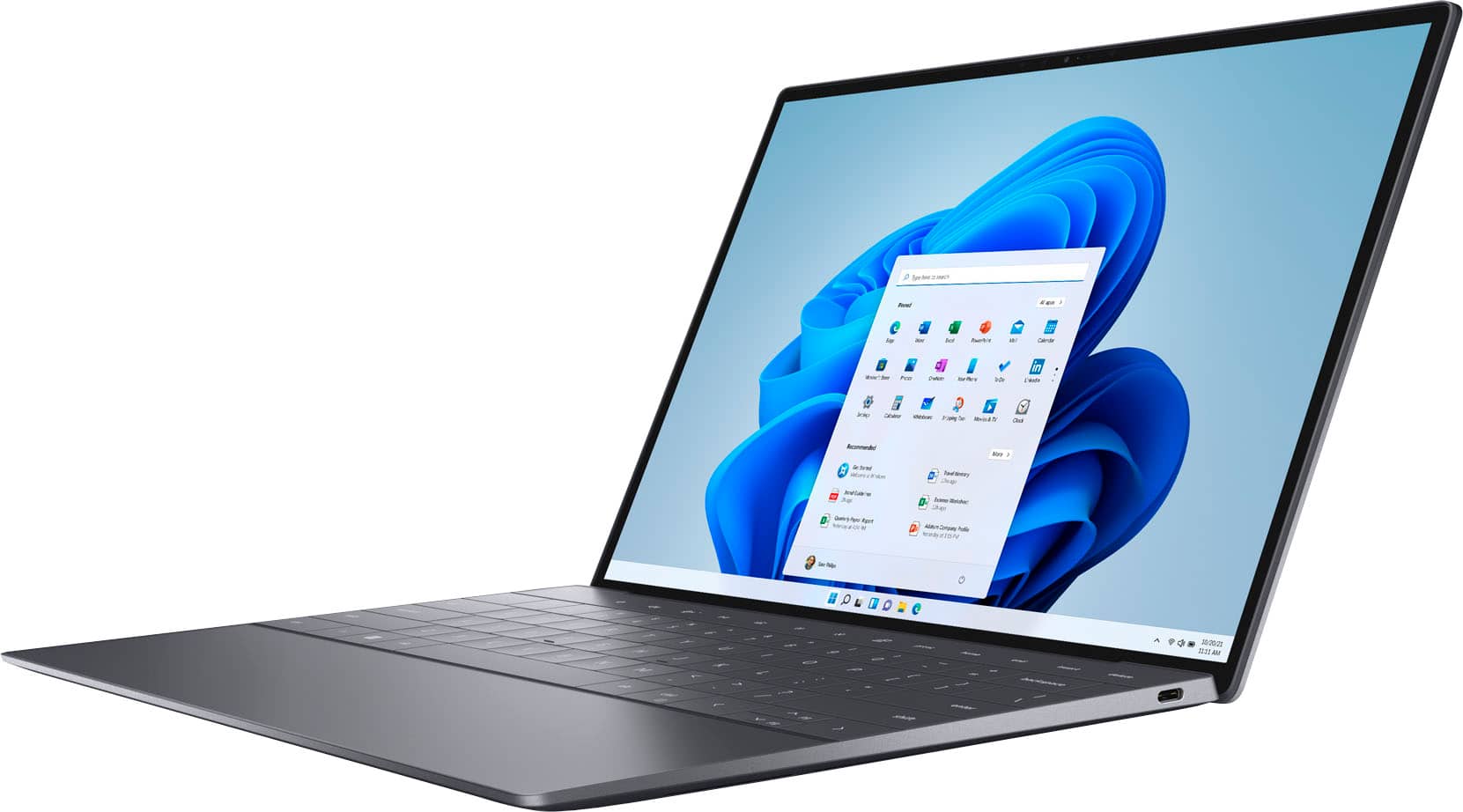
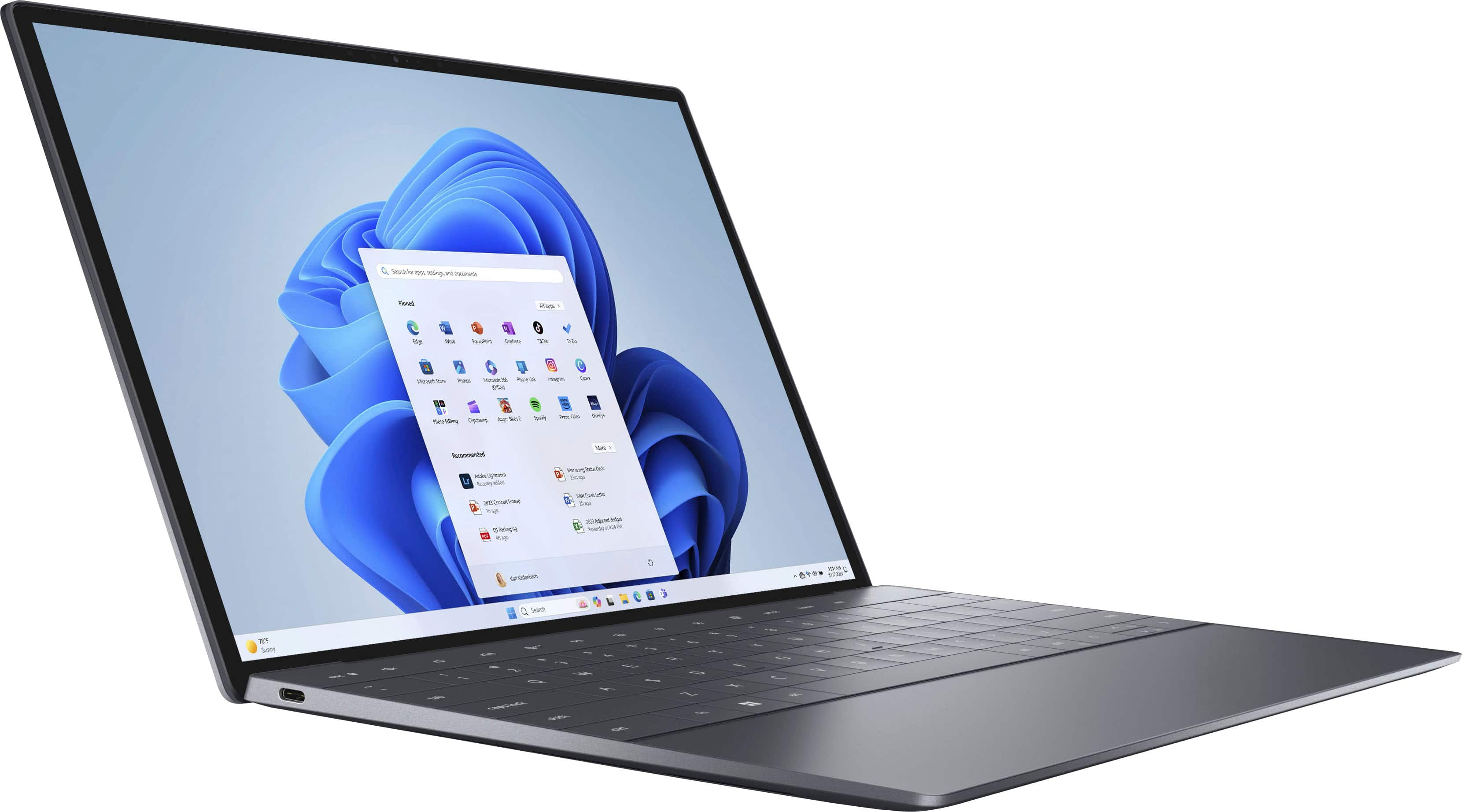
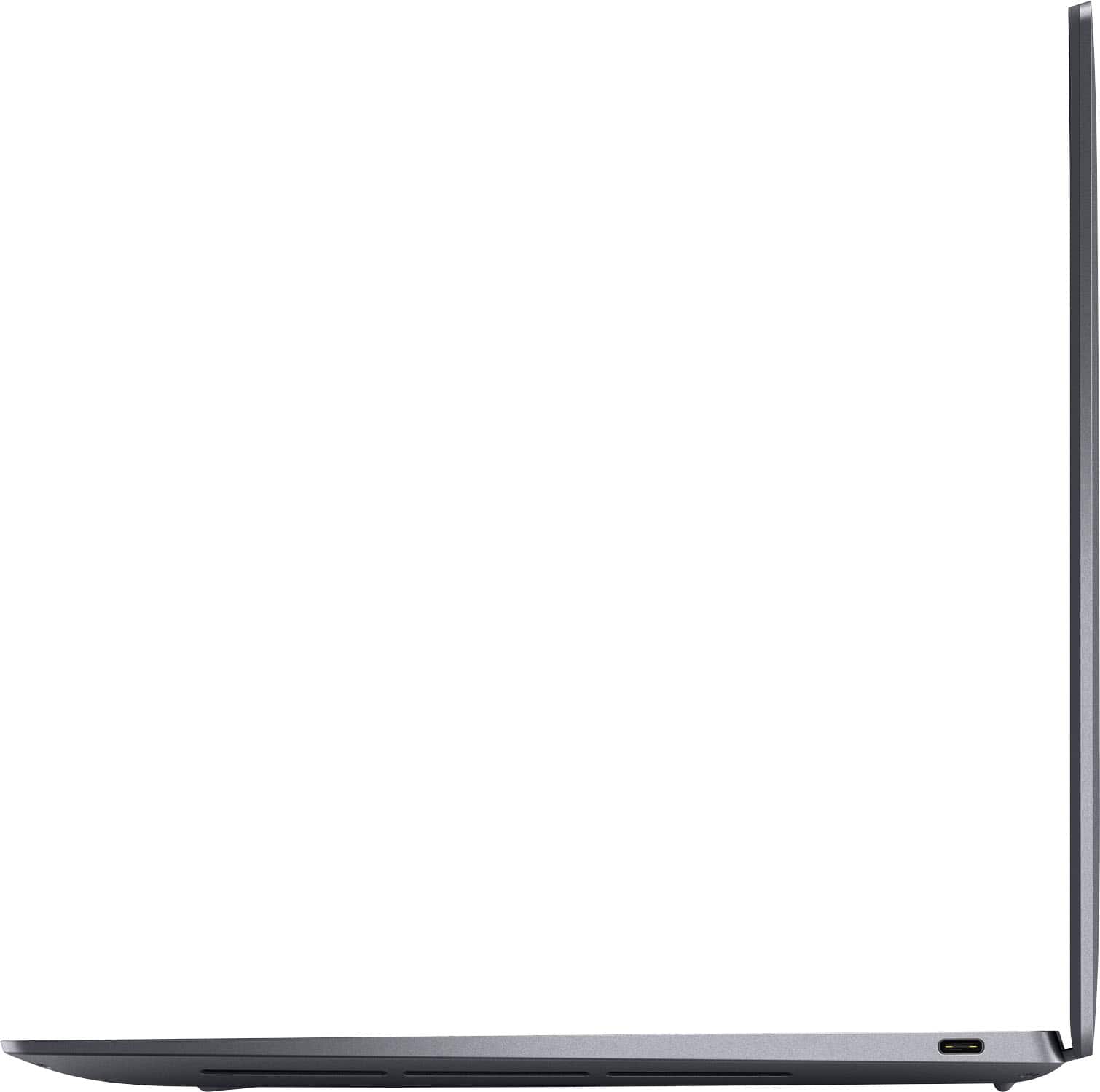
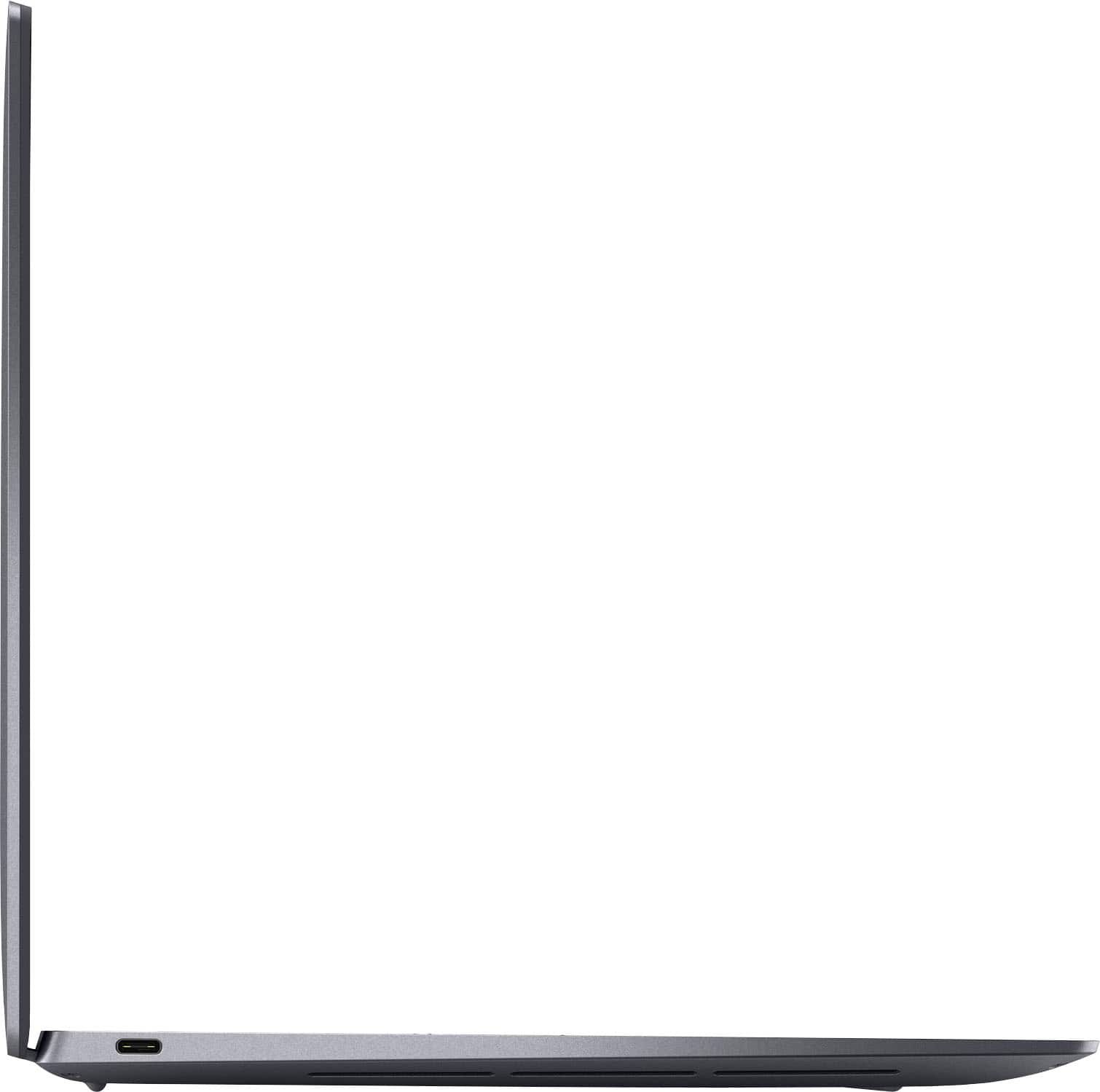
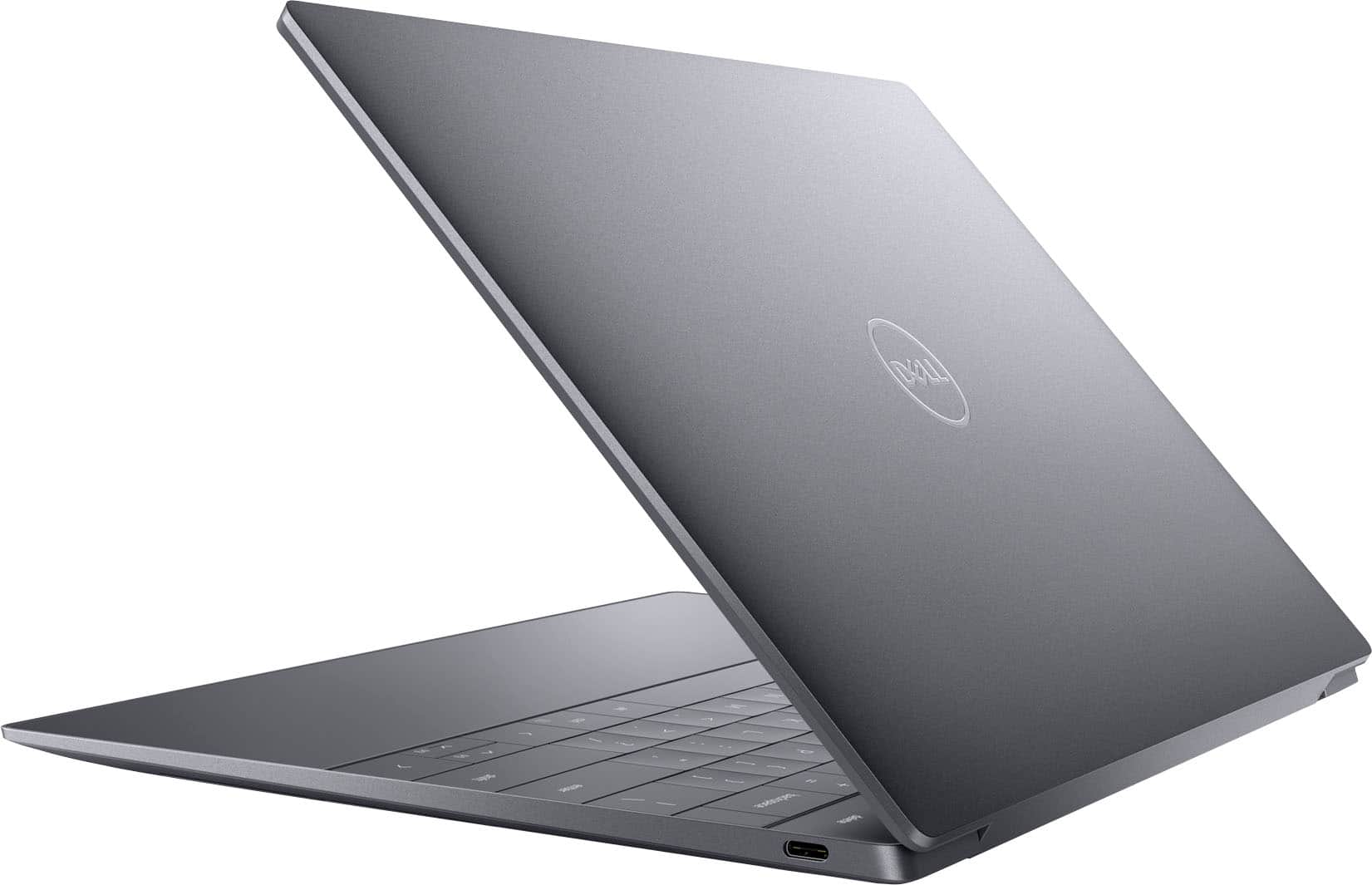
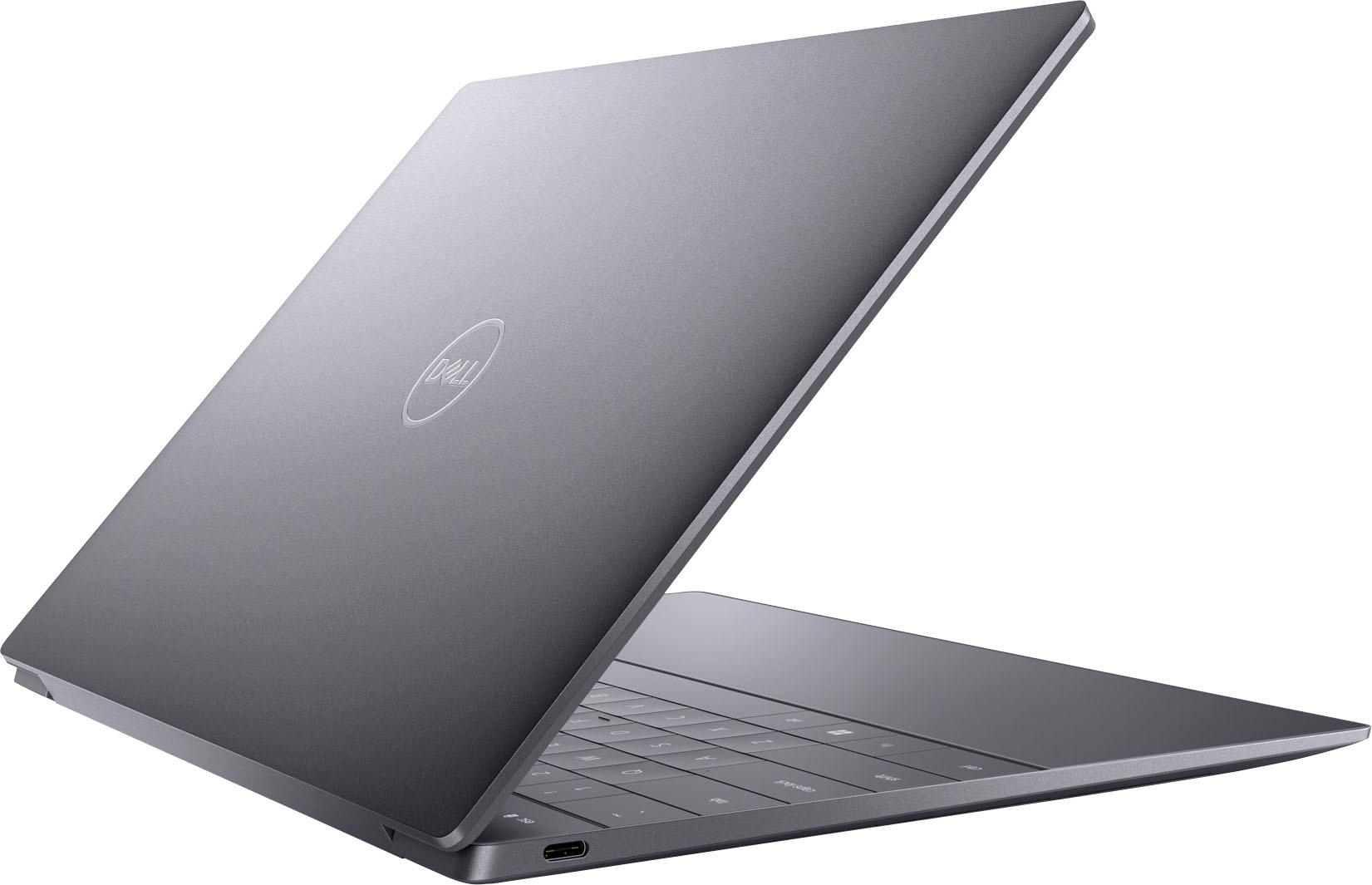
|Posted .This reviewer received promo considerations or sweepstakes entry for writing a review.This laptop is NOT a 2-in-1 tablet style. It’s still a touchscreen, but you can’t fold the display back and use it like a tablet. Personally, I rarely use my 2-in-1 laptops as a tablet (that’s why I have an actual tablet), but you should be aware nonetheless. The laptop only has two ports, which are both USB-C. No audio, USB-A, HDMI, or Ethernet ports. However, it does include two adapters; one USB-C to Audio and one USB-C to USB-A. I don’t know anyone that still uses the audio jack, but the lack of USB-A might be an inconvenience at times. That said, if I’m going to be using a laptop with an external monitor, I’ll typically also have a USB-C hub connected anyway, so the lack of an HDMI port isn’t really a huge deal. If you have several peripherals, make sure to pick up a USB-C hub, if you don’t already have one. There’s no privacy shutter for the camera, which is something I think they missed on. It does have a light that illuminates (which is rather distracting) when the camera is in use, but I’d rather have a physical cover. It has a fingerprint scanner embedded in the unmarked power button. Unexpected bonus there. The trackpad is pretty much in the normal spot for a laptop, but there are no visual clues as to what section of the laptop body it actually occupies. Makes it a bit awkward to figure out how/where to right-click sometimes. It’s pretty much dead center, between the left side of the spacebar and the right edge of the opposite ALT key. Not a big deal, and I’m already getting used to the location, but thought it was worth mentioning. Function keys are on a capacitive touch section at the top of the keyboard, and the icons will change depending on if you have the ‘fn’ key selected. Interesting approach, and it gives me my much needed home & end keys. It does take a little getting used to, as there’s no tactile feedback when the key is pressed, so your brain doesn’t really immediately register the keypress. Not sold on this concept yet, but at least I get my home & end keys. The display is nice, with minimal bezel chewing up much needed space for information. Given the small laptop size, display real estate is at a premium, so the small bezel size is a must. However, by default it was set to a ridiculously high resolution (3456x2160) and 300% scaling. Not sure what they’re thinking there, so I dropped the resolution down a bit, and I can now see more information than before. Speakers are fine. Nothing to get excited about, but better than I’d expected from a 13 inch laptop. Performance is quite impressive for how small and light this is. With 32GB of RAM, an Intel i7 processor that tops out at 5GHz, and a 1TB SSD this has been able to handle everything I’ve thrown at it, from 700k row spreadsheets to light photo editing. And it does it all without scalding your lap…
I would recommend this to a friend - Pros mentioned:Screen qualityCons mentioned:Ports
Quality build, good performance, superb display
|Posted .This reviewer received promo considerations or sweepstakes entry for writing a review.Bottom line: This is beautifully built and capable computing companion that is compact, performant, and offers solid battery life with an amazing display. A great choice for all around computing needs in a compact form factor. Pros: - Excellent build quality with all metal case. - Superb 4K OLED display with HDR makes it outstanding for entertainment - Solid battery life – 4+ hours for videos and regular office / web use - Solid performance for general use - Good keyboard action - Doesn’t run hot unless pushed - Surprisingly good audio - Responsive track pad - Support for Windows biometric login via facial recognition or fingerprint Cons: - Key tops are completely flat, so some adjustment is needed to achieve fast typing speeds - Top row of keys (including function keys, del key, etc.) are just touch spots vs. physical keys. - Ports limited to just 2 USB-C ports. No USB-A or SD/microSD I’ve had this laptop for a little over a week now and have thoroughly enjoyed it. Build quality is excellent, performance is strong enough to make it useful for a wide range of tasks, including some gaming, and the display is absolutely gorgeous. To top it all off, battery life has been exemplary, even under heavy loads. With lighter use such as web browsing or video, 4 hours seems reasonably attainable. The overall feel is solid, and the keyboard and track pad are surprisingly good. Use cases I’ve tried so far: - 3D gaming. This machine isn’t really designed as a gaming powerhouse, but with a 3D Mark score of 1696 despite running at full 4K resolution, it’s entirely adequate so long as you manage settings appropriately. Audio is excellent for this form factor and provides a nice broad sound stage. - CAD. I’ve run both browser-based OnShape and the Windows version of Dassault Systems’ SolidWorks. Both have performed well. SolidWorks required me to run in “Best Performance” mode, but provided smooth 3D rendering and was entirely usable. I also sliced some dense models in Bambu Studio with acceptable performance – about 30% longer than my Ryzen desktop. - Movies and TV. This is a brilliant device for video consumption. The 4K OLED display provides vibrant colors, deep blacks, and excellent HDR imagery. 4K UHD videos on Netflix look incredible and sound good too. - Office work. Office 365 comes pre-installed (although you’ll need a subscription to activate it) and performance is excellent with great battery life. I’m writing this review on the unit in question and it’s fast with a great typing experience. Charging takes about 2.5 hours with my 65W Anker USB-C charger and the unit generally remains cool, even when charging and when under load. Like most third party PC makers, Dell finds it hard to resist loading a bunch of their own software, but at least most of it works OK and it doesn’t usually get in the way and can be uninstalled. This is a high end unit, so it comes with high expectations. In my experience, it meets these expectations and in some cases, such as the display and surprisingly good audio, it surpasses them. My only real complaint is the lack of ports. With only 2 USB-C ports, you’ll be reaching for dongles every time you want to use wired headphones or that legacy flash drive. At least Dell puts several dongles in the box. That said, this is a common issue on modern laptops so isn’t a disqualifier for me. Easy to recommend overall.
I would recommend this to a friend Extremely poor Best Buy customer service & support
||Posted . Owned for 3 weeks when reviewed.This reviewer received promo considerations or sweepstakes entry for writing a review.Product was good but customer service and support were incomprehesibly poor
No, I would not recommend this to a friend- Cons mentioned:Heat
Hot
||Posted .This reviewer received promo considerations or sweepstakes entry for writing a review.When you working it’s getting hot working is good bud getting hod.
No, I would not recommend this to a friendBrand response from YourDellTeam
Posted .Hi AhmadtariqB,
We appreciate you taking the time to leave us your review. We are sorry you are having overheating issues with your XPS 13 Plus Laptop. Feedback like yours helps us improve our future products and services. Below I have provided troubleshooting instructions with the full article that can help resolve this issue.
Here's the steps to help resolve your overheating issue:
1. Inspect and clean the air vents and fans.
2. Restart the computer.
3. Update the BIOS and Chipset driver.
4. Download and install Microsoft Windows updates.
5. Run a hardware diagnostic test.
6. Use Dell Power Manager to manage thermal performance.
7. Improve efficiency to reduce heat.
8. Perform a Windows System Restore.
9. Restore the computer to factory settings.
How to Troubleshoot Overheating, Shutdown, or Thermal Issue on a Dell Computer: https://dell.to/3oAEYsV
If you continue to experience issues, please reach out to Dell Support directly by using the information provided below.
Chat or call: https://bit.ly/DellSupportTeam
Phone number to Dell: 1-800-624-9896
Best,
Jay@Dell
DESIGN FLAW - TOUCHPAD TOO SENSITIVE - DO NOT BUY!
||Posted . Owned for 1 month when reviewed.This reviewer received promo considerations or sweepstakes entry for writing a review.DO NOT BUY THIS COMPUTER!!! The touchpad is so freaking hyper-sensitive (interprets almost all touches as clicks) that it renders the computer useless without attaching a mouse or the like. And, yes, I researched this issue to death and no solutions, including reducing the sensitivity to the lowest level, which made no apprecioable difference.
No, I would not recommend this to a friendBrand response from YourDellTeam
Posted .Hello JohnP,
Thank you for taking the time to leave us your review. We're sorry to hear that you are having issues with the touchpad on your Dell XPS 13 plus touch laptop. This is certainly not the experience we like to hear from our customers. Below, I have included a link to an article with troubleshooting steps that should help in resolving your touchpad issues.
Touchpad Usage and Troubleshooting Guide: https://dell.to/3tXxiof
Please take a moment to call or chat with a Dell Support Representative at your earliest convenience if you continue to have this issue: https://bit.ly/DellSupportTeam.
If you continue to experience issues, please reach out to Dell Support directly by using the information provided below.
Chat or call: https://bit.ly/DellSupportTeam
Phone number to Dell: 1-800-624-9896
Best,
Summer@Dell