Customer Ratings & Reviews



- Model:
- XPS9320-7688BLK-PUS
- SKU:
- 6540608
Rating by feature
- Battery Life
Rating 4.2 out of 5 stars
- Speed
Rating 4.7 out of 5 stars
- Display
Rating 4.8 out of 5 stars
Customers are saying
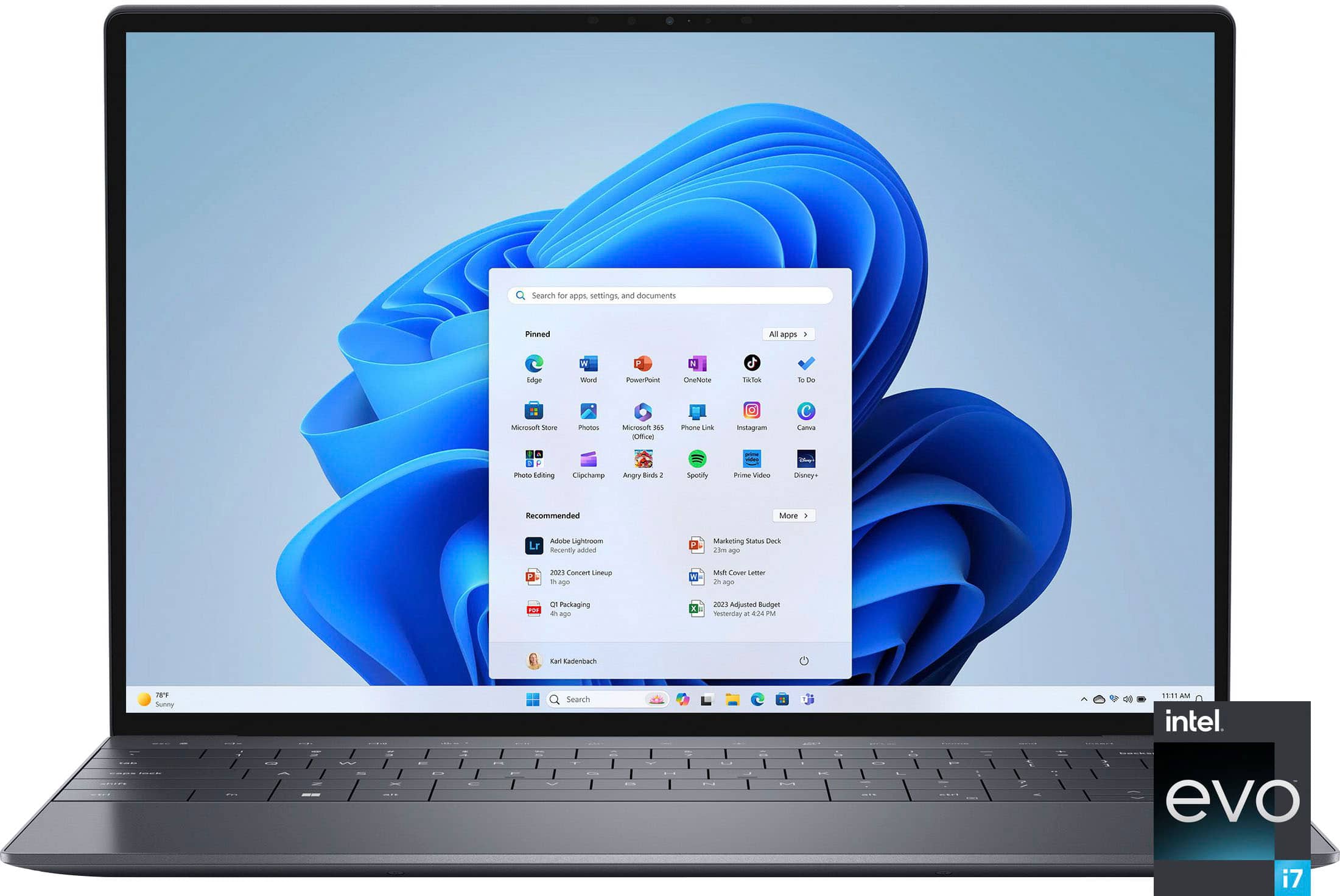
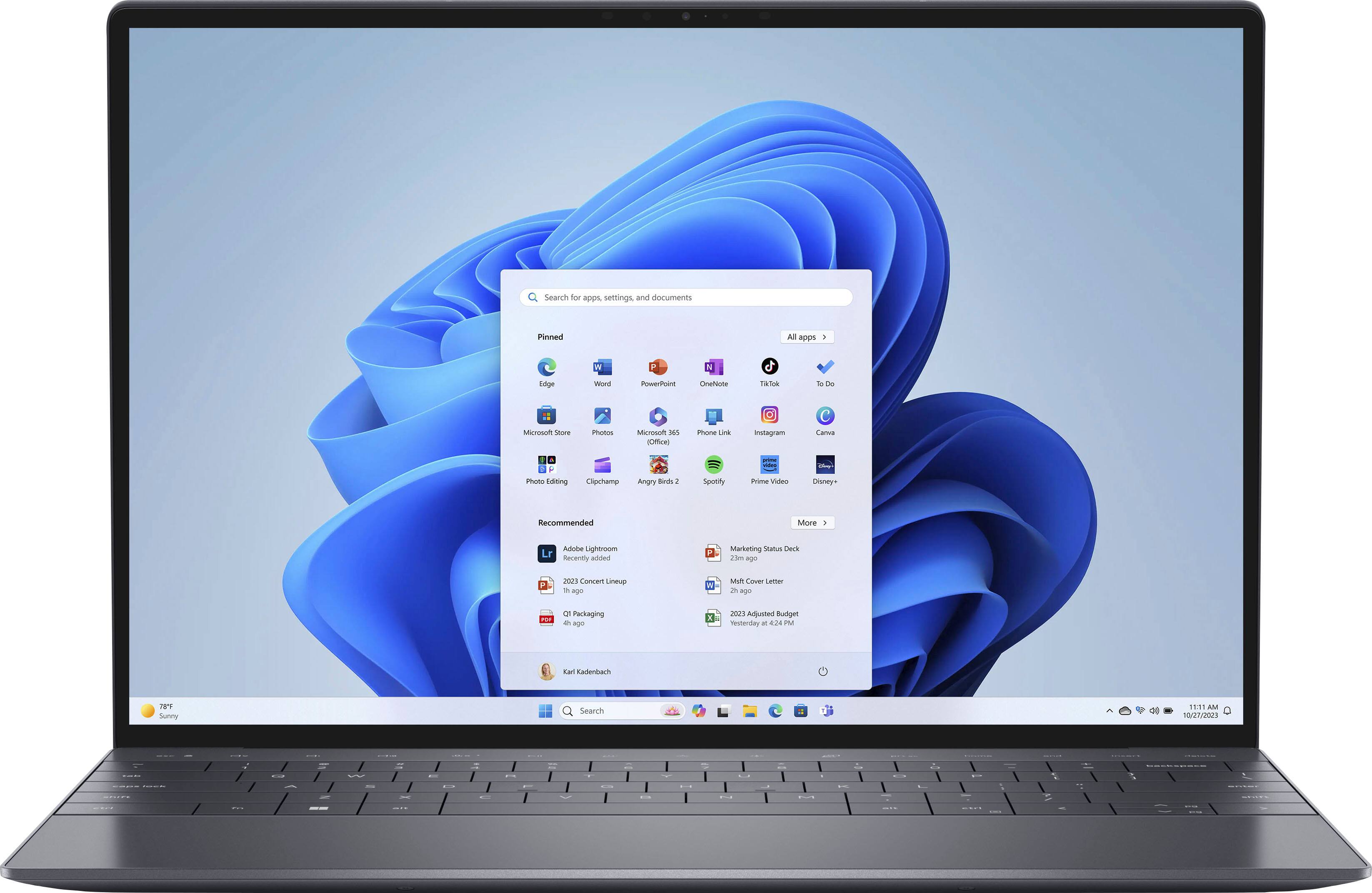
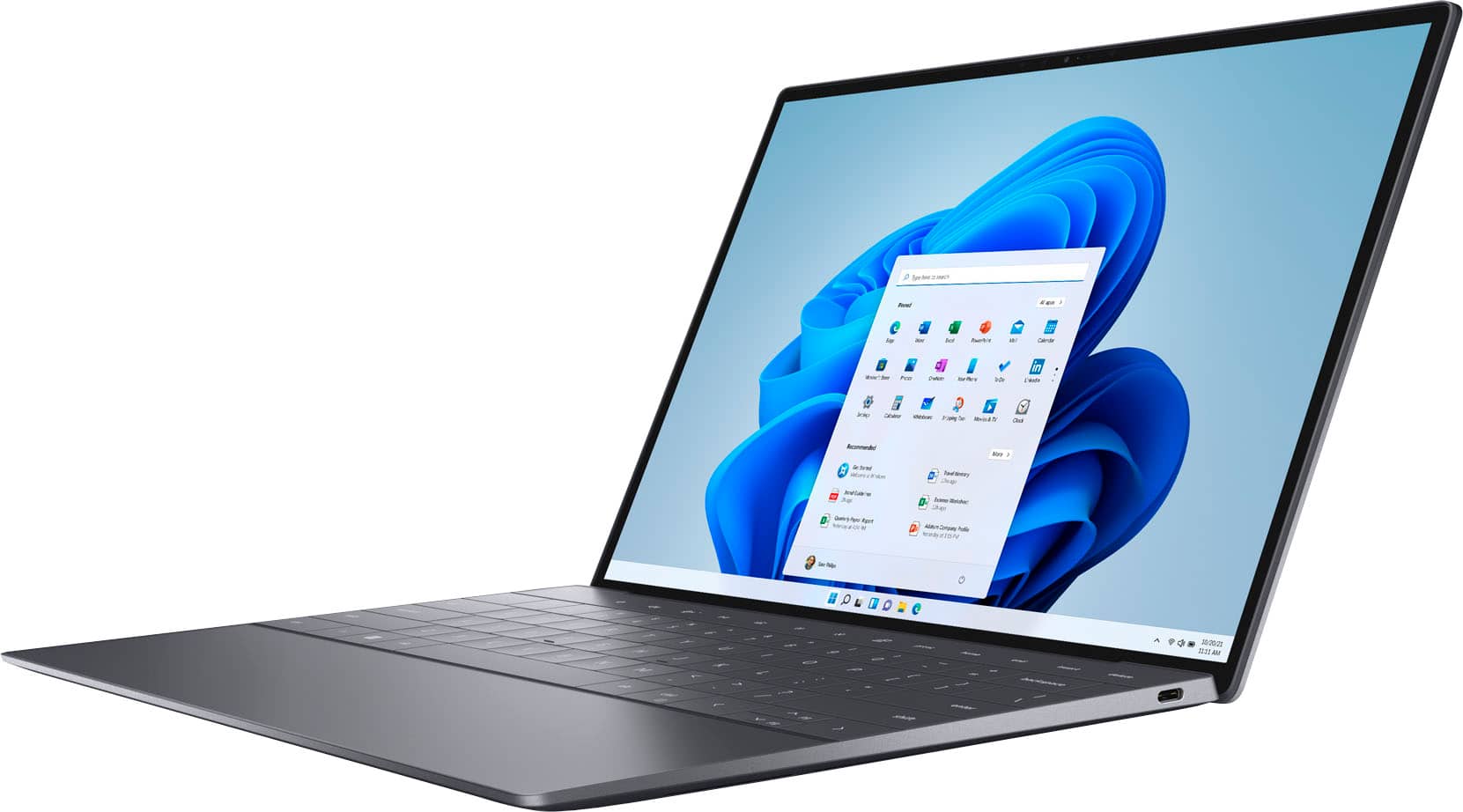
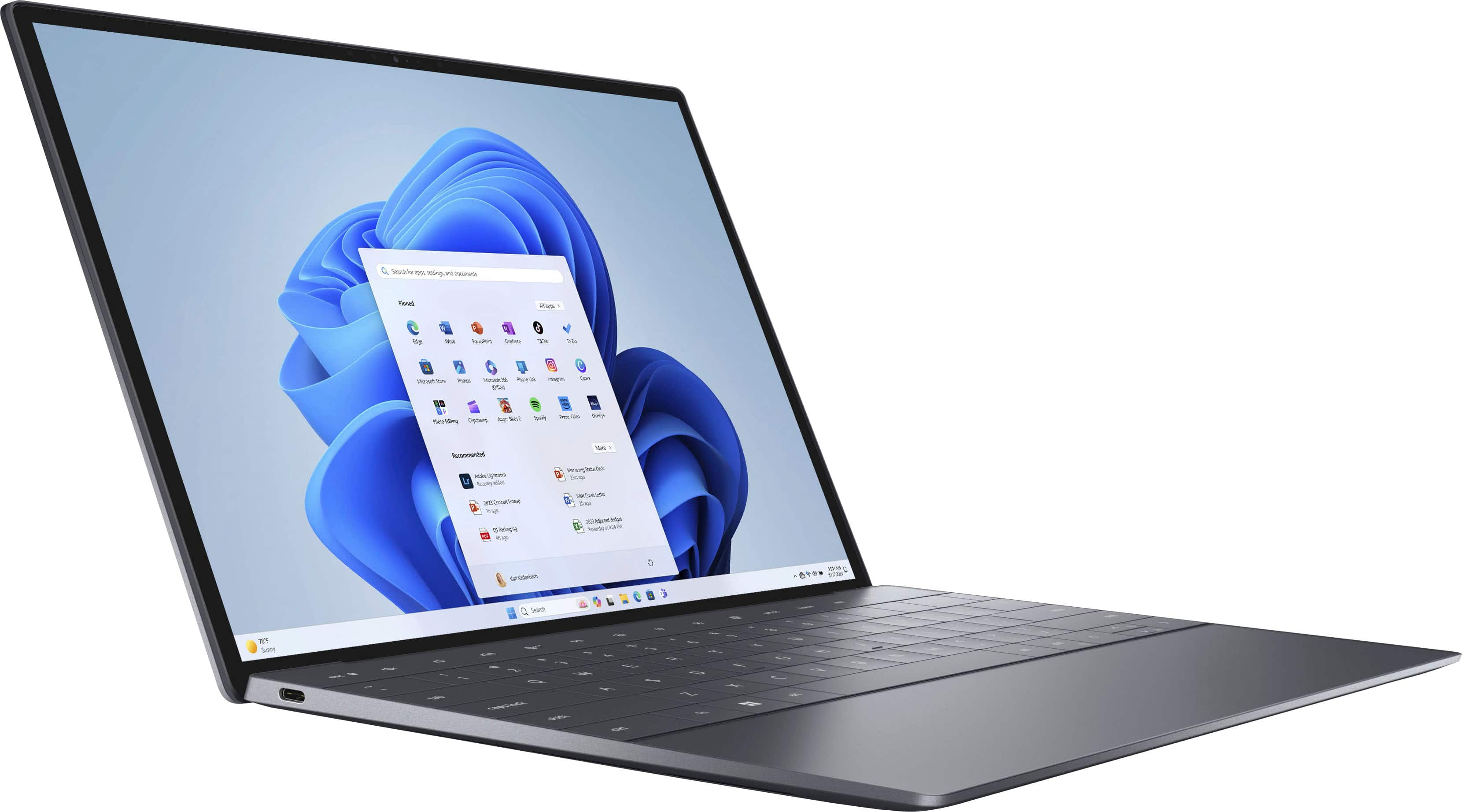
Customers appreciate the XPS 13 Plus's stunning screen quality, lightweight design, and impressive performance. Many found the compact size and ample RAM to be significant advantages. However, some users expressed concerns regarding the battery life and heat generation, while others wished for a greater selection of ports. The innovative trackpad also received positive feedback.
This summary was generated by AI based on customer reviews.
- Pros mentioned:Performance, Screen quality, Size

Gorgeous
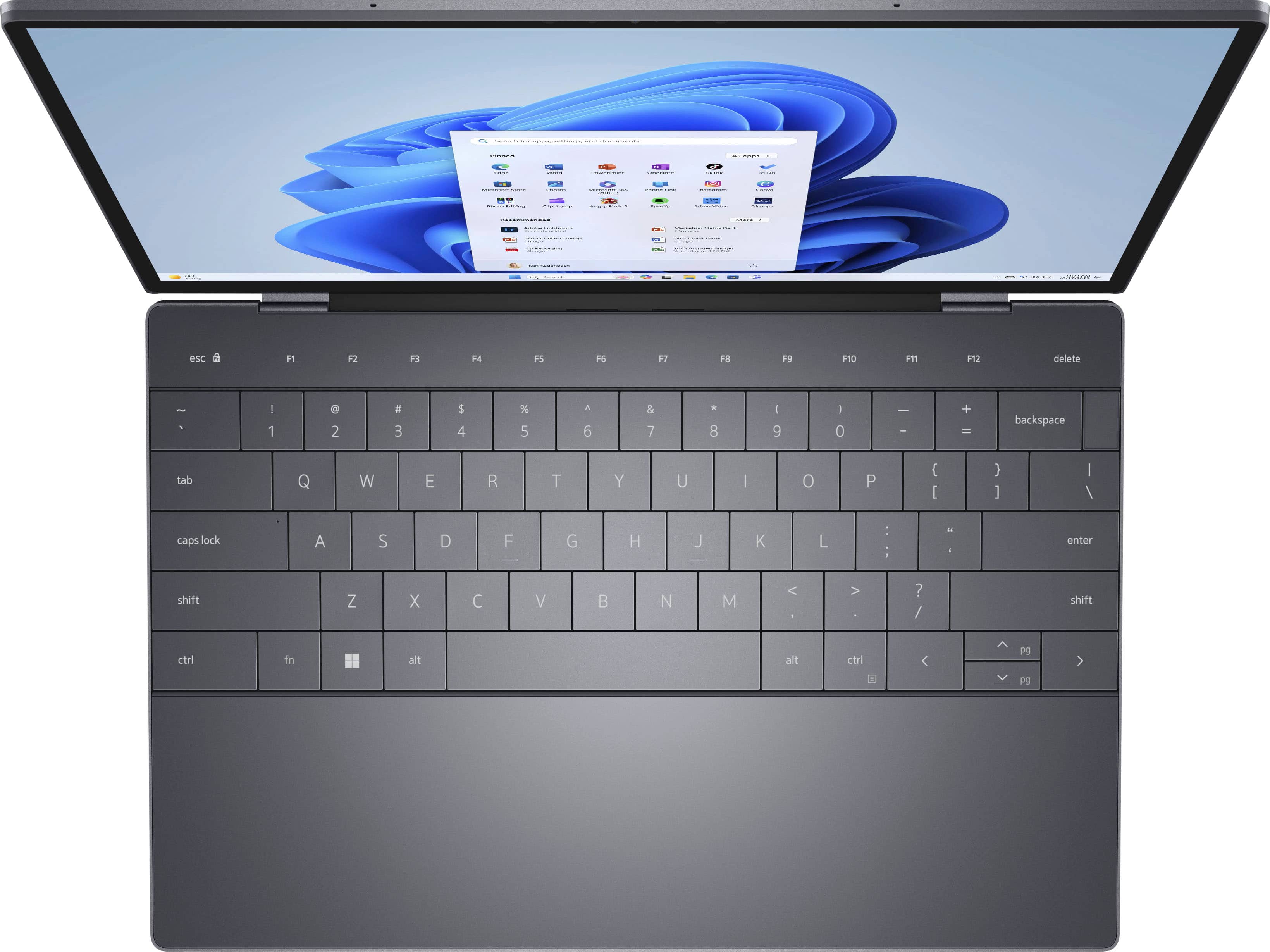
|Posted .This reviewer received promo considerations or sweepstakes entry for writing a review.Another hit with the XPS13 plus. This lightweight powerhouse looks as good as it performs. I'd do a rundown of specs, but Best Buy and any research that you should have done will tell you the specs are top notch. My main use for the XPS13 plus is as a travel companion. Sometimes a little phone or tablet just doesn't get done what you need so you have to bring out the big guns. The XPS isn't much bigger than a tablet, but it knocks whatever work you have out of the park. I've done some Photoshop work, layout in Indesign, and some artwork in Illustrator. The Adobe CC barely makes the XPS13 sweat. Next I'd like to try a little video editing and maybe a little rendering in Blender - those are new hobbies. The keyboard has a nice amount of travel, but not too much. I'm a fan of low profile keys because I don't like a long travel. Usually LPKB's keep it short and the Del is just about perfect for me. The keys are spaced enough to not cramp your hands like the old netbooks used to. The screen is one of the best I've seen on a laptop. Text is sharp, blacks are deep, and colors pop. At default settings the color is a bit saturated, but still beautiful. I had to tweak it a bit for the Photoshop work. Now everything isn't perfect, so here are my gripes: Not a fan of the touch bar. I like buttons because you know you've hit something and is less prone to accidental taps. You can't turn off the light on the touch bar. The brightness is in between the two settings for the KB backlight. I like dim lights and NO LIGHTS if I'm watching a video. The borderless track pad takes some getting used to. I keep overshooting it and dragging in places where it doesn't register. I prefer tactile feed back and would rather have the bumps. I'll probably put tape on edges of the pad. As I'm typing this, the XPS is running a few windows updates. It's getting a bit warm on my lap and under my wrists, but not blazing hot - just warm. I don't hear any fans kick in, so I'm not sure if everything is passively cooled or if it has to get hotter for the fans to kick in. If there are fans, I'd rather they kick in earlier to keep the warmth at bay so my palms and wrists would stop sweating. This laptop is another hit from Dell. Everything about it is premium and they should be proud of it.
I would recommend this to a friend Price Match Guarantee Fail
||Posted . Owned for 1 month when reviewed.This reviewer received promo considerations or sweepstakes entry for writing a review.Best Buy really dropped the ball on this one. Horrible customer service follow-up on price match guarantee. I haven't even been able to use my laptop yet, waiting on them to fix the price issue or will returning. Very disappointed.
No, I would not recommend this to a friendTrackpad doesn’t work. Bad choice
||Posted . Owned for 1 week when reviewed.This reviewer received promo considerations or sweepstakes entry for writing a review.Worst laptop ever. Trackpad does work and I don’t understand how dell can make a high end product so the so many flaws. Don’t recommend even to my worst enemy
No, I would not recommend this to a friendBrand response from YourDellTeam
Posted .Hey There CamiloS,
Thank you for taking the time to leave us your review. We are sorry to hear that you are having touchpad sensitivity issues in regard to your Dell XPS 13 plus gaming laptop. This is certainly not the experience that we like to hear from our customers. We will share your concern with our quality team so that improvements can be made to our current and future products and services. Below I have provided troubleshooting instructions with the full article that may be able to resolve the issue.
Here are the steps to help resolve your touchpad issue:
1. Ensure the touchpad and your finger do not have any dirt, grease, liquids, or food on them (the touchpad has to make good contact with your finger to work correctly).
2. Ensure that the touchpad is turned on.
3. Save any data, close any open programs and restart the computer by using a wired USB mouse (if available) or Bluetooth mouse if it is already installed, if not, press hold the power button for at least 15 seconds to turn the computer off.
4. Unplug everything except the power cable.
5. Turn the computer back on and retest the touchpad.
6. When the cursor does work correctly, attach one device at a time, and test the cursor movement to see which one may have caused the issue.
7. Ensure that the BIOS and Chipset drivers are updated to the latest version.
Touchpad Usage and Troubleshooting Guide: https://dell.to/3zwM1rp
If you continue to experience touchpad issues, please reach out to Dell Support directly by using the information provided below.
If you still experience any issues after you have finished troubleshooting your device using the steps above, please reach out to us at: https://bit.ly/DellSupportTeam.
Chat or call: https://bit.ly/DellSupportTeam
Phone number to Dell: 1-800-624-9896
Best,
Summer@Dell
- Pros mentioned:Performance, Screen quality, Size
Reliable Dell Laptop for School or Work
|Posted .This reviewer received promo considerations or sweepstakes entry for writing a review.Dell usually doesn't fail me. I've been using Dell products for a while now and this one is just like the rest. Great quality with great aesthetics. The size of the laptop is perfect and the way the keyboard is laid out is also just great. It looks great when brought around and it is very easy to carry. The screen is very beautiful and the touch works great for normal work purposes. If you're planning on drawing on the screen, I will always recommend getting an actual touch pad for that. The performance of the laptop is quick with as it is an Intel Evo which basically means it's a top performer! I personally wouldn't do much gaming on this as it is not meant for that, but anything light like League of Legends set to low settings with a low resolution should be okay. This laptop is good photo and video work as well but as stated, the graphics card isn't really its main selling point so just be aware of that limitation. It's a very capable machine and the wifi and bluetooth connection of it seems plenty fast enough for me with minimal to no drops at all.
I would recommend this to a friend Review
||Posted . Owned for 3 weeks when reviewed.This reviewer received promo considerations or sweepstakes entry for writing a review.Best Buy provided no help setting up this open box.
No, I would not recommend this to a friendMy new best friend
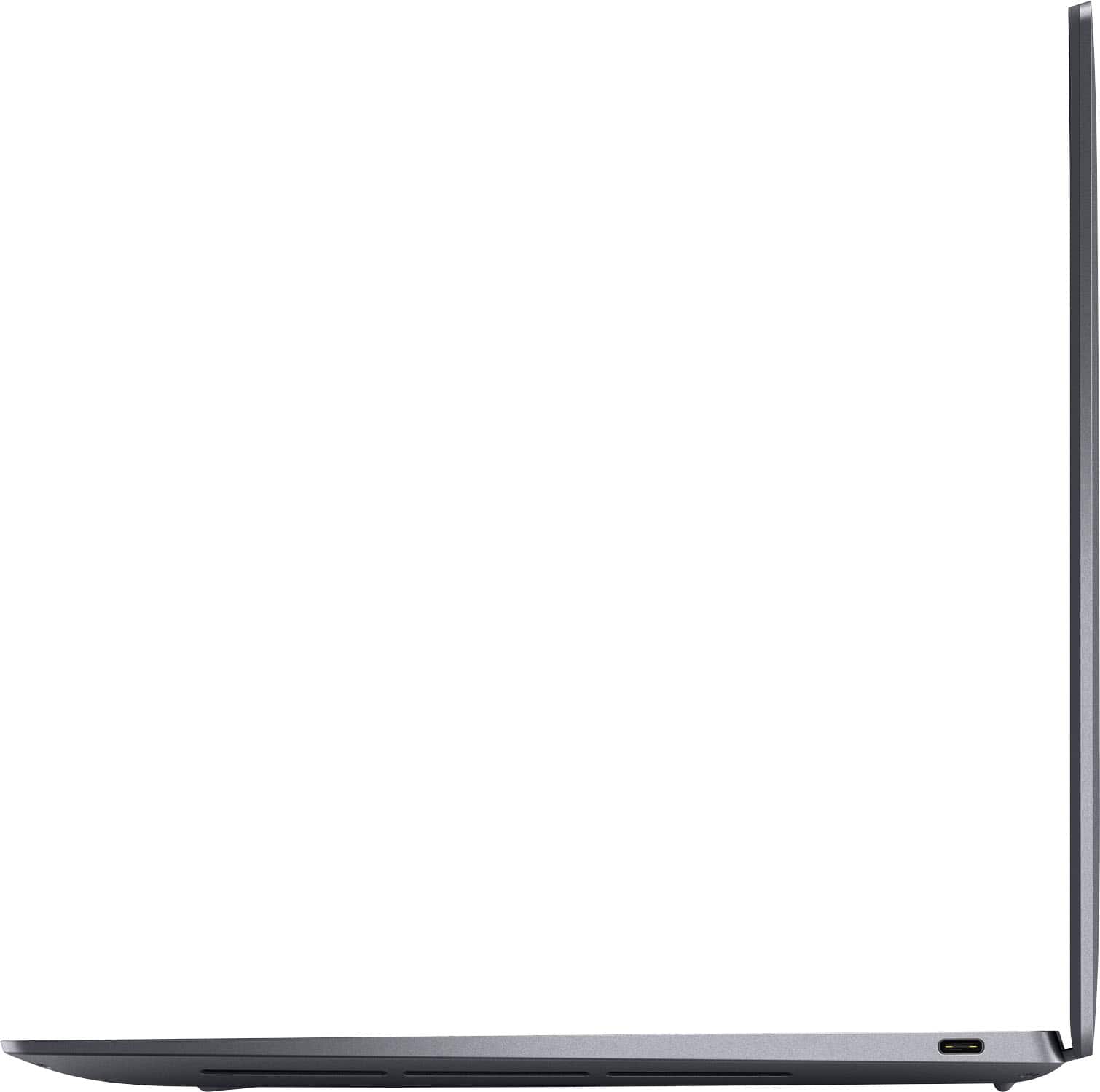
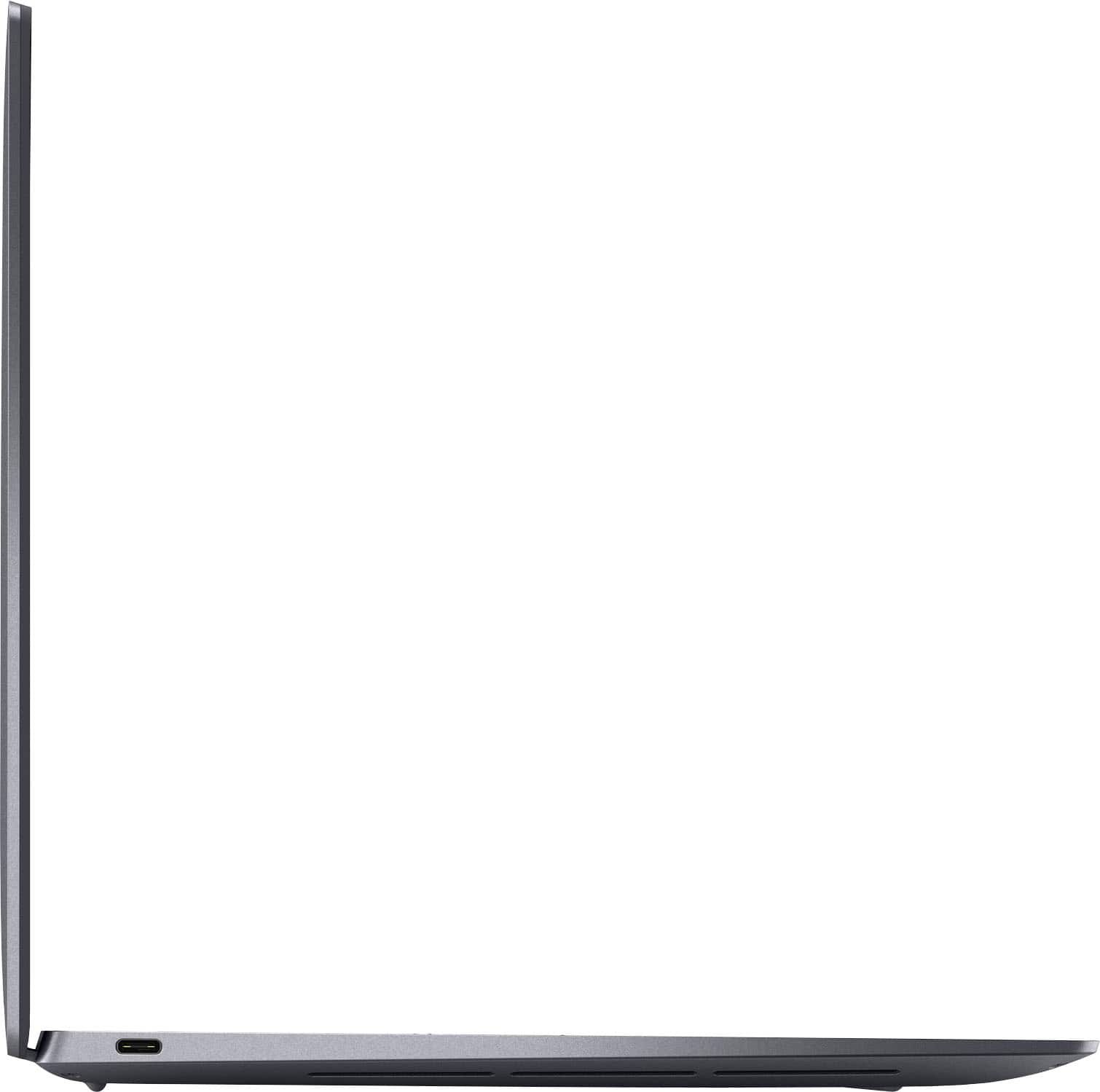
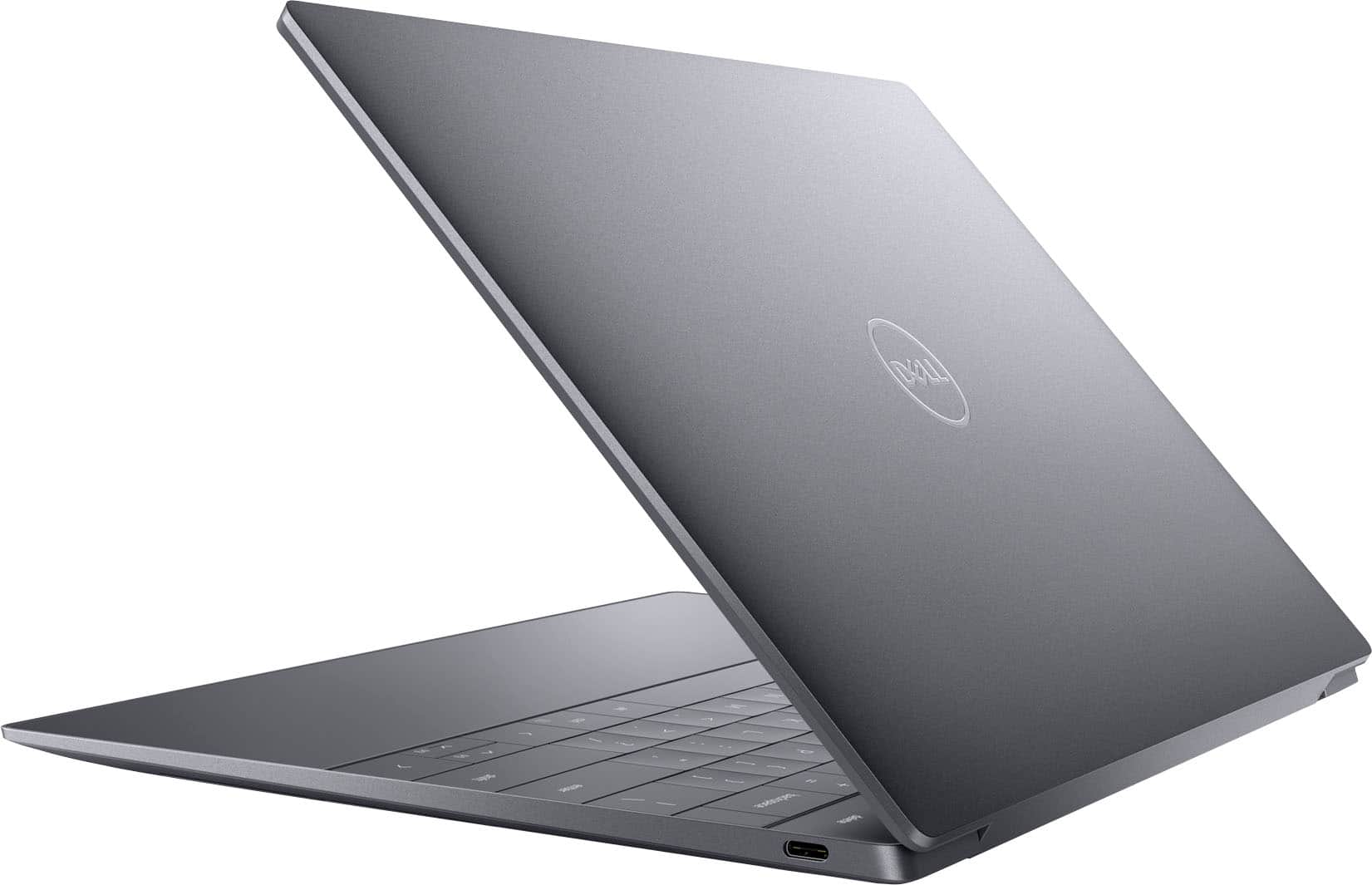
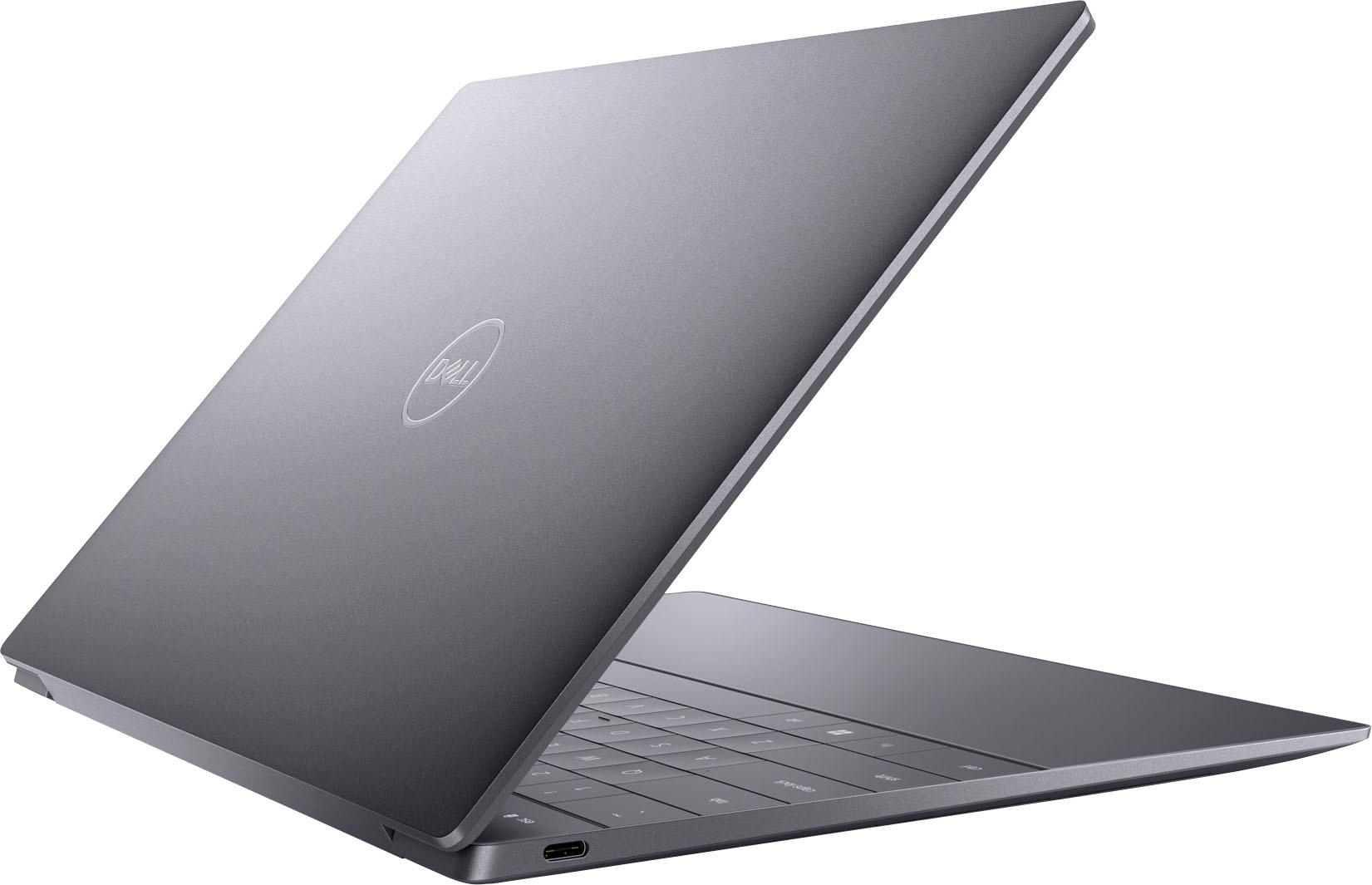
|Posted .This reviewer received promo considerations or sweepstakes entry for writing a review.This quickly became my go-to laptop because of its performance and portability. The laptop feels pretty light, easy to carry, and it fits neatly into an accessory pouch in my computer bag. It holds a charge very well. I haven't measured specific battery life, but I can go a day or two of casual use without charging. Having two power-delivery ports is very handy for charging the laptop and plugging in peripherals. This was the quickest setup I've had with a laptop recently -- it didn't spend half the day downloading updates and patches, but I was able to use it about 30 minutes after first turning it on. Yes it had to do a few patches, and it took a few days for all the updates and drivers but it was useable the whole time. To be fair, it's not a gaming laptop so I didn't bother installing my games, so that probably saved a whole lot of time. Out of the box it comes with 32gb of RAM and 1tb of storage, so I didn't have to upgrade it for it to meet my longer-term needs. It's quick and zippy and runs my office apps -- including heavy spreadsheets and visio --- without complaint. The keyboard takes a little getting used to, but that's really to be expected with a small form like this. The touch function buttons across the top also need getting used to, but again the size is worth it. At least they moved the camera to above the screen unlike the first gen xps13! With the camera and the touch power button/fingerprint reader, it works great with biometric logins. The fingerprint reader hasn't argued with me yet, it's been working on the first try. It's not a 2-in-1. I really assumed that it was and am mildly bummed that it's not. I had envisioned kicking back reading books with it in tablet mode, but its portability and power won me over anyway.
I would recommend this to a friend- Pros mentioned:Processor speed
Very high end but too small
Posted .This reviewer received promo considerations or sweepstakes entry for writing a review.This is a very high ebd PC. However those that state it is faster because it has 32GB are incorrect. The speed us due to the 1360P Iris platform. There is nothing one could do with this nachine requiring more than 16GB. You cannot use this machine for high end gaming. 16GB on a 1360P will easily handle 500,000 spreadsheet columens or anything else this machine is capable if. Check your page file usage If you are looking for the most powerful machine currently in the smallest package this is it. This honestly runs circles around a MacBook Pro as well. I use both. However this machine us simply too small for me at my age Therefore if you are looking for a comparable machine that us simewhat larger but still very compact. May U suggest for you to look at the Lenovo Yoga 9i Pri 1360P Iris 4K here it is about 40% larger in every aspect. It us still considerd to be a tiny PC. Although the Xps honestly dwarfs the 9I the Xos may simply be too small for some. The Xps was my first choice I simply could not see ir type on it. Plus it is so cute. Either of these are bordering on overkill for anyone nonetheless. You could not go wrong with either.
I would recommend this to a friend - Pros mentioned:Processor speed, Weight
Dell did it again! Very pleased!
Posted .This reviewer received promo considerations or sweepstakes entry for writing a review.Very happy with the purchase. The dell has been Super light to carry, fast processor, very good battery life! Overall, great production tool to work with!
I would recommend this to a friend Lightweight, Rocket Fast, Beautiful Display
|Posted .This reviewer received promo considerations or sweepstakes entry for writing a review.I absolutely love these Dell XPS 13" laptops. I've been using an 8th Gen XPS 13 9370 for several years and it's been an absolute champ (still to this day!). This new 13th Gen XPS Plus 9320 is just as excellent! This particular version comes equipped with an OLED touchscreen. The color and brightness of this display is on par with some of the most expensive displays. HDR looks fantastic and it has a nice vibrant display of whites and colors. Blacks are perfect and there's no bleed or oversaturation that I've seen thus far. The device boots up like a rocket taking off, it supports Windows Hello, and sports the latest Intel CPU. One of the biggest changes from my old device is that they finally moved the camera to above the screen vs below. This is a huge change that was much needed. The old camera/device had a bad habit of having people on your zoom calls staring up your nostrils. This new one is positioned much better to avoid that. The battery life is excellent and it comes with a USB-C charging adapter which is a brilliant move on their part. The device itself has only 2 ports on it and both are USB-C. It comes with a couple adapters: 1) for usb-c to stereo connector, and 2) for usb-c to usb-a. The keyboard has a unique new setup where only the QWERTY keys are physical buttons and the function keys are capacitive touch based. The mouse/click pad is gone in place of a hidden mouse/clickpad zone that you can't see, but exists nonetheless. It gives it a bit of style and makes it seem quite modern in aesthetic. I will be using this for strictly business/work purposes. Browsing, videos, zoom calls, etc. I know it will be capable of doing more, but I prefer this size for the type of work I do which is quick hit sales meetings where the technology is only needed to close the sale and fill out contracts and complete paperwork. I highly recommend these devices. I can say with confidence that the Dell XPS line is far and away superior to other manufacturers business line devices. I have never had a problem with the XPS line. They turn on when needed, conserve battery, are rocket fast, and never fail me with blue screens or crashes that disrupt my work. The XPS line is hands-down the equivalent of the luxury car line of the Dell brand of laptops. If you need a work laptop with amazing color reproduction, fantastic battery life, superior performance in a easily transportable package...look no further!!
I would recommend this to a friend- Cons mentioned:Battery life
XPS 13” Battery life issue
Posted .This reviewer received promo considerations or sweepstakes entry for writing a review.It is by far the most beautiful laptops I've ever seen. The OLED screen with extremely thin bezzles looks just gorgeous. But the battery life is so poor that I can only get around 2-3 hours of usage. Also sometimes my laptop get slower issue without even working on multiple tasks in background. Just to know; i already tried to performance and test my laptop in power save mode still not working as expected
No, I would not recommend this to a friend - Cons mentioned:Battery life
Disappointing Experience with the XPS 13 Plus
Posted .This reviewer received promo considerations or sweepstakes entry for writing a review.As an avid user of technology, I was excited to get my hands on the XPS 13+, but alas, my experience has been far from satisfactory. The trackpad's erratic behavior is a daily frustration, making simple tasks feel like a chore. Additionally, the abysmal battery life leaves much to be desired, constantly tethering me to a power outlet. The touch function keys, touted as a convenient feature, are nothing short of a nuisance. I find myself tapping multiple times just to get them to register, a glaring flaw in an otherwise sleek design. In daylight, the backlit keyboard is incredibly challenging to see the key letters clearly on the platinum color, hampering productivity and causing unnecessary strain on the eyes. To add insult to injury, the news of the same Digital function role in the upcoming XPS 14 and 16 is deeply concerning. It seems the manufacturer is doubling down on a flawed concept rather than addressing user feedback. I have reached my breaking point and have decided to part ways with this subpar product, even if it means selling it at a loss on eBay. Until Dell rectifies these issues and prioritizes user experience over flashy innovations, I won't be considering another XPS purchase. It's a shame to see such potential squandered by misguided design choices.
No, I would not recommend this to a friendBrand response from YourDellTeam
Posted .Dear Tierre,
We value your feedback and want to thank you for taking the time to leave a review of your Dell XPS 13 Plus touch laptop. We are sorry to hear that you are experiencing an issue you’re your touchpad, battery performance, and you are not completely satisfied with your keyboard backlighting. That is not the type of feedback we like to hear from our customers, or the type of product Dell intends to deliver. We have noted the details of your statement and will use them to improve current and future products. Below I have provided troubleshooting steps to help with your touchpad and additional links to help your battery performance and disabling your keyboard backlighting.
Some Notebooks and Tablets with Keyboards have added gesture features to the touchpad hardware and drivers. A few of these features are two or three finger scrolling, pinch zoom, circle zoom, rotate and swiping. These new features may be the reason for the erratic cursor movement since most are turned on by default. You can disable or modify the way the features work in the touchpad driver properties. Here are some tips to modify these settings:
1. In the Search box, type main.cpl.
2. Touch or click main.cpl in the list of programs.
3. Touch or click the Dell Touchpad tab.
4. Touch or click on the picture of the touchpad.
5. Touch or click Gestures (depending on your computer there may not be a Gestures option).
6. Change the options as preferred.
7. Touch or click Save.
8. Touch or click the X in the upper-right corner to close the Dell Touchpad Utility.
9. Touch or click OK on the Mouse Properties window.
10. If the touchpad still does not work after following the preceding steps, refer to Dell Knowledge Base article - http://dell.to/2iaiujA.
You can read the full article here - http://dell.to/2tqmS02.
How to Improve the Performance of a Dell Laptop Battery: http://dell.to/2vfXWf4
How to disable keyboard backlight: https://dell.to/3tHbZ8X
If you need further assistance, we recommend using the toll-free number or chat link below to reach a member of our Dell Support Team.
Chat or call: https://bit.ly/DellSupportTeam
Phone number to Dell: 1-800-624-9896
Best,
Summer@Dell
Great laptop. Best for me but not for all
Posted .This reviewer received promo considerations or sweepstakes entry for writing a review.If you love it you love it. Many do not. The formfactor is amazing and an even better screen and touchpad. The keyboard has a learning curve but works out. The lack of io is disappointing but not a deal breaker. I love this, you may not but it is for sure a beast.
I would recommend this to a friendComputer
Posted .This reviewer received promo considerations or sweepstakes entry for writing a review.Love Dell laptop the XPS is awesome. Crisp and clear display and easy to use
I would recommend this to a friendExcellent
Posted .This reviewer received promo considerations or sweepstakes entry for writing a review.Everything was great, and I will recommend people to Best Buy.
I would recommend this to a friend- Pros mentioned:Processor speed
Beware of 2 major issues, otherwise nice machine
Posted .This reviewer received promo considerations or sweepstakes entry for writing a review.This is a cool looking laptop. Generally speaking I like it. Cons 1. The facial recognization sign in "Windows Hello" broke after round of updates (Day 1 of owning the machine). If you look online you will see Dell has no fix for this. If you like the feature it appears it doesn't actually work. 2. The haptic mouse and function keys are very difficult to get used to (especially the right mouse click). Pros 1. Snappy 2. Screen nice 3. keys are comfortable to type on, albeit a bit squishy.
No, I would not recommend this to a friendBrand response from YourDellTeam
Posted .Hi Edna,
Thank you for taking the time to leave us your review. We are sorry to hear that you are having touchpad sensitivity and facial recognition issues in regard to your Dell XPS 13 Plus touch laptop. This is certainly not the experience that we like to hear from our customers. We will share your concern with our quality team so that improvements can be made to our current and future products and services. Below I have provided troubleshooting instructions with the full article that may be able to resolve the issue with your touchpad and an additional link to help with your facial recognition.
Here are the steps to help resolve your touchpad issue:
1. Ensure the touchpad and your finger do not have any dirt, grease, liquids, or food on them (the touchpad has to make good contact with your finger to work correctly).
2. Ensure that the touchpad is turned on.
3. Save any data, close any open programs and restart the computer by using a wired USB mouse (if available) or Bluetooth mouse if it is already installed, if not, press hold the power button for at least 15 seconds to turn the computer off.
4. Unplug everything except the power cable.
5. Turn the computer back on and retest the touchpad.
6. When the cursor does work correctly, attach one device at a time, and test the cursor movement to see which one may have caused the issue.
7. Ensure that the BIOS and Chipset drivers are updated to the latest version.
Touchpad Usage and Troubleshooting Guide: https://dell.to/3zwM1rp
Facial Recognition Troubleshooting Link: https://bit.ly/3vznXqR
If you still experience any issues after you have finished troubleshooting your laptop using the steps above, please reach out to us at: https://bit.ly/DellSupportTeam
Chat or call: https://bit.ly/DellSupportTeam
Phone number to Dell: 1-800-624-9896
Best,
Summer@Dell
Great item
Posted .This reviewer received promo considerations or sweepstakes entry for writing a review.Works as intended no conplaints. Would recommend for anyone looking
I would recommend this to a friend- Cons mentioned:Heat
Computer is dangerously hot
Posted .This reviewer received promo considerations or sweepstakes entry for writing a review.The computer heats up. It is too hot to rest my hands on. The keys are not hot. The surface the computer sits on, a wood desk is in dangerbof being damaged. The air around the computer is hot.
No, I would not recommend this to a friendBrand response from YourDellTeam
Posted .Dear user876257,
Thank you for taking the time to leave us your review. We sincerely apologize for the heating issue you have encountered with your Dell XPS 13 Plus OLED Touch Laptop. This is not the type of feedback we like to hear from our customers, or the type of product Dell intends to deliver.
We have noted the details of your statement, and your feedback will be shared with our quality team for consideration in future improvements. We always strive to get better, and reviews like yours are helping develop products our customers love.
Below, I have provided troubleshooting instructions with the full articles that can help resolve this issue.
1. Use Dell Power Manager to adjust the thermal settings on the box to an option that suits you best. This tool adjusts the fans and processor power to make the system cooler, quieter, or more powerful.
2. Update the BIOS and Chipset driver.
3. Download and install Microsoft Windows updates.
4. Run a hardware diagnostic test.
5. Perform a Windows System Restore.
6. Restore the computer to factory settings.
How to use Dell Power Manager: https://bit.ly/48MAxRY
How to Troubleshoot Overheating, Shutdown, or Thermal Issues on a Dell Computer: https://dell.to/3oAEYsV
If you continue to experience any issues or require further assistance, please take a moment to call or chat to speak with a Dell representative at your earliest convenience using the information provided below so that we can help you to your satisfaction.
Chat or call: https://bit.ly/DellSupportTeam
Phone number to Dell: 1-800-624-9896
Best,
Minhaj@Dell
Poorly designed, executed, and supported.
Posted .This reviewer received promo considerations or sweepstakes entry for writing a review.It's much slower and prone to overheating than you'd expect, even knowing the form factor. I'm currently on my second laptop, after the original was replaced by dell because the touchpad failed after two weeks. Still kicking myself for not returning the lemon when I had the chance - because the new touchpad is already acting up again. It runs hot even doing simple tasks like watching YouTube videos in a browser, and the system will randomly throttle itself even just doing simple edits on small files in Capture One. It's overpriced, underpowered because of the abysmal thermal design, and the support from Dell is genuinely just a nightmare.
No, I would not recommend this to a friendBrand response from YourDellTeam
Posted .Hey Sendian82,
We appreciate you taking the time to leave us your review. We are sorry to hear that you are encountering overheating issues with your Dell XPS 13 plus. Feedback like yours helps us improve our future products and services. Below I have provided troubleshooting instructions with the full article that can help resolve this issue.
Here are the steps to help resolve your overheating issue:
1. Inspect and clean the air vents and fans.
2. Restart the computer.
3. Update the BIOS and Chipset driver.
4. Download and install Microsoft Windows updates.
5. Run a hardware diagnostic test.
6. Use Dell Power Manager to manage thermal performance.
7. Improve efficiency to reduce heat.
8. Perform a Windows System Restore.
9. Restore the computer to factory settings.
How to Troubleshoot Overheating, Shutdown, or Thermal Issue on a Dell Computer: https://dell.to/3oAEYsV
If you continue to experience issues, please reach out to Dell Support directly by using the information provided below.
Chat or call: https://bit.ly/DellSupportTeam
Phone number to Dell: 1-800-624-9896
Best,
Summer@Dell
- Cons mentioned:Heat
Getting hot
Posted .This reviewer received promo considerations or sweepstakes entry for writing a review.During work it’s getting hot up normal hot I checked other one the same problem don’t buy
No, I would not recommend this to a friendBrand response from YourDellTeam
Posted .Hi AhmadtariqB,
We appreciate you taking the time to leave us your review. We are sorry you are having overheating issues with your XPS 13 Plus Laptop. Feedback like yours helps us improve our future products and services. Below I have provided troubleshooting steps with the full article that can help you resolve this issue.
Here's the steps to help resolve your overheating issue:
1. Inspect and clean the air vents and fans.
2. Restart the computer.
3. Update the BIOS and Chipset driver.
4. Download and install Microsoft Windows updates.
5. Run a hardware diagnostic test.
6. Use Dell Power Manager to manage thermal performance.
7. Improve efficiency to reduce heat.
8. Perform a Windows System Restore.
9. Restore the computer to factory settings.
How to Troubleshoot Overheating, Shutdown, or Thermal Issue on a Dell Computer: https://dell.to/3oAEYsV
If you continue to experience issues, please reach out to Dell Support directly by using the information provided below.
Chat or call: https://bit.ly/DellSupportTeam
Phone number to Dell: 1-800-624-9896
Best,
Jay@Dell