Customer Ratings & Reviews
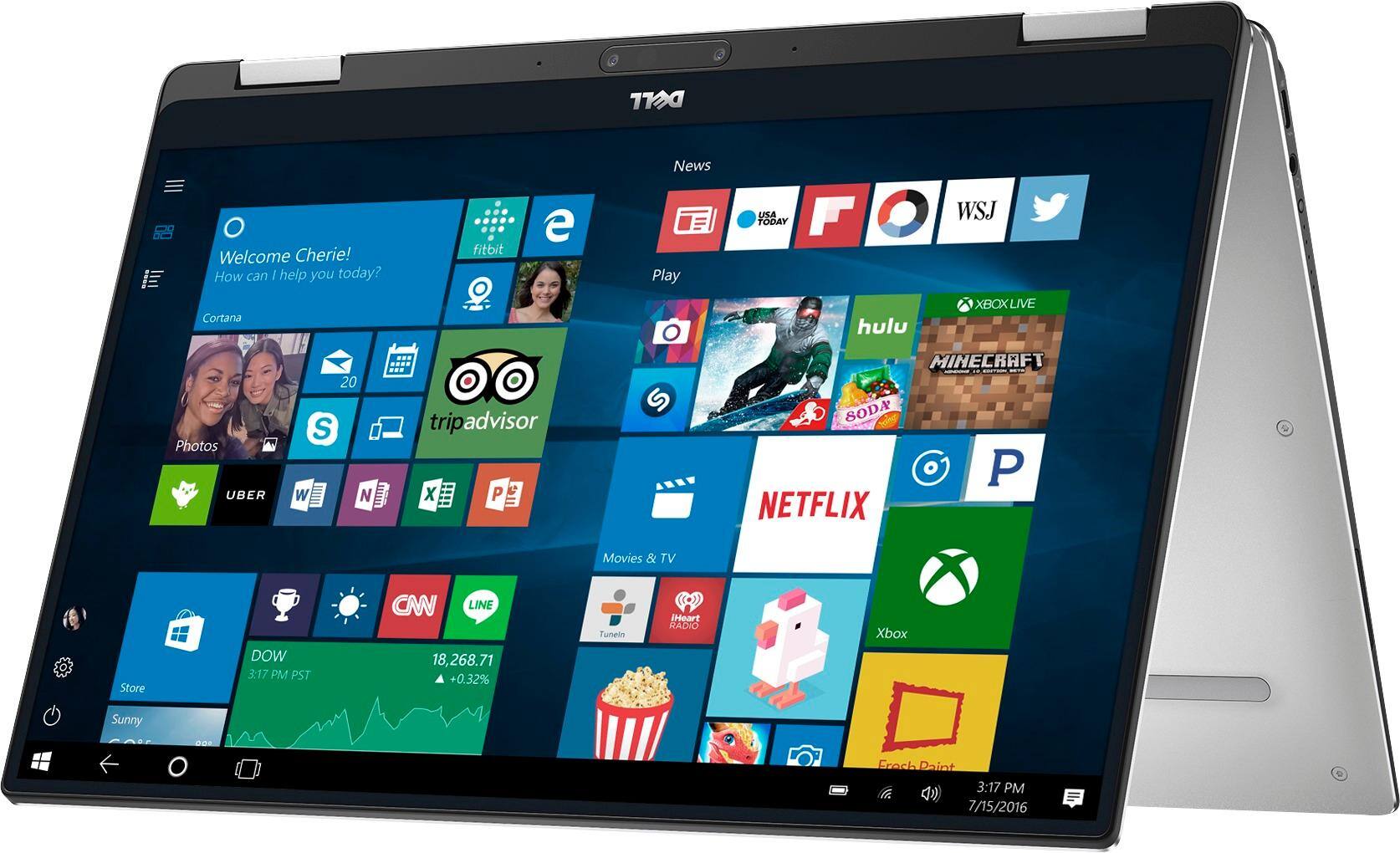

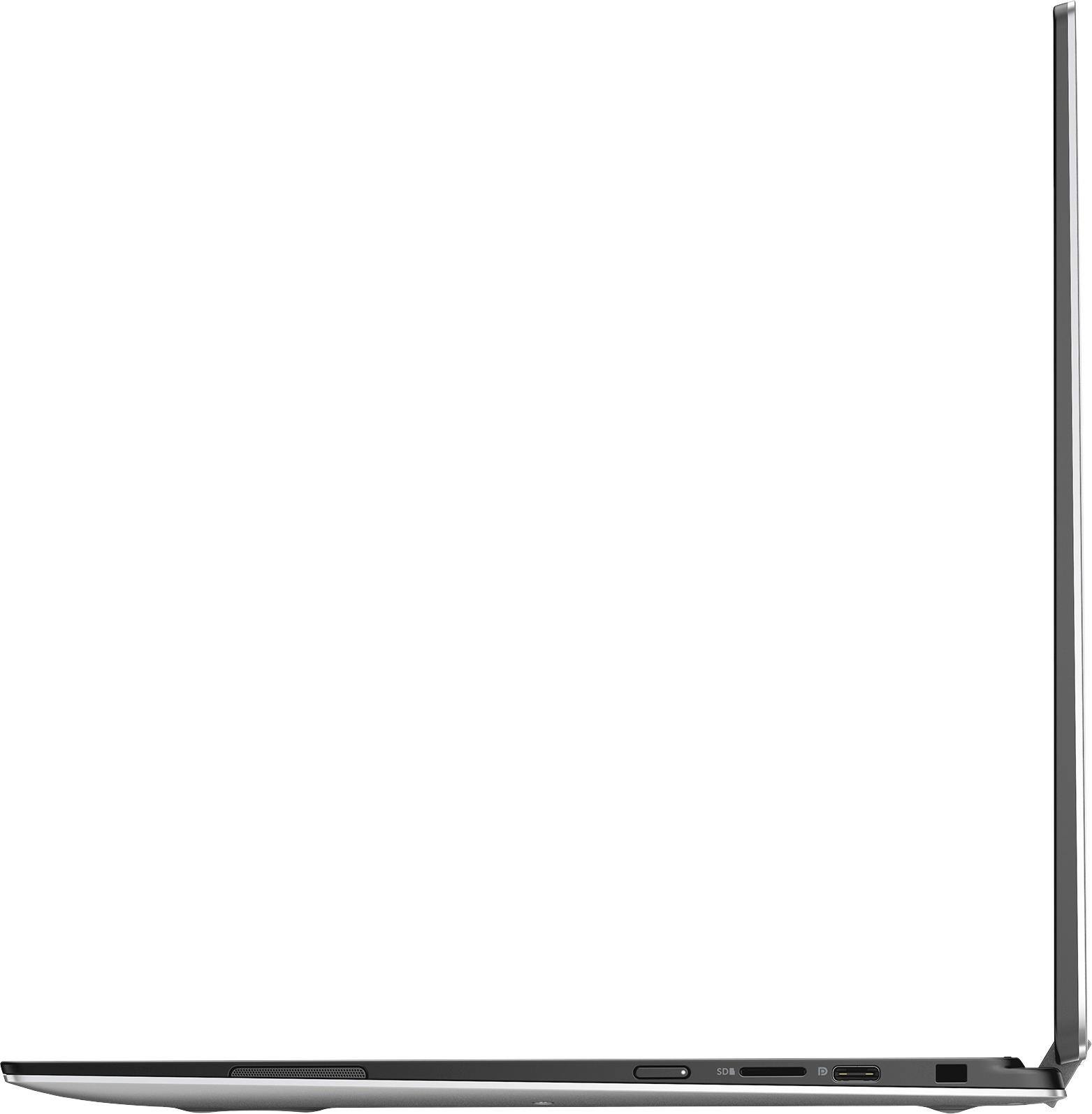
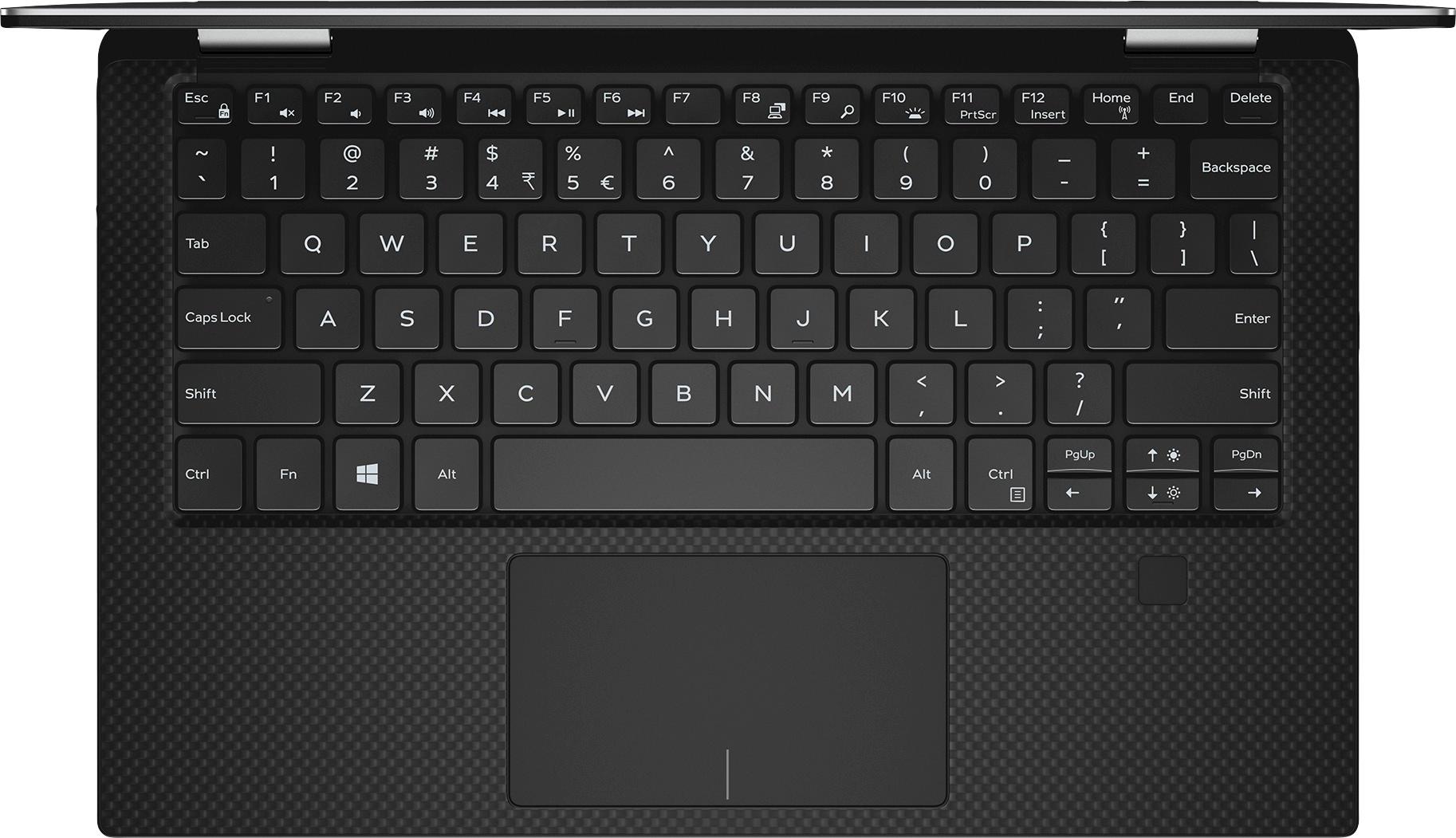
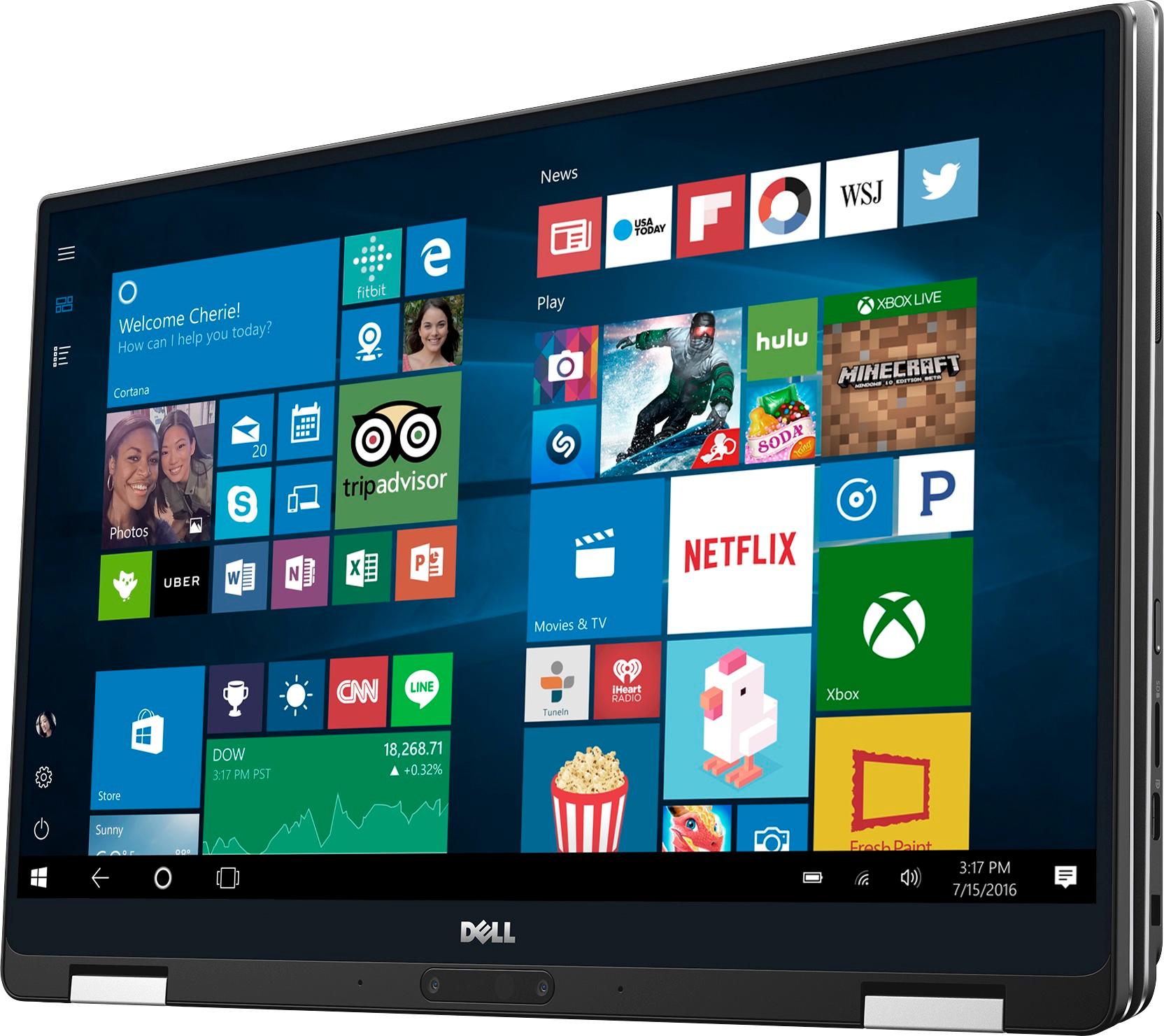


- Model:
- XPS9365-7086SLV-PUS
- SKU:
- 5711031
Rating by feature
- Value
Rating 4.3 out of 5 stars
- Quality
Rating 4.3 out of 5 stars
- Ease of Use
Rating 4.4 out of 5 stars
Customers are saying
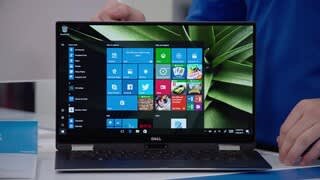
Customers enjoy the XPS 2-in-1 laptop for its light weight, fast performance, and long battery life. They appreciate the high-quality screen and sleek design. However, some customers have concerns about the limited number of ports, the price, and the placement of the power button.
This summary was generated by AI based on customer reviews.
- Cons mentioned:Customer service
NEVER buy DELL anymore
Posted .This reviewer received promo considerations or sweepstakes entry for writing a review.One month before my warranty expired, laptop had problem of booting into Windows system. After 2 times of repair, the laptop completely lose response-black screen no matter what I do. And they close my issue ticket and don't reply until I extend my warranty. What a smart way to earn money! BTW, the Dell technicians were very rude and ironic when I first contacted them.
No, I would not recommend this to a friend This PC is garbage.
Posted .This reviewer received promo considerations or sweepstakes entry for writing a review.I watched all the YouTube videos, read all the reviews, did all the research and what I saw was that this Dell XPS 2-in-1 was the way to go. Boy, was I disappointed. Do not buy this product. Do some probing into the discussion forums and you will find that it is plagued by really big issues- the touchscreen doesn't work, the trackpad is useless, and it is impossible to get open without using fingernails. I know that last one sounds like a strange complaint, but it is beyond frustrating to have to pick the computer up and pry it open every single time. The biggest complaints by far are trackpad and touchscreen performance. I bought mine refurbished, excellent condition. It looked great and was in all the original packaging, but the touchscreen did not work right out of the box. It's like Best Buy didn't even look at it before boxing it back up. After hours of updating drivers, rebooting, customer support, and forum scanning I was fed up. All this was made even more difficult by the lack of trackpad response. The cursor jumps all across the screen, freezes seemingly at random, and constantly thinks I am trying to zoom in and out. These are not unique issues- they seem to pop up extremely often for others out there and it is clearly a massive flaw in the product. Spend your money elsewhere, Dell has lost a customer permanently and you should not have to waste your time trying to fix a $1200 laptop.
No, I would not recommend this to a friendDell Quality Control Problems
Posted .This reviewer received promo considerations or sweepstakes entry for writing a review.I bought this with high anticipation based on critics reviews that it is the best thing to come along since Mac Book. I did this even though my previous experiences with Dell laptops and desktops through 15 years of use through my company were spotty. Sometimes the machines were solid and sometimes they required service immediately. I'll let others get into the pros and cons of the various features of the XPS 13, It is a beautiful machine, but in my individual experience behind the lipstick is a pig. Set up went smoothly, but I was disappointed with how slow it was. My current laptop is a Lenovo ThinkPad W530, a stellar performer, but bulky and long in the tooth at 5 years old. In a side-by-side comparison, the W530 was faster to my shock! It booted faster and it executed commands faster. After a few of days I started noticing random reboots and shutdowns.To make an already too long story short, turns out the machine was getting so hot it was shutting itself down due to thermal overload. A review of the bios event log confirmed this. Finally, after only 8 days, the machine fried itself and now upon starting, I get a single beep and the dreaded "no bootable drive found". Back to the store. Buyer Beware!
No, I would not recommend this to a friendCrisp screen, horrible battery
Posted .This reviewer received promo considerations or sweepstakes entry for writing a review.I love the crispness of the screen, but BIOS updates about a year ago initiated battery drain. Computer doesn't hold charge when on "sleep" setting. Long-life battery lasted only first few months, then started draining quickly.
No, I would not recommend this to a friendBrand response from YourDellTeam
Posted .Hello Mocha1980,
We are sorry to hear that your battery is not performing as well as it had when you first bought it. We'd recommend checking for current drivers and software to make sure that everything is up to date and that your battery is running efficiently. You can check your drivers here: http://dell.to/2iaEr1Z.
Here are a few additional tips that we'd suggest you try:
Change the Power Plan:
1. On the notification area of the taskbar, right-click the Battery icon.
2. On the options list, click Power Options.
3. Select a power plan on the battery meter, such as Power Saver or Balanced. Windows 10 has a built in 'Battery Saver' mode that can be activated to extend your system's battery life. The Battery Saver mode will monitor and limit background activity and other features such as push notifications. You do have the option to enable or disable this mode within settings or within advanced Battery Saver settings you can customize the mode to best suit your needs.
1. Click on the Action Center icon within the taskbar and select the tile for Battery Saver.
2. If running Cortana then type Battery Saver into the search box and select from the results.
Within the Battery Saver settings page you will be able to turn on and off the feature and customize the feature to best meet your needs.
3. Turn Battery Saver On or Off.
4. Additional settings available via the Battery use and Battery saver settings links.
5. Battery use shows further info on apps and their power usage.
6. Battery Saver Settings screen allows you to customize further Battery Saver feature.
You can read the full article here - http://dell.to/2vfXWf4.
We hope that your battery performance improves for you soon.
Best,
Bryan
1-800-624-9896
Can’t even start the computer
Posted .This reviewer received promo considerations or sweepstakes entry for writing a review.I’m pretty angry right now. When I first got the computer, after I finishing all the set up, the computer just keep restarting. I thought it might be my bad luck to get a not qualified computer. So I took it to the store for a exchange. But after I got another one after exchange, I can’t even finish the set up and I can’t even open the computer. This one is so bad!!!!
No, I would not recommend this to a friendBrand response from YourDellTeam
Posted .Hi spongebob, Thanks for your review and for your Dell laptop purchase. We'd recommend the following steps to help with setting up your new computer:
1. If the computer is displaying the Dell logo and does not move past that point, it has probably failed POST.
2. If the power indicator lights up and it is amber or orange, this is usually an indicator that it has failed POST.
3. If you see text on a black screen, the computer is currently performing the POST. If the computer stays in that condition and does not move past it, it has probably failed POST.
4. If the video screen displayed anything at all during the startup process but is now black, this probably indicates that the computer failed POST.
5. If the computer is beeping or if Caps/Num/Scroll Locks are flashing, note if there is a particular pattern in which it beeps or flashes.
6. If the computer is not beeping and caps/num/scroll locks are not flashing, unplug all connections and remove all media communication devices (e.g. external monitors); reconnect one at a time and check if the computer functions.
7. For a notebook, press and hold the Fn key and then press the power button. This starts the pre-boot testing and will launch ePSA. In case you have a Desktop at the Dell logo screen tap the F12 key to enter One Time Boot Menu and use the arrow keys to highlight Diagnostics and press enter.
You can read the full article here - http://dell.to/2uj1Sby.
We hope that your computer starts up and you can also run the Support Assist app that comes installed on your computer. - Bryan
Read!!! DO NOT BUY
Posted .This reviewer received promo considerations or sweepstakes entry for writing a review.If you depend on your laptop for work then do not buy this one or any Dell. The WIFI constantly drops and now it just shuts down randomly. I have lost data that I have been working on. I have contact Dell and they still can't fix it. Save yourself the headaches and pick another brand.
No, I would not recommend this to a friend