Customer Ratings & Reviews

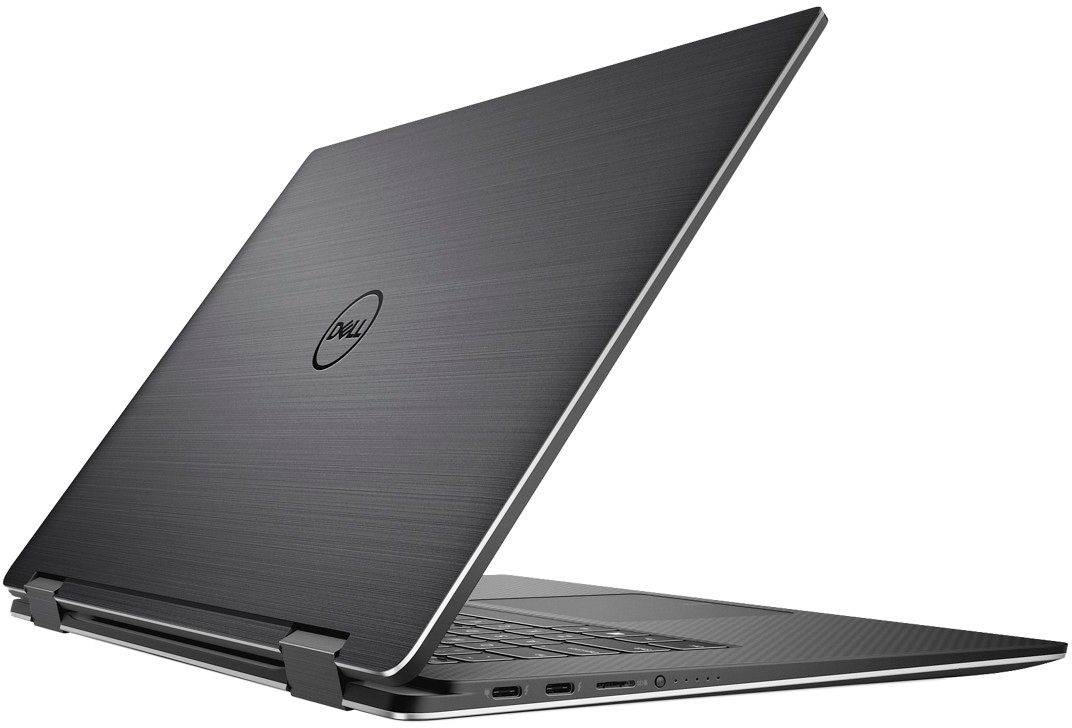
- Model:
- XPS9575-7354BLK-PUS
- SKU:
- 6212603
to a friend
Customers are saying
Customers are enthusiastic about the XPS 2-in-1 laptop's stunning 4K screen, fast performance, and sleek design. They appreciate the convenience of the 2-in-1 form factor. However, some users have concerns about the short battery life, fan noise, limited storage, and high price.
This summary was generated by AI based on customer reviews.
Nice laptop!
||Posted .This reviewer received promo considerations or sweepstakes entry for writing a review.I absolutely love this laptop. It works great. No complaints.
I would recommend this to a friendVery happy with my purchase
||Posted . Owned for 3 weeks when reviewed.This reviewer received promo considerations or sweepstakes entry for writing a review.Lightweight, good battery life, quality video and sound.
I would recommend this to a friendFast and Reliable
||Posted .This reviewer received promo considerations or sweepstakes entry for writing a review.Very fast response with the i7 CPU. Better than any other brand
I would recommend this to a friendExceptional with Dell Quality
||Posted .This reviewer received promo considerations or sweepstakes entry for writing a review.Tablet function is perfect while not compromising the hardware.
I would recommend this to a friendGreat laptop
||Posted . Owned for 3 weeks when reviewed.This reviewer received promo considerations or sweepstakes entry for writing a review.Got it for my son for college this Fall when he starts
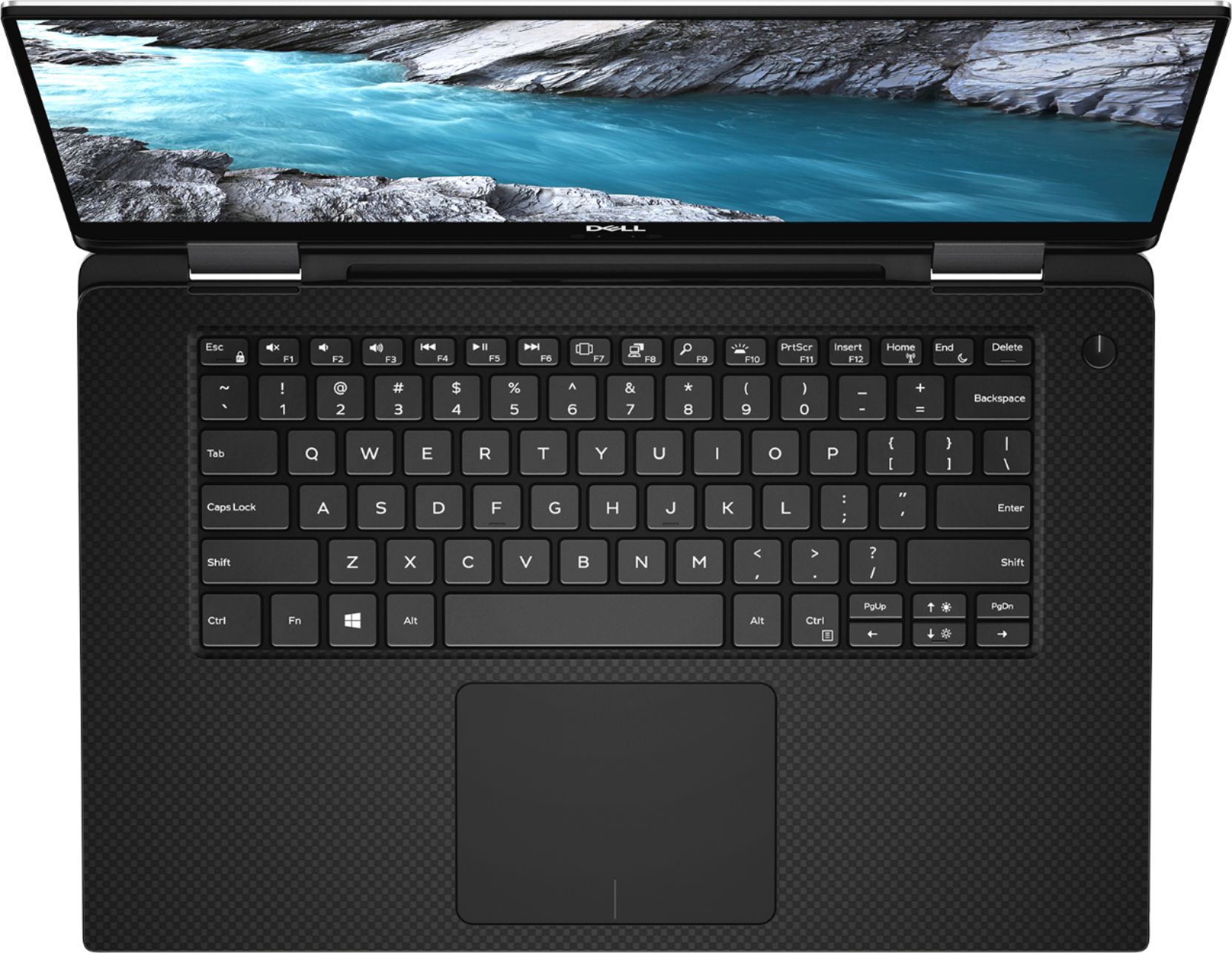
I would recommend this to a friendGreat for typing I like the keyboard
||Posted . Owned for 1 month when reviewed.This reviewer received promo considerations or sweepstakes entry for writing a review.Really like this laptop easy to use and convinient
I would recommend this to a friendmy son loves it
||Posted .This reviewer received promo considerations or sweepstakes entry for writing a review.this is an excellent laptop and my son loves it at college
I would recommend this to a friendVery good and reliable laptop
||Posted .This reviewer received promo considerations or sweepstakes entry for writing a review.Very good and reliable laptop. Can be used for any task.
I would recommend this to a friend- Cons mentioned:Battery life
Beautiful screen
||Posted .This reviewer received promo considerations or sweepstakes entry for writing a review.The screen is gorgeous, battery life is disappointing, and the wifi has issues.
No, I would not recommend this to a friendBrand response from YourDellTeam
Posted .Hello Rudy,
Thanks for your review. We're sorry that your computer is not performing as well as you hoped it would. We'd recommend the following tips to help extend your computer's battery life:
Change the Power Plan:
1. On the notification area of the taskbar, right-click the Battery icon.
2. On the options list, click Power Options.
3. Select a power plan on the battery meter, such as Power Saver or Balanced. Windows 10 has a built in 'Battery Saver' mode that can be activated to extend your system's battery life. The Battery Saver mode will monitor and limit background activity and other features such as push notifications. You do have the option to enable or disable this mode within settings or within advanced Battery Saver settings, you can customize the mode to best suit your needs.
a) Click on the Action Center icon in the taskbar and select the tile for Battery Saver.
b) If running Cortana then type Battery Saver into the search box and select from the results.
Within the Battery Saver settings page, you will be able to turn on and off the feature and customize the feature to best meet your needs.
c) Turn Battery Saver On or Off.
d) Additional settings available via the Battery use and Battery saver settings links.
e) Battery use shows further info on apps and their power usage.
f) Battery Saver Settings screen allows you to customize further Battery Saver feature.
You can read the full article here - http://dell.to/2vfXWf4.
If you are still experiencing connectivity issues, here are some steps to try:
1. Download and install the latest Wireless Card driver. (https://dell.to/2th3Tpe) After updating the driver, re-establish the connection with the Wireless Access Point and check the wireless performance.
2. If the issue persists, proceed to step 3.
3. Power-cycle the local network. Shut down the Dell system, the Wireless Access Point/Router and the Modem. Wait a minimum of 60 seconds before powering up the components in the following order:
4. Power ON the Modem, and wait for it to boot fully.
5. Power ON the Wireless Access Point/Router, and wait for it to boot fully.
6. Power ON the Dell system.
7. Open Network and Sharing Center
8. In the left side navigation pane, click on Change Adapter Settings
9. Right click on the wireless connection icon and select Properties followed by the Configure button
10. Under Wireless Options, select the Wireless N mode
11. For Windows 8 or later systems click the Advanced tab and look for 802.11n Mode on the right you will be given the option to Enable or Disable. If the mode is not visible you may need to update your drivers and firmware.
12. From the drop-down menu, choose Disable followed by Ok
13. This should restore the wireless download and upload speed. Internet speed can be tested at http://speedtest.net/.
Best,
Bryan
1-800-624-9896
Great computer
||Posted . Owned for 3 weeks when reviewed.This reviewer received promo considerations or sweepstakes entry for writing a review.I bought it for my son for school and he loves it.
I would recommend this to a friendGreat computer
||Posted .This reviewer received promo considerations or sweepstakes entry for writing a review.Great charger that I would highly recommend to others
I would recommend this to a friendGreat laptop
||Posted .This reviewer received promo considerations or sweepstakes entry for writing a review.Great love it, great pen and easy to use as a tab.
I would recommend this to a friendLegit for editing - Not going Mac :)
||Posted .This reviewer received promo considerations or sweepstakes entry for writing a review.Amazing computer, especially for those who do media!
I would recommend this to a friendgreat laptop!!
||Posted .This reviewer received promo considerations or sweepstakes entry for writing a review.This is so user friendly and easy to learn how to use.
I would recommend this to a friendLove it
||Posted .This reviewer received promo considerations or sweepstakes entry for writing a review.Best tv i ever purchased , have one in every room!
No, I would not recommend this to a friend- Cons mentioned:Battery life
Bad battery Life
||Posted .This reviewer received promo considerations or sweepstakes entry for writing a review.I loved everythingabout thecomputer exceot the battery lifeof2 hoirs
No, I would not recommend this to a friendBrand response from YourDellTeam
Posted .jcjc,
We're sorry to hear that the battery life on your computer was less than you hoped it would be. Here are some tips to extend the life of your computer's battery:
Change the Power Plan:
1. On the notification area of the taskbar, right-click the Battery icon.
2. On the options list, click Power Options.
3. Select a power plan on the battery meter, such as Power Saver or Balanced. Windows 10 has a built in 'Battery Saver' mode that can be activated to extend your system's battery life. The Battery Saver mode will monitor and limit background activity and other features such as push notifications. You do have the option to enable or disable this mode within settings or within advanced Battery Saver settings, you can customize the mode to best suit your needs.
a) Click on the Action Center icon in the taskbar and select the tile for Battery Saver.
b) If running Cortana then type Battery Saver into the search box and select from the results.
Within the Battery Saver settings page, you will be able to turn on and off the feature and customize the feature to best meet your needs.
c) Turn Battery Saver On or Off.
d) Additional settings available via the Battery use and Battery saver settings links.
e) Battery use shows further info on apps and their power usage.
f) Battery Saver Settings screen allows you to customize further Battery Saver feature.
You can read the full article here - http://dell.to/2vfXWf4.
Best,
Bryan
1-800-624-9896
Do not buy this laptop
||Posted .This reviewer received promo considerations or sweepstakes entry for writing a review.I have had the worst experience with my Dell laptop. I purchased this laptop as an investment (a very expensive one at that), expecting it to last for my entire college career and then some but that was simply not the case. When the laptop works, it works well and is able to run my heavy-duty programs for school decently well but I have run into so many issues and Dell's customer service has been awful. In the three years that I have had my laptop, they have replaced it 3x and none of the replacements have worked. It has gotten to the point where despite my upgraded warranty, I am resorting to buying a new laptop from a different brand because I am tired of dealing with Dell and having to ship my laptop in for repairs where I'm out a laptop for 2 weeks and then they don't even fix the issue.
No, I would not recommend this to a friendDefective!
||Posted .This reviewer received promo considerations or sweepstakes entry for writing a review.I continue to have problems with my 2nd XPS after exchanging the first one a day after buying it. This one has a defective mouse track pad. After numerous system updates & diagnostics I have to ship it off to Dell at my expense to have it looked at. Would rather have my eye poked out. They are going to format my HD too. Great!
No, I would not recommend this to a friendBrand response from YourDellTeam
Posted .Hello WazeNinja,
Thanks for your feedback. We're sorry to hear that your Dell computer is not working properly. If you continue to have issues with the touchpad after your computer is returned we'd recommend the following steps:
Some Notebooks and Tablets with Keyboards have added gesture features to the touchpad hardware and drivers. A few of these features are two or three finger scrolling, pinch zoom, circle zoom, rotate and swiping. These new features may be the reason for the erratic cursor movement since most are turned on by default. You can disable or modify the way the features work in the touchpad driver properties. Here are some tips to modify these settings:
1. In the Search box, type main.cpl.
2. Touch or click main.cpl in the list of programs.
3. Touch or click the Dell Touchpad tab.
4. Touch or click on the picture of the touchpad.
5. Touch or click Gestures (depending on your computer there may not be a Gestures option).
6. Change the options as preferred.
7. Touch or click Save.
8. Touch or click the X in the upper-right corner to close the Dell Touchpad Utility.
9. Touch or click OK on the Mouse Properties window.
10. If the touchpad still does not work after following the preceding steps, refer to Dell Knowledge Base article - http://dell.to/2iaiujA.
You can read the full article here - http://dell.to/2tqmS02.
If you have additional questions about your computer you can check our Product Support Page here: https://dell.to/2tII16a.
Best,
Bryan
1-800-624-9896
A little too big!
||Posted . Owned for 1 month when reviewed.This reviewer received promo considerations or sweepstakes entry for writing a review.I really wanted a 13 inch but it was not available. A good orice on the 15.
I would recommend this to a friendBrand response from YourDellTeam
Posted .Hammer,
Thanks for your review. We're happy that your computer is working for the most part. We'd recommend checking out our Product Support Page if you have questions about your computer: https://dell.to/2tII16a.
Best,
Bryan
1-800-624-9896
Average
||Posted . Owned for 1 month when reviewed.This reviewer received promo considerations or sweepstakes entry for writing a review.Purchased this 2 in 1 with high expectations. Returned it after a week of
No, I would not recommend this to a friend