Customer Ratings & Reviews

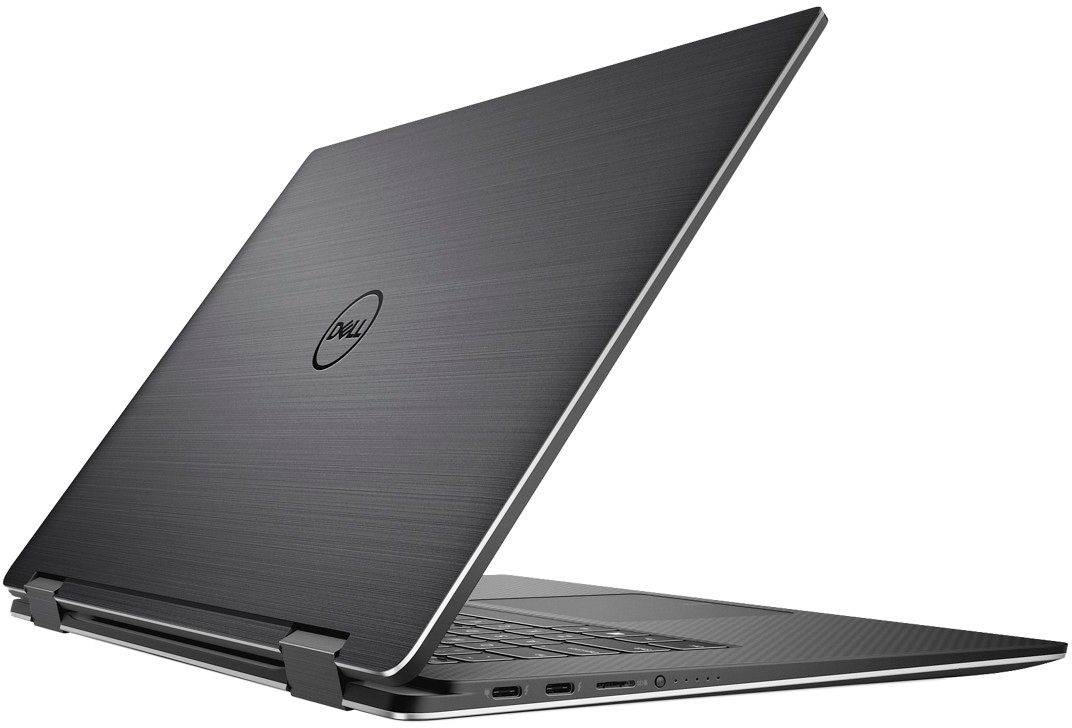
- Model:
- XPS9575-7354BLK-PUS
- SKU:
- 6212603
to a friend
Customers are saying
Customers are enthusiastic about the XPS 2-in-1 laptop's stunning 4K screen, fast performance, and sleek design. They appreciate the convenience of the 2-in-1 form factor. However, some users have concerns about the short battery life, fan noise, limited storage, and high price.
This summary was generated by AI based on customer reviews.
- Cons mentioned:Fan noise
Loud Fan noise and audio render error
||Posted .This reviewer received promo considerations or sweepstakes entry for writing a review.Had loud fan noise ( irritating high pitch noise) like kirr kirr.... second issue was most of the time i used to get audio render error while playing videos online. Have to restart to get it working.
No, I would not recommend this to a friendBrand response from YourDellTeam
Posted .Dell9575,
Thanks for your review. We're sorry that your computer's fan noise is more than you expected it to be. We'd recommend updating the BIOS on your computer: Update the BIOS: An out-of-date BIOS can cause loud fan noises by having an outdated temperature table for the system. Refer to update BIOS and follow the instructions to update the BIOS on your computer. You can also follow up with our Technical Support Team here - 1-800-624-9896.
You can read the full article here - http://dell.to/2ENlXfz.
If you'd like to see if there is an update to the audio drivers on your computer you can visit our site here: https://dell.to/2OFcfEi.
Best,
Bryan
1-800-624-9896
I wanted to love this
||Posted .This reviewer received promo considerations or sweepstakes entry for writing a review.I did a lot of research and committed to this model. Unfortunately I had issues from start up. Device is heavy and bulky in tablet mode. Each time I closed the screen I would have to turn it off and back on to get the screen to wake up.
No, I would not recommend this to a friendBrand response from YourDellTeam
Posted .WillB,
Thanks for your review. We're sorry that your computer is not everything that you were hoping for. If you have questions related to the performance of your computer we'd recommend that you check out our Product Support Page here: https://dell.to/2tII16a.
Best,
Bryan
1-800-624-9896
Mouse stopped working, keyboard issues
||Posted . Owned for 10 months when reviewed.This reviewer received promo considerations or sweepstakes entry for writing a review.Even reached out to dell warranty, but they are useless and beat around the bush. I'm sad that i decided to leave macbook laptops and this was my experience with dell. its a $1000 paper weight now.
No, I would not recommend this to a friend- Pros mentioned:ScreenCons mentioned:Battery life
Powerful and Portable
Posted .This reviewer received promo considerations or sweepstakes entry for writing a review.I use several different computers every day as I work in Optical and RF networking. Most of my work is on a Windows laptop, but I use a MacBook Pro for photo editing etc at home. I wanted to be able to use touchscreen functions on my editing so I am trying this XPS 2-1 out to see how it stacks up. I do most of my editing in Adobe CC Lightroom and Photoshop CC so the interfaces are not much different when going from MAC to Windows. The performance of the XPS laptop while editing is very fast. Imports of RAW files from a Sony a7riii are very fast and that is using a 1-1 preview which generally slows down the process. Now there are other factors involved as well such as SD Card speed etc. From what I have used in the exact same setup with my MacBook Pro 2017 with the Quad Core i7 2.8 the XPS matches or exceeds the import speeds. Edits in Lightroom also are very fast and very little lag is present. Exporting of files is also very fast and is slightly faster than the MacBook Pro. The real difference maker is the touch and pen functions. Being able to zoom in and out with fingers is much better, brush adjustments with the pen are great as well. As far as stability, I have had a few cases of the laptop being buggy with slowdowns or freezing, but this is to be expected with Windows when comparing to Mac OS. Windows has come a long way and X is a very good operating system that really adds a lot of integration tools like Apple does with Mac OS. I do however miss the Facetime and Messages compatibility I get with IOS and Mac OS. But Apple needs to get up to date with the competition as far as touch and screen resolution. The XPS is much better there. As far as build quality and performance, the DELL is top notch. The build quality is as good if not better than the Mac and the styling is outstanding. Fan noise is loud when the processor starts to work hard, but if you want this type of performance in a small body you have to compromise. The fans are loud when they are on, but so are the MacBooks. Battery Life so far to me has been about what I expect, as in it is short if you are editing. It just takes alot of power to edit the Sony's 42 million pixels quickly. I have decided to go with the Dell and already sold my MacBook Pro, we will see what 2018 brings for Apple, but there is no way they can match the performance to price difference with the XPS. The XPS performs at the level of the current Kaby Lake 3.1 Macbook and is about $1400 less. The PCI SSD is replaceable so you can go to a higher storage if needed. Cons: My main gripe is only 16 GB of RAM. 16 is more than enough for most uses, but it would have been nice to get 32 like the XPS laptop. Windows has its bugs, but is vastly improved.
I would recommend this to a friendBrand response from YourDellTeam
Posted .Chdwil,
Thank you for your review and we're glad that for the most part you are pleased with the performance of your new Dell laptop. If you are continuing to experience freezes on your computer we'd suggest the following:
1. Run a Computer Diagnostic. To determine if your computer is experiencing a hardware problem, run the Dell Preboot System Assessment (PSA) Diagnostics. For information on how to run Diagnostics, and to determine the issue, refer to Dell Knowledge Base Article: http://dell.to/2iaiujA.
2. Check Safe Mode for Symptoms. To boot into safe mode, please follow the instructions below:
a) Start the computer.
b) Tap 'F8' on the keyboard immediately and every one second until the Dell logo screen disappears. From there you will see the Windows Advanced Options Menu on the screen. (If the Windows Advanced Options Menu does not appear, restart the system and try again.)
c) Select Safe mode with Networking and press Enter.
d) Log on as the administrator or as a user with administrative access.
e) Open applications and test the computer in safe mode. If the symptoms exist in safe mode, please continue the troubleshooting steps in this article. If the symptoms do not exist in safe mode, the issue is likely related to a driver or software and you may wish to complete steps 6 to see if you are able to resolve the lockups or freezing.
6. Check for Malware. Malware (Virus, Spyware, etc.) can definitely cause a Windows system to lock up or appear to hang. To check for malware on your system and to ensure that your computer is up to date on security software, visit Dell Knowledge Base Article: http://dell.to/2wWP1zI.
You can read the full article here - http://dell.to/2tW5m33.
If you'd like to reduce the fan noise that you are experiencing we'd recommend that you try this:
Update the BIOS: An out-of-date BIOS can cause loud fan noises by having an outdated temperature table for the system. Refer to update BIOS and follow the instructions to update the BIOS on your computer. You can also follow up with our Technical Support Team here - 1-800-624-9896.
You can read the full article here - http://dell.to/2ENlXfz.
We hope that your computer will soon run smoother for you and that you continue to enjoy using it.
Best,
Bryan
1-800-624-9896
- Cons mentioned:Overheating
Overheating after 2 month use
||Posted .This reviewer received promo considerations or sweepstakes entry for writing a review.regular office work, light use, but the laptop can already fry an egg after turning it on without opening anything
No, I would not recommend this to a friendBrand response from YourDellTeam
Posted .poropapa,
Thanks for your review. We're sorry that your computer has been overheating on you. We'd recommend the following tips to help your computer run at a cooler temperature:
1. Dell does not recommend placing portable systems directly on your lap. Due to reductions in the thickness of modern portable systems, heat transfer can be an issue.
2. Using a portable system (Laptop) on a hard, flat, non-cloth surface will increase airflow and reduce heat from underneath and inside the system.
Using the portable system on a blanket, pillow, or other types of cloth will cover up the fan cause the computer to overheat and can cause permanent damage.
3. It is recommended to use the portable system in a Room temperature of 0°C to 35°C (32°F to 95°F) with a Humidity level no greater than 90%.
4. Use compressed air to clean the vents on a regular basis.
5. Using a cooling pad can decrease heat and increase performance.
6. If you want to know the temperature limitations for your system, go to the Dell Support Website, look up your system model then open the user guide under the manuals link.
You can read the full article here - http://dell.to/2uJ8AdG.
Best,
Bryan
1-800-624-9896
- Cons mentioned:Overheating
worst laptop
||Posted .This reviewer received promo considerations or sweepstakes entry for writing a review.worst laptop ever,3 days after purchase start overheating and frizzing up .returned and bought a ASUS insteed
No, I would not recommend this to a friendBrand response from YourDellTeam
Posted .Dear Valued Customer,
We're sorry to hear about the issues that you faced with your new Dell. If you do experience similar issues in the future, here are some ways to keep your computer operating at a cooler temperature:
Tips for Proper Usage:
1. Dell does not recommend placing portable systems directly on your lap. Due to reductions in the thickness of modern portable systems, heat transfer can be an issue.
2. Using a portable system (Laptop) on a hard, flat, non-cloth surface will increase airflow and reduce heat from underneath and inside the system.
Using the portable system on a blanket, pillow, or other types of cloth will cover up the fan cause the computer to overheat and can cause permanent damage.
3. It is recommended to use the portable system in a Room temperature of 0°C to 35°C (32°F to 95°F) with a Humidity level no greater than 90%.
4. Use compressed air to clean the vents on a regular basis.
5. Using a cooling pad can decrease heat and increase performance.
6. If you want to know the temperature limitations for your system, go to the Dell Support Website, look up your system model then open the user guide under the manuals link.
You can read the full article here - http://dell.to/2uJ8AdG.
If you experience system freezes, here are some ways to troubleshoot the issue:
1. Run a Computer Diagnostic. To determine if your computer is experiencing a hardware problem, run the Dell Preboot System Assessment (PSA) Diagnostics. For information on how to run Diagnostics, and to determine the issue, refer to Dell Knowledge Base Article: http://dell.to/2iaiujA.
2. Check Safe Mode for Symptoms. To boot into safe mode, please follow the instructions below:
a) Start the computer.
b) Tap 'F8' on the keyboard immediately and every one second until the Dell logo screen disappears. From there you will see the Windows Advanced Options Menu on the screen. (If the Windows Advanced Options Menu does not appear, restart the system and try again.)
c) Select Safe mode with Networking and press Enter.
d) Log on as the administrator or as a user with administrative access.
e) Open applications and test the computer in safe mode. If the symptoms exist in safe mode, please continue the troubleshooting steps in this article. If the symptoms do not exist in safe mode, the issue is likely related to a driver or software and you may wish to complete step 3 to see if you are able to resolve the lockups or freezing.
3. Check for Malware. Malware (Virus, Spyware, etc.) can definitely cause a Windows system to lock up or appear to hang. To check for malware on your system and to ensure that your computer is up to date on security software, visit Dell Knowledge Base Article: http://dell.to/2wWP1zI.
You can read the full article here - http://dell.to/2tW5m33.
Best,
Bryan
1-800-624-9896
I DONT RECOMMEND!!!
||Posted . Owned for 7 months when reviewed.This reviewer received promo considerations or sweepstakes entry for writing a review.If I could I wouldn't give a star. The speakers on my laptop went out. Had to change the mother board once and still after fixing issue it got mess up again. Found out later this laptop are known for this issues. Had to sell back to get SOME of my money back.
No, I would not recommend this to a friendDO NOT BUY
||Posted .This reviewer received promo considerations or sweepstakes entry for writing a review.This laptop was by far the worst laptop i ever purchased. It froze over 10 times in the first hour, it froze while updating. I did a fresh install of windows 10, updated all drivers, even had geeksquad check it out, and problems did not go away. Super slow wifi card as well.
No, I would not recommend this to a friendBrand response from YourDellTeam
Posted .Damian,
We're very sorry to hear about the problems that you've had with your new 2-In-1. We'd recommend troubleshooting the system freezes with these steps:
1. Run a Computer Diagnostic. To determine if your computer is experiencing a hardware problem, run the Dell Preboot System Assessment (PSA) Diagnostics. For information on how to run Diagnostics, and to determine the issue, refer to Dell Knowledge Base Article: http://dell.to/2iaiujA.
2. Check Safe Mode for Symptoms. To boot into safe mode, please follow the instructions below:
a) Start the computer.
b) Tap 'F8' on the keyboard immediately and every one second until the Dell logo screen disappears. From there you will see the Windows Advanced Options Menu on the screen. (If the Windows Advanced Options Menu does not appear, restart the system and try again.)
c) Select Safe mode with Networking and press Enter.
d) Log on as the administrator or as a user with administrative access.
e) Open applications and test the computer in safe mode. If the symptoms exist in safe mode, please continue the troubleshooting steps in this article. If the symptoms do not exist in safe mode, the issue is likely related to a driver or software and you may wish to complete step 3 to see if you are able to resolve the lockups or freezing.
3. Check for Malware. Malware (Virus, Spyware, etc.) can definitely cause a Windows system to lock up or appear to hang. To check for malware on your system and to ensure that your computer is up to date on security software, visit Dell Knowledge Base Article: http://dell.to/2wWP1zI.
You can read the full article here - http://dell.to/2tW5m33.
We hope that these tips help your computer perform better for you.
Best,
Bryan
1-800-624-9896
Mouse very touchy. Seems to move on its own.
||Posted .This reviewer received promo considerations or sweepstakes entry for writing a review.I wish it had a dvd player slot. Otherwise its OK.
I would recommend this to a friendBrand response from YourDellTeam
Posted .quickie01,
We're sorry to hear that your computer's touchpad is not working the right way for you. We'd recommend re-calibrating your touchpad with the following steps: Some Notebooks and Tablets with Keyboards have added gesture features to the touchpad hardware and drivers. A few of these features are two or three finger scrolling, pinch zoom, circle zoom, rotate and swiping. These new features may be the reason for the erratic cursor movement since most are turned on by default. You can disable or modify the way the features work in the touchpad driver properties. Here are some tips to modify these settings:
1. In the Search box, type main.cpl.
2. Touch or click main.cpl in the list of programs.
3. Touch or click the Dell Touchpad tab.
4. Touch or click on the picture of the touchpad.
5. Touch or click Gestures (depending on your computer there may not be a Gestures option).
6. Change the options as preferred.
7. Touch or click Save.
8. Touch or click the X in the upper-right corner to close the Dell Touchpad Utility.
9. Touch or click OK on the Mouse Properties window.
10. If the touchpad still does not work after following the preceding steps, refer to Dell Knowledge Base article - http://dell.to/2iaiujA.
You can read the full article here - http://dell.to/2tqmS02.
Dell also offers an external DVD / CD drive through Best Buy if you are interested in adding this to your computer: http://bit.ly/2N8c7bq.
We hope that these tips help your computer perform better for you.
Best,
Bryan
1-800-624-9896
- Pros mentioned:ScreenCons mentioned:Battery life
A great laptop with great compromises
Posted .This reviewer received promo considerations or sweepstakes entry for writing a review.tl;dr If you're looking for a perfect laptop, this isn't it. Thermals and battery life hold it back. Otherwise, the 4k display is good. Thermals Part of my disappointment comes from the fact that I thought it would run cool, like my $200 chromebook. When I am doing literally nothing and just reading an article, the laptop starts getting toasty on my lap. Unfortunately, especially when charging, the cpu can reach temps of 60 degrees Celsius and above, even when placed on a flat surface. The only option to make the temps go down is to put the power management mode to "cool", in which case the fans will go off like crazy. I've already done all bios updates and the problem still persists. It probably needs a good thermal repasting, but I'm a bit hesitant to do that since it could void my warranty if I break anything. Gaming Again, disappointing thermals. Why is the cpu reaching 94 degrees Celsius? Even with the fans spinning like crazy the cpu still reaches 94 degrees... The laptop should thermal throttle well before then and it shouldn't even reach that point. I'd prefer a throttling laptop than a burnt laptop. Fortunately I've fixed it a little bit by tweaking a few settings in game and on the laptop. Now, the laptop usually is around 60-80 degrees when gaming. By the time it reaches 80 degrees thats when I turn the game off because I'm afraid permanent damage will be done. I'm still not happy with the thermals, but it will have to do unless I repaste. Battery Life The battery life is not too impressive either, but taking into account the 4k display, its pretty good. Basically, you're looking at 8 to 8.5 hours with VERY light browsing, 7- 7.5 with normal usage(and no video playback), 6.5 hours if you are doing a combination of browsing and listening to music/watching a video, and probably 4-5 hours with video playback. Btw, this is all with battery saver on. If you want to use this laptop without battery saver, then good luck trying to hit that 3 hour mark... Keyboard Keyboard is loud... Don't use it in a library... Speakers I think they're good, I'm not an audiophile so I don't know for sure how good it is. The only downside is that they are on the bottom so you have to make sure you are using them on a flat surface. Screen This screen is soooooo good. After just a day of use I could not bear to look at my chromebook screen cause its just not as vibrant and the 720p pixels are very easy to see. I can say for a fact that this screen has spoiled me! I can't even look at 1080p screens anymore! Overall Overall this is a great laptop with many amazing features. There are many drawbacks that I was initially disappointed with, but many of the problems could be fixed with a good repaste. The battery life imo is pretty good for a 4k display, and could last you through the day if you're a student but you won't have much battery to spare at the end of the day. I got this on clearance ($1500) plus tax. Am I satisfied? Yes. However, if I had paid the full price of $2000, I would have taken this laptop back right away.
No, I would not recommend this to a friend I bought it open box
||Posted . Owned for 3 weeks when reviewed.This reviewer received promo considerations or sweepstakes entry for writing a review.The 1st one was defective / the second one got a virus in less then a week and had other problems retuned it and got a 12.9 iPad Pro LOVE IT
No, I would not recommend this to a friendBad quality
||Posted .This reviewer received promo considerations or sweepstakes entry for writing a review.Very bad quality in three weeks not working so my experience bad quality
No, I would not recommend this to a friendBrand response from YourDellTeam
Posted .Mukesh,
We're very sorry to hear that your Dell laptop is not working well for you. If you'd like help speeding up your computer we'd recommend the Windows Performance Troubleshooter with these steps:
1. Close all open windows.
2. Press the Windows logo key + X key on the keyboard.
3. Click Control Panel.
4. Click System and Security.
5. Under Security and Maintenance, select Troubleshoot common problems.
6. Under System and Security, click Run maintenance tasks.
7. Follow the on-screen instructions and prompts to complete the process.
8. Restart the PC.
You can read the full article here - http://dell.to/2tSulGV.
We hope that these tips help your computer perform better for you.
Best,
Bryan
1-800-624-9896
- Pros mentioned:Design, Performance, Screen
I love this laptop
Posted .This reviewer received promo considerations or sweepstakes entry for writing a review.I recently got the inspiron before buying the XPS and it wasn't as smooth as I wanted, it had some glitches. I was debating between exchanging my inspiron for the XPS or Macbook Pro but the XPS had touch screen with 8th generation intel. I got the XPS and I absolutely love it. No glitches, performance is amazing. Very smooth, fast, and powerful. It even looks amazing. Thin and beautiful!
I would recommend this to a friend Technological marvel but a failure in basics
Posted .This reviewer received promo considerations or sweepstakes entry for writing a review.This laptop has amazing specs. The Vega M graphics are a technological marvel in and of itself, and this is the only laptop that Best Buy sells with the G series Intel i7. It absolutely screams from a performance standpoint and goes toe to toe with laptops much heavier, much thicker, and with much worse battery life and heat output. This screen has unbelievable color, I think actually bar the Macbook this is the best screen I've ever seen from a 15 inch laptop. The color reproduction is amazing, the density is amazing. The 360 degree hinge looks solidly built. The combo fingerprint reader and power button is an amazing idea. Ports a plenty with the 4 type C. There's a lot to marvel over. Where this laptop falls apart, though is with the basics. This is the single worst keyboard in any laptop I have ever used. The keys simply do not move. I would wager this is a fraction of a fraction of a millimeter of keyboard depth - maybe like 0.1mm-0.2mm. It is difficult to feel for the keys, pressing the keys feels unsatisfying and it makes it easier for you to accidentally hit multiple keys or the wrong key. I've used better $20 bluetooth keyboard cases designed for 7 inch tablets - and it is simply undesirable when you take under consideration the demographic looking for an early adopter computer with Vega M that is $1,999 (programmers, professionals, on-the-go gamers)... Not to mention the laptop has gained nothing from this shallow of a keyboard - it's still heavy, it's still pretty thick... Why?! There is a ridiculous amount of wasted space as well, with as large as the device is, there is ample room for a number pad but instead Dell opted for the keyboard of a 13 inch computer, but centered. Folks who spend 2k on a computer will be typing a fair amount. This ruins the experience. Unfortunately, the keyboard woes extend to the trackpad as well. While actual travel sensitivity and gesture responsiveness are amazing, clicking the trackpad feels like trying to click a glass table. It simply does not move. It feels awful. And, the webcam. Oh, the webcam. I get the desire for a screen with less bezel, but this chintastic under-the-screen positioning makes usage of the webcam horrible. No one looks good from this angle. When I was setting up Windows Hello I almost screamed because it shows a camera view. All the while, this laptop is heavy for a 2-in-1, which Vega M was supposed to make laptops with ample power be lighter. A disappointment in that regard too, I would say. This is still way too heavy to be used as a tablet for more than a couple minutes. I'll have to think a little harder about if this works for me. There are tons of drawbacks with this Dell and as a programmer I feel like the keyboard is the deal-breaker. Leaning towards returning this and going for a Surface Book. Super bummed. (Also, where is the HP Spectre with the Vega M, Best Buy?!)
No, I would not recommend this to a friend- Cons mentioned:Fan noise
Excelente laptop for video editing and photo
Posted .This reviewer received promo considerations or sweepstakes entry for writing a review.People keep complaining about the “FAN NOISE” well the only thing you have to do is to go into the Dell Power Manager and change from “Quiet mode to Optimized “and you will not hear the “FAN NOISE” anymore. This laptop and the Dell XPS 9560 are good for photographers and videographers if you are looking for something closer to a “macbook pro” I'm not a techie, but I can definitely tell the difference in processing and data access speed on this computer. It's FAST! It's also light and versatile with the 360 hinge. The screen clarity is stunning and game graphics are rendered beautifully and quickly. The only issue for me and my needs was that since it only has USB C ports, you will need adapters for older devices (it comes with one). For me that was the reason why I decided to returned and purchase the XPS 9560.
I would recommend this to a friendBrand response from YourDellTeam
Posted .Robd,
We're happy to hear that you were able to quiet the fan noise on your new Dell XPS laptop. We would recommend the following if you have a Dell computer in the future and experience similar fan noise:
Update the BIOS: An out-of-date BIOS can cause loud fan noises by having an outdated temperature table for the system. Refer to update BIOS and follow the instructions to update the BIOS on your computer.
You can also follow up with our Technical Support Team here - 1-800-624-9896.
You can read the full article here - http://dell.to/2ENlXfz.
We are sorry that the USB ports did not meet your needs but we hope that you will continue to use Dell products in the future.
Best,
Bryan
1-800-624-9896
- Pros mentioned:4k screen
Innovative machine from Dell
Posted .This reviewer received promo considerations or sweepstakes entry for writing a review.A few things to confirm about the XPS 9575 from Dell which you can buy at Best Buy. 1. The usually optional $99 active stylus (Dell pen) comes in the box 2. This is the brushed black version Laptop is a tad lighter than the 9560 XPS 15. Tad thinner as well. The 4K screen is stunning and brighter than the previous 9560. Very pleased with the new MagLev keyboard opposed to the older 9560 version. Overall, extremely happy. Will report back later on battery life.
I would recommend this to a friend - Cons mentioned:Battery life
Great Computer
Posted .This reviewer received promo considerations or sweepstakes entry for writing a review.I've had this for almost a year and love it so far. It seems like this model doesnt have the same issues with some of the other XPSs. The inking works great, love the pen! Great build quality and a nice computer. It does sound like a bit of a jet engine when you crank it up to full power. The battery is only about 2 hours on full performance mode. It works fine for web browsing on low performance tho.
I would recommend this to a friend - Cons mentioned:Overheating
An excellent display turned down by a massive fail
Posted .This reviewer received promo considerations or sweepstakes entry for writing a review.I bought this 5 days ago from BestBuy and within 2 days I switched to hp spectre x360. My earlier laptop was Macbook pro and I wanted to try a 15.6" laptop that fits in my budget and wanted to experience new windows. When someone is buying a 15.6" laptop with 4 GB AMD graphics card they are prone to be a working person who is not a huge fan of computer games and want a laptop with a good display to watch movies/videos and work(type) a lot using it and a moderate amount of game. So let's come to the downfall with respect to that: 1) On the first day of my laptop, I observed skipping of letters while typing. I am a math student so I have to write my emails, articles and paper a lot. Here I noticed the skipping key issues just on browsing the internet in google chrome. When I went back to the store, they offered me a bios update. I want to remind that here the butterfly keyboard feels good to type so automatically your typing speed will get increased. Now after the bios update the skipping of letters didn't reduce and I started facing other issues. 2) Google chrome is very slow and I started getting software glitch. When you try to have 3 fingers or 4 fingers touchdown facility then make it smoother like an apple. It is super slow. In the competition with Apple when I am paying nearing 2K USD for a laptop. This is totally unacceptable as I will be using it as a laptop (not only as a tablet). 3) The speaker position is very weird and most of the time at the high volume the sound was breaking. 4) Just after of two hours of surfing the internet only(no video editing, no games, in fact before returning the laptop, I didn't play a single game. I am a non-gamer) e.g youtube, overleaf and email, two exhaust fan started blowing and the keyboard became hot. 5) At the price of Dell XPS 4K 15.6" 2 in 1 I bought an HP spectre x360( 2 in 1) 4K 15.6" with one more Microsoft surface book pro 6(799 USD) and keyboard(154 USD) for a surface book. I am mentioning this to compare the buying capability someone can have with the price of Dell laptop. In hp spectre, you will have a good speaker, 4K display(Dell is way better still it is good) with no software lag and 500 to 600 USD cheaper. 6) Although it is priced saying that the chasey is carbon fibred the computer is not good looking(the earlier version of Dell 2 in 1 was more dull looking than this one) compared to hp or apple. One and only pros that I have to mention that it seriously have an excellent screen(the best in the market) for which I was very much in a dilemma while returning this laptop but I am paying a lot of money just for a screen(turned me off from this laptop). I am giving it 1 star just for the screen which is soooo cool. Sorry, I am not only a video watcher.
No, I would not recommend this to a friend 2 months in and wearing my patience thin
Posted .This reviewer received promo considerations or sweepstakes entry for writing a review.I really loved this device at first but I have to say, it's turned out to be one technical headache after another. I worked in IT for about 6 years and without that knowledge, this thing would be a brick. In addition to constant app crashes, I'm having to uninstall and reinstall drivers for things on an hourly basis. Just today I've had to uninstall and reinstall the GPU driver twice. I got home from work opened it up and found none of my Bluetooth devices wouldn't connect and ended up uninstalling that and re-pairing a dozen different devices. Sometimes the trackpad quits registering input so I'm stuck with touch only until it restarts. I've been trying to play an online game with a friend for 2 weeks now. I can't keep the game running long enough to do anything. She was basically playing by herself every time last week while I sorted out issues with the wifi. I finally got it running for more than 5 minutes at a time but all of a sudden yesterday the built-in microphone won't work. I had to sit here with my old macbook running Discord, just to at least get to play a little bit. I can't get applications to run the discreet GPU that I wanted it for, and when they do they crash. The intel software keeps alerting that it needs to update but everytime I try to get it to update it says it couldn't determine what device is installed and fails. Meanwhile windows update insists the driver is current and the driver from Dell's site is current. None of them update the intel management software. I've wiped the drive and clean installed windows a half-a-dozen times. I've tried it with and without the factory image with all the drivers and software installed. Bottom line: excellent concept and very solid *feeling* build quality but ultimately the drivers are absolute garbage and that comes down to Dell not getting this thing the attention it needs to make sure all the drivers supplied by 3rd parties work with everything else. I would return it but I'm on the other side of the world for work and now I'm stuck with the stupid thing.
No, I would not recommend this to a friendBrand response from YourDellTeam
Posted .drew,
Thanks for your review. We're very sorry to hear that you are unsatisfied with the performance of your Dell 2-in-1. We're sorry that you are constantly loading and un-installing drivers as this is not the experience that we want any of our customers to have. Have you tried reaching out to our Technical Support Team for additional assistance? You can reach our team here: http://dell.to/2sH7Qlm.
We want to thank you for taking the time to try to troubleshoot these issues on your own and we are sorry for the inconveniences that you have had.
Best,
Bryan
1-800-624-9896
Nothing but a NIGHTMARE
Posted .This reviewer received promo considerations or sweepstakes entry for writing a review.I want to love this laptop, but I just can't. Its versatility and hardware makes it perfect for what I need, but the quality control by Dell has been nothing but a nightmare. I am currently on my THIRD replacement, which I'll be returning AGAIN tomorrow. The first came with dead pixels out of the box. The second had a warped chassis that resulted in the bottom left corner being so high off the table, you could stack quarters underneath it. Now this third laptop has a touchpad that's so uneven, the entire left side is raised above the palmrest of the keyboard. I want to love this laptop, but it appears that Dell does not want me to have it given how horrendous their build quality is. Used to always have been a fan of Dell, having owned four Dell computers over the years. But now, I'm probably never going to buy from them again and will recommend everyone else to stay far away from any Dell products. No one should have issues like these with a $2,000 laptop.
No, I would not recommend this to a friendBrand response from YourDellTeam
Posted .Nova,
We regret to hear about the experiences that you have been having with Dell products. We will alert our product quality team about the issues that you have faced. We hope that the new computer that you receive will not have the same quality issues as the others that you have been given. If you would like to reach out to Dell's Technical Support Team you can contact them here - http://dell.to/2sH7Qlm.
We are sorry about your experiences up to this point but we hope that Dell will not continue to disappoint you in the future.
Best,
Bryan
1-800-624-9896