Customer Ratings & Reviews
- Model:
- PA10311
- SKU:
- 6612700
Rating by feature
- Setup
Rating 4.8 out of 5 stars
- Range
Rating 4.6 out of 5 stars
- Signal Strength
Rating 4.6 out of 5 stars
Customers are saying
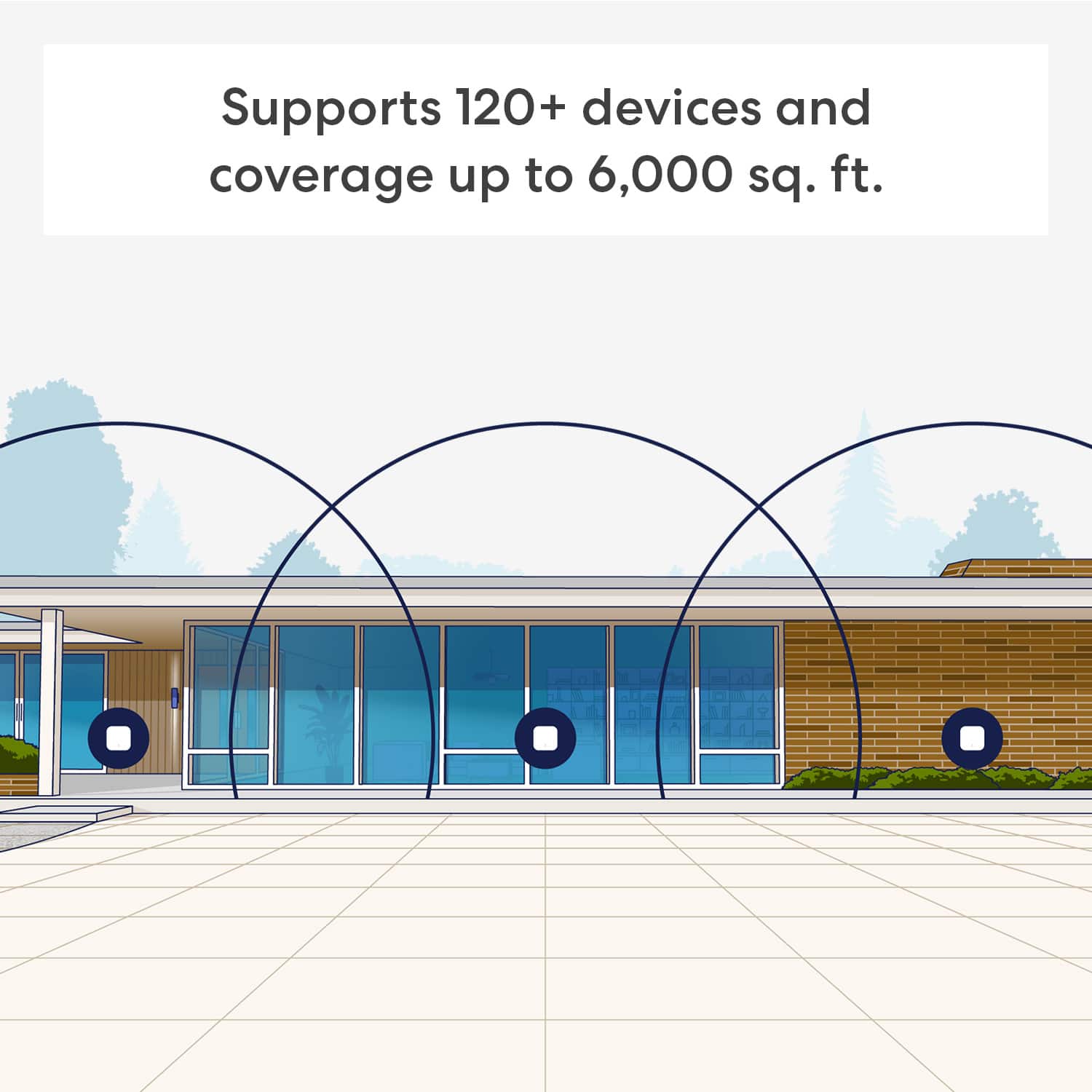
Customers consistently note the 7 Dual-band Mesh Wi-Fi 7 Router (1-pack) for its extremely easy setup and reliable connectivity. Users also appreciate the great coverage and signal strength throughout their homes. The router's compact size is another positive aspect, as it doesn't take up much space.
This summary was generated by AI based on customer reviews.
Mr. Linksys
||Posted . Owned for 1 month when reviewed.This reviewer received promo considerations or sweepstakes entry for writing a review.Works well the first time. Up and running in 20 minutes. A web base would be better in addition to the only mobile app.
I would recommend this to a friend- Pros mentioned:Setup ease
Eero 7
||Posted . Owned for less than 1 week when reviewed.This reviewer received promo considerations or sweepstakes entry for writing a review.I appreciated how easy it was to set-up and use. Good quality.
I would recommend this to a friend - Pros mentioned:Coverage
Wi Fi
||Posted . Owned for 3 weeks when reviewed.This reviewer received promo considerations or sweepstakes entry for writing a review.Covers every inch in our home. We love the EERO - 7
I would recommend this to a friend - Pros mentioned:Coverage
Wifi booster
||Posted . Owned for 1 week when reviewed.This reviewer received promo considerations or sweepstakes entry for writing a review.works great kids game from every room in my house all my smart appliances and devices work hold up to 75 devices never had issues with this best ever Wifi booster
I would recommend this to a friend - Pros mentioned:Setup ease
No Complaints
||Posted . Owned for 3 weeks when reviewed.This reviewer received promo considerations or sweepstakes entry for writing a review.Regular Xfinity service with the booster pod was INEFFECTIVE. I bought this and all of my problems went away! No complaints easy to install and set up
I would recommend this to a friend - Pros mentioned:Range
Better conection
||Posted . Owned for 1 month when reviewed.This reviewer received promo considerations or sweepstakes entry for writing a review.They work good. more distance coverage then the older ones
I would recommend this to a friend Nice system
||Posted .This reviewer received promo considerations or sweepstakes entry for writing a review.Nice system. They are little, you can use Echo Pop to extend them. (that was a great surprise)
I would recommend this to a friend- Pros mentioned:Coverage
Good home coverage
||Posted .This reviewer received promo considerations or sweepstakes entry for writing a review.Great coverage in an old home with plaster/lath walls
I would recommend this to a friend - Pros mentioned:Setup ease

Easy to set up and use
|Posted . Owned for 1 month when reviewed.This reviewer received promo considerations or sweepstakes entry for writing a review.[Employee of bestbuy] Very easy to set up . Will recomend this for anybody looking for a new wifi system
I would recommend this to a friend - Pros mentioned:Range
Eero mesh wi-fi
||Posted . Owned for 3 weeks when reviewed.This reviewer received promo considerations or sweepstakes entry for writing a review.Completely changed our wi-fi, so much better, greatly improved range. Wish I would have purchased sooner.
I would recommend this to a friend - Pros mentioned:Setup ease
Easy setup
||Posted . Owned for 3 weeks when reviewed.This reviewer received promo considerations or sweepstakes entry for writing a review.Super easy set up! Works great! No issues at all! Highly recommend!
I would recommend this to a friend - Pros mentioned:Coverage
Works Great!
||Posted .This reviewer received promo considerations or sweepstakes entry for writing a review.I bought an extra eero mesh to enhance outdoors wifi and it works great!
I would recommend this to a friend - Pros mentioned:Coverage
3 replaced 5 routers
||Posted . Owned for 3 weeks when reviewed.This reviewer received promo considerations or sweepstakes entry for writing a review.I replaced 5 Google routers with 3 Eero’s Great coverage.
I would recommend this to a friend - Pros mentioned:Setup ease
Tri-Band ???
||Posted . Owned for 1 month when reviewed.This reviewer received promo considerations or sweepstakes entry for writing a review.Returned due to not being tri band like the Max7 that system is linked to. Otherwise set up easy.
I would recommend this to a friend - Pros mentioned:Connectivity
Works as intended
|Posted . Owned for 2 weeks when reviewed.This reviewer received promo considerations or sweepstakes entry for writing a review.[Employee of bestbuy] My wifi att wifi worked seamlessly with the eero. Although I did have to use a wired connection the the router modem combo. At times wifi has some latency but it might just be att itself.
I would recommend this to a friend It works great!
||Posted . Owned for 2 weeks when reviewed.This reviewer received promo considerations or sweepstakes entry for writing a review.Bought this to add on to my extisting sets and literally the easiest install and works all the time with no lag!
I would recommend this to a friend- Pros mentioned:Setup ease
Easy setup
||Posted . Owned for 1 month when reviewed.This reviewer received promo considerations or sweepstakes entry for writing a review.Super easy setup and works great sinfe day one. You dont need a subscription.
I would recommend this to a friend - Pros mentioned:Coverage
Simply fantastic!
||Posted . Owned for 3 weeks when reviewed.This reviewer received promo considerations or sweepstakes entry for writing a review.Fantastic, my coverage has greatly expanded and has been perfectly reliable!
I would recommend this to a friend - Pros mentioned:Coverage
Excellent Product
||Posted .This reviewer received promo considerations or sweepstakes entry for writing a review.This 3 pack provides excellent coverage for a 2,500 square foot home. Fast and reliable.
I would recommend this to a friend - Pros mentioned:Coverage
DennisK
||Posted . Owned for 1 month when reviewed.This reviewer received promo considerations or sweepstakes entry for writing a review.Works great. Great overall coverage between rooms..
I would recommend this to a friend