Customer Ratings & Reviews
- Model:
- C11CL41201
- SKU:
- 6621250
Rating by feature
- Value
Rating 4.5 out of 5 stars
- Quality
Rating 4.5 out of 5 stars
- Ease of Use
Rating 4.4 out of 5 stars
Customers are saying
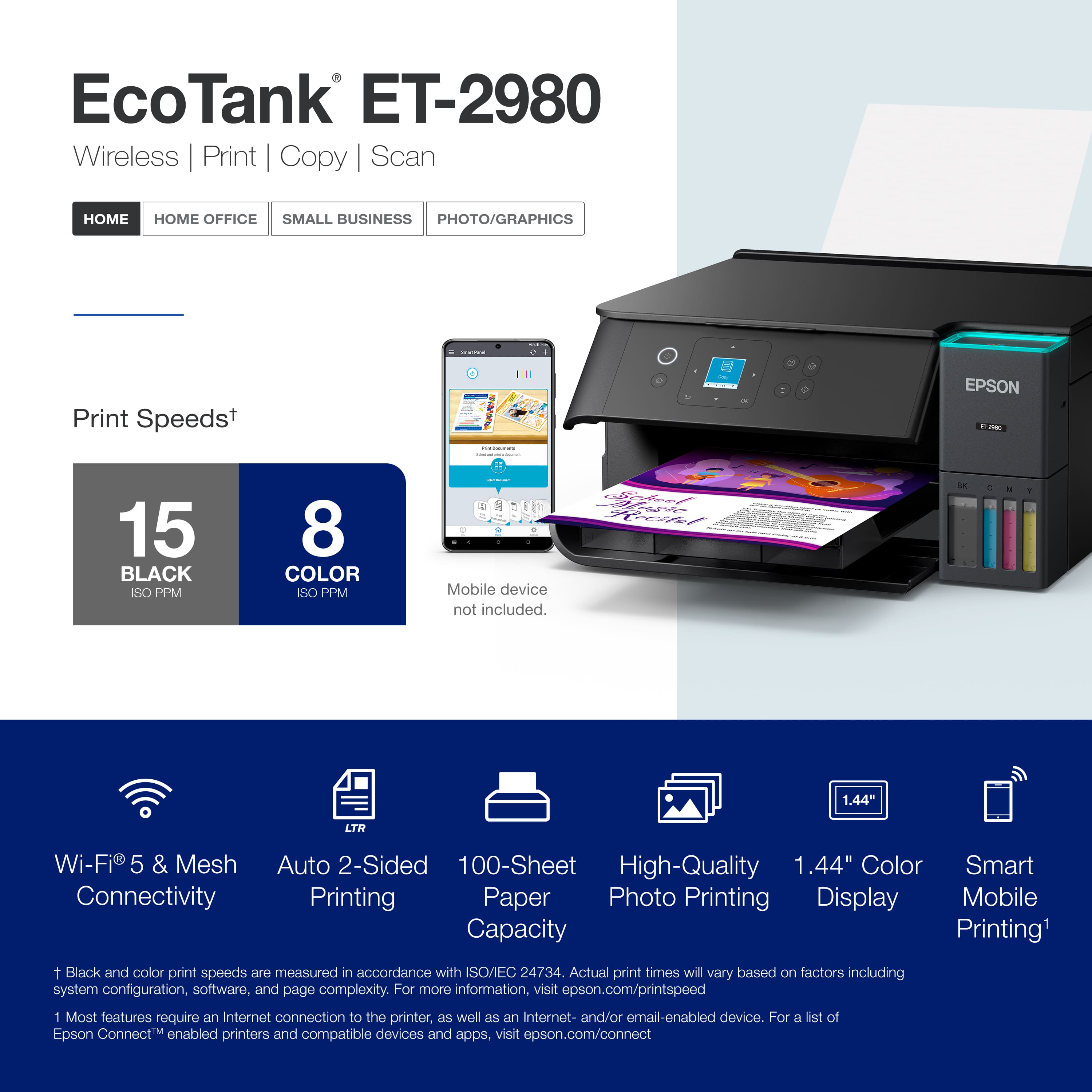
Customers commend the product's excellent print quality and incredibly easy setup. They also appreciate its convenient connectivity, compact size, and quiet operation.
This summary was generated by AI based on customer reviews.
- Pros mentioned:Print quality, Setup ease
HAPPY to dump my inefficient old cartridge inkjet
||Posted .This reviewer received promo considerations or sweepstakes entry for writing a review.Happy 100%. "Just buy" it was a review I saw when buying. I replaced an older HP cartridge ink jet that was very costly and inefficient with ink. This have been great. It was easy to set up using the mobile app - despite others reviews. While Im tech savy I just followed the app prompts. Ive used this to print duplex / double sided, color, black, photo paper and 70 holiday envelopes from a mail merge. The scan/copy is pretty fast too. Print speed is fast and Im very happy with the ink use. Im not incentived writing this besides a chance to win a gc. I think my only issue is some printer menu prompts that are easy to go and click through when printing to different paper sizes and a print spooler queue issue from my android when printing multiple docs (solved by error retry). - some learning to do for me.
I would recommend this to a friend - Pros mentioned:Print quality, Setup ease
It's a printer and it works.
||Posted . Owned for 3 weeks when reviewed.This reviewer received promo considerations or sweepstakes entry for writing a review.This replaced my dried up old cheap Epson printer from 10 years ago. It's only been a few weeks but it works swimmingly so far. Easy to set up, and I love the bottle ink instead of cartridges (I hate those things). I still haven't exactly figured out the color configuration and all that, but that's not the printer's fault. Great for normal, run of the mill printing though, which is mostly what I need anyway.
I would recommend this to a friend - Pros mentioned:Print quality, Setup ease
Great Printer
||Posted .This reviewer received promo considerations or sweepstakes entry for writing a review.Working great love it had a earlier model lasted 10 years prints great pictures and easy to use best thing cheap ink pays for it self in no time
I would recommend this to a friend - Pros mentioned:Connectivity, Setup ease
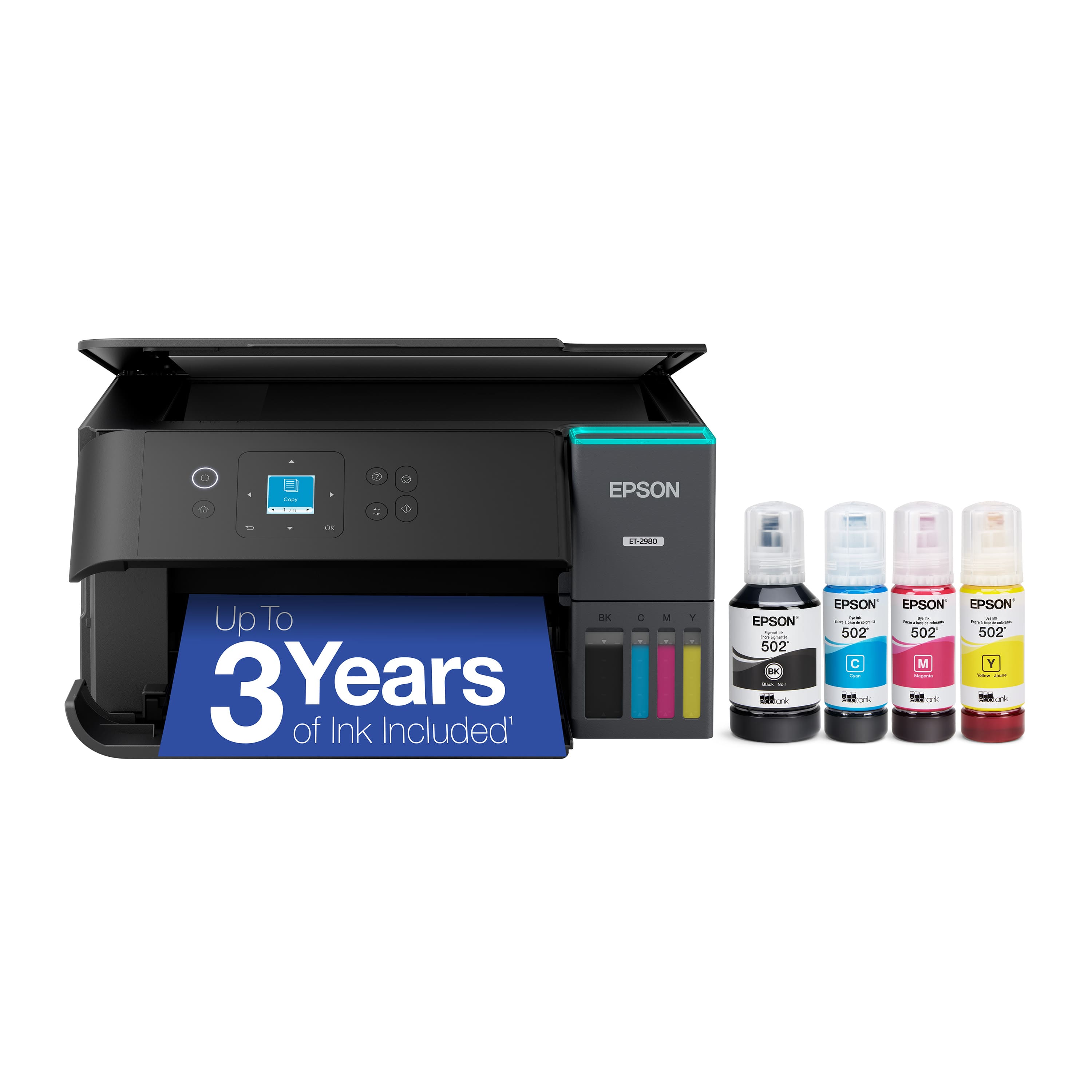
Epson Eco Tank-2980
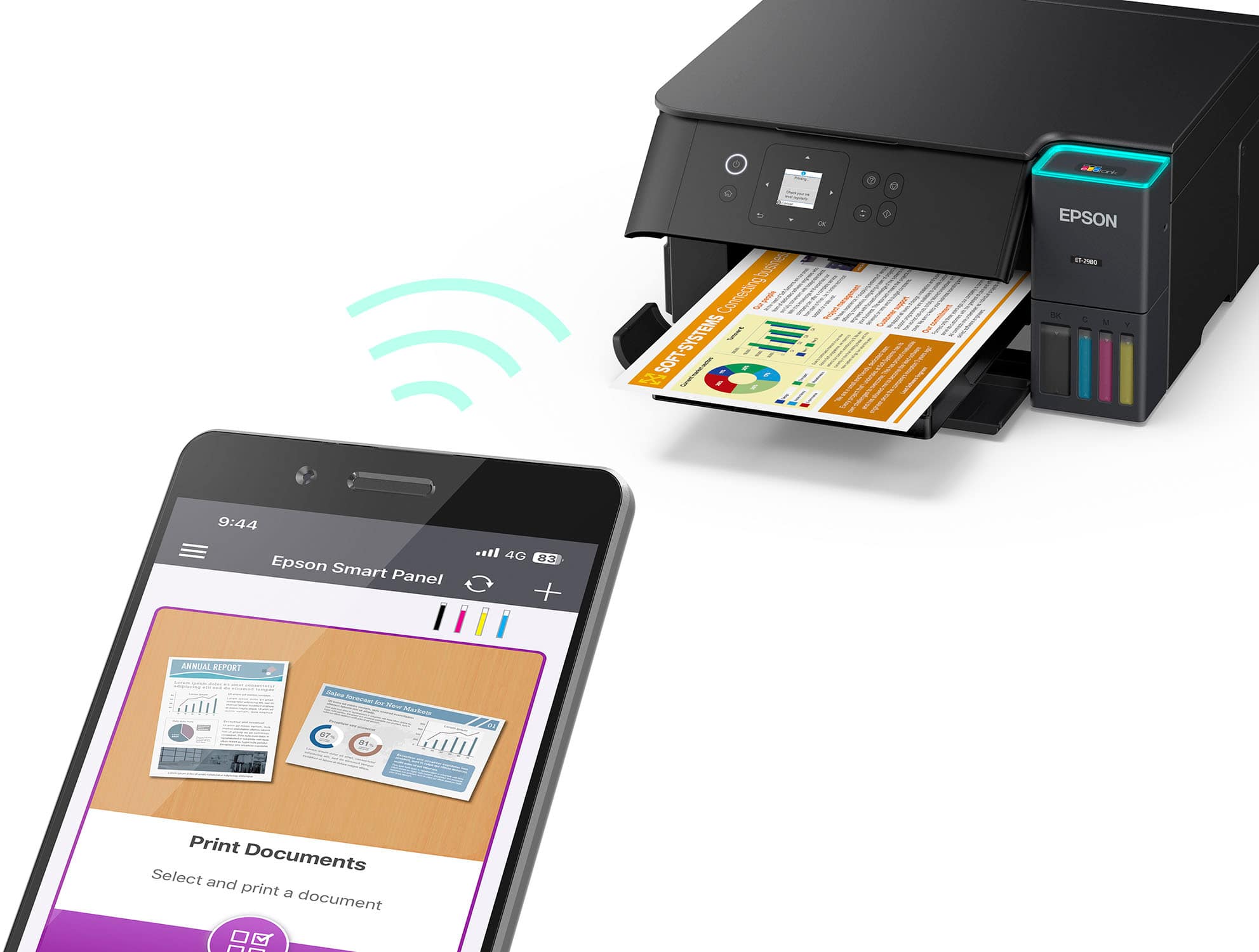
||Posted . Owned for 2 weeks when reviewed.This reviewer received promo considerations or sweepstakes entry for writing a review.Love this printer! Sets up easy and I can easily print from any device on our WiFi…including my iPhone!!
I would recommend this to a friend - Pros mentioned:Print quality
Totally unreliable!
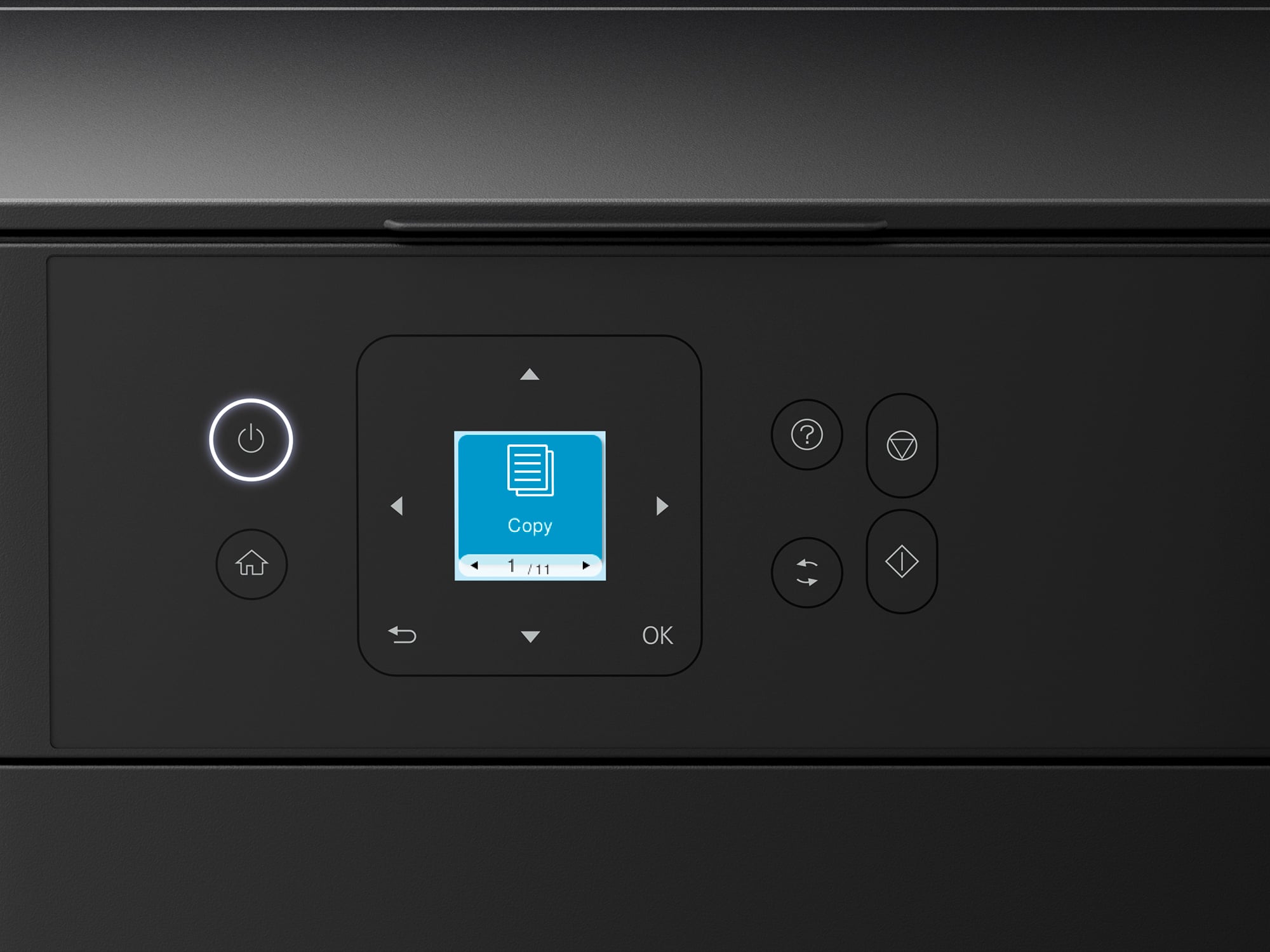
||Posted . Owned for 3 months when reviewed.This reviewer received promo considerations or sweepstakes entry for writing a review.I hate this printer. The screen is the size of a quarter and it CONSTANTLY has issues that take a really long time to resolve. You can see both a random error message and the size of the tiny screen next to my thumb in the photo. I never know if I will be able to print when I need to. I considered giving it 1 star since the ink seems to last a really long time, but I couldn't give it that much considering how unreliable it is. Would NOT recommend!
No, I would not recommend this to a friendBrand response from Epson
Posted .Hi MikeR, we are sorry to hear you are having issues with your Epson printer. Your ET-2980 includes a 1-year limited warranty plus free technical support for the life of your product. Our Epson Support Team would be happy to hear from you and can be reached at (562) 276-4382; Hours: Monday – Friday, 7 a.m. to 4 p.m. (PT). Sincerely, Joseph – The Epson Team.

- Pros mentioned:Print quality
Works very well so far
||Posted . Owned for 3 weeks when reviewed.This reviewer received promo considerations or sweepstakes entry for writing a review.Prints better and faster than my old HP printer. I like the low cost of the ink. The only negative so far is the size of the screen. It is only 1 inch by 1 inch making it difficult to read.
I would recommend this to a friend Epson 2980 is perfect
||Posted . Owned for 1 month when reviewed.This reviewer received promo considerations or sweepstakes entry for writing a review.This is my second Epson, replacing a 10+ year old printer, for home use. Great print quality. I scan lots of pictures and am very happy with this feature.
I would recommend this to a friend- Pros mentioned:Setup ease
Zine makers friend
||Posted .This reviewer received promo considerations or sweepstakes entry for writing a review.Works well and prints double sided!! Very simple to use and fun it figure out. Ink is easy to refill too!
I would recommend this to a friend Efficient
||Posted . Owned for 2 weeks when reviewed.This reviewer received promo considerations or sweepstakes entry for writing a review.Had to switch to this from an HP. We had too many problems with the HP. I love how fast this prints. Bought this printer for my daughter, who's in college.She's a biochemistry major.
I would recommend this to a friend- Pros mentioned:Size
Dope Printer
||Posted .This reviewer received promo considerations or sweepstakes entry for writing a review.It has a simple set up, its a nice size for a small room, works great.
I would recommend this to a friend Do Not Buy
||Posted . Owned for 1 month when reviewed.This reviewer received promo considerations or sweepstakes entry for writing a review.Do not buy, I have been having not stop issues with this model ET-2980 brand new! We got this for Christmas and due to the holidays, didn’t have time to setup. After finally setting this up, I have nothing but trouble getting it to print, without having to reboot the printer each time I use it. I have spent days trying different things to try and figure out what the problem is. I reset the printer, uninstalled all software and rerun the setup to fix the issue. The problem I am having is, I keep the printer on “idle” and when I need to print and scan, there is no network printers available. I try and manually restart the machine and when I do it either takes forever to shut down, like 20-30 minutes, or an error code gets displayed or it doesn’t shut down until I remove the power cable and reboot and it will work like it’s supposed too. Before this printer I had a HP8600 for almost 13-15 years without a single issue! This is horrible and now can’t return it to Best Buy since it’s past my return window and need to go to Epson directly. Be aware look for other brands or models before this one!
No, I would not recommend this to a friendBrand response from Epson
Posted .Hi PeterR, we are sorry to hear you are having issues with your Epson printer. Your ET-2980 includes a 1-year limited warranty plus free technical support for the life of your product. Our Epson Support Team would be happy to hear from you and can be reached at (562) 276-4382; Hours: Monday – Friday, 7 a.m. to 4 p.m. (PT). Sincerely, Joseph – The Epson Team.
Excellent
||Posted .This reviewer received promo considerations or sweepstakes entry for writing a review.Very nice printer, fast and reliable. Had a little difficulty getting it to hook to the wifi
I would recommend this to a friendEPSON ET- 2980
||Posted .This reviewer received promo considerations or sweepstakes entry for writing a review.We ordered Epson ET 2980, the product quality is super diooper 100 percent good quality , we try it already because and we love it and I recommend this product
I would recommend this to a friendEpson - Eco Tank ET-2980
||Posted .This reviewer received promo considerations or sweepstakes entry for writing a review.Excellent printer, no issues, likes the ink bottles, and highly recommend buying.
I would recommend this to a friendEpson ET- 2980
||Posted . Owned for 2 weeks when reviewed.This reviewer received promo considerations or sweepstakes entry for writing a review.It took three weeks to get the printer to sink to the computer. instructions not very clear. Four times I went back to the store for help.
No, I would not recommend this to a friendBrand response from Epson
Posted .Hi SteveB, thank you for taking the time to write a review of your new Epson printer. We appreciate your business, and value your feedback. Your ET-2980 includes free technical support for the life of your product, so if you’d like help, feel free to contact us at (562) 276-4382; Hours: Monday – Friday, 7 a.m. to 4 p.m. (PT). Kind Regards, Joseph – The Epson Team.
- Pros mentioned:Connectivity, Print quality, Setup ease

Continues to improve
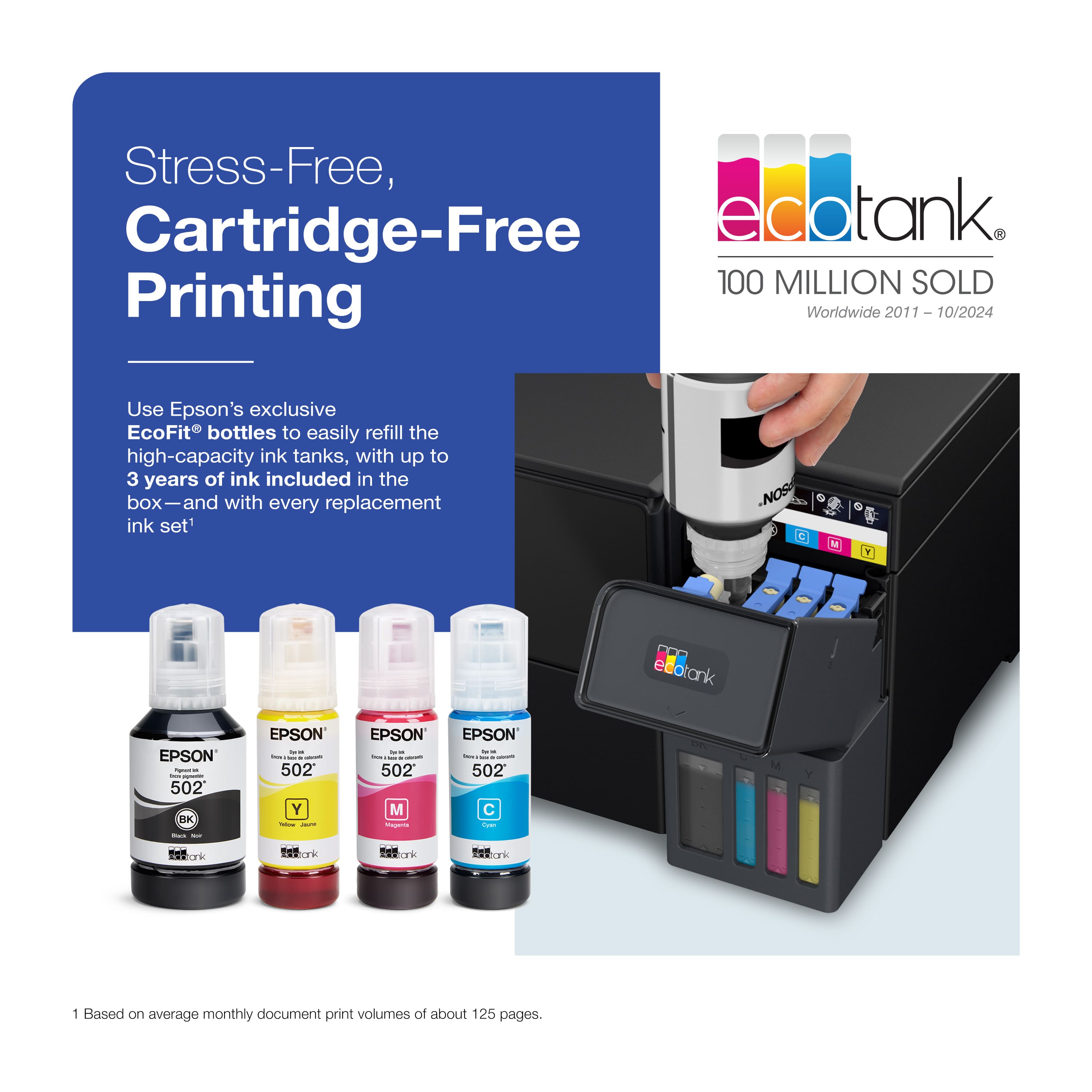
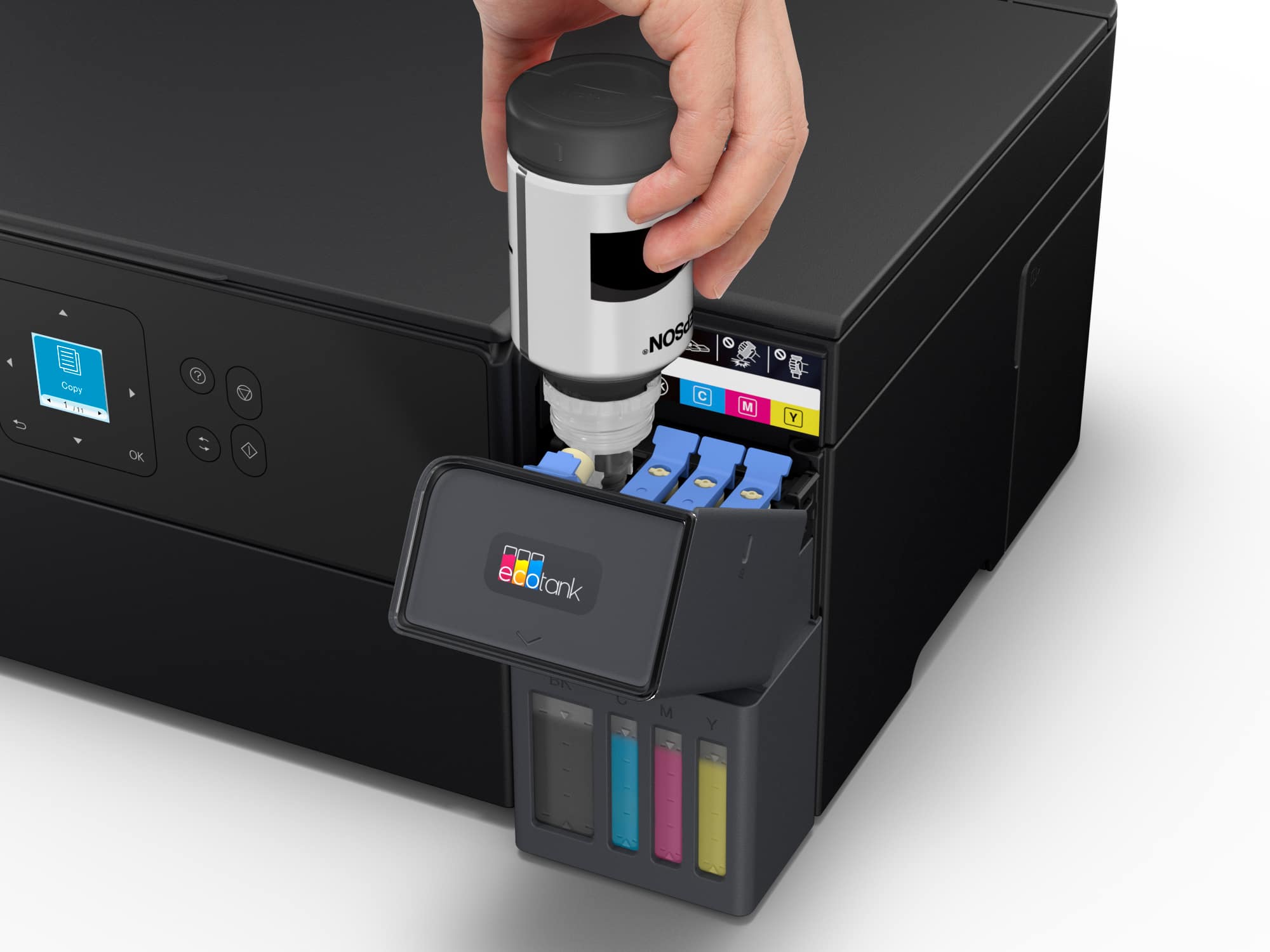
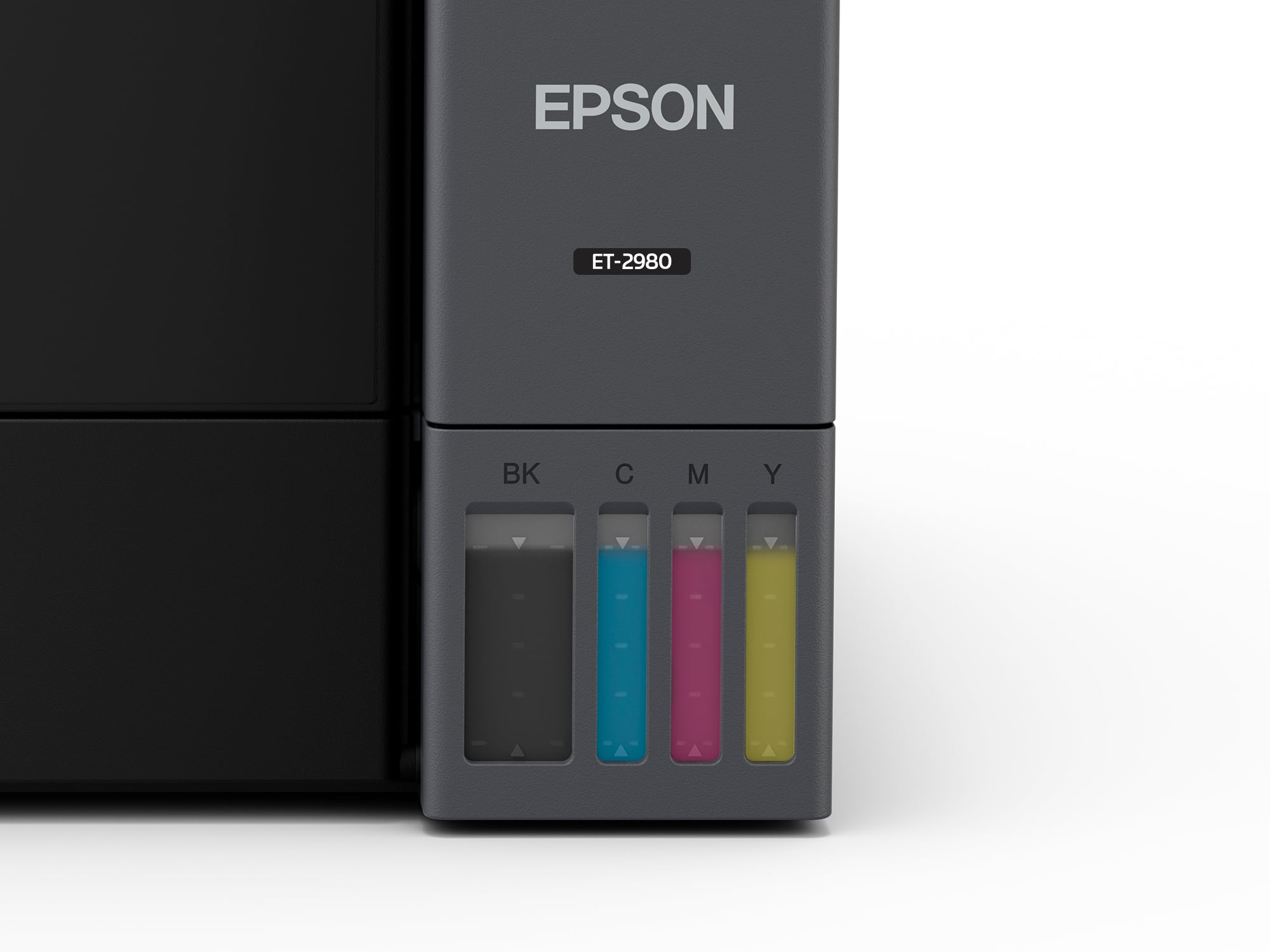
|Posted .This reviewer received promo considerations or sweepstakes entry for writing a review.The instructions will get you to load the 4 ink bottles (keep in mind once the ink is loaded the printer should not be tipped (keep it level)); all are keyed so they can only be put into the correct tanks, note there will be a little ink left in each bottle, re-cap set them aside, we'll get back to them later. It takes a couple of minutes per bottle. The app will ask you to confirm you've loaded the ink, then the LCD screen and app will let you know it's started the initialization process, this takes about 10-12 minutes. During this time the printer sucks some ink from the large tanks into its internal reservoirs, and does a lot of repositioning. You should now load some paper. At the end of the process it will ask you to print a series of alignment pages. On each of these pages you will be asked which of several images is better (closest to perfect alignment). Choose the appropriate image number and move through each of the alignment tests (these can be re-done from the maintenance menu). Once aligned you will be asked how you want to connect your printer to your PC/network. For most you will use WiFi to connect to your internal network (you can also connect to a PC via USB or use WiFi direct to the printer). I used WiFi to my home network; the printer can connect to all common WiFi networks (2.4 & 5gHz). It will show you the networks you can connect to and if your phone has saved a password for that network it will be used otherwise it will allow you to specify the network's password from the app. I believe it also supports WPS (where you push a button on your router to add a product), but I did not try this. Now the printer is ready to use, you just need to install software on the device(s) you want to use it from. I started with a Windows 11 install based on a link the app provided. The download was very straightforward. Before running the software install make sure that your computer is on the same WiFi network you selected for the printer. Now proceed with the install, which will install drivers and Epson application software, the software should automatically find your printer (it did for me). At the end it will ask you to print a test page, if all went well it will emerge from the printer a few seconds later (it did for me). Setup also lets you set up the printer as a cloud device (giving it an email address you can send to it to print) and for MS "One Drive" printing as well as setup for iOS/Android devices. The Smart Panel installed software to set up my iPhone to be able to print to the printer. A very easy operation. So, so far, so good. My test pages all came out properly from my various devices. At this point I recommend adding the leftover ink from each of the ink bottles to the printer, there is not much, but the will nearly fill the reservoirs, the bottles can then be discarded (note the ink refill size is 502 (you're likely to need more in a couple of years). I did a number of tests with color copies, I found that the default density setting of 0 for copies was a little light, changing the default to +1 improved the results. All the text that I printed was extremely sharp, most excellent. I then loaded some 4x6 HQ Canon photo paper and sent the printer my first photo. It was very good, but not perfectly true colors, the darkest areas were an inky black. The yellow and blues were pretty true, but the deep dark reds, here just a tad light, more dark pink than dark red. Flesh colors were very good, quite acceptable. I guess it will probably be fine for 95% of the print's I make (no worse than what I expect from Walgreens/CVS digital prints). Maybe with more use the quality will improve/change (I only tested 3 prints I sent directly) one that I scanned had the same not quite deep red issue, and you could see it did not have the full resolution of the original. I've attached a series of color copies showing density-1,0,+1 & the original, here again you can see the red heart is a bit pink, but all else (especially the last +1) looks great. I compared the printer's output to my Laser printer (1200dpi) . The mono output from this printer was just as crisp, and the gray scale output just as good as what the laser produced. This EcoTank 2980 prints 15 ppm in black and 8 ppm with color (single sided; half this for double sided). Finally in summary, this printer is a great buy, especially if you consider the total cost to output the first 8,500 pages/prints. On my previous ink jet printer I could not get 200 pages out of one set of cartridges. I've previously bought new printers to avoid replacing cartridges (and with each generation there are different cartridge #s). I'm pleased to see that Epson has not changed ink bottle types (502) since they introduced Eco Tanks. Yet they have improved the software and speed of their printers. I'm accustomed to duplex printing, and would not buy another printer without it. The printer can handle 2 paper sizes via the rear paper feeder (yea). I highly recommend this printer, unless you're expecting truly HQ photos, in which case I don't think you'll be satisfied. But for any plain paper printing and most 'family' photos this is a great buy.
I would recommend this to a friend - Pros mentioned:Connectivity, Noise level, Print quality
Clean Design, Smooth Performance, Quiet Operation
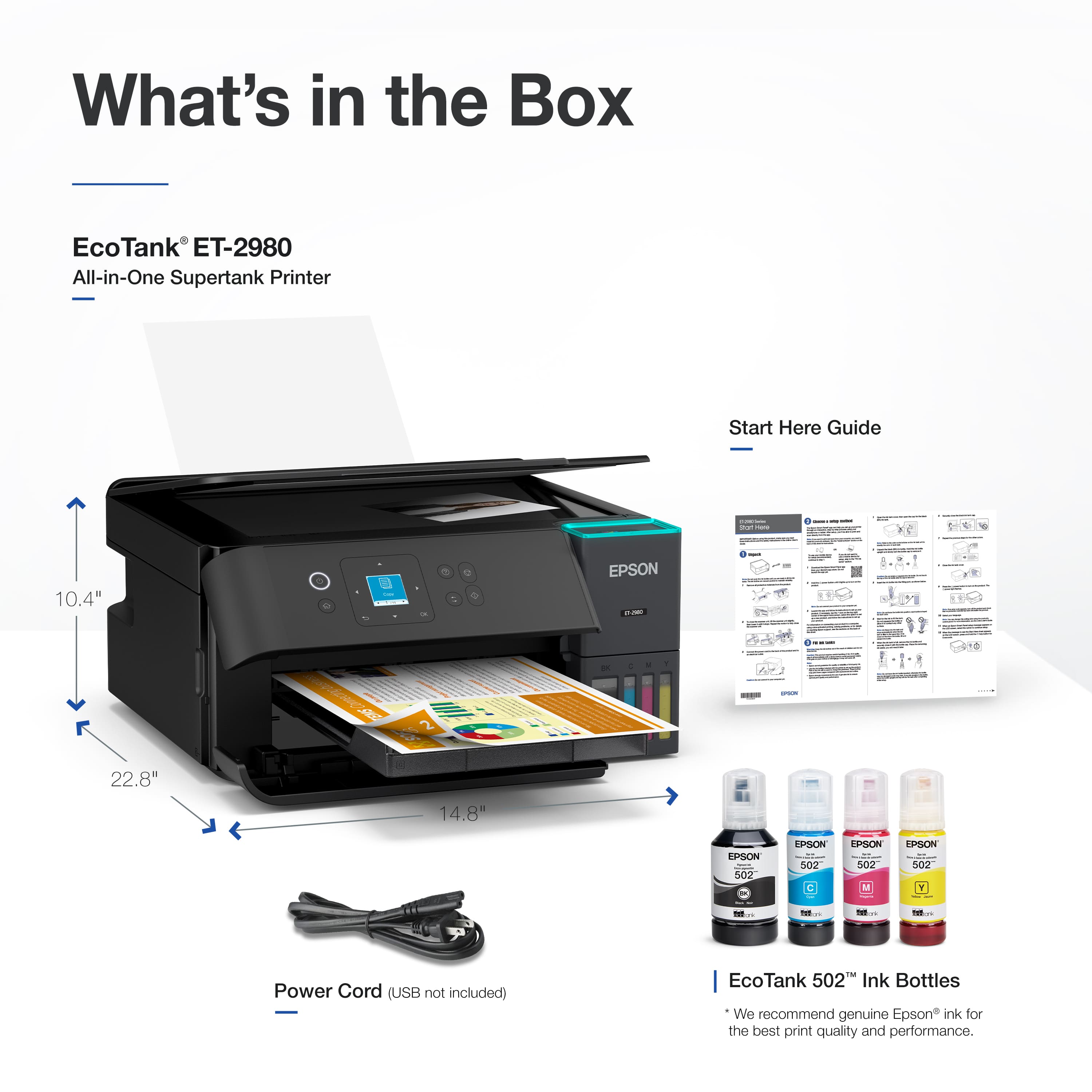
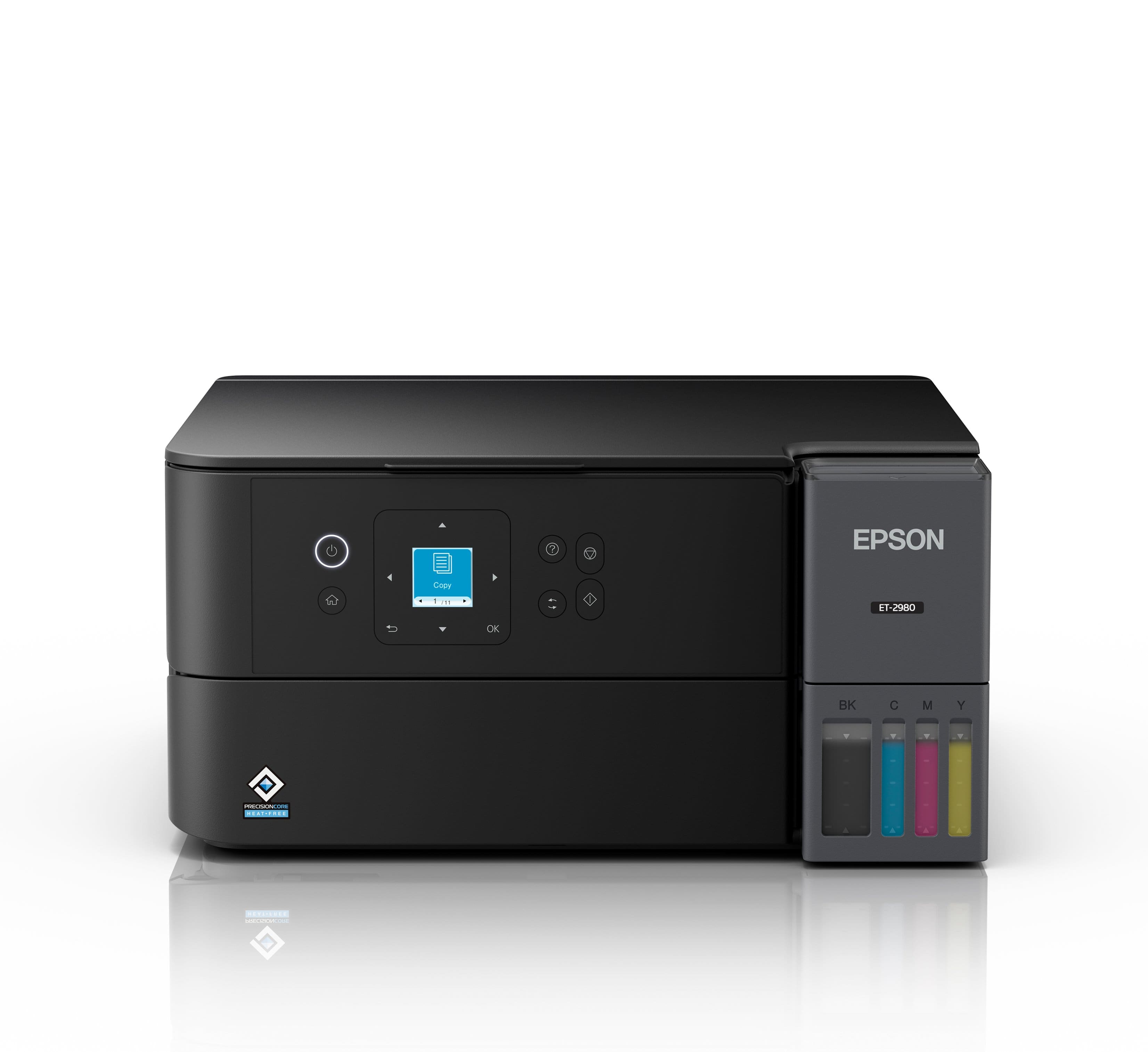
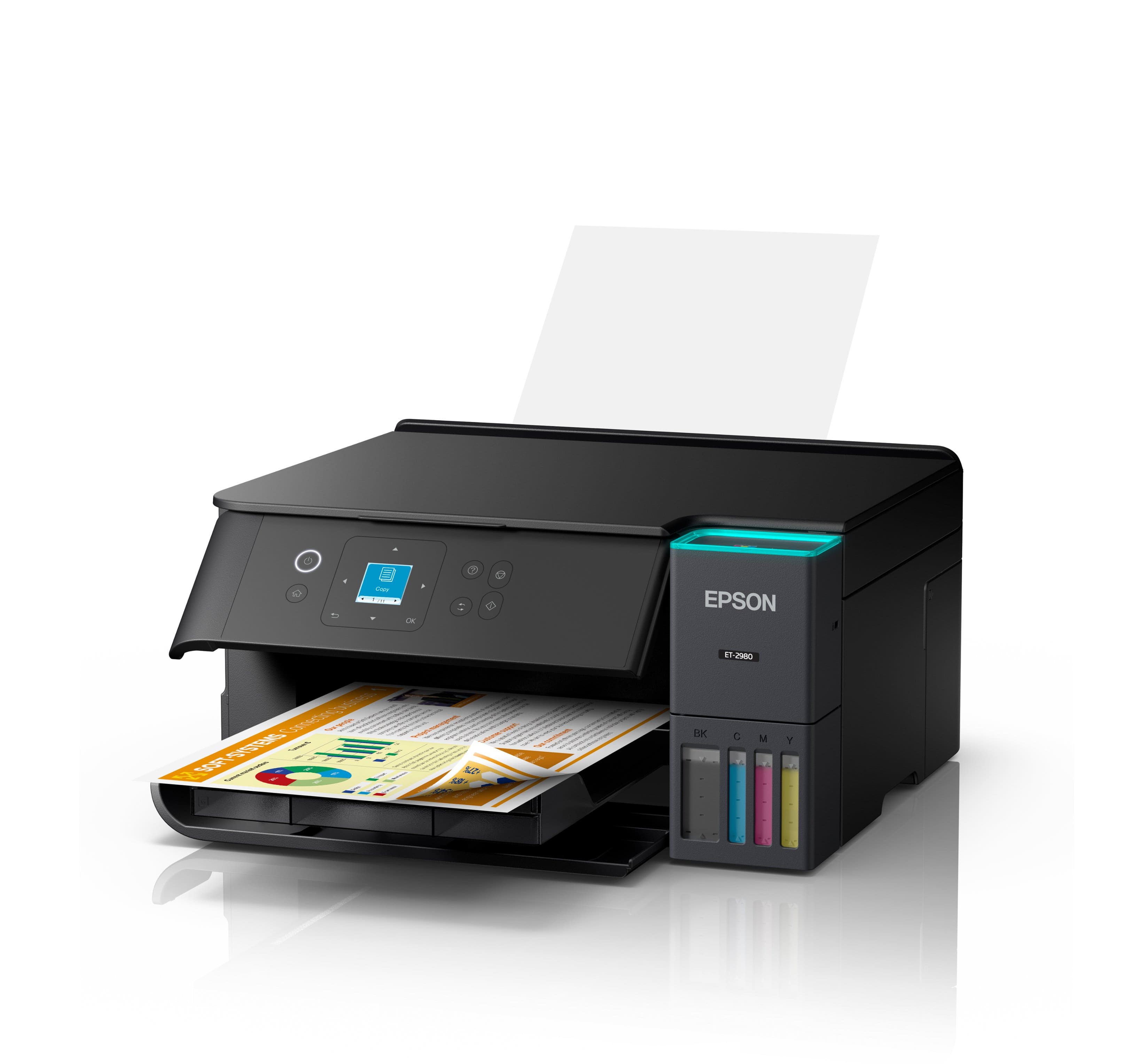
|Posted .This reviewer received promo considerations or sweepstakes entry for writing a review.The Epson ET2980 printer is very well made and what I like the most is its simplicity. Its size will be more like a mid range, not too big but neither too small. The shape, like most printers, is a boxy square but this one has round edges in some areas giving a modern touch. The bright white color I like it a lot, and the ink tank is easily identifiable by it’s gray color and LED light on the cover. Setting it up is very simple and it can be done in multiple ways. You can set it up directly by following the instructions on the small screen on the control panel, or download and use the Epson Smart Panel app and complete the installation on your mobile device. Either way they are both simple. It will take a bit more than 10 minutes because you need to fill each ink tank separately and there are a total of 4. After filling the ink tank DO NOT discard the bottles with the little leftover ink. You will need that to top off the ink tank after the printer does the calibration. For some reason it uses almost a quarter of the ink of each tank for that. I was really impressed with the attention to detail in the engineering. There's no need to worry about accidentally placing the wrong color in the wrong tank, it’s practically impossible. Each bottle is designed to fit only in its corresponding color tank, thanks to a unique locking pattern. If you try to insert the wrong one, it simply won’t fit even when the right color is inserted backwards. When it comes to printing it does it very fast. It prints 15 pages a minute in black and 8 pages in color. The color accuracy is also very good too, I was impressed by the detail and I didn’t even use a photo paper. Printing pages with letters and photos like web pages were also done in a speedy way. This printer also supports two side printing and the ADF paper tray is located in the back. The tray can hold up to 100 pages and can be adjusted to support sizes up to 8.5x14. Something else that impressed me about this printer and wasn't expecting was the paper output tray, it is mechanical. When the printer is turned off, the tray automatically retracts into the printer, resulting in a flush front look. This printer also offers copy and scan functions. Scanning can be done in black and white or color, with resolutions ranging from 200 to 600 DPI. Even at the lowest resolution, the scan quality remains extremely good and detailed. While the scanning process is somewhat slow, it does operate very quietly. One downside is the lack of an Automatic Document Feeder (ADF), it uses a flatbed scanner, requiring you to scan each page individually, which can be tedious for large documents. The maximum supported scan size is 8.5 x 11 inches The control panel was very responsive and the small color screen was easy to read. The panel has the ability to be tilted outward for better visibility and usage. This printer works mostly on wireless technology (Wi-Fi), but if you wish to attach a cable, it also supports USB type B. It actually baffled me to find a type B connection when Type C is the go to nowadays. However, they don’t expect you to use it because the cable was not included. If you happened to have one laying around, now you have a printer to use it. Overall the Epson ET-2980 is a sleek, easy to use EcoTank printer ideal for home or small office use. It offers fast, high quality printing, smooth wireless setup, and quiet operation. While scanning lacks an automatic feeder, the design, performance, and app integration make it a strong all-in-one option for everyday tasks. In the box, you get the printer, 4 ink bottles, power cable and quickstart guide.
I would recommend this to a friend Jams when printing double sided
||Posted .This reviewer received promo considerations or sweepstakes entry for writing a review.I bought this printer because I wanted to print double sided, borderless 8.5" x 11" full color prints. It will not print borderless 8.5" x 11" and it jams every 2-3 pages when I try to print double sided. It has never printed double sided without the jamming issue. I still have to print one side, reload the pages and print the other.
No, I would not recommend this to a friendBrand response from Epson
Posted .Hello ChristopherJ, we apologize for the disappointing experience you’ve encountered with your Epson printer. Your ET-2980 includes free technical support for the life of your product. Please reach out to our Epson Support Team for assistance at (562) 276-4382; Hours: Monday – Friday, 7 a.m. to 4 p.m. (PT). We’re here to help. Sincerely, Joseph – The Epson Team.
- Pros mentioned:Connectivity, Print quality, Setup ease
Great performance, no more cartridge waste...
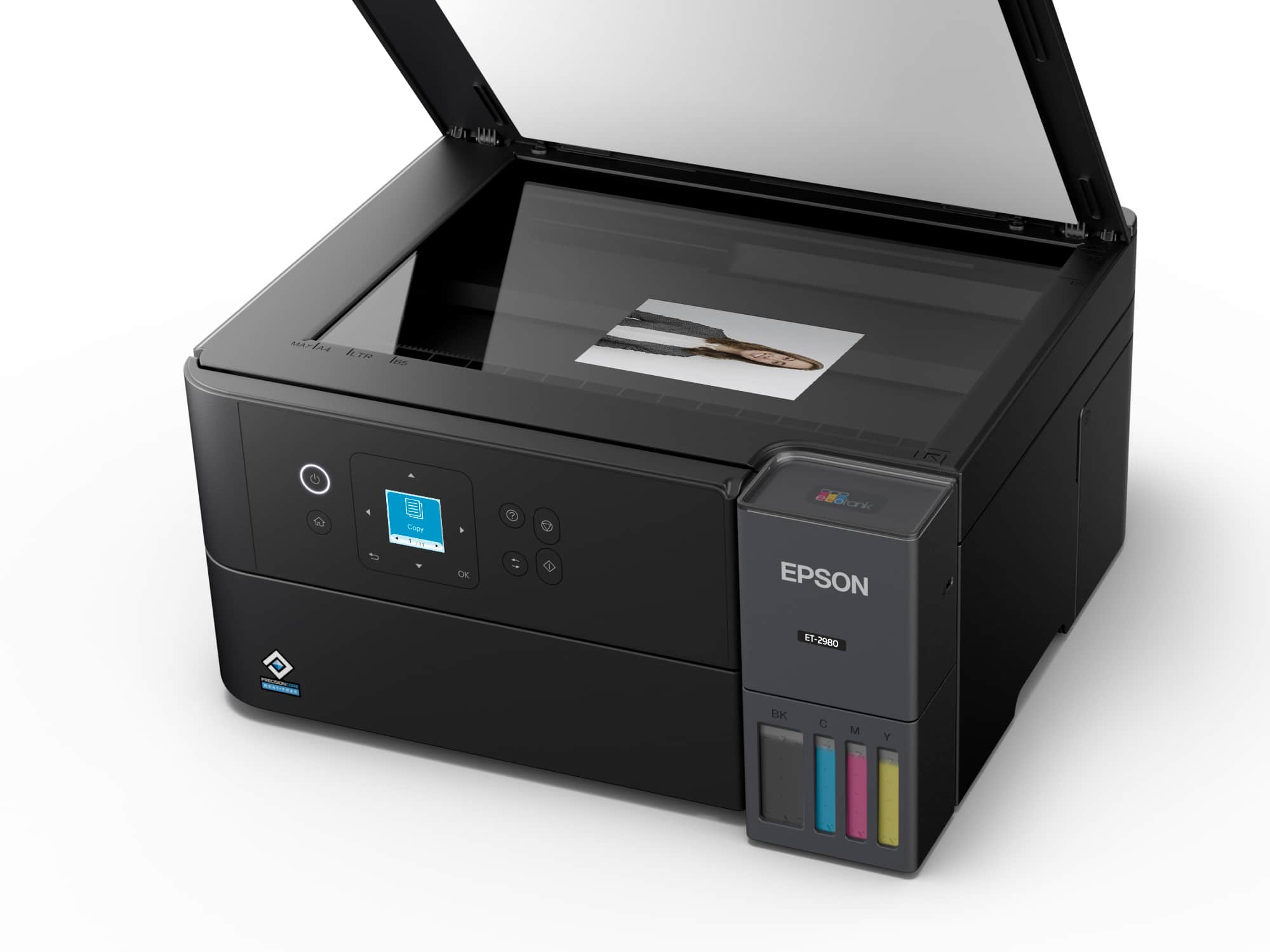
|Posted .This reviewer received promo considerations or sweepstakes entry for writing a review.It is true that there is a very wide variety of options when it comes to printers, but the reality is that few products strike a balance in terms of technology, price, and ease of use. This Epson EcoTank ET-2980 printer is at a good balance point, it is easy to use, has an affordable price, has features that enhance the experience, and is a product that saves money because of the tank system and the type of ink it uses. In the box comes the printer, ink bottles, a power cord, and the manual. The printer is not that big but it does need enough space to be able to perform its functions. It is recommended to download the Epson app to perform the installation and configuration of the printer. In reality, the process does not take more than 15 minutes through the app; however, on pc the process can take more time. In the case of connecting to a pc you can use the USB connection if you do not want to use or do not have a wireless network available. Once the printer is connected to the home network, the mobile devices also connected to that network can print wirelessly without any inconvenience. The printer is capable of printing, scanning, and copying, and each of these tasks is performed outstandingly. The color copies have a nice tone, they are of good quality as well as the monochrome prints or copies. The print speed is ok, it is not too fast but it does quite well. The scanner gives a pretty good image quality, with the help of the app you can take advantage of this function. The design of this printer pleases me, it has a front panel with a small screen, menu navigation buttons, on/off button, underneath the paper compartment, on the right side are the ink tanks and the easy access cover. At the top is the area where copying and scanning are performed, also protected by a cover. In conclusion, this Epson EcoTank ET-2980 printer is a good alternative for those who do not want to be dealing with the problem of cartridge or toner printers, for those who want a printer easy to install, easy to use with different mobile devices, and computers, for those who do not want to pay almost half the price or sometimes almost the price of the printer in pure cartridges or toners (and I'm not exaggerating). This is a printer for the family, for students, for those who work from home. It has an affordable price, a nice design, and saves you money, I can definitely recommend it.
I would recommend this to a friend Total Garbage - stopped working after 5 months
||Posted .This reviewer received promo considerations or sweepstakes entry for writing a review.Paper started jamming after 5 months of extremely light use when printing double sided. Terrible. Internal parts bent on their own. Don’t buy unless you’re the mechanical engineer who designed this model.
No, I would not recommend this to a friendBrand response from Epson
Posted .Hi Colin, we are sorry to hear you are having issues with your Epson printer. Your ET-2980 includes a 1-year limited warranty plus free technical support for the life of your product. Our Epson Support Team would be happy to hear from you and can be reached at (562) 276-4382; Hours: Monday – Friday, 7 a.m. to 4 p.m. (PT). Sincerely, Alissa A. – The Epson Team.