Customer Ratings & Reviews







- Model:
- AORUS 15 BMF-52US383SH
- SKU:
- 6534579
Rating by feature
- Battery Life
Rating 4.3 out of 5 stars
- Speed
Rating 4.5 out of 5 stars
- Display
Rating 4.6 out of 5 stars
Customers are saying
Customers recognize the AORUS 15.6" gaming laptop's strong performance and upgradable RAM as significant advantages, along with its good graphics and generally solid build quality. However, some users point to the noticeable fan noise and relatively short battery life as drawbacks. Concerns were also raised regarding the laptop's boot times and its weight.
This summary was generated by AI based on customer reviews.
- Pros mentioned:Build quality, RamCons mentioned:Boot time

A Great Gaming Laptop with a Couple of Misses
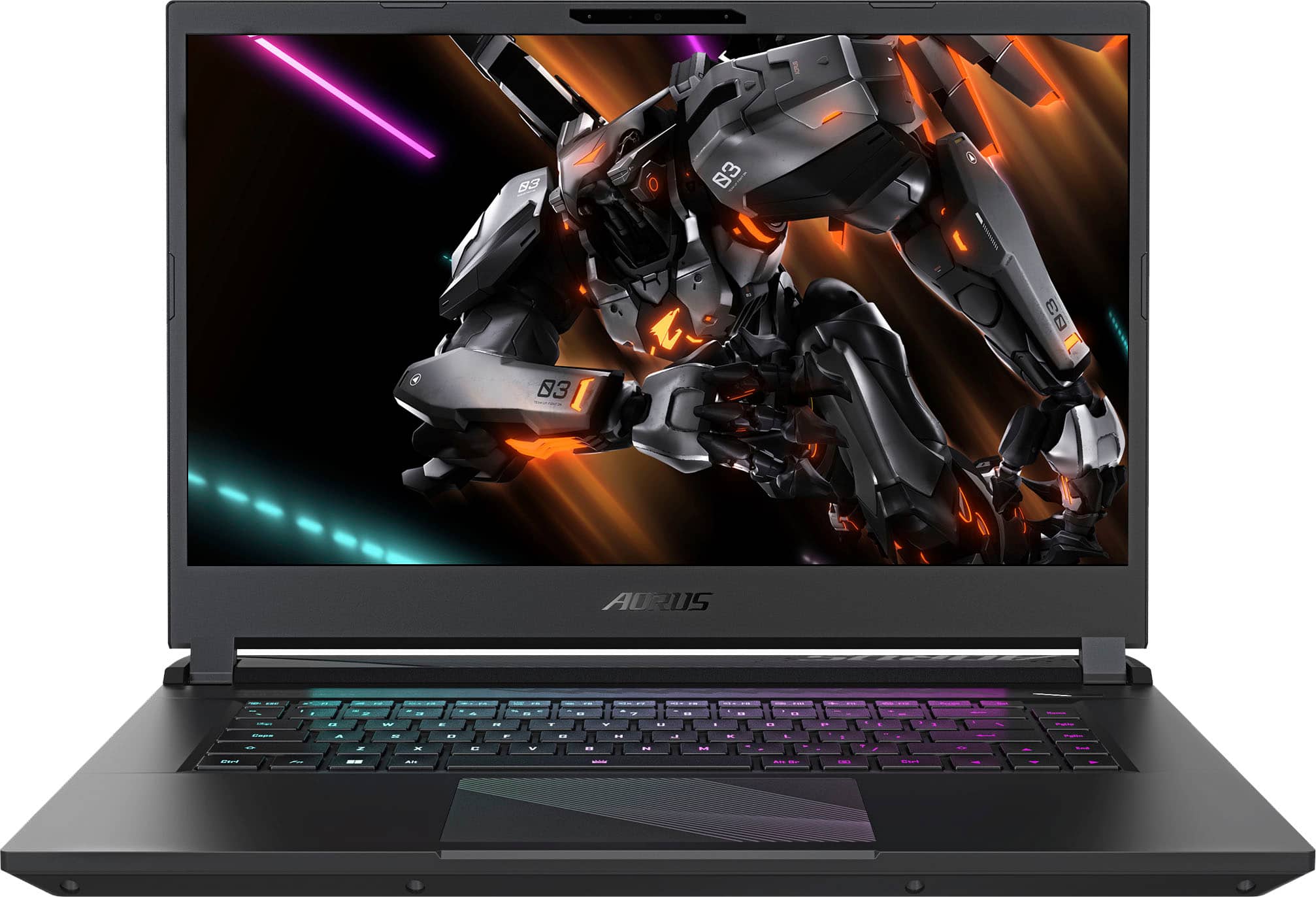
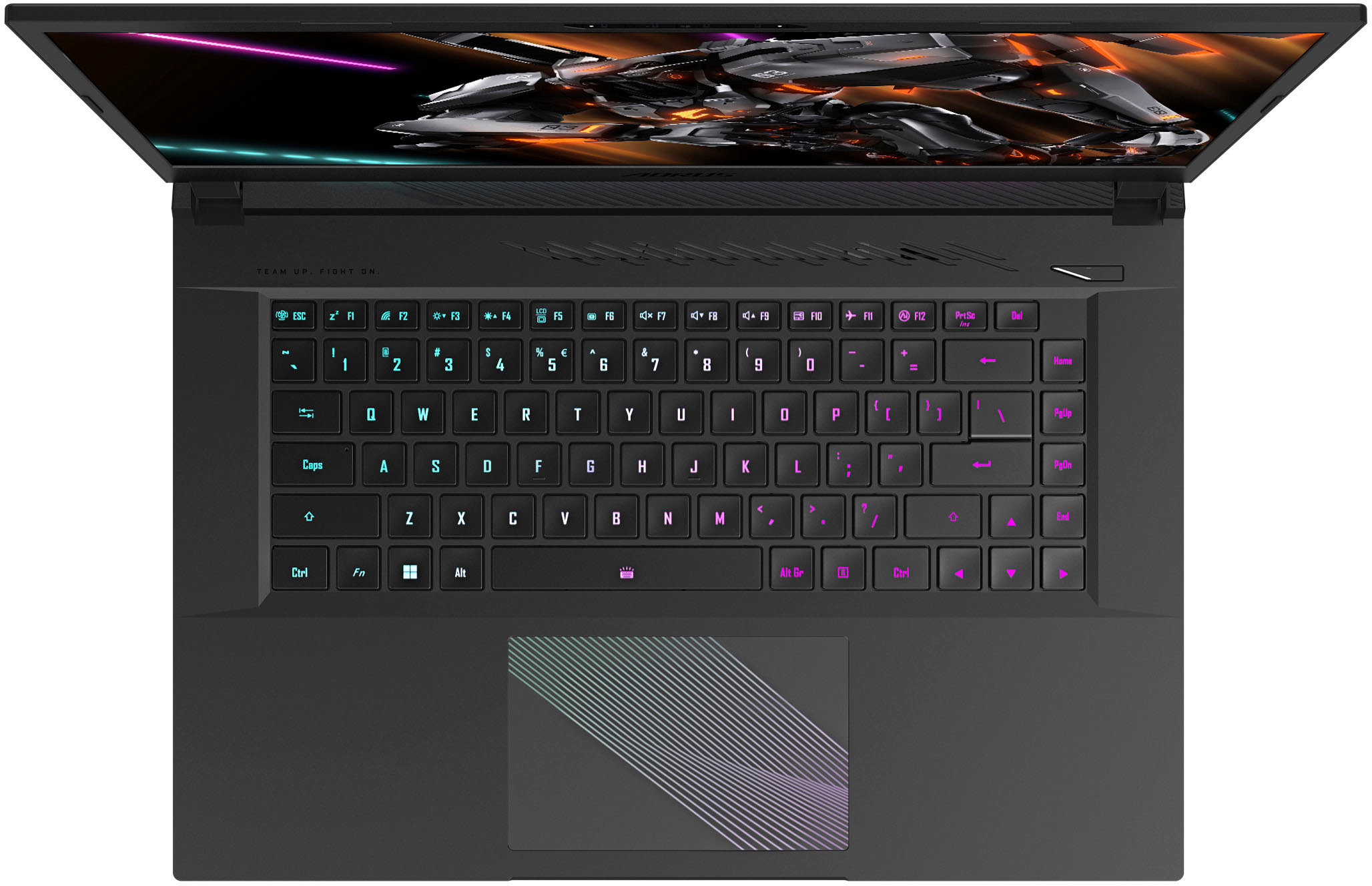
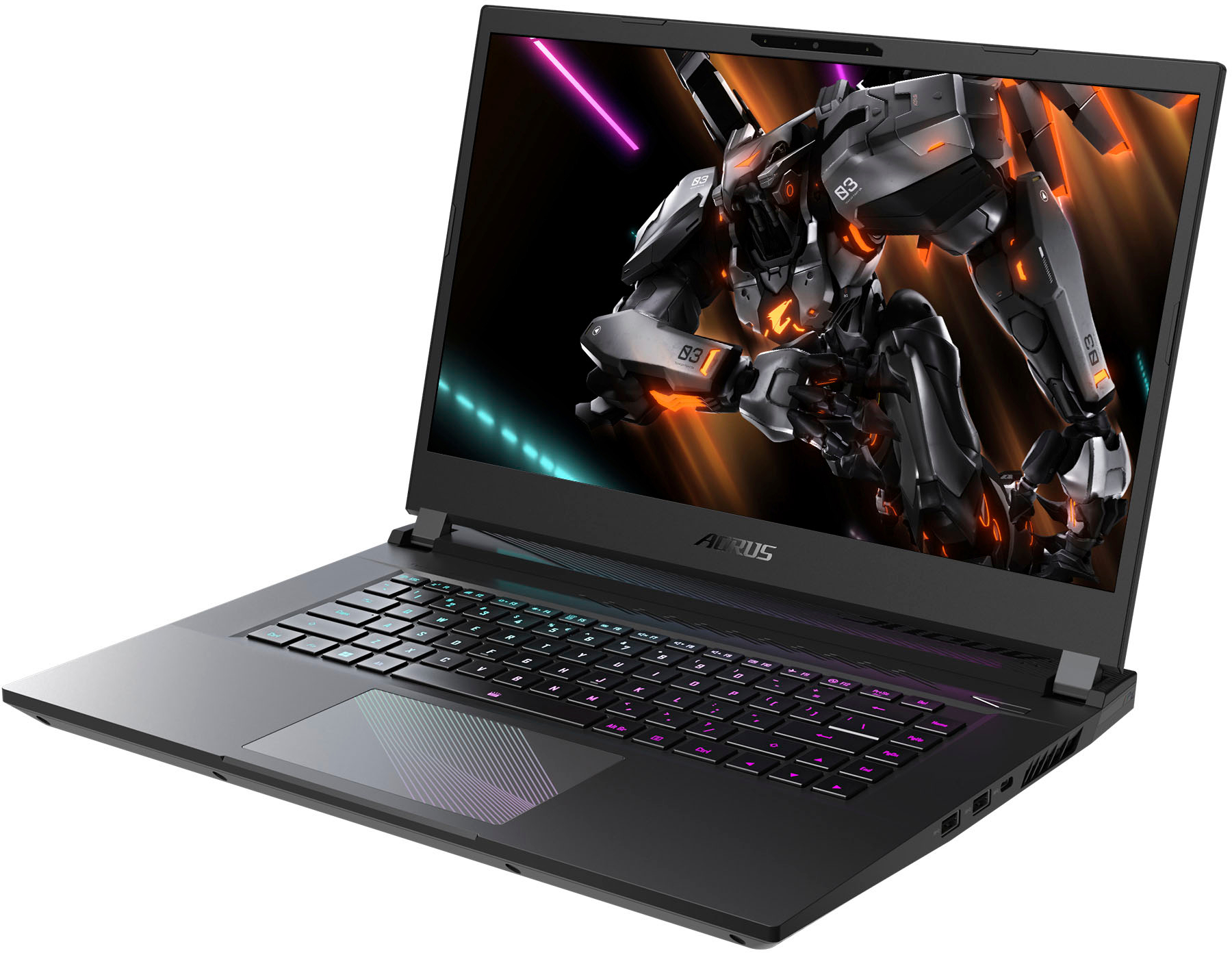
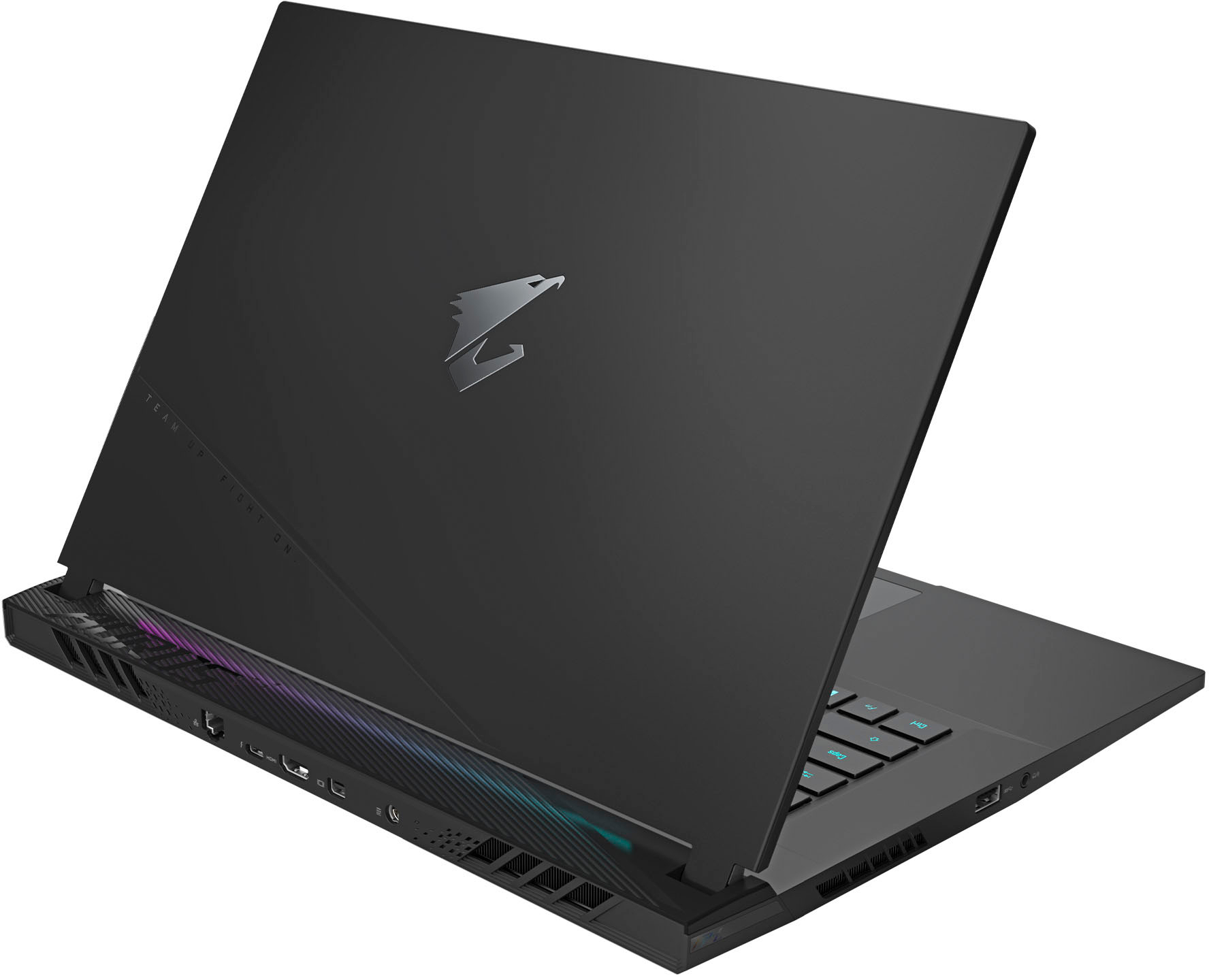
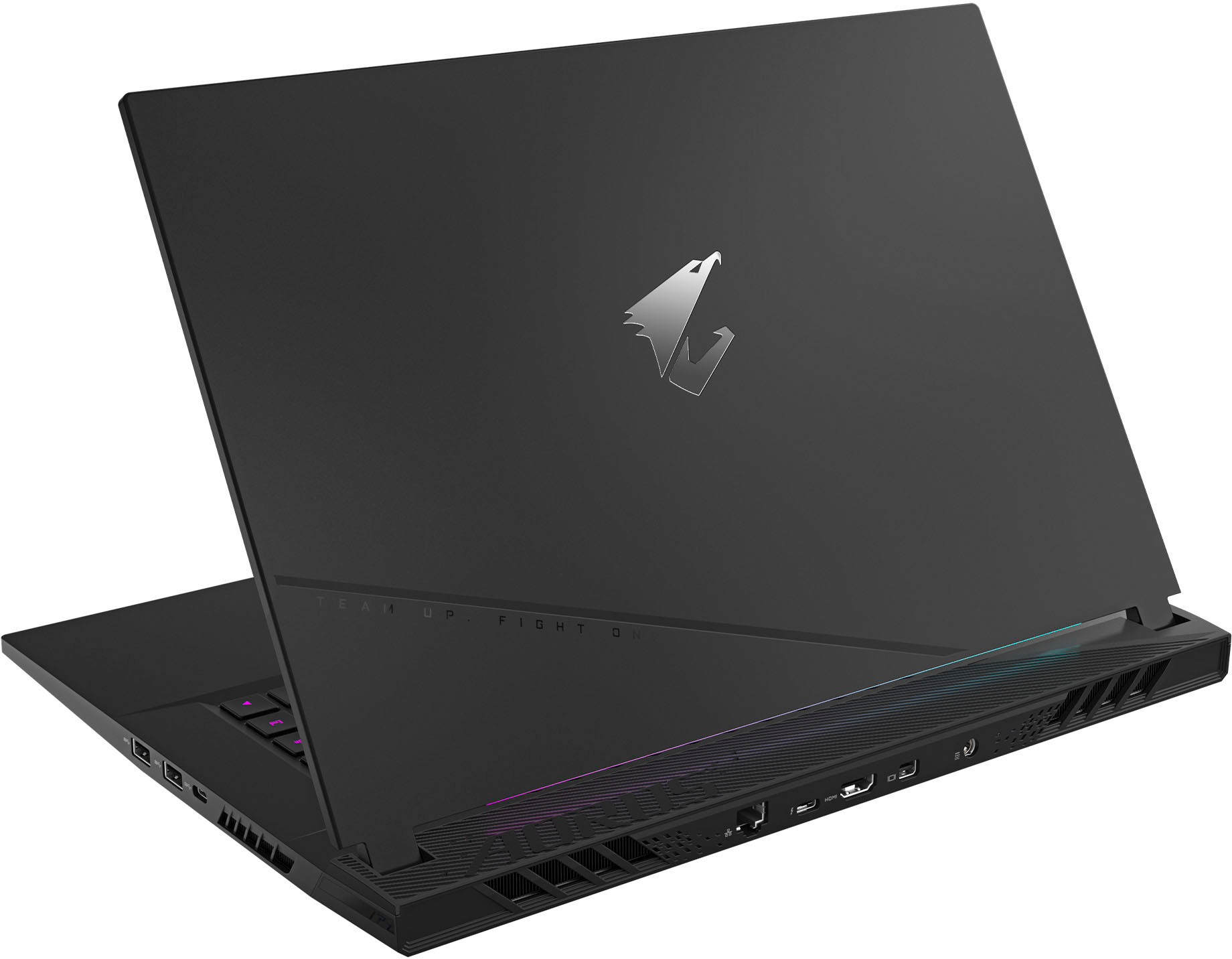
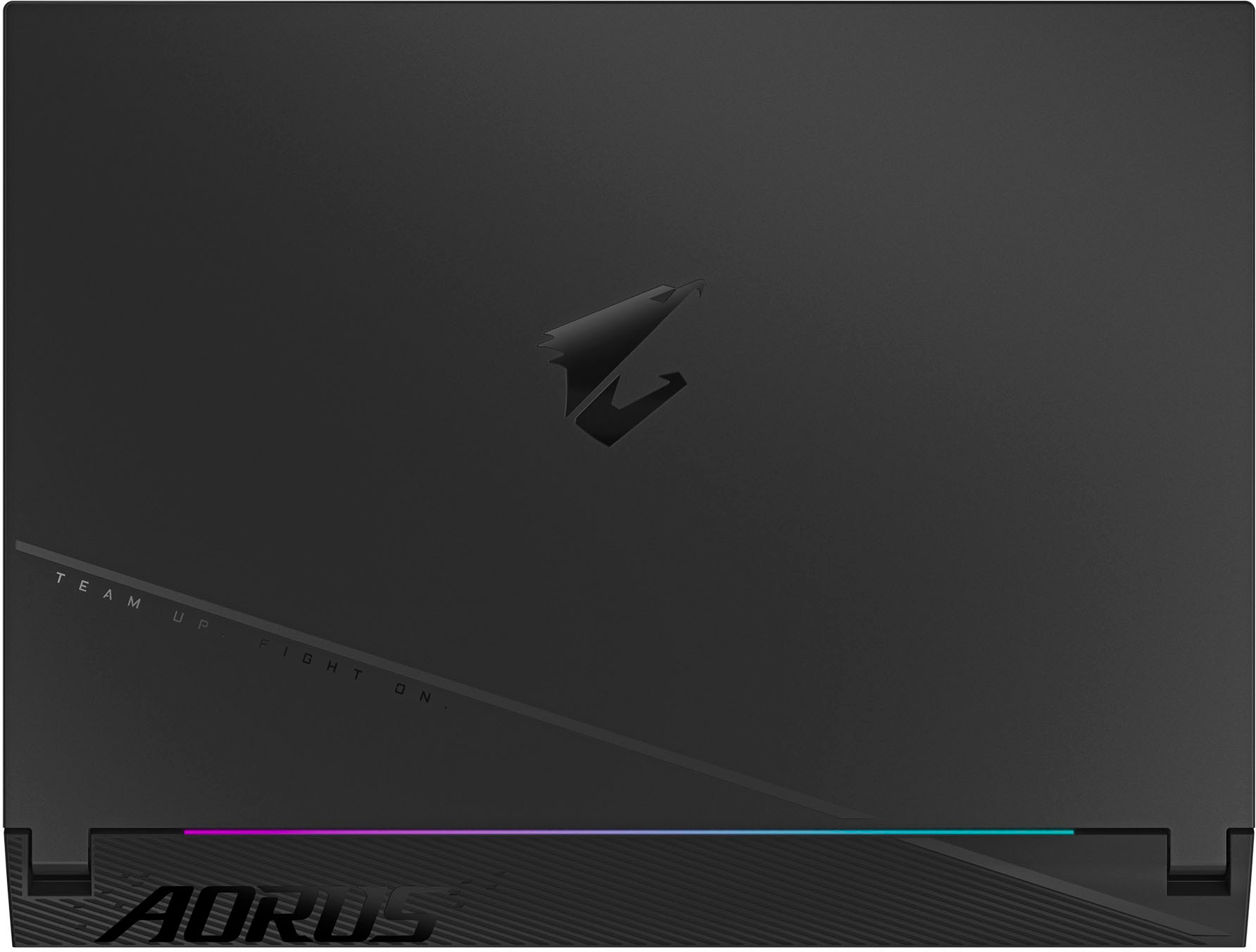
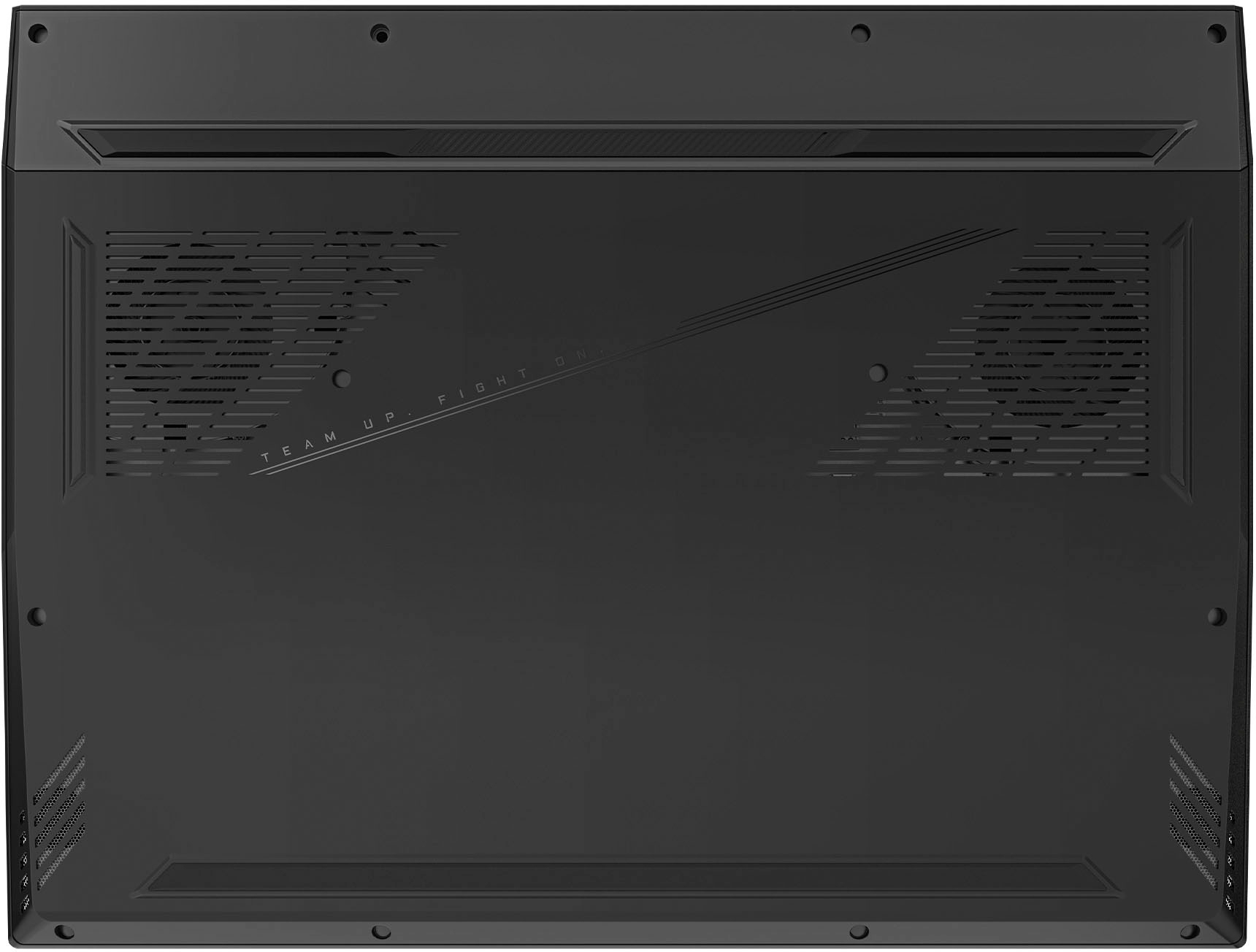
|Posted .This reviewer received promo considerations or sweepstakes entry for writing a review.The Gigabyte Aorus 15 is a good entry level gaming laptop with the potential to be great. It has a couple of component choices that take away from the experience but they’re nothing that cant be fixed with a few more bucks and a YouTube video. More on that in a bit. The Aorus has what I consider amazing build quality. I have had a couple of gaming laptops before that were much more expensive ad did not feel as quality or as solid, had massive back light bleed, or all the above. It has no chassis flex, no creaking, and most everything feels like metal, even the non metal bits. It a nice looking matte black color with a nice gloss Aorus logo in the center of of the lid. It has an RGB strip in the bottom of the monitor that reflects off the cooler and the can match or be different that the RGB keyboard. While it looks very nice, it IS a finger print magnet, but nothing a damp cloth wont take off. The laptop is easy to maintain and mostly easy to work on as the internal components are smartly laid out and the expansion slots are easy to find. My biggest knock is they used Torx T6 screws to put the bottom shell on instead of more common #1 or #2 Phillips screws. Unless you have a purpose built electronics kit the likelihood of you having a Torx driver lying around isn't that great. Oddly enough the internals ARE held together with #0 and #1 Phillips. It weighs in a roughly 5.5lbs, and combined with the big CPU GPU cooler it is not the most portable laptop, but its nowhere near as bad as a lot out there. It comes with a pretty chonky 240w power brick that is able to power the i5-13500H and RTX 4050 very well, and when not plugged in allows the MUX switch to run the integrated graphics and give you a reasonable 6-7hr web-surfing time and 3-4 streaming time. Gaming on a gaming laptop while on battery is generally a terrible idea and it proved true on this one as well. FPS suffers heavily running on integrated graphics and unless you drop settings to as low as they’ll go and the battery dies pretty quick after about an hour and a half or so in my testing. It has a 99Wh battery which is as big as airlines allow so you can fly and frag if you so desire. The laptop has a 15” 144hz panel that for some reason is labeled both 144hz and 165hz on Gigabytes product page, but I have not found any screen overclocking feature and Windows says its 144hz so that's what I’m going with. Gigabyte again doesn’t inform us if its TN or IPS instead saying its TUV Rhineland certified, but judging by the poor side viewing angle I’m willing to say its a TN panel, which seems fairly common at this price range. Its also NOT G-Sync or Free Sync compatible so something to be aware of. I noticed screen tearing the most when in smokey environments in fast paced games, or in foggy environments. Most other game play situations were crystal clear and I really REALLY had to be looking for any screen tear just so I could nit pick about it. It also has no noticeable back light bleed (at least on my model). The RTX 4050 is the bottom of the NVIDIA GPU lineup, however it doesn’t perform as such in modern games. My other laptop has a Ryzen 5900HS and a RTX 3060 and the i5-13500H / RTX 4050 easily outpaces it. At 1080p, running the same balanced settings in MW2 and Shadow of the Tomb Raider bench tests I was easily getting another 25-35 fps on this laptop with its bigger 15” display vs my other laptop with its 14” screen. Part of this is the i5-13500H being better than the 5900HS, but the 4050 is improved over the 3060 by a noticeable amount. All games I played were playable and ran smoothly for the most part, however this is where the laptops first shortcut shows its head. If you are just doing average tasks like browsing the web, looking at e-mail, etc, 8GB or ram is fine. But the fact it is a gaming laptop with only 8GB of ram really hurts it. Its sluggish in Windows menus when trying to open Edge, type to your friends in Discord, download games, let alone trying to get a game up and going. Once in game the game play is fine, but graphically heavy games have problems loading all textures in menus. For example, looking at my guns, camos, operators, or the Battle Pass in MW2 caused many textures to fail to load, giving a lump of mud appearance on everything. Game play was normally fine as those textures are prioritized as they should be but every now and then there would be some hitching that wasn't network related as more information was being loaded into the ram. Same issues in the menu and Item Shop in Fortnite. Task Manager shows just doing basic Windows tasks eats up 40-60% of the available ram. Games immediately sent it to 100%. Luckily Windows is fantastic at ram management and gives the game priority while shutting down and shifting priority away from other tasks you don’t need at the time. It really sucks they couldn’t include at least 16GB but I understand why at this price point. It is an easy upgrade even if you don’t know much about the internals on computers and whether you want to just get one 8GB stick or go for 32GB, you have 2 REAL SO-DIM slots instead of some of the ram being soldered to the motherboard like many laptops are guilty of. I stuck another 8GB stick in and Windows and a few background tasks immediately jump ram usage to 45% (so near the old total ram amount) and MW2 jumped it to 73% and Fortnite jumped it to 85%. Other AAA games were within this range as well. So if you throw ram at this laptop it will benefit. Textures immediate load as they should, games run even better with no more hitching and stuttering, etc. Frame rates went from an average of 134 to 148 in MW2 and from 127 to 149 in Tomb Raider. VERY impressive.. Next on the list is the 512GB gen 4 m.2 SSD. 512GB is not a lot of room anymore with games easily taking 50+GB and some well over 100GB. Many people would knock it, and I’m one of them, however I understand at this price point. I applaud Gigabyte for at least including another 2280 length m.2 slot so you can easily pop in another drive unlike many other laptops that cost even more that require you to buy an external housing to flash your operating system and all the drives contents onto a new drive before replacing it , or just losing everything and starting from scratch. However before you go buy another drive ask yourself how what all will be on your PC. I currently have 15 games ranging from AAA titles eating up 100GB to a few Indy games barely over 500MB and still have 90GB free. Even if you end up needing more room, if you have fast internet you can quickly get them again. If not, unlike current gen consoles, you can use a standard external hard drive to easily expand your gaming storage instead of having to buy a special designed SSD cartridge in the case or an expensive gen 4 m.2 with a heat-sink. I ended up putting in a 1TB gen 3 SSD, bringing total capacity to 1.5TB and now have more room than I will need for a long time. The laptop also includes a genuine Intel AX211 WiFi 6E card instead of off brand card. This card proved very fast getting 400-600MB/s on my 1gig internet. It never dropped nor did I experience really any more lag than with a wired connections. Speaking of, this laptop actually includes a real Ethernet port so if you are in a situation that allows you to plug in to get faster and more stable internet you will be able to without buying a USB to Ethernet adapter like many other laptops require. When it comes to a clean Windows install, Gigabyte deserves some credit here. Other than standard Microsoft programs, the only things installed were Gigabyte Control Center and Network Dragon, and NVIDIA Control Center. Network Dragon can be uninstalled, as you don’t need anything monitoring your internet while you play a game, as you really shouldn’t be doing any major background tasks while gaming in the first place. Control Center is decent. You go there to adjust the computers mode from gaming to battery saver to anything in between, adjust fan curves and RGB settings, etc. Its light and the settings are not buried in dozens of sub menus like one of my other laptops. The one of two thing that annoys me is that even though I can turn the track pad off to keep from bumping it while using a mouse, I cant disable the Windows key without installing a third party program or editing the Windows registry. I use the left Alt key to ping items in-game, and I kept hitting the Windows key instead and pulling me out of the game! Super simple thing they could fix in a future Control Center update. The other thing that bugged me was the lack of disabling the RGB turning off. If you don’t use the keyboard in 60 seconds or so, the back-lighting turns off. Again there should be an option to enable always on if you’re plugged into an outlet. Last on the list is how the PC runs… or doesn’t? This laptop has an amazing processor and a stupid fast Gen 4 m.2 SSD. Yet for some reason this laptop takes an ETERNITY to turn on, restart, and even enter and exit the BIOS menu. I have 0 idea why this is a thing, but it reminds me of a PC with an old spinning hard drive. You can turn it on and literally go get a cup of coffee before it gets to the Windows log in screen. I believe this is squarely on Gigabytes shoulders and hopefully a future update will fix this issue. In conclusion, for $1,000 you get a very well built laptop with an amazing processor, a surprisingly great GPU, and can easily upgrade the ram, SSD, and WiFi cards. That price tag limits you to a screen without G-Sync / Free Sync, the bare minimum ram to run, and a OK size SSD and a sluggish boot sequence. Are these problems? Yes. Will they reduce your enjoyment of the product? For most people who are new to PC gaming or buying this for their kids, I say no. Other than the screen and the boot sequence the problems can be fixed with $100 and a couple YouTube videos or you can always take it to Best Buy and have them do it for you.
I would recommend this to a friend - Cons mentioned:Battery life, Boot time, Fan noise
Solid entry level gaming laptop that's upgradeable
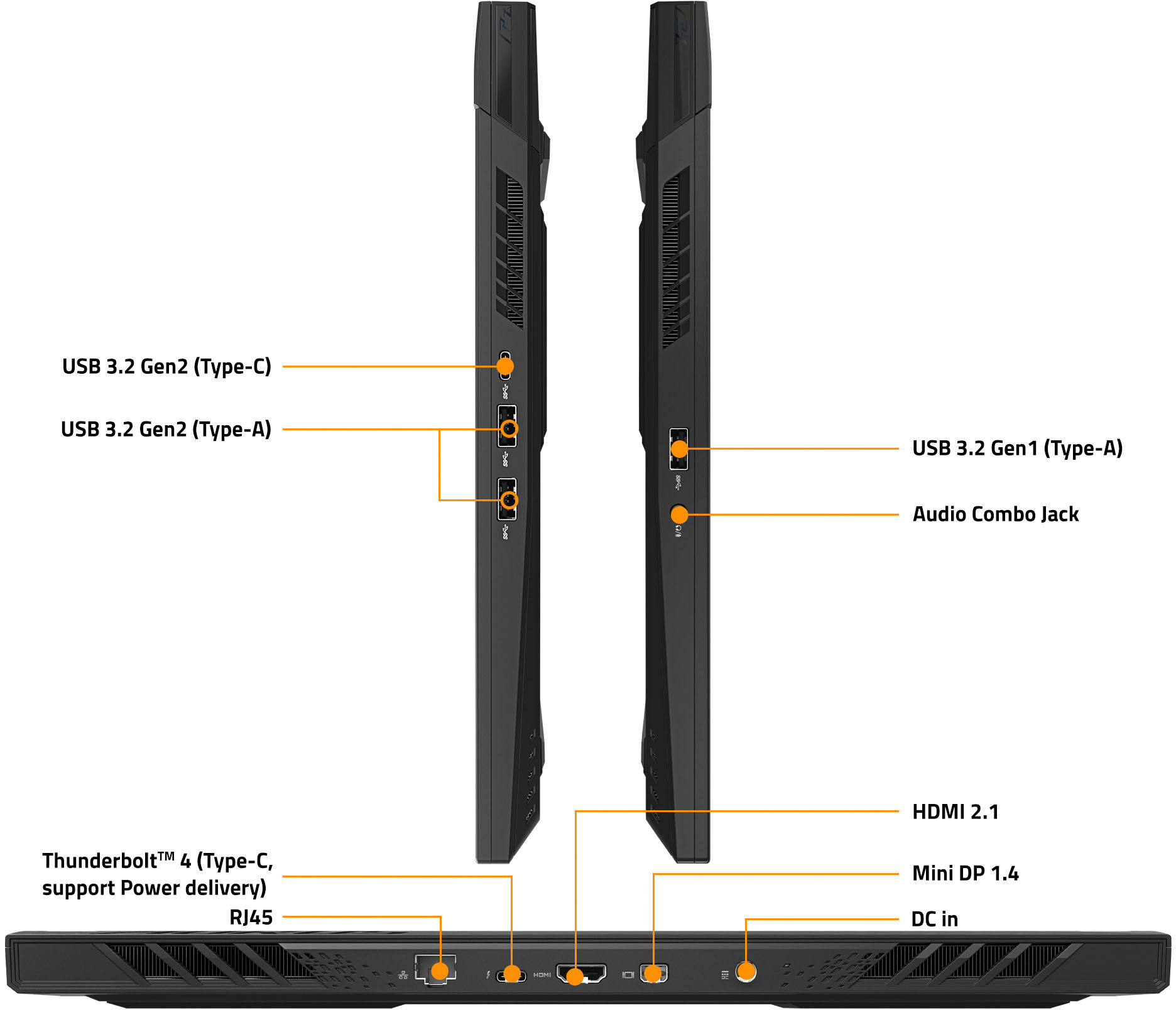
|Posted .This reviewer received promo considerations or sweepstakes entry for writing a review.The 15BLF is the entry-level model in AORUS gaming series of thin and light laptops. It features a 15.6 inch 16:9 QHD display with a resolution of 2560 by 1440 on a 165 Hertz panel. It comes preloaded with windows 11 home edition and features an Nvidia GE force RTX 40 series laptop GPU. This model has a 13th generation Intel Core i5-13500H series processor. It supports up to 64 gigabytes of DDR5 memory but comes preinstalled with just 8 gigabytes. More on that later… The Intel I5 13th generation processor also features an integrated video chip resulting in two video controllers internal to the laptop. These can be toggled using the provided MUX software switch technology, the purpose of this configuration is the integrated video consumes less power when the discreet NVIDIA video controller is disabled. For situations when performance of the video is not a necessity you can change the configuration to either optimize performance or for longer battery life. This is achieved easily through the provided control panel software. The 512 Gigabyte hard drive is a type 2280 SSD NVMe form factor occupying one of the two PCIe slots. As with the onboard memory, the extra slot means you can increase the amount of storage or install faster hardware. Or both. The battery size is rated at 99Wh which under the best conditions should give you 8 hours of use. My findings were varied because of different types of use. Heavy duty gaming on battery alone you might get two hours. If you’re using it for productivity, you can expect 8 to 9 hours. Most gamers know that if you’re playing a video game you should be plugged in. And on that thought while this has a very fast Wi-Fi controller, it also has built in Ethernet and a wired connection is always the best way to go. Pro tip, if you don’t use Wi-Fi or the Ethernet NIC – disable them in the BIOS, if possible, along with anything else you don’t plan on use. This should free up resources and may extend your battery life a bit longer. In addition to gaming, I used this laptop for productivity purposes. I installed Microsoft Office and used all the apps, I also installed OPS, Adobe premiere and Photoshop. All performed well, I was able to edit photos and videos, made use of the office software for business work, connected to a laser printer and a scanner that all configured quickly and worked perfectly. I suspect that the Quick-Sync technology embedded In the Intel processor can be credited for the excellent video encoding and decoding I experienced while editing videos. So if you are a digital creator, take note that this laptop can serve a dual purpose. Depending on the performance setting you’ve selected in the Gigabyte Control Center software the fan noise can be quite loud in the highest performance setting. That’s not unusual, gaming laptops get very hot. Gigabyte did an excellent job with the cooling piping across the CPU and GPU, and the fans are fast spinning 72 blade rotors. They do an excellent job at ingress and egress of air, the hot air is expelled out the back of the system away from the user. I’ll also note that the area below the keyboard is kept cool, which is a sign of excellent heat distribution management. If you’re using productivity software applications, you'll hardly notice the fans coming on at all. They generally only get loud when CPU & GPU are heavily taxed. The engineers did a great job on the thermals, but I will say I wish the frequency level of the fan noise was lower in pitch. Again, not a dig against this manufacturer, many laptop fans have a high pitch sound to them. It would be nice if they could figure out a way to lower the sound frequency while keeping the amount of air volume the same. Fast moving air isn’t the important part, it’s the volume of air moved around which is important. The boot up time from a cold power on was rather long. I went through the BIOS firmware setup thinking there might be a quick start option. There was not. Perhaps this will be fixed in a later firmware update, but for now I will have to deal with a longer than usual boot up time. Restarting from within windows (warm restart), seems to be OK or about average. But overall, it’s still slow in comparison to other computers I’ve used. From a cold start it takes some time to get into windows, and the lack of on-screen progress indicators made me wonder at first if there was a problem. There wasn’t, that was just the normal startup time. The facial recognition using Windows hello is excellent, it recognized me with and without eyeglasses on. It also recognized me from different angles in different depths. The 4050 GPU does a pretty good job at handling graphics, I would prefer going up one level to the 4060 but it is an inexpensive gaming laptop and going up to the next level would add a lot more cost. You would notice an increase overall in your gaming satisfaction. The 4060 is a more robust higher performance GPU, but besides costing more it also consumes more wattage which would result in a shorter battery life. So, nothing’s ever free… The 4050 GPU is much better than its predecessor (the 3050), and significantly better than GPUs from a few years ago that were more expensive. So really, again - nothing to complain about. The GIGABYTE Control Center is fundamental to getting the most out of this laptop. Once you're in the Windows operating system you should launch this application and keep it always open in the background. It gives you full control over the special features that this laptop offers. Take time to learn and figure out all its many features. This is where you will control the performance profiles of your CPU and GPU. It provides a feature called the AI Boost, a unique future that will continuously monitor your game usage and modify the settings so that the hardware is optimized for each game title. Microsoft Azure AI technology is powering this and will automatically and dynamically optimize the CPU and GPU power for different applications using deep learning on the Microsoft Azure network. The 4050 GPU manages an average increase of 25% over last year’s 3050 GPU. It has 6 gigabytes of GDDR 6 memory its bandwidth is 192 gigabytes per second at 40 watts. Again, if this were the 4060 GPU the performance would be much higher but also the amount of energy used would be much greater (and it would cost much more). The Intel Core I5 dash 13500 H processor has 18 megabytes of cash and up to 4.7 gigahertz. It has 12 total cores four of which are performance cores and eight are efficiency cores total number of threads is 16 and processor base power is 45 watts. It will map up to 64 gigabytes of ram, with a Max speed of 5200 MTS. Its integrated processor graphics is an iris XE graphics eligible, with a Max dynamic frequency of 1.45 gigahertz. The audio is provided via DTS: X ultra-audio technology which produces an immersive 3D audio experience when using Microsoft spatial sound. Combined with compatible headphones you can experience multi-channel and object-based audio for enhanced gaming accuracy. The NVIDIA GeForce RTX 4050 GPU is based on the AD 107 chip and uses the ADA Lovelace architecture offering 25160 shaders on 6 gigabytes of GDDR 6 dedicated memory with an effective clock speed of 16 gigabytes per second. On the 96-bit memory bus, the total graphics power (TGP), can be set to 35 to 115 watts thus producing different performance levels. The boost clock depends on TGP settings and ranges from 35 watts up to 115 watts with dynamic boost enabled. The 4050 features 80 tensor cores and supports DLSS3 including frame generation which can have a big impact on games. Aorus laptops are the first on the market to be equipped with the Microsoft Azure AI technology, which is the basis of Ai Boost. AI Boost learns over time how to best optimize your gaming experience by continually fine-tuning the GPU and CPU settings. The control panel also provides real-time monitoring of the vital system components in terms of temperature and usage to optimize performance. Speaking of performance gamers often like to tweak their system. For those that feel comfortable doing this you can go to the Intel website and obtain utilities for the 13th generation Intel Core processors. Similarly you can go to the NVIDIA website and download utilities from them directly as well. Just remember these are not necessarily tested by GIGABYTE on their platforms, so you’ll be on your own if you have a problem. But you have the opportunity to tweak performance even further. For example using intel's extreme tuning utility you may be able to overclock the processor. Again be forewarned that this may void your warranty, or cause other issues. Check with your retailer or manufacturer before doing anything like this. It’s possible to damage internal components by pushing them beyond their normal ranges. In summary this is a terrific laptop in this category, that I can recommend for many reasons. It’s not only affordable at a gaming computer, but it’s multipurpose and can be used for an everyday computer as well. It’s not overly flashy so you don't look like you're playing video games when you're at work. But at lunchtime you can put on your headphones and disconnect for a little while. Games played: Battlefield 5 Dying light two CS: GO Grand Theft Auto 5 Winter tales Cyberpunk 2077 Marvel’s Spiderman remastered. Hogwarts legacy Ran at just about 40 FPS Cyberpunk 2077 ran at 53 FPS. Warhammer 3 ran at 35 frames per second. Witcher 3 ran at 39 FPS. Dead Space ran at 18.4 FPS. A plague requiem ran at 47 FPS Apex legends ran at 53 FPS Call of Duty Modern Warfare 2 ran at 42.8 FPS
I would recommend this to a friend - Pros mentioned:RamCons mentioned:Boot time
Frustratingly Slow For So Much Potential
|Posted .This reviewer received promo considerations or sweepstakes entry for writing a review.KEY FEATURES nVidia GTX 4050 Graphics Card with 6GB Dedicated VRAM Display capable of 100% DCI-P3 Color Range Intel Core i5-13500H – 12 Cores / 16 Threads DDR5 Memory Support Upgradeable to 64GB RAM and Larger NVMe SSD’s INITIAL SET-UP AND CONFIGURATION The Aorus 15 ships with the latest edition of Windows 11 Home, 64-bit. Windows set-up and initial configuration proved trouble-free with all initial necessary drivers included. This is not a totally clean install of Windows 11, as Gigabyte throws in their share of software, they believe to be a value add. Among the included software is their Gigabyte Control Center and Realtek Dragon Network monitoring tool. The Gigabyte Control Center is supposed to be your one-stop shop for customizing the laptop and for driver updates, while the Realtek Dragon software monitors your network throughput and allows you to prioritize traffic and applications if you so choose. All was going well as Windows Update ran and updated 11 as well as found any additional driver updates that occurred since manufacture and shipping. Once all was updated, I started the Gigabyte Control Center to check for any pending Bios and/or Firmware updates. The program found several updates and that is when things took a turn for the worse. While this was a VERY time-consuming process, most went without fuss (although the length of time required to make some updates was quite worrisome), some did not. A keyboard firmware update downloaded and installed, immediately bricking my RGB lighting and keyboard. The trackpad worked and a USB mouse worked, but all the RGB lighting and keyboard were dead. This lasted quite some time. Had I not had an extra USB keyboard, I would have been dead in the water. After several restarts and yet another keyboard firmware update, things began to work properly again, but not after close to a half hour of fussing and troubleshooting. USE My go-to program to test CPU power is always Handbrake. Scouring through some old home videos, I found a 21:12 minute video that was recorded in 1080p and weighed in a lofty 8GB. I set up Handbrake to compress the 1080p home video to a much smaller 480p/30fps file. Using only the CPU to render the encode, the new Intel Raptor Lake CPU was able to compress the video in 2 minutes, 47 seconds, averaging 191 fps with an average CPU utilization of 40%. As a comparison, I took the same video file and performed the same compression on a 2022 gaming laptop. This laptop sports a Ryzen 7 5800X processor that has 8 physical cores and 16 threads. The Aorus’ competitor was able to match the average framerate and completed the file compression in 2 minutes and 45 seconds. Within the margin of error. What wasn’t in the margin of error, was the CPU utilization. While the Aorus kept its cool, barely breaking a sweat at 40% utilization, the Ryzen 7 used all 100% of its available resources to complete the task with the cooling fans at a much less tolerable sound level. GAMING Gigabyte bills this laptop as a gaming system and in theory, it is. It has the power potential to play nearly anything and everything that is out today. However, that low amount of RAM kills the overall performance. Even so, it wasn’t a total wash. Call of Duty Modern Warfare 2 played excellently at high settings. With a GPU utilization of 85% and a RAM utilization at 90%, I was still able to achieve 150fps on High. CoD MW2 looked great and played smoothly, free of any lags or stutters. Next up was Forza Horizon 5. Using the built-in benchmarking software, the game reported back a lackluster 72fps with only 45% GPU utilization. This was all on Low and Medium settings. What? How can that be? This is a GTX 4050. Time to manually tweak settings. I set everything to Ultra, the highest setting allowed in FH5. Manual testing revealed 95% GPU utilization, 90% RAM utilization, and 88fps. AWESOME!! Why didn’t the game pick this to begin with? I left everything as is and went straight to a race. After about 30 seconds into a race, I found out while the system had dialed itself back. Low System Resources. Forza kept producing errors and giving low resources warning. Ultra? Nope. High. Nope. Medium? So-So. Low? Yes. There just isn't enough RAM. I encountered the same issues queuing up Microsoft Flight Simulator too. With 98% GPU utilization, I was able to achieve a best of 60fps with most time spent in the 40’s. There was just not enough overhead to allow the computer for function as it should. CONCLUSIONS For a laptop that has this long of a list of high-end parts, this is the most frustratingly slow laptop I’ve used in quite some time. It honestly feels like a much less powerful machine than it is. Most of this can be blamed on the limited amount of RAM installed in the system. One stick of 8GB DDR5-4800 memory is all that is installed, and it is NOT enough. After all updates and restarts were performed and the machine sitting idle, RAM usage did not drop below 42%, often hovering in the mid to high 70% range. Opening any applications or additional software immediately caused a spike and RAM usage that was not uncommon to be in the 90% range. As it ships from Gigabyte, I can’t give it a recommendation. There is just too much left wanting. The machine is powerhouse and can easily be brought to life, but not without additional hardware, at an additional expense. Most any gamer will find the results garnered from buying the laptop and leaving it as is, as unacceptable. Not only is the laptop crippled by its lack of RAM, it is also frustrating to use on a day-to-day basis. Powering up the laptop from fully off takes what seems like FOREVER. I can power up the Aorus, then power up my Ryzen-based gaming laptop or my other 12th generation i7 based gaming machine and be playing Call of Duty before the Aorus even boots to the Windows login screen. Not sure what Gigabyte has done in the bios, but startup times are unacceptably slow. It is comparable to an old school machine I’ve got a spinning hard drive in. What gives? Not sure. I haven’t been able to figure out a setting to make it boot faster in the bios. Can the laptop be fixed to perform as intended? Yes, it can. But what did it take? For me, it involved purchasing a Predator Gen 4x4 1TB NVMe drive rated at a throughput of 7000MB/s and 32GB of Crucial DDR5-5600 RAM. The extra RAM, working in dual channel configuration, was a game changer for this machine. It was a night and day type of difference. EVERYTHING was much more peppy and snappy feeling. RAM utilization went from highs in the 90’s to highs in the 40’s. It was sorely needed and should be considered an essential change, if not 32GB, then at least increase RAM to 16GB. Not only is the laptop crippled by low amount of RAM, it is also hobbled by the slowest DDR5 RAM available. The i5-13500H is capable of supporting 5200MHz RAM and my addition of 5600MHz DDR5 immediately triggered faster RAM timings and clock speeds in the system bios, matching the 5200MHz spec by Intel. Sadly, even with the additional RAM and much faster SSD, bios boot times failed to improve. The laptop’s potential alone are the only thing earning this a 3 star rating. The addition of extra RAM and a bigger hard drive would encourage me to give a 4 star rating, but that isn’t the point. The fact of the matter is, there are better performing laptops with more accurate displays at this price point. NOT RECOMMENDED.
No, I would not recommend this to a friend - Pros mentioned:RamCons mentioned:Boot time
Decent laptop terrible price
||Posted . Owned for 2 weeks when reviewed.This reviewer received promo considerations or sweepstakes entry for writing a review.The cons....Takes a while for bios to boot. Sometimes bios boot takes at most 2 minutes. Loading time on windows 11 took me 30.2 seconds. The pros.... two nvme slots two ram slots. 16 cores decent 4050.
I would recommend this to a friend