Customer Ratings & Reviews



- Model:
- GA01588-US
- SKU:
- 6428306
Rating by feature
- Value
Rating 4.6 out of 5 stars
- Quality
Rating 4.7 out of 5 stars
- Ease of Use
Rating 4.7 out of 5 stars
Customers are saying
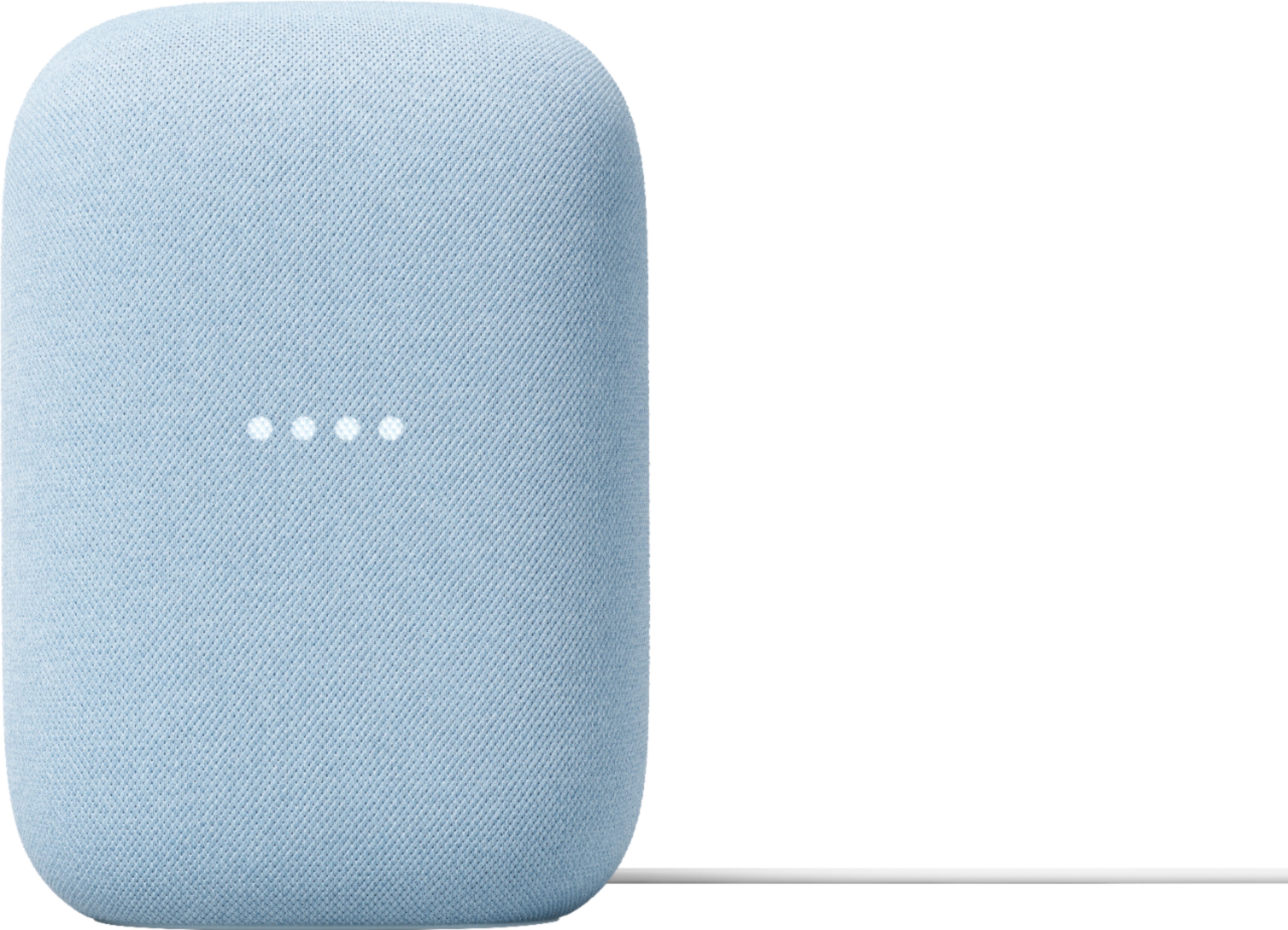
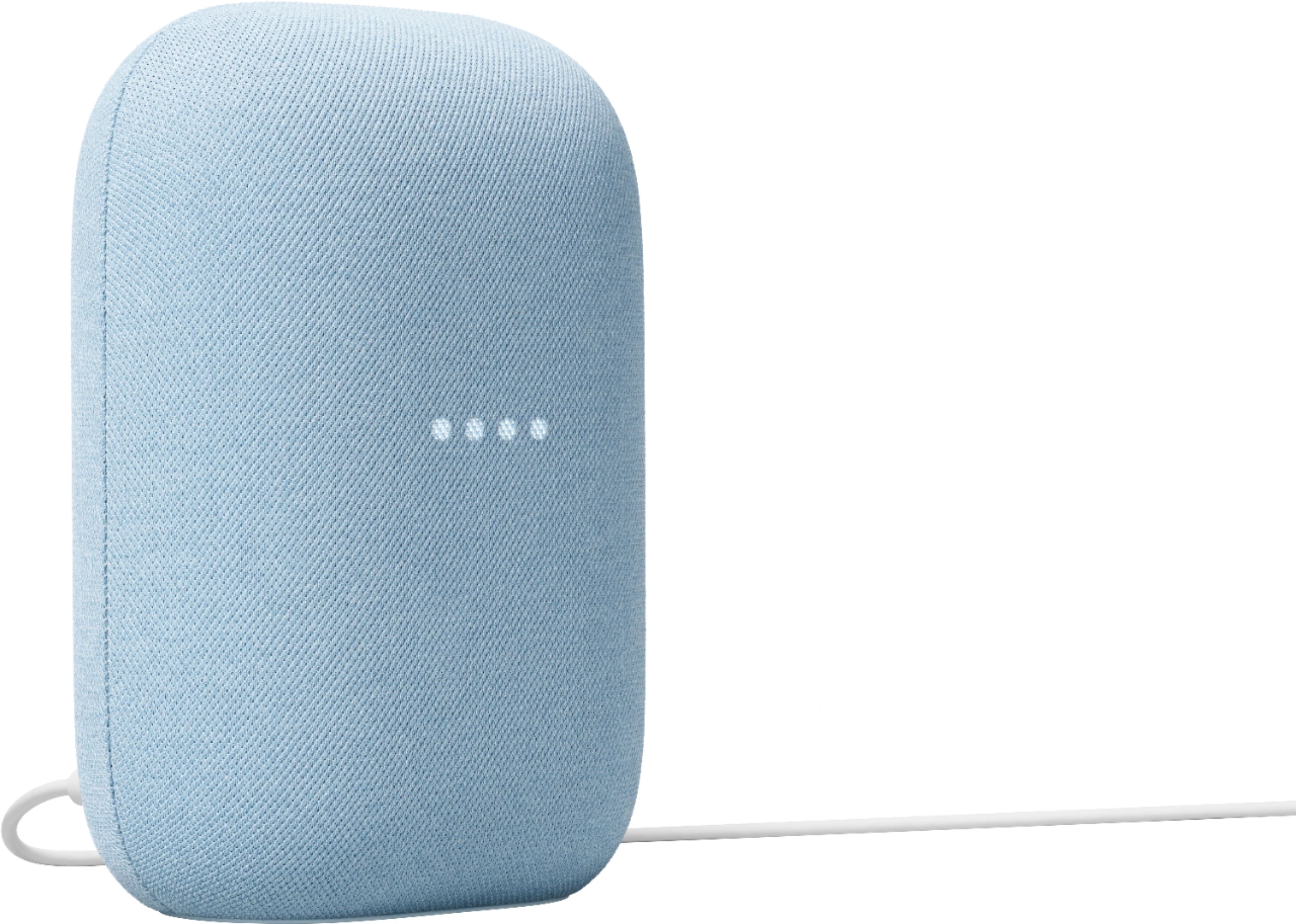
Customers commend the Nest Audio Smart Speaker for its excellent sound quality and ease of use. Many appreciate its quick and easy connectivity with Google Assistant, along with its appealing design and suitable size. Some have noted that the bass could be improved, while others have mentioned its light weight.
This summary was generated by AI based on customer reviews.
Ok
||Posted . Owned for 3 weeks when reviewed.This reviewer received promo considerations or sweepstakes entry for writing a review.Nice but lots better out there... ended up upgrading to sonos...
I would recommend this to a friendBrand response from Nest Support
Posted .Hi there NiceMachine, thanks for sharing your experience. We’re sorry to hear that Nest Audio didn’t meet your expectations. We can help you further if we can get more details about the issue. If you’re willing to give Nest Audio another run in the future, we’ll do our best to improve your experience. You can find us here: https://support.google.com/googlenest/gethelp

Major connectivity poblems
||Posted . Owned for 3 weeks when reviewed.This reviewer received promo considerations or sweepstakes entry for writing a review.Major connectivity issues. new echo devices hook up immediately with no problems.
No, I would not recommend this to a friendJust ok
||Posted . Owned for 1 month when reviewed.This reviewer received promo considerations or sweepstakes entry for writing a review.Sound was pretty mediocre. Wound up returning and getting Sonos.
No, I would not recommend this to a friendJust ok
||Posted . Owned for 1 month when reviewed.This reviewer received promo considerations or sweepstakes entry for writing a review.Sound was pretty mediocre. Wound up returning and getting Sonos.
No, I would not recommend this to a friendBrand response from Nest Support
Posted .Hi MeekasMom, thanks for leaving a review. We’re sorry to hear that your Nest Audio didn't meet your expectations and decided to return it.
Adjusting the sound settings may improve the sound quality. You can change the audio settings of your Nest Audio in the Google Home app. Make sure your mobile device or tablet is connected to the same Wi-Fi or linked to your as your Nest Audio.
- Open the Google Home app.
- Tap the device you want to adjust Settings, select Audio, select Equalizer.
- Adjust Bass and Treble level.
You can also try adjusting the volume of your Nest Audio. You can control the volume by voice, by touch, or from the Google Home App. Find out more using this link: https://support.google.com/googlenest/answer/7072489
We take your feedback seriously in our efforts to learn from our customers to meet their needs and expectations. If you'd like to try the Nest Audio again in the future, we'd be happy to help you with any questions or concerns you may have. You can find us here: https://support.google.com/googlenest/gethelp
Ok
||Posted . Owned for 7 months when reviewed.This reviewer received promo considerations or sweepstakes entry for writing a review.It’s a speaker. It can do stuff. Sound is just ok.
No, I would not recommend this to a friendBrand response from Nest Support
Posted .Hi Kinjaboulla, thanks for sharing your feedback. We're glad to hear that you're able to do stuff with your Nest Audio. We'd recommend checking the settings from your Google Home app to adjust bass and treble level for an even better experience. Here are some steps to adjust the sound quality:
1. Make sure your mobile device or tablet is connected to the same Wi-Fi or linked to the same account as your Nest Audio.
2. Open the Google Home app.
3. Tap the device you want to adjust, and then Settings, and then Audio, and then Equalizer.
4. Adjust Bass and Treble level.
If you need further assistance with your Nest Audio, feel free to contact us on our Google Help page and our support specialists will be standing by to lend you a hand. You can reach our help page here: https://support.google.com/googlenest/gethelp
Not good
||Posted . Owned for 1 month when reviewed.This reviewer received promo considerations or sweepstakes entry for writing a review.Color is nice easy to use but the speaker is bad quality sounds like its already giving up...i switch my last one for that reason and got this new one thinking it was my old speaker that was already not working but this one is doing the same thing speaket is not good going to switch for something else
No, I would not recommend this to a friendI guess
||Posted . Owned for 5 months when reviewed.This reviewer received promo considerations or sweepstakes entry for writing a review.It's just a bigger version of the many doesn't really make any sense still dumb. Gemini is better.
No, I would not recommend this to a friendBrand response from Google Team
Posted .Hi there, Andrianna. Sorry to hear the Nest Audio wasn't quite what you wanted. We’re here to support you and answer any questions or concerns you may have: https://support.google.com/googlenest/gethelp?

Amazing Speaker
||Posted . Owned for 3 weeks when reviewed.This reviewer received promo considerations or sweepstakes entry for writing a review.We really love this speaker. We bought it to work as a doorbell for our nest and it works perfectly. All of the other features are just a bonus. Has worked great with all of our music streaming.
I would recommend this to a friendHi
||Posted . Owned for 3 weeks when reviewed.This reviewer received promo considerations or sweepstakes entry for writing a review.It good for me and 8m for the first time I was going
I would recommend this to a friendMmmm nah....
||Posted . Owned for 3 months when reviewed.This reviewer received promo considerations or sweepstakes entry for writing a review.The speaker is fine but the cloth gets dirty and it’s not like you can easily clean it. I don’t recommend it. Go with something else that just has smart functionality. Like try Sonos. Refurbished it’s the same price and better quality.
No, I would not recommend this to a friendBrand response from Nest Support
Posted .Hi ThatGuyD, thanks for taking the time to share your feedback. We´re sorry to hear of your disappointment with the cloth for your Nest Audio Speaker.
Here are some helpful tips to care and clean your Nest Audio Speaker:
- Unplug the device and power adapter before cleaning, during lightning storms, or when unused for extended periods of time. Do not clean your device while it is powered as this may cause injury or damage to your device.
- Avoid solvent and abrasive material that may cause damage to the product surface.
- Do not use any chemical detergent, powder, or other chemical agents (such as benzene) to clean the device or accessories.
- Exposure to makeup, chemicals, and dyed materials such as denim can stain light colored devices.
- To clean your device, we recommend gently wiping it with a soft, lint-free cloth. Use a dry cloth to remove streaks, smudges or dust.
- To disinfect your Nest Audio Speaker, you can use ordinary household disinfecting wipes or 70% isopropyl alcohol-based wipes. Don’t use wipes that have bleach.
If you need further help about how to care and clean your Nest Audio Speaker, you're more than welcome to reach out to our support team here: https://support.google.com/googlenest/gethelp
- Pros mentioned:Sound quality
Amazing sound but not much else.
||Posted . Owned for 1 week when reviewed.This reviewer received promo considerations or sweepstakes entry for writing a review.It sounds amazing but I have trouble getting it to sync with my hue lights. Might return. The only reason I recommend is because the sound is that good.
I would recommend this to a friendBrand response from Nest Support
Posted .Hi there, thanks for posting your feedback about the Nest Audio, and we’re sorry to learn that you have trouble getting it to sync with your Hue lights.
If you're unable to control your Philips Hue light bulbs via voice commands through Google Nest or Home speaker or display, we suggest trying the following steps that might help:
- Connect your mobile device to the same Wi-Fi network that your speaker or display is connected to.
- Make sure your speaker or display and Philips Hue bridge are on the same Wi-Fi network.
- Make sure you're using a mobile device that has the same Google Account that is currently linked to your speaker or display.
- Make sure you're using the same Google Account as the primary account from within the Google Home app.
- Verify Philips Hue light bulbs are linked in the Google Home app.
- If your lights don't appear, force close the Google Home app and try again.
If your Philips Hue light bulbs are still not listed under “Devices” then follow these steps to relink your account.
- Go to the Philips Hue mobile app and confirm you're able to control your lights via the Philips Hue mobile application.
- Try the following voice command word-for-word: “Hey Google, turn on the lights.”
We understand that you’re thinking about returning your Nest speaker because of this issue. But if you’re willing to consider using it, we’d be more than glad to provide you with services and support here: https://support.google.com/googlenest/gethelp
Not impressed
||Posted .This reviewer received promo considerations or sweepstakes entry for writing a review.Junk. Not nearly loud enough. My 5 year old Bose Soundlink blows it out of the water. 0-50% volume is all but useless. My phone speaker is louder. This thing is either defective or Google knows how to "filter" the reviews...
No, I would not recommend this to a friendBrand response from Nest Support
Posted .Hi there TheOak, thanks for letting us know about your issue with the Nest Audio. We’re sorry to learn that the speaker volume isn’t loud enough for you.
If you haven’t yet, adjusting the volume of your Nest Audio may improve your experience. You can control the volume by voice, by touch, or from the Google Home App. Check this link to learn more: https://support.google.com/googlenest/answer/7072489
You can also change the audio settings of your Nest Audio in the Google Home app, Here’s how:
- Make sure your mobile device or tablet is connected to the same Wi-Fi or linked to the same account as your Chromecast, or speaker or display.
- Open the Google Home app.
- Tap the device you want to adjust, select Settings, select Audio, then select Equalizer.
- Adjust Bass and Treble level.
Feel free to visit us anytime and we’d be more than happy to help: https://support.google.com/googlenest/gethelp
Very good
||Posted . Owned for 1 month when reviewed.This reviewer received promo considerations or sweepstakes entry for writing a review.Brought this for a friend. Pretty good google device. Bought it on sale. Cannot go wrong with a Google device.
I would recommend this to a friendGreat buy
||Posted . Owned for 2 weeks when reviewed.This reviewer received promo considerations or sweepstakes entry for writing a review.this woks great only wanted one for the kitchen and ended up going back and getting one for all the rooms. So yest I'm happy!!
I would recommend this to a friendGoogle Nest Audio Smart Speaker
||Posted . Owned for 1 month when reviewed.This reviewer received promo considerations or sweepstakes entry for writing a review.Product works ok at times but continuously disconnects from WIFI in the middle of playing music.. I have good Internet where im at and no other issues with all my other devices.. Thinking about returning product...
No, I would not recommend this to a friendBrand response from Nest Support
Posted .Hi marker,
We appreciate your feedback. We're sorry to hear that you're already thinking of returning your Nest Audio Speaker.
We're hoping you will give us another chance to give you a better experience. If you're willing to try, we recommend some troubleshooting steps below that may be helpful:
Both the issues you shared may be related to connectivity problems with your Wi-Fi network. We recommend the steps below to help isolate it:
Here are some steps you can follow that might be helpful in fixing the issue with your Nest Audio Speaker:
- Check for possible interference as thick walls and other connected devices may weaken the Wi-Fi signal from your router to the Nest Audio.
- Check for possible congestion with your Wi-Fi network.
- Restart your Nest Audio.
- Restart the Home app.
- Perform a factory data reset on your Nest Audio.
If these steps don't help with the issue, please reach out to us again via our support page here: https://support.google.com/googlenest/contactflow
- Pros mentioned:Sound quality
Nice sound!!
||Posted . Owned for 1 week when reviewed.This reviewer received promo considerations or sweepstakes entry for writing a review.The sound is a lot nicer than my nest mini. Other than that it's just like any other Google smart speakers
I would recommend this to a friendBrand response from Nest Support
Posted .Hey AntD, thank you for sending in your review. We're glad to hear that your Nest Audio has been providing you with quality sounds for your home. We'd like to know more about your experience so we can further improve on the performance of your device and provide you with tips to take advantage of the features it comes with. Please reach out to our support specialists so we can assist you further with your Nest Audio. You can contact us anytime on our Google Help page here: https://support.google.com/googlenest/gethelp
Love Google
||Posted . Owned for 2 weeks when reviewed.This reviewer received promo considerations or sweepstakes entry for writing a review.Love this! Alexa is good for reminders but terrible on answering knowledgeable questions.
I would recommend this to a friendCrippled Device
||Posted . Owned for 2 months when reviewed.This reviewer received promo considerations or sweepstakes entry for writing a review.Google apparently stole some of the tech from Sonos, so now the group speaker functionality is broken. I only bought these speakers for that function. Also, I got 3 of these and one of them had to be returned because it wouldn't stay connected to the wifi.
No, I would not recommend this to a friend- Pros mentioned:Sound quality
Too much bass, too much price.
||Posted . Owned for 1 month when reviewed.This reviewer received promo considerations or sweepstakes entry for writing a review.Good bass but not enough treble for music. Have four minis and not sure this is worth the price.
No, I would not recommend this to a friendBrand response from Nest Support
Posted .Hi photoartk, thanks for the review you shared about the Nest Audio. We appreciate that you find the bass good, and we’re sorry to learn that the treble is below your preference.
You can try adjusting the volume of your Nest speaker that may improve your experience. Check this link to learn more: https://support.google.com/googlenest/answer/7072489
You can also change the audio settings of your in the Google Home app following the steps below:
- Make sure your mobile device or tablet is connected to the same Wi-Fi or linked to the same account as your Nest speaker.
- Open the Google Home app.
- Tap the device you want to adjust, select Settings, select Audio, then select Equalizer.
- Adjust Bass and Treble level.
If the issue persists, we suggest sending feedback via voice command by saying "Hey Google, send feedback", or by following the steps here: https://support.google.com/googlenest/answer/7071494
And for any other support concerns, let us know anytime by visiting us here and we’ll gladly help: https://support.google.com/googlenest/gethelp
Shipping issues
||Posted . Owned for 1 month when reviewed.This reviewer received promo considerations or sweepstakes entry for writing a review.No issues with the product as I haven’t received it yet. I ordered this on 11/24 with next day shipping. At this point it has been over a month, and I still have not received my item.
No, I would not recommend this to a friend