Customer Ratings & Reviews

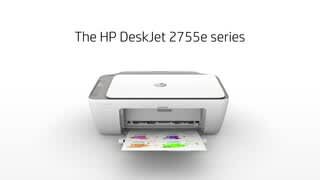

- Model:
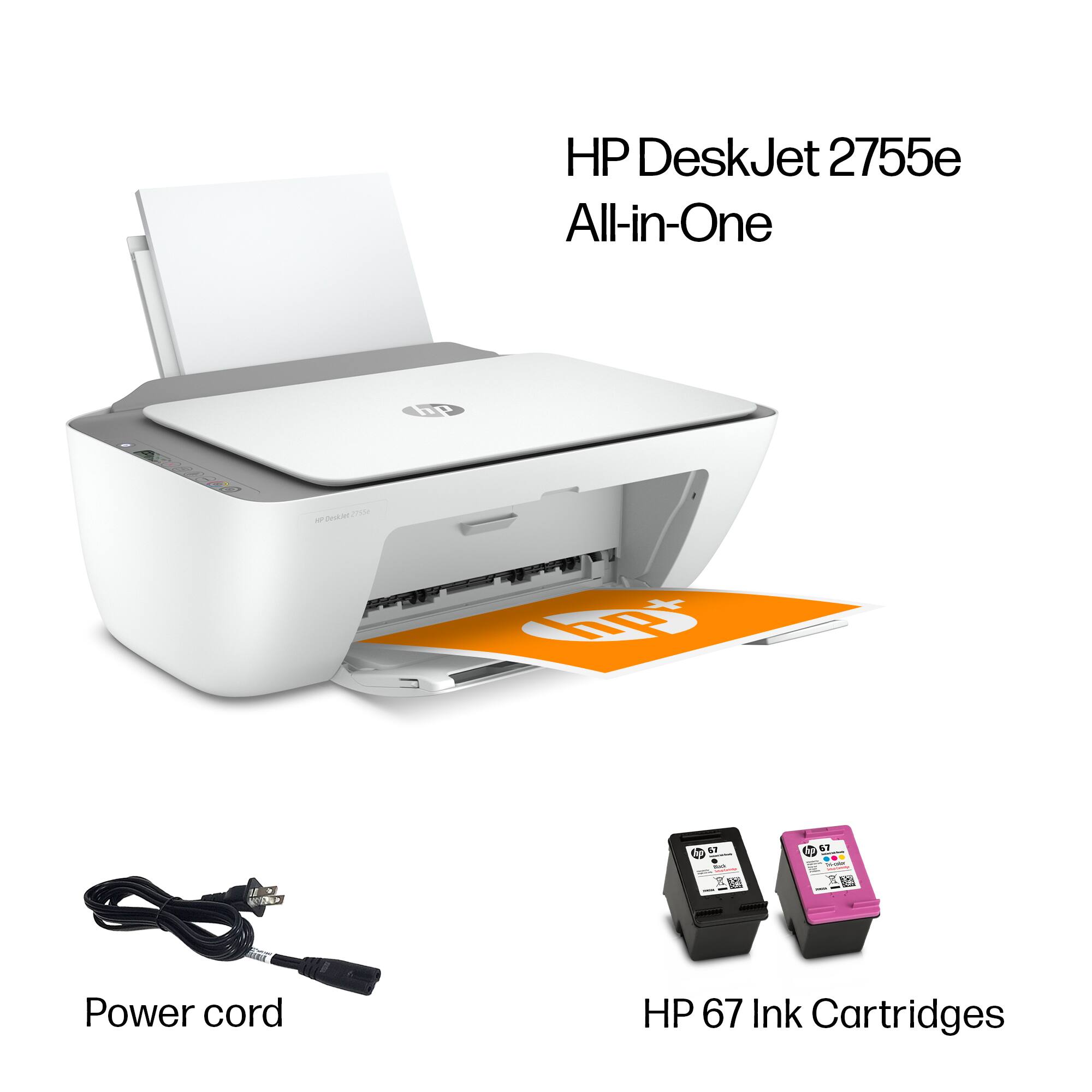
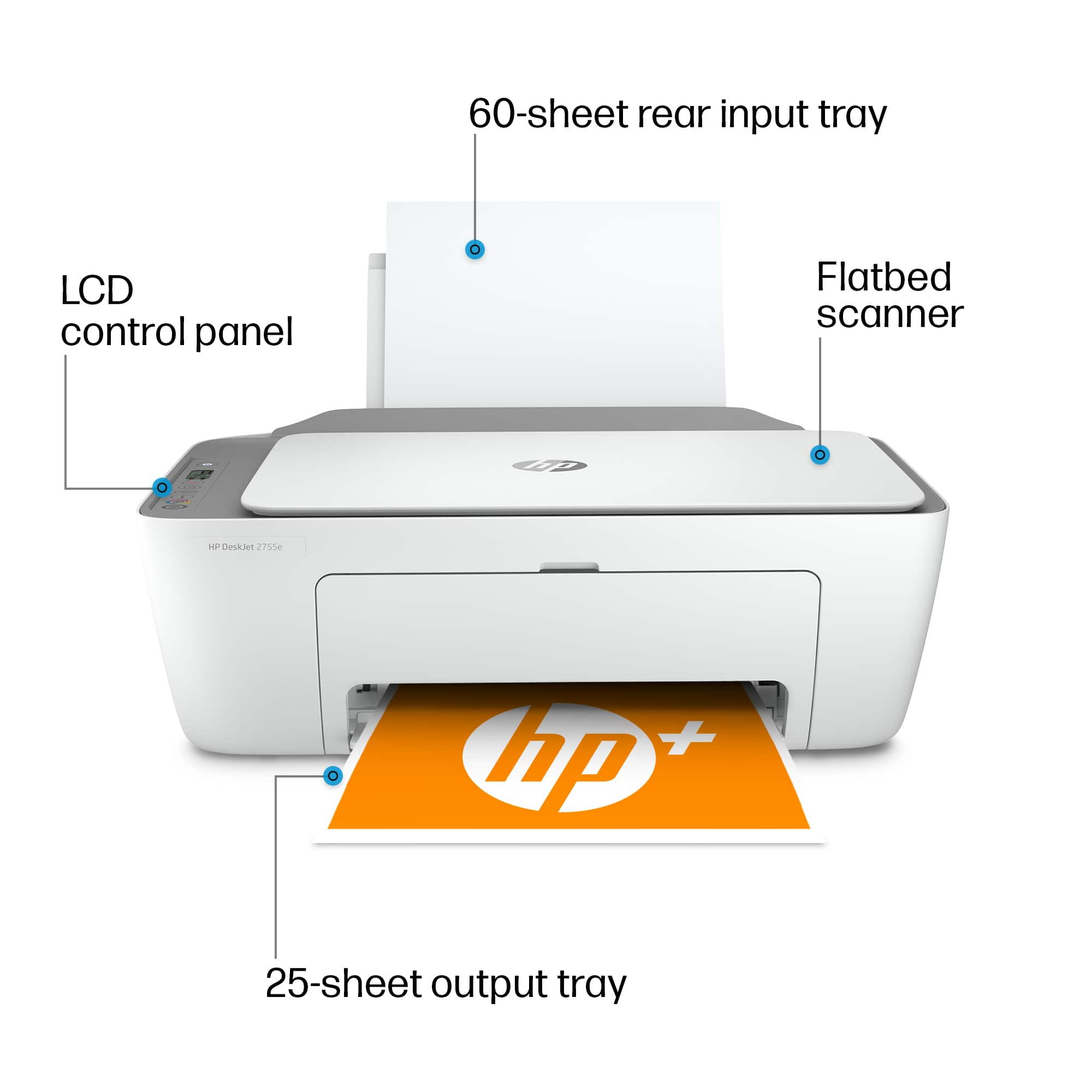
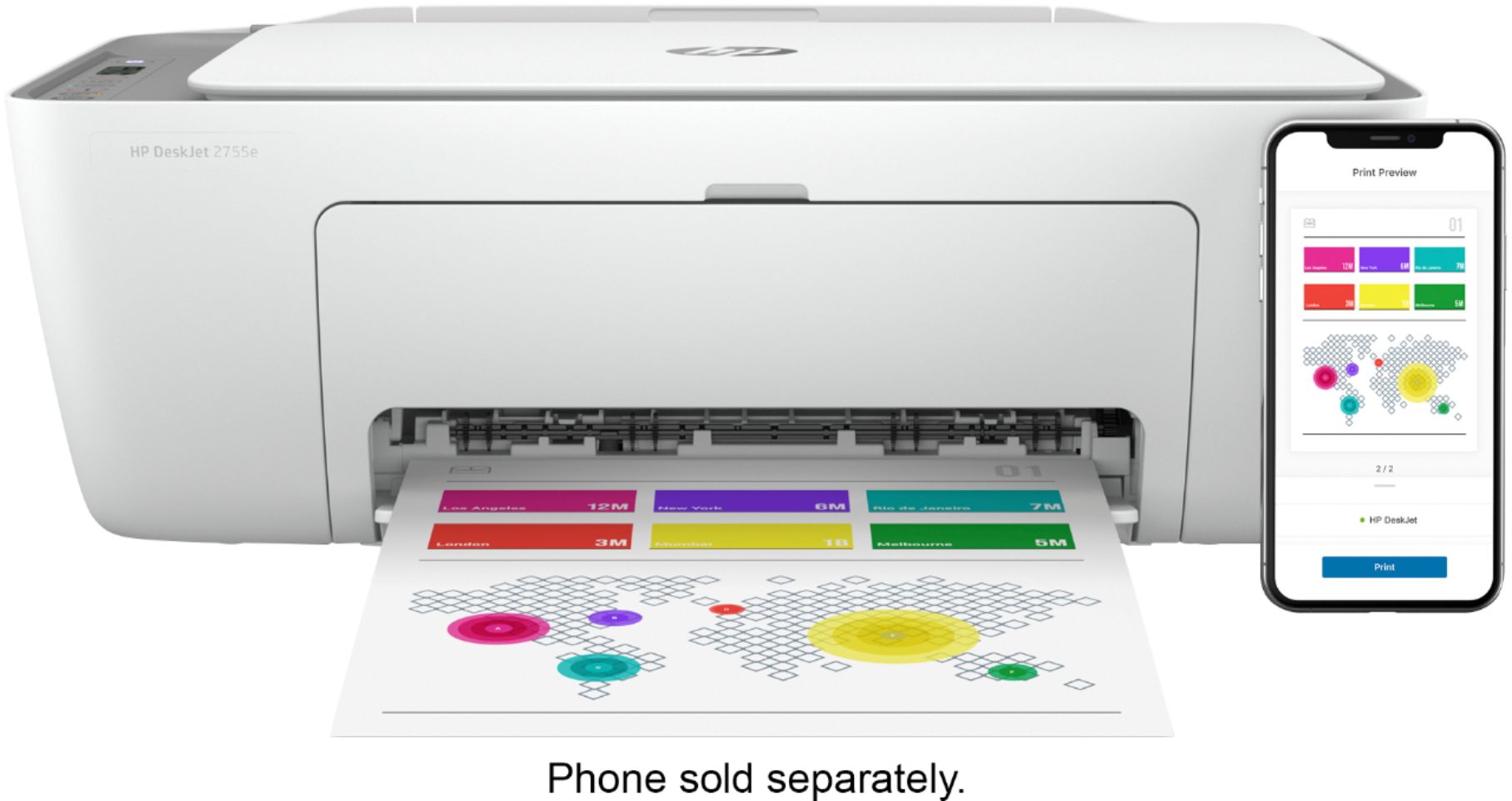
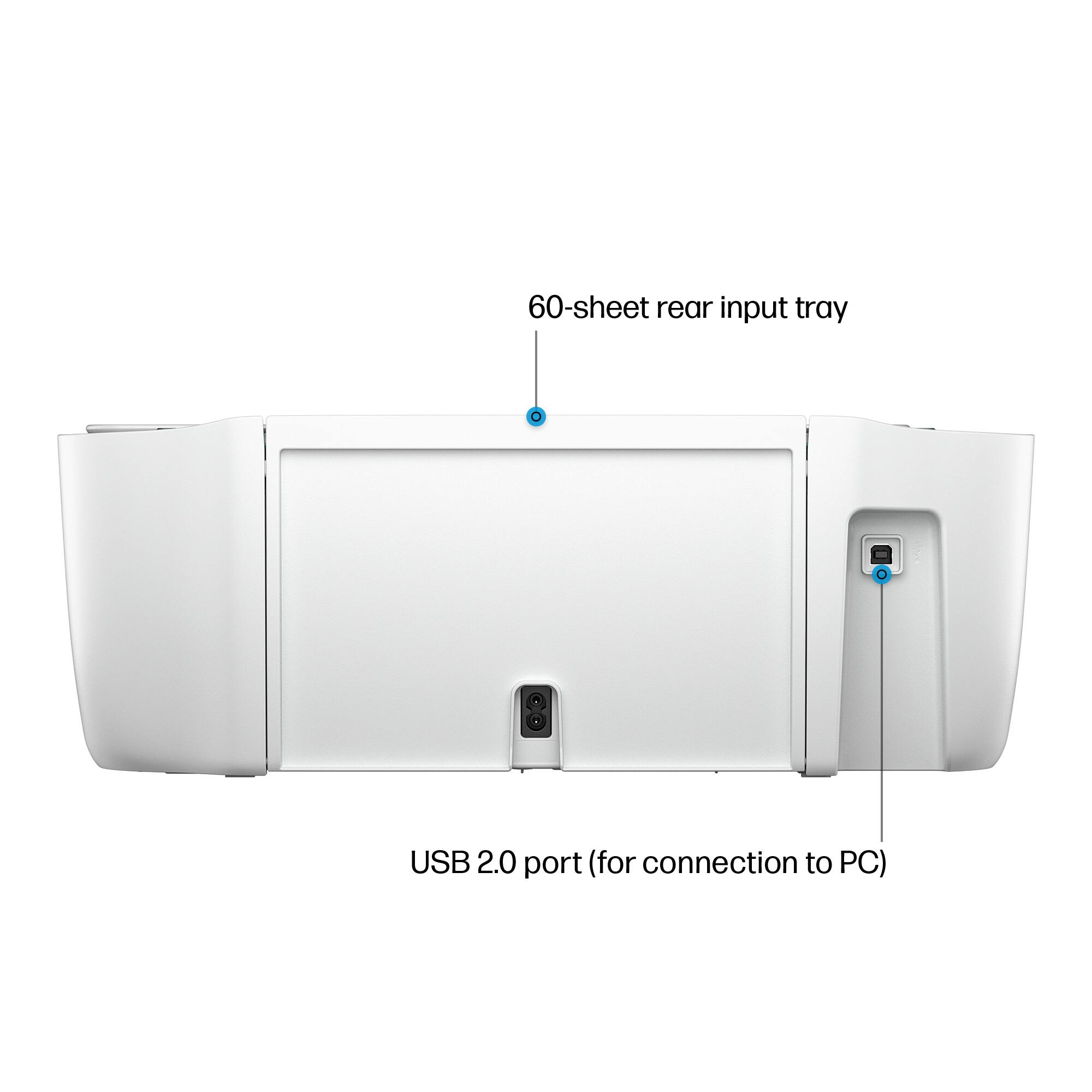
- DeskJet 2755e
- SKU:
- 6454282
Rating by feature
- Value
Rating 4.3 out of 5 stars
- Quality
Rating 4.1 out of 5 stars
- Ease of Use
Rating 4.0 out of 5 stars
Customers are saying
Customers recognize the DeskJet 2755 as being easy to use and having good print quality, with many praising its affordability and compact size. Positive feedback also highlights the printer's straightforward setup and satisfactory performance. However, some users experienced challenges with wireless connectivity.
This summary was generated by AI based on customer reviews.
Printer
||Posted . Owned for 3 months when reviewed.This reviewer received promo considerations or sweepstakes entry for writing a review.This printer has half way worked since it was installed in Dec. 2021. I am not happy with it. Geeks have tried to "fix it" remotely, but it is not working properly. I wish I had my old printer back.
No, I would not recommend this to a friendBrand response from HP Team
Posted .Hi there.
I’m sorry that you’ve had such a troublesome time with your printer. I can wholly understand your frustration after seeking help from technical professionals without success. I want to assist you in getting the device working properly. I hope the resources below will do just that.
First, you can start by visiting the part of our support website dedicated to this model, where you can find user manuals, how-to documents, troubleshooting guides and software updates for this printer. Find those materials here:
- support.hp.com/us-en/product/model/2100187846
You can also visit a page that links to diagnostic tools for various tasks and issues, including cartridge installation, print quality and connectivity. There you’ll also find a general-purpose tool called the HP Print and Scan Doctor. If you use Windows, the tool will help identify and guide you through solutions to a wide range of common printing and scanning issues. Visit that page here:
- support.hp.com/us-en/topic/diagnostics
If you need further support, you can contact us directly at +1 800-474-6836 so we can help you assess what’s happening and find a solution. To expedite the process, I recommend gathering the following information before the call:
- Model number
- Serial number
- Your location
- Case number (from any previous contact with HP support)
Keith
HP Care
hp.com/support
You get what you pay for
||Posted . Owned for 1 month when reviewed.This reviewer received promo considerations or sweepstakes entry for writing a review.This printer is the worst it jams and runs through ink like water can’t really use it for the type of crafting I do not to mention I can’t print borderless it’s Ntn but a pain
No, I would not recommend this to a friendBrand response from HP Team
Posted .Hi, Amanda.
I’m sorry that your printer has experienced frequent paper jams, that it has used ink more rapidly than you’d anticipated, and that it lacks a feature you need. Your frustration comes as no surprise here. I want to help you remedy the paper jam problem and troubleshoot the ink issue. I hope the resources below serve that end.
First, I recommend going through the steps to clearing and avoiding paper jams that you’ll find in this troubleshooting guide on our support site:
- support.hp.com/us-en/document/c06556765
Next, I can’t say for certain what happened with the ink supply in your case, but some printers come with what are known as setup cartridges, which have a lower capacity than regular or XL cartridges, and less still than ones in our Instant Ink program. If you’ve gone through only the cartridges that came with the printer, this could explain what you’re seeing.
However, if you’ve installed replacement cartridges, the XL cartridges designed for your printer have estimated yields of 200 to 240 pages, while the regular size cartridges are expected to produce 100 to 120 pages. How cartridges perform in your own printer varies according to numerous factors, including resolution, how dry the air is and how absorbent the paper is.
Regardless, if you believe the issue deserves further investigation – or the paper jams continue – I recommend that you contact us directly at +1 800-474-6836 so we can help you assess the situation and find a solution. To expedite the process, I recommend gathering the following information before the call:
- Model number
- Serial number
- Your location
- Case number (from any previous contact with HP support)
Keith
HP Care
hp.com/support
You have to pay for the ink monthly
||Posted . Owned for 1.5 years when reviewed.This reviewer received promo considerations or sweepstakes entry for writing a review.You have to pay for the ink monthly... If not, you cannot use the printer. That's a total Rip-off...
No, I would not recommend this to a friendPoor ink usage
||Posted . Owned for 3 weeks when reviewed.This reviewer received promo considerations or sweepstakes entry for writing a review.Ink doesn’t last I have used only 1/2 ream of paper and have replaced the ink cartridges that came with the printer and just installed the second set of XL replacement cartridges
No, I would not recommend this to a friendBrand response from HP Team
Posted .Hi there.
I’m sorry that your printer has used ink more quickly than you’d anticipated. I can certainly understand why going through two sets of cartridges in a short amount of time would be an unwelcome surprise. I want to help you understand what’s happening and remedy the problem if one exists, so I’ll provide some information and resources designed to make that happen.
First, while you mention half a ream of paper, I can’t tell from your review specifically how many pages you were able to print from the first set of replacement cartridges or how that compares with the estimated page yield of those cartridges.
The XL cartridges designed for your printer have estimated yields of 200 to 240 pages, while the regular size cartridges are expected to produce 100 to 120 pages. How cartridges perform in your own printer varies according to numerous factors, including resolution, how dry the air is and how absorbent the paper is.
Regardless, if your results differ dramatically from the estimates above, I recommend that you contact us directly at +1 800-474-6836 so we can help you assess the situation and find a solution. To expedite the process, I recommend gathering the following information before the call:
- Model number
- Serial number
- Your location
- Case number (from any previous contact with HP support)
Keith
HP Care
hp.com/support
Good thing i bought
||Posted .This reviewer received promo considerations or sweepstakes entry for writing a review.Works pretty well both scanning and printing. I’m amazed. We all are so pleased. Its changed our lives for the better and now we have a happy family where we didnt used to.
I would recommend this to a friendHP Printer
||Posted . Owned for 7 months when reviewed.This reviewer received promo considerations or sweepstakes entry for writing a review.The worst product o have ever bought! Nightmare experience still not resolved 5 weeks later!
No, I would not recommend this to a friendNope. No thank you.
||Posted . Owned for 5 months when reviewed.This reviewer received promo considerations or sweepstakes entry for writing a review.A literal nightmare. 2 1/2 hours of troubleshooting for nothing. How is it this hard to connect a WIFI printer to wifi?? I've never wanted to Office Space so bad in my life
No, I would not recommend this to a friendBrand response from HP Team
Posted .Hi there.
I’m sorry to hear that your printer has not completed the process of setup and connection. I can understand why that would be a frustrating start to owning a new device. I want to help you get the printer installed and working properly, so I’ll offer some resources and information I hope will reach that end.
First, if you’ve not done so already, I recommend that you follow a setup and connectivity tutorial specific to your printer you can find on our support site. On the same page, you can also access user manuals, troubleshooting guides, how-to documents and software updates. Do that by following this link:
- support.hp.com/us-en/product/model/2100187846
You can also visit a page on our support site that has diagnostic tools for various tasks and issues, including setup and connectivity. You can find the page here:
- support.hp.com/us-en/topic/diagnostics
If the printer still won’t connect, I suggest you contact us directly so we can assess what’s going on and find the best course of action. HP+ printers such as yours come with exclusive concierge support. To call and reach live HP+ experts, visit the following URL and enter your HP+ serial number:
- hp.com/plus-help
Keith
HP Care
hp.com/support
Hp printer
||Posted . Owned for 3 weeks when reviewed.This reviewer received promo considerations or sweepstakes entry for writing a review.Within the second week the printer stop working it was a waste of money
No, I would not recommend this to a friend- Cons mentioned:Connectivity
HORRIBLE!!
||Posted .This reviewer received promo considerations or sweepstakes entry for writing a review.Horrible printer!! It does not connect wirelessly nor with a USB cable directly to the laptop. I have to hit print for a same document like ten times before it can actually be sent to the printer. I am about to toss out the window!! DO NOT WASTE YOUR MONEY!!! Oh and you only receive one month of the instant ink not two like advertised.
No, I would not recommend this to a friendBrand response from HP Team
Posted .Hi, Jess.
I’m sorry to hear that your printer has performed so poorly for you. It’s no surprise that you’re frustrated after dealing with the connectivity difficulty you describe and unreliable printing. I would love for you to get the device working to your satisfaction, so I’ll offer some resources aimed at achieving that goal.
First, I recommend that you visit a page on our support site that has diagnostic tools for various tasks and issues, including wireless connectivity. You can find the page here:
- support.hp.com/us-en/topic/diagnostics
For more help solving problems, you can access troubleshooting guides, how-to documents, user manuals and software updates specific to your printer here:
- support.hp.com/us-en/product/model/29378213
If you need further assistance, I suggest that you contact us directly at +1 800-474-6836 so we can help you assess the situation and find a solution. (Please note that because of restrictions on personal movement and workplace attendance associated with the COVID-19 pandemic, wait times for agents are longer than normal. Thanks in advance for your understanding.) To expedite the process, I recommend gathering the following information before the call:
- Model number
- Serial number
- Your location
- Case number (from any previous contact with HP support)
Keith
HP Care
hp.com/support
Hp Printer
||Posted . Owned for 1.5 years when reviewed.This reviewer received promo considerations or sweepstakes entry for writing a review.This Printer is trash! Didn’t even last a year and a half and it stopped working.
No, I would not recommend this to a friendTime saver
||Posted . Owned for 1 month when reviewed.This reviewer received promo considerations or sweepstakes entry for writing a review.Works excellent in my car. Saves me a lot of time can do what l need right away instead of doing it at home later
I would recommend this to a friendPrinter review
||Posted . Owned for 3 weeks when reviewed.This reviewer received promo considerations or sweepstakes entry for writing a review.Plan to return. Does not work 80% of attempts to print or copy documents. Paper gray upright isn’t a great set up and not much paper can be ready to print. Do not recommend at all.
No, I would not recommend this to a friend- Pros mentioned:Price, Print quality

great printer for the price
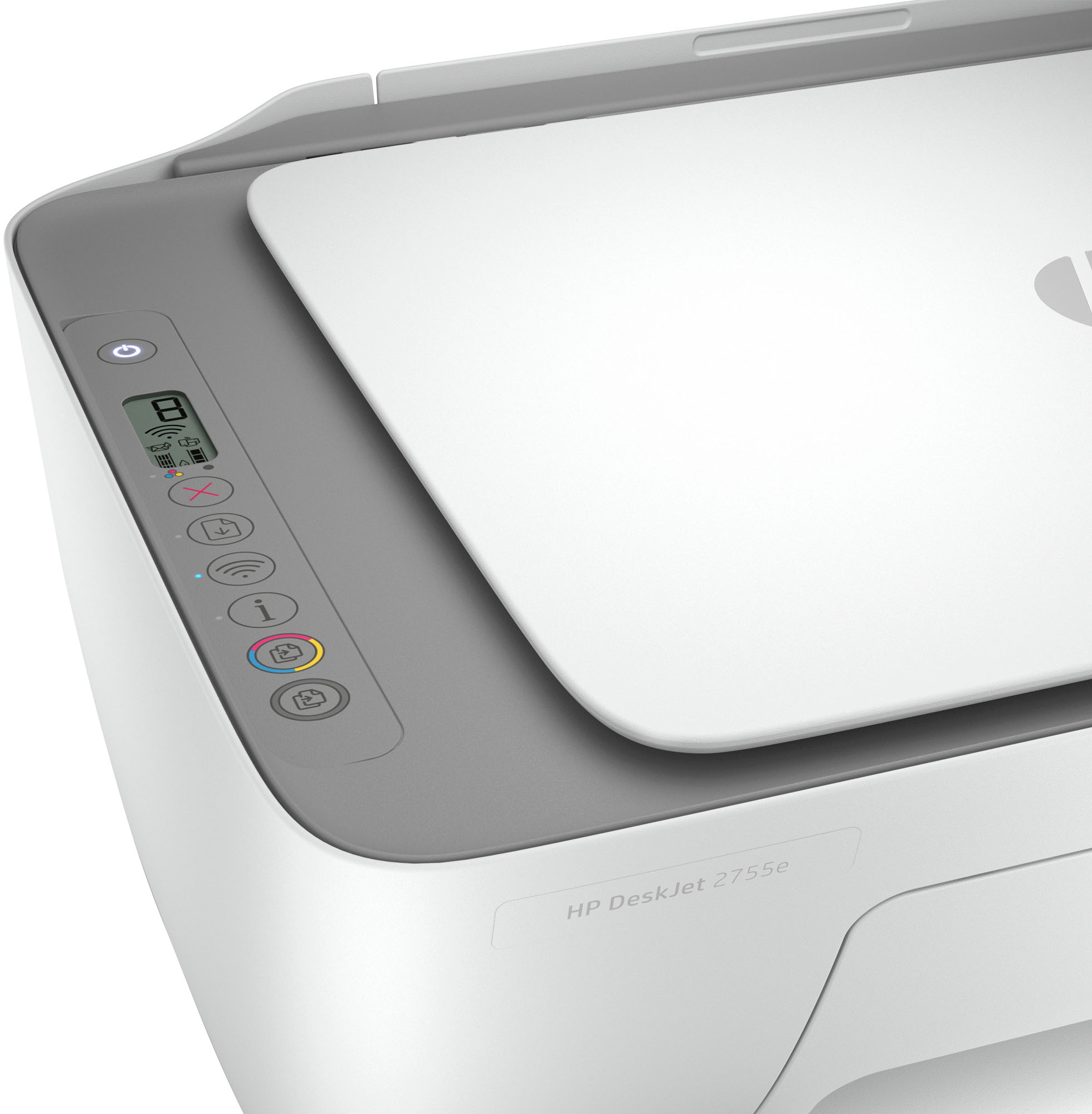
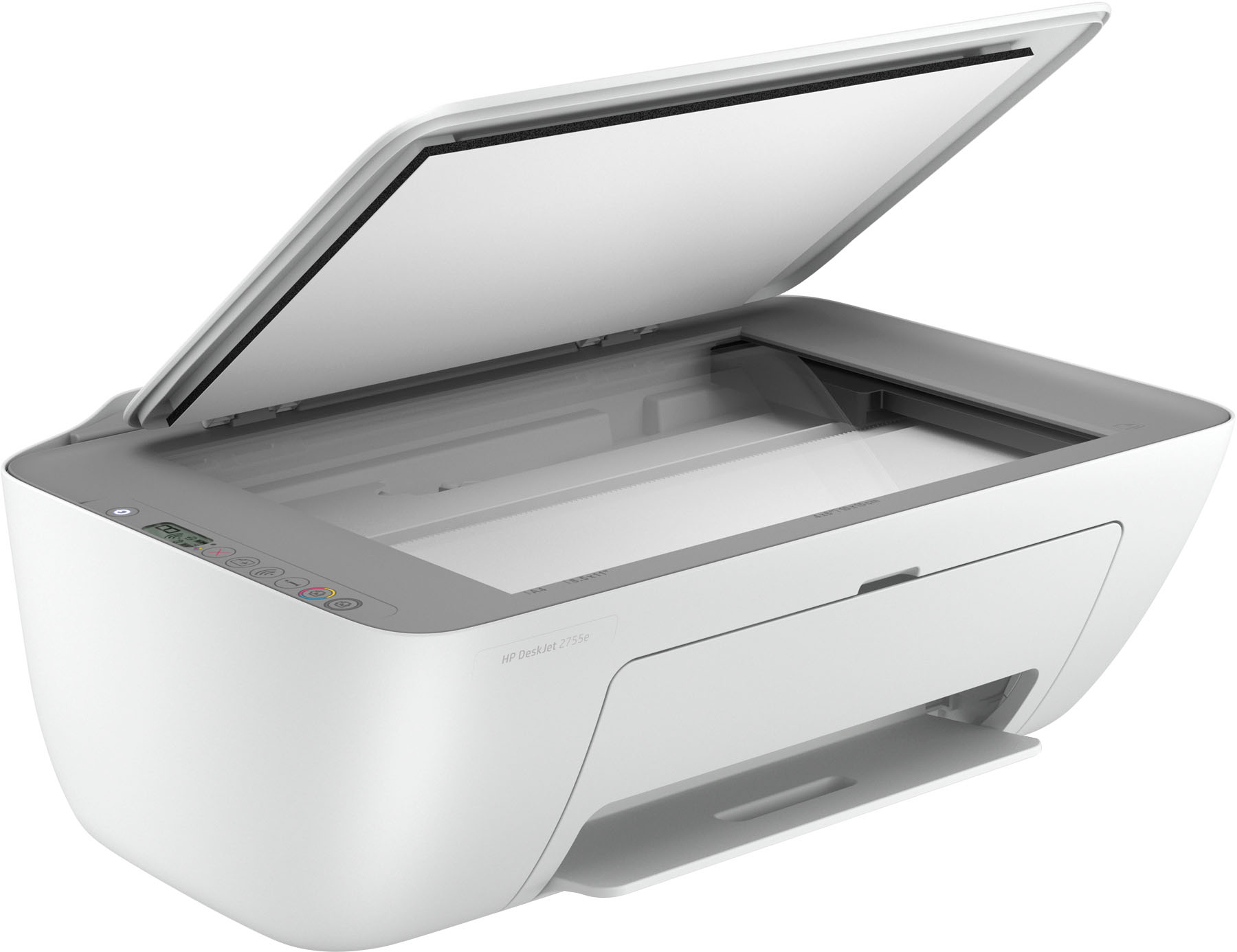
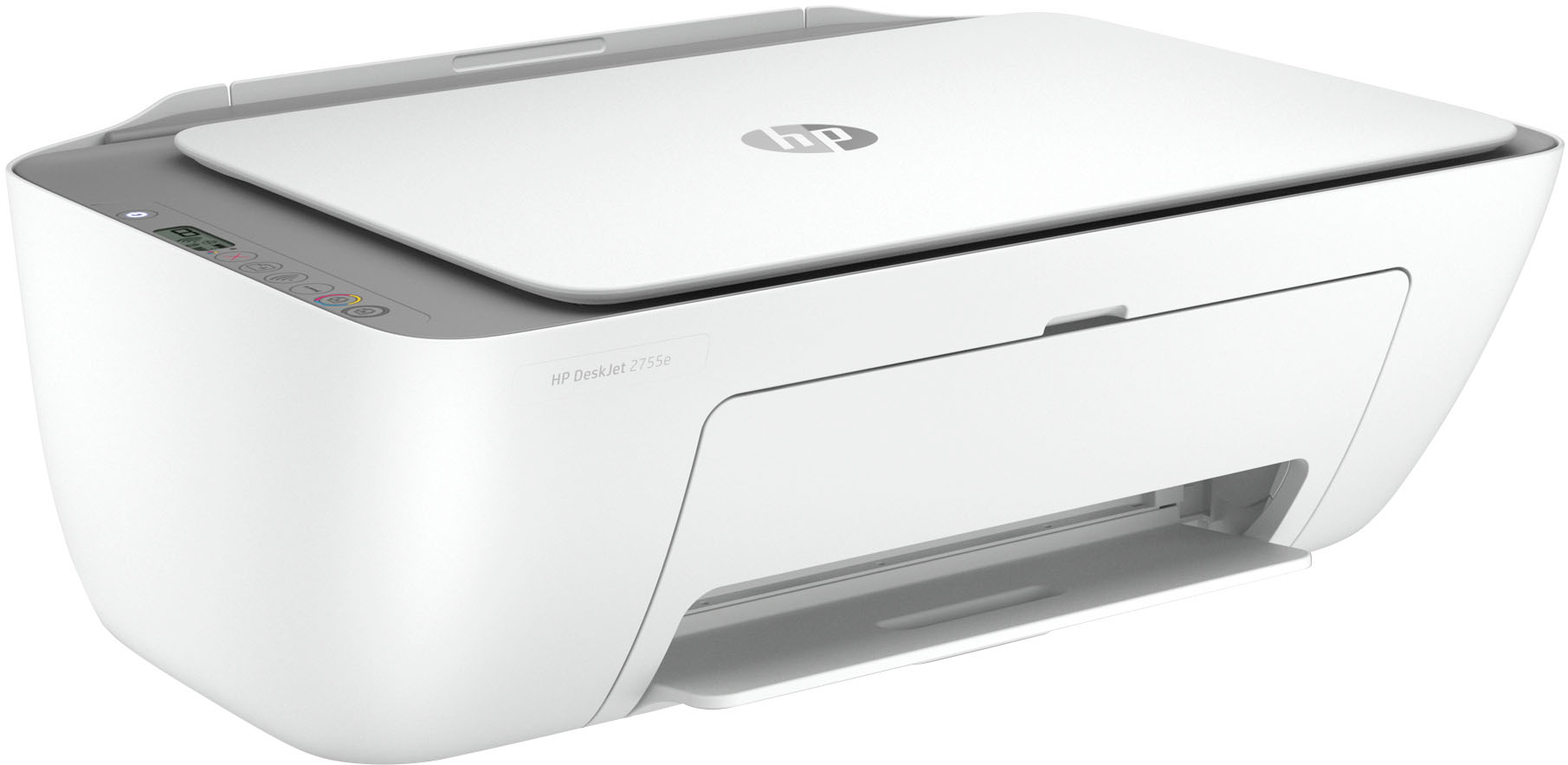
|Posted .This reviewer received promo considerations or sweepstakes entry for writing a review.tested this HP Deskjet 2755, its small printer that has the ability to print (ofcourse) scan and copy, its mising fax, but then again youll be looking at different price rage if you do want that feature on an HP printer Pros - it looks great has two tone design grey and white - the button are flat but you'll still feel it when you give it a press - havent had any issue like some people said about wifi connection problem - tried printing from my mobile phone and it does a fairly good quality of prints - the weight of the printer is fairly lite, not too bad! - for what its price i think its a good printer cons - i didnt see an actual instruction inside the box, would prefer if they included that - printing speed was alright, I have seen faster i dont have much bad thing about that printer, wont expect much about this printer honesty, does have the ability to print from your phone but beyond that its a regular printer that does it job, again i like the two tone color design.
I would recommend this to a friend Overacted, unbelievable bad printer
||Posted . Owned for less than 1 week when reviewed.This reviewer received promo considerations or sweepstakes entry for writing a review.I have no idea why this printer is so popular. It printer unbelievable slow and you can't put many page...plus it deson't print linearly ,,,such a bad printer..don't why it is so popular.
No, I would not recommend this to a friendBrand response from HP Team
Posted .Hi, Anku.
I’m sorry to learn that your printer has rendered prints so slowly. It’s easy to understand why that would be tremendously frustrating with a new printer. I want to make sure that your printer is reliable for any urgent printing needs, so I’ll point you toward some resources I hope will help.
First, I recommend that you follow a guide on our support site that covers improving print speed; choose whichever of the following two links matches your operating system:
- Windows: support.hp.com/us-en/document/bud03409
- Mac OS: support.hp.com/us-en/document/c01928898
Also, often just updating the firmware can help improve print speed. You can find out how to do that here:
- support.hp.com/us-en/document/c02919168
I don’t know what you mean in your review when you write that the device will not print linearly, but if that problem persists or print speed does not improve, I suggest that you contact us directly at +1 800-474-6836 so we can help you assess the situation and find a solution. (Please note that because of restrictions on personal movement and workplace attendance associated with the COVID-19 pandemic, wait times for agents are longer than normal. Thanks in advance for your understanding.) To expedite the process, I recommend gathering the following information before the call:
- Model number
- Serial number
- Your location
- Case number (from any previous contact with HP support)
Keith
HP Care
hp.com/support
Printer
||Posted .This reviewer received promo considerations or sweepstakes entry for writing a review.Great price.... if you don't mind waiting for your document to print you will like this product... if you are in need of speed, this is NOT the printer for you.
I would recommend this to a friendJUNK
||Posted .This reviewer received promo considerations or sweepstakes entry for writing a review.Hard to set up, not user friendly at all. Cheaply made. Junk. Would not buy or recommend to anyone esle.
No, I would not recommend this to a friendBrand response from HP Team
Posted .Hi, Stace.
I’m sorry that your printer was so hard to set up, and that you’ve found it difficult to use. I can wholly understand why that would be a frustrating start to ownership. I want to help you have a better experience going forward so you can get the most from the device. I hope the resources and suggestions listed below serve that end.
First, to learn more about your printer and all its features, or for help solving problems, you can access user manuals, how-to documents, software updates and troubleshooting guides here:
- support.hp.com/us-en/product/model/2100187846
You can also visit a page on our support site that has diagnostic tools for various tasks and issues, including cartridge installation, print quality and connectivity. There you’ll also find a general-purpose tool called the HP Print and Scan Doctor. If you use Windows, the tool will help identify and guide you through solutions to a wide range of common printing and scanning issues. Visit that page here:
- support.hp.com/us-en/topic/diagnostics
If you need any further assistance, I suggest that you contact us directly at +1 800-474-6836 so we can help you assess what’s happening and find the best course of action. To expedite the process, I recommend gathering the following information before the call:
- Model number
- Serial number
- Your location
- Case number (from any previous contact with HP support)
Keith
HP Care
hp.com/support
Don't Buy It!
||Posted . Owned for 3 weeks when reviewed.This reviewer received promo considerations or sweepstakes entry for writing a review.Computer won't print designated limited pages but prints the entire article. Paper holder hold only a small amount of paper. The buttons are hard to use. I'm sorry I bought it.
No, I would not recommend this to a friendBrand response from HP Team
Posted .Hi there.
I’m sorry you’ve encountered early roadblocks with your printer. It’s no surprise that you feel regret about the purchase, considering the difficulty of use you describe. I want to help you learn more about the device so you can get all you can from it. I hope the resources below accomplish that goal.
First, regarding printing only certain pages of a document, if you use Windows you might find useful information in this guide to printing documents and changing any related print-job settings:
- support.hp.com/us-en/document/c04673480
Next, to learn more about all the printer’s features, including how to use the buttons – or for help solving problems – you can access user manuals, how-to documents, software updates and troubleshooting guides here:
- support.hp.com/us-en/product/model/2100187846
You can also visit a page on our support site that has diagnostic tools for various tasks and issues, including cartridge installation, print quality and connectivity. There you’ll also find a general-purpose tool called the HP Print and Scan Doctor. If you use Windows, the tool will help identify and guide you through solutions to a wide range of common printing and scanning issues. Visit that page here:
- support.hp.com/us-en/topic/diagnostics
If there's any specific way that we can help you, I hope you’ll get in touch with us directly at +1 800-474-6836 so we can help you assess what’s happening and find a solution. (Please note that because of restrictions on workplace attendance associated with the COVID-19 pandemic, wait times for agents are longer than normal. Thanks in advance for your understanding.) To expedite the process, I recommend gathering the following information before the call:
- Model number
- Serial number
- Your location
- Case number (from any previous contact with HP support)
Keith
HP Care
hp.com/support
Gets the Job Done
||Posted . Owned for 1 month when reviewed.This reviewer received promo considerations or sweepstakes entry for writing a review.Very minimal, but it does what I needed to do without the bells and whistles. Setup can be a small hassle since you'll need to know how to navigate the HP app. But it's a decent printer nonetheless.
I would recommend this to a friendHP small wireless printer
||Posted . Owned for 2 months when reviewed.This reviewer received promo considerations or sweepstakes entry for writing a review.Great small, light-weight printer for hotel room. We used while staying out of town for medical treatment.
I would recommend this to a friendBest price for printer
||Posted . Owned for 3 weeks when reviewed.This reviewer received promo considerations or sweepstakes entry for writing a review.Works great and easy to setup. I thank Best Buy for providing always great electronic products. I know that anytime I need something Best Buy is there for me.
I would recommend this to a friend