Customer Ratings & Reviews

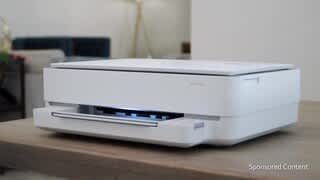


- Model:
- ENVY 6455E/223R1A#B1H
- SKU:
- 6454287
Rating by feature
- Value
Rating 4.2 out of 5 stars
- Quality
Rating 4.2 out of 5 stars
- Ease of Use
Rating 4.0 out of 5 stars
Customers are saying
Customers love the ENVY 6455e's ease of use, print quality, and compact size. Many appreciate its affordability and quick setup, while also noting the quiet operation and good performance. However, some users experienced issues with connectivity and the lack of a display screen, and occasional paper jams were also reported.
This summary was generated by AI based on customer reviews.
Worst printer ever!
Posted .This reviewer received promo considerations or sweepstakes entry for writing a review.This has been the worst printer I have ever used. We use both MAC and PC with it and neither works well. The connectivity is spotty. It often simply does not print or prints half a doc if it does print. I've wasted so much paper and ink. Do not buy this printer. I've been using it for nine months with nothing but problems. I replaced an older HP that worked great only to be stuck with this headache. My unqualified oppinion is that the HP Smart app is at fault. C'mon HP get it together.
No, I would not recommend this to a friendBrand response from HP Team
Posted .Hi there.
I’m sorry to hear that your printer has failed to maintain a reliable wireless connection and has stopped halfway through print jobs without explanation. It’s easy to understand why these factors plus the difficult functionality you’ve had with the HP Smart App would be exasperating. I want to help you remedy this situation, so I’ll provide some resources I hope will reach that end.
First, I recommend that you follow a guide to installing and using the HP Smart App, especially the FAQ portion, which covers common questions as well as difficulties users have encountered. Choose the link to whichever document matches your operating system:
- Windows 10: support.hp.com/us-en/document/c04675142
- Mac OS: support.hp.com/us-en/document/c06188214
- Android and iOS: support.hp.com/us-en/document/c03561640
You can also visit a page on our support site that has diagnostic tools for various issues, including wireless connectivity. On the same page you’ll find a general-purpose tool called the HP Print and Scan Doctor. For your Windows-based computer, the tool will help identify and guide you through solutions to a wide range of common printing and scanning difficulties. You can find that page here:
- support.hp.com/us-en/topic/diagnostics
If any problem persists, I suggest that you contact us directly at +1 800-474-6836 so we can help you assess what’s going on and what can be done about it. (Please note that because of restrictions on personal movement and workplace attendance associated with the COVID-19 pandemic, wait times for agents are longer than normal. Thanks in advance for your understanding.) To expedite the process, I recommend gathering the following information before the call:
- Model number
- Serial number
- Your location
- Case number (from any previous contact with HP support)
Keith
HP Care
hp.com/support
Dead on arrival
Posted .This reviewer received promo considerations or sweepstakes entry for writing a review.This printer came dead on arrival -- it prints, but it has error code E5, which has to do with the scanner. It won't scan, and its indicators constantly go back to error state. Shame on you, BestBuy, for not exchanging this after 16 days from purchase. Now I have wasted an hour trying to exchange at the store and 2 hours trying to support from HP to exchange or repair it. All for a brand new printer.
No, I would not recommend this to a friendBrand response from HP Team
Posted .Hi there.
I’m sorry that your printer did not fully function after you set it up, and that you’ve had difficulty getting clarity on a return or exchange. No one has that in mind when they buy a new device. I want to help you out of this dilemma, so I’ll provide a resource and some information aimed at serving that end.
If you’ve not done so already, I recommend that you contact us directly so we can help you assess what’s happening and find the best course of action. HP+ printers such as yours come with exclusive concierge support. To call and reach live HP+ experts, visit the following URL and enter your HP+ serial number:
- hp.com/plus-help
I'll also mention that HP printers have a one-year warranty from their purchase date that covers hardware as well as ink supplies – and that warranty extends to two years with an HP+ account – so if it comes to that, you might consider making use of it. You can verify the warranty using the following link:
- support.hp.com/us-en/checkwarranty
Keith
HP Care
hp.com/support
Allen
Posted .This reviewer received promo considerations or sweepstakes entry for writing a review.Unfortunately i’ve been trying to find out how I can do duplex printing from a document on my new printer neither Best Buy or Hewlett-Packard have been able to demonstrate how to do duplex printing
No, I would not recommend this to a friend- Cons mentioned:Connectivity
Do not recommend.
Posted .This reviewer received promo considerations or sweepstakes entry for writing a review.The setup for the printer is by FAR the biggest hassle I've ever encountered with a printer. It has no screen to be able to connect to WIFI, so you have to go through the app to setup the printer. Which would be fine, but we were never able to get the app to even find the printer in hopes of getting it to connect. The printer does not come with a cord to hardwire it, and so we have to buy one in hopes of it working. If this printer didn't cost so much, we'd scrap it and get another. We've spent a good few hours working on this and twice we have been kept on hold for 30 minutes with Geek Squad with NO help. Ended up hanging up both times with no answer. We've tried our phones, tablets, and computer and literally nothing will connect. Since this printer came with NO information/instruction book on it, it's been a crapshoot troubleshooting these problems on our own since Geek Squad will not answer.
No, I would not recommend this to a friendBrand response from HP Team
Posted .Hi there.
I’m sorry to hear your printer has been so difficult to set up and that you’ve not gotten the support you need. It’s easy to understand why this would be a tremendously frustrating start to owning a new printer, so I’ll offer a resource and some information I hope will help.
I can’t tell from your review why your printer has been so hard to set up, so I recommend that you contact us directly at +1 800-474-6836 so we can help you assess the situation and find a solution. (Please note that because of restrictions on personal movement and workplace attendance associated with the COVID-19 pandemic, wait times for agents are longer than normal. Thanks in advance for your understanding.) To expedite the process, I recommend gathering the following information before the call:
- Model number
- Serial number
- Your location
- Case number (from any previous contact with HP support)
I'll also mention that HP printers have a one-year warranty from their purchase date that covers hardware as well as ink supplies, so if it comes to that, you might consider making use of it. You can verify the warranty using the following link: support.hp.com/us-en/checkwarranty
Keith
HP Care
hp.com/support
Terrible Software and Issues with HP Printers
Posted .This reviewer received promo considerations or sweepstakes entry for writing a review.We have gone through 4x different HP ENVY 6400s printers in the last 3 years. All of them have had multiple issues. They regularly disconnect and the HP Smart software is the extremely slow and cumbersome. I have an HP laptop and still have issues. Wouldn't recommend to anyone.
No, I would not recommend this to a friendPrints error reports great...but nothing else
Posted .This reviewer received promo considerations or sweepstakes entry for writing a review.I have two HP printers and neither work. They disabled printing on this printer because I would not sign up for their cartridge replacement. What a crock of crap. I'm never buying an HP product again.
No, I would not recommend this to a friendJunk but who knows it doesnt have its own screen
Posted .This reviewer received promo considerations or sweepstakes entry for writing a review.This is the worst printer i ave ever owned it doesnt have a screen to tell it what you want to do, it doesnt tell you what is wrong when it doesnt work you have to do it on the computer. Most of the time i need a sinle copy made . Hate this thing i had 5500 hp before loved it and all the ones before, keep it simple for home owners
No, I would not recommend this to a friendPrinter
Posted .This reviewer received promo considerations or sweepstakes entry for writing a review.Did not work properly hated the hp would not turn on
No, I would not recommend this to a friendNo don't get it.
Posted .This reviewer received promo considerations or sweepstakes entry for writing a review.Whoever said this printer has an easy setup is lying. Literally the nightmare of all printers. Especially if you change your wifi or reset your router, it makes the printer awful to work with and you have to install what feels like millions of applications on your devices to print the simplest thing.
No, I would not recommend this to a friendBrand response from HP Team
Posted .Hi there.
I’m sorry that your printer was difficult to set up, and that you experienced further aggravation when reconnecting it to your updated Wi-Fi system. Your frustration comes as no surprise, considering you endured this problematic start to ownership. I want you have a better experience with the machine from now on, so I’ll suggest some resources I hope will guide you to that end.
First, to learn more about your printer and all its features, or for help solving problems, you can access user manuals, how-to documents, troubleshooting guides and software updates here:
- support.hp.com/us-en/product/model/2100187516
You can also visit a page on our support site that has diagnostic tools for various tasks and issues, including cartridge installation, print quality, operating-system compatibility and connectivity. There you can find a general-purpose tool called the HP Print and Scan Doctor. If you use Windows, the tool will help identify and guide you through solutions to a wide range of common printing and scanning issues. You can find the page here:
- support.hp.com/us-en/topic/diagnostics
If you need further assistance with anything, I suggest you contact us directly so we can help you assess what’s happening and find a solution. HP+ printers such as yours come with exclusive concierge support. To call and reach live HP+ experts, visit the following URL and enter your HP+ serial number:
- hp.com/plus-help
Keith
HP Care
hp.com/support
Piece of Garbage
Posted .This reviewer received promo considerations or sweepstakes entry for writing a review.Right from the door this printer has had issues printing. It prints when it wants to. Have to constantly unplug and plug back in to get it to print. Won't turn off also when you need it to. It's almost useless. I will never buy a HP printer again!
No, I would not recommend this to a friendDrops wifi
Posted .This reviewer received promo considerations or sweepstakes entry for writing a review.Worst printer ever On and off connection Temperamental doesnt orint half the time Customer service replaced and same thing.
No, I would not recommend this to a friendNot as simple to set up as advertised
Posted .This reviewer received promo considerations or sweepstakes entry for writing a review.I am a teacher trying to work from home. Instead of going on campus to print materials I thought it would be more convenient to invest in a printer. This one was advertised as simple to set up, and came with 3 step instructions. I had to do a lot more than 3 steps. It’s working now, with the help of my sister, you tube, and good old fashioned mystery solving.
No, I would not recommend this to a friendNothing but trouble
Posted .This reviewer received promo considerations or sweepstakes entry for writing a review.Printer does not have GUI, so you don’t know what kind of error if something goes wrong. Linking online was a hit and miss. Getting inkjet registration was a 3 hour call. I wish I was kidding. Today is the second week I have this printer. Printed 89 pages and both inks went out. The new inks cannot be recognized.
No, I would not recommend this to a friendBrand response from HP Team
Posted .Hi, Theo.
I’m sorry to hear that your printer has not recognized the new ink cartridges you bought for it. It’s easy to understand why that would be exasperating, considering it’s the latest in a series of difficulties you’ve faced with the device. I want to help you resolve these problems, so I’ll direct you to a resource and some information I hope will accomplish that goal.
I can’t tell from your review why the printer doesn’t recognize the new cartridges, so I suggest you contact us directly so we can help you assess the situation and determine the best course of action. HP+ printers such as yours come with exclusive concierge support. To call and reach live HP+ experts, visit the following URL and enter your HP+ serial number:
- hp.com/plus-help
I'll also mention that HP printers have a one-year warranty from their purchase date that covers hardware as well as ink supplies – and that warranty extends to two years with an HP+ account – so if it comes to that, you might consider making use of it. You can verify the warranty using the following link:
- support.hp.com/us-en/checkwarranty
Keith
HP Care
hp.com/support
Poor printer
Posted .This reviewer received promo considerations or sweepstakes entry for writing a review.Worst printer I've ever had. If you don't use it every day, you have to unplug it and plug in to get it to print. No instructions on using it. Can't scan. Employee didn't know anything about printers!
No, I would not recommend this to a friendHp printer
Posted .This reviewer received promo considerations or sweepstakes entry for writing a review.The ink run out too fast i dont like it too much it could of been better
No, I would not recommend this to a friendBrand response from HP Team
Posted .Hi there.
I’m sorry to hear that your printer ran out of ink so quickly. I can certainly see why that would be a jarring surprise and a poor start to owning a new printer, so I’ll try to offer some helpful suggestions.
First, I can’t say for certain what happened with the ink supply in your case, but some printers come with what are known as setup cartridges, which have a lower capacity than regular or XL cartridges, and less still than ones in our Instant Ink program.
The XL cartridges designed for your printer have estimated page yields of 200 to 240 pages, while the regular size cartridges are expected to produce 100 to 120 pages. How cartridges perform in your own printer varies according to numerous factors, including usage, how dry the air is and how absorbent the paper is.
Regardless, if your results differ dramatically from the estimates above, I recommend that you contact us directly at +1 800-474-6836 so we can help you assess the situation and find the best course of action. (Please note that because of restrictions on personal movement and workplace attendance associated with the COVID-19 pandemic, wait times for agents can be longer than normal. Thanks in advance for your understanding.) To expedite the process, I recommend gathering the following information before the call:
- Model number
- Serial number
- Your location
- Case number (from any previous contact with HP support)
Keith
HP Care
hp.com/support
Buggy Software
Posted .This reviewer received promo considerations or sweepstakes entry for writing a review.The printer software is buggy and unreliable. I have spent more time trying resolve issues with printing and scanning than I've spent actually printing. The yield on the print cartridges is awful. I've had success with HP printers in the past. This one is a dud.
No, I would not recommend this to a friendBrand response from HP Team
Posted .Hi there.
I’m sorry that you’ve encountered difficulty with your printer’s software, and that the device has used ink more rapidly than you’d anticipated. I can certainly understand why this combination would lead to frustration. I want to help you remedy these issues, so I’ll direct you to some resources I hope will make that happen.
By software, I suspect you mean the HP Smart App. If so, I recommend that you follow a guide to installing and using the HP Smart App, especially the FAQ portion, which covers common questions as well as difficulties users have encountered. Choose the link to whichever document matches your operating system:
- Windows 10: support.hp.com/us-en/document/c04675142
- Mac OS: support.hp.com/us-en/document/c06188214
- Android and iOS: support.hp.com/us-en/document/c03561640
Regarding ink use, I can’t tell from your review how many pages you got from the cartridges as compared with the estimated page yields. The cartridges designed for your printer, the HP 67, have estimated page yields of 100 to 120 for normal size, and 200 to 240 for XL. If your yield was less, here are some facts on ink use that might help you get more without too much extra effort:
- A high-density print (such as an image or graph) uses ink more quickly than a text-only document, particularly if the paper is highly absorbent and the environment is dry.
- Using the draft and black only settings on your printer can help save on ink, particularly the colors.
- Shutting the printer down between uses can result in some savings. However, always use the power button on the printer itself to turn it off. That will let the printer to 'park' so that the nozzles that spray the ink onto the paper are protected from excess drying.
If you believe the issue deserves further investigation, or if you need further assistance with software functionality, I suggest that you contact us directly at +1 800-474-6836 so we can help you assess the situation and find a solution. (Please note that because of restrictions on personal movement and workplace attendance associated with the COVID-19 pandemic, wait times for agents are longer than normal. Thanks in advance for your understanding.) To expedite the process, I recommend gathering the following information before the call:
- Model number
- Serial number
- Your location
- Case number (from any previous contact with HP support)
Keith
HP Care
hp.com/support
Peace of crap !!!!!
Posted .This reviewer received promo considerations or sweepstakes entry for writing a review.Had it for six months and gave me nothing but problems.
No, I would not recommend this to a friendDon't buy the OfficeJet Pro 8025
Posted .This reviewer received promo considerations or sweepstakes entry for writing a review.I bought an HP printer, OfficeJet Pro 8025, and it worked for about a year and then it stopped. I tried to get help by going to the "chat" and instead of helping me, they transferred me to a site to sign up & pay for assistance.
No, I would not recommend this to a friendBrand response from HP Team
Posted .Hi, Nina.
I’m sorry to hear that you’ve experienced difficulty with your OfficeJet Pro 8025, and that you did not receive the support you need. It’s no surprise that you’re frustrated, considering you were asked to pay for support when you expected otherwise. I want to help you resolve this situation, so I’ll offer some clarifying information and some resources I hope will get you there.
First, your OfficeJet Pro 8025, like all HP printers, comes with a one-year warranty that covers supplies, hardware and support. You can verify the warranty using the following link:
- support.hp.com/us-en/checkwarranty
I can’t tell from your review what issues your OfficeJet Pro 8025 faces of why it stopped working. Regardless, here are some ways you might troubleshoot it yourself.
First, you can visit a page on our support site that has diagnostic tools for various tasks and issues, including cartridge installation, print quality and connectivity. There you’ll also find a general-purpose tool called the HP Print and Scan Doctor. If you use Windows, the tool will help identify and guide you through solutions to a wide range of common printing and scanning issues. Visit that page here:
- support.hp.com/us-en/topic/diagnostics
For more help with difficulties, or to learn more about your printer, you can access troubleshooting guides, how-to documents, user manuals and software updates here:
- support.hp.com/us-en/product/model/24208623
If your printer is still under warranty and you cannot get it to work, you can contact us directly at +1 800-474-6836. If your printer is no longer covered, you might consider posting the details of your issue on our support forums. This is an active community of seasoned experts, including some former and current HP employees, who can work with you to get your printer running as it should. To access this, visit the following link:
- hp.com/supportforum
I hope this helps and, again, sincerest apologies.
Keith
HP Care
hp.com/support
Useless and terrible
Posted .This reviewer received promo considerations or sweepstakes entry for writing a review.This printer is terrible. Using it reminds me of the scene in Close Encounters of the Third Kind, trying to decipher its obscure code of color flahses and codes. Rarely does what I need it to without multiple prompts. Awful.
No, I would not recommend this to a friendBrand response from HP Team
Posted .Hi, Steve.
I’m sorry that you’ve found your new printer so difficult to use. I can certainly see why the confusion you describe over the device’s means of communication would make for an aggravating start to owning a device. I want to help improve your experience so you can get all you need from the printer, so I’ll offer what I hope are some helpful suggestions.
First, to learn more about your printer and all its features, or for help solving problems, you can access user manuals, how-to documents, software updates and troubleshooting guides here:
- support.hp.com/us-en/product/model/2100187516
You can also visit a page on our support site that has diagnostic tools for various tasks and issues, including setup, cartridge installation, print quality and connectivity. There you’ll also find a general-purpose tool called the HP Print and Scan Doctor. If you use Windows, the tool will help identify and guide you through solutions to a wide range of common printing and scanning issues. Visit that page here:
- support.hp.com/us-en/topic/diagnostics
If any problem persists, I suggest that you contact us directly at +1 800-474-6836 so we can help you assess the situation and find a solution. (Please note that because of restrictions on personal movement and workplace attendance associated with the COVID-19 pandemic, wait times for agents can be longer than normal. Thanks in advance for your understanding.) To expedite the process, I recommend gathering the following information before the call:
- Model number
- Serial number
- Your location
- Case number (from any previous contact with HP support)
Keith
HP Care
hp.com/support
waste of time and energy
Posted .This reviewer received promo considerations or sweepstakes entry for writing a review.Had this printer for 3 months before it stopped connecting to wifi. finally got it to reconnect to wifi and it said I was out of ink. replaced the ink and now its only printing the color blue.
No, I would not recommend this to a friendBrand response from HP Team
Posted .Hi there.
I’m sorry to learn that your printer has performed so poorly. It’s easy to understand why you’d be absolutely exasperated by the ink cartridge error showing up after a lengthy effort to re-establish the device’s wireless connection. I want to help you resolve this situation, so I’ll provide a resource and some information I hope will make that happen.
I can’t tell from your review why the printer lost its wireless connection or why it has printed no colors except blue since you replaced the ink cartridges. I recommend that you contact us directly so we can help you assess what’s happening and find the best course of action. HP+ printers such as yours come with exclusive concierge support. To call and reach live HP+ experts, visit the following URL and enter your HP+ serial number:
- hp.com/plus-help
I'll also mention that HP printers have a one-year warranty from their purchase date that covers hardware as well as ink supplies – and that warranty extends to two years with an HP+ account – so if it comes to that, you might consider making use of it. You can verify the warranty using the following link:
- support.hp.com/us-en/checkwarranty
Keith
HP Care
hp.com/support