Customer Ratings & Reviews
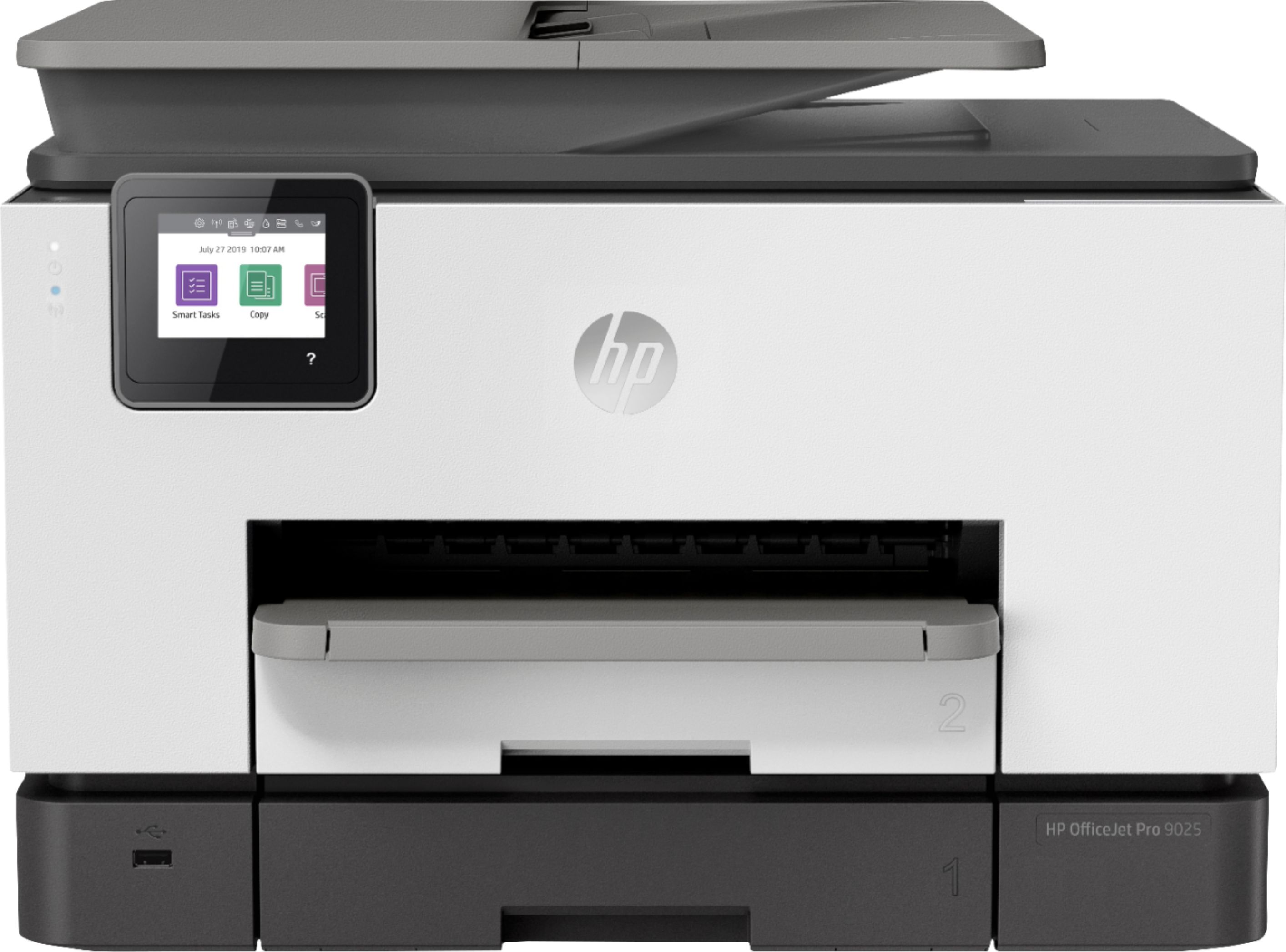
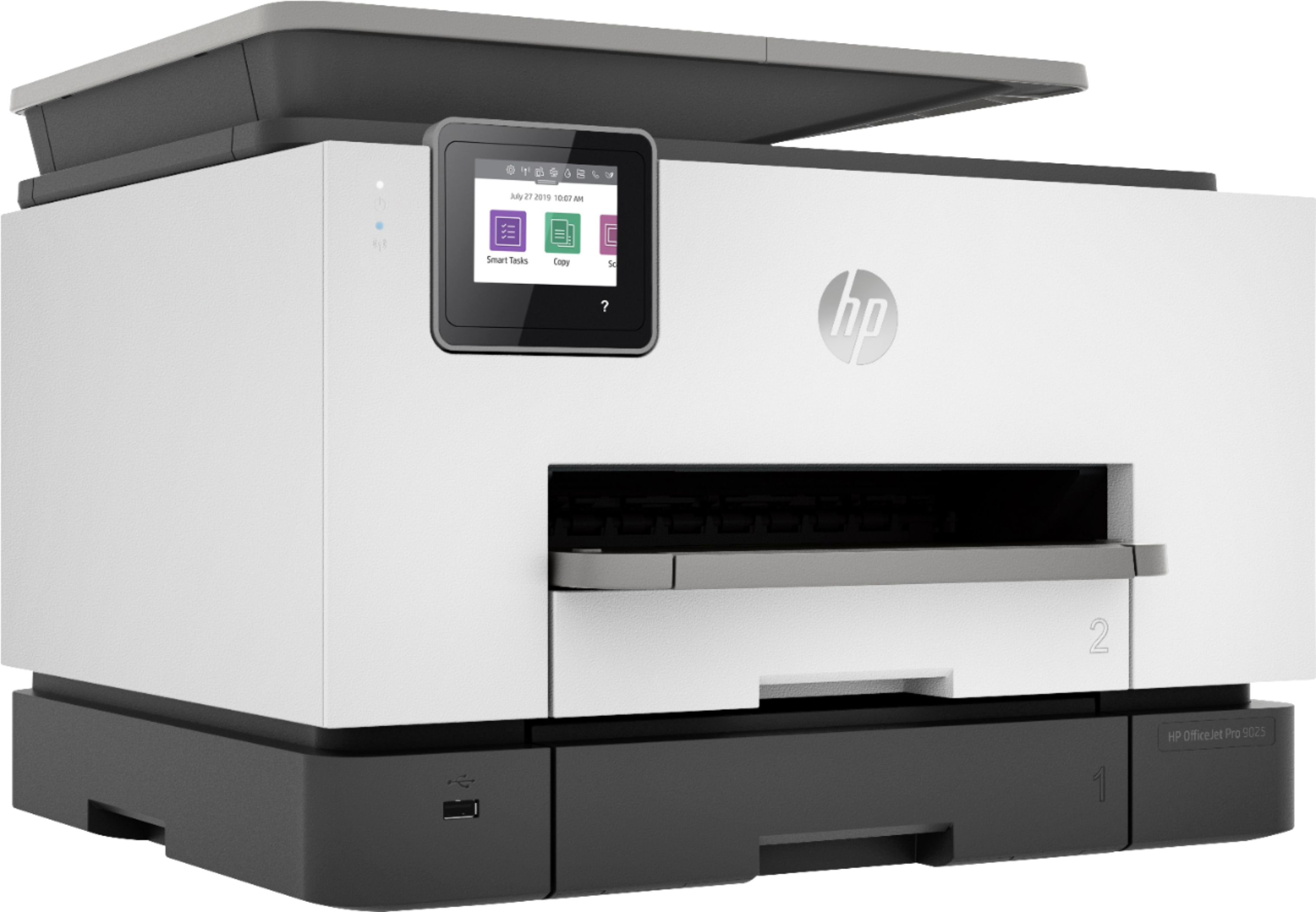
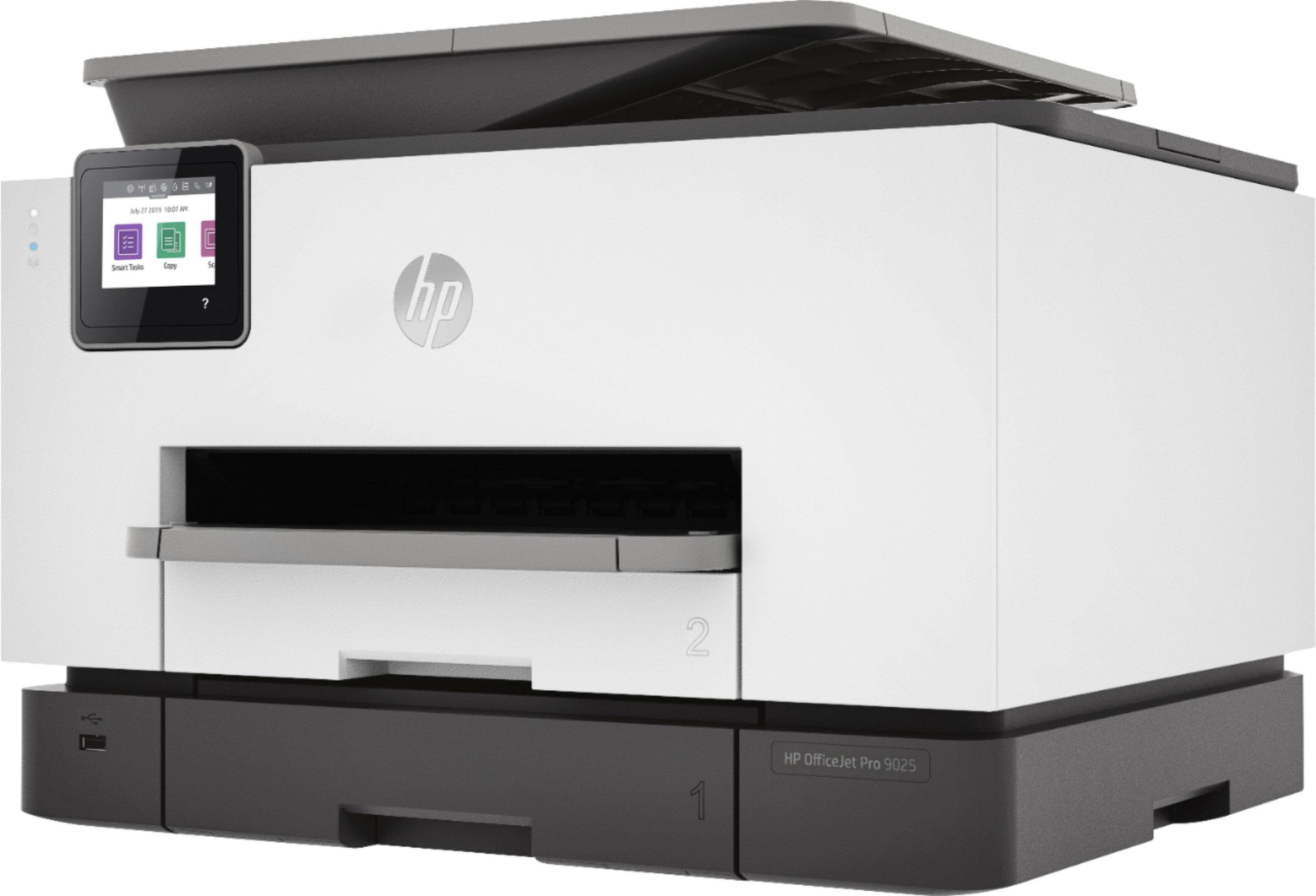
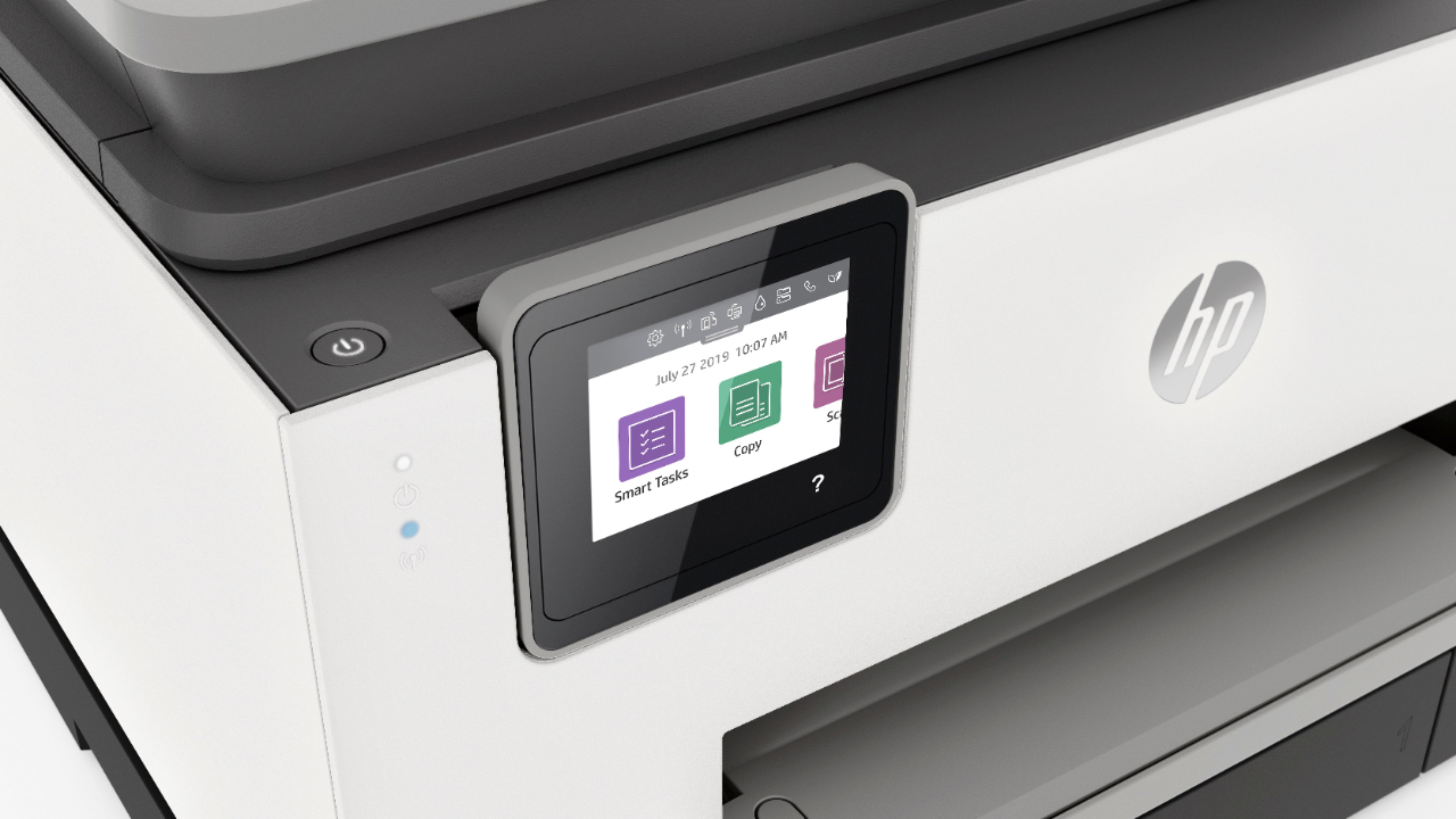



- Model:
- 1MR66A#B1H
- SKU:
- 6320040
Rating by feature
- Value
Rating 4.2 out of 5 stars
- Quality
Rating 4.3 out of 5 stars
- Ease of Use
Rating 4.3 out of 5 stars
Customers are saying
Customers are impressed with the OfficeJet Pro 9025's print quality, ease of use, and performance. Many appreciate the dual paper trays and the straightforward setup process. However, some users find the printer to be somewhat loud and on the larger side. The wireless functionality and scanning capabilities also receive positive feedback.
This summary was generated by AI based on customer reviews.
No worth the price
||Posted . Owned for 4 months when reviewed.This reviewer received promo considerations or sweepstakes entry for writing a review.Not what I expected, inked most of the paper, crunched my paper. Doesn’t print duplex evenly. Grabs manysheets at the same time ruined many sheets. Go Went back to the store
No, I would not recommend this to a friend- Pros mentioned:Paper trays, Print qualityCons mentioned:Noise level, Size

Fast Print/Scan, Picture Quality Average
|Posted .This reviewer received promo considerations or sweepstakes entry for writing a review.I was looking for a printer that could printer multiple pages quickly due to the amount of work I do. I decided to get the HP OfficeJet Pro 9025 and unfortunately it only met half my needs. I am disappointed at the sacrifices HP made choosing Quantity over Quality. It prints fast however all other qualities fall very short. Pros: Fast Print Fast Scanning 5G WIFI Color Touchscreen Phone App 2 Paper Trays Print Out Holder able to hold large print out stacks USB connector in front Easy Access to Printer assemblies for paper jams Laser ink Jet Cartridges are cheap Cons: Difficulty printing certain font styles Photo Print low to average quality Uses Laser Jet instead of Ink Jet Cartridges Noisy when Prints Bulky ::Setup / Install:: The setup and install of the printer was fairly easy, you can configure from the color touchscreen or the phone app. Also if you wish to install via the computer you will need to go to HP site to download the software to run. It does not come with any software packaged, you need to either go online or use the phone store app to grab. ::Print Quality:: Printing text based documents, scanned item (Non Picture), booklets are very fast and quality is decent. Decent due to some font styles appear incorrectly when printing. It is also very noisy to be sure not to print during odd hours of the night. Pictures come out faded, low quality and inaccurate color saturation. More then likely due to the limitations of a laser based versus inkjet ink cartridges. This printer is definitely meant for someone who prints documents on standard font styles and need large quantities printer. Overall I would recommend this for anyone who is looking to print large amount of documents in a short time. The cartridges are cheap and great for text based prints. However if looking to print anything graphical, avoid this printer and go with another printer. The quality is very low / average, passable for flow chart / graphs but that's about it.
No, I would not recommend this to a friend - Pros mentioned:Ease of use, Print quality
A Pro Document Printer/Scanner/Copier
|Posted .This reviewer received promo considerations or sweepstakes entry for writing a review.With a few exceptions, the Pro9025e is an excellent choice for printing, scanning, and copying. Except for one important function, it is the best OfficeJet I have seen from HP in quite a while. The merits and demerits are: *SETUP: Once you have loaded the app onto your computer, setup should only take a few minutes. My experience, however, was not a positive one, and I believe it was due to a glitch in the software. Every time the setup process got to the point of connecting to my mesh wi-fi, setup failed because there was no place to enter my network password. No matter what I tried, the same result was experienced. About to lose my religion, I shut it down and walked away. The next day I tried again and had two failures. On the third attempt, the password entry page opened and then quickly went away. Another attempt got to the entry page and, thankfully, stayed on screen so I could enter the password. The ink cartridges loaded easily, and all was a go. *PRINTING: Document printing is a breeze! Set your parameters, press print, and your document is ready in seconds. Quality is clear and clean. In addition, if you need two-sided printing, the Pro9025e handles that job like a champ. Ink is quick-dried, as it should be. In fact, it can print 2 sides in the time some other printers take to print one. Photo printing is a different story. I have yet to find an All-in-One HP that prints photos well, and this one is awful. Prints are not sharp, there are broken white lines across photo, and very wet ink. I intended to scan and attach examples, but, after 24 hours, they are still wet. So, the attachments are photos of the printed wet photos. If, however, you have no plan to print photos, don’t let this issue deter you from considering this excellent printer for documents only. *SCANNING: One of my peeves with HP all-in-ones previously is no duplex scanning, but the 9020e not only can duplex, but it is also much quicker than others that I have experience with. The first scan was a WOW moment. Great improvement HP! *COPYING: Copies fast and well. Easy duplexing is another plus. Apart from the awful photo printing, the 9025e is an excellent machine. With that caveat, I would recommend it.
I would recommend this to a friend Home office printing
||Posted . Owned for 3 weeks when reviewed.This reviewer received promo considerations or sweepstakes entry for writing a review.This machine is great for working at home and making copies.
I would recommend this to a friendThe Worst Ever
||Posted . Owned for 3 months when reviewed.This reviewer received promo considerations or sweepstakes entry for writing a review.This is absolutely the worst printer I have ever owned. Everything jams all the time and it takes 30 minutes to get it fixed. Buy a Brother Printer and save yourself the hassle of dealing with this piece of junk.
No, I would not recommend this to a friend- Pros mentioned:Print qualityCons mentioned:Size
A solid workhorse
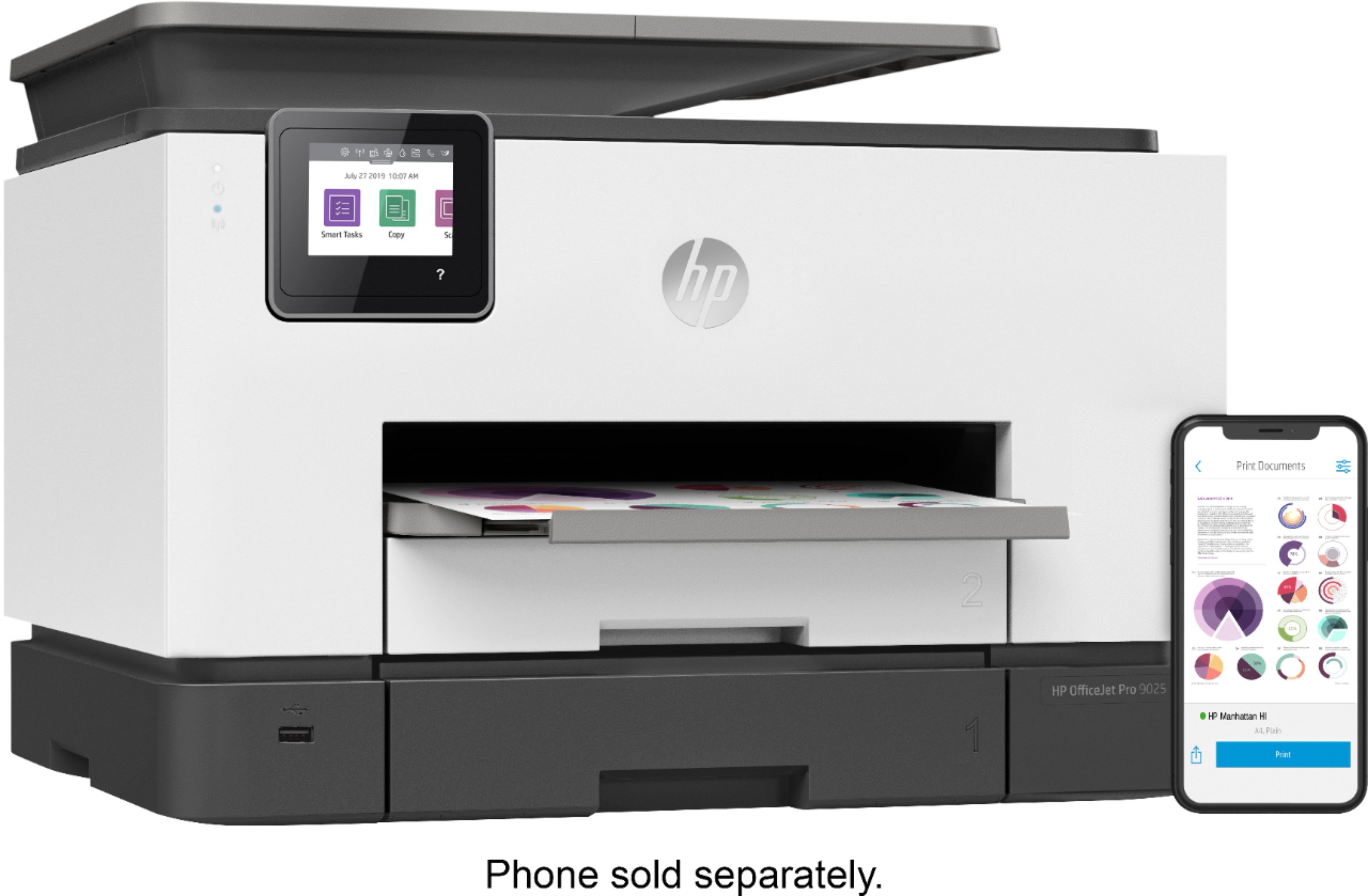
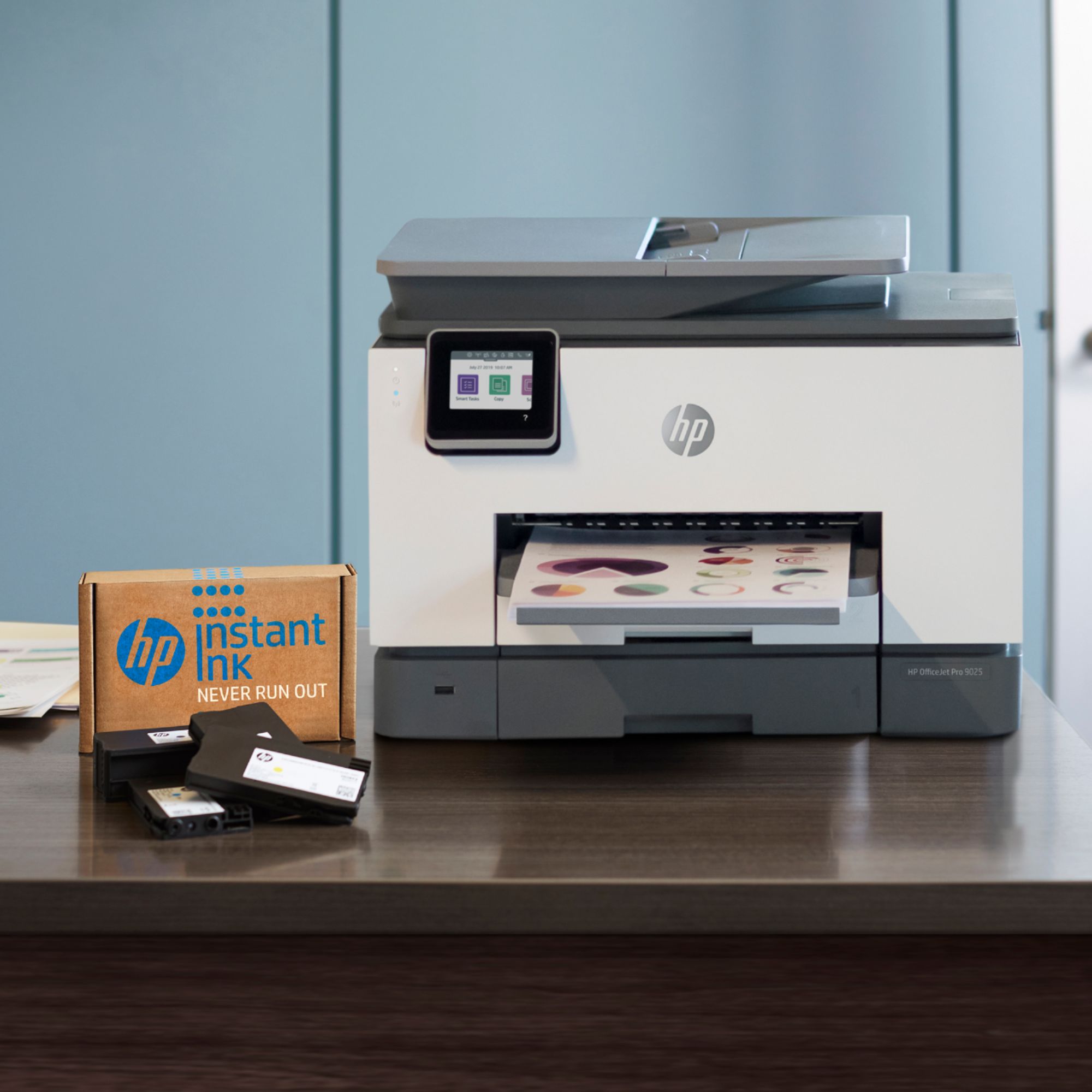
|Posted .This reviewer received promo considerations or sweepstakes entry for writing a review.I have been using HP Inkjet printers for years and have been fairly satisfied with the performance and quality of their printers. I currently own a Officejet Pro 8710 printer and love it. Having never seen the HP OfficeJet Pro 9025 All-in One printer as it was sent to me as a pre-release item to be reviewed, I was expecting to see another version of my 8710, but this printer was altogether different looking. I has a much more business like appearance similar to the HP Officejet Pro 7740. Setup was fairly straightforward. After removing the packing materials and powering on the printer, I opened the front and installed the ink cartridges. I downloaded the HP Smart app to my phone following the included instructions. Evidently this printer is so new that you have to download a new, yet to be released version of the smart app. From the software you select add a printer and the app walks you through the process. Within 10 minutes, the printer was up and running. The display asked me to do a scanner alignment which first prints an alignment document which you place on the scanning bed. The small screen prompts you to continue and quickly performs it’s alignment. Now for the specs: Much like any decent all-in-one, the HP Officejet Pro 9025 can print, copy, scan and FAX. It prints up to 24 ppm black, up to 20 PPM Color. This beats my Officejet Pro 8710 by 2 pages per minute. It can do 2 sided copy and scan and has optical character recognition capability. It also has two 250-sheet input trays which is excellent (my 8710 only has 1. The output tray can hold up to 100 sheets. Based on these specs, it seems more equipped for heavy duty office work rather than occasional home office use. My one gripe is the 2.75” screen (I had to measure it diagonally since the spec wasn’t listed in the printer setup materials or on the box). The screen seems small and it is a little hard to read at certain angles. Performance wise it did very well. I know it is only 2 PPM faster than my current printer, but it seemed a lot faster. It also seemed a lot mor sturdy while printing without the swaying my 8710 seems to do when printing lines of text. As expected, the print quality is excellent, both in black and white and color. Litter to know bleeding occurred even when printing a photo on regular printer paper. This printer is also “Instant Ink” ready. HP Instant ink is a plan you can sign up for that charges a fee based on the number of pages you print each month. The printer sends ink level information to HP, and when the printer runs low on ink, replacement ink cartridges are shipped to you. You do not need to purchase replacement ink cartridges from retail stores when you are enrolled in HP Instant Ink. I have never signed up for this service, but I can see it being good if you do a lot of printing. I am very impressed with the quality and performance of the HP Officejet Pro 9025. Since it is not a released product as of this review I have no idea what it costs, so I can’t give an opinion on it’s value proposition is, but it is a solid performer.
I would recommend this to a friend HP OfficeJet Pro 9025e
||Posted . Owned for 2 months when reviewed.This reviewer received promo considerations or sweepstakes entry for writing a review.Purchased to replace six year old version of the HP office Jet Pro. This 9025e is just adequate. Only thing that is better than previous is the app available. Still same issues with every single "HP Update" that we hated with the previous OfficeJet. Does not seem any faster or easier to use
I would recommend this to a friendBrand response from HP Team
Posted .Hi there.
I’m sorry to hear that you're not satisfied with your printer. I can certainly understand why not seeing improvement over your previous HP printer and encountering some of the same issues you disliked about the older machine would be disappointing. I want to help you learn more about the new printer so you can get the most from it. I hope the resources listed below guide you to that end.
First, to learn more about your printer and all its features, or for help solving problems, you can access user manuals, how-to documents, software updates and troubleshooting guides here:
- support.hp.com/us-en/product/model/37934158
You can also visit a page on our support site that has diagnostic tools for various tasks and issues, including cartridge installation, print quality and connectivity. There you’ll also find a general-purpose tool called the HP Print and Scan Doctor. If you use Windows, the tool will help identify and guide you through solutions to a wide range of common printing and scanning issues. Visit that page here:
- support.hp.com/us-en/topic/diagnostics
If you need further assistance with anything, I suggest that you contact us directly at +1 800-474-6836 so we can help you assess the situation and find the best course of action. To expedite the process, I recommend gathering the following information before the call:
- Model number
- Serial number
- Your location
- Case number (from any previous contact with HP support)
Keith
HP Care
hp.com/support
This is NOT for a business as I was told
||Posted . Owned for 3 months when reviewed.This reviewer received promo considerations or sweepstakes entry for writing a review.This printer is NOT for businesses. If you print anything that is more than 20 pages, front and back the paper pushes the next page out of the tray and onto the floor. I have had 6 Hp printers and this is the first one that does this. You will have to baby sit this the whole time you print.
No, I would not recommend this to a friend- Pros mentioned:Print qualityCons mentioned:Size
Great printer for nearly heavy duty office work
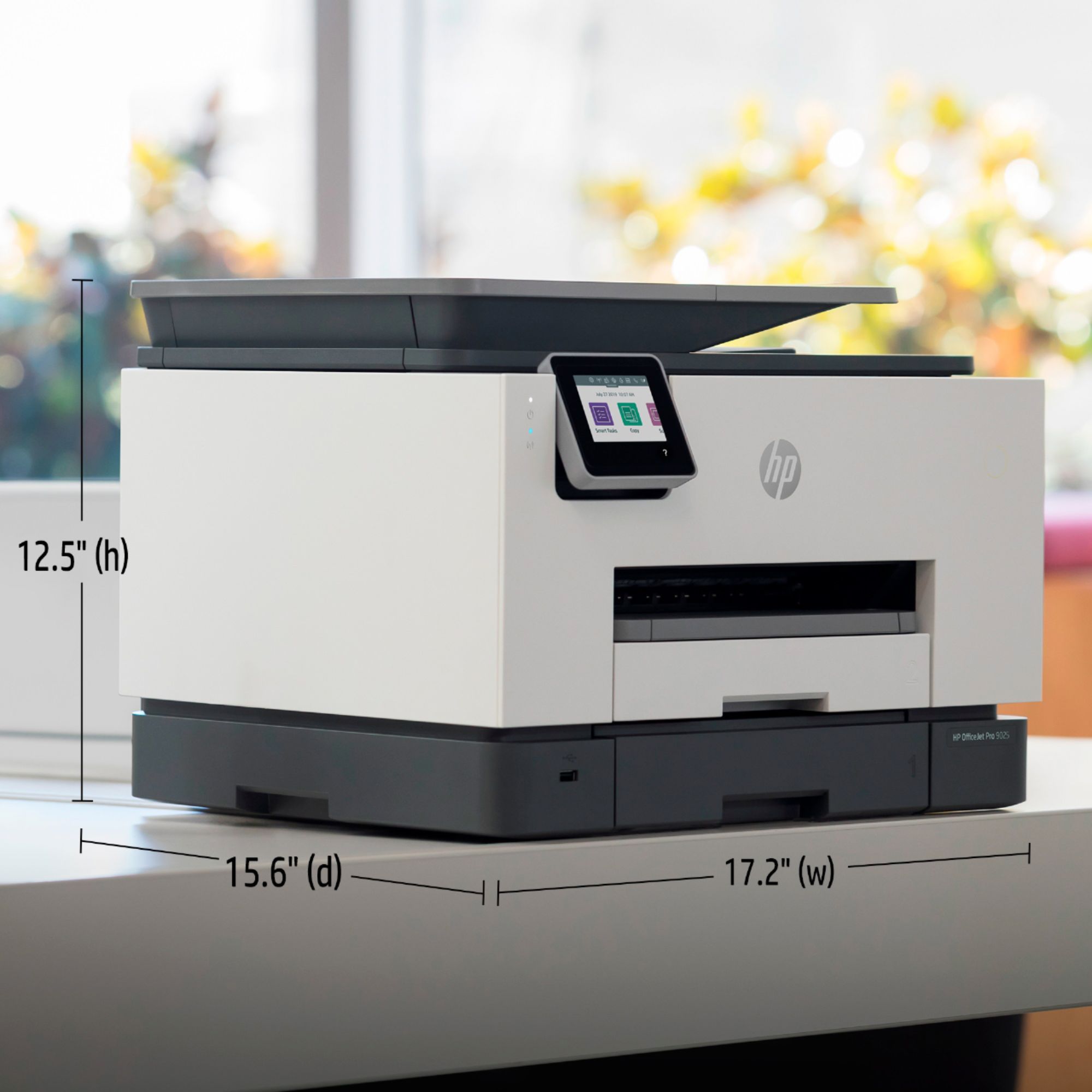
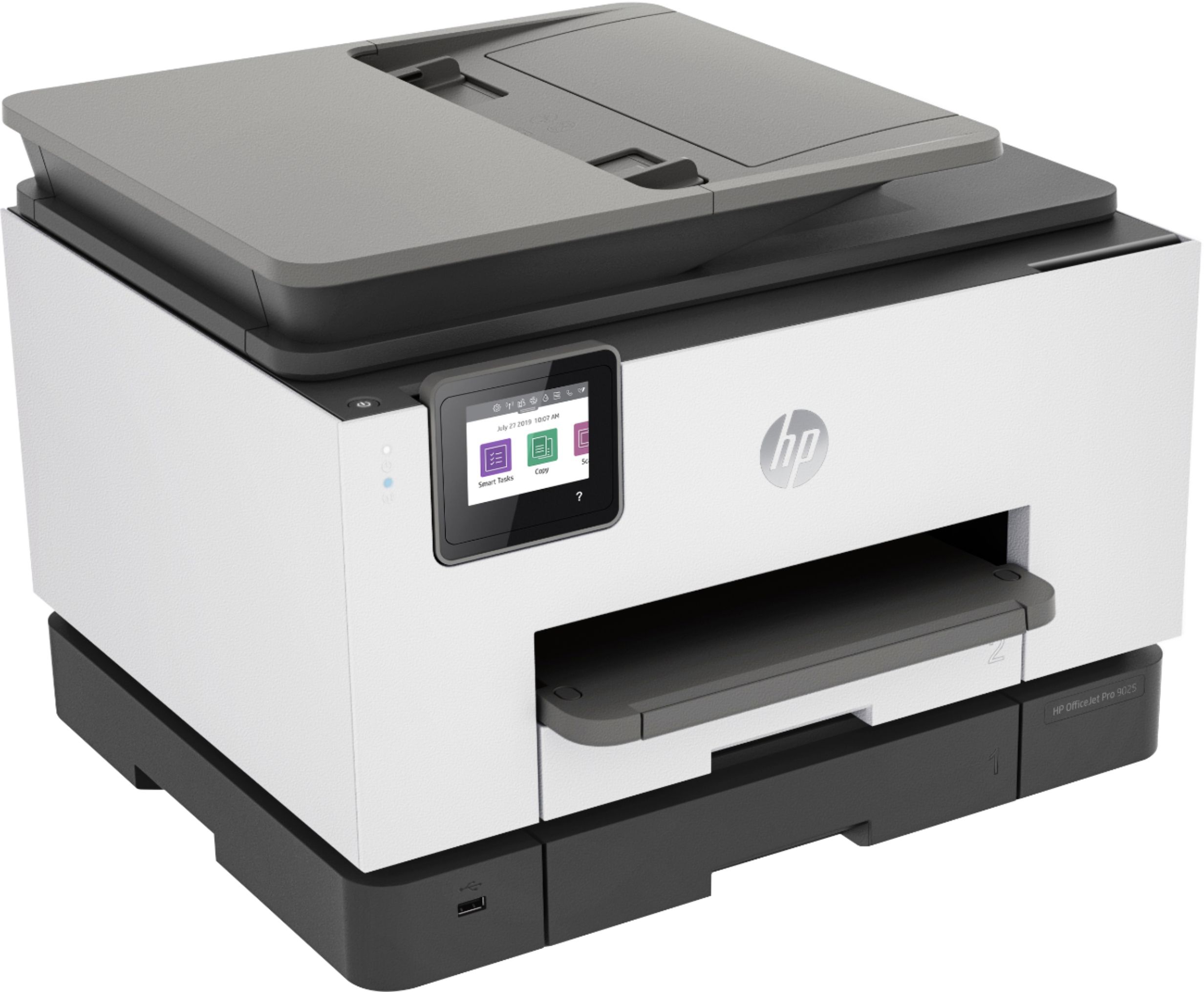
|Posted .This reviewer received promo considerations or sweepstakes entry for writing a review.Printer came in to which I measure a 19x15x19 inch box, well padded and everything so the printer inside stays safe during transport. Of course the printer outside the box itself, the footprint is 17” x 13”, and about 12” high I believe. This printer is best if it’s sat on its own small table or perhaps on a dresser, or average nightstand. I have mines on the far left of my corner desk where my desktop computer is on and it barely fits; the upper shelving of my desk will get in the way when it comes to opening the scanner lid. I can remove the shelving or, set this elsewhere where there is room (like it’s own small table). Just be sure to have enough space. This is not your usual short or compact desk jet printer. Of course I followed the instructions in the correct order; installing the ink was tricky. When opening the compartment door, and installing the ink, I made sure I pressed everything all the way in, and by the diagram there illustrates a click icon. There wasn’t much of a noticeable click, but a soft one. Closed the compartment door, then I get an error of a “print head” missing and to correct or reinstall the ink. I uninstalled and reinstalled twice, and finally got it to work. I did all the setting up of the printer through the HP smart app, and everything works well and printed out a test page, and other stuff (resumes and coupons). Fine print quality and impressive overall over the previous older deskjet printer I have (which is also HP). And I’m all printing wirelessly over WiFi. It’s visible on my phone, tablet, and desktop and laptop computer. The paper loading tray is easy to use to reload paper, and I’m sure the ink will last longer through more printing until comes the time to replace. I believe this HP printer is a great investment and, from a standpoint this looks to be an office machine, either good for work in an office setting or casual work done from home (homework, photos, etc).
I would recommend this to a friend - Pros mentioned:Paper trays, Print quality
Great all around printer, scanner and fax machine
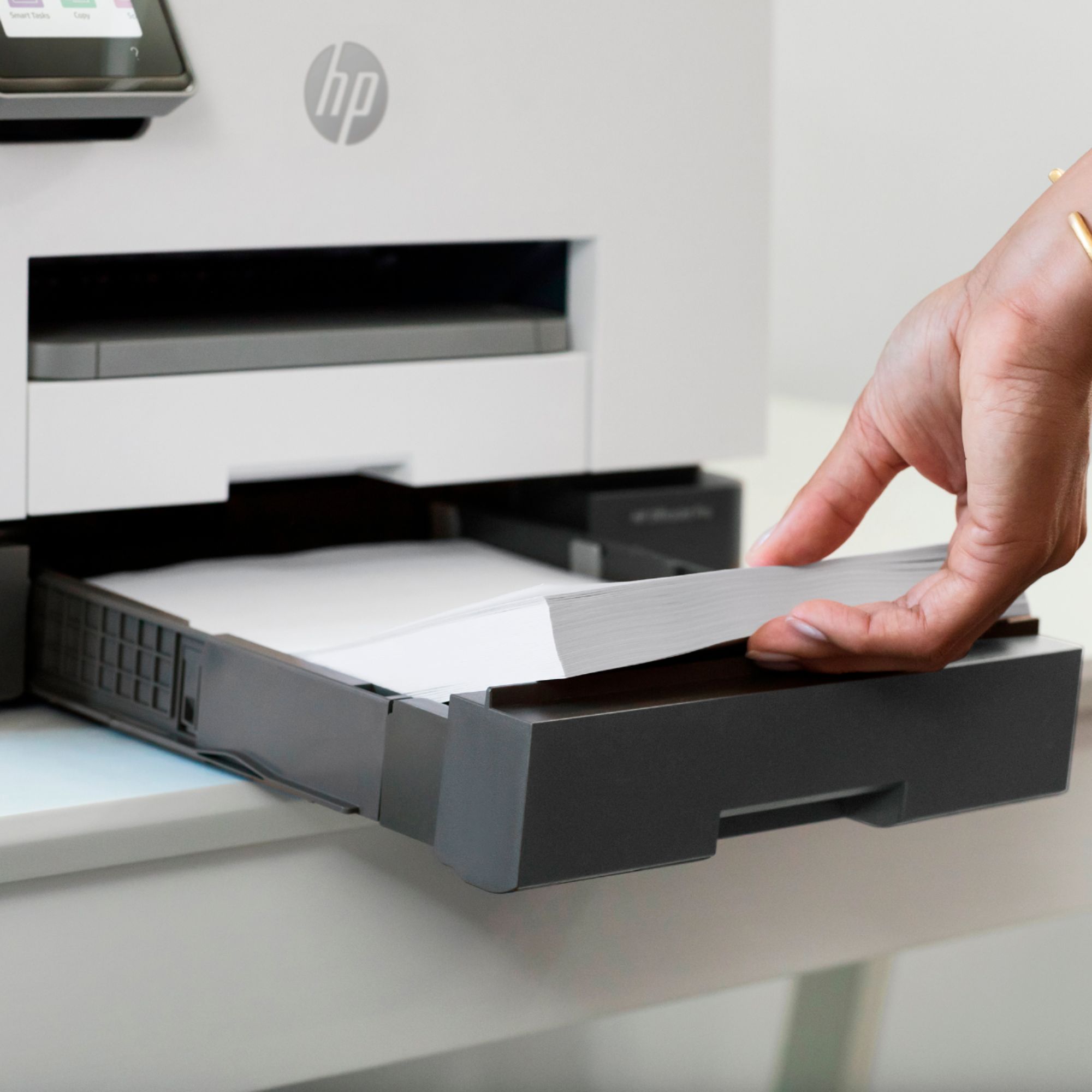
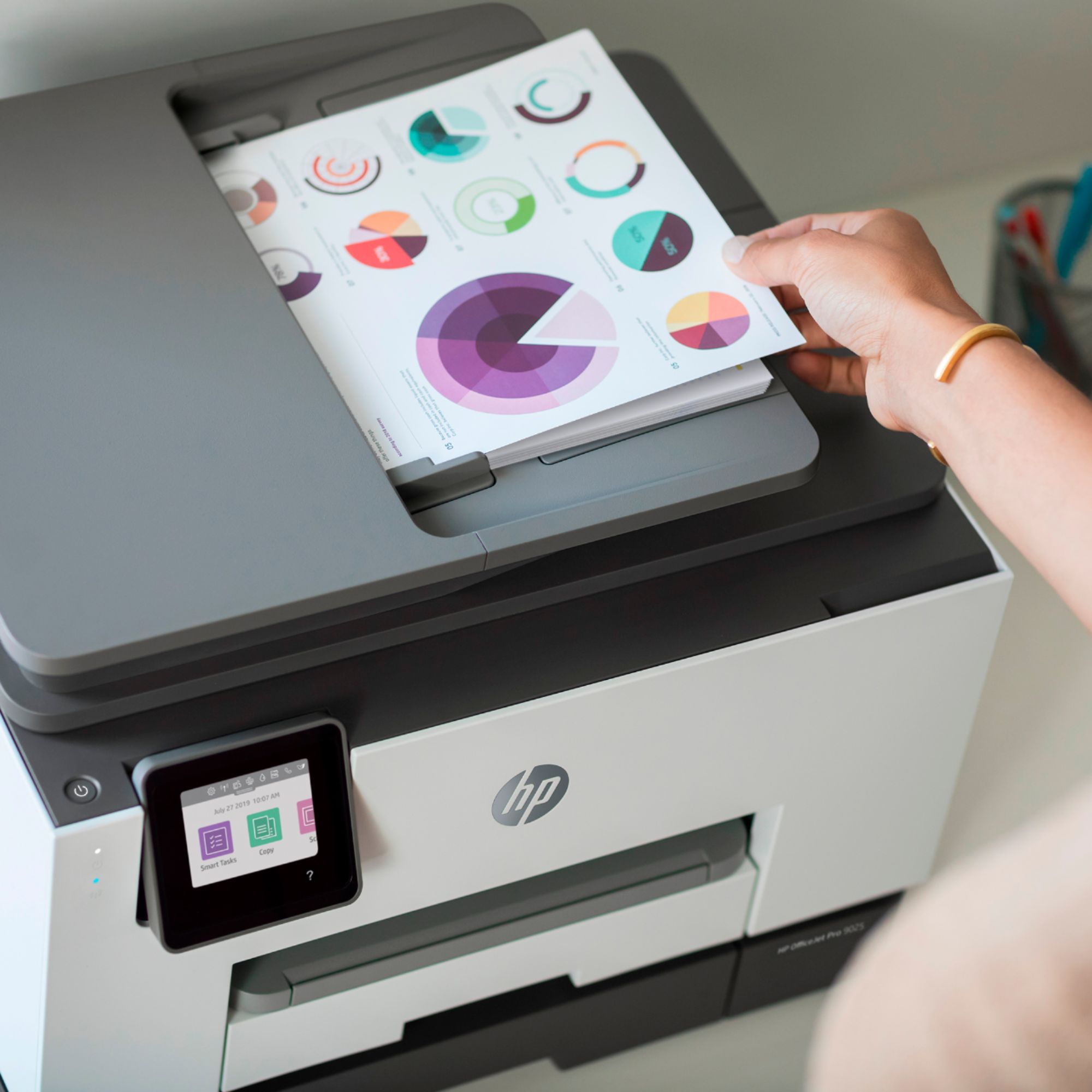
|Posted .This reviewer received promo considerations or sweepstakes entry for writing a review.HP makes quality products, and this HP OfficeJet Pro 900 is no exception. I use this printer for personal, school and a home business. My kids do online schooling at home, which they frequently scan and print documents. The All-in-one printer, software, and apps are designed to save time. It is fast and hands-free with two-sided printing and scanning. The auto-feeder is easy to use, place the document(s) on top of the feeder slot, the scanner will beep once notifying the document are inserted correctly, and finally press the scan button on the touchscreen, mobile device app or the computer software. The auto-feeder can hold up to 35 pages, and can be scanned 2-sided. Wow! This is a fast scanner. The OfficeJet Pro is very convenient when working at multiple locations. Its software, apps, and online features allow the freedom for cloud printing via Wi-Fi or cellular. Using the HP Smart app, one can quickly access and print documents/images from Dropbox and Google Drive. There is the option to save a scanned document to an HP Smart folder onto a cloud file hosting server (Dropbox, Google Drive, One Drive, Box, Evernote, and even Quickbooks). To do this is very simple, create a "Smart Task" on the HP Smart app, select one of the above cloud file storage service, log in, accept an agreement, name the task and click save/done. After creating a Smart Task, or many Smart Tasks, this will be a time saver because, with a few steps, one can print in a specific format/setting, send a file via email, or save to the selected cloud storage. When documents are scanned using Smart Tasks, there is an option to save it as editable and searchable. Having document files save as searchable saves me a lot of time from opening many similar docs to finding the one I need. The Smart Task is available on a computer and the mobile app. HP printing is also possible via an email address. With a private email address for the printer, one can print by sending email messages to the printer. If desired, one can even share this email with friends and family. When there is a print from an email, it prints any attached file(s) and a final page with email context. Taking a photo with a mobile device and using the HP print email allows printing from virtually anywhere. Very convenient! The printer has two paper trays which make refills less frequent or when using two different types of paper. On the main tray I have the regular white paper, and on tray 2 I sometimes have elegant paper. To print using paper in tray 2, select the preference in the printing setting and change the paper source to tray 2. When it comes to the ink supply, there is two option: buy the cartridge when it runs out or subscribe to HP Instant Ink plan. When the printer is set up with a plan, and the printer anticipates that ink level is low, it automatically orders new ink cartridges. I am satisfied with the printing, scanning, and software of the OfficeJet Pro 9025. The Smart Tasks app has saved me a lot of time by automatically saving to a cloud service. It makes it easy for me to work on any computer and have my files accessible.
I would recommend this to a friend Perfect
||Posted . Owned for 1 week when reviewed.This reviewer received promo considerations or sweepstakes entry for writing a review.Works perfectly for our at home use while we telework during this time. No issues so far.
I would recommend this to a friend- Pros mentioned:Paper trays, Print quality
Small Business Powerhouse
|Posted .This reviewer received promo considerations or sweepstakes entry for writing a review.The HP 9025 rocks and suits my small business to a T. Without dragging you into a 5 paragraph rambling review, here's the jist; I run a home office for my small business. I print 250-300 pages/month. 100% documents, no photos. I can load a whole ream of paper into the 9025 as to opposed a fingers width in my HP Tango. The print quality in both black/white and color is fantastic. I don't print photos so can't speak to that. My only complaint is that even with multiple redundant systems in place to prevent dropped WiFi signals, 1/2 the time I send from my phone and the printer is asleep, unavailable, disconnected, etc. Would be nice to have everything work 100% but a restart of the printer gets it all going again. Scanning, perfect. Copying, perfect. Printing documents, perfect. HP Instant ink, not subscribed; I'll order ink when I'm ready and print per-page monthly as needed - ie: I'll let you know and you can ship accordingly:)
I would recommend this to a friend Nice printer
||Posted . Owned for 1 month when reviewed.This reviewer received promo considerations or sweepstakes entry for writing a review.Super happy with this printer, good price and also lite
I would recommend this to a friendGreat printer for small office with few trade offs
|Posted .This reviewer received promo considerations or sweepstakes entry for writing a review.I work out of a home office and, while I don't run through stacks of paper a month, I have periods where I need to print quite a bit in one go. More so, I have a need to scan stacks of documents regularly, so I find great use with document feeders. For my office needs I currently employ a HP OfficeJet 8600 Plus. Until I tested the OfficeJet Pro 9025. First thing, out of the box, this printer is bright, bearing a slight resemblance to the 7000 series OfficeJets with a two-tone color scheme of white and grey. The middle of the body is white, capped off with a grey lower paper tray and grey document feeder on top. It's a much sharper appearance than the grey/brown of the 6000 and 8000 series printers. Additionally, the design language is much sharper and more modern, foregoing the rounded, sometimes "bubbly" design language of the 8000 series in favor of boxier lines and 90 degree angles. It's very square and rectangular, and even features a flat top to the document feeder, which has historically carried a more rounded apperance. The new design language is very appealing, and seems more focused on function than form. It has a very purposeful, functional, and professional appearance to it. It also lends a more slimmed down look to the printer, which makes sense given that the overall box is indeed slimmed down by several inches. My 8600 was purchased because it supported fax, printing, scanning and copying, 2-sided printing, and a document feeder on top, but the machine is bulky and heavy. The 9025 manages to squeeze all this in to a smaller package, indicating some nice internal design efficiencies. While you don't move a printer around all that often once it's setup, moving between the 8600 Plus to the 9025 reveals quite a difference in weight. In size, the 9025 is the same height as the 8600 Plus, but squeezes a second paper tray into that space, and maintaining the same capabilities with the document feeder. Front to back and side to side, however, the 9025 bests the 8600 Plus by quite a bit. My 8600 Plus shared a desktop with my photo printer, and had only 19.5" wide and 20.25" deep to fit in. Because of the printer size, it had to face perpendicular to my other printer, with the output tray kept in most of the time to avoid bumping it. The 9025 fits facing parallel to my other printer with room to spare, and even with the output tray adding 6" to the depth, only sticks out .375" at the front. To accomplish this, it appears HP made some internal changes to the printer, stacking things a bit taller and further back in the box. The output tray sits a bit higher and a bit recessed into the case, and fits 2 paper trays beneath it compactly. The doc feeder on top also seems slimmed down a bit, allowing it to fit in the more compact design. The only issue I really have is with the power cord placement. If it were offset a bit, or even if HP included a right-angle cord, this printer could sit even further back. I do believe some sacrifices were made to accomplish the smaller and lighter design, and after playing with it for about 2 weeks now, I think it's apparent in the feel of some of the materials. First, the plastic on the 9025 feels more flexible and thinner than the 8600. When I open and close the doc feeder cover I feel like I am about to break it. This contrasts the 8600 which uses a latch to open and close, and feels better. Additionally, the overall feel of the 9025 is more plasticky than the 8600, and leads to some question of durability under heavier use or in environments with multiple people using it daily. Second, the print head has a spongy and less reassuring feeling when inserting printer cartridges. With the 8600 there is a tactile feel to the cartridges clicking into place, letting you know they seated properly. With the 9025 I found myself checking the cartridge a couple times to make sure it was in all the way. They also made squeaky sounds when I inserted and removed them, and though that might go away with time, it has not yet. They also sacrificed on the screen size with this model, opting for a smaller screen that is just over 1.5" tall and 2" wide, where the 8600 was about double the width. With all the features and apps being added to these printers, the screen size is really important, and I think this one is just too small for it's purpose. They also have a swipe down from the top feature to access settings and information, similar to a smart phone, and this menu is more challenging to read on the smaller screen. I do like the new mechanics for adjusting the screen angle, which doesn't require a button pinch of press, like my 8600, but I also believe this might be the reason for a little bit of movement when interacting with the screen. At first I thought there was a slight click action or sound when pressing a button on the screen, but it appears to just be the screen moving a bit under pressure. Moving beyond the look and feel of the new printer, from a performance perspective it does very well. Setting it up out of the box was really easy, thanks to the HP Smart software guiding through setup. Additionally, you can use the HP Smart app on your phone to setup the printer via bluetooth. I did run into issues connecting to the printer from just under 6 feet away, and found it woked best standing 2 feet or less in front of it. Once ink is inserted, the printer primes the cartridges, and I noticed it to be a bit quieter than the 8600 Plus, but also a bit higher pitched. My 8600 had a more mechanical sound to it when priming new cartridges, but I don't think this indicates any issues or performance problems. What was indicative of a change, though, was the sound and action when the printer wakes to print. The 8600 makes a loud, mechanical sound when it wakes to warm up, and takes a noticeably longer amount of time than the 9025. In contrast, the 9025 is quick and relatively quiet when waking to copy or print. Additionally, the 9025 is quieter during normal operation as well, whether printing, scanning, or copying, even on the document feeder. I found the print quality of the 9025 to be really good as well, providing crisp and clean colors, as well as sharp text, which my photo printer does not do so well with. I would still use my photo printer for high quality photo prints, since the color depth and quality of photos is great than the OfficeJet printers produce. That said, I have always found the OfficeJet printers to handle text prints very well, and the 9025 continues that trend. Running through a copy test, however, revealed some areas for improvement with the 9025. Using the standard HP test print, I copied on both the 8600 and 9025, and the 8600 seemed to provide a cleaner copy, producing sharper edges and slightly better color. Both printers struggled with the grey text at the base of the sheet, though, with the 8600 barely able to present something identifiable as text, and the 9025 providing only marginally better results. With the higher contrasting text both did fine, so it seems to be a struggle point with the lower contrast of the grey. 2 sided printing was also easy and clean, though speed of that did not seem noticeably faster than the 8600. I tried to capture some of the differences in print quality in one of the images I added, but it might be difficult to completely see them. One BIG thing I have been avoiding with the HP printers is the subscription ink plan. My fluctuation in usage means it won't really benefit me, and I am also not a fan of subscription services tied to my daily business needs. The ink being delivered as needed with Instant Ink is a cool idea, but I don't like the idea of HP tracking what I print, or making it more difficult for me to print if I decide to use a 3rd party cartridge. I have also read some issues with customer service around the subscription, with people having difficulty canceling, or getting potentially overcharged due to peak printing periods. I did decide to sign up for a trial of it through the website, and while I can see my usage and plan info, I haven't used it enough in the past 2 weeks to be able to review the service yet. Overall, I like this printer very much and am going to give it a shot as a daily replacement for my 8600 PLus, which is a big step for me. The compact size is a HUGE benefit for my office space, especially with it still including 2-sided printing, a doc feed, and the 2 paper trays. I wish the screen were about double the size, and I wish the feel of the plastic on it didn't feel as flexible or flimsy as it does. Because of those issues I want to drop half a star off the rating, but I still think this is a fine machine for someone who has a home business or work-from-home office that needs these features. Because I can't drop a half star, and I don't think it warrants 4 stars, I am leaving it as 5. It's fast, quiet, compact, light, and very functional, and I think it's definitely worth strong consideration.
I would recommend this to a friend- Pros mentioned:Print qualityCons mentioned:Size
Perfect workhorse
|Posted .This reviewer received promo considerations or sweepstakes entry for writing a review.I definitely wasn’t expecting to be wowed by a printer. That is, until I got this one. Once I managed to get everything set up it was a breeze to work with. Great features, expected quality printing as expected from HP...and can handle any heavy use printing you throw it’s way. Definitely a great workhorse for your office space needs. It’s big though so if you’re in the available space you have for a printer then this may be a problem for you (but it’s worth it to get creative with your setup!).
I would recommend this to a friend - Pros mentioned:Print quality
The Best AIO for the Price
|Posted .This reviewer received promo considerations or sweepstakes entry for writing a review.HP has always been a strong competitor in the AIO market and the OfficeJet Pro has always been near the top of the line. Its a larger unit but still small enough to fit on a printer hutch, in a corner of a small home office, but large enough to handle a solid amount of auto-feed scanning, a full A4 on the scanning glass, and half a ream of paper in the printer tray. A few years ago HP made their printers Smart enabled literally with their HP Smart app. This has been good and bad in my opinion. For mobile devices on the same wireless SSID it makes printing simple, but for wired devices or multiple mesh network SSIDs (ISP and home mesh) or connected to different routers, this can be a bit of a nightmare if you don't know how to port forward or bridge different IP ranges across multiple routers. Anyways, that's a different story to tackle. Overall an AIO is an amazing device, it will make previously tedious paperwork, printing, scanning, documenting much less tedious. Its amazing for anyone running a Small Office or Home Office, anyone who does a lot of online sales and shipping, and it is an absolute lifesaver when it comes to major life transactions like buying a house. The combination of being able to scan, print and upload directly documents directly from your computer is an amazing time saver and probably a big reason places like Kinkos no longer exist. In terms of set-up, I highly recommend using the wireless setup. I wasn't able to get the printer detected using the LAN. Make sure whatever device you use to set-up is on the same SSID and VLAN if you have multiple. Also, for any windows based devices like laptops and desktops, once you've setup with your phone and the mobile HP Smart App, you can very easily just add the printer via IP. I previously had the HP OfficeJet Pro 9025 and the 9025e looks to be an incremental improvement with slightly faster printing and scanning. The touchscreen also seems to be more responsive, but otherwise the two units look identical. I will end up moving the 9025 upstairs and connecting it to a different wireless SSID so we have better coverage and flexibility in the house. Great to see the 962 is the same cartridge system being used. Lastly, this printer includes 6 months of HP+ which is a subscription ink program that offers free ink in the first 6 months and 1 year additional warranty. You really want to see how much you actually print, but for our household we typically don't print that much, especially in color, so we probably won't keep the subscription. If you print a lot however, this could be a really handy feature. Overall, you can't go wrong with these HP AIO and this is best-in-class and does not burn through ink as fast as previous lower-end units I owned did. Definitely recommend at this price point for the features, performance, and ease of use!
I would recommend this to a friend Go printer
||Posted . Owned for 2 months when reviewed.This reviewer received promo considerations or sweepstakes entry for writing a review.The worst printer I ever brought. It has not worked properly since I got it. WiFi connect allows anyone close by to use my printer
No, I would not recommend this to a friendExcellent SOHO printer
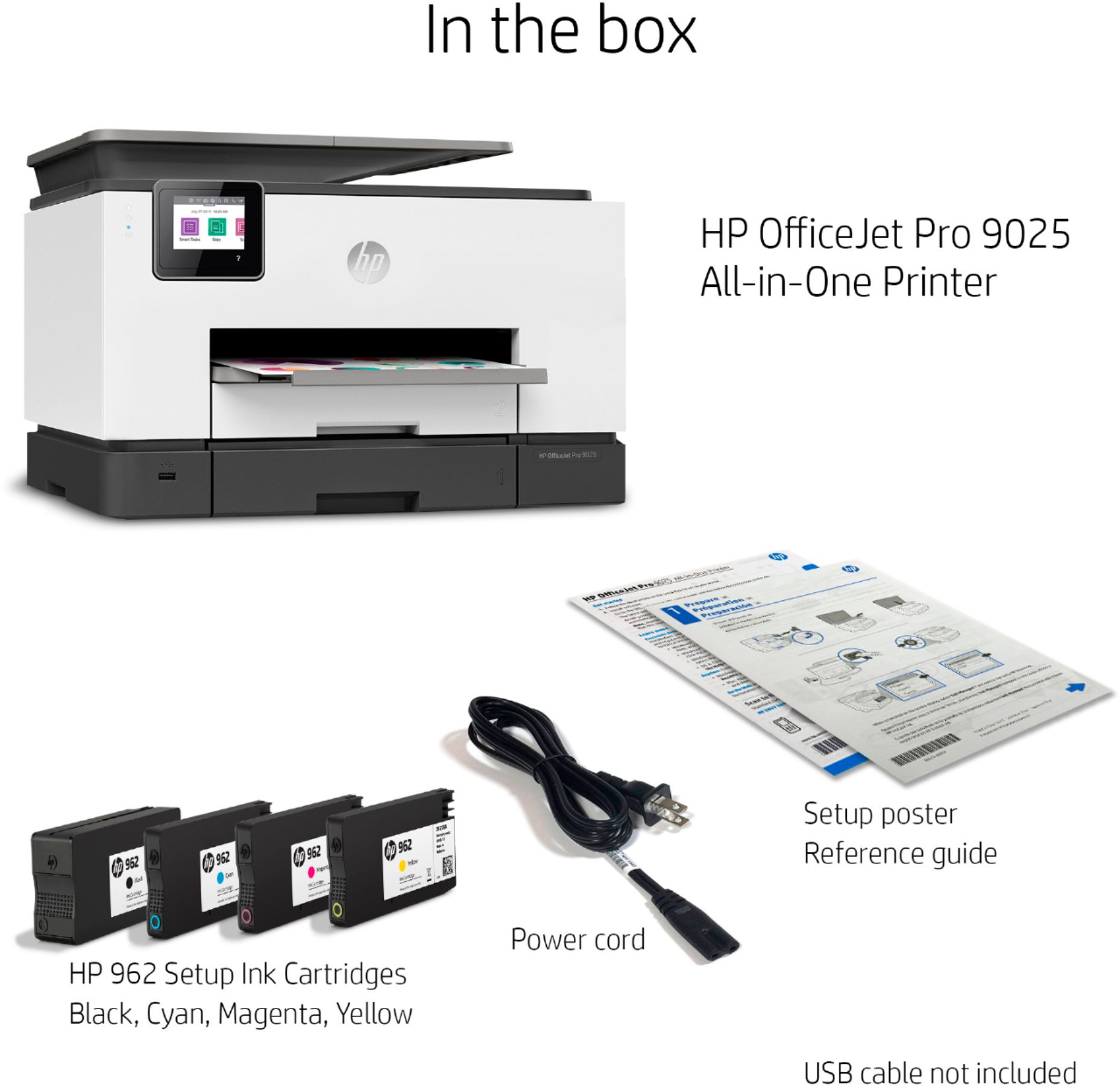
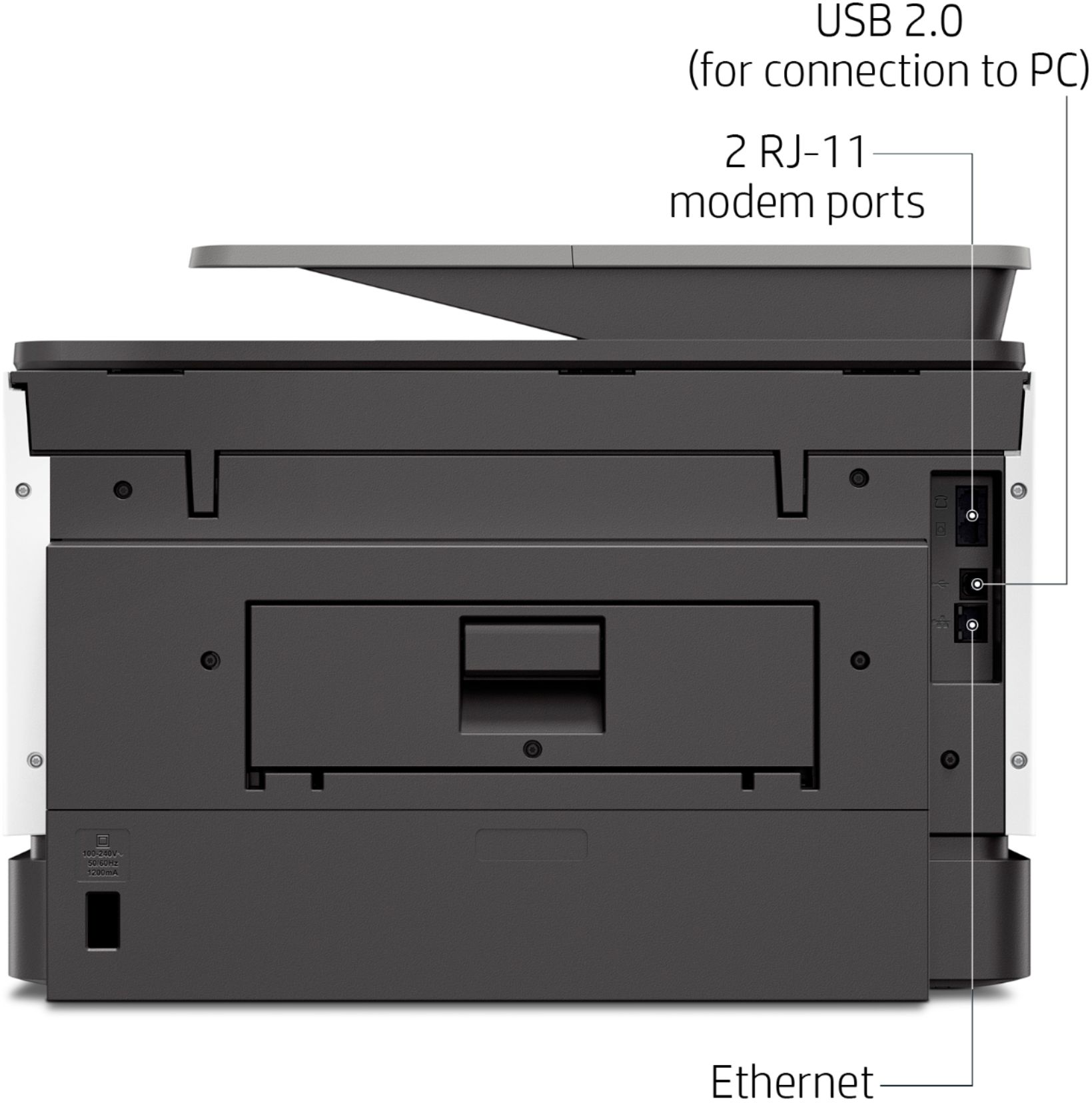
|Posted .This reviewer received promo considerations or sweepstakes entry for writing a review.We already have a 90 series HP printer but we wanted one with more features as ours didn’t have automatic dual sided printing and scanning. Once we saw that HP had the 9025e with all the features we wanted we had to grab one. Unboxing: The printer comes really well boxed sitting in cradled in Styrofoam corners. Once the top ones were removed it was simple to grab the two handles of the protective bag the printer was in and lift it out of the box. About the simplest larger sized printer unboxing I’ve done. Inside the box is the printer, cartridges, power cable and documentation. The printer itself is pretty large “a good bit over our old one” and you’ll need a good spot to set it up. Setting up: Like our other HPs we’ve had before we just placed the printer where we wanted it, plugged in the power cord. I wanted this to be hardwired on our network and there’s a switch right next to it that’s connected to our router. There’s an orange plastic plug in the Ethernet port located on the back below the phone jacks. You have to remove that plug to connect your Ethernet connection. I use a Obi VOIP box for our phone and fax so I hooked the main line from the Obi to the Tel line in on the back also. After hooking up power the printer was powered up and gave instructions about inserting the ink cartridges so we did that. Inserting the cartridges is very straight forward, each is color coded and you just push them in till they click into place. The printer, after going through the new cartridge setup asked to print an alignment page which I let it do and then placed that page in the scanner and let it scan the page and finish the alignment. The printer has a small LCD full color touch screen just like our old model and can be tilted for a better viewing angle, it’s used to manually preform scans/faxing/copying and adjust all the settings. There are a lot of options in the menus on the screen and you’ll want to familiarize yourself with those functions and settings but for the most part you can set up everything from the apps. All our computers are Windows based and phones are Android so well be referencing only those operating systems. I already had the HP Smart app installed on our computers so it was easy enough to go into that and have it set up a new printer. If you don’t currently have the HP Smart app installed then you will need to use the Windows Play store to download and install it. The Windows app is pretty straight forward and has a simple interface for what you want to do. This printer also has Wi-Fi built in but since we’ve placed it near a router that option probably won’t be used, at least not yet. Use: I have to say this is one fast inkjet printer, printing documents is lightning fast and there’s barely any warm up time. Text is crisp and clear and colors turn out very vibrant even when using cheap 20lb paper “that’s the paper used in the attached picture”. I also wanted to try out the scanner to check out copy quality and was amazed how fast it copied a color magazine cover. I set the detail on high and from start to finish it scanned and printed a full color copy in 28seconds, “that’s fast for a color inkjet”. The copy of the magazine in some areas came out clearer and in the original cover, especially the motorcycle helmet and how the colors stand out. We’ve printed multiple documents and some photos and the most noticeable difference from our older 1st gen 90 series model is this one is way faster. The 9025e also has two paper trays so you can either double up your paper stock or have two different types “copy paper/photo paper, or copy paper/envelopes”. The upper tray “#2” already has the guides set up for envelopes which makes it very convenient if you are printing letters and want to include the envelope printing at the same time. I’ve also installed the HP Smart app on our phones, and after setting up the HP account so the printer can be accessed anywhere I tried printing a couple PDF documents, “worked perfectly” and a picture of a Hibiscus plant in our back yard, well the picture looks like it was professionally printed and you can’t make out any lines in the print from the inkjet process. I even used non HP brand generic glossy photo paper “loaded into the top tray” for this and the results were excellent, “you can see the attached photo of the magazine cover and flower” although you really have to see in person how well these came out. We don’t send or receive many faxes but it’s a nice option to have when needed. I did a test fax to a friend of ours fax machine and it worked perfect even with using a VOIP box “which can be tricky at times” and he was able to send it back without a hitch. Conclusion: With HP+ and the automatic ink refills for 6 months I know we are going to be doing a lot more printing than normal. Their plans start reasonably cheap “around $5 a month” you get 100 pages a month “more than we usually print”, and there are plans that get down to $0.99 a month if you are a light printer. The maximum plan for $25 gets you 700 pages per month, which should be enough for a SOHO or everyday small office. And in the end, instead of a cartridge running out during an important print, the printer will have HP sent out cartridges as soon as they start to get low, “can’t beat that if you are like me and always forget to order cartridges” With the speed this printer prints at and the convenience of being able to print/scan both sides automatically this printer has filled in all the gaps that were missing “and features we wanted” from our old printer. So if you are looking for a full featured printer that can print, scan, copy, and fax this is going to be the AIO printer for you.
I would recommend this to a friend- Pros mentioned:Paper trays, Print quality
Very Good Business Printer
||Posted . Owned for 2 weeks when reviewed.This reviewer received promo considerations or sweepstakes entry for writing a review.The HP9025e does a very good job of printing all of our everyday documents. It installed easily and integrated to our network without a sing issue. This was not necessarily true of other HP's that I had over the last 30+ years, laser and inkjet. These printer are made cheaper and cheaper with every new model I buy. I absolutely hate the way the JAM the HP Instant Ink program down your throat. I do only use genuine HP ink, never refills which I believe makes my printer last longer. We have an HP 8610 that is going on 9 years and an HP8710 that is going on 7 years. I require 2 paper trays or my work so this OJ Pro 9025e printer fit the bill. I question how it will do for the long haul but we will just have to see. For now it gets 5 stars but I almost deducted 1 for the HP Instant Ink ridiculous barrage and maze of setup choices forcing it down your throat. Fortunately I was able to skirt the issue. Only HP printers for me as the 1 Epson I had didn't last 180 days. This printer was purchased to replace an HP8740 that I had for about 5.5 years. It was damaged in moving otherwise I would still be printing on it.
I would recommend this to a friend - Pros mentioned:Ease of use, Performance, Print quality
Two Thumbs Up
||Posted . Owned for 1 month when reviewed.This reviewer received promo considerations or sweepstakes entry for writing a review.This printer was super easy to set up and it's working great. I'm using it in my home office and am a Realtor so it gets used often. I've only had it about a month, but am very pleased with the performance and print quality.
I would recommend this to a friend