Customer Ratings & Reviews
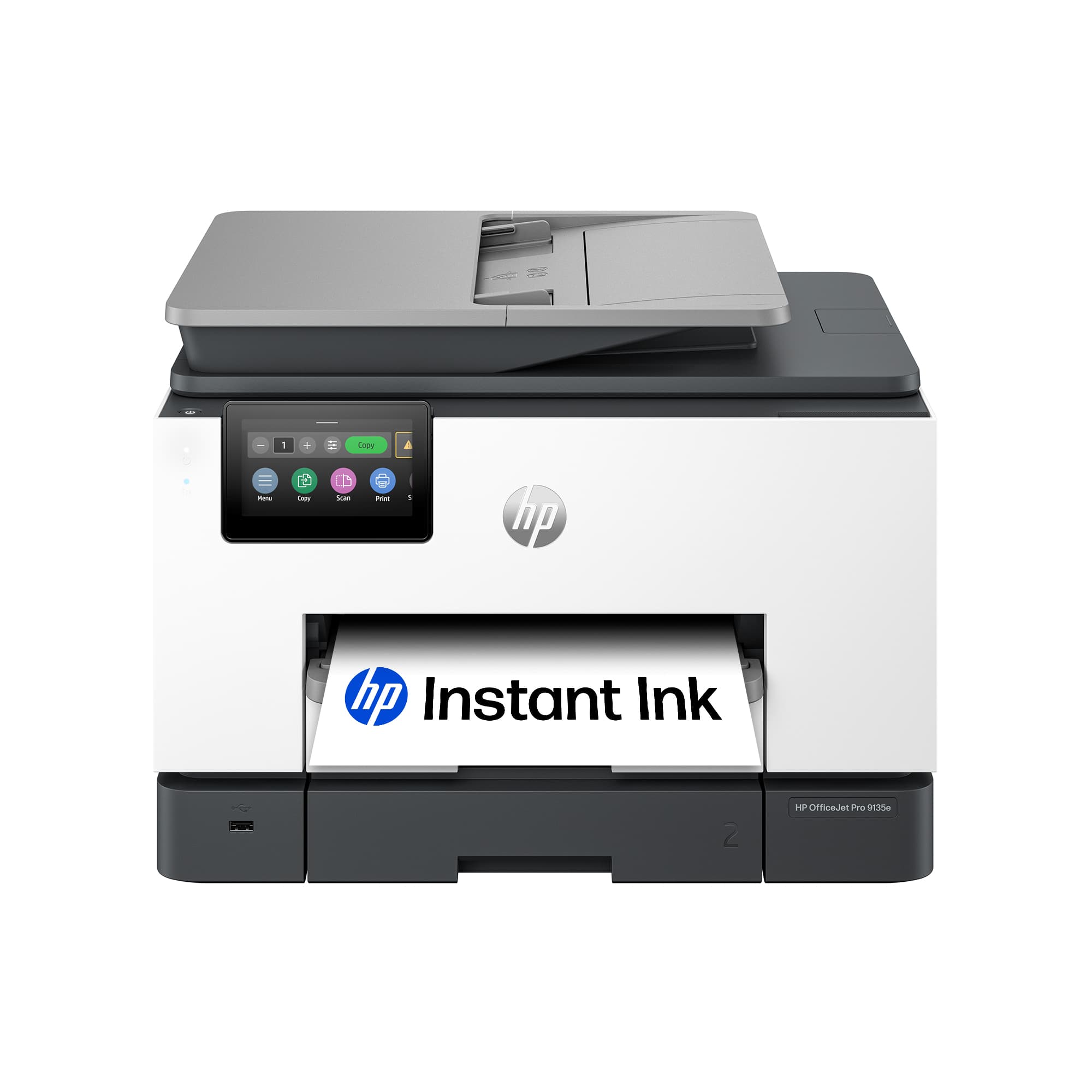

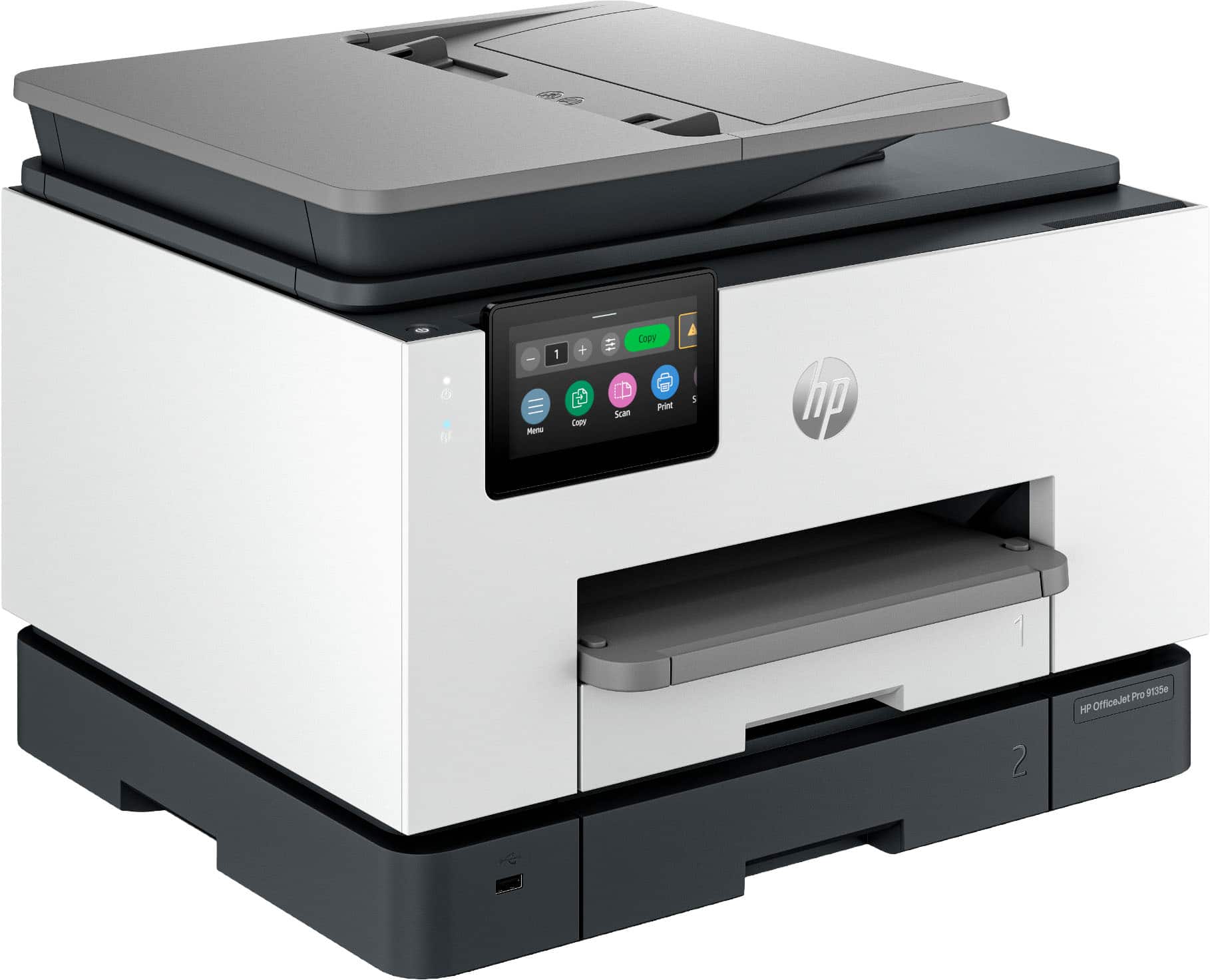




- Model:
- OFFICEJET PRO 9135E/404M0A#B1H
- |
- SKU:
- 10757528
Customer reviews
Rating 4.3 out of 5 stars with 429 reviews
(429 customer reviews)Rating by feature
- Value4.3
Rating 4.3 out of 5 stars
- Quality4.3
Rating 4.3 out of 5 stars
- Ease of Use4.2
Rating 4.2 out of 5 stars
Customers are saying
Customers are pleased with the OfficeJet Pro 9135e's print quality, ease of use, and overall performance, making it a great printer for various needs. The printer is also praised for its easy setup, suitable size for small offices, and impressive speed. However, some customers have noted concerns about the printer's noise level and connectivity issues. Additionally, a few customers reported issues with the printer's software.
This summary was generated by AI based on customer reviews.
Rated 5 out of 5 stars
HP Officejet
||Posted . Owned for 1 month when reviewed.This reviewer received promo considerations or sweepstakes entry for writing a review.A great copier! It's so much better than others we had in the past.
This review is from HP - OfficeJet Pro 9135e Wireless AI-Enabled AiO Inkjet Printer w/ 3 Months of Instant Ink (+1 Bonus Month of Ink w/ Code) - White
I would recommend this to a friendRated 5 out of 5 stars
Printer
||Posted . Owned for 1 week when reviewed.This reviewer received promo considerations or sweepstakes entry for writing a review.Love it great deal works great love it love it love it love it
This review is from HP - OfficeJet Pro 9135e Wireless AI-Enabled AiO Inkjet Printer w/ 3 Months of Instant Ink (+1 Bonus Month of Ink w/ Code) - White
I would recommend this to a friendRated 1 out of 5 stars
The Worst printer I have Ever Owned, Bar none.
||Posted . Owned for 5 months when reviewed.This reviewer received promo considerations or sweepstakes entry for writing a review.This is easily the worst printer I have ever owned. It's just terrible. The print dialogue box is unusable and doesn't offer even simple changes like printing on one side or two. To access that advanced functionality you have to use the HP "Smart" app and then input a pin code to access the dialogue box. Whe you do it prints on two sides...but the second page is upside down. Attempts to correct this have resulted in text that is inverted, but not yet after over an hour of trying a page that renders the right way up. It is astonishingly difficult to use and get decent results out of. This is an issue with HP vs this printer so I suggest you give the whole,l brand a wide berth. Truly a complete waste of money and time.
This review is from HP - OfficeJet Pro 9135e Wireless AI-Enabled AiO Inkjet Printer w/ 3 Months of Instant Ink (+1 Bonus Month of Ink w/ Code) - White
No, I would not recommend this to a friendRated 5 out of 5 stars
HP Printer
||Posted . Owned for 2 weeks when reviewed.This reviewer received promo considerations or sweepstakes entry for writing a review.This is an excellent printer for your business and home needs. Very pleased with it and easy to set up printing with wireless connection.
This review is from HP - OfficeJet Pro 9135e Wireless AI-Enabled AiO Inkjet Printer w/ 3 Months of Instant Ink (+1 Bonus Month of Ink w/ Code) - White
I would recommend this to a friendRated 4 out of 5 stars
HP Printer
||Posted . Owned for 1 month when reviewed.This reviewer received promo considerations or sweepstakes entry for writing a review.Have had a previous model of this printer. Works well and prints efficiently.
This review is from HP - OfficeJet Pro 9135e Wireless AI-Enabled AiO Inkjet Printer w/ 3 Months of Instant Ink (+1 Bonus Month of Ink w/ Code) - White
I would recommend this to a friendRated 2 out of 5 stars
Several issues with scanning and connectivity
||Posted . Owned for 10 months when reviewed.This reviewer received promo considerations or sweepstakes entry for writing a review.Not thrilled withe the subscription ink model, so i dropped that. Changed router on my network and I’ve not been able to get the scanning software working again. Has able to get the other HP smart software to do some scans. Had a jam, it displayed an error and despite the restart button in the display, I could restart from the screen or power button. I also had an error after one of the automatic updates, but was able to recover after powering it off and on.
This review is from HP - OfficeJet Pro 9135e Wireless AI-Enabled AiO Inkjet Printer w/ 3 Months of Instant Ink (+1 Bonus Month of Ink w/ Code) - White
No, I would not recommend this to a friendRated 4 out of 5 stars
Hp printer
||Posted . Owned for 1 month when reviewed.This reviewer received promo considerations or sweepstakes entry for writing a review.Good printer, but quality of plastic parts coul be better.
This review is from HP - OfficeJet Pro 9135e Wireless AI-Enabled AiO Inkjet Printer w/ 3 Months of Instant Ink (+1 Bonus Month of Ink w/ Code) - White
I would recommend this to a friendRated 4 out of 5 stars
HP 9135e review
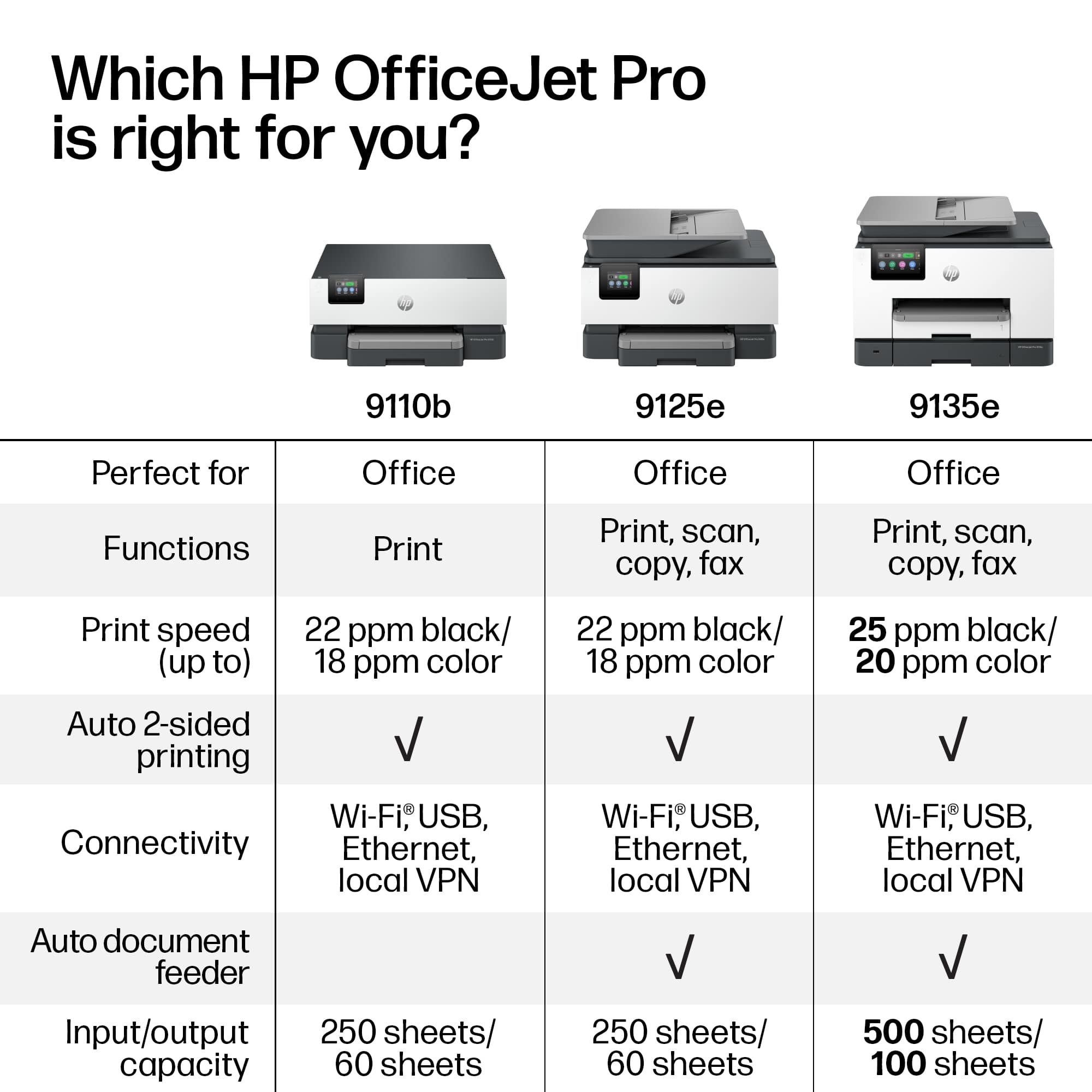
||Posted . Owned for 3 weeks when reviewed.This reviewer received promo considerations or sweepstakes entry for writing a review.Does not have legal size flat bed scanner but would have preferred it.
This review is from HP - OfficeJet Pro 9135e Wireless AI-Enabled AiO Inkjet Printer w/ 3 Months of Instant Ink (+1 Bonus Month of Ink w/ Code) - White
I would recommend this to a friendRated 5 out of 5 stars
HP OfficeJet Pro 9135e Wireless All-In-One Inkjet
||Posted . Owned for 2 months when reviewed.This reviewer received promo considerations or sweepstakes entry for writing a review.This is the best of all Hp series. I use it everyday, very convenient.
This review is from HP - OfficeJet Pro 9135e Wireless AI-Enabled AiO Inkjet Printer w/ 3 Months of Instant Ink (+1 Bonus Month of Ink w/ Code) - White
I would recommend this to a friendRated 5 out of 5 stars
Stepof
||Posted . Owned for 2 weeks when reviewed.This reviewer received promo considerations or sweepstakes entry for writing a review.The best store to buy from is Best buy. My printer works perfectly. I recommend every one goes to best buy.
This review is from HP - OfficeJet Pro 9135e Wireless AI-Enabled AiO Inkjet Printer w/ 3 Months of Instant Ink (+1 Bonus Month of Ink w/ Code) - White
I would recommend this to a friendRated 5 out of 5 stars
Good printer, better support!
||Posted . Owned for 1 week when reviewed.This reviewer received promo considerations or sweepstakes entry for writing a review.This was an upgrade from a 9025. The printer and associated software were easy to install. HP did a good job on the drivers. It sends and receives faxes efficiently.
This review is from HP - OfficeJet Pro 9135e Wireless AI-Enabled AiO Inkjet Printer w/ 3 Months of Instant Ink (+1 Bonus Month of Ink w/ Code) - White
I would recommend this to a friendRated 5 out of 5 stars
Great for Home and Charity Work!
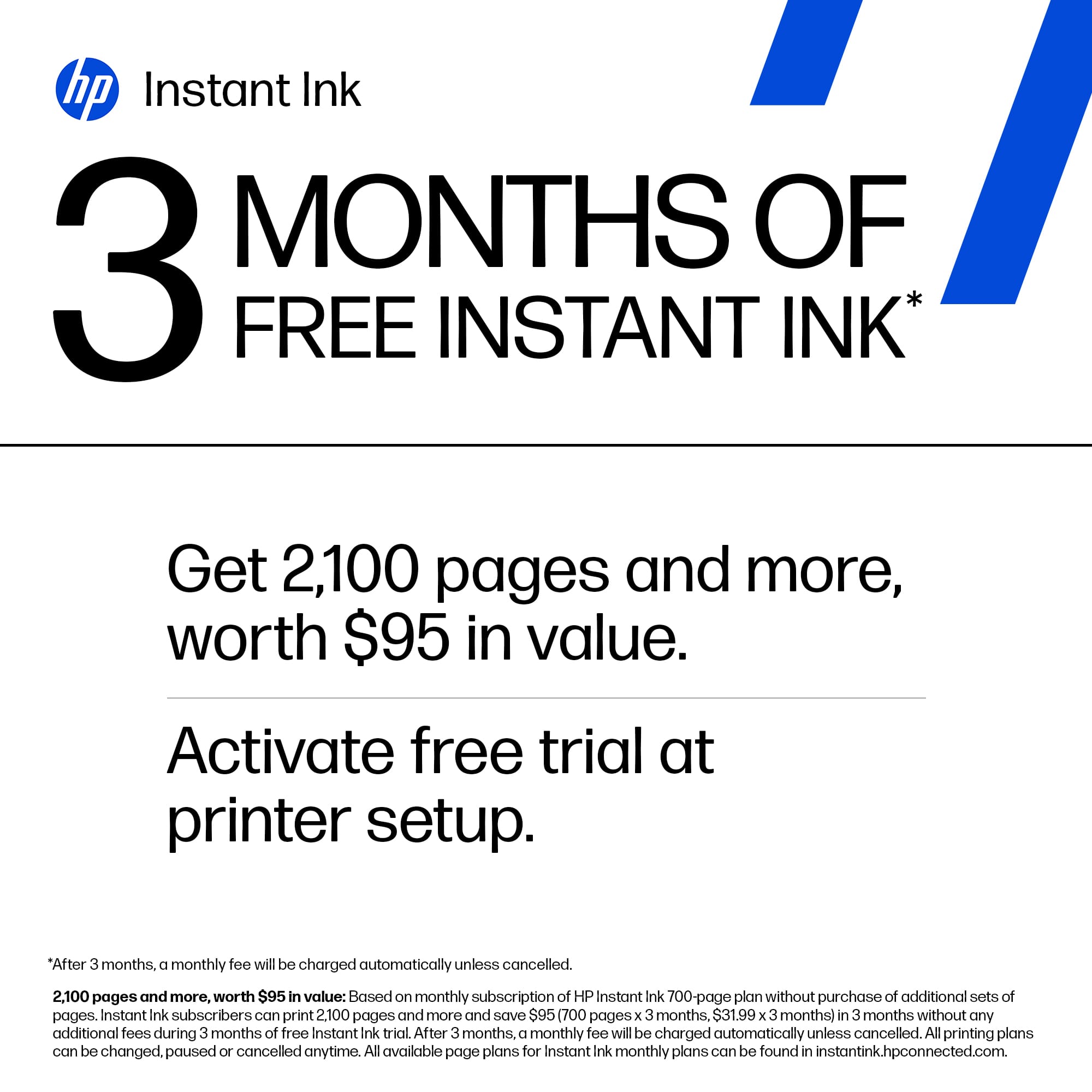
||Posted . Owned for 1 month when reviewed.This reviewer received promo considerations or sweepstakes entry for writing a review.Replaced my former 8060 with This. working great so far. Has a lot of features I am still learning about. I like the Instant Ink feature.
This review is from HP - OfficeJet Pro 9135e Wireless AI-Enabled AiO Inkjet Printer w/ 3 Months of Instant Ink (+1 Bonus Month of Ink w/ Code) - White
I would recommend this to a friendRated 1 out of 5 stars
This printer is not worth the money.
||Posted .This reviewer received promo considerations or sweepstakes entry for writing a review.I have loved HP printers for decades -- but not this one. I bought it in November 2024 and have been sorry ever since. Printing on two sides in color is rarely successful as there will be blocks of one solid color rather than the intended image. And suddenly today, after six months of light use, it Will. Not. Print. At. All. because "rendering failed." Multiple attempts to install updated drivers and configure everything correctly did not solve the problem. Save yourself some trouble and choose a different printer.
This review is from HP - OfficeJet Pro 9135e Wireless AI-Enabled AiO Inkjet Printer w/ 3 Months of Instant Ink (+1 Bonus Month of Ink w/ Code) - White
No, I would not recommend this to a friendRated 1 out of 5 stars
HP, shame on you!
||Posted . Owned for 2 weeks when reviewed.This reviewer received promo considerations or sweepstakes entry for writing a review.DOES NOT print cardstock, a straight up paper jammer and don't get me started on the scanner. Ever since 2020 HP printers are no longer worth their weight, word and definitely not worth the money. I bought an older version in 2023 that never printed cardstock from day one and it started to jam regular HP printer paper last year. I replaced it with this newer upgraded version that does THE EXACT SAME THING including paper jamming right from the moment I set it up. Spent 4 hours on the phone with tech support and that got me nowhere, instead it made me more doubtful of their knowledge and competence. I've been a loyal HP customer for 2 decades and it's so disappointing that I can no longer count on HP's quality and longevity. For the first time in my life I'm moving onto another company.
This review is from HP - OfficeJet Pro 9135e Wireless AI-Enabled AiO Inkjet Printer w/ 3 Months of Instant Ink (+1 Bonus Month of Ink w/ Code) - White
No, I would not recommend this to a friendRated 4 out of 5 stars
Good
||Posted . Owned for 2 weeks when reviewed.This reviewer received promo considerations or sweepstakes entry for writing a review.Works very well, just not built as sturdy as past printers
This review is from HP - OfficeJet Pro 9135e Wireless AI-Enabled AiO Inkjet Printer w/ 3 Months of Instant Ink (+1 Bonus Month of Ink w/ Code) - White
I would recommend this to a friendRated 3 out of 5 stars
Printers
||Posted . Owned for 1 month when reviewed.This reviewer received promo considerations or sweepstakes entry for writing a review.Had trouble setting up with firmware locking up printer. Over 4 1/2 hours with HP tech to fix it.
This review is from HP - OfficeJet Pro 9135e Wireless AI-Enabled AiO Inkjet Printer w/ 3 Months of Instant Ink (+1 Bonus Month of Ink w/ Code) - White
I would recommend this to a friendRated 5 out of 5 stars
Great All-in-One
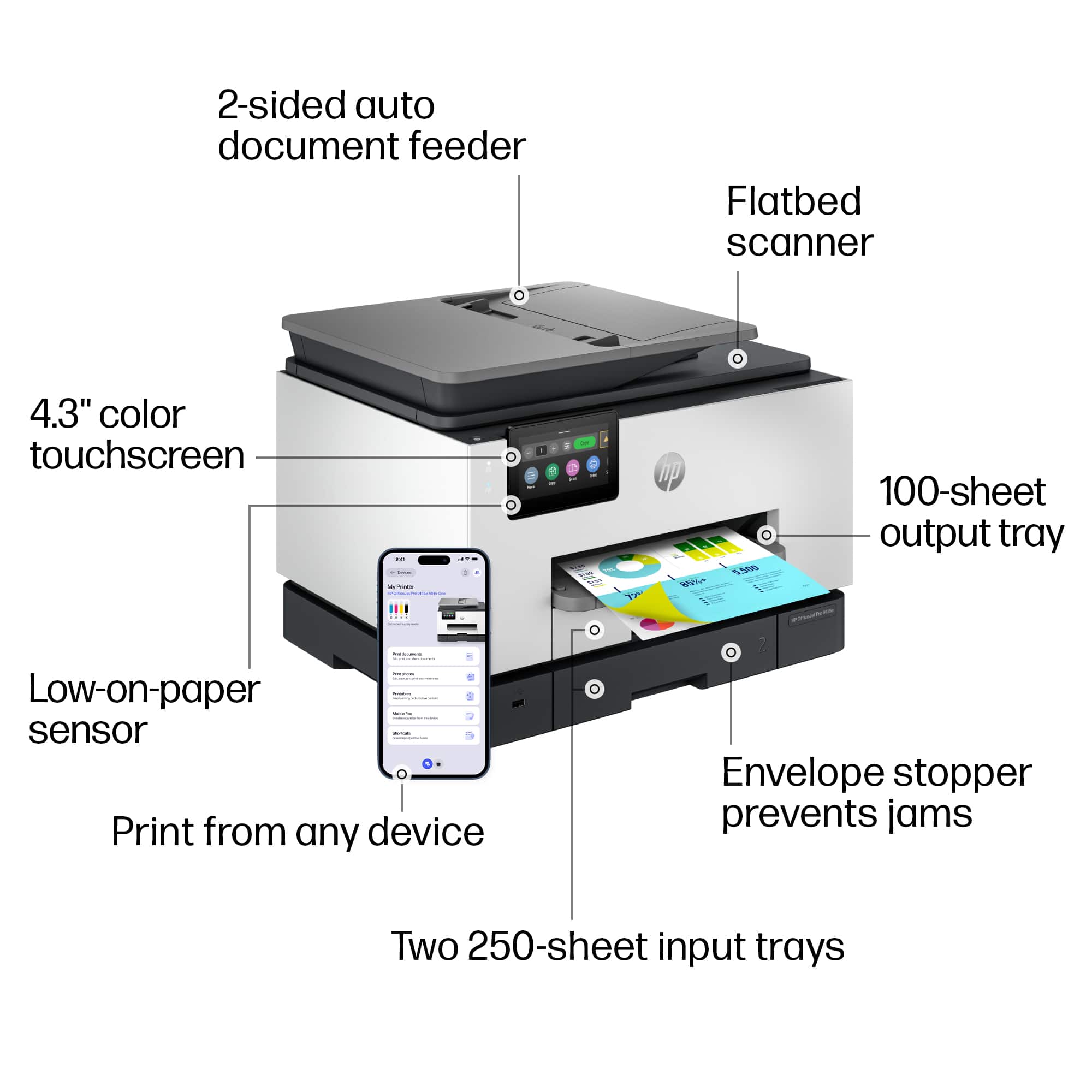
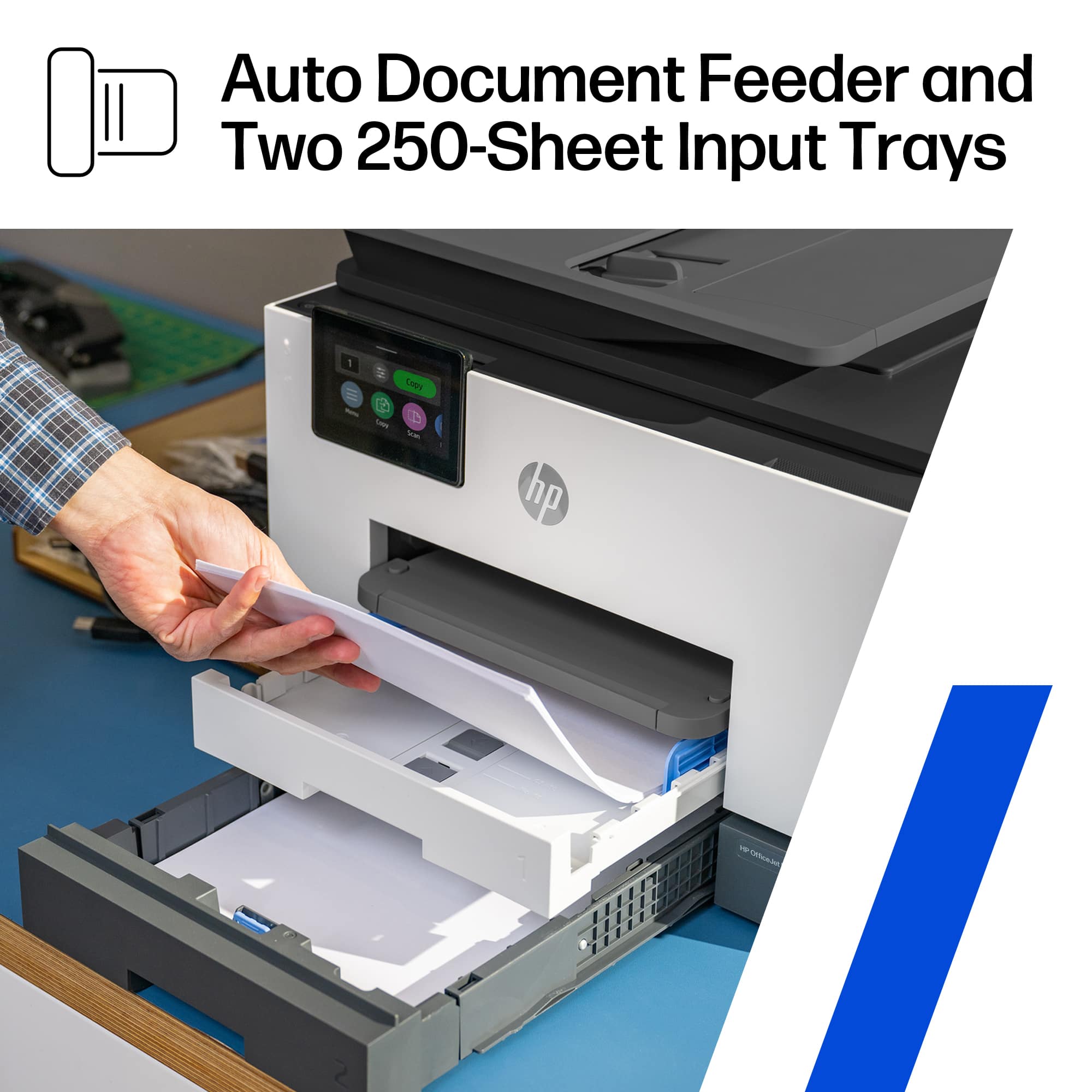
||Posted . Owned for 3 weeks when reviewed.This reviewer received promo considerations or sweepstakes entry for writing a review.Great AIO printer, nice having two trays for paper and the duplex copying/scanning functionality is convenient.
This review is from HP - OfficeJet Pro 9135e Wireless AI-Enabled AiO Inkjet Printer w/ 3 Months of Instant Ink (+1 Bonus Month of Ink w/ Code) - White
I would recommend this to a friendRated 1 out of 5 stars
Choose replacement ink or a new car!
||Posted .This reviewer received promo considerations or sweepstakes entry for writing a review.Really nice printer I purchased in January 2025. I printed maybe 50 pages of minimal ink requirements and 3 of the 4 cartridges need to be replaced. I checked Best Buy for replacement ink today, 7/22/25, and for the 4 cartridges, their price is more than $260 (58 each color and 88 for the black) before tax. Highway robbery! I can buy a new printer for less! I do not recommend this printer because of the ink cost. I've used HP products for decades, but this is the last one.
This review is from HP - OfficeJet Pro 9135e Wireless AI-Enabled AiO Inkjet Printer w/ 3 Months of Instant Ink (+1 Bonus Month of Ink w/ Code) - White
No, I would not recommend this to a friendRated 5 out of 5 stars
No need for extra equipment
||Posted . Owned for 1 month when reviewed.This reviewer received promo considerations or sweepstakes entry for writing a review.When it’s all in one, you don’t worry about 2 or 3 machines to get the job done. This printer has everything you need into one
This review is from HP - OfficeJet Pro 9135e Wireless AI-Enabled AiO Inkjet Printer w/ 3 Months of Instant Ink (+1 Bonus Month of Ink w/ Code) - White
I would recommend this to a friendRated 5 out of 5 stars
Teddy7008
||Posted . Owned for 1 month when reviewed.This reviewer received promo considerations or sweepstakes entry for writing a review.Outstanding easy to use brought for my sister. She use it
This review is from HP - OfficeJet Pro 9135e Wireless AI-Enabled AiO Inkjet Printer w/ 3 Months of Instant Ink (+1 Bonus Month of Ink w/ Code) - White
I would recommend this to a friend