Customer Ratings & Reviews
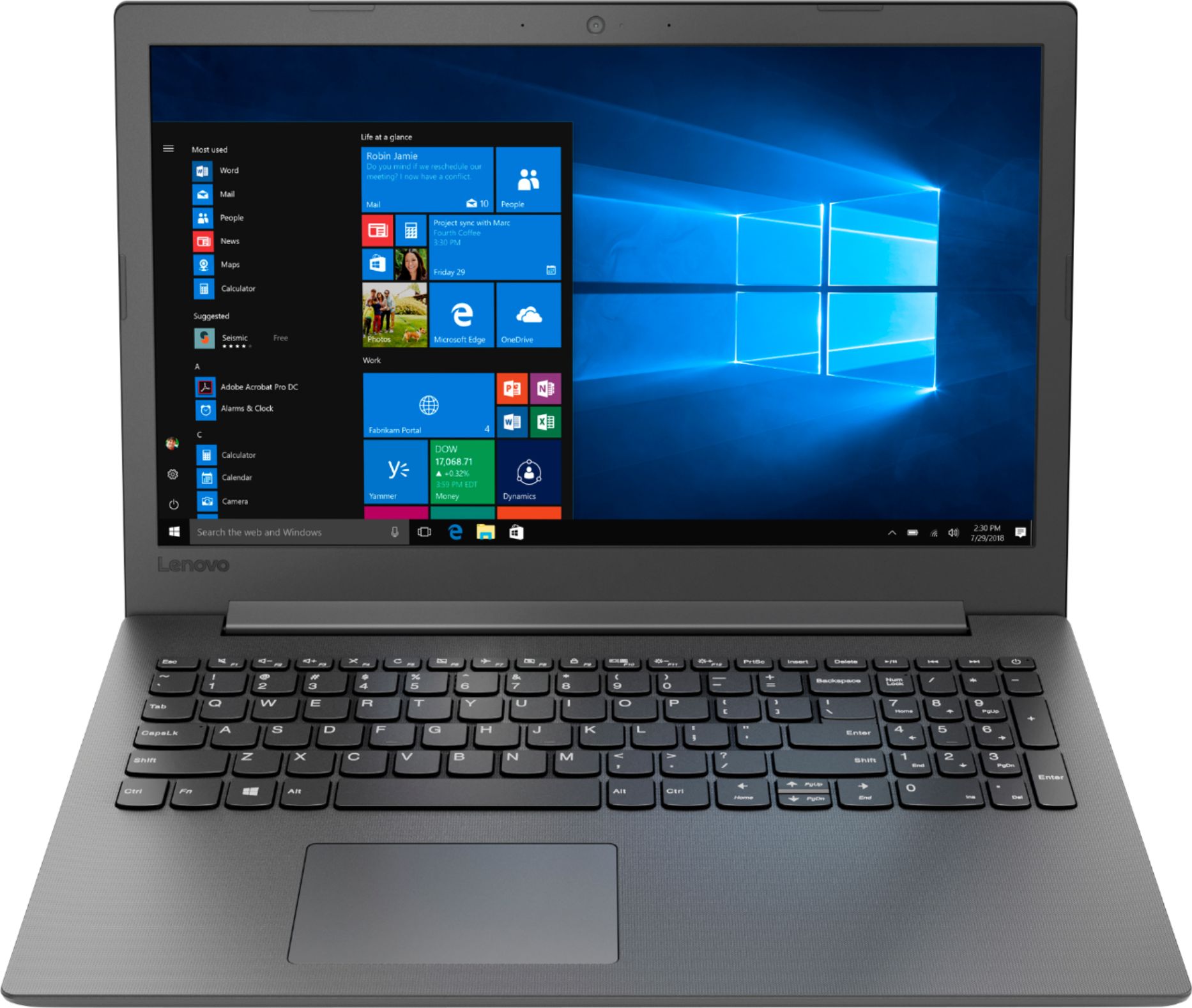
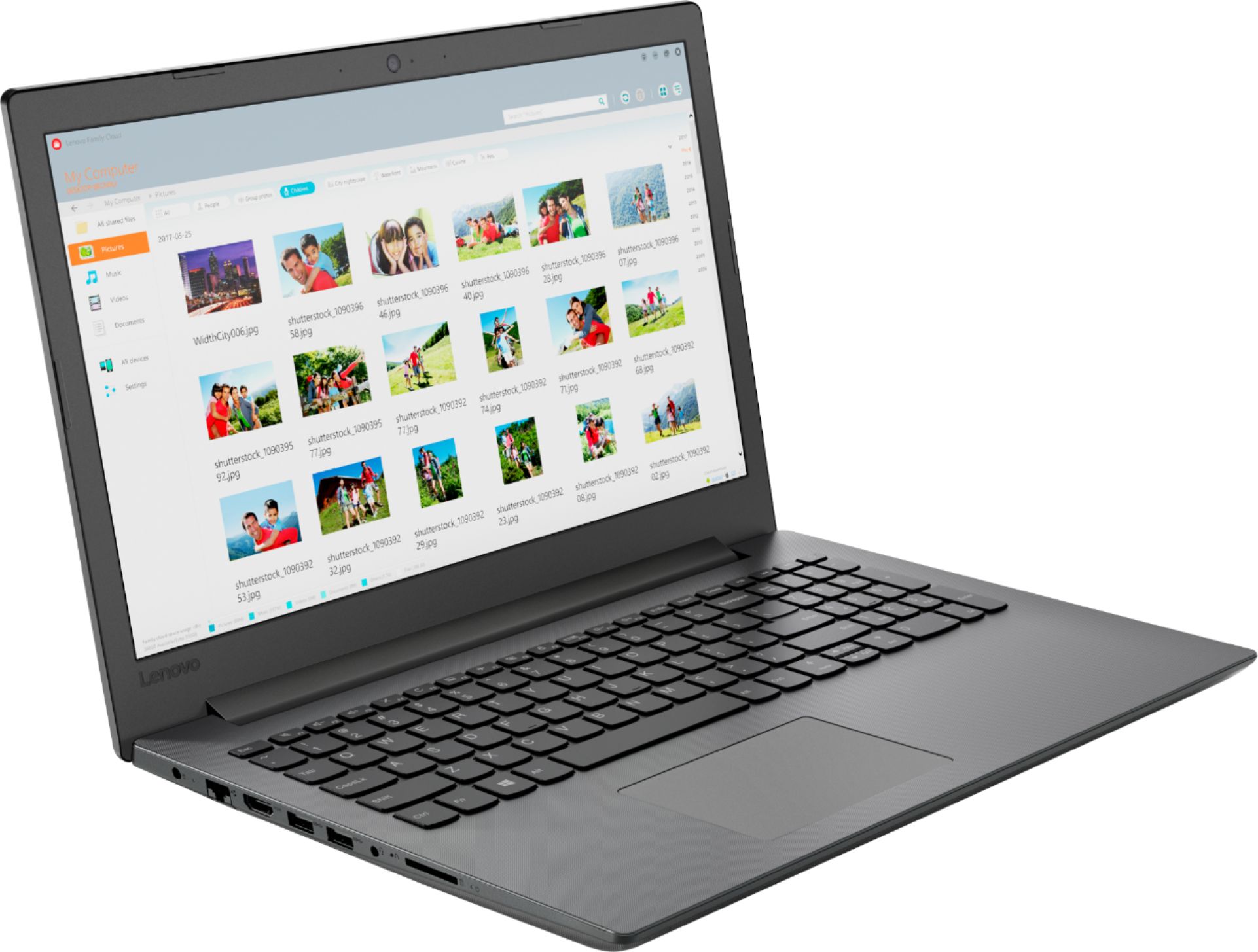
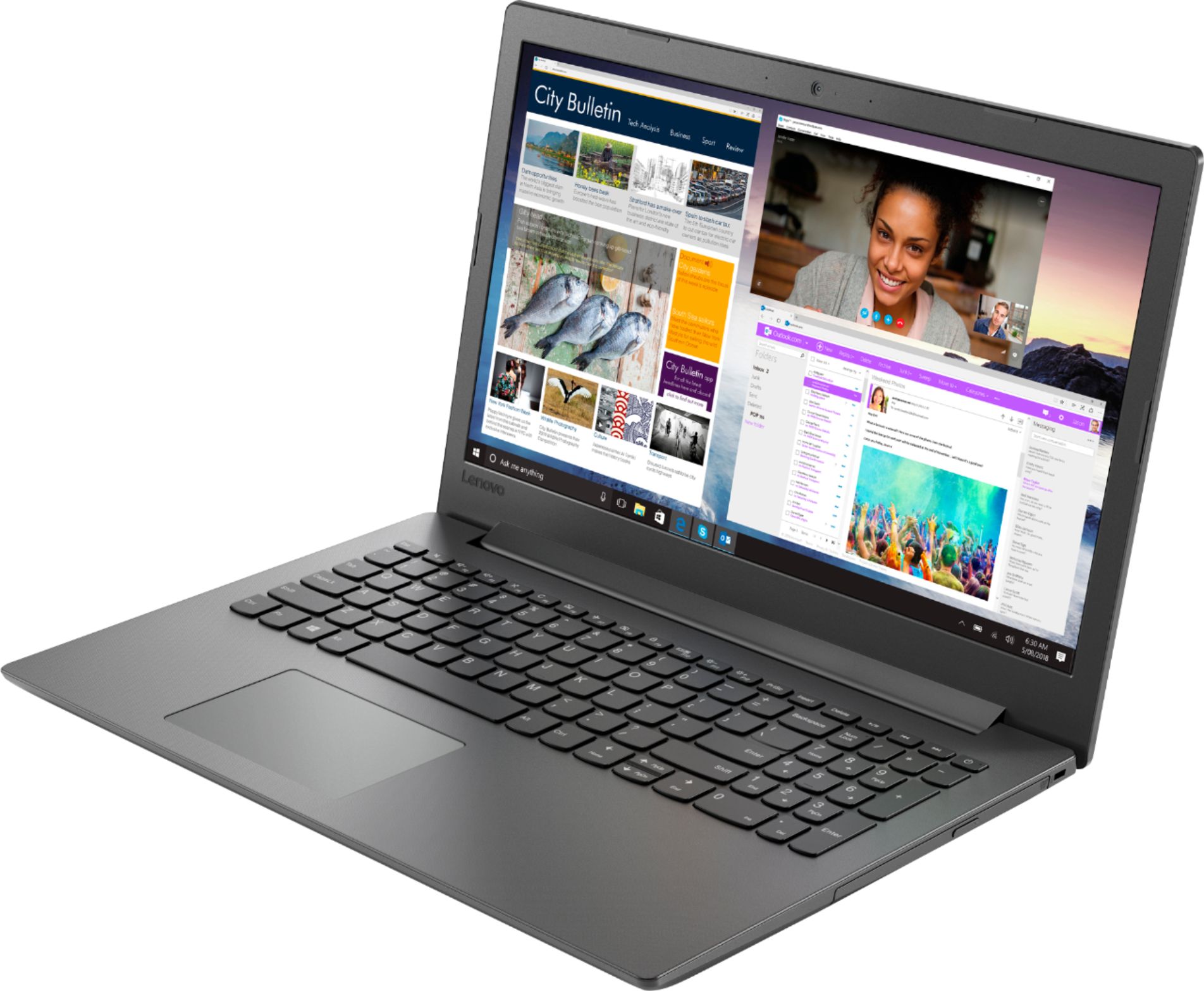
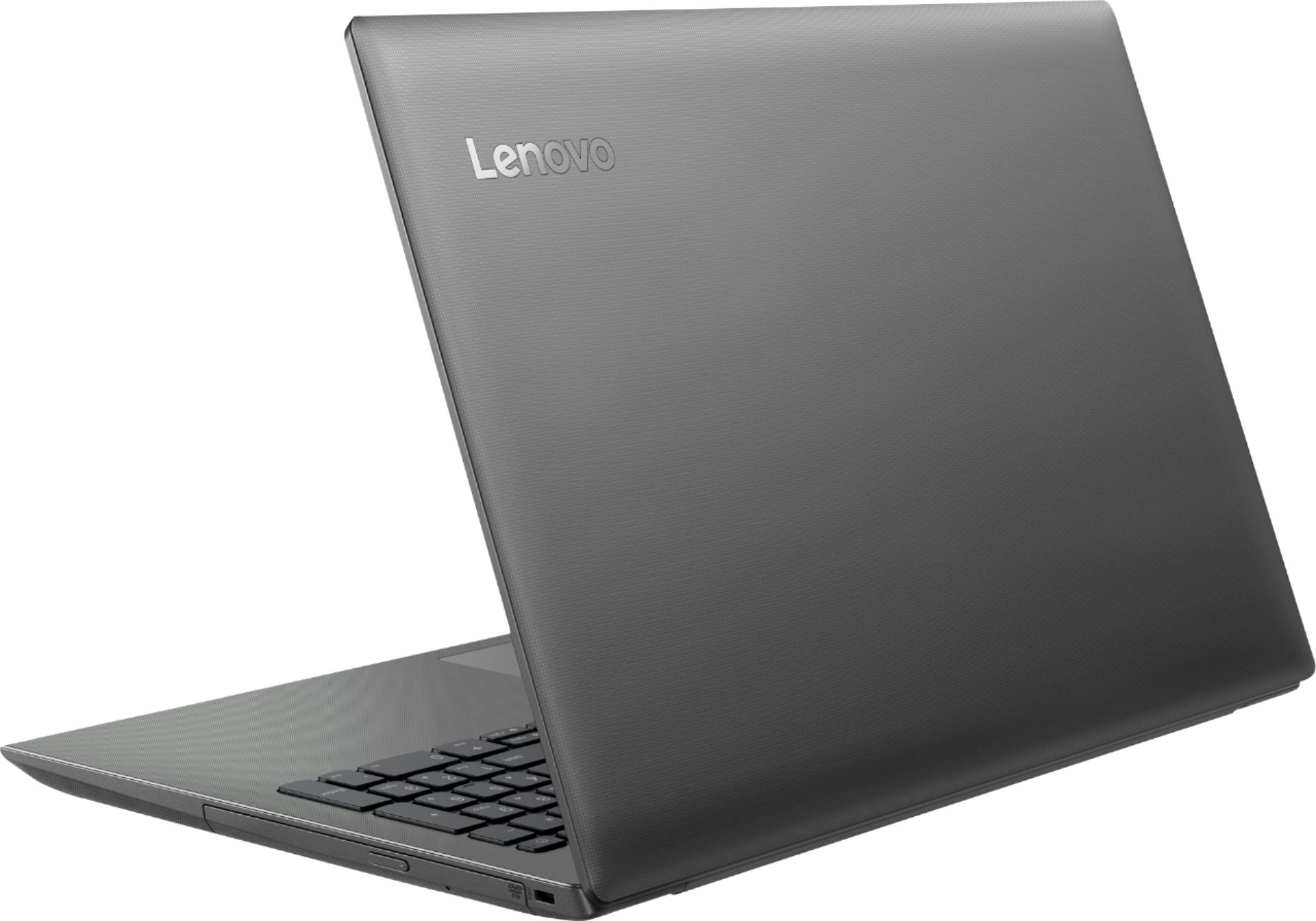

- Model:
- 81H5000NUS
- SKU:
- 6266400
Rating by feature
- Value
Rating 4.2 out of 5 stars
- Quality
Rating 3.9 out of 5 stars
- Ease of Use
Rating 4.2 out of 5 stars
Customers are saying
Customers are delighted by the affordable price, user-friendly interface, and impressive performance of the 130-15AST laptop. Many users appreciate its suitability for gaming and its ample storage capacity. However, some users have concerns about its battery life, occasional slowness, and keyboard issues.
This summary was generated by AI based on customer reviews.
JUNK
||Posted .This reviewer received promo considerations or sweepstakes entry for writing a review.Would give 0 stars if I could! Bought this for my Dad for Christmas gift, we went to turn it on after he opened it and it doesn’t work. Can’t find receipt to return it so we’re stuck with a piece of crap computer that doesn’t work and has never been used!!! DONT PURCHASE!
No, I would not recommend this to a friendBrand response from Lenovo Product Expert
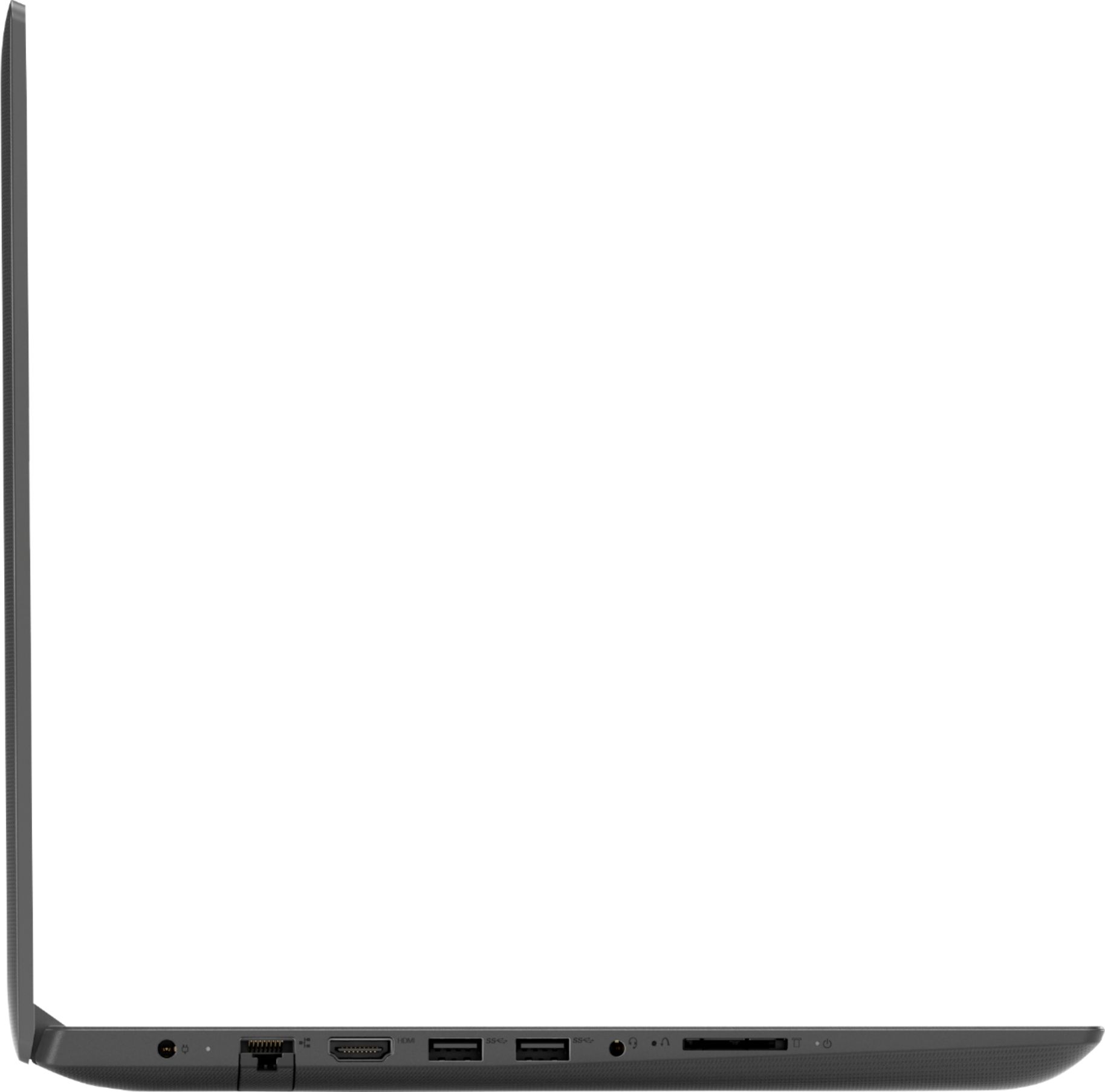
Posted .We are sorry to hear that your father is having issues with the initial activation of his Lenovo IdeaPad 130-15 laptop. Be sure there is a charge within the battery on this device, though it is partially charged at the factory, that charge may have dissipated during shipping. Plug the computer in, let it charge for about 15 minutes. Then try to turn the device on. If the device doesn't turn on, this system is equipped with OneKey Recovery System. There is a very small pin hole on the left side of the device, right near the SD card slot on the device. You will need a pin to push this reset button. Plug the device in. Let the battery charge for about 15 minutes. Push the reset button. The system should boot to a choice screen where you can choose "Restore To Factory Default". Select this. It will delete everything from the hard drive except the original factory install of the operating system. You will need to reinstall all programs and files after the reset. If you don't have copies of the files, try to make one before you restore by selecting "Boot to desktop" and trying to back up your files. If the problem persists after the factory reset, we recommend you contact Lenovo Tech Support at: 877-453-6686.

It ok
||Posted . Owned for 1 year when reviewed.This reviewer received promo considerations or sweepstakes entry for writing a review.Even for the price, you can get a better one. The HDD are just too slow.
No, I would not recommend this to a friend- Cons mentioned:Speed
Very slow
||Posted .This reviewer received promo considerations or sweepstakes entry for writing a review.Too slow. Great size screen. Not useful since slow.
No, I would not recommend this to a friendBrand response from Lenovo Product Expert
Posted .The Lenovo IdeaPad 130-15 laptop is a mid-level, moderate use configuration, with its AMD A6-9225 processor. This Dual-Core processor has a base speed of 2.6GHz and a boost speed of up to 3.0GHz. This configuration has 4GB of RAM. It is good with Microsoft Office type programs, internet browsing and other moderate work. Be sure any software you installed is compatible with Windows 10. There is no need to install Microsoft Office software. The software is already part of the operating system, you just need to activate the software with a purchased product key. If you have installed a copy of Microsoft Office, this is conflicting with the existing copy on the system and this will slow your system down. If you have installed a 3rd party anti-virus program, be sure that Windows Defender is turned off and that the trial version of McAfee Anti-Virus software is uninstalled. There can only be one anti-virus program on the system. You may need to restore your system to original factory default settings if any of the programing errors have occurred. You can do that by typing "restore" in the Cortana search window. Just click on the magnifying glass icon at the bottom left of your Windows 10 Desktop. Click on "Reset This PC" Then click on "Get Started" and follow the on screen directions to restore to factory defaults. If the problem persists, we recommend you contact Lenovo Tech Support at: 877-453-6686.
Horrible
||Posted .This reviewer received promo considerations or sweepstakes entry for writing a review.You have to set up an ms acct and wait 30+ min once first turned on . To much crap
No, I would not recommend this to a friendBrand response from Lenovo Product Expert
Posted .Here is a link to instructions for setting up Windows 10 without a Microsoft Account: https://www.austintechnology.com.au/log-windows-10-without-microsoft-account/. The length of time Windows 10 takes to finish the initial setup will depend on the number of updates the Windows 10 versions needs to install.
Bad
||Posted . Owned for 8 months when reviewed.This reviewer received promo considerations or sweepstakes entry for writing a review.Its it only ment for surfing the web and thats it this is only ment for that
No, I would not recommend this to a friendSLOW
||Posted .This reviewer received promo considerations or sweepstakes entry for writing a review.the product is not recommended for gaming and streaming too slow!!
No, I would not recommend this to a friendBrand response from Lenovo Product Expert
Posted .This is a mid-level, moderate use configuration, with its AMD A6-9225 processor. This Dual-Core processor has a base speed of 2.6GHz and a boost speed of up to 3.0GHz. This configuration has 4GB of RAM. It is good with Microsoft Office type programs, internet browsing and other moderate work. If this describes your computing needs, the IdeaPad 130-15 would be a good choice for you.
Slow and errors
||Posted .This reviewer received promo considerations or sweepstakes entry for writing a review.We will be returning this laptop if possible. Was given as a gift for Christmas, has been turned on 4 or 5 times since then. Each time it has been slow to start and the latest time gave us a blue screen error and said that it could not start up....would not recommend
No, I would not recommend this to a friendBrand response from Lenovo Product Expert
Posted .The Lenovo IdeaPad 130-15 laptop should boot to the Windows 10 desktop in less than 40 seconds. Be sure any software you installed is compatible with Windows 10. There is no need to install Microsoft Office software. The software is already part of the operating system, you just need to activate the software with a purchased product key. If you have installed a copy of Microsoft Office, this is conflicting with the existing copy on the system and this will slow your system down. If you have installed a 3rd party anti-virus program, be sure that Windows Defender is turned off and that the trial version of McAfee Anti-Virus software is uninstalled. There can only be one anti-virus program on the system. You may need to restore your system to original factory default settings if any of the programing errors have occurred. If you can no longer boot up the device, this system is equipped with OneKey Recovery System. There is a very small pin hole on the left side of the device, right near the SD card slot on the device. You will need a pin to push this reset button. Plug the device in. Let the battery charge for about 15 minutes. Push the reset button. The system should boot to a choice screen where you can choose "Restore To Factory Default". Select this. It will delete everything from the hard drive except the original factory install of the operating system. You will need to reinstall all programs and files after the reset. If you don't have copies of the files, try to make one before you restore by selecting "Boot to desktop" and trying to back up your files. If the problem persists after the factory reset, we recommend you contact Lenovo Tech Support at: 877-453-6686.
Had to return first one next day because it froze
||Posted .This reviewer received promo considerations or sweepstakes entry for writing a review.Returned first one next day because it froze up. Second one having similar problems,might return that to.u get what u pay for is bottom line, i needed something simple that gets onto internet and prints anything else i would invest in something faster and more durable
No, I would not recommend this to a friendBrand response from Lenovo Product Expert
Posted .We are sorry to hear that you are having issues with your Lenovo IdeaPad 130-15 laptop. Be sure any software you installed is compatible with Windows 10. There is no need to install Microsoft Office software. The software is already part of the operating system, you just need to activate the software with a purchased product key. If you have installed a copy of Microsoft Office, this is conflicting with the existing copy on the system and this will slow your system down. If you have installed a 3rd party anti-virus program, be sure that Windows Defender is turned off and that the trial version of McAfee Anti-Virus software is uninstalled. There can only be one anti-virus program on the system. You may need to restore your system to original factory default settings if any of the programing errors have occurred. You can do that by typing "restore" in the Cortana search window. Just click on the magnifying glass icon at the bottom left of your Windows 10 Desktop. Click on "Reset This PC" Then click on "Get Started" and follow the on screen directions to restore to factory defaults. If the problem persists, we recommend you contact Lenovo Tech Support at: 877-453-6686.
average
||Posted .This reviewer received promo considerations or sweepstakes entry for writing a review.would not recommend anyone to purchase a Lenovo laptop
No, I would not recommend this to a friendBrand response from Lenovo Product Expert
Posted .The Lenovo IdeaPad 130-15 laptop is a mid-level, moderate use configuration, with its AMD A6-9225 processor. This Dual-Core processor has a base speed of 2.6GHz and a boost speed of up to 3.0GHz. This configuration has 4GB of RAM. It is good with Microsoft Office type programs, internet browsing and other moderate work. If this describes your computing needs, the IdeaPad 130-15 would be a good choice for you.
Not to Good
||Posted .This reviewer received promo considerations or sweepstakes entry for writing a review.Not what I expected. Very Slow. Not added anything.
No, I would not recommend this to a friendBrand response from Lenovo Product Expert
Posted .The Lenovo IdeaPad 130-15 laptop is a mid-level, moderate use configuration, with its AMD A6-9225 processor. This Dual-Core processor has a base speed of 2.6GHz and a boost speed of up to 3.0GHz. This configuration has 4GB of RAM. It is good with Microsoft Office type programs, internet browsing and other moderate work. If this describes your computing needs, the IdeaPad 130-15 would be a good choice for you. For 2018, Lenovo retained its place for a second year as the best laptop vendor:
https://www.laptopmag.com/articles/laptop-brand-ratings
Don’t waste your money
||Posted .This reviewer received promo considerations or sweepstakes entry for writing a review.Cheap product and came out of the box with issues.
No, I would not recommend this to a friendBrand response from Lenovo Product Expert
Posted .The Lenovo IdeaPad 130-15 laptop is a mid-level, moderate use configuration, with its AMD A6-9225 processor. This Dual-Core processor has a base speed of 2.6GHz and a boost speed of up to 3.0GHz. This configuration has 4GB of RAM. It is good with Microsoft Office type programs, internet browsing and other moderate work. If this describes your computing needs, the IdeaPad 130-15 would be a good choice for you.
Very slow even for the price
||Posted .This reviewer received promo considerations or sweepstakes entry for writing a review.bndle with webroot. Took PC back didnt get full $$
No, I would not recommend this to a friendBrand response from Lenovo Product Expert
Posted .If you installed the 3rd party anti virus software, Webroot, you received without first uninstalling the 30-day trial of McAfee anti-virus software, this may be the reason for the slow performance of your Lenovo IdeaPad 130-15 laptop. There can only be one anti-virus software on the device at one time.
Here is a link to instructions for uninstalling McAfee: https://service.mcafee.com/webcenter/portal/oracle/webcenter/page/scopedMD/s55728c97_466d_4ddb_952d_05484ea932c6/Page29.jspx?wc.contextURL=%2Fspaces%2Fcp&articleId=TS101331&_afrLoop=1858725819166549&leftWidth=0%25&showFooter=false&showHeader=false&rightWidth=0%25¢erWidth=100%25#!%40%40%3FshowFooter%3Dfalse%26_afrLoop%3D1858725819166549%26articleId%3DTS101331%26leftWidth%3D0%2525%26showHeader%3Dfalse%26wc.contextURL%3D%252Fspaces%252Fcp%26rightWidth%3D0%2525%26centerWidth%3D100%2525%26_adf.ctrl-state%3Dbddys1kjf_9
Do not purchase
||Posted .This reviewer received promo considerations or sweepstakes entry for writing a review.The first one I got shut down during the set up procedure & wouldn’t come back on. It was replaced. Just over 2 weeks later, the replacement shut down and won’t start. Back to Best Buy tomorrow. Would rate 0 if possible
No, I would not recommend this to a friendBrand response from Lenovo Product Expert
Posted .We are sorry to hear that you have had issues with two Lenovo IdeaPad 130-15 laptops. The issue you describe sounds like that there is incompatible software installed on the computers. Be sure any software you installed is compatible with Windows 10. There is no need to install Microsoft Office software. The software is already part of the operating system, you just need to activate the software with a purchased product key. If you have installed a copy of Microsoft Office, this is conflicting with the existing copy on the system and this will slow your system down. If you have installed a 3rd party anti-virus program, be sure that Windows Defender is turned off and that the trial version of McAfee Anti-Virus software is uninstalled. There can only be one anti-virus program on the system. You may need to restore your system to original factory default settings if any of the programing errors have occurred. Since your IdeaPad 130-15 currently will not turn on, this system is equipped with OneKey Recovery System. There is a very small pin hole on the left side of the device, right near the SD card slot on the device. You will need a pin to push this reset button. Plug the device in. Let the battery charge for about 15 minutes. Push the reset button. The system should boot to a choice screen where you can choose "Restore To Factory Default". Select this. It will delete everything from the hard drive except the original factory install of the operating system. You will need to reinstall all programs and files after the reset. If you don't have copies of the files, try to make one before you restore by selecting "Boot to desktop" and trying to back up your files. If the problem persists after the factory reset, we recommend you contact Lenovo Tech Support at: 877-453-6686.
Trouble
||Posted .This reviewer received promo considerations or sweepstakes entry for writing a review.This was a Christmas gift for my son. This computer died after 1 week. Just powered off randomly to never be heard from again. But, Best Buy was awesome and took the computer back and we upgraded to a different brand.
No, I would not recommend this to a friendBrand response from Lenovo Product Expert
Posted .We are sorry to hear that you had issues with your son's Lenovo IdeaPad 130-15 laptop. Be sure any software you installed is compatible with Windows 10. There is no need to install Microsoft Office software. The software is already part of the operating system, you just need to activate the software with a purchased product key. If you have installed a copy of Microsoft Office, this is conflicting with the existing copy on the system and this will slow your system down. If you have installed a 3rd party anti-virus program, be sure that Windows Defender is turned off and that the trial version of McAfee Anti-Virus software is uninstalled. There can only be one anti-virus program on the system. You may need to restore your system to original factory default settings if any of the programing errors have occurred. You can do that by typing "restore" in the Cortana search window. Just click on the magnifying glass icon at the bottom left of your Windows 10 Desktop. Click on "Reset This PC" Then click on "Get Started" and follow the on screen directions to restore to factory defaults. If the problem persists, we recommend you contact Lenovo Tech Support at: 877-453-6686.
Died in ~month
||Posted .This reviewer received promo considerations or sweepstakes entry for writing a review.Xmas gift for my 9yro daughter. She uses it for school and roblox; she doesn't even use it daily. Now, after roughly a month, it won't even turn on.
No, I would not recommend this to a friendBrand response from Lenovo Product Expert
Posted .We are sorry to hear that you are having issues with your daughter's Lenovo IdeaPad 130-15 laptop. Be sure any software you installed is compatible with Windows 10. There is no need to install Microsoft Office software. The software is already part of the operating system, you just need to activate the software with a purchased product key. If you have installed a copy of Microsoft Office, this is conflicting with the existing copy on the system and this will slow your system down. If you have installed a 3rd party anti-virus program, be sure that Windows Defender is turned off and that the trial version of McAfee Anti-Virus software is uninstalled. There can only be one anti-virus program on the system. You may need to restore your system to original factory default settings if any of the programing errors have occurred. If your computer will no longer turn on, this system is equipped with OneKey Recovery System. There is a very small pin hole on the left side of the device, right near the headphone jack on the device. You will need a pin to push this reset button. Plug the device in. Let the battery charge for about 15 minutes. Push the reset button. The system should boot to a choice screen where you can choose "Restore To Factory Default". Select this. It will delete everything from the hard drive except the original factory install of the operating system. You will need to reinstall all programs and files after the reset. If you don't have copies of the files, try to make one before you restore by selecting "Boot to desktop" and trying to back up your files. If the problem persists after the factory reset, we recommend you contact Lenovo Tech Support at: 877-453-6686.
Within two weeks it stopped charging and wouldn't
||Posted .This reviewer received promo considerations or sweepstakes entry for writing a review.After using it 4 to 5 times the laptop would not turn on or charge...not happy! Ihad to go to the store and exchange it but they didn't have any instore.
No, I would not recommend this to a friendBrand response from Lenovo Product Expert
Posted .We are sorry to hear that you are having issues charging your lenovo IdeaPad 130-15 laptop. The issue you describe may be helped by resetting the battery. Here is a link to instructions for resetting a non-removable battery. If you need further assistance, we recommend you call Lenovo Tech Support at: 877-453-6686. Here is the link: https://www.techwalla.com/articles/how-to-reset-a-laptop-battery
Not the best
||Posted .This reviewer received promo considerations or sweepstakes entry for writing a review.Too low end for daily user. If you’re looking for a casual use laptop this is ok but not good for a user that will use it as their daily laptop.
No, I would not recommend this to a friendBrand response from Lenovo Product Expert
Posted .The Lenovo IdeaPad 130-15 laptop is a mid-level, moderate use configuration, with its AMD A6-9225 processor. This Dual-Core processor has a base speed of 2.6GHz and a boost speed of up to 3.0GHz. This configuration has 4GB of RAM. It is good with Microsoft Office type programs, internet browsing and other moderate work. If this describes your computing needs, the IdeaPad 130-15 would be a good choice for you.
Not good
||Posted .This reviewer received promo considerations or sweepstakes entry for writing a review.I didn't like this laptop. The keys don't light up and the overall quality wasn't good. When I returned it, someone had just returned theirs.
No, I would not recommend this to a friendBrand response from Lenovo Product Expert
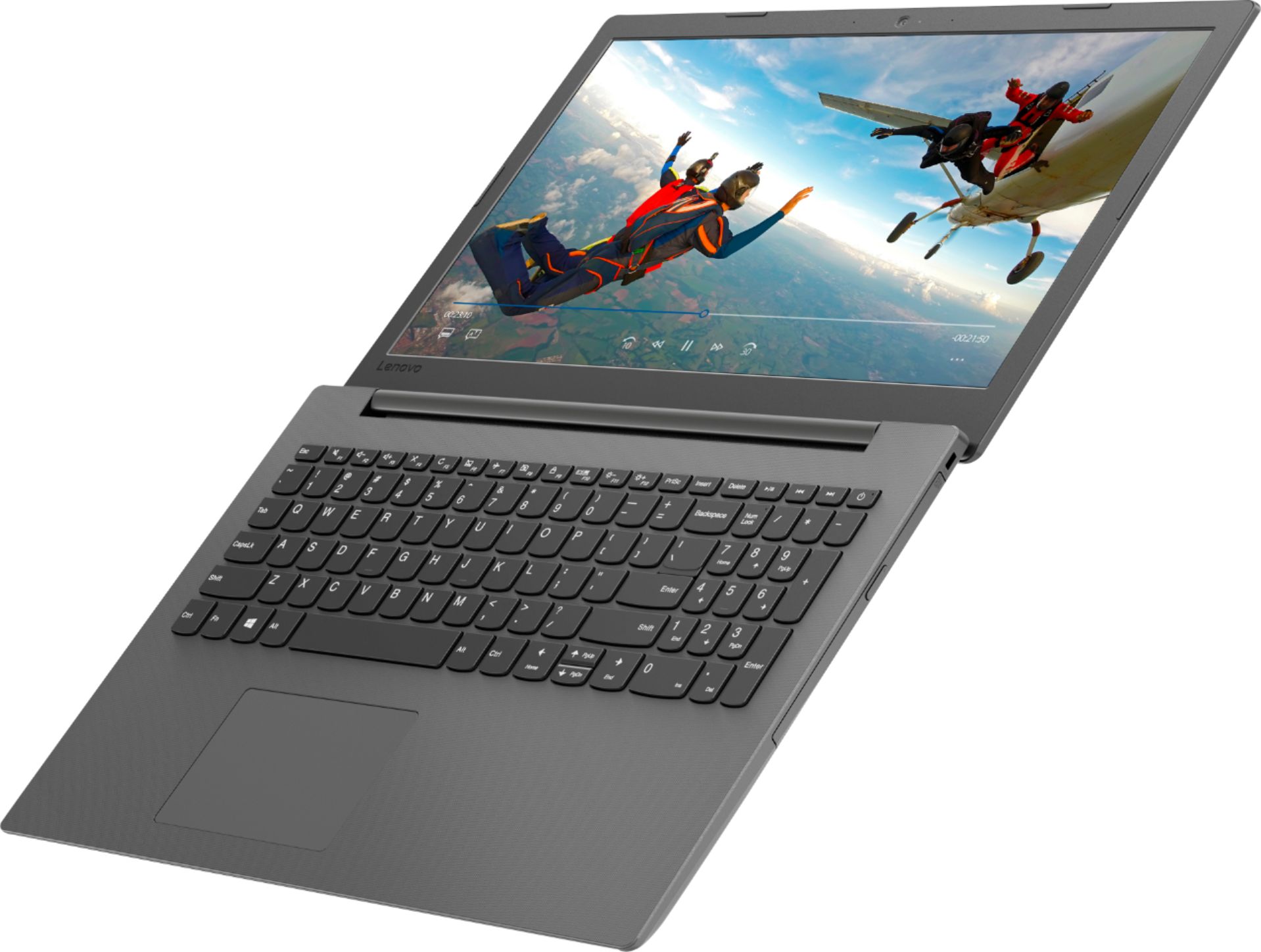
Posted .The Lenovo IdeaPad 130-15 laptop does not have a backlit keyboard. This is a mid-level, moderate use configuration, with its AMD A6-9225 processor. This Dual-Core processor has a base speed of 2.6GHz and a boost speed of up to 3.0GHz. This configuration has 4GB of RAM. It is good with Microsoft Office type programs, internet browsing and other moderate work. If this describes your computing needs, the IdeaPad 130-15 would be a good choice for you.
Hated it
||Posted . Owned for 1 year when reviewed.This reviewer received promo considerations or sweepstakes entry for writing a review.I just wanted a basic laptop and this thinv is for computer iliterate. I did not want a computer that talks to me.
No, I would not recommend this to a friendLaughable
||Posted .This reviewer received promo considerations or sweepstakes entry for writing a review.This was by far the worst laptop I’ve ever used in my life. Hardly even makes it online out of the box. Returned next day.
I would recommend this to a friendBrand response from Lenovo Product Expert
Posted .This is a mid-level, moderate use configuration, with its AMD A6-9225 processor. This Dual-Core processor has a base speed of 2.6GHz and a boost speed of up to 3.0GHz. This configuration has 4GB of RAM. This model ships with the latest 5G 802.11AC frequency WiFi capability. It is good with Microsoft Office type programs, internet browsing and other moderate work. If this describes your computing needs, the IdeaPad 130-15 would be a good choice for you.