Customer Ratings & Reviews
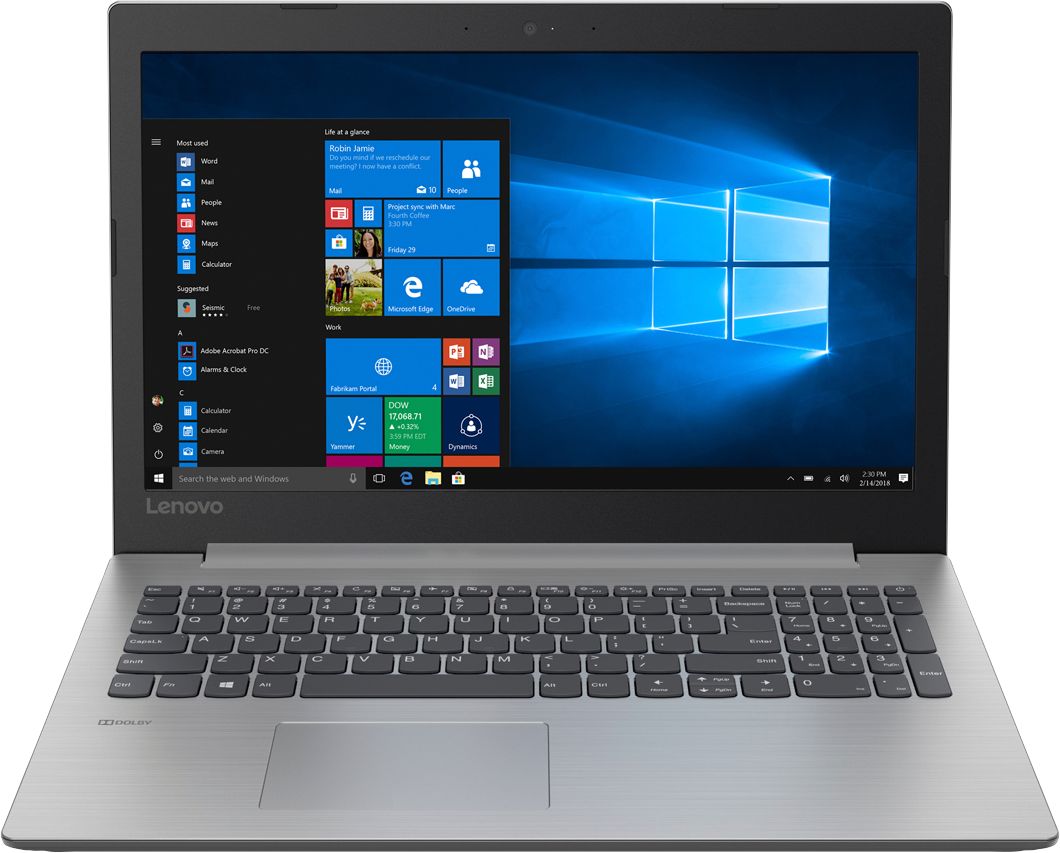
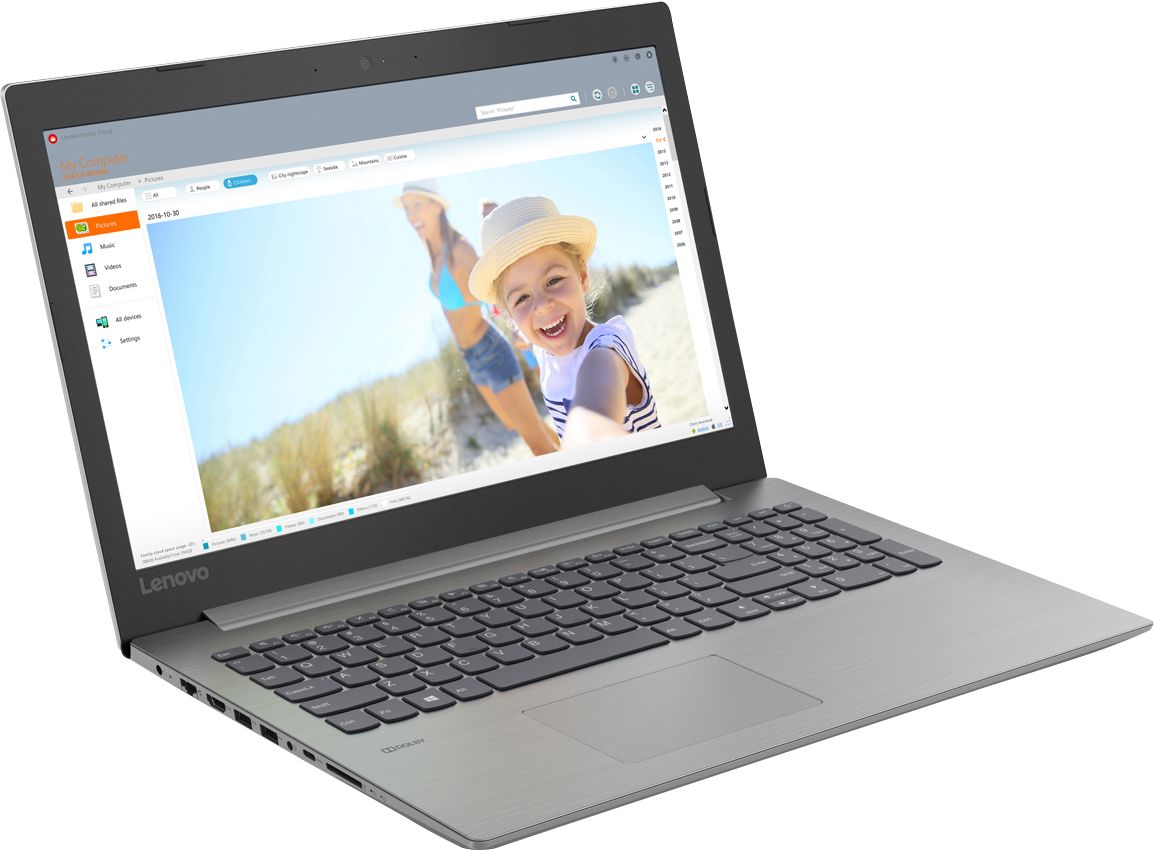

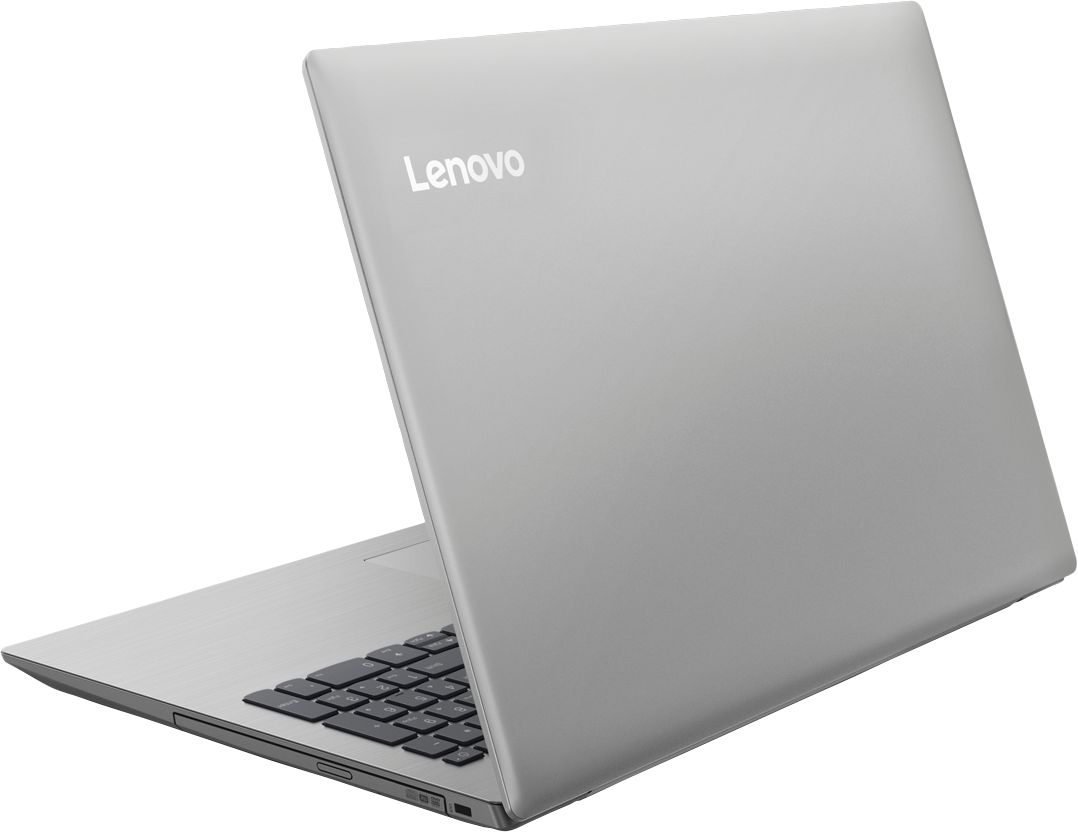

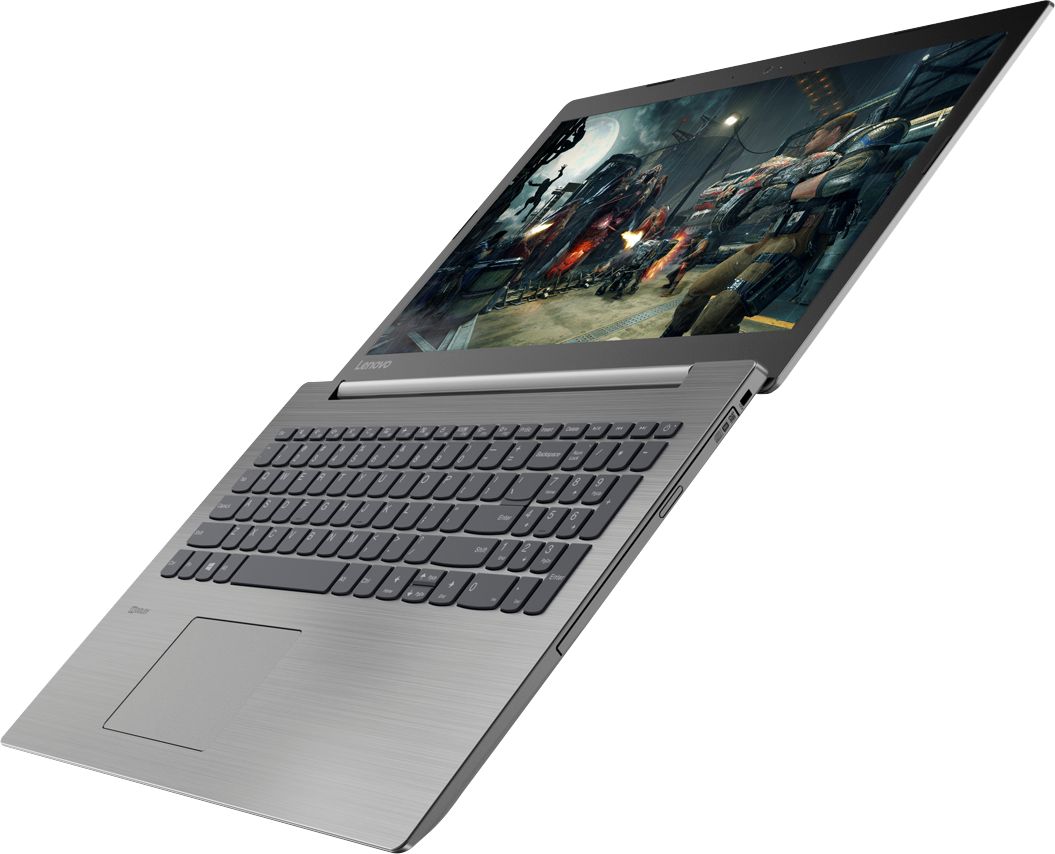
- Model:
- 81DE0085US
- SKU:
- 6221790
Rating by feature
- Value
Rating 4.1 out of 5 stars
- Quality
Rating 3.9 out of 5 stars
- Ease of Use
Rating 4.1 out of 5 stars
Customers are saying
Customers are delighted by the reasonable price, fast performance, ample storage, and lightweight design of the 330-15IKB 15.6" Laptop. They appreciate the large screen size and find it suitable for gaming. However, some users have concerns about the short battery life, boot time, off-center touchpad, loud fan noise, and flimsy build quality.
This summary was generated by AI based on customer reviews.
- Pros mentioned:FastCons mentioned:Battery life
the speed is awesome
Posted .This reviewer received promo considerations or sweepstakes entry for writing a review.the laptop overall is amazing it is very fast and handle most of your tasks but the only problem is that the battery life is not what i had expected its about 4.5 hours but other than that i enjoy this laptop and i am glad that i save an extra buck for the amazing laptop. Thank you lenovo
I would recommend this to a friendBrand response from Lenovo Product Expert
Posted .Thank you for choosing the Lenovo IdeaPad 330-15 laptop. You are correct, this model has a battery life of up to 5 hours, depending on the work that the device is performing. To maximize battery life, try changing your power management setting to a more conservative one. You can do this in the control panel, in the power management category on your system. Select a more conservative power management setting to extend battery life.

- Pros mentioned:Price
Great camera, good screen, and speed
Posted .This reviewer received promo considerations or sweepstakes entry for writing a review.not a bad machine for the price. The device is pretty slow initially at start up because it has to update the drivers and stuff, which is frustrating if you want to begin using it immediately. However, once that is all set and done, it is a pretty fast machine for an i3. Has some great sound system. I think the screen is very good since I rarely turn up the display brightness to maximum. If you're thinking of getting a machine that you could do school work on and play some light games, I'd suggest you go for it.
I would recommend this to a friend Great camera for first year
Posted .This reviewer received promo considerations or sweepstakes entry for writing a review.Good laptop in beginning but started to run slow, still a good laptop
I would recommend this to a friendStill kicking butt
Posted .This reviewer received promo considerations or sweepstakes entry for writing a review.This laptop has lasted me 7 years and still going strong!
I would recommend this to a friend- Pros mentioned:Storage
Great bang for your buck
Posted .This reviewer received promo considerations or sweepstakes entry for writing a review.I am a fan of Lenovo. This is my third Lenovo laptop, and I am very happy with this one. It is fast and the 8 GB of RAM and 1 TB hard drive should allow me to use it for several years. I was using Windows 7 before I got this machine, and I love Windows 10 so far. The laptop is stylish and thin, and I would recommend it to anyone who wants to get a great laptop on a budget.
I would recommend this to a friendBrand response from Lenovo Product Expert
Posted .Thank you for choosing the Lenovo IdeaPad 330-15 laptop. We are pleased to hear that the value and performance of the IdeaPad 330-15 meets your computing needs so well. We appreciate your loyalty to the Lenovo Brand.
- Cons mentioned:Battery life
A decent Laptop
Posted .This reviewer received promo considerations or sweepstakes entry for writing a review.This a not a bad laptop for it being my first one. I have a Lenovo desktop and wanted a laptop when I am in other rooms of my apartment. Only issue I have is the battery life is not long, I find myself plugging it in to an outlet more than using the battery.
I would recommend this to a friendBrand response from Lenovo Product Expert
Posted .Thank you for choosing the Lenovo IdeaPad 330-15 laptop. This device has a battery life of up to 5 hours, depending on the work that the device is performing. Be sure there are no unwanted programs running in the background, draining the battery. Here is a link to some tips for finding out what is draining your battery:
https://www.laptopmag.com/articles/battery-saver-windows-10. If there are no unwanted programs running, to maximize battery life, try changing your power management setting to a more conservative one. You can do this in the control panel, in the power management category on your system. Select a more conservative power management setting to extend battery life.
Good Laptop
Posted .This reviewer received promo considerations or sweepstakes entry for writing a review.This is the 2nd Lenova I have purchased. Overall happy with Lenova. This laptop is very good. It has the HD and Memory to do what needs to be done. I stream music and movies a lot and and am very happy with the performance. Highly recommend this, it is a great buy for the money.
I would recommend this to a friendBrand response from Lenovo Product Expert
Posted .Thank you for choosing the Lenovo IdeaPad 330-15 laptop. We are pleased to hear that the features and performance of the IdeaPad 330-15 meets your computing needs so well.
- Cons mentioned:Build quality
Lenovo Laptop is decent
Posted .This reviewer received promo considerations or sweepstakes entry for writing a review.This laptop definitely does what it should, but it is flimsy and i fund the screen not to be bright enough
I would recommend this to a friend Good Value, Performance and Purchase Experience
Posted .This reviewer received promo considerations or sweepstakes entry for writing a review.Overall good budget laptop. A bit slow on restart, but once loaded it performs well. Thin design makes for good feel when using keyboard. Achieves perfect internet browsing speeds via Ethernet ( 300mbs+) and about 88% of max speed via wifi. Not sure if this is normal or a settings/hardware issue. Love the Lithium battery, charges fast and no bulky brick adapter to carry around. A real plus is that Best Buy lowered the price during the return period and when I called, they matched the lower price both times! Kudos to Best Buy!
I would recommend this to a friendBrand response from Lenovo Product Expert
Posted .Thank you for choosing the Lenovo IdeaPad 330-15 laptop. With regard to the internet WiFi speed, this system has 802.11AC WiFi capability. Be sure your router firmware is up to date. Even if it is not a 802.11AC router, you need the latest firmware update to achieve maximum performance. You can also check for updates of the computer drivers. This system has Lenovo utilities installed to help maintain the health of the device and keep the operating system software up to date. Type "Lenovo Vantage" in the Cortana Search window (if Lenovo Vantage is not installed on your device, you can download the APP and install it now). Select Lenovo Vantage from the list. In the window that opens, click on "Health and Support". In the expanded menu, select "Hardware Scan" In the window that opens, select "Run Quick Tests". This will scan your entire system for errors. Follow any directions that may pop up. If the problem continues after this scan, now click on "System Update". First select Windows update from the menu. Scan your system to be sure you have the latest version of Windows 10. Once that scan is complete, select "Additional Updates". This will scan your device to be sure there are no new BIOS/Driver updates needed. Follow any instructions that may pop up.
Good Price, Excellent Quality
Posted .This reviewer received promo considerations or sweepstakes entry for writing a review.I bought this IdeaPad 330 to replace my older Lenovo G50-45 (which I had traveled all over the would with) . It worked well out of the box for a laptop at this price, but I wanted to upgrade it. I replaced the standard 1 TB HDD with a 512 GB SSD. Upgrading to an SSD is easy if the user has some technical ability. The boot time decreased from about 90 seconds to under 30 seconds!!! I like the feel of the keyboard and the overall sleek design......it simply works well for my general laptop use. For the price, this machine has the look, the feel, and the performance of a much more expensive device. I think I will stick with Lenovo in the future.
I would recommend this to a friendBrand response from Lenovo Product Expert
Posted .Thank you for choosing the Lenovo IdeaPad 330-15 laptop. Please keep in mind, this model is not user upgradable. A certified technician must do all of the work, so as to not void the warranty.
- Cons mentioned:Touchpad
Explorer corrupted in 3 days
Posted .This reviewer received promo considerations or sweepstakes entry for writing a review.I bought this as a replacement computer after my previous laptop was stolen. Opened it up, worked ok out of the box. However mousepad was difficult to use. There is no physical left click or right click buttons on the touch pad. Because of this, trying to click on a link, the mousepad thinks I am pinching in or out, causing the screen to zoom in or out. Secondly after a few days of use the files explorer stopped working. Files explorer is the backbone to windows and is a critical failure. If I owned the computer longer, I would have worked to fix it, but I was not interested in a computer that can’t go a week without a serious failure.
No, I would not recommend this to a friendBrand response from Lenovo Product Expert
Posted .We are sorry to hear that you had issue with your IdeaPad 330-15 laptop. With regard to the touchpad, you can make adjustments to the touchpad in your system settings. You can get there by clicking on the magnifying glass at the bottom left of your Windows 10 screen. Type "touchpad" in the search window. Select "Mouse & touchpad settings" from the list of choices. You can make general adjustments to the touchpad there. You can also select "Additional mouse options" for more detailed adjustments to the touchpad sensitivity by increasing the delay of the touchpad. Concerning the issues you experienced with Edge the Windows 10 browser, here is a link to the Microsoft page with instruction for fixing issues with Microsoft Edge Browser: https://support.microsoft.com/en-us/help/4023560/windows-10-what-to-do-when-microsoft-edge-not-working
- Cons mentioned:Battery life, Build quality
DONT BUY
Posted .This reviewer received promo considerations or sweepstakes entry for writing a review.I BOUGHT THIS LAPTOP ALMOST TWO YEARS AGO AND ITS ALWAYS CRASHING THE BATTERY DOESNT LAST MORE THAN TWO HOURS. ITS A HEAVY LAPTOP DO NOT BUY THIS LAPTOP IT DOESNT WORK JUST INVEST IN SOMETHING MUCH BETTER. STAY AWAY FROM LENOVO.
No, I would not recommend this to a friend Good machine for price
Posted .This reviewer received promo considerations or sweepstakes entry for writing a review.Looking at the price the machine is quite decent. I have had it about a month now, works fine, noiseless, doesnt heat up. Recommended for budget buyers with basic needs.
I would recommend this to a friendBrand response from Lenovo Product Expert
Posted .Thank you for choosing the Lenovo IdeaPad 330-15 laptop. We are pleased to hear that the value, features and performance of the IdeaPad 330-15 meets your computing needs so well.
Great!
Posted .This reviewer received promo considerations or sweepstakes entry for writing a review.This is a nice computer.....it suited my needs. I needed a new computer and this was a nice one.
I would recommend this to a friendBrand response from Lenovo Product Expert
Posted .Thank you for choosing the Lenovo IdeaPad 330-15 laptop. We are pleased to hear that the IdeaPad 330-15 is working out so well for you.
- Cons mentioned:Touchpad
Right Click fail and they charge for return ship
Posted .This reviewer received promo considerations or sweepstakes entry for writing a review.I purchased this laptop, and upon turning it on for the first time, the right click on the touchpad does not work. I called technical service, they informed me it is a hardware problem and that I need to send it back. They also informed me that I needed to pay for one way of the shipping. While it is only $15, how does a brand new computer fail to function out of the box and then the customer is expected to pay to return it to the manufacturer? There were no apologies, no offers to cover the shipping on their end. Really poor customer service.
No, I would not recommend this to a friendBrand response from Lenovo Product Expert
Posted .We are sorry to hear that you had a an experience with Lenovo Customer Service that did not meet your expectations. If you have not already shipped your Lenovo IdeaPad 330-15 laptop in for service, you might try running a scan of the system hardware to see if the Lenovo Utility software installed on this device can diagnose and possible solve the issue. This system has Lenovo utilities installed to help maintain the health of the device and keep the operating system software up to date. Type "Lenovo Vantage" in the Cortana Search window (if Lenovo Vantage is not installed on your device, you can download the APP and install it now). Select Lenovo Vantage from the list. In the window that opens, click on "Health and Support". In the expanded menu, select "Hardware Scan" In the window that opens, select "Run Quick Tests". This will scan your entire system for errors. Follow any directions that may pop up. If the problem continues after this scan, now click on "System Update". First select Windows update from the menu. Scan your system to be sure you have the latest version of Windows 10. Once that scan is complete, select "Additional Updates". This will scan your device to be sure there are no new BIOS/Driver updates needed. Follow any instructions that may pop up.
The Good, Bad and Ugly
Posted .This reviewer received promo considerations or sweepstakes entry for writing a review.I set up my new Lenova laptop yesterday following the instructions and using the setup wizard. There were no problems with the hardware. Performance is good and it works as advertised. The only item that could be better is the display. It is not as sharp or bright as the display on my 6 year old laptop even though the brightness setting is at 100%. In the setup wizard, you are asked if you want to use some of the new features of Windows 10. I chose to set up a pin for sign on to my Microsoft account and install the Microsoft Application Launcher. (The Application Launcher allows sharing of files, pictures, etc between your phone and this laptop. ) I followed the instructions in the wizard but both of these features failed to work once setup was completed. Part of the setup for Application Launcher requires that the app is downloaded and set up on the phone. It installed from the link provided in the wizard but sign on to it failed with a generic error message. I then uninstalled the MS Application Launcher from the phone and guess what, it doesn't completely uninstall either. I am left with a nuisance window on my phone from it. Microsoft only provides their support site for help, and I found nothing for installation wizard issues on Lenova. Lesson learned - Don't select new Windows features to install in the setup wizard. Also, be aware that the installation does not include updating Windows to the current version. You will have to search for Windows updates manually and apply them yourself. I am concerned about the quality of the installation and that there may be other problems I haven't found yet. I will probably return this laptop for a refund.,
No, I would not recommend this to a friendBrand response from Lenovo Product Expert
Posted .We are sorry to hear that you had issues with the initial activation of Windows 10. This system is equipped with OneKey Recovery System. There is a very small pin hole on the left side of the device, right near the SD card slot on the device. You will need a pin to push this reset button. Plug the device in. Let the battery charge for about 15 minutes. Push the reset button. The system should boot to a choice screen where you can choose "Restore To Factory Default". Select this. It will delete everything from the hard drive except the original factory install of the operating system. You will need to reinstall all programs and files after the reset. If you don't have copies of the files, try to make one before you restore by selecting "Boot to desktop" and trying to back up your files. Once you have the device back to factory settings, try the install of the applications you choose.
- Cons mentioned:Loud fan
Slow & noisy
Posted .This reviewer received promo considerations or sweepstakes entry for writing a review.Not impressed with fan noise and slow processor speed. Just booting it up took over 3min. That is way too long for me. I returned the computer.
No, I would not recommend this to a friendBrand response from Lenovo Product Expert
Posted .This system should not take 3 minutes to boot up. The Lenovo IdeaPad 330-15 laptop, is fast. It has the Dual-Core/Four-Thread Intel Core i3-8130U processor, with a base speed of 2.2GHz and a boost speed of up to 3.4GHz, along with 8GB of DDR4-2133MHz. Be sure any software you installed is compatible with Windows 10. There is no need to install Microsoft Office software. The software is already part of the operating system, you just need to activate the software with a purchased product key. If you have installed a copy of Microsoft Office, this is conflicting with the existing copy on the system and this will slow your system down. If you have installed a 3rd party anti-virus program, be sure that Windows Defender is turned off and that the trial version of McAfee Anti-Virus software is uninstalled. There can only be one anti-virus program on the system. You may need to restore your system to original factory default settings if any of the programing errors have occurred. You can do that by typing "restore" in the Cortana search window. Just click on the magnifying glass icon at the bottom left of your Windows 10 Desktop. Click on "Reset This PC" Then click on "Get Started" and follow the on screen directions to restore to factory defaults.
This system has Lenovo utilities installed to help maintain the health of the device and keep the operating system software up to date. Type "Lenovo Vantage" in the Cortana Search window (if Lenovo Vantage is not installed on your device, you can download the APP and install it now). Select Lenovo Vantage from the list. In the window that opens, click on "Health and Support". In the expanded menu, select "Hardware Scan" In the window that opens, select "Run Quick Tests". This will scan your entire system for errors. Follow any directions that may pop up. If the problem continues after this scan, now click on "System Update". First select Windows update from the menu. Scan your system to be sure you have the latest version of Windows 10. Once that scan is complete, select "Additional Updates". This will scan your device to be sure there are no new BIOS/Driver updates needed. Follow any instructions that may pop up. If the issue still continues after these updates, we recommend you call Lenovo Tech Support at: 877-453-6686 for additional help.
Constant Black Screen
Posted .This reviewer received promo considerations or sweepstakes entry for writing a review.This computer worked fine for about 3 months then the screen started flipping. I'd have to move the screen before it would stop flipping. Then it started going to complete black screen. Instead of going into a sleep mode, it would black out and although it's fixable (so far) by holding down the off button for 30 seconds to reboot, it's a pain in the butt.
No, I would not recommend this to a friendBrand response from Lenovo Product Expert
Posted .We are sorry to hear that you are having issues with your Lenovo IdeaPad 330-15 laptop. Since the problem with your screen image developed 3 months after initial activation, it may be a software update causing the problem. This system has Lenovo utilities installed to help maintain the health of the device and keep the operating system software up to date. Type "Lenovo Vantage" in the Cortana Search window (if Lenovo Vantage is not installed on your device, you can download the APP and install it now). Select Lenovo Vantage from the list. In the window that opens, click on "Health and Support". In the expanded menu, select "Hardware Scan" In the window that opens, select "Run Quick Tests". This will scan your entire system for errors. Follow any directions that may pop up. If the problem continues after this scan, now click on "System Update". First select Windows update from the menu. Scan your system to be sure you have the latest version of Windows 10. Once that scan is complete, select "Additional Updates". This will scan your device to be sure there are no new BIOS/Driver updates needed. Follow any instructions that may pop up. If the issue still continues after these updates, we recommend you call Lenovo Tech Support at: 877-453-6686 for additional help.
Will Not Load Web Pages
Posted .This reviewer received promo considerations or sweepstakes entry for writing a review.This computer would not load web pages. It's performance varied between telling me I had no internet service, to taking several minutes to load a page while still showing the swirling circle that indicates there is still content being loaded. I had no problem with two other laptops that were in the same location in the house. The floor model in the store had no problem with loading web pages, but I took my experience as an indication that the manufacturer was skimping on the quality of its parts and was concerned something else would fail prematurely. I was within 15 days of purchase, so I exchanged it for a different brand with a slightly lower cost and have had no problem.
No, I would not recommend this to a friendBrand response from Lenovo Product Expert
Posted .We are sorry you had issues connecting your Lenovo IdeaPad 330-15 to your WiFi signal. This system ships with the latest and fastest version of WiFi, 802.11AC frequency. Although 802.11AC is backward compatible to older b/g/n frequencies, if your router only uses these frequencies, be sure you have the latest firmware updates for your router. You can check this at your router manufacture's web page. You can also update operating software on this computer. This system has Lenovo utilities installed to help maintain the health of the device and keep the operating system software up to date. Type "Lenovo Vantage" in the Cortana Search window (if Lenovo Vantage is not installed on your device, you can download the APP and install it now). Select Lenovo Vantage from the list. In the window that opens, click on "Health and Support". In the expanded menu, select "Hardware Scan" In the window that opens, select "Run Quick Tests". This will scan your entire system for errors. Follow any directions that may pop up. If the problem continues after this scan, now click on "System Update". First select Windows update from the menu. Scan your system to be sure you have the latest version of Windows 10. Once that scan is complete, select "Additional Updates". This will scan your device to be sure there are no new BIOS/Driver updates needed. Follow any instructions that may pop up. If the issue still continues after these updates, we recommend you call Lenovo Tech Support at: 877-453-6686 for additional help.
Terrible PC Experience
Posted .This reviewer received promo considerations or sweepstakes entry for writing a review.The worse pc I’ve ever owned! Slow, slow, slow. Always installing updates, can’t get any work done. Would NOT recommend!!
No, I would not recommend this to a friend