Customer Ratings & Reviews



- Model:
- F0EA000GUS
- SKU:
- 6362952
Rating by feature
- Value
Rating 4.4 out of 5 stars
- Quality
Rating 4.4 out of 5 stars
- Ease of Use
Rating 4.5 out of 5 stars
Customers are saying
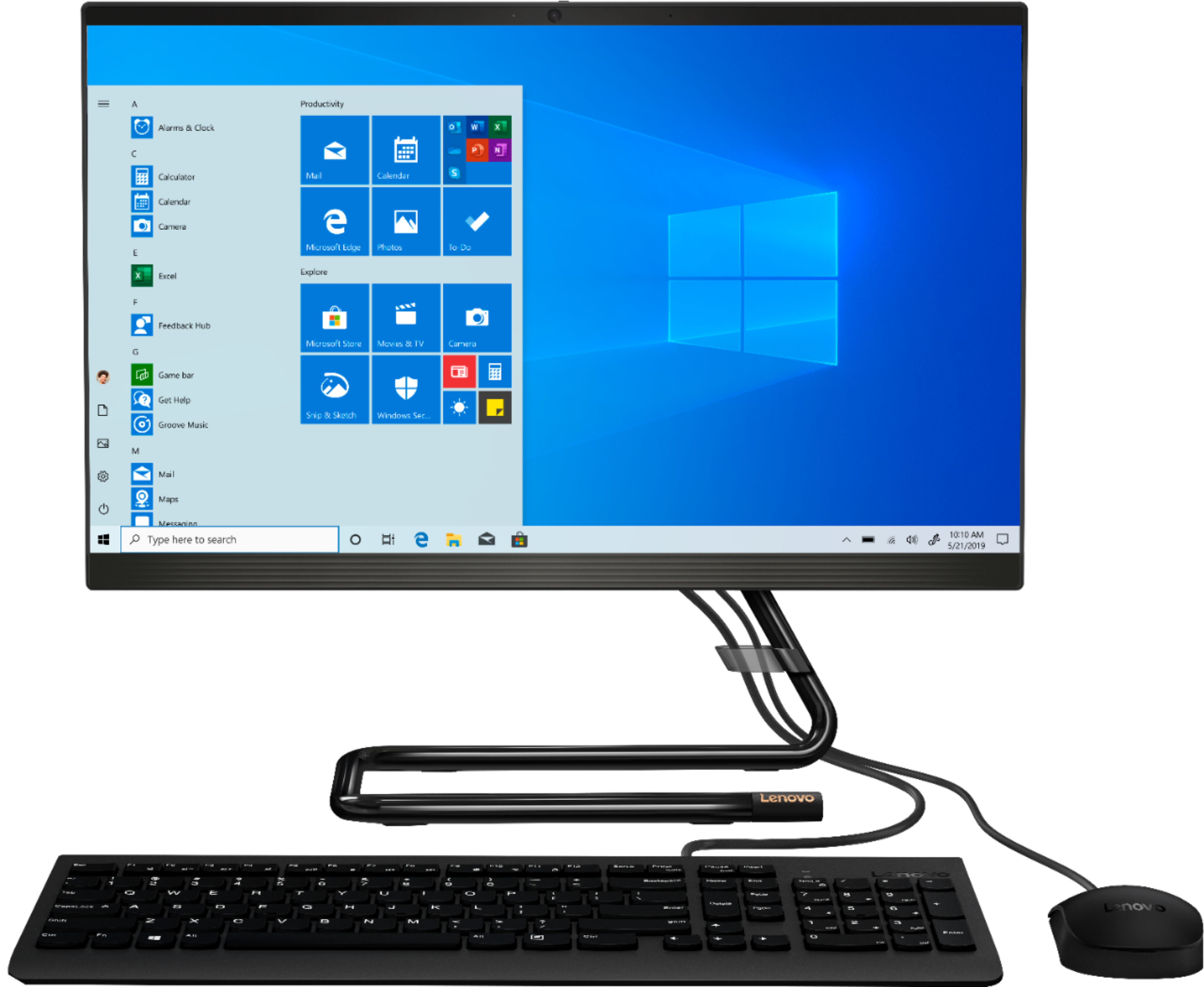
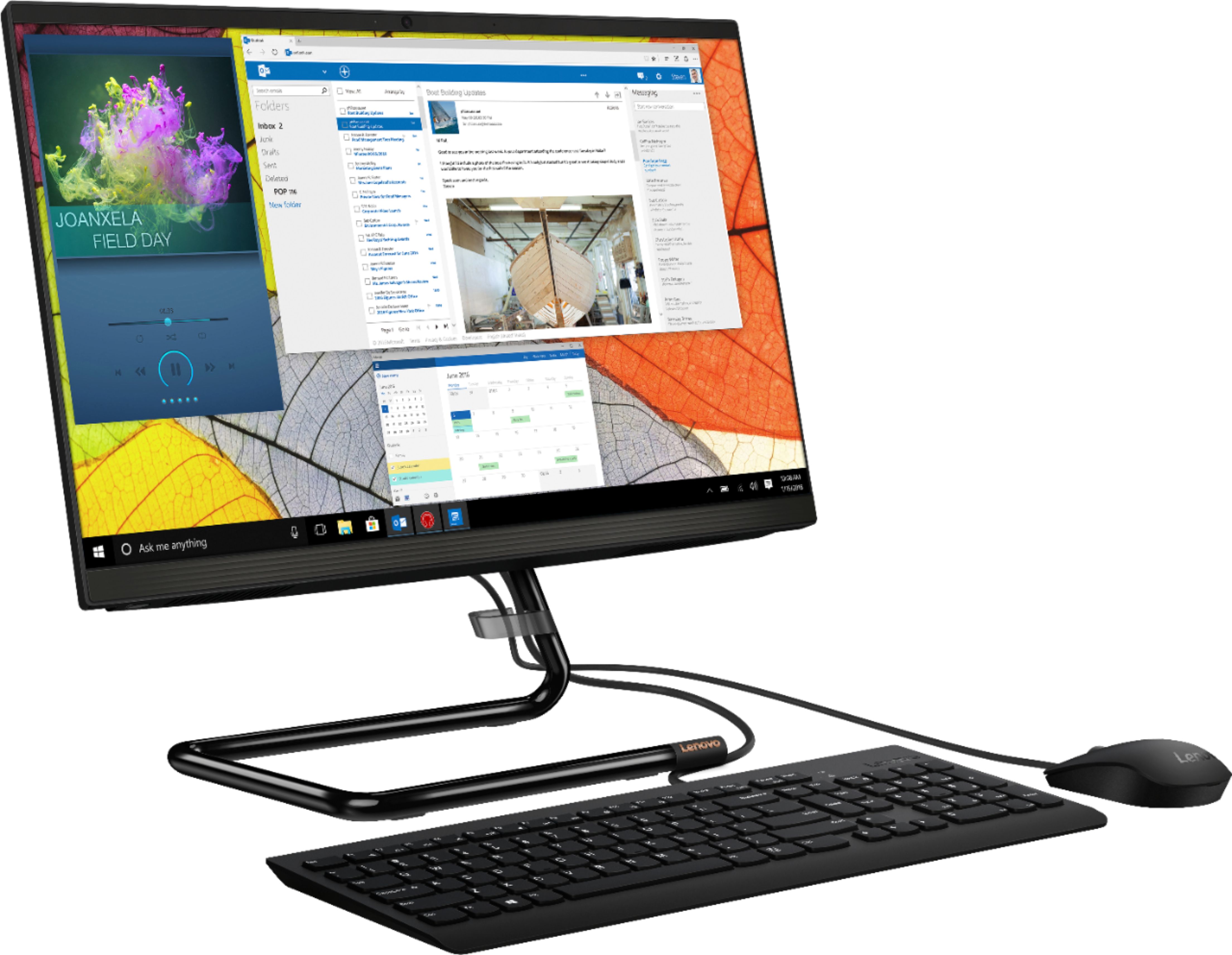
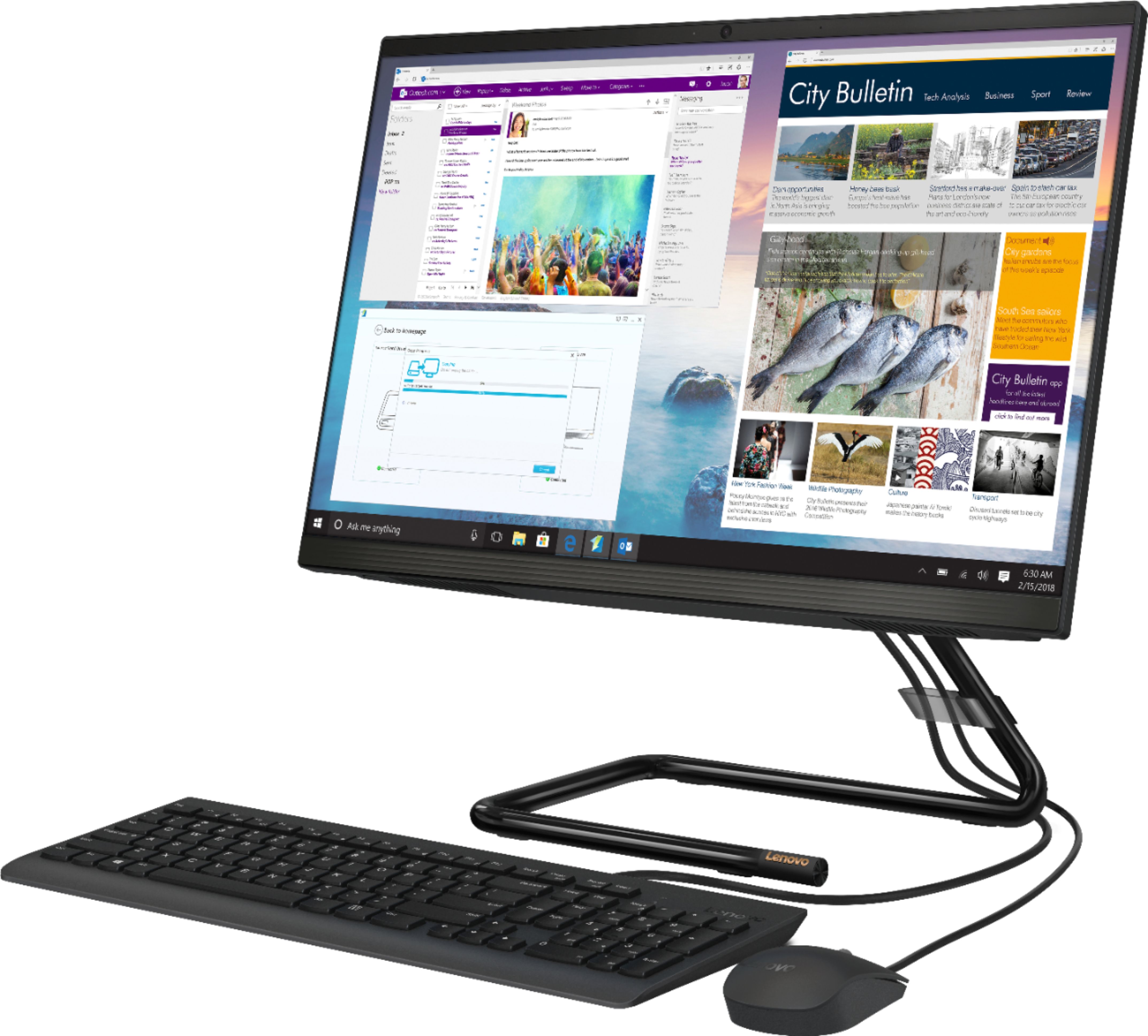
Customers express satisfaction with the IdeaCentre A340-22IGM's ease of use, screen size and picture quality, and its overall performance. Many appreciate the affordable price and the convenience of the touchscreen and all-in-one design. While some experienced issues with the DVD drive, the majority of feedback highlights positive aspects of this computer.
This summary was generated by AI based on customer reviews.
Nice desktop
||Posted . Owned for 1 month when reviewed.This reviewer received promo considerations or sweepstakes entry for writing a review.The computer performs nicely, I use it for basic office and web surfing, does the job perfectly.
I would recommend this to a friendBrand response from Lenovo Product Expert
Posted .Once again, thank you for choosing the Lenovo IdeaCentre A340-22 All-In-One system. You can keep your computer running at its best by keeping the Windows 10 Operating System and all supporting BIOS files and drivers up to date. You can easily accomplish this by scanning the computer with the Lenovo Utility software available on this computer. This system has Lenovo utilities installed to help maintain the health of the device and keep the operating system software up to date. Type "Lenovo Vantage" in the Cortana Search window (if Lenovo Vantage is not installed on your device, you can download the APP and install it now). Select Lenovo Vantage from the list. In the window that opens, click on "Health and Support". In the expanded menu, select "Hardware Scan" In the window that opens, select "Run Quick Tests". This will scan your entire system for errors. Follow any directions that may pop up. If the problem continues after this scan, now click on "System Update". First select Windows update from the menu. Scan your system to be sure you have the latest version of Windows 10. Once that scan is complete, select "Additional Updates". This will scan your device to be sure there are no new BIOS/Driver updates needed. Follow any instructions that may pop up. If you ever need additional help with your Lenovo computer, we recommend you call Lenovo Tech Support at: 877-453-6686 for additional help.

good
||Posted . Owned for 3 weeks when reviewed.This reviewer received promo considerations or sweepstakes entry for writing a review.still getting to know how to use computer and features thar are new to me.
I would recommend this to a friendBrand response from Lenovo Product Expert
Posted .Once again, thank you for choosing the Lenovo IdeaCentre A340-22 All-In-One system. We hope you are continuing to learn more about the operation of your new computer. You can keep your computer running at its best by keeping the Windows 10 Operating System and all supporting BIOS files and drivers up to date. You can easily accomplish this by scanning the computer with the Lenovo Utility software available on this computer. This system has Lenovo utilities installed to help maintain the health of the device and keep the operating system software up to date. Type "Lenovo Vantage" in the Cortana Search window (if Lenovo Vantage is not installed on your device, you can download the APP and install it now). Select Lenovo Vantage from the list. In the window that opens, click on "Health and Support". In the expanded menu, select "Hardware Scan" In the window that opens, select "Run Quick Tests". This will scan your entire system for errors. Follow any directions that may pop up. If the problem continues after this scan, now click on "System Update". First select Windows update from the menu. Scan your system to be sure you have the latest version of Windows 10. Once that scan is complete, select "Additional Updates". This will scan your device to be sure there are no new BIOS/Driver updates needed. Follow any instructions that may pop up. If you ever need additional help with your Lenovo computer, we recommend you call Lenovo Tech Support at: 877-453-6686 for additional help.
Nice computer
||Posted .This reviewer received promo considerations or sweepstakes entry for writing a review.It’s a great Lenovo for a great price. Easy to use and nice screen definition.
I would recommend this to a friendBrand response from Lenovo Product Expert
Posted .Thank you for choosing the Lenovo IdeaCentre A340-22 All-In-One system. We are pleased to hear that the value, features and performance of the A340-22 AIO meets your computing needs so well. This is an entry level, light use system with its Intel Pentium processor. It is not meant for multi-tasking or demanding programs. It is good for Microsoft Office and light internet browsing. If this describes your computing needs, the Lenovo IdeaCentre A340-22 All-In-One system would be a good choice.
So Far So Good
||Posted . Owned for 5 months when reviewed.This reviewer received promo considerations or sweepstakes entry for writing a review.In these days of tablets, a PC is a dice roll it seems. So far so good.
I would recommend this to a friendBrand response from Lenovo Product Expert
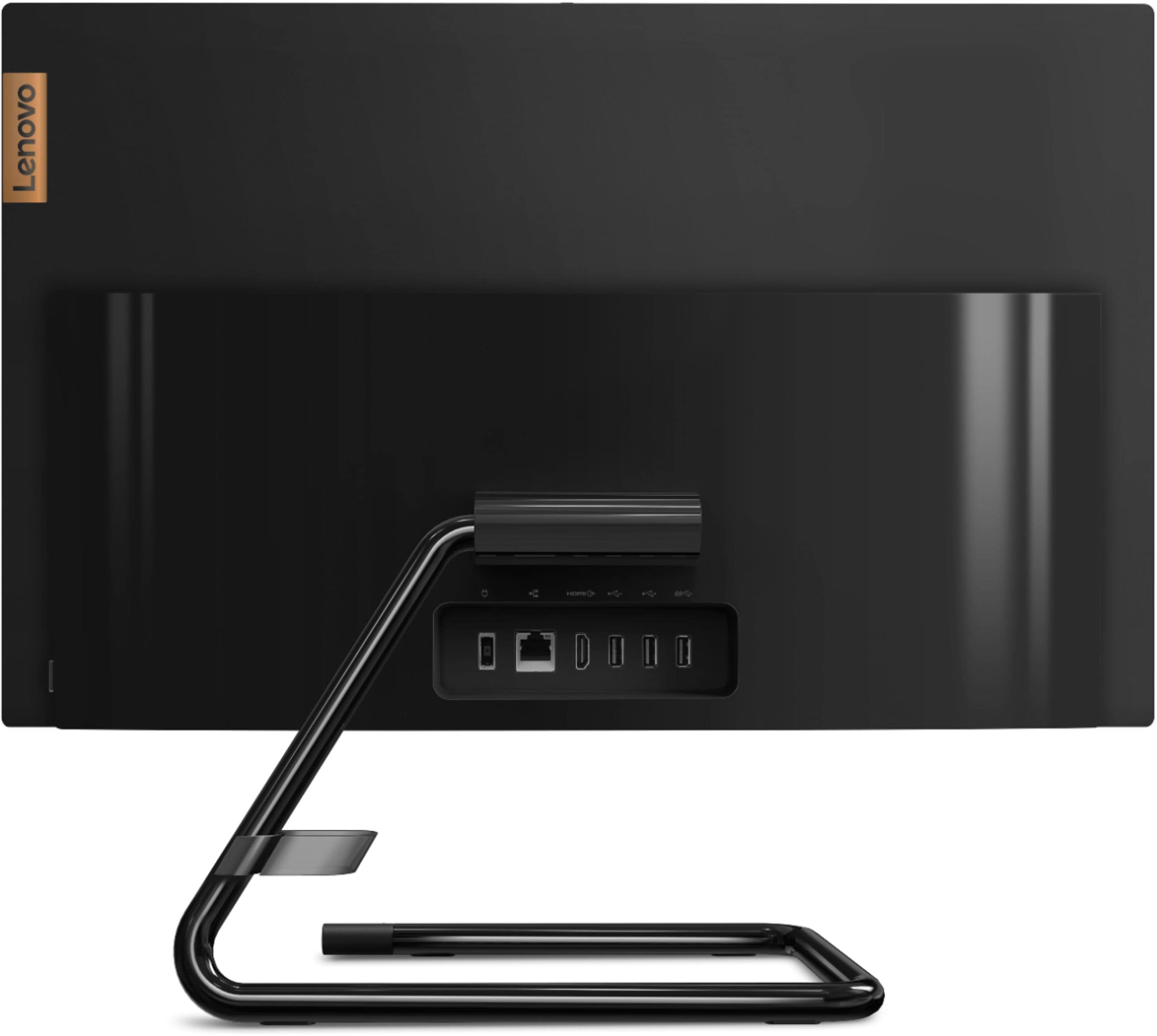
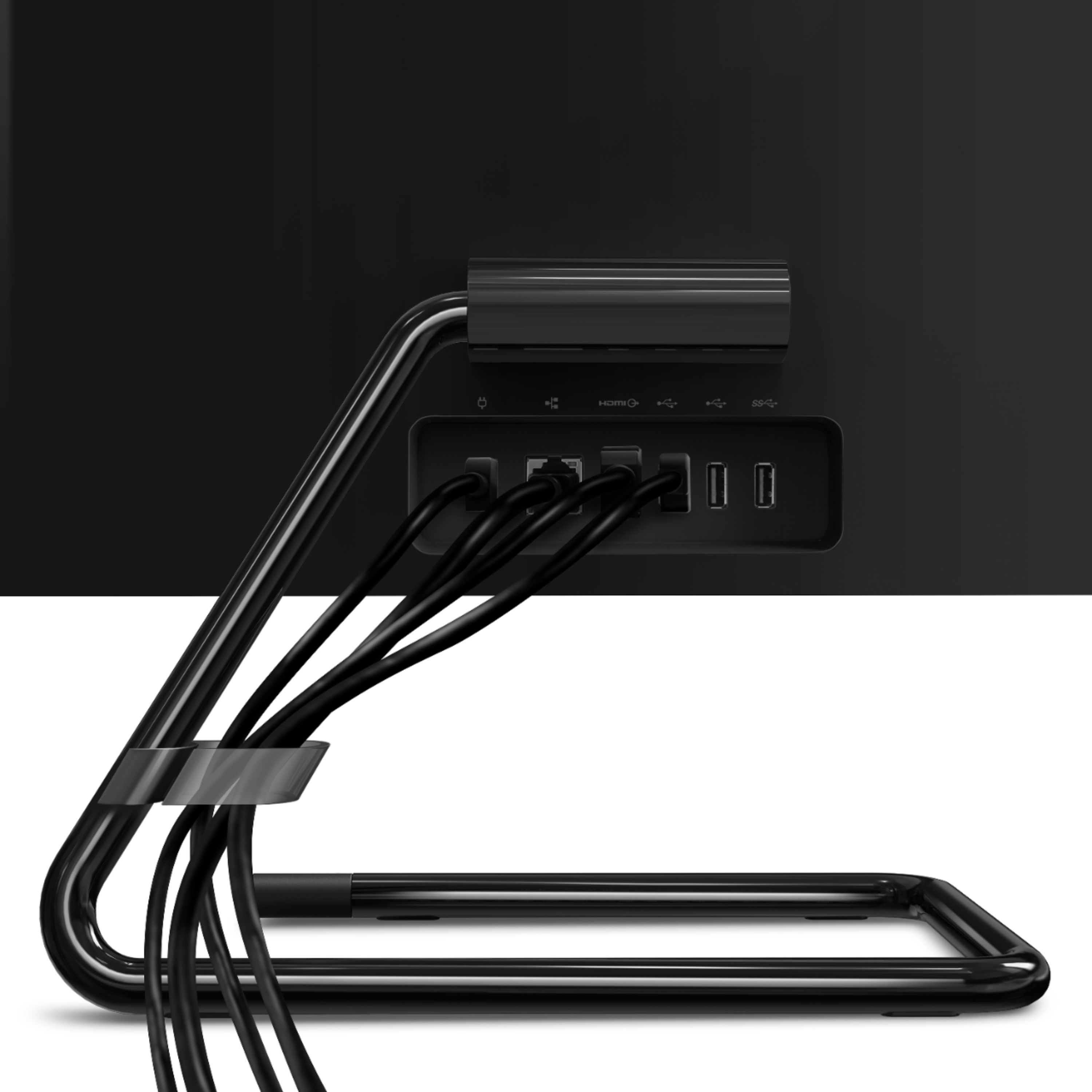
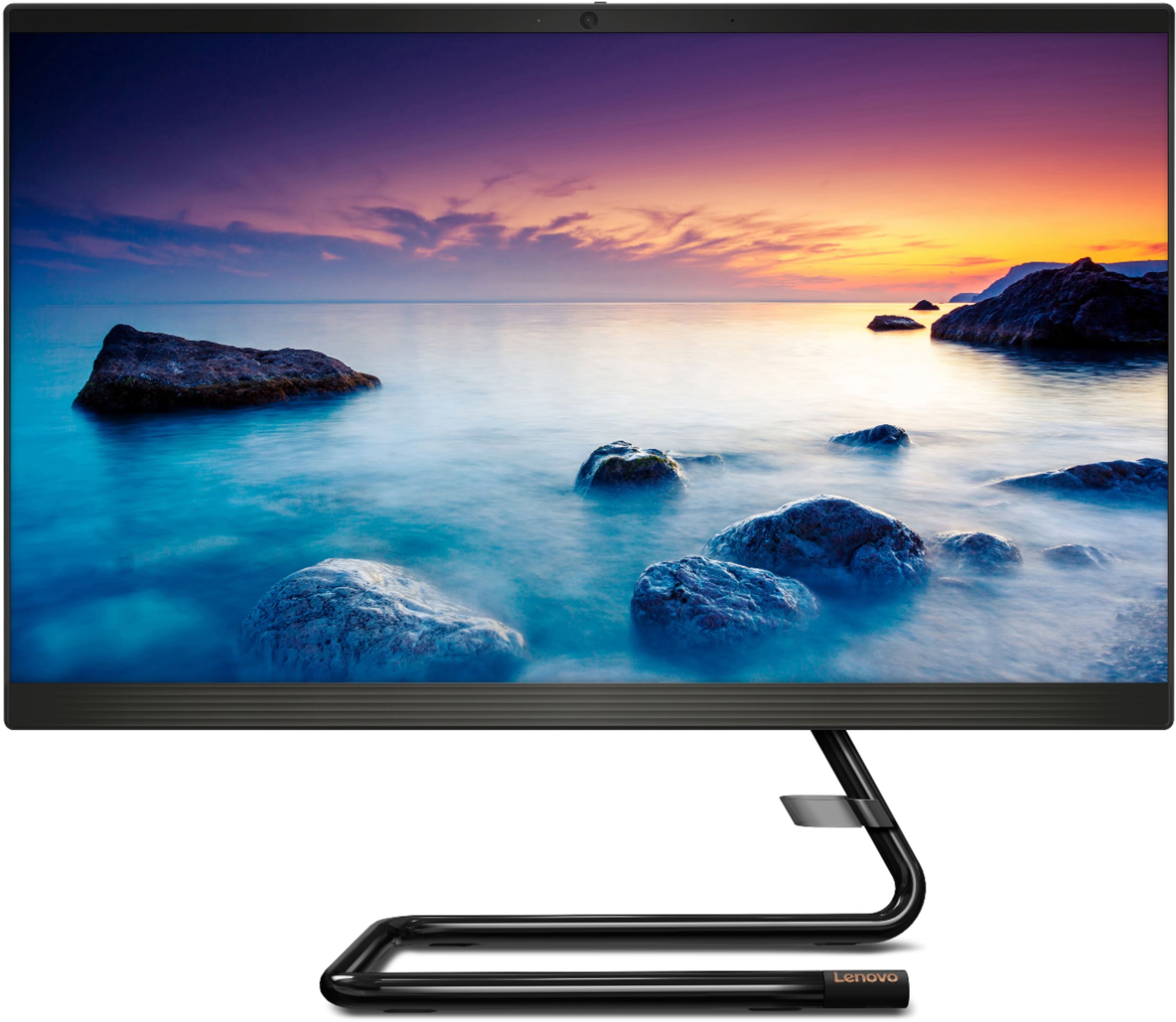
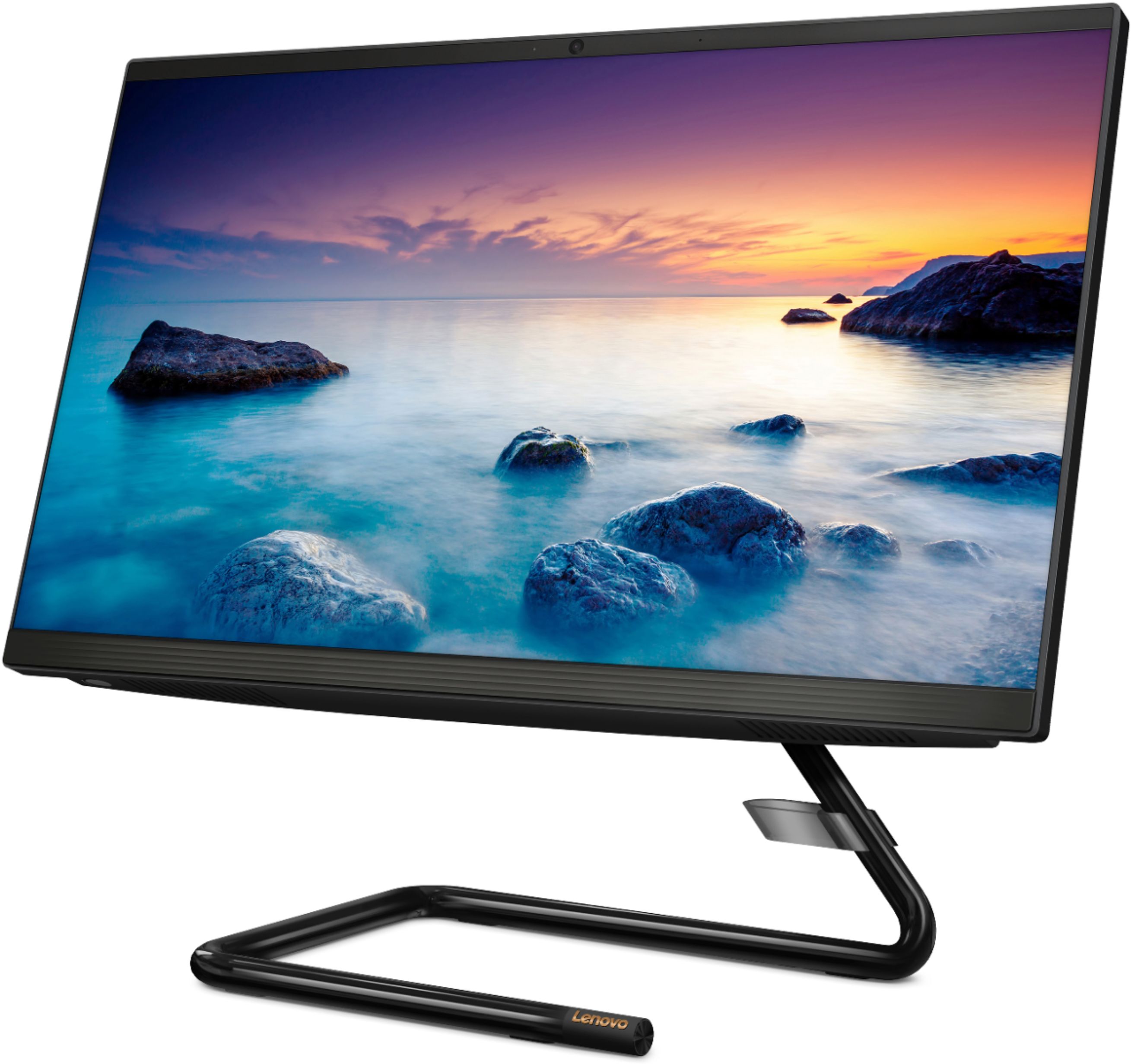
Posted .Elegant yet simple, the stand and base of the IdeaCentre all-in-one A340 is sure to impress—and save on desk space. Whether it’s for work, entertainment, or family video-chats, this eye-catching PC will look great in any room in your home. Connected to smartphones, backup drives, and other devices, a PC can look very messy. Not so with the IdeaCentre all-in-one A340. It has a convenient cable collector built into the stand, enabling you to have a more organized, clutter-free desk. This is an entry level, light use system with its Intel Pentium processor. It is not meant for multi-tasking or demanding programs. It is good for Microsoft Office and light internet browsing. If this describes your computing needs, the IdeaCentre all-in-one A340 would be a good choice.
Love it
||Posted . Owned for 11 months when reviewed.This reviewer received promo considerations or sweepstakes entry for writing a review.Great all in one probably the best computer in all of the world
I would recommend this to a friendGreat value!
||Posted . Owned for 3 weeks when reviewed.This reviewer received promo considerations or sweepstakes entry for writing a review.Good computer haven’t had any problems with the computer so far
I would recommend this to a friendBrand response from Lenovo Product Expert
Posted .Once again, thank you for choosing the Lenovo IdeaCentre A340-22 All-In-One system. You can keep your computer running at its best by keeping the Windows 10 Operating System and all supporting BIOS files and drivers up to date. You can easily accomplish this by scanning the computer with the Lenovo Utility software available on this computer. Just type "Lenovo Vantage" in the Cortana Search window (if Lenovo Vantage is not installed on your device, you can download the APP and install it now). Select Lenovo Vantage from the list. In the window that opens, click on "Health and Support". In the expanded menu, select "Hardware Scan" In the window that opens, select "Run Quick Tests". This will scan your entire system for errors. Follow any directions that may pop up. If the problem continues after this scan, now click on "System Update". First select Windows update from the menu. Scan your system to be sure you have the latest version of Windows 10. Once that scan is complete, select "Additional Updates". This will scan your device to be sure there are no new BIOS/Driver updates needed. Follow any instructions that may pop up. If you ever need additional help with your Lenovo computer, we recommend you call Lenovo Tech Support at: 877-453-6686 for additional help.
Fast Computer
||Posted . Owned for 11 months when reviewed.This reviewer received promo considerations or sweepstakes entry for writing a review.Lighting fast computer! It makes browsing the internet quick and simple!
I would recommend this to a friendBrand response from Lenovo Product Expert
Posted .Thank you for choosing the Lenovo IdeaCentre A340-22 All-In-One system. We are pleased to hear that the IdeaCentre A340-22 AIO meets your computing needs so well.
COMPUTER
||Posted . Owned for 11 months when reviewed.This reviewer received promo considerations or sweepstakes entry for writing a review.ITS A GREAT ITEM. VERY HAPPY WITH THE PURCHASE. WILL FOR SURE SHOP AGAIN
I would recommend this to a friendLove the speed and product
||Posted . Owned for 1 month when reviewed.This reviewer received promo considerations or sweepstakes entry for writing a review.The product is awesome. Desktop really works wonderfully. It’s the beat I ever had.
I would recommend this to a friendBrand response from Lenovo Product Expert
Posted .Once again, thank you for choosing the Lenovo IdeaCentre A340-22 All-In-One system. You can keep your computer running at its best by keeping the Windows 10 Operating System and all supporting BIOS files and drivers up to date. You can easily accomplish this by scanning the computer with the Lenovo Utility software available on this computer. This system has Lenovo utilities installed to help maintain the health of the device and keep the operating system software up to date. Type "Lenovo Vantage" in the Cortana Search window (if Lenovo Vantage is not installed on your device, you can download the APP and install it now). Select Lenovo Vantage from the list. In the window that opens, click on "Health and Support". In the expanded menu, select "Hardware Scan" In the window that opens, select "Run Quick Tests". This will scan your entire system for errors. Follow any directions that may pop up. If the problem continues after this scan, now click on "System Update". First select Windows update from the menu. Scan your system to be sure you have the latest version of Windows 10. Once that scan is complete, select "Additional Updates". This will scan your device to be sure there are no new BIOS/Driver updates needed. Follow any instructions that may pop up. If you ever need additional help with your Lenovo computer, we recommend you call Lenovo Tech Support at: 877-453-6686 for additional help
Nice Mother’s Day gift
||Posted . Owned for 2 months when reviewed.This reviewer received promo considerations or sweepstakes entry for writing a review.I got this for my mother. She is very happy with it so far.
I would recommend this to a friendBrand response from Lenovo Product Expert
Posted .Once again, thank you for choosing the Lenovo IdeaCentre A340-22 All-In-One system for your mother. This computer can continue running at its best by keeping the Windows 10 Operating System and all supporting BIOS files and drivers up to date. You can easily accomplish this by scanning the computer with the Lenovo Utility software available on this computer. This system has Lenovo utilities installed to help maintain the health of the device and keep the operating system software up to date. Type "Lenovo Vantage" in the Cortana Search window (if Lenovo Vantage is not installed on your device, you can download the APP and install it now). Select Lenovo Vantage from the list. In the window that opens, click on "Health and Support". In the expanded menu, select "Hardware Scan" In the window that opens, select "Run Quick Tests". This will scan your entire system for errors. Follow any directions that may pop up. If the problem continues after this scan, now click on "System Update". First select Windows update from the menu. Scan your system to be sure you have the latest version of Windows 10. Once that scan is complete, select "Additional Updates". This will scan your device to be sure there are no new BIOS/Driver updates needed. Follow any instructions that may pop up. If you ever need additional help with your Lenovo computer, we recommend you call Lenovo Tech Support at: 877-453-6686 for additional help.
Nice computer
||Posted . Owned for 3 weeks when reviewed.This reviewer received promo considerations or sweepstakes entry for writing a review.Nice computer for a great price! I was so happy to find a great deal like this!
I would recommend this to a friendBrand response from Lenovo Product Expert
Posted .Once again, thank you for choosing the Lenovo IdeaCentre A340-22 All-In-One system. You can keep your computer running at its best by keeping the Windows 10 Operating System and all supporting BIOS files and drivers up to date. You can easily accomplish this by scanning the computer with the Lenovo Utility software available on this computer. This system has Lenovo utilities installed to help maintain the health of the device and keep the operating system software up to date. Type "Lenovo Vantage" in the Cortana Search window (if Lenovo Vantage is not installed on your device, you can download the APP and install it now). Select Lenovo Vantage from the list. In the window that opens, click on "Health and Support". In the expanded menu, select "Hardware Scan" In the window that opens, select "Run Quick Tests". This will scan your entire system for errors. Follow any directions that may pop up. If the problem continues after this scan, now click on "System Update". First select Windows update from the menu. Scan your system to be sure you have the latest version of Windows 10. Once that scan is complete, select "Additional Updates". This will scan your device to be sure there are no new BIOS/Driver updates needed. Follow any instructions that may pop up. If you ever need additional help with your Lenovo computer, we recommend you call Lenovo Tech Support at: 877-453-6686 for additional help.
Great value
||Posted . Owned for 1 month when reviewed.This reviewer received promo considerations or sweepstakes entry for writing a review.I am enjoying this computer and does just what I need it for.
I would recommend this to a friendBrand response from Lenovo Product Expert
Posted .Thank you for choosing the Lenovo IdeaCentre A340-22 All-In-One system. We are pleased to hear that the IdeaCentre A340-22 AIO meets your computing needs so well.
Just Hooked It Up It Crashed
||Posted . Owned for 1 month when reviewed.This reviewer received promo considerations or sweepstakes entry for writing a review.Just Hooked it up and set it up and it crashed and keeps going to auto repair
No, I would not recommend this to a friendLove my new Lenovo
||Posted .This reviewer received promo considerations or sweepstakes entry for writing a review.It's perfect and exactly what I needed. Curbside pick-up was quick and easy.
I would recommend this to a friendBrand response from Lenovo Product Expert
Posted .Once again, thank you for choosing the Lenovo IdeaCentre A340-22 All-in-One system. You can keep your computer running at its best by keeping the Windows 10 Operating System and all supporting BIOS files and drivers up to date. You can easily accomplish this by scanning the computer with the Lenovo Utility software available on this computer. This system has Lenovo utilities installed to help maintain the health of the device and keep the operating system software up to date. Type "Lenovo Vantage" in the Cortana Search window (if Lenovo Vantage is not installed on your device, you can download the APP and install it now). Select Lenovo Vantage from the list. In the window that opens, click on "Health and Support". In the expanded menu, select "Hardware Scan" In the window that opens, select "Run Quick Tests". This will scan your entire system for errors. Follow any directions that may pop up. If the problem continues after this scan, now click on "System Update". First select Windows update from the menu. Scan your system to be sure you have the latest version of Windows 10. Once that scan is complete, select "Additional Updates". This will scan your device to be sure there are no new BIOS/Driver updates needed. Follow any instructions that may pop up. If you ever need additional help with your Lenovo computer, we recommend you call Lenovo Tech Support at: 877-453-6686 for additional help.
Great for beginners.
||Posted . Owned for 1 month when reviewed.This reviewer received promo considerations or sweepstakes entry for writing a review.The set up was user friendly. I am not computer literate and did it on my own.
I would recommend this to a friendBrand response from Lenovo Product Expert
Posted .Thank you for choosing the Lenovo IdeaCentre A340-22 All-In-One system. We are pleased to hear that the easy setup and performance of the IdeaCentre A340-22 AIO meets your computing needs so well. This is an entry level, light use system with its Intel Pentium processor. It is not meant for multi-tasking or demanding programs. It is good for Microsoft Office and light internet browsing. If this describes your computing needs, the Lenovo IdeaCentre A340-22 All-In-One system would be a good choice.
Good computer for the price
||Posted . Owned for 1 month when reviewed.This reviewer received promo considerations or sweepstakes entry for writing a review.Not a powerhouse and a tad slow, but reliable and well made.
I would recommend this to a friendBrand response from Lenovo Product Expert
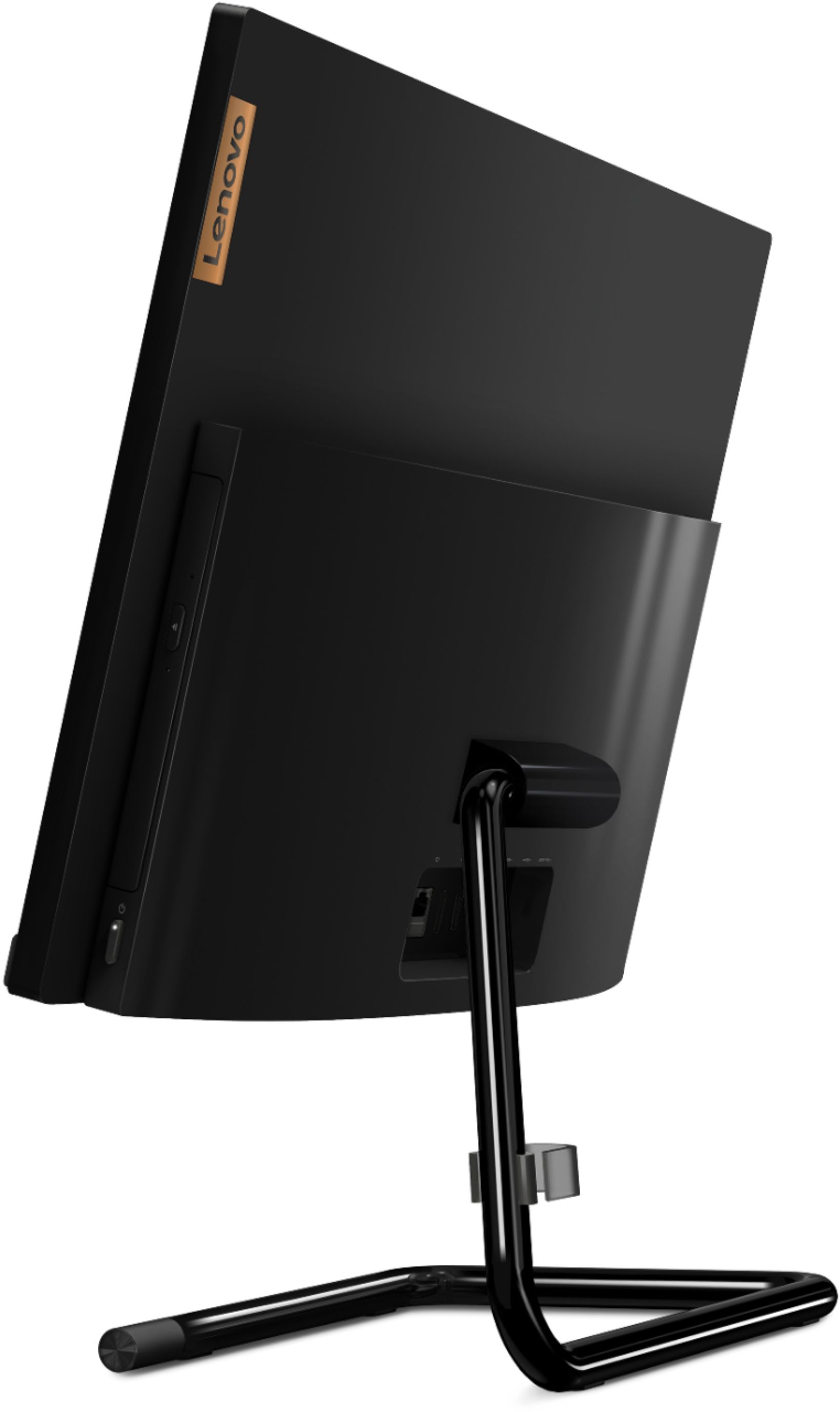
Posted .The Lenovo IdeaCentre A340-22 All-In-One system is elegant yet simple, the stand and base of the IdeaCentre all-in-one A340 is sure to impress—and save on desk space. Whether it’s for work, entertainment, or family video-chats, this eye-catching PC will look great in any room in your home. This is an entry level, light use system with its Intel Pentium processor. It is not meant for multi-tasking or demanding programs. It is good for Microsoft Office and light internet browsing. If this describes your computing needs, the Lenovo IdeaCentre A340-22 All-In-One system would be a good choice.
Good for regular home and small office use
||Posted . Owned for 6 months when reviewed.This reviewer received promo considerations or sweepstakes entry for writing a review.Good working all in one. Good space saver. Great for home and small office.
I would recommend this to a friendBrand response from Lenovo Product Expert
Posted .Once again, thank you for choosing the Lenovo IdeaCentre A340-22 All-In-One system. You can keep your computer running at its best by keeping the Windows 10 Operating System and all supporting BIOS files and drivers up to date. You can easily accomplish this by scanning the computer with the Lenovo Utility software available on this computer. This system has Lenovo utilities installed to help maintain the health of the device and keep the operating system software up to date. Type "Lenovo Vantage" in the Cortana Search window (if Lenovo Vantage is not installed on your device, you can download the APP and install it now). Select Lenovo Vantage from the list. In the window that opens, click on "Health and Support". In the expanded menu, select "Hardware Scan" In the window that opens, select "Run Quick Tests". This will scan your entire system for errors. Follow any directions that may pop up. If the problem continues after this scan, now click on "System Update". First select Windows update from the menu. Scan your system to be sure you have the latest version of Windows 10. Once that scan is complete, select "Additional Updates". This will scan your device to be sure there are no new BIOS/Driver updates needed. Follow any instructions that may pop up. If you ever need additional help with your Lenovo computer, we recommend you call Lenovo Tech Support at: 877-453-6686 for additional help.
Reliable all-in-one computer
||Posted . Owned for 1 month when reviewed.This reviewer received promo considerations or sweepstakes entry for writing a review.Quality product, efficient for home or small office use.
I would recommend this to a friendBrand response from Lenovo Product Expert
Posted .Once again, thank you for choosing the Lenovo IdeaCentre A340-22 All-In-One system. You can keep your computer running at its best by keeping the Windows 10 Operating System and all supporting BIOS files and drivers up to date. You can easily accomplish this by scanning the computer with the Lenovo Utility software available on this computer. This system has Lenovo utilities installed to help maintain the health of the device and keep the operating system software up to date. Type "Lenovo Vantage" in the Cortana Search window (if Lenovo Vantage is not installed on your device, you can download the APP and install it now). Select Lenovo Vantage from the list. In the window that opens, click on "Health and Support". In the expanded menu, select "Hardware Scan" In the window that opens, select "Run Quick Tests". This will scan your entire system for errors. Follow any directions that may pop up. If the problem continues after this scan, now click on "System Update". First select Windows update from the menu. Scan your system to be sure you have the latest version of Windows 10. Once that scan is complete, select "Additional Updates". This will scan your device to be sure there are no new BIOS/Driver updates needed. Follow any instructions that may pop up. If you ever need additional help with your Lenovo computer, we recommend you call Lenovo Tech Support at: 877-453-6686 for additional help.
Good
||Posted . Owned for 1 month when reviewed.This reviewer received promo considerations or sweepstakes entry for writing a review.No problem so far wish product came with manual Or guide
I would recommend this to a friendBrand response from Lenovo Product Expert
Posted .The Lenovo IdeaCentre A340-22 All-In-One system, model number F0EA000GUS, ships with a Quick Start User Manual in the box, with the computer. All other product documentation is available online here: https://pcsupport.lenovo.com/us/en/products/desktops-and-all-in-ones/ideacentre-a-series-all-in-ones/a340-22igm/documentation/doc_userguide. The heart of the IdeaCentre A340-22 AIO is the Windows 10 Operating System. With regard to learning your way around Windows 10, you may want to try YouTube.com (just type that address in your browser address window). There are hundreds for free instructional videos there about Windows 10. Just type Windows 10 Introduction in to the YouTube search window. You can watch free videos there that will show you the basics all the way up to tips and tricks videos and they're all free. The IdeaCentre A340-22 All-In-One system is an entry level, light use system with its Intel Pentium processor. It is not meant for multi-tasking or demanding programs. It is good for Microsoft Office and light internet browsing. If this describes your computing needs, the IdeaCentre A340-22 All-In-One system would be a good choice.
Great looking
||Posted . Owned for 3 weeks when reviewed.This reviewer received promo considerations or sweepstakes entry for writing a review.Was perfect but I returned for a laptop instead to telework from anywhere.
I would recommend this to a friend