Customer Ratings & Reviews
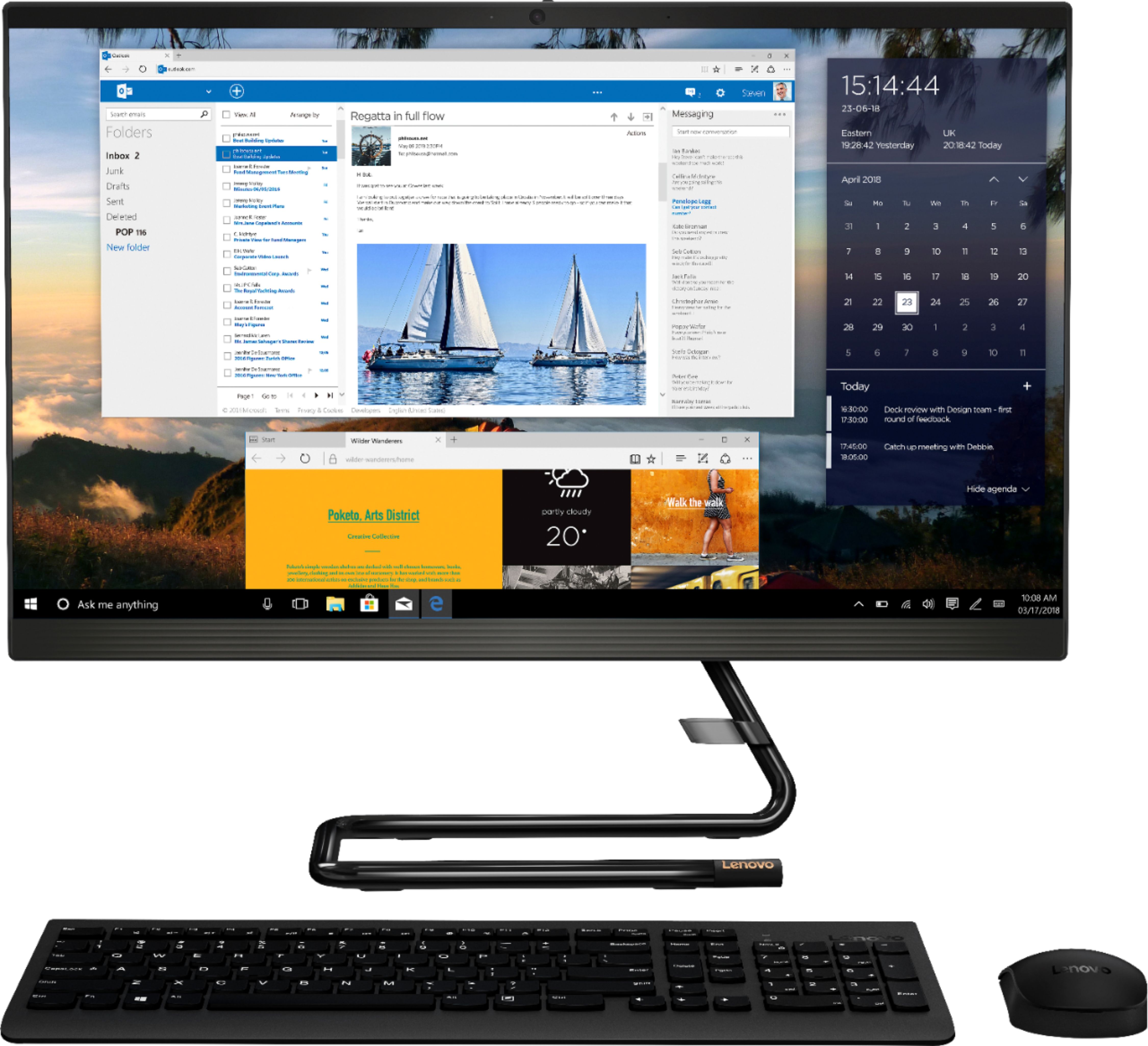
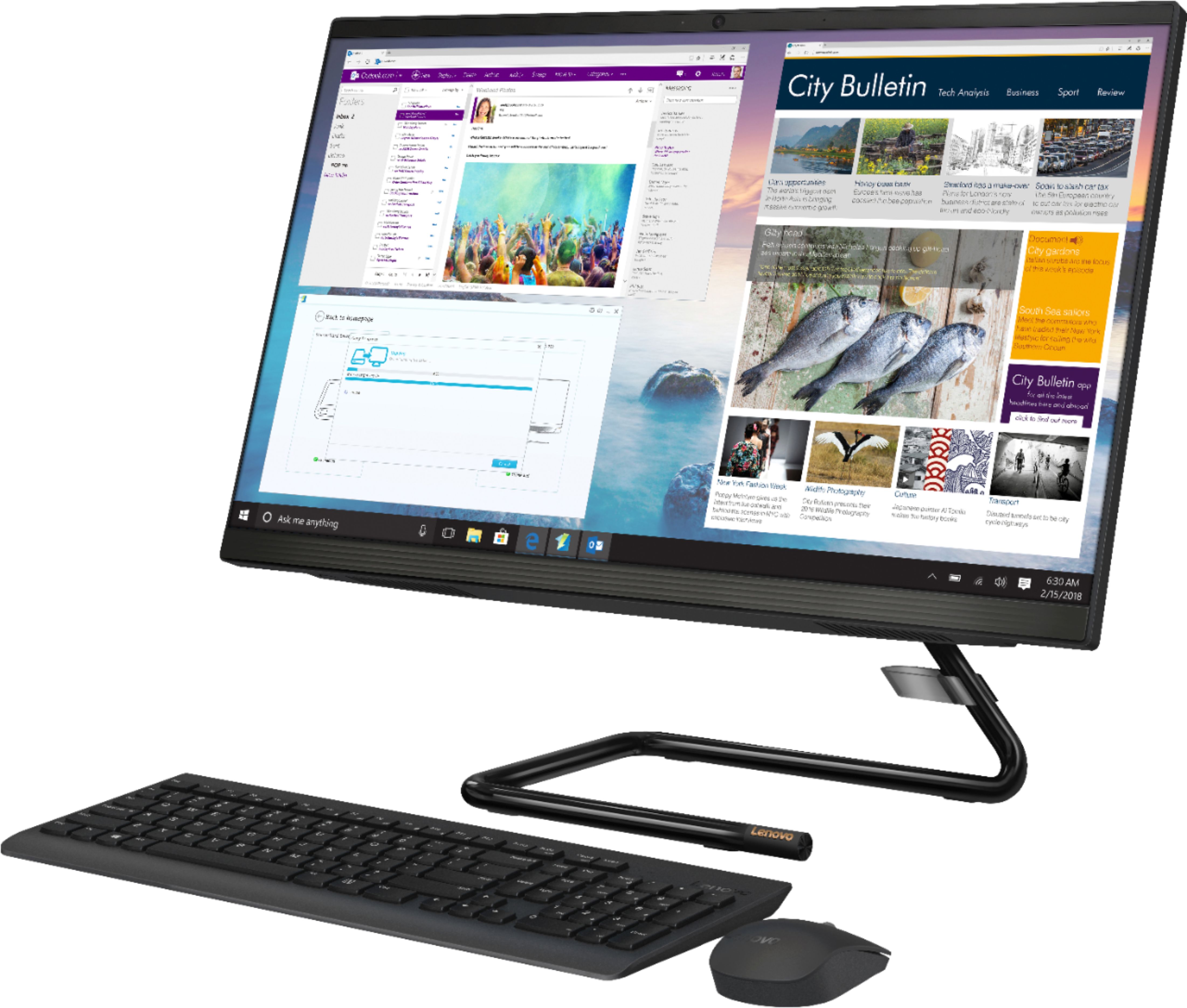
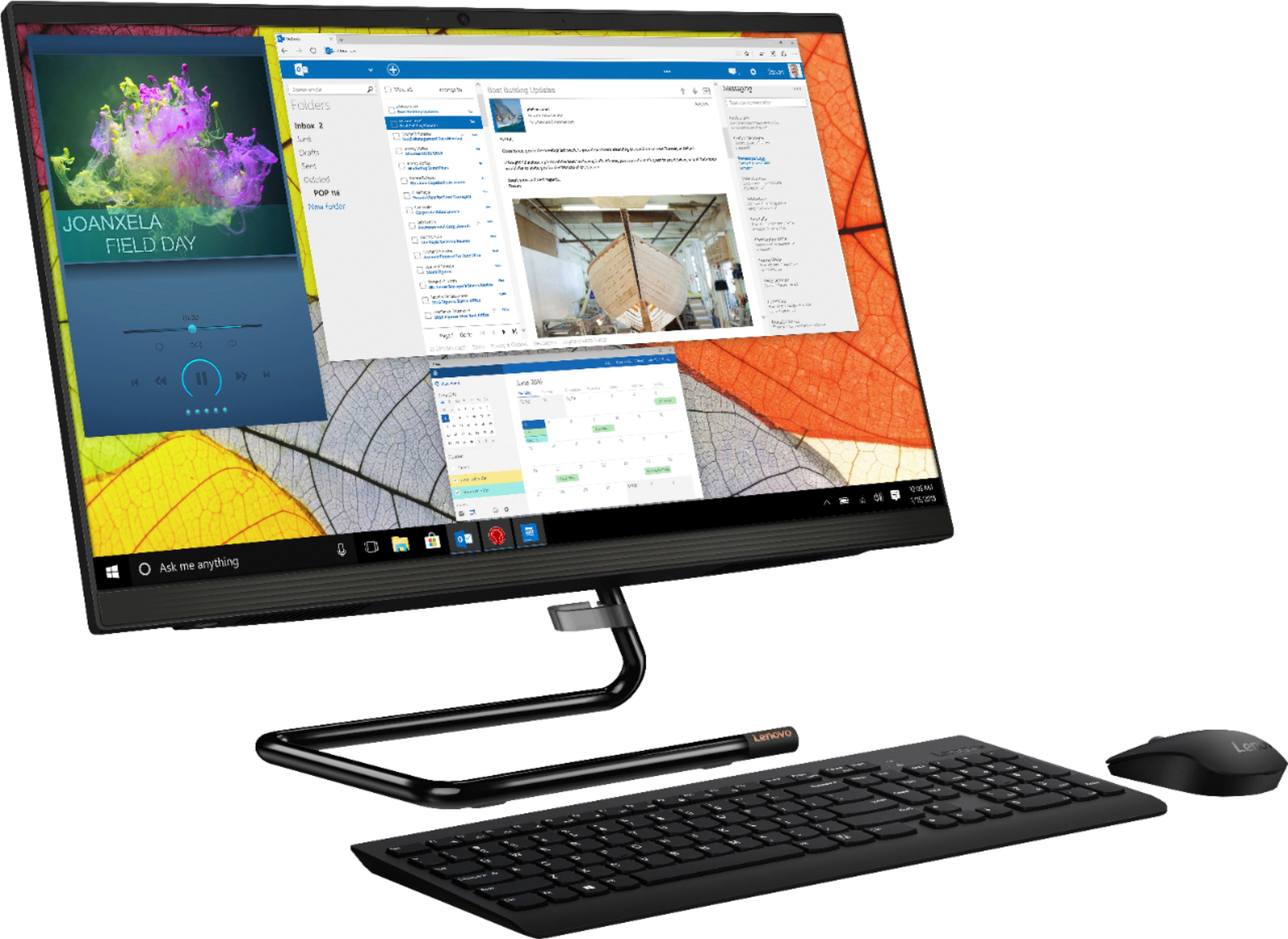
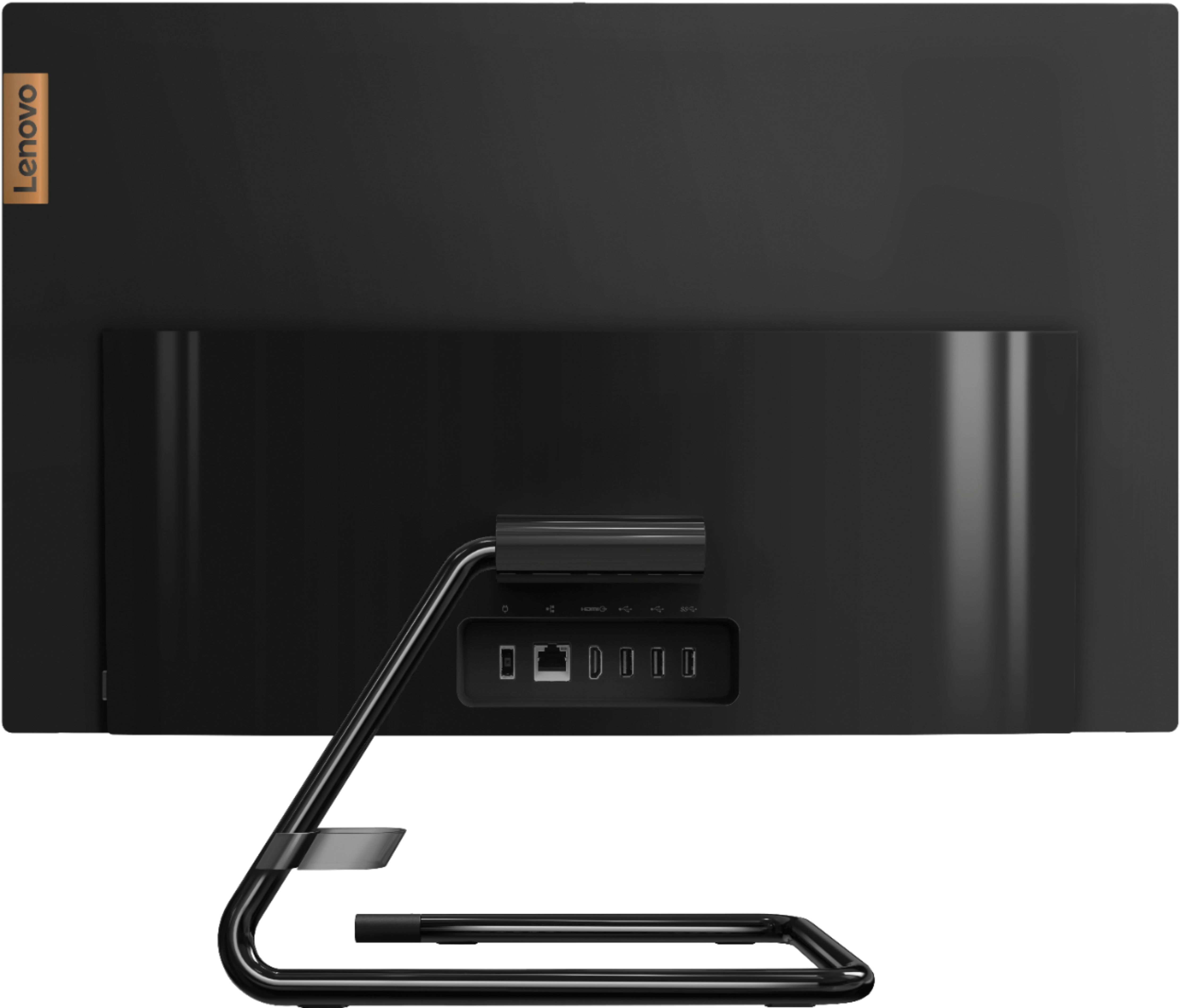
- Model:
- F0EU00QXUS
- SKU:
- 6461961
Rating by feature
- Value
Rating 4.6 out of 5 stars
- Quality
Rating 4.7 out of 5 stars
- Ease of Use
Rating 4.7 out of 5 stars
Customers are saying
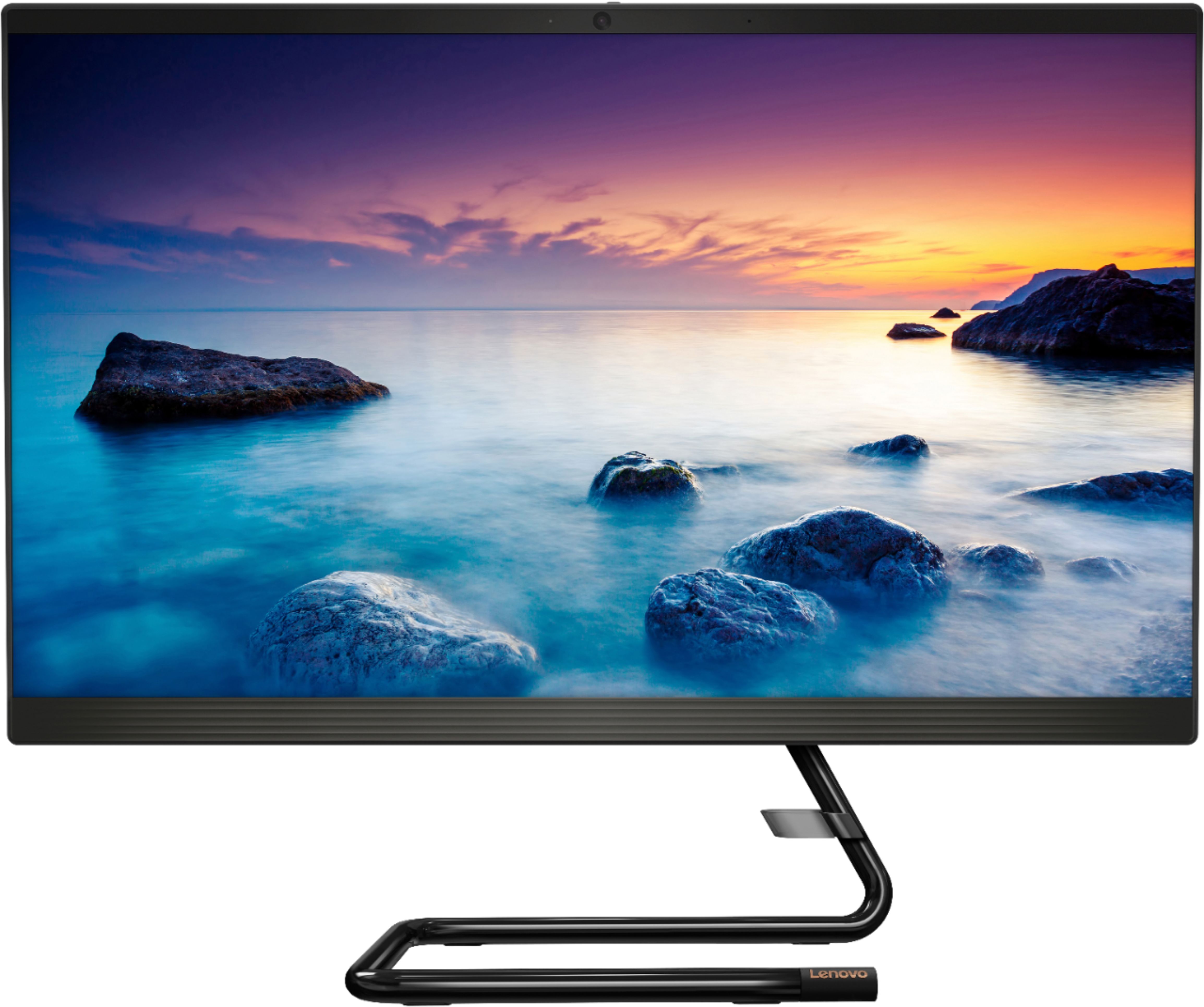
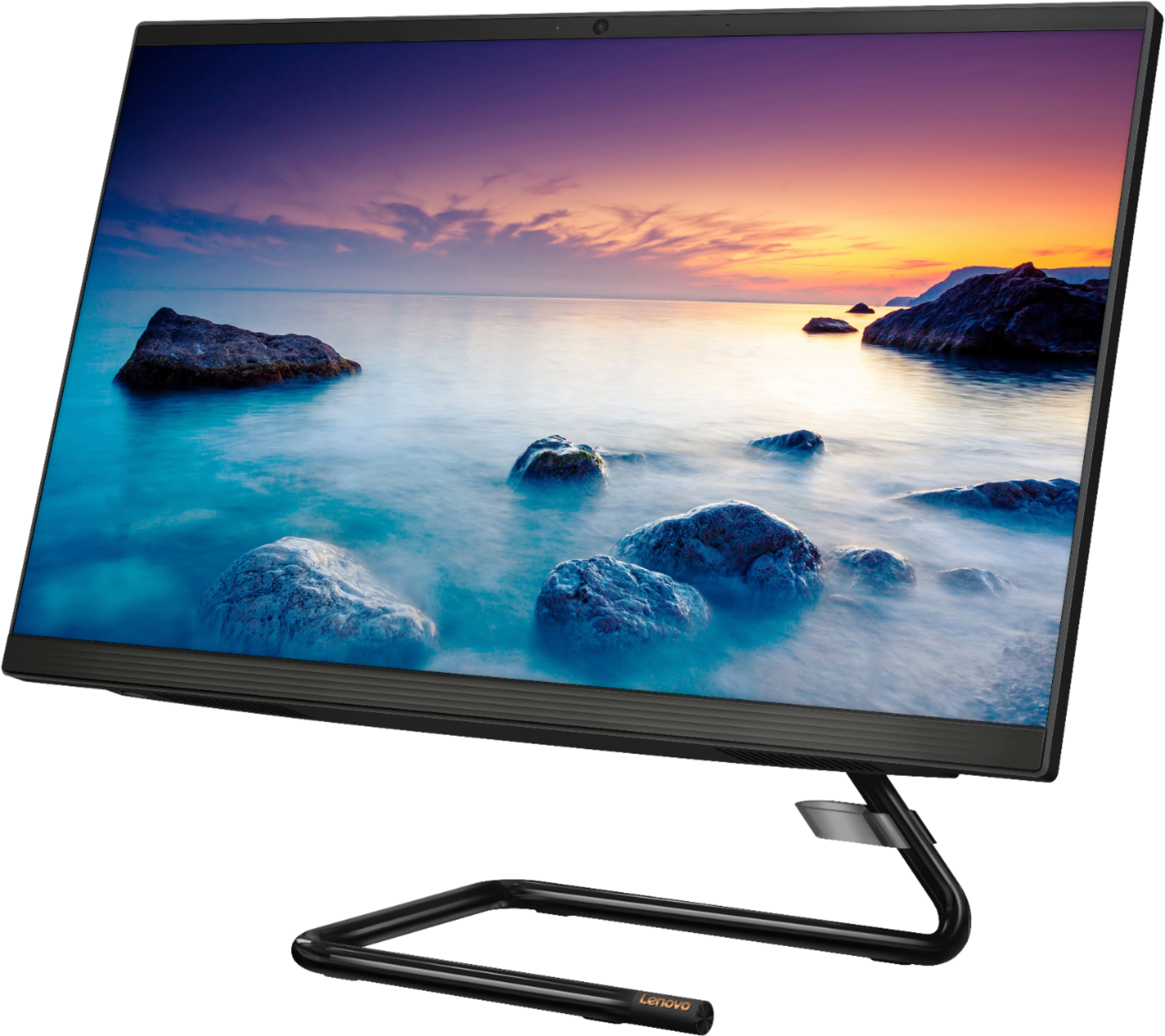
Customers recognize the IdeaCentre AIO 3i 24" as being easy to use and having a great screen size. Many appreciate its value and performance, finding it to be a good computer for the price. A small number of customers noted the absence of a touchscreen as a drawback.
This summary was generated by AI based on customer reviews.
- Pros mentioned:Screen size
lenovo
||Posted . Owned for 1 month when reviewed.This reviewer received promo considerations or sweepstakes entry for writing a review.great unit great price workable size good for all things needed. want a larger screen
I would recommend this to a friend Don't trust Best Buy!
||Posted .This reviewer received promo considerations or sweepstakes entry for writing a review.Geek said installations had been made on my new computer. NO, nothing had been added tho I trucked it to and from the store.
No, I would not recommend this to a friendGreat computer
Posted .This reviewer received promo considerations or sweepstakes entry for writing a review.Great computer. No cumbersome CPU box to trip over. Wireless mouse and keyboard.
I would recommend this to a friendLemon
Posted .This reviewer received promo considerations or sweepstakes entry for writing a review.I have been having issues since the first day i bought it
No, I would not recommend this to a friendBrand response from Lenovo Product Expert
Posted .We are sorry to hear that you are having issues with your Lenovo IdeaCentre 3i 24 All-In-One System, model number F0EU00QXUS. First, be sure any software you installed is compatible with Windows. There is no need to install Microsoft Office software. The software is already part of the operating system, you just need to activate the software with a purchased product key. If you have installed a copy of Microsoft Office, this is conflicting with the existing copy on the system and this will slow your system down. If you have installed a 3rd party anti-virus program, be sure that Windows Defender is turned off and that the trial version of McAfee Anti-Virus software is uninstalled. There can only be one anti-virus program on the system. You may need to restore your system to original factory default settings if any of the programming errors have occurred. You can do that by typing "restore" in the Cortana search window. Just click on the magnifying glass icon at the bottom left of your Windows Desktop. Click on "Reset This PC" Then click on "Get Started" and follow the on screen directions to restore to factory defaults. If there is no incompatible software installed but the issues persist, check to be sure you have the latest version of Windows on the computer. Then update all BIOS files and drivers up to that latest version of Windows. You can easily accomplish this by scanning the computer with the Lenovo Utility software available on this computer. This system has Lenovo utilities installed to help maintain the health of the device and keep the operating system software up to date. Type "Lenovo Vantage" in the Cortana Search window (if Lenovo Vantage is not installed on your device, you can download the APP and install it now). Select Lenovo Vantage from the list. In the window that opens, click on "Health and Support". In the expanded menu, select "Hardware Scan" In the window that opens, select "Run Quick Tests". This will scan your entire system for errors. Follow any directions that may pop up. If the problem continues after this scan, now click on "System Update". First select Windows update from the menu. Scan your system to be sure you have the latest version of Windows. Once that scan is complete, select "Additional Updates". This will scan your device to be sure there are no new BIOS/Driver updates needed. Follow any instructions that may pop up. If the issue still continues after these updates, we recommend you call Lenovo Tech Support at: 877-453-6686 for additional help.
