Customer Ratings & Reviews
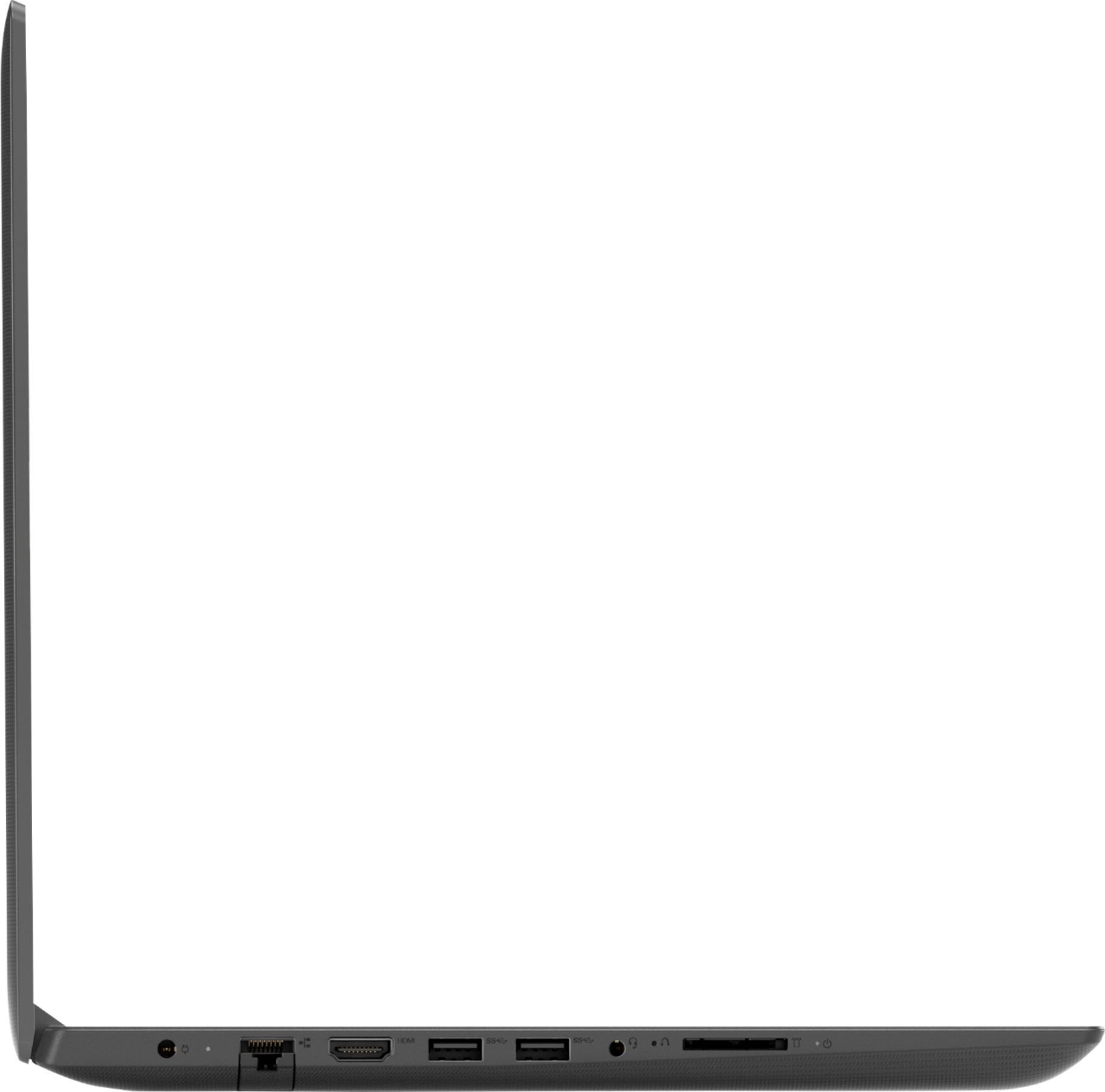

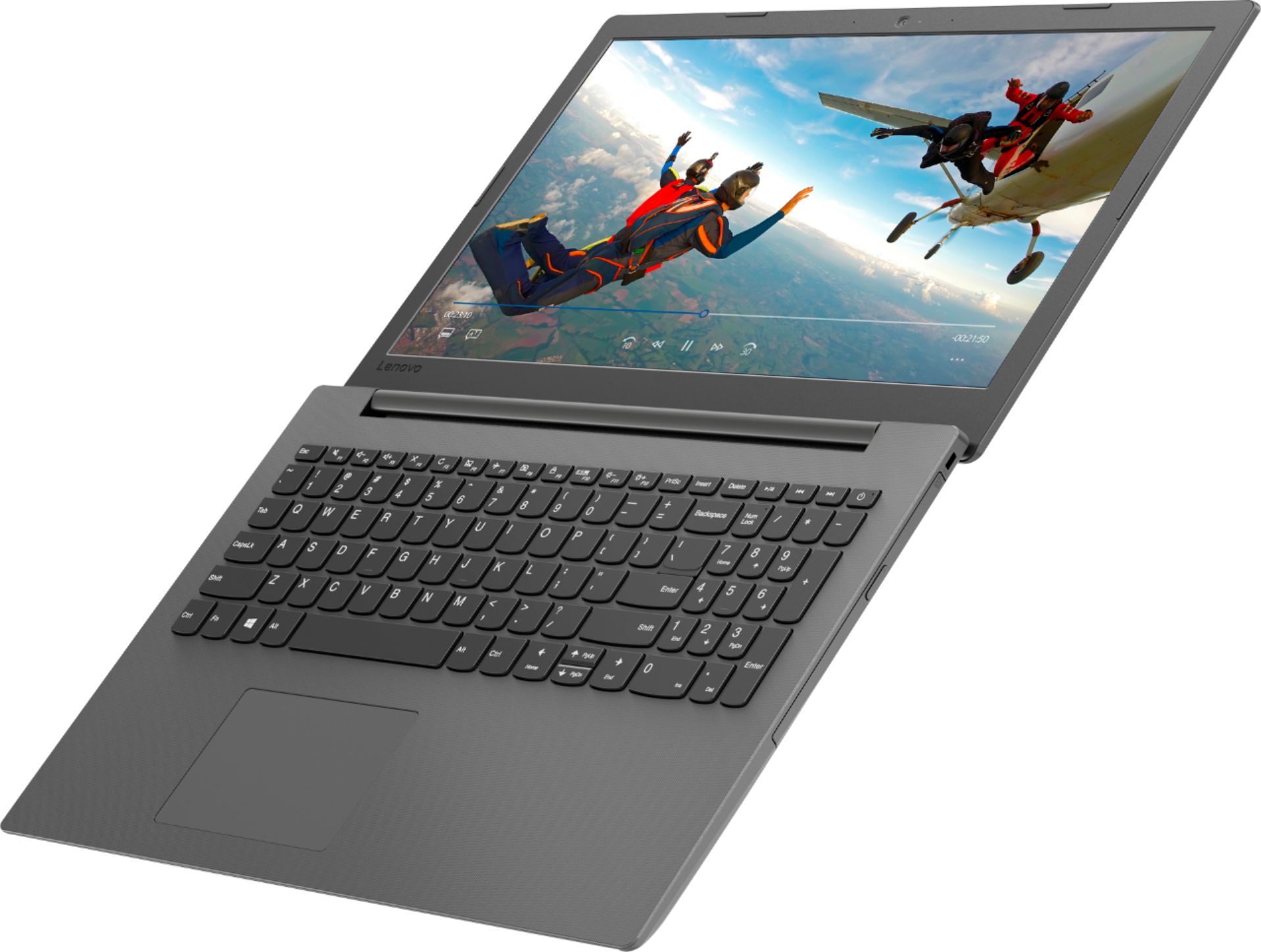
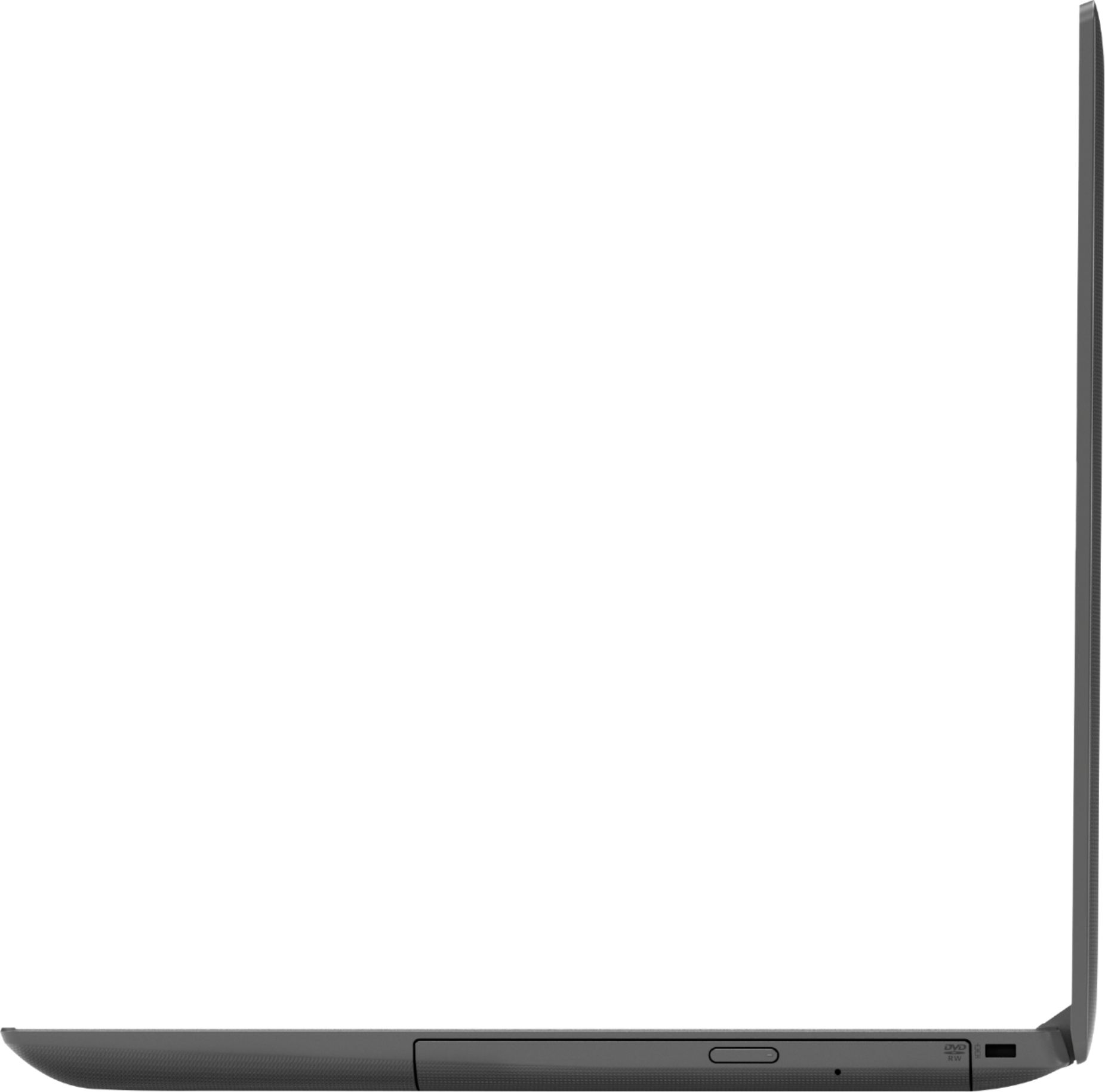
- Model:
- 81H5002FUS
- SKU:
- 6323661
Rating by feature
- Battery Life
Rating 3.7 out of 5 stars
- Speed
Rating 3.4 out of 5 stars
- Display
Rating 4.3 out of 5 stars
Customers are saying
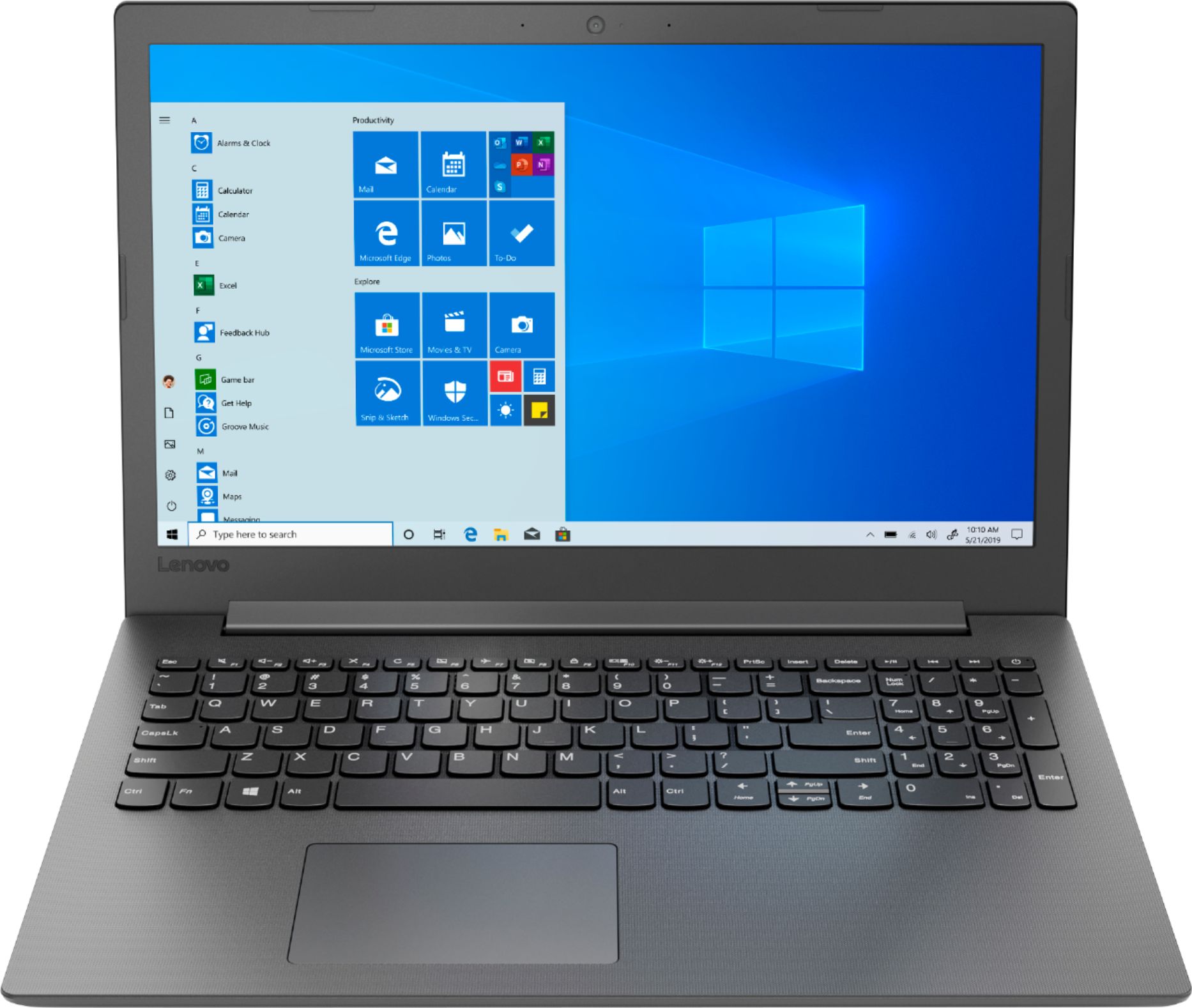
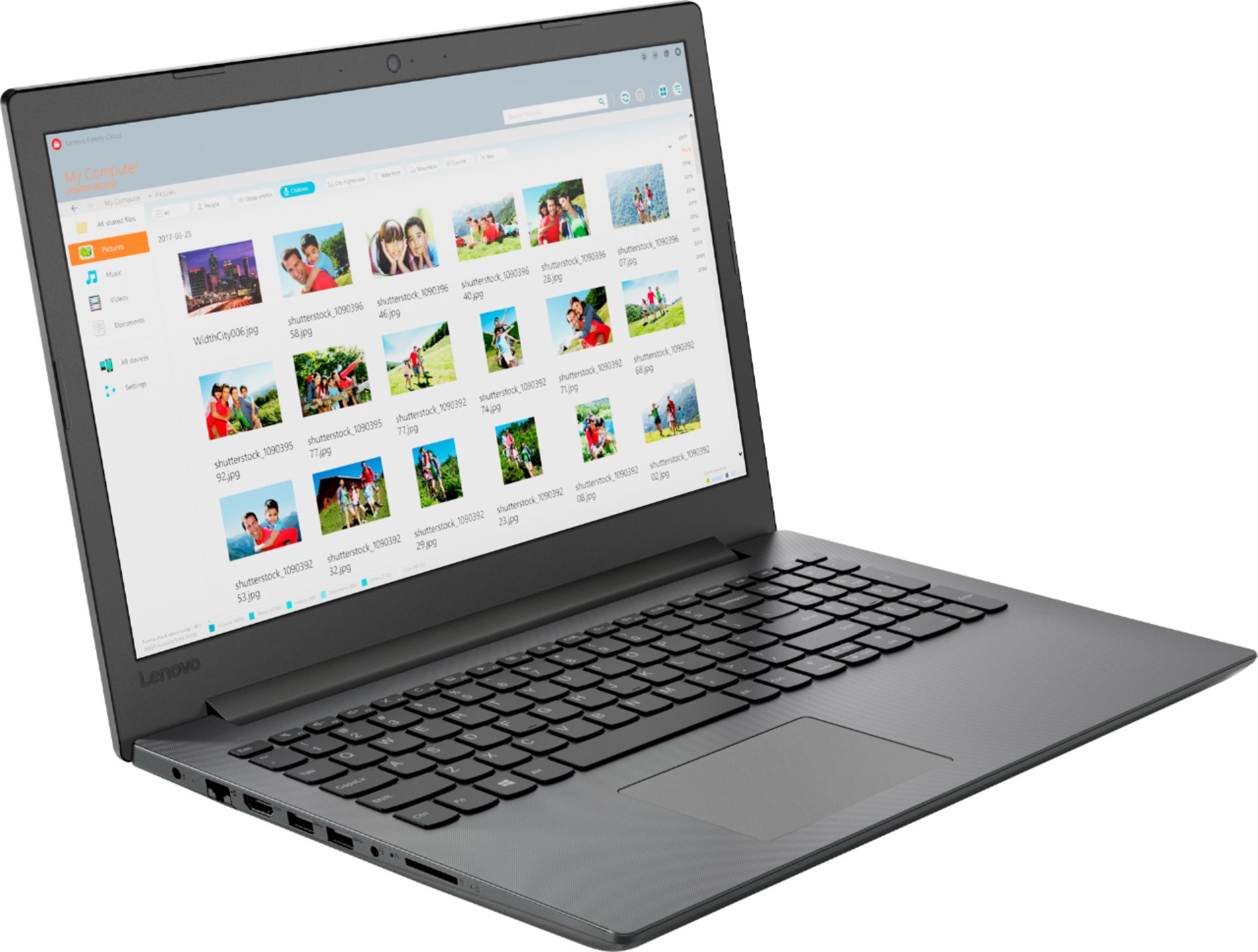
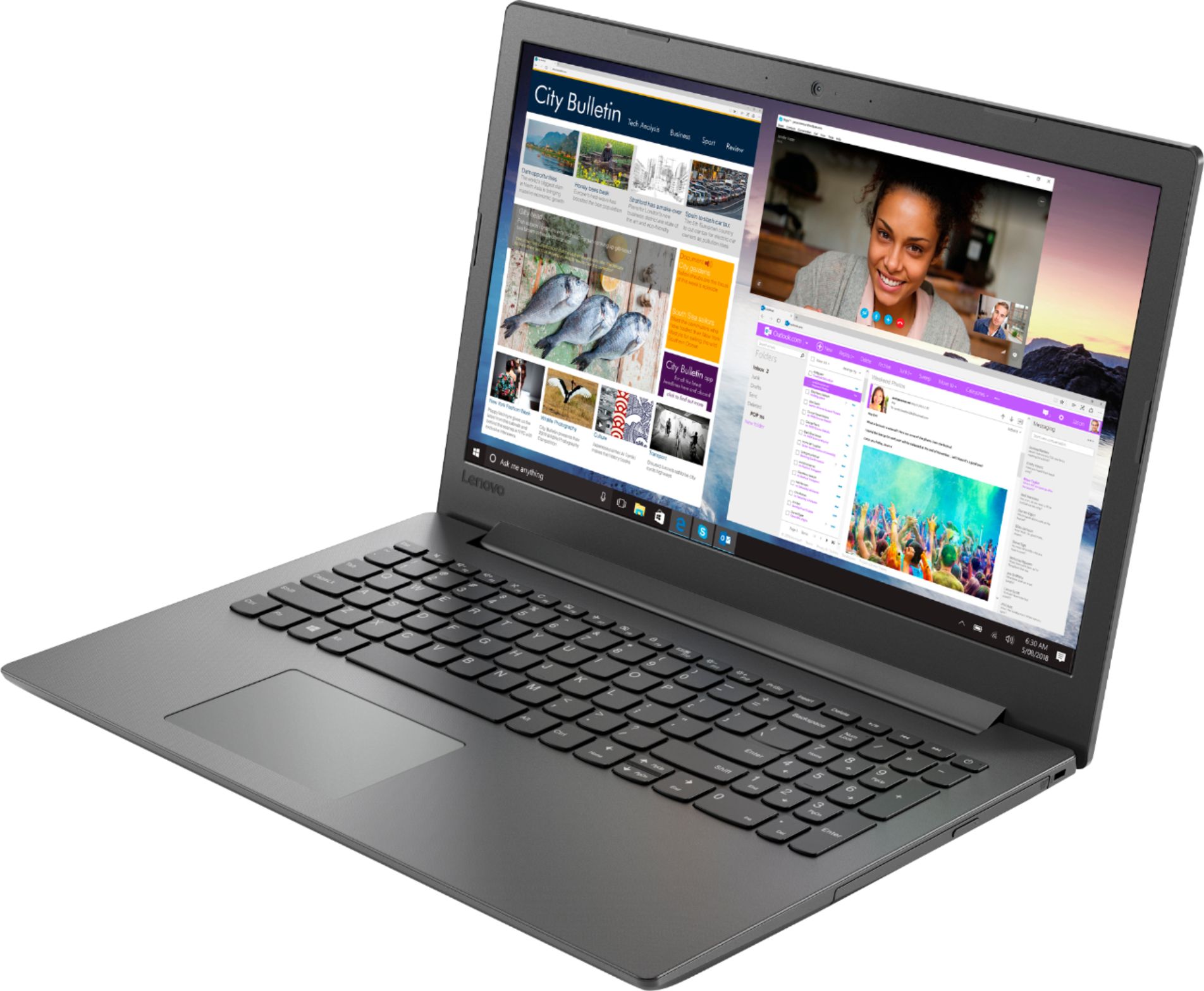
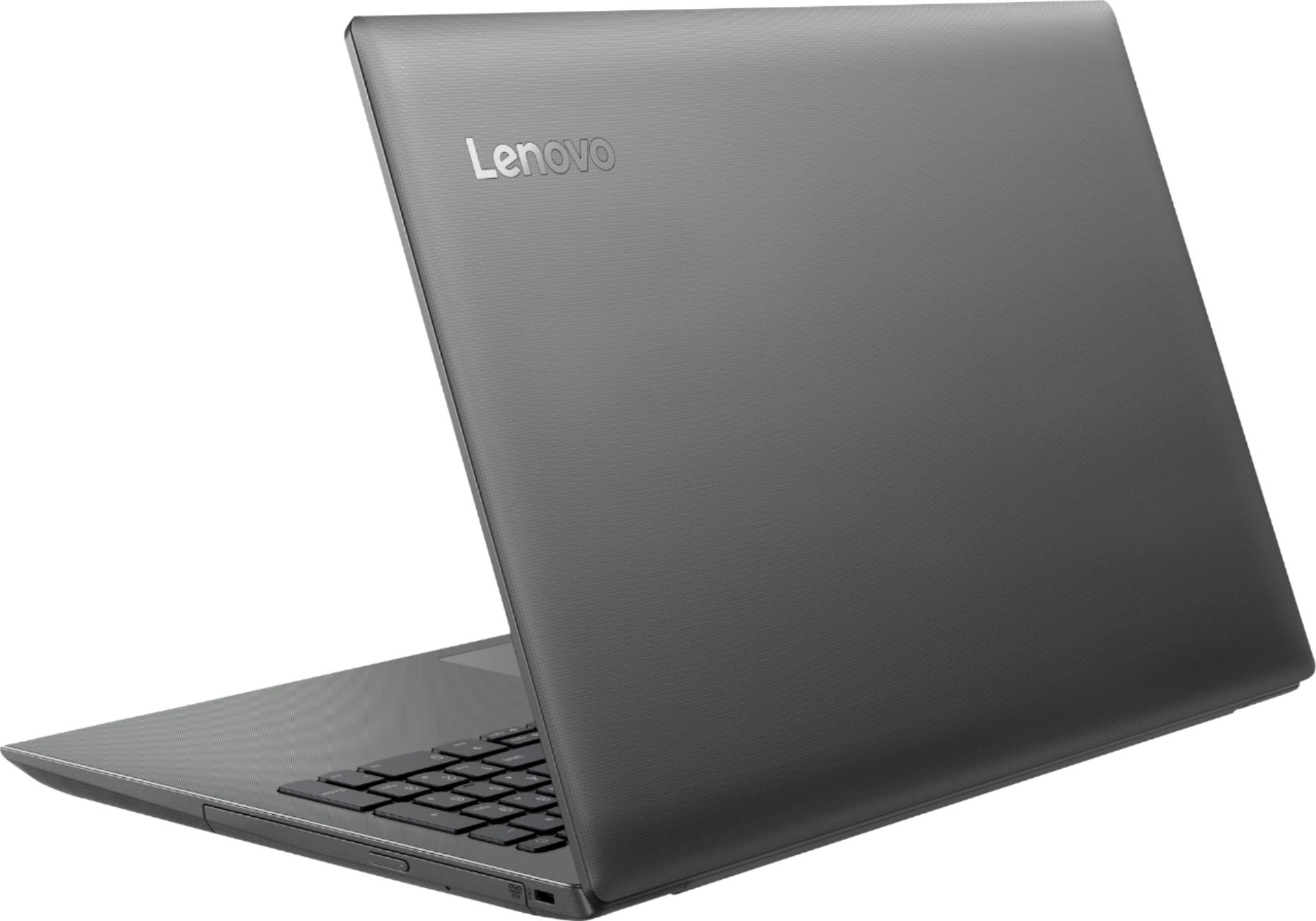
Customers commend the IdeaPad 130 for its budget-friendly price, with many stating it's worth the cost. The 15.6-inch screen size is also well-received, as are the inclusion of a DVD drive and solid-state storage. However, the laptop is criticized for its slow performance, short battery life, and limited RAM.
This summary was generated by AI based on customer reviews.
STAY AWAY FROM SOLID STATE
Posted .This reviewer received promo considerations or sweepstakes entry for writing a review.Bought two of these last year for my kids. As soon as they Boot it up they required an upgrade to Windows 10 which was too much for the operating system and memory that its installed. You can't upgrade. These became immediately worthless
No, I would not recommend this to a friendBrand response from Lenovo Product Expert
Posted .We are sorry to hear that you are having issues updating Windows 10. Updates to Windows 10 are normal. Windows 10 will automatically update to the latest version available during the initial activation of Windows 10. If you are having issues with the update process, try using the Lenovo Utility software installed on the computer to the latest version of Windows 10. This system has Lenovo utilities installed to help maintain the health of the device and keep the operating system software up to date. Type "Lenovo Vantage" in the Cortana Search window (if Lenovo Vantage is not installed on your device, you can download the APP and install it now). Select Lenovo Vantage from the list. In the window that opens, click on "Health and Support". In the expanded menu, select "Hardware Scan" In the window that opens, select "Run Quick Tests". This will scan your entire system for errors. Follow any directions that may pop up. If the problem continues after this scan, now click on "System Update". First select Windows update from the menu. Scan your system to be sure you have the latest version of Windows 10. Once that scan is complete, select "Additional Updates". This will scan your device to be sure there are no new BIOS/Driver updates needed. Follow any instructions that may pop up. If the issue still continues after these updates, we recommend you call Lenovo Tech Support at: 877-453-6686 for additional help

Trash
Posted .This reviewer received promo considerations or sweepstakes entry for writing a review.Laptop was complete garbage. Third time I used it, I got the blue screen of death. Best Buy tech said, “it is just updating itself.” 20 mins later still did not a home screen. Don’t waste your time or money.
No, I would not recommend this to a friendBrand response from Lenovo Product Expert
Posted .We are sorry to hear that you are having issues with a Windows 10 update completing on your Lenovo IdeaPad 130-15 laptop. First, be sure any software you installed is compatible with Windows 10. There is no need to install Microsoft Office software. The software is already part of the operating system, you just need to activate the software with a purchased product key. If you have installed a copy of Microsoft Office, this is conflicting with the existing copy on the system and this will slow your system down. If you have installed a 3rd party anti-virus program, be sure that Windows Defender is turned off and that the trial version of McAfee Anti-Virus software is uninstalled. There can only be one anti-virus program on the system. You may need to restore your system to original factory default settings if any of the programing errors have occurred. You can do that by typing "restore" in the Cortana search window. Just click on the magnifying glass icon at the bottom left of your Windows 10 Desktop. Click on "Reset This PC" Then click on "Get Started" and follow the on screen directions to restore to factory defaults. If you can no longer boot the computer to the Windows 10 desktop to restore the device, this system is equipped with OneKey Recovery System. There is a very small pin hole on the left side of the device, right near the headphone jack on the device. You will need a pin to push this reset button. Plug the device in. Let the battery charge for about 15 minutes. Push the reset button. The system should boot to a choice screen where you can choose "Restore To Factory Default". Select this. It will delete everything from the hard drive except the original factory install of the operating system. You will need to reinstall all programs and files after the reset. If you don't have copies of the files, try to make one before you restore by selecting "Boot to desktop" and trying to back up your files. If the problem persists after the factory reset, we recommend you contact Lenovo Tech Support at: 877-453-6686. For 2018, Lenovo retained its place for a second year as the best laptop vendor:
https://www.laptopmag.com/articles/laptop-brand-ratings
Horrible
Posted .This reviewer received promo considerations or sweepstakes entry for writing a review.I just got the laptop today and the mousepad does NOT work!!!
No, I would not recommend this to a friendBrand response from Lenovo Product Expert
Posted .We are sorry to hear that you are having issues with the touchpad on your lenovo IdeaPad 130-15 laptop. First, try tapping the HotKey in the F6 position on your keyboard. This HotKey toggles the touchpad on/off. Second, if the F6 HotKey does fix the issue, this system has Lenovo utilities installed to help maintain the health of the device and keep the operating system software up to date. Type "Lenovo Vantage" in the Cortana Search window (if Lenovo Vantage is not installed on your device, you can download the APP and install it now). Select Lenovo Vantage from the list. In the window that opens, click on "Health and Support". In the expanded menu, select "Hardware Scan" In the window that opens, select "Run Quick Tests". This will scan your entire system for errors. Follow any directions that may pop up. If the problem continues after this scan, now click on "System Update". First select Windows update from the menu. Scan your system to be sure you have the latest version of Windows 10. Once that scan is complete, select "Additional Updates". This will scan your device to be sure there are no new BIOS/Driver updates needed. Follow any instructions that may pop up. If the issue still continues after these updates, we recommend you call Lenovo Tech Support at: 877-453-6686 for additional help.