Customer Ratings & Reviews
Rating by feature
- Value
Rating 4.2 out of 5 stars
- Quality
Rating 4.0 out of 5 stars
- Ease of Use
Rating 4.3 out of 5 stars
Customers are saying
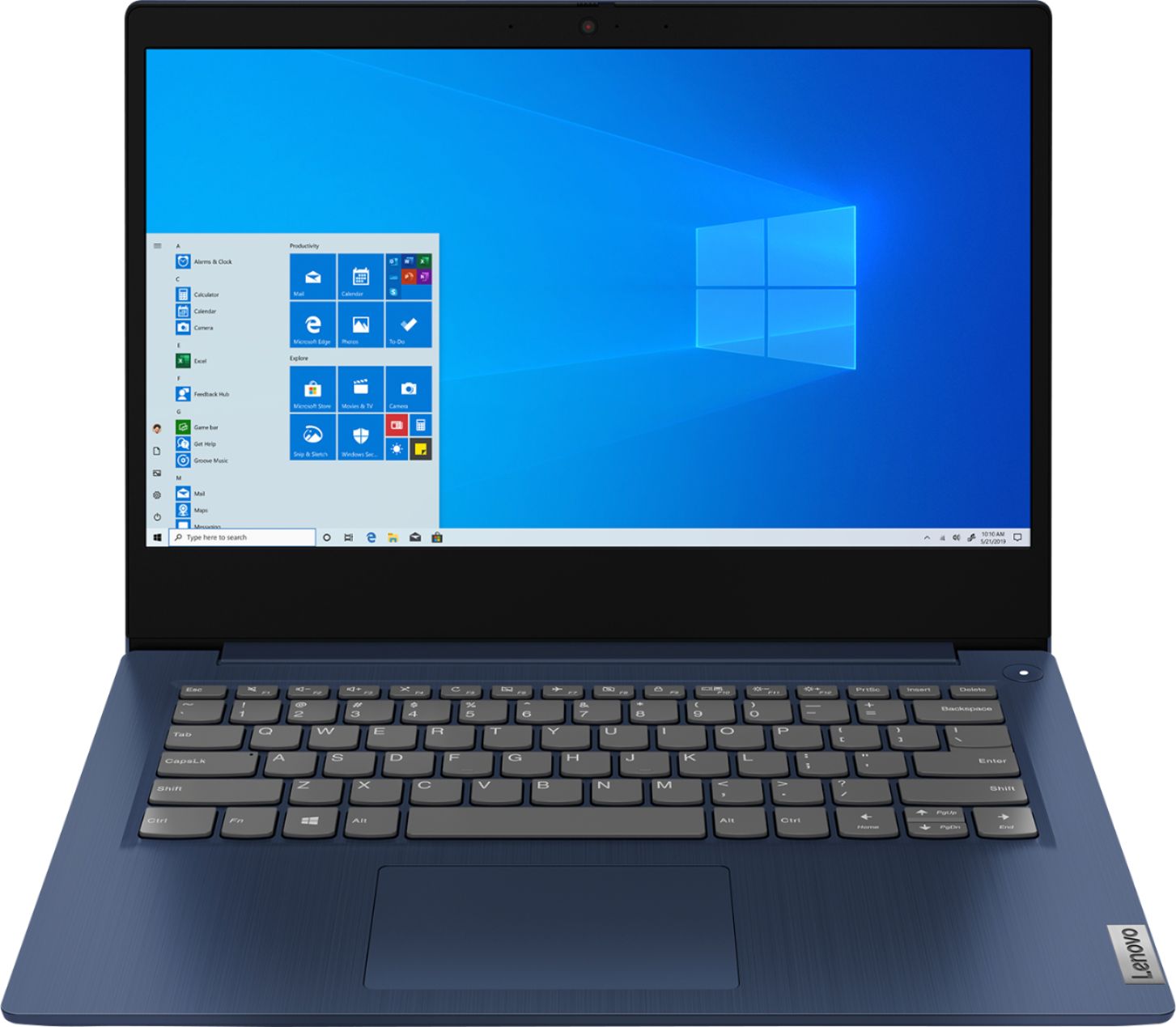
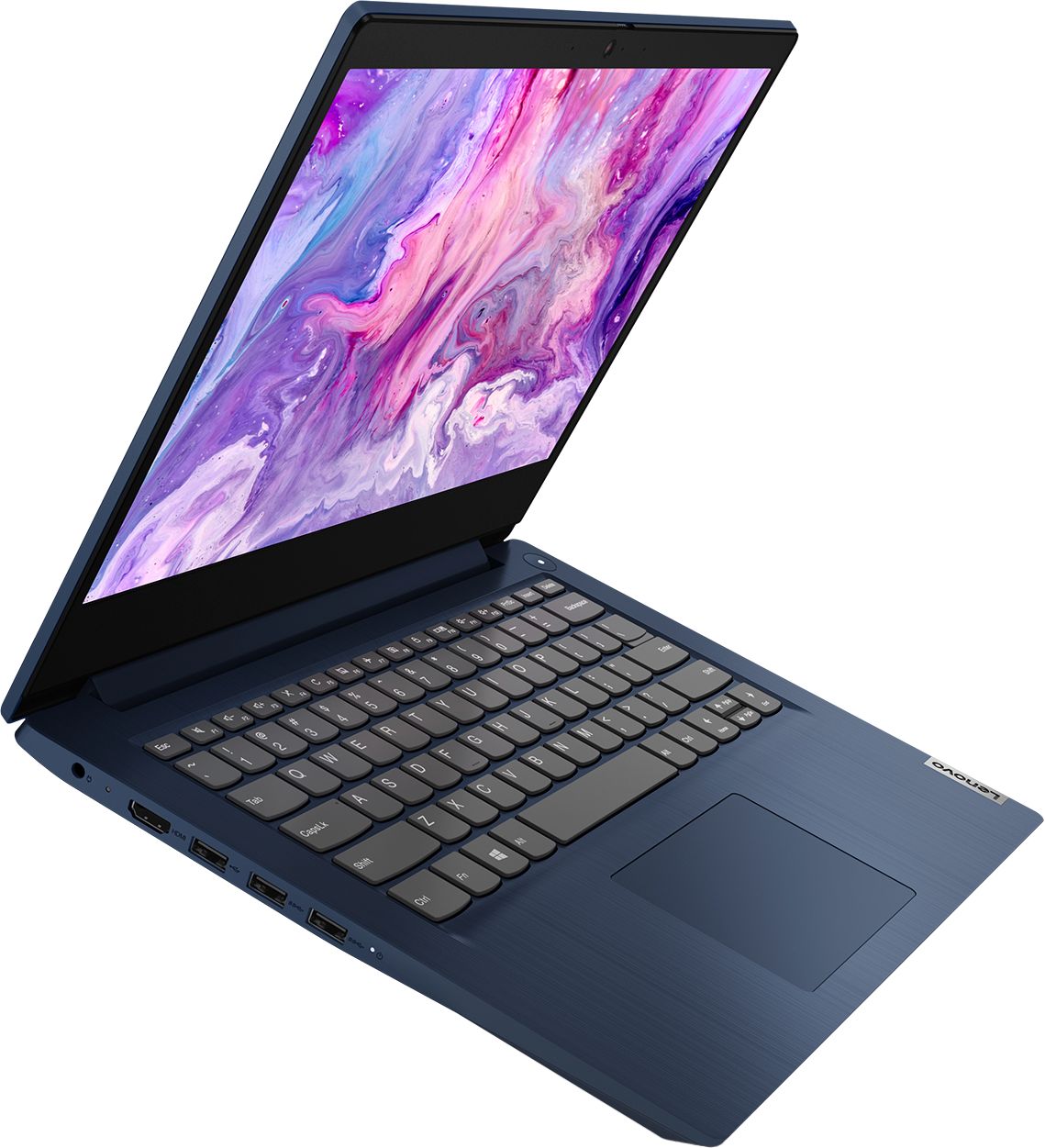
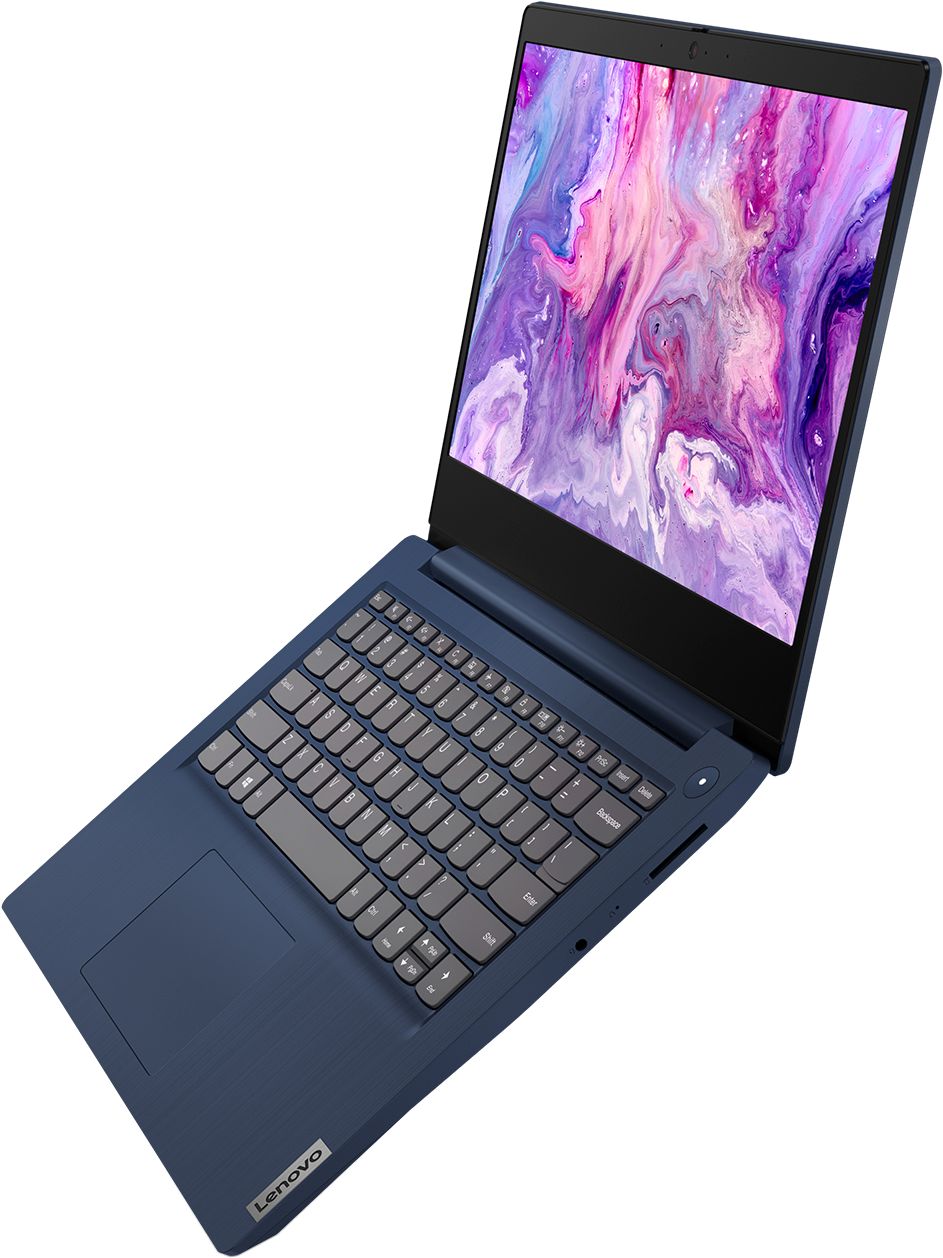
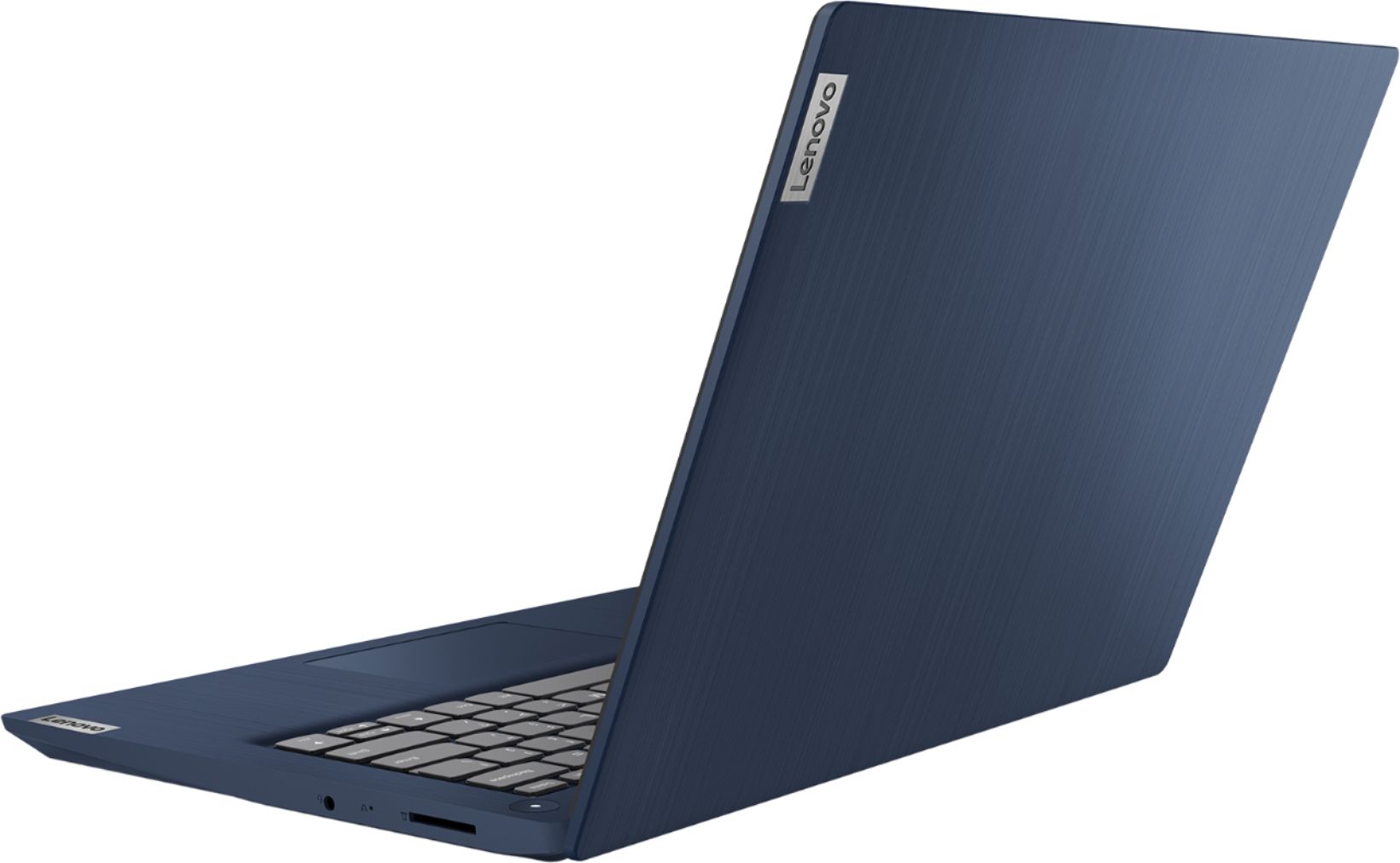
Customers are impressed with the IdeaPad 3 14" Laptop's affordable price, lightweight design, and large storage capacity. It is suitable for everyday tasks, schoolwork, and even gaming. However, some users have concerns about its slow performance, short battery life, and occasional camera issues.
This summary was generated by AI based on customer reviews.
- Pros mentioned:Lightweight
good computer
||Posted . Owned for 1 month when reviewed.This reviewer received promo considerations or sweepstakes entry for writing a review.I enjoy the computer. It is easy to use. The computer is lightweight and easy to take with me.
I would recommend this to a friendBrand response from Lenovo Product Expert
Posted .Thank you for choosing the Lenovo IdeaPad 3 laptop. We are pleased to hear that the value and performance of the IdeaPad 3 meets your computing needs so well!

Blue Screen of Death 3 Times
||Posted . Owned for 2 weeks when reviewed.This reviewer received promo considerations or sweepstakes entry for writing a review.I bought this computer and it went to the Blue Screen of Death within 2 weeks. I return that one, got another one. Happened again. Got a different Lenovo, happened again. Got the same one as the first, happened again. Ended up going with an HP after 4 different computers within 1 month. For the two weeks it worked, it was great but couldn’t process the Microsoft updates and BSOD became the norm with the Lenovo Laptop
No, I would not recommend this to a friendBrand response from Lenovo Product Expert
Posted .We are sorry to hear that you are having issues with your Lenovo IdeaPad 3 14 Laptop, model number 81W0009DUS. Be sure any software you installed is compatible with Windows 10. There is no need to install Microsoft Office software. The software is already part of the operating system, you just need to activate the software with a purchased product key. If you have installed a copy of Microsoft Office, this is conflicting with the existing copy on the system and this will slow your system down. If you have installed a 3rd party anti-virus program, be sure that Windows Defender is turned off and that the trial version of McAfee Anti-Virus software is uninstalled. There can only be one anti-virus program on the system. You may need to restore your system to original factory default settings if any of the programming errors have occurred. You can do that by typing "restore" in the Cortana search window. Just click on the magnifying glass icon at the bottom left of your Windows 10 Desktop. Click on "Reset This PC" Then click on "Get Started" and follow the on screen directions to restore to factory defaults. If the problem persists, we recommend you contact Lenovo Tech Support at: 877-453-6686.
Unhappy with Lenovo product
||Posted . Owned for 1 year when reviewed.This reviewer received promo considerations or sweepstakes entry for writing a review.No idea why this supposedly sure buy has stopped working. Local tech says it needs more power to support system which on paper is not how it presents. Bought for daughter for college use. Hardly used (since she likes her ipad and phone) and now she just watches it hang waiting for something to happen. Looks like just over a year later we have to buy another laptop. :(
No, I would not recommend this to a friendHP computer
||Posted . Owned for 1 week when reviewed.This reviewer received promo considerations or sweepstakes entry for writing a review.Bad quality . It kept on freezing with my boy . He was not able to study online using it . I had to exchange with another computer.
No, I would not recommend this to a friendComputer
||Posted . Owned for 2 months when reviewed.This reviewer received promo considerations or sweepstakes entry for writing a review.Left corner of screen went out we were doing my son school work and left corner of screen went black like digiator went out
No, I would not recommend this to a friendBrand response from Lenovo Product Expert
Posted .We are sorry to hear that you are having issues with the screen on your Lenovo IdeaPad 3 14 Laptop, model number 81W0009DUS. First, Be sure any software you installed is compatible with Windows 10. There is no need to install Microsoft Office software. The software is already part of the operating system, you just need to activate the software with a purchased product key. If you have installed a copy of Microsoft Office, this is conflicting with the existing copy on the system and this will slow your system down. If you have installed a 3rd party anti-virus program, be sure that Windows Defender is turned off and that the trial version of McAfee Anti-Virus software is uninstalled. There can only be one anti-virus program on the system. You may need to restore your system to original factory default settings if any of the programming errors have occurred. You can do that by typing "restore" in the Cortana search window. Just click on the magnifying glass icon at the bottom left of your Windows 10 Desktop. Click on "Reset This PC" Then click on "Get Started" and follow the on screen directions to restore to factory defaults. If the problem persists, we recommend you contact Lenovo Tech Support at: 877-453-6686.
don't recommend
||Posted . Owned for 1 year when reviewed.This reviewer received promo considerations or sweepstakes entry for writing a review.worked good at the beginning to complete my kids online classes, but then it started having trouble to connect to the internet, it doesn't connect for more than 2 minutes when the internet goes out again... not able to use it anymore, had the geek squad warranty, took it to the store 5 times and they never fixed the problem now we are out of warranty
No, I would not recommend this to a friend- Cons mentioned:Slow
Very slow
||Posted . Owned for less than 1 week when reviewed.This reviewer received promo considerations or sweepstakes entry for writing a review.I not happy with it. It's very slow. If I open multiple applications its hangs.
No, I would not recommend this to a friendBrand response from Lenovo Product Expert
Posted .The Lenovo IdeaPad 3 14 Laptop, model number 81W0009DUS is a mid-level, moderate use configuration, with its AMD Ryzen 3 3250U processor. This Dual-Core/Four-Thread processor has a base speed of 2.6GHz and a boost speed of up to 3.4GHz. This configuration has 8GB of DDR4-2400MHz RAM. This model ships with Windows 10 S-Mode Operating System and should not freeze or lag, whether you lease the computer in S-Mode or switch t Windows 10 Home. Be sure any software you installed is compatible with Windows 10. There is no need to install Microsoft Office software. The software is already part of the operating system, you just need to activate the software with a purchased product key. If you have installed a copy of Microsoft Office, this is conflicting with the existing copy on the system and this will slow your system down. If you have installed a 3rd party anti-virus program, be sure that Windows Defender is turned off and that the trial version of McAfee Anti-Virus software is uninstalled. There can only be one anti-virus program on the system. You may need to restore your system to original factory default settings if any of the programming errors have occurred. You can do that by typing "restore" in the Cortana search window. Just click on the magnifying glass icon at the bottom left of your Windows 10 Desktop. Click on "Reset This PC" Then click on "Get Started" and follow the on screen directions to restore to factory defaults. If the problem persists, we recommend you contact Lenovo Tech Support at: 877-453-6686.
- Cons mentioned:Camera
Small and light weight
||Posted . Owned for 1 month when reviewed.This reviewer received promo considerations or sweepstakes entry for writing a review.Small and light weight but had to take back because camera didn't work.
No, I would not recommend this to a friendBrand response from Lenovo Product Expert
Posted .We are sorry to hear that you are having issues with the webcam on your Lenovo IdeaPad 3 14 model number 81W0009DUS. This model ships with a 720p (HD) webcam with manual Privacy Shutter built in. Be sure the Privacy Shutter is completely open before trying to use the webcam or the webcam will not operate. There is a small slider, directly above the webcam lens. Move the tab to the right to open the Privacy Shutter. There is a red dot over the webcam lens that will disappear when the Privacy Shutter is fully open. This will indicate that the webcam is really to use. You can close the Privacy Shutter when you are done with the webcam for your security, by sliding the tab to the left to close the Privacy Shutter. The Red Dot will appear over the webcam lens when the Privacy Shutter is closed. If the issue continues, we recommend you call Lenovo Tech Support at: 877-453-6686.
Affordable but not the best quality
||Posted . Owned for 1.5 years when reviewed.This reviewer received promo considerations or sweepstakes entry for writing a review.Had several problems with this computer within 30 days of purchase for my son.
No, I would not recommend this to a friendWorst Laptop in the World.
||Posted . Owned for 8 months when reviewed.This reviewer received promo considerations or sweepstakes entry for writing a review.I had to return this item because after a short while it stopped working. It actually stopped working and you could not do anything with it. The quality isn't that good and teams had a hard time. The camera and screen are rather dark. It's hard for kids to see the screen. I would not recommend this product under any circumstances.
No, I would not recommend this to a friend- Cons mentioned:Battery life
Poor quality battery.
||Posted . Owned for 4 months when reviewed.This reviewer received promo considerations or sweepstakes entry for writing a review.Battery stopped holding a charge within 4 months of purchase.
No, I would not recommend this to a friendBrand response from Lenovo Product Expert
Posted .Hello, we are sorry to hear yo are experiencing an issue with the battery on your Lenovo IdeaPad 3 14" laptop model # 81W0009DUS. Hello. This unit has a battery life of up to 7.5 hours. If you are getting substantially less battery life, please adjust your screen brightness settings. A setting of 100% brightness will drain your battery much faster than a lower setting. We recommend setting the screen brightness to some value below 100% that is still comfortable for you to view. Next be sure Battery conservation Mode is turned off. This power management setting should only be used when the laptop is plugged in all the time. It will prolong overall battery life by only charging the battery to 60-percent of capacity. Here is a link to instructions for turning off Battery Conservation Mode: https://support.lenovo.com/us/en/solutions/ht103159. Also check what programs are running in the background on the computer. Be sure only the programs you want running in the background are. These programs will drain the battery. Here is a link to information about how to find out what programs are running in the background on your Windows 10 computer and how to manage them for better system performance: https://www.windowscentral.com/how-prevent-apps-running-background-windows-10. Then, finally, be sure any software you installed is compatible with Windows 10. Incompatible software will drain the battery at a faster rate. There is no need to install Microsoft Office software. The software is already part of the operating system, you just need to activate the software with a purchased product key. If you have installed a copy of Microsoft Office, this is conflicting with the existing copy on the system and this will slow your system down. If you have installed a 3rd party anti-virus program, be sure that Windows Defender is turned off and that the trial version of McAfee Anti-Virus software is uninstalled. There can only be one anti-virus program on the system. You may need to restore your system to original factory default settings if any of the programming errors have occurred. You can do that by typing "restore" in the Cortana search window. Just click on the magnifying glass icon at the bottom left of your Windows 10 Desktop. Click on "Reset This PC" Then click on "Get Started" and follow the on screen directions to restore to factory defaults. If the problem persists, we recommend you contact Lenovo Tech Support at: 877-453-6686
No sound
||Posted . Owned for 3 months when reviewed.This reviewer received promo considerations or sweepstakes entry for writing a review.Came with sound not working tried everything still couldn’t get the sound to work
No, I would not recommend this to a friendBrand response from Lenovo Product Expert
Posted .We are sorry to hear that you are having issues with the system audio within your Lenovo IdeaPad 3 14 Laptop, model number 81W0009DUS. First, tap the HotKey in the F1 position on your keyboard. This toggles the system audio on/off. Then tap the HotKey in the F3 position, this will increase the volume of the system audio. If this does not correct the problem, now check to be sure you have the latest version of Windows 10 on the computer. Then update all BIOS files and drivers up to this latest version of Windows 10. You can easily accomplish this by scanning the computer with the Lenovo Utility software available on this computer. This system has Lenovo utilities installed to help maintain the health of the device and keep the operating system software up to date. Type "Lenovo Vantage" in the Cortana Search window (if Lenovo Vantage is not installed on your device, you can download the APP and install it now). Select Lenovo Vantage from the list. In the window that opens, click on "Health and Support". In the expanded menu, select "Hardware Scan" In the window that opens, select "Run Quick Tests". This will scan your entire system for errors. Follow any directions that may pop up. If the problem continues after this scan, now click on "System Update". First select Windows update from the menu. Scan your system to be sure you have the latest version of Windows 10. Once that scan is complete, select "Additional Updates". This will scan your device to be sure there are no new BIOS/Driver updates needed. Follow any instructions that may pop up. If the issue still continues after these updates, we recommend you call Lenovo Tech Support at: 877-453-6686 for additional help.
- Cons mentioned:Slow
Slow computer, dont know where the 8 gb of ram are
||Posted . Owned for 2 months when reviewed.This reviewer received promo considerations or sweepstakes entry for writing a review.Slow computer and stopped working after two months.
No, I would not recommend this to a friendBrand response from Lenovo Product Expert
Posted .We are sorry to hear that you are having issues with your Lenovo IdeaPad 3 14 Laptop, model number 81W0009DUS. This model ships with Windows 10 S-Mode Operating System. Windows 10 S-Mode provides added security by only allowing APPs available ( and therefore certified by Microsoft) at the Microsoft Store. If you don't need the added security or you need to install APPs not available at the Microsoft Store, you can switch to standard Windows 10 Home 64-bit Operating System, at no additional cost. Even if you have switched out of S-Mode, Be sure any software you installed is compatible with Windows 10. There is no need to install Microsoft Office software. The software is already part of the operating system, you just need to activate the software with a purchased product key. If you have installed a copy of Microsoft Office, this is conflicting with the existing copy on the system and this will slow your system down. If you have installed a 3rd party anti-virus program, be sure that Windows Defender is turned off and that the trial version of McAfee Anti-Virus software is uninstalled. There can only be one anti-virus program on the system. You may need to restore your system to original factory default settings if any of the programming errors have occurred. You can do that by typing "restore" in the Cortana search window. Just click on the magnifying glass icon at the bottom left of your Windows 10 Desktop. Click on "Reset This PC" Then click on "Get Started" and follow the on screen directions to restore to factory defaults. If you can no longer boot the computer, this system is equipped with OneKey Recovery System. There is a very small pin hole on the right side of the device, right in between the headphone jack and the SD card reader on the device. You will need a pin to push this reset button. Plug the device in. Let the battery charge for about 15 minutes. Push the reset button. The system should boot to a choice screen where you can choose "Restore To Factory Default". Select this. It will delete everything from the hard drive except the original factory install of the operating system. You will need to reinstall all programs and files after the reset. If you don't have copies of the files, try to make one before you restore by selecting "Boot to desktop" and trying to back up your files. If the problem persists after the factory reset, we recommend you contact Lenovo Tech Support at: 877-453-6686.
very clumsy
||Posted . Owned for 1 month when reviewed.This reviewer received promo considerations or sweepstakes entry for writing a review.hope it doesn't take as long as I think it's going to get use to it.
No, I would not recommend this to a friendOk for the my nephew
||Posted . Owned for 1 month when reviewed.This reviewer received promo considerations or sweepstakes entry for writing a review.Good product so far not had to long to give more information
I would recommend this to a friendWe didn't like it
||Posted . Owned for 3 weeks when reviewed.This reviewer received promo considerations or sweepstakes entry for writing a review.Because friends told us about him not strong for children
I would recommend this to a friendBrand response from Lenovo Product Expert
Posted .The Lenovo IdeaPad 3 14 Laptop, model number 81W0009DUS, is a mid-level, moderate use configuration, with its AMD Ryzen 3 3250U processor. This Dual-Core/Four-Thread processor has a base speed of 2.6GHz and a boost speed of up to 3.4GHz. This configuration has 8GB of DDR4-2400MHz RAM. It is good with Microsoft Office type programs, internet browsing and other moderate work. This model ships with Windows 10 S-Mode Operating System. Windows 10 S-Mode provides added security by only allowing APPs available ( and therefore certified by Microsoft) at the Microsoft Store. If you don't need the added security or you need to install APPs not available at the Microsoft Store, you can switch to standard Windows 10 Home 64-bit Operating System, at no additional cost.
Item was defective again
||Posted . Owned for 2 weeks when reviewed.This reviewer received promo considerations or sweepstakes entry for writing a review.I’ve purchased this item BRAND NEW and once received the screen didn’t come. I brought it back once again after 3 separate purchase and still no success. I got a refund. Will no longer by another from Best Buy. Whet to Walmart and purchase a laptop from them.
No, I would not recommend this to a friendNo Power No Blue Light - Dead within one year
||Posted . Owned for 1 year when reviewed.This reviewer received promo considerations or sweepstakes entry for writing a review.Within ONE year laptop stopped working. No Power No Blue light. Did all basic troubleshoot including taking out battery and then press power button for 1 mins. nothing worked. Not sure about the issue. Not able to boot
No, I would not recommend this to a friendlaptop purchase is a total waste of money
||Posted . Owned for 1 month when reviewed.This reviewer received promo considerations or sweepstakes entry for writing a review.This laptop is not working properly, since I got it, it has been failing. I can not even turn it on because it immediately turns the screen totally blue. I honestly would not recommend this laptop to anyone. It was a waste of money.
No, I would not recommend this to a friendBrand response from Lenovo Product Expert
Posted .We are sorry to hear that you are having issues with your Lenovo IdeaPad 3 14 Laptop, model number 81W0009DUS. This configuration ships with Windows 10 S-Mode and should not fail. It is possible that restoring the computer back to original factory settings may correct the issue you describe. Since you can no longer boot the computer, this system is equipped with OneKey Recovery System. There is a very small pin hole on the right side of the device, right in between the headphone jack and the SD card slot on the device. You will need a pin to push this reset button. Plug the device in. Let the battery charge for about 15 minutes. Push the reset button. The system should boot to a choice screen where you can choose "Restore To Factory Default". Select this. It will delete everything from the hard drive except the original factory install of the operating system. You will need to reinstall all programs and files after the reset. If you don't have copies of the files, try to make one before you restore by selecting "Boot to desktop" and trying to back up your files. Once you have the computer reset, be sure any software you installed is compatible with Windows 10. There is no need to install Microsoft Office software. The software is already part of the operating system, you just need to activate the software with a purchased product key. If you have installed a copy of Microsoft Office, this is conflicting with the existing copy on the system and this will slow your system down. If you have installed a 3rd party anti-virus program, be sure that Windows Defender is turned off and that the trial version of McAfee Anti-Virus software is uninstalled. There can only be one anti-virus program on the system. You may need to restore your system to original factory default settings if any of the programming errors have occurred. You can do that by typing "restore" in the Cortana search window. Just click on the magnifying glass icon at the bottom left of your Windows 10 Desktop. Click on "Reset This PC" Then click on "Get Started" and follow the on screen directions to restore to factory defaults. If the problem persists, we recommend you contact Lenovo Tech Support at: 877-453-6686.
I used it 5 times and it is already broken
||Posted . Owned for 1 month when reviewed.This reviewer received promo considerations or sweepstakes entry for writing a review.I bought it 1 month ago and used it 5 times and now it won't load due to a hard drive issue. Hopefully they will replace/fix/refund my purchase. Do not buy.
No, I would not recommend this to a friendBrand response from Lenovo Product Expert
Posted .We are sorry to hear that you are having an issue with your Lenovo IdeaPad 3 14 Laptop, model number 81W0009DUS. It is possible that restoring your computer back to original factory settings may fix the issue. Since you can not boot the computer any longer, this system is equipped with OneKey Recovery System. There is a very small pin hole on the right side of the device, right near the headphone jack on the device. You will need a pin to push this reset button. Plug the device in. Let the battery charge for about 15 minutes. Push the reset button. The system should boot to a choice screen where you can choose "Restore To Factory Default". Select this. It will delete everything from the hard drive except the original factory install of the operating system. You will need to reinstall all programs and files after the reset. If you don't have copies of the files, try to make one before you restore by selecting "Boot to desktop" and trying to back up your files. Once you have the computer reset, be sure any software you installed is compatible with Windows 10. There is no need to install Microsoft Office software. The software is already part of the operating system, you just need to activate the software with a purchased product key. If you have installed a copy of Microsoft Office, this is conflicting with the existing copy on the system and this will slow your system down. If you have installed a 3rd party anti-virus program, be sure that Windows Defender is turned off and that the trial version of McAfee Anti-Virus software is uninstalled. There can only be one anti-virus program on the system. You may need to restore your system to original factory default settings if any of the programming errors have occurred. You can do that by typing "restore" in the Cortana search window. Just click on the magnifying glass icon at the bottom left of your Windows 10 Desktop. Click on "Reset This PC" Then click on "Get Started" and follow the on screen directions to restore to factory defaults. If the problem persists, we recommend you contact Lenovo Tech Support at: 877-453-6686.