Customer Ratings & Reviews


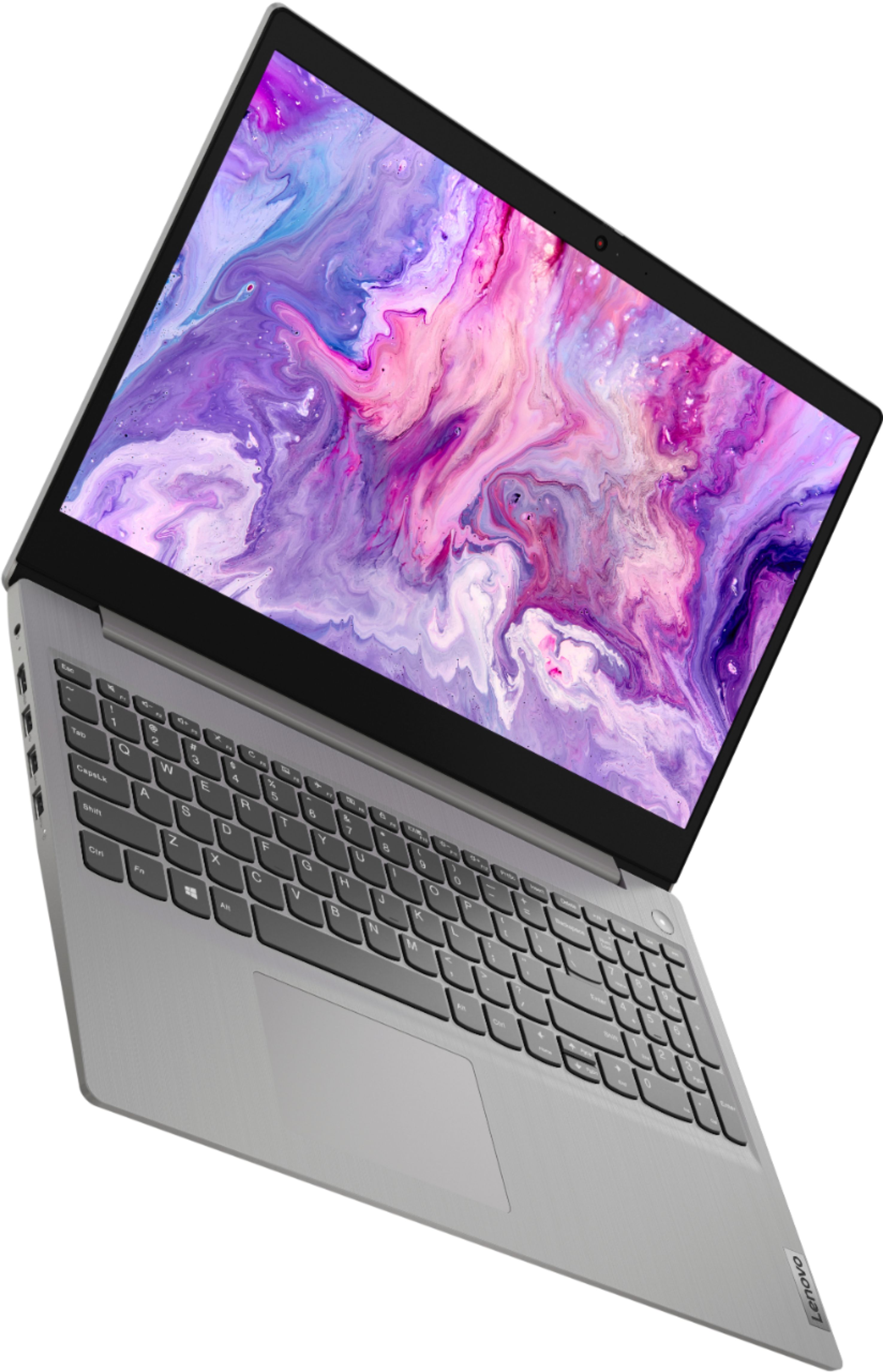
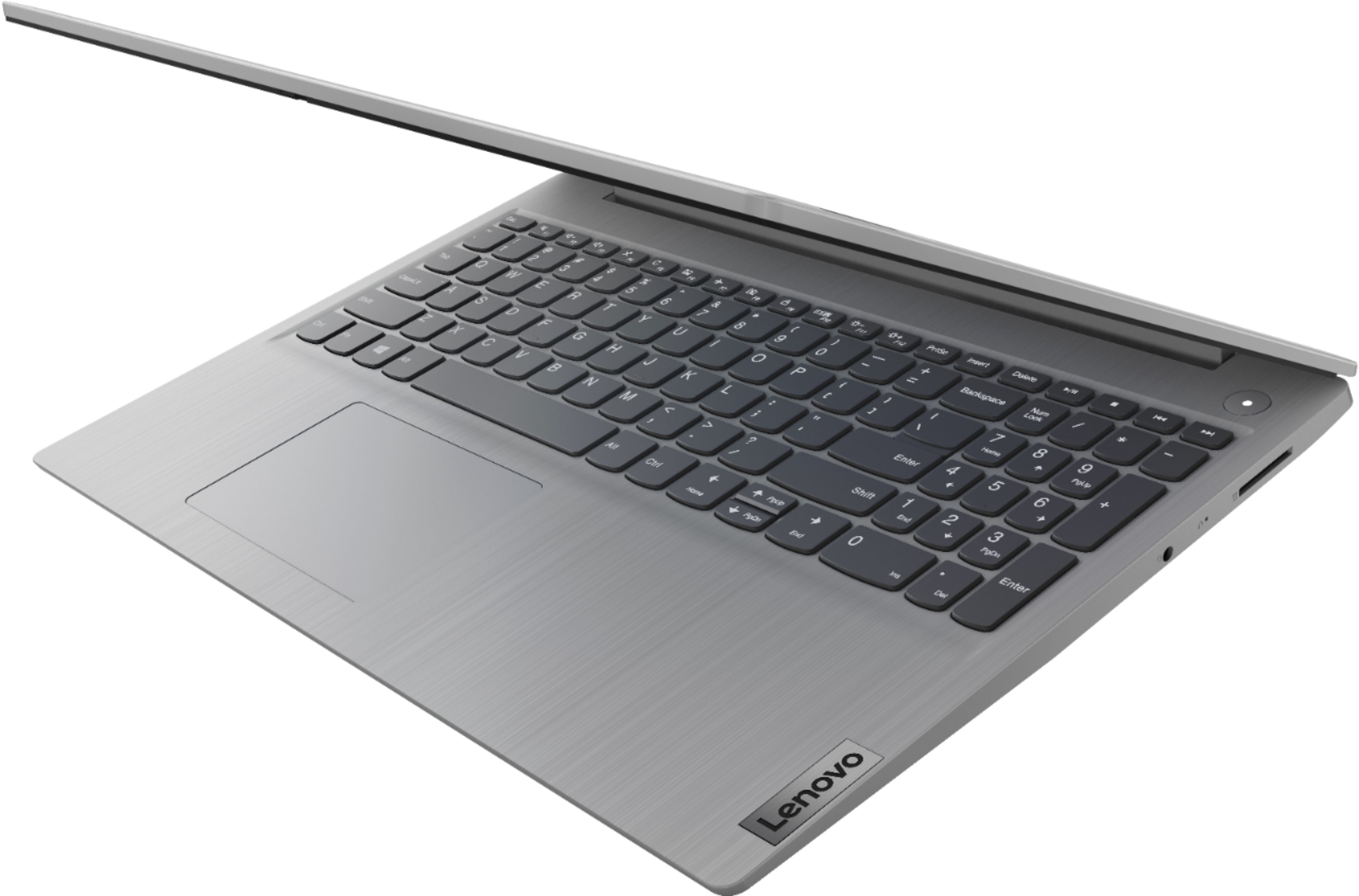
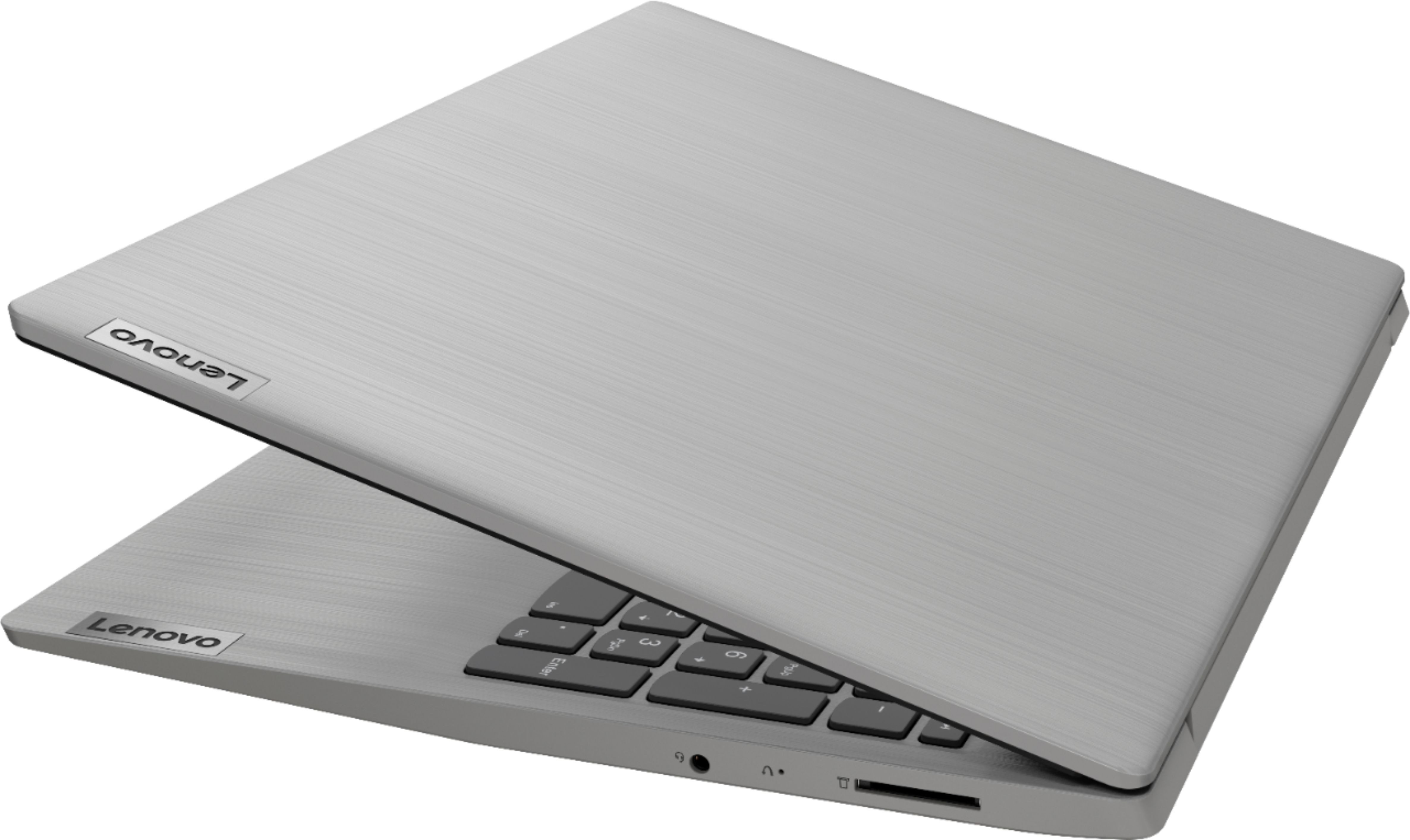
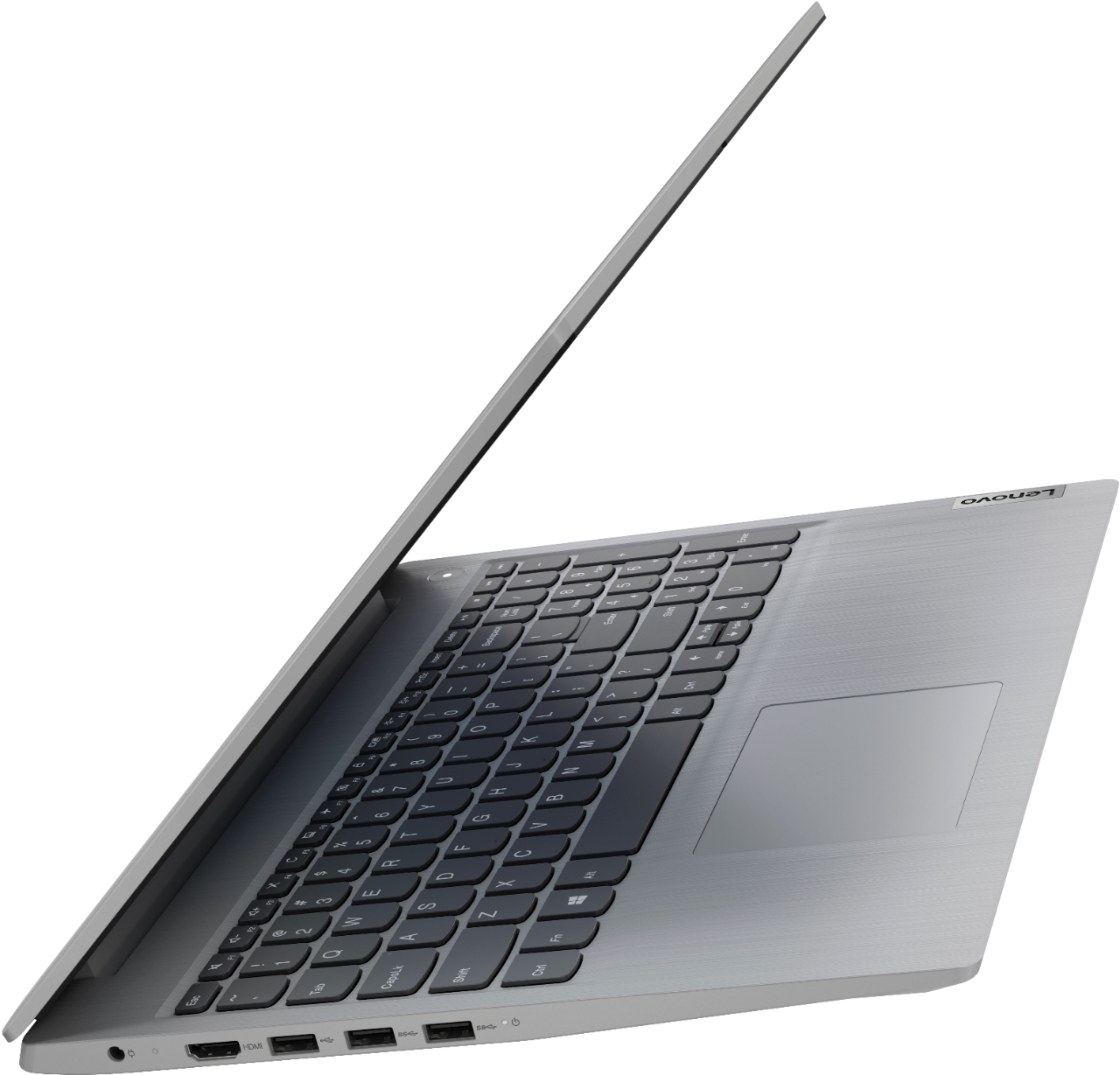

- Model:
- 81W1018XUS
- SKU:
- 6449503
Rating by feature
- Battery Life
Rating 4.3 out of 5 stars
- Speed
Rating 4.4 out of 5 stars
- Display
Rating 4.5 out of 5 stars
Customers are saying
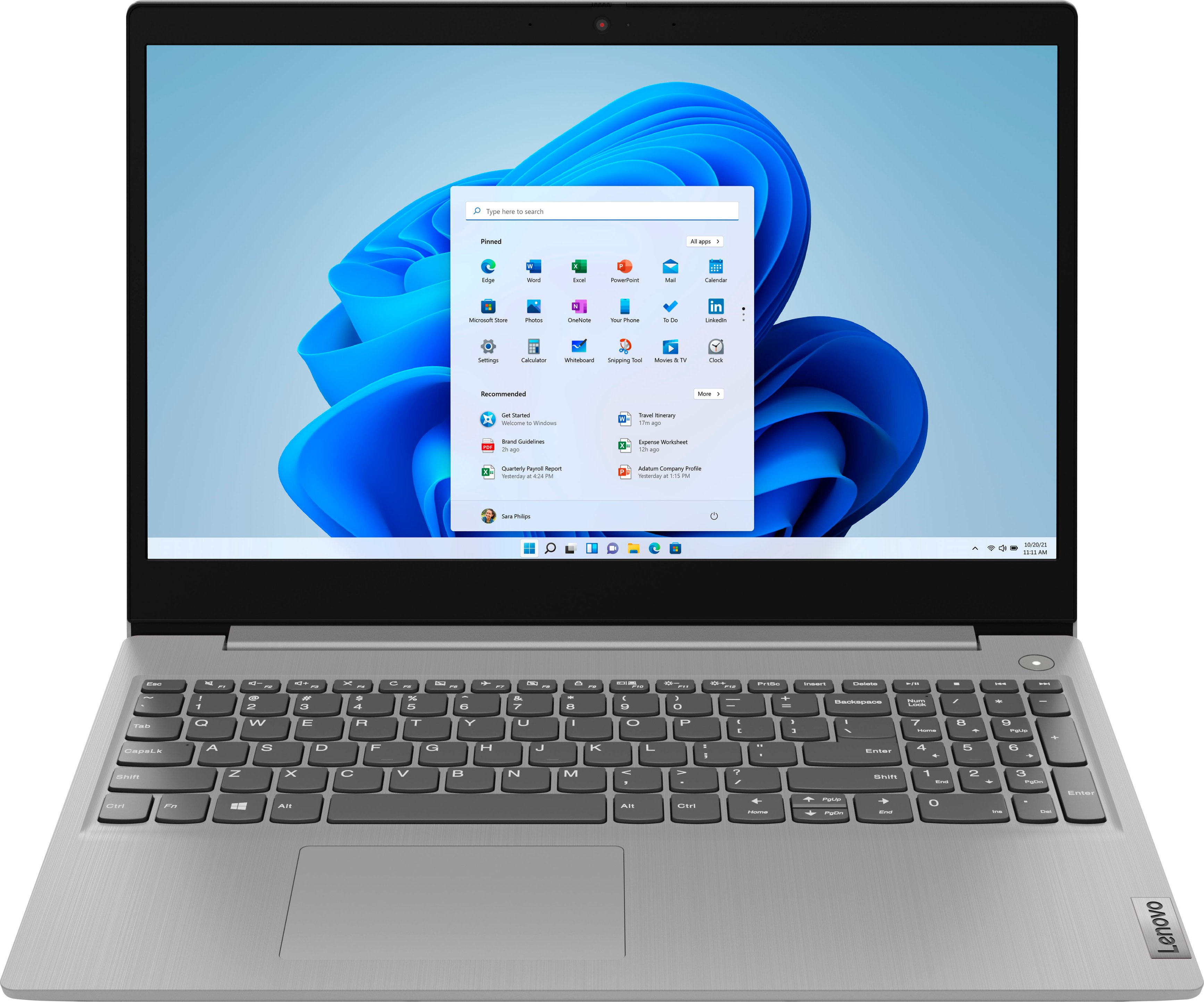
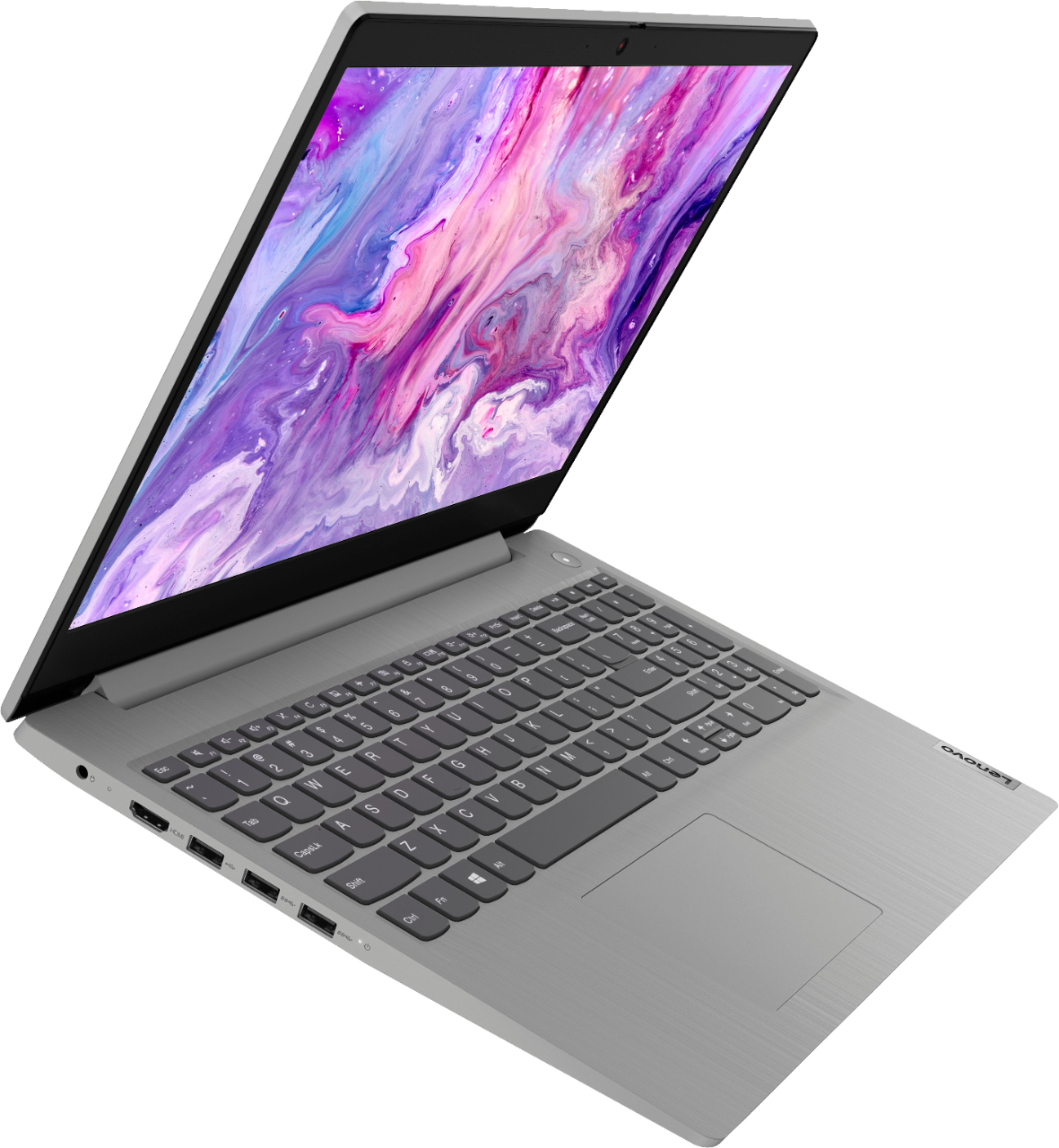
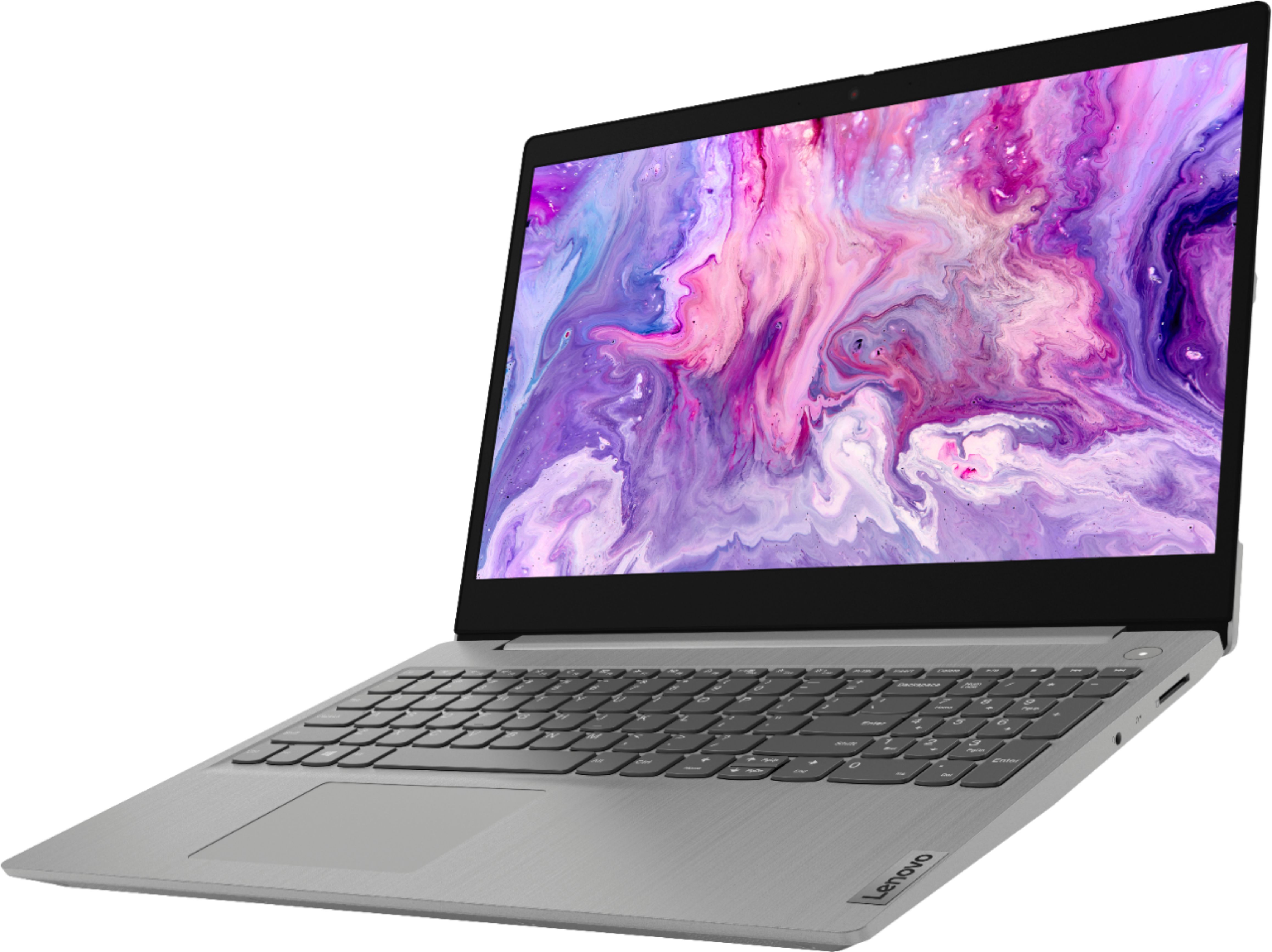
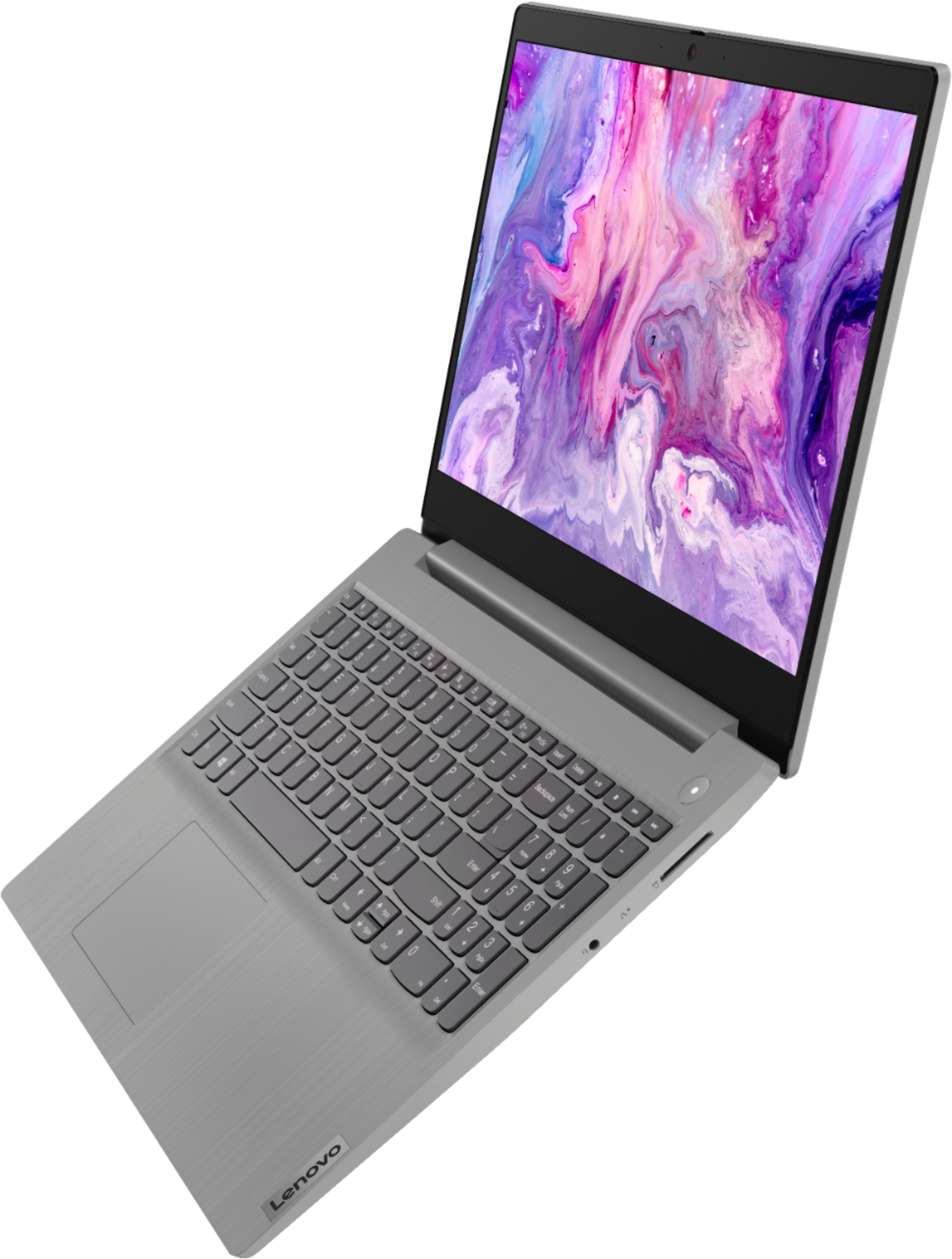
Customers appreciate the Ideapad 3 15 for its budget-friendly price, fast performance, and lightweight design. Many users find the large screen and storage capacity to be adequate for their needs. While some users have concerns about battery life and memory, overall, customers are generally satisfied with the laptop's performance and value for the price.
This summary was generated by AI based on customer reviews.
- Cons mentioned:Customer service
??
||Posted .This reviewer received promo considerations or sweepstakes entry for writing a review.Lenovo laptop just purchased at Best Buy online won't stay connected to internet. May need drivers updated. Took laptop to BestBuy in Prescott AZ and asked to drop off computer and have them check it out Geek squad representative refused to accept it. Told me I would have to make an appointment and bring it back three days later and then leave it for a week. I cannot leave it that long. Spoke to on duty manager but she didn't offer to help. Emailed store manager David Taylor but no response. Very dissatisfied with this store.
No, I would not recommend this to a friendBrand response from Lenovo Product Expert
Posted .We are sorry to hear that you are having issues with your Lenovo IdeaPad 3 15 Laptop, model number 81W1018XUS. This model ships with 2x2 802.11ac frequency WiFi for long range, high speed WiFi connectivity. It is also backward compatible to older a/b/g/n frequency WiFi. If you are having issues with your WiFi signal, first try turning your home WiFi router on/off and let the new laptop once again search for available WiFi signals. This should fix any connectivity issues. If the issue continues, now check to be sure you have the latest version of Windows 10 on the computer. Then update all BIOS files and drivers up to that latest version of Windows 10. You can easily accomplish this by scanning the computer with the Lenovo Utility software available on this computer. This system has Lenovo utilities installed to help maintain the health of the device and keep the operating system software up to date. Type "Lenovo Vantage" in the Cortana Search window (if Lenovo Vantage is not installed on your device, you can download the APP and install it now). Select Lenovo Vantage from the list. In the window that opens, click on "Health and Support". In the expanded menu, select "Hardware Scan" In the window that opens, select "Run Quick Tests". This will scan your entire system for errors. Follow any directions that may pop up. If the problem continues after this scan, now click on "System Update". First select Windows update from the menu. Scan your system to be sure you have the latest version of Windows 10. Once that scan is complete, select "Additional Updates". This will scan your device to be sure there are no new BIOS/Driver updates needed. Follow any instructions that may pop up. If the issue still continues after these updates, we recommend you call Lenovo Tech Support at: 877-453-6686 for additional help.

Perfect Laptop
||Posted . Owned for 1 month when reviewed.This reviewer received promo considerations or sweepstakes entry for writing a review.Exactly what we were looking for in a laptop!!!!!!
I would recommend this to a friendBrand response from Lenovo Product Expert
Posted .Thank you for choosing the Lenovo IdeaPad 3 15 laptop. We are pleased to hear that the Ideapad 3 15 meets your computing needs so well.
Solid
||Posted .This reviewer received promo considerations or sweepstakes entry for writing a review.Solid product, no regrets buying this for school!.
I would recommend this to a friendBrand response from Lenovo Product Expert
Posted .Thank you for choosing the Lenovo IdeaPad 3 15 laptop. We are pleased to hear that the IdeaPad 3 15 meets your computing needs so well.
Good lapto
||Posted . Owned for 1 month when reviewed.This reviewer received promo considerations or sweepstakes entry for writing a review.The only thing is you can’t get spread sheet for free
I would recommend this to a friendBrand response from Lenovo Product Expert
Posted .The Lenovo IdeaPad 3 15 Laptop, model number 81W1018XUS, ships with a 30-day trial of Microsoft Office 365 included as part of the Windows 10 operating system. In order to keep the program active after the trial period, you will need to purchase a product key. You will not need to download any additional software.
Bacco
||Posted . Owned for 1 month when reviewed.This reviewer received promo considerations or sweepstakes entry for writing a review.Very happy with my new computer so far. No complaints.
I would recommend this to a friendAffordable
||Posted . Owned for 1 week when reviewed.This reviewer received promo considerations or sweepstakes entry for writing a review.These laptop are great starters. Always get the SSD.
I would recommend this to a friendPerfecto
||Posted . Owned for 1 month when reviewed.This reviewer received promo considerations or sweepstakes entry for writing a review.Easy to use, nice looking, perfyfor my daughter use
I would recommend this to a friendBrand response from Lenovo Product Expert
Posted .Thank you for choosing the Lenovo IdeaPad 3 15 Laptop, model number 81W1018XUS, for your daughter. We are pleased to hear that the IdeaPad 3 15 is working out so well for your daughter.
Don't Buy this computer
||Posted . Owned for 1.5 years when reviewed.This reviewer received promo considerations or sweepstakes entry for writing a review.Broke after one semester of use in college, was not user friendly. Would not buy again.. cheap and I got what I paid for.
No, I would not recommend this to a friendCan't Support Zoom Backgrounds
||Posted . Owned for less than 1 week when reviewed.This reviewer received promo considerations or sweepstakes entry for writing a review.Can't support Zoom backgrounds. It's 2022. For even a budget laptop to have a CPU that can't allow a Zoom user to add a static/image background to a call is INSANE. The video was also grainy. I didn't really need high end specs to email, surf and Zoom, and I'm a Lenovo fan generally. The device is sleek- looks great- and it's easy to set up. But if you're likely to do any teleconferencing where privacy is one of your considerations, this IdeaPad isn't for you. Unfortunately, I'm definitely returning this laptop.
No, I would not recommend this to a friendDifficult to work with Zoom meetings
||Posted . Owned for 1 month when reviewed.This reviewer received promo considerations or sweepstakes entry for writing a review.I'm giving this computer a poor review because it is very difficult to use and setup for simple functions. For example, there was no way to download the Zoom app for necessary work meetings. Several steps were taken to reconfigure the computer and make it allow non-windows sponsored programs to run. The default settings on this laptop are beyond annoying and are difficult to adjust.
No, I would not recommend this to a friendBrand response from Lenovo Product Expert
Posted .We are sorry to hear that you are having issues with your Lenovo IdeaPad 3 15 Laptop, model number 81W1018XUS. This model ships with Windows 10 S-Mode 64-bit Operating System. Windows 10 S-Mode provides added security by only allowing APPs available ( and therefore certified by Microsoft) at the Microsoft Store. If you don't need the added security or you need to install APPs not available at the Microsoft Store, you can switch to standard Windows 10 Home 64-bit Operating System, at no additional cost. If you choosing to switch out of S-Mode for Windows 10 Home: Here is a link to instructions for switching from Windows 10 S-Mode to Windows 10 Home: https://support.microsoft.com/en-us/help/4456067/windows-10-switch-out-of-s-mode
Laptop
||Posted . Owned for 3 weeks when reviewed.This reviewer received promo considerations or sweepstakes entry for writing a review.Sofar for the price it’s actually a nice computer, the display color is awesome
I would recommend this to a friendDecent laptop
||Posted . Owned for 3 weeks when reviewed.This reviewer received promo considerations or sweepstakes entry for writing a review.Entry level laptop. Gets the job done for most productivity work.
I would recommend this to a friendAverage
||Posted . Owned for 1 month when reviewed.This reviewer received promo considerations or sweepstakes entry for writing a review.Ok but kinda sucks. Decent and average i guess. So so
No, I would not recommend this to a friendLaptop
||Posted . Owned for 3 weeks when reviewed.This reviewer received promo considerations or sweepstakes entry for writing a review.It’s a great but I wish I didn’t die fast please fix that.
I would recommend this to a friendBrand response from Lenovo Product Expert
Posted .This Lenovo IdeaPad 3 15 Laptop, model number 81W1018XUS, ships with a Integrated 35Wh.Lithium-Polymer Battery, which within this model, has a battery life of up to 7 hours, depending on the work the device is performing. If you are getting substantially less battery life, first, set your screen brightness at less than 100-percent - try 80-percent to start with. Then, be sure Battery conservation Mode is turned off. This power management setting should only be used when the laptop is plugged in all the time. It will prolong overall battery life by only charging the battery to 60-percent of capacity. Here is a link to instructions for turning off Battery Conservation Mode: https://support.lenovo.com/us/en/solutions/ht103159. Also check what programs are running in the background on the computer. Be sure only the programs you want running in the background are. These programs will drain the battery. Here is a link to information about how to find out what programs are running in the background on your Windows 10 computer and how to manage them for better system performance: https://www.windowscentral.com/how-prevent-apps-running-background-windows-10. Then, finally, be sure any software you installed is compatible with Windows 10. Incompatible software will drain the battery at a faster rate. There is no need to install Microsoft Office software. The software is already part of the operating system, you just need to activate the software with a purchased product key. If you have installed a copy of Microsoft Office, this is conflicting with the existing copy on the system and this will slow your system down. If you have installed a 3rd party anti-virus program, be sure that Windows Defender is turned off and that the trial version of McAfee Anti-Virus software is uninstalled. There can only be one anti-virus program on the system. You may need to restore your system to original factory default settings if any of the programming errors have occurred. You can do that by typing "restore" in the Cortana search window. Just click on the magnifying glass icon at the bottom left of your Windows 10 Desktop. Click on "Reset This PC" Then click on "Get Started" and follow the on screen directions to restore to factory defaults. If the problem persists, we recommend you contact Lenovo Tech Support at: 877-453-6686.
An ok laptop
||Posted . Owned for 3 weeks when reviewed.This reviewer received promo considerations or sweepstakes entry for writing a review.It’s a good laptop and cheap but the mouse pad sucks, the left and right clicks aren’t balanced. Also 128 Gb is so low get more than that if you can. Which sucks is you can’t return it without a box even if you have a receipt just great right? Horrible actually.
No, I would not recommend this to a friendBrand response from Lenovo Product Expert
Posted .With regard to the touchpad, you can make adjustments to the touchpad in your system settings. You can get there by clicking on the magnifying glass at the bottom of your Windows 10/11 screen. Type "touchpad" in the search window. Select "Mouse & touchpad settings" from the list of choices. You can make general adjustments to the touchpad there. You can also select "Additional mouse options" for more detailed adjustments to the touchpad sensitivity by increasing the delay of the touchpad. You can add storage space by using a USB-based external hard drive or by using the 4-in-1 SD Card Reader within this IdeaPad 3 15, which is compatible with - SD, SDHC, SDXC, MMC format SD card. You can also add a subscription to a Cloud-based Storage Account for added storage space.
Ms Griffith
||Posted . Owned for 3 weeks when reviewed.This reviewer received promo considerations or sweepstakes entry for writing a review.I bought my computer and now I have to return it because the camera doesn't even work. Now I have a 70 mile roundtrip drive to return it. Needless to say I am not happy
No, I would not recommend this to a friendBrand response from Lenovo Product Expert
Posted .We are sorry to hear that you are having issues with the webcam on your Lenovo IdeaPad 3 15 Laptop, model number 81W1018XUS. This model ships with a 720p (HD) webcam with manual Privacy Shutter built in. Be sure the Privacy Shutter is completely open before trying to use the webcam or the webcam will not operate. There is a small slider, directly above the webcam lens. Move the tab to the right to open the Privacy Shutter. There is a red dot over the webcam lens that will disappear when the Privacy Shutter is fully open. This will indicate that the webcam is really to use. You can close the Privacy Shutter when you are done with the webcam for your security, by sliding the tab to the left to close the Privacy Shutter. The Red Dot will appear over the webcam lens when the Privacy Shutter is closed. If the issue continues, we recommend you call Lenovo Tech Support at: 877-453-6686.
- Cons mentioned:Customer service
Glen
||Posted .This reviewer received promo considerations or sweepstakes entry for writing a review.The computer loses connection to wifi several times per day . I received no help from Bestbuy to have it fixed. I will not shop at Bestbuy anymore
No, I would not recommend this to a friendBrand response from Lenovo Product Expert
Posted .The Lenovo IdeaPad 3 15 Laptop, model number 81W1018XUS, ships with wide-rang/high speed - 2x2 802.11ac frequency WiFi, which is also backward compatible to older, a/b/g/n frequency WiFi. If you are having connectivity issues, first, try restarting your router with this computer WiFi on and searching for available WiFi signals. If the connectivity issues continue, now check to be sure you have the latest version of Windows 10 on the computer. Then update all BIOS files and drivers up to that latest version of Windows 10. You can easily accomplish this by scanning the computer with the Lenovo Utility software available on this computer. This system has Lenovo utilities installed to help maintain the health of the device and keep the operating system software up to date. Type "Lenovo Vantage" in the Cortana Search window (if Lenovo Vantage is not installed on your device, you can download the APP and install it now). Select Lenovo Vantage from the list. In the window that opens, click on "Health and Support". In the expanded menu, select "Hardware Scan" In the window that opens, select "Run Quick Tests". This will scan your entire system for errors. Follow any directions that may pop up. If the problem continues after this scan, now click on "System Update". First select Windows update from the menu. Scan your system to be sure you have the latest version of Windows 10. Once that scan is complete, select "Additional Updates". This will scan your device to be sure there are no new BIOS/Driver updates needed. Follow any instructions that may pop up. If the issue still continues after these updates, we recommend you call Lenovo Tech Support at: 877-453-6686 for additional help.
- Cons mentioned:Freezing
Didn't think it would be this bad
||Posted . Owned for 2 weeks when reviewed.This reviewer received promo considerations or sweepstakes entry for writing a review.It's freezing up. I don't know enough on what to do when Task Manager freezes up. I really don't want to lose all my work.
No, I would not recommend this to a friendBrand response from Lenovo Product Expert
Posted .We are sorry to hear that you are having issues with your Lenovo IdeaPad 3 15 Laptop, model number 81W1018XUS. This model ships with Windows 10 S-Mode 64-bit Operating System. Windows 10 S-Mode provides added security by only allowing APPs available ( and therefore certified by Microsoft) at the Microsoft Store. If you don't need the added security or you need to install APPs not available at the Microsoft Store, you can switch to standard Windows 10 Home 64-bit Operating System, at no additional cost. Even id you have switched out of S-Mode to Windows 10 Home, Be sure any software you installed is compatible with Windows 10. There is no need to install Microsoft Office software. The software is already part of the operating system, you just need to activate the software with a purchased product key. If you have installed a copy of Microsoft Office, this is conflicting with the existing copy on the system and this will slow your system down. If you have installed a 3rd party anti-virus program, be sure that Windows Defender is turned off and that the trial version of McAfee Anti-Virus software is uninstalled. There can only be one anti-virus program on the system. You may need to restore your system to original factory default settings if any of the programming errors have occurred. You can do that by typing "restore" in the Cortana search window. Just click on the magnifying glass icon at the bottom left of your Windows 10 Desktop. Click on "Reset This PC" Then click on "Get Started" and follow the on screen directions to restore to factory defaults. If you choose to switch out of S-Mode for Windows 10 Home, here is a link to instructions for switching from Windows 10 S-Mode to Windows 10 Home: https://support.microsoft.com/en-us/help/4456067/windows-10-switch-out-of-s-mode If the problem persists, we recommend you contact Lenovo Tech Support at: 877-453-6686.
Low battery life and slow
||Posted . Owned for 3 months when reviewed.This reviewer received promo considerations or sweepstakes entry for writing a review.The laptop is slow for been a rysen 3 and all the memory its got, not only that the battery only last 1 hour
No, I would not recommend this to a friendBrand response from Lenovo Product Expert
Posted .The Lenovo IdeaPad 3 15 Laptop, model number 81W1018XUS, ships with a 2CELL_35WH_INTERNAL, Lithium Polymer Battery, which within this configuration will have a battery life of up to 6 hours, depending on the work the device is performing. If you are getting substantially less battery life, first, set your screen brightness at less than 100-percent - try 80-percent to start with. Then, be sure Battery conservation Mode is turned off. This power management setting should only be used when the laptop is plugged in all the time. It will prolong overall battery life by only charging the battery to 60-percent of capacity. Here is a link to instructions for turning off Battery Conservation Mode: https://support.lenovo.com/us/en/solutions/ht103159. Also check what programs are running in the background on the computer. Be sure only the programs you want running in the background are. These programs will drain the battery. Here is a link to information about how to find out what programs are running in the background on your Windows 10 computer and how to manage them for better system performance: https://www.windowscentral.com/how-prevent-apps-running-background-windows-10. Then, finally, be sure any software you installed is compatible with Windows 10. Incompatible software will drain the battery at a faster rate and can be the cause of your computer running slower than it should. There is no need to install Microsoft Office software. The software is already part of the operating system, you just need to activate the software with a purchased product key. If you have installed a copy of Microsoft Office, this is conflicting with the existing copy on the system and this will slow your system down. If you have installed a 3rd party anti-virus program, be sure that Windows Defender is turned off and that the trial version of McAfee Anti-Virus software is uninstalled. There can only be one anti-virus program on the system. You may need to restore your system to original factory default settings if any of the programming errors have occurred. You can do that by typing "restore" in the Cortana search window. Just click on the magnifying glass icon at the bottom left of your Windows 10 Desktop. Click on "Reset This PC" Then click on "Get Started" and follow the on screen directions to restore to factory defaults. If the problem persists, we recommend you contact Lenovo Tech Support at: 877-453-6686.
- Cons mentioned:Freezing
Lenovo - Ideapad 3 15 15.6" Laptop - AMD Ryzen 3 -
||Posted . Owned for 2 months when reviewed.This reviewer received promo considerations or sweepstakes entry for writing a review.This laptop is crap. It's freezing always completely unresponsive and only option left is to power on/off.
No, I would not recommend this to a friendBrand response from Lenovo Product Expert
Posted .We are sorry to hear that you are having issues with your Lenovo IdeaPad 3 15 laptop, model number 81W1018XUS. This model ships with Windows 10 S-Mode 64-bit Operating System and it will update to Windows 11 S-Mode 64-bit for free. Windows 10 S-Mode provides added security by only allowing APPs available ( and therefore certified by Microsoft) at the Microsoft Store. If you don't need the added security or you need to install APPs not available at the Microsoft Store, you can switch to standard Windows 10 Home 64-bit Operating System, at no additional cost. Even if you have switched out of S-Mode, be sure any software you installed is compatible with Windows 10. There is no need to install Microsoft Office software. The software is already part of the operating system, you just need to activate the software with a purchased product key. If you have installed a copy of Microsoft Office, this is conflicting with the existing copy on the system and this will slow your system down. If you have installed a 3rd party anti-virus program, be sure that Windows Defender is turned off and that the trial version of McAfee Anti-Virus software is uninstalled. There can only be one anti-virus program on the system. You may need to restore your system to original factory default settings if any of the programming errors have occurred. You can do that by typing "restore" in the Cortana search window. Just click on the magnifying glass icon at the bottom left of your Windows 10 Desktop. Click on "Reset This PC" Then click on "Get Started" and follow the on screen directions to restore to factory defaults. If the problem persists, we recommend you contact Lenovo Tech Support at: 877-453-6686.