Customer Ratings & Reviews
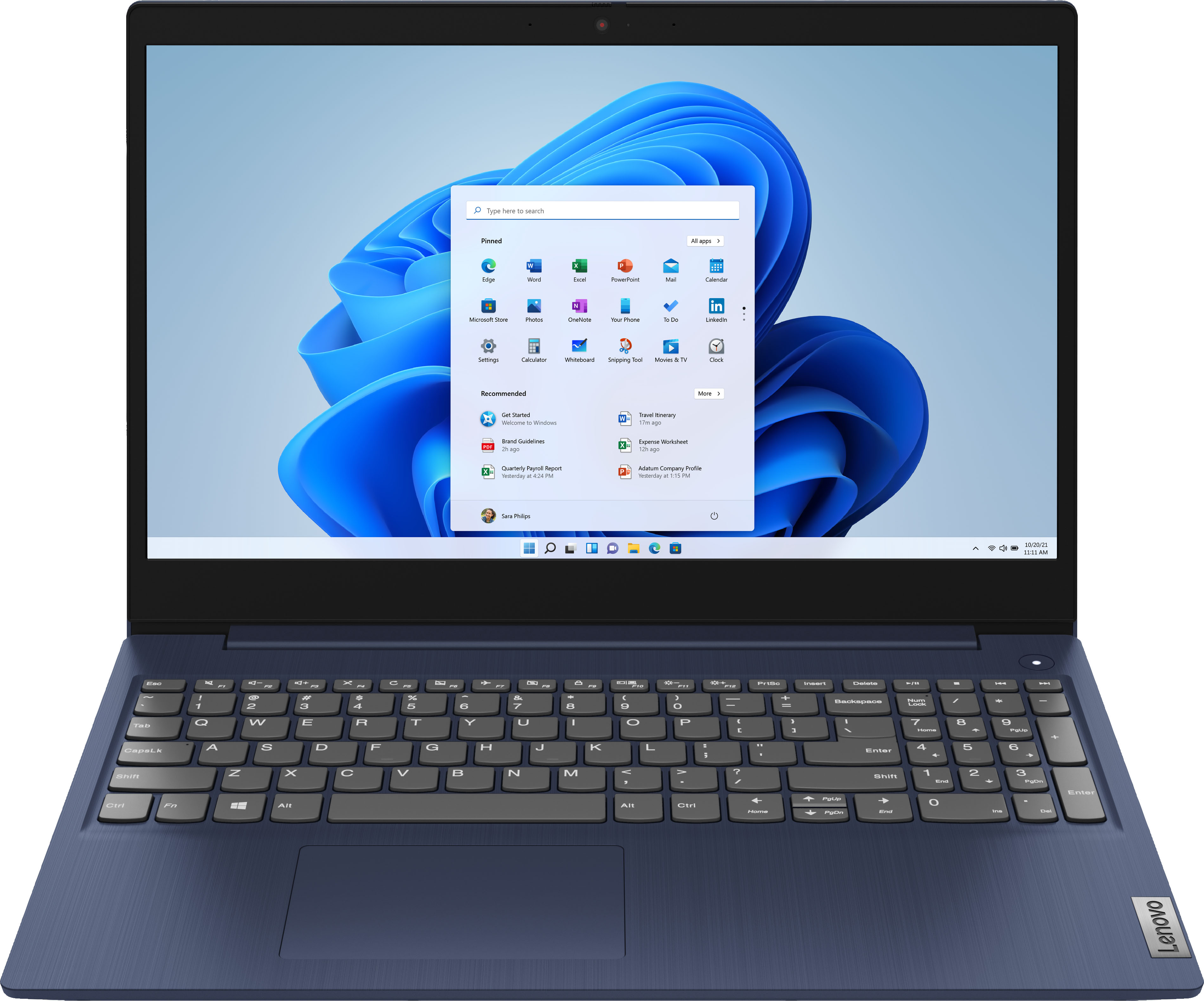
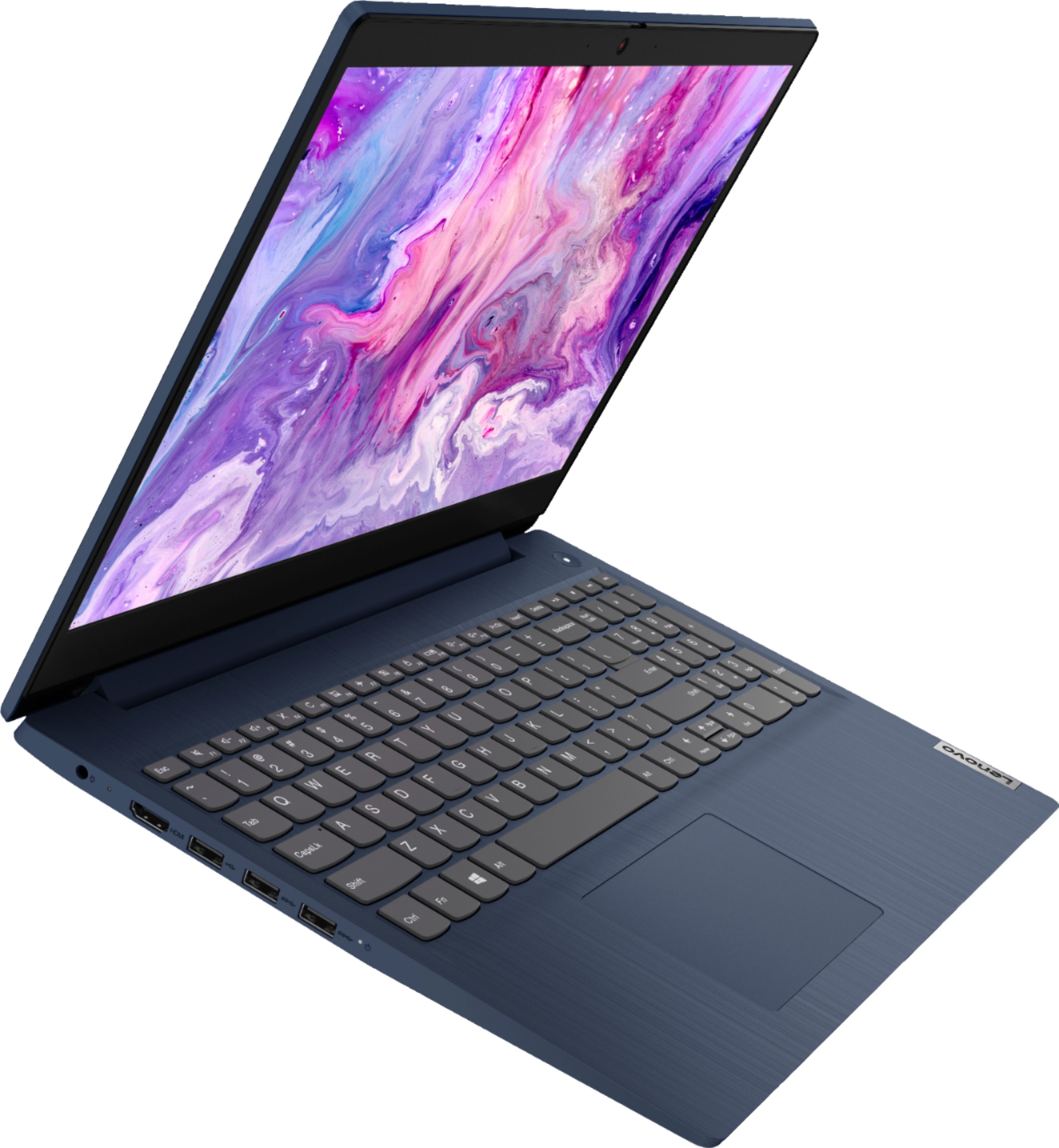
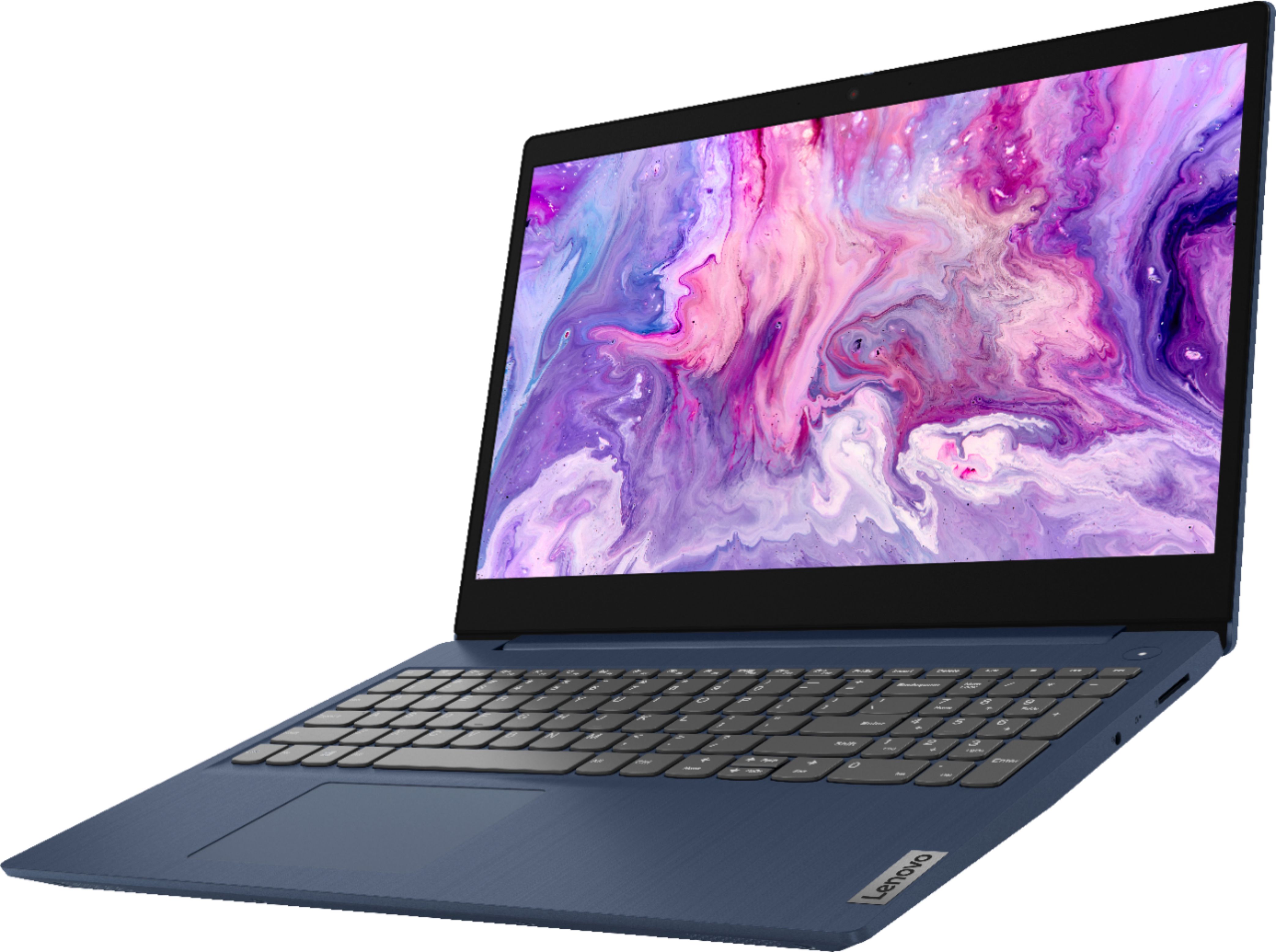
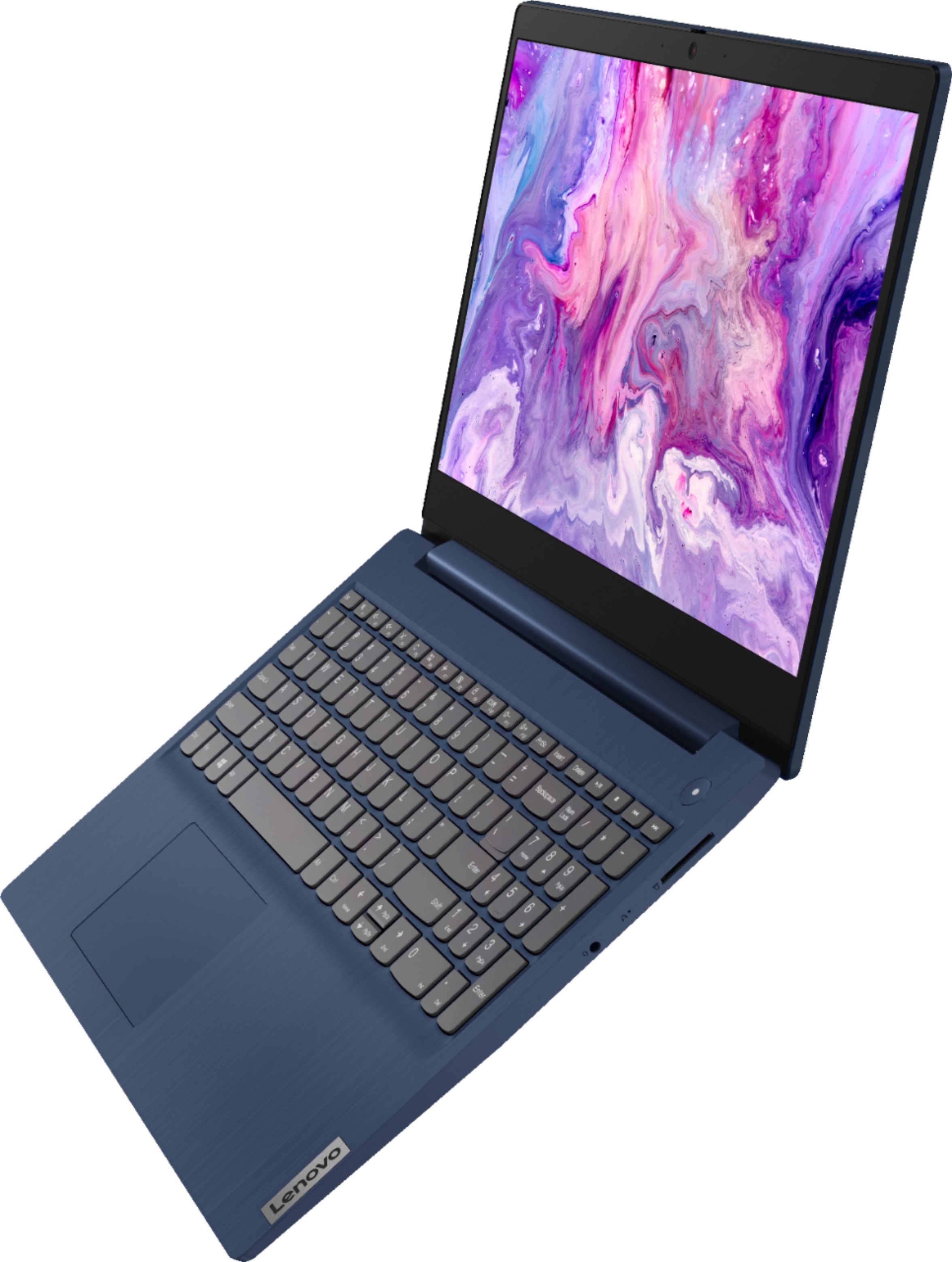
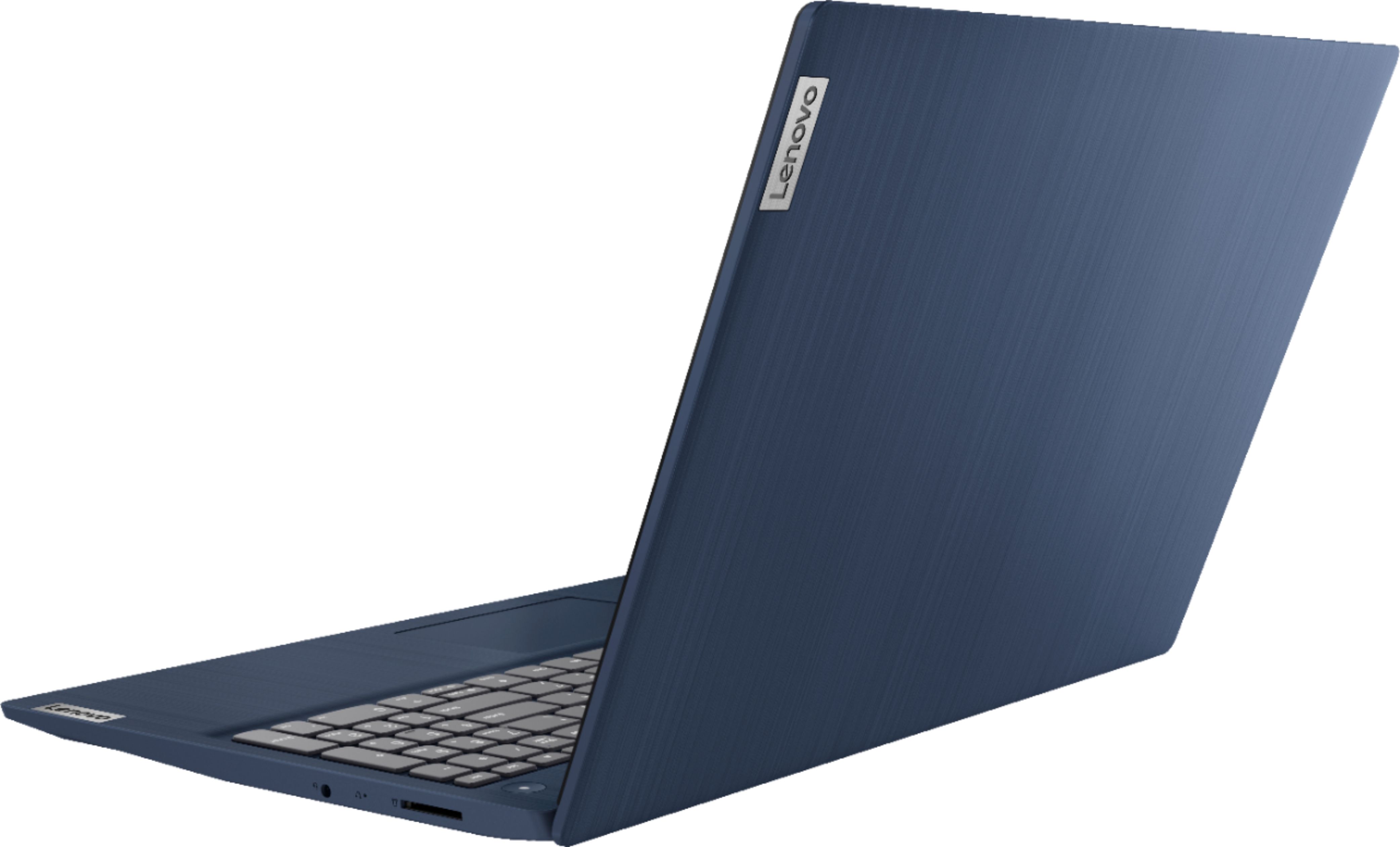
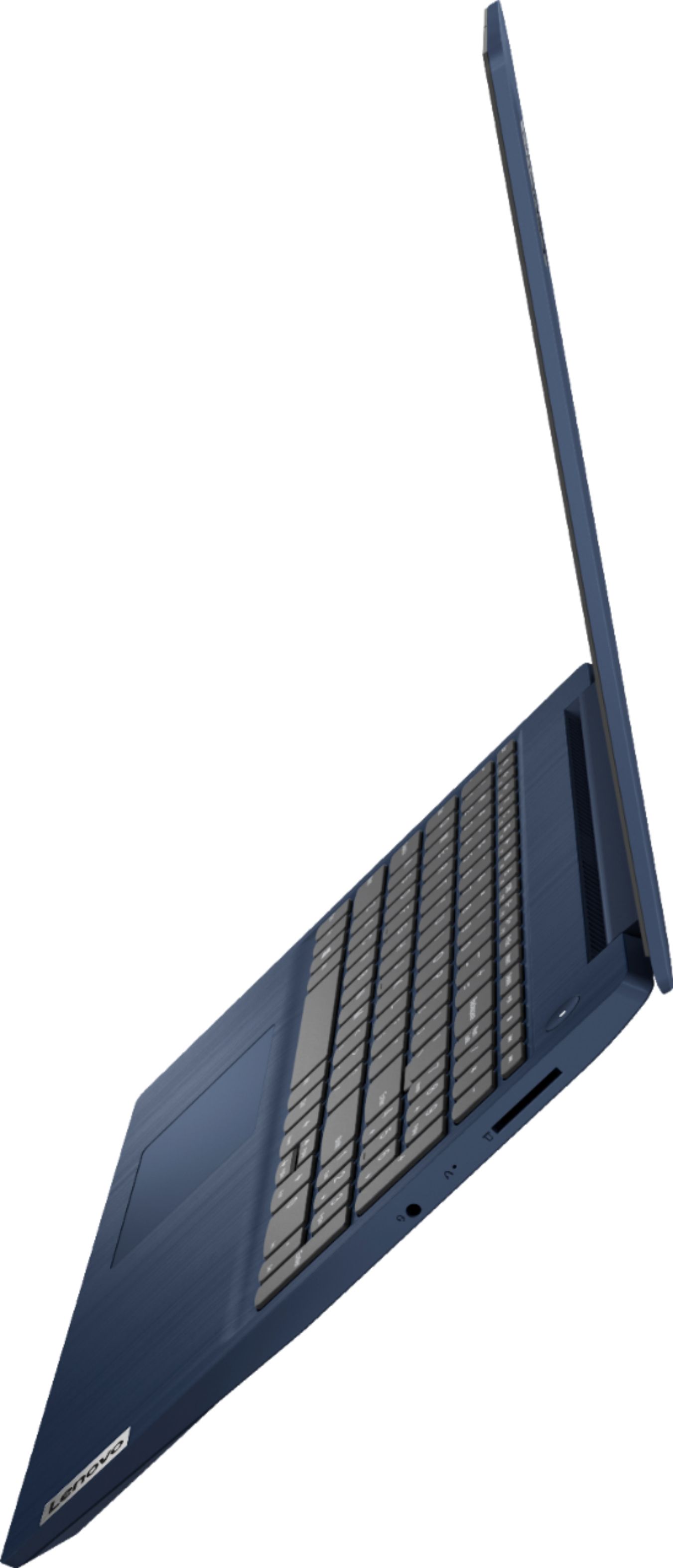
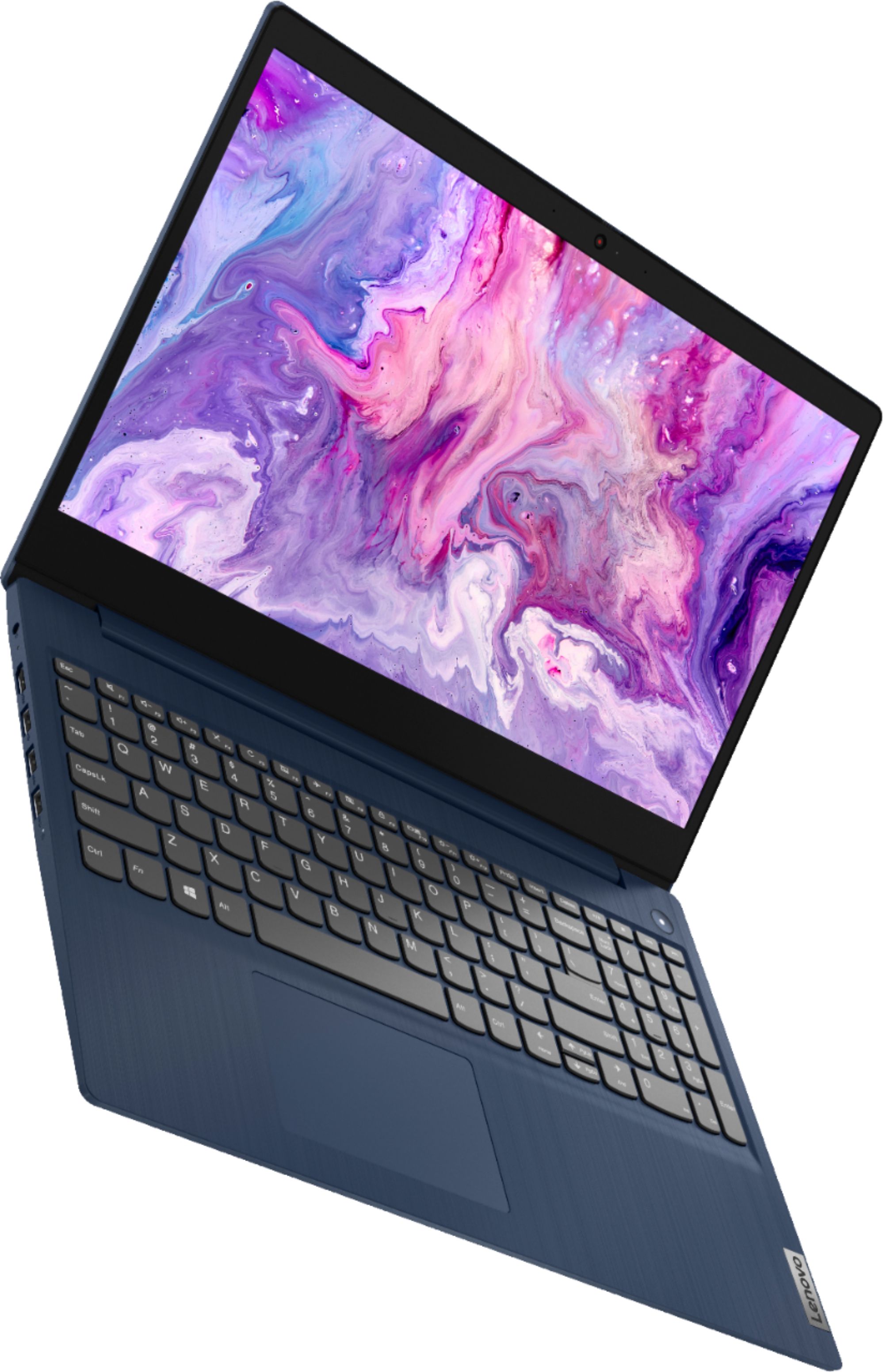
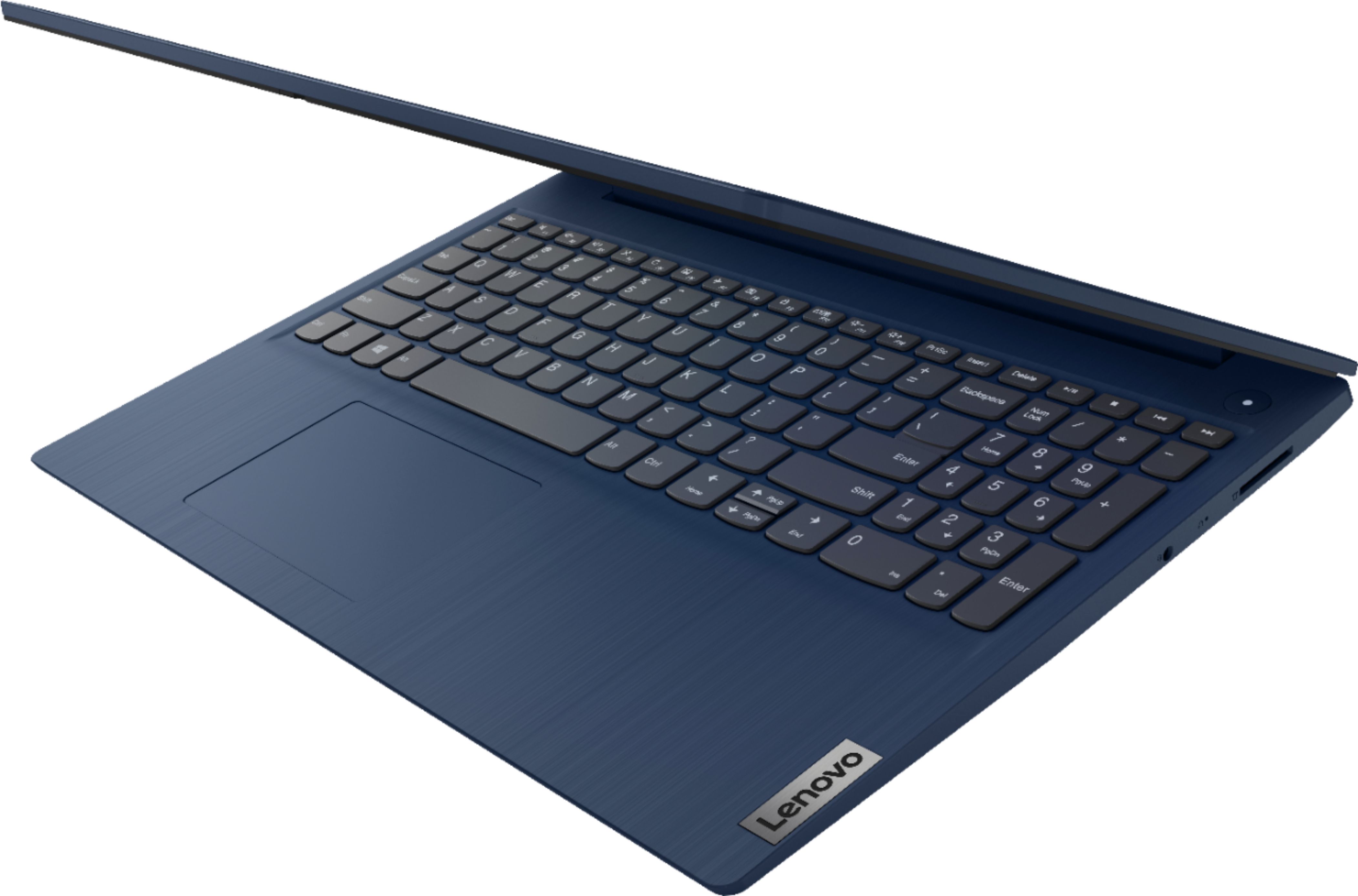
- Model:
- 81WR000FUS
- SKU:
- 6449496
Rating by feature
- Battery Life
Rating 4.4 out of 5 stars
- Speed
Rating 4.5 out of 5 stars
- Display
Rating 4.5 out of 5 stars
Customers are saying
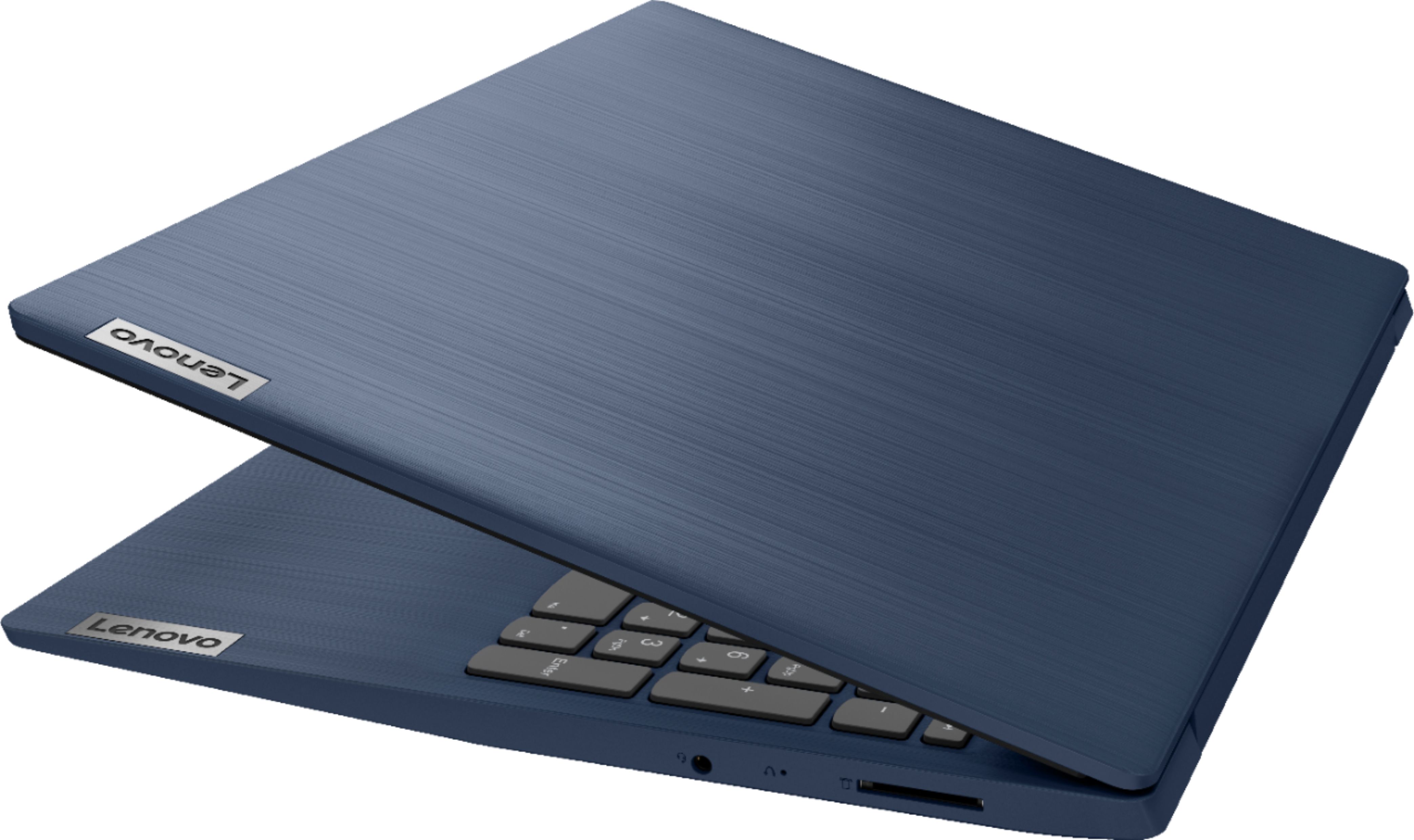
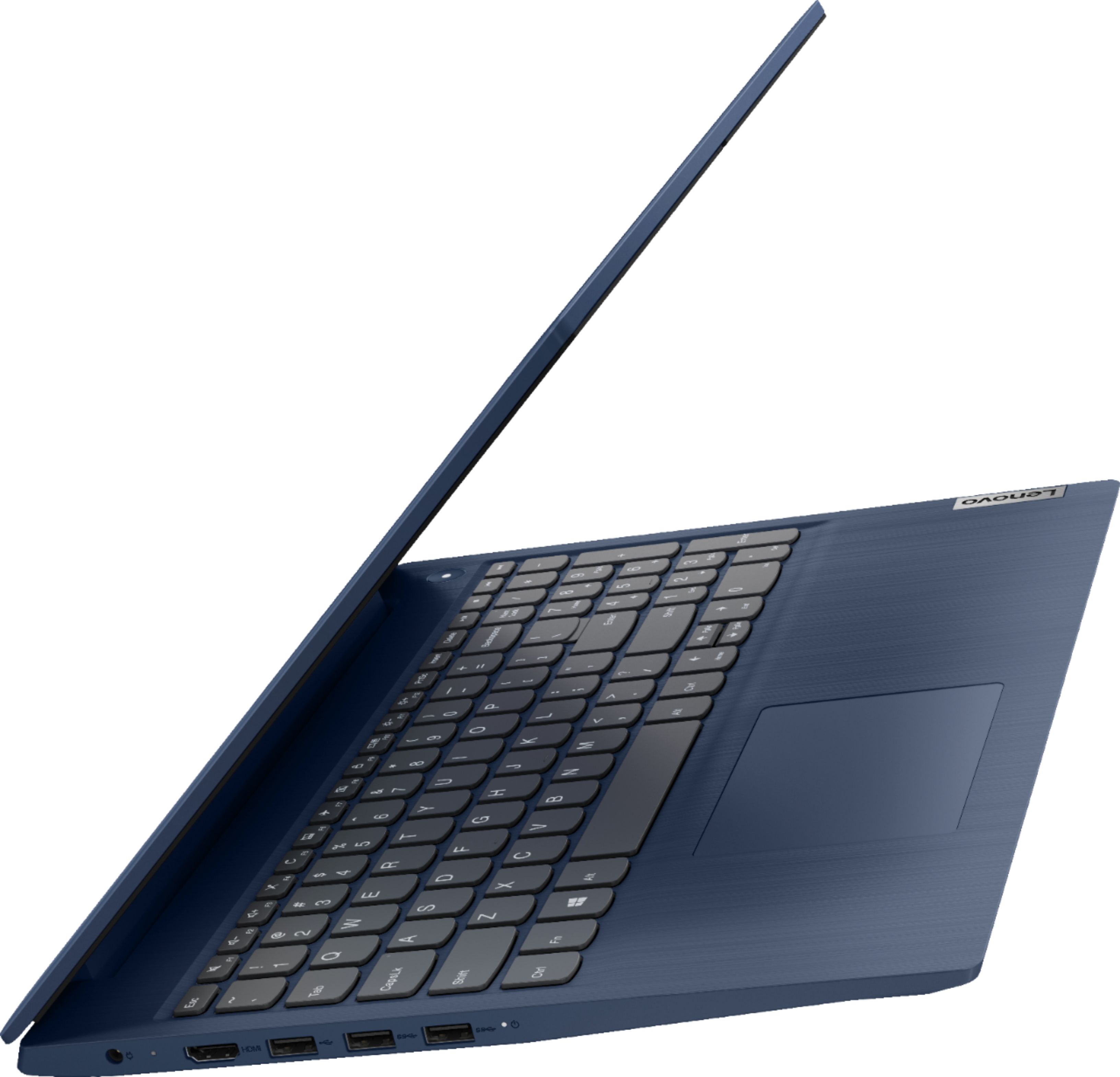
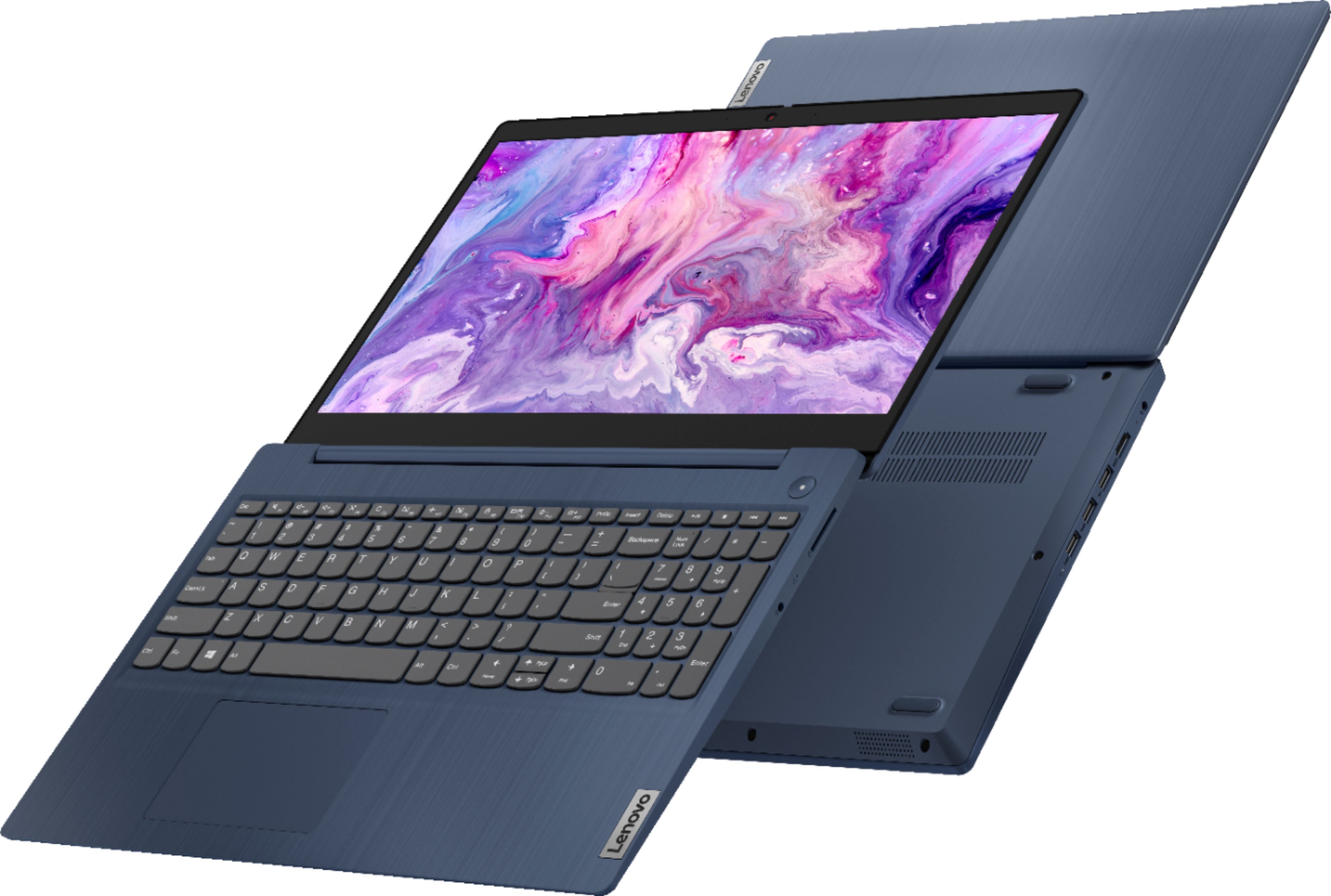
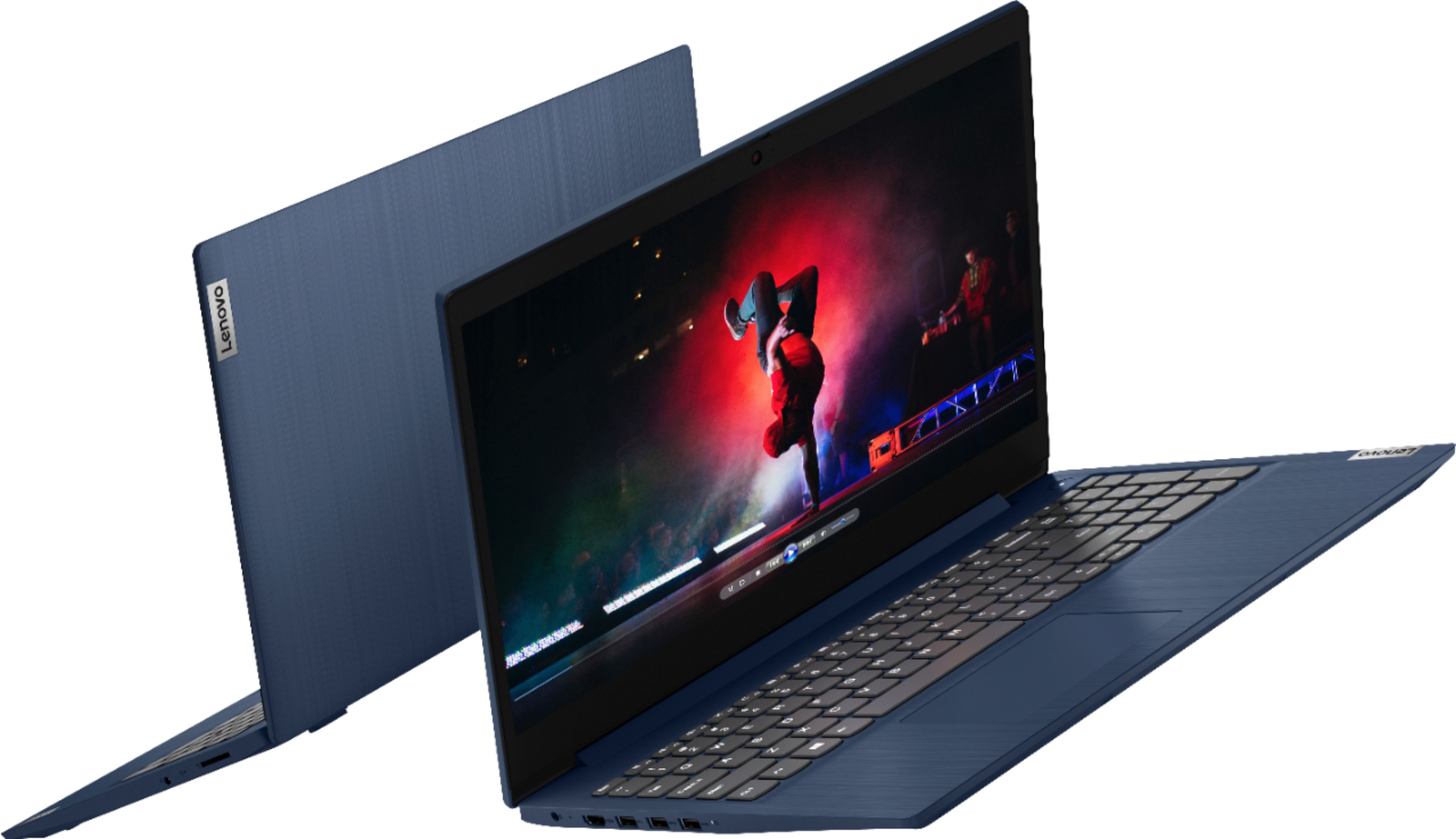
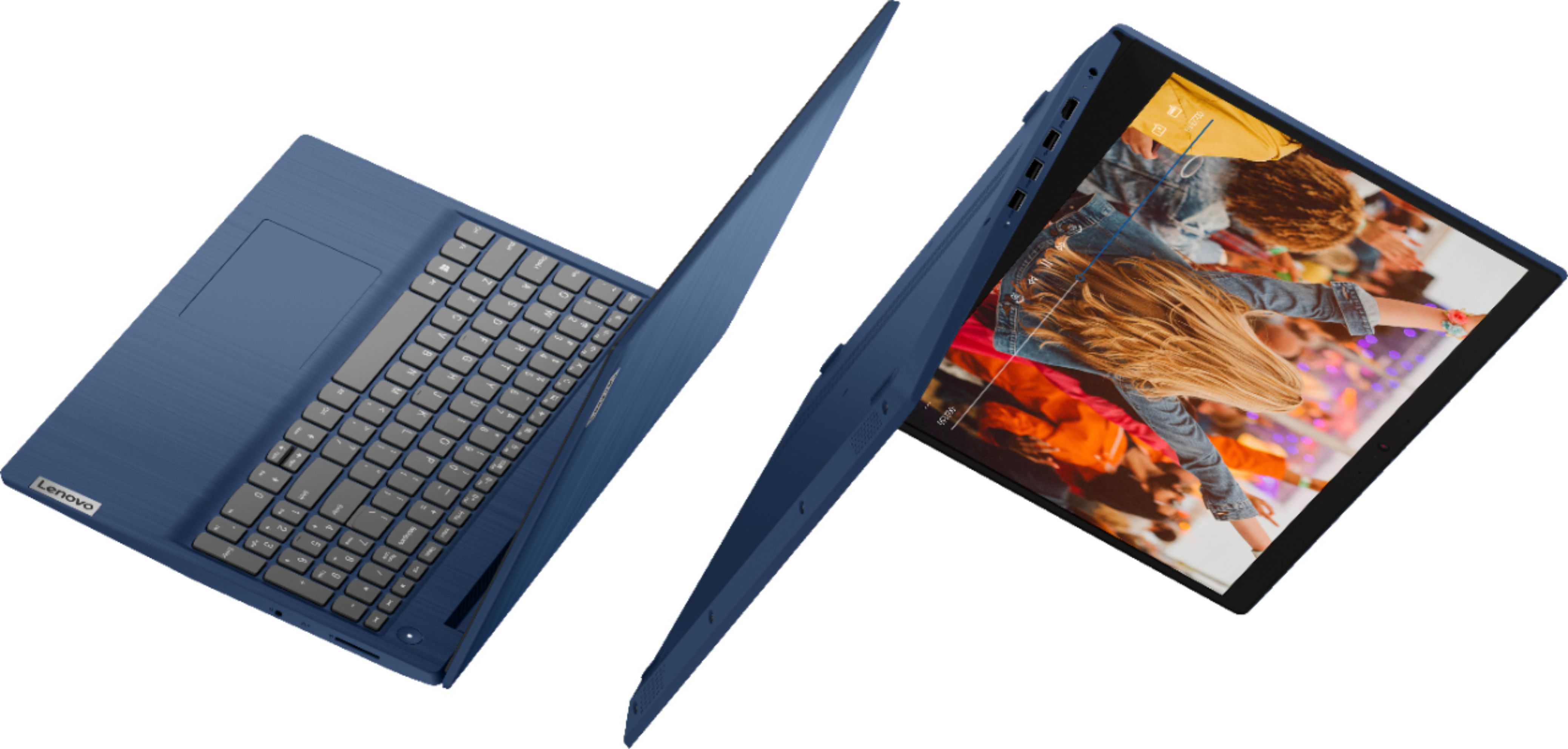
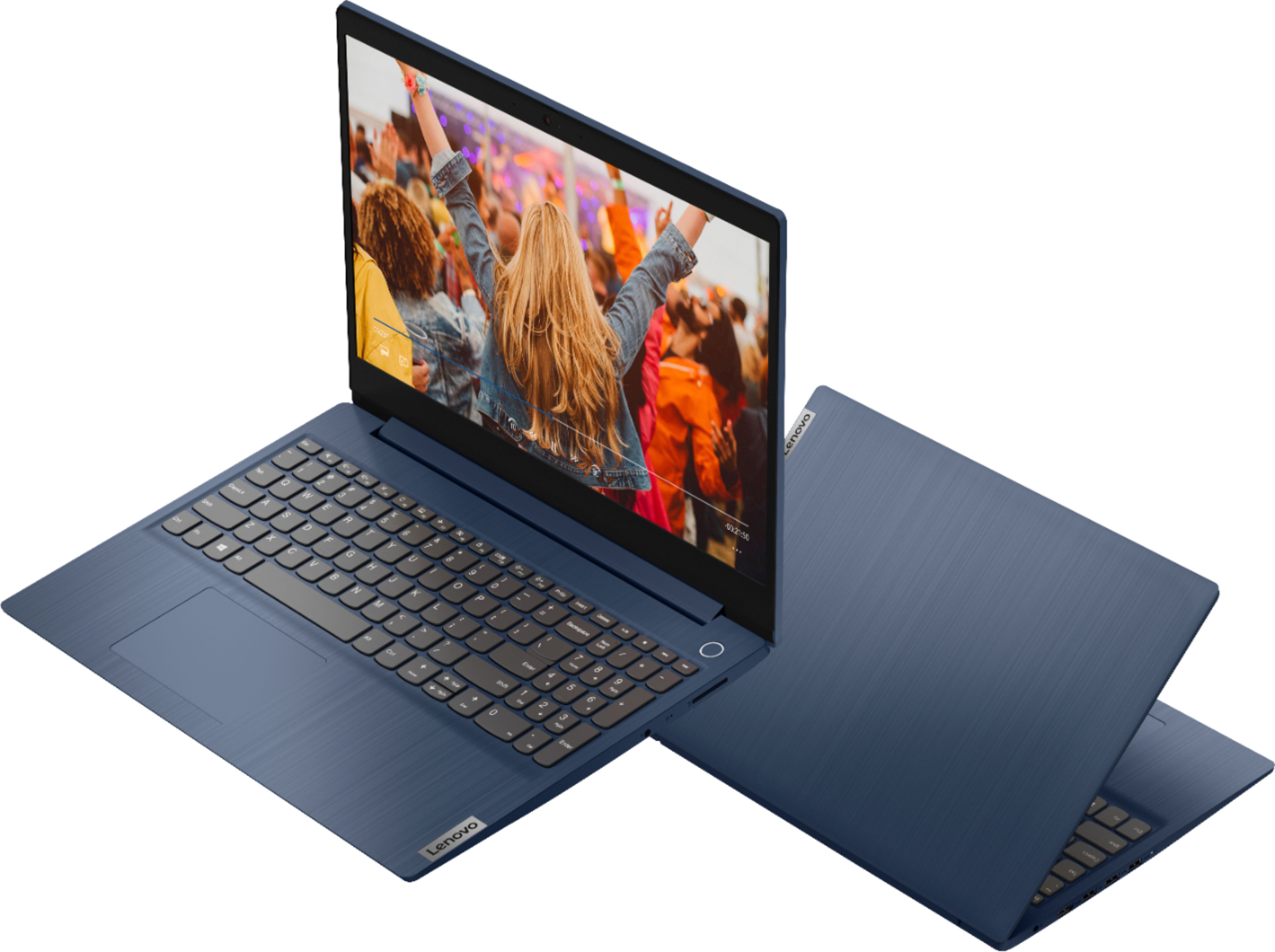
Customers praise the Ideapad 3 15 for its affordability, touch screen capabilities, and fast performance. Many users appreciate its lightweight design and vibrant color options. While some users have concerns about battery life, most find it to be a great value for the price.
This summary was generated by AI based on customer reviews.
Not Bad
||Posted . Owned for less than 1 week when reviewed.This reviewer received promo considerations or sweepstakes entry for writing a review.Working well so far. The charging power cable is rather short though. Doesn’t have keyboard backlight.
I would recommend this to a friendSlow
||Posted . Owned for 3 months when reviewed.This reviewer received promo considerations or sweepstakes entry for writing a review.Slow and sluggish. Got it for school and its hard to run much of any program on this computer.
No, I would not recommend this to a friendBrand response from Lenovo Product Expert
Posted .We are sorry to hear that you are having issues with your Lenovo IdeaPad 3 15 laptop, model number 81WR000FUS. This is a fast configuration for general lite to moderate workloads, configured with its 10th Gen 2-Core/4-Thread Intel Core i3-10110U Processor with a base speed of 2.1GHz and a boost speed of up to 4.1GHz. This processor is supported by 8GB DDR4-2666MHz RAM and a 256GB M.2 2242 PCIe 3.0x2 NVMe solid state hard drive. If you are getting slower than expected performance, even if you have switched out of S-Mode, be sure any software you installed is compatible with Windows 10. There is no need to install Microsoft Office software. The software is already part of the operating system, you just need to activate the software with a purchased product key. If you have installed a copy of Microsoft Office, this is conflicting with the existing copy on the system and this will slow your system down. If you have installed a 3rd party anti-virus program, be sure that Windows Defender is turned off and that the trial version of McAfee Anti-Virus software is uninstalled. There can only be one anti-virus program on the system. You may need to restore your system to original factory default settings if any of the programming errors have occurred. You can do that by typing "restore" in the Cortana search window. Just click on the magnifying glass icon at the bottom left of your Windows 10 Desktop. Click on "Reset This PC" Then click on "Get Started" and follow the on screen directions to restore to factory defaults. If the problem persists, we recommend you contact Lenovo Tech Support at: 877-453-6686.

- Pros mentioned:Ease of use
My new laptop could have went to the wrong hands!!
||Posted .This reviewer received promo considerations or sweepstakes entry for writing a review.I picked up a laptop without having to show anything but an email. The representative never asked me for ID, nor ask any identifying questions. My new laptop was a gift, its a shame to think anyone could have walked in and picked it up with a screen shoot of the order info.
No, I would not recommend this to a friend Lenovo
||Posted .This reviewer received promo considerations or sweepstakes entry for writing a review.I loved the price but I am giving this laptop 3 stars because it freezes for time to time.
No, I would not recommend this to a friendBrand response from Lenovo Product Expert
Posted .We are sorry to hear that you are having issues with your Lenovo IdeaPad 3 15 laptop, model number 81WR000FUS. This model ships with Windows 10 S-Mode 64-bit Operating System installed and should not freeze. Even if you have switched out of S-Mode, be sure any software you installed is compatible with Windows 10. There is no need to install Microsoft Office software. The software is already part of the operating system, you just need to activate the software with a purchased product key. If you have installed a copy of Microsoft Office, this is conflicting with the existing copy on the system and this will slow your system down. If you have installed a 3rd party anti-virus program, be sure that Windows Defender is turned off and that the trial version of McAfee Anti-Virus software is uninstalled. There can only be one anti-virus program on the system. You may need to restore your system to original factory default settings if any of the programming errors have occurred. You can do that by typing "restore" in the Cortana search window. Just click on the magnifying glass icon at the bottom left of your Windows 10 Desktop. Click on "Reset This PC" Then click on "Get Started" and follow the on screen directions to restore to factory defaults. If the problem persists, we recommend you contact Lenovo Tech Support at: 877-453-6686.
Definitely a mistake
||Posted . Owned for 1 month when reviewed.This reviewer received promo considerations or sweepstakes entry for writing a review.The first one I got I had to return after the left side speaker was broken out the box and the second one was fine for 2 months but now if i move it (a little harder than babying it ) while on the screen freezes and pixel lines show up but fixes itself when restarted
No, I would not recommend this to a friendBrand response from Lenovo Product Expert
Posted .We are sorry to hear that you are having issues with your Lenovo Ideapad 3 15 laptop, model number 81WR000FUS. First, be sure any software you installed is compatible with Windows 10. There is no need to install Microsoft Office software. The software is already part of the operating system, you just need to activate the software with a purchased product key. If you have installed a copy of Microsoft Office, this is conflicting with the existing copy on the system and this will slow your system down. If you have installed a 3rd party anti-virus program, be sure that Windows Defender is turned off and that the trial version of McAfee Anti-Virus software is uninstalled. There can only be one anti-virus program on the system. You may need to restore your system to original factory default settings if any of the programming errors have occurred. You can do that by typing "restore" in the Cortana search window. Just click on the magnifying glass icon at the bottom left of your Windows 10 Desktop. Click on "Reset This PC" Then click on "Get Started" and follow the on screen directions to restore to factory defaults. If there is no incompatible software installed but the issues persist, check to be sure you have the latest version of Windows 10 on the computer. Then update all BIOS files and drivers up to that latest version of Windows 10. You can easily accomplish this by scanning the computer with the Lenovo Utility software available on this computer. This system has Lenovo utilities installed to help maintain the health of the device and keep the operating system software up to date. Type "Lenovo Vantage" in the Cortana Search window (if Lenovo Vantage is not installed on your device, you can download the APP and install it now). Select Lenovo Vantage from the list. In the window that opens, click on "Health and Support". In the expanded menu, select "Hardware Scan" In the window that opens, select "Run Quick Tests". This will scan your entire system for errors. Follow any directions that may pop up. If the problem continues after this scan, now click on "System Update". First select Windows update from the menu. Scan your system to be sure you have the latest version of Windows 10. Once that scan is complete, select "Additional Updates". This will scan your device to be sure there are no new BIOS/Driver updates needed. Follow any instructions that may pop up. If the issue still continues after these updates, we recommend you call Lenovo Tech Support at: 877-453-6686 for additional help.
Cheap plastic toy
||Posted . Owned for 1 month when reviewed.This reviewer received promo considerations or sweepstakes entry for writing a review.Very cheaply made. First accidental fall and it's broken. My daughters slid off the bed and barley hit a carpeted floor and broke the corner leaving the inside exposed. This fell on carpet less then 2ft drop. Will never buy this brand again. Very cheaply made.
No, I would not recommend this to a friendContrast
||Posted . Owned for 1 month when reviewed.This reviewer received promo considerations or sweepstakes entry for writing a review.I love the pc just wish the display h Was better I've tried to fix the contrast.
I would recommend this to a friendLenovo
||Posted . Owned for 1 month when reviewed.This reviewer received promo considerations or sweepstakes entry for writing a review.Not bad at all, just keeps telling me it needs an update after i already did it.
I would recommend this to a friendBrand response from Lenovo Product Expert
Posted .We are sorry to hear that you are having issues completing an update for your Lenovo IdeaPad 3 15 Laptop, model number 81WR000FUS. It is possible that the update has not fully completed and that is the reason you are continuing to get the message that you need the update. Try restarting your computer to see if the message about needing the update clears and no longer shows the update is still needed. If the update required message continues after the restart, try using the Lenovo Vantage Utility software installed on this computer to look for all updates needed. It could be some needed updates are being missed. Type "Lenovo Vantage" in the Cortana Search window (if Lenovo Vantage is not installed on your device, you can download the APP and install it now). Select Lenovo Vantage from the list. In the window that opens, click on "Health and Support". In the expanded menu, select "Hardware Scan" In the window that opens, select "Run Quick Tests". This will scan your entire system for errors. Follow any directions that may pop up. If the problem continues after this scan, now click on "System Update". First select Windows update from the menu. Scan your system to be sure you have the latest version of Windows 10. Once that scan is complete, select "Additional Updates". This will scan your device to be sure there are no new BIOS/Driver updates needed. Follow any instructions that may pop up. If the issue still continues after these updates, we recommend you call Lenovo Tech Support at: 877-453-6686 for additional help.
ok
||Posted .This reviewer received promo considerations or sweepstakes entry for writing a review.just barely ok to use this computer, and for the price i will just live with it
No, I would not recommend this to a friendBrand response from Lenovo Product Expert
Posted .We are sorry to hear that you are having issues with your Lenovo IdeaPad 3 15 laptop, model number 81WR000FUS. If you are having an issue with the IdeaPad 3 15, we recommend you contact lenovo Tech Support for help at: 877-453-6686.
So so
||Posted . Owned for 1 month when reviewed.This reviewer received promo considerations or sweepstakes entry for writing a review.Kinda slow for a brand new computer but overall its nice for the price
I would recommend this to a friendOkay
||Posted . Owned for 7 months when reviewed.This reviewer received promo considerations or sweepstakes entry for writing a review.No backlight. Had to take to the shop after screen blanked out.
No, I would not recommend this to a friendBattery life
||Posted .This reviewer received promo considerations or sweepstakes entry for writing a review.Reasonable price but Battery life and screen resolution is very low.
No, I would not recommend this to a friendBrand response from Lenovo Product Expert
Posted .This Lenovo IdeaPad 3 15 laptop, model number 81WR000FUS, ships with a 15.6 inch (screen size measured diagonally) TN - HD (1366x768) 10-point Multi-touch screen, with a brightness level of 220 nits and has an Anti-glare coating. This model also ships with a Integrated 35Wh, Lithium-Polymer Battery, which within this configuration, has a battery life of up to 7 hours, depending on the work the device is performing. If you are getting substantially less battery life, first, set your screen brightness at less than 100-percent - try 80-percent to start with. Then, be sure Battery conservation Mode is turned off. This power management setting should only be used when the laptop is plugged in all the time. It will prolong overall battery life by only charging the battery to 60-percent of capacity. Here is a link to instructions for turning off Battery Conservation Mode: https://support.lenovo.com/us/en/solutions/ht103159. Also check what programs are running in the background on the computer. Be sure only the programs you want running in the background are. These programs will drain the battery. Here is a link to information about how to find out what programs are running in the background on your Windows 10 computer and how to manage them for better system performance: https://www.windowscentral.com/how-prevent-apps-running-background-windows-10. Then, finally, be sure any software you installed is compatible with Windows 10. Incompatible software will drain the battery at a faster rate. There is no need to install Microsoft Office software. The software is already part of the operating system, you just need to activate the software with a purchased product key. If you have installed a copy of Microsoft Office, this is conflicting with the existing copy on the system and this will slow your system down. If you have installed a 3rd party anti-virus program, be sure that Windows Defender is turned off and that the trial version of McAfee Anti-Virus software is uninstalled. There can only be one anti-virus program on the system. You may need to restore your system to original factory default settings if any of the programming errors have occurred. You can do that by typing "restore" in the Cortana search window. Just click on the magnifying glass icon at the bottom left of your Windows 10 Desktop. Click on "Reset This PC" Then click on "Get Started" and follow the on screen directions to restore to factory defaults. If the problem persists, we recommend you contact Lenovo Tech Support at: 877-453-6686.
ok
||Posted .This reviewer received promo considerations or sweepstakes entry for writing a review.Ok I will remember to send it to my family members and friends
I would recommend this to a friendStudent
||Posted .This reviewer received promo considerations or sweepstakes entry for writing a review.Great took little more than expected time rushing to close the store!
I would recommend this to a friendDull touch screen
||Posted . Owned for 3 weeks when reviewed.This reviewer received promo considerations or sweepstakes entry for writing a review.The screen is dull, the two-cell battery does not last long,
No, I would not recommend this to a friendBrand response from Lenovo Product Expert
Posted .This Lenovo IdeaPad 3 15 Laptop, model number 81WR000FUS, ships with a Integrated 35Wh, Lithium-Polymer Battery, which within this configuration, has a battery life of up to 7 hours, depending on the work the device is performing. If you are getting substantially less battery life, first, set your screen brightness at less than 100-percent - try 80-percent to start with. Then, be sure Battery conservation Mode is turned off. This power management setting should only be used when the laptop is plugged in all the time. It will prolong overall battery life by only charging the battery to 60-percent of capacity. Here is a link to instructions for turning off Battery Conservation Mode: https://support.lenovo.com/us/en/solutions/ht103159. Also check what programs are running in the background on the computer. Be sure only the programs you want running in the background are. These programs will drain the battery. Here is a link to information about how to find out what programs are running in the background on your Windows 10 computer and how to manage them for better system performance: https://www.windowscentral.com/how-prevent-apps-running-background-windows-10. Then, finally, be sure any software you installed is compatible with Windows 10. Incompatible software will drain the battery at a faster rate. There is no need to install Microsoft Office software. The software is already part of the operating system, you just need to activate the software with a purchased product key. If you have installed a copy of Microsoft Office, this is conflicting with the existing copy on the system and this will slow your system down. If you have installed a 3rd party anti-virus program, be sure that Windows Defender is turned off and that the trial version of McAfee Anti-Virus software is uninstalled. There can only be one anti-virus program on the system. You may need to restore your system to original factory default settings if any of the programming errors have occurred. You can do that by typing "restore" in the Cortana search window. Just click on the magnifying glass icon at the bottom left of your Windows 10 Desktop. Click on "Reset This PC" Then click on "Get Started" and follow the on screen directions to restore to factory defaults. If the problem persists, we recommend you contact Lenovo Tech Support at: 877-453-6686.
Ok
||Posted .This reviewer received promo considerations or sweepstakes entry for writing a review.This device was kind of sluggish and didn't have HD display.
No, I would not recommend this to a friendUsefriendly for
||Posted . Owned for 1 month when reviewed.This reviewer received promo considerations or sweepstakes entry for writing a review.Decent but scarce instruction for applications for cross platforms
I would recommend this to a friendGood laptop
||Posted . Owned for 1 week when reviewed.This reviewer received promo considerations or sweepstakes entry for writing a review.Good laptop for basic use. I bought this for my kid.
No, I would not recommend this to a friendScreen
||Posted . Owned for 1 month when reviewed.This reviewer received promo considerations or sweepstakes entry for writing a review.They screen is not the good can't see it very well
No, I would not recommend this to a friendBrand response from Lenovo Product Expert
Posted .The Lenovo IdeaPad 3 15 Laptop, model number 81WR000FUS, ships with a 15.6 inch (screen size measured diagonally) TN - HD (1366x768) 10-point Multi-touch screen, with a brightness level of 220 nits and has an Anti-glare coating. If you are getting less than expected display image quality, be sure to check your display settings. Here is a link to instructions for doing this: https://support.microsoft.com/en-us/windows/view-display-settings-in-windows-37f0e05e-98a9-474c-317a-e85422daa8bb. If you continue to have issues, we recommend you contact Lenovo Tech Support for additional help at: 877-453-6686.
Issues with USB-C
||Posted .This reviewer received promo considerations or sweepstakes entry for writing a review.Wish the computer came equipped with a USB-C port.
No, I would not recommend this to a friend